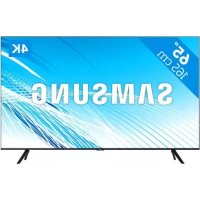
UHD 65TU8000 - TV SAMSUNG - Free user manual and instructions
Find the device manual for free UHD 65TU8000 SAMSUNG in PDF.


| Product Type | UHD 4K TV |
| Brand | Samsung |
| Model | UHD 65TU8000 |
| Screen Size | 65 inches (163 cm diagonal) |
| Resolution | 3840 x 2160 (4K UHD) |
| Sound Output | 40 W |
| Body Dimensions (W x H x D) | 1453.9 x 829.4 x 45.8 mm |
| Dimensions with Stand (W x H x D) | 1453.9 x 876.5 x 290.8 mm |
| Weight without Stand | 25.2 kg |
| Weight with Stand | 25.5 kg |
| Power Supply | AC 100-240 V, 50/60 Hz (typical consumption: 250 W) |
| Connectivity | Wi-Fi, Bluetooth, One Connect (Invisible Connection), HDMI ports, USB, LAN |
| Main Features | Smart TV, Graphic mode (display of artworks), Bixby voice assistant, Smart Remote, motion detector, Eco sensor |
| Wall Mount | VESA compatible 400 x 300 mm |
| Care and Cleaning | Soft dry cloth; do not use chemicals; unplug before cleaning |
| Safety | Wall mount recommended; do not block ventilation; disconnect during storms |
| Spare Parts and Repairability | Contact an authorized Samsung service center; do not open the product yourself |
| General Information | User manual available online; software update via Update Now; remote assistance available |
Frequently Asked Questions - UHD 65TU8000 SAMSUNG
User questions about UHD 65TU8000 SAMSUNG
0 question about this device. Answer the ones you know or ask your own.
Ask a new question about this device
Download the instructions for your TV in PDF format for free! Find your manual UHD 65TU8000 - SAMSUNG and take your electronic device back in hand. On this page are published all the documents necessary for the use of your device. UHD 65TU8000 by SAMSUNG.
USER MANUAL UHD 65TU8000 SAMSUNG
natural_image
Decorative swirl design with dotted border (no text or symbols)
text_image
ARTThe Frame
LS03T
Before Reading This User Manual
This TV comes with this user manual and an embedded e-Manual. Before reading this user manual, review the following:
 | User Manual | Read this provided user manual to see information about product safety, installation, accessories, initial configuration, and product specifications. |
 | e-Manual | For more information about this TV, read the e-Manual embedded in the product.To open the e-Manual,Settings > Support > Open e-Manual |
On the website (www.samsung.com), you can download the manuals and see its contents on your PC or mobile device.
Learning the e-Manual's assistance functions
• Some menu screens cannot be accessed from the e-Manual.
 | Search | Select an item from the search results to load the corresponding page. |
 | Index | Select a keyword to navigate to the relevant page.- The menus may not appear depending on the geographical area. |
 | Site Map | It displays the lists for each item in e-Manual. |
 | Recent pages | Select a topic from the list of recently viewed topics. |
Learning the functions of the buttons that appear on e-Manual topic pages
 | Try Now | Allows you to access the corresponding menu item and try out the feature right away. |
| [HAXS] | Link | Access an underlined topic referred to on an e-Manual page immediately. |
English - 2
Warning! Important Safety Instructions
Please read the Safety Instructions before using your TV.
Refer to the table below for an explanation of symbols which may be on your Samsung product.
| CAUTION |  | Class II product: This symbol indicates that a safety connection to electrical earth (ground) is not required. If this symbol is not present on a product with a mains lead, the product MUST have a reliable connection to protective earth (ground). | |
| RISK OF ELECTRIC SHOCK. DO NOT OPEN. | |||
| CAUTION: TO REDUCE THE RISK OF ELECTRIC SHOCK, DO NOT REMOVE COVER (OR BACK). THERE ARE NO USER SERVICEABLE PARTS INSIDE. REFER ALL SERVICING TO QUALIFIED PERSONNEL. | 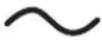 | AC voltage: Rated voltage marked with this symbol is AC voltage. | |
 | This symbol indicates that high voltage is present inside. It is dangerous to make any kind of contact with any internal part of this product. |  | DC voltage: Rated voltage marked with this symbol is DC voltage. |
 | This symbol indicates that this product has included important literature concerning operation and maintenance. | Caution. Consult instructions for use: This symbol instructs the user to consult the user manual for further safety related information. | |
- The slots and openings in the cabinet and in the back or bottom are provided for necessary ventilation. To ensure reliable operation of this apparatus and to protect it from overheating, these slots and openings must never be blocked or covered.
- Do not place this apparatus in a confined space, such as a bookcase or built-in cabinet, unless proper ventilation is provided.
- Do not place this apparatus near or over a radiator or heat register, or where it is exposed to direct sunlight.
-
Do not place vessels (vases etc.) containing water on this apparatus, as this can result in a fire or electric shock.
-
Do not expose this apparatus to rain or place it near water (near a bathtub, washbowl, kitchen sink, or laundry tub, in a wet basement, or near a swimming pool, etc.). If this apparatus accidentally gets wet, unplug it and contact an authorised dealer immediately.
- This apparatus uses batteries. In your community, there might be environmental regulations that require you to dispose of these batteries properly. Please contact your local authorities for disposal or recycling information.
- Do not overload wall outlets, extension cords, or adaptors beyond their capacity, since this can result in fire or electric shock.
-
Power-supply cords should be placed so that they are not likely to be walked on or pinched by items placed upon or against them. Pay particular attention to cords at the plug end, at wall outlets, and at the point where they exit from the appliance.
-
To protect this apparatus from a lightning storm, or when left unattended and unused for long periods of time, unplug it from the wall outlet and disconnect the antenna or cable system. This will prevent damage to the set due to lightning and power line surges.
- Before connecting the AC power cord to the DC adaptor outlet, make sure that the voltage designation of the DC adaptor corresponds to the local electrical supply.
- Never insert anything metallic into the open parts of this apparatus. This may cause a danger of electric shock.
- To avoid electric shock, never touch the inside of this apparatus. Only a qualified technician should open this apparatus.
- Be sure to plug in the power cord until it is firmly seated. When unplugging the power cord from a wall outlet, always pull on the power cord's plug. Never unplug it by pulling on the power cord. Do not touch the power cord with wet hands.
- If this apparatus does not operate normally - in particular, if there are any unusual sounds or smells coming from it - unplug it immediately and contact an authorised dealer or Samsung service centre.
- Be sure to pull the power plug out of the outlet if the TV is to remain unused or if you are going to leave the house for an extended period of time (especially when children, elderly, or disabled people will be left alone in the house).
- Accumulated dust can cause an electric shock, an electric leakage, or a fire by causing the power cord to generate sparks and heat or by causing the insulation to deteriorate.
- Be sure to contact an authorised Samsung service centre for information if you intend to install your TV in a location with heavy dust, high or low temperatures, high humidity, chemical substances, or where it will operate 24 hours a day such as in an airport, a train station, etc. Failure to do so may lead to serious damage to your TV.
- Use only a properly grounded plug and wall outlet.
- An improper ground may cause electric shock or equipment damage. (Class I Equipment only.)
- To turn off this apparatus completely, disconnect it from the wall outlet. To ensure you can unplug this apparatus quickly if necessary, make sure that the wall outlet and power plug are readily accessible.
- Store the accessories (batteries, etc.) in a location safely out of the reach of children.
- Do not drop or strike the product. If the product is damaged, disconnect the power cord and contact a Samsung service centre.
-
To clean this apparatus, unplug the power cord from the wall outlet and wipe the product with a soft, dry cloth. Do not use any chemicals such as wax, benzene, alcohol, thinners, insecticide, aerial fresheners, lubricants, or detergents. These chemicals can damage the appearance of the TV or erase the printing on the product.
-
Do not expose this apparatus to dripping or splashing.
- Do not dispose of batteries in a fire.
- Do not short-circuit, disassemble, or overheat the batteries.
- CAUTION: There is danger of an explosion if you replace the batteries used in the remote with the wrong type of battery. Replace only with the same or equivalent type.
* Figures and illustrations in this User Manual are provided for reference only and may differ from the actual product appearance. Product design and specifications may change without notice.
CIS languages (Russian, Ukrainian, Kazakhs) are not available for this product, since this is manufactured for customers in EU region.
Contents
Before Reading This User Manual 2
Warning! Important Safety Instructions 3
01 What's in the Box?
02 Connecting the TV to the One Connect
03 TV Installation
Mounting the TV on a wall 9
Providing proper ventilation for your TV 10
Safety Precaution: Securing the TV to the wall to
prevent falling 11
Precautions when installing the TV with a stand 12
04 Using Art Mode
Viewing images 14
Setting the style of the selected image 16
Setting up Art mode 17
Using Art mode with the SmartThings app 18
05 The Samsung Smart Remote
About the Buttons on the Samsung Smart Remote 19
Pairing the TV to the Samsung Smart Remote 20
Installing batteries into the Samsung Smart Remote 20
06 Running the Initial Setup
Using the TV Controller 22
07 Connecting to a Network
Network Connection - Wireless 23
Network Connection - Wired 23
08 Troubleshooting and Maintenance
Troubleshooting 24
Precautions when using Art mode 26
What is Remote Support? 27
Eco Sensor and screen brightness 27
Changing the TV's password 28
Caring for the TV 28
09 Specifications and Other Information
Specifications 29
Environmental Considerations 30
Decreasing power consumption 30
Licences 30
English - 5
01 What's in the Box?
Make sure the following items are included with your TV. If any items are missing, contact your dealer.
• Samsung Smart Remote & Batteries (AA x 2)
- User Manual
- Warranty Card / Regulatory Guide (Not available in some locations)
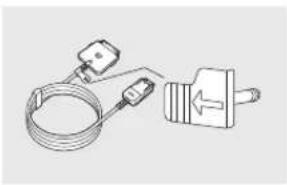
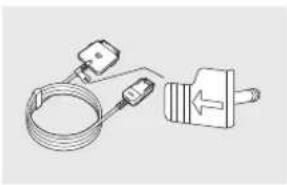
• One Connect Power Cable
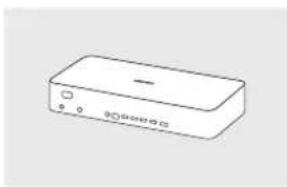
natural_image
Simple line drawing of a rectangular electronic device with no text or symbolsOne Connect
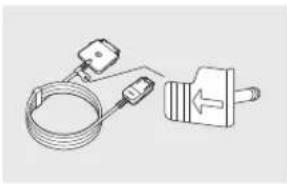
natural_image
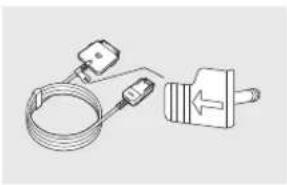
Technical line drawing of a coiled cable and a plug (no text or symbols)One Invisible Connection
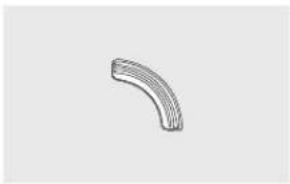
natural_image
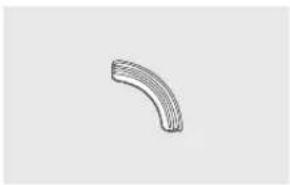
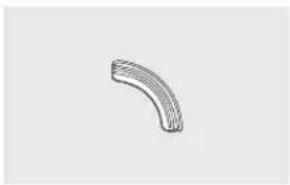
Simple 3D wireframe curved pipe segment (no text or symbols)Bending Cover Holder-Cable
natural_image
Simple line drawing of a ring or washer (no text or symbols)
natural_image
Simple line drawing of a mechanical component with no text or symbolsWall Mount Adapter (65"-75": Not available)
- The items' colours and shapes may vary depending on the models.
• Cables not included can be purchased separately. - Check for any accessories hidden behind or in the packing materials when opening the box.
An administration fee may be charged in the following situations:
(a) An engineer is called out at your request, but it is found that the product has no defect (i.e., where the user manual has not been read).
(b) You bring the unit to the Samsung service centre, but it is found that the product has no defect (i.e., where the user manual has not been read).
You will be informed of the administration fee amount before a technician visits.

Warning: Screens can be damaged from direct pressure when handled incorrectly. We recommend lifting the TV at the edges, as shown.
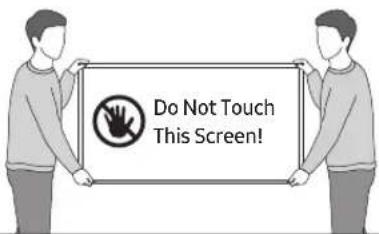
text_image
Do Not Touch This Screen!English - 6
02 Connecting the TV to the One Connect
text_image
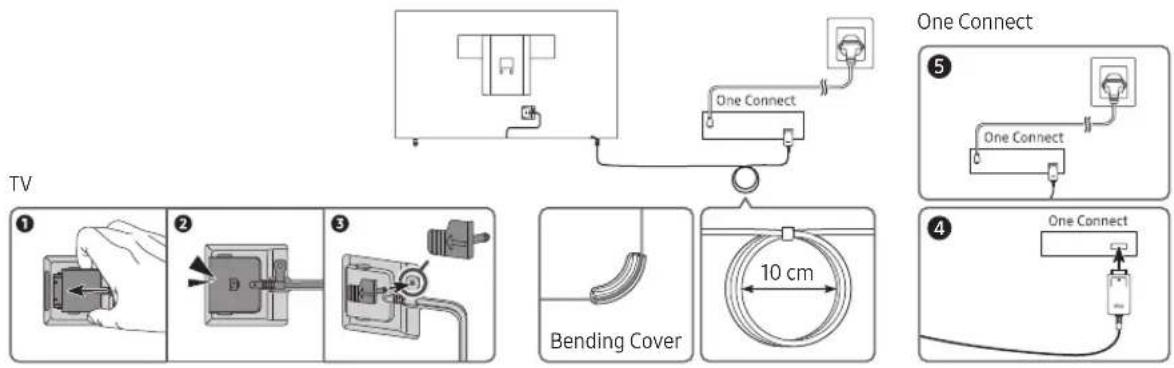
One Connect TV 1 2 3 Bending Cover 10 cm 4 One ConnectTo connect the One Invisible Connection to the One Connect and your TV, follow these steps:
- After the TV is completely set up and placed in its final position, connect the One Invisible Connection to the One Connect and the TV as shown in Steps 1 to 4 above.
WARNING: Make sure that both connectors are fully and firmly connected. If either connector is not connected properly, there is a danger of severe electric shock.
- Connect the One Connect AC power cord to the One Connect, and then connect the cord to a wall outlet as shown in Step 5 above.
WARNING: Follow the directions exactly. Be sure to connect the power cord to the wall outlet as the last step. Always disconnect the power cord from the wall outlet before disconnecting the One Invisible Connection from the back of the TV or from the One Connect.
– See the illustrated Quick Setup Guide for more information.
- Connect your peripherals (aerial, cable box, Blu-ray player, etc.) to the One Connect. See the Accessory Kit for details.

- Do not use the One Connect in the upside-down or upright position.
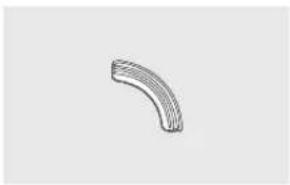
- When connecting the One Invisible Connection, use a Bending Cover, which prevents the cable of the One Invisible Connection from being bent at a 90 degree angle, to bend the cable. Failure to do so may cause damage to the cable.
- When connecting the One Invisible Connection, pay attention to the shapes and sizes of its connectors so that they are connected correctly. Failure to do so may cause product malfunction.
- When connecting the One Invisible Connection, be careful not to twist the cable of the One Invisible Connection. Failure to do so may cause performance degradation of the TV or damage to the cable.
- When arranging the remaining cable, refer to the figure on the previous page for the correct arrangement.
- Take care not to subject the cable to any of the actions below. The One Invisible Connection contains a power circuit. You could damage the cable and subject yourself to an electric shock.
- Handle the One Connect carefully. It is heavy.
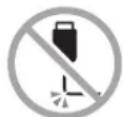

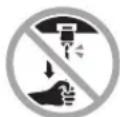
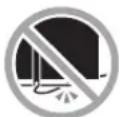
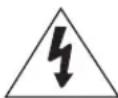
Bending Twisting Pulling Pressing on Electric shock
CLASS 1 LASER PRODUCT (One Invisible Connection)
- Caution - Invisible laser radiation when open. Do not stare into beam.
- Do not bend the One Invisible Connection cable excessively. Do not cut the cable.
- Do not place heavy objects on the cable.
- Do not disassemble either of the cable connectors.
- Caution - Use of controls, adjustments, or the performance of procedures other than those specified herein may result in hazardous radiation exposure.
03 TV Installation
Mounting the TV on a wall

If you mount this TV on a wall, follow the instructions exactly as set out by the manufacturer. Unless it is correctly mounted, the TV may slide or fall and cause serious injury to a child or adult and serious damage to the TV.
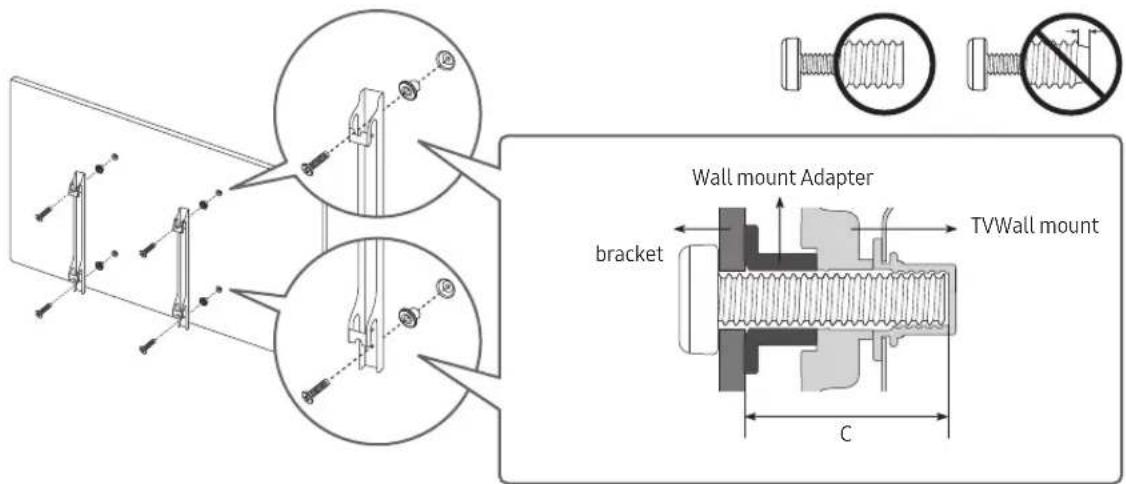
For models providing wall mount adapters, install them as shown in the figure below before installing the wall mount kit.
• Refer to the installation manual included with the Samsung wall mount kit.
text_image
Wall mount Adapter bracket TVWall mount C- The shape of the wall mount adapters may differ depending on the model.
-
For the 65-75 inch model, does not use wall mount adapters.
-
Samsung Electronics is not responsible for any damage to the product or injury to yourself or others if you choose to install the wall mount on your own.
- You can install your wall mount on a solid wall perpendicular to the floor. Before attaching the wall mount to surfaces other than plaster board, contact your nearest dealer for additional information. If you install the TV on a ceiling or slanted wall, it may fall and result in severe personal injury.
- Standard dimensions for wall mount kits are shown in the table on the next page.
- If you are installing a third-party wall mount, note that the length of the screws you can use to attach the TV to the wall mount is shown in column C in the table on the next page.
- When installing a wall mount kit, we recommend you fasten all four VESA screws.
- If you want to install a wall mount kit that attaches to the wall using two top screws only, be sure to use a Samsung wall mount kit that supports this type of installation. (You may not be able to purchase this type of wall mount kit, depending on the geographical region.)
| TV size in inches | VESA screw hole specs (A * B) in millimetres | C (mm) | Standard Screw | Quantity | 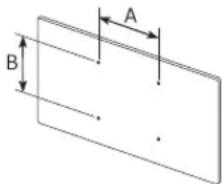 |
| 43 | 200 x 200 | 24-26 | M8 | 4 | |
| 50-55 27-29 | |||||
| 65 400 x | 300 24-26 | ||||
| 75 400 x | 400 26-28 |

Do not install your wall mount kit while your TV is turned on. This may result in personal injury from electric shock.
- Do not use screws that are longer than the standard dimension or do not comply with the VESA standard screw specifications. Screws that are too long may cause damage to the inside of the TV set.
- For wall mounts that do not comply with the VESA standard screw specifications, the length of the screws may differ depending on the wall mount specifications.
- Do not fasten the screws too firmly. This may damage the product or cause the product to fall, leading to personal injury. Samsung is not liable for these kinds of accidents.
- Samsung is not liable for product damage or personal injury when a non-VESA or non-specified wall mount is used or when the consumer fails to follow the product installation instructions.
- Do not mount the TV at more than a 15 degree tilt.
• Always have two people mount the TV onto a wall.
Providing proper ventilation for your TV
When you install your TV and One Connect, maintain a distance of at least 10 cm between the One Connect with other objects (walls, cabinet sides, etc.) to ensure proper ventilation. Failing to maintain proper ventilation may result in a fire or a problem with the product caused by an increase in its internal temperature.
- When you install your TV with a stand or a wall mount, we strongly recommend you use parts provided by Samsung Electronics only. Using parts provided by another manufacturer may cause difficulties with the product or result in injury caused by the product falling.
Safety Precaution: Securing the TV to the wall to prevent falling
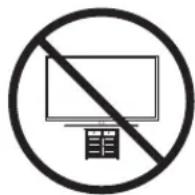
Caution: Pulling, pushing, or climbing on the TV may cause the TV to fall. In particular, ensure your children do not hang on or destabilise the TV. This action may cause the TV to tip over, causing serious injuries or death. Follow all safety precautions provided in the Safety Flyer included with your TV. For added stability and safety, you can purchase and install the anti-fall device as described on the next page.

WARNING: Never place a television set in an unstable location. The television set may fall, causing serious personal injury or death. Many injuries, particularly to children, can be avoided by taking simple precautions such as:
- Always use cabinets or stands or mounting methods recommended by the manufacturer of the television set.
• Always use furniture that can safely support the television set.
• Always ensure the television set is not overhanging the edge of the supporting furniture. - Always educate children about the dangers of climbing on furniture to reach the television set or its controls.
- Always route cords and cables connected to your television so they cannot be tripped over, pulled or grabbed.
- Never place a television set in an unstable location.
- Never place the television set on tall furniture (for example, cupboards or bookcases) without anchoring both the furniture and the television set to a suitable support.
- Never place the television set on cloth or other materials that may be located between the television set and supporting furniture.
- Never place items that might tempt children to climb, such as toys and remote controls, on the top of the television or furniture on which the television is placed.
If the existing television set is going to be retained and relocated, the same considerations as above should be applied.
- When you have to relocate or lift the TV for replacement or cleaning, be sure not to pull out the stand.
Preventing the TV from falling
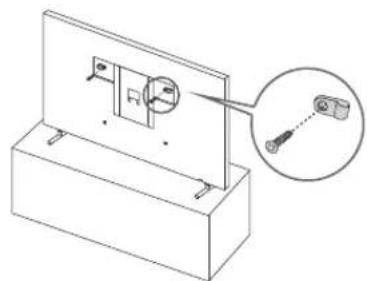
- Using the appropriate screws, firmly fasten a set of brackets to the wall. Confirm that the screws are firmly attached to the wall.
- You may need additional material such as wall anchors depending on the type of wall.
- Using the appropriately sized screws, firmly fasten a set of brackets to the TV.
- For the screw specifications, refer to the standard screw part in the table under "Mounting the TV on a wall".
- Connect the brackets fixed to the TV and the brackets fixed to the wall with a durable, heavy-duty string, and then tie the string tightly.
- Install the TV near the wall so that it does not fall backwards.
- Connect the string so that the brackets fixed to the wall are at the same height as or lower than the brackets fixed to the TV.
natural_image
Technical line drawing of a mechanical assembly with a magnified inset showing a close-up detail (no text or symbols)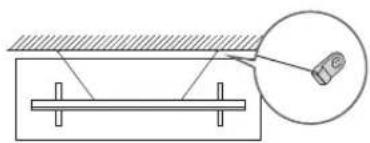
natural_image
Simple line drawing of a beam supported by a support structure, with an inset showing a magnified view of a device (no text or symbols)- The product colour and shape may vary depending on the model.
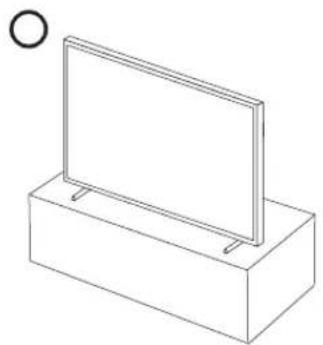
Precautions when installing the TV with a stand
When you install the TV with a stand, avoid placing the stand on the back part of the table surface. Failure to do so may cause the motion sensor at the bottom of the TV not to work properly.
natural_image
Simple line drawing of a rectangular box with a flat panel on top, no text or symbols present.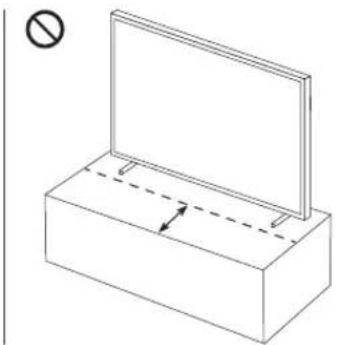
natural_image
Simple line drawing of a rectangular box with a flat top and dashed lines indicating a horizontal line, no text or symbols present.04 Using Art Mode
>Art
You can use Art mode function to display image content such as artworks or photos when you are not watching TV in full screen mode.
- Press the 📋 button on the remote control to switch to TV mode or Art mode.
- Press the button in Art mode to switch to TV mode.
- To turn off the TV completely, press and hold the button on the remote control, or press the TV Controller button at the bottom of the TV.
- If you use a remote control other than the Samsung Smart Remote, the TV may not be turned off completely.
- In Art mode, the brightness and colour tone of your TV are automatically adjusted depending on the ambient, and the TV can be automatically turned on or off.
- The TV is set by default so that the screen turns off automatically when the ambient light dims in Art mode.
- You can use Art mode settings (☑ > ☑ Art > Settings) on the TV or SmartThings app on your mobile device to set the sensitivity of the motion detector so that the TV can detect visual changes including user movements and turn on or off automatically.
-
In Art mode, you can connect your mobile device to the TV using the SmartThings app on the mobile device to view photos on the mobile device.
-
This function may not be supported depending on the TV model or mobile device.
– Supported features may differ depending on the version of the SmartThings app.
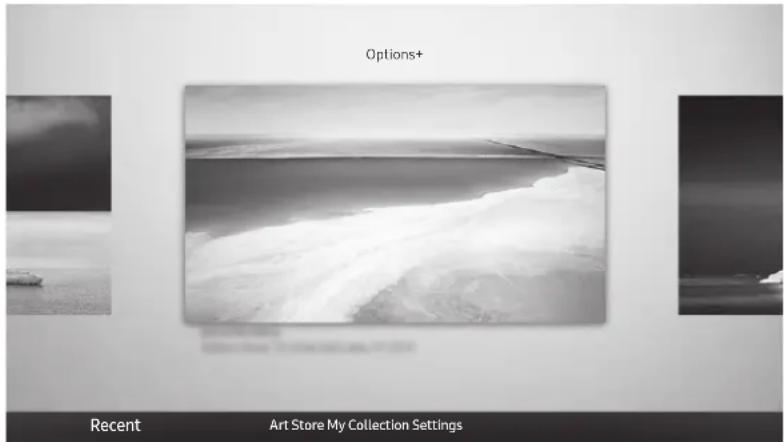
Viewing images
text_image
Options+ Recent Art Store My Collection Settings- The image on your TV may differ from the image above depending on the model and geographical area.
To view an image in Art mode, select one of the menus below. To switch to the sub menu where you can select images, press the Select button, one of the four directional buttons, or 📋 button in Art mode. Then, use the directional buttons on the remote control to move to desired image, and then press the Select button. Set appears at the top of the selected image, and you can view the selected image in Art mode.
- Recent
You can manipulate the last selected images.
- Art Store
You can go to Art Store to purchase various images.
- The Art Store may not appear depending on the network connection status.
- My Collection
You can view a list of artworks and photos that you set as ♥ Favourite in Favourites. You can also select the desired ones among the images saved on an external storage device or a mobile device and save them in My Photos.
- In order to fetch the images from your mobile device, the SmartThings app must have been installed in your mobile device.
Viewing images by time
- Use the directional buttons on the remote control to move to My Collection.
- Use the directional buttons to move to one of the sub menus.
- Use the directional buttons on the remote control to move to Options+ at the top of the screen.
- Press the Select button when the Start Slideshow item appears.
- Use the directional buttons on the remote control to select the time that images will be replaced, and then press the Select button.
Import images from an external storage device
- Connect an external storage device that contains images to the TV.
- Use the directional buttons on the remote control to move to My Collection, and then move to the connected external storage device.
- Use the directional buttons on the remote control to move to Save to My Photos at the top of the screen, and then press the Select button.
- Use the directional buttons on the remote control to move to an image, and then press the Select button.
- You can select multiple images.
- Use the directional buttons on the remote control to move to Save Selected at the top of the screen, and then press the Select button.
- The selected image or images are saved in My Photos.
- Recommended resolutions: 3840 x 2160 (16:9)
Buying images from Art Store
- Use the directional buttons on the remote control to move to Art Store.
- Use the directional buttons on the remote control to move to a topic, and press the Select button. The images corresponding to the topic appear on the screen.
- Use the directional buttons on the remote control to move to an image, and press the Select button.
- Use the directional buttons on the remote control to move to Options+ at the top of the screen, and then select Get Trial Membership or Buy to buy the selected image.
– Displays Get Trial Membership if you have not joined Art Store Membership. - Use the directional buttons on the remote control to select payment methods, and then press the Select button.
- Follow the on-screen instructions to procedure payment.
Subscribing to Art Store Membership
When you subscribe to Art Store Membership, you can use Art Store unlimitedly and enjoy various art works by replacing them with new ones according to your preferences.
- Use the directional buttons on the remote control to move to Art Store.
- Use the directional buttons on the remote control to move to Membership.
- Follow the on-screen instructions to enter your membership information.
Setting the style of the selected image
text_image
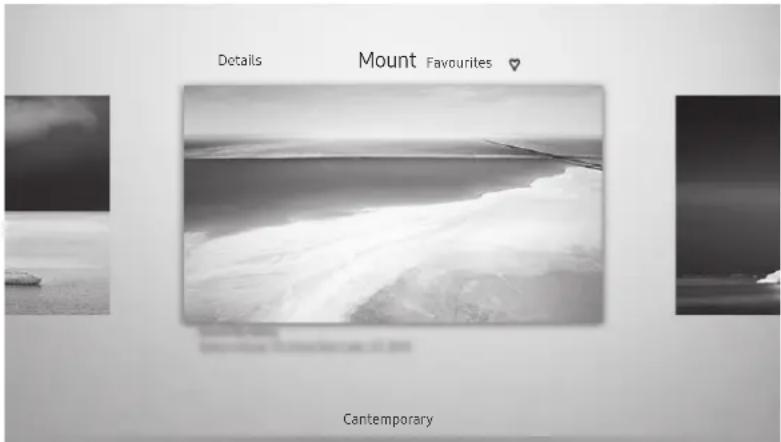
Details Mount Favourites ♥ Cantemporary- The image on your TV may differ from the image above depending on the model and geographical area.
Use the directional buttons on the remote control to move to Options+ at the top of the screen. You can use the following menus:
- Details
You can find more information about the image.
- Photo Filter
You can apply the selected filter's effect to the image according to your preferences.
- This function is only available for saved images on My Photos.
- Mount
You can apply various border styles and colours to the image according to your preferences.
- This function is only available for saved images on My Photos.
- Favourite
You can set (or not set) an image that you prefer as a favourite item by pressing the Select button on the remote control. You can view a list of items set as your favourites in My Collection > Favourites.

favourite: Not set as a favourite.
avourite: Set as a favourite.
Apply a border style and a colour to an image
- Using the directional buttons on the remote control to move to the image whose border style and colour you want to change, move to Options+ at the top of the screen, and then select Mount.
- Use the directional buttons on the remote control to select the border style and colour that you want.
- Change the border style and colour, and then press the Select button to move the focus to the image. – If you want to change only either the border style or the color, change it, and then press the Select button to save the changes.
- To save the selected border style and colour, press the Select button again.
- If you press the button to exit, the border style and colour you changed are not saved.
Setting up Art mode
In Art mode, use the directional buttons on the remote control to move to the Settings menu item at the bottom. You can adjust the following functions:
- Brightness
Use the directional buttons on the remote control to move to Modify at the top, and then press the Select button. In the next screen, adjust the picture brightness. After selecting the desired settings, press the Select button on the remote control.
- To immediately set Brightness while enjoying Art mode, press the 🎯 button on the remote control.
- Sleep After
If no motion is detected around the TV for the set time, the TV turns off automatically. Use the directional buttons on the remote control to move to the top items. After selecting the desired time, press the Select button on the remote control.
- Motion Detector
The sensitivity of the motion detector function can be adjusted. Use the directional buttons on the remote control to move to the top items. After selecting the desired sensitivity, press the Select button on the remote control.
- Night Mode
When this function is turned on, the TV turns off automatically if no light is detected around the TV. Use the directional buttons on the remote control to move to the top items, and then turn this function on or off.
Remove images from My Collection
You can remove the saved images from My Collection.
- Use the directional buttons on the remote control to move to My Collection.
- Use the directional buttons on the remote control to move to Favourites or My Photos.
- Use the directional buttons on the remote control to move to Options+ at the top of the screen.
- Move the focus to Remove, and then press the Select button on the remote control.
- Use the directional buttons on the remote control to move to an image, and then press the Select button.
- You can select multiple images.
- Use the directional buttons on the remote control to move to Remove Selected at the top of the screen, and then press the Select button.
Using Art mode with the SmartThings app
Once you have installed the SmartThings app on your mobile device, you can use the following functions: You can download the SmartThings app from Google Play Store, Samsung Apps, or the App Store.
- The features or terminology may vary depending on the version of the SmartThings app.
- On tablet devices, Art mode features may not be supported by the SmartThings app.
- Selecting images
• Subscribing to Art Store Membership -
Creating Collage: Combine multiple images into one image.
• Applying border styles and colours to images -
Setting the brightness for Art mode
- Setting Sleep After: When no motion is detected for the time specified in Art mode, the TV turns off automatically.
- Setting Night Mode: Set The Frame to turn off automatically if no light is detected in the room.
- Setting Motion Detector: Set the sensor sensitivity so that the TV turns on automatically when motion is detected in Art mode.
05 The Samsung Smart Remote
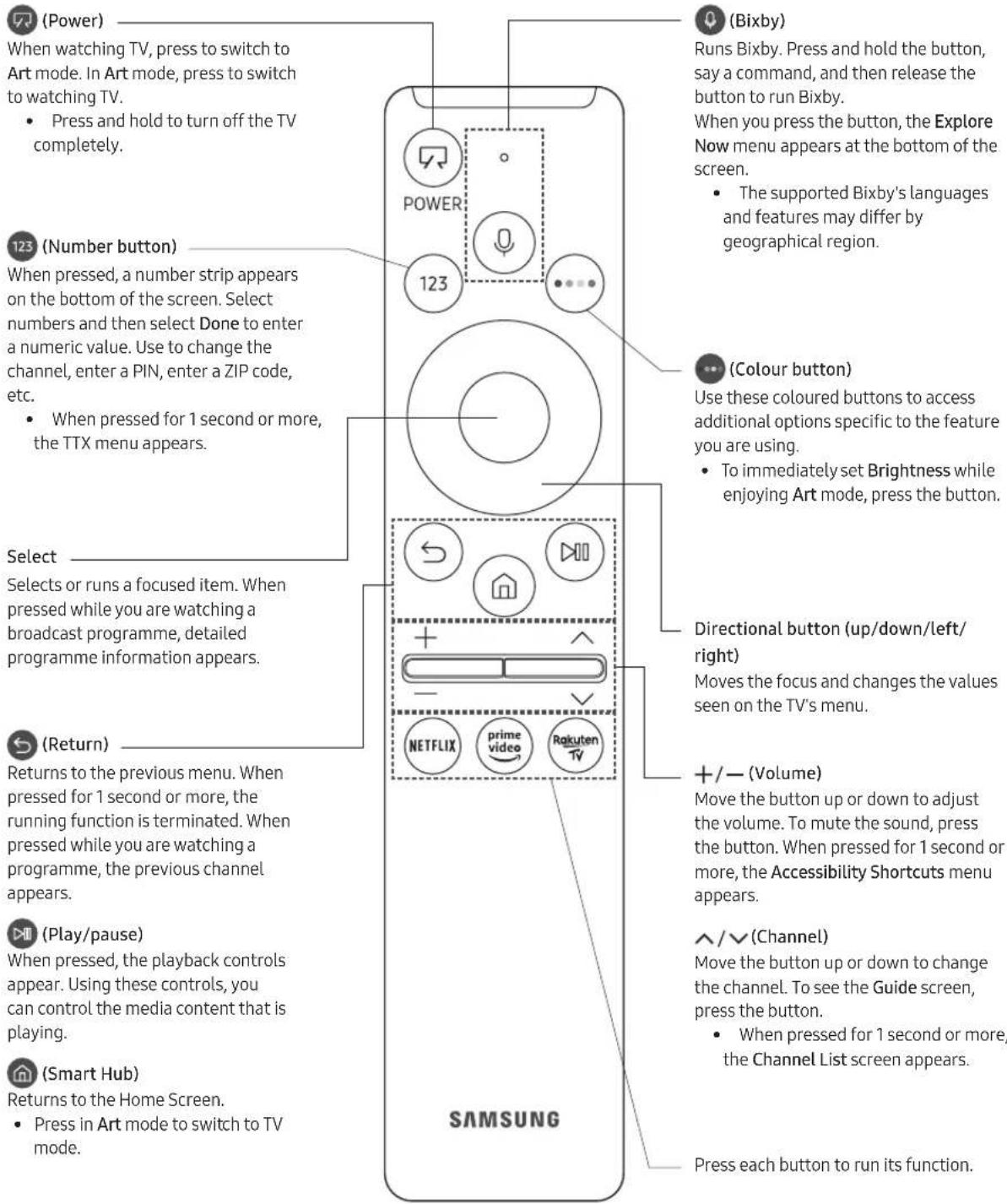
About the Buttons on the Samsung Smart Remote
- The images, buttons, and functions of the Samsung Smart Remote may differ depending on the model. - The Universal Remote function operates normally only when you use the Samsung Smart Remote that comes with the TV.
text_image
(Power) When watching TV, press to switch to Art mode. In Art mode, press to switch to watching TV. • Press and hold to turn off the TV completely. (123) (Number button) When pressed, a number strip appears on the bottom of the screen. Select numbers and then select Done to enter a numeric value. Use to change the channel, enter a PIN, enter a ZIP code, etc. • When pressed for 1 second or more, the TTX menu appears. Select Selects or runs a focused item. When pressed while you are watching a broadcast programme, detailed programme information appears. (Return) Returns to the previous menu. When pressed for 1 second or more, the running function is terminated. When pressed while you are watching a programme, the previous channel appears. (Play/pause) When pressed, the playback controls appear. Using these controls, you can control the media content that is playing. (Smart Hub) Returns to the Home Screen. • Press in Art mode to switch to TV mode. Bixby) Runs Bixby. Press and hold the button, say a command, and then release the button to run Bixby. When you press the button, the Explore Now menu appears at the bottom of the screen. • The supported Bixby's languages and features may differ by geographical region. (Colour button) Use these coloured buttons to access additional options specific to the feature you are using. • To immediately set Brightness while enjoying Art mode, press the button. Directional button (up/down/left/ right) Moves the focus and changes the values seen on the TV's menu. +/− (Volume) Move the button up or down to adjust the volume. To mute the sound, press the button. When pressed for 1 second or more, the Accessibility Shortcuts menu appears. ^/√ (Channel) Move the button up or down to change the channel. To see the Guide screen, press the button. • When pressed for 1 second or more, the Channel List screen appears. Press each button to run its function. SAMSUNGPairing the TV to the Samsung Smart Remote
flowchart
graph TD
    A["←"] --> B["→"]
    C["→"] --> D["→"]
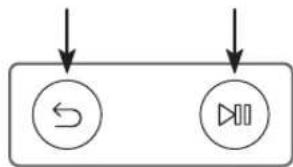
When you turn on the TV for the first time, the Samsung Smart Remote pairs to the TV automatically. If the Samsung Smart Remote does not pair to the TV automatically, point it at the remote control sensor of the TV, and then press and hold the buttons labelled and shown in the figure on the left simultaneously for 3 seconds or more.
Installing batteries into the Samsung Smart Remote
natural_image
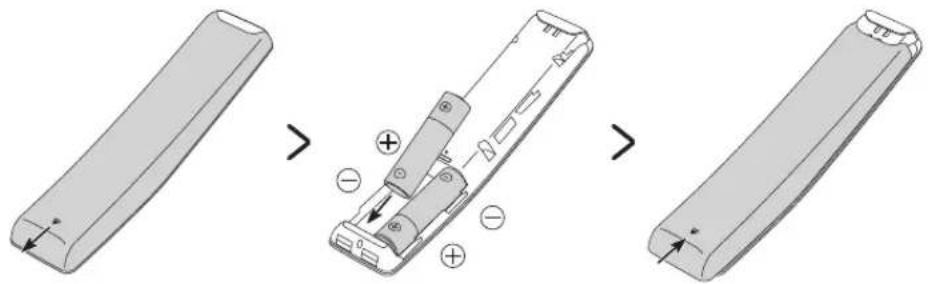
Diagram showing three stages of a remote control panel with battery and indicator lights (no text or symbols)To install the batteries, push the rear cover open in the direction of the arrow at the bottom of the illustration, and then insert the batteries as shown in the figure. Make sure that the positive and negative ends are facing in the correct direction. Close the rear cover as shown.
- Alkaline batteries are recommended for longer battery life.
06 Running the Initial Setup
When you turn on your TV for the first time, it immediately starts the Initial Setup. The Initial Setup allows you to configure the basic settings for the TV to operate, such as broadcast reception, channel search, and network connection, at one time.
- Before starting the Initial Setup, be sure to connect external devices first.
• To use the TV's smart features, the TV must be connected to the Internet. - To perform Initial Setup using the SmartThings app, you must connect your mobile device via Wi-Fi.
- If the pop-up for setup does not appear automatically in the SmartThings app on your mobile device, continue setup manually after adding the TV using Add Device on the dashboard of the SmartThings app.
- The SmartThings app is available for mobile devices running Android 6.0 or higher or iOS 10 or higher.
- Noise may occur temporarily when the TV communicates with mobile devices.
You can also start the Initial Setup using the TV's menu (图标 > ⚙️ Settings > General > Reset).
Follow the instructions displayed on the Initial Setup screen and configure the TV's basic settings to suit your viewing environment.
Using the TV Controller
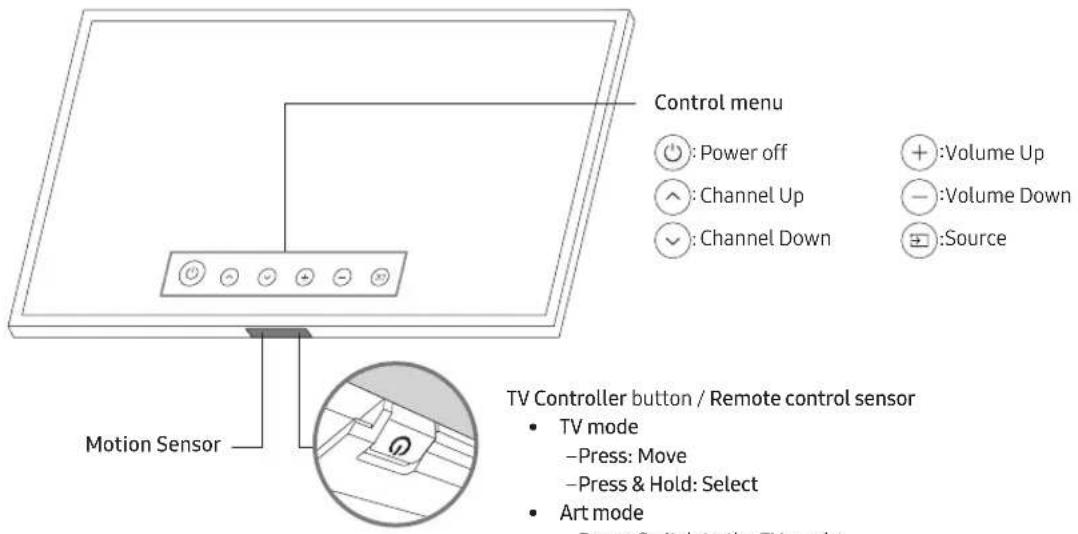
You can turn on the TV with the TV Controller button at the bottom of the TV, and then use the Control menu. The Control menu appears when the TV Controller button is pressed while the TV is On. For more information about its usage, refer to the figure below.
text_image
Control menu Power off Channel Up Channel Down Volume Up Volume Down Source Motion Sensor TV Controller button / Remote control sensor • TV mode -Press: Move -Press & Hold: Select • Art modeTV Controller button / Remote control sensor
- TV mode
-Press:Move
-Press & Hold: Select
- Art mode
-Press: Switch to the TV mode
The TV Controller button is located on the bottom of the TV.
- When you press the TV Controller button, be careful not to press the motion sensor close to it.
- In Art mode, the power indicator at the bottom of the TV remains off.
- After detaching the Customizable Frame (sold separately) from the TV, push up the remote control sensor so that it returns to its original position.
- Do not push up the remote control sensor strongly. There is a risk of damage.
07 Connecting to a Network
Connecting the TV to a network gives you access to online services, such as Smart Hub, as well as software updates.
Network Connection - Wireless
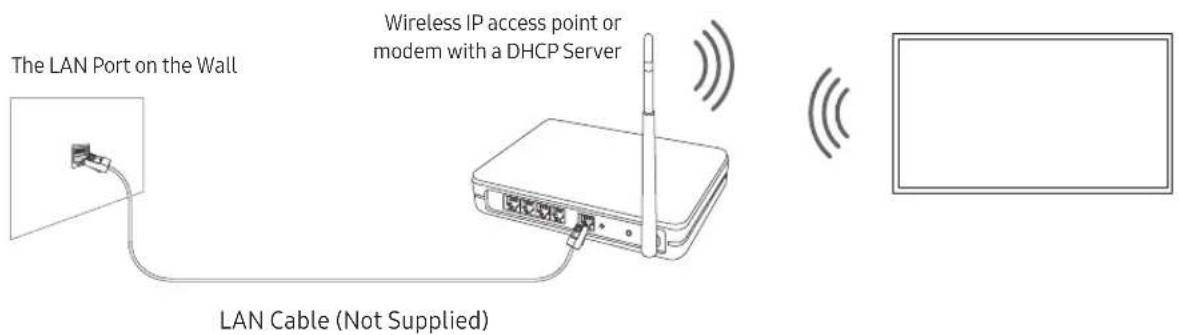
Connect the TV to the Internet using a wireless access point or modem.
text_image
The LAN Port on the Wall Wireless IP access point or modem with a DHCP Server LAN Cable (Not Supplied)Network Connection - Wired
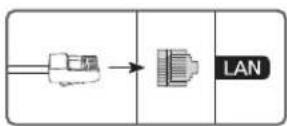
Connect your TV to the network using a LAN cable.
- The TV will not be able to connect to the Internet if your network speed is below 10 Mbps.
• Use Cat7 (*STP Type) cable for the connection.
* Shielded Twisted Pair
08 Troubleshooting and Maintenance
Troubleshooting
If the TV seems to have a problem, first review this list of possible problems and solutions. Alternatively, review the Troubleshooting Section in the e-Manual. If none of these troubleshooting tips apply, please visit "www.samsung.com" and click on Support, or contact the Samsung service centre listed on the back cover of this manual.
- This TFT LED panel is made up of sub pixels which require sophisticated technology to produce. There may be, however, a few bright or dark pixels on the screen. These pixels will have no impact on the performance of the product.
- To keep your TV in optimum condition, upgrade to the latest software. Use the Update Now or Auto update functions on the TV's menu (☑ > ⚙️ Settings > Support > Software Update > Update Now or Auto update).
The TV won't turn on.
- Make sure that the AC power cord is securely plugged in to the One Connect and the wall outlet.
- Make sure that the wall outlet is working and the remote control sensor at the bottom of the TV is lit and glowing a solid red.
- Try pressing the TV Controller button at the bottom of the TV to make sure that the problem is not with the remote control. If the TV turns on, refer to "The remote control does not work".
There is no picture/video/sound, or a distorted picture/video/sound from an external device, or "Weak or No Signal" is displayed on the TV, or you cannot find a channel.
- Make sure the connection to the device is correct and that all cables are fully inserted.
- Remove and reconnect all cables connected to the TV and the external devices. Try new cables if possible.
- Confirm that the correct input source has been selected (☐ > ☐ Source).
- Perform a TV self diagnosis to determine if the problem is caused by the TV or the device (Settings > Support > Device Care > Self Diagnosis > Picture Test or Sound Test).
- If the test results are normal, reboot the connected devices by unplugging each device's power cord and then plugging it in again. If the issue persists, refer to the connection guide in the user manual of the connected device.
- If you are not using a cable box or satellite box, and your TV is receiving TV signals from an antenna or a cable wall connector, run Auto Tuning to search for channels > Settings > Broadcasting > (Auto Tuning Settings) > Auto Tuning).
- The Auto Tuning Settings may not appear depending on the model or geographical area. - If you are using a cable box or satellite box, please refer to the cable box or satellite box manual.
The CI+ does not work.
- Your Samsung TV conforms to the CI+ 1.4 standards.
- Where a CI+ Common Interface module is incompatible with this device, then please remove the module and contact the CI+ operator for assistance.
The remote control does not work.
- Check if the power indicator at the bottom of the TV blinks when you press the remote's Power button. If it does not, replace the remote control's batteries.
- Make sure that the batteries are installed with their poles (+/-) in the correct direction.
- Try pointing the remote directly at the TV from 1.5-1.8 m away.
- If your TV came with a Samsung Smart Remote (Bluetooth Remote), make sure to pair the remote to the TV.
The cable box or satellite box remote control doesn't turn the TV on or off or adjust the volume.
- Programme the cable box or satellite box remote control to operate the TV. Refer to the cable box or satellite box user manual for the SAMSUNG TV code.
The TV settings are lost after 5 minutes.
- The TV is in the Retail Mode. Change the Usage Mode in the General Menu to Home Mode (Settings >General >System Manager >Usage Mode >Home Mode).
Intermittent Wi-Fi
- Make sure the TV has a network connection ( Ⓜ > ⚙️ Settings > General > Network > Network Status).
• Make sure the Wi-Fi password is entered correctly. - Check the distance between the TV and the modem or access point. The distance should not exceed 15.2 m.
- Reduce interference by not using or turning off wireless devices. Also, verify that there are no obstacles between the TV and the modem or access point. (The Wi-Fi strength can be decreased by appliances, cordless phones, stone walls/fireplaces, etc.)
Single story Multi story
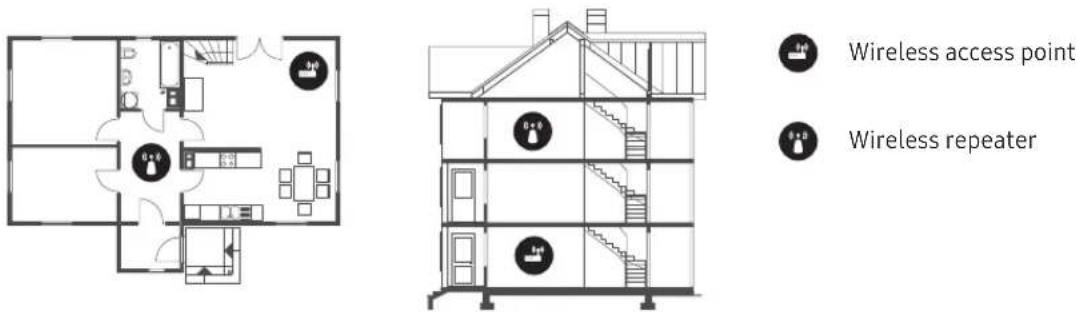
Wireless access point
Wireless repeater
- Contact your Internet Service Provider (ISP) and ask them to reset your network circuit to re-register the MAC addresses of your modem or access point and the TV.
Video Apps problems (Youtube etc)
- Change the DNS to 8.8.8.8. Select > Settings > General > Network > Network Status > IP Settings > DNS setting > Enter manually > DNS Server > enter 8.8.8.8 > OK.
- Reset by selecting 📄 > Settings > Support > Device Care > Self Diagnosis > Reset Smart Hub.
The TV remains on or does not turn on automatically.
- If the surrounding area is too dark or bright, the motion sensor may not work normally. The performance of the motion sensor may be affected by the installation environment (height, tilt, obstacles). If the clothes you wear or your skin colour is similar to the surrounding shading, the motion sensor may not work properly.
- The TV responds to all visual changes around it (lights, displays, dogs, out-of-window changes, and other occurrences). You can adjust the response level by adjusting the sensitivity of the motion detector.
( > Art > Settings > Motion Detector)
Precautions when using Art mode
- The motion sensor is located at the bottom of the TV. Do not block the sensor at the front of the TV. The motion sensor as well as the brightness and colour tone of the screen can be affected.
- Art mode uses algorithms to minimise image burn-in that can be caused by displaying still images on the screen for long periods of time.
- The performance of the sensor may vary depending on the TV installation and operating environment.
– The screen brightness and colour tone may be affected depending on the colour of the floor on which the TV stands.
– In an environment where special light sources other than standard light sources (halogen, fluorescent) are used, the sensor's motion recognition performance may vary depending on the positions, types, and number of the light sources.
- If the area around the TV is too dark or bright, the screen brightness may be limited or the sensor may not work normally.
- If the TV is installed too high or too low, the sensor may not work normally.
- The motion sensor may sense motion from a flashing LED, a pet, a car moving outside the window, or other occurrence and start operating.
- Depending on the Auto Power Off (图标 > Settings > General > Eco Solution > Auto Power Off) function settings, the TV may turn off when there is no user input in Art mode, such as inputs from the remote control.
-
Settings > General > System Manager > Time > Sleep Timer and Off Timer function does not work in Art mode.
-
Settings > General > System Manager > Auto Protection Time function does not work in Art mode.
What is Remote Support?
Samsung Remote Support service offers you one-on-one support with a Samsung Technician who can remotely:
• Diagnose your TV
- Adjust the TV settings for you
• Perform a factory reset on your TV
• Install recommended firmware updates
How does Remote Support work?
You can easily get Samsung Remote Support service for your TV:
- Call the Samsung service centre and ask for remote support.
- Open the menu on your TV, and go to the Support menu. (Settings > Support)
- Select Remote Management, then read and agree to the service agreements. When the PIN screen appears, provide the PIN number to the technician.
- The technician will then access your TV.
Eco Sensor and screen brightness
natural_image
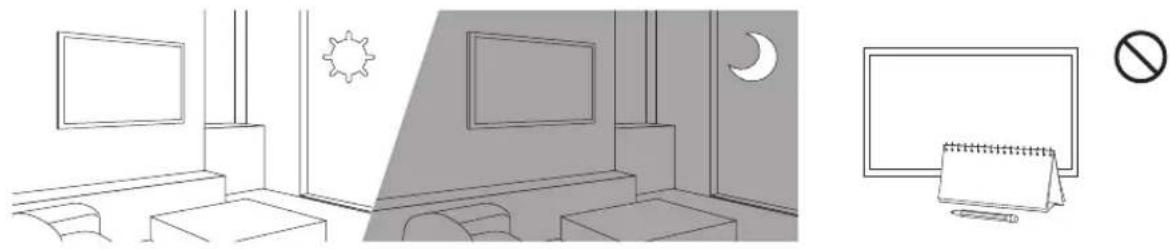
Interior and exterior views of a modern living room with TV, sun, moon, and no-smoking sign (no text or symbols on main objects)Eco Sensor adjusts the brightness of the TV automatically. This feature measures the light in your room and optimises the brightness of the TV automatically to reduce power consumption. If you want to turn this off, go to 📄 > ⚙️ Settings > General > Eco Solution > Ambient Light Detection.
- If the screen is too dark while you are watching TV in a dark environment, it may be due to the Ambient Light Detection function.
- The eco sensor is located at the bottom of the TV. Do not block the sensor with any object. This can decrease picture brightness.
Changing the TV's password

Settings > General > System Manager > Change PIN
- Run Change PIN and then enter the current password in the password field. The default password is "0000" (France: "1111").
- Enter a new password and then enter it again to confirm it. The password change is complete.
- If you forgot your PIN code, press the buttons in the following sequence to reset the PIN to "0000" (France: "1111"):
On the Samsung Smart Remote: Select +/− (Volume) button. > Volume Up > Volume Down > Volume Up >
Caring for the TV
- If a sticker was attached to the TV screen, some debris can remain after you remove the sticker. Please clean the debris off before watching TV.
- The exterior and screen of the TV can get scratched during cleaning. Be sure to wipe the exterior and screen carefully using a soft cloth to prevent scratches.
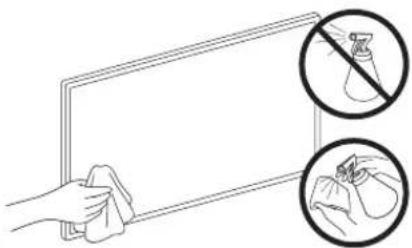
- Do not spray water or any liquid directly onto the TV. Any liquid that goes into the product may cause a failure, fire, or electric shock.
- To clean the screen, turn off the TV, then gently wipe away smudges and fingerprints on the panel with a micro-fiber cloth. Clean the body or panel of the TV with a micro-fiber cloth dampened with a small amount of water. After that, remove the moisture with a dry cloth. While cleaning, do not apply strong force to the surface of the panel because it can damage the panel. Never use flammable liquids (benzene, thinner, etc.) or a cleaning agent. For stubborn smudges, spray a small amount of screen cleaner on a micro-fiber cloth, and then use the cloth to wipe away the smudges.
text_image
Diagram showing a hand cleaning a surface with two circular insets highlighting the absence of a spray bottle and a contact point.09 Specifications and Other Information
Specifications
| Model Name QE43LS03T QE50LS03T | ||
| Display Resolution | 3840 x 2160 3840 x 2160 | |
| Screen Size | 43 inches | 50 inches |
| Measured Diagonally | 108 cm | 125 cm |
| Sound (Output) | 20 W 20 W | |
| Dimensions (W x H x D) | ||
| Body | 966.6 x 555.3 x 45.8 mm | 1121.2 x 642.3 x 45.8 mm |
| With Stand | 966.6 x 602.4 x 213.9 mm | 1121.2 x 689.4 x 213.9 mm |
| Weight | ||
| Without Stand | 11.0 kg | 13.3 kg |
| With Stand | 11.2 kg | 13.6 kg |
| Model Name QE55LS03T QE65LS03T | ||
| Display Resolution | 3840 x 2160 3840 x 2160 | |
| Screen Size | 55 inches | 65 inches |
| Measured Diagonally | 138 cm | 163 cm |
| Sound (Output) | 40 W 40 W | |
| Dimensions (W x H x D) | ||
| Body | 1235.0 x 706.3 x 45.8 mm | 1453.9 x 829.4 x 45.8 mm |
| With Stand | 1235.0 x 753.4 x 213.9 mm | 1453.9 x 876.5 x 290.8 mm |
| Weight | ||
| Without Stand | 19.2 kg | 25.2 kg |
| With Stand | 19.4 kg | 25.5 kg |
| Model Name QE75LS03T | ||
| Display Resolution 3840 x 2160 | ||
| Screen Size | 75 inches | |
| Measured Diagonally | 189 cm | |
| Sound (Output) 40 W | ||
| Dimensions (W x H x D) | ||
| Body | 1679.6 x 957.7 x 49.9 mm | |
| With Stand | 1679.6 x 1005.1 x 304.9 mm | |
| Weight | ||
| Without Stand | 38.8 kg | |
| With Stand | 39.2 kg | |
Environmental Considerations
| Operating Temperature | 10°C to 40°C (50°F to 104°F) |
| Operating Humidity | 10% to 80%, non-condensing |
| Storage Temperature | -20°C to 45°C (-4°F to 113°F) |
| Storage Humidity | 5% to 95%, non-condensing |
- The design and specifications are subject to change without prior notice.
- For information about the power supply, and more information about power consumption, refer to the label-rating attached to the product.
• Typical power consumption is measured according to IEC 62087. - You can see the label-rating attached to the bottom of the One Connect.
- You can see the label-rating attached to the back of the TV. (For some models, you can see the label-rating inside the cover terminal.)
Decreasing power consumption
When you shut the TV off, it enters Standby mode. In Standby mode, it continues to draw a small amount of power. To decrease power consumption, unplug the power cord when you don't intend to use the TV for a long time.
Licences

text_image
DOLBY AUDIO™ POWERED BY QUICKSET® rovi guide
text_image
HEVC Advance™ Covered by Patents at patentlist.hevcadvance.com
The terms HDMI and HDMI High-Definition Multimedia Interface, and the HDMI Logo are trademarks or registered trademarks of HDMI Licensing LLC in the United States and other countries.
Recommendation - EU Only
CE
Hereby, Samsung Electronics, declares that this equipment is in compliance with Directive 2014/53/EU.
The full text of the EU declaration of conformity is available at the following internet address: http://www.samsung.com go to Support and enter the model name.
This equipment may be operated in all EU countries.
The 5 GHz WLAN(Wi-Fi) function of this equipment may only be operated indoors.
BT max transmitter power : 100mW at 2.4GHz - 2.4835GHz
Wi-Fi max transmitter power : 100mW at 2.4GHz-2.4835GHz, 200mW at 5.15GHz-5.25GHz, 100mW 5.25GHz-5.35GHz & 5.47GHz - 5.725GHz
For information on Samsung's environmental commitments and product-specific regulatory obligations, e.g. REACH, WEEE, Batteries, visit http://www.samsung.com/uk/aboutsamsung/samsungelectronics/corporatecitizenship/data_corner.html
WARNING - TO PREVENT THE SPREAD OF FIRE, KEEP CANDLES OR OTHER ITEMS WITH OPEN FLAMES AWAY FROM THIS PRODUCT AT ALL TIMES.
Correct Disposal of This Product (Waste Electrical & Electronic Equipment)
(Applicable in countries with separate collection systems)
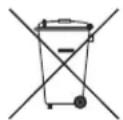
This marking on the product, accessories or literature indicates that the product and its electronic accessories (e.g. charger, headset, USB cable) should not be disposed of with other household waste at the end of their working life. To prevent possible harm to the environment or human health from uncontrolled waste disposal, please separate these items from other types of waste and recycle them responsibly to promote the sustainable reuse of material resources.
Household users should contact either the retailer where they purchased this product, or their local government office, for details of where and how they can take these items for environmentally safe recycling.
Business users should contact their supplier and check the terms and conditions of the purchase contract. This product and its electronic accessories should not be mixed with other commercial wastes for disposal.
Correct disposal of the batteries in this product
(Applicable in countries with separate collection systems)
This marking on battery, manual or packaging indicates that the batteries in this product should not be disposed of with other household waste at the end of their working life. Where marked, the chemical symbols Hg, Cd or Pb indicate that the battery contains mercury, cadmium or lead above the reference levels in EC Directive 2006/66. If batteries are not properly disposed of, these substances can cause harm to human health or the environment.
To protect natural resources and to promote material reuse, please separate batteries from other types of waste and recycle them through your local, free battery return system.
natural_image
Simple line drawing of a rectangular electronic device with no text or symbolsOne Connect
natural_image
Diagram of a coiled cable connected to a plug with a directional arrow (no text or symbols)One Invisible Connection
natural_image
Simple 3D curved pipe segment diagram with no text or symbolsBending Cover Support de câble
natural_image
Simple line drawing of a ring or washer (no text or symbols)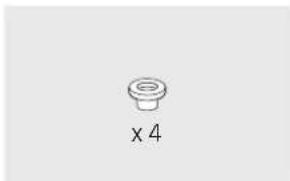
natural_image
Simple line drawing of a cylindrical object with a flange, labeled 'x 4' below (no other text or symbols)natural_image
Technical line drawing of a mechanical assembly with a magnified inset showing a close-up detail (no text or symbols)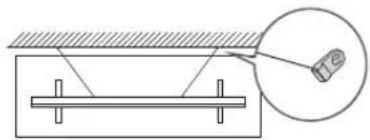
text_image
Technical diagram showing a beam supported by a flat support with a magnified inset highlighting a component labeled '12'.natural_image
Simple line drawing of a rectangular box with a vertical panel on top, no text or symbols present.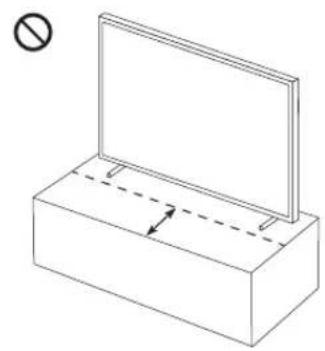
natural_image
Simple line drawing of a rectangular box with a vertical panel and an arrow indicating direction (no text or symbols)flowchart
graph TD
    A["←"] --> B["→"]
    C["→"] --> D["→"]
natural_image
Three-step diagram showing a remote control panel being inserted into a device, with no visible text or symbols.natural_image
Interior and exterior views of a modern living room with TV, night sky, and no-smoking sign (no text or symbols)natural_image
Illustration of a hand cleaning a blank board with two circular insets showing a bag and a cloth (no text or symbols)text_image
HEVCAvance™ Covered by Patents at patentlist.hevcadvance.com
The terms HDMI and HDMI High-Definition Multimedia Interface, and the HDMI Logo are trademarks or registered trademarks of HDMI Licensing LLC in the United States and other countries.
natural_image
Simple line drawing of a rectangular electronic device with no text or symbolsOne Connect
natural_image
Diagram of a coiled cable connected to a plug with an arrow indicating direction (no text or symbols)One Invisible Connection
natural_image
Simple 3D wireframe curved pipe or elbow joint (no text or symbols)Bending Cover Kabelhalter
natural_image
Simple line drawing of a ring or washer (no text or symbols)
×4
Adapter für die
Wandhalterung
LASER PRODUCT DER KLASSE 1 (One Invisible Connection)
natural_image
Technical line drawing of a mechanical assembly with a magnified inset showing a close-up detail (no text or symbols)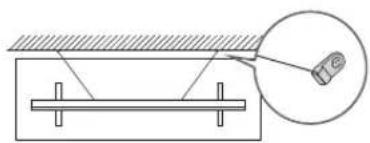
natural_image
Diagram showing a beam supported by two supports, with an inset magnified view of a device (no text or symbols present)natural_image
Simple line drawing of a rectangular box with a flat panel on top, no text or symbols present.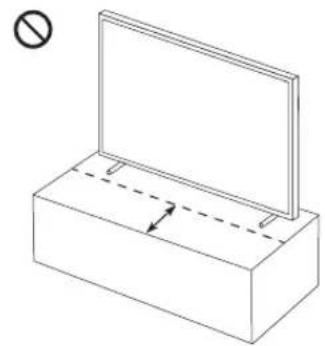
natural_image
Simple line drawing of a rectangular box with a vertical panel and an arrow indicating direction (no text or symbols)text_image
Details Rand Favorite Cantemporaryflowchart
graph TD
    A["←"] --> B["→"]
    C["→"] --> D["→"]
natural_image
Three-step diagram showing a remote control panel being inserted into a device, with no visible text or symbols.natural_image
Interior and exterior views of a modern living room with TV, night sky, and no-smoking sign (no text or symbols on main objects)natural_image
Illustration of a hand cleaning a tablet with two circular insets showing a hand holding a cloth and another with a bag (no text or symbols)text_image
HEVC Advance™ Covered by Patents at patentlist.hevcadvance.com
The terms HDMI and HDMI High-Definition Multimedia Interface, and the HDMI Logo are trademarks or registered trademarks of HDMI Licensing LLC in the United States and other countries.
Empfehlung - Nur EU
CE
natural_image
Simple line drawing of a rectangular electronic device with no text or symbolsOne Connect
natural_image
Diagram of a coiled cable connected to a plug with a directional arrow (no text or symbols)One Invisible Connection
natural_image
Simple 3D wireframe curved pipe or elbow joint (no text or symbols)natural_image
Simple line drawing of a ring or washer (no text or symbols)
text_image
One Connect One Connect One Connect Televisie 1 2 3 Bending Cover 10 cm 4 One ConnectKLASSE 1-LASERPRODUCT (One Invisible Connection)
natural_image
Technical line drawing of a mechanical assembly with a magnified inset showing a detail (no text or symbols)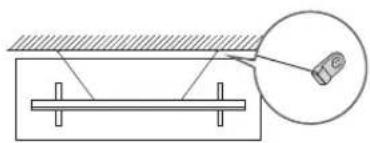
natural_image
Diagram showing a mechanical setup with a beam and supports, and a magnified view of a device (no text or symbols present)natural_image
Simple line drawing of a rectangular box with a flat panel on top, no text or symbols present.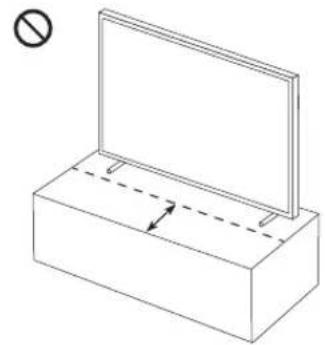
natural_image
Simple line drawing of a rectangular box with a vertical panel and an arrow indicating direction (no text or symbols)flowchart
graph TD
    A["←"] --> B["→"]
    C["→"] --> D["→"]
natural_image
Three-step diagram showing a remote control panel being opened, with arrows indicating the process (no text or symbols present)natural_image
Interior and exterior views of a modern living room with TV, night sky, and no-smoking sign (no text or symbols on main objects)text_image
Diagram showing a hand cleaning a tablet with two circular insets highlighting the absence of a spray bottle and a cloth.text_image
HEVCAvance™ Covered by Patents at patentlist.hevcadvance.com
The terms HDMI and HDMI High-Definition Multimedia Interface, and the HDMI Logo are trademarks or registered trademarks of HDMI Licensing LLC in the United States and other countries.
If you have any questions or comments relating to Samsung products, please contact the Samsung service centre.
| Country | Samsung Service Centre | Web Site |
| AUSTRIA 0800 72 67 864 (0800-SAMSUNG) www.samsung.com/at/support | ||
| BELGIUM 02-201-24-18 | www.samsung.com/be/support (Dutch)www.samsung.com/be_fr/support (French) | |
| BOSNIA 055 233 999 www.samsung.com/support | ||
| ALBANIA 045 620 202 www.samsung.com/al/support | ||
| BULGARIA | *3000 Цена на един градски разговор0800 111 31 Безплатен за всички оператори | www.samsung.com/bg/support |
| CROATIA 072 726 786 www.samsung.com/hr/support | ||
| CZECH | 800 - SAMSUNG (800-726786) www.samsung.com/cz/supportSamsung Electronics Czech and Slovak, s.r.o. V Parku 2323/14, 148 00 - Praha 4 | |
| DENMARK 707 019 70 www.samsung.com/dk/support | ||
| FINLAND 030-6227 515 www.samsung.com/fi/support | ||
| FRANCE 01 48 63 00 00 | www.samsung.com/fr/support | |
| GERMANY | 06196 77 555 77 | www.samsung.com/de/support |
| CYPRUS | 8009 4000 only from landline, toll free | www.samsung.com/gr/support |
| GREECE | 80111-SAMSUNG (80111 726 7864) only from land line(+30) 210 6897691 from mobile and land line | |
| HUNGARY | 0680SAMSUNG (0680-726-7864) | www.samsung.com/hu/support |
| ITALIA | 800-SAMSUNG (800.7267864) | www.samsung.com/it/support |
| LUXEMBURG | 261 03 710 | www.samsung.com/be_fr/support |
| MONTENEGRO | 020 405 888 | www.samsung.com/support |
| SLOVENIA | 080 697 267 (brezplačna številka) | www.samsung.com/si/support |
| NETHERLANDS | 088 90 90 100 | www.samsung.com/nl/support |
| NORWAY | 21629099 | www.samsung.com/no/support |
| POLAND | 801-172-678* lub +48 22 607-93-33** (opłata według taryfy operatora) | www.samsung.com/pl/support |
| PORTUGAL | 808 207 267 | www.samsung.com/pt/support |
| ROMANIA | *8000 (apel in retea)08008-726-78-64 (08008-SAMSUNG) Apel GRATUITAtenție: Dacă efectuatți apelul din rețeaua Digi (RCS/RDS),vă rugăm să ne contactați formând numărul Telverde fărăultimele două cifre, astfel: 0800872678. | www.samsung.com/ro/support |
| SERBIA | 011 321 6899 | www.samsung.com/rs/support |
| SLOVAKIA | 0800 - SAMSUNG (0800-726 786) | www.samsung.com/sk/support |
| SPAIN | 91 175 00 15 | www.samsung.com/es/support |
| SWEDEN 0771 726 786 | www.samsung.com/se/support | |
| SWITZERLAND | 0800 726 786 (0800-SAMSUNG) | www.samsung.com/ch/support (German)www.samsung.com/ch_fr/support (French) |
| UK | 0330 SAMSUNG (7267864) | www.samsung.com/uk/support |
| IRELAND (EIRE) | 0818 717100 www.samsung.com/ie/support | |
| LITHUANIA | 8-800-77777 | www.samsung.com/lt/support |
| LATVIA | 8000-7267 | www.samsung.com/lv/support |
| ESTONIA | 800-7267 | www.samsung.com/ee/support |
| TURKEY | 444 77 11 | www.samsung.com/tr/support |