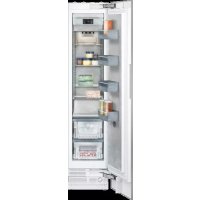
RF411704 - Freezer GAGGENAU - Free user manual and instructions
Find the device manual for free RF411704 GAGGENAU in PDF.



| Brand | Gaggenau |
| Model | RF411704 |
| Product type | Built-in freezer |
| Installation cavity dimensions (W x H x D) | Minimum 610 mm depth (635 mm for flush installation), width and height according to built-in standards |
| Maximum weight | Up to 460 kg depending on model |
| Power supply | 110-120 V, 60 Hz, fuse 10-16 A, max current 6 A |
| Climate class | Not specified, but designed for domestic use up to 2000 m altitude |
| Freezer usable capacity | Not specified, but allows storing a large quantity of food |
| Defrosting system | Automatic NoFrost |
| Freezer temperature range | From -25 °C to -14 °C (adjustable) |
| Special functions | Quick freezing, eco mode, holiday mode, door and temperature alarm, screen lock for cleaning, light dimming when opening/closing door |
| Ice cube dispenser | Integrated, with automatic ice cube production, storage bin |
| Water filter | Yes, replaceable every 6 months |
| Connectivity | Wi-Fi, Home Connect compatible for remote control |
| Automatic door opening | Adjustable Push-to-open or Pull-to-open system |
| Interior lighting | LED, not user serviceable |
| Surface material | Stainless steel (special care with suitable product) |
| Cleaning | Soft cloth, warm water, pH neutral dish soap; do not use steam cleaner |
| Child safety | Key lock, door lock (key not supplied) |
| Spare parts | Available from Gaggenau customer service |
| Warranty | See customer service booklet |
Frequently Asked Questions - RF411704 GAGGENAU
User questions about RF411704 GAGGENAU
0 question about this device. Answer the ones you know or ask your own.
Ask a new question about this device
Download the instructions for your Freezer in PDF format for free! Find your manual RF411704 - GAGGENAU and take your electronic device back in hand. On this page are published all the documents necessary for the use of your device. RF411704 by GAGGENAU.
USER MANUAL RF411704 GAGGENAU
Important safety instructions 4
Definitions 4
About these instructions 4
Introduction 4
Risk of explosion 4
Risk of electric shock 5
Risk of cold burns 5
Risk of Injury 5
Risk of fire 5
Avoiding placing children and vulnerable
people
at risk 6
Damage 6
Weight 6
State of California Proposition 65 Warnings 6
Intended use 7
Environmental protection 7
Packaging 7
Old appliances 7
Installation and connection 8
Contents of package 8
Technical data 8
Installing the appliance 8
Check built-in cut-out 8
Side-by-side installation 8
Saving energy 9
Before using for the first time 10
Water connection 10
Electrical connection 10
Getting to know your appliance 11
Appliance 11
Operating controls 11
Equipment 12
Operating the appliance 15
Switching the appliance on 15
Switching off and disconnecting the appliance 15
Setting the temperature 15
Fast freezing 15
Display lock for cleaning 16
Switching ice cube production on or off 16
Eco mode 16
Reset water filter counter 16
Self-test 16
Setting the brightness of the control panel 16
Setting the display screen 17
Setting the touch field color 17
Setting the touch field tone type. 17
Setting the touch field tone volume 17
Setting the signal tone volume 17
Switching the water filter counter on and off 18
Dimming when door is opened and closed 18
Setting the temperature unit 18
Setting the language 18
Resetting to the factory settings 18
Switching demo mode on or off 18
Rest mode 19
Automatic door opening 19
Home network 20
Alarm 20
Door alarm 20
Temperature alarm 20
Home Connect 21
Setting up Home Connect 21
Connecting the refrigerator to the Home
Connect app 22
Installing updates for the Home Connect
software 22
Customer Service access 23
Deleting network settings 23
Information on data protection 23
Freezer compartment 24
Fully utilizing the freezer volume 24
Purchasing frozen food 24
When loading products 24
Freezing fresh food 24
Thawing frozen food 25
Defrosting 25
Freezer compartment 25
Cleaning 26
Cleaning the display 26
Cleaning the appliance interior 26
Cleaning the fittings 26
Care instructions for stainless steel surfaces 26
Noises 26
Normal noises 26
Preventing noises 26
Lighting 26
Faults - what to do? 27
Appliance 27
Ice maker 28
Customer service 29
Appliance self-test 29
Repair order and advice on faults 29

Important safety instructions
READ INSTRUCTIONS - DO NOT DISCARD!
Definitions

WARNING
Non-observance of this warning could result in death or serious injuries.

CAUTION
Non-observance of this warning could result in slight or moderately serious injuries.
NOTICE
Non-observance of this information could damage the appliance.
Note: This indicates important information and/or tips.
About these instructions
- Read and follow the operating and installation instructions. They contain important information on how to install, use and maintain the appliance.
- The manufacturer is not liable if you disregard the instructions and warnings in the operating and installation instructions.
- Retain all documents for subsequent use or for the next owner.
Introduction
- This appliance complies with the relevant safety regulations for electrical appliances.
- The refrigeration circuit has been checked for leaks.
Risk of explosion
- Never use electric devices inside the appliance (e.g. heaters or electric ice makers).
- Do not store products which contain flammable propellants (e.g. spray cans) or explosive substances in the appliance.
- Only store high-proof alcohol tightly closed and standing up.
- Do not use other means to accelerate the defrosting process other than those recommended by the manufacturer.

Important safety instructions
READ INSTRUCTIONS - DO NOT DISCARD!
Risk of electric shock
Improper installations or repairs may put the user at considerable risk.
- When installing the appliance, make sure that the power cord does not get jammed or is not damaged.
- If the power cord is damaged, immediately disconnect appliance from the power supply.
- Do not use multiple outlets, extension leads, or adapters.
- Before servicing or modifying the appliance, pull out the power plug or switch off the circuit breaker.
Before cleaning the appliance, press main On/Off switch to switch the appliance off.
Glass shelves or other fittings can be safely moved while the appliance is switched on. - Never cut through or remove the power cord's third conductor (earthing conductor).
- Never defrost or clean the appliance with a steam cleaner. The steam may penetrate electrical parts and cause a short circuit.
- The appliance, cable and accessories should only be repaired or replaced by the manufacturer, customer services, or a similarly qualified person.
- Only use original parts supplied by the manufacturer.
Risk of cold burns
- Never put frozen food straight from the freezer compartment into your mouth.
- Avoid prolonged contact of skin with frozen food, ice and the tubes in the freezer compartment.
Risk of Injury
Containers which contain carbonated drinks may burst.
Do not store containers which contain carbonated drinks in the freezer compartment.

Risk of fire
Portable multi-outlet power strips and portable power supplies may overheat, causing a fire.
Never leave portable multi-outlet power strips or portable power supplies behind the appliance.

Important safety instructions
READ INSTRUCTIONS - DO NOT DISCARD!
Avoiding placing children and vulnerable people at risk
At risk are:
- Children,
• People who have limited physical, mental or sensory abilities, - People who have inadequate knowledge concerning safe operation of the appliance.
Measures:
- Never allow children to play with the appliance.
- Ensure that children and vulnerable people have understood the hazards.
- Supervise children who are cleaning and maintaining the appliance.
Risk of suffocation
- If the appliance features a door lock: keep the key out of the reach of children.
- Keep children away from the packaging and its parts.
Damage
To avoid damage:
- Do not stand or lean on the base, runners or doors.
- Keep plastic parts and door seals free of oil and grease.
- Pull the power plug – not the power cord.
Weight
The appliance is very heavy. The appliance should always be transported and set up by at least 2 people.
→ "Installing the appliance" on page 8
State of California Proposition 65 Warnings
This product may contain a chemical known to the State of California, which can cause cancer or reproductive harm. Therefore, the packaging of your product may bear the following label as required by California:
STATE OF CALIFORNIA PROPOSITION 65 WARNING: / AVERTISSEMENT ISSUE DE LA PROPOSITION 65 DE L'ÉTAT DE LA CALIFORNIE:

WARNING / AVERTISSEMENT
Cancer and Reproductive Harm / Cancer et dommages à la reproduction - www.P65Warnings.ca.gov.
Intended use
Use this appliance
- only for freezing food and making ice.
- only in the home and in the home environment.
- only according to these operating instructions.
This appliance is intended for use at an elevation of no more than 2000 meters above sea level.
Environmental protection
Packaging
All materials are environmentally safe and recyclable:
- Dispose of packaging in an environmentally responsible manner.
- Please ask your dealer or inquire at your local authority about current means of disposal.
Old appliances
Valuable raw materials can be reclaimed by recycling old appliances.

WARNING
Children may become locked in the appliance and suffocate!
Before disposing of your old appliance:
- Remove the door.
- Leave shelves and bins in the appliance to prevent children from climbing in.
- Keep children away from the discarded appliance.

CAUTION
Refrigerant and harmful gases may escape.
Do not damage the tubes of the refrigeration circuit and insulation.
- Pull out the power plug.
- Cut through the power cord.
- Have the appliance disposed of properly.
Installation and connection
Contents of package
After unpacking all parts, check for any damage during transport.
If you have any complaints, please contact the dealer from whom you purchased the appliance or our customer service.
→ "Customer service" on page 29
The delivery consists of the following parts:
• Built-in appliance
• Interior fittings (depending on model)
• Installation material
• Instruction manual
• Installation instructions
- Customer service booklet
• Warranty enclosure
• Information on the energy consumption and noises
Technical data
Refrigerant, cubic capacity and further technical specifications can be found on the rating plate.
→ "Getting to know your appliance" on page 11
Installing the appliance
Installation location
The weight of the appliance may be up to 460 kg depending on the model. The base must be sufficiently stable and should not give. If necessary, reinforce the floor.
Check built-in cut-out
The cut-out must fulfill these criteria:
• Anti-tilt bracket must be fitted
- Cut-out depth min. 24" (610 mm), for flush installation 25" (635 mm)
- rectangular
- stable – the side panels and the top must be min. 5/8" (16 mm) thick and securely attached to the floor or wall
• Depth of shortest side panels min. 4" (100 mm)
Side-by-side installation
Observe the specifications in the installation instructions for a side-by-side installation.
If a partition wall is required between the appliances it must be at least 5/8" (16 mm) wide.
Saving energy
If you follow the instructions below, your appliance will use less power.
Note: The arrangement of the fittings does not affect the energy consumption of the appliance.
Installing the appliance
| Keep the appliance out of direct sunlight. The appliance needs to cool less frequently at low install the appliance as far away as possible from heating elements, cooker and other heat sources: ambient temperatures and therefore consumes less power. | |
| At least 1 14 " (3 cm) from electric or gas cookers. | |
| At least 11 34 " (30 cm) from oil or solid-fuel cookers. | |
| Select an installation location at a room temperature of approx. 68 °F (20 °C). | |
| Do not cover or block the ventilation openings. The appliance needs to cool less frequently if the warm air can escape and therefore consumes less power. | |
| Ventilate the room daily. | |
Using the appliance
| Open the appliance door only briefly. The air in the appliance does not warm up so intensely. | |
| Transport purchased food in a cool bag and place in the appliance quickly. | The appliance needs to cool less frequently and therefore consumes less power. |
| Allow warm food and drink to cool down before placing in the appliance. | |
| Thaw frozen food in the refrigerator compartment to utilize the low temperature of the frozen food. | |
| Always leave a space between the food and the back panel. | The air can circulate and the humidity will remain constant.The appliance needs to cool less frequently and therefore consumes less power. |
| Pack food airtight. | |
| Do not cover or block the ventilation openings. The appliance consumes less power if the warm air can escape. | |
| Vacuum the ventilation openings once a year. | |
Before using for the first time
- Remove information material, adhesive tape and protective foil.
- Clean the appliance.
→ "Cleaning" on page 26
Water connection

CAUTION
Installation and connection of the appliance must be carried out by authorized technicians according to the installation instructions supplied.

CAUTION
To avoid damage to the appliance and to ensure its proper functioning, it should only be connected to a drinking water system.

CAUTION
To avoid water damage, a shut-off valve must be installed.
Water pressure of drinking water system

CAUTION
To avoid damage to the appliance, a pressure relief valve must be installed between the drinking water connection and the tubing, should the water pressure exceed the maximum value.
Note: If the water pressure is too low, this will impair the relevant functions of the appliance.
• Min. 0.2 Mpa (2 bar / 29 psi)
• Max. 0.8 Mpa (8 bar / 116 psi)
Electrical connection

CAUTION
Do not connect the appliance to electronic energy saver plugs.
Note: You can connect the appliance to mains-controlled and sine-controlled inverters.
Mains-controlled inverters are used for photovoltaic systems which are connected directly to the national grid. Sine-controlled inverters must be used for isolated applications. Isolated applications, e.g. on ships or in mountain lodges, are not directly connected to the national grid.
- After installing the appliance, wait at least 1 hour before connecting it to prevent damaging the compressor.
- Check that the outlet was installed according to the regulations and complies with the requirements.
Requirements for outlets
Outlet with 110 V ... 120 V
Protective conductor 60 Hz
Fuse 10 A ... 16 A
Maximum simultaneous load
Appliance 6 A
- Connect the appliance to an outlet near the appliance. The outlet must also be freely accessible following installation of the appliance.

WARNING
Risk of electric shock!
Never use multiple outlets, extension cords or adapters.
The appliance must be grounded correctly. Never cut through or remove the power cord's third conductor (grounding conductor).
Risk of electric shock!
If the power cord is too short, never use multiple outlets or extension cords. Instead, please contact Customer Service.
Getting to know your appliance
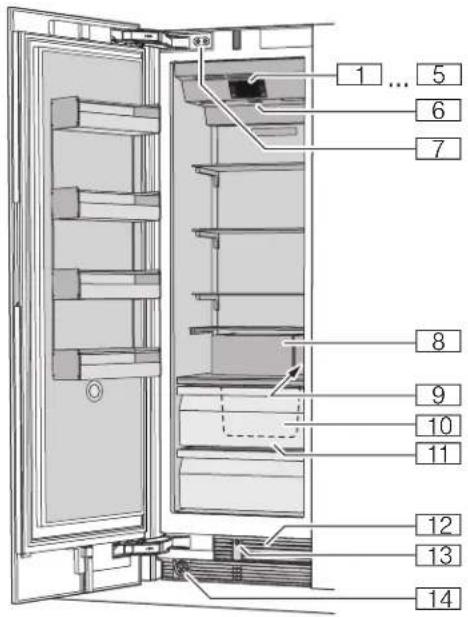
Appliance
(...H Operating controls
P Main On/Off switch
X Door damper
`Ice maker
h Rating plate
)" Ice cube bin
)* Frozen food container
)2 Ventilation opening
): Automatic door opening
)B Water filter
Operating controls
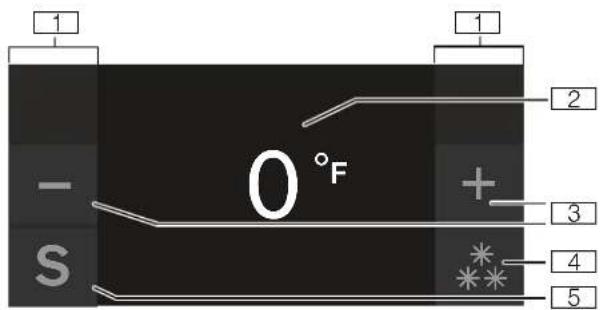
(Touch fields
There are sensors under the touch fields.
Touching the symbol calls up the respective function.
0 Freezer compartment temperature display
Indicates the set temperature in °F/°C.
8 -/+ buttons
Used to change the temperature.
@**/* button
Switches fast freezing on or off.
H S button
Opens main menu.
Main menu
Press S button to open the main menu.
In the main menu you can find:
- Basic settings
• Display lock for cleaning - Ice cube production
- Eco mode
- Reset water filter counter
- Self-test
• Rest mode (when active)
→ "Operating the appliance" on page 15
Basic settings menu
To access the Basic settings menu:
-
Press S button.
-
Press < button to move to the menu item Basic settings.
-
Open the menu using √ button.
In the Basic settings menu you will find the following submenus and setting options:
- Brightness
- Display screen
- Touch field color
- Touch field tone type
- Touch field tone volume
• Signal tone volume
• Water filter counter
• Dimming when door is opened and closed
• Temperature unit
Language
- Factory settings
- Demo mode
- Rest mode
• Automatic door opening
• Home network
• Automatic display lock for cleaning
→ "Operating the appliance" on page 15
Equipment
(not all models)
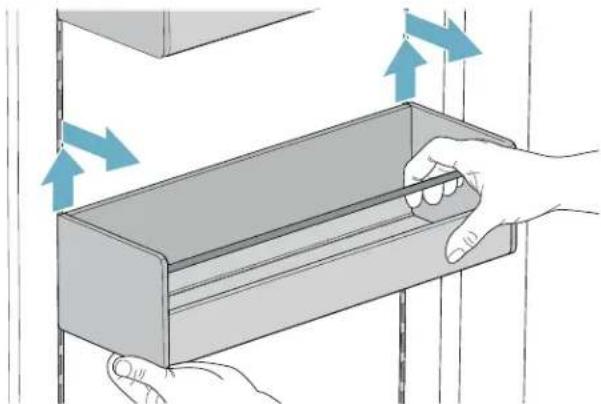
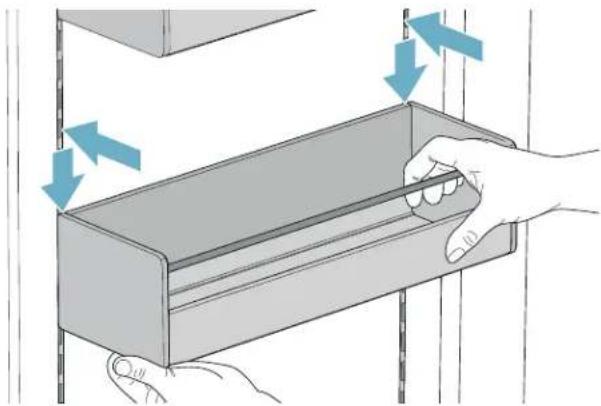
Storage compartment
You can remove and adjust the height of the storage compartment:
- Lift up the storage compartment and remove.
natural_image
Illustration of hands holding a rectangular box with blue arrows indicating direction (no text or symbols)- If necessary, clean storage compartment and insert it carefully at the same or another position.
natural_image
Illustration of a hand holding a rectangular object with arrows indicating force or movement (no text or symbols present)Shelf
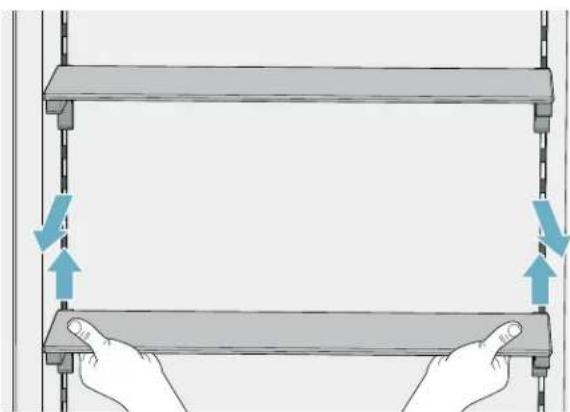
You can remove and adjust the shelf:
natural_image
Illustration of two hands holding a rectangular shelf with blue directional arrows indicating movement or force (no text or symbols)-
Lift shelf and remove.
-
When re-inserting, insert hooks on back of shelf at same height to make it level.
Note: Insert shelf carefully to avoid scratching the appliance.
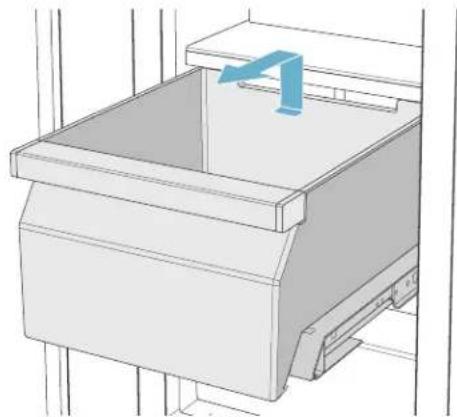
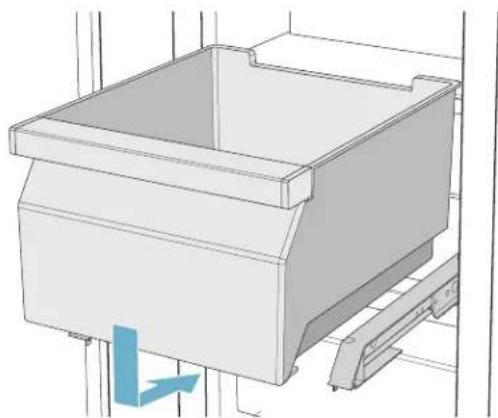
Container
You can remove the container:
- Press container to the rear,
- lift the container at the rear and remove.
natural_image
3D technical line drawing of a mechanical assembly with a blue arrow indicating a directional component (no text or symbols)You can insert the bin:
• Pull out the telescopic rails all the way
- Place the bin on the telescopic rails and push into the appliance until it engages.
natural_image
Technical line drawing of a mechanical component with no visible text or symbolsIce cube bin
Note: To avoid damaging the ice cube container, always empty it if you switch the appliance off for a prolonged period or if there is a power failure.
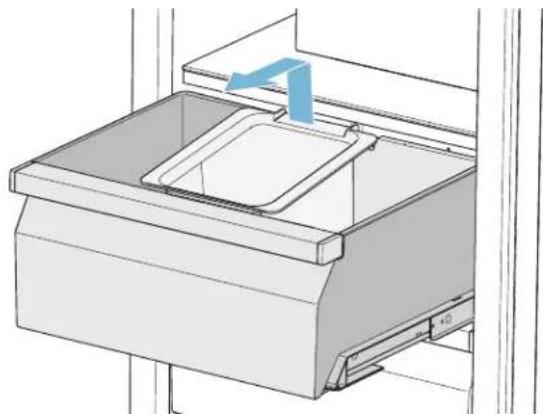
This is how to remove the ice cube container:
- Take out the frozen food container.
Note: If the door opening angle is 90^ , you will find it easier to access the ice cube container by first removing the frozen food container. → "Container" on page 13
- Lift the ice cube container at the rear and remove.
natural_image
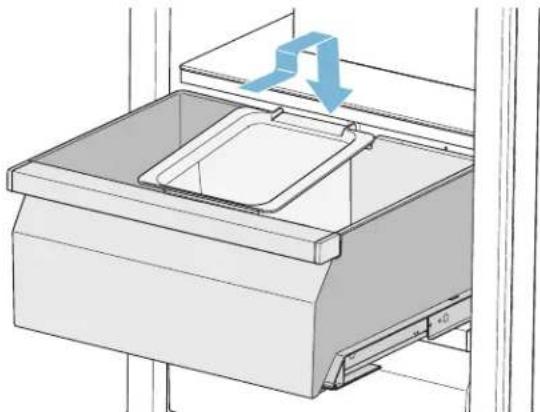
Technical line drawing of a mechanical device with a blue arrow indicating a component (no text or symbols present)This is how to re-insert the ice cube container:
- Take out the frozen food container.
- Insert the ice cube container in the recess of the frozen food container provided for this purpose.
natural_image
Technical line drawing of a mechanical drawer with a blue arrow indicating direction (no text or symbols)Ice pack
In the event of a power failure or a fault:
- The ice pack delays the warming of stored frozen food.
Note: The longest storage time is obtained by placing the ice pack on the food in the top compartment.
You can take out the ice pack to temporarily keep food cool, e.g. in a cool bag.
Ice maker

CAUTION
Damage to the appliance!
Never store bottles or food in the ice cube container, even for short periods. This can block and damage the ice maker.
Ice cube production starts as soon as the appliance has reached the set temperature.
Notes
Discard the first 30-40 ice cubes for hygiene reasons. Ice cube production stops automatically when the ice cube container is full.
Information about switching ice cube production on and off
→ "Switching ice cube production on or off" on page 16
Water filter
Change the water filter after 6 months at the latest.
If the ice tastes stale, discard the rest of the ice cubes and the ones produced over the next 24 hours. If the ice still tastes stale, change the water filter.
Note: You can also use the appliance without a water filter. Replace the water filter with a bypass cartridge. Switch off the water filter counter. There is no need to change the bypass cartridge.
A new water filter or bypass cartridge can be obtained from customer service or a specialist dealer.
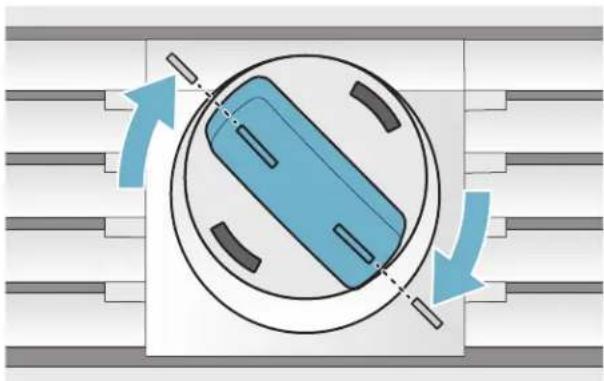
Exchange water filter or replace with bypass cartridge
You can change the water filter, or replace it with a bypass cartridge. The bypass cartridge can remain in the appliance permanently: it does not need to be changed.
Note: After installing a water filter or a bypass cartridge, discard all ice cubes produced over the first 24 hours.
- Turn the cap of the water filter counter-clockwise.
- Take the water filter out.
- Remove the protective cap of the new water filter or the new bypass cartridge.
- Take off the cap of the used water filter and put it on the new water filter or bypass cartridge.
5.Slide the new water filter or bypass cartridge to the stop in the filter opening.
Note: The cap must be horizontal here.
- Turn the water filter or bypass cartridge clockwise to the mark.
Note: If you do not turn the water filter or bypass cartridge far enough, damage will be caused by escaping water.
natural_image
Diagram of a blue cylindrical device inside a circular housing with directional arrows indicating rotation or flow (no text or symbols)- When installing a water filter: reset water filter counter.
When installing a bypass cartridge: switch off water filter counter.
- Discard ice cubes produced over the first 24 hours.
- Drain the water out of the used water filter.
Note: You can dispose of the used water filter with your household garbage.
Operating the appliance
Switching the appliance on
- Press the main On/Off switch.
The appliance starts cooling and the light is switched on when the door is open.
- Set the required temperature.
→ "Setting the temperature" on page 15
Operating tips
- When the appliance has been switched on, it may take several hours until the set temperatures have been reached. Do not put in any food until the selected temperature has been reached.
- The fully automatic NoFrost system ensures that the freezer compartment remains free of ice.
Defrosting is not required. - The front sides of the housing are partly heated slightly. This prevents condensation in the area of the door seal.
- If the freezer compartment door cannot be immediately re-opened after it has been closed, wait until the resulting low pressure has equalized.
Switching off and disconnecting the appliance
Switching off the appliance
- Press the main On/Off switch.
The appliance is no longer cooling.
Disconnecting the appliance

CAUTION
Deterioration in water quality
The water supply must be turned off 3 hours before disconnecting. This prevents mold forming with any unused water.
If you do not use the appliance for a prolonged period:
- Turn off the water supply to the appliance and wait 3 hours.
- Remove groceries.
- Press the main On/Off switch.
- Pull out the mains plug or switch off the fuse. The appliance is no longer cooling.
- Empty the ice cube container and clean the appliance. → "Cleaning" on page 26
- Leave appliance open.
Setting the temperature
Recommended temperature
Freezer compartment: 0 °F (-18 °C)
Freezer compartment
- Keep pressing -/+ button until the display indicates the required temperature.
Fast freezing
Fast freezing cools the freezer compartment as cold as possible.
Switch on fast freezing e.g.:
• to freeze food solid as quickly as possible
- 4 ... 6 hours before freezing food weighing 2 kg or more
• to use the max. freezing capacity
Note: When fast freezing is switched on, increased operating noise may occur.
After approx. 2 12 days the appliance switches to normal operation.
Switching fast freezing on or off:
- Press */ /* button.
Display lock for cleaning
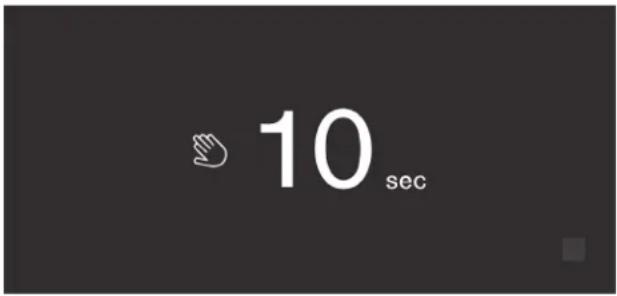
You can use this function to switch off the touch function of the controls for 10 seconds. During this time you can clean the display.
→ "Cleaning the display" on page 26
-
Press S button to open the main menu.
-
Press ▶ button.
The cleaning display appears, and the countdown starts.
Switching ice cube production on or off

CAUTION
Damage to the appliance!
Never store bottles or food in the ice cube container, even for short periods. This can block and damage the ice maker.
Ice cube production starts as soon as the appliance has reached the set temperature.
Note: Ice cube production stops automatically when the ice cube container is full.
Switching ice maker on or off
- Press S button to open the main menu.
- Press > button to move to the menu item Ice cube production.
- Press ▶/■ button.
Eco mode
Eco mode switches the appliance to energy-saving operation.
The appliance automatically sets the following temperatures:
• Freezer compartment: +3 °F (-16 °C)
Switching Eco mode on or off
- Press S button to open the main menu.
- Press > button to move to the menu item Eco mode.
- Press ▶/■ button.
The temperature is changed, and the display shows the new temperature. When Eco mode is switched off, the recommended temperature is set.
Note: You can also switch Eco mode on or off by adjusting the temperature with -/+ buttons.
Reset water filter counter
After replacing the water filter, you have to reset the water filter counter.
- Press S button to open the main menu.
- Use > button to move to the menu item Reset water filter counter.
- Use √ button to confirm and confirm the query again with √ button.
Note: The water filter counter will not be reset if you abort the query or take longer than 10 seconds to make an input.
Self-test
This function can be used to start fault analysis on your appliance.
→ "Appliance self-test" on page 29
Setting the brightness of the control panel
- Press S button to open the main menu.
- Press < button to move to the menu item Basic settings.
- Press √ button.
- Press \_ button to open the menu item Brightness.
- Press <> buttons to set the required brightness.
- Press √ button.
The setting is saved. - Press X button to exit the menu.
Setting the display screen
You can choose between the settings Reduced and Standard. With the setting Reduced only the temperature and active special functions are displayed on the control panel after a short period without operation. If the touch fields are touched, all keys will be visible again. With the setting Standard all keys always remain visible.
- Press S button to open the main menu.
- Press < button to move to the menu item Basic settings.
- Press √ button.
- Press > button to move to the menu item Display screen.
- Press \_ button.
- Press <> buttons to move to the required setting.
- Press √ button.
The setting is saved. - Press X button to exit the menu.
Setting the touch field color
- Press S button to open the main menu.
- Press < button to move to the menu item Basic settings.
- Press √ button.
- Press > button to move to the menu item Touch field color.
- Press \_ button.
- Press <> buttons to move to the required setting.
- Press √ button.
The setting is saved. - Press X button to exit the menu.
Setting the touch field tone type.
You can change or switch off the sound of the tones generated when pressing keys.
- Press S button to open the main menu.
- Press < button to move to the menu item Basic settings.
-
Press √ button to open the menu item.
-
Press > button to move to the menu item Touch field tone type.
- Press \_ button to open the menu item.
- Press <> buttons to select the required setting.
- Press √ button.
The setting is saved. - Press X button to exit the menu.
Setting the touch field tone volume
You can adjust the volume level of the sounds generated when pressing keys.
- Press S button to open the main menu.
- Press < button to move to the menu item Basic settings.
- Press √ button to open the menu item.
- Press > button to move to the menu item Touch field tone volume.
- Press \_ button to open the menu item.
- Press <> buttons to select the required setting.
- Press √ button.
The setting is saved. - Press X button to exit the menu.
Setting the signal tone volume
You can adjust the volume level of the signal tones generated e.g. with alarms.
- Press S button to open the main menu.
- Press < button to move to the menu item Basic settings.
- Press √ button to open the menu item.
- Press > button to move to the menu item Signal tone volume.
- Press \_ button to open the menu item.
- Press <> buttons to select the required setting.
- Press √ button.
The setting is saved. - Press X button to exit the menu.
Switching the water filter counter on and off
If you have replaced the water filter with a particle filter, switch the water filter counter off. It is not needed in this case as the particle filter does not have to be replaced.
- Press S button to open the main menu.
- Press < button to move to the Basic settings menu.
- Press √ button.
- Press > button to move to the menu item Water filter counter.
- To change the setting, press \_ button.
- Confirm the selection by pressing √ button.
Dimming when door is opened and closed
If dimming is switched on, the light will slowly become brighter when the door is opened, and then slowly darker when it is closed.
Switching dimming on or off when opening and closing the door
- Press S button to open the main menu.
- Press < button to move to the menu item Basic settings.
- Press √ button.
- Press > button to move to the menu item Dimming when door is opened and closed.
- Press \_ button.
- Press > button to move to the menu item On or Off. Confirm by pressing √ button.
Setting the temperature unit
You can choose between the unit °C and °F.
- Press S button to open the main menu.
- Press < button to move to the menu item Basic settings.
- Press √ button.
- Press < button to move to the menu item Temperature unit.
- Press \_ button.
- Press <> buttons to move to the required unit.
- Press √ button.
The unit will be changed. - Press X button to exit the menu.
Setting the language
- Press S button to open the main menu.
- Press < button to move to the menu item Basic settings.
- Press √ button.
- Press < button to move to the menu item Language.
- Press \_ button.
- Press <> buttons to move to the required language.
- Press √ button.
The display restarts, and the start screen is displayed.
Resetting to the factory settings
- Press S button to open the main menu.
- Press < button to move to the menu item Basic settings.
- Press √ button.
- Press < button to move to the menu item Factory settings.
- Press \_ button.
A signal tone sounds, and a message to confirm reset appears. - Press √ button.
All settings are reset to the factory settings. - Press X button to exit the menu.
Switching demo mode on or off
The cooling function of the appliance is switched off. All other functions can be used.
Note: Do not store any food items in demo mode as the appliance remains at room temperature.
- Press S button to open the main menu.
- Press < button to move to the menu item Basic settings.
- Press √ button.
- Press < button to move to the menu item Demo mode.
- Press \_ button.
- Press <> buttons to select the setting On or Off.
- Press √ button.
The setting is saved. - Press X button to exit the menu.
Rest mode
The appliance switches off the following:
• Automatic door opening
Note: With handle-free installation, please note that you will not be supported when opening the door during this time. To open the door in this case, reach from below under the bottom panel of the unit.
- Ice maker
- Audible signals
- Interior light
- Messages on the display
• Background illumination of display is reduced
Switching Rest mode on or off
Displaying or hiding rest mode in the main menu
To use rest mode, you first have to display the function in the main menu:
-
Press S button to open the main menu.
-
Press < button to move to the menu item Basic settings.
-
Press √ button.
-
Press < button to move to the menu item Rest mode. Press \_ button.
-
Press > buttons to move to the menu item Available or Not available. Confirm by pressing √ button.
-
Press X button to exit the menu.
The function is displayed or hidden in the main menu.
Switching rest mode on
-
Press S button to open the main menu.
-
Press ⏻ button to open the view Rest mode duration.
-
Press -/+ buttons to change the duration.
-
Press ▶ button to start.
The appliance switches all listed functions off.
Switching rest mode off
• After the selected time elapses, the appliance switches over to normal operation.
- To end rest mode before expiry of the selected time, press ■ button.
Automatic door opening
The automatic door opening function supports you in opening the door.
As soon as you activate this function, automatic door opening moves out and supports you in opening the door.

CAUTION
Repeatedly closing the door too early will cause automatic door opening to wear out or fail.
Do not close the door as long as automatic door opening is still moved out.
If you have nevertheless closed the door, leave it closed for 5 minutes. Automatic door opening will re-adjust itself.
Open the menu item Automatic door opening:
- Press S button to open the main menu.
- Press < button to move to the Basic settings menu.
- Press √ button to open the menu.
- Press < button to move to the menu item Automatic door opening.
- To change the setting, press \_ button.
Switching on Push-to-open system
In an installation situation without handles you can select the Push-to-open system. Your appliance will then open a crack if you press lightly on the door.
Note: Please note that automatic door opening is disabled if Rest mode is activated.
- Open the menu item Automatic door opening.
- Select menu item Push-to-open system.
- Press √ button to open the menu item.
- Select Opening force. Here you can select the level of force required to activate automatic door opening.
- Select Opening duration. Here you can select how long the door should remain open a crack before it closes again automatically.
Note: If the door only remains open a crack, the appliance checks once a second whether the door is still ajar. After the selected opening duration elapses, the appliance will close the door automatically.
Switching on Pull-to-open system
In an installation situation with handles you can select the Pull-to-open system. Your appliance will support you in opening the door as soon as you pull on the handle.
- Open the menu item Automatic door opening.
- Select menu item Pull-to-open system.
- Press √ button to open the menu item.
- Select Opening force. Here you can select the level of force required to activate automatic door opening.
Switching off automatic door opening
-
Open the menu item Automatic door opening.
-
Select menu item Off.
Home network
You can use this function to establish a connection between the refrigerator and your mobile device.
→ "Home Connect" on page 21
Alarm
Door alarm
If the appliance door is open for a long time, the door alarm switches on. A message appears on the control panel.
Switching off the door alarm
- Close the door.
Note: To mute the door alarm, you only have to acknowledge the message on the control panel. If the door remains opens a few more minutes, the message will appear again.
Temperature alarm
If the freezer compartment becomes too warm, the temperature alarm is switched on. A message appears on the control panel. The message shows the warmest temperature reached in the freezer compartment.
CAUTION
During the thawing process, bacteria may develop and spoil the frozen items.
Do not refreeze partly or completely thawed food.
Refreeze food only after cooking. No longer store the frozen items for the maximum storage period.
Note: The alarm may be actuated without risk to the food in the following cases:
- The appliance is put into service and does not yet contain any food.
- Large quantities of fresh food are placed in the appliance.
- The freezer compartment door has been open too long.
Switching off the temperature alarm
- Check that the cause of the temperature alarm has been eliminated.
- Press √ button to acknowledge the message. The message disappears. The control panel again indicates the temperature selected.
From this time on the warmest temperature is recalculated and saved.
Home Connect
This appliance is Wi-Fi-capable and can be controlled remotely using a mobile device.
Note: Wi-Fi is a registered trade mark of the Wi-Fi Alliance.
In the following cases, the appliance functions like a refrigerator without a network connection and can still be operated manually via the controls:
- The appliance is not connected to a home network.
- The availability of the Home Connect function depends on the availability of Home Connect services in your country. Home Connect services are not available in every country. You can find more information on www.home-connect.com.
Note: Please observe the safety information in this instruction manual. Ensure that this is also observed if you operate the appliance via the Home Connect app and are not at home when doing so.
→ "Important safety instructions" on page 4
Follow the instructions in the Home Connect app as well.
Setting up Home Connect
Notes
- Wait at least 2 minutes after switching on the appliance before setting up Home Connect. Only then is internal appliance initialization complete.
- Take note of the Home Connect supplementary sheet, which is supplied with the appliance or is available for download at www.gaggenau.com together with the instructions. Enter the E-number of your appliance in the search field.
You can connect your appliance to the home WLAN network (Wi-Fi) in 3 basic steps.
- Install the app.
- Connect your refrigerator to the home WLAN network (Wi-Fi).
- Connect the refrigerator to the Home Connect app.
Home network menu
Here is how to open the Home network menu:
- Press S button to open the main menu.
- Press < button to move to the menu item Basic settings.
- Press √ button to open the menu item.
-
Press < button to move to the menu item Home network.
-
Press \_ button to open the menu item. Note: The first time you open the menu, you will be automatically guided through initial setup. Follow the instructions on the control panel. For further information, please also see the following chapters.
- Press <> buttons to select the required submenu.
- Press X button to exit the menu.
The following sub-menus can be found in the Home network menu:
- Connection
- Connect to app
- Software update
- Delete network settings
Setting up the connection to the home network
The first time you open the menu, you will be automatically guided through initial setup. Follow the instructions on the control panel.
- Install the Home Connect app on your mobile device.
- Open the Home network menu on your refrigerator.
- Open the app on your mobile device.
- Log in or register with the app if access is not yet available.
- Check the router of your home network to see if a WPS function is available for automatic connection.
- If this function is available, start automatic network connection with √ button.
Follow the instructions on the control panel.
-
Start manual network connection if this function is not available, if you're not sure whether the function is available, or if automatic network connection failed. The refrigerator temporarily generates its own network for connecting the mobile device.
-
Start manual network connection in the app of your mobile device.
As soon as the refrigerator is connected to the mobile device, a connection between the refrigerator and your home network is established.
Note: If the connection cannot be established, check whether there is sufficient reception.
→ "Verifying signal strength" on page 21
Verifying signal strength
The signal strength is displayed in the start window of the Home network menu. The signal strength should be at least 50 %. If the signal strength is too weak, the connection may be interrupted.
Improving signal strength
- Place the router closer to the refrigerator.
- Check that screening walls do not interfere with the connection.
• Install a repeater to make the signal stronger.
Connecting the refrigerator to the Home Connect app
Use this menu to connect your refrigerator to mobile devices.
- Install the Home Connect app on your mobile device and log in or register.
- Open the Home network menu on your refrigerator. → "Setting up Home Connect" on page 21
- Press > button to move to the menu item Connect to app.
-
Press \_ button to open the menu item.
-
Confirm the message to display the refrigerator in the app.
-
Open the app and wait until the refrigerator is displayed.
Press Add to confirm the connection between the app and the refrigerator.
If the refrigerator is not automatically displayed, click on Add appliance in the app and follow the instructions. As soon as your refrigerator is displayed, add it with +.
- Follow the instructions in the app until the process is complete.
Installing updates for the Home Connect software
The refrigerator checks at regular intervals whether updates are available for the Home Connect software.
If an update is available, a little exclamation mark S appears on the S^® button.
Installing the update:
- Press S^ button.
The special menu Home network note opens. - Press √ button to open the menu item.
A note window with the necessary steps for installing the new software appears. - To close the note window, press √ button.
- Open the Home network menu on your refrigerator. → "Setting up Home Connect" on page 21
- Press > button to move to the menu item Software update.
- Press \ button to open the menu item.
Note: The \ button is only visible if an update is available.
The software is installed. - A note appears when installation is complete.
- Press √ button to close the note.
Customer Service access
If you contact Customer Service, they can access your appliance and view its status after you have given your consent. You need to have your appliance connected to your home network for this.
Further information about Customer Service access and its availability in your country is available under www.home-connect.com in the Help & Support area.
- Contact Customer Service.
→ "Customer service" on page 29
- Confirm the start of Customer Service access in the app.
During Customer Service access the symbol 📋 appears on the control panel.
- As soon as Customer Service has obtained the necessary data, they end access.
Note: You can interrupt remote diagnosis early by switching off Customer Service access in the Home Connect app.
Deleting network settings
If there is a problem when trying to establish a connection, or if you would like to register the appliance in a different home network (WLAN), the Home Connect settings can be reset.
- Open the Home network menu on your refrigerator. → "Setting up Home Connect" on page 21
- Press > button to move to the menu item Delete network settings.
- Press \_ button to open the menu item.
- Confirm the message to delete the network settings.
To then reconnect the appliance to the home network, perform initial setup again.
→ Page 21
Information on data protection
The first time your Home Connect appliance is registered on a WLAN home network connected to the Internet (Wi-Fi), your appliance will transmit the following types of data to the Home Connect server (initial registration):
- Unique appliance identification (consisting of appliance codes as well as the MAC address of the installed Wi-Fi communication module).
- Security certificate of the Wi-Fi communication module (to ensure a secure data connection).
- The current software and hardware version of your domestic appliance.
- Status of any previous resetting to factory settings.
This initial registration prepares the
Home Connect functions for use and is only required when you want to use these Home Connect functions for the first time.
Note: Please note that the Home Connect functions can be utilized only in conjunction with the Home Connect app. Information on data protection can be called up in the Home Connect app.
Freezer compartment
The freezer compartment is suitable for:
- storing frozen food
- making ice cubes
- freezing food
The temperature can be set from -11 °F (-24 °C)... +7 °F (-14 °C).
The freezer compartment can be used to store perishable foods long-term almost without any noticeable reduction in quality, as the low temperatures considerably slow down or stop deterioration. Appearance, flavor and all valuable ingredients are largely retained.
The time between putting fresh food in the freezer compartment and it freezing solid depends on the following factors:
- temperature set
- type of food
• amount of food in the freezer compartment
• quantity and type of storage
Fully utilizing the freezer volume
To place the maximum quantity of frozen food in the freezer compartment:
- Remove all fittings.
- Store food directly on the shelves and on the floor of the freezer compartment.
Purchasing frozen food
- Ensure the packaging is not damaged.
- Check there is a sell-by date.
- The temperature in the supermarket freezer must be 0 ^ (-18 ^ ) or lower.
- Do not interrupt the freezing chain. If possible, transport frozen food in a cool bag and place in the freezer compartment quickly.
When loading products
- Freeze large quantities of food in the top compartment.
This is where it will freeze especially quickly and gently.
- Distribute food in the compartments or frozen food containers.
- Do not bring food which is to be frozen into contact with frozen food.
If required, restack frozen food in the frozen food containers.
- Important for unrestricted air circulation in the appliance:
push in frozen food containers up to the limit stop.
Freezing fresh food
Freeze only fresh and undamaged food.
Food which is boiled, fried or baked is more suitable for freezing than food which is eaten raw.
Before freezing food, make preparations appropriate to the food in order to retain the best possible nutritional value, flavor and color:
• Vegetables: wash, chop, blanch.
- Fruit: wash, pit and perhaps peel, possibly add sugar or ascorbic acid solution.
Information on how to do this can be found in relevant literature.
Suitable for freezing
- Baked goods
- Fish and seafood
- Meat
- Poultry and game
• Vegetables, fruit and herbs - Eggs without shells
• Dairy products, e.g. cheese, butter and quark - Ready meals and leftovers, e.g. soups, stews, cooked meat and fish, potato dishes, soufflés and desserts
Not suitable for freezing
- Types of vegetables which are usually eaten raw, e.g. lettuce or radishes
• Unpeeled or hard-boiled eggs - Grapes
• Whole apples, pears and peaches - Yoghurt, soured milk, sour cream, creme fraiche and mayonnaise
Packing frozen food
The correct type of packaging and material selection are decisive factors in the retention of the product quality and prevent the development of freezer burn.
- Place food in packaging.
- Remove air.
- Pack food airtight to prevent it from losing flavor or drying out.
4.Label packaging with contents and date of freezing.
Suitable packaging:
- Plastic foil
• Tubular foil made of polyethylene (PE) - Aluminum foil
- Freezer containers
Suitable closures:
- Rubber bands
- Plastic clips
• Cold-resistant adhesive tape
Unsuitable packaging:
- Wrapping paper
- Greaseproof paper
- Cellophane
• Garbage bags and used grocery bags
Shelf life of frozen food at 0 °F (-18 °C)
Fish, sausage, ready meals, up to 6 months and cakes and pastries:
Meat, poultry: up to 8 months
Vegetables, fruit: up to 12 months
Thawing frozen food
The thawing method must be adjusted to the food and application in order to retain the best possible product quality.
Thawing methods:
- in the refrigerator compartment (especially suitable for animal-based foods such as fish, meat, cheese, quark)
• at room temperature (bread) - in the microwave (food for immediate consumption or immediate preparation)
- in the oven/cooker (food for immediate consumption or immediate preparation)
CAUTION
Do not refreeze partly or completely thawed food. You can only refreeze food once it has been cooked (boiled or fried).
The frozen food can no longer be stored for the maximum duration.
Defrosting
Freezer compartment
The fully automatic NoFrost system ensures that the freezer compartment remains free of ice. Defrosting is no longer required.
Cleaning

CAUTION
Avoid damaging the appliance and the equipment.
- Do not use abrasive, chloride-based or acidic cleaning agents or solvents.
- Do not use scouring or abrasive sponges. The metallic surfaces may corrode.
- Never clean the shelves or bins in the dishwasher. The parts may become deformed.
Cleaning the display
The change in temperature and humidity can cause the controls to steam up.
Switch the clean lock on before cleaning.
→ "Display lock for cleaning" on page 16
Use a clean micro-fiber cloth for cleaning.
Cleaning the appliance interior
Proceed as follows:
- Press the main On/Off switch.
-
Take out food and store in a cool location. Place ice pack (if available) on the food.
-
Clean the appliance with a soft cloth, lukewarm water and a little pH-neutral washing-up liquid.

CAUTION
The rinsing water must not run into the light or through the drainage hole into the evaporation area.
- Wipe door seal with clear water and dry thoroughly with a cloth.
5.Switch appliance back on and put in food.
Cleaning the fittings
To clean, take the variable parts out of the appliance.
→ "Equipment" on page 12
Care instructions for stainless steel surfaces
When taking care of and cleaning stainless steel surfaces, use only cleaning agents suitable for stainless steel and a stainless steel cleaning cloth.
You can purchase a suitable stainless steel cleaning cloth from customer service.
To prevent visible scratches, clean the stainless steel surface in the direction of the structure.
Noises
Normal noises
Droning: A motor is running, e.g. refrigerating unit, ventilator.
Bubbling, buzzing or gurgling: Refrigerant is flowing through the tubes.
Clicking: Motor, switches or solenoid valves are switching on or off.
Cracking: Automatic defrosting is running.
Preventing noises
Appliance is not level: Align appliance using a water level. If required, place a little packing underneath.
Bins, shelves or storage compartments wobble or stick: Check the removable fittings and re-insert if required.
Lighting
Your appliance features a maintenance-free LED light.
Only customer service or authorized technicians may repair the light.
Faults – what to do?
Before you call customer service, use this table to check whether you can rectify the fault yourself.
Appliance
Temperature differs greatly from the set value.
| Switch off appliance for 5 minutes.→ "Switching off and disconnecting the appliance" on page 15If the temperature is too warm, check temperature again after a couple of hours.If the temperature is too cold, check temperature again on the following day. |
Displays do not light up.
| The power plug has not been inserted properly. Connect the power plug. |
| The fuse has tripped. Check the fuses. |
| The power has failed. Check whether the power is on. |
The refrigeration unit is switching on more frequently and for longer.
| The appliance was opened frequently. Do not open the appliance unnecessarily. |
| The ventilation openings are covered up. Remove obstacles. |
| Large quantities of fresh food have been put in. Switch on super cooling promptly in advance. |
Appliance is not cooling, display and lighting are lit.
Demo mode is switched on. Switch demo mode off.
→ "Switching demo mode on or off" on page 18
The door does not open when pressed.
| A special mode has switched off automatic door opening. | To open the door, reach from below underneath the bottom panel of the unit or switch off special mode.→ "Switching Rest mode on or off" on page 19 |
| Pull-to-open is switched on. Switch the appliance to Push-to-open. | → "Automatic door opening" on page 19 |
| The opening force is set too high. Select a lower setting for the opening force. | → "Automatic door opening" on page 19 |
| The fuse has tripped. Check the fuses. |
The power has failed. Check whether the power is on.
Ice maker
The ice maker is not functioning.
| Ice cube production is switched off. Switch on ice cube production. |
| Freezer compartment is too warm. Set the temperature lower.→ "Operating the appliance" on page 15 |
| Ice cube container is not properly inserted. Insert ice cube container fully. |
| Ice maker without power. Call customer service.→ "Customer service" on page 29 |
| No water supply. Check water connection and contact technician if necessary. |
| Low water pressure. Only connect appliance to pipes with sufficient water pressure. |
| Kink in water hose. Turn off water supply, straighten out kink. Replace water hose, if necessary. |
Too few or deformed ice cubes, water pressure lower than usual.
| After switching on or removing many ice cubes, there will be too few in the ice cube container. | It takes around 24 hours for an empty ice cube con-tainer to fill up. |
| Ice cube production stops even though the ice cube container is still not full. | Do not store the ice shovel on the ice in the ice cube container. Otherwise, the sensor will not detect the actual fill level of the container. |
| Low water pressure. Only connect appliance to pipes with sufficient water pressure. | |
| The water filter is blocked or needs to be replaced. Replace water filter. | |
| Freezer compartment is too warm. Set the temperature lower.→ "Operating the appliance" on page 15 | |
Water is leaking out of the appliance.
Water connection is not tight. Check if the connections are fastened firmly and the water hose is undamaged. If the water hose is damaged, contact customer service and have it replaced. Replacement must be performed by customer service or a similarly qualified person only. Use original parts supplied by the manufacturer only.
Customer service
If you are unable to rectify the fault, please contact our customer service. We will always find an appropriate solution in order to avoid unnecessary visits by engineers.
The contact information for your nearest customer service can be found here or on the enclosed customer service list.
When calling, please state the product number (E-Nr.) and the production number (FD), which can be found on the rating plate.
→ "Getting to know your appliance" on page 11
Trust the expertise of the manufacturer. You can therefore be sure that the repair is carried out by trained service engineers who carry original spare parts for your home appliances.
Appliance self-test
Your appliance features a self-test program which displays the fault your customer service can rectify.
- Press S button to open the main menu.
- Press > button to move to the menu item Self-test.
- Press √ button to start the self-test.
The self-test starts. - If faults are present, they will be displayed. In this case follow the instructions.
- The appliance restarts.
- The message that the self-test has finished is displayed for 10 seconds. To acknowledge the message, press √ button.
When the self-test has ended, the appliance switches over to normal operation.
Repair order and advice on faults
Contact information for all countries can be found on the enclosed customer service list.
US 877 442 4436 toll-free
natural_image
Illustration of hands holding a rectangular object with blue arrows indicating direction (no text or symbols)natural_image
Illustration of hands holding a rectangular object with arrows indicating force or movement (no text or symbols)Clayette
natural_image
Illustration of two hands holding a rectangular shelf with blue directional arrows indicating movement or force (no text or symbols)natural_image
3D line drawing of a mechanical drawer with a blue arrow indicating direction (no text or symbols)natural_image
Technical line drawing of a mechanical component with a blue arrow indicating direction (no text or symbols)Bac à glaçons
natural_image
Technical line drawing of a mechanical device with a blue arrow indicating a component (no text or symbols present)natural_image
Technical line drawing of a mechanical device with a blue arrow indicating direction (no text or symbols)natural_image
Diagram of a blue cylindrical device inside a circular housing with directional arrows indicating rotation or flow (no text or symbols)Configurer Home Connect
Remarques
natural_image
Illustration of hands holding a rectangular container with blue arrows indicating direction (no text or symbols)natural_image
Illustration of a hand holding a rectangular object with arrows indicating force or movement (no text or symbols present)Bandeja
natural_image
Illustration of two hands holding a rectangular shelf with blue directional arrows indicating movement or force (no text or symbols)natural_image
3D line drawing of a mechanical drawer with a blue arrow indicating a directional component (no text or symbols)Para colocar el recipiente:
natural_image
3D technical illustration of a mechanical housing component with no visible text or symbolsnatural_image
Technical line drawing of a mechanical drawer with a blue arrow indicating a component (no text or symbols present)natural_image
Technical line drawing of a mechanical drawer with a blue arrow indicating direction (no text or symbols)Accumulador de frío
natural_image
Diagram of a blue cylindrical device inside a circular housing with directional arrows indicating rotation or movement (no text or symbols)1901 Main Street, Suite 600
Irvine, CA 92614
1-877-442-4436
www.gaggenau.com/us
© 2018 BSH Home Appliances




- Important safety instructions 4
- Intended use 7
- Environmental protection 7
- Installation and connection 8
- Getting to know your appliance 11
- Operating the appliance 15
- Alarm 20
- Home Connect 21
- Freezer compartment 24
- Defrosting 25
- Cleaning 26
- Noises 26
- Important safety instructions
- READ INSTRUCTIONS - DO NOT DISCARD!
- Definitions
- WARNING
- CAUTION
- NOTICE
- About these instructions
- Introduction
- Risk of explosion
- Risk of electric shock
- Risk of cold burns
- Risk of Injury
- Risk of fire
- Avoiding placing children and vulnerable people at risk
- At risk are:
- Measures:
- Risk of suffocation
- Damage
- To avoid damage:
- Weight
- State of California Proposition 65 Warnings
- WARNING / AVERTISSEMENT
- Intended use
- Use this appliance
- Environmental protection
- Packaging
- Old appliances
- Installation and connection
- Contents of package
- Technical data
- Installing the appliance
- Installation location
- Check built-in cut-out
- Side-by-side installation
- Saving energy
- Before using for the first time
- Water connection
- Water pressure of drinking water system
- Electrical connection
- Requirements for outlets
- Maximum simultaneous load
- Getting to know your appliance
- Appliance
- Operating controls
- Main menu
- Basic settings menu
- Equipment
- Storage compartment
- Shelf
- Container
- Ice cube bin
- Ice pack
- Ice maker
- Damage to the appliance!
- Notes
- Water filter
- Exchange water filter or replace with bypass cartridge
- Operating the appliance
- Switching the appliance on
- Operating tips
- Switching off and disconnecting the appliance
- Switching off the appliance
- Disconnecting the appliance
- Setting the temperature
- Recommended temperature
- Freezer compartment
- Fast freezing
- Display lock for cleaning
- Switching ice cube production on or off
- Switching ice maker on or off
- Eco mode
- The appliance automatically sets the following temperatures:
- Switching Eco mode on or off
- Reset water filter counter
- Self-test
- Setting the brightness of the control panel
- Setting the display screen
- Setting the touch field color
- Setting the touch field tone type.
- Setting the touch field tone volume
- Setting the signal tone volume
- Switching the water filter counter on and off
- Dimming when door is opened and closed
- Switching dimming on or off when opening and closing the door
- Setting the temperature unit
- Setting the language
- Resetting to the factory settings
- Switching demo mode on or off
- Rest mode
- Switching Rest mode on or off
- Displaying or hiding rest mode in the main menu
- Switching rest mode on
- Switching rest mode off
- Automatic door opening
- Open the menu item Automatic door opening:
- Switching on Push-to-open system
- Switching on Pull-to-open system
- Switching off automatic door opening
- Home network
- Alarm
- Door alarm
- Switching off the door alarm
- Temperature alarm
- Switching off the temperature alarm
- Home Connect
- Setting up Home Connect
- Home network menu
- Setting up the connection to the home network
- Verifying signal strength
- Improving signal strength
- Connecting the refrigerator to the Home Connect app
- Installing updates for the Home Connect software
- Customer Service access
- Deleting network settings
- Information on data protection
- Fully utilizing the freezer volume
- Purchasing frozen food
- When loading products
- Freezing fresh food
- Suitable for freezing
- Not suitable for freezing
- Packing frozen food
- Shelf life of frozen food at 0 °F (-18 °C)
- Thawing frozen food
- Defrosting
- Cleaning
- Cleaning the display
- Cleaning the appliance interior
- Cleaning the fittings
- Care instructions for stainless steel surfaces
- Noises
- Normal noises
- Preventing noises
- Lighting
- Faults – what to do?
- Appliance is not cooling, display and lighting are lit.
- Water is leaking out of the appliance.
- Customer service
- Appliance self-test
- Repair order and advice on faults
- Clayette
- Bac à glaçons
- Configurer Home Connect
- Remarques
- Bandeja
- Accumulador de frío
Brand : GAGGENAU
Model : RF411704
Category : Freezer