
SLV-X847ML - VCR SONY - Free user manual and instructions
Find the device manual for free SLV-X847ML SONY in PDF.


User questions about SLV-X847ML SONY
0 question about this device. Answer the ones you know or ask your own.
Ask a new question about this device
Download the instructions for your VCR in PDF format for free! Find your manual SLV-X847ML - SONY and take your electronic device back in hand. On this page are published all the documents necessary for the use of your device. SLV-X847ML by SONY.
USER MANUAL SLV-X847ML SONY
Video Cassette Recorder
Operating Instructions
VHS
PAL NTSC
Hi-Fi
G-CODE
SLV-X847ML
WARNING
To prevent fire or shock hazard, do not expose the unit to rain or moisture.
To avoid electrical shock, do not open the cabinet. Refer servicing to qualified personnel only.
The mains lead must only be changed at a qualified service shop.
Precautions
Safety
- This unit operates on 110 - 240VAC , 50 / 60Hz . Check that the unit's operating voltage is identical with your local power supply.
- If anything falls into the cabinet, unplug the unit and have it checked by qualified personnel before operating it any further.
- The unit is not disconnected from the mains as long as it is connected to the mains, even if the unit itself has been turned off.
- Unplug the unit from the mains if you do not intend to use it for an extended period of time. To disconnect the lead, pull it out by the plug, never by the lead.
Installing
- Allow adequate air circulation to prevent internal heat buildup.
- Do not place the unit on surfaces (rugs, blankets, etc.) or near materials (curtains, draperies) that may block the ventilation slots.
- Do not install the unit near heat sources such as radiators or air ducts, or in a place subject to direct sunlight, excessive dust, mechanical vibration or shock.
- Do not install the unit in an inclined position. It is designed to be operated in a horizontal position only.
- Keep the unit and cassettes away from equipment with strong magnets, such as microwave ovens or large loudspeakers.
- Do not place heavy objects on the unit.
- If the unit is brought directly from a cold to a warm location, moisture may condense inside the VCR and cause damage to the video head and tape. When you first install the unit, or when you move it from a cold to a warm location, wait for about one hour before operating the unit.
Caution
Television programmes, films, video tapes and other materials may be copyrighted.
Unauthorized recording of such material may be contrary to the provisions of the copyright laws. Also, use of this recorder with cable television transmission may require authorization from the cable television transmitter and/or programme owner.
Compatible colour systems
This VCR is designed to record and play back using the PAL (B/G, D/K, and I), MESECAM (B/G, D/K, and K1), or NTSC (M) color systems. Recording of video sources based on other color systems cannot be guaranteed.
Table of contents
Getting Started
4 Step 1: Unpacking
5 Step 2: Setting up the remote commander
8 Step 3: Connecting the VCR
11 Step 4: Tuning your TV to the VCR
14 Step 5: Setting up the VCR with EASY SET UP
17 Manual setup —
Selecting a language, Presetting channels, Setting up G-CODE*, Changing/disabling programme positions, Setting the clock
Basic Operations
40 Playing a tape
44 Recording TV programmes
47 Recording TV programmes using G-CODE
50 Setting the timer manually
Additional Operations
53 Playing/searching at various speeds
55 Recording TV programmes using the quick timer
56 Checking/changing/cancelling timer settings
57 Recording stereo and bilingual programmes
60 Searching with the index function
61 Adjusting the picture
62 Changing menu options
Editing
63 Connecting to a VCR or stereo system
64 Basic editing
Additional Information
65 Troubleshooting
68 Specifications
69 Index to parts and controls
Back cover Index
Step 1
Unpacking
Check that you have received the following items with the VCR:
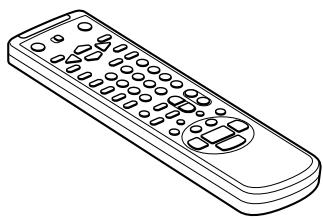
Remote commander
Aerial cable

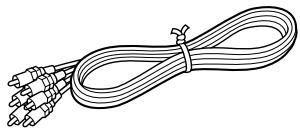
Audio/video cable (3-phon to 3-phono)
R6 (size AA) batteries

Setting up the remote commander
Inserting the batteries
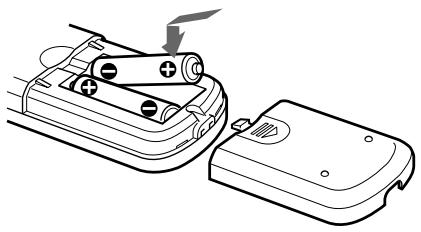
Insert two R6 (size AA) batteries by matching the + and - on the batteries to the diagram inside the battery compartment.
Insert the negative (-) end first, then push in and down until the positive (+) end clicks into position.
Using the remote commander
You can use this remote commander to operate this VCR and a Sony TV. Buttons on the remote commander marked with a dot () can be used to operate your Sony TV.
Remote sensor
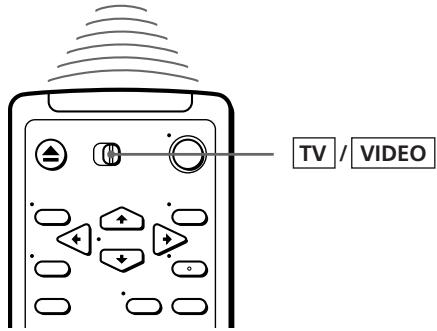
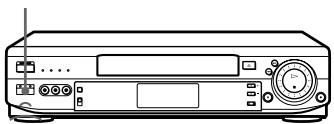
| To operate | Set TV /VIDEO to |
| the VCR | VIDEO and point at the remote sensor on the VCR |
| a Sony TV | TV and point at the remote sensor on the TV |
continued
Step 2: Setting up the remote commander (continued)
Notes
- The TV/VIDEO button selects an input source of the TV from aerial in or line in. The button does not control this VCR.
- With normal use, the batteries should last about three to six months.
- If you do not use the remote commander for an extended period of time, remove the batteries to avoid possible damage from battery leakage.
- Do not use a new battery with an old one.
- Do not mix different types of batteries.
Controlling other TVs with the remote commander
The remote commander is preprogrammed to control non-Sony TVs. If your TV is listed in the table below, set the appropriate manufacturer's code number.
1 Set TV /VIDEO at the top of the remote commander to TV.
2 Hold down , and enter your TV's code number(s) using the programme number buttons. Then release .
Now you can use the following TV control buttons to control your TV: (on/standby), TV/VIDEO, programme number buttons, PROG + / - VOL + / - and WIDE with some TV.
Tip
- If you set your TV's code number correctly while the TV is turned on, the TV turns off automatically.
Code numbers of controllable TVs
If more than one code number is listed, try entering them one at a time until you find the one that works with your TV.
To make wide mode settings, see the footnotes below this table for the applicable code numbers.
| Manufacturer | Code number |
| Sony | 01*1, 02, 03, 04, 05 |
| Aiwa | 32 |
| Akai | 68 |
| Blaupunkt | 10, 21 |
| Brionvega | 40 |
| C.G.M | 09 |
| Colonad | 03 |
| Dual | 44 |
| Emerson | 03, 04 |
| Fenner | 30, 31 |
| Ferguson | 52 |
| Gold Star | 03, 04, 17 |
| Grundig | 10*1, 11*1 |
| Hitachi | 24 |
| Hyper | 31 |
| Inno-Hit | 41 |
| Irradio | 20 |
| ITT | 15, 16, 69*3 |
| JVC | 33*1 |
| Loewe | 45 |
| Mitsubishi | 27*1, 28*1, 50*1, 51*1 |
| Mivar | 09 |
| Manufacturer | Code number |
| NEC | 66 |
| Nokia | 15, 16, 69*3 |
| Nordmende | 35, 42 |
| Orion | 47, 48 |
| Panasonic | 17*1, 49 |
| Philips | 06*1, 07*1, 08*1 |
| Phonola | 18, 19 |
| Pioneer | 26 |
| Saba | 12, 13 |
| Samsung | 22, 23 |
| Sanyo | 25 |
| Schneider | 46 |
| Seleco | 14 |
| Sharp | 29 |
| Siemens | 39 |
| Sinudyne | 37 |
| TEAC | 67 |
| Telefunken | 36 |
| Thomson | 43*2 |
| Toshiba | 38 |
| White Westinghouse | 34 |
1 Press WIDE to switch the wide picture mode on or off.
2 Press WIDE, then press VOL + / - to select the wide picture mode you want.
*3 Press WIDE. The menu appears on the TV screen. Then, press CURSOR / / / to select the wide picture you want and press EXECUTE.
Notes
- If the TV uses a different remote control system from the one programmed to work with the VCR, you cannot control your TV with the remote commander.
- If you enter a new code number, the code number previously entered will be erased.
- When you replace the batteries of the remote commander, the code number automatically resets to 01 (Sony). Reset the appropriate code number.
Step 3
Connecting the VCR
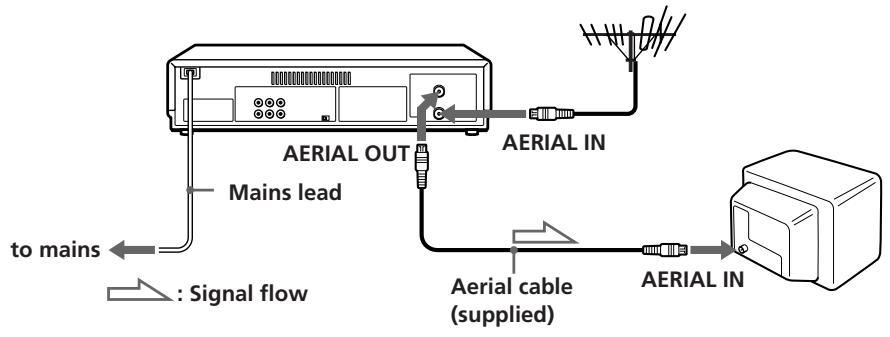
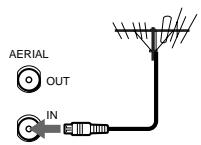
1 Disconnect the aerial cable from your TV and connect it to AERIAL IN on the rear panel of the VCR.
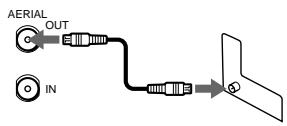
2 Connect AERIAL OUT of the VCR and the aerial input of your TV using the supplied aerial cable.
3 Connect the mains lead to the mains.
Additional connections
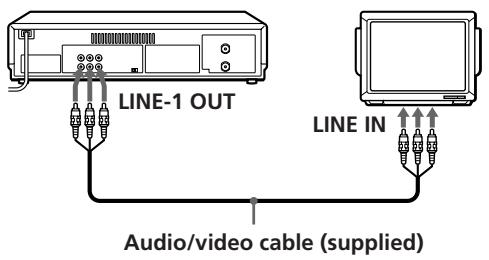
To a TV that has phono type audio/video input jacks
This additional connection improves picture and sound quality. Connect the TV as shown on the right.
If you want to use the Trinitron TV Synchro Play function (see page 43), this connection is necessary. (If your TV has two or more inputs, connect the audio/video cable to the VIDEO IN 1 jacks.)
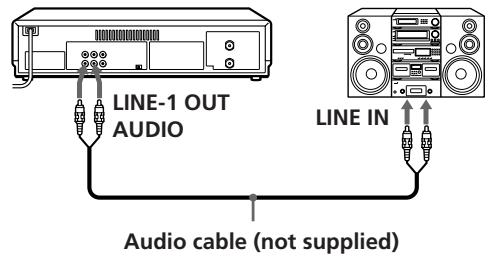
To a stereo system
You can improve sound quality by connecting a stereo system as shown on the right.
About color systems
Different countries use different color systems and TV systems. These systems handle such things as video playback and recording differently. Using your VCR in a country that is on a color system not supported by this VCR may cause problems such as playback without sound, a vertically rolling picture, etc.
This VCR is compatible with most of the existing color systems (NTSC, PAL, and MESECAM) and TV systems (B/G, D/K, I, and M) except for those used in France, Brazil, Argentina, and Uruguay.
continued
Step 3 : Connecting the VCR (continued)
Setting the NTSC PB switch to match your TV system
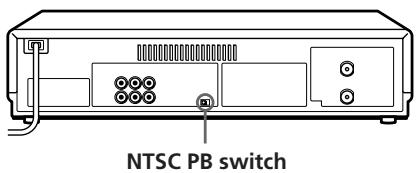
You have to set the NTSC PB switch on the rear of the VCR according to your TV system to display the on-screen menus when there is no video signal input, and play back a tape recorded in the NTSC 3.58 system properly.
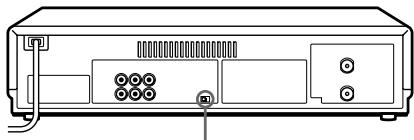
NTSC PB switch
Set the NTSC PB switch following the table below.
| If your TV is compatible with | Set the NTSC PB switch to |
| PAL, SECAM, or MESECAM | ON PAL TV |
| NTSC 4.43 | NTSC 4.43 |
| NTSC 3.58 | NTSC 3.58 |
Notes
- If a video signal is input to the VCR (via the line input, tuner, or playback), the on-screen menus will appear on your TV regardless of the NTSC PB switch setting.
- If your TV is compatible with the SECAM system, the on-screen menus may be displayed in black and white.
Tuning your TV to the VCR
If you have connected your VCR to the TV using the audio/video cable, skip this step.
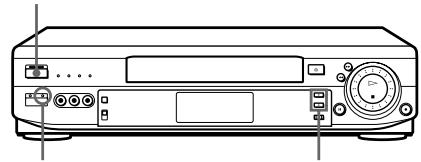
ON/STANDBY
RF CH SET
PROGRAM + / -
1

ON/STANDBY
Press ON/STANDBY to turn on the VCR.
2
RF CH SET 0
Press RF CH SET on the VCR with a ball-point pen, etc.
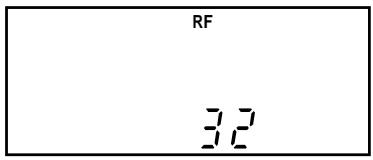
The factory-preset RF channel appears in the display window.
The VCR signal is output through this channel to the TV.
3
Turn on your TV and select a programme position for the VCR picture.
This channel will now be referred to as the video channel.
continued
Step 4: Tuning your TV to the VCR (continued)
4
RF CH SET 0
Press RF CH SET.
The TV system indicator appears in the display window.
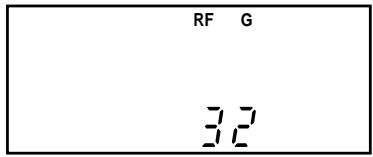


Press PROGRAM + / - to select the desired TV system.
| If your TV color system and TV system are Select | ||
| PAL | I | I |
| D/K | K | |
| B/G | G | |
| NTSC | M | M |
5
Tune the TV to the same channel as that shown in the display window so that the picture on the right appears on the TV screen.
Refer to your TV manual for tuning instructions.
If the picture does not appear clearly, see "To obtain a clear picture from the VCR" below.
You have now tuned your TV to the VCR. From now on, whenever you want to play a tape, set the TV to the video channel.
To check to see if the TV tuning is correct
Set the TV to the video channel and press PROGRAM + / - on the VCR. If the TV screen changes to a different programme each time you press PROGRAM + / - , the TV tuning is correct.
To obtain a clear picture from the VCR
If the picture does not appear clearly in step 5 above, go to step 6 to finish this procedure once. Then start again from step 2. After pressing RF CH SET in step 2, press PROGRAM + / - while the RF channel is displayed, so that another RF channel (between 28 and 55) appears (see page 24 for reference). Then tune the TV to the new RF channel until a clear picture appears.
Note
- If you set the wrong TV system, you may have no sound or sound may be distorted (noisy sound).
Step 5
Setting up the VCR with EASY SET UP
Before using the VCR for the first time, set up the VCR using the EASY SET UP function. With this function, you can set the language for the on-screen display, TV channels, guide channels for G-CODE, and the VCR clock, guided by the sequence indicated on the TV screen.
EASY SET UP
1

Press to turn on the VCR.
2
Turn on your TV and set it to the video channel.
3
EASY SETUP 0
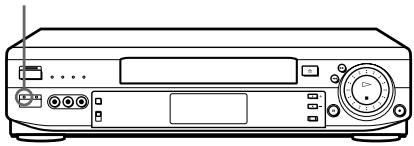
Press EASY SET UP on the VCR with a ball-point pen, etc.
To cancel the EASY SET UP function, press EASY SET UP again.
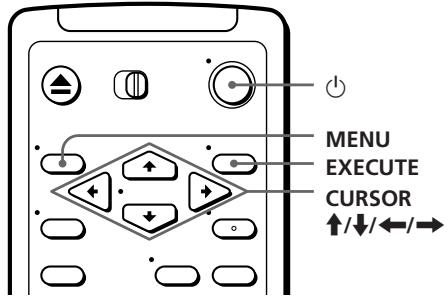
Press CURSOR / to select the desired language, then press EXECUTE.
The TV SYSTEM menu appears.
| EASY SET UP | 1-2-3-4-5 | |
| TV SYSTEM | ||
| ●I | ||
| D/K | ||
| B/G | ||
| M | ||
| SELECT : [◆◆] | ||
| NEXT : [EXECUTE] | ||

5
EXECUTE
Press CURSOR / to select either I, D/ K, B/G, or M, whichever is applicable in your area, then press EXECUTE.
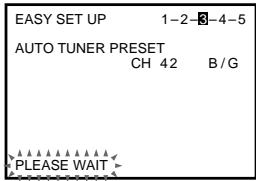
The VCR starts searching for all the receivable channels.
During presetting, the channel being located is displayed on the screen.
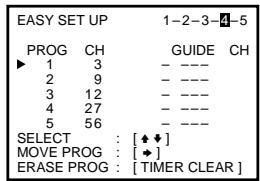
When all the channels are preset, the following screen appears.
Even if various TV systems coexist in your area, the AUTO TUNER PRESET function picks up most of the channels on the TV systems other than the one you selected.
But you need to manually reset the proper TV system for the unmatched channels (see "Resetting the TV system" on page 22).
If necessary, you can add or disable the channels manually (see "Presetting channels manually" on page 20).
6
Using CURSOR / / / , set the G-CODE guide channels, change the programme positions of the stations, and disable the unused programme positions. (If not necessary, skip this step.)
The setting procedures are the same as those described in "Manual setup — Setting up G-CODE" on page 32 and "Manual setup — Changing/disabling programme positions" on page 35.
7
EXECUTE
Press EXECUTE.
The CLOCK SET menu appears.
8
9
- EXECUTE
Set the date and time using CURSOR / / / . The setting procedures are the same as those described in "Manual setup-Setting the clock" on page 38.
EASY SET UP 1-2-3-4-5
CLOCK SET
25.10.1997 SAT 15:30
SELECT : [+]
SET : {+}
END : [EXECUTE]
Press EXECUTE.
Step 5: Setting up the VCR with EASY SET UP (continued)
Notes
- Do not exit EASY SET UP while the VCR is presetting channels. If you do, repeat EASY SET UP from the beginning.
- The channel numbers preset using AUTO TUNER PRESET may not match your local channel numbers. This is because this VCR's channel search system is based on the fixed TV system with the widest channel coverage.
In this case, you can apply your local channel numbers to the programme positions (see "Changing programme positions" on page 35).
- If the received channel is on cable TV, "C" appears on the left of the channel in step 5 in most areas. However, this won't be applied in some areas (see pages 24 to 31 for reference).
Manual setup — Selecting a language
You can change the on-screen display language from the one you selected with the EASY SET UP function.
Before you start...
- Turn on the VCR and the TV.
- Set the TV to the video channel.
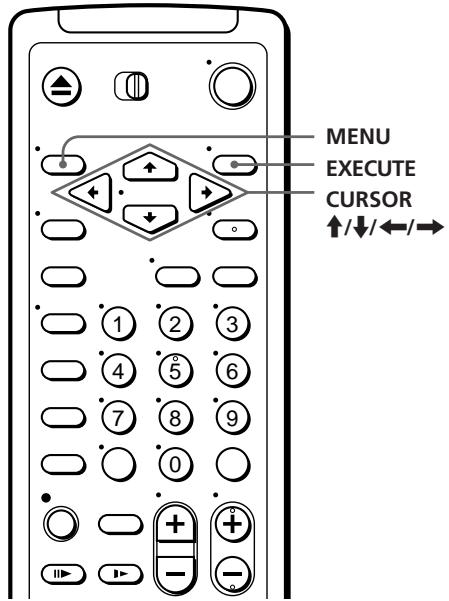
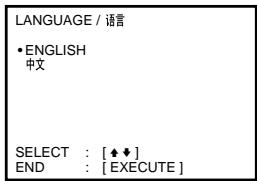
- •MENU Press MENU, then press CURSOR / to move the cursor (▶) to LANGUAGE and press EXECUTE.

EXECUTE
2 Press CURSOR / to select the desired language, then press EXECUTE.
Manual setup — Presetting channels
First, we recommend that you preset the receivable channels in your area using EASY SET UP or using automatic presetting below. Then, if some channels could not be preset automatically, you can preset them manually; if there are any unwanted channels among the preset ones, you can disable the channels.
If you live in the area where various TV systems coexist, and have channels that don't match the TV system you selected in AUTO TUNER PRESET in the EASY SET UP procedure, reset the TV system for those channels (see “Resetting the TV
system" on page 22). If the channels don't match the TV system, the sound may be distorted or noisy, or the color TV program may become black and white, etc. Even if you choose CATV, normal channels may be tuned in, and vice versa depending on the area (see pages 24 to 31 for reference).
Before you start...
- Turn on the VCR and the TV.
- Set the TV to the video channel.
Presetting all receivable channels automatically
If you have preset the channels using the EASY SET UP procedure, skip this procedure.
1
-MENU

EXECUTE

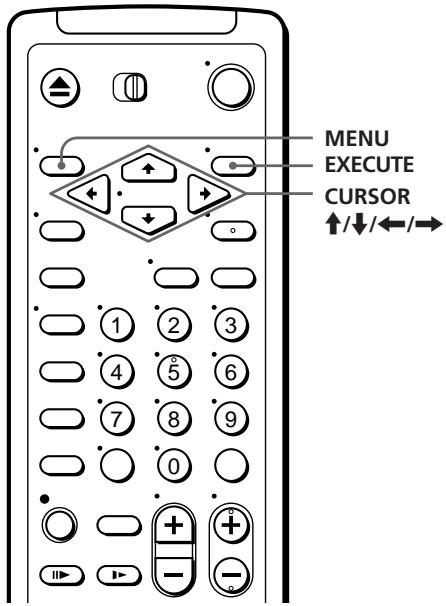
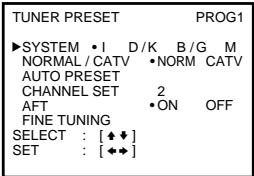
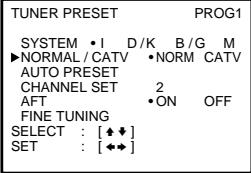
Press MENU, then press CURSOR / to move the cursor (▶) to TUNER PRESET and press EXECUTE.
TUNER PRESET
PROG1
SYSTEM·ID/K B/G M NORMAL/CATV ·NORM CATV AUTO PRESET
CHANNEL SET
2 ON OFF
AFT
FINE TUNING
SELECT : [▲▼]
SET : [←→]
2
Press CURSOR / / / to move the cursor (▶) to SYSTEM, then select either I, D/K, B/G, or M, whichever is applicable in your area. If SYSTEM is set to the wrong position, the sound will be distorted or noisy.
3
Press CURSOR / / / to move the cursor (▶) to NORMAL/CATV, then select NORM.
To preset CATV channels, select CATV.
4
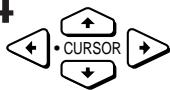
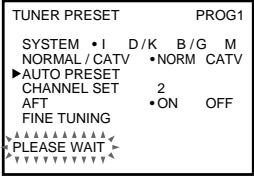
Press CURSOR / to move the cursor () to AUTO PRESET, then press EXECUTE.

All receivable channels are preset in numerical sequence. When no more receivable channels can be found, presetting stops and the picture from the lowest numbered channel is displayed on the TV screen.
Notes
- If you connect the VCR to a TV with the NTSC colour system, the picture quality may be compromised during automatic presetting. A colour picture appears when presetting is complete.
- The channel numbers besides CHANNEL SET may not be the same as those in your area. This is because this VCR's channel search system is based on the fixed TV system that has the widest channel coverage. If necessary, apply your local channel numbers to the programme positions (see "Changing programme positions" on page 35).
continued
Manual setup - Presetting channels (continued)
Presetting channels manually
1
-MENU

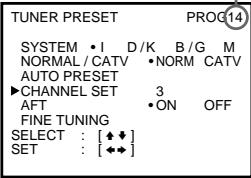
Press MENU, then press CURSOR / to move the cursor (▶) to TUNER PRESET and press EXECUTE.
- EXECUTE

| TUNER PRESET | PROG10 | ||
| SYSTEM | •I | D/K | B/G M |
| NORMAL/CATV | •NORM | CATV | |
| AUTO PRESET | |||
| CHANNEL SET | 3 | ||
| AFT | •ON | OFF | |
| FINE TUNING | |||
| SELECT : | [★♦] | ||
| SET : | [♦♦] | ||
2
Press CURSOR / / / to move the cursor (▶) to NORMAL/CATV, then select NORM.
To preset CATV channels, select CATV.
| TUNER PRESET | PROG10 | ||
| SYSTEM | •I | D/K | B/G M |
| NORMAL/CATV | •NORM | CATV | |
| AUTO PRESET | |||
| CHANNEL SET | 3 | ||
| AFT | •ON | OFF | |
| FINE TUNING | |||
| SELECT : [★♦] | |||
| SET : [←♦] | |||
3
Press CURSOR / to move the cursor () to CHANNEL SET.
| TUNER PRESET | PROG10 | |||
| SYSTEM | •I | D/K | B/G | M |
| NORMAL / CATV | •NORM | CATV | ||
| AUTO PRESET | ||||
| CHANNEL SET | 3 | |||
| AFT | •ON | OFF | ||
| FINE TUNING | ||||
| SELECT : | [◆◆] | |||
| SET : | [◆◆] | |||
4
PROG

Press PROG + / - to select the programme position.
Selectedprogramme position
5
Press CURSOR repeatedly until the channel you want is displayed. Pressing CURSOR goes back to the previous channels.
The channels are scanned in the order shown on pages 24 to 31.
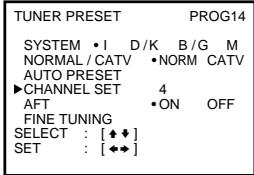
If you know the number of the channel you want, press the programme number buttons. For example, for channel 5, first press "0" and then press "5."
6
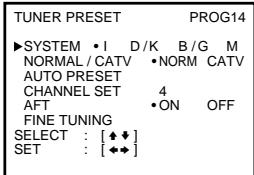
If the TV sound is distorted or noisy, press CURSOR / / / to move the cursor (▶) to SYSTEM, then select either I, D/K, B/G, or M, whichever is applicable in your area.
7

To allocate another channel to another programme position, repeat steps 4 and 5.
8
Press EXECUTE.
Note
- The channel numbers besides CHANNEL SET may not be the same as those in your area. This is because this VCR's channel search system is based on the fixed TV system that has the widest channel coverage. If necessary, apply your local channel numbers to the programme positions (see "Changing programme positions" on page 35).
continued
Manual setup — Presetting channels (continued)
Disabling unwanted programme positions
After tuning the TV channels, you can disable unused programme positions. The disabled positions will be skipped later when you press the PROG + / - buttons.
You can also disable unwanted programme positions using the SET UP CH AND G-CODE menu (see page 32).
1 In step 5 above, press programme number button "0" twice to display the number "0" beside CHANNEL SET.
2 Press EXECUTE.
Resetting the TV system (only for areas where various TV systems coexist)
If the sound is distorted or noisy, or the color TV programme becomes black and white, etc., that channel may not be matched to the proper TV system. In this case, try the following steps.
1 Press PROG + / - to select the programme position that has the channel with above described conditions.
2 Press MENU, then select TUNER PRESET and press EXECUTE.
3 Select SYSTEM and select the TV system on which you can obtain the best sound and picture.
4 Repeat steps 2 and 3 for other positions you want to preset the TV system to.
5 Press EXECUTE.
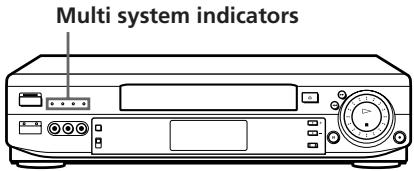
Checking the TV system
Press PROG + / - to choose the programme position.
The multi system indicator (I, D/K, B/G, or M) of the selected programme position's TV system lights up.
If the picture is not clear
Normally, the Auto Fine Tuning (AFT) function automatically tunes in channels clearly. If, however, the picture is not clear, you may also use the manual tuning function.
1 Press PROG + / - to select the programme number for which you cannot obtain a clear picture.
2 Press MENU, then select TUNER PRESET and press EXECUTE.
3 Select FINE TUNING. The fine tuning meter appears.
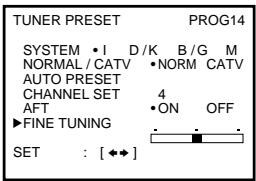
4 Press CURSOR / to get a clearer picture, then press EXECUTE. Note that the AFT (Auto Fine Tuning) setting switches to OFF.
Note
- The menu disappears automatically if you don't proceed for more than a few minutes.
continued
Manual setup — Presetting channels (continued)
Channel numbers in the CHANNEL SET field and the corresponding channels
| TV system | B/G | ||||
| Country | Western Europe | Australia | New Zealand | Morocco | Indonesia |
| Channel number in the CHANNEL SET field | Corresponding channels | ||||
| 1 | AS0 | 1 | 1A | ||
| 2 | E2 | ||||
| 3 | E3 | 1 | 2 | 2A | |
| 4 | E4 | 2 | 3 | 3A | |
| 5 | E5 | 6 | 4 | 4A | |
| 6 | E6 | 7 | 5 | M6 | 5A |
| 7 | E7 | 8 | 6 | M7 | 6A |
| 8 | E8 | 9 | 7 | M8 | 7A |
| 9 | E9 | 9A | 8 | M9 | 8A |
| 10 | E10 | 10 | 9 | M10 | 9A |
| 11 | E11 | 11 | 10 | 10A | |
| 12 | E12 | 11 | 11A | ||
| 13 | |||||
| 14 | |||||
| 15 | 3 | ||||
| 16 | 4 | ||||
| 17 | |||||
| 18 | |||||
| 19 | |||||
| 20 | |||||
| 21 | E21 | ||||
| 22 | E22 | ||||
| 23 | E23 | ||||
| 24 | E24 | ||||
| 25 | E25 | ||||
| 26 | E26 | ||||
| 27 | E27 | ||||
| 28 | E28 | 28 | |||
| 29 | E29 | 29 | |||
| 30 | E30 | 30 | |||
| 31 | E31 | 31, 32 | |||
| 32 | E32 | 33 | |||
| 33 | E33 | 34 | |||
| 34 | E34 | 35 | |||
| 35 | E35 | 36 | |||
| 36 | E36 | 37 | |||
| 37 | E37 | 38 | |||
| 38 | E38 | 39, 40 | |||
| 39 | E39 | 41 | |||
| 40 | E40 | 42 | |||
| 41 | E41 | 43 | |||
| 42 | E42 | 44 | |||
| 43 | E43 | 45 | |||
| 44 | E44 | 46 | |||
| 45 | E45 | 47, 48 | |||
| 46 | E46 | 49 | |||
| 47 | E47 | 50 | |||
| 48 | E48 | 51 | |||
| 49 | E49 | 52 | |||
| 50 | E50 | 53 | |||
| 51 | E51 | 54 | |||
| 52 | E52 | 55, 56 | |||
| 53 | E53 | 57 | |||
| 54 | E54 | 58 | |||
| 55 | E55 | 59 | |||
| 56 | E56 | 60 | |||
| 57 | E57 | 61 | |||
| 58 | E58 | 62 | |||
| 59 | E59 | 63, 64 | |||
| 60 | E60 | 65 | |||
| 61 | E61 | 66 | |||
| 62 | E62 | 67 | |||
| 63 | E63 | 68 | |||
| 64 | E64 | 69 | |||
| 65 | E65 | ||||
| 66 | E66 | ||||
| 67 | E67 | ||||
| 68 | E68 | ||||
| 69 | E69 | ||||
| C1 | S1 | 5 | |||
| C2 | S2 | ||||
| C3 | S3 | ||||
| C4 | S4 | ||||
| C5 | S5 | ||||
| C6 | S6 | 5A | |||
| C7 | S7 | ||||
| C8 | S8 | ||||
| C9 | S9 | M4 | |||
| C10 | S10 | M5 | |||
| C11 | S11 | ||||
| C12 | S12 | ||||
| C13 | S13 | ||||
| C14 | S14 | ||||
| C15 | S15 | ||||
| C16 | S16 | ||||
| C17 | S17 | ||||
| C18 | S18 | ||||
| C19 | S19 | ||||
| C20 | S20 | ||||
| C21 | S21 | ||||
| C22 | S22 | ||||
| C23 | S23 | ||||
| C24 | S24 | ||||
| C25 | S25 | ||||
| C26 | S26 | ||||
| C27 | S27 | ||||
| C28 | S28 | ||||
| C29 | S29 | ||||
| C30 | S30 | ||||
| C31 | S31 | ||||
| C32 | S32 | ||||
| C33 | S33 | ||||
| C34 | S34 | ||||
| C35 | S35 | ||||
| C36 | S36 | ||||
| C37 | S37 | ||||
| C38 | S38 | ||||
| C39 | S39 | ||||
| C40 | S40 | ||||
| C41 | S41 | ||||
| C42 | S01 | ||||
| C43 | S02 | ||||
| C44 | S03 | ||||
| C45 | S04 | ||||
| C46 | S05 | ||||
continued
Manual setup — Presetting channels (continued)
| TV system | D/K | I | M | ||||
| Country | East Europe | China | UK/Hong Kong | Ireland | South Africa | U.S.A. | Japan |
| Channel number in the CHANNEL SET field | Corresponding channels | ||||||
| 1 | A | ||||||
| 2 | R1 | 1 | |||||
| 3 | 2 | B | 2, C2 | ||||
| 4 | 3 | C | 3 | ||||
| 5 | R6 | 7 | D | 4 | 7 | J-5 | |
| 6 | R7 | 8 | E | 5 | 8 | J-6 | |
| 7 | 9 | J-7 | |||||
| 8 | |||||||
| 9 | 12 | J-10 | |||||
| 10 | 13 | J-11 | |||||
| 11 | J | J-12 | |||||
| 12 | R12 | J | 10 | K | S1 | ||
| 13 | R2 | ||||||
| 14 | R3 | 4 | 5 | ||||
| 15 | R4 | 5 | |||||
| 16 | R5 | ||||||
| 17 | R8 | 9 | F | 6 | 10 | J-8 | |
| 18 | R9 | 10 | G | 7 | 11 | J-9 | |
| 19 | R10 | 11 | H | 8 | |||
| 20 | R11 | 12 | I | 9 | |||
| 21 | R21 | 13 | B21 | 21 | 14, W+29, W+30 | J13 | |
| 22 | R22 | 14 | B22 | 22 | 15, 16, W+31 | J14, J15 | |
| 23 | R23 | 15 | B23 | 23 | 17, W+32 | J16 | |
| 24 | R24 | 16 | B24 | 24 | 18, W+33, W+34 | J17 | |
| 25 | R25 | 17 | B25 | 25 | 19, 20, W+35 | J18, J19 | |
| 26 | R26 | 18 | B26 | 26 | 21, W+36 | J20 | |
| 27 | R27 | 19 | B27 | 27 | 22, W+37, W+38 | J21 | |
| 28 | R28 | 20 | B28 | 28 | 23, 24, W+39 | J22, J23 | |
| 29 | R29 | 21 | B29 | 29 | 25, W+40 | J24 | |
| 30 | R30 | 22 | B30 | 30 | 26, W+41, W+42 | J25 | |
| 31 | R31 | 23 | B31 | 31 | 27, 28, W+43 | J26, J27 | |
| 32 | R32 | 24 | B32 | 32 | 29, W+44 | J28 | |
| 33 | R33 | B33 | 33 | 30, W+45, W+46 | J29 | ||
| 34 | R34 | B34 | 34 | 31, 32, W+47 | J30, J31 | ||
| 35 | R35 | B35 | 35 | 33, W+48 | J32 | ||
| 36 | R36 | B36 | 36 | 34, W+49, W+50 | J33 | ||
| 37 | R37 | B37 | 37 | 35, 36, W+51 | J34, J35 | ||
| 38 | R38 | 25 | B38 | 38 | 37, W+52 | J36 | |
| 39 | R39 | 26 | B39 | 39 | 38, W+53, W+54 | J37 | |
| 40 | R40 | 27 | B40 | 40 | 39, 40, W+55 | J38, J39 | |
| 41 | R41 | 28 | B41 | 41 | 41, W+56 | J40 | |
| 42 | R42 | 29 | B42 | 42 | 42, W+57, W+58 | J41 | |
| 43 | R43 | 30 | B43 | 43 | 43, 44 | J42, J43 | |
| 44 | R44 | 31 | B44 | 44 | 45 | J44 | |
| 45 | R45 | 32 | B45 | 45 | 46 | J45 | |
| 46 | R46 | 33 | B46 | 46 | 47, 48 | J46, J47 | |
| 47 | R47 | 34 | B47 | 47 | 49 | J48 | |
| 48 | R48 | 35 | B48 | 48 | 50 | J49 | |
| 49 | R49 | 36 | B49 | 49 | 51, 52 | J50, J51 | |
| 50 | R50 | 37 | B50 | 50 | 53 | J52 | |
| 51 | R51 | 38 | B51 | 51 | 54 | J53 | |
| 52 | R52 | 39 | B52 | 52 | 55, 56 | J54, J55 | |
| 53 | R53 | 40 | B53 | 53 | 57 | J56 | |
| 54 | R54 | 41 | B54 | 54 | 58 | J57 | |
| 55 | R55 | 42 | B55 | 55 | 59, 60 | J58, J59 | |
| 56 | R56 | 43 | B56 | 56 | 61 | J60 | |
| 57 | R57 | 44 | B57 | 57 | 62 | J61 | |
| 58 | R58 | 45 | B58 | 58 | 63, 64 | J62 | |
| 59 | R59 | 46 | B59 | 59 | 65 | ||
| 60 | R60 | 47 | B60 | 60 | 66 | ||
| 61 | 48 | B61 | 61 | 67, 68 | |||
| 62 | 49 | B62 | 62 | 69 | |||
| 63 | 50 | B63 | 63 | 70 | |||
| 64 | 51 | B64 | 64 | 71, 72 | |||
| 65 | 52 | B65 | 65 | 73 | |||
| 66 | 53 | B66 | 66 | 74 | |||
| 67 | 54 | B67 | 67 | 75, 76 | |||
| 68 | 55 | B68 | 68 | 77 | |||
| 69 | 56 | B69 | 78 | ||||
| C1 | A-3 | J-3 | |||||
| C2 | A-2, A-1 | M1, M2 | |||||
| C3 | A | M3 | |||||
| C4 | B | M4 | |||||
| C5 | C | M5 | |||||
| C6 | D | M6 | |||||
| C7 | E | M7 | |||||
| C8 | F, G | M8, M9 | |||||
| C9 | H | M10 | |||||
| C10 | 6 | I | J-4 | ||||
| C11 | 11 | L | S2 | ||||
| C12 | (12) | M, N | S3 | ||||
| C13 | 13 | O | S4 | ||||
| C14 | P | S5, S6 | |||||
| C15 | Q | S7 | |||||
| C16 | R | S8 | |||||
| C17 | S | S9 | |||||
| C18 | T, U | S10, S11 | |||||
| C19 | V | S12 | |||||
| C20 | W | S13 | |||||
| C21 | W+1, W+2 | S14, S15 | |||||
| C22 | W+3 | S16 | |||||
| C23 | W+4 | S17 | |||||
| C24 | W+5, W+6 | S18, S19 | |||||
| C25 | W+7 | S20 | |||||
| C26 | W+8 | S21 | |||||
| C27 | W+9, W+10 | S22, S23 | |||||
| C28 | W+11 | S24 | |||||
| C29 | W+12 | S25 | |||||
| C30 | W+13, W+14 | S26, S27 | |||||
| C31 | W+15 | S28 | |||||
| C32 | W+16 | S29 | |||||
| C33 | W+17, W+18 | S30, S31 | |||||
| C34 | W+19 | S32 | |||||
| C35 | W+20 | S33 | |||||
| C36 | W+21, W+22 | S34, S35 | |||||
| C37 | W+23 | S36 | |||||
| C38 | W+24 | S37 | |||||
| C39 | W+25, W+26 | S38, S39 | |||||
| C40 | W+27 | S40 | |||||
| C41 | W+28 | S41 | |||||
| C42 | 4, 4A | ||||||
| C43 | |||||||
| C44 | 6 | ||||||
| C45 | A-5 | J-1 | |||||
| C46 | A-4 | J-2 | |||||
Tip
- The shadow in the table shows the adjustable RF output channel range (see page 11 for reference).
Note
- There may be a case that the same area channel may appear repeatedly as the other channel number in the CHANNEL SET field.
Manual setup — Setting up G-CODE
G-CODE is a feature in Sony VCRs that simplifies programming the VCR to make timer recordings. To use G-CODE, each programme position needs to be matched with its G-CODE guide channel. To get the guide channel numbers, look in the programme guide for your area that features G-CODE numbers.
If you want to record satellite broadcasts using G-CODE, see page 34.
Before you start...
- Turn on the VCR and the TV.
- Set the TV to the video channel.
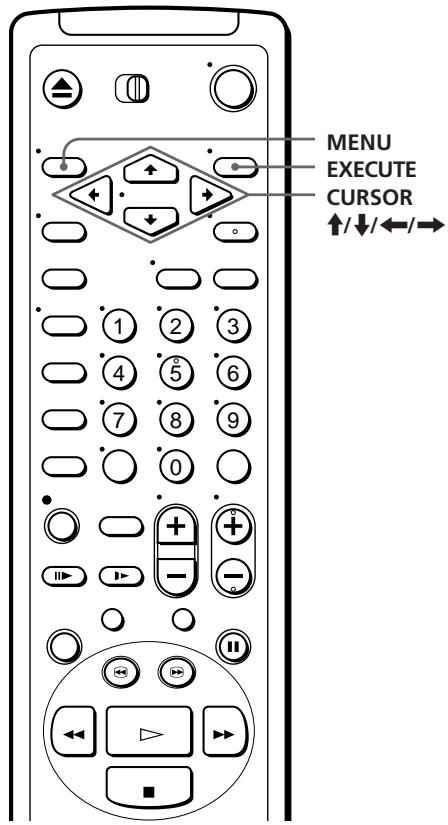
1
-MENU

EXECUTE

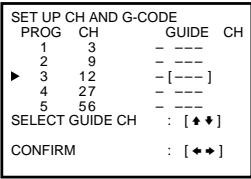
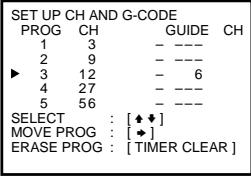
Press MENU, then press CURSOR / to move the cursor (▶) to SET UP CH AND G-CODE and press EXECUTE.
When using the EASY SET UP procedure, skip this step.
The preset channels are displayed on the screen.
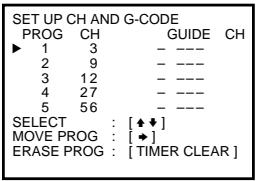
2
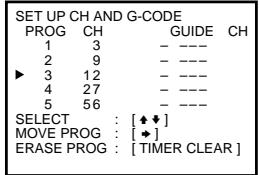
Press CURSOR / to move the cursor () to the row on which you want to set the guide channel.
To display other pages for programme positions 6 to 50, press CURSOR / repeatedly.
3
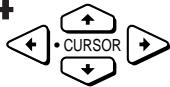
Press CURSOR twice to select the guide channel column.
4
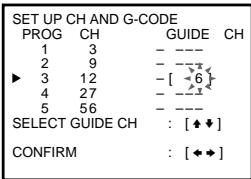
Press CURSOR / to select the guide channel number assigned in the programme guide.
5
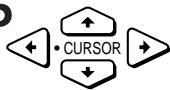
Press CURSOR / to confirm the setting.
7
6
To set the guide channel of another station, repeat steps 2 to 5. If you want to change the programme positions of the stations, proceed to step 2 of "Manual setup — Changing/disabling programme positions" on page 35.
- EXECUTE
Press EXECUTE.
continued
Setting up G-CODE for satellite broadcasts
When your satellite tuner is connected via the AERIAL IN connector, first you have to set the programme position for each satellite channel using the TUNER PRESET menu. Then set the guide channel number for each satellite channel using the SET UP CH AND G-CODE menu.
If your satellite tuner is connected via the LINE-1 IN jacks, you don't have to set programme positions nor guide channel numbers for satellite channels. Skip the following operations.
1 Turn on the satellite tuner.
2 Press MENU, then select TUNER PRESET and press EXECUTE.
3 Press PROG + / - to select a programme position you want to use for watching a satellite channel.
4 Select CHANNEL SET, then press CURSOR to tune the VCR to the satellite tuner.
The channel number displayed beside CHANNEL SET is used for receiving all satellite broadcasts from the satellite tuner.
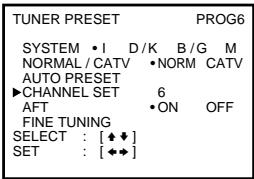
5 Press PROG + / - to select another programme position for another satellite channel, and press the programme number buttons to enter the same channel number as the one displayed in step 4.
Repeat this step for all satellite channels.
6 Set the guide channel number for each programme position assigned to the satellite channel, following the procedures in "Manual setup — Setting up G-CODE" on page 32.
Notes
- The G-CODE used in this VCR is for Singapore, Malaysia, Hong Kong, Macao, etc. and cannot be used in areas such as U.S.A, Canada, Japan, Korea, Taiwan, and U.K.
- If the preset channel is on cable TV, "C" appears on the left of the channel in step 1 ("Setting up G-CODE") in most areas.
However, this won't be applied in some areas (see pages 24 to 31 for reference).
- The menu disappears automatically if you don't proceed for more than a few minutes.
- If you inadvertently entered a guide channel number, press CURSOR / repeatedly to reset the "GUIDE CH" column to "..."" appears between 1 and 255.
- The VCR does not allow entering the guide channel number, if the same number has been set.
- If you use a satellite tuner connected via the LINE-1 IN jacks, you don't have to setup G-CODE. Just record a satellite programme using G-CODE, and the VCR automatically records the programme from the LINE-1 IN jacks.
- When you record a satellite broadcast using G-CODE, you need to select the desired channel on the satellite tuner manually.
Manual setup — Changing/ disabling programme positions
After setting the channels and G-CODE guide channels, you can change the programme positions as you like. If any programme positions are unused or contain unwanted channels, you can disable them.
Before you start...
- Turn on the VCR and the TV.
- Set the TV to the video channel.
Changing programme positions
e.g. Moving the programme position from 4 to 1
1
-MENU

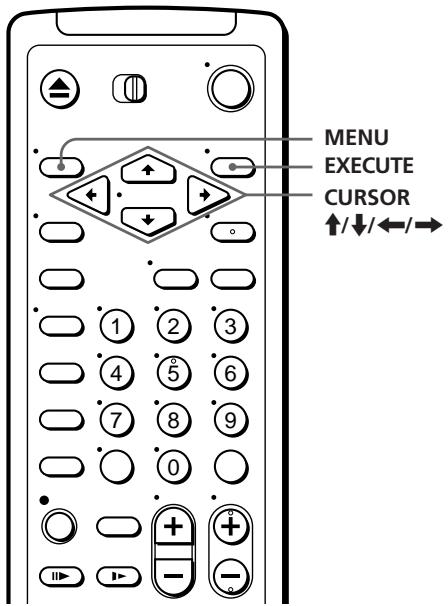
Press MENU, then press CURSOR / to move the cursor (▶) to SET UP CH AND G-CODE and press EXECUTE.

When using the EASY SET UP procedure, skip this step.
- EXECUTE

SETUPCHANDG-CODE
| PROG | CH | GUIDE | CH |
| 1 | 3 | - | 16 |
| 2 | 9 | - | 2 |
| 3 | 12 | - | 6 |
| 4 | 27 | - | 12 |
| 5 | 56 | - | --- |
SELECT : [◆◆]
| MOVE PROG : [◆] |
| ERASE PROG : [TIMER CLEAR ] |
2
Press CURSOR / to move the cursor () to the row on which you want to change the programme position, then press CURSOR .
To display other pages for programme positions 6 to 50, press CURSOR / repeatedly.
SET UP CH AND G-CODE
| PROG | CH | GUIDE | CH |
| 1 | 3 | - | 16 |
| 2 | 9 | - | 2 |
| 3 | 12 | - | 6 |
| 4 | [27] | - | 12 ] |
| 5 | 56 | - | --- |
| SELECT : {+*} |
| SETGUIDE CH : [◆] |
| CONFIRM : [◆] |
continued
Manual setup — Changing/disabling programme positions (continued)

3
Press CURSOR / until the selected channel and guide channel row moves to the desired programme position.
The selected channel and guide channel are inserted at the new programme position and the intermediate channels are displaced to fill the gap.
| SET UP CH AND G-CODE | |||
| PROG | CH | GUIDE | CH |
| 1 | 27 | - | 12 |
| 2 | 3 | - | 16 |
| 3 | 9 | - | 2 |
| 4 | 12 | - | 6 |
| 5 | 56 | - | --- |
| SELECT | [+*] | ||
| SETGUIDE CH | [+] | ||
| CONFIRM | [+] | ||
4
6
Press CURSOR to confirm the setting.
5
To change the programme position of another station, repeat steps 2 to 4.
EXECUTE
Press EXECUTE.
Disabling unwanted programme positions
Note
- Be sure to select the programme position you want to disable correctly. If you disable a programme position by mistake, you need to reset that channel manually.
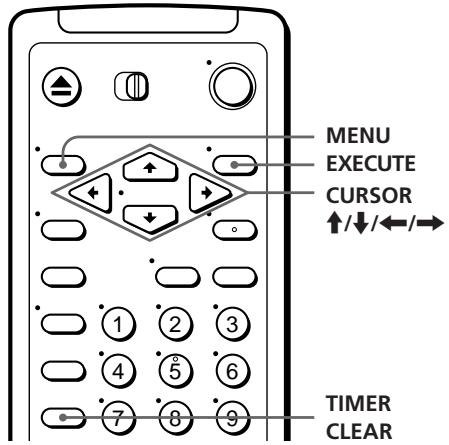
1 ·MENU Press MENU, then press CURSOR / to move the cursor (▶) to SET UP CH AND G-CODE and press EXECUTE.
When using the EASY SET UP procedure, skip this step.
EXECUTE
| SET UP CH AND G-CODE | |||
| PROG | CH | GUIDE | CH |
| 1 | 3 | - | 16 |
| 2 | 9 | - | 2 |
| 3 | 12 | - | 6 |
| 4 | 27 | - | 12 |
| 5 | 56 | - | --- |
| SELECT : [★] | |||
| MOVE PROG : [★] | |||
| ERASE PROG : [TIMER CLEAR] | |||
2 Press CURSOR / to move the cursor (▶) to the row on which you want to disable.
| SET UP CH AND G-CODE | |||
| PROG | CH | GUIDE | CH |
| 1 | 3 | - | 16 |
| 2 | 9 | - | 2 |
| 3 | 12 | - | 6 |
| 4 | 27 | - | 12 |
| 5 | 56 | - | --- |
| SELECT : [▲▲] | |||
| MOVE PROG : [▲] | |||
| ERASE PROG : [TIMER CLEAR] | |||
3 TIMER Press TIMER CLEAR. Clear The selected row will be cleared as shown on the right.
| SET UP CH AND G-CODE | |||
| PROG | CH | GUIDE | CH |
| 1 | 3 | - | 16 |
| 2 | 9 | - | 2 |
| 3 | 0 | - | --- |
| 4 | 27 | - | 12 |
| 5 | 56 | - | --- |
| SELECT : [▲♦] | |||
| MOVE PROG : [▲♦] | |||
| ERASE PROG : [TIMER CLEAR] | |||
4 Repeat steps 2 and 3 for any other programme positions you want to disable.
5 EXECUTE Press EXECUTE.
Manual setup — Setting the clock
You must set the time and date on the VCR to be able to use the timer recording features properly. If you have not set the VCR clock in the EASY SET UP procedure, you need to set it manually.
Before you start...
- Turn on the VCR and the TV.
- Set the TV to the video channel.
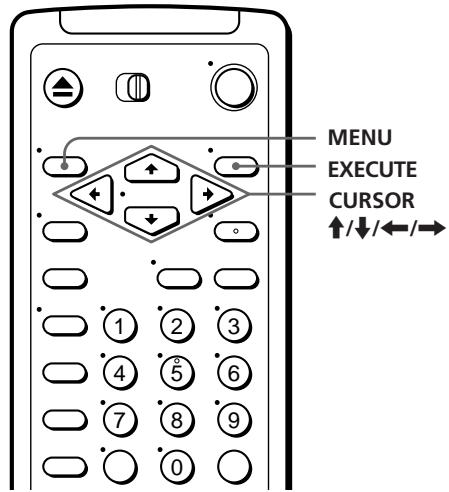
1
-MENU

Press MENU, then press CURSOR / to move the cursor (▶) to CLOCK SET and press EXECUTE.
When using the EASY SET UP procedure, skip this step.
EXECUTE

CLOCK SET
- 1997 WED 0:00
SELECT : [+]
SET : [+]
END : [EXECUTE]
2
Press CURSOR / to set the date.
The day of the week is set automatically.
CLOCK SET
- 1997 MON 0:00
SELECT : []
SET : []
END : [EXECUTE]
3
Press CURSOR to select the month and set the month using CURSOR / .
CLOCK SET
25.10:1997 SAT 0:00
SELECT : [++]
SET : [++]
END : [EXECUTE]
4
Set the year, hour and minutes in sequence, using CURSOR to select the item to be set, and CURSOR / to select the digits.
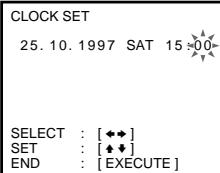

5
Press EXECUTE to start the clock.
Tip
- To change the digits during setting, press CURSOR to return to the item to be changed, and select the digits using CURSOR / .
Note
- The menu disappears automatically if you don't proceed for more than a few minutes.
Playing a tape
1 Turn on your TV and set it to the video channel.
2 Insert a tape.
The VCR turns on and starts playing automatically if you insert a tape with its safety tab removed.

3 Press PLAY.

When the tape reaches the end, it will rewind automatically.
Additional tasks
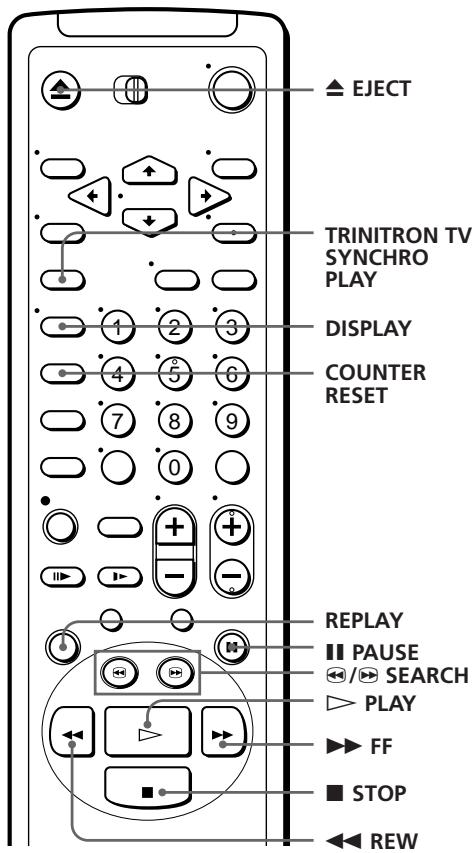
| To | Press |
| Stop play | ■ STOP |
| Pause play | ■ PAUSE |
| Resume play after pause | ■ PAUSE or ▷ PLAY |
| Search forward | ▷ FF or ⇌ SEARCH during playback |
| Search backward | ◁ REW or ⇌ SEARCH during playback |
| Fast-forward the tape | ▷ FF during stop |
| Rewind the tape | ◁ REW during stop |
| Eject the tape | ▲ EJECT |
To replay a recently watched scene
You can immediately rewind and playback the scene you want to watch again.
During playback, press REPLAY up to four times. The VCR rewrites the tape about 10 seconds on the counter for each press of the button, and restarts playback.
To set the colour system
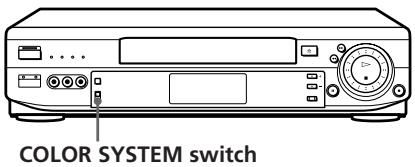
If streaks appear during playback, set COLOR SYSTEM on the VCR to conform to the system that the tape was recorded in. (When you select AUTO, normally, the colour system is correctly set whenever the tape is inserted.)
| If your tape was recorded in | Set COLOR SYSTEM to |
| PAL | PAL/MESECAM |
| NTSC | NTSC |
| MESECAM | PAL/MESECAM |
To play an NTSC-recorded tape
Set NTSC PB at the rear of the VCR according to the colour system of your TV.
| If your TV is | Set NTSC PB to |
| PAL | ON PAL TV |
| NTSC 4.43 | NTSC 4.43 |
| NTSC 3.58 | NTSC 3.58 |
continued
Playing a tape (continued)
To use the time counter
At the point on the tape that you want to find later, press COUNTER RESET. The counter in the display window resets to "0H00M00S." Search for the point afterwards by referring to the counter.
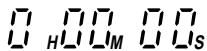
To display the counter on the TV screen, press DISPLAY.
Notes
- When you play back a tape recorded in the PAL or MESECAM colour system, streaks may appear even if the COLOR SYSTEM switch is set to PAL/MESECAM. If so, select the colour system, PAL or MESECAM in the PAL/MESECAM option of the SET UP MENU (see page 62 for details).
- The counter resets to "0H00M00S" whenever a tape is reinserted.
- The counter stops counting when it comes to a portion with no recording.
- If a tape has portions recorded in both PAL and NTSC systems, the time counter reading will not be correct. This is due to the difference between the counting cycles of the two video systems.
-
Depending on your TV, the following may occur while playing an NTSC-recorded tape:
-
the picture is black and white,
- the picture shakes,
- no picture appears on the TV screen,
- black streaks appear horizontally on the TV screen,
- the colour density increases or decreases.
Turning on the VCR and TV, and starting playback automatically (Trinitron TV Synchro Play)
You can only use this function if your TV is made by Sony (Trinitron TV).
How to connect to use this function
Connect the VCR and TV with the audio/video cable (see "To a TV that has phono type audio/video input jacks" on page 9). Be sure to connect the audio/video cable to the VIDEO IN 1 jacks on the TV if the TV has two inputs or more. The TV must be placed where it will respond to the remote commander while you are pointing it at the VCR.
Operation
Make sure that the TV's power is in standby mode.
Press TRINITRON TV SYNCHRO PLAY and hold the remote commander in place for about two seconds.
The VCR and TV turn on, and the TV is set to the video channel. If there is a tape in the VCR, playback starts automatically.
Notes
-
If the Trinitron TV Synchro Play function does not work properly:
-
Wait a few moments, and press the button again.
- Replace both of the batteries with new ones, and press the button again.
Note that this function may not operate some Sony TVs because of the remote commander's signal limitations.
- Do not press TRINITRON TV SYNCHRO PLAY while playing back a video tape. If you do so, the TV's input source will momentarily switch to the TV's tuner.
Recording TV programmes
1
Turn on your TV and set it to the video channel.
2
Insert a tape with its safety tab in place.
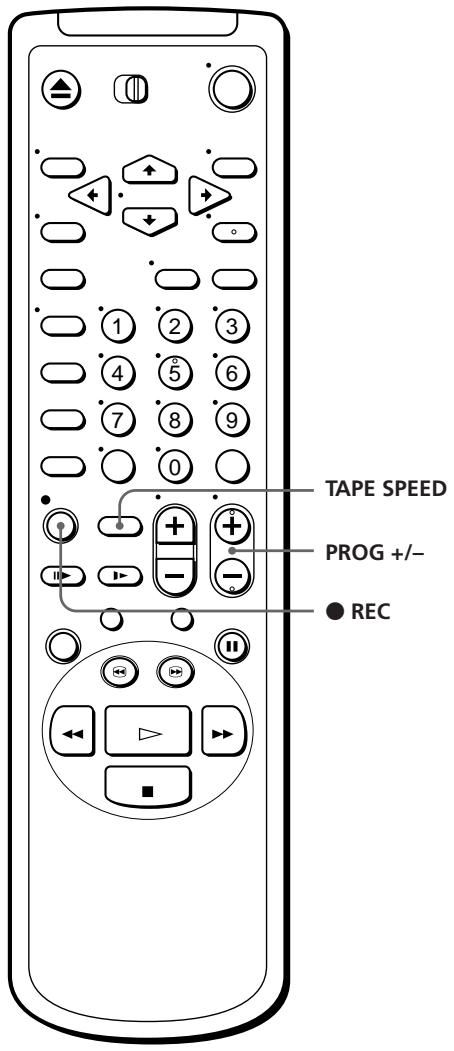
3
PROG

Press PROG + / - to select the programme position you want to
record.
4
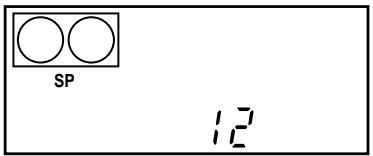
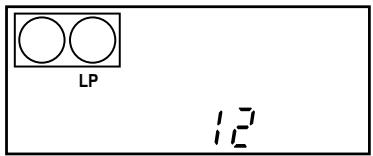
TAPE SPEED

Press TAPE SPEED to select the tape speed (SP or LP for the PAL colour system, and SP or EP for the NTSC colour system).
LP provides recording time twice as long as SP. EP provides recording time three times as long as SP. However, SP produces
better picture and audio quality.
5
REC

Press REC to start recording.
To stop recording
Press STOP.
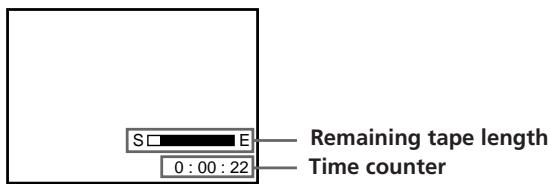
To check the remaining tape length (except for NTSC recorded tapes)
Press DISPLAY. The white bar indicates the approximate length of tape remaining.
continued
Recording TV programmes (continued)
To watch another TV programme while recording
1 If the TV is connected to the VCR using an audio/video cable, set the TV to TV input. If the TV is connected to the VCR using only the aerial cable, skip this step.
2 Select another programme position on the TV.
To save a recording
To prevent accidental erasure, break off the safety tab as illustrated. To record on a tape again, cover the tab hole with adhesive tape.
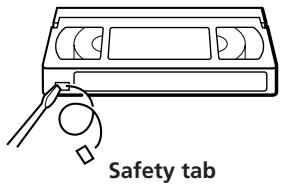
Tips
- To select a programme position, you can use the programme number buttons on the remote commander. For two-digit numbers, press the - / - - (ten's digit) button followed by the programme number buttons.
- You can select a video source from the LINE-1 IN or the LINE 2 IN jacks using the INPUT SELECT button.
- The display appears on the TV screen indicating information about the tape, but the information won't be recorded on the tape.
- If you don't want to watch TV while recording, you can turn off the TV.
Note
- When you play back a tape recorded in the PAL or MESECAM colour system, streaks may appear even if the COLOR SYSTEM switch is set to PAL/MESECAM. If so, select the colour system PAL or MESECAM in the PAL/MESECAM option of the SET UP MENU (see page 62 for details).
Recording TV programmes using G-CODE
Just enter the programme's G-CODE number listed in the TV programme guide. The date, times and programme position of that programme are set automatically. You can preset up to eight programmes at a time.
Before you start...
- Check that the VCR clock is set to the correct time.
- Insert a tape with its safety tab in place. Make sure the tape is longer than the total recording time.
- Turn on your TV and set it to the video channel.
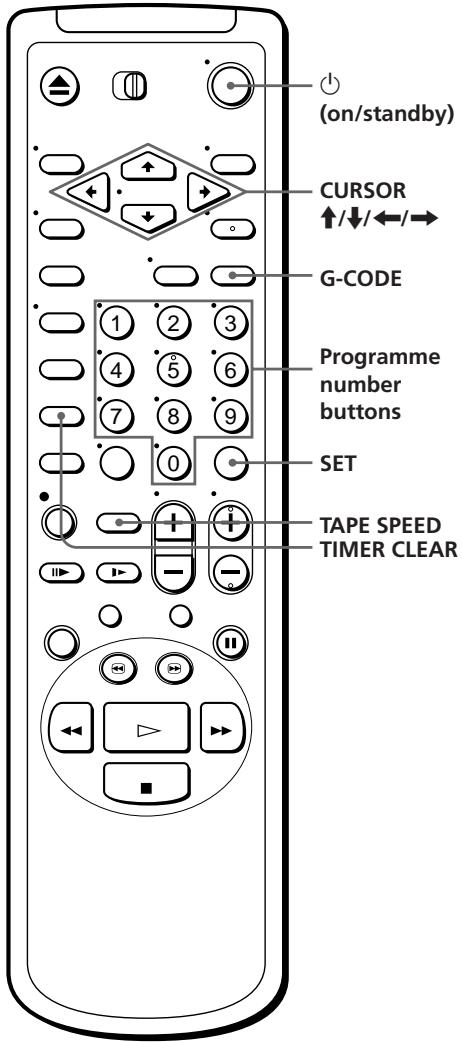
1
G-CODE

Press G-CODE.
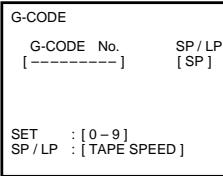
continued
Recording TV programmes using G-CODE (continued)
2
①
②
(3)
Press the programme number buttons to enter the programme's G-CODE number.
(4)
5
6
If you make a mistake, press TIMER CLEAR and re-enter the correct number.
G-CODE
G-CODE No.
[82477691-] [SP]
ONCE DAILY WEEKLY
SP/LP
[SP]
SELECT : [ ]
CONFIRM:[SET]
Press TAPE SPEED to select the tape speed, SP or LP.
To set the EP mode for the NTSC colour system, display "LP" in the tape speed position.
G-CODE
G-CODE No.
[82477691-]
ONCE DAILY
SP/LP
[LP]
EKLY
SELECT : [←→]
CONFIRM:[SET]
CANCEL:[TIMERCLEAR]
4
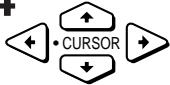
SET

Select ONCE, DAILY or WEEKLY by using CURSOR / , then press SET:
| To record | Select |
| Only once | ONCE |
| Everyday Monday to Friday | DAILY |
| Once a week | WEEKLY |
G-CODE
G-CODE No. SP/LP
[82477691-] [LP]
RECORDING TIME
DATE START STOP PROG
3.11MON 20:00 22:00 58 LP
CANCEL:[TIMERCLEAR]
The date, start and stop times, programme position, and tape speed appear on the TV screen.
If the information is not correct, press TIMER CLEAR to cancel the setting.
5
To enter another setting, repeat steps 1 to 4.
6

Press to turn off the VCR.
The TIMER indicator appears in the display window and the VCR stands by for recording.
To stop recording
To stop the VCR while recording, press STOP.
To record satellite broadcasts
If you connect the satellite tuner and the VCR, you can record satellite programmes.
1 Turn on the satellite tuner.
2 On the satellite tuner, select the satellite programme for which you wish to make a timer setting.
3 Follow the steps on pages 47 and 48.
4 Keep the satellite tuner turned on until the VCR finishes recording the satellite programme for which you have made a timer setting.
To use the VCR after setting the timer
To use the VCR before a timer recording begins, just press . The TIMER indicator turns off and the VCR switches on. Remember to press to reset the VCR after using the VCR.
You can also do the following tasks while the VCR is recording:
- Reset the counter.
- Display tape information on the TV screen.
- Check the timer settings.
- Watch another TV programme.
Tip
- To cancel the procedure, press G-CODE before pressing SET.
Notes
- The G-CODE used in this VCR is for Singapore, Malaysia, Hong Kong, Macao, etc. and cannot be used in areas such as U.S.A., Canada, Japan, Korea, Taiwan, and U.K.
-
If the VCR beeps repeatedly, this means that:
-
The G-CODE number is incorrect.
-
ONCE, DAILY, or WEEKLY was selected incorrectly. You cannot select DAILY or WEEKLY for a programme that air's more than seven days ahead.
Setting the timer manually
The VCR automatically starts and stops recording TV programmes. You can preset up to eight programmes at a time.
Before you start...
- Check that the VCR clock is set to the correct time.
- Insert a tape with its safety tab in place. Make sure the tape is longer than the total recording time.
- Turn on your TV and set it to the video channel.
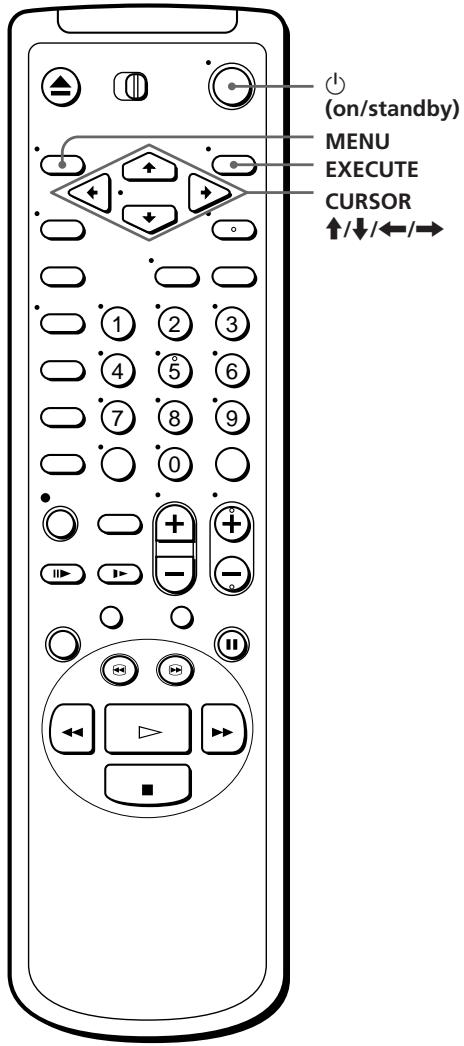
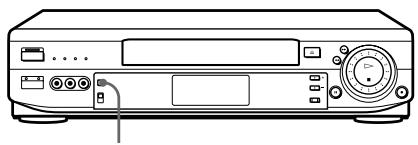
INPUT SELECT
1
-MENU

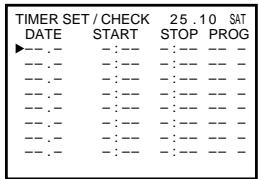
Press MENU and select TIMER SET/
CHECK, then press EXECUTE.
EXECUTE

2


Set the date, start and stop times, programme position, and tape speed:
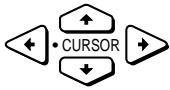
1 Press CURSOR to select each item in turn.
2 Press CURSOR ↑/↓ to set each item.
To correct a setting, press CURSOR to return to that setting and reset.
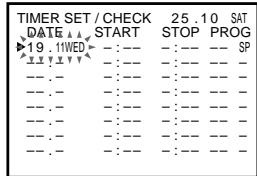
To record the same programme every day or the same day every week, press CURSOR while the date is flashing. For details, see "Daily/weekly recording" below.
To record from a source connected to the LINE-1 IN or the LINE 2 IN jacks, press INPUT SELECT to display "L1" or "L2" in the "PROG" position.
3


Press CURSOR to confirm the setting.
To enter another setting, move the cursor to the next line and repeat step 2.
4
EXECUTE
Press EXECUTE.
5

Press to turn off the VCR.
The TIMER indicator appears in the display window and the VCR stands by for recording.
To record from other equipment, leave the connected equipment switched on.
To stop recording
To stop the VCR while recording, press STOP.
Daily/weekly recording
In step 2 above, press CURSOR to select the recording pattern. Each time you press CURSOR , the indication changes as shown below. Press CURSOR to change the indication in reverse order.
the current date SUN-SAT MON-SAT MON-FRI EVERY SAT .... EVERY MON EVERY SUN 1 month later (dates count down) the current date
continued
Setting the timer manually (continued)
To use the VCR after setting the timer
To use the VCR before a timer recording begins, just press . The TIMER indicator turns off and the VCR switches on. Remember to press to reset the VCR after using the VCR.
You can also do the following tasks while the VCR is recording:
- Reset the counter.
- Display tape information on the TV screen.
- Check the timer settings.
- Watch another TV programme.
Tips
- To set the programme position, you can also use the PROG +/- or programme number buttons.
- To set the tape speed, you can also use the TAPE SPEED button.
- To record NTSC signals, set the tape speed to SP or EP. To set the EP mode, display "LP" in the tape speed position.
Note
- "TIMER" flashes in the display window when you press with no tape inserted.
Playing/searching at various speeds
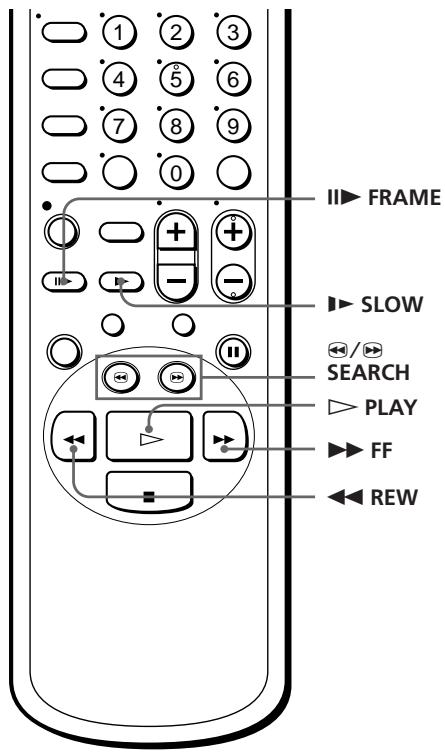
| Playback options | Operation |
| Fast-forward/rewind | During stop, press ➔ FF or ⇑ REW. |
| View the picture during fast-forward or rewind | During fast-forward, hold ➔ FF down. During rewind, hold ⇌ REW down. |
| Play at high speed | During playback or pause, press ➔ SEARCH or ⇓ SEARCH. To change direction, press the other one. |
| Play in slow motion for two minutes | During playback or pause, press ➔ SLOW. |
| Play frame by frame | During pause, press ⇌ FRAME. Hold the button down to play one frame each second. |
| Rewind to the beginning of a tape and start play | During stop, hold ⇌ REW down on the VCR, and press ➔ PLAY on the VCR. |
To resume normal playback
Press PLAY.
Playing/searching at various speeds (continued)
Using the CLICK SHUTTLE ring
With the CLICK SHUTTLE ring on the VCR you can operate a variety of playback options.
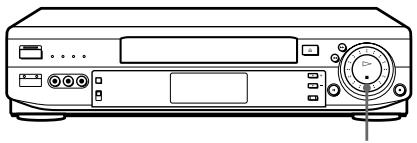
CLICK SHUTTLE ring
During playback or pause, turn the CLICK SHUTTLE ring clockwise or counterclockwise. Each change in the CLICK SHUTTLE ring position changes the playback mode, and the corresponding mark appears on the TV screen for a few seconds in the following way if the on-screen display function is on.
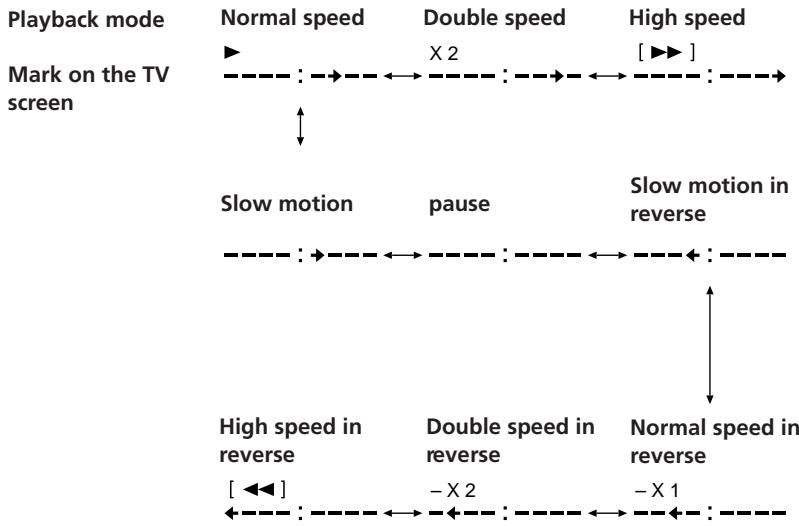
Tip
-
Adjust the picture using TRACKING + / - on the VCR if:
-
streaks appear while playing in slow motion.
-bands appear at the top or bottom while pausing.
- the picture shakes while pausing.
Notes
- The playback sound is muted during these operations.
- In the LP mode, noise may appear or there may be no colour.
- If the playback mode mark doesn't appear on the TV screen, press DISPLAY.
- The playback mode mark may shake while playing or searching at various speeds.
Recording TV programmes using the quick timer
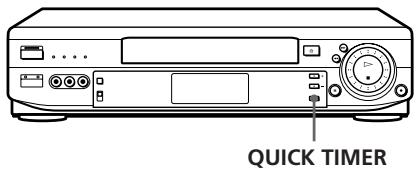
After starting recording in the normal way, you can have the VCR stop recording automatically after a specified duration.
1 While recording, press QUICK TIMER on the VCR once.
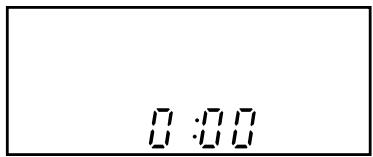
2 Press QUICK TIMER repeatedly to set the duration.
Each press advances the time in increments of 30 minutes.

The duration decreases minute by minute to 0:00, then the VCR stops recording and turns off automatically.
To extend the duration
Press QUICK TIMER repeatedly to set to the new duration.
To stop recording
To stop the VCR while recording, press STOP.
Tip
- You can also set the quick timer and start recording during the stop mode.
Checking/ changing/ cancelling timer settings
Before you start...
- Turn on your TV and set it to the video channel.
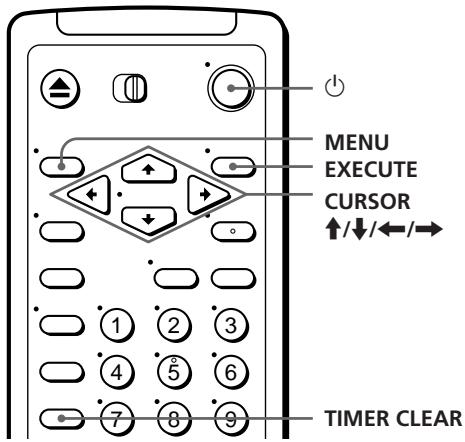
1 Press to turn on the VCR.
2 Press MENU, then select TIMER SET/CHECK:
- If you want to change a setting, go on to the next step.
- If you do not need to change the settings, press EXECUTE, then turn off the VCR to return to recording standby.
| TIMER SET/CHECK 25.10 SAT | |||
| DATE | START | STOP | PROG |
| 2.11 SUN | 7:00 | 8:00 | 6 SP |
| 4.11TUE | 21:00 | 0:00 | 50 LP |
| MON-SAT | 12:12 | 13:00 | 27 LP |
| EVERY SUN | 23:00 | 0:00 | L1 SP |
| ---- | ---- | ---- | ---- |
| ---- | ---- | ---- | ---- |
| ---- | ---- | ---- | ---- |
| ---- | ---- | ---- | ---- |
3 Press CURSOR / to select the setting you want to change or cancel:
- To change the setting, press CURSOR / to select the item you want to change, and press CURSOR / to reset it. Then, press CURSOR repeatedly until the cursor () appears at the beginning of the line.
- To cancel the setting, press TIMER CLEAR.
4 Press EXECUTE.
If any settings remain, turn off the VCR to return to recording standby.
When the timer settings overlap
The programme that starts first has priority and the second programme starts recording only after the first programme has finished. If the programmes start at the same time, the programme listed first in the menu has priority.
Programme 1
Programme 2
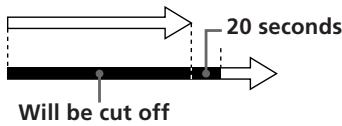
Programme 1
Programme 2

Recording stereo and bilingual programmes
In ZWEITON (German stereo) system
This VCR automatically receives and records stereo and bilingual programmes based on the ZWEITON system only when the SYSTEM (I, D/ K, B/G, or M) option in the TUNER PRESET menu is set to B/G. When a stereo or bilingual programme is received, the STEREO indicator appears in the display window.
To select bilingual sound while recording
Press AUDIO MONITOR to select the sound you want.
| To listen to | On-screen display | Display window |
| Main | MAIN | L |
| Sub | SUB | R |
| Main and sub | MAIN/SUB | L, R |
In NICAM system
This VCR receives and records stereo and bilingual programmes based on the NICAM system (the NICAM indicator appears). When a stereo or bilingual programme is received, the STEREO indicator appears in the display window.
To record a NICAM programme, HIFI AUDIO in the SET UP MENU should be set to NICAM (initial setting). To check the menu setting, see page 62 for details.
To select the sound while recording
Press AUDIO MONITOR to select the sound you want.
Stereo programme
| To listen to | On-screen display | Display window |
| Stereo | STEREO | STEREO |
| Standard sound* | No indicator | No indicator |
- Usually the mixed sound of left and right channels (monaural)
continued
Recording stereo and bilingual programmes (continued)
Bilingual programme
| To listen to | On-screen display | Display window |
| Main | MAIN | L |
| Sub | SUB | R |
| Main and sub | MAIN/SUB | L, R |
| Standard sound* | No indicator | No indicator |
- Usually the main sound (monaural)
Selecting the sound during playback
Press AUDIO MONITOR to select the sound you want.
Stereo programme
| To listen to | On-screen display | Display window |
| Stereo | STEREO | L, R STEREO |
| Left channel | LCH | L, STEREO |
| Right channel | RCH | R, STEREO |
| Standard sound* | No indicator | No indicator |
- Usually the mixed sound of the left and right channels
Bilingual programme
| To listen to | On-screen display | Display window |
| Main | MAIN | L, STEREO |
| Sub | SUB | R, STEREO |
| Main and sub | MAIN/SUB | L, R STEREO |
| Standard sound* | No indicator | No indicator |
- Usually the main sound (monaural)
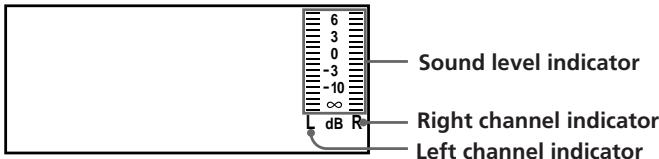
To check audio channel and sound level
You can check the audio channel and sound level visually with the indicators in the display window.
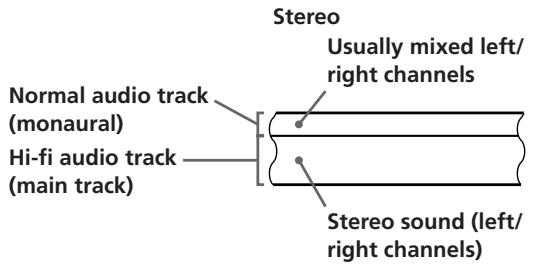
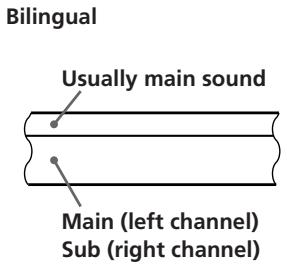
How sound is recorded on a video tape
The VCR records sound onto two separate tracks. Hi-fi audio is recorded onto the main track along with the picture. Monaural sound is recorded onto the normal audio track along the edge of the tape.
Notes
- To play a tape in stereo, you must use the AUDIO OUT connections.
- When you play a tape recorded in monaural, the sound is heard in monaural regardless of the AUDIO MONITOR setting.
- If the AUDIO MONITOR button does not function, check that AUDIO MIX in the SET UP MENU is set to OFF.
- If HIFI AUDIO is set to STD, the standard sound will be recorded on both the hi-fi and normal audio tracks. Pressing AUDIO MONITOR will not change the sound.
Searching with the index function
You can search for the start of a specific passage or scene.
The VCR can search up to 99 index signals ahead of or behind the current position.
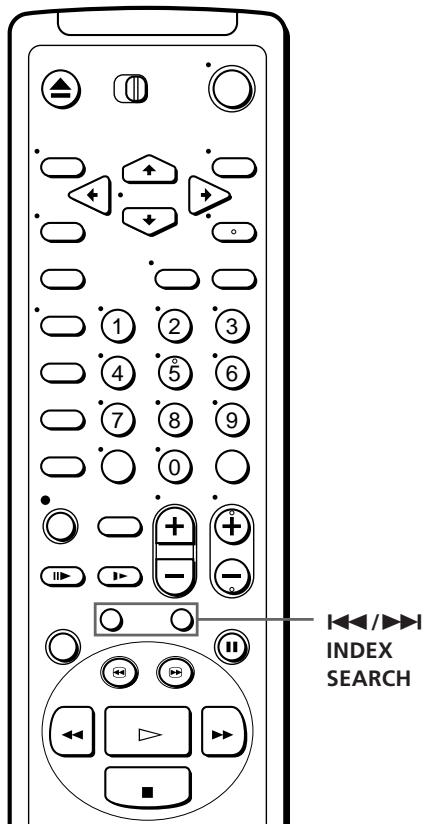
1 Insert an indexed tape into the VCR.
2 Press /INDEX SEARCH repeatedly to specify how many index signals ahead or behind you want to search:
- To search ahead, press▶INDEX SEARCH.
- To search backwards, press INDEX SEARCH.
INDEX 8 SEARCH
The VCR starts searching and the index number on the TV screen counts down to zero. Playback starts automatically from that point.
To stop searching
Press STOP.
Note
- No index signal will be added when recording starts from recording pause. However, an index signal will be marked if you change the channel during recording pause.
Adjusting the picture
Adjusting the tracking
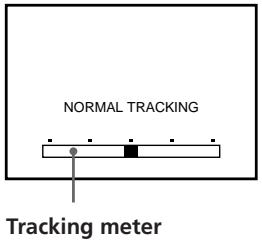
Although the VCR automatically adjusts the tracking when playing a tape (the tracking indicator flashes in the display window, then goes off), distortion may occur if the tape was recorded in poor condition. If so, manually adjust the tracking.
Press TRACKING + / - on the VCR to display the tracking meter. The distortion should disappear as you press one of the two buttons (the indicator lights up). To resume automatic tracking adjustment, eject the tape and reinsert it.
About Adaptive Picture Control (APC)
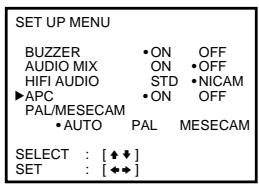
Adaptive Picture Control (APC) automatically improves recording and playback quality by adjusting the VCR to the condition of the video heads and tape. To maintain better picture quality, we recommend that you set APC to ON in the SET UP MENU (with the APC indicator in the display window lit).
APC playback
The APC function automatically works on all types of tapes, including rental tapes and tapes that were not recorded with APC.
APC recording
Whenever you insert a tape and start recording for the first time, the VCR adjusts to the tape using the APC function (the APC indicator flashes rapidly). This adjustment is retained until the tape is ejected.
To deactivate the APC
Press MENU and select SET UP MENU, then set APC to OFF. The APC indicator in the display window goes off.
Note
- There is a delay of a few seconds before the VCR actually starts recording while the VCR analyses the tape. To avoid the delay, first set the VCR to recording pause (the APC indicator flashes slowly) and press REC to have the VCR analyse the tape (the APC indicator flashes rapidly). After the APC indicator stops flashing, press PAUSE to start recording immediately. If you want to start recording quickly without using the APC function, first set the VCR to recording pause (the APC indicator flashes slowly) and press PAUSE to start recording.
Changing menu options
1 Press MENU, then select SET UP MENU.
| SET UP MENU | ||
| BUZZER | ON | OFF |
| AUDIO MIX | ON | OFF |
| HIFI AUDIO | STD | NICAM |
| APC | ON | OFF |
| PAL/MESECAM | ||
| •AUTO | PAL | MESECAM |
| SELECT : [♦♦] | ||
| SET : [♦♦] | ||
2 Press CURSOR / to select the option to change, then press CURSOR / to change the setting.
3 Press EXECUTE to return to the original screen.
Menu choices
Initial settings are indicated in bold print.
| Menu option | Set this option to |
| BUZZER | ON to output a beep sound when all illogical operation is madeOFF to deactivate it. |
| AUDIO MIX | ON to listen to the hi-fi and normal audio tracks at the same time. The AUDIO MONITOR button will not functionOFF to listen to hi-fi and normal audio tracks separately. Select the sound using the AUDIO MONITOR button.For details, see page 59. |
| HIFI AUDIO | STD to record standard sound on the hi-fi audio track.NICAM to record NICAM broadcasts on the hi-fi audio track.For details, see page 57. |
| APC | ON to switch on the APC (Adaptive Picture Control) function and improve picture quality.OFF to switch off APC.For details, see page 61. |
| PAL/MESECAM | AUTO to record/play back in the colour system selected automatically. Normally, select AUTO.PAL to record/play back in the PAL colour system.MESECAM to record/play back in the MESECAM colour system.For details, see page 42. |
Connecting to a VCR or stereo system
How to connect to record on this VCR
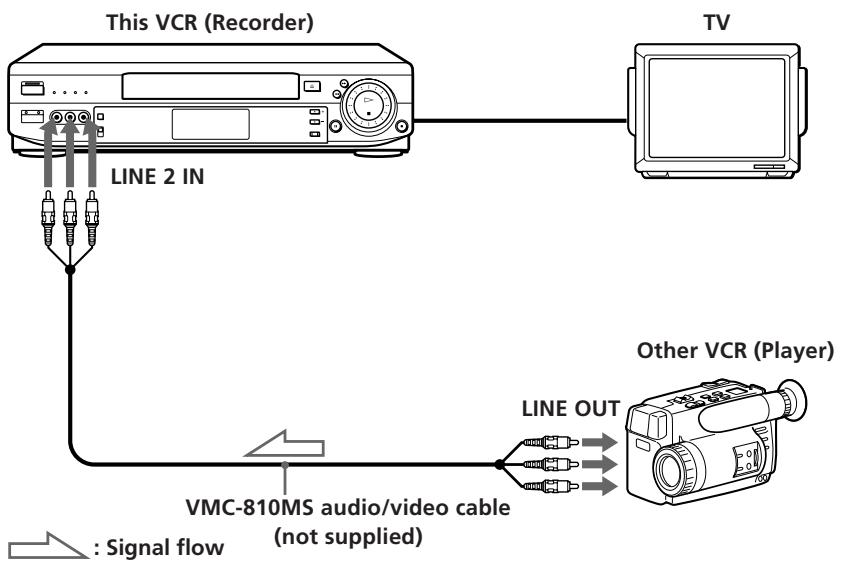
Tip
- You can also use the LINE-1 IN jacks instead.
Notes
- Make sure you connect the plugs to jacks of the same colour.
- If the other VCR is a monaural type, connect the audio plug to the AUDIO L (white) jack. The sound is recorded on both right and left channels. When connecting to the AUDIO R (red) jack, the sound is recorded only on the right channel.
- If you connected this VCR to both the LINE IN and LINE OUT jacks of the other VCR, select the input correctly to prevent a humming noise.
How to connect to a stereo system
Connect LINE 2 IN AUDIO on this VCR to the audio output jacks on the stereo system, using the RK-C510KS audio cable (not supplied).
Basic editing (when recording on this VCR)
Before you start editing
- Turn on your TV and set it to the video channel.
- Press INPUT SELECT to display "L2" (or "L1") in the display window.
- Press TAPE SPEED on the remote commander to select the tape speed (SP or LP for the PAL system, and SP or EP for the NTSC system).
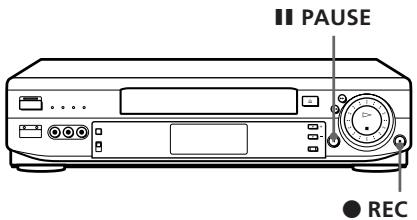
1 Insert a source tape with its safety tab removed into the other (playback) VCR. Search for the point to start playback and set it to playback pause.
2 Insert a tape with its safety tab in place into this (recording) VCR. Search for the point to start recording and press PAUSE.
3 Press REC on this VCR and set it to recording pause.
4 To start editing, press the PAUSE buttons on both VCRs at the same time.
To stop editing
Press the STOP buttons on both VCRs.
Tips
- To edit more precisely, press the PAUSE buttons on the VCRs to release pause.
- To cut out unwanted scenes while editing, press PAUSE on this VCR when an unwanted scene begins. When it ends, press PAUSE again to resume recording (Assemble Editing).
Note
- If you start recording following the procedure above, the VCR won't start recording with the APC function. To record a tape with the APC function, press REC again during recording pause in step 3 so that the VCR analyses the tape. Then when you start recording in step 4, press PAUSE after the APC indicator stops flashing. If you press PAUSE before the APC indicator stops flashing, the APC function is cancelled.
Troubleshooting
If you have any questions or problems not covered below, please consult your nearest Sony service facility.
| Symptom | Remedy | |
| Power | The ON/STANDBY switch does not function. | Connect the mains lead to mains securely. |
| The power is turned on but the VCR does not operate. | Moisture condensation occurs. Turn the power off, unplug the mains lead and leave the VCR to dry for over one hour. | |
| Clock | The clock has stopped and “-:-” lights in the display window. | The clock stops if the VCR is disconnected from the mains for more than an hour. Reset the clock (and timer). |
| Playback | The playback picture does not appear on the TV screen. | Make sure the TV is set to the video channel. If you are using a monitor, set it to video input. |
| The picture is not clear. | Adjust the tracking with the TRACKING +/- buttons. Make sure the colour system is correctly set to the system that the tape was recorded in. The video heads are dirty (see below). Clean the video heads using the Sony V-25CL video head cleaning cassette. If this cleaning cassette is not available in your area, have the heads cleaned at your nearest Sony service facility (a standard service charge will be required). Do not use a commercially available liquid-type cleaning cassette, as it may damage the video heads. The video heads may have to be replaced. Consult your local Sony service facility for more information. |
Symptoms caused by contaminated video heads
-
Normal picture
-
Rough picture
Unclear picture
- No picture (or black & white screen appears)

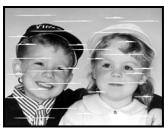

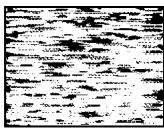
initial contamination
terminal
continued
Troubleshooting (continued)
| Symptom | Remedy | |
| Playback | The picture rolls vertically during picture search. | ·Adjust the vertical hold control on the TV or monitor. |
| The picture has no sound. | ·The tape is defective. Use a new tape. | |
| The sound is unstable or has an echo. | ·When you play a tape with the same sound recorded on both the hi-fi and normal sound tracks, make sure the AUDIO MIX option in the SET UP MENU is set to OFF. | |
| Recording | No TV programmes appear on the TV screen. | ·Make sure the TV is set to the video channel. If you are using a monitor, set it to video input. |
| TV reception is poor. | ·Adjust the TV aerial. ·Make sure SYSTEM, I, D/K, B/G, or M in the TUNER PRESET menu is set to the system in your area. | |
| The tape starts playing as soon as it is inserted. | ·The safety tab has been removed. To record on this tape, cover the tab hole. | |
| The tape is ejected when you press ● REC. | ·Check that the safety tab has not been removed. | |
| Nothing happens when you press ● REC. | ·Make sure the tape is not at its end. ·Select the correct source. Select a programme position with the PROG +/- buttons when recording TV programmes; select “L1” or “L2” with the INPUT SELECT button when recording from other equipment. | |
| Timer recording | The timer does not operate. | ·Check that the clock is set. ·Make sure a tape has been inserted. ·Check that the safety tab has not been removed. ·Make sure the tape is not at its end. ·Make sure a programme has been set for timer recording. ·Make sure your timer settings have not already passed the current time. ·Check that the satellite tuner is turned on. ·The clock stops if the VCR is disconnected from the mains for more than an hour. Reset the clock and timer. |
| Symptom | Remedy |
| A tape cannot be inserted. | Check that a tape isn’t already in the tape compartment. |
| The remote commander does not function. | Make sure you are pointing the remote commander at the remote sensor on the VCR. Replace all the batteries in the remote commander with new ones if they are weak. Make sure the TV /VIDEO remote control switch is set correctly. |
| The tracking indicator does not appear on the screen. | The recording condition of the tape is very poor and tracking cannot be adjusted, or the NTSC system is being used. |
| The VCR needs to be cleaned. | Clean the cabinet, panel and controls with a dry, soft cloth, or a soft cloth slightly moistened with a mild detergent solution. Do not use any type of solvent, such as alcohol or benzine. |
Specifications
System
Channel coverage
VHF R1 to R12, E2 to E12, NZ1 to NZ11
UHF E21 to E69, R21 to R60
CATV S01 to S05, S1 to S41
RF output signal
UHF channels 21 to 69
Aerial out
75-ohm asymmetrical aerial socket
Inputs and outputs
LINE-1 IN and LINE 2 IN
VIDEO IN, phono jack (1 each)
Input signal: 1 Vp-p, 75 ohms, unbalanced,
sync negative
AUDIO IN, phono jack (2 each)
Input level: 327mVrms
Input impedance: more than 47 kilohms
LINE-1 OUT
VIDEO OUT, phono jack (1 each)
Output signal: 1 Vp-p, 75 ohms, unbalanced,
sync negative
AUDIO OUT, phono jack (2 each)
Standard output: 327mVrms
Load impedance: 47 kilohms
Output impedance: less than 10 kilohms
General
Power requirements
110 - 240VAC,50 / 60Hz
Power consumption
27W
Operating temperature
5^ to 40^
Storage temperature
-20^ to 60^
Dimensions
Approx. 430× 100× 282mm (w / h / d)
including projecting parts and controls
Mass
Approx. 4.7kg
Supplied accessories
Remote commander (1)
R6 (size AA) batteries (2)
Aerial cable (1)
Audio/video cable (1)
Design and specifications are subject to change without notice.
Index to parts and controls
Refer to the pages indicated in parentheses ( ) for details.
Front panel
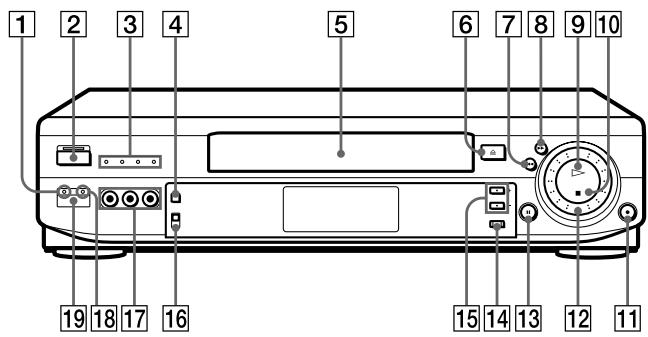
EASY SET UP button (14)
2 ON/STANDBY switch/indicator (11)
3 Multi system indicators (22)
4 INPUT SELECT button (51)
5 Tape compartment
6 EJECT button (41)
7 REW button (41, 53)
8 FF button (41, 53)
9 PLAY button (40)
STOP button (41, 45)
11 REC button (45, 64)
12 CLICK SHUTTLE ring (54)
13 PAUSE button (41, 64)
14 QUICK TIMER button (55)
15 PROGRAM/TRACKING + / - buttons (45, 61)
16 COLOR SYSTEM switch (40)
LINE 2 IN VIDEO/AUDIO L/R jacks (63)
18 RF CH SET button (11)
Remote sensor (5)
continued
Index to parts and controls (continued)
Display window
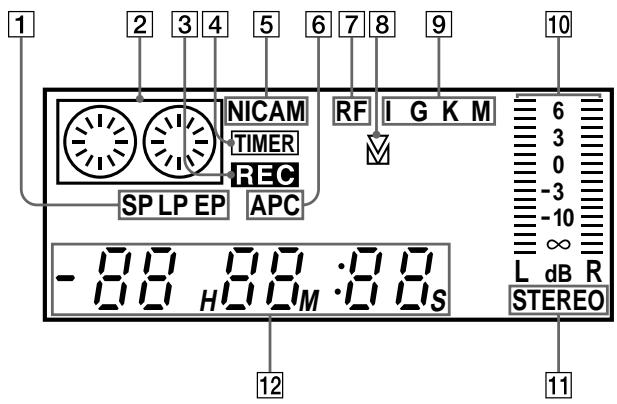
1 Tape speed indicator (45)
2 Tape indicator
3 REC indicator
4 TIMER indicator (48, 51)
5 NICAM indicator (57)
6 APC indicator (61)
RF indicator (11)
8 (Tracking) indicator (61)
TV system indicator (12) I/G/K/M
10 Audio channel/sound level indicator (58)
STEREO indicator (57)
Time counter/clock/line/programme position (42, 45)
Rear panel
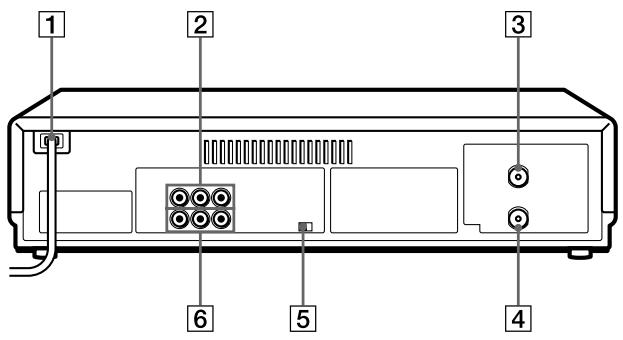
1 Mains lead (8)
LINE-1 IN AUDIO L/R/VIDEO jacks (63)
3 AERIAL OUT connector (8)
4 AERIAL IN connector (8)
5 NTSC PB switch (41)
LINE-1 OUT AUDIO L/R/VIDEO jacks (9)
continued
Index to parts and controls (continued)
Remote commander
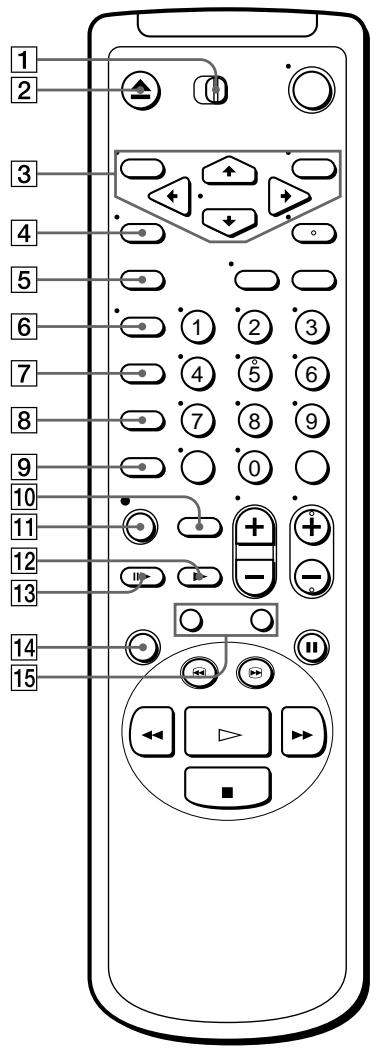
1 TVVIDEOREmote control switch (5)
2 EJECT button (41)
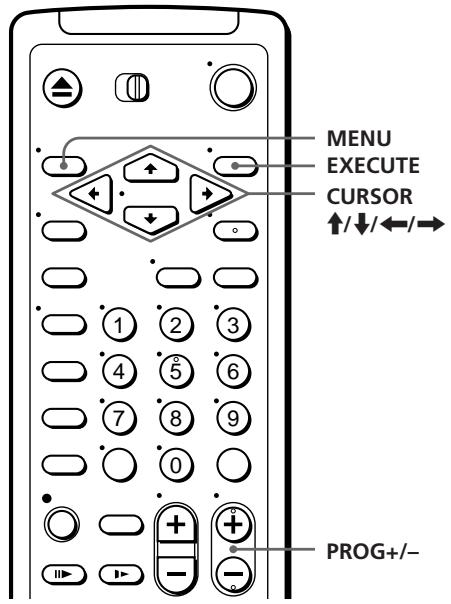
3 Menu buttons (14)
MENUButton CURSOR / / / buttons EXECUTEButton
4 WIDE button (6)
TRINITRON TV SYNCHRO PLAY button (43)
6 DISPLAY button (45)
7 COUNTER RESET button (42)
8 TIMER CLEAR button (48, 56)
9 QUICK TIMER button (55)
TAPE SPEED button (45)
11 REC button (45)
12 SLOW button (53)
13 FRAME button (53)
14 REPLAY buttons (41)
15 />INDEX SEARCH buttons (60)
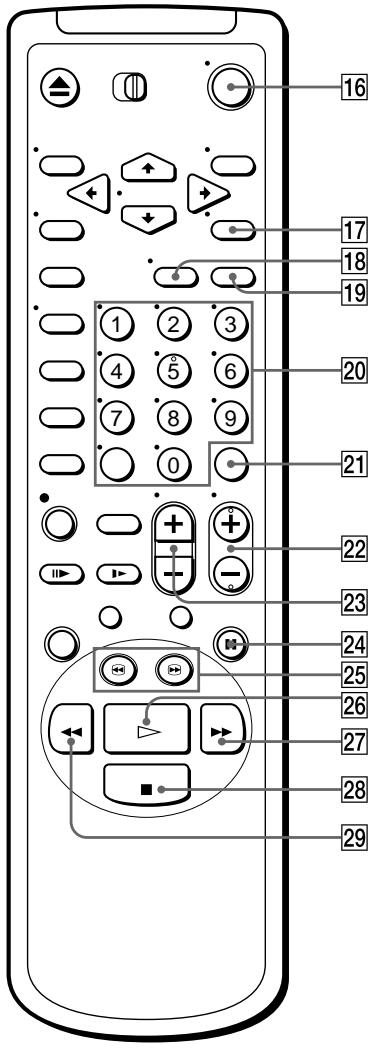
16 (on/standby) switch (14)
17 AUDIO MONITOR button (57)
TV/VIDEO button (for TV) (6)
19 G-CODE button (47)
20 Programme number/-- (ten's digit) buttons (46, 48)
21 SET button (48)
PROG + / - buttons (20, 45)
23 VOL + / - buttons (for TV) (6)
24 PAUSE button (41)
25 念 / 念 SEARCH buttons (53)
26 PLAY button (40)
27 FF button (41, 53)
28 STOP button (41)
29 REW button (41, 53)
Index
A, B
Accessories supplied 4
Adjusting
picture 23,54,61
tracking 54,61
Aerial hookup 8
AFT (Auto Fine Tuning) 23
APC (Adaptive Picture
Control) 61
Audio track 59
AV connection 9
C
Cancelling timer settings 56
Changing timer settings 56
Cleaning the video
heads 65
Clock setting 38
Colour system
compatible colour
systems 2
setting 41
Connecting
to a stereo system 9
to a TV with an aerial
cable 8
to a TV with audio/
video jacks 9
Counter 42
D
Disabling programme
position 22,37
Dubbing. See Editing
E,F
EASY SET UP 14
Editing 63
EP mode 45
G
G-CODE
recording 47
setting 32
Guide channel setting
up 32
H
Hi-fi audio track 59
I, J, K
Index searching 60
L
Language selecting 17
LP mode 45
M
Monitoring
during playback 58
during recording 57
N, O
NICAM broadcasts 57
Normal audio track 59
NTSC-recorded tapes 41
P
Picture adjustment. See
Adjusting
Playback 40
at various speeds 53
slow motion 53
Preseting channels 18
Q
Quick timer 55
R
Recording 44
bilingual
programmes 57
saving 46
stereo programmes 57
using G-CODE 47
while watching another
programme 46
Remote commander 5
s
Safety tab 46
Searching
at various speeds 53
using the index
function 60
SP mode 45
T, U, V, W, X, Y
Timer recording 50
cancelling timer
settings 56
changing timer
settings 56
checking timer
settings 56
daily/weekly
recording 51
overlapping timer
recordings 56
using G-CODE 47
Tracking adjustment. See
Adjusting
Trinitron TV Synchro
Play 43
Z
ZWEITON broadcasts 57