
NW-E003F - Mp3 player SONY - Free user manual and instructions
Find the device manual for free NW-E003F SONY in PDF.


| Product type | MP3 player with FM tuner |
| Brand | SONY |
| Model | NW-E003F |
| Color | Not specified (usually silver or black) |
| Internal memory | 1 GB |
| Supported audio formats | MP3, ATRAC, ATRAC3, ATRAC3plus, WMA (depending on software) |
| FM tuner | Yes, with auto preset |
| Power source | Built-in rechargeable battery (via USB) |
| Battery life | Approx. 50 hours (audio playback) depending on conditions |
| Connectivity | USB 2.0 (directly integrated connector) |
| Dimensions | Approx. 85 × 28 × 18 mm (estimated) |
| Weight | Approx. 30 g (without accessories) |
| Display | Backlit LCD screen |
| HOLD function | Yes, key lock |
| Included accessories | Earphones, CD-ROM (SonicStage software), quick start guide |
| Maintenance and cleaning | Wipe with a soft, dry cloth. Do not use solvents. |
| Safety | Do not expose to moisture, rain, or extreme temperatures. Do not cover ventilation openings. |
| Spare parts and repairability | Parts not directly available. Contact Sony support. |
| General information | Made in Malaysia. Required software: Windows 98SE/Me/2000/XP. |
| Compatible operating system | Windows only (not Mac) |
Frequently Asked Questions - NW-E003F SONY
User questions about NW-E003F SONY
0 question about this device. Answer the ones you know or ask your own.
Ask a new question about this device
Download the instructions for your Mp3 player in PDF format for free! Find your manual NW-E003F - SONY and take your electronic device back in hand. On this page are published all the documents necessary for the use of your device. NW-E003F by SONY.
USER MANUAL NW-E003F SONY
© 2006 Sony Corporation Printed in Malaysia
2-678-175-13 (1)
Table of Contents
Owner's Record
The model and serial numbers are located on the back of the player. Record them in the space provided below. Refer to these numbers in the spaces whenever you call upon your Sony dealer regarding this product.
Model No. ____
Serial No. ____
The use of the player is described in this “Quick Start Guide,” in the “Operation Guide” (available as a PDF file), and in the SonicStage Help (accessible from within SonicStage software).
- Quick Start Guide: Explains basic operation of the player, including importing, transferring, and playing music songs.
- Operation Guide: Explains advanced features of the player and offers troubleshooting information.
– SonicStage Help: Explains details of using the SonicStage software.
If you have any questions about or issue with this product, visit the following web sites.
For customers in the USA: http://www.sony.com/walkmansupport
For customers in Canada: http://www.sony.ca/ElectronicsSupport/
For customers in Europe: http://www.support-nwwalkman.com
For customers in Latin America: http://www.sony-latin.com/pa/info/
For customers in other countries or areas: http://www.css.ap.sony.com
For customers who purchased the overseas models: http://www.sony.co.jp/overseas/support/
Introduction......6
Getting Started 8
Supplied Items 8
Installing SonicStage 9
Importing Music....12
Transferring Music 14
Playing Music....16
Basic Operation – Parts and Controls 16
Listening to FM Tuner
(NW-E002F/E003F/E005F only)....20
To learn about advanced features of the player
- For information about advanced features of the player and about troubleshooting technical issues, refer to the Operation Guide (PDF file). The Operation Guide (PDF file) will be installed when the SonicStage software is installed. Double-click (“NW-E000 Series Operation Guide”) on the desktop, or click [Start] – [All Programs] – [SonicStage] – [NW-E000 Series Operation Guide] on your computer.
- You need Adobe Acrobat Reader 5.0 or later, or Adobe Reader software in your computer.
Adobe Reader can be downloaded from the Internet for free.
WARNING
To reduce the risk of fire or electric shock, do not expose this apparatus to rain or moisture.
Do not install the appliance in a confined space, such as a bookcase or built-in cabinet.
To reduce the risk of fire, do not cover the ventilation of the apparatus with newspapers, tablecloths, curtains, etc. And don't place lighted candles on the apparatus.
To reduce the risk of fire or electric shock, do not place objects filled with liquids, such as vases, on the apparatus.
For Customers in Russia
- The recorded song is limited to private use only. Use of the song beyond this limit requires permission of the copyright holders.
- Sony is not responsible for incomplete recording/downloading or damaged data due to problems of the player or computer.
- Depending on the types of the text and characters, the text shown on the player may not be displayed properly on device. This is due to:
– The capacity of the connected player. - The player is not functioning normally.
-
The ID3 TAG information for the song is written in the language or the character that is not supported by the player.
-
SonicStage and the SonicStage logo are trademarks or registered trademarks of Sony Corporation.
- OpenMG, ATRAC, ATRAC3, ATRAC3plus, and their logos are trademarks of Sony Corporation.
- “WALKMAN” and “WALKMAN” logo are registered trademarks of Sony Corporation.
- Microsoft, Windows, Windows NT, and Windows Media are trademarks or registered trademarks of Microsoft Corporation in the United States and/or other countries.
- Adobe Reader is a trademark of Adobe Systems Incorporated.
- MPEG Layer-3 audio coding technology and patents licensed from Fraunhofer IIS and Thomson.
- IBM and PC/AT are registered trademarks of International Business Machines Corporation.
• Macintosh is a trademark of Apple Computer, Inc.. - Pentium is a trademark or a registered trademark of Intel Corporation.
- CD and music-related data from Gracenote, Inc., copyright © 2000-2004 Gracenote.
Gracenote CDDB ^® Client Software, copyright 2000-2004 Gracenote. This product and service may practice one or more of the following U.S. Patents: #5,987,525; #6,061,680; #6,154,773, #6,161,132, #6,230,192, #6,230,207, #6,240,459, #6,330,593, and other patents issued or pending. Services supplied and/or device manufactured under license for following Open Globe, Inc. United States Patent 6,304,523. Gracenote and CDDB are registered trademarks of Gracenote.
The Gracenote logo and logotype, and the “Powered by Gracenote” logo are trademarks of Gracenote. - All other trademarks and registered trademarks are trademarks or registered trademarks of their respective holders. In this manual, ^TM and ^® marks are not specified.
Program ©2006 Sony Corporation
Documentation ©2006 Sony Corporation
On sample audio data
The player is pre-installed with sample audio data so that you can try it out right away. To delete this audio data, delete it using SonicStage.
Introduction
Thank you for purchasing the NW-E002F/E003F/E005F/E002/E003/E005.
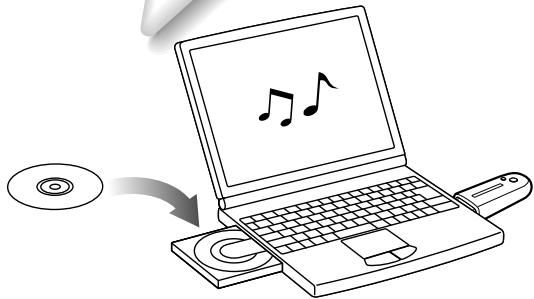
Be sure to install the “SonicStage” software from the supplied CD-ROM in your computer.
To begin using the player, first import music songs into your computer using the
SonicStage software, and then transfer them to the player.
After transferring the music songs to the player, you can enjoy them wherever you go.
1 Getting Started
(See page 8)
2 Importing Music
(See page 12)
natural_image
Illustration of a laptop with musical notes being processed by an open CD (no text or symbols present)3 Transferring Music
(See page 14)
4 Playing Music
(See page 16)
You can charge the player's battery by connecting the player to your computer.
Make sure to charge it before using the player for the first time.
For details on charging times, see the Operation Guide (PDF).
Supplied Items
Check the following items.
□ Headphones (1)
□ CD-ROM* (1)
- SonicStage software
- Operation Guide (PDF file)
☐ Quick Start Guide (this manual) (1)
* Do not attempt to play this CD-ROM in an audio CD player.
Installing SonicStage
Install SonicStage according to the following instructions.
If SonicStage is already installed, it will be overwritten. All functions and audio data from the previous installation will be preserved on the new installation.
Notes on before installing
- Do not format the built-in flash memory using Windows Explorer.
- Necessary computer system environment for using the player:
Computer: IBM PC/AT or compatible computer preinstalled with the following Windows operating systems. - Windows 98 Second Edition
- Windows Millennium Edition
– Windows 2000 Professional (Service Pack 3 or later)
– Windows XP Home Edition/Windows XP Professional/Windows XP Media Center Edition/Windows XP Media Center Edition 2004/Windows XP Media Center Edition 2005
Windows 95, Windows 98 Gold Edition, Windows NT, other versions (Server, etc.) of Windows2000 may not be guaranteed.
– CPU: Pentium III 450 MHz or higher - RAM: 128 MB or more
– Hard Disk Drive: 200 MB or more of available space (1.5 GB or more is recommended). More space may be required depending on the version of the operating system. Additional space is required for storing music data. -
Display:
Screen Resolution: 800 × 600 pixels (or higher) (recommended 1024 × 768 or higher) Colors: High Color (16 bit) (or higher) (SonicStage may not operate properly at color settings at or below 256 colors.) -
CD-ROM drive (supporting Digital Music CD playback capabilities using WDM) To create original CDs or to back up audio CDs, a CD-R/RW drive is required.
– Sound board - USB port
- Internet connection is required to use the CD Data Base (CDDB).
- To use Electronic Music Distribution (EMD), you need Internet connection, and Internet Explorer 5.5 or later needs to be installed.
- This software is not supported by the following environments:
– OSs other than those indicated above
– Personally constructed PCs or operating systems
- An environment that is an upgrade of the original manufacturer-installed operating system
– Multi-boot environment
– Multi-monitor environment
- Macintosh
1 Turn on the computer and start Windows. Log on as an administrator.
2 Quit all activated software programs on your computer. Be sure to quit any anti-virus software as it may strain the CPU.
3 Insert the supplied CD-ROM into your computer. The install wizard will start automatically and the Main Menu appears.
4 Install SonicStage and Operation Guide (PDF).
Click “Install SonicStage” from the Main Menu, and follow the on-screen instructions.
Installation may take 20 to 30 minutes depending on your computer. If prompted, restart the computer after installing.
How to display the Operation Guide (PDF)
The Operation Guide (PDF file) will be installed when the SonicStage software is installed. Double-click 📋 (“NW-E000 Series Operation Guide”) on the desktop, or click [Start] – [All Programs] – [SonicStage] – [NW-E000 Series Operation Guide] on your computer.
When installation is not successful
Visit the following web sites:
For customers in the USA: http://www.sony.com/walkmansupport
For customers in Canada: http://www.sony.ca/ElectronicsSupport/
For customers in Europe: http://www.support-nwwalkman.com
For customers in Latin America: http://www.sony-latin.com/pa/info/
For customers in other countries or areas: http://www.css.ap.sony.com
For customers who purchased the overseas models: http://www.sony.co.jp/overseas/support/
If the issue persists:
Consult your nearest Sony dealer.
2 Importing Music
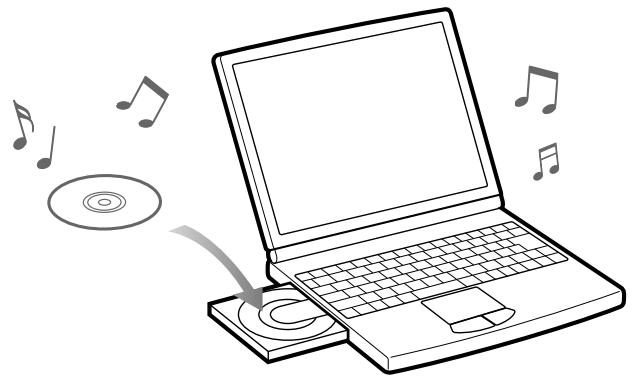
Import audio data to your computer using the SonicStage. The methods of importing tracks of CD are described here.
natural_image
Illustration of a laptop with CD and musical notes floating around it (no text or symbols)1 Double-click icon on the desktop.
SonicStage starts up.
2 Insert the audio CD that you want to import to hard drive of your computer.
You can obtain CD information (song name or artist name, etc.) while connected to the Internet.
3 Place the pointer over [Music Source] at the top of the screen and click [Import a CD].
The screen for importing is displayed, and the song list of the CD appears.
4 Click → at the right of the screen. Importing audio data starts.
Hint
- SonicStage also offers the following additional features. For details, refer to SonicStage Help.
- Importing audio files downloaded from the Internet and audio files stored on your computer, such as MP3 or ATRAC format audio files.
- Importing only selected audio files from a CD.
- Changing the audio formats and bit rates of audio tracks.
Note
- When you use the SonicStage with the CD drive for the first time, a CD drive check will be performed. Follow the on-screen instructions.
3 Transferring Music
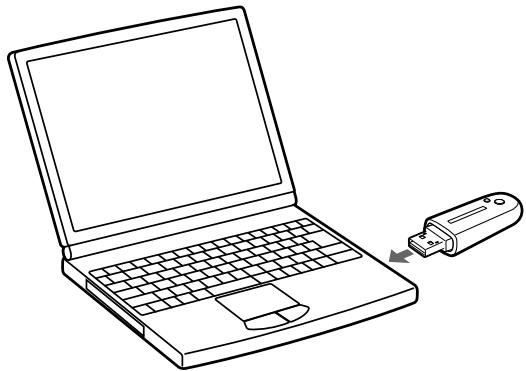
Connect the player to your computer and transfer the audio data to the player.
natural_image
Line drawing of a laptop with a USB flash drive (no text or symbols)The player's battery is recharged while connected to a computer.
When the remaining battery indication of the display shows FULL, charging is complete.
When you use the player for the first time, or if you have not used the player for a long time, recharge it fully, and then transfer the data to the player.
For information on recharging time, see the Operation Guide (PDF).
1 Double-click the SonicStage icon on the desktop. SonicStage starts up.
2 Connect the USB connector of the player to your computer.
3 Place the pointer over [Transfer] and select [ATRAC Audio Device] from the transfer destination list.
4 Select an audio file(s) or album you want to transfer.
5 Click → to start transferring.
To stop transferring, click
Notes
- Do not disconnect the player from your computer while data is being transferred.
- If the computer enters a power saving mode such as system suspend, sleep, or hibernation while the player is connected, the player's battery will begin discharging.
- Do not leave the player connected for extended periods to a laptop computer that is not connected to AC power, because the player may discharge the computer's battery.
Hints
- SonicStage also offers the following additional features. For details, refer to SonicStage Help.
– Transferring only selected audio files. - Creating and transferring playlists that group your favorite songs into a list.
- Replace the USB cap after disconnecting the player from your computer.
Basic Operation - Parts and Controls
Front
text_image
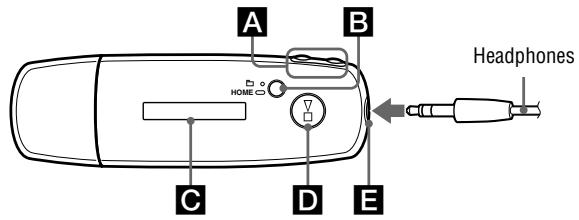
A B HOME C D E HeadphonesA I◄◄/►►I button
Selects a song, album, artist, or menu item. You can also skip to the beginning of the song/album/artist, fast-rewind or fast-forward as follows.
- Pressing the ◀◀◀(▶▶) button: Skips to the beginning of the current (or next) song/album/artist.
- Pressing and holding the ◀◀◀ (▶▶▶) button during playback and releasing it at the desired point: Fast-rewinds (or fast-forwards) the current (or next) song.
- Pressing and holding the ◀◀◀(▶▶) button while in stop mode: Skips to the beginning of the current (or next) song/album/artist, and if held longer, continues to skip through the previous (or next) song/album/artist.
B /HOME (Folder/HOME) button
When you press this button while the audio player is in play or stop mode, you can switch between Song/Folder control modes. In Song control mode, the player skips to the beginning of the song. In Folder control mode, the player skips to the beginning of the album/artist.
Press and hold this button to display the HOME screen.
* In FM tuner screen (NW-E002F/E003F/E005F only), you can switch between manual/preset tuning modes.
C Display
For details on the display and icons, see page 19.
D ▶ button
Starts song playback. When starting playback, ▶ appears at the top left of the display, and if the ▶■ button is pressed again, ■ appears and playback stops. When a menu appears on the display, use this button to confirm the selected menu item.
When you press the ▶■ button, just after purchasing the player or disconnecting the player from the computer, playback starts from the first song on the player.
E Headphone jack
For connecting the headphones.
Connect until it clicks into place.
If the headphones do not connect properly, it may not sound right.
Rear
text_image
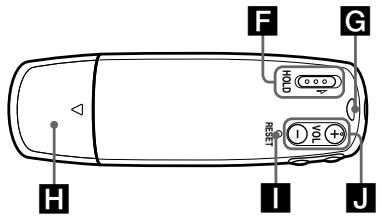
F G H I JF HOLD switch
You can protect the player against accidental operation by using the HOLD function when carrying it. By sliding the HOLD switch to the HOLD position, all operation buttons are disabled. If you press buttons while the HOLD function is activated, the current time, "HOLD" and (remaining battery indication) appear in the display. If you slide the Hold switch to a direction opposite to it, the Hold function is released.
G Strap hole
This is used to attach a strap.
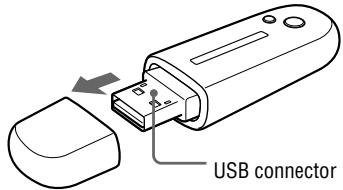
H USB cap
Remove the USB cap and connect the USB connector to a USB port on your computer directly.
To remove the USB cap
Remove the USB cap as shown below.
text_image
USB connectorI RESET button
Resets the player. For details, refer to Operation Guide.
J VOL +/- button
Adjusts the volume.
Display
text_image
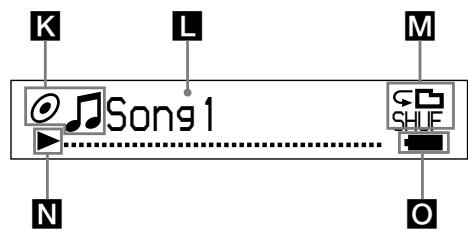
K L M Song 1 N OK Sorting status indication (Sort) / ♪ icon
The current song order (● (Artist order), Ⓞ (Album order) or ⚙ (Albums by artist order)) and ♪ appear. In Song control mode, the sorting status icon appears here and ♪ appears to the right. In Folder control mode, ♪ appears here and the sorting status icon appears to the right.
L Text/graphic information display Displays album title, artist name, song name, current date and time, messages and menu.
To switch the display mode, proceed to the “Display Mode” menu. Switch the display to Power Save mode when you do not operate the unit for a while.
M Play mode indication (Play Mode) Displays the current play mode icon. If the play mode is set to “Normal,” no icon appears.
N Playing status indication
Displays the current playback mode (▶: playback, ■: stop, ◀◀ (▶▶): fast-rewinds (fast-forwards), ◀◀ (▶▶)l): skips to the beginning of the current (or next) song).
O Remaining battery indication
Displays the remaining battery power.
Hint
- For information on the FM tuner display (NW-E002F/E003F/E005F only), see the Operation Guide (PDF file).
text_image
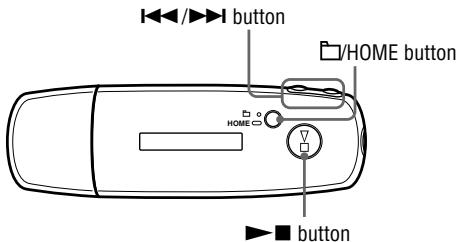
button HOME button button1 Press and hold the ☐/HOME button until the HOME screen appears.
2 Press the ◀◀/▶▶I button to select FM (FM) and press the ▶■ button to confirm.
The FM tuner screen appears.
3 Selecting broadcast stations. Manual Tuning
1 Press the ☐/HOME button.
② Select the previous (or next) frequency by pressing the ◀◀ (▶▶) button.
Preset Tuning (see “Hint”)
① Press the ☐/HOME button.
② Select the previous (or next) preset number by pressing the ◀◀◀ (▶▶▶) button.
Hint
In Preset Tuning, you cannot select broadcast stations if no preset stations are entered. Preset receivable broadcast stations in your area automatically by selecting “FM Auto Preset” in the Setting menu. This is convenient when you use the FM tuner for the first time or when you change to a new area.
① Press and hold the ☐/HOME button until the HOME screen appears.
② Press the ◀◀/▶▶ button to select ➕ (MENU) and press the ▶■ button to confirm.
③ Press the ◀◀◀/▶▶I button to select “FM Auto Preset>” and press the ▶■ button to confirm.
④ Press the ◀◀/▶▶I button to select “Ok” and press the ▶■ button to confirm.
For details on Preset Tuning, refer to the Operation Guide (PDF file).