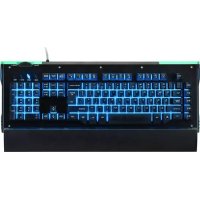
PCCL510 - Keyboard Nacon - Free user manual and instructions
Find the device manual for free PCCL510 Nacon in PDF.

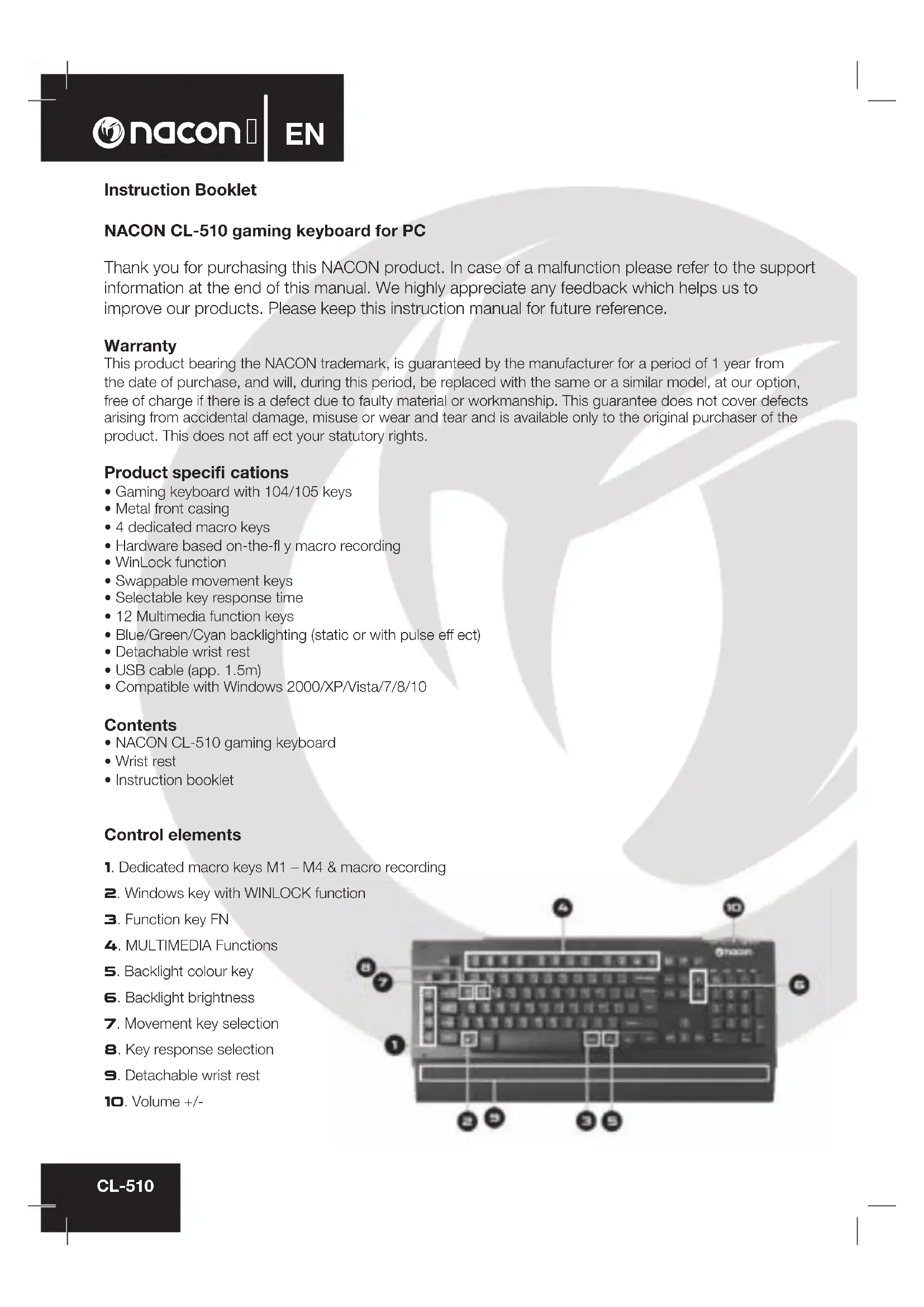


| Product type | Gaming keyboard |
| Brand | NACON |
| Model | PCCL510 (CL-510) |
| Number of keys | 104 or 105 keys depending on version |
| Layout | AZERTY |
| Chassis | Metallic |
| Dimensions (with palm rest) | 30 mm x 504 mm x 225 mm |
| Weight | 1550 g |
| Power supply | USB, 5 V, max. 200 mA |
| Cable length | Approximately 1.5 m |
| Compatible operating systems | Windows 2000/XP/Vista/7/8/10 |
| Main functions | 4 macro keys, hardware macro recording, WinLock, interchangeable movement keys, configurable response time, 12 multimedia keys, blue/green/turquoise backlighting (static or blinking) |
| Palm rest | Removable |
| Maintenance and cleaning | Clean with a soft, clean, damp cloth. Do not use detergents. |
| Safety | For indoor use only. Do not expose to moisture, splashes, dust, high temperatures or shocks. Do not disassemble. |
| Spare parts and repairability | No repairable parts inside. Do not disassemble. |
| Warranty | 1 year |
Frequently Asked Questions - PCCL510 Nacon
User questions about PCCL510 Nacon
0 question about this device. Answer the ones you know or ask your own.
Ask a new question about this device
Download the instructions for your Keyboard in PDF format for free! Find your manual PCCL510 - Nacon and take your electronic device back in hand. On this page are published all the documents necessary for the use of your device. PCCL510 by Nacon.
USER MANUAL PCCL510 Nacon
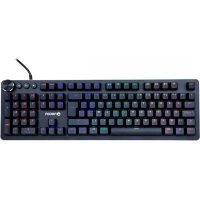
NACON CL-510 gaming keyboard for PC
Thank you for purchasing this NACON product. In case of a malfunction please refer to the support information at the end of this manual. We highly appreciate any feedback which helps us to improve our products. Please keep this instruction manual for future reference.
Warranty
This product bearing the NACON trademark, is guaranteed by the manufacturer for a period of 1 year from the date of purchase, and will, during this period, be replaced with the same or a similar model, at our option, free of charge if there is a defect due to faulty material or workmanship. This guarantee does not cover defects arising from accidental damage, misuse or wear and tear and is available only to the original purchaser of the product. This does not affect your statutory rights.
Product specifications
Gaming keyboard with 104/105 keys
Metal front casing
- 4 dedicated macro keys
- Hardware based on-the-fly macro recording
- WinLock function
- Swappable movement keys
- Selectable key response time
12 Multimedia function keys
- Blue/Green/Cyan backlighting (static or with pulse effect)
- Detachable wrist rest
- USB cable (app. 1.5m)
- Compatible with Windows 2000/XP/Vista/7/8/10
Contents
- NACON CL-510 gaming keyboard
Wrist rest - Instruction booklet
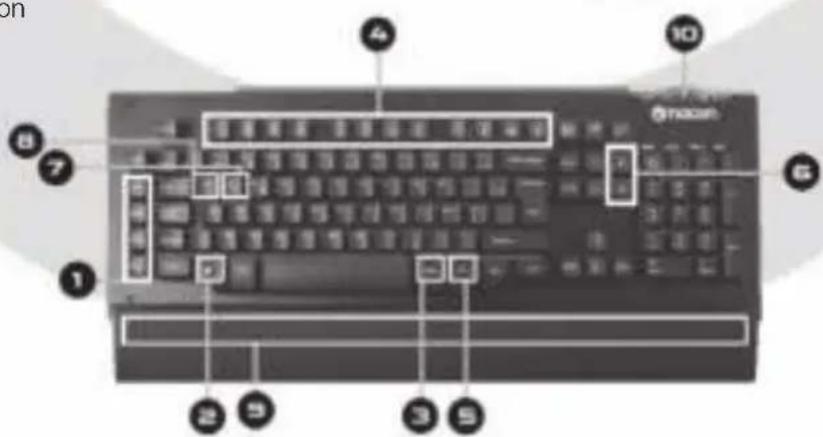
Control elements
- Dedicated macro keys M1 - M4 & macro recording
- Windows key with WINLOCK function
- Function key FN
- MULTIMEDIA Functions
- Backlight colour key
- Backlight brightness
- Movement key selection
- Key response selection
- Detachable wrist rest
- Volume +/-
Installation
The NACON CL-510 is a plug'n'play device. This means no additional driver software is needed to operate it. Simply insert the plug of your new keyboard into one of the free USB sockets of your computer and after some seconds the keyboard should be operational.
LED controls
Your NACON CL-510 keyboard features backlit keys for enhanced gameplay in dark environments. You can control the brightness of the LEDs or turn them completely off, by pressing FN (3) and PAGE UP / DOWN (6). The colour of the backlight can be chosen by pressing the backlight key (5). You can choose between green, blue and cyan backlight. By pressing FN (3) and the backlight key (5) you can switch between a constant single colour backlight or a light effect with colour cycle and pulse effect.
Macro Keys
Macros are recordings of singular or a sequence of key presses. Usually these are regularly used in certain games or applications, so it is convenient to have them tied to one key and fire them up when needed.
Your NACON CL-510 features 4 dedicated macro keys, labeled M1 to M4 (1) which are located on the left side of the keyboard. After you have set up a macro and assigned it to one of those keys, you can execute it directly by pressing the according key.
To record a macro first press REC (the REC LED will start to flash slowly), then press the macro key you want the macro to be recorded for. The REC LED will start to flash faster. Now enter the desired key sequence and save it by pressing REC again.
Movement Keys
Most PC gamers prefer the WASD keys to control the movement or camera in games. They're also people who rather like to use the cursor keys instead. That's why your NACON CL-510 comes with an integrated feature to swap these keys quickly and easily. By pressing FN (3) and then W (7) you will swap the cursor keys to the WASD and vice versa. By pressing this combination again you restore the default setting.
Key Response
By default your NACON CL-510 uses a key response time of 8 ms, which means that if you keep a key pressed the device will transmit this key in certain intervals to your computer. You can slow this process down to 80% of the original setting by pressing FN (3) and Q (8). By pressing this combination again you restore the default setting
Multimedia Functions
Your NACON CL-510 keyboard features several hot keys for common multimedia functions. These are located on the function key section F1 - F12 and can be accessed by pressing the FN (3) key and the according function key. The functions are:
FN + F1 Media player - Start default media player application
FN + F2 Media player - Volume -
FN + F3 Media player - Volume +
FN + F4 Media player - Volume mute
FN + F5 Media player - Stop playback
FN + F6 Media player - Skip to previous track
FN + F7 Media player - Playback / Pause
FN + F8 Media player - Skip to next track
FN + F9 Applications - Start default mail program
FN + F10 Applications - Start default web browser
FN + F11 Function - Lock / Unlock keyboard
FN + F12 Applications - Start calculator application
Recycling
This product should not be disposed of in normal household rubbish. Please take it to a nominated collection point. Recycling is important and will help to protect our environment from reduced landfill waste.
Important Safeguards & Precautions
- This Unit is for indoor use only. Never expose to direct sunlight or wet weather conditions.
- Do not expose the unit, to splashing, dripping, rain or moisture. Do not immerse in liquid.
- Do not expose to dust, high humidity, high temperatures or mechanical shock.
- Do not use if the equipment is damaged.
- Do not disassemble; there are no serviceable parts inside.
- For external cleaning, use a soft, clean, damp cloth only. Use of detergents may damage the finish and leak inside.
Ergonomics
Holding your hand in the same position for a long period of time can lead to aching and pain. If this occurs repeatedly please consult your doctor.
- As a precaution we recommend that you take a 15 minute break every hour.
Technical Specification:
- USB keyboard, QWERTY layout
- 5V, max. 200 mA power consumption
Weight: 1550 g - Height x Width x Depth (with wrist rest): 30 mm x 504 mm x 225 mm
Customer Support
For UK support contact: support@bigben.fr
Legal lines
Windows® XP/VISTA®/7/8/10 are registered trademarks of Microsoft Corporation.
Brand : Nacon
Model : PCCL510
Category : Keyboard