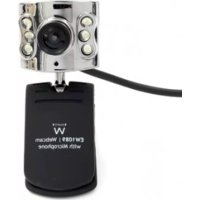
EW1089 R4 - Webcam Ewent - Free user manual and instructions
Find the device manual for free EW1089 R4 Ewent in PDF.



| Brand | Ewent |
| Model | EW1089 R4 (iCam) |
| Product type | USB webcam with built-in microphone |
| Maximum resolution | Up to 640x480 pixels (VGA) |
| Maximum frame rate | 30 frames per second |
| Microphone | Built-in microphone |
| Lighting | Adjustable LED lamp via wheel on cable |
| Focus | Manually adjustable by turning the lens |
| Mount | Clip for monitor or laptop |
| Interface | USB 2.0 (compatible with USB 1.1) |
| System compatibility | Windows (98SE, Me, 2000, XP) |
| Installation | Plug-and-Play (driverless) + CD-ROM with software |
| Included software | AMCAP, Funny Frame (video effects, frames, face tracking) |
| Special features | Face tracking, face effects (glasses, hats), image effects (drops, blocks) |
| Warranty | 5 years (except abuse or modifications) |
| Maintenance | Clean with a soft dry cloth. Avoid moisture. |
| Safety | Do not open or repair yourself. Use in accordance with European directives. |
| Spare parts | Not provided. Contact after-sales service. |
Frequently Asked Questions - EW1089 R4 Ewent
User questions about EW1089 R4 Ewent
0 question about this device. Answer the ones you know or ask your own.
Ask a new question about this device
Download the instructions for your Webcam in PDF format for free! Find your manual EW1089 R4 - Ewent and take your electronic device back in hand. On this page are published all the documents necessary for the use of your device. EW1089 R4 by Ewent.
USER MANUAL EW1089 R4 Ewent
EW1089 iCAM Webcam with Microphone
Table of contents
1.0 Introduction 8
1.1 Functions and features 8
1.2 Packing contents 8
2.0 Installation procedure 9
2.1 Installing the camera 9
2.2 Configuring the camera 9
3.0 Using the EW1089 10
3.1 Using the EW1089 with MSN messenger 10
3.2 Using the Funny Frame software 10
3.3 Feature 11
3.4 Face Tracking 11
3.5 Face Effect 11
4.0 Frequently asked questions 11
5.0 Service and support 12
6.0 Warning and points of attention 12
7.0 Warranty conditions 12
8.0 Declaration of Conformity 13
1.0 Introduction
Congratulations with the purchase of this high-quality Eminent product! This product has undergone extensive testing by Eminent's technical experts. Should you experience any problems with this product, you are covered by a five-year Eminent warranty. Please keep this manual and the receipt in a safe place.
Register your product now on www.ewent-online.com and receive product updates!
1.1 Functions and features
With the Eminent Web camera with Microphone you can send live video to anyone. The camera is the perfect solution for video chat and video conferencing. Thanks to the unique snap-on, you can simply click the camera on your LCD screen or laptop. The camera is provided with 'Funny Frame' software.
1.2 Packing contents
The following parts need to be present in the packing:
- EW1089, Web camera with Microphone.
- Manual.
Installation CD-rom with drivers and software.
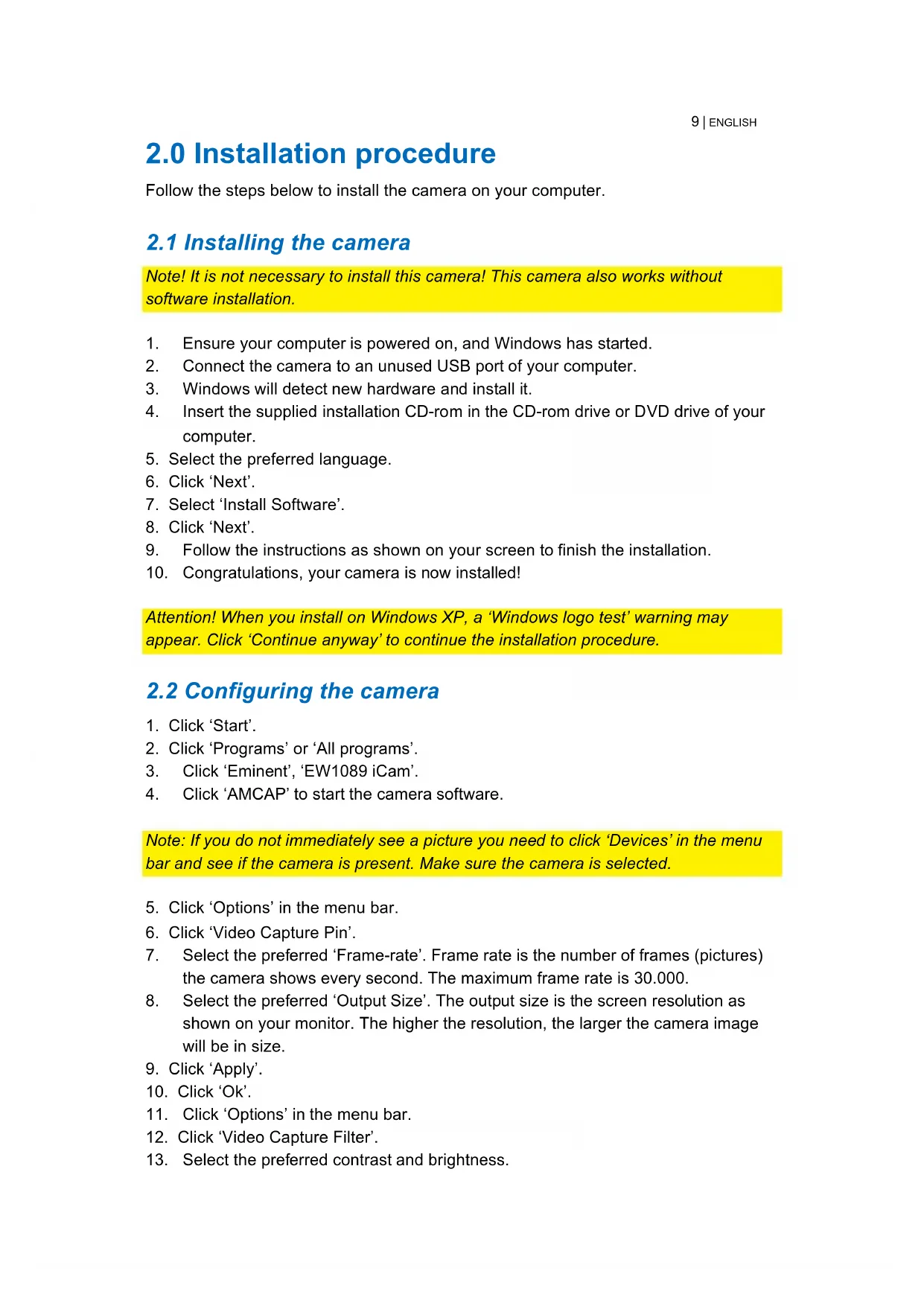
2.0 Installation procedure
Follow the steps below to install the camera on your computer.
2.1 Installing the camera
Note! It is not necessary to install this camera! This camera also works without software installation.
- Ensure your computer is powered on, and Windows has started.
- Connect the camera to an unused USB port of your computer.
- Windows will detect new hardware and install it.
- Insert the supplied installation CD-ROM in the CD-ROM drive or DVD drive of your computer.
- Select the preferred language.
- Click 'Next'.
- Select 'Install Software'.
- Click 'Next'.
- Follow the instructions as shown on your screen to finish the installation.
- Congratulations, your camera is now installed!
Attention! When you install on Windows XP, a 'Windows logo test' warning may appear. Click 'Continue anyway' to continue the installation procedure.
2.2 Configuring the camera
- Click 'Start'.
- Click 'Programs' or 'All programs'.
- Click 'Eminent', 'EW1089 iCam'.
- Click 'AMCAP' to start the camera software.
Note: If you do not immediately see a picture you need to click 'Devices' in the menu bar and see if the camera is present. Make sure the camera is selected.
- Click 'Options' in the menu bar.
- Click 'Video Capture Pin'.
- Select the preferred 'Frame-rate'. Frame rate is the number of frames (pictures) the camera shows every second. The maximum frame rate is 30.000.
- Select the preferred 'Output Size'. The output size is the screen resolution as shown on your monitor. The higher the resolution, the larger the camera image will be in size.
- Click 'Apply'.
- Click 'Ok'.
- Click 'Options' in the menu bar.
- Click 'Video Capture Filter'.
- Select the preferred contrast and brightness.
10 | ENGLISH
14. Click 'Apply'.
15. Click 'Ok'.
3.0 Using the EW1089
The EW1089 can be used with several applications. You can configure the camera for MSN messenger. Also, the EW1089 is equipped with 'Funny Frame' software. Follow the steps in this chapter to configure the EW1089 for these applications.
3.1 Using the EW1089 with MSN messenger
- Click 'Start'.
- Click 'Programs'.
- Click 'MSN Messenger'.
- MSN Messenger will now start.
- Open a Conversation Window with one of your contacts.
- Click the third icon in the top bar (Start a video conversation).
- The contact will receive an invitation to start a video conversation.
- When the contact accepts the invitation MSN will automatically start the video feed.
- Right click the video image to display the MSN video options. The video options will let you, amongst others, adjust the image size.
- The volume bar in the video image allows you to adjust the volume of the microphone.
3.2 Using the Funny Frame software
The EW1089 is equipped with 'Funny Frame' software. With this software you can alter the image of the camera. For example, you can add funny faces, hats and many other effects. These effects can be used with each program that supports altering of video settings.
MSN:
Click at the triangle on the right of your video image. Now you can alter the live settings of the camera and use the Funny Frame functions.
Amcap:
- Click Start.
- Click 'Eminent Webcam (EW1089)'.
- Click 'AmCap' to start the camera software.
- Now click 'Options' and then click 'Video Capture Pin'.
- Set the 'Output Size' to 320*240 and click 'OK'.
- Click 'Options'.
- Click 'Video Capture Filter' to start the functionalities of the 'Funny Frame' software.
3.3 Feature
In the tab 'Feature' at 'Image effect' you can adjust settings to create different image effects. For example, if you choose 'Raindrops' there will appear raindrops on the camera screen. If you choose 'Block' there will appear blocks on the camera screen.
The tab 'Photo Frames' allows you to create several photo effects. If you click 'Clouds', the image will appear in a cloud-like frame. Choose 'Angel' and the camera screen will be shown with little angels. Try all the options for yourself and decide which options you like the most!
3.4 Face Tracking
The tab 'Face Tracking' allows you to adjust settings related to 'the Face'. Activate 'Manual Zoom' and you will be able to zoom in, zoom out and steer the camera image. With 'Face Tracking' you can see a 'sized down' image in the current screen. You are able to pick the spot of this 'sized down' image yourself.
3.5 Face Effect
The tab 'Face Effect' allows you to add several different face effects. For example, activate 'Put Glasses' and the faces shown onscreen will appear wearing glasses. Activate 'Hat' and the faces shown will wear funny hats.
4.0 Frequently asked questions
Q: The CD-rom will not start automatically. How can I start the CD-rom manually?
A: You can start the CD-rom manually by following the steps below.
- Click 'Start'.
- Click 'Run'.
- Type 'X:\wizard\wizard.exe in the field 'Open' (X is the drive letter of your CD-ROM station or DVD-station).
- Click 'OK'.
Q: The image is blurry. How can I solve this?
A: Carefully turn the lens to sharpen the image.
Q: How can I turn on the lights on the camera?
A: There is a dimmer wheel on the connection cable of the camera. By carefully turning this wheel you can turn on and adjust the lights.
Q: After using the Funny Frame software I have closed the camera software. Now I am not able to use the Funny Frame software anymore.
A: After closing the Funny Frame software, the camera works with the standard resolution of 640480 again. Follow the steps in chapter 4.2 to use the Funny Frame software again
5.0 Service and support
This users manual has been carefully written by Eminent's technical experts. If you have problems installing or using the product, please fill out the support form at the website www.ewent-online.com.
You can also contact us by phone. Below you will find a list with phone numbers for each supported country.
| Country | Phone number | Rate per minute* |
| Belgium (Dutch) | 070 277 286 | €0.30 |
| Belgium (French) | 070 277 286 | €0.30 |
| Denmark | +45 69918565 | Local Costs |
| Finland | +35 8942415826 | Local Costs |
| Germany | 1805 982 234 | €0.14 |
| Italy | +39 0240042016 | Local Costs |
| Norway | +47 21075033 | Local Costs |
| Spain | 807 080 042 | €0.41 |
| Sweden | +46 840 309985 | Local Costs |
| The Netherlands | 0900-3646368 | €0.45 |
| UK | 905 871 0013 | £0.30 |
- Rates mentioned in this table do not include cell phone charges.
6.0 Warning and points of attention
Due to laws, directives and regulations set out by the European parliament, some (wireless) devices could be subject to limitations concerning its use in certain European member states. In certain European member states the use of such devices could be prohibited. Contact your (local) government for more information about this limitations.
Always follow up the instructions in the manual, especially where it concerns devices which need to be assembled.
Warning: In most cases this concerns an electronic device. Wrong/improper use may lead to (severe) injuries!
Repairing of the device should be done by qualified Eminent staff. The warranty immediately voids when products have undergone self repair and/or by misuse. For extended warranty conditions, please visit our website at www.ewentonline.com/warranty.
7.0 Warranty conditions
The five-year Eminent warranty applies to all Eminent products unless mentioned

otherwise before or during the moment of purchase. When having bought a second-hand Eminent product the remaining period of warranty is measured from the moment of purchase by the product's first owner. The Eminent warranty applies to all Eminent products and parts inextricably connected to and/or mounted on the main product. Power supply adapters, batteries, antennas and all other products not integrated in or directly connected to the main product and/or products of which, without reasonable doubt, can be assumed that wear and tear show a different pattern than the main product are not covered by the Eminent warranty. Products are not covered by the Eminent warranty when subjected to incorrect/improper use, external influences and/or when opened by parties other than Eminent.
8.0 Declaration of Conformity
To ensure your safety and compliance of the product with the directives and laws created by the European Commission you can obtain a copy of the Declaration of Conformity concerning your product by sending an e-mail message to: ewent@ewentonline.com.
4.0 Questions & responses 17
2.0 Procedure d-installation
5.0 Service et support
Trademarks: all brand names are trademarks and/or registered trademarks of their respective holders.
The information contained in this document has been created with the utmost care. No legal rights can be derived from these contents. Eminent cannot be held responsible, nor liable for the information contained in this document.
Event is a member of the Event Group
C E

- EW1089 ICAM WEBCAM WITH MICROPHONE
- TABLE OF CONTENTS
- 1.0 INTRODUCTION
- 1.1 FUNCTIONS AND FEATURES
- 1.2 PACKING CONTENTS
- 2.0 INSTALLATION PROCEDURE
- 2.1 INSTALLING THE CAMERA
- 2.2 CONFIGURING THE CAMERA
- 3.0 USING THE EW1089
- 3.1 USING THE EW1089 WITH MSN MESSENGER
- 3.2 USING THE FUNNY FRAME SOFTWARE
- MSN
- AMCAP
- 3.3 FEATURE
- 3.4 FACE TRACKING
- 3.5 FACE EFFECT
- 4.0 FREQUENTLY ASKED QUESTIONS
- 5.0 SERVICE AND SUPPORT
- 6.0 WARNING AND POINTS OF ATTENTION
- 7.0 WARRANTY CONDITIONS
- 8.0 DECLARATION OF CONFORMITY
- 2.0 PROCEDURE D-INSTALLATION
- 5.0 SERVICE ET SUPPORT
Brand : Ewent
Model : EW1089 R4
Category : Webcam