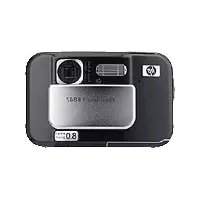
PhotoSmart R840 - Camera HP - Free user manual and instructions
Find the device manual for free PhotoSmart R840 HP in PDF.

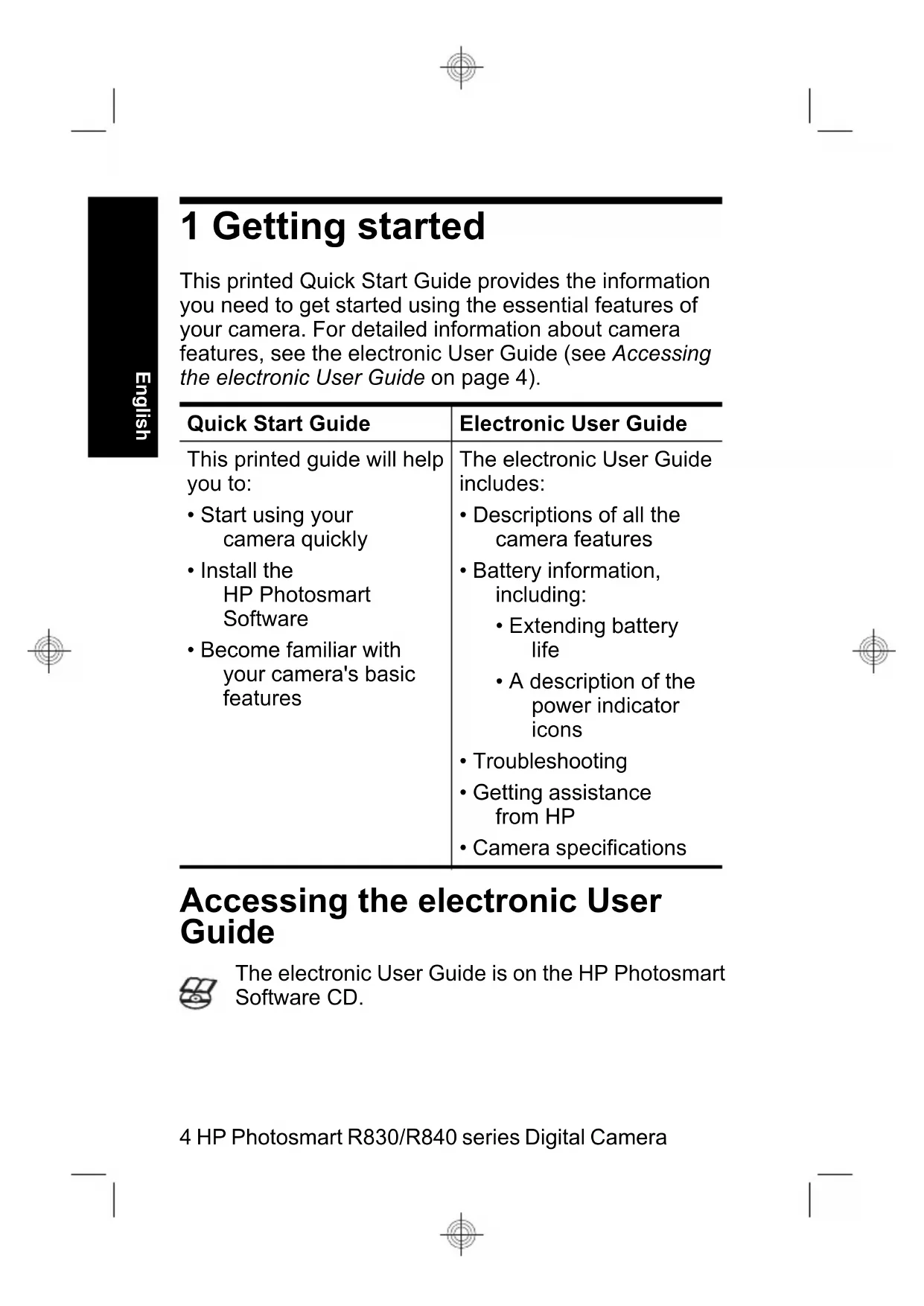


| Product Type | Compact digital camera |
| Brand | HP |
| Model | PhotoSmart R840 |
| Resolution (sensor) | Approx. 10 megapixels |
| Optical zoom | 3x |
| Digital zoom | Up to 8x (configurable) |
| Display | 2.5-inch LCD |
| Battery | Rechargeable lithium-ion HP R07 (L1812A/L1812B) |
| Battery life | Approx. 200 photos (depending on conditions) |
| Storage media | Internal memory + SD/SDHC card (up to 8 GB) |
| Image formats | JPEG |
| Video formats | Motion JPEG (AVI) - resolution up to 640x480 |
| Connectivity | USB 2.0, PictBridge |
| Built-in flash | Yes (Auto, on, off) |
| Shooting modes | Auto, Macro, Anti-shake, Theater, Panorama, Landscape, Portrait, Action, Night, Beach, Snow, Sunset |
| Dimensions (approx.) | 95 x 60 x 28 mm |
| Weight (with battery) | Approx. 150 g |
| Included software | HP Photosmart Software (CD-ROM) |
| Optional accessories | HP Photosmart docking station, AC adapter |
Frequently Asked Questions - PhotoSmart R840 HP
User questions about PhotoSmart R840 HP
0 question about this device. Answer the ones you know or ask your own.
Ask a new question about this device
Download the instructions for your Camera in PDF format for free! Find your manual PhotoSmart R840 - HP and take your electronic device back in hand. On this page are published all the documents necessary for the use of your device. PhotoSmart R840 by HP.
USER MANUAL PhotoSmart R840 HP
HP Photosmart R830/R840 series Digital Camera
Legal and notice information
Copyright 2007 Hewlett-Packard Development Company, L.P.
The information contained herein is subject to change without notice. The only warranties for HP products and services are set forth in the express warranty statements accompanying such products and services. Nothing herein should be construed as constituting an additional warranty. HP shall not be liable for technical or editorial errors or omissions contained herein. Windows® is a U.S. registered trademark of Microsoft Corporation.

SD Logo is a trademark of its proprietor.
Disposal of waste equipment by users in private households in the European Union
Instead, it is your responsibility to dispose of your waste equipment by handing it over to a designated collection point for the recycling of waste electrical and electronic equipment. The separate collection and recycling of your waste equipment at the time of disposal will help to conserve natural resources and ensure that it is recycled in a manner that protects human health and the environment. For more information about where you can drop off your waste equipment for recycling, please contact your local city office, your household waste disposal service or the shop where you purchased the product.
For future reference, enter the following information:
Model number:
Serial number:
Purchase date:
Contents
1 Getting started
Accessing the electronic User Guide. 4
Camera top, side, and back 6
Camera front and bottom. 7
Camera dock insert. 8
2 Setting up your camera
Install the battery. 9
Charge the battery. 9
Turn on the camera. 10
Choose the language. 10
Set the region 11
Set the date and time. 11
Install and format an optional memory card.....12
Install the software. 13
Windows 13
Macintosh. 13
3 Taking pictures and recording video clips
Take a still picture. 15
Record a video clip. 15
4 Reviewing and deleting images and video clips
Review images and video clips 17
Delete an image 17
5 Transferring and printing images
Transfer images. 18
Print images from the camera. 18
6 Camera quick reference 20
1 Getting started
This printed Quick Start Guide provides the information you need to get started using the essential features of your camera. For detailed information about camera features, see the electronic User Guide (see Accessing the electronic User Guide on page 4).
| Quick Start Guide | Electronic User Guide |
| This printed guide will help you to: • Start using your camera quickly • Install the HP Photosmart Software • Become familiar with your camera's basic features | The electronic User Guide includes: • Descriptions of all the camera features • Battery information, including: • Extending battery life • A description of the power indicator icons • Troubleshooting • Getting assistance from HP • Camera specifications |
Accessing the electronic User Guide

The electronic User Guide is on the HP Photosmart Software CD.
4 HP Photosmart R830/R840 series Digital Camera
To view the User Guide:
- Insert the HP Photosmart Software CD into the CD drive of your computer.
- Click View User Guide on the main page of the installation screen.
The electronic User Guide is also copied to your computer when you install the HP Photosmart Software. To view the User Guide after it has been installed on your computer:
- On Windows: Open the HP Solution Center and click help.
- On Macintosh: Open the HP Device Manager and select Camera User Guide from the Information and Settings pop-up menu.
Getting assistance
- For tips and tools to help you use your camera more effectively, visit www.hp.com. From here, click on Learn About: Digital Photography (English Only).
- For product support, including firmware, software, and driver updates, visit www.hp.com/support.
- For help with the HP Photosmart Software, see the software's online help.
Camera top, side, and back
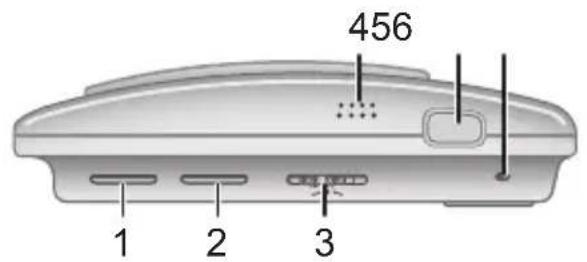
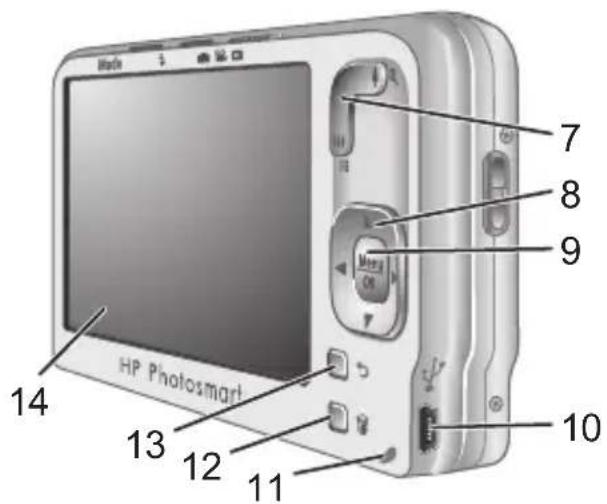
| 1 | Mode button—Accesses the Shooting Mode menu while in Picture Capture. Shooting Mode options are Auto Mode, Close-up, Steady Photo (R830 series), Theatre, Panorama Right, Panorama Left, Landscape, Portrait, Action, Night Portrait, Beach, Snow, Sunset. |
| 2 | Flash button—Accesses the flash settings while in Picture Capture. Settings are Auto, Flash On, Flash Off. |
| 3 | selector—Switches between Picture Capture, Video Record, and Playback (see Picture Capture, Video Record, and Playback on page 20). |
| 4 | Speaker. |
6 HP Photosmart R830/R840 series Digital Camera
| 5 | Shutter button. |
| 6 | Power light. |
| 7 | Zoom lever (Digital and Optical)-Accesses 4 4 4 4 Zoom while in 4 Picture Capture or 4 Video Record; accesses 4 4 4 4 4 4 4 4 4 Magnify while in 4 Playback. |
| 8 | ▲▼ and 4 buttons-Scroll through menus and images. |
| 9 | Menu OK button-Displays camera menus, selects options, and confirms actions. |
| 10 | USB connector. |
| 11 | Battery Charging light. |
| 12 | Delete button-Accesses the Delete function while in 4 Playback. |
| 13 | Back button-Returns you to a previous menu or view. |
| 14 | Image Display. |
Camera front and bottom
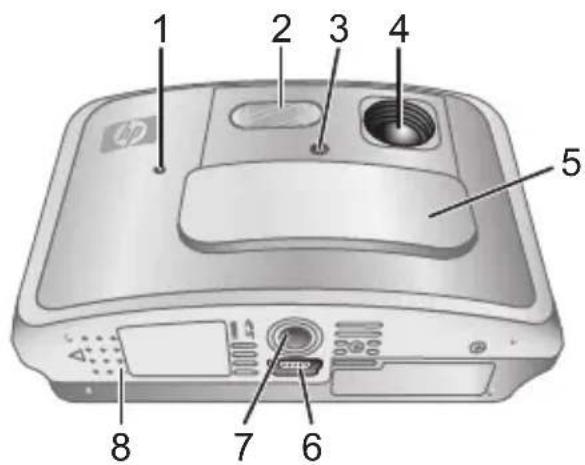
Getting started 7
| 1 Microphone. |
| 2 Flash. |
| 3 Self-Timer/Focus Assist light. |
| 4 Lens. |
| 5 Lens cover/Power switch—Turns the camera on and off and protects the lens while the camera is off. |
| 6 Dock connector. |
| 7 Tripod mount. |
| 8 Battery/Memory Card door. |
Camera dock insert
If you purchase an optional HP Photosmart dock, it will come with multiple plastic inserts. When setting up the dock for use with this camera, use the dock insert with the black triangle tag. For instructions, see the documentation that came with your dock.
2 Setting up your camera
Install the battery
-
Open the Battery/Memory Card door by sliding the door latch as indicated on the Battery/Memory Card door.
-
Insert the battery in the larger slot, pushing the battery in until the latch catches.
-
Close the Battery/Memory Card door.
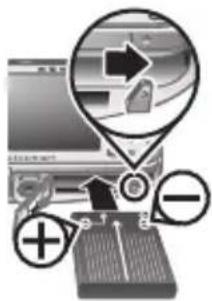

NOTE: Fully charge the battery before using it the first time. Turn the camera off before removing the battery.
To remove the battery, move the battery latch as shown until the battery springs free.
Charge the battery
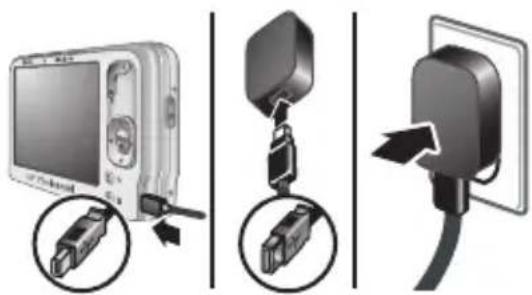
You can charge the battery in the camera, using the USB cable and power adapter.

NOTE: Your camera uses a rechargeable HP Photosmart R07 Lithium Ion battery (L1812A/L1812B). Do not charge any other battery in the camera, optional dock, or optional quick recharger.
Setting up your camera 9
- Plug the small end of the USB cable into the camera, and the large end into the power adapter, as shown.
- Plug the power adapter into an electrical outlet.
The camera's blinking Battery Charging light indicates that the battery is charging; the battery is fully charged when the light stays on solid (approximately 2-3 hours).
Turn on the camera
To turn on the camera, slide the lens cover open until it clicks, uncovering the lens.
To turn off the camera, slide the lens cover closed until it clicks, covering the lens.
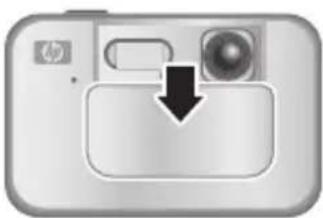

CAUTION: When sliding the lens cover, keep your fingers clear of the lens. Fingerprints on the lens can impair the quality of the picture.
Choose the language
Use to choose the language that you want, then press Menu OK.
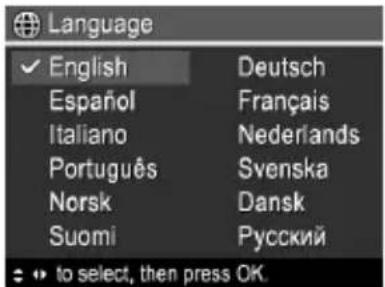
10 HP Photosmart R830/R840 series Digital Camera
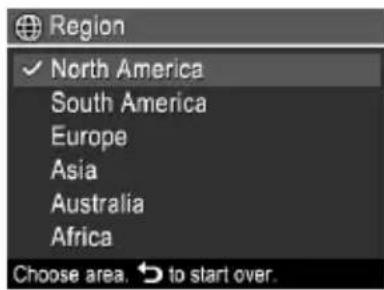
Set the region
Along with the language setting, the region setting determines the default date format and the format of the video signal for displaying camera images on a television.
Use to choose the region you want, then press Menu OK.
Set the date and time
Accurately setting the date and time will help you locate images once you have transferred them to your computer, and will ensure that images are accurately marked if you use the date and time imprint feature.
-
Use to adjust the highlighted value.
-
Use to move to the other selections and repeat Step 1 until the date and time are set correctly.
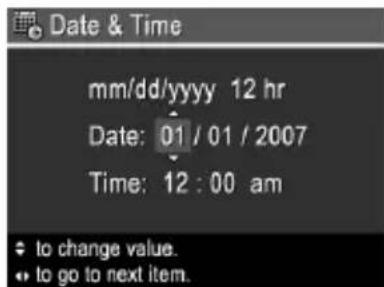
- Press Menu/OK when the date, time, and format settings are correct, then press Menu/OK again to confirm.
Install and format an optional memory card
This camera supports standard, high speed, and high capacity Secure Digital (SD and SDHC) memory cards, 32MB to 8GB.
- Turn off the camera and open the Battery/Memory Card door.
- Insert the optional memory card in the smaller slot as shown. Make sure the memory card snaps into place.
- Close the Battery/Memory Card door and turn on the camera.
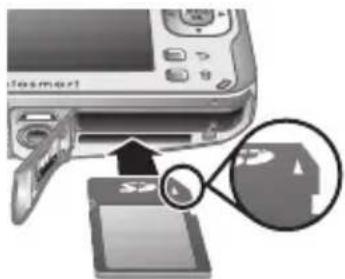

NOTE: When you turn on your camera with a memory card installed, the camera indicates the number of images you can store on the memory card at the current Image Quality setting. This camera supports storing a maximum of 1999 images on a memory card.
Always format new memory cards before first use. Formatting removes all images from the memory card, so make sure to transfer existing images before formatting.
- With the camera turned on, slide


- Press to display the Delete menu.
- Use to select Format Card, then press Menu OK
- Use to select Yes, then press Menu/OK to format the card.
Once you install a memory card, all new images and video clips are stored on the card, rather than in internal memory.
12 HP Photosmart R830/R840 series Digital Camera
To use internal memory and view images stored there, turn the camera off, then remove the memory card.
Install the software
The HP Photosmart Software provides features for transferring images and video clips to your computer, as well as features for modifying stored images (remove red eyes, rotate, crop, resize, and more).
To install the HP Photosmart Software, your computer must meet the system requirements as stated on the camera packaging. To learn about Windows Vista support for your camera, see www.hp.com/go/windowsvista (English only).
If you have trouble installing or using the HP Photosmart Software, see the Hewlett-Packard Technical Support website for more information: www.hp.com/support.
Windows
-
Close all programs and temporarily disable any virus protection software.
-
Insert the HP Photosmart Software CD into the CD drive and follow the on-screen instructions. If the installation window does not appear, click Start, click Run, type D:\Setup.exe, where D is the letter of your CD drive, then click OK.
-
When the software has finished installing, re-enable virus protection software.
Macintosh
-
Insert the HP Photosmart Software CD into the CD drive.
-
Double-click the CD icon on the computer desktop.
Setting up your camera 13
- Double-click the installer icon, then follow the on-screen instructions.
Once installation is complete and you have restarted your computer, System Preferences automatically opens to the HP Photosmart Camera settings. You may change settings so the HP Photosmart Software starts automatically when you connect your camera to your Macintosh (for more information, click the help button on the HP Photosmart Camera settings dialog).
3 Taking pictures and recording video clips
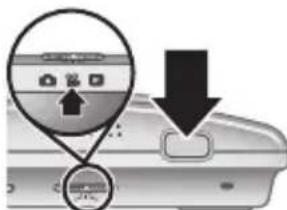
Slide to either to take pictures or to record video clips.
Take a still picture
You can take a picture when you are in Picture Capture.
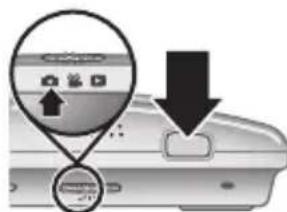
- Slide to
- Frame the subject in the Image Display.
- Press the Shutter button halfway down to measure and lock the focus and exposure. The focus brackets in the Image Display turn solid green when focus is locked.
- Press the Shutter button all the way down to take the picture.
After you have taken a picture, the camera displays it briefly in the Image Display.
Record a video clip
You can record a video when you are in Video Record.
- Slide to
- Frame the subject in the Image Display.
- Press the Shutter button halfway down to measure focus and exposure. The focus brackets in the Image Display turn solid green when focus is locked.
Taking pictures and recording video clips 15
- Press the Shutter button all the way down and release to begin recording video.
- To stop recording video, press and release the Shutter button again.
After you have recorded a video clip, the camera displays it briefly in the Image Display.
4 Reviewing and deleting images and video clips
Review images and video clips
You can review images and video clips in playback.
- Slide to
- Use to scroll through your images and video clips. To play a video clip, press once the first screen of the clip appears on the Image Display.
Delete an image
You can delete individual images during playback:
- Slide to
2.Use to select an image or video clip. - Press to display the Delete menu.
- Use to select This Image, then press Mnu OK
Reviewing and deleting images and video clips 17
5 Transferring and printing images
Transfer images
Use this procedure to transfer images and video clips to your computer.

NOTE: Transferring a large number of high-resolution images from a memory card to your computer may take up to two hours.
- Turn off the camera.
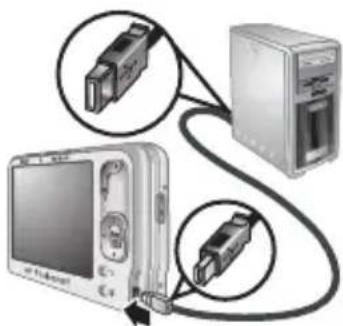
- Connect the camera to the computer using the USB cable that came with your camera.
- Turn on the camera. When the Image Display indicates that the camera is connected to the computer, follow the instructions on the computer
screen to transfer the images. If you have installed the HP Photosmart Software and need more information, see the Help feature in the HP Photosmart Software.
Print images from the camera
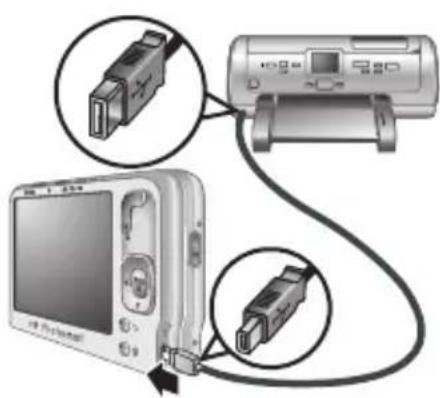
You can connect the camera to any PictBridge-certified printer to print images.
- Check that the printer is turned on, there is paper in the printer, and there are no printer error messages.

18 HP Photosmart R830/R840 series Digital Camera
-
Turn off the camera, then connect the camera and printer using the USB cable that came with your camera.
-
Turn on the camera.
-
When the camera is connected to the printer, the Image Display shows an image. Use to select the image you want to print.
-
Press Menu OK
-
In the Print Options menu, select Print this image now and press Menu/OK to begin printing.
-
displays on the selected image in the Image Display to indicate that the image is being printed.
-
After the printer has printed the image, disconnect the camera from the printer.
To learn about other printing options, see either the electronic User Guide or? Camera Help located in any menu.
6 Camera quick reference
Use this chapter as a quick reference to camera features. To learn more about these camera features, refer to the electronic User Guide or on-camera Help.
Picture Capture, Video Record, and Playback
Picture Capture allows you to frame pictures in the Image Display and take pictures. To activate
Picture Capture, slide to
Video Record allows you to frame videos in the Image Display and record videos. To activate
Video Record, slide
- Playback allows you review and delete images and video clips. To activate Playback, slide
to
Camera Menus
Menu allow you to adjust camera settings, work with images, and access camera help.
Within a menu, use to move to specific selections.
To exit the menu, press at any time.
Picture Capture Menu—Allows you to adjust camera settings that affect the characteristics of future images you capture with your camera. To access this menu, slide
to then press. You can select from the following options:
• S e l f - T i m e r
Steady Photo (R840 series)
Adaptive Lighting
- Image Quality
20 HP Photosmart R830/R840 series Digital Camera
Burst
- Tag
- Date & Time Imprint
- Exposure Compensation
- Exposure Bracketing
- White Balance
ISO Speed
AE Metering
- Camera Setup
- Camera Help
Video Record Menu—Allows you to adjust camera settings that affect the characteristics of future video clips you record with your camera. To access this menu, slide to then press. You can select from the following options:
Video Quality
- S e l f - T i m e r
- Tag
- Exposure Compensation
- White Balance
- AE Metering
- Camera Setup
- Camera Help
Playback Menu—Allows you to work with images. To access this menu, slide to then press . OK You can select from the following options:
- Design Gallery (Remove Red Eyes, Rotate, Apply Artistic Effects, Enhance Photos, Modify Color, Add Borders, Crop)
Camera quick reference 21
Photosmart Express (Print, Share, Buy Prints Online)
- Tag
View Slideshow
• S t i t c h P a n o r a m a
- Move Images to Card
- Camera Setup
- Camera Help
Camera Setup Menu—Allows you to change the camera's behavior. To access this menu, press Menu OK from , , or , then select Camera Setup. You can select from the following options:
- Display Brightness
- Camera Sounds
- Display Timeout
Digital Zoom - Date & Time
- USB Configuration
- TV Configuration
Language
? Camera Help Menu—Provides descriptions of camera features and picture-taking tips. To access this menu, press Menu/OK from , , or , then select ? Camera Help. You can select from the following options:
- Top Ten Tips
- Camera Accessories
- Camera Buttons
Using Shooting Modes
Using Design Gallery
22 HP Photosmart R830/R840 series Digital Camera
Using Photosmart Express
- Printing Images
- Recording Video Clips
- Reviewing Pictures and Video
- Tagging Images
- Deleting Images
- Transferring Images
- Managing Batteries
Getting Assistance
- Tour Camera Features
- Camera Shortcuts
About
Copyright 2007 Hewlett-Packard Development Company, L.P.
Copyright 2007 Hewlett-Packard Development Company, L.P.
Copyright 2007 Hewlett-Packard Development Company, L.P.
Copyright 2007 Hewlett-Packard Development Company, L.P.
- HP PHOTOSMART R830/R840 SERIES DIGITAL CAMERA
- LEGAL AND NOTICE INFORMATION
- DISPOSAL OF WASTE EQUIPMENT BY USERS IN PRIVATE HOUSEHOLDS IN THE EUROPEAN UNION
- CONTENTS
- 1 GETTING STARTED
- 2 SETTING UP YOUR CAMERA
- 3 TAKING PICTURES AND RECORDING VIDEO CLIPS
- 4 REVIEWING AND DELETING IMAGES AND VIDEO CLIPS
- 5 TRANSFERRING AND PRINTING IMAGES
- 6 CAMERA QUICK REFERENCE 20
- ACCESSING THE ELECTRONIC USER GUIDE
- GETTING ASSISTANCE
- CAMERA TOP, SIDE, AND BACK
- CAMERA FRONT AND BOTTOM
- CAMERA DOCK INSERT
- INSTALL THE BATTERY
- CHARGE THE BATTERY
- TURN ON THE CAMERA
- CHOOSE THE LANGUAGE
- SET THE REGION
- SET THE DATE AND TIME
- INSTALL AND FORMAT AN OPTIONAL MEMORY CARD
- INSTALL THE SOFTWARE
- WINDOWS
- MACINTOSH
- TAKE A STILL PICTURE
- RECORD A VIDEO CLIP
- REVIEW IMAGES AND VIDEO CLIPS
- DELETE AN IMAGE
- TRANSFER IMAGES
- PRINT IMAGES FROM THE CAMERA
- 6 CAMERA QUICK REFERENCE
- PICTURE CAPTURE, VIDEO RECORD, AND PLAYBACK
- CAMERA MENUS
Brand : HP
Model : PhotoSmart R840
Category : Camera