Klü LT7052 - Tablet CURTIS - Free user manual and instructions
Find the device manual for free Klü LT7052 CURTIS in PDF.


| Product type | Tablet |
| Brand | CURTIS |
| Model | Klü LT7052 |
| Operating system | Google Android 4.0 |
| Processor | 3 cores at 1.2 GHz + 3D GPU + 1080P multimedia processor |
| RAM memory | 512 MB DDRIII |
| Internal storage | 4 GB NAND Flash (expandable via microSD card) |
| Screen size | 7 inches |
| Screen resolution | 800 x 480 pixels |
| Screen type | Resistive touch, LED backlit |
| Wi-Fi connectivity | 802.11 b/g/n |
| Ethernet connectivity | Yes (via USB adapter) |
| 3G connectivity | Yes (via USB dongle) |
| Sensors | 3D gravity sensor |
| HDMI output | Mini HDMI, supports 1080p |
| Supported audio formats | MP3, WMA, FLAC, AAC, OGG, WAV, APE |
| Supported video formats | VP8, RMVB, RM, MOV, MPG, MP4, AVI, 3GP, DAT, FLV, MKV |
| Supported image formats | JPEG, BMP, GIF, PNG |
| Battery | Built-in rechargeable lithium polymer |
| Power supply | AC adapter via DC jack or USB cable |
| Ports | Micro USB, Mini HDMI, 3.5 mm headphone jack, microSD slot |
| Main functions | Internet browsing, multimedia playback, Android applications |
| Maintenance | Clean with a soft dry cloth, avoid alcohol and solvents |
| Safety | Do not use while walking or driving, avoid extreme temperatures |
| Reset | Recessed reset button, use a thin object |
Frequently Asked Questions - Klü LT7052 CURTIS
User questions about Klü LT7052 CURTIS
0 question about this device. Answer the ones you know or ask your own.
Ask a new question about this device
Download the instructions for your Tablet in PDF format for free! Find your manual Klü LT7052 - CURTIS and take your electronic device back in hand. On this page are published all the documents necessary for the use of your device. Klü LT7052 by CURTIS.
USER MANUAL Klü LT7052 CURTIS
LT7052
This manual includes security measures and proper operating methods. For personal safety, please make sure to read this manual before using. Thank you!
The machine adopts resistive touch screen, you can just touch it by finger or click with resistive pen for operation. (Never use the sharp objects to click the screen, or the touch screen may be damaged).
Do not put the device at any high temperature, high humidity or dusty place.
Do not drop or crash the device, avoid violent impacting between the display and the resistive touch screen.
Please choose the suitable volume and avoid turning it too loud. If you feel uncomfortable, please turn down the volume or stop to use the device soon.
◆ Please charge if you meet those situations as below:
A、Low battery on the battery icon.
B、The system turns off automatically.
C、The keys do not work.
D、“” is battery charging.
【Note】: Don't use the different type charger or it may make the device burned. We assume no liability for the damage. Please contact with local agent if you need the original adaptor.
In the charging process, the device may be warming up a little (not too hot), this is normal, and it won't effect the functions.
Do not disconnect the device while formatting, downloading or uploading, or it may make the error.
Our company won't bear the duty for the loss of the memory erasing on account of the damage, repair or some other reason. Please operate the device according to the user manual correctly and backup the important data in time.
Do not dismantle this device by yourself, and do not polish it with alcohol, dilution, or benzene.
Do not use this device where electronics is forbidden, such as on the airplane.
Do not use this device while walking or driving, in order to avoid traffic accident.
◆ USB is for transferring data but also for charging.
◆ Virus can damage this device. So please use proper computer antivirus and keep it updated.
Android system will occupy space of NAND Flash, it occupies space in "Total space/Available space", Apps installation is defaulted to store here. In case lack of space, it is recommended user to install Apps in the Mini SD(Excluded).
◆ If multiple programs are running simultaneously, the system becomes slow, hence, please close down some of the RUNNING Apps, in the Settings→Apps.
For any support needed for this device please contact the company or the authorized distributor. Any unauthorized dismantling of the device will make the warranty null and void.
We reserve the right to keep the change of the products, the specification and design is subject to change without notice!
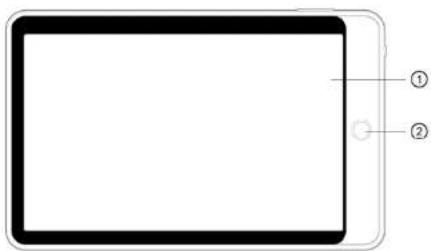
Device Description
①Touch screen: You can click and drag in the touch screen.
★②HOME: Press the Home key to return to main screen..
③ MENU: To display the operation menu when it is on.
④ BACK: Return to the previous page.
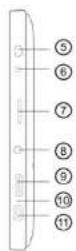
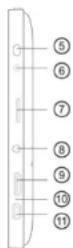
⑤POWER: Turn on/off the device by long pressing this button.
-- Power on: When the power indicator is on, press it, device will turn on till the turning-on picture is over.
-- Power off: Press it for 5 seconds. The system would indicate some options : Muting or Power off. Click "Power off" to shut it down.
- Press the key for a short time to shut /turn on the screen.
⑥ ·●-DC jack: Connect the power cable to charge to the device.
⑦Micro SD card : Micro SD card slot.
⑧ : Earphone jack: 3.5mm standard earphone jack.
⑨ Mini HDMI: Mini HDMI output.
⑩MIC: microphone and voice recording
⑪ ← : Mini USB, MINI-5PIN connector.
② Touch pen

【TIPS】:
- When the battery is low, it will power off automatically.
2.Shutdown illegally, when you restart, device would scan and repair the disk. The screen will stay at the progress bar for a long time.
- Definition of "Press":
Short Press: Press the button less than 2 seconds.
Long Press: Press the button more than 3 seconds.
If there is no special indication, "Press" means Short Press.
【Note】: The pictures in the user manual are just for your reference, about the “★” item, please refer to the actual product.
Setting up for the first time
◆ Charging your device:
For first-time use, you need to charge the device for ten hours.
After that you can recharge the device as needed.
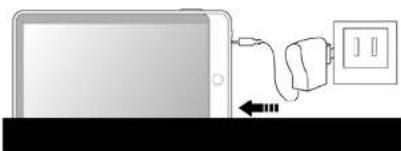
Connect the DC-in jack to your device and plug the AC adapter into any AC outlet.
【TIPS】:
-
This device adopts built-in polymer battery. Only the specified charger should be used.
-
It is normal for the device's surface to become warm during charging or long time of use. All devices are factory tested before release.
-
If you do not use this set for a long time, please charge/release it once a month to avoid deep discharge. The damage caused by battery over-consuming is not included in the warranty.
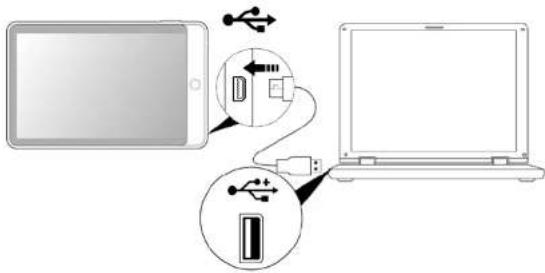
Connecting to a PC:
- You can connect with PC by USB cable attached with the device. You can transfer your personal data to the PC.
- Connect the PC and the device, it will change to the USB mode, in this state, realize the files transfer function between the PC and the device.
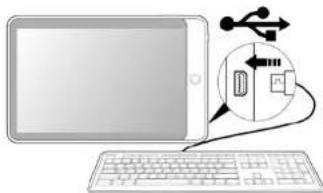
◆ Connecting a USB device:
- USB devices are supported, such as a keyboard, through the USB port.
• View media files on USB storage with installed photo, music or video applications.
【Caution】: Before removing this USB storage, make sure your device is not accessing data from the USB storage.
- Inserting the micro SD card (excluded):
You may install a micro SD card to expand your device's storage space.
-
Turn off the device by pressing and holding the power button.
-
Insert the micro SD card as shown.
【Note】: Ensure that the micro SD card is inserted all the way into the card slot.
【Caution】: Before removing this card, make sure your device is not accessing data on the card.
![graph TD A["Table Screen"] --> B["MicroSD"] B --> C["Arrow pointing inward"] style A fill:#f9f,stroke:#333 style B fill:#ccf,stroke:#333 style C stroke-dasharray: 5 5](/content/2026/03/456096/images/a184aa31b5d76ee0a21397e0853a23fc29a441963aa8fb6f3329d16db0611dd8.jpg)
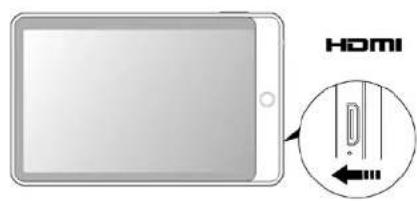
Connecting to a television with HDMI (HDMI cable excluded):
Connect a micro HDMI cable to your device then plug the other end of the HDMI connector into a TV or monitor with an HDMI port.
◆ Resetting the device:
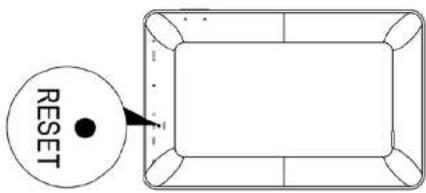
You may have to perform a reset if your device fails to respond when buttons are pressed or the screen is tapped or it does not respond to screen input.
To reset your device, use a small thin object (such as a paperclip) to press the recessed reset button.
User Manual
Connecting to the Network:
- Wi-Fi wireless setup:
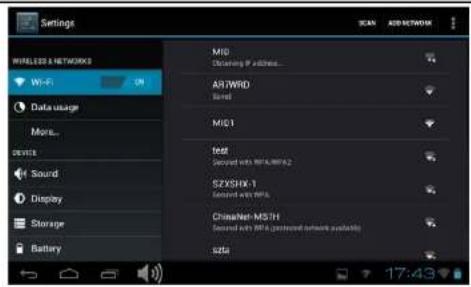
Enter the setting interface, and turn on the Wi-Fi item.
The device will automatically search any accessible nearby wireless networks.
![graph LR A["Wireless LAN router"] --> B["ADSL modem/Cable modem"] B --> C["Internet"] D["LAN cable (not supplied)"] --> B](/content/2026/03/456096/images/1bdc54445cd1aa5ab91ac647f3d7452a4384ca2e8b101438043f32d66391f33c.jpg)
Commonly used settings
Press the setup icon to enter the setting.
◆ Wi-Fi: Click ON or OFF to open or close Wi-Fi.
When open Wi-Fi, the system will scan the wifi signal around automatically.
Meanwhile, users could add network manually as well.
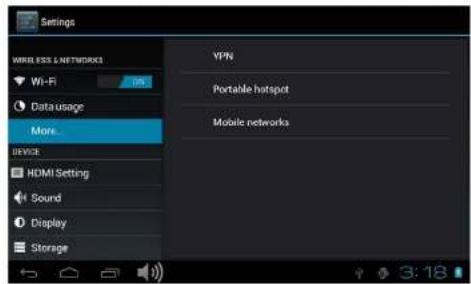
More...:
1.VPN:The user can preset the 3G operators information.
2. Portable hotspot: You must connect the cable to network (by RJ45 connector) then you can enter the option to open or close the "Portable Wi-Fi hotspot", you can also take this device as a Wi-Fi Router.
3. Mobile networks:
Connect a USB 3G Dongle setting : To insert a USB 3G dongle, the device will connect the Internet automatically. A 3G icon will be displayed on the screen. (Please make sure the 3G SIM card is matching with the 3G dongle well)
【Remark1】:After turning on "Portable Wi-Fi hotspot", Wi-Fi will close automatically.
【Remark2】: When you use 3G to connect internet, you must shut off Wi-Fi first.
User Manual
◆ Display:
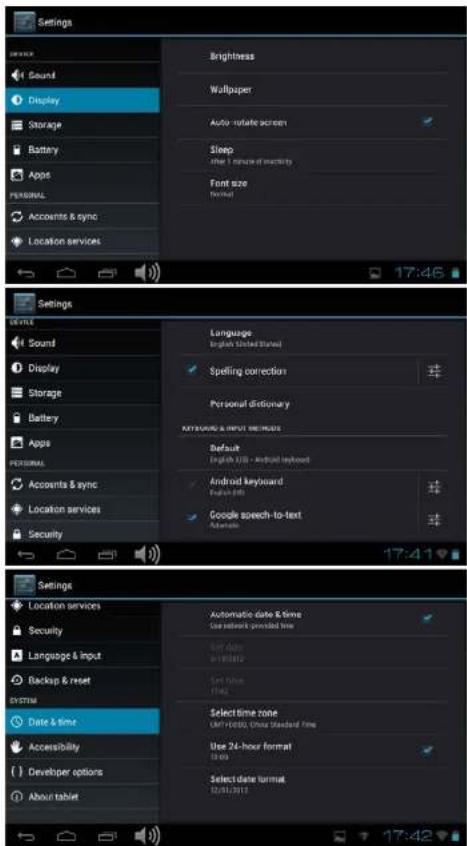
Rotate screen setting: Enter setting menu : Display → Auto-rotate screen, you can turn on / off the screen auto-rotation function.
◆ Language & input:
- Language: Users can choose OSD Languages.
- KEYBOARD & INPUT METHODS: select language input method.
【Remark】: In this state, users can switch the input method.
◆ Date & time: when the internet is connected, turn on "Automatic date & time", the device can obtain the real date and time from the internet.
Troubleshooting
- Can not power on:
--Connect the power cable to charge to the device, after a while and then check again.
--If turn on device failed after charged, please download the right firmware and upgrade the device on www.curtisint.com by a PC.
--If it still can not be powered on, please contact with local distributor or service centre.
- Serious noise:
--Check if the music file is damaged.
--If the music files are damaged, it may cause serious noise and jumping sound.
- Can not download or copy:
--Check if it is connecting correctly between the device and PC.
--Check the spare space of the memory.
--Check the USB cable.
- USB connect is failed.
--Make sure that the USB device is properly connected to the USB jack.
--Check if the USB device or a cable is damaged.
--If the USB device is connected via a USB hub, connect the USB device directly to the device.
- Cannot connect the device to the wireless LAN router
--Check if the wireless LAN router is on.
--Based on the surrounding environment, such as the wall material, radio wave receiving condition, or obstacles between the device and the wireless LAN router, the communication distance may be needed to be shortened. Move the device and the wireless LAN router closer to each other.
--Devices that use a 2.4GHz frequency band, such as a microwave, Bluetooth, or digital cordless device, may interrupt the communication. Move the device away from such devices, or turn off such devices.
Product Specification
| OS | Google Android 4.0 |
| CPU | 3 Core up to 1.2GHz main chip + Super 3D GPU + 1080P media processor |
| System RAM | 512MB DDRIII |
| Memory | 4GB NAND Flash (2GB to 32GB optional) |
| Touch Panel | 7" 800X480 LED-backlit panel |
| LCD | TFT resistive Touch Screen |
| WIFI | 802.11 b/g/n |
| Ethernet LAN | Yes (USB dongle) |
| 3G | 3G USB dongle |
| Gravity | 3D gravity sensor |
| HDMI output | Mini HDMI can support 1080p content output to display |
| Music format | MP3,WMA,FLAC,AAC,OGG,WAV,APE |
| Video format | VP8,RMVB,RM,MOV,MPG,MP4,AVI,3GP,DAT, FLV,MKV,...etc. |
| Picture format | JPEG, BMP, GIF,PNG |
Specifications are for reference, to prevail in kind
Information importante :
◆ Insertion de la carte micro SD (exclu):
- DEVICE DESCRIPTION
- 【TIPS】
- SETTING UP FOR THE FIRST TIME
- ◆ CHARGING YOUR DEVICE
- CONNECTING TO A PC
- ◆ CONNECTING A USB DEVICE
- CONNECTING TO THE NETWORK
- COMMONLY USED SETTINGS
- MORE
- ◆ DISPLAY
- ◆ LANGUAGE & INPUT
- TROUBLESHOOTING
- CAN NOT POWER ON
- SERIOUS NOISE
- CAN NOT DOWNLOAD OR COPY
- USB CONNECT IS FAILED
- CANNOT CONNECT THE DEVICE TO THE WIRELESS LAN ROUTER
- INFORMATION IMPORTANTE
Brand : CURTIS
Model : Klü LT7052
Category : Tablet