Klü LT8029 - Tablet CURTIS - Free user manual and instructions
Find the device manual for free Klü LT8029 CURTIS in PDF.


| Product Type | Tablet |
| Brand | Curtis |
| Model | Klü LT8029 |
| Display Size | 10.1 inches |
| Resolution | 1280 x 800 pixels |
| Processor | Quad-core 1.3 GHz |
| RAM | 2 GB |
| Storage | 32 GB internal, expandable via microSD |
| Operating System | Android 11 (Go edition) |
| Battery Capacity | 5000 mAh, up to 8 hours of use |
| Charging Port | Micro USB |
| Camera (Rear) | 5 MP |
| Camera (Front) | 2 MP |
| Connectivity | Wi-Fi 802.11 b/g/n, Bluetooth 4.2 |
| Sensors | Accelerometer, G-sensor |
| Audio | Built-in speaker, 3.5 mm headphone jack |
| Dimensions | 240 x 160 x 8.5 mm |
| Weight | Approximately 470 g |
| Color | Black/White/Silver (varies) |
| Box Contents | Tablet, USB cable, power adapter, user manual |
| Safety Certifications | CE, FCC, RoHS |
| Reparability | Non-user serviceable; contact authorized service center |
| Care Instructions | Clean with soft dry cloth; avoid liquids and extreme temperatures |
Frequently Asked Questions - Klü LT8029 CURTIS
User questions about Klü LT8029 CURTIS
0 question about this device. Answer the ones you know or ask your own.
Ask a new question about this device
Download the instructions for your Tablet in PDF format for free! Find your manual Klü LT8029 - CURTIS and take your electronic device back in hand. On this page are published all the documents necessary for the use of your device. Klü LT8029 by CURTIS.
USER MANUAL Klü LT8029 CURTIS
1.2 Lock/unlock the screen (sleep
1.3 Connect to PC 6
II. Your Home Screen
2.1 Icons on Home Screen ....
2.2 Operations on Home Screen
2.2.1 Add app icon to home screen
2.2.2 Delete app icon from 7 home
2.2.3 Add widgets to your home
2.2.4 How to set wallpaper ....
2.2.5 How to hide status bar ......
2.2.6 Find your recent operations
2.3 Copy and translate data....
III. Network Connection
3.1 Wi-Fi
3.1.1 Turn on Wi-Fi
3.1.2 Turn off Wi-Fi
3.1.3 Add a Wi-Fi network 9 ....
3.1.4 Forget a Wi-Fi network ......
IV. Internet Browsing
4.1 Internet Browsing
V. Install and Manage Apps
5.1 Install and Manage Apps 1 ....
VI. Multi-media Functions
6.1 Music
6.2 Video
6.2.1 Video Playback
6.3 Gallery 1.4
6.4 Camera
6.4.1 Take photos
6.4.2 Record
6.4.3 Turn off camera
6.5 E-book reader 1.5
6.6 Clock....15..
VII. Settings
VII. Battery
Troubleshooting
Main specs....
Welcome
Thank you for purchasing our MID (tablet PC) product.
It brings you much convenience for & receive e-mails...) and entertainment movie playback, read eBooks.....).
Running on Android 2.3, with a 1.2 you wonderful user experience.
Before beginning, please refer to the As the software of the tablet not cover updates all aspects of new technologies.
Important Notices
The new battery will be in its best condition after discharge.
While using the earphone, if the hearing damage. So please adjust level and balance the time of using.
Do not disconnect the tablet sudden downloading, which can lead to p
- Donot dismantle by yourself tablet and do not use benzene to clean its surface.
Do not use the tablet while driving
The tablet is not moisture and w damp environment.
Do nbit it todrophard or surface, or the screen
- n°bupgrade by yourself. firmware This would ca tablet.
Keys and Functions
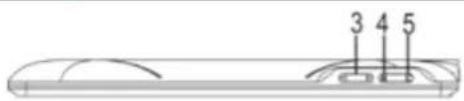

- 8" capacitiveTFTScreen
- Front-facing camera
- Volume+/- key: Press / decrease increase the volume
- Menubutton: button:
Note: Where Menu you key tap from within an ap options for that application. the MenuTo view key the Frome screen.
- Backbutton: button: The previous to return the screeyboard is screen, tap to close the keyboard.
- USB Host: Host: supports USB stick, Surf
- MicroSD Card SCD Slot
- MiniUSB portUSB port: To connect to PC
- Headphone jack jack
- PowerPjacks(DC input)
- Reset Presetole hpla
Press to reset the tablet if it freezes paperclip or other small object to get
- PowerButton button
Press and hold the device; button to turn on Briefly press the screen switch on or to turn
- MicroMionophone
- SpeakSpeaker
I. GettinggSaatred
1.1 Tuannanhöff
1.1.1 Tuinmoon

1.1.2 Tumodff
When the tablet on, to is shut off your tablet, press the "System" dialog options appear, then "yoff device with shut" dialog appears. Tap
1.2 Look/ahok the screens(sleep mode) (sleepmode)
To save battery, you should the cutoff your LCD display. To do this, briefly press Do it again to bring up the lock screen.
1.3 Connectto PC PC to

II. YourHomeScreen
2.1 IdousscomHomeScreen
| On the home widgets,the bottom,When you home-screen panels on At the top of the Home | fillstreen, and and a power panel. either by swipingside | space up your panel. of yobe Screen | you with like. Search tablet panel syinge is your | |

Home: touch it to go back to the hor
-Return: to return to the previous menu
Menu: touch submission the subshow (at some interfaces,
Vol-: touch it to reduce the volume
Vol+: touch the volume to increase
-App Panel: touch it to view all apps
2.2 Operationsson HomeScreen on
2.2.1 Add app lAdiaphomladscreen screen
| Within movable | the | App status | Panel, and | the icon touch will appear | bed on | in holt the |
2.2.2 Delete appDelete froiephonicscheme screen
| On the main | screen, | touch | and | hold | unde | |
| The release | panel it when | turns. Drag into it turns | the a red. | traitem | can the | |
2.2.3 Add widget@cidgatybame screen
| To | add | a | widget, | tap | and | hold | your | ||
| on | any | open | space | [8820] | Shortcuts | on | your | home | so |
| and | select | Widgets | from | the | context | ||||


| menu | that | opens. | From | there, | select | |
| you | may | add | an | Analog | clock, | calend |
| widgets | to | your | Home | Screen. | ||
2.2.4 How to set wallpaperpaper
| To add screen, "Select wallpapers | a widget, and select wallpialog, and | tap and Wallpapers select from Wallpapers. | hold your from a wallpaper |
2.2.5 How to hidehatus baratus bar
| On the home swiping | screen, your | finger | you | up | may or | byhide down. | your |
2.2.6 Find your File by operations operations
| Tap | and | hold | in | the | status | bar | to | fir |
| continue. |
2.3 Copy Copytranslated data data
| Except also internal | copy support flash | and copy memory. | translate and | translate | data | with data |
| For example: | copy | a | picture | from | U | |
| 1. | Inset | the | tablet U | disk PC | to | |||
| 2. | Go | into | 'explorer | ' and | select | 'USB' | ||
| 3. | Find | the | picture | nameext | method | and | ||
| 'Copy' | then | press | 'Home' | to | select | |||
| and | then | select | 'Stick' | |||||
| Then | you | will | finish | copying | the | picture | ||
| Do | the | same | to copy | data | from | internal |
III. NetworkConnection
3.1 WAFFi
| Wi-Fi | can | only | be | used | when | it | connects |
| a free | unsecured | "Wireless" | Wi-Fi | ", | tappo" | Wi-Fetworks Und | |
| settings". Ensure | that | both | Wi-Fi | and | Netwo | ||
| green | check | marks. | After | a moment, | |||
| If you | need | to | rescan | #, theor | available Scan. | n | |
| secured | one, | you | need | to input | pass | ||
| agreement | acknowledgement | via |
3.1.1 Turn on WiFiWinFi
| Within to turn network | the on | “Seapgs” → | PathWireless | tap ” → “Wi-Fi”networks | ||
| and | thecareetworks | Your enter | it tabileds | lists in Network | ||
| If necessaryconnect. | ||||||
| password, the connection | “Connect”. when wireless | When indicator | tap your | tablet appears | is connect | |
3.1.2 Turn off Wi-FiWffFi
| To when | turn | off | “WMFFunder” | Wirelesscheck | ”. Turn& networks | Wi-Fi |
| you | 're not using | it, to extend |
3.1.3 Add a Wi-FiNetwork network
| Users | may | also | “Wi-Fi | a”. | Inlettrigs | ”,netttrings |
| tap “Add | Wi-Fi”. Enter | networkthe | SSID | If necessary, | of | |
| enter | security | or | other | network | configur | |
3.1.4 Forget a Wößjörnetwork network
| In the Wi-Fi | settings | screen, | “Forget in | the | |
| the | dialog | that | opens. | ||
| Note: | Network | status | icons | turn | gree |
| added | to your | tablet | and the | tablet | |
| syncing | your | Gmail, | Calendar | events, | |
| and so on. |
IV. Internet Bbovssing
4.1 Intéenet Browsing


V. Install aandManageAppss
5.1 InstallandManageApps
If the tablet is predeted, you can with search and here after login with your Google Go to install to install and manage your downloaded or copied application,
- Tap to open
' Install "Internal then " or "State Card". Available .apk internal memory side. Touch the re
Note: Android Make sure 2.3, and
"air_attack_hd_1.apk".
An "Install " diabocked after your first
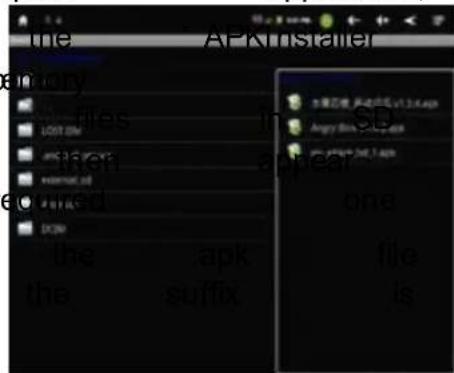
appears attempt
to install
card at th to install is workabl .apk. €
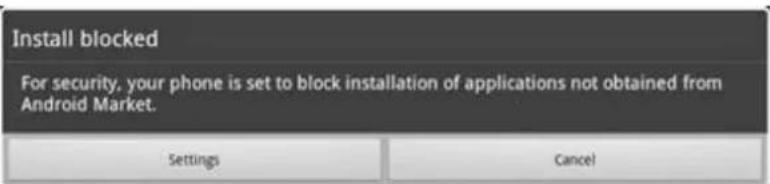
Tap "Settings" → "Unknown "→ "OK" -sourcehen install the again.
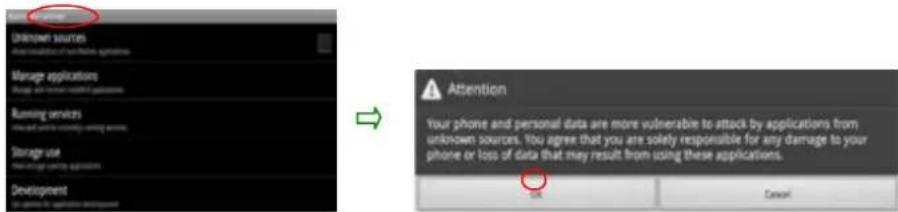
In some cases, there may be no new installed. Possible reasons may be or the downloaded .apk file full a broken version.
Where to manage applications? Applications? an "Aplification
Tap to open thee 'AMahageller' →

Tap an application to launch, export or uninstall it.
You can "Applications" under "Settings" to manage
applications.
VI. Multisimplemia functions
6.1 Music
| After default option The and | loading on of by Artis media even | your openinghome selecting player displays | music thereen Album, allows the | onto by App you album | your oPanel). or custom to shuffle artwork |

6.2 Video
6.2.1 Video Playback Playback


With the Wi-Fen, you
are
also
able
to
view
an
6.3 Gallery
You can off, view, eveshow edit your digital color, high resolution display After home screen or within the App Panel scroll through your collection, tap I may delete an image, or share it. You may to set a "Menu" → "Paper" → "Set" as
6.4 Camera
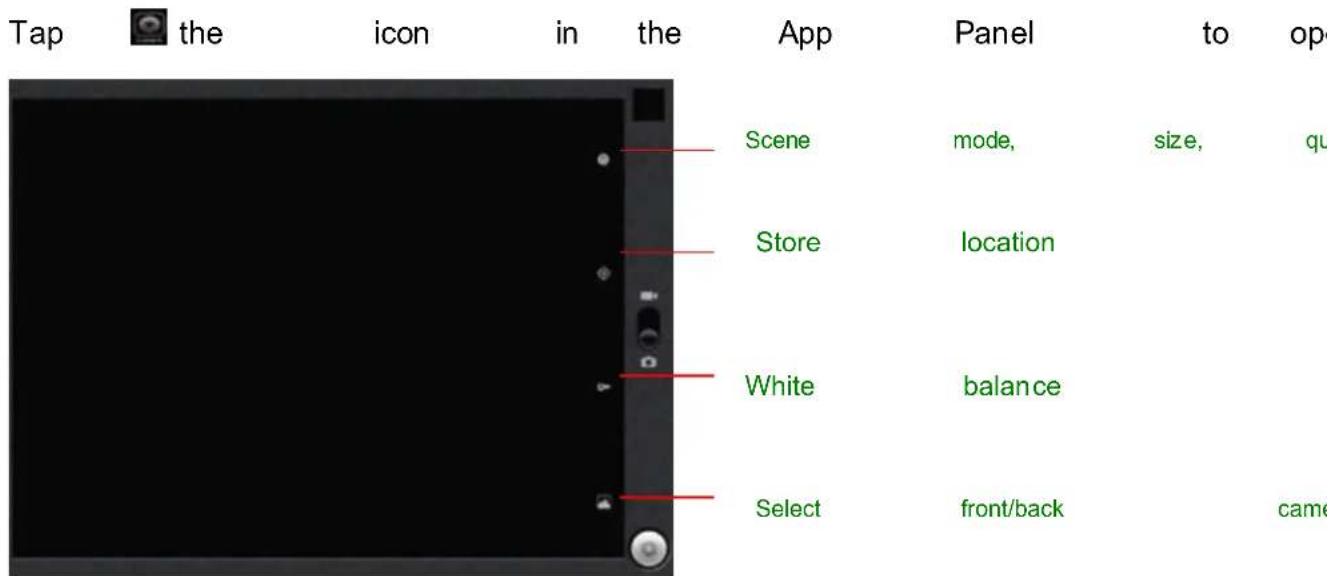
6.4.1 Takeepblodoss
You tablet is provided with built-in 2M & 0.3M dual cameras.

Hold
Tap photo.

and
the
move
tab
"Camera" tiben
on
the
roll
ball
to
the
lower
righthand
Where you view the photos?
You may view they tapping photos the you to have on righthand corner. Or you may go back
6.4.2 Record
| Hold | and the roll moveball | the | recording | icon | |
| Tap stop. | on the lower | righthand | corner | ||
| Recorded | videos | can be viewed | in | ||
6.4.3 Tumoff camerafinera
When camera is the, cameropress interface. ESC
6.5 E-book reader
The tablet supports many eBook fo Tap "Shelves" icon theApp Panel to open it. "Bookshelf" and select a book to read.
6.6 ClockClock
Touch the icon of it on the home screer
Then press the icon of clock to set
For example: set alarm time
Just press 'Add alarm' then set alarm
time, and then press 'set' to confirm
Press 'repeat' to set clock repeat tim
Press 'Ringtone' to set ring of clock.
There will be the icon of clock in the
VII. Settings
Within the touch
App Panel, Menu
tap"Settings" icon to

Also on to
the home Settings.
screen, Settings

What Security, keyboard,
being
set Applications, Voice
here
e input
includes
&
Accounts output,
Wireless
Acce:
For example, a compact, Display display
Under "Settings", tap system,
"Display" to Animation
set
Brightness, and
Screen
Acceleror time-o
The display inactive it is simply
has default a for that period in standby
screen
slet the
totinaeidut
min.is
lef
of mode.
time,
the
Screen.
VII. Batteyy

Very Low Battery Full

Full Battery Charging

Charging Betteyy

indicates
that
the
power
of
Battery
too
low,
a prompt
comes
up
to
note

The
tablet
can
be
charged
with
DC
red
fight
in
MIC
It turnsole
offuring when
fully chargingharged
On the lock
screen
before

the
yobarge
pull
status
the
found
on
the
upper
lefthand
corner,

The
tablet
may
take
4-5
hours
to
char
Tips on extend battery life
battery
- Streaming
audiolot of
battery video
life apps
[Non-Text]
- Disable
Wireless
Network
Positioning.
Location
& Security
→ Use
wireless
- Switch
ofot closVi-Fi
to if a yostrong're
Wi-Fi
periods
of time.
This
puts
strain
on
- Use
a Quick
Screen
Timeout.
You
Display
→ Screen
timeout.
- Reduce
brightness
to
a
comfortable
Display
→
Brightness.
- Use
Web
Widgets
wisely.
Widgets
power
than
widgets
that
do
not.
Note:
The
tablet
can
not
be
charged
PC.
Troubleshooting
1. Can not turn on the tablet
Check the tablet's power level, please charge tablet still can not be turned on, you
- No sound from earphone
Check if volume earphone is set to may be broken, another one.
- Big noise
Check if therearphone is dust orin speaker. Check
- Frozen to any operation
Please use a pin to reset and then
- Screen shift or unresponsive screen screen
To correct you may a) Get Settings → Acceptability Touch panel calibration to calibrate) In case calibration is carried out, you may put down would then do wetten for about five seconds force the tablet table down. Calibration will be additionally close after you start up your tablet. c) Use use SBS house to manage out calibration operations on your tablet.
- Application not workable
Possible reasons not compatible be that with this your downloaded .apk file is broken so
- How delete a Google account?
If an account is added, "Accounts the" of "Settings & nsc where you may also add another ac to "Settings" → "Privacy " → "Fsettings ". You data tablet 's i storage, downloaded also be deleteapps, et except flash memory. Be careful before you
Main Speess
| Technical Specifications | ||
| Display | DISPLAY TYPE | Capacitive touch screen(dual-touch) |
| RESOLUTION | 800*600 (4:3) | |
| SIZE 8.0 | inch (diagonal) | |
| Power | Battery type | type built in Li Polymer |
| Charging Time | 5~7h by AC adaptor | |
| Music | Format | MP3 (8Kbps ~ (5Kbps ~ 192 Kb) |
| ic EQ | Normal, Rock, Jazz | |
| Repeat mode | mode once, repeat, | |
| Play mode | mode Shuffle, Loop | |
| E-book | Format Format | UNICODE TXT, E-PUB , PDF, FB |
| Photo | Format | Format JPEG , BMP |
| Memory | Built In | In 4GB |
| External | Micro S D | |
| OS | Android 2.3 | |
| WiFi | 802.11b/g | |
| CPU | RK2918 Arm | |
| Accessories | USB cable, Earphon adaptor, and guar | |
| Dimension | 220 (L) | |
| 392 | Kbps, | ),WMA | |
| os), | FLAC, | AAC, | |
| Classic, | POP, | E | |
| all, | or | all repeat | |
| DOC, | PDB, | HTI | |
| 2 | |||
| , GIF | |||
| card | expansion | ||
| cotex | A8 | ||
| e, | user | manu | |
| antee | card | ||
| × 161 | (W) × 1 1 ( | ||
- WELCOME
- IMPORTANT NOTICES
- KEYS AND FUNCTIONS
- GETTINGGSAATRED
- 1.1 TUANNANHÖFF
- 1.1.1 TUINMOON
- 1.1.2 TUMODFF
- 1.2 LOOK/AHOK THE SCREENS(SLEEP MODE) (SLEEPMODE)
- 1.3 CONNECTTO PC PC TO
- YOURHOMESCREEN
- 2.1 IDOUSSCOMHOMESCREEN
- 2.2 OPERATIONSSON HOMESCREEN ON
- 2.2.1 ADD APP LADIAPHOMLADSCREEN SCREEN
- 2.2.2 DELETE APPDELETE FROIEPHONICSCHEME SCREEN
- 2.2.3 ADD WIDGET@CIDGATYBAME SCREEN
- 2.2.4 HOW TO SET WALLPAPERPAPER
- 2.2.5 HOW TO HIDEHATUS BARATUS BAR
- 2.2.6 FIND YOUR FILE BY OPERATIONS OPERATIONS
- 2.3 COPY COPYTRANSLATED DATA DATA
- NETWORKCONNECTION
- 3.1 WAFFI
- 3.1.1 TURN ON WIFIWINFI
- 3.1.2 TURN OFF WI-FIWFFFI
- 3.1.3 ADD A WI-FINETWORK NETWORK
- 3.1.4 FORGET A WÖSSJÖRNETWORK NETWORK
- INTERNET BBOVSSING
- 4.1 INTÉENET BROWSING
- INSTALL AANDMANAGEAPPSS
- 5.1 INSTALLANDMANAGEAPPS
- MULTISIMPLEMIA FUNCTIONS
- 6.1 MUSIC
- 6.2 VIDEO
- 6.2.1 VIDEO PLAYBACK PLAYBACK
- 6.3 GALLERY
- 6.4 CAMERA
- 6.4.1 TAKEEPBLODOSS
- 6.4.2 RECORD
- 6.4.3 TUMOFF CAMERAFINERA
- 6.5 E-BOOK READER
- 6.6 CLOCKCLOCK
- SETTINGS
- FOR EXAMPLE, A COMPACT, DISPLAY DISPLAY
- BATTEYY
- TIPS ON EXTEND BATTERY LIFE
- BATTERY
- TROUBLESHOOTING
- CAN NOT TURN ON THE TABLET
- MAIN SPEESS
Brand : CURTIS
Model : Klü LT8029
Category : Tablet