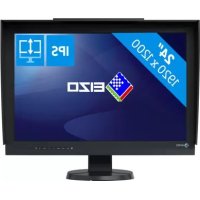
ColorEdge CG2420 - Monitor EIZO - Free user manual and instructions
Find the device manual for free ColorEdge CG2420 EIZO in PDF.


| Product type | Color LCD monitor |
| Brand | Eizo |
| Model | ColorEdge CG2420 |
| Screen size | 24.0 inches (61 cm) |
| Native resolution | 1920 × 1200 |
| Panel type | IPS (anti-glare) |
| Backlight | Wide-gamut LED |
| Adobe RGB coverage | 99% |
| Contrast ratio (typical) | 1500:1 |
| Viewing angle (H/V) | 178° / 178° |
| Recommended luminance | 120 cd/m² |
| Response time (Black-White-Black) | 18 ms |
| Video inputs | DVI-D × 1, HDMI × 1, DisplayPort × 1 (all HDCP) |
| USB hub | USB 3.0, 1 upstream port, 3 downstream ports (incl. 1 CHARGE 2.1 A max.) |
| Dimensions (W × H × D with stand) | 554.4 × 396–558 × 245–265 mm |
| Net weight | 7.8 kg (with stand), 5.0 kg (without stand) |
| Power consumption (max.) | 79 W |
| Power consumption in standby | 0.7 W |
| Power supply | 100–240 V AC, 50/60 Hz |
| Stand adjustments | Height 155 mm, tilt 35°/-5°, swivel 344°, pivot 90° |
| Main features | Built-in calibration sensor, SelfCalibration, color modes (Adobe RGB, sRGB, CAL), ColorNavigator 7 compatibility, protective hood included |
| Recommended cleaning | Use ScreenCleaner cloth; avoid alcohol, thinner, benzene |
| Operating temperature | 0 °C to 35 °C |
| Operating humidity | 20% to 80% RH (non-condensing) |
Frequently Asked Questions - ColorEdge CG2420 EIZO
User questions about ColorEdge CG2420 EIZO
0 question about this device. Answer the ones you know or ask your own.
Ask a new question about this device
Download the instructions for your Monitor in PDF format for free! Find your manual ColorEdge CG2420 - EIZO and take your electronic device back in hand. On this page are published all the documents necessary for the use of your device. ColorEdge CG2420 by EIZO.
USER MANUAL ColorEdge CG2420 EIZO
The equipment must be connected to a grounded main outlet.
Marque commerciale 59
Licence 59
FCC Declaration of Conformity 60
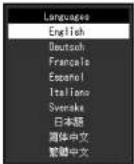
English, Deutsch, Francais, Espanol, Italiano, Svenska, Japanese, Simplified Chinese, Traditional Chinese
Idormations
HDCP (High-bandwidth Digital Content Protection)
HDMI (High-Definition Multimedia Interface)
ColorEdge Tablet Controller, ColorNavigator, EcoView NET, EIZO EasyPIX, EIZO Monitor Configurator, EIZO ScreenSlicer, G-Ignition, iSound, Quick Color
FCC Declaration of Conformity
| For U.S.A., Canada, etc. (rated 100-120 Vac) Only |
| FCC Declaration of Conformity |
| We, the Responsible Party EIZO Inc. |
| 5710 Warland Drive, Cypress, CA 90630 |
| Phone: (562) 431-5011 |
| declare that the product Trade name: EIZO |
| Model: ColorEdge CG2420 |
| is in conformity with Part 15 of the FCC Rules. Operation of this product is subject to the following two conditions: (1) this device may not cause harmful interference, and (2) this device must accept any interference received, including interference that may cause undesired operation. |
| This equipment has been tested and found to comply with the limits for a Class B digital device, pursuant to Part 15 of the FCC Rules. These limits are designed to provide reasonable protection against harmful interference in a residential installation. This equipment generates, uses, and can radiate radio frequency energy and, if not installed and used in accordance with the instructions, may cause harmful interference to radio communications. However, there is no guarantee that interference will not occur in a particular installation. If this equipment does cause harmful interference to radio or television reception, which can be determined by turning the equipment off and on, the user is encouraged to try to correct the interference by one or more of the following measures. |
| * Reorient or relocate the receiving antenna. |
| * Increase the separation between the equipment and receiver. |
| * Connect the equipment into an outlet on a circuit different from that to which the receiver is connected. |
| * Consult the dealer or an experienced radio/TV technician for help. |
| Changes or modifications not expressly approved by the party responsible for compliance could void the user's authority to operate the equipment. |
Annexe
Note
Use the attached specified cable below or EIZO signal cable with this monitor so as to keep interference within the limits of a Class B digital device.
- AC Cord
- Shielded Signal Cable (enclosed)
Canadian Notice
This Class B digital apparatus complies with Canadian ICES-003.