
SRU530 - Universal remote PHILIPS - Free user manual and instructions
Find the device manual for free SRU530 PHILIPS in PDF.



| Product type | Universal remote control |
| Brand | Philips |
| Model | SRU530 |
| Number of controllable devices | 3 (TV, DVD, VCR) |
| Power supply | 2 AAA batteries |
| Approximate range | 10 meters |
| Approximate dimensions | 20 x 5 x 2 cm |
| Approximate weight | 150 g (with batteries) |
| Configuration methods | Automatic (code search) or manual (code entry) |
| Mode keys | TV, DVD, VCR |
| Shift key | Access to secondary functions (blue labels) |
| Compatibility | Wide range of brands (list included) |
| Factory reset | Yes, via code 981 |
| Low battery indicator | Mode keys flash 4 times after each press |
| Main functions | Volume, channels, teletext, menu, DVD/VCR playback |
| Maintenance | Clean with a soft dry cloth |
| Safety | Use only AAA batteries; do not short-circuit |
| Repairability | No spare parts available; contact customer service |
Frequently Asked Questions - SRU530 PHILIPS
User questions about SRU530 PHILIPS
0 question about this device. Answer the ones you know or ask your own.
Ask a new question about this device
Download the instructions for your Universal remote in PDF format for free! Find your manual SRU530 - PHILIPS and take your electronic device back in hand. On this page are published all the documents necessary for the use of your device. SRU530 by PHILIPS.
USER MANUAL SRU530 PHILIPS
- Introduction 4
- Installing the remote control 4-7
Inserting the batteries 4
Testing the remote control 4-5
Setting the remote control 5-7
- Keys and functions 7-8
- Extra possibilities 8-9
Adjusting device selection 8-9
Adding a function to the remote control 9
Restoring the original remote control settings 9
- Troubleshooting 10
6.Need help? 10
Code list of all brands / equipment 60-73
1. Introduction
Congratulations on your purchase of the Philips SRU530 universal remote control. After installing the remote control you can operate a maximum of 3 different devices with it:TV, DVD plyer/recorder and VCR.
You can find information about how to prepare this remote control for use in the chapter 'Installing the remote control'.
2. Installing the remote control
Inserting the batteries
1 Press the cover inwards and slide it in the direction of the arrow.
2 Place two AAA type batteries into the battery compartment, as shown.
3 Slide the cover back and click it firmly into place.
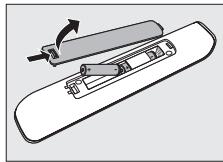
Note: If the mode keys (TV, DVD and VCR) blink four times after every key press, the remote control is indicating that its batteries are running low. Replace the old batteries with two new AAA batteries.
Testing the remote control
The remote control has been programmed to operate most Philips devices. Because the SRU530 may use different signals for each brand and even for different models of the same brand, it is advisable to test whether your device responds to the SRU530. The example below (TV) instructs you how to do this. You can repeat the same steps for other devices (DVD player/ recorder and VCR) which you want to operate using the SRU530.
Example of TV:
1 Turn your TV on manually or use the original remote control. Tune to channel 1.
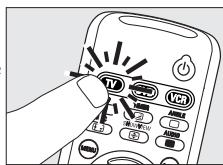
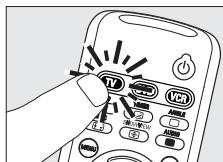
2 Press the TV key to select TV. Press the key until it lights up.
If the key does not light up, check whether the batteries are properly inserted (see 'Inserting the batteries').
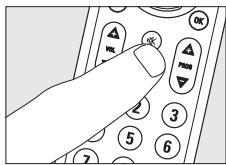
3 Check whether all the keys are working. For an overview of the keys and their functions see '3. Keys and functions'.
If the TV responds as it should to all of the key commands the SRU530 is ready for use.
4sll8u
If the device does not respond at all or not to all of the key commands, follow the instructions under 'Setting the remote control', or for online setup go to: www.philips.com/urc.
Setting the remote control
This is only necessary if your device does not respond to the SRU530. If that is the case, the SRU530 does not recognize the brand and/or model of your device and you need to program the remote control to do so.
The example below (TV) instructs you how to do this. You can repeat the same steps for other devices (DVD player/ recorder and VCR) which you want to operate using the SRU530.
You can set the remote control either automatically or manually.
Automatically setting the remote control
The remote control will now automatically search for the right code for your device.
Example of TV:
1 Make sure the TV is switched on and select a channel using the original remote control or the keys on the TV (for example channel 1). The SRU530 emits the 'switch off TV' signal for all models of TV that are stored in the memory.
- If the device is a DVD-player/recorder or video recorder, insert a disk or tape and start playback.
2 Press the TV key to select TV. Press the key until it lights up.
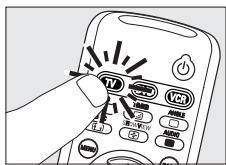
3 Then keep keys 1 and 3 on the SRU530 pressed simultaneously for three seconds, until the TV key flashes twice and then remains lit.
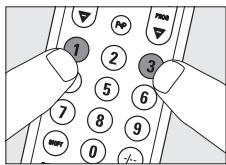
Instructions for use
4 Press and hold the Standby key of the SRU530.
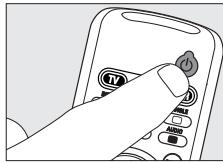
- The SRU530 now starts emitting all known 'TV off' signals, one by one. Each time a code is sent, the TV key lights up.
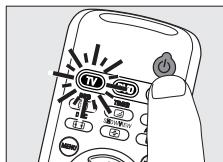
5 When your TV switches off (stand-by), release the Standby key of the SRU530 immediately.
The SRU530 has now found a code that works on your TV.
6 Check if you can operate all functions on your TV with the SRU530.
If this is not the case, you can redo the automatic setting. The SRU530 will then search for a code that works better.
After the SRU530 has run through all the known codes, the search will stop automatically and the TV key stops flashing.
Automatic programming of a TV takes a maximum of 5 minutes. For DVD and VCR this time is 2 minutes.
Manually setting the remote control
Example of TV:
1 Turn on the TV manually or use the original remote control. Tune in to channel 1.
2 Look up the brand of your TV in the code list at the back of this manual. One or more four-figure codes are shown for each brand. Note the first code. Be careful! There are separate tables for TV, DVD and VCR.

On our website www.philips.com/urc you can directly select your device typenumber to find the right code.
Make sure you use the codes from the correct table.
3 Press the TV key to select TV. Press the key until it lights up.
4 Keep keys 1 and 3 pressed simultaneously for three seconds until the TV key flashes twice and then remains lit.
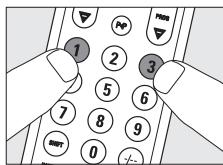
5 Then enter the code noted in step 2 using the digital keys.
The TV key will now flash twice.
If the key flashes once for an extended period, the code has not been entered properly or the wrong code has been entered. Start again from step 2.
6 Point the SRU530 at the TV and check that it responds as it should.
- If the TV responds to all of the key commands, the SRU530 is ready for use. Do not forget to note your code.
If the device does not respond at all, or not to all of the key commands, start again from step 2 and try the next code from the list.
3. Keys and functions
The illustration on page 3 gives an overview of all keys and their functions.
① Standby... switches TV, VCR or DVD on or off.
②
-
text mix ( );
-
text off (□);
- wide screen TV (3);
-enlarge(图);
-text hold (圆).
③ MENU . turns the menu on and off.
④ Cursor keys . . . . . cursor up, down, left, right in a menu.
(5) A/V switches between external inputs of your equipment.
(6) __ mutes the sound of the TV.
⑦ -VOL + . . . . . . . . . . . . . . . . . . . . . . . . . . . . . . . . . . . . . . . . . . . . . . . . . . . . . . . . . . . . . . . . adjuststheTVvolume.
⑧ Digit keys . direct choice of channels and other functions.
⑨ SHIFT . . . . . . . . . . . . . . . . . . . . . . . . . . . . . . . . . . . . . . . . . . . . . . . . . . . for extra functions. When pressed at the same time as a second key, the second key will get another function. All blue labelled keys can be used together with SHIFT. For example:
SHIFT + INSTALL installs your TV
SHIFT + STORE..stores TV settings
Try out other combinations with the SHIFT-key on your device in order to find out which functions are available.
Only functions featured on the original remote control are available.
10 -red teletext key
-
rewind (VCR/DVD)
-
index
-
play (VCR/DVD)
blue teletext key
-
wind (VCR/DVD)
-
- green teletext key
-
stop (VCR/DVD)
record
II. yellow teletext key
- pause (VCR/DVD)
Instructions for use
(11) --- selects between one- and two-figure channel numbers.
12 P4P selects previous programme/channel.
13 - PROG + . selects a previous or following channel.
(14) OK. confirms your selection.
15 BACK. jumps back one level in the menu or turns off the menu.
16 TV/DVD/VCR....selects TV, DVD or VCR mode.
If you use the () 'memory off' key to get to the next teletext page on your Philips TV, you can press the Subtitle key for this. See also 'Troubleshooting'.
If the device does not respond at all, or not to all of the key commands, follow the instructions under 'Setting the remote control'. It is possible that you must enter another code for the device.
4. Extra possibilities
Adjusting device selection (Mode keys)
The SRU530 is default set for operating TV, DVD or VCR. You can select the device you wish to operate with the TV, DVD and VCR keys. Each key allows operation of one device only. If desired, you can program the keys to select a different kind of device. For example, if you want to operate a second TV. In the following example you will see how to configure the DVD key for a second TV.
1 Switch on the second TV.
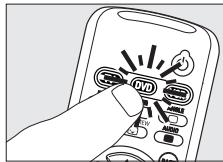
2 Press the DVD key to select DVD. Press the key until it lights up.
3 Then keep keys 1 and 6 on the SRU530 pressed simultaneously for three seconds, until the DVD key lights up.
4 Press keys 9, 9 and 2 in that order.
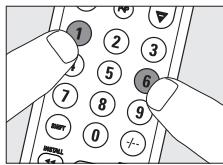
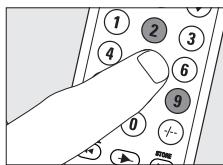
5 Press the TV key to select TV. Press the key until it lights up.
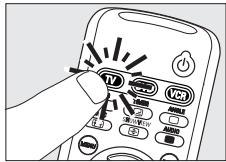
4sll8u3
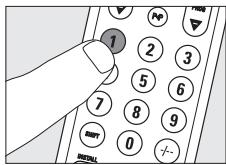
6 Press the 1 key.
The DVD key flashes twice.
The DVD key will now allow you to operate your second TV.
7 Program the SRU530 to operate the second TV.
See 'Setting the remote control'.
Adding a function to the remote control
If you want to add a function to the SRU530, you can contact the Philips service line for Universal Remote Control to ask for the 5-figure code for the extra function.
Restoring the original functions of your remote control
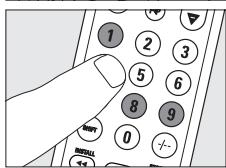
1 Keep keys 1 and 6 on the SRU530 pressed simultaneously for three seconds, until the mode key (TV, DVD or VCR) flashes twice and then remains lit.
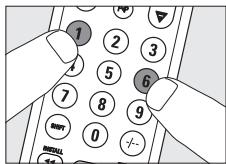
2 Press keys 9, 8 and 1, in that order.
- The mode key (TV, DVD or VCR) flashes twice.
All original functions have now been restored and any extra functions have been deleted.
5. Troubleshooting
Problem
Solution
- The mode keys (TV and DVD/VCR) blink four times after every key press.
- The remote control is indicating that its batteries are running low. Replace the old batteries with two new AAA batteries.
- The device you want to operate does not respond and the mode key (TV, DVD or VCR) does not flash when you press a key.
Replace the old batteries with two new AAA batteries. - The device you want to operate does not respond but the mode key (TV, DVD or VCR) does flash when a key is pressed.
- Point the SRU530 at the device and make sure that there are no obstructions between the SRU530 and the device.
- The SRU530 does not respond properly to commands.
- Maybe you are using the wrong code. Try programming the SRU530 again using another code, which is mentioned under the brand of your device, or reset for automatic search to find the right code.
If the device still does not respond, call our helpline.
The Teletext keys do not work.
Find out whether your TV is equipped with Teletext.
- Maybe the SRU530 has to be adapted to the model of the device.
Call our helpline for details.
- Your brand of device is not in the code list.
Try to set the SRU530 automatically.
See 'Automatically setting the remote control'.
- None of the codes works during manual setting of the remote control.
If that is the case, follow the instructions under
'Automatically setting the remote control'.
6. Need help?
If you have any questions about the SRU530, you can always contact us. You will find our contact details after the code list at the back of this manual.
Read this manual carefully before you make a call. You can solve most of the problems yourself. If you cannot find any answers to your problems, write down the details of your device shown in the code list at the back of this manual. This will help our operators to assist you better and more quickly. Look up the numbers of the models in the instructions accompanying the device or on the back of your device. When you call our helpline, make sure the device is to hand so that our operators can help you determine whether your remote control is working properly.
The model number of your Philips universal remote control is SRU530/86.
Date of purchase: ..../....
(day/month/year)
Sommaire
A.R.Systems. 0482,0401
Acura 0036
Admiral. 0190, 0114
Agef. 0114
Aiko .0036
Aim .0064
Aiwa. 0728
Akai. .0583,0064,0575,0741
0742,0633,0388,0036
.0190,0398,0099,0507
0378,0500
Akiba .0064,0482,0321,0309
Akito. 0064
Akura.0064,0741,0695,0036 0386,0309
Alba .0064, 0741, 06951064
0514,0063,0274,0445
0262,0398,0036,0190
0382,0458
Allorgan .0321
Allstar. 0064
Amplivision. 0397, 0427
Amstrad00641064, 0036, 0398, 0204
Anam .0036
Anglo. 0036
Anitech. 0064, 0036, 0309
Ansonic.0695,0397,0131,0036 0319
Apollo. .0500
Arc En Ciel...0426, 0136, 0595, 0528
Ardem 0064,0741
Aristona. 0583, 0064
Arthur Martin. 0190, 0427, 0264
ASA. 0114, 0131
Asberg. 0064, 0129
Asora. 0036
Atlantic. 0064, 0286
Atori. 0036
Auchan .0427, 0190
Audiosonic...0064, 0741, 0513, 0742
0397,0036,0364,0136
0401
Audioton .0513,0397
Autovox. 0114, 0274, 0264
Awa. .0633,0063,0135,0036
0038
Axxent. 0036
Baird .0099
Bang & Olufsen. 0114, 0592
Basic Line ....0583, 0064, 06951064,
0482,0401,0036,0366
0309
Baur. 0064,0388,0581,0376
0562,0539
Beko.....0064,07411064,0513,0742
0633,0397,0445
Beon .0064,0445
Berthen. .0695
Best. .0364
Bestar .0064,0397,0401
Bestar-Daewoo .0401
Black Diamond. 1064
Black Panther.0129
Black Star. 0274
Blacktron .0309
Blackway .0309
Blaupunkt.....0222,0063,0482,0581
0562
Blue Sky. 0583, 0064, 0741
.06951064, 0742, 0514, 0482, 0309
Blue Star. 0309
Bondstec. 0274
Boots 0036
BPL. 0064, 0309
Brandt. 0652, 0587, 0595, 0136
0362,0314,0528,0264,0426
Brandt Electronic. 0595, 0528
Brandt Electronique.....0595, 0528
Brinkmann.....0064, 0695, 0513, 0445
Brionvega. .0114
Bruns .0114
BSR. 0321, 0190
Bush.....0583,0064,0741,06951064
0725,0514,0388,0063
0262,0376,0398,0321
.0309,0382,0036,0401
Carad. 06951064, 0637
Carena. 0064, 0482
Carrefour .0063
Cascade. 0064, 0036
Casio. 0064
Cathay .0064
CCE. 0064
Centrum 1064
Centurion. 0064
Century.0114,0274,0265
CGE. 0397, 0274, 0445
Cimline. 0036
City. 0036
Clarivox .0064
Clatronic.0064,0741,0397,0036
0274,0129,0398
Clayton. 1064
Concorde. 0036
Condor. 0064, 0397, 0274, 0445
0036,0309
Contec. 0064, 0063, 0036
Continental Edison.0514, 0426
.0595,0314,0528,0264
0136
Cosmel. 0064, 0364, 0036
Crosley. 0114, 0374, 0274
Crown.0064,0741,0513,0742 0514,0633,0397,0036 0386,0366,0445
Crystal. .0458
CS Electronics. 0274
CTC. 0274
D-Vision. .0583, 0064
Daewoo.0583,0064,06611936 0036,04011164
Dansai .0064,0063,0036
Dantax. 0741, 0742
Dawa. 0064
Dayton .0036
Elbe. .0637,0462,0319,0286 0265
Elekta. 0309
ELG. 0064
Elin .0064,0575,0388,0131 0036,0376
Elman .0129
Elta .0458, 0036
Emco. 0274
Emerson. .0064, 07411936, 0513, .0388, 0397, 0204, 0114, .0309, 0398, 0274
Emperor. 0309
Erres .0064
ESC .0064
Etron. 0190, 0036
Euroman .0064,0397
Europa 0064
Europhon. 0129,0458
Expert .0427, 0286, 0190
Exquisit. 0064, 0274
Fenner .0036,0401
Ferguson.....0064,0652,0575,0587
0136,0362,0314,0265
.0388,0135,0131,0583
Fidelity.0064,0388,0398,0190 0539
Finlandia.0575,0373,0190,0099 0386
Finlux. .0064,0741,0742,0131 0374,0519,0129,0373 .0507,0114,0132,0500 .0099
Firstline0583,0064,0741,06951064, 0388,0265,0376,0036, 0262,0321,0401,0099 .0274
Fisher. .0397, 0063, 0131, 0114, .0099
Flint. 0064, 0637, 0482, 0099
Frontech.0036,0458,0274,0190 Fujitsu.0036,0286,0099
Fujitsu General. 0036
Funai .0695,0321
Galaxy .0064
Galaxis. 0064, 0397
GBC. 0401, 0036
GE. 0652,0309
Geant Casino. 0427
GEC. 0064,0388,0190,0099
Geloso .0401, 0374, 0036
General Technic. 0036
Genesis .0036
Genexxa. 0064, 0036, 0190
Goldfunk. 0695
GoldStar.0064,0741,0742,0633 0388,0274,0458,0190 0317,0136
Gooding. 0514
Goodmans...0583,0064,0741,0587, .0695,066119361064,0514 0063,0398,0362,0507 0262,0401,0036,0099
Gorenje. 0397
Graetz.0514,0388,0366,0398 0190,0374
Granada.0064,0575,0587,0135 0253,0366,0386,0099 .0383,0500,0190,0378 .0427
Grandin0064,0741,06951064,0742, 0637,0482,0190,0401 .0036,0309
Grundig....0583,0064,0222,0514 0063,0614,0264,0581 0036,0562
Haier. .0725
Hanimex .0321
Hanseatic.0583,0064,0741,0661 0388,0309,0458,0114 0321,0036
Hantarex.0064,0036,0265,0129 Hantor.0064
Harwood. 0064, 0514, 0036
Hauppauge. 0064
HCM. 0064, 0036, 0445, 0309
Hema. 0036
Hemmermann .0376 Hifivox.0426,0136,0595,0528
Highline .0064
Hinari .0064,0063,0036,0262 0382,0321
Hisawa.0741,0637,0482,0309 0427
Hisense. .0535
Hit. .0114
Hitachi..0064,0575,066110641164 0063,0135,0252,0383 .0132,0519,0190,0376 .0099,0507,0136,03741252 .0500
Hitachi Fujian. 0135
Hitsu. 0637,0482,0036 HMV .0114
Home Electronics. 0633
Hornyphon. 0064
Hoshai .0309 Huanyu .0401
Hyper 0274,0036
Hypson 0064,0741,06951064,0742 0482,0309,0427
H'her .0741
Iberia. 0064 ICE .0398
Imperial.0064,0397,0445,0274 0458
Indesit. 0264
Indiana .0064
Ingelen.0741, 0637, 0514, 0190
Ingersoll .0036
Inno Hit. 0099, 0309, 0036, 0274, 0129, 0317
Interbuy .0064, 0274
Interfunk.0064,0388,0539,0274 0528,0190,0595,0114 .0376
Internal. 0064
Intervention....0064, 0513, 0514, 0482
0036,0274,0129,0458,0309
IR. 0583,0064,0222,0388 0397,0063,0135,0252
0253,0264,0386,0314
.0401,0321,0562,0114
0262,0383,0132,0274
0038,0190,0319,0539
0099,0378,0131,0265
0136,0317,0528,0376
0581,0129
Irradio.0064,0398,0036,0317
0274
Isukai. 0064, 0482, 0309
ITS. 0064,0398,0309
ITT. 0575,0637,0388,0500
0190,0374,0373,0378
0507,0366,0376
ITT Nokia....0575, 0637, 0633, 0388
0507,0373,0378,0500
0366,0376,0458,0190
.0374
ITV. 0064, 0401, 0274
Jean. 0063
IMB. 0583,0661
lubilee. 0583
JVC. 0633,0063,0680,0445
0398
Kaisui. 0064, 0482, 0036, 0309
Kapsch. 0388, 0190, 0131
Karcher.0741,0637,0309
Kathrein .0583
Kawa. 0398
KB Aristocrat .0190, 0374
Kendo.0064,0637,0129,0321
.0274,0262
Kennedy. .0462, 0190
Kiton. 0064, 0695
Kneissel....0583,0064,0637,0265
.0401,0319,0286,0462
Kolster .0129,0376,0274
Konka. 0064, 0741, 0614, 0445,
0398
Kontakt. 0514
Korpel 0064
Korting. 0114
Koyoda 0036
Kraking. 0265
Kuba. 0376
Kyoshu. 0445
Kyoto .0190
L&S Electronic. 0741
LaSAT .0513
Leader .0036
Leccson .0064
Lenco. 0064, 0401
Lenoir. .0036
Lesa. 0274
Leyco .0064,0321,0099
LG .0274,0317,0741,0742, 0725,0136,0583,0064, 0458,0190
Liesenk & Tter 0064
Liesenkotter. 0064
Lifetec.0064,0741,069510641164 0401,0036
Lloyd's .0036
LME. 0458
Loewe. .0397, 0064, 0539, 0319 0114
Logik. 0398, 0038
Logix. .0695
Luma. 0286
Lumatron.0064,0286,0190
Lux May. 0064, 0036
Luxor...05751064,0388,0507,0190 0376,0500,0317,0264,0383
M electronic 0064,0741,0661,0131, .0274,0401,0539,0190, .0190,0376,0036,0519, .0132,0373,0507
Madison. 0064
Magnadyne.....0374, 0274, 0129, 0114
Magnafon .0129
Magnavox. .0063, 0038
Magnum 0064,0741,0742
Manesth .0064, 0321, 0262
Manhattan .0064, 06951064
Marantz. 0583, 0064, 0883
Marelli. 0114
Mark. 0064, 0741, 0742, 0036, .0401
Masuda .0036
Matsui..0583,0064,0741,02221064, .0514,0063,0482 .0190,0262,0038,0382 ,.0099,0036,0362,0458 .0204,0321,0398
Mediator. 0064
Medion..0741,06951064,07251164 0539,0583,0064
Megas. 0637
MEI 1064
Melvox. .0427
Memorex. 1064, 0036
Memphis .0364
Mercury. 0064, 0036
Metronic. 0652
Metz. 0064, 0695, 0614, 0114, .0562, 0474, 0394, 0581
Micromaxx. 0064, 06951064
Minato .0064
Minerva.0514,0135,0264,0581 0562
Minoka .0064,0386
Mitsubishi.....1064,0063,0135,0114 0539,0264,0562,0583 .0064
Mivar .0317,0636,0319,0397
Monaco. 0036
Morgan's. 0064
MTC. 0397,0376,0539
MTlogic. .0741
Multistandard. 0129
Multitec.0064, 06951064, 0513
Multitech.0064,0513,0274,0129 0036
Murphy. 0190
Musikland. 0274
Myryad .0583
NAD. 0388
Naiko. 0064, 0633
NAT. .0253
National. 0253, 0264, 0267
NEC. .0063,0482,0038,0036 04011731
Neckermann0583,0064,0397,0274 0445,0114,0376,0581
NEI. 0064,0458,0398,0364
Nesco. 0274
Netsat. 0064
Network. 0364
Neufunk.0583,0064,0741,0637 0036
New Tech. 0583, 0064, 0036
Nikkai..0064, 0063, 0364, 0036, 0099
Nobliko. 0129
Nogamatic....0136, 0595, 0528, 0426
Nokia. 0575, 0637, 0633, 0388, 0386, 0500, 0373, 0378, 0401, 0366, 0376, 0190, 0507, 0374
Nordmende.0064,0741,0587,0222 0528,0136,0426,0595 .0314
Normerel .0064
Novatronic. 0064, 0401, 0132
Oceanic.0575,0388,0374,0500 0190,0427
Okano. 0064, 0397, 0036
Onimax. 0741
Onwa. 0398,0129
Opera. 0064
Orbit. 0064
Orion.0741, 0129, 0321, 0262, 0038, .0204, 0382, 0583, 0064
Online. 0064
Ormond. .06951064
Osaki. .0401, 0382, 0099, 0583, .0064
Osio. 0064, 0317
Osume .0064,0063,0099
Otto Versand. .0388, 0063, 0253, .0374, 0539, 0321, 0136, .0581, 0274, 0376, 0562, .0262, 0583, 0064
Pacific. 0583,074110641164
Palladium .0064, 0741, 03971164, 0376, 0274, 0445
Palsonic. 0064, 0725, 0445
Panama. 0064, 0274
Panasonic.0677,0575,0388,0064 0253,0267,0264,0378 0374,0394,0190
Panavision .0064
Pathe Cinema.0427,0265,0190 0458
Pathe Marconi. .0426, 0264, 0595 0528
Pausa. 0036
Perdio. .0064, 0309, 0190, 0099
Perfekt. 0064
Pershin .0427
Philco.0064,0397,0445,0274 0114
Philex. 0378
Philips. .0632, 0581, 0583, 0064, .0388, 0359, 0036, 0265, .0401, 0114
Phoenix. 0064, 0513, 0114
Phonola. 0064, 0114
Pioneer.0064,0513,0388,0314 0539,0190,0136
Pionier. .0513,0397,0388,0136 0064
Plantron .0064,0036
Playsonic.....0064,0741,0742,0366
Policom .0595, 0528
Poppy. 0036
Portland .0401
Powerpoint .0064, 0514
Prandoni-Prince .0388
Prinston 1064
Prinz. 0388, 0099, 0376
Profex. 0388, 0036, 0190
Profi .0036
Profitronic. 0064, 0129
Proline. 0064, 0652, 0661, 0099
Prosonic.0064,0741,0695,0397 0401,0398
Protech. 0064, 06951064, 0513
.0445,0364,0036,0274 0458,0129
ProVision. 0583, 0064, 0741
Pye .0583,0064,0376,0114 0581,0401
Pymi. 0036
Quadra Vision. .0427
Quasar .0274,0036
Quelle.0064,0695,0388,0131 0562,0539,0038,0581
Questa. .0063
R-Line .0064
Radialva. .0458, 0364
Radiola .0583,0064
Radiomarelli. 0064, 0114
RadioShack. 0064
Radiotone.....0064, 06951064, 0036
Rank Arena. 0063
RCA. 0652
Recor. 0064
Rectiligne 0064
Rediffusion...0575,0388,0063,0378 0373
Reflex. 0064, 06951064
Reoc. 0741
Revox .0064
Rex. 0286, 0190
RFT. 0064,0114,0099
Roadstar.0064,06951064,0309 0036,0445
Robotron. 0114
Rowa. 0725
Royal Lux. 0397,0362
Saba. .0652,0575,0741,0587 0388,0190,0374,0528 0136,0595,0362,0426 0114,0314
Saccs .0265
Sagem .0637,0482
Saisho .0204,0038,0458,0036 0262
Saivod. 0064, 06951064
Sakan. 0190
Salora .0575,0388,0190,0383 0507,0376,0317,0386
Salsa .0362
Sambers .0129
Samsung.0397,0614,0036,0190 0839,0729,0671,0099 .0317,0583,0064
Sansui. 0064
Santon .0036
Sanyo .0397,0063,0135,0099 0366,0038,0131
SBR. 0583, 0064
Schaub Lorenz.0575,0741,0513 0633,0388,0401,0374
Schneider. .0741,06951064 03881164,0274,0379,0190 0376,0398,0286,0583 .0064
Scotland. 0190
Seaway. .0661
Seelver. 1064
SEG.0064,0695,06611064,0063 0036,0129,0376
SEI. 0064,0129,0321,0114 0204,0376,0190,0374
Sei-Sinudyne.0064, 0114, 0374, 0321, .0129
Seleco.0373,0462,0286,0398 0190,0374
Sencora .0036
Serino. 0637, 0482
Sharp .00631220,0321,0384
Shintoshi 0064
Shivaki 0064
Shorai .0321
Siarem .0129, 0114, 0374
Siemens.0064,0222,0581,0562 0374
Siesta .0397
Silva. .0064, 0388
Silva Schneider. 0064
Silver. .0742, 0388, 0063
Singer .0064,0129,0114,0462 0362,0036
Sinudyne .0064,0388,0204,0374 0190,0321,0129,0262 0376,0114
Skantic. 0383
SKY. 0064
SLX 0695
Smaragd .0514
Solavox.0064,0575,0388,0378 0190,0099
Soniko. 0064
Tashiko .0063,0190,0386
Tatung. 0064, 0038, 0099
TCM .0741
Teac. 0064,0695,0725,0482 0036,0458,0376,0539
Tec. 0064, 0286, 0274, 0364, .0036
Tech Line 0064, 0695
Technics .0583,0677
TechniSat. 0583
TecnImagen. .0583
Tedelex. .0458, 0036
Teleavia.0426, 0595, 0528, 0517
Telecor. 0064, 0286, 0190
Telefunken...0064,0652,0587,0513 0362,0517,0595,0314 .0136,0373,0528
Telefusion. 0064
Telegazi. 0064, 0190, 0286
Telesonic. 0064
Telestar .0583,0064
Teletech. .0064, 06951064, 0274, .0036, 0364
Teleton. 0063, 0376, 0286
Televideon .0190
Television 0064
Televiso .0427
Temco. 0321
Tempest 0036
Tennessee .0064
Tensai. .0064,0742,0274 0401,0036,0132,0398 0131,0321
Tenson. 0036
Tevion.....0064, 0741, 069510641164
Texet. 0401, 0036
#
Thomson.....0652,0587,0517,0595 0314,0426,02641474,0376 0528,0136,0362,0064
Thorn. .0064,0388,0063,0136 0386,0562,0131,0362 0539,0099,0265
Thorn-Ferguson. 0265
Tokai.0064, 06951064, 0099, 0401, 0364, 0036, 0190
Tokaido 1064
Tomashi. 0309
Toshiba.0741,0222,0063,0677 0535,01361535,0129,0517
Toyoda. 0036
Trans Continens.....0064, 06951064
Transonic. 0064, 0614, 0036
Triumph .0583, 0204, 0373
Tsoschi. 0309
TVTEXT. 0095,0583
Uher. .0064,0513,0401,0507 0445
Ultravox.0064,0274,0129,0114 0378
Unic Linie. 0064, 0482
United .0064, 0741, 0742
Universal. 0064
Universum....0064,06951064,0388 0397,0063,0519,0321 .0562,0132,0507,0317 0539,0038,0131,0500 .0274,0528,0036,0373 .0581,0445,0204
Univox. .0064, 0364, 0190, 0114
Vestel. .0583, 0064, 06951064
Vexa .0064,0036
Videosat. 0274
VideoSystem. 0064
Videoton. 0383
Vision. 0064
Vortec. 0064
Voxson. 0190, 0114, 0445
Waltham.0064,06951064,0190 0458,0136,0445,0383 .0517
Watson.0064, 06951064, 0190, 0036
Watt Radio. .0129
Wega .0064,0063,0114
Wharfedale .0583,0064
White Westinghouse.0364,0064
Windsor .06951064
Windstar. 0364, 0309
Windy Sam. 0583
Xenius. 0661
Xrypton. .0064
Yamaha .0677
Yamishi. 0064, 0482, 0309
Yokan. 0064
Yoko. 0064,0458,0036,0366 0274
Zanela. 0265
Zenor. 0366



SETUP CODES FOR VCR
Accent .0099
Adyson .0099
Aiwa. 0064, 0375, 0027, 0334, 0379
Akai. 0375,0379,0342,0133 0068,0267
Akiba. .0099
Akitan .0322
Akura. .0099
Alba. 0108,0305,0375,0027 0099,0379,0342,0322
Allorgan. .0267
Allstar .0108
America Action. 0305
Amstrad. 0305, 0027, 0099
Anam .0064,0253,0267
Anam National. 02531189
Anitech. 0099
Ansonic .0027
Aristona. 0108, 0173
ASA. .0108, 0064
Asuka. 0064, 0065
Audiosonic. .0305
AVP. .0027,0379
Awa .0070
Baird. 0027, 0131, 0133, 0068
Basic Line.....0305, 0099, 0131, 0073
Beko. 0131
Bell & Howell. 0131
Bestar. 0305
Black Panther. 0305, 0305
Blaupunkt....0108,0253,0430,0222
Blue Sky.....0305, 0064, 0375, 0099, 0379
Bondstec. 0099
Decca. .0108, 0027, 0379, 0094, .0068
Deitron. 0305
Denko. .0099
Denon. 0069
Diamant. 0064
Dual. .0108, 0305, 0375, 0027, .0068
Dumont.0108, 0027, 0131
Elbe .0305,0065
Elcatech. 0099
Elin. .0267
Elsay. .0099
Elta .0305,0099
Emerson.0305,0064,0027,0099 0072,0070,0235
ESC. 0305,0267
Etzuko. 0099
Ferguson.....0305,0027,0347,0068 0348
Fidelity.0027,0099,0379,0459 0267
Finlandia.0108,0064,0027,0411 0131,0075,0070,0069 0133,0253,0073
Finlux.0108,0027,0131,0069
Firstline.0305,0064,0375,0099 0072,0070
Fisher. 0131, 0074, 0073
Flint .0375
Frontech. 0099
Funai. 0027
Galaxy. .0027
Galaxis. .0305
Garrard .0027
GE. 0347,0075,02671062
GEC .0108
General Technic. 0375
Genexxa. .0131
Go Video. .0459
GoldHand. 0099
GoldStar. 0064, 0252
Goodmans.0108,0305,0064,0375 0027,0099,0379,0430
GPX .0064
Gradient. .0027
Graetz .0131,0068,0267
Granada .0108,0064,0027,0131 0075,0069,0253,0267 0073
Grandin.0305,0064,0027,0099
Grundig.0108,0375,0099,0347 0379,0253,0374,0430 0222
Hanimex. 0379,0322
Hanseatic 0108,0064,0065
Harley Davidson. .0027
Harman/Kardon .0065
Harwood. 0099
HCM. 0099
Hinari. 0305, 0099, 0379, 0068, 0267, 0235
Hisawa. 0379
Hischito .0072
Hitachi. 0108, 0027, 0069, 0430, 0267, 0068, 0073
Hornyphon .0108
Hughes Network Syst. 0069
Hypson. 0305, 0064, 0027, 0099, 0379
Her. .0305
Imperial .0027
Ingersoll. .0267
Inno Hit. .0099
Interbuy. 0064, 0099
Interfunk .0108,0131
Internal. 0305
International. 0305, 0064
Intervention. 0305, 0027
IR.0108,0375,0099,0131 0072,0069,0133,0253 0235,0322,0214,0267 0068,0074
Irradio.0108,0064,0099
ITT. 0411, 0131, 0133, 0073, 0267, 0068
ITV. 0305, 0064
JBL. 0305
Jensen. 0068
JMB. 0375, 0379
Joyce. 0027
JVC.0411,0094,0233,0068
Kaisui .0099
Kambrook. 0064
Karcher .0108,0305
KEC. 0305, 0064
Kendo.0305,0375,0099,0342 0133
Kenwood .0094,0068,0065
Kimari. .0074
Kneissel.0305,0064,0375,0379
Korpel. 0099
Kuba. 0074
Kuba Electronic. 0074
Kuwa. 0253
Kyoto .0099
Lenco .0305
Leyco .0099
LG. 0064
Lifetec. 0375
Lloyd's. 0027
Loewe. .0108, 0064
Logik. 0099, 0133, 0267
Lux May. .0099
Luxor. 0131, 0075, 0070, 0342, 0133, 0073, 0074
LXI. 0064
M Electronic. 0027, 0065
Magnasonic. 0305
Magnavox.0108, 0027, 0430
Magnin .0267
Manesth. 0108, 0099, 0072
Marantz.0108,0322,0173,0065
Mark. 0305, 0027
Master's. 0305
Matsui .0375,0379,0322,0267 0235
Matsushita. 1189
Mediator .0108
Medion .0375,0379
Melectronic 0064,0027,0065
Memorex.0064,0375,0027,0131 00751189,0073,0267
Memphis. 0099
Metronic. 0108
Metz. 0108, 0064, 0253, 0374, .02221189
MGA. 0070, 0267
Micormay. 0375
Migros. .0027
Minerva .0222
Minolta .0069
Mitsubishi.....0108, 0094, 0075, 0070
MTC. 0027,0267
Multitec .0064
Multitech. 0027, 0099
Murphy .0027
Myryad. 0108
NAD .0131
National. 0253
NEC. 0305, 0064, 0131, 0094, 0068, 0065
Neckermann .0108
Nesco .0027,0099
Nikkai. 0305, 0099
Nikko. 0064
Nokia.0108,0305,0131,0075 0069,0342,0133,0267 0068,0073
Nordmende .0347, 0411, 0094, 0068, 0348
Oceanic.0108,0027,0131,0075 0133,0073,0068
Okano .0305, 0375, 0099, 0342
Optimus. 0064, 0131, 0075, .04591189
Orbit. 0099
Orion. 0375, 0379, 0322, 0235
Orson .0027
Osaki. 0064, 0027, 0099
Osume. .0099
Otto Versand. 0108
Pace. 0379
Pacific. 0375, 0027
Palladium....0064, 0375, 0099, 0068
Palsonic .0027,0099
Panasonic. 025311891062
Pathe Cinema 0070
Pathe Marconi. 0068
Penney...0064, 0069, 0267, 00651062
Pentax. 0069
Perdio .0027
Philco .0099, 0065
Philips .0108,0411,0173,0494 04301367
Phoenix. 0305
Phonola .0108
Pilot. 0064
Pioneer.0108,0094,0069
Portland. 0305
Prinz. 0027
Profitronic. 0108, 0267
Proline.0305,0027,0347,0348
Proisco. .0305
Prosonic .0305
Protech. 0108
ProVision .0305
Pye. .0108
Quartz 0073
Quasar. 030511891062
Quelle. 0108
Radialva.0108,0064,0099,0075
Radiola. 0108
Radionette .0064
RadioShack. 0064, 0027
Rank. 0068
Rank Arena. 0068
RCA.0347,0075,0069,02671062
Realistic.....0064,0027,0131,0075
0074,0073
Reoc. .0375
Rex. .0411, 0068
RFT. 0099, 0430
Roadstar.0108,0305,0064,0099 0267
Royal .0099
Saba. 0305, 0347, 0411, 0068, 0233, 0348, 0214
Saisho. 0375, 0235
Salora.0131,0070,0133,0073
Samsung. 0072, 0459, 0267
Sansei. 0075
Sansui.0027,0099,0094,0133 0068
Sanyo .0131,0094,0075,0267 0074,0073
Saville. 0305, 0379, 0267
SBR. 0108, 0173
Schaub Lorenz.0375,0027,0131 0342,0133,0068
Schneider....0108,0305,0064,0375 0027,0099,0379,0069 .0173,0267
Scott. 0070
Sears .0064,0027,0131,0069 0074,0073
Seaway. 0305
SEG. .0108,0305,0099,0267
SEI. .0108
Sei-Sinudyne .0108
Seleco .0064,0411,0068
Semp. 0072
Sentra .0099
Setron. 0099
Sharp. 0064, 0075, 0834
Shintom. 0099, 0131
Shivaki. 0064
Siemens.0108,0064,0347,0131 0222,0073,0173,0374
Siera .0108
Silva .0064
Silver 0305
Singer. .0072
Sinudyne. 0108, 0379
Smaragd. 0375
Sonneclair 0099
Sonolor. .0073
Sontec. .0064
Sony. 0027,0059,01331059
Soundwave. 0064, 0375
Sangyong. 0099
Standard 0305
Stern .0305
Sunkai .0305,0375,0322
Sunstar. .0027
Suntronic. .0027
Sunwood .0099
Supra. .0064
Sylvania. .0108, 0070
Symphonic .0027
Tandberg. .0305
Tandy. 0027, 0131
Tashiko .0108,0064,0027,0075 0267
Tatung.0108,0375,0027,0379 0075,0070,0068
Tchibo .0375
TCM. .0375
Teac. .0305, 0064, 0027, 0334 0068
Tec. 0099
Tech Line. .0099
Technics. 0108, 02531189
TechniSat. .0375
Teknika .0064,0027
Teleavia. 0068, 0214
Telefunken.0305,0347,0411,0348 0214,0068,0233
Teletech. 0305, 0027, 0099
Tenosal. 0099
Tensai. .0305, 0027, 0099
Tevion .0375
Texet .0305
Thomas. 0027
Thomson.....0305,0347,0411,0094 0348,0068
Thorn. 0064, 0131, 0068
Tokai .0064,0099,0131,0068
Topline. 0375
Toshiba.0108,0411,0379,0072 0070,0459,0068
Totevision. 0064
Towada .0099
Tradex. 0108
Triumph. .0235
Uher. 0267
Ultravox .0305
Unitech. 0267
United. 0375
United Quick Star .0305
Universum...0108,0064,0375,0027 0131,0133,0222,0430 0267
Victor. .0094
Video Concepts. 0072
Video Technic. 0027
Videomagic. 0064
Videosonic. 0267
Villain .0027
Wards.0108,0027,0099,0072
0075,0069,0267,0074
0065,0073
Watson. 0108, 0379
Weltblick. 0064
White Westinghouse.0305,0099
World. 0375
Yamaha .0065
Yamishi. 0305, 0099
Yokan 0099
Yoko. 0064, 0099, 0267
Zenith. 0027
ZX. 0375,0379
SETUP CODES FOR DIGITAL VERSATILE DISC (DVD)
3DLAB. .0566
A-Trend. .0741
Acoustic Solutions. .0757
AEG .0797,0817,0815
Aiwa. 0560
Akai. .0817,0815,0743
Alba. 0566,0722,0757,0699 0740,0810,0726,0744
Amitech. .0797
Amstrad .0740
Ansonic .0801
Apex Digital. 06991031, 0744
Arianet. 0845
Audiosonic. .0717
Audiovox. .0744
AWA. .0757
Axion .0757
Baze. .0699
Bellagio 1031
Black Diamond .0740
Blaupunkt. 0744
Blue Sky.....0722,0678,0699,0740
Boghe. 1031
Boman .0810
Brainwave. .0797
Brandt. 0530, 0578, 0678
Broksonic. .0722
Bush.0722,0757,0716,0726 0699,0744,0717,0740
Cat. 0726
CCE. 0757
Centrex. .0699
Centrum .0740
Cinetec. .0740
cineULTRA .0726
Classic. 0757
Clatronic. 0699, 0845, 0815
Clayton .0740
Coby .0757
Contel. 0815
Crown .0797,0717
CyberHome .0741
Cytron.0801, 0678, 0732, 0743
Daewoo .0797,0741,0732
Dansai. .0797,0810
Dantax. 0817
Decca. 0797
Denon. .0517,0661
Denver .0815,0726,0699
Denzel .0692
Diamond. .0678
Digihome .0740
Digired. .0744
Digitrex. .0699
Dinamic. 0815
DiViDo .0732
DMTECH. 0810
Dual .0757,0678,0817,0740 0692,0810
Durabrand. .0740
Elin. .0797
Elta .0797,0717,0699,0815
Emerson. .0618, 0732
Enterprise 0618
EuroLine. 0815
Enzer. .0692
Fenner. 0678
Ferguson .0678
Finlux.0768,0618,0797,0699 0810
Firstline. .0740
Fisher. .0697
Funai. 0722
GE. 0744,0549
Global Solutions. .0795
Global Sphere. 0795
GoVideo. 0810
GoldStar. 0768, 0618
Goodmans.0757,0678,0817,0717 08101031,0740
GPX .0726
Graetz. 0692
Grandin .0743,0740
Greenhill .0744
Grundig.....0566,0578,0722,0678 0817,0697,07401031,0732 0802
Grunkel .0797
H&B .0845,0740
Hanseatic .0768,0810
HCM. .0815
HDT. 0732
HE. .0757
Hen0. .0740
Hitachi .0600
Hiteker. 0699
Home Electronics. .0757
Humax. .0673
Ingelen .0815
IRT. 0810
ISP .0722
Jaton. 0692
JDB .0757
Jeken. .0726
JMB. .0722
JVC. 0650, 0566, 05301967
Karcher .0810
Kendo. 0740, 0726
Kennex .0797
Kenwood .0517,0764,0561
Kiiro .0797
Kingavon. 0845
Kiss. .0692
Koda. 0845
Lawson .0795,0743
Lenco. .0797,0801,0678,0740 0726,0699
Lexia. .0795,0726
LG. 0768,0618
Lifetec. 0678
Limit. .0795,0743
Loewe. 0566
Logix. 0810, 0732
Lumatron .0732
Luxman. 0600
Luxor 1031
Magnavox. 0530
Manhattan. 0732, 0740
Marantz .0566
Mark. 0740
Marquant. 0797
Matsui....0722, 0678, 06991031, 0740
Maxim. 0740
MBO .0757,0717
Mecotec. .0797
Medion.....0657,0801,0678,0743
0810
Metronic. .0717
Metz. 0598, 0740
Microboss .0745
Micromedia .0566,0530
Micromega. .0566
Microsoft. 0549
Minax. 0740
Minerva .0732
Minoka. 0797
Mitsubishi 0740
Mizuda 0845
Monyka. .0692
Mustek. .0757
Mx Onda. 0678
NAD .0768
Naiko .07971031
Neufunk. .0692
Nevir. 0797
Nordmende. 0801
Olidata. 0699
Onkyo. 0530, 0654
Orava. 0845
Orion. 0722
Oritron. 0678
Ormond. .0740
P&B. 0845
Pacific. .0795, 0817, 0740
Palladium. .0722
Panasonic. .05171935
Panda .0744
Philco. .0815,0717
Philips.....0566, 0530, 067316741698
Phonotrend .0726
Pioneer. .0598
Prism. .0732
Proline. .0713,06781031,0699
Proscan. 0549
Prosonic .0726
ProVision .0726
Radionette .0768
Raite. .0692
RCA .0549
REC. .0517,0716
Red Star .0797, 0815
Reoc. 0795
Revoy. 0726
Roadstar.0757,0716,0740,0699
0726,0845,0717
Rotel .0650
Rowa. 0744
Saba. 0578, 0678
Salora. 0768
Samsung. .0517, 0600
Sansui. .0722,0795
Sanyo. .0697
Scan .0732
ScanMagic. .0757
Schaub Lorenz. 0797, 0815
Schneider.....0566,0801,0678,0817
0732, 0815, 0810
Scientific Labs. 0795
Scott. 0678, 0745, 0699
SEG .0795,0740,0692
Shanghai. 0699
Sharp. 0657
Sherwood. 0768, 0744
Shinco .0744
Silva .0815
Skymaster .0757,0795
Slim Devices. 0560
SM Electronic.0757, 0795, 0717
Smart. 0740, 0732, 0745
Sonic Blue. .0810
Sony. 0560, 06001931
Soundmaster. .0795
Soundwave. 0810
Standard. 0795, 0678, 0815
Starmedia .0845
Sunkai. 0797
Sunwood. 0815
Supervision. .0795
SVA. 0699
Synn. .0795
Tandberg. .0740
Tatung. 0797
Teac. 0768, 0795, 0817, 0744
Technics. .0517
Technika .0797
Techwood .0740
Teletech. 0795, 0740
Tensai. .0797, 0678, 0717
Tevion .0678
Theta Digital .0598
Thomson .0578,0549
Tokai .0817,0815,0692
Tokiwa .0743
Toshiba .0530
Umax. .0717
United. .0757,0699,0815
Universum. .0768, 0618, 0740
Venturer. .0817
Vestel .0740
Vieta. 0732
Voxson. .0757
Walkvision .0744
Wellington. .0740
Wesder. .0726
Wharfedale. .0713,0817
Windy Sam. .0600
Xbox. .0549
Xenius. .0817
XLogic .0795
Yakumo. 1031
Yamada 1031
Yamaha .0517,0566,0673
Yamakawa 0692
Yukai. .0757
Zenith. .0530,0618
Note your codes!
TV
Equipment
Brand
Model number
Number of original remote
Code
VCR
Equipment
Brand
Model number
Number of original remote
Code
DVD
Equipment
Brand
Model number
Number of original remote
Code
Helpline

Country
Belgie/Belgique
Danmark
France
Deutschland
Espana
EAAnva
Ireland
italia
Luxemburg
Nederland
Norge
Österreich
Portugal
Suomi
Sverige
Suisse/die Schweiz
United Kingdom
Phone number
070 253 011
35258758
0891650007
01805007533
902 889 343
0080031221219
016011158
199404043
4066615645
0900 0400 062
22708258
0820 901116
213591441
0922948258
087505196
012120045
0906 1010 018
Tariff
0,17
Local tariff
0,23
0,12
0,15
Local tariff
Local tariff
0.25
Local tariff
0,20
Local tariff
Local tariff
Local tariff
Local tariff
Local tariff
Local tariff
£ 0.15
Guarantee
certificate
Certificat de garantie
Garantiebewijs
Zaručni list
Garantieschein
Dealer's name, address and signature
- Introduction
- Installing the remote control
- Inserting the batteries
- Testing the remote control
- Example of TV:
- Setting the remote control
- Automatically setting the remote control
- Instructions for use
- Manually setting the remote control
- Keys and functions
- Extra possibilities
- Adjusting device selection (Mode keys)
- Adding a function to the remote control
- Restoring the original functions of your remote control
- Troubleshooting
- Need help?
- Sommaire
- #
- SETUP CODES FOR VCR
- SETUP CODES FOR DIGITAL VERSATILE DISC (DVD)
- Note your codes!
- TV
- VCR
- DVD
- Helpline
- Country
- Phone number
- Tariff
- Guarantee
- certificate
- Certificat de garantie
- Garantiebewijs
- Zaručni list
- Garantieschein
Brand : PHILIPS
Model : SRU530
Category : Universal remote