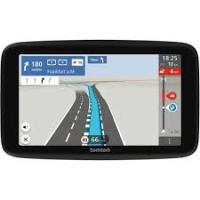
MOBILNOVA MEDIA CENTER - GPS Navigation System TOMTOM - Free user manual and instructions
Find the device manual for free MOBILNOVA MEDIA CENTER TOMTOM in PDF.


| Product type | GPS navigation with multimedia center |
| Brand | TomTom |
| Model | Mobilnova Media Center |
| Screen size | 4.3 inches (approximately 10.9 cm diagonal) |
| Weight | Approximately 150 g |
| Power supply | Rechargeable lithium-ion battery, charges via USB cable |
| Battery life | Up to 2 hours in normal use |
| Main features | GPS navigation, video playback (after conversion), MP3 playback, photo display |
| Supported video formats | Formats converted by TomTom Video Converter software (MPEG-4, etc.) |
| Supported audio formats | MP3, organization in subdirectories |
| Internal memory | 4 GB (estimated), expandable via SD card |
| Connectivity | USB 2.0, SD card reader |
| Included accessories | USB cable, windshield mounting bracket, car charger |
| Maintenance and cleaning | Clean the screen with a soft, dry cloth. Avoid exposure to extreme temperatures. |
| Safety | Use the provided mounting bracket. Do not operate the device while driving. |
| Spare parts and repairability | Non-removable battery. USB cable and bracket available as spare parts. Repairs by an authorized center. |
| General information | User manual available in PDF format. Mobilnova Media Center software pre-installed. |
Frequently Asked Questions - MOBILNOVA MEDIA CENTER TOMTOM
User questions about MOBILNOVA MEDIA CENTER TOMTOM
0 question about this device. Answer the ones you know or ask your own.
Ask a new question about this device
Download the instructions for your GPS Navigation System in PDF format for free! Find your manual MOBILNOVA MEDIA CENTER - TOMTOM and take your electronic device back in hand. On this page are published all the documents necessary for the use of your device. MOBILNOVA MEDIA CENTER by TOMTOM.
USER MANUAL MOBILNOVA MEDIA CENTER TOMTOM
Mobilnova Media Center for TomTom
User Manual
Version 4.6

MOBILNOVA
www.MobilNova.com
© Mobilnova 2006- 2009. All rights reserved
This manual, as well as the software described in it, is furnished under license and may be used or copied only in accordance with the terms of such license. The content of this manual is furnished for informational use only, is subject to change without notice, and should not be construed as a commitment by Mobilnova. Mobilnova assumes no responsibility or liability for any errors or inaccuracies that may appear in this manual. Except as permitted by such license, no part of this publication may be reproduced, stored in a retrieval system or transmitted, in any form or by any means, electronic, mechanical, recording or otherwise, without the prior written permission of Mobilnova.
Mobilnova and MobilNova are trademarks of Mobilnova VOF. All other product and company names are trademarks or registered trademarks of their respective holders.
Mobilnova Media Center for TomTom. User Manual.
Quick Start Guide for Mobilnova Media Center for TomTom 4
Media player requirements: 13
Video converter requirements: 13
Installation of Mobilnova Video Converter on your PC 13
Installation of Media Center on your TomTom 13
Un-installation and Reinstallation 14
Video Content Conversion 15
Converting video files (DivX, XviD, etc) 15
Converting DVD 22
Subtitles and audio tracks 23
Installing audio, image and PDF files on your TomTom 25
Installing and usage of external SD card 26
Extras 27
Mobilnova Media Center Application on TomTom 28
Main screen 29
Video browser 29
Music browser 30
Picture browser 31
PDF document browser 32
Game Browser 32
Video playback on TomTom 33
Controlling your TomTom video player with remote control 34
RF remote control 34
Bluetooth remote control 34
Audio playback on TomTom 35
Audio playback screen 35
Options 36
Video options screen 39
Audio playback using a FM transmitter 39
Audio options screen 40
Audio output options 40
Audio playback over a Bluetooth headset 40
Audio playback using a FM transmitter 40
Other options 41
Volume control 41
Picture options screen 42
PDF documents options screen 42
Bluetooth headset pairing procedure 43
Picture Viewing on TomTom 46
Picture viewing screen 46
Viewing PDF documents on TomTom 47
Page selection dialog 48
Playing Games on TomTom 49
Starting a game 50
Purchasing 51
Troubleshooting 52

Quick Start Guide for Mobilnova Media Center for TomTom
- Install Mobilnova Video Converter for TomTom
- On the first start-up of Mobilnova Video Converter, connect your TomTom to PC or insert an SD card with TomTom software into the SD card reader
- Start Mobilnova Video Converter for TomTom
- Select a DVD, a video file or a number of video files for batch conversion
- Set conversion parameters, or use the default settings
- Perform the conversion
- Install the video(s) on your TomTom
- Power on your TomTom device, go to main menu by tapping the screen, select menu page with videos by tapping "Next page" button (Arrow to the right), select and play the video.
- To play MP3 audio files, you should copy MP3 files into Audio directory of your TomTom device using Windows explorer. Directory browsing is supported and your music could be organized on TomTom device in the same way as it's organized on your PC. After copying the music, start Mobilnova Media Center on your TomTom and tap on "Songs" icon to browse and start audio."
Mobilnova Media Center for TomTom allows you to convert and watch videos, home movies, varied video content, recorded TV shows, play MP3 audio files, and view pictures, photographs and presentations on your TomTom. It is comprised of 2 utilities:
- the video converter (a Windows application)
- the media player (an application for TomTom navigation devices).
Media player requirements:
- Supported TomTom models: GO, GO 300, GO 500, GO 700, One, Rider, Rider New Edition, GO 510, 710 and 910, GO 520, 720, 920, One New Edition, One XL; GO 515 530, 715, 730, 930, One New Edition GO 630, 630 HD traffic, One XL HD traffic, GO 520T/630/720T/530T/730T/930T/540/740/940/540 Live/740 Live/940 Live, One IQ Routes Edition, One XL IQ Routes Edition, One XL Live IQ Routes Edition, TomTom Pearl.
- Supported TomTom application version: - 7.0 and higher. If you have an older version, you will need to upgrade your TomTom firmware prior to using this product.
Video converter requirements:
- Microsoft Windows XP Professional or Home Edition (Service Pack 1 or 2), Windows 2000 (Service Pack 2), Windows XP Tablet PC Edition, Windows Server 2003.
128MB of RAM (256MB recommended) - Up to 60MB of available hard-disk space, not including converted videos.
DVD drive (if you plan to convert DVD) - Microsoft Internet Explorer 5.5 (or higher), Netscape 7.1 (or 8.0), Firefox 1.0, or Mozilla 1.7.
For relatively small video files, you can use the TomTom GO memory card (the one that contains maps). To store larger video files you will most likely need an extra memory card or a TomTom with a built-in hard disk.
Installation of Mobilnova Video Converter on your PC
The PC software is installed after clicking on the installer icon. It will automatically install the software and place shortcuts on the desktop and into the Windows Start Menu.
Installation of Media Center on your TomTom
On the first run of Mobilnova Video Converter your TomTom must be connected to the PC. The Converter will perform TomTom firmware check, configure itself for your TomTom device, and install the media player on your TomTom. If the media player needs to be upgraded or installed the following message will appear.
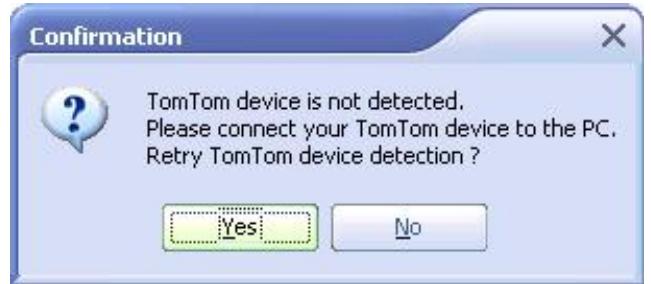
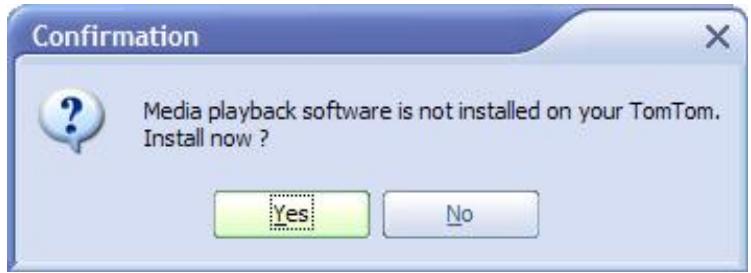
Press Yes to confirm and start the installation process.
After the media playback software is installed on your TomTom you will see a message similar to the one below. It is recommended to save this information and in case you have problems with the playback send it to our customer support.
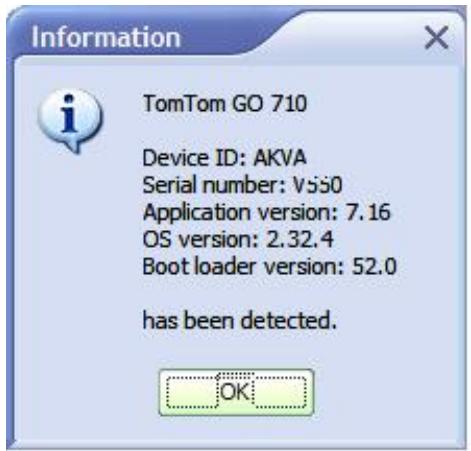
Now your PC and TomTom are ready for video conversion and playback.
Un-installation and Reinstallation
To uninstall the whole product you have to separately uninstall player from TomTom and converter from your PC. To re-install or uninstall the Media Player from your TomTom, please refer to the section of this document. To uninstall the converter application, use 'Uninstall' link that is created in Windows Start Menu during installation. Note that default un-installation procedure removes only files copied during installation, so you will have to delete converted videos and conversion logs from your PC and Media Player software from your TomTom manually.
Video Content Conversion
Every video should be converted into the best suitable format for your TomTom before it can be viewed.
To convert a video file, you should perform the following steps:
- Start Mobilnova Video Converter for TomTom
- Select a video file or several video files for batch conversion
- Set conversion parameters
- Perform the conversion
- Install the videos on your TomTom.
Below there is more detailed description of these steps.
Converting video files (DivX, XviD, etc)
1. Start Mobilnova Video Converter for TomTom The following window should appear on the screen:
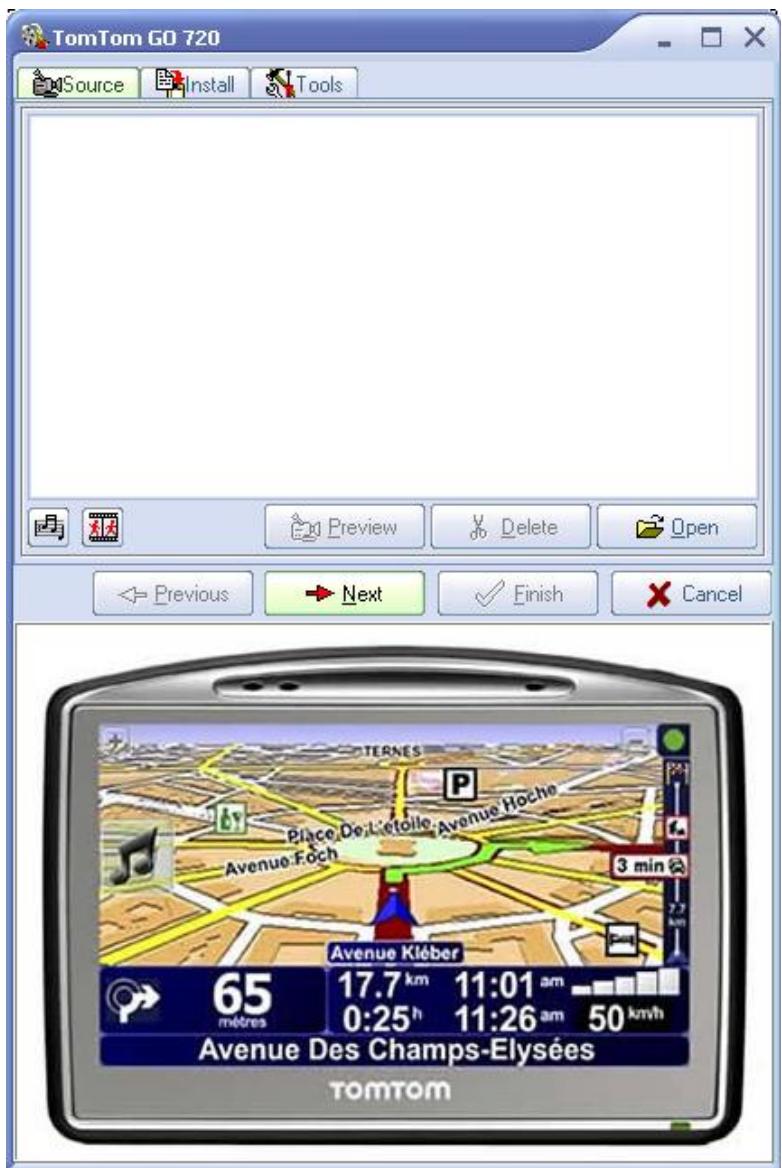
Please note that image of displayed TomTom device might differ depending on the TomTom model you actually have.
2. Select a video file by clicking "Open" button
Please note that:
More than one file can be converted at a time;
- Pressing the Delete button will only remove the files from the list and not from your hard drive;
- Pressing the Preview button will start preview of selected video in the virtual TomTom window below;
- To Stop the preview, ESC button on keyboard or "Cancel" button in Mobilnova Media Center window;
- To Pause/Resume the preview, click left mouse button in the preview window.
To move on to the next step click either Parameters tab or Next button.
3. Set conversion parameters
The default conversion parameters are already set for you. They guarantee the optimal conversion speed/video-quality/resulting- file- size relation.
To immediately preview the converted video in the virtual TomTom below press "Preview" button. Preview mode uses latest selected cropping, subtitles and audio settings. However, video and audio quality settings are not used in preview mode and previewed video might have better quality than actually converted video.
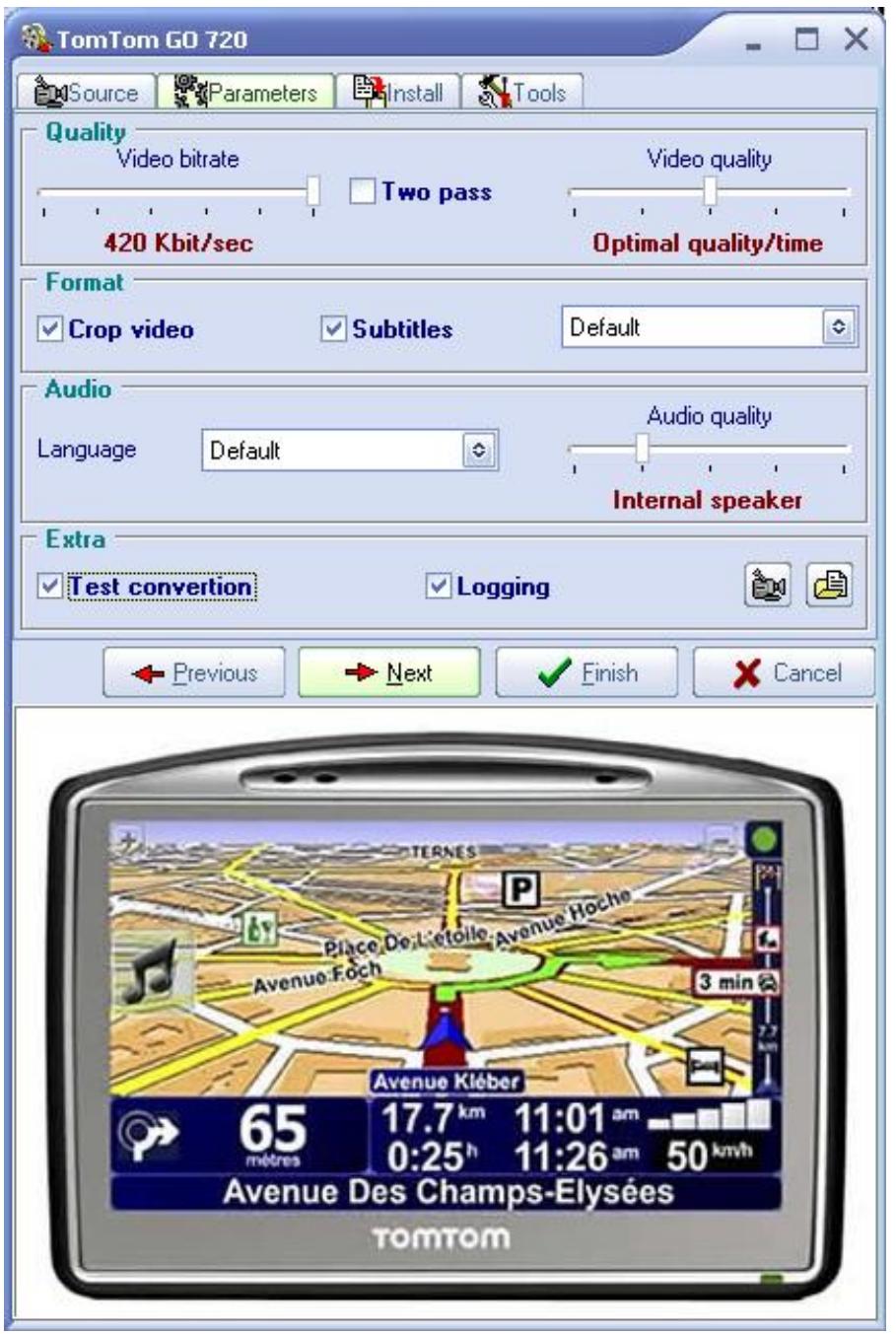
Quality
This option sets the video conversion bit rate. As long as you are going to play video on TomTom it is recommended to set the bit rate not higher than 400 Kbit/s otherwise you will experience frame dropping effect. The higher video bit rate means better quality but will result in the larger file. To give you some estimation on the target file size, as shown in the table below.
| Video bitrate | Original file size | Target file size | Conversion time |
| 400 Kbit/s | 100 MB | 30 MB | 5 min |
| 300 Kbit/s | 100 MB | 25 MB | 4 min |
| 200 Kbit/s | 100 MB | 20 MB | 3 min |
The rest of the options were set to the default values (No "Two pass", Optimal quality, Audio quality set to Internal speaker mode).
Two pass
This option is used to increase quality of the converted video content and decrease resulting file size. It also increases the conversion time by the factor of 1.5. It is recommended to use it only with high quality originals such as DVDmpeg streams. Most of the DivX, XviD files, do not need this option. You cannot increase the quality of the file that originally had poor quality.
Video quality
Sets quality of the output file. The table below shows approximate conversion time:
| Video bitrate | Original file size | Target file size | Conversion time |
| Poor quality | 100 MB | 20 MB | 3 min |
| Low quality | 100 MB | 25 MB | 4 min |
| Optimal quality | 100 MB | 30 MB | 5 min |
| High quality | 100 MB | 35 MB | 7 min |
| Best quality | 100 MB | 45 MB | 10 min |
The rest of the options were set to the default values (No "Two pass", 400 Kbit/s, audio quality was set to the Internal speaker mode)
Audio quality
Audio quality setting has 5 modes.
Professional
- Headphone
External speaker
- Internal speaker
- Bluetooth
By default, Internal speaker mode is selected.
Professional, Headphone, and External speaker these modes are resource demanding and on some TomTom models you may experience lower frame rates because of high audio quality setting. These modes might not be available on all TomTom models.
Crop videos
This option removes extra frame information on the left and right sides to optimally match your TomTom screen ratio and reduces the size of the black margins at the top and bottom of the screen. It is recommended to use this option in cases when the source movie is in wide screen format (e.g. DVD video). Using of this option is recommended if your video has 2.5:1 or more aspect ratio for TomTom GO, GO 300, GO 500, GO 700, Rider, Rider New Edition, One, One New Edition and 3:1 or more for TomTom GO 510, GO 710, GO 910, GO 520, GO 720, GO 920 and One XL. You also can use this option when the dimensions of your video is less than the dimensions of the screen of the TomTom device you are using in order to expand your video to full TomTom screen. You should realize that approximately 10 - 15% of the video information on left and right sides or on top and bottom will be lost.
Include Subtitles
If this option is selected the application will try to locate subtitles file (.srt or *.sub) in the video's folder and will incorporate subtitles into the video stream. Be aware that you won't be able to switch the subtitles off later on, and the only way to do so will be to perform another conversion of the source video but without subtitles. This option increases processing time by 5% . If your subtitles were not converted, please refer to Troubleshooting section of this document.
In case of DVD conversion or multiple subtitle files default settings for subtitles will be taken into account. See chapter Subtitles.
Test Conversion
If you are not sure which settings to use, it is recommended to select this option. Only 90 seconds of the video will be converted. After that you can preview it on your PC and/or install it on your TomTom, check if resulting quality suits you and perform conversion of whole file or adjust conversion parameters.
Logging
Select this option to create video analysis and conversion logs in Log directory. This is recommended if you have problems with some of your videos, and wish to give more information for our customer support.
To start video conversion, press the Next button.
4. Perform the conversion
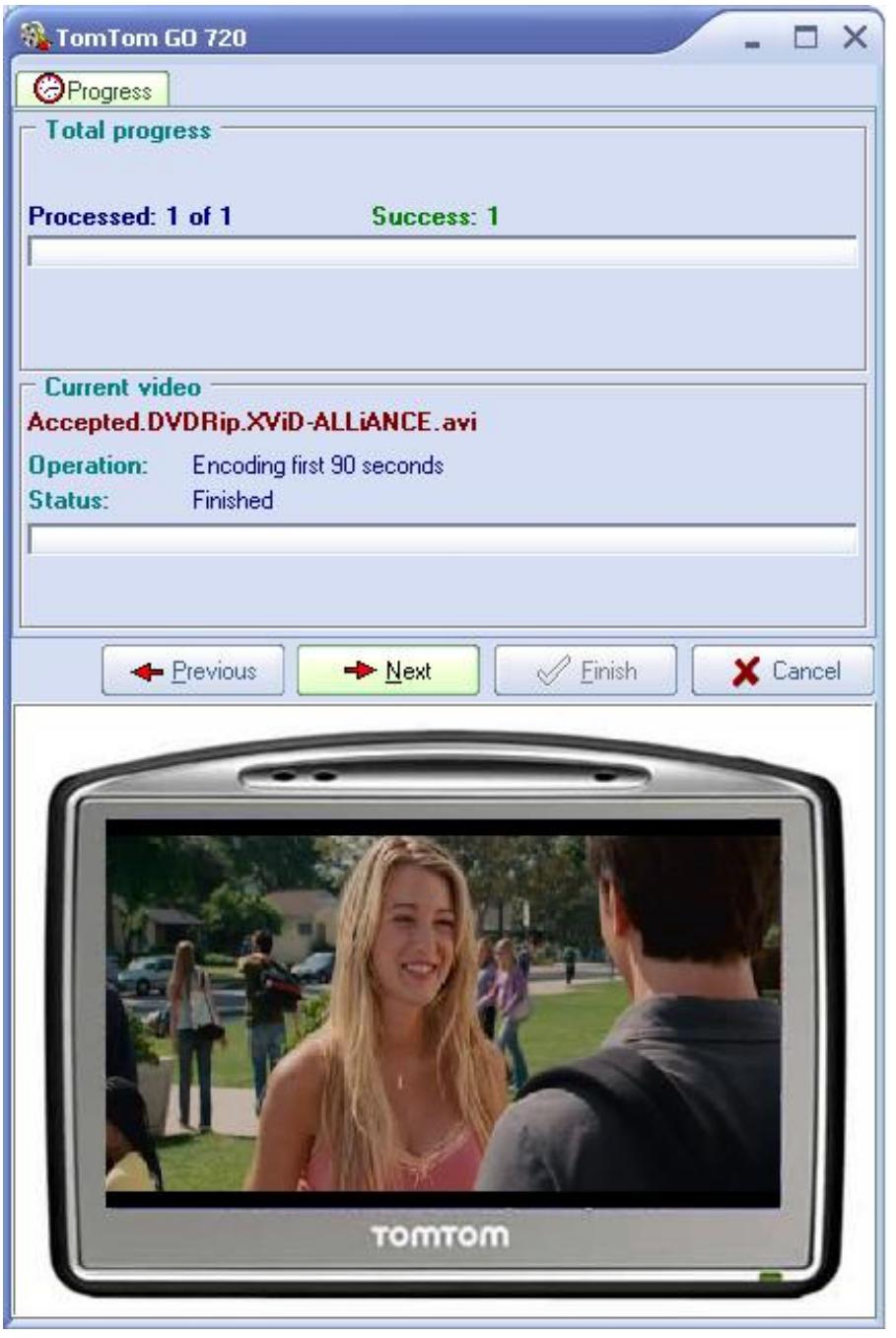
If the conversion process has been started you can always interrupt it by clicking the "Cancel" button. After conversion finishes, press the "Next" button to go to the Install screen.
Progress of conversion is also indicated time to time in virtual TomTom window by means of displaying converted image that corresponds to currently processing part of video. This image is not displayed during 1^st pass of 2-pass conversion.
5. Install needed videos on your TomTom
All converted files are shown in the left pane. All previously converted files will appear in this pane too. Select the file you want to install on your TomTom and press transfer button
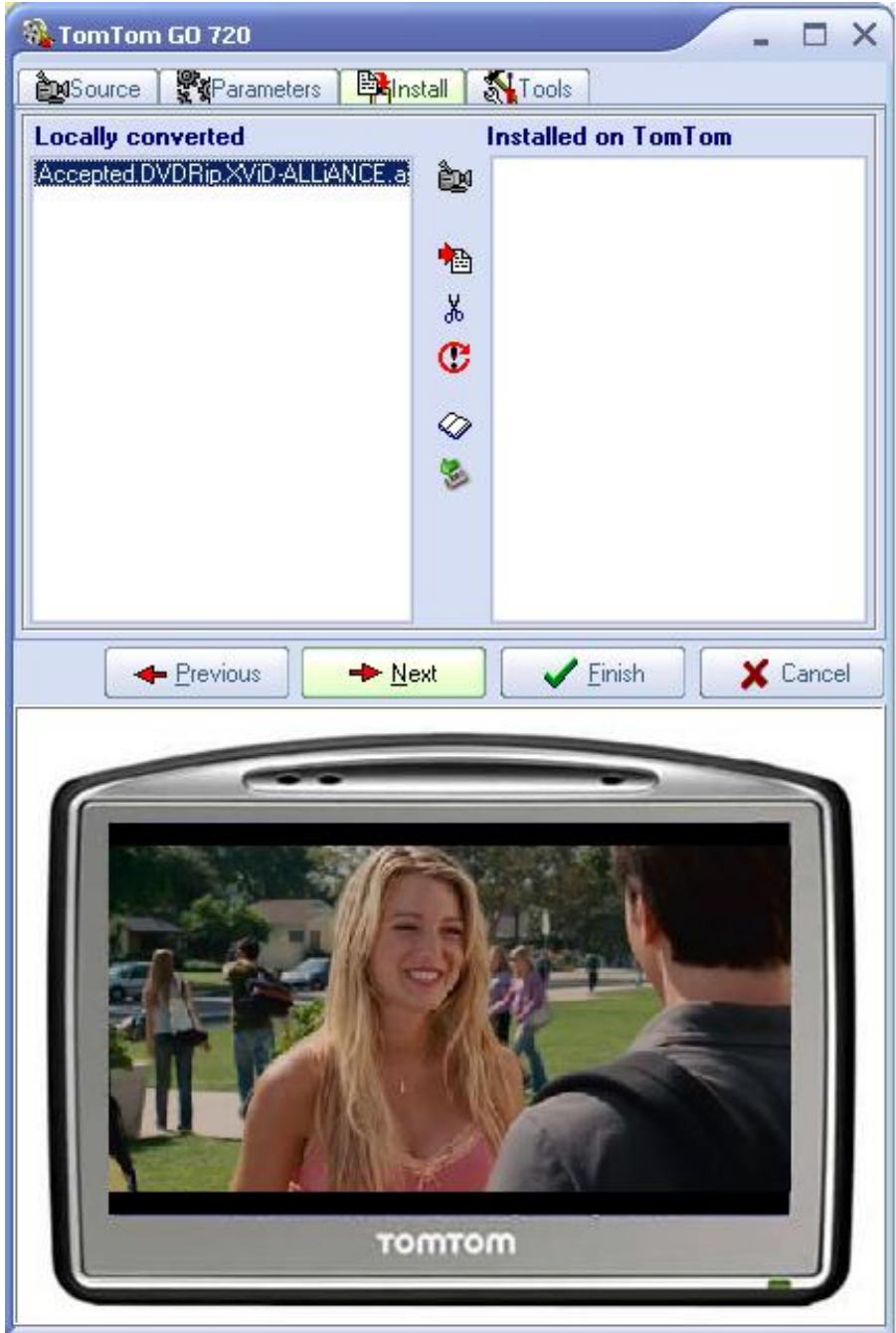
Converted files can be previewed on the PC. Just press the preview button and the window with video preview will appear on the screen. You can navigate in the preview window with the keyboard. Pressing the right or left arrows navigates forward and backward respectively; pressing the space button stops/resumes the video playback. To exit the preview window press Esc or close the preview window using the mouse.
You can use button to remove converted files either from TomTom or from your PC, depending on the position of the cursor in the video list boxes.
Refresh button rereads content of your TomTom if it has been previously unplugged.
Eject button allows you safely eject TomTom device from PC.
Press button to explore TomTom drive using Windows explorer.
Converting DVD
There is no big difference between DVD and video file conversion. When a DVD is inserted into your DVD drive, it's automatically detected and analyzed. After that all DVD titles available for conversion will be displayed. The automatic detection depends on Windows system settings. If automatic detection is disabled or if you have copied the content of your DVD drive into a directory on your PC, you have to manually open the VIDEO_TS file that is a part of every DVD.
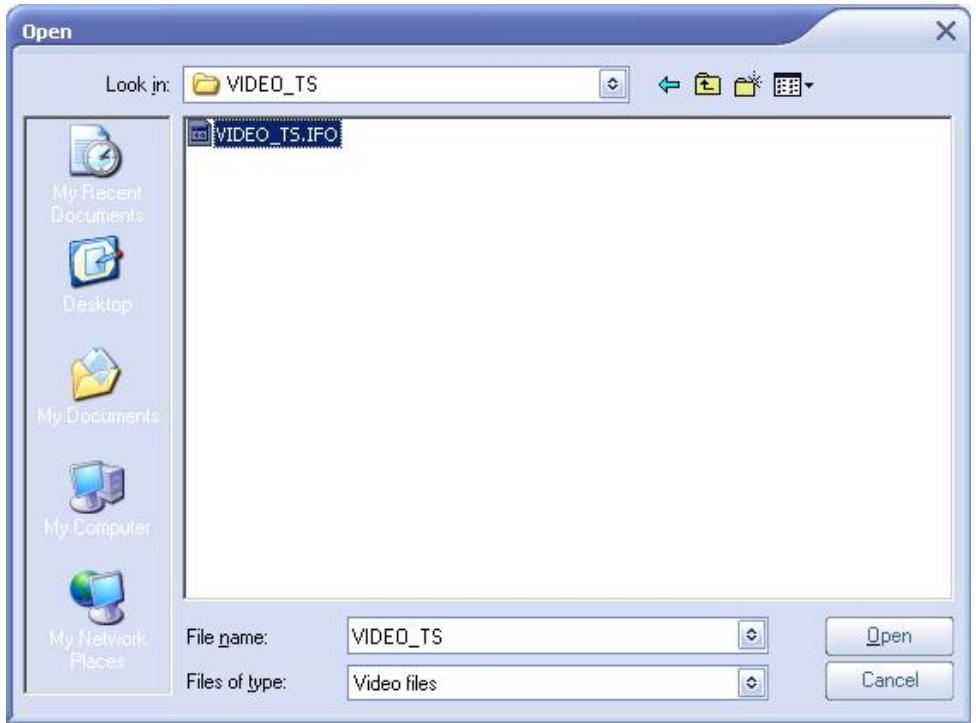
After this step your DVD will be analyzed for a few seconds, and in case of multi title DVD several titles will be displayed, otherwise you will see only one title.
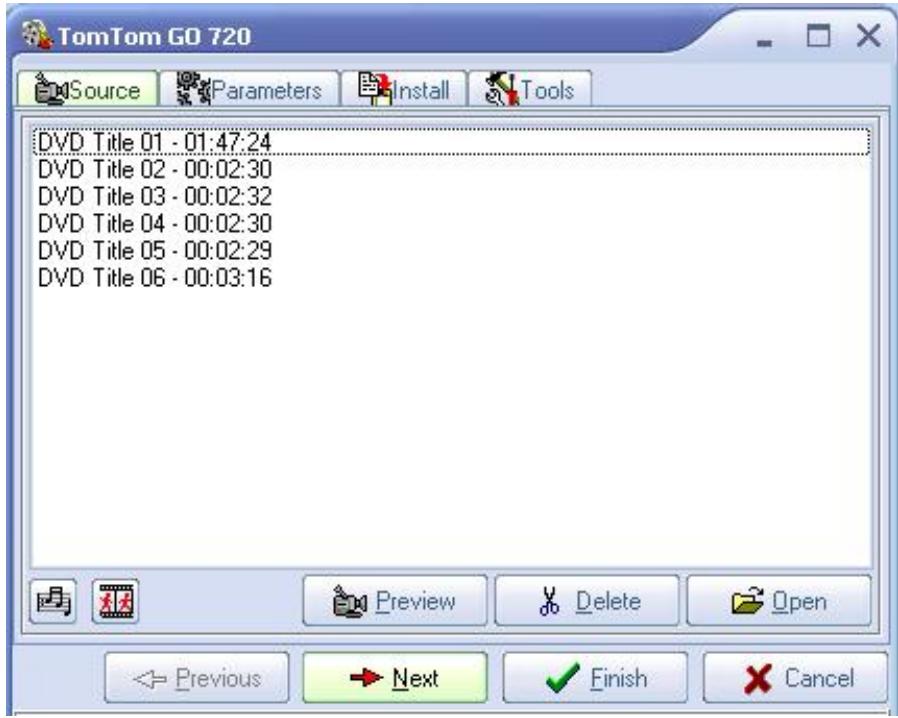
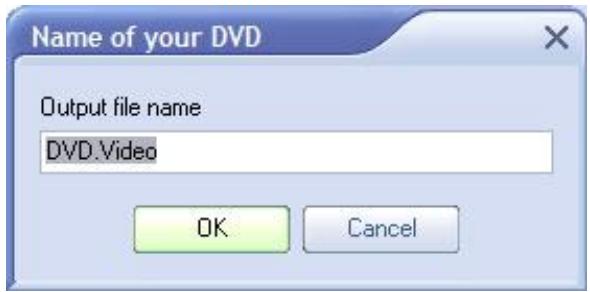
To convert a specific title just double click it; you will be prompted to enter a name for the title and the conversion will start.
Tip: Always try to preview the DVD Title before starting conversion. Some DVD's are encrypted and might not be readable by the converter. If you've found that DVD is encrypted and still want to convert it, install a third party DVD decryption tool, for example, AnyDVD.
Subtitles and audio tracks
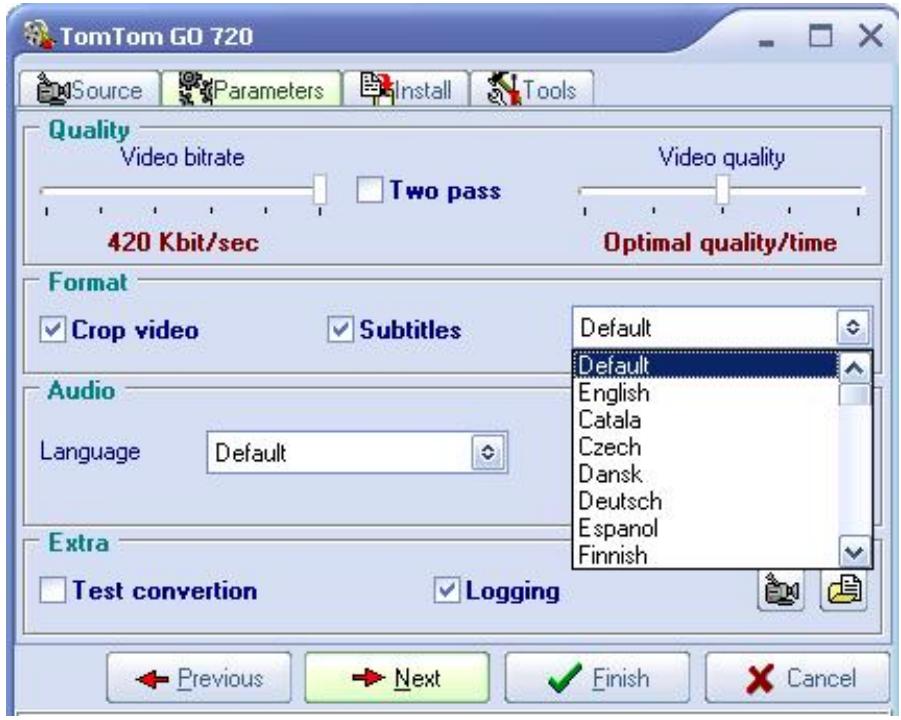
In order to select default subtitles language open the dropdown menu and select the language you want.
Do the same with the preferred audio track.
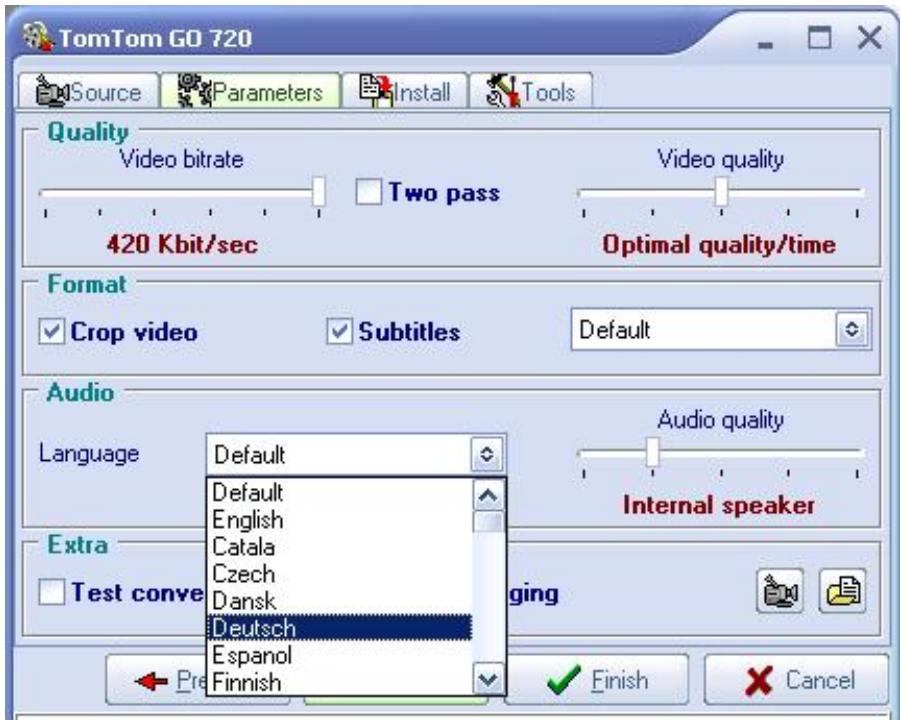
By default English subtitles and English audio track are selected to be used in the conversion. To change this, edit your preferred languages lists. If selected audio or subtitle language is not present, English language will be used instead.
After that you have to re-convert your videos.
Upon adjusting the settings it is possible to see what the output video will look like on your TomTom by pressing the preview button
It is also possible to change the default output directory for all converted movies by pressing button.
Installing audio, image and PDF files on your TomTom
Simply press "Copy MP3" or "Copy images" or "Copy PDF" button and it will open a copy dialog window. You can specify a folder for MP3 files, or for an individual JPG or PDF file which you want to copy to your TomTom. Files will be copied into Audio, Images or Books folder of your TomTom device respectively.
Note: To remove transferred files from the TomTom device you need to open Windows explorer. (

+E)
Locate your TomTom drive and delete files from Audio, Images or Books folder. Alternatively, you can use Explorer button on Install tab sheet to open the Explorer by clicking on it.
Alternatively, to install MP3, JPG, PDF files on your TomTom you can use any other file browser and simply open Audio, Images or Books folders on your TomTom drive and copy your content there. You can keep the original directory structure: Mobilnova Media Center supports directory browsing.
Installing and usage of external SD card
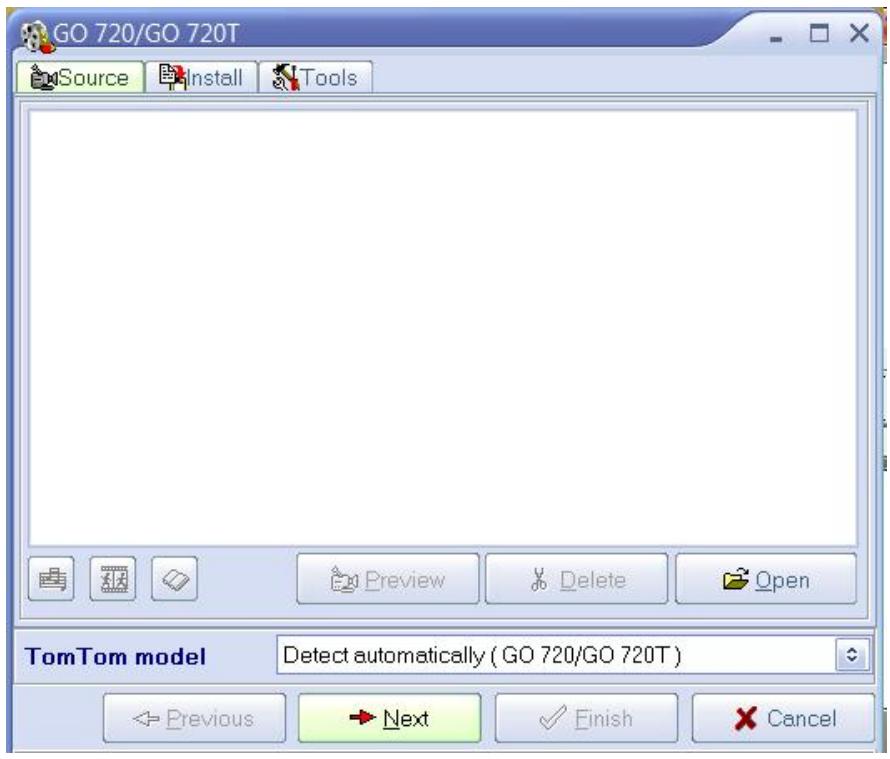
It's possible to install Mobilnova Media Center on an external SD card using the Media Center installation wizard. It might be useful to have a separate SD card for videos or when internal storage of your TomTom device does not have enough free space to hold all your media materials.
The Media Center installation wizard window looks like this:
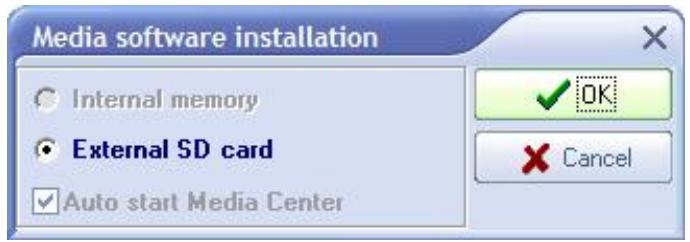
You can choose between Internal memory and External SD card.
If you check 'Auto start Media Center'. Mobilnova Media Center on your TomTom will start automatically when you switch on power without starting navigation software. This is particularly useful when you have several SD cards with converted videos.
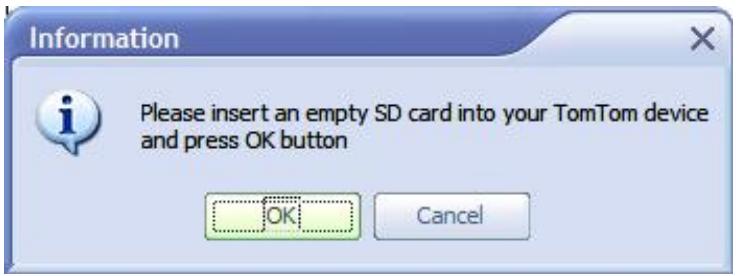
External SD card is automatically recognized by the Mobilnova Video Converter application for Windows and by Mobilnova Media Center on your TomTom device. In this case in every browser screen you will see two top-level directories – 'Internal' and 'ExternalX'. Where X specifies external storage number (in the future TomTom may decide to add a second SD card). Internal will correspond to the internal memory and External – to an external SD card.
An external SD card is checked only at Media Center startup on a TomTom device. If you need to replace the SD card, you have to exit Mobilnova Media Center to the navigation application, insert new SD card and start Media Center again.
TomTom high-end products support two different locations where you can store your audio and video files: the internal memory and an SD card at the same time. In this case, when an external SD card is inserted in a TomTom device, Video Converter application automatically shows its content and will copy all new videos, music and images to the SD card.
Extras
Tools tab sheet contains useful utilities while operating Mobilnova Video Converter for TomTom.
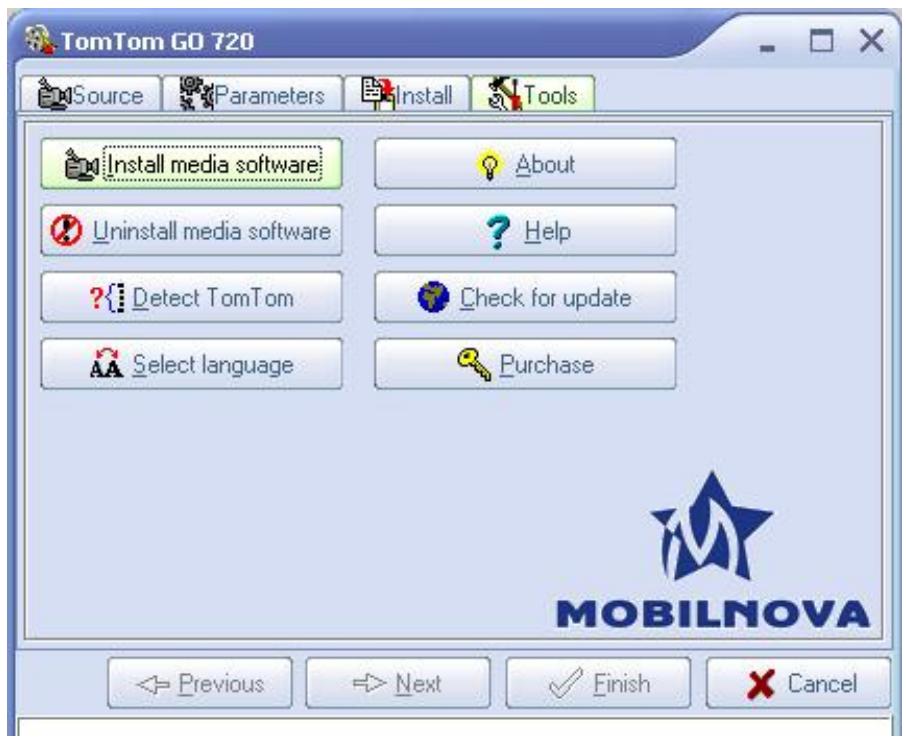
Install media software - this button installs or reinstalls media software on your TomTom. Note that if you install Mobilnova Media Center update that contains new version of video player, it's detected and installed to your TomTom device automatically when Mobilnova Video Converter application is restarted. If it does not happen, you have to install media software to your TomTom device manually using this button.
Uninstall media software - this uninstalls media software and all converted videos from your TomTom.
Detect TomTom – if you're using another model of the TomTom or you want to reinitialize program to the default settings for your TomTom model you can click this button. Note that the videos converted for one TomTom model might not play on another type of device, that's why you always need to re-detect your new TomTom and re-convert all videos for another type of device. Also note that if you have purchased Mobilnova Media Center for one TomTom device, it will still remain in the demo version mode if you use with another TomTom device.
Help - opens help web page in your browser, it contains a link to this document.
Purchase - you can purchase the full version of the software at our website www.mobilnova.com. See section Purchasing for more details. This button is not shown on the officially purchased and registered version of Mobilnova Media Center for TomTom, running on the TomTom device it is registered for. If you have already paid for the activation for this device you will be automatically forwarded to the webpage of the full registered version.
Select language – this button allows you to change the language of Mobilnova Video Converter for TomTom.
Mobilnova Media Center Application on TomTom
After the Mobilnova Media Center application is installed on your TomTom device, the icon similar to the picture below should be visible on the last screen in the TomTom menu. Tap the screen to access the menu and press the arrow to scroll to the last screen. To start Media Center just tap on it.
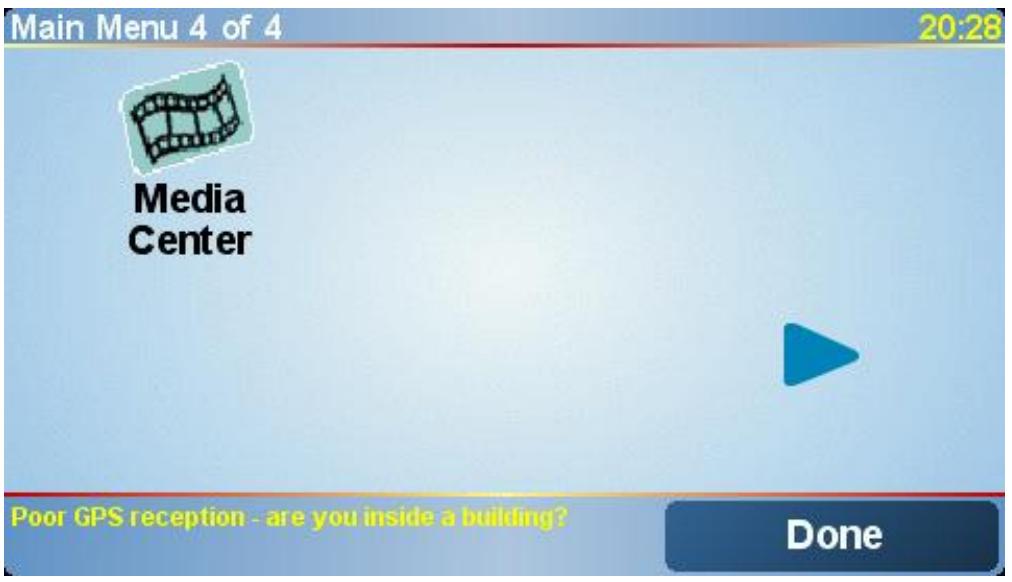
Note: the Media Center application icon is not installed by default into your TomTom Navigator main menu if you are using a TomTom custom menu (TomTom.mnu). However, all necessary files are copied to your TomTom. To install the link to Media Center application into your custom menu manually, add link to TASKSDK1 in the place where you prefer to it to be. Please note that if you are also using other TomTom SDK add-ons, the name of the menu item can vary from TASKSDK1 till TASKSDK10; in this case you should experiment with task names to determine which task corresponds to Media Center yourself.
Main screen
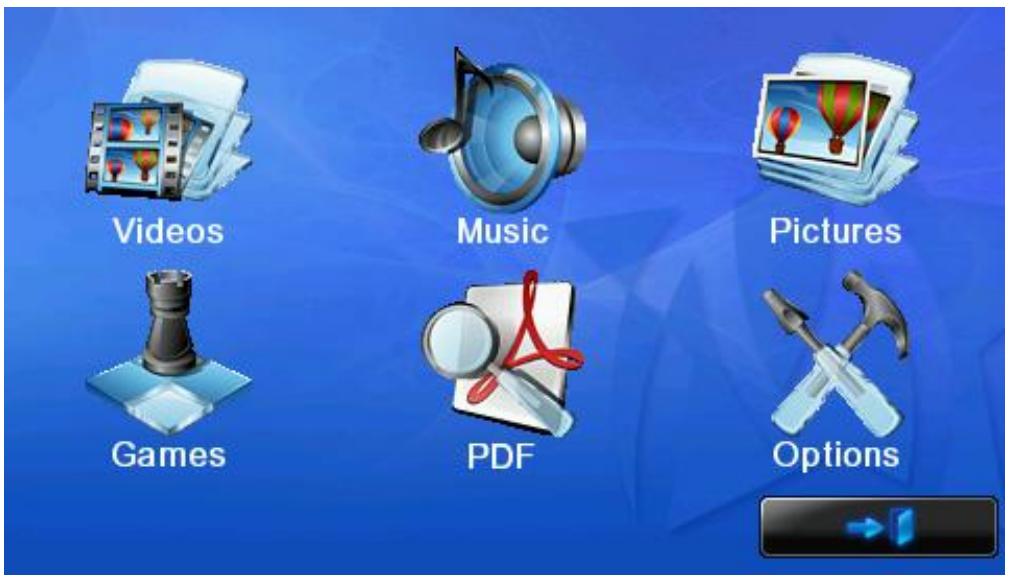
Main screen allows browsing either through Videos, Music, Pictures, PDF or Games by tapping the corresponding icons.
If song is already playing tapping on the Music icon will open currently playing song in the Song playing screen.
Video browser
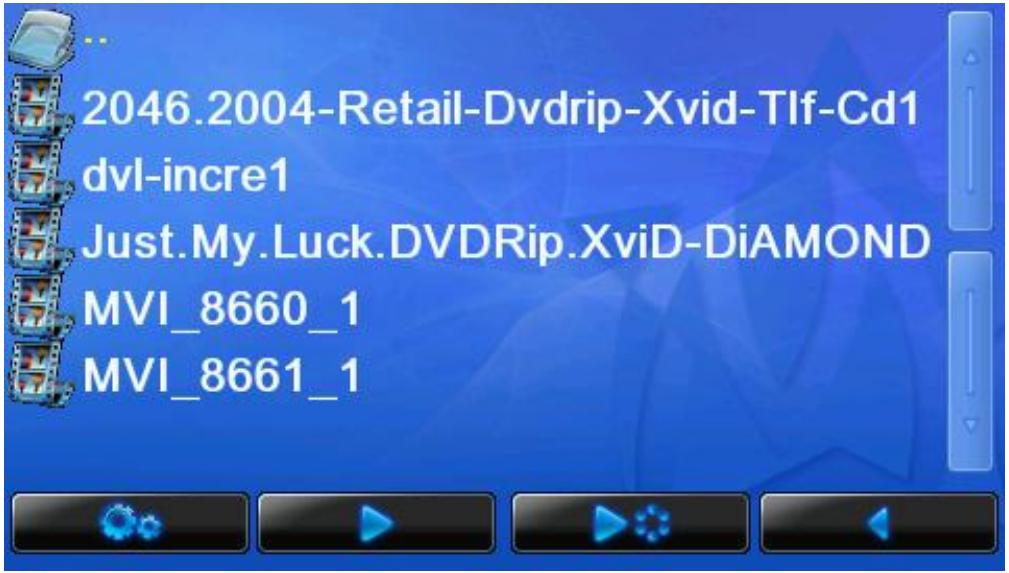
Video browser allows you to browse through your Video directory. To start the playback, select video by tapping on it and press "Play" or "PlayAll" button. To navigate across multiple video files press buttons with Up and Down arrows in the right section of the screen. To go to the Main screen, tap on the "Back" button.
Music browser
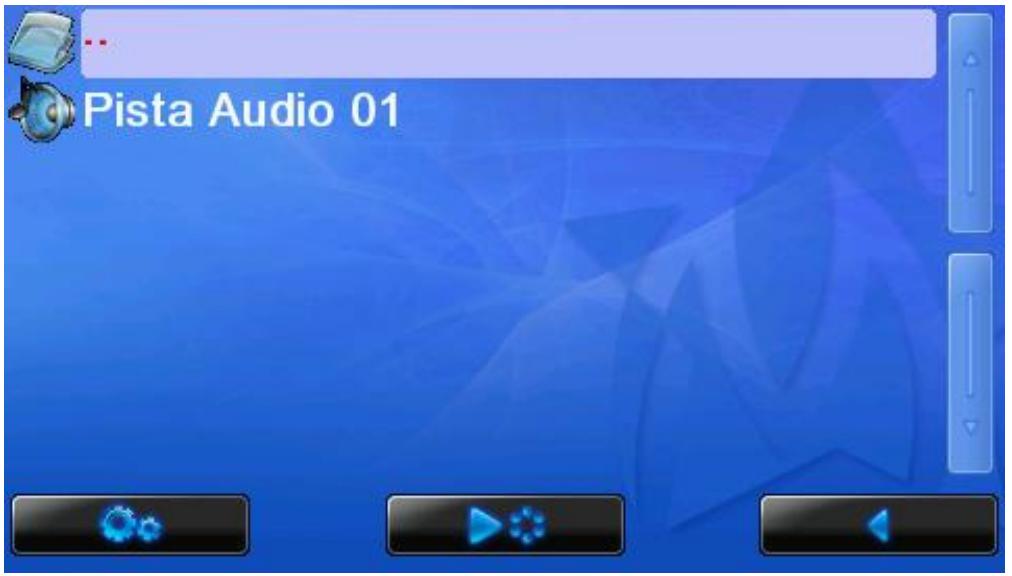
Music browser allows you to browse through your Audio directory and its subdirectories. As soon as the song is selected, a song playback screen will appear. Depending on the shuffle options songs either will be played in the order of appearance in the song browser or in a random sequence. When all songs in current directory have been played the audio playback will stop automatically. To go to the Main screen, tap on the "Back" button. "PlayAll" button will start playback of all songs in the current directory and all its subdirectories.
Picture browser
Picture browser allows you to browse through your Images directory and its subdirectories. As soon as a picture is selected, the picture view screen will appear. To go to the Main screen, tap on the "Back" button.
Depending on free space on your picture storage you may have 2 different picture browsers. styles. If free space is more than 1 MB than you will see the following picture:
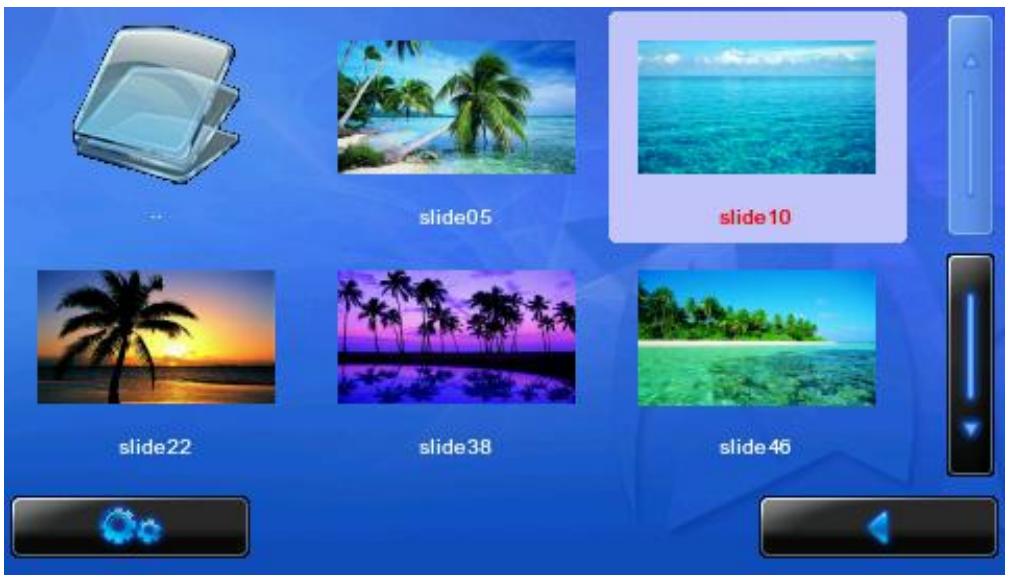
Please note! Some disk space will be used for thumbnail caching. If disk space is less than 1MB a default file browser style will be used:
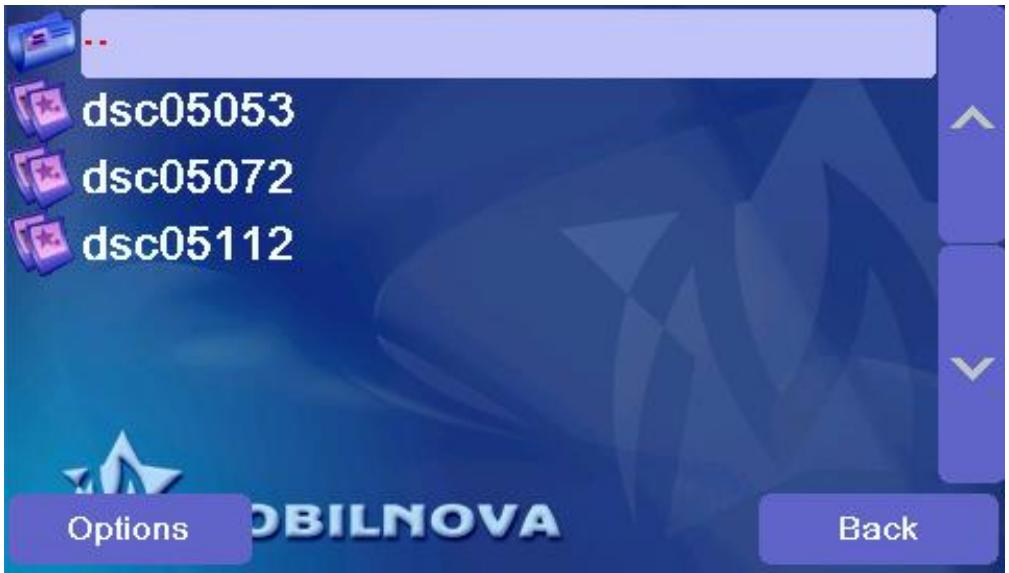
When you tap on any of the pictures, picture viewing screen will appear. Please refer to Pictures viewing on TomTom chapter of this document for more information.
PDF document browser
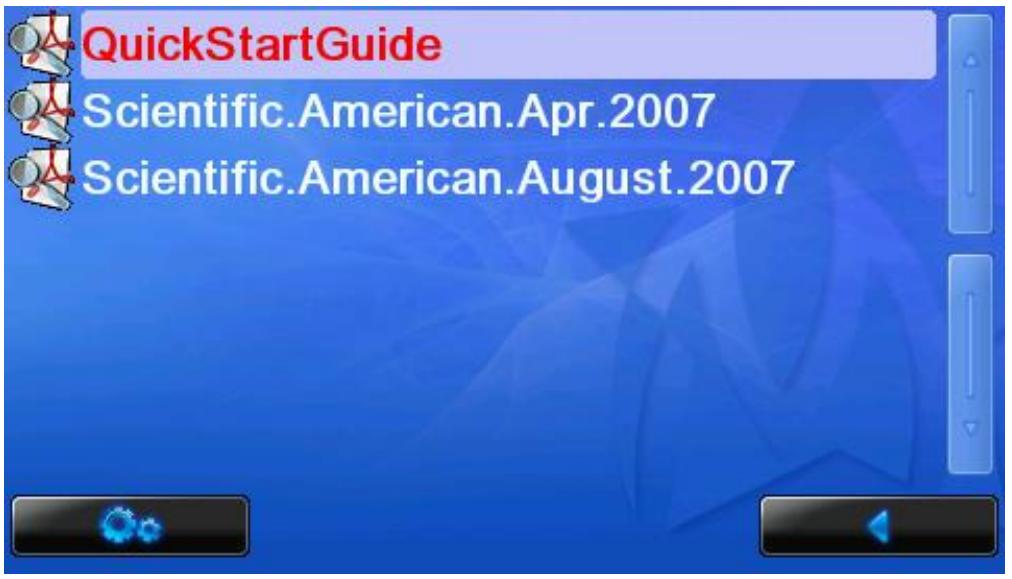
PDF document browser allows you to browse through your PDF directory and its subdirectories. As soon as a PDF files is selected, the PDF viewer will appear on the screen. To go to the Main screen, tap on the "Back" button.
Game Browser
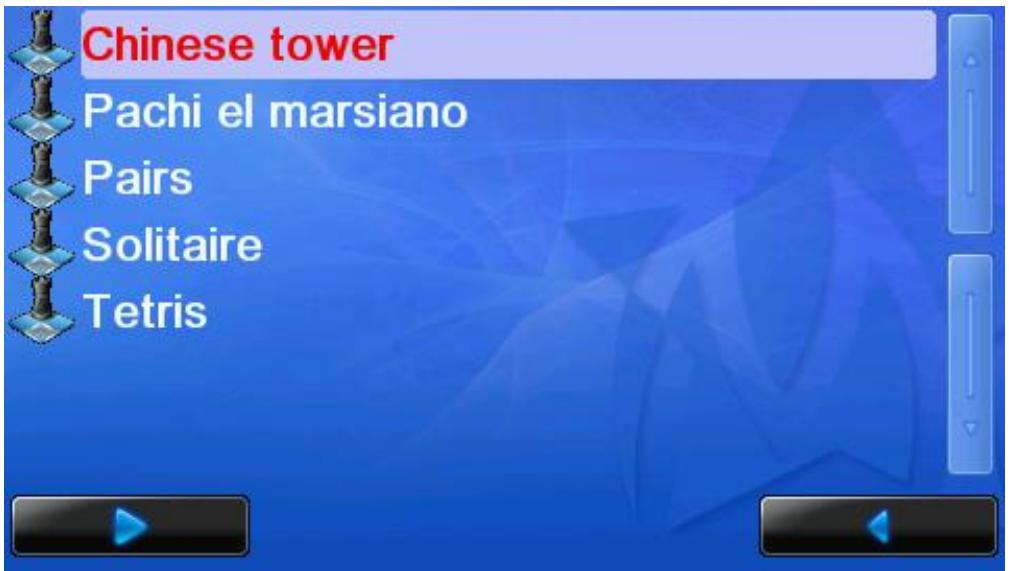
Game browser allows you to browse through your Games directory. To start a game, select the game and press Play button. To go to the Main screen, tap on the "Back" button.
Video playback on TomTom
Note that an average video takes about 5-8 seconds to start. After start the selected video should automatically appear on the screen of your TomTom.
While playing video you can perform following actions using On Screen Menu (OSD):
- Fast forward (F)
- Fast reverse (J)
- Stop and exit (I)
- Pause (G)
Volume adjustments (K, E)
Sound mute/un-mute (C)
Audio/Video synchronization adjustment (A) - Brightness adjustment (B)
- Contrast adjustment (D)
- Jump into any place in your video by taping on the progress bar (H).
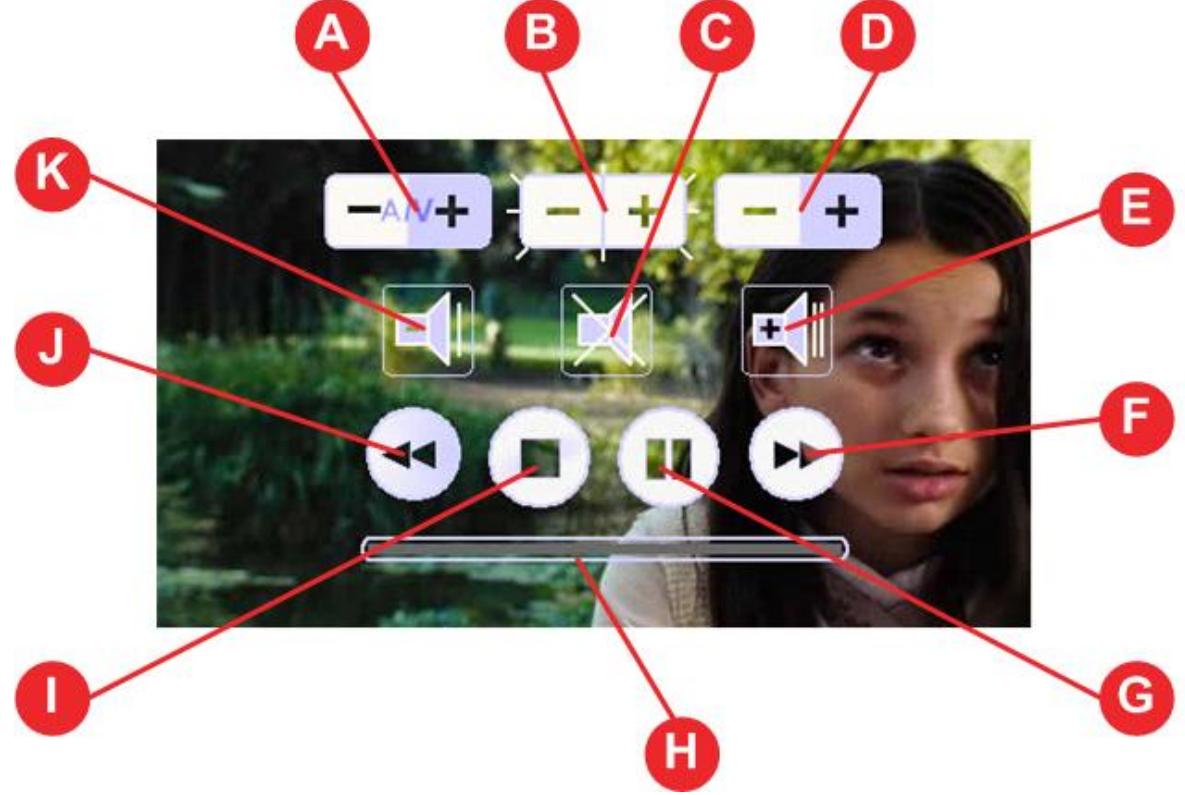
A/V, Brightness and Contrast controls work in the same way.
Tapping the "+" part of corresponding button increases the Audio/Video delay, brightness, contrast
Tapping the "-"part of corresponding button decreases the Audio/Video delay, brightness, contrast
Tapping and holding tapped one of these controls for more than 2 seconds resets its value to the default.
The OSD appears on the screen in a response to any touch. It will disappear after about 5 seconds of inactivity.
For safety reasons TomTom application is switched off. If you want to switch back to the navigation mode please press the STOP OSD button on the screen. Last playback position of each video is stored and restored automatically. Next time you start your video, it will be restarted from the position within the range of 30 seconds back from the last playback position.
Controlling your TomTom video player with remote control
RF remote control
This feature is available only for the models with the remote control:
Standard remote control - TomTom GO 500, 700, 710, and 910
Bluetooth remote control - TomTom GO 520, 720, and 920.
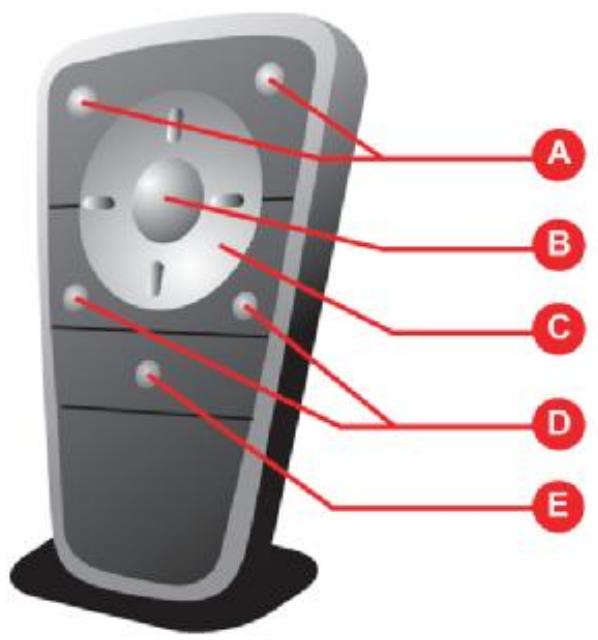
A. Volume adjustment
B. Pause/Resume playback
C.Left - Fast reverse
Right - Fast forward
Up - More brightness
Down - Less brightness
D. Audio/Video synchronization adjustment
E. Stop playback and exit.
Note that it's not possible to restore default brightness and Audio/Video synchronization values using the remote control. To do this, you should use the OSD and tap and hold the corresponding icon for more than 2 seconds.
Bluetooth remote control
TomTom Bluetooth remote control has a slightly different layout of controls; please refer to the legend of the old remote control:
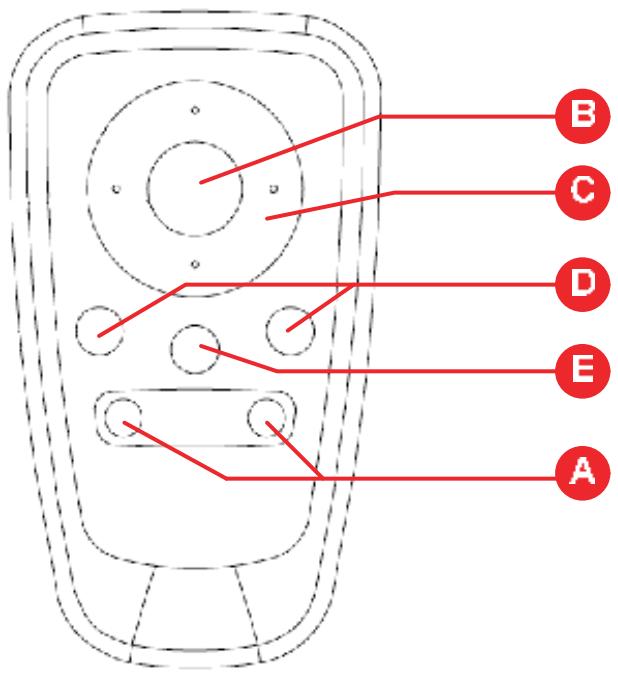
Please note that Bluetooth remote control connection is only possible when there are no other Bluetooth connections in TomTom navigation software prior to start of Media Center. This means that if you use hands-free or TomTom PLUS services via mobile phone, you will have to disconnect it before using the remote control with Media Center. You also should not use Bluetooth remote control with TomTom Navigation application before the start of Media Center.
Audio playback on TomTom
Audio playback screen
Audio playback starts as soon as you tap on any MP3 file in the Audio browser.
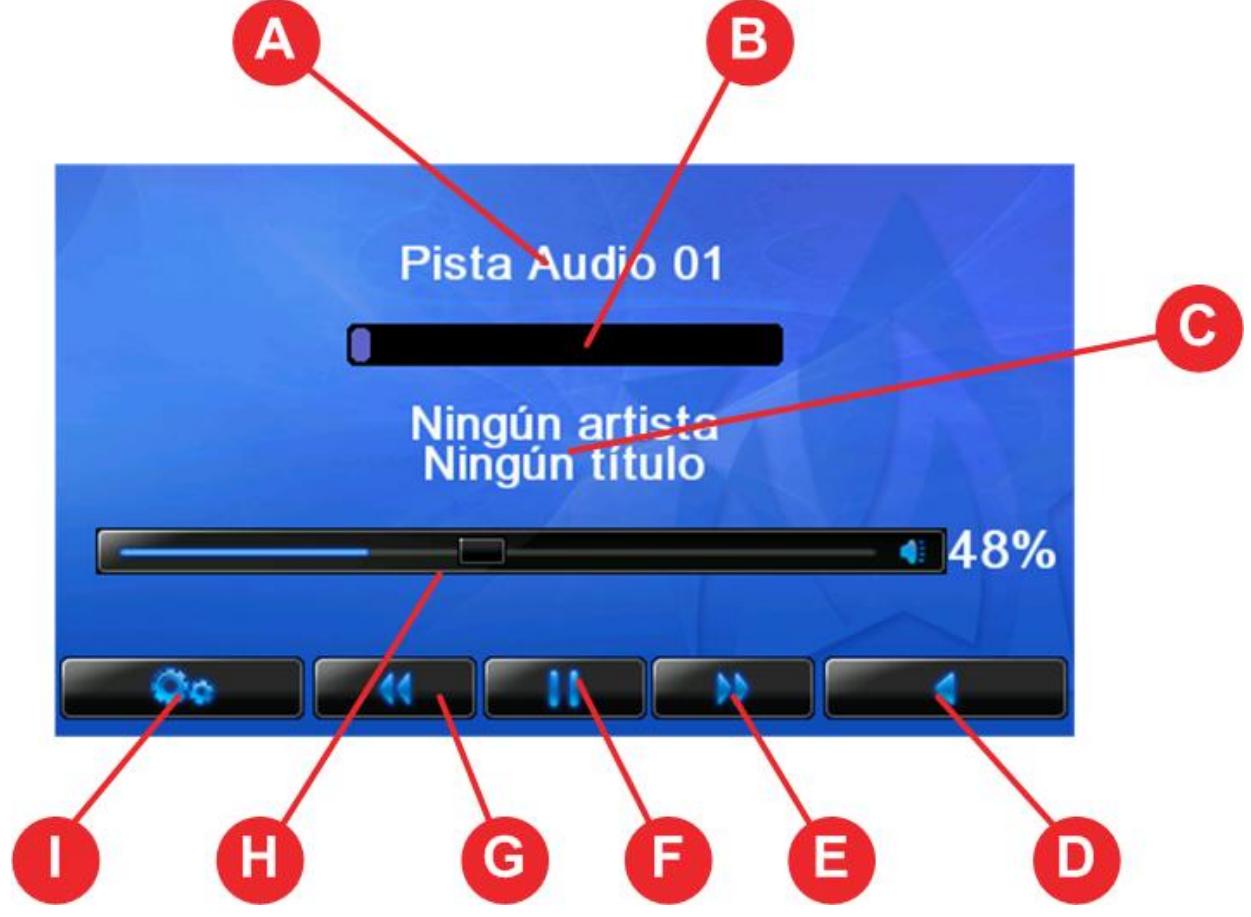
- Song name (A) as it appears in the ID3 tag or in case it is empty the name of the file
- Progress bar (B) – tapping on it should change the playback position to an approximately corresponding position on the progress bar. Note that in demo version playback time is limited and jumping over the limit will stop the music playback
- MP3 information (C) - album, artist, genre, if it is present in ID3 tag
- Back (D) - opens Song Browser in the last position
Next (E) - jumps to the next song - Pause/Play (F) - stop/continue playback
- Prev (G) – jumps to the previous song
Volume control (H) - allows to adjust volume level (works only in the Direct audio output mode) - Options (I) - opens Audio Options screen
Options
This screen appears when you tap Options in the Main Menu
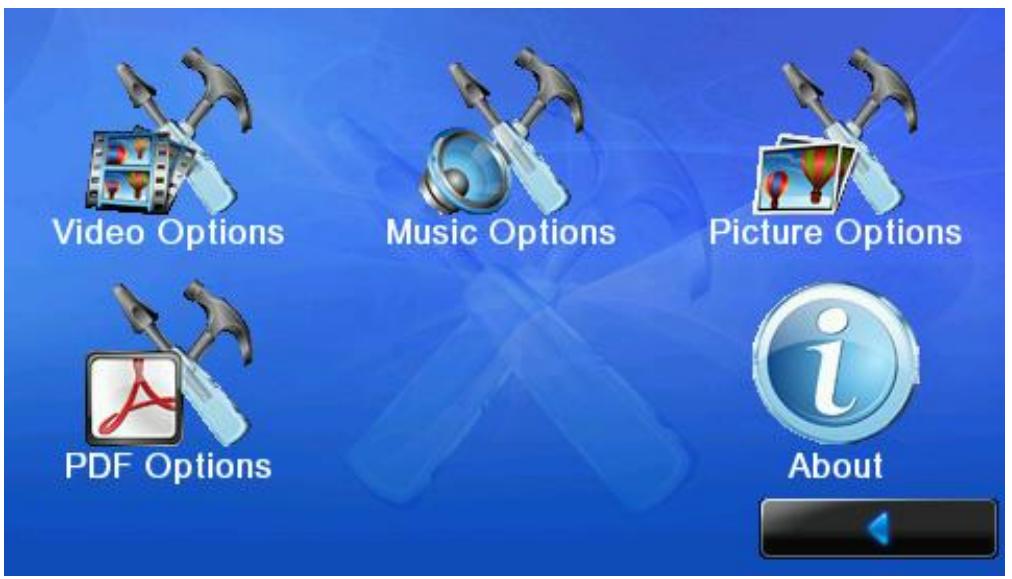
Tapping on the icons on this screen will open corresponding options screens see(
Video options screen
Video options screen could be activated by pressing the Options button in the Video browser or by selecting the Video options icon in the Options menu.
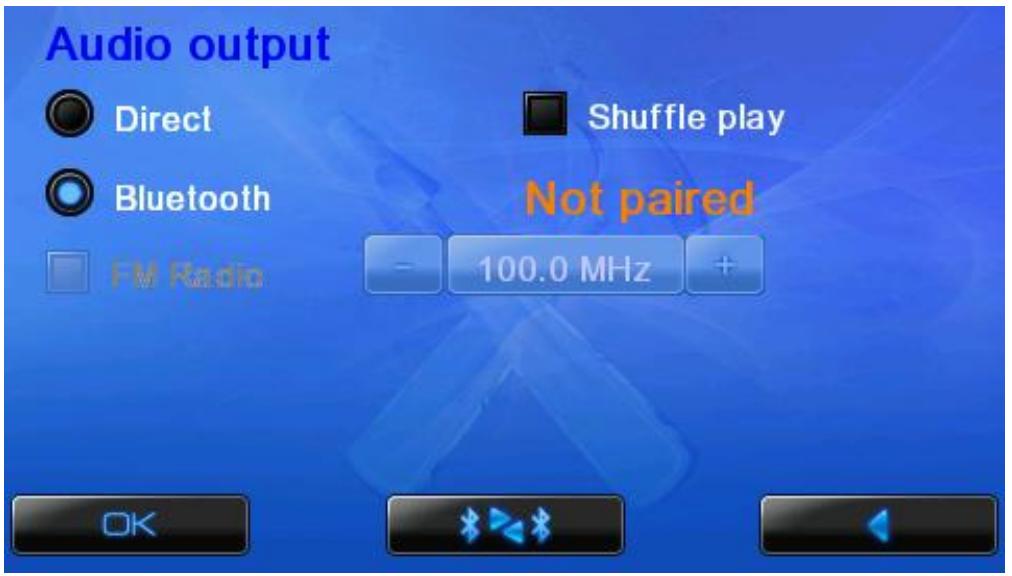
There are 2 audio output options while playing video:
Direct - audio output is done through the internal speaker. This is default and recommended mode. If also possible in this mode to use FM transmitter to play audio using a FM radio at the defined frequency.
Bluetooth - this feature allows using Bluetooth headset to play audio on TomTom models that provide Bluetooth support. Please refer to user manual of your TomTom device to find out whether it supports Bluetooth.
It is particularly interested for TomTom Rider owners because these devices do not have built in speaker.
In order to enable this option Bluetooth pairing procedure should be performed. For more details see Bluetooth headset pairing procedure.
Please note that Bluetooth audio output has lower quality than speaker audio output due to technical limitations imposed by Bluetooth standard.
Audio playback using a FM transmitter
This feature enables to play audio on your FM radio at the defined frequency on TomTom models that have FM transmitter installed. Please refer to user manual of your TomTom device to find out whether it supports FM transmitter.
Video should be encoded with Bluetooth audio quality otherwise audio output via Bluetooth will not be possible.
Audio
options
screen,
Picture
options
screen,
Video options or PDF options screen)
Video options screen
Video options screen could be activated by pressing the Options button in the Video browser or by selecting the Video options icon in the Options menu.
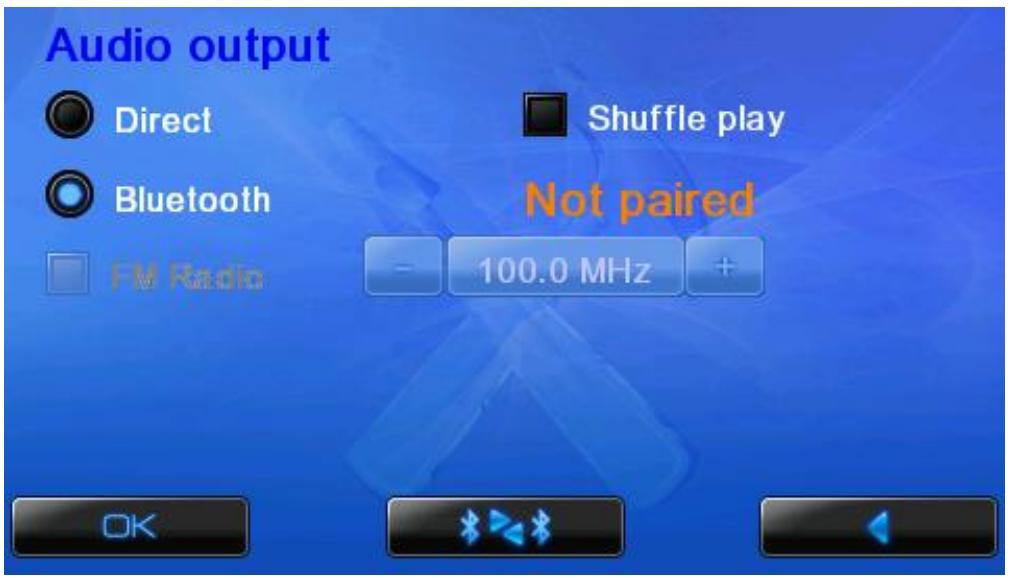
There are 2 audio output options while playing video:
Direct - audio output is done through the internal speaker. This is default and recommended mode. If also possible in this mode to use FM transmitter to play audio using a FM radio at the defined frequency.
Bluetooth - this feature allows using Bluetooth headset to play audio on TomTom models that provide Bluetooth support. Please refer to user manual of your TomTom device to find out whether it supports Bluetooth.
It is particularly interested for TomTom Rider owners because these devices do not have built in speaker.
In order to enable this option Bluetooth pairing procedure should be performed. For more details see Bluetooth headset pairing procedure.
Please note that Bluetooth audio output has lower quality than speaker audio output due to technical limitations imposed by Bluetooth standard.
Audio playback using a FM transmitter
This feature enables to play audio on your FM radio at the defined frequency on TomTom models that have FM transmitter installed. Please refer to user manual of your TomTom device to find out whether it supports FM transmitter.
Video should be encoded with Bluetooth audio quality otherwise audio output via Bluetooth will not be possible.
Audio options screen
Audio options could be activated by pressing Options button in audio browser or audio player or by selecting Audio options icon in the Options menu.
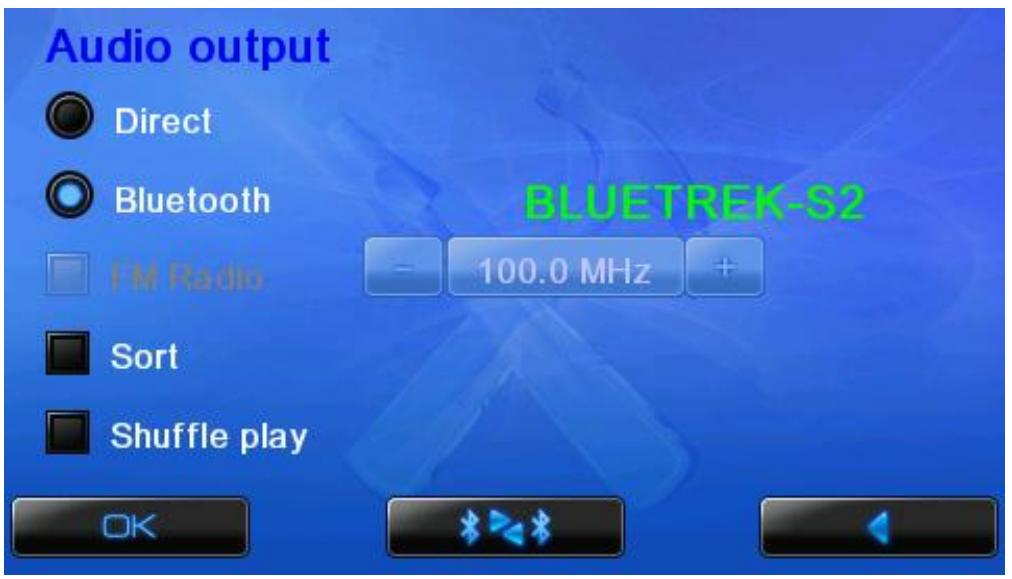
Audio output options
Direct - TomTom application will be stopped and audio output is done in the same way as during Video playback. This is default and recommended mode.
Change of the audio output mode might have the effect only after restarting Media Center.
Audio playback over a Bluetooth headset
This feature allows using Bluetooth headsets to play audio files on TomTom models that provide Bluetooth support. Please refer to user manual of your TomTom device to find out whether it supports Bluetooth.
It is particularly interesting for TomTom Rider owners because these devices do not have built-in speaker.
In order to enable this option a Bluetooth pairing procedure should be completed. For more details see Bluetooth headset pairing procedure.
Please note that Bluetooth audio output has lower quality than speaker audio output due to technical limitations imposed by Bluetooth standard.
Audio playback using a FM transmitter
This feature enables to play audio on your FM radio at a defined frequency. defined frequency on TomTom models that have FM transmitter installed. Please refer to user manual of your TomTom device to find out whether it supports FM transmitter.
Other options
Sort songs alphabetically: sorts/un-sorts songs in the current directory. Every time when this option is changed and saved (confirmed with "OK" button) a caching splash screen will appear.
Shuffle playback: plays song in a random sequence.
Tapping on "OK" button will save the settings.
Tapping on "Back" button will bring you back to the Song playback screen.
Volume control
Volume control depends on the Audio Output settings.
In "Direct" mode volume control can be used directly without changing TomTom Navigation application settings.
Picture options screen
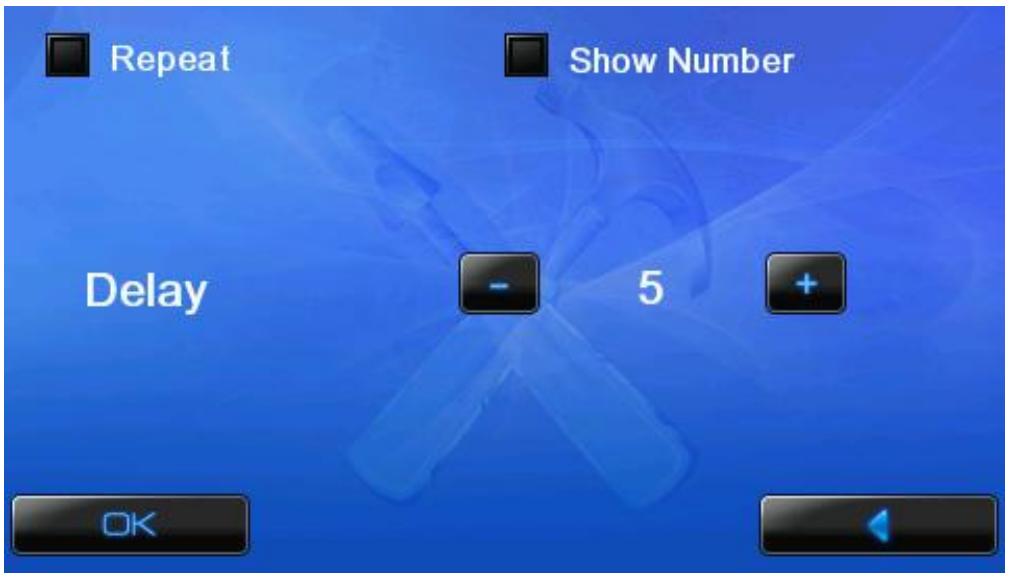
Picture options screen could be activated by pressing the Options button in the Picture browser screen or in the picture slideshow OSD menu or by selecting the Picture options icon in the Options menu.
There are following options available:
Repeat: in the slideshow mode will show pictures in the given folder in a cycle.
Show number: shows a picture number in the format n of total.
Delay: allows setting a delay for showing images in the slideshow mode.
PDF documents options screen
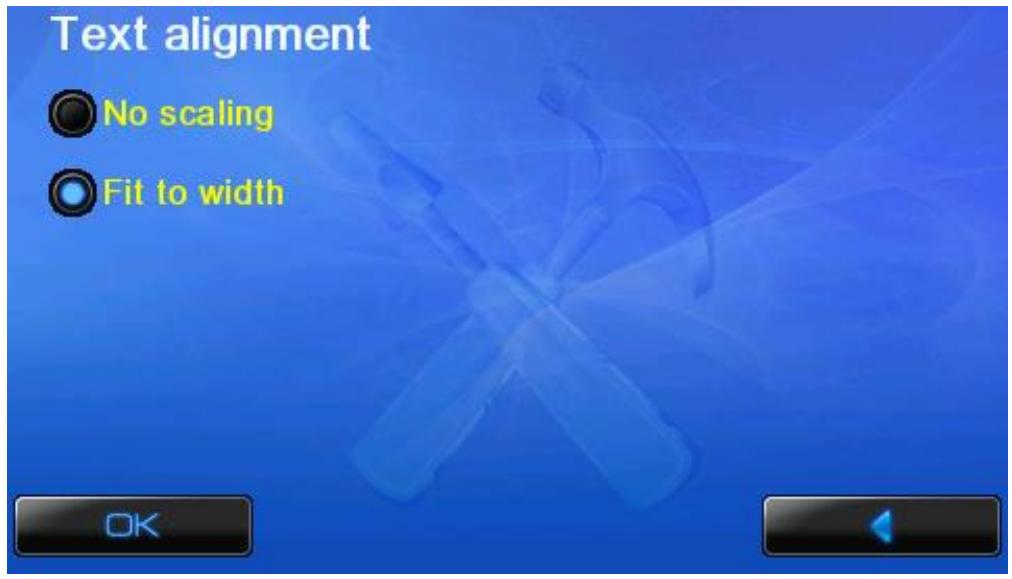
There are two options available:
- Fit to width: a PDF document will be scaled to fit your TomTom screen.
- No scaling: a PDF document will be displayed 'as is' (no scaling will be applied).
Bluetooth headset pairing procedure
Before using Bluetooth headset with Media Center it should be paired with your TomTom device. This procedure should be done even if you have already paired your TomTom and headset using TomTom navigation application.
Please follow the instructions below:
- Select Bluetooth in the Audio options and press either OK or Pair button.
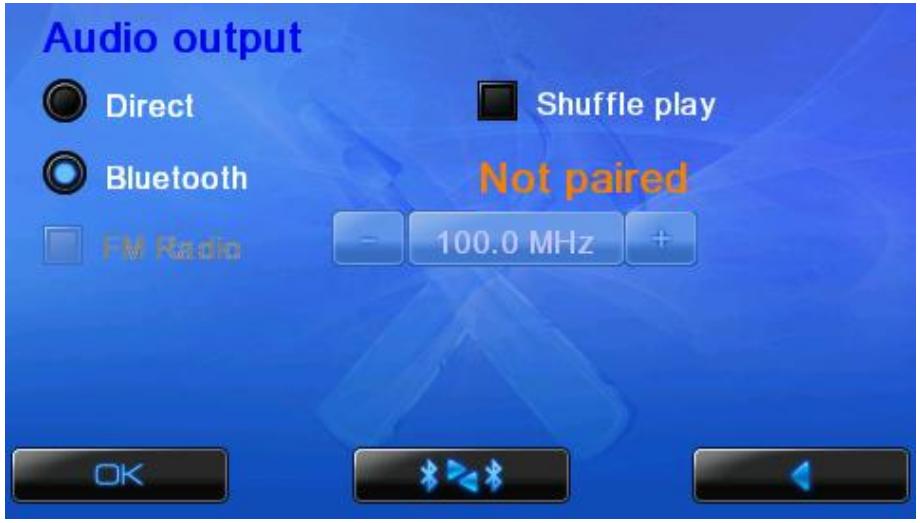
- The following message will appear:
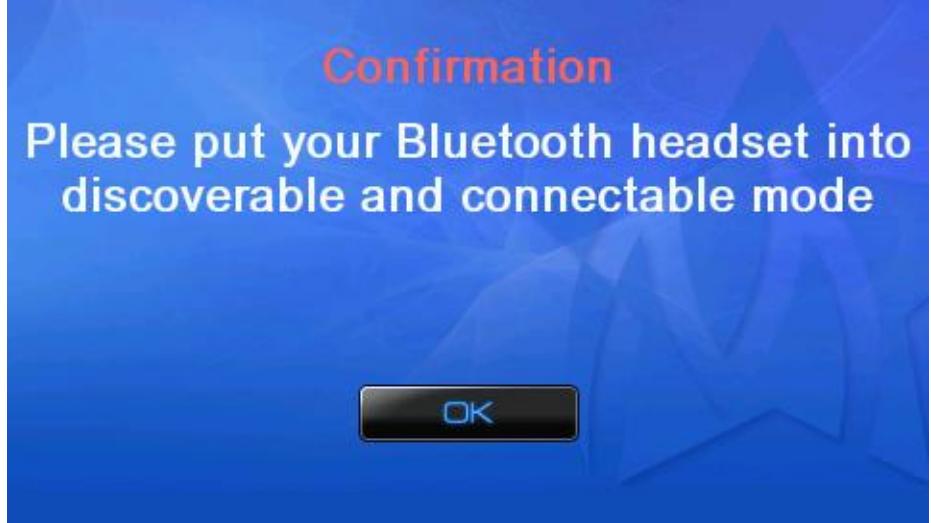
Usually pairing mode is activated by pressing and holding the power on/off button on your headset for 10-15 seconds. If you are not sure if you entered discoverable mode or not, refer to the user guide of your Bluetooth headset.
- By pressing OK button Bluetooth discovery procedure will start.
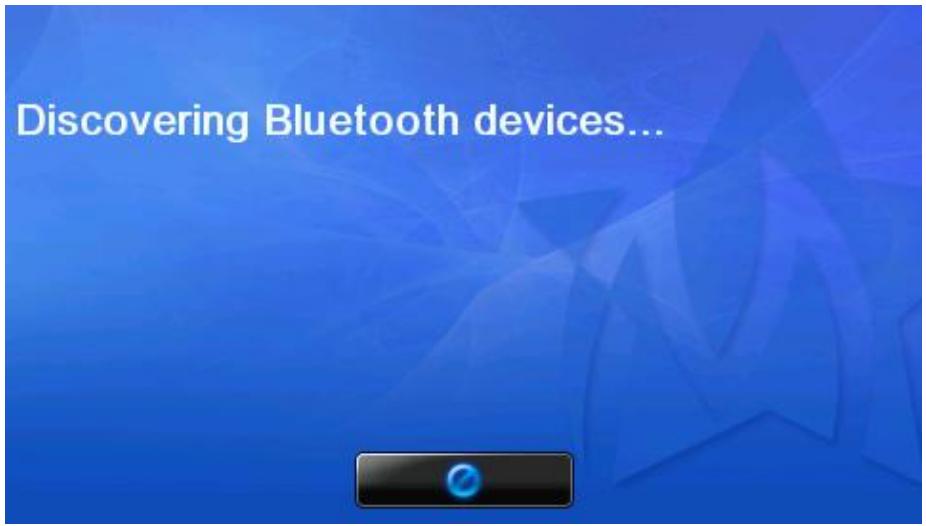
- After the discovery is finished, the list of the discovered devices will show up. If no devices are found please make sure that your headset is indeed in the discovererable mode.
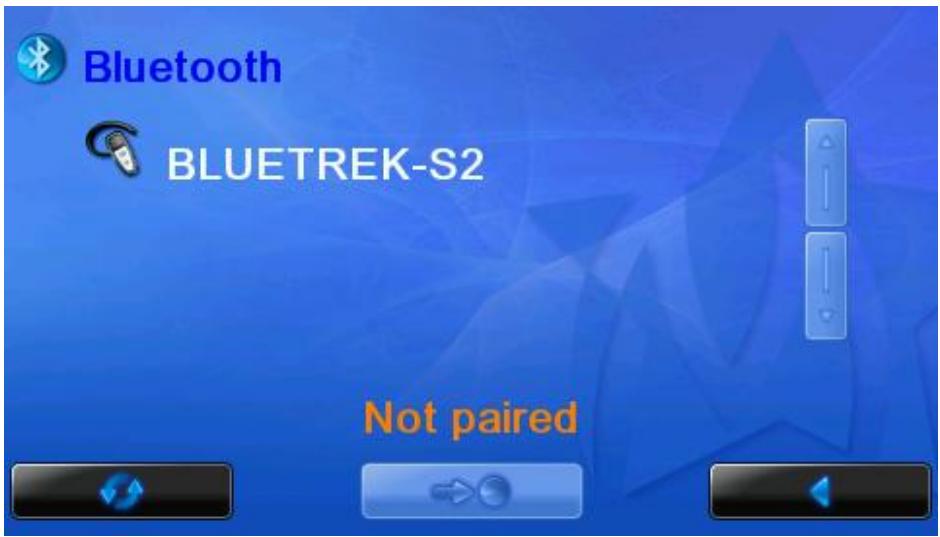
- Select the headset you are planning to use. Please note Media Center supports only Bluetooth headsets. The list with discovered devices will show all Bluetooth devices in the vicinity of your TomTom. Don't try to connect to your Bluetooth enabled mobile phone —, it won't work.
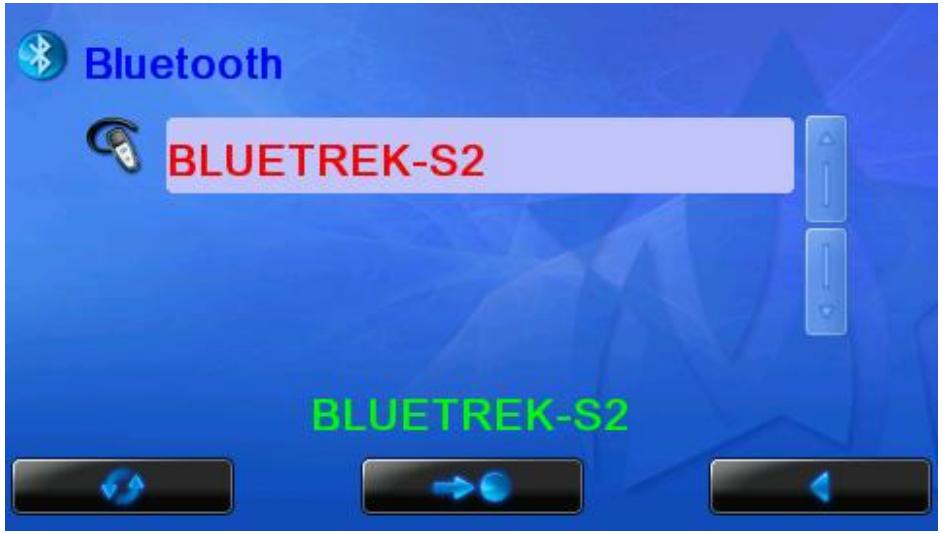
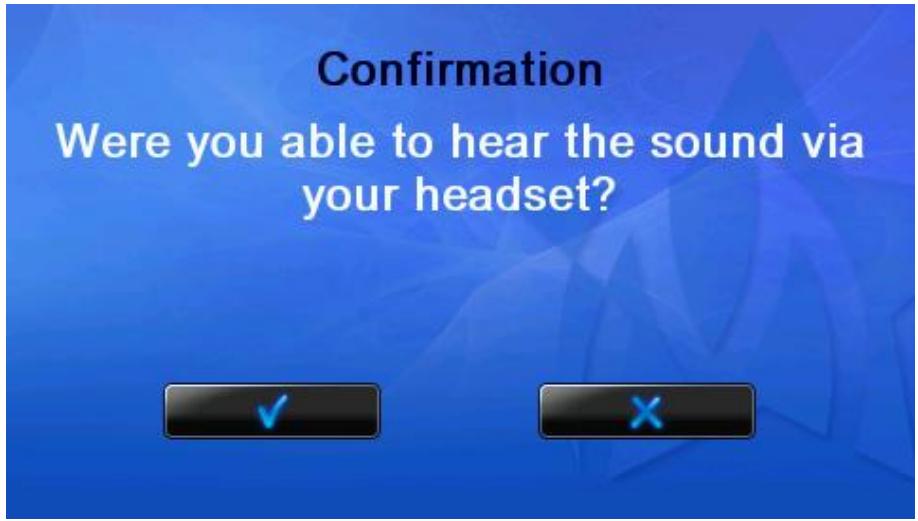
- After selecting the headset please press Connect button. After approximately 5-10 seconds you Bluetooth headset will start ringing like in a new incoming telephone call from the mobile phone. Press the "pick up/answer" button on the headset and you should hear our test sound.
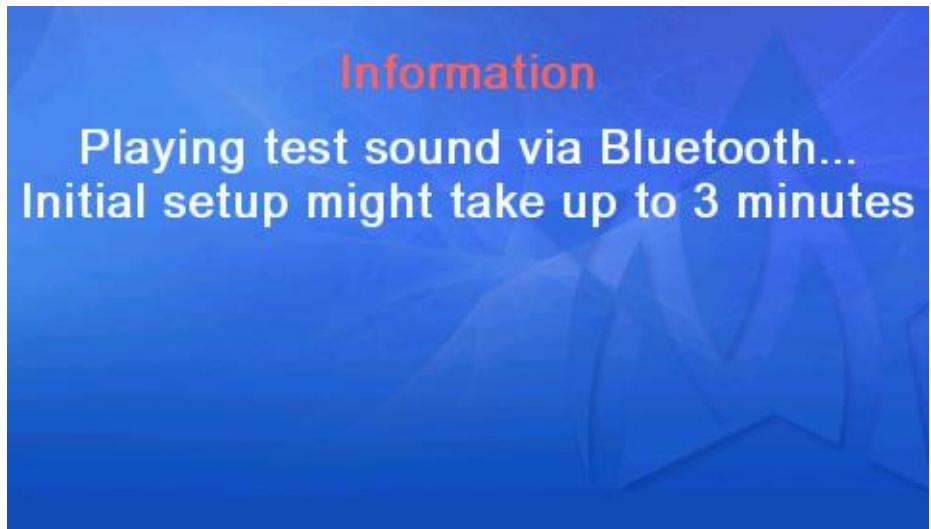
- If you can hear the test sound please answer Yes. Otherwise check all your settings again and try to reconnect to your headset.
Picture Viewing on TomTom
Picture viewing screen
Picture Viewing starts as soon as you tap on any image file in the Picture browser.
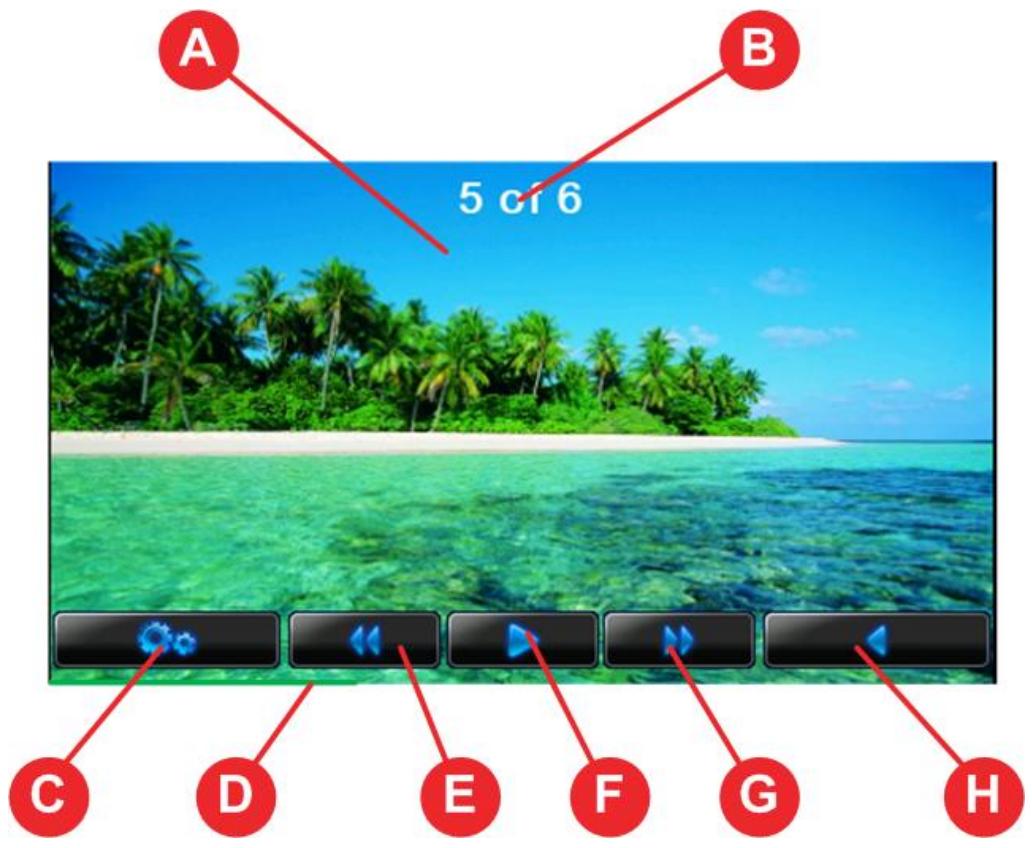
- Picture (A) - shows the currently selected picture in the picture browser
- Picture counter (B) - shows the number of pictures in the current folder
- Options (C) - opens Picture Options screen
- Progress bar (D) - shows the rendering progress of the next image
- Prev (E) - jumps to the previous image
- Pause/Play (F) - stop/continue slideshow
Next (G) - jumps to the next image - Back (H) - goes back to the last visited folder in the Picture Browser
Viewing PDF documents on TomTom
PDF viewing starts as soon as you tap on any PDF file in the PDF browser.
To navigate through the document, you can use a "flicking" finger motion on the screen of your TomTom device. To scroll down, touch the screen in any place, move the finger down and release your finger. For movement in any other direction, simply repeat the same operation but drag the finger in the direction you need.
If you tap the screen and release it without the movement, the following on-screen menu display will appear:
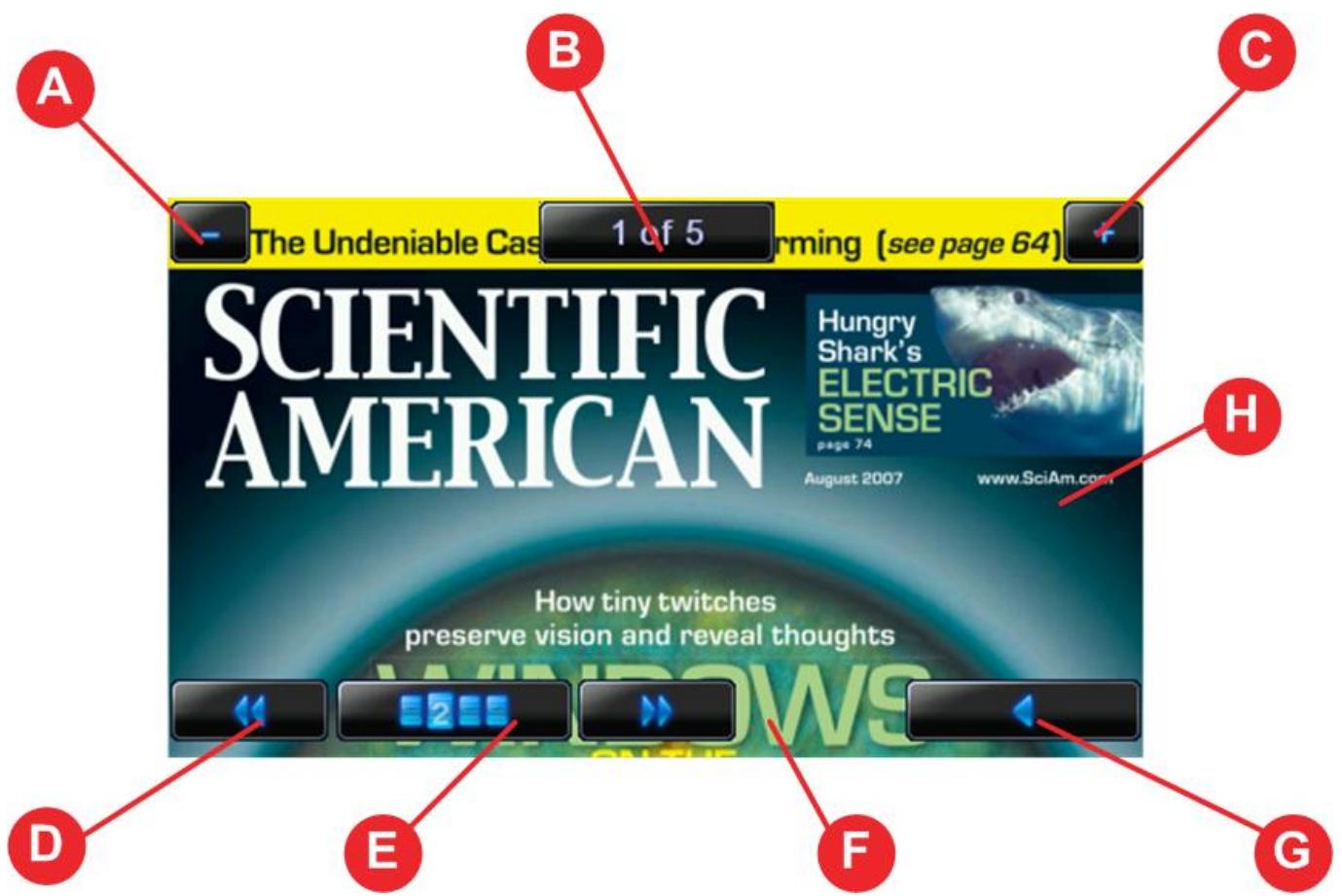
Following functions are available while the menu is active:
- Zoom in (C)
- Page counter (B) - opens page selection dialog
- Zoom out (A)
- Prev (D) - jumps to the previous page
Page N (E) - opens page selection dialog
Next (F) - jumps to the next page - Close (G) - goes back to the last visited folder in the PDF Browser
- Current page (H) - shows part of the PDF page (use your finger to navigate through page)
The menu screen will automatically disappear after 3 seconds or after you tap the screen in any place not occupied by any menu buttons.
Page selection dialog
To open this dialog, tap Page N button or page counter in the PDF viewer on-screen menu.
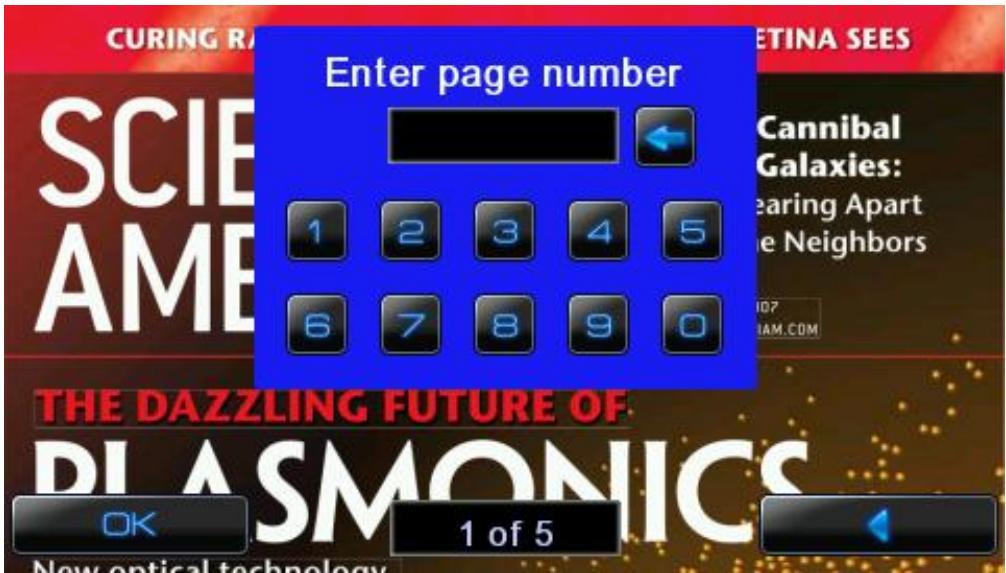
Type in the desired page and press OK button. To correct last entered digit, press <<- button To cancel the action, press Back button
Playing Games on TomTom
Since version 4.0 Media Center includes several free games from an external vendor www.navigadgets.com.
Sample screen shots of provided games:
Chinese tower:
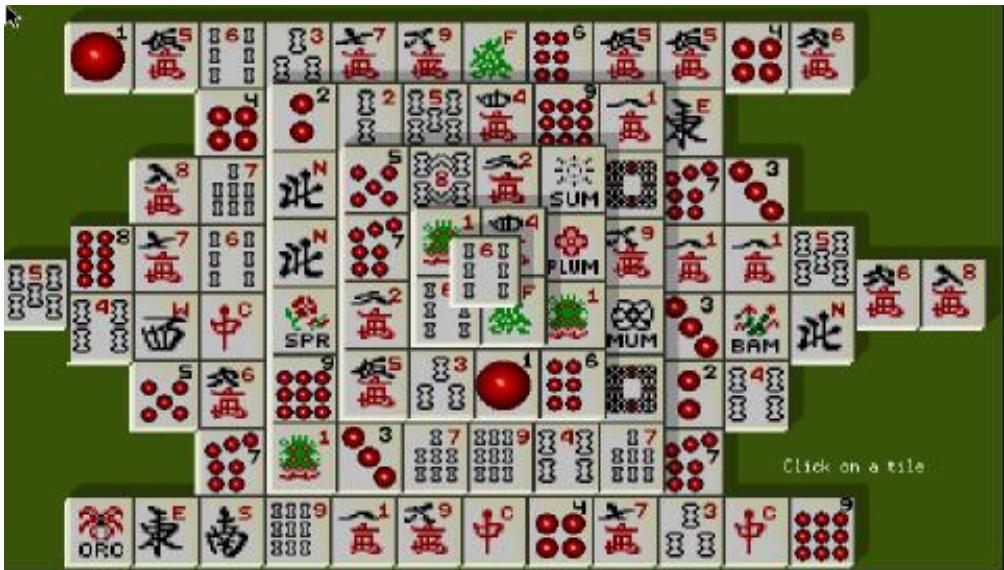
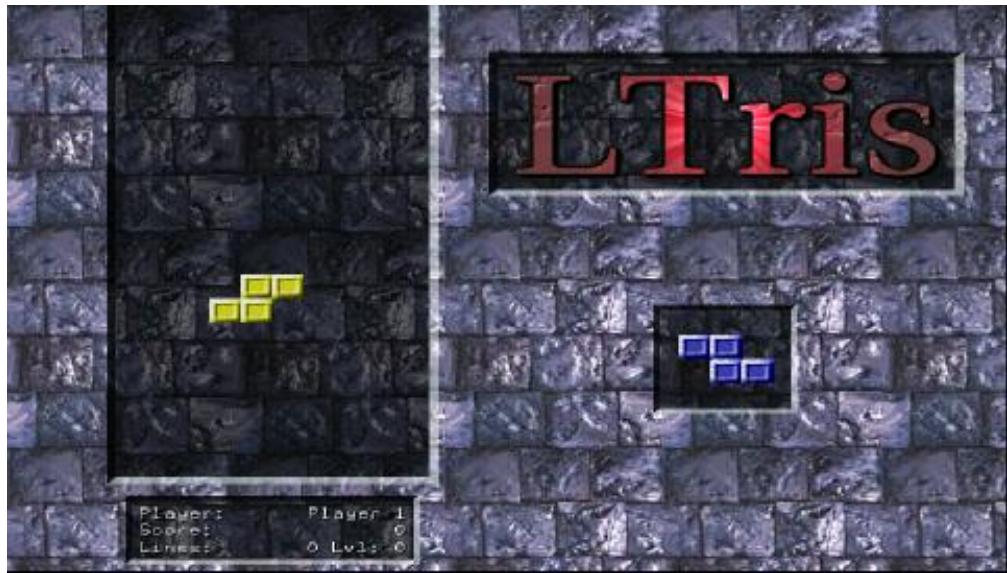
Tetris:
Commercial version of game pack includes more than 20 games and can be purchased at www.navigadgets.com.
Starting a game
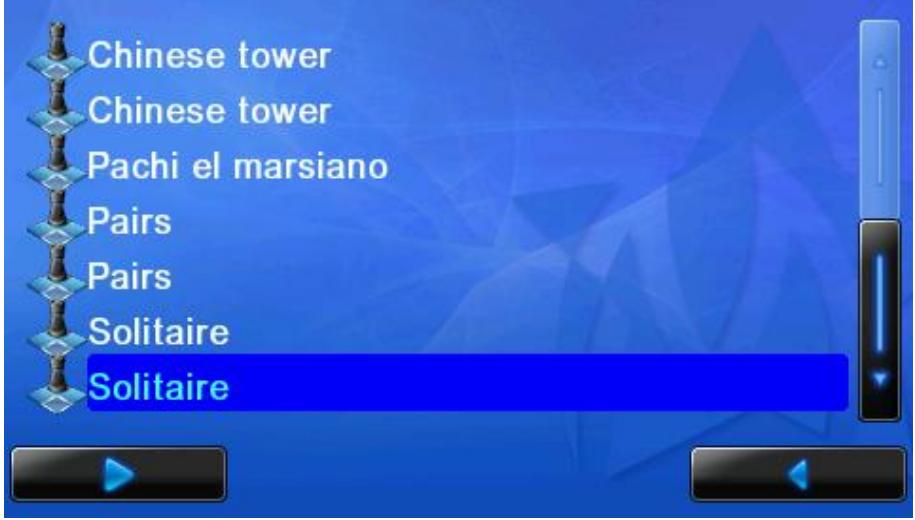
- Select a game from the Game Browser
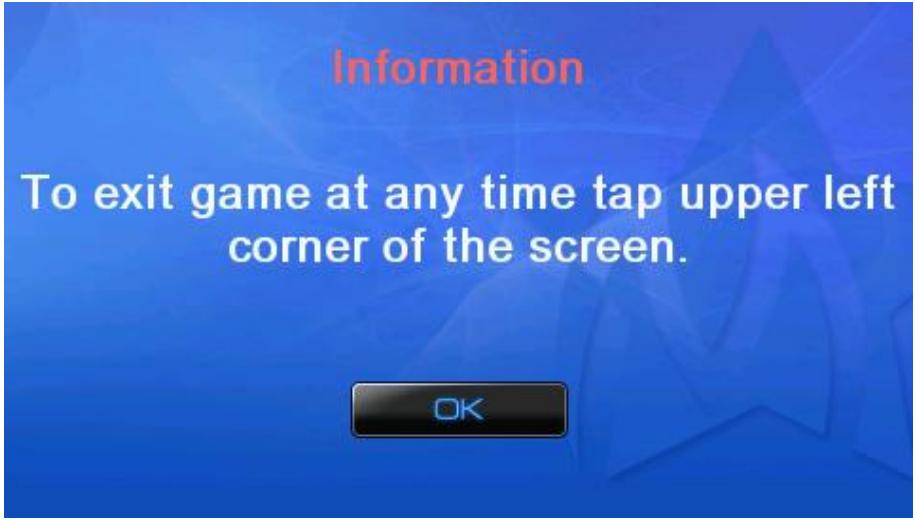
- Follow the instructions on the screen
- If the game requires Keyboard or Joystick please attach it using Navigadgets's USB cable for TomTom. The cable could be purchased from www.navigadgets.com.
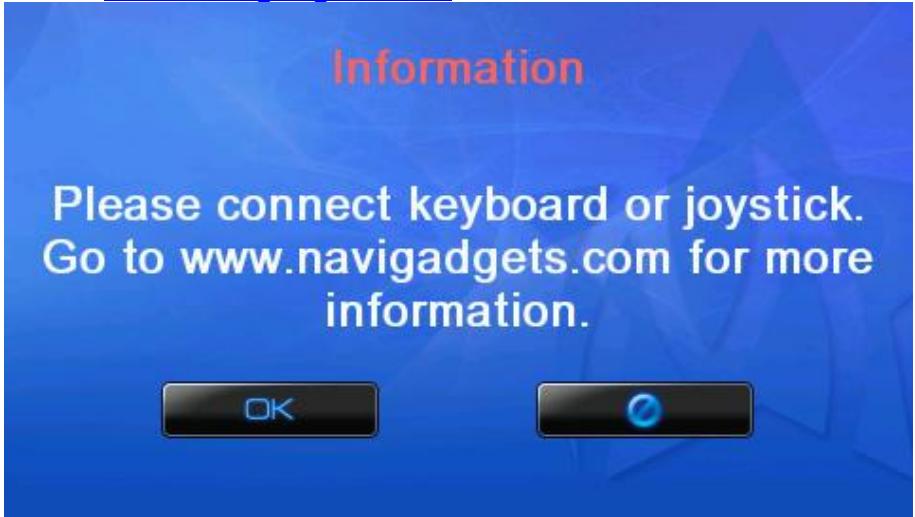
- After that the game shout start and you should be able to play it.
Purchasing
The easiest way to purchase our software is to click on the Purchase button from Mobilnova Video Converter application. You will be automatically forwarded to our website and the correct data (your TomTom Device ID, serial number, and TomTom model) will be filled in the online order from for you.
Alternatively, you can get these data following a simple procedure below and enter them at our web site manually, (www.mobilnova.com).
- Start Mobilnova Video Converter and go to the Tools tab.
- Click on "Detect TomTom" button and information screen will pop up.
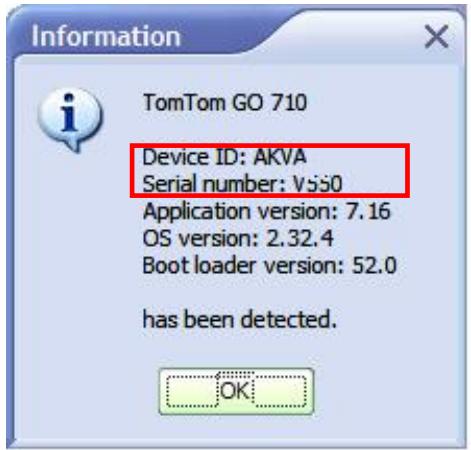
- At the MobilNova website you can select one of the payment options. After payment is made and confirmed you will receive an email with the link to an installation package that contains an unrestricted version of the video player and converter for your TomTom device. This installation package works as a patch over the demo version. This means you should not uninstall demo version. Just click on the executable and it will install the required updates for you.
- After the unrestricted Mobilnova Video Converter has been successfully installed, you will need to update the video player on your TomTom device. To do this, connect your TomTom device to your PC and start Mobilnova Video Converter for TomTom. Navigate to Tools tab and click on "Install media software".
Now your unrestricted video player and Mobilnova Video Converter for TomTom are ready to use.
Troubleshooting
If you question is not listed in this section please visit our forum at http://mobilnova.3.forumer.com/
| Cannot find the device | Make sure that TomTom is attached to your PC or memory card is inserted into your SD card reader. |
| Videos are converted but my TomTom does not play them | If you have TomTom GO, GO 300/500/700, RIDER or ONE: Check if you have upgraded the firmware. Mobil-nova Media Center supports TomTom firmware 6.5 and higher. If you have older firmware, please visit www.tomtom.com/support for an update. GO 510/710/910 and One New Edition are already delivered with compatible firmware, please contact our customer support. Try to check your TomTom drive for errors using Windows tools. |
| Subtitles are not encoded | Check that subtitle file name is the same as video file name. DVD subtitles (.idx + .sub) are not supported directly. You have to convert them in to .srt or .sub any other format. |
| Audio and video are de-synchronized. | 1. Try to adjust the synchronization with OSD menu but- ton, refer to Video playback on TomTom section of this document. 2. Try to reduce the quality of the video to the lower value and the video bitrate in the converter. 3. Try to adjust playback parameters in the mplayer config file located in following directory: "C:\Program Files\TomTom Media Center\Media\etc\dmpler\dmpler.conf" (don't forget to put it back to Media/etc/mplayer directory on your TomTom) - Experiment with different values for autosync autosync = 30 (try to decrease this value) - Your SD card is to slow. Try cache = 8192 Use faster SD card. |
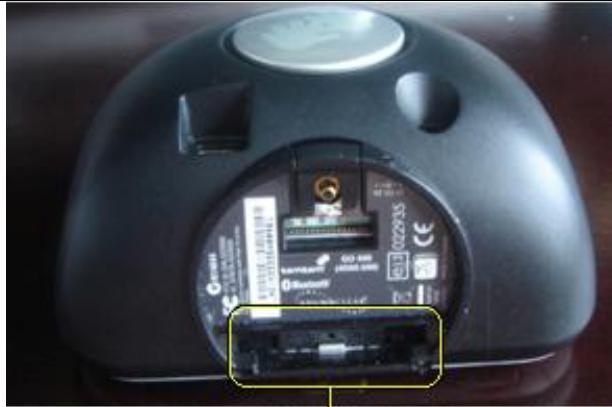
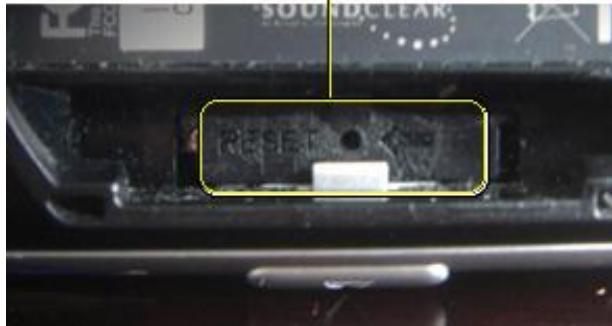
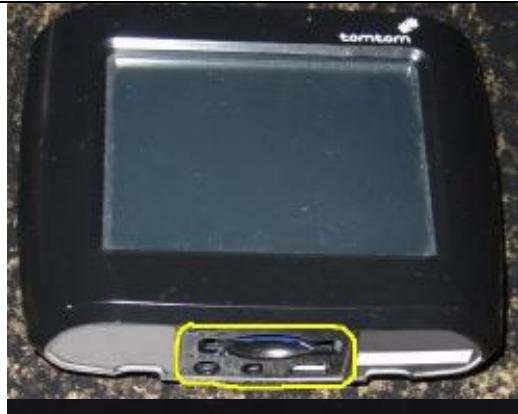
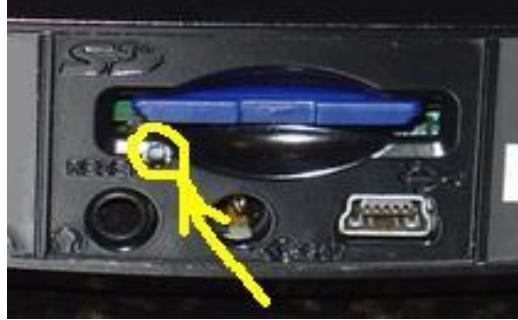
My TomTom is suspending and does not respond to power button presses.
Take a papereclip or pin and push the reset button on the bottom of the TomTom. This will not affect your maps, navigation software, settings or video files.
Video playback is jerky or choppy
- Use a faster SD-memory card. Older cards may have insufficient data throughput rates and can't keep up with the pace of the video. We recommend at least 20x speed (up to 3 MB per second read/write)
- If you have a TomTom Classic you may experience less fluent video then on the later models. This is because the TomTom GO Classic has a slower processor
- Reduce Bitrate parameter in Mobilnova Video Converter and re-convert your videos. You can use Test mode conversion to quickly convert a small piece of your video and preview it on your TomTom device.
I have installed the registered copy. But my TomTom closes down after 2-3 minutes of playing and starts again in navigation-mode.
Un-registered version has 2 minutes playback limitation. Probably you managed to copy demo version to your TomTom.
Solutions:
- Make sure you're using the same TomTom device as you registered for and connected to your PC. Each player is locked only to one TomTom device.
- Run Mobilnova Video Converter and check if it does not show the message that it is not registered and if it does not, proceed with the step 8
- If it shows the 'not registered' message, then
- Uninstall everything.
- Install demo version.
- Install registered version.
- Go to step 2, if error occurs contact us
| 8. If Mobilnova Video Converter shows 'You have old media software version', - install proposed new version 9. If Mobilnova Video Converter does not show message above, go to 'Tools' tab sheet and press 'Install media software button' 10. Try to install some videos and run the updated media player to see if problem persists 11. If you still have problem, please contact us. | |
| I'm encoding videos with several audio tracks and several subtitles, but by default I'm getting English sound and English subtitles. Is it possible to select another language? | Yes, this is possible. Please refer to the Subtitles chapter Note: the subtitles file should be named exactly the same as video file, but with .srt at the end instead of .avi |
| The player for TomTom plays cyclically the file. At the end of the file it restarts from the beginning. Is it possible to change this? | Yes, it is possible, but not recommended. Cyclic playback of video is the default behaviour. Go to the directory where you installed Media Center, then go to Media\etc\mplayer subdirectory. By default this is "C:\Program Files\TomTom Media Center\Media\etc\mplayer"Edit the file mplayer.confAt the very bottom of this file you will find line loop = 0Delete this line and the player will exit automatically after the video finishes.After that you have to transfer changes to your TomTom by pressing 'Install media software' button on 'Tools' tab sheet. It will complain that you already have latest version, but ignore it and just press yes to re-install the software. |
| Is it possible to use the TomTom's earphones or docking station with your player? | Yes, it's possible. The output device is automatically detected (Plug and Play) It has been tested on the following models: ONE, GO 710, GO910 and GO 720, GO 920. |
| DVD is not converted | Refer to the Converting DVD chapter |
| Bluetooth Remote control is not working | Make sure there were no Bluetooth connections prior to the start of Mobilnova Media Center. You need to disconnect your mobile phone and you should not use TomTom Bluetooth remote control with TomTom navigation. |

- Mobilnova Media Center for TomTom
- MOBILNOVA
- Mobilnova Media Center for TomTom. User Manual.
- Options 36
- Quick Start Guide for Mobilnova Media Center for TomTom
- Media player requirements:
- Video converter requirements:
- Installation of Mobilnova Video Converter on your PC
- Installation of Media Center on your TomTom
- Un-installation and Reinstallation
- Video Content Conversion
- Converting video files (DivX, XviD, etc)
- Start Mobilnova Video Converter for TomTom The following window should appear on the screen:
- Select a video file by clicking "Open" button
- Set conversion parameters
- Quality
- Two pass
- Video quality
- Audio quality
- Crop videos
- Include Subtitles
- Test Conversion
- Logging
- Perform the conversion
- Install needed videos on your TomTom
- Converting DVD
- Subtitles and audio tracks
- Installing audio, image and PDF files on your TomTom
- Installing and usage of external SD card
- Extras
- Mobilnova Media Center Application on TomTom
- Main screen
- Video browser
- Music browser
- Picture browser
- PDF document browser
- Game Browser
- Video playback on TomTom
- Controlling your TomTom video player with remote control
- RF remote control
- Bluetooth remote control
- Audio playback on TomTom
- Audio playback screen
- Options
- Video options screen
- Audio playback using a FM transmitter
- Audio options screen
- Audio output options
- Audio playback over a Bluetooth headset
- Other options
- Volume control
- Picture options screen
- PDF documents options screen
- Bluetooth headset pairing procedure
- Picture Viewing on TomTom
- Picture viewing screen
- Viewing PDF documents on TomTom
- Page selection dialog
- Playing Games on TomTom
- Starting a game
- Purchasing
- Troubleshooting
- Solutions:
Brand : TOMTOM
Model : MOBILNOVA MEDIA CENTER
Category : GPS Navigation System