
21PT1356 - TV PHILIPS - Free user manual and instructions
Find the device manual for free 21PT1356 PHILIPS in PDF.


| Product type | 21-inch CRT TV |
| Brand | PHILIPS |
| Model | 21PT1356 |
| Screen size | 21 inches (diagonal) |
| Power supply | 220-240 V, 50 Hz |
| Power consumption | Approximately 80 W (standby < 3 W) |
| Color system | PAL/SECAM (multistandard) |
| Connectivity | SCART socket (rear), front AV sockets (depending on version) |
| Teletext | Yes (depending on version) |
| Sleep timer | 0 to 240 minutes |
| Remote control | Yes, with included R6 batteries |
| Picture presets | Intense, Natural, Soft, Multimedia, Personal |
| Sound presets | Speech, Music, Theater |
| Program sorting | Automatic and manual |
| Approximate dimensions (WxHxD) | 500 x 420 x 450 mm |
| Approximate weight | 20 kg |
| Operating temperature | 5 °C to 35 °C |
| Maintenance and cleaning | Clean with a soft, dry cloth, do not use harsh cleaning agents |
| Safety | Do not expose to heat, moisture, or water splashes |
Frequently Asked Questions - 21PT1356 PHILIPS
User questions about 21PT1356 PHILIPS
0 question about this device. Answer the ones you know or ask your own.
Ask a new question about this device
Download the instructions for your TV in PDF format for free! Find your manual 21PT1356 - PHILIPS and take your electronic device back in hand. On this page are published all the documents necessary for the use of your device. 21PT1356 by PHILIPS.
USER MANUAL 21PT1356 PHILIPS
GB Please note the reference numbers for your TV set located on the packaging or on the back of the set.
Installing your television set
1
natural_image
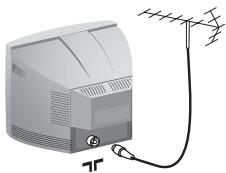
Illustration of a desktop computer with antenna and cable (no text or symbols)Insert the aerial plug into the ☐ socket at the rear of the set.
2
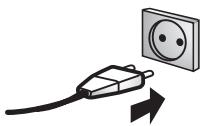
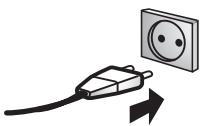
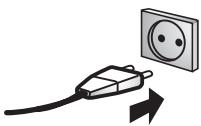
Insert the mains plug into a wall socket (220-240 V / 50 Hz).
3
natural_image
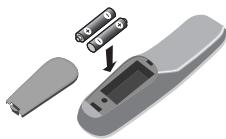
3D illustration of a remote control device with battery pack and open lid (no text or symbols)Insert the two R6-type batteries (supplied) making sure that they are the right way round.
4
natural_image
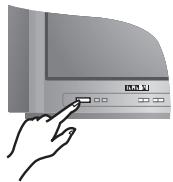
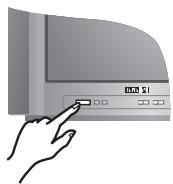
Illustration of a hand pressing a button on a computer monitor (no text or symbols visible)To switch on the set, press the on/off key. If the television remains in standby mode, press P ⊕ on the remote control.
Quick installation
When you turn on the TV set for the first time, a menu is displayed on screen. This menu prompts you to select the country:
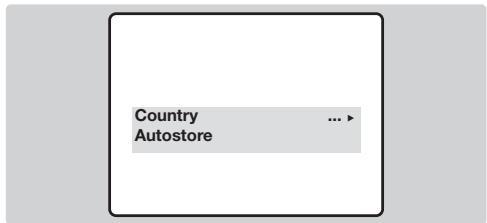
If the menu is not displayed, press and hold down the △- and △+ keys on the TV set for 5 seconds to display the menu.
① Use the ◀ keys on the remote control to select your country and validate with √.

If your country does not appear in the list, select choice “...”
② The search starts automatically. All the available TV programmes will be stored. This operation takes a few minutes. The display shows the progress of the search and the number of programs found. At the end of the search, the menu disappears.
To exit or interrupt the search, press MENU. If no programme is found, see Tips chapter at the end of the instruction for use.
③ The programmes found are arranged by number 99, 98, 97, ...etc. You may now renumber these programmes as you wish. See Program sort below.
Program sort
1 Press key Ⓜ.The Main menu is displayed on the screen.
flowchart
graph TD
    A["Manual Store"] --> B["System"]
    A --> C["Search"]
    B --> D["224 MHz"]
    C --> D
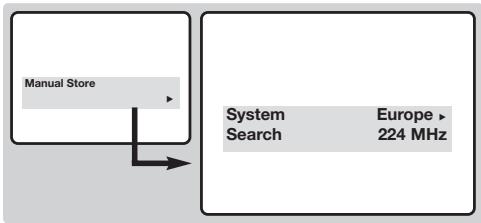
② With the ⬆ key, select Manual Store and press >.
③ Use the ①⑨ or -P⊕ keys to select the program you wish to renumber.
4 Then use the √ key to select Program No and enter the new number with the ◀ keys.
⑤ With the √ key, select Store and press >.
⑥ Repeat steps ③ to ⑤ for each program you wish to renumber.
⑦ To quit the menus, press ⓘ.
Remote control keys
* Depending on the model, there are 2 different versions of the remote control.
key not used (teletext version *) or
P◀ P Previous programme
To access the previously viewed programme.
Pre-set sound (only available on certain versions)
Used to access a series of stored settings: Voice, Music, Theatre.
Menu
To call up or exit the menus.
Cursor / Format 16:9
These 4 keys are used to navigate through the menus. The ⬆▼ keys are used to enlarge or compress the picture vertically.
Volume
To adjust the sound level
Mute
To mute or restore the sound.
Number keys
Direct access to the programmes. For a 2 digit program, enter the 2nd digit before the dash disappears.
Sleep
To select an automatic standby after a preset time (from 0 to 240 minutes).
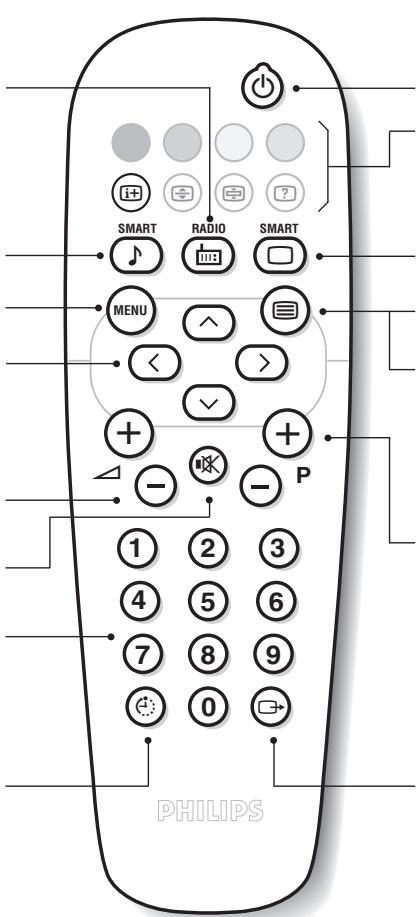
Standby
Lets you place the TV set on standby. To turn on the TV, press P ⊖ ⊖, ⏻, Ⓞ to ⑨.
Teletext keys (teletext version *)
Pre-set image
Used to access a series of stored settings: Rich, Natural, Soft, Multimedia and return to Personal.
☐ Teletext call (teletext version*) or
i+ Screen information
To display / clear the program number and time remaining for the sleeptimer. Press the key for 5 seconds to activate permanent display of the number.
Program selection
To access the next or previous programme. The number is displayed for a few moments.
For some programs, the title of the program will be displayed at the bottom of the screen.
Selection of EXT socket
Press several times to select the connected equipment.
Teletext
(only available on certain versions)
Teletext call
Press the Ⓞ key to call teletext, change to transparent mode and then exit. The summary appears with a list of items that can be accessed.
If the channel selected does not broadcast teletext, the screen remain black.
Selecting a page
Enter the number of the page required using the ① to ⑨ or ⊖ P ⊕ keys (always 3 digits). The number is displayed top left, the counter turns and then the page is displayed. Repeat this operation to view another page.
If the counter continues searching, the page is not transmitted.
Direct access to the items
Coloured areas are displayed at the bottom of the screen. The 4 coloured keys are used to access the items or corresponding pages.
Contents
Press Ⓗ to return to the contents page (usually page 100).
Enlarge a page
Press Ⓤ several time to enlarge the page.
Stop sub-page acquisition
Certain pages contain sub-pages which follow on automatically. Press ☑ to stop / resume the sequence.
Hidden information (games solutions)
Press Ⓡ to display or hide the concealed information.
Manual store
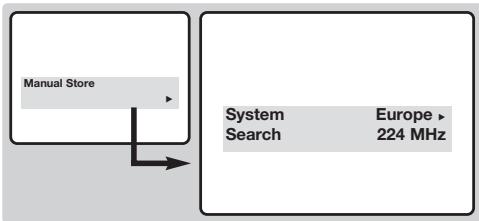
This menu is used to store the programmes one at a time.
① Press the Ⓜ MENU key.
② With the ⬤ key, select Manual Store and press ⬤. Use the ⬤ keys to select a setting and the ⬤ keys to adjust.:
flowchart
graph TD
    A["Manual Store"] --> B["System"]
    A --> C["Search"]
    B --> D["Europe ▶ 224 MHz"]
③ System: select Europe (automatic detection*) or West Europe (BG standard), East Europe (DK standard), UK (I standard) or France (LL'
standard).
* Except for France (LL' standard), you must select choice France.
4 Search: press ⬤. The search starts. Once a programme is found, the scanning stops. Go to the next step. If you know the frequency of the required programme, this can be entered directly using the ① to ⑨ keys.
If no programme is found, see Tips chapter at the end of the instruction for use.
5 Program No.: enter the required number with the ◀> or 0 to 9 keys.
6 Store: press ➤. The program is stored.
⑦ Repeat steps ④ to ⑥ for each programme to store.
⑧ To quit the menus, press ⓘ+
Other settings in the menu
① Press the Ⓜ MENU key.
② Use the ⬆√ keys to select a setting and the ◀> keys to adjust.:
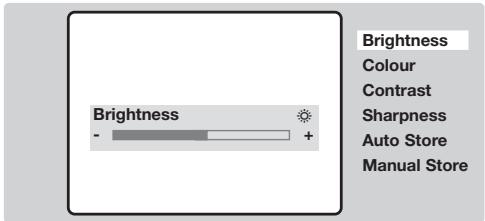
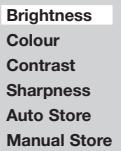
- Brightness: this changes picture brilliance.
• Colour: this changes the intensity of the colour. - Contrast: this changes the difference between the light and dark tones.
- Sharpness: this changes the picture definition.
- Auto Store: to start automatic search for all programmes available in your region. Then, you need to use the Manual Store menu to renumber the programmes (see p. 3). To quit or interrupt the search, press MENU.
- Manual Store: see top of page.
③ To quit the menus, press ⓘ.
Other functions
natural_image
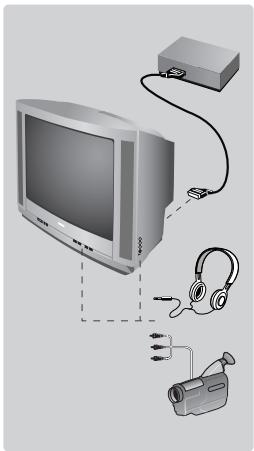
Illustration of a vintage television connected to a video camera via cable and earphones (no text or symbols)Connecting peripheral equipment
Use the euroconnector socket located at the back of the set or the front AV connections (when available).
To select connected equipment, press several times the ☐ key. Most equipment (decoder, VCR) carries out the switching itself.
Headphones socket (only available on certain versions)
When headphones are connected, the sound on the TV set will be cut.
The ⏻ △⊕ keys are used to adjust the volume level.
The headphone impedance must be between 32 and 600 Ohms.
The keys on the TV set
The TV set has 4 keys :VOLUME - + (- △ +) and PROGRAM - + (- P +). To access or exit the menus, press simultaneously the △ - and △ + keys. Then use the - P + and - △ + keys to select and adjust.
Tips : see at the end of the booklet (p. 57).
natural_image
Illustration of a vintage TV with antenna and cable (no text or symbols)natural_image
3D illustration of a remote control device with an open lid and battery pack, showing internal components (no text or symbols)natural_image
Illustration of a hand pressing a button on a computer monitor (no text or symbols visible)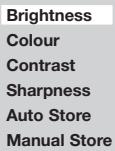
natural_image
Illustration of a vintage television connected to a video camera via cable and earphones (no text or symbols)Raccordements
natural_image
Illustration of a flat-screen TV with antenna and cable (no text or symbols)natural_image
3D illustration of a remote control device with a partially open lid and battery pack, showing internal components (no text or symbols)
afstandsbediening.
4
natural_image
Illustration of a hand pressing a button on a computer monitor (no text or symbols visible)natural_image
Illustration of a vintage television connected to a video camera via cable and earphones (no text or symbols)Aansluitingen
natural_image
Illustration of a vintage TV with antenna and cable (no text or symbols)natural_image
3D illustration of a remote control device with battery pack and open lid (no text or symbols)natural_image
Illustration of a hand pressing a button on a computer monitor (no text or symbols visible)Brightness
Colour
Contrast
Sharpness
Auto Store
Manual Store
natural_image
Illustration of a vintage television connected to a video camera via cable and earphones (no text or symbols)natural_image
Illustration of a flat-screen TV with antenna and cable (no text or symbols)natural_image
3D illustration of a remote control device with battery pack and open lid (no text or symbols)natural_image
Illustration of a hand pressing a button on a computer monitor (no text or symbols visible)natural_image
Illustration of a vintage television connected to a video camera via cable and earphones (no text or symbols)Collegamenti
natural_image
Illustration of a vintage television set with antenna and cable (no text or symbols)natural_image
Illustration of a remote control device with a partially open lid and battery module (no text or symbols)natural_image
Hand pressing a button on a computer monitor (no visible text or symbols)P◀ P Foregående program
forudindstillinger: Voice (tale), Music
(musik) eller Theatre (drama).
Menu : Anvendes
Stands bladring i undersider
eller West Europe (norm BG), East Europe (DK), UK (I) eller France (LL').
natural_image
Illustration of a vintage television connected to a video camera via cable and earphones (no text or symbols)Tilsluttet udstyr
natural_image
Illustration of a desktop computer with antenna and cable (no text or symbols)natural_image
3D illustration of a remote control device with a partially open lid and battery pack, showing internal components (no text or symbols)natural_image
Illustration of a hand pressing a button on a computer monitor (no text or symbols visible)natural_image
Illustration of a vintage television connected to a video camera via cable and earphones (no text or symbols)Tilkoblinger
natural_image
Illustration of a vintage computer monitor with antenna and cable (no text or symbols)natural_image
Illustration of a remote control device with battery pack and open lid (no text or symbols)natural_image
Hand pressing a button on a computer monitor (no visible text or symbols)Brightness
Colour
Contrast
Sharpness
Auto Store
Manual Store
natural_image
Illustration of a vintage television connected to a video camera via cable and earphones (no text or symbols)Anslutningar
natural_image
Illustration of a desktop computer with antenna and cable (no text or symbols)natural_image
3D illustration of a remote control device with a partially open lid and battery pack, showing internal components (no text or symbols)natural_image
Illustration of a hand pressing a button on a computer monitor (no text or symbols visible)natural_image
Illustration of a vintage television connected to a camera via cable and earphones (no text or symbols)Liitännät
natural_image
Illustration of a vintage CRT monitor connected to a high-voltage antenna (no text or symbols)2
natural_image
Illustration of a remote control device with battery pack and open lid (no text or symbols)natural_image
Illustration of a hand pressing a button on a computer monitor (no text or symbols visible)Brightness
Colour
Contrast
Sharpness
Auto Store
Manual Store
natural_image
Illustration of a vintage television connected to a video camera via cable and earphones (no text or symbols)natural_image
Illustration of a desktop computer with antenna and cable (no text or symbols)natural_image
3D illustration of a remote control device with a partially open lid and battery pack, showing internal components (no text or symbols)natural_image
Illustration of a hand pressing a button on a computer monitor (no text or symbols visible)natural_image
Illustration of a vintage television connected to a video camera via earphones and cable (no text or symbols)Conexiones
natural_image
Illustration of a vintage computer monitor with antenna and cable (no text or symbols)Introduza a ficha da antena de TV na tomada situada na parte de trás do aparelho.
2
natural_image
Illustration of a remote control device with a partially open lid and battery module (no text or symbols)natural_image
Hand pressing a button on a computer monitor (no visible text or symbols)natural_image
Illustration of a television connected to a video camera via cable, showing components like headphones and a monitor (no text or symbols present)Ligações
natural_image
Illustration of a desktop computer with a antenna and cable (no text or symbols)natural_image
3D illustration of a remote control device with battery pack and open lid (no text or symbols)natural_image
Illustration of a hand pressing a button on a computer monitor (no text or symbols visible)natural_image
Diagram showing connections between a CRT monitor, audio jack, headphones, and a video camera (no text or symbols present)natural_image
Illustration of a vintage television set with antenna and cable (no text or symbols)natural_image
3D illustration of a remote control device with battery pack and open lid (no text or symbols)natural_image
Illustration of a hand pressing a button on a computer monitor (no text or symbols visible)Brightness
Colour
Contrast
Sharpness
Auto Store
Manual Store
natural_image
Illustration of a vintage television connected to a video camera via cable and earphones (no text or symbols)Bağlantılar
natural_image
Illustration of a vintage computer monitor connected to an antenna (no text or symbols visible)natural_image
Illustration of a remote control device with battery pack and open lid (no text or symbols)natural_image
Illustration of a hand pressing a button on a computer monitor (no text or symbols visible)natural_image
Illustration of a vintage television connected to a video camera via audio equipment (no text or symbols present)Csatlakoztatás
natural_image
Illustration of a vintage CRT monitor connected to a high-voltage antenna (no text or symbols)natural_image
3D illustration of a remote control device with battery pack and open lid (no text or symbols)natural_image
Illustration of a hand pressing a button on a computer monitor (no text or symbols visible)Brightness
Colour
Contrast
Sharpness
Auto Store
Manual Store
natural_image
Illustration of a vintage television connected to a video camera via cable and earphones (no text or symbols)Podłączanie
natural_image
Illustration of a vintage computer monitor connected to an antenna (no text or symbols visible)natural_image
Illustration of a remote control device with battery pack and open lid (no text or symbols)natural_image
Illustration of a hand pressing a button on a computer monitor (no text or symbols visible)natural_image
Illustration of a vintage television connected to a video camera via audio equipment (no text or symbols present)Přídavná zařízení
natural_image
Illustration of a vintage CRT monitor connected to a high-voltage antenna (no text or symbols)natural_image
3D illustration of a remote control device with battery pack and open lid (no text or symbols)natural_image
Illustration of a hand pressing a button on a computer monitor (no text or symbols visible)Privolanie teletextu
Brightness Colour Contrast Sharpness Auto Store Manual Store
natural_image
Illustration of a vintage television connected to a video camera via cable and earphones (no text or symbols)Prídavné zariadenia
Positioning the television set
Place your TV on a solid, stable surface, leaving a space of at least 5 cm around the appliance. To avoid accidents, do not put anything on the set such as a cloth or cover, a container full of liquid (vase) or a heat source (lamp). The set must not be exposed to water.
Poor reception
The proximity of mountains or high buildings may be responsible for ghost pictures, echoing or shadows. In this case, modify the orientation of the aerial.
No picture or no sound
Have you connected the aerial socket properly? Have you chosen the right system? (p. 5).
Teletext
Are certain characters not displayed correctly? Press and hold down the △- and △+ keys on the TV set for 5 seconds to display the Country menu. Then use the
◀▶ keys to select your country and validate with ⓂMENU.
Standby
If the set receives no signal for 15 mins, it automatically goes into standby mode. To save power, your set is fitted with components that give it a very low power consumption when in standby mode (less than 3 W).
Still no results?
If your TV set breaks down, never attempt to repair it yourself: contact your dealer's after-sales service.
Recycling directive
The batteries supplied with this appliance do not contain mercury or nickel cadmium. The materials used in your set are either reusable or can be recycled. To minimise environmental waste, specialist companies collect used appliances and dismantle them after retrieving any materials that can be used again (ask your dealer for further details).
Conseils
FR
Information for users in the UK (not applicable outside the UK)
Positioning the TV
For the best results, choose a position where light does not fall directly on the screen, and at some distance away from radiators or other sources of heat. Leave a space of at least 5 cm all around the TV for ventilation, making sure that curtains, cupboards etc. cannot obstruct the air flow through the ventilation apertures. The TV is intended for use in a domestic environment only and should never be operated or stored in excessively hot or humid atmospheres.
General Points
Please take note of the section entitled 'Tips' at the end of this booklet.
Interference
The Department of Trade and Industry operates a Radio Interference Investigation Service to help TV licence holders improve reception of BBC and IBA programmes where they are being spoilt by interference.
If your dealer cannot help, ask at a main Post Office for the booklet "How to Improve Television and Radio Reception".
Mains connection
Before connecting the TV to the mains, check that the mains supply voltage corresponds to the voltage printed on the type plate on the rear panel of the TV. If the mains voltage is different, consult your dealer.
Important
This apparatus is fitted with an approved moulded 13 Amp plug. To change a fuse in this type of plug proceed as follows:
- Remove fuse cover and fuse.
- Fit new fuse which should be a BS1362 5A, A.S.T.A. or BSI approved type.
- Refit the fuse cover.
In order to maintain conformity to the EMC directive, the mains plug on this product must not be removed.
Connecting the aerial
The aerial should be connected to the socket marked ☐ at the back of the set. An inferior aerial is likely to result in a poor, perhaps unstable picture with ghost images and lack of contrast. Make-shift loft or set-top aerials are often inadequate. Your dealer will know from experience the most suitable type for your locality. Should you wish to use the set in conjunction with other equipment, which connects to the aerial socket such as TV games, or a video camera it is recommended that these be connected via a combiner unit to avoid repeated connection and disconnection of the aerial plug.
Fitting the stand (if provided)
Use only the stand provided with the set, making sure that the fixings are properly tightened. A diagram showing how to assemble the stand is packed with the stand. Never use a make-shift stand, or legs fixed with woodscrews.

natural_image
Blank white image with no visible content, text, or symbols
- Installing your television set
- Quick installation
- Program sort
- Remote control keys
- P◀ P Previous programme
- Menu
- Cursor / Format 16:9
- Volume
- Mute
- Number keys
- Sleep
- Standby
- Pre-set image
- Program selection
- Selection of EXT socket
- Teletext
- Teletext call
- Selecting a page
- Direct access to the items
- Contents
- Enlarge a page
- Stop sub-page acquisition
- Hidden information (games solutions)
- Manual store
- Other settings in the menu
- Other functions
- Connecting peripheral equipment
- The keys on the TV set
- Raccordements
- Aansluitingen
- Collegamenti
- P◀ P Foregående program
- Stands bladring i undersider
- Tilsluttet udstyr
- Tilkoblinger
- Anslutningar
- Liitännät
- Conexiones
- Ligações
- Bağlantılar
- Csatlakoztatás
- Podłączanie
- Přídavná zařízení
- Privolanie teletextu
- Prídavné zariadenia
- Positioning the television set
- Poor reception
- No picture or no sound
- Still no results?
- Recycling directive
- Conseils
- FR
- Information for users in the UK (not applicable outside the UK)
- Positioning the TV
- General Points
- Interference
- Mains connection
- Important
- Connecting the aerial
- Fitting the stand (if provided)
Brand : PHILIPS
Model : 21PT1356
Category : TV