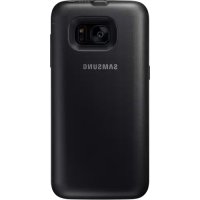
EPTG935 - Cellphone SAMSUNG - Free user manual and instructions
Find the device manual for free EPTG935 SAMSUNG in PDF.



Frequently Asked Questions - EPTG935 SAMSUNG
User questions about EPTG935 SAMSUNG
0 question about this device. Answer the ones you know or ask your own.
Ask a new question about this device
Download the instructions for your Cellphone in PDF format for free! Find your manual EPTG935 - SAMSUNG and take your electronic device back in hand. On this page are published all the documents necessary for the use of your device. EPTG935 by SAMSUNG.
USER MANUAL EPTG935 SAMSUNG
Please read this manual before using the device to ensure safe and proper use.
- Images may differ in appearance from the actual product. Content is subject to change without prior notice.
- Before using the backpack, make sure the mobile device you want to connect to is compatible with this backpack.
Instructional icons

Warning: situations that could cause injury to yourself or others

Caution: situations that could cause damage to your device or other equipment

Notice: notes, usage tips, or additional information
Getting started
Package contents
Check the product box for the following items:
- Backpack
Quick start guide

- The items supplied with the device and any available accessories may vary depending on the region or service provider.
- The supplied items are designed only for this device and may not be compatible with other devices.
- Appearances and specifications are subject to change without prior notice.
- You can purchase additional accessories from your local Samsung retailer. Make sure they are compatible with the device before purchase.
- Use only Samsung-approved accessories. Using unapproved accessories may cause the performance problems and malfunctions that are not covered by the warranty.
- Availability of all accessories is subject to change depending entirely on manufacturing companies. For more information about available accessories, refer to the Samsung website.
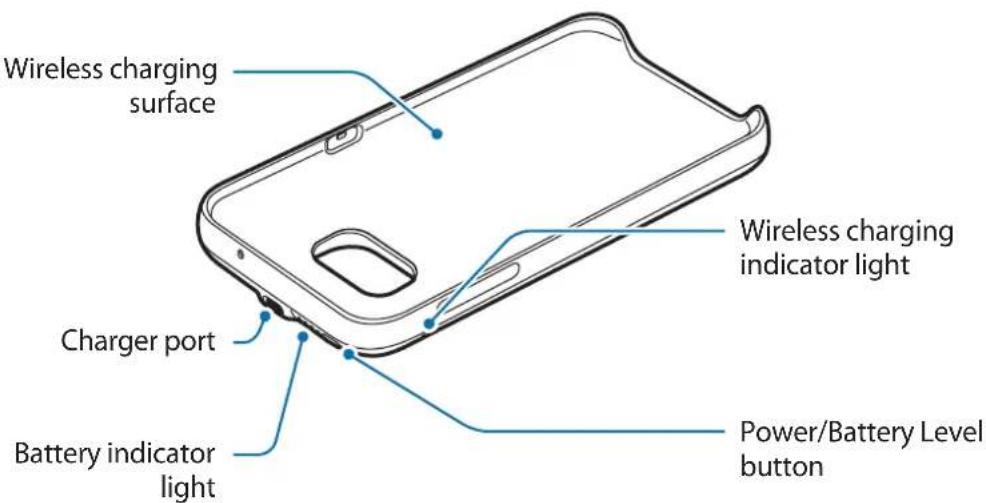
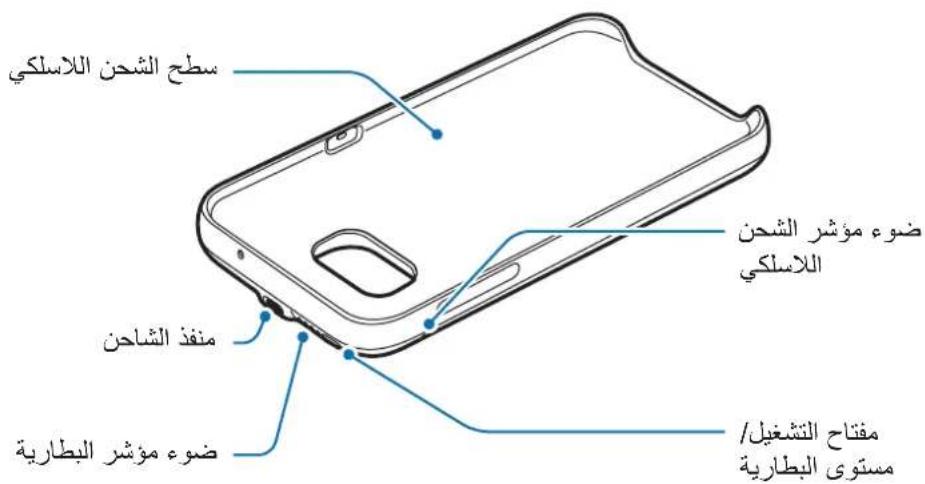
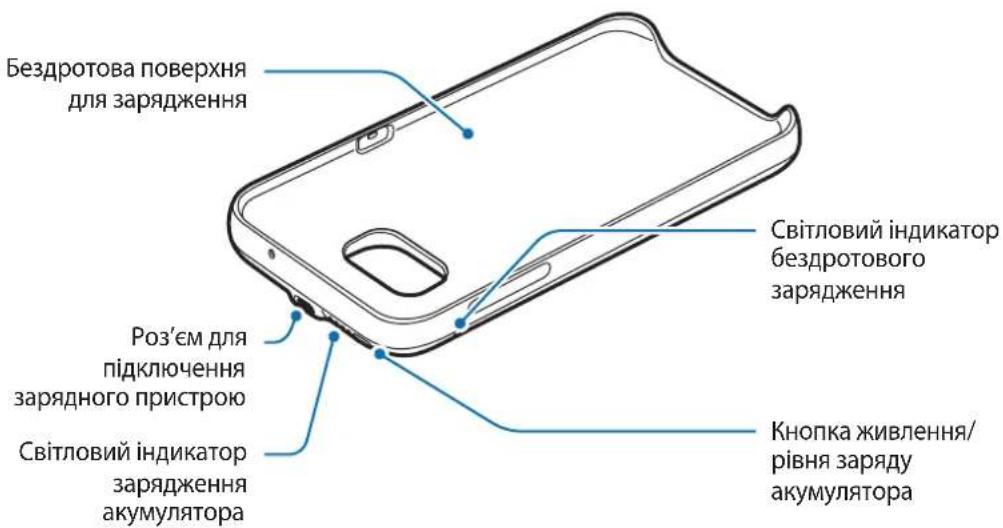
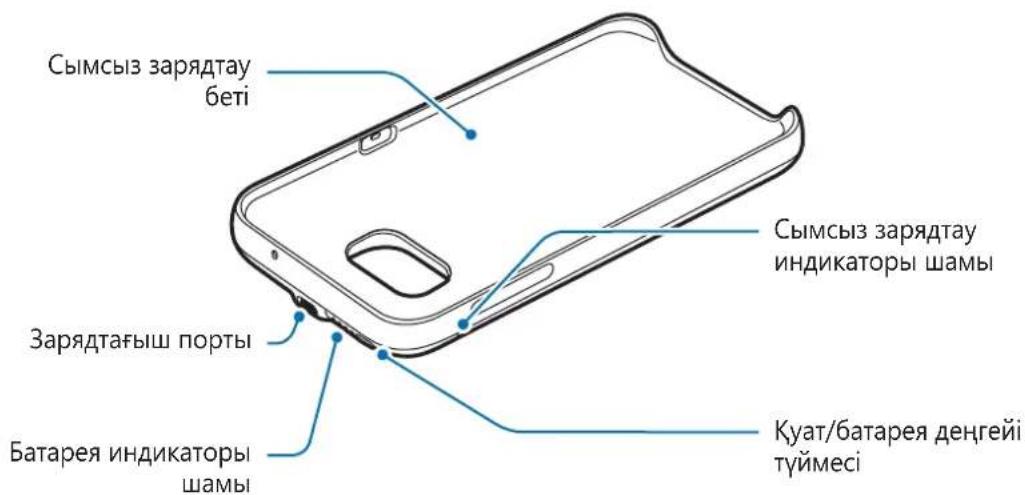
Device layout
Charging the backpack
Charge the battery before using it for the first time or when it has been unused for extended periods.

Use only Samsung-approved chargers and cables. Unapproved chargers can cause the battery to explode or damage the backpack.
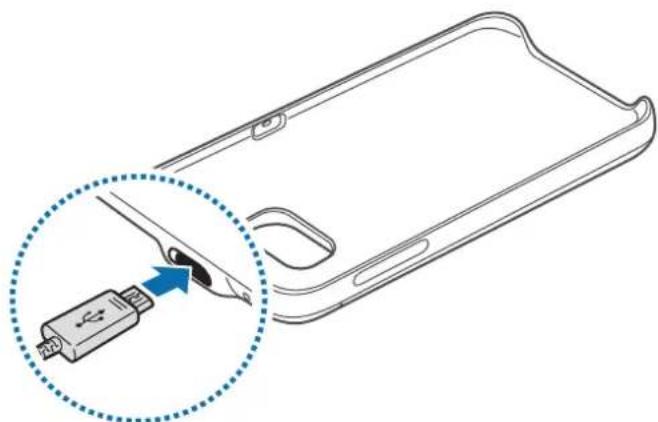
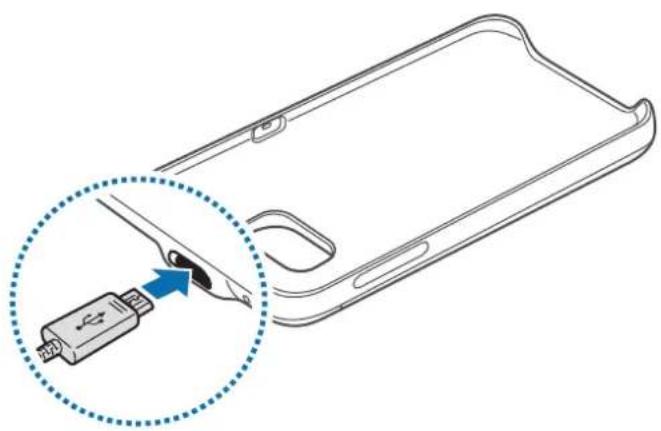
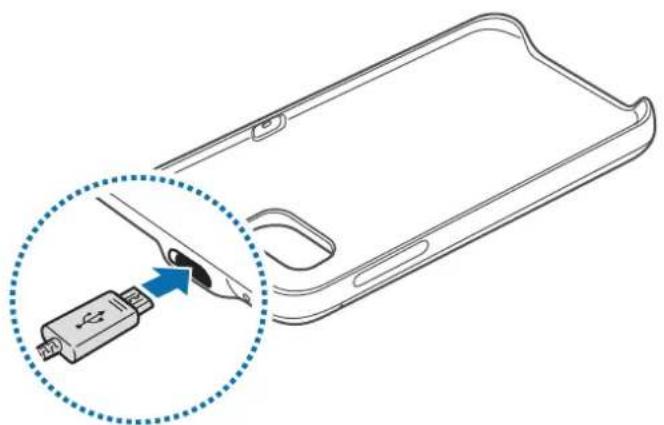
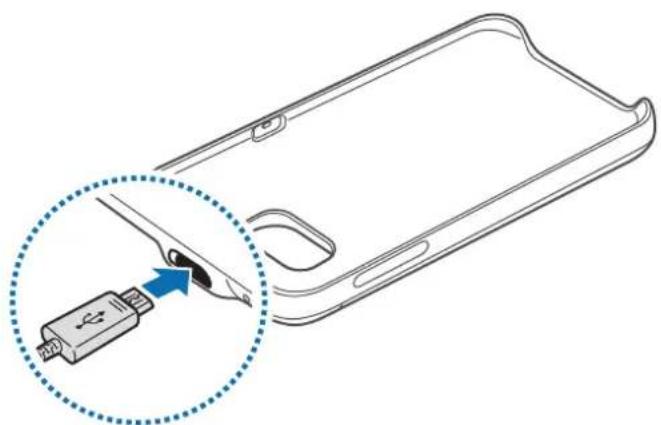
1 Connect the backpack pack to a charger.
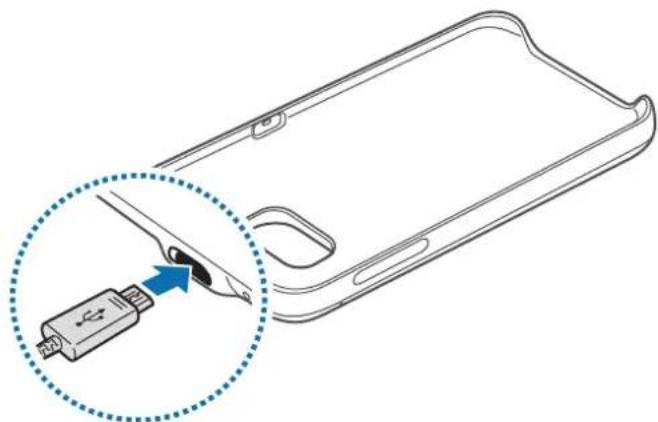

Connecting the charger improperly may cause serious damage to the backpack. Any damage caused by misuse is not covered by the warranty.
2 After fully charging, disconnect the backpack from the charger.

- To save energy, unplug the charger when not in use. The charger does not have a power switch, so you must unplug the charger from the electric socket when not in use to avoid wasting power. The charger should remain close to the electric socket and easily accessible while charging.
- The socket-outlet shall be installed near the equipment and shall be easily accessible.
Battery charging tips and precautions
- Chargers are sold separately.
- Using a power source other than the charger, such as a computer, may result in a slower charging speed due to a lower electric current.
- The charger can simultaneously charge the backpack and a mobile device when both are connected, but charging may take longer.
- If a mobile device is attached to the backpack during charging, the mobile device will be charged before the backpack.
- While charging, the backpack may heat up. This is normal and should not affect the backpack's lifespan or performance. If the battery gets hotter than usual, the charger may stop charging.
- The actual capacity (Wh) is measured based on the battery's output current and voltage. It may differ from the capacity (Wh) indicated on the device, depending on the output power condition, the connected device's circuit configuration, and the operation environment.
- If the backpack is not charging properly, take the backpack and the charger to a Samsung Service Centre.
Checking the battery status
While the backpack is charging, the battery indicator will flash according to the charging status.
| Charging status Battery indicator status |
| 100% Four indicator lights on |
| 75–99% Three indicator lights on and one indicator light blinking |
| 50–75% Two indicator lights on and one indicator light blinking |
| 25–50% One indicator lights on and one indicator light blinking |
| 0–25% One indicator light blinking |

If the backpack is exposed to extremely hot or cold temperatures or an error occurs, the four indicator lights will blink. Disconnect the charger from the backpack, and then reconnect them.
Checking the remaining battery power
Check the remaining battery power by pressing the Battery level button.
The battery indicator will activate according to the remaining battery power.
| Remaining battery power | Battery indicator status |
| 75–100% Four indicator lights on | |
| 50–75% Three indicator lights on | |
| 25–50% Two indicator lights on | |
| 5–25% One indicator light on | |
| less than 5% One indicator light blinking | |
Using the backpack
Charging your mobile device
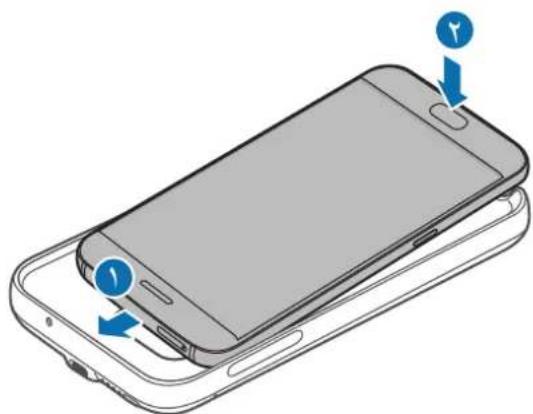
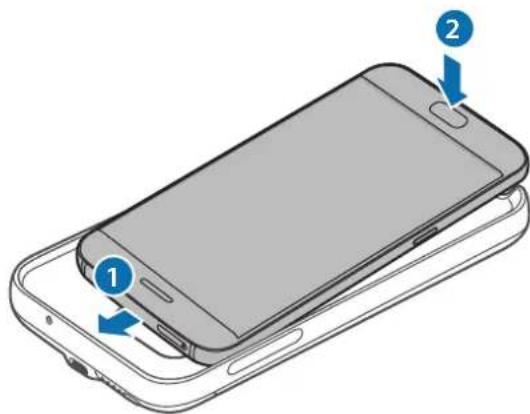
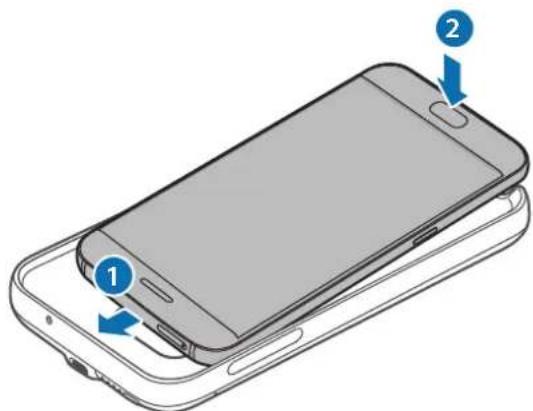
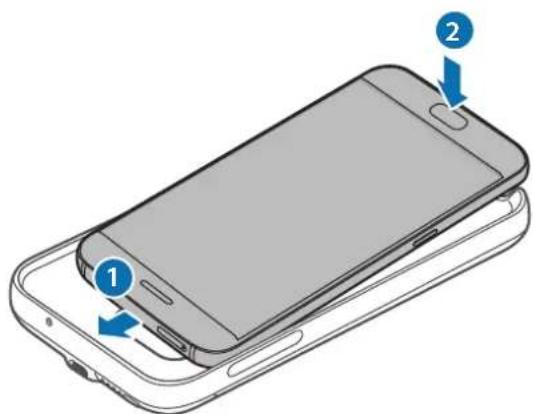
1 Insert your mobile device into the backpack.
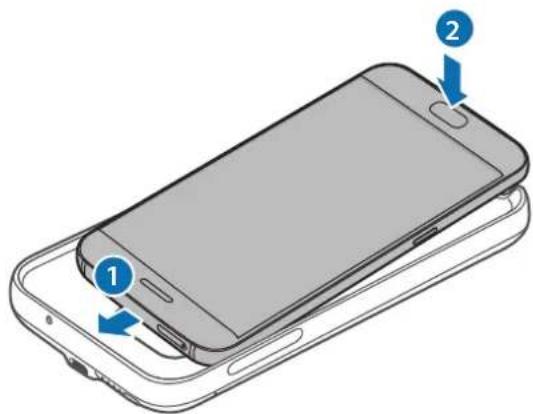
2 Press the backpack's Power button. Wireless charging will start.
To deactivate wireless charging, press and hold the Power button. To activate wireless charging again, press the Power button.
3 When the mobile device is fully charged, disconnect it from the backpack.

- The backpack and mobile device may vibrate while charging due to high power frequency.
- Do not place any objects between the mobile device and the backpack. Doing so may prevent the mobile device from charging properly.
- If you use the backpack in areas with weak network signals, your mobile device may lose network reception.
- If you connect a charger to the mobile device during wireless charging, the wireless charging feature will be unavailable.
- While using the backpack, you cannot use some mobile device features, such as Near Field Communication (NFC) and Samsung Pay. Some features that use the mobile device's back sensor may not work. To use these features, remove the backpack from your mobile device.
Checking the wireless charging status
You can check the mobile device's charging status via the wireless charging indicator.
| Colour Wireless charging status | |
| Blue → Green When in standby mode | |
| Blue When charging | |
| Green When fully charged | |
| Flashing blue When not charging properly due to a general error | |
| Off | When the backpack is off or when the mobile device is disconnected from the backpack |

- If the mobile device is not charging after being connected to the backpack, turn off the mobile device and then turn it on again.
- The backpack is an auxiliary external battery. It may not fully charge some mobile devices.
- If the backpack and the mobile device is exposed to extremely hot or cold temperatures or an error occurs, the wireless charging indicator will flash in blue. Disconnect the mobile device from the backpack, and then reconnect them.
Copyright
Copyright © 2016 Samsung Electronics
This manual is protected under international copyright laws.
No part of this manual may be reproduced, distributed, translated, or transmitted in any form or by any means, electronic or mechanical, including photocopying, recording, or storing in any information storage and retrieval system, without the prior written permission of Samsung Electronics.
Trademarks
- SAMSUNG and the SAMSUNG logo are registered trademarks of Samsung Electronics.
- All other trademarks and copyrights are the property of their respective owners.
Copyright © 2016 Samsung Electronics
Copyright © 2016 Samsung Electronics
Copyright © 2016 Samsung Electronics
Copyright © 2016 Samsung Electronics
Copyright © 2016 Samsung Electronics
Copyright © 2016 Samsung Electronics
- Backpack
KpaTko pboKOBOCTBO

- Elenentte n haunuHnte npHaJnxKHOCTn, doCTaBeHn c yCTpO'CTBOTO, MoKe da ce pa3nuaBaT B 3aBNCIMoCT OT perNoHa nIIN DoCTaBUnKa Ha ycIyrN.
- Доставец селемпса пedingаизуши само за TOВа усточь и може на He сьвмecимс дугн усточь.
BbHnHnT Bn i CneuNkauNTe ca npedMeT Ha npomHa 6e3 npdIn3BeCTne. - Moxete da 3akynite doonbHnTeHN aKcecoapn OT Baunr MeCTeH npOdaBau Ha Samsung. PpeiN 3aknyBaHe ce yBepTe, ye Te ca CbbMeCTUMn C yCTpOJCTBOTo.
- Използваite само одобрени OT Samsung akcecoapи. Използваши.To Ha Heодобрени akcecoapи може за причинни пpoблемс пpon3ворintelhoctTa и НeнзправноctN, KОТTO He ce nokpnbAT OT rapaнцята.
HaIuHocTt Ha BCnKn akcecoapn IopJexn Ha npomHa n3aIIO B 3aBucmOCT OT npOn3BOUnteJIte. 3a nobue HOpMaun 3a HaIuHHTe akcecoapn ce o6bPHeTe KbM ye6 caIta Ha Samsung.
OΦopMJIeHne Ha yCTpoIcTBOTO
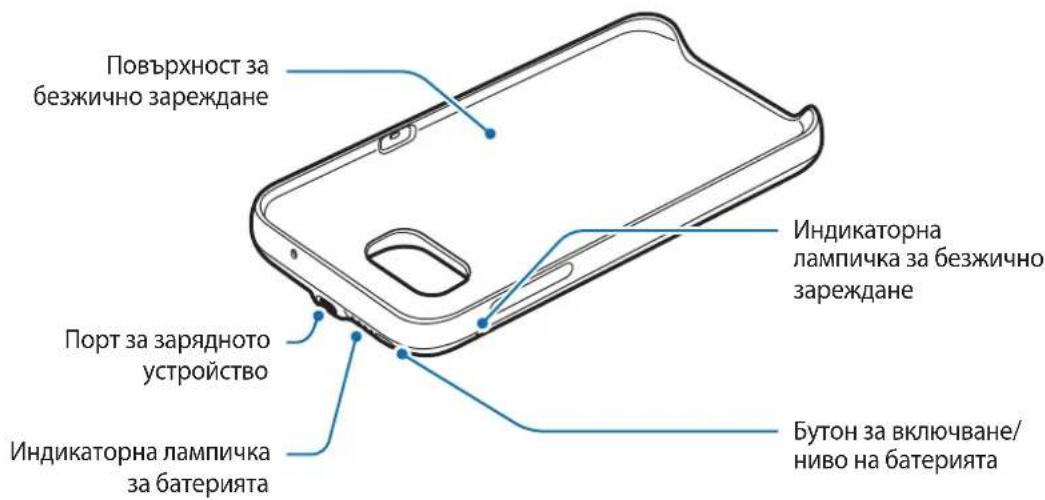
3apexkanhe ha backpack
3apeTe 6aTePraTa, npEi Da ro n3no3BaTe 3a npBb NbT nnKorato He cTe ro n3no3BaHn npOdbJxNtEnHO BpeMe.

I3noJ3BaIe cAmO oJOp6peHn OT Samsung 3apAHN yCTpoiCTBa n Ka6eH. HeoJOp6peHnTe 3apAHN yCTpoiCTBa MoKe Da npuHHT ekCnIOdpaHe Ha 6aTePnTa nIn NobpeHa Ha backpack.
1 Cbpxte backpack KbM 3apnHO yctpoiCTBO.
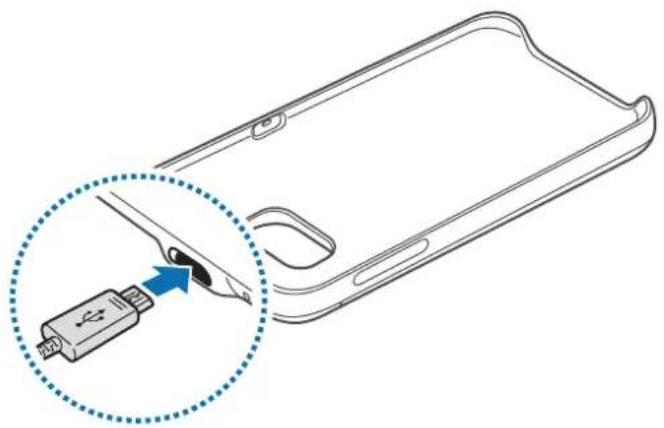

HenpaBnHOTo CBbP3BaHe KbM 3apJHOTO yCTpoiCTBO MOKe Da npuHnC cepNo3Ha NOpeDa Ha backpack. BcakBn NobpeDi, npuHHeN OTHenpaBnHa ynoTpe6a, He ce nokpnbat OT rapaHnra.
2 CnEaTo ce 3apeHnBnHO, pa3kaueTe backpack ot 3apAnHOTo yCTpoiCTBO.

3a da cneCTnte eheprn, n3BaTe 3apndHOTO yctpoNCTBO OT eJeKtpueckn KOHTAK, KOrato He ro n3no3BaTe. 3apndHOTO yctpoNCTBO HMa npEeBKnUoyBaTeN BkN./N3Kn., 3aTOBa Tp6Ba Da ro n3BaNTe OT eJeKtpueckn KOHTAK, KOrato He ro n3no3BaTe, 3a da He n3pa3XoDBe eHeprn. 3apndHOTO yctpoNCTBO Tp6Ba Da oCTaHe 6n30 Do eJeKtpueckn KOHTAK I neCHO DOCTbNHO, DOKaTO 3apeJda.
CbBteN npeDn3Hm MepKn pR 3apeKdaHe Ha 6aTePnaTa
3apnHTe yctpoCTBa ce npoDaBt OTdEHHO.
- I3noI3BaHTo Ha pa3JIuYeH OT 3apJHOTO yCTpoiCTBO n3TOUHNK Ha 3axpaHBAHe, HApPIMep KOMIObP, MoKe Da npuHnNo-6aBHO 3apeXdaHe nopadn No-cna6n eJeKTPnueCKn nOTOK, IpOTNuAaTAM.
3apraHTo yCTpOHTBO MOKe eHNOBpeMeHHo da 3apeKda backpack n Mo6nHOTo yCTPOICTBO, KOraTO NDbTe ca Cbbp3aHn, HO 3apeKdaHeTo MOKe da OTHEme NO-DbJIro BpeMe.
- Ако по Врeme на заразец се моблиноустю e закусян оз a backpack, моблиноустю所需要 le ce заши пени backpack.
- По врeme на зараздаheade backpack можеда заг pee.TOba e HopmaIHOи He 6n Tpr6BaIOn da 3acerHe npOdbJIKNTeHOCCTTа HaЖИВОТа ИлnpON3BOIDITeHOCCTTа ha backpack.AKO 6atepnaTca helarpee NOBuee OT obuayHOTO,ЗарДНOTO yctpoiCTBO можеда спpeда заразжda.
- DeiCTBNTENHnT KaaunTe (Wh) e n3Mepeh Bb3 OCHOBa Ha n3XoHnTOK n HapexHeHa 6aTePnTa. ToJ moKe da ce paZnUaBa OT KaaunTeTa (Wh), yKa3aH Bbpxy UcToiCTBO T 3aBnCIMOCT OT ycIOBnTa Ha n3XoDHa MOuHoc, KOHfNpyaunTa Ha BepnTaHa CBbp3aHOTO uCTpoiCTBO n pa6oTHata cpeA.
- Ako backpack He ce 3apejda npabunlo, 3aheceTe Hero n 3apdHOTO yCTpOJCTBO B cepBn3eH zuHTbp Ha Samsung.
Copyright © 2016 Samsung Electronics
ToBa pBkoBOIDCTBO e 3aunTeHO OT MekdyHapOHN 3aKOHn 3a ABTOPCKn npaba.
HnKoJyactOT pBkoBODCTBOTo He MoKe da 6bJe Bb3POn3BexJaHa, pa3npocTpaHyaHa, npeBexJaHa nn npexBpIHa IOd KaKBaTO I da e oOpMa nn NO KaKbBTO I da e Naun, eNeKTPOHeH nn MexAHueH, B TOBa YncNo oToKOpInpaHe, 3aNc nn CbXpaHeHne B KaKBaTO I da e CnCTema 3a INΦOpMaunHO cBxaHene N n3BnuAhe, 6e3 npedBaPntHoto pa3peSeHne Ha Samsung Electronics.
TbproBcN MapKn
SAMSUNG n Ioroto Ha SAMSUNG ca pernctpupaH TbproBckn MapKn Ha Samsung Electronics.
- BcnyknpytnbproBckn Mapkn n aBTopckn npaba ca co6ctbeHOCT Ha CbotBeHTHe IM co6ctBeHnCn.
Najprije pročitajte
Pije uporabe uredaja pažljivo procitajte ovaj prisučnik kako biste osigurali sigurnu i pravilnu uporabu.
- Backpack
Kratke upute

- Stavke isporučene s uredajem i sav dostupan dodatni pribor mogu se razlikovati ovisno o regiji i pruzatelju usluga.
- Isporučene stavke namijenjene su isključivo ovom urežaju i ne moraju nužno biti kompatibilne s drugim urežajima.
- Izgled i specifikacja podlożni su promjeni bez prethodne obavijesti.
- Dodatni pribor możete nabaviti u lokalmim trgovinama Samsungovim proizvodima. Pije kupnje provjerite je li pribor kompatibilans uredajem.
- Koristiteismo pribor koji je odobrila tvrtka Samsung. Koristjenje neodobrenog pribora moze izazvati probleme i greške u radu koji nisuPokriveni jamstvom.
- Dostupnost cnejelokupnog pribora podlijeze promjenama i u potpunosti ovisi o proizvo辩证a. Za vise informacija o dostupnom priboru pogledajte Samsungovu web-stranicu.
Prikaz ureðaja
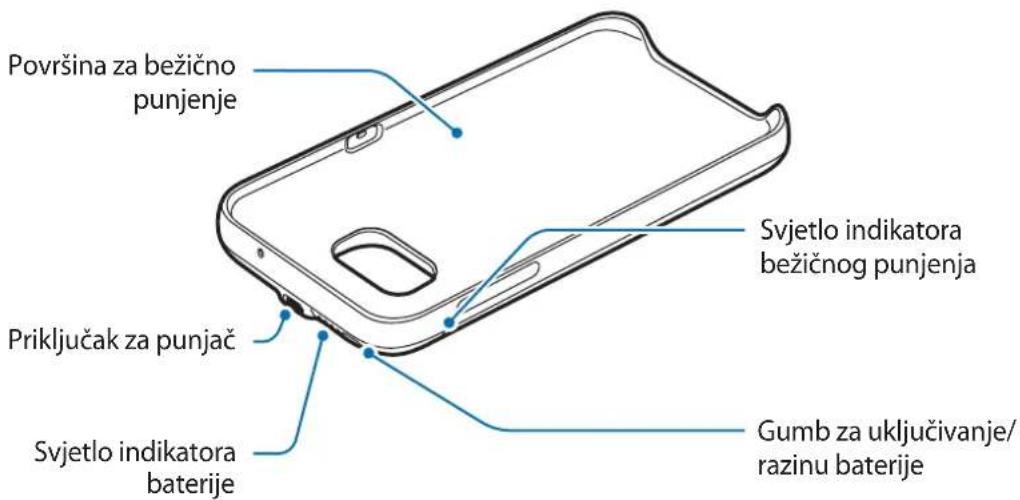
Punjenje backpacka
Prije prvog koristenja baterije ili nakon sto nije bila koristena dulje vrijeme, napunite bateriju.

Koristite samo punjače i kabele koje je odobrila tvrtka Samsung. Neodobreni punjači mogu izazvati eksploziju baterije ili ostećenje backpacka.
1 Spojite paket backpack na punjač.

Copyright © 2016 Samsung Electronics
Ovaj je prisucnik zasticen medunarodnim zakonima o zastiti autorskih prava.
Niti jegan dio ovog prisučnika ne smije se reproducirati, distribuirati, prevoditi ili prenositi u bilokojem obliku, ni na koji način, elektronici ili mehanički, ukljućujuci fotokopiranje, snimanje ili pohranjivanje na bilo kojem mediju za pohranu informacije i sustavu dohvata podataka, bez prethodnog pisanog dopusteŋa Samsung Electronicsa.
Zašitni znakovi
SAMSUNG i SAMSUNG logotip su registrarani zašitni znakovi tvrtke Samsung Electronics.
Svi su ostali zašitni znakovi i autorska prava vlasništro svojih odgovarajućih vlasnika.
Prvo pročitajte
Pre Ngo sto pocnete da koristite uredaj procitajte ovo uputstvo kako biste bili sigurni da ga koristite na bezbedan i ispravan način.
- Slike mogu odstupati od stvarnog proizvoda. Sadržaj je podložan promenama bez prethodnog obaveštenja.
- Pre korišćenja backpack-a, uverite se da je mobilni urežaj na kojiŽelite da se povežete kompatibilan sa ovim backpack-om.
Ikonice sa uputstvima

Copyright © 2016 Samsung Electronics
Ovaj prisucnik je zasticen medunarodnim zakonima o autorskim pravima.
Nijedan deo ovog prisučnika se ne smerodukovati, distribuirati, prevoditi niti prenositi ni u Jednom obliku niti bilo kojim putem, elektronskim niti mehaničkim, što podrazumeva fotokopiranje, snimanje i skladistenje u okviru bilo kog skladišta informacija i systemdama za preuzimanje, bez prethodne dozvole kompanije Samsung Electronics u pisanom obliku.
Trgovačke marke
SAMSUNG i SAMSUNG logotip su registrovane trgovace marke kompanije Samsung Electronics.
Sve ostale trgovačke marke i autorska prava su vlasništro njihovih vlasnika.
Leia primeiro
Copyright © 2016 Samsung Electronics
Copyright © 2016 Samsung Electronics
Copyright © 2016 Samsung Electronics
Copyright © 2016 Samsung Electronics
Alternativekanduringevarkundesupportpatelefon81556480.
Opphavsrett
Copyright © 2016 Samsung Electronics
Copyright © 2016 Samsung Electronics
Copyright © 2016 Samsung Electronics
Copyright © 2016 Samsung Electronics
| RenkKablosuz Şarj durumu | |
| Mavi → Yeşil Bekleme modundayken | |
| Mavi Şarj olurken | |
| Yeşil Şarj tam doluyken | |
| Mavi yanıp.Since | Genel bir arizadan dolaykıduzgün bir seksilde Şarj olmadiğında mavi renkte yanıp)sowner |
| Kapalı Backpack kapalıyen veya mobil cihaz backpack'e®,®,®,®,®,®,®,®,®,®,®,®,®,®,®,®,®,®,®,®,®,®,®,®,®,®,®,®,®,®,®,®,®,®,®,®,®,®,®,®,®,®,®,®,®,®,®,®,®,®,®,®,®,®,®,®,®,®,®,®,®,®,®,®,®,®,®,®,®,®,®,®,®,®,®,®,®,®,®,®,®,®,®,®,®,®,®,®,®,®,®,®,®,®,®,®,®,®,®,®,®değilken | |

Telif hakki © 2016 Samsung Electronics
aalagao gaiyaiyai jai

#
i111 111 111 111 111 111
Backpack
J
aaiiia aii i 1

.
.
.
i 1
.
Jg 1
a

Backpack
a a a a a a a a a a a a a a a a a a a a a a a a a a a a a a a a a a a a a a a

Backpack
Jalll y. Backpack 8.

Backpack

J 1 1 1 1 1 1 1 1 1 1 1 1 1 1 1 1 1 1 1 1 1 1 1 1 1 1 1 1 1 1 1
1

a a
J 1
1
Ig j 1
JbI
Jl Jjll jll jll llllBackpack Jb Jua Jg jgs
. Backpack
Backpack
Baaee aee eae ee eae eae eae eae eae eae eae eae eae eae eae
.
(Wh) a (Wh)
aill jll jilj g l l 1
.
a
Jn Jnnnnnnnnnnnnnnnnnnnnnnnnnnnnnnnnnnnnnnnnnnnnnnnnnnnnnnnnnnnnnnnnnnnnnnnnnnnnnnnnnnnnnnnnnnnnnnnnnnnnnnnnnnnnnnnnnnnnnnnnnnnn
| %1 . . . |
| %99 - V0 |
| %V0 - 0 . |
| %0 . - 90 |
| %90 - . |
Baa aae aee aee aee aee aee aee aee aee aee aee aee aee aee

aaiiie aiee iie eae
a 11111111111111111111111111111
| الإستعمال بعسية | الإستعمال الحرفية |
| %.1. . - %.0.0.0.0.0.0.0.0.0.0.0.0.0.0.0.0.0.0.0.0.0.0.0.0.0.0.0.0.0.0.0.0.0.0.0.0.0.0.0.0.0.0.0.0.0.0.0.0.0.0.0 | |
| %.0. - %.0.0.0.0.0.0.0.0.0.0.0.0.0.0.0.0.0.0.0.0.0.0.0.0.0.0.0.0.0.0.0.0.0.0.0.0.0.0.0.0.0.0.0.0.0.0.0.0.0 |
backpack
jglal jgln
.背包
.
s s s s s s s s s s s s s s s s s s s s s s s s s s s s s s s s s s s s s
.背包 41, JolSly joo

Jlll lllllllllllllllllllllllllllllllllllllllllllllllllllllllllllllllllllllllllllllllllllllllllllllllllllllllllll

Jooaaa Jg j 1.
Jiau Juaaall jaei iie aiee ie 1jui I y Biaia背包
J 1 J 1 J 1 J 1 J 1 J 1 J 1 J 1 J 1 J 1 J 1 J 1 J 1 J 1 J 1 J 1 J 1 J 1 J 1 J 1 J 1 J 1 J 1 J 1 J 1 J 1 J 1 J 1 J 1 J 1 J 1 J 1 J 1 J 1 J
. 1

s
.
.
backpack
Jzjzjjzjzss
jI jI jI jI jI jI jI jI jI jI jI jI jI jI
backpack
backpack 1
jJr jrrnss sss sss ss sss sss sss sss
S OBC = S COD + S_ BOC
J 1 (Wh)
(Wh) 1
ai = bi
.
y
Jd j 1
Copyright © 2016 Samsung Electronics
.
Samsung Electronics j 1j 0j 0j 0j 0j 0j 0j 0j 0j 0j 0j 0j 0j 0j 0j 0j 0j 0j 0j 0j 0j 0j 0j 0j 0j 0j 0j
J 14 j j j j j j j j j j j j j j j j j j
s
Samsung Electronics
OCTaBmNc3apd aKKymyITopa
CocToHnE INHnKaTopa 3apya aKKymyIaTopa
75-100% BkIIOyeHo YeTbIpe CBETOBbIX INHdNKaTopa
50-75% BkJIIOUeHO TpN CBeTOBbIX INHdNKaTopa
25-50% BkIIOyeHO DBa CBeTOBbIX INHdNKaTopa
5-25% BkJIIOueH OIN CBETOBI INHINKATop
Hnke 5% MuraToOINCBeTOBOn HndkaTop
ИспOLSьЗоване 6еспровODно Внeshero aKKуMaTopa Backpack
3apяdka mo6nIbHoro yCTpoiCTBa
1 BCTaBbTe Mo6nIbHoe yCtpoNcTBO B Kopnyc 6ecnpoBoHO rBHeuHero aKKymyIaTopa Backpack.
2 HaxmTe KhoNky NtAHnHa 6ecnpoBODHom BHeHem aKKymyItope Backpack. HaHETc8 6ecnpoBOnHa 3apAnka.
YTo6bl BbIKIIOHTb 6ecnpoBOHyO 3apAky, HaxMnte N ydepxNBAite KhoNky nITaHn. YTo6bl CHOba BKIOUHTb 6ecnpoBOHyO 3apAky, HaxMnte KhoNky nITaHn.
3 Послп полно зардк mo6иьногу устpoиства оTKIOUHTe erо ot becnpoBoHoro BHeшero aKKymyЯTopa Backpack.

Bo Bpem 3aprAn Ha 6ecnpoBODHom BHeHem AkkymyItope Backpack n Mo6nIbHom yCTpoIcTBe MOKeT BOCPOn3BOJITbcra BN6paunr I3-3a BBICOKO JaCTOTbI NCTOHNKa PNTAHN.
He klaadnte kaKne-ln6o npedMeBtI MeJdy MObNbHbIM yCTpoiCTBOM n 6ecnpoBOdHbIM BHeuHm aKKymyIaTOpom Backpack. IHaue 3TO MoKet npVBecTN K HeHaJIeKaIeI 3apJKe MObNbHorO yCTpoiCTBa.
- Пи Использовани 6ecпровдого Bншero akкумлгота Backpack в мес tax co сдаим сигналом сети пием OT Hee может 6ыт b утегян ha мбильном устюп CTBE.
B cnyae noeknuehen 3apdHoro yctpoCTBa K MObHOMy yctpoCTBy BO Bpem 6ecnpoBODHO 3apdKn fynKcua 6ecnpoBODHO 3apdKn HeocTyHa.
Bo Bpemr nCnoB3OBaHn 6ecnpoBOJHO BHeHrero aKKymJrTopa Backpack HeKOTopbI erO fynkun HeIOCTyHbI, HApPmep KOMMHyNkaZn 6bnxHrro nOJI (NFC) n Samsung Pay. HeKOTopbIE fynkUn, KOtOpbIE nCnoB3yOT daTnK Ha 3aDHe qactn Mo6nblHO yctpoCTBa, MOrTy He pa6oTaTb. Ira nCnoB3OBaHn TaKnx fynKcN CHMmTe 6ecnpoBOJHO BHeHn aKKymJrTop Backpack c Mo6nblHO rYCTPOCTBa.
© Samsung Electronics, 2016.
Данhoe рукововсBO 3aишениМждуновимЗakoHamOб abTOPСИХпраВax.
3a nppeaeta CBOcnpoH3BOJntb, paCnpocTpaHraTb, nepeBoNTb nIi nepeDaBaTb KaKne-Jn6o qactn DaHHoro pukOBODCTBa B IIO6oF oOpMe n IIO6bIM cNoOC6OM, 3JeKTPoHbIM nIi MexaHnueCKM, BKJIouyA foTOkOIpOBaHne, 3aNcB n XpaHene B IIO6oB CNCTeMe XpaHene n NOncKa INΦopMaun, 6e3 npedBaPHTbHO rncbMeHHOro pa3peSeHnKOMpAHn Samsung Electronics.
TobapHbIe 3HaKn
SAMSUNG iIorotn SAMSUNG 3apeHCTpnpOBaHHbIMN TOBapHbIMN 3HaKaMn KOMpaHm Samsung Electronics.
OCTaIbHbIe aBTOpCKn IpaBa I TOBapHbIe 3HaKn ABJIOTc CO6CTBeHHOCtBIO INx BlaJeNbCeB.
Ozhannomtece neped noyaTkOM BnKOpncTaHn
Длгбeзпeуногут haJIeЖного kOpIcTuBaHnЯ npIcTpoEМ nepш 3a BCE yBaJxHo O3HaIOMTeCЯ 3цИ m noci6HnKoM.
3OBHIiHnI Bnrrnnd npodykty moKe BiDpi3HrTncBid 3o6paXeHHa. Bmict MoKe 3miHObATnC8e3 3aBuachoro nonepdXeHHa.
- Pered BUKOPINCTAHNAM backpack nepekoHAnTeC8, 10 MO6IbHn npucTpi, AKN noTpioHoPiKJIouHTn, cymicn i3 HeU.
PONCHIOBAJIbHi 3HaayKn

PonepeJxHn: Cntyaui, 0 MOKytb Pn3BeCTn Do TpaBMyBaHHaCe6e a6o iHux ocio

yBara: ciTuayi, oMOxuyb npn3BecTn do nooKoJKeHHn npncIpo1 a6o iHoro 06naHaHH

Pnmitka: npmiTkn, npa#n 3 KopncTyBaHHra a6o doaTkOba iHopMaucia
Початок роботи
Kompanečaίя
IpebeipTe HareBHCtby KOMnneKti Taknx KOMnoHeHTiB:
- Backpack
Kopotkni noci6nK KopncTyBaHa

KOMNHOENTI, JKI BXODTb DO KOMNJIeKTy npNCtpoIO, MOKytb pi3HHTnCzanExHNO BID KpaIHn a6o onepaTopa 3B'ra3Ky.
KOMnOHeHTN, 1o nocTauaOTbcB KOMnIeKTI, p03pO6JIeHI cneuaJIbHO IJRA zuBOr npuCTpoTO Ta MoKyTB 6TyH HeCymicHMn 3 iHmIMnpuCTPOAM.
3OBHIHINBRIJI xapaKTePnCTIKMOKyTb 3MiHIOBaTnC86e3 3aBuachoro nonepdXeHHN.
-ДоаТКОВIakceCyapnMoKHa npuδbTuB MiceBOro noCTaayalbHnka Samsung.пердix npuδbaHHampekoHaYTeC,иO BOHc cyMiCi i3 cIM npicTpoEM.
Bukopnctobyte Iiue akcecyapu, pekomehoBani kOmpanieSamsung. BkOpncTahnHepeKomeHIOBaHnx akcecyapimOke npn3BeCTn DO BUNHKHeHH np6Jem y po6oti Ta HecnpaBHOCTe,Ha kI He p03NOBcOJxUeTBcra rapaHTi.
- Доступнистусяха akсесуаров може зminюватися заlexно вд компай-Bиробнков. Доступου вформачи по доступни akсесуаров можна дз havьб-cай Samsung.
3OBHiushiBvrgIaI npncTroIO
3apädxeHHa backpack
Ipeed nepuim Noro BnKOpNCTaHHm nOtpi6Ho 3apAHTn aKymyTOp, a TAKoX JaKIo BiH He BnKOpNCTOBvBaBCn npOTaROM TpUbaIoro Yacy.

BnKopncToByIe IInse 3apArdHi npicTpoi Ta Ka6eni, peKomeHDoBaHI KOMpaHIEo Samsung. BnKopncTaHnHepeKomeHDoBaHnx 3apArdHx npicTpoiB MoKe npu3BeCTn Do Bnu6yxy akymylatopa nn NowkodxeHHa backpack.
1Пдкючы backpackdoЗарногопсстр.

HenpaBnIbHe nIckNoeHHa 3apAnHO npucToIO MOKe npu3BeCTN DO cepio3HO rnoKoJKeHHa backpack. TapaHTi He nouPiOcTbcra Ha nookOKeHH a pncToIO, cnpuHHeHi HEnpaBnIbHM BnKOpNCaHHaM.
2 Picra noBHO 3apJxHnA kymyTopa BiE'ndaTe 3apHn npucpii Bid backpack.

Для 3аоцаджehня секгөсрггii Bi'd'EDHyIe 3apЯннл пистп, кшо пистпн He BИКОPGИСТОВУЕТС.Якso Ha 3apядHOMy пистpoi Hemae KHNKJЖINBLEHн, И�о сIд BИМaTи 3 eNEKTPuHoi' po3eTK, KOLN BiH He BИKOPIGSTOBYETbCry, Для 3aоцаджehня секгөсрггii.Пд чac 3apяджehня 3apяднл пистпm MaE qilbHo пилгatn Do rHizda Ta 6утNi JERKO DOCTUHIM.
CTaH3apJxKeHHCTaH iNdkaTopa 3apAkyakymyIaTopa
100% YBIMKHeHO qOTnpi CBITIOBnx iHdNKaTopa
75-99% YbIMKHeHO Tprn CBITIOBux IHINKAtopa, a YeTBeptn 6IIma
50-75% YbIMKHeHO DBa CbITIOBnX IHINKaTopa, a TpeTii 6JIIMae
25-50% YbIMKHeHO OdnH CBITIOBn iHdNKaTOp, a iHsN 6nMaε
0-25%Блима€ОДИСВITПОВи iHДИКАТОР

YoTnpi CBiTNOBI iHdNkAToPi 6IImaTmMyTb, JaKIo背包 pIddaETbcBnNBBy dUxke BnCOKnx a6o duJe Hn3bKnX Tempeatyp, a6o y pa3i BnHnKHeHnI NOMInKn. BiD'EDHaIte 3apRdHni npicTpI BiD backpack, a notim nobTOpHo nIKIOUcITb Ioro.
Ipebipka pIBn 3apy akymyTopa, 0o 3aIIuBc
IpebipTe pBeHb 3apy aKymyIaTOPa, 0o 3aIIuINBCr, HATNCHyBNI KONKy piBn 3apy aKymyIaTOPa.
IhdkaTOp aKymyTAToP a6ynde BBIMKHeHO 3aJexKHO bID pIBH3apA dy aKymyTAToP, 0o 3aIIuINBCra.
3apd akymyITopa, 303aIIuBcR
Ctah iHdikatopa 3apAkyakymlyaTopa
75-100% YBIMKHeNo qOTnpi CBITIOBnx iHdNKaTopa
50-75% YbIMKHeHO TprcCBITIOBnIX iHdNKaTopa
25-50% YBIMKHeHO IBa CbITIOBnX iHnKaTopa
5-25% yBIMKHeHO OdnH CBITIOBn iHdkaTop
Mehwe 5 % Блима€ одн CBITIOBи iHДИКaTOp
Викорпстанна backpack
3apdkeHH mo6ilbHoro npncptpo
1 Iiiklouitb mobin npicpti do backpack.
2 HaTnCHiB KONKy BBIMKHeHHBIMKHeHHJ XINBHeHHHa backpack. Be3dpoToBe 3apJxHnHpO3nOuHcBcra.
Uo6BIMKHyTu 6e3dpoTOBe 3apJxHHeH,HaTnCHiTb i yTpmyTe KONKy BBIMKHeHHBUMKHeHH
XNBHeHH. Uo6 ue pa3 yBIMKHyTu 6e3dpoTOBe 3apJxHHeH,HaTnCHiTb i yTpmyTe KONKy BBIMKHeHHBUMKHeHH XNBHeHH.
3 Picna nobHoro 3apJxehnMo6IbHoro npucpoo BiKluoyt b noRo BiD backpack.

-Пид часяжени на backpackта mobilhomy пистою може BiTbopobatncь Bi6paця uepe3 BnCOKyЧаTOу джepenaЖИВнEHЯ.
He klaidi6ydb-aki npedmetm mix MobinbHnmpncTroem i backpack.HaKwe ue moKe npn3BecTn do HeHaJIeXHOro 3apJxKeHHa MobInbHoro npucTroio.
- RaKuo backpack BnKOpuctOByeTbcra y Micx 3i Cna6kIM CnHaIOM MepeXi, Mo6IbHni npncptpi MOKe BTPaTtN Ioro npNiOM.
- RaKIO 3apAHN npnCTPII nIKNIOyeHO DO MO6INbHOrO npnCTpOIO nID Yac 6e3dpoTOBORO 3apAKeHH, yHKi8 6e3dpoTOBOrO 3apAKeHH HeoCTynHa.
IiJ yac BnKOpNCTaHnBaRpack deAki Ioro fynkui HeoctynHi, HapnKlaad 6e3npoBODOBn 3B'3OK 6bnXhBOrO paiciCy ii (NFC) i Samsung Pay. DeAki fynkui, zo BnKOpNCTOByIOb ceHCop Ha 3aDiH ni cactNI Hi MObiHoro npictpoU, MoKyTB He npaioBaTn. Uo6 ckopNCTaTnca ZmNfynKciAIM, 3HimItb backpack 3 Mo6iNbHoro npictpoU.
Ipebipka cTaHy 6e3dpoTOBOrO 3apJxehnHa
Ctah 3apjxehnna mobiNbHoro npucptoMOxHa nepeBipuTn 3a donomoroio iHdkatopa 6e3npotoboro 3apjxehnna.
| KoIIp CtAN 6e3dpoTobOro 3apJdxJehn |
| CinHi → 3elenH y pexkimi ouykubHn |
| CinH i PiД quac 3apJdxJehn |
| 3elenH y pazi nobHoro 3apJdxJehn |
| Блима€ cinHim Y pazi HeNaIexJHO rO 3apJdxJehn chepe3 nomilky 3aRaIbHoro xapaKtepy |
| ВиМК. Y pazi BmKHeHry backpack a60 BiДКlIQUeHry mobIbHoro pricItroB ViD HbOro |

- RaKIo NiCJIa NiDKnIoueHHe Do backpack Mo6IbHn IpNCTpiI He 3apJxKaETbcR, BIMKHITb Ta BBIMKHITb NOrO 3HOBy.
- Backpack édoataKOBUM 3OBHiushim akymyIaTOPOM. Deayi mobinbHi npncTroH He moXHa noBHicTIO 3apAHTN, BnKOpNCTOBHyOuH npncTpiH.
- Iндкатор 6e3dpoTOBOrO 3aPЯжehня 6IIMaTmme cHim,Якso backpackт aMObHn npicctpii nДаIObCBy BnINbY dUyke BucOKnx a6o dUyke Hn3bKnx TempepaTy, a6oВ pa3i BUNKHeHHa NOMInKn. Bi'EDHaIte MObHn npicctpii BiD backpack, a notim nobTopHo nIKluOHTb Myoro.
Abtopcbke npaBO
© Samsung Electronics, 2016
Ley noci6nK KopncTyBaHa 3axnueHo 3riH0 3 mixHaOpDnMn 3aKoHaMn 1Odo aBTOpcbKnx npaB.
3a6bOpHeNo BiTbOpIOBaTu, po3nOBcIouKyuBaTu, nepeKnaIaTu a6o nepeDaBaTu B 6ydb-iaKiΦopMi a6o 6ydb-IAKIMN 3acO6aMn, eIeKTPoHHmN a6o MexaHcHMM, BKIIuOH i3 KcepOKoiIOBaHNM, 3aINCyBaHHaM a6o 36epirAHNM Ha 6ydb-IAKOMy npinCTpoI dIra 36epirAHHa daHnx YI B iHΦopMaizHO- noWkoBii cIcTeMi, JODHy qactInHy cboRo nociHnka 6e3 nonepedhboro rncbMOBOro do3BOy KompaHii Samsung Electronics.
TobapHi 3HaKn
SAMSUNG i norotin SAMSUNG € 3apeectpoBaHmT ToBapHmN 3HaKaMn KOMnaHii Samsung Electronics.
- Yci iHsi TOBAPHI 3NaKn aBTopcbKi npaba HaleKaTb BiIDNoBIDHM BlaChHKaM.
KymbICTbl 6actamac 6ypbIH OKbIHbI3
Kayinci3 api dypbic naaalaany yuih kypblfblbI naaalaH6ac 6ypbIH ocbI HcKayltbIOkbIn 1bIfblHbI3.
CypeTepdiH cbiptkbl Typi HaKtbl eHimHeH epeKwJeHyi MymKiH. Ma3Myn aIbH aIa eckeptyci3 03reptinyi MymKiH.
- Backpack KypbIfbcIH KOJaHHybIH aIbIHda, KocbIy KaKet 6oJbIN Ta6blaTbIH MO6nJIbdi KypbIfbl Ocbl Backpack KypbIfbcIMeH yIleCIMdi eKeHdiriHe K3 XeTKi3iH3.
Hycayb6eIriwelep

EckepTy: 3iHizH HeMece 6aKaIapdbH JapaKaT aIybiHa AKeJyIMyMKiH KaFdaIap

A6aIHaB3: KypblfblHbI HeMece 6aca Xa6dbkTbI 3aKbIMdaybl MymKIN KaFdaJap

Eckepim: eckepTuJIep, naДaIaNy TpyaJIbI KeHecTeP HEmeC KocbIMsa aKnapaT
KymbICTbl 6actay
Opama KypaMbI
- Backpack KypbIJIfblcbl
- XbIДam 6aTay HcKayIbIFbl

KypbIfBImeH 6ipre 6epirre HJemeHTTep XaHe Ke3 KeJIreH KOJIxetIMdi KocalkbI KypaIap aMakKa HeMece KbI3MeT KOpCteTuWIRE 6aJIaHbICTbI O3repin OTbIPybl MymKiH.
BepiIreH 3JemeHTeP TK OcbI Kypblfblfa apHaJIraH XaHe 6acka KypblfblapMeH yInecimdi 6oImaybl MymKIn.
CbipTkbl typi xhe cunataamalar eceptyci3 3reptinyi MymkiH.
KocbIMwa KocaIKbl KypalapdbI JepriikTi Samsung catyubicbHaH caTbIn anyfa 6oJaBb. CatbIn aNy aIbIHda OlanpdbH, KypbIINbIme H yIecimDi eKeHH TeKcepiH3.
Tek Samsung pyKcat etKeH KocalkbI KypaIapdbI fHa naJaIaNbIHb3. BeKiTlMereH KocalkbI KypaIapdbI naJaIahy KeiJIkTe KaMTbIMaFaH eHIMdiIK McSeJIeIepiH XHe aKaylbIKTapdbI TyDbIPybl MYMKIN.
KocalkbI KypaIapdbH, KOJ XeTIMdiIiri TeK eHdipywi KOMnHaNJaIapfa fHa 6aIahbictbI 6oIaDbI. KoJ XeTIMdi KocalkbI KypaIap TpyJI bIKocbIMwa aKnapaT, Samsung Be6-caTbIHda YcBiHbIJFaH.
KypblfblHbIH cbIpTKbl KopiHici
Backpack KypbIINfbcIn 3apYdTay
Ohbl 6ipinwi pet naiDalaHny aIdbIHda Hemece on y3ak yaKbIT 6oNbl naJaIaHaBImaca, 6atapeHbI 3apAdTaHbI3.

Tek Samsung 6ekitkeh 3apraTaBltapDbI XaHe Ka6eIbepi naJaIaHbIbI3.
Bekitimereh 3apraTafbiTap 6atapeHbIH XapblvbiHa Hemece Backpack KypblfbcihbIH 3aKbIMdanybiHa eKeIyIMMKiH.
1 BackpackToTamaBih3apraTaftkaXaIFaHbI3.

3apraTafblbI dypbic kajfamay Backpack KypblfbcIH KaTbI 3aKbIMdaybl MYMKH. Dypbc naJaIah6ay Tydbipfah e66ip 3aKbIMdbI KeiJIK KaMTbImaIbI.
2 ToIbIfbIMeH 3apraTaHaHaH KeiH Backpack KypbIrfbcIH 3apraTafbiTuHa aXbipaTbIHbI3.

KyaattbI yHemdey ywiN naJaIaHaBImaHaN Ke3De 3apraTbIbTI JKeJIeH axbipTaBbI3. 3apraTbIbTIbIH KyaT KocBbIbXoK, COHbIKTaH KyaTbI bICbIPaNTayDbI 6OJIbIPMay ywiN naJaIaHaBafn Ke3De 3apraTbIbTI bJeKtp po3eTKa YcBiHa aXbipAty Kepek. 3apraTay keiHne 3apraTbIbIsh 3JeKtp po3eTKa YcBiHa XaKbIH XeHe OHaJ KOJI JeTIMdi 6OJIyBe Kepek.
Батусяны заюгай keziндени kehectep mein caKтбikшаралары
3apraTaftbIITap 6eJek caTbIaIbI.
KOMnbIOTep cnaKTbI 3apraTafblTaH epeKweJeHeiH KyaT Ke3iH naJaHaHy, TOKtbIH eH TeMeH XbldAmdbIfbI ce6e6iHeh 3aprTay XbldAmdbIfbIHbIH TEmeHdeYiHe aKeJIIN COKtbpybl MymKiH.
3apraTafblw Backpack KypbIrfbcj XaHe YraIb KypbIrfb I Kocblfah Ke3de ekeyih 6ipre 3apraTaN aIadbl, 6ipak 3apraTay y3aFbIpaK yaKbIT aIybl MYMKIN.
- Erep 3apraTay keiHne Backpack kypblfbciba Mo6nIbdi KypblfbiHb I KoccaHbI3, aIdbImeH Mo6nIbdi Kypblfbl, codaH KeiH Backpack kypblfbcI 3apraTaIaDbI.
3apTay KeiHde, Backpack KypbIbIcbl Kbi3bln KeTyi MymKiH. ByI KaIbIITbl XaFdaJ XaHe Backpack KypbIbIcblHbIH, Kbi3MeT MeP3IMHe Hemece eHIMdiJIirHe acep etneYi Tnic. Erep 6atapea aDeTTerieden bICTbIFpaK 6oJa, 3apTaftbIw 3apdTaydbI TOKTaTybl MymKiH.
HaKbIcbiHbIMdbIfbl (Bt·caF) 1bIFbc TOrbl MeH 6aTapeaHbIH, KepHeyi 6oBbIHwa eJlweHeJI. OI, 1bIFbc KyaTbIHbIH, 7apTTapbHa, XaIFaHraH Kypblfbl Ti36eKTEpiH, KOHpyrpauncBHa XaHe naJaIahy 7apTTapbHa 6aIJaHbICTbl, Kypblfblda KepceTIReH cbIbIMdkTaH (Bt·caF) epeKweneHy i MymkiH.
- Backpack KypbIbIcBi Dypbc 3aprTaIaMaJ XaTca, Backpack KypbIbIcBi MeH 3aprTaIbIITbI Samsung cepBnC optaIbIFbHa anapbIHbI3.
Баразецьи КунінTekсеру
Backpack KypbIbIcBiH 3aprTay yaKbITbIHda 6atapea HndNKaTOpbl 3aprTay KyiHe caikec XblbIKTaHTbIH 6oJaBl.
Batapei Tymecin 6acbI, KaIfAH 6atapei KyaTbIH TeKcepiH3.
BaTape HndKatOpb KaIFaH 6aTape KyaTbHa Kapa IcKe KocblaTbH 6oJaDbI.
Mo6nIbdi Kypblfbl3dbI 3apdTay
1 Mo6nIbdi Kypblfbl3dbi Backpack KypblfblcbiHa caIbIHbI3.
2 Backpack KypbIfbcIHbIH Kyat Tymecin 6acbl3. CbIMcbI3 3apdTay 6actaIaIbI.
CbIMcbI3 3apTaydbI cHdpy yuih Kyat Tymecin 6acbln, yCTan TypbIHbI3. CbIMcbI3
3apTaydbI KaTadaH Kocy yuih Kyat Tymecin 6acblI3.
3 Mo6nJIbdi Kypblfbl ToIbIfbImeH 3apraTalFaH 6oJca, Backpack KypblfblcBHaH axbipaTbHbI3.

- Backpack kypbIIFbICbl MeH MO6nJIbdi KypbIIFbl, Xofapbl KyaT XnIirHe 6aJlaHbICTbl, 3apdTay yaKbITbIHda iipIndeyi MymKiH.
Moibjki Kypblfbi Meh Backpack KypblfbcI apacbHa e6ip 3aTTapdbi KoMaHb3. Oai 6oJmaca, Moibjdi Kypblfbi Dypbc 3apdTaJMaybIMMKIH. - Backpack KypbIbIcblH,KeJI ciRHaJIbI ToMeH 6OlaTbIH XepJIepDe KOJaHbIrfaH Ke3Je,MOBnJIbI KypbIbIbIHbIH,KeJIdeH axbIpaybl MymKIn.
- CbIMcbI3 3apraTay KeiHne 3apraTafblTbI MO6nIbdi Kypblfblfa XaIfacaHbI3, CbIMcbI3 3apraTay FyHKUraCblKoJXeTI Mdi 6olmaNbl.
Mo6nIbdi KypblfbiHbIH KaBmHa7a7b1 6aJnaHbIC (NFC) XaHe Samsung Pay cnAeKtBi Kei6ip MymkiHdIKtepih backpack naJaIahy ke3iHne naJaIahy MymkH emec. YJIbI KypblfbiHbIH apTKbI daTHi I naJaIahbIaTBiH Kei6ip MymkiHdIKTep JyMbic icTeMeyi MymKiH. OcbI MymkiHdIKtepi I naJaIahy ywiH YJIbI KypblfbiDaH backpack aIbIn TaCTaHbI3.
CbIMcbl3 3apdTay KyniH Tekcepy
Moibbki KypblfblHbH 3apraTay KyiH cbIMcbI3 3apraTay KepceTkii apKblbI Tekcepyre 6oJaBl.
| Тус Сымсьз зарядту куи | |
| Көк → Касын Күтү рекиминде | |
| Көк 3арядту катканда | |
| Жасыл Толын IMEN зарядтуkanда | |
| Көк түSEN Жынгынгын | Жалны karaterе байнахсы дүрбс зарядтулүхатпаftанда |
| Өшypүl | Backpack күрьнгысы сөндірүлі бүлэнүдүдүдүдүдүдүдүдүдүдүдүдүдүдүдүдүдүдүдүдүдүдүдүдүдүдүдүдүдүдүдүдүдүдүдүдүдүдүдүдүдүдүдүдүдүдүдүдүдүдүdүдүдүдүдүдүдүдүдүдүдүдүдүдүдүдүдүдүдүдүдүдүдүдүдүдүдүдүдүдүдүдүдүдүдүдүдүдүдүдүдүдүдүдүдүдүдүдүдүдүدүдүдүдүдүдүдүдүдүдүдүдүдүдүдүдүдүдүдүдүдүдүдүдүдүдүдүдүдүдүдүдүдүдүдүдүдүдүдүдүдүдүдүдүдүдүдүдүдүдү徳 |

Mo6nIbdi Kypblfbl Backpack KypblfbcHa XaIraHFaHHa H KeiH 3aprTaJMaCa, Mo6nIbdi KypblfblHb CeHdipin, KaTadaH Kocblb3.
- Backpack KypblfbcI KocalkbI cbiptkbI 6atape 6olbIn Ta6bila. On Kei6ip yalbl KypblfbalapdbI TOlbIK 3apdTaMaybIMMKH.
Backpack KypblfbcI MeH MObIbDi Kypblffa TbIM bICTbIK HeMece TbIM cybk TemnepaTypanap acep eTce Hemece KaTe opbIH aLca, cbIMcbl3 3apdTay KepcetkiWi Kek TycneH XblbIK TaIdbI. Yalbl KypblfblHbI Backpack KypblfbcIHah axbipatbl, KaTa KaIHaI3.
EAC
ABTOPbIK KyKbIK
Copyright © 2016 Samsung Electronics
Bny HcyckaybIK XaIbIKapaIbIK ABTOPbIK KkykbIKTap TypaIbI 3aHapMeH KopfaiHaH.
Samsung Electronics KOMnHaHcBbH, aIbH aIa Jaz36a7a pyKcaTbHcbI 6yI HycKaYbIKbIH e6ip 6eJIirH Ke3 KeIreH Tpyde HeMece Ke3 KeIreH aDic, 3JeKtpoHdbIK HeMece MExaHnKaIbIK, coBH iwiHde, fotoKeWipy, Jazy HeMece Ke3 KeIreH aKnapaTbIK KoMaJa XHe IblfapbIn aIy JxueCInDe caTay apKbIbI KeWipyre, Tapatyfa, aydapyFa HeMece TaCbImaJdayfF 6OImaNDbI.
Cayda 6eIrilepi
SAMSUNG XaHe SAMSUNG Iorotnpi — Samsung Electronics KOMpaHnrcbHbIn TipKeJIreH cayda 6eIriepi.
- Baplbyk 6aca cayda 6eirilepi xhe aBTOpIbIK KYKbIKTap caikec nelepiHmehwiiri 6oJIbIn Ta6blnAdbI.
Read me first
Please read this manual before using the device to ensure safe and proper use.
- Images may differ in appearance from the actual product. Content is subject to change without prior notice.
- Before using the backpack, make sure the mobile device you want to connect to is compatible with this backpack.
Instructional icons

Warning: situations that could cause injury to yourself or others

Caution: situations that could cause damage to your device or other equipment

Notice: notes, usage tips, or additional information
Getting started
Package contents
Check the product box for the following items:
- Backpack
Quick start guide

- The items supplied with the device and any available accessories may vary depending on the region or service provider.
- The supplied items are designed only for this device and may not be compatible with other devices.
- Appearances and specifications are subject to change without prior notice.
- You can purchase additional accessories from your local Samsung retailer. Make sure they are compatible with the device before purchase.
- Use only Samsung-approved accessories. Using unapproved accessories may cause the performance problems and malfunctions that are not covered by the warranty.
- Availability of all accessories is subject to change depending entirely on manufacturing companies. For more information about available accessories, refer to the Samsung website.
Device layout
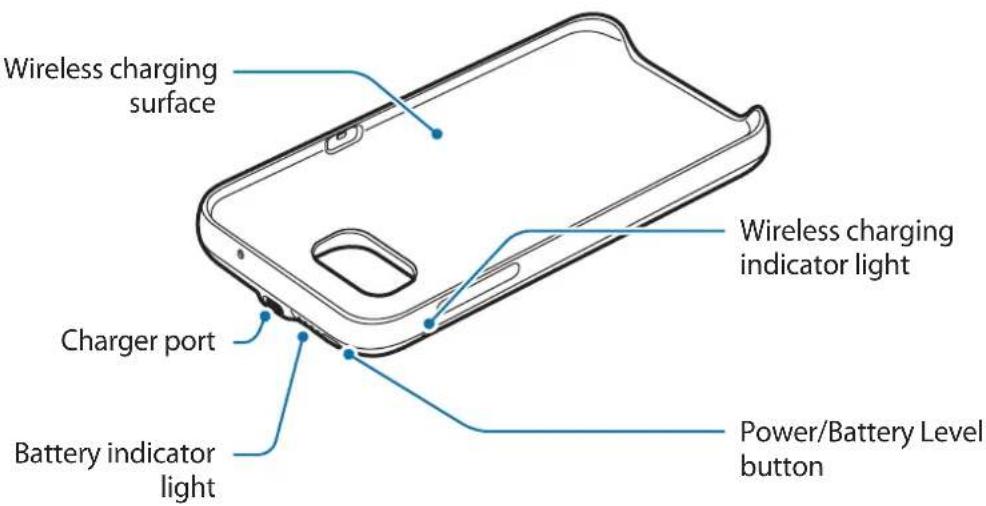
Charging the backpack
Charge the battery before using it for the first time or when it has been unused for extended periods.

Use only Samsung-approved chargers and cables. Unapproved chargers can cause the battery to explode or damage the backpack.
1 Connect the backpack pack to a charger.
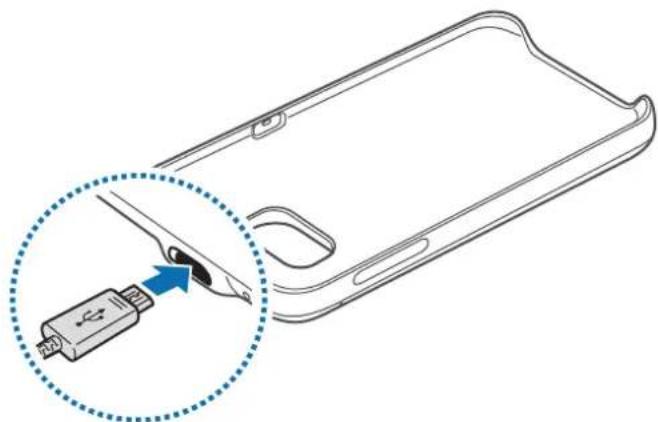

Connecting the charger improperly may cause serious damage to the backpack. Any damage caused by misuse is not covered by the warranty.
2 After fully charging, disconnect the backpack from the charger.

To save energy, unplug the charger when not in use. The charger does not have a power switch, so you must unplug the charger from the electric socket when not in use to avoid wasting power. The charger should remain close to the electric socket and easily accessible while charging.
Battery charging tips and precautions
- Chargers are sold separately.
- Using a power source other than the charger, such as a computer, may result in a slower charging speed due to a lower electric current.
- The charger can simultaneously charge the backpack and a mobile device when both are connected, but charging may take longer.
- If a mobile device is attached to the backpack during charging, the mobile device will be charged before the backpack.
- While charging, the backpack may heat up. This is normal and should not affect the backpack's lifespan or performance. If the battery gets hotter than usual, the charger may stop charging.
- The actual capacity (Wh) is measured based on the battery's output current and voltage. It may differ from the capacity (Wh) indicated on the device, depending on the output power condition, the connected device's circuit configuration, and the operation environment.
- If the backpack is not charging properly, take the backpack and the charger to a Samsung Service Center.
Checking the battery status
While the backpack is charging, the battery indicator will flash according to the charging status.
| Charging status Battery indicator status |
| 100% Four indicator lights on |
| 75–99% Three indicator lights on and one indicator light blinking |
| 50–75% Two indicator lights on and one indicator light blinking |
| 25–50% One indicator lights on and one indicator light blinking |
| 0–25% One indicator light blinking |

If the backpack is exposed to extremely hot or cold temperatures or an error occurs, the four indicator lights will blink. Disconnect the charger from the backpack, and then reconnect them.
Checking the remaining battery power
Check the remaining battery power by pressing the Battery level button.
The battery indicator will activate according to the remaining battery power.
| Remaining battery power | Battery indicator status |
| 75–100% Four indicator lights on | |
| 50–75% Three indicator lights on | |
| 25–50% Two indicator lights on | |
| 5–25% One indicator light on | |
| less than 5% One indicator light blinking | |
Using the backpack
Charging your mobile device
1 Insert your mobile device into the backpack.
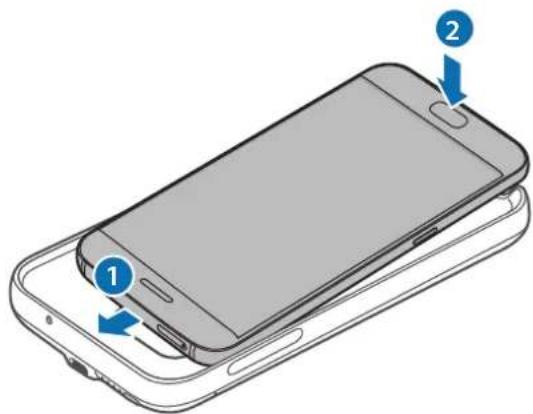
2 Press the backpack's Power button. Wireless charging will start.
To deactivate wireless charging, press and hold the Power button. To activate wireless charging again, press the Power button.
3 When the mobile device is fully charged, disconnect it from the backpack.

- The backpack and mobile device may vibrate while charging due to high power frequency.
- Do not place any objects between the mobile device and the backpack. Doing so may prevent the mobile device from charging properly.
- If you use the backpack in areas with weak network signals, your mobile device may lose network reception.
- If you connect a charger to the mobile device during wireless charging, the wireless charging feature will be unavailable.
- While using the backpack, you cannot use some mobile device features, such as Near Field Communication (NFC) and Samsung Pay. Some features that use the mobile device's back sensor may not work. To use these features, remove the backpack from your mobile device.
Checking the wireless charging status
You can check the mobile device's charging status via the wireless charging indicator.
| Color Wireless charging status | |
| Blue → Green When in standby mode | |
| Blue When charging | |
| Green When fully charged | |
| Flashing blue When not charging properly due to a general error | |
| Off | When the backpack is off or when the mobile device is disconnected from the backpack |

- If the mobile device is not charging after being connected to the backpack, turn off the mobile device and then turn it on again.
- The backpack is an auxiliary external battery. It may not fully charge some mobile devices.
- If the backpack and the mobile device is exposed to extremely hot or cold temperatures or an error occurs, the wireless charging indicator will flash in blue. Disconnect the mobile device from the backpack, and then reconnect them.
This product contains chemicals known to the State of California to cause cancer, birth defects, or other reproductive harm. For more information, please call 1-800-SAMSUNG (726-7864)
Samsung Electronics America, Inc
85 Challenger Road,
Ridgefield Park, New Jersey, 07660
Phone: 1-800-SAMSUNG (726-7864)
Copyright
Copyright © 2016 Samsung Electronics America, Inc.
This manual is protected under international copyright laws.
No part of this manual may be reproduced, distributed, translated, or transmitted in any form or by any means, electronic or mechanical, including photocopying, recording, or storing in any information storage and retrieval system, without the prior written permission of Samsung Electronics.
Trademarks
SAMSUNG and the SAMSUNG logo are registered trademarks of Samsung Electronics.
- All other trademarks and copyrights are the property of their respective owners.
Copyright © 2016 Samsung Electronics
© Samsung Electronics, 2016.