
AVENT SCD734 - Baby monitors PHILIPS - Free user manual and instructions
Find the device manual for free AVENT SCD734 PHILIPS in PDF.
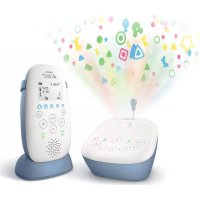


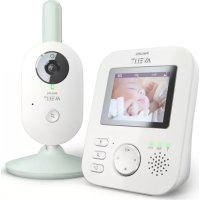
| Product Type | Baby Monitor (audio/video? audio only, as no camera mentioned) |
| Brand | Philips |
| Model | AVENT SCD734 |
| Color | White (estimation) |
| Baby unit power supply | 4 AA alkaline batteries 1.5 V (not included) or mains via adapter (not included) |
| Parent unit power supply | Built-in rechargeable battery (2 NiMH batteries included) or mains via included adapter |
| Parent unit battery life | 25 hours (after full charge) |
| Parent unit charging time | 14 hours |
| Outdoor range | 330 meters |
| Indoor range | 50 meters (typical) |
| Frequency | DECT |
| Soothing functions | Nightlight, lullabies (pre-programmed), projector (6 patterns) |
| ECO Max mode | Yes (disables DECT signal when no sound to save energy) |
| Talk-back | Yes (TALK button on parent unit) |
| Cry alarm | Yes (parent unit vibrates) |
| Feed timer | Yes (1 minute to 23:59, with repeat possible) |
| Temperature monitoring | Yes (configurable range and alert) |
| Night mode | Yes (reduces light and sound intensity) |
| Key lock | Yes (on parent unit) |
| Microphone sensitivity adjustment | 4 levels |
| Volume (parent unit) | 7 levels + mute |
| Display | Backlit screen with clock, sound level indicators, battery, etc. |
| Available languages | Multiple (adjustable in menu) |
| Maintenance | Clean surfaces with a dry soft cloth |
| Warranty | International warranty (see leaflet) |
Frequently Asked Questions - AVENT SCD734 PHILIPS
User questions about AVENT SCD734 PHILIPS
0 question about this device. Answer the ones you know or ask your own.
Ask a new question about this device
Download the instructions for your Baby monitors in PDF format for free! Find your manual AVENT SCD734 - PHILIPS and take your electronic device back in hand. On this page are published all the documents necessary for the use of your device. AVENT SCD734 by PHILIPS.
USER MANUAL AVENT SCD734 PHILIPS
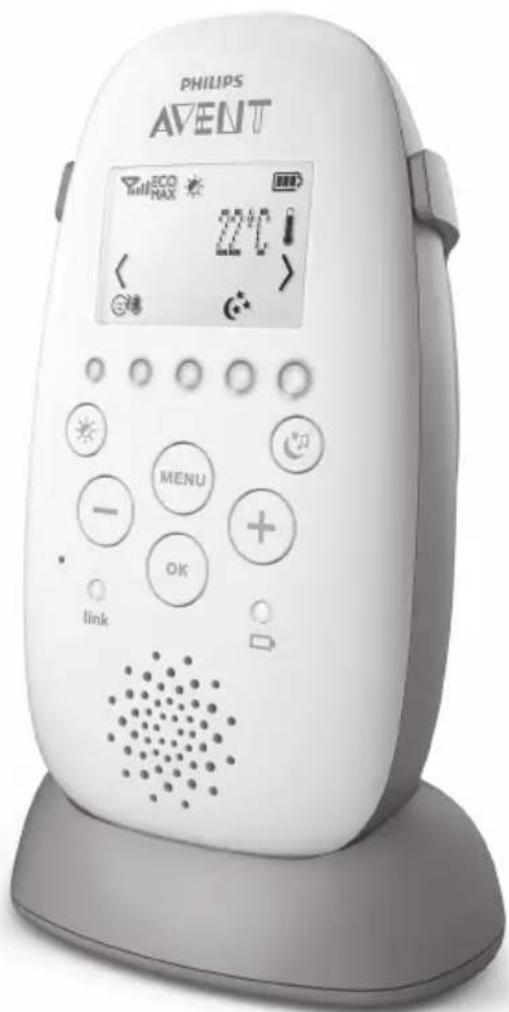

English 6
German 22
French 39
Italian 56
Introduction
Go to www.philips.com/welcome to register your product and to read the detailed user manual.
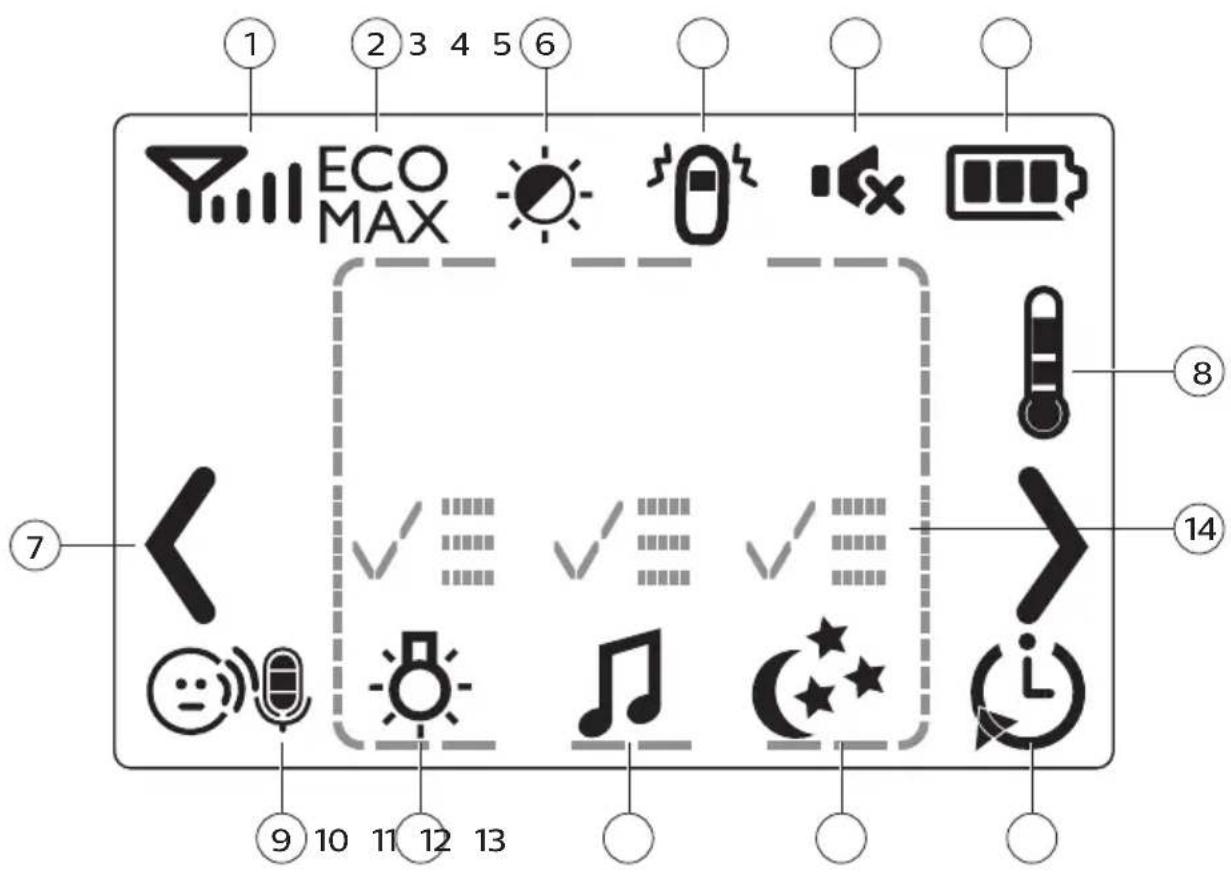
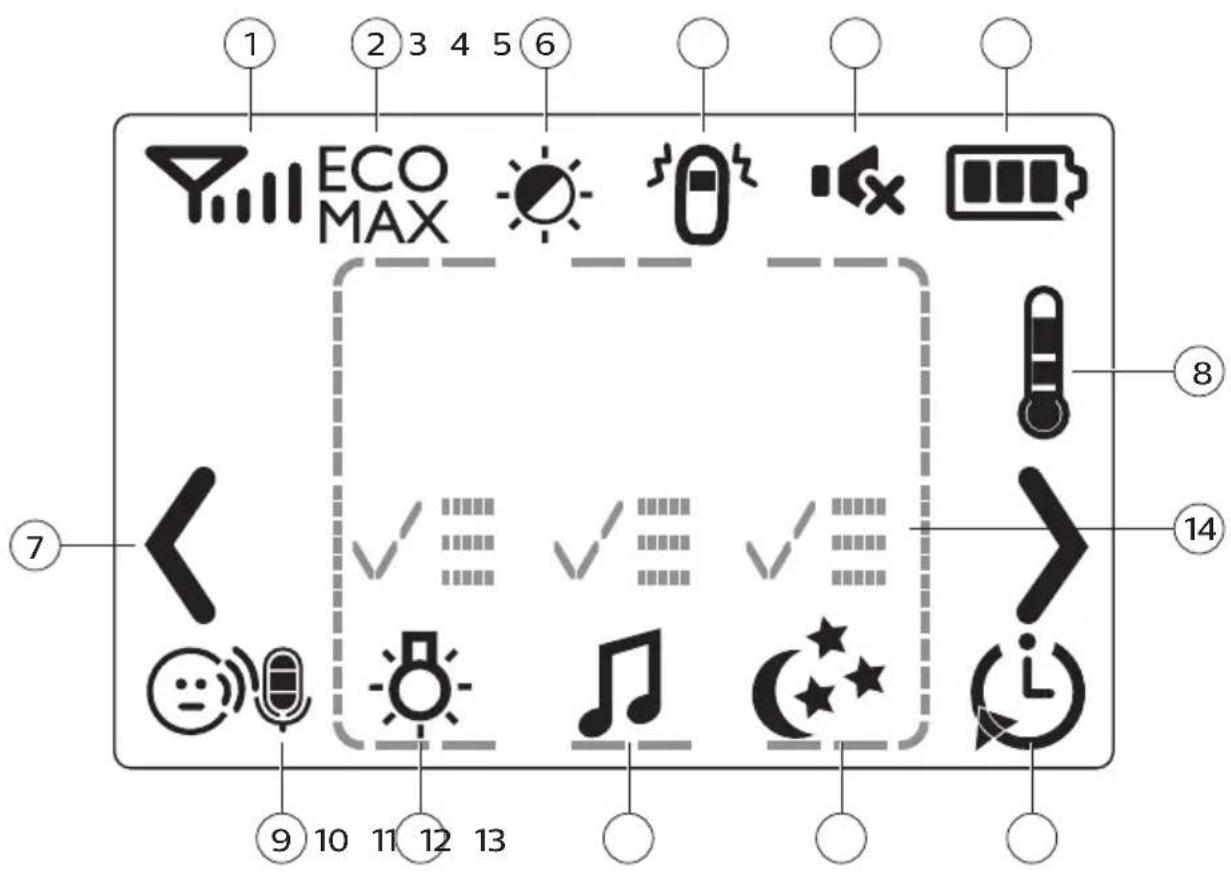
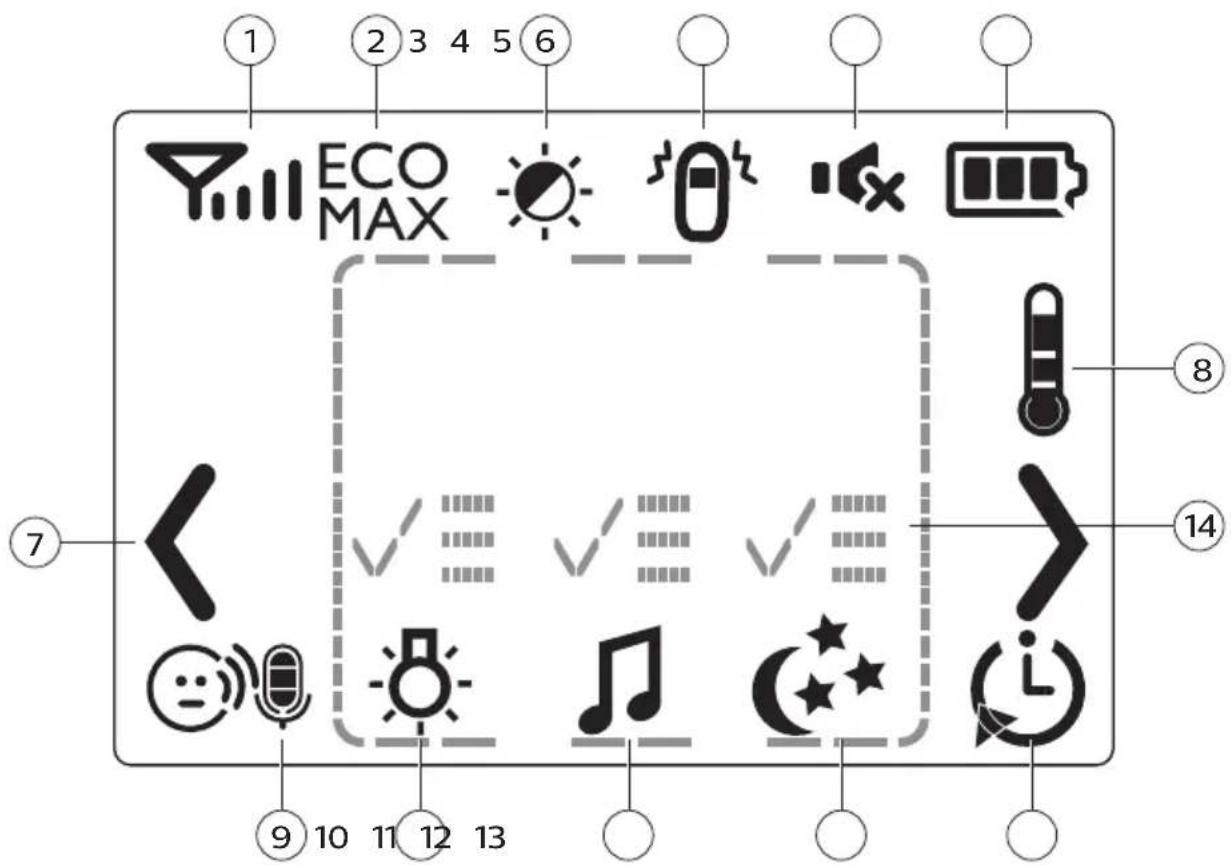
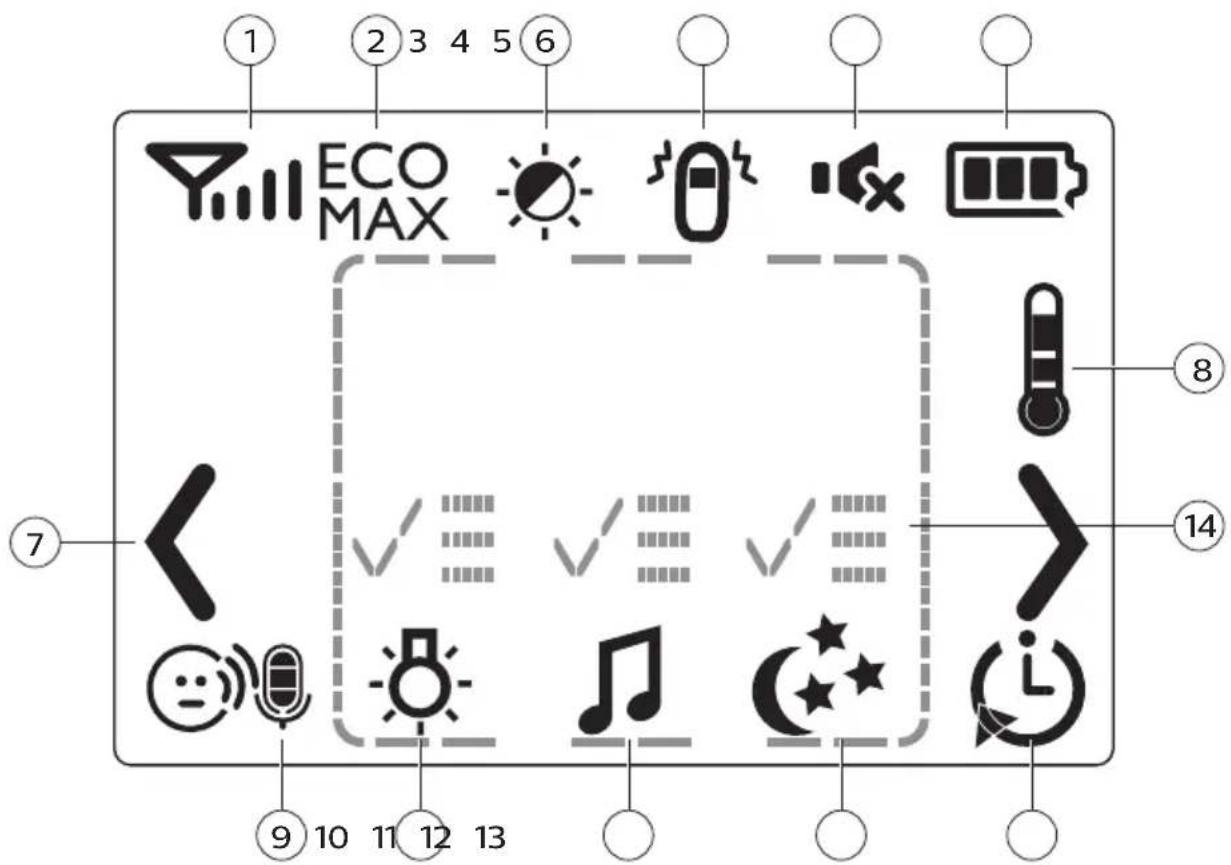
Display of the parent unit (Fig. 1)
1 Signal strength indicator 2 Eco Max indicator 3 Night dim mode symbol 4 Cry alert indicator 5 Mute symbol 6 Battery status indicator 7 Navigation arrow 8 Temperature symbol 9 Microphone sensitivity indicator 10 Nightlight symbol 11 Lullaby symbol 12 Projector symbol 13 Timer or timer repeat symbol 14 Soothing menu screen
Preparing for use
IMPORTANT: Read the safety instructions carefully before you use the baby monitor and keep them for future reference.
Baby unit
We advise you to use the baby unit connected to the mains. To guarantee automatic power backup in case of mains failure, you can insert four 1.5V AA alkaline batteries (not included).
Do not use rechargeable batteries. The baby unit does not have a charging function and rechargeable batteries discharge slowly when they are not in use.
Parent unit
The parent unit runs on two rechargeable batteries that are supplied with the baby monitor. Charge the parent unit before you use it for the first time and when the batteries are low.
Please note that for the SCD730/SCD731/SCD733, you have to charge the parent unit for the full 10 hours to have a cordless operating time of 18 hours. (For the SCD734 and SCD735: the charging time is 14 hours and the operating time is 25 hours.)
Note: When you start using the baby monitor, it takes 4 charge and discharge cycles before the rechargeable batteries reach their full capacity.
Using the baby monitor
Positioning the baby monitor
Keep the baby unit out of the reach of the baby. Never place the baby unit inside the baby's bed or playpen.
- Because the cord of the baby unit presents a potential strangulation hazard, make sure that the baby unit and its cord are at least 1 metre/3.5 feet away from your baby.
- To prevent a high-pitched sound from one or both units, make sure that the parent unit is at least 1 metre/3.5 feet away from the baby unit.
Linking parent unit and baby unit
1 Press and hold the button on the baby unit for 2 seconds until the power-on light goes on. 2 Press and hold the button on the parent unit for 2 seconds until the display lights up. The 'link' light on the parent unit starts flashing red and the message 'I AM LINKING' appears on the display.
When the parent unit and baby unit are linked, the 'link' light turns solid green. The signal strength indicator and the message 'LINKED' appear on the display.
If no connection is established, the message 'NOT LINKED' is displayed and the parent unit starts to beep.
What to do if no link is established
- If the parent unit is out of range, place it closer to the baby unit, but not closer than 1 metre/3.5 feet.
- If the baby or parent unit is too close, >2m/6.5 ft away from another DECT appliance (e.g. a cordless phone), switch off this appliance or move the unit away from this appliance.
- If the baby unit is switched off, switch it on.
Operating range
- The operating range is 330 metres/1000 feet outdoors and up to 50 metres/150 feet indoors.
- The operating range of the baby monitor varies depending on the surroundings and factors that cause interference. Wet and moist materials cause so much interference that the range loss is up to 100%. For interference from dry materials, see the table below.
Dry materials Material thickness Loss of range
| Wood, plaster, cardboard, < 30cm (12in) 0-10% glass (without metal, wires or lead) |
| Brick, plywood < 30cm (12in) 5-35% |
| Reinforced concrete < 30cm (12in) 30-100% |
Dry materials Material thickness Loss of range
Metal grilles or bars < 1cm (0.4in) 90-100%
Metal or aluminium sheets < 1cm (0.4in) 100%
Functions and feedback on the baby unit
Nightlight
The nightlight produces a soft glow that comforts your baby.
1 Press the button on the baby unit to switch the nightlight on or off.
Lullaby function
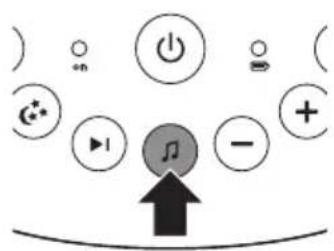
1 Press the button on the baby unit to play the last selected lullaby. The selected lullaby repeats for the set time.
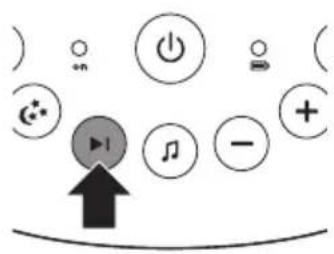
2 Press the ▶ button to select another lullaby from the list.
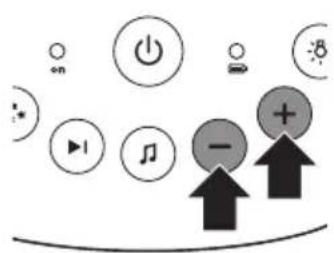
3 To adjust the sound level of the lullaby, press the volume + or the volume - button on the baby unit.
Note: You can only set the loudspeaker volume on the baby unit when a lullaby is playing. If you set the volume for the lullaby higher, the sound will also be louder when you use the talk function on the parent unit.
4 To stop lullaby playing, press the Button on the baby unit.
Projector
You can soothe your baby with coloured light patterns projected on the ceiling by switching on the projector.
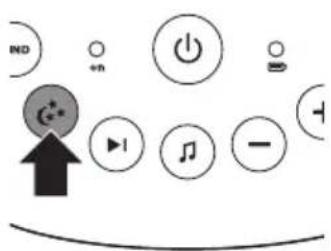
1 Press the projector on/off button to switch on the projector. The projector symbol appears on the display of the parent unit.
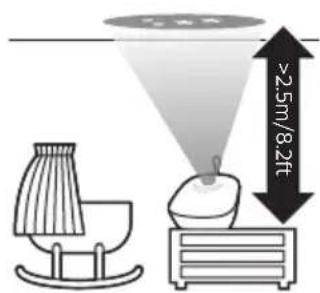
2 There are six different patterns. The first pattern fades in to full intensity in 2 seconds. It is projected for 8 seconds and then fades out for 2 seconds while the next pattern fades in. Each pattern is projected for 10 seconds. The patterns are repeated for the set time.
3 To switch off the projector, press the projector on/off button again.
Paging the parent unit
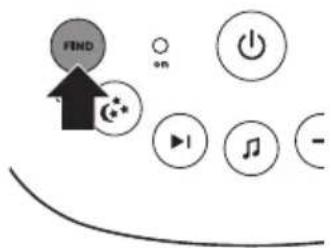
If you have lost the parent unit, you can use the FIND button on the baby unit to locate the parent unit. This function only works when the parent unit is switched on.
1 Press FIND on the baby unit. The parent unit produces a paging alert tone.
2 To stop the paging alert tone, press FIND on the baby unit again or press any button on the parent unit. The paging alert tone stops automatically after 2 minutes.
Battery status light
1 The battery status light is solid green when the baby unit is operating on battery power and the batteries contain enough energy.
2 The battery status light flashes red quickly when the batteries run low while the baby unit is operating on battery power. Replace the batteries when they run low.
Functions and feedback on the parent unit
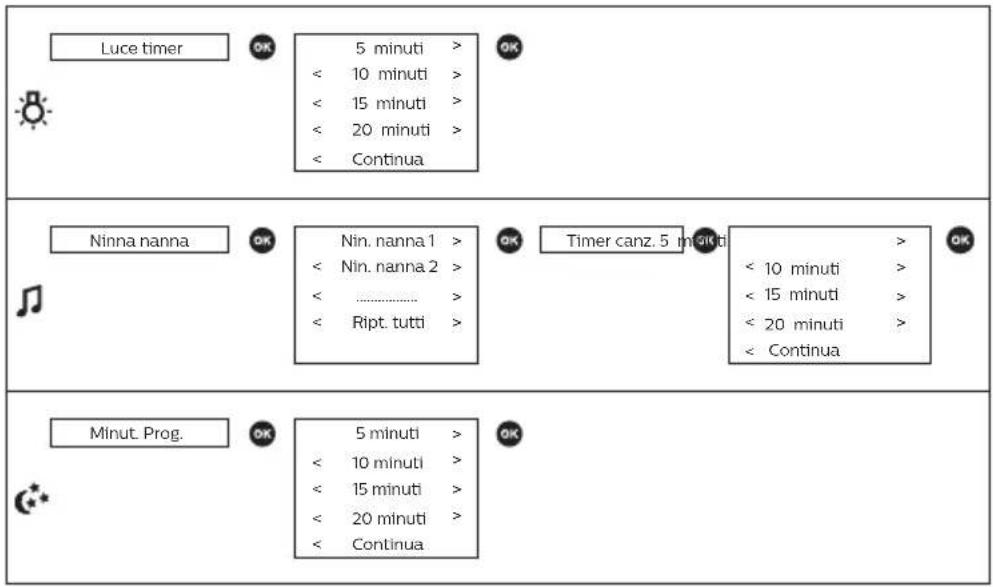
Soothing menu
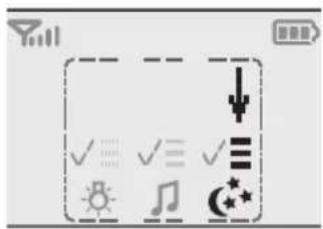
The parent unit has a separate soothing menu for all soothing features: nightlight, lullaby, and projector. To open the soothing menu, press the
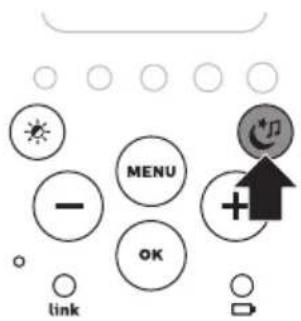
soothing button. This screen allows you to operate the nightlight, the lullabies, and the projector on the baby unit remotely.
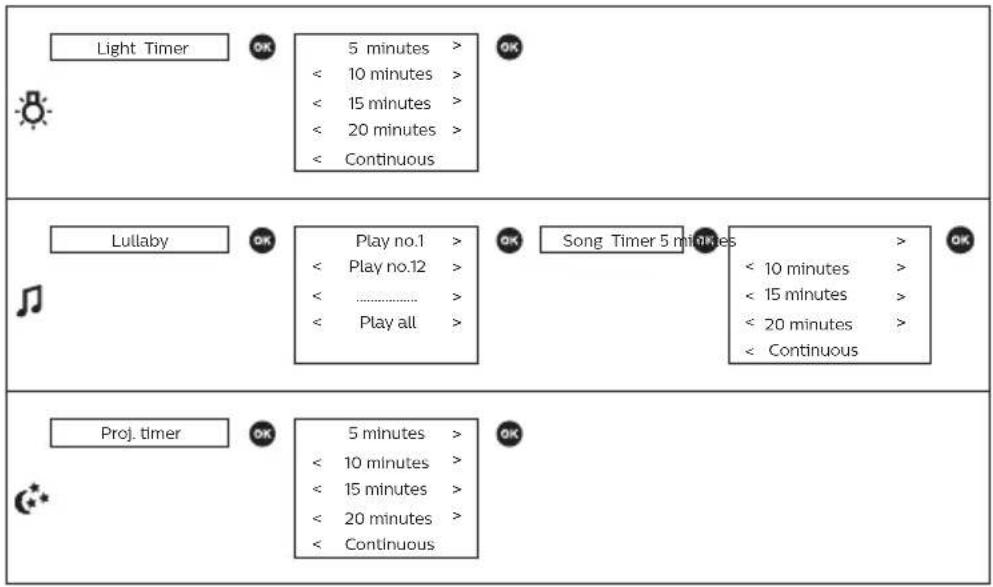
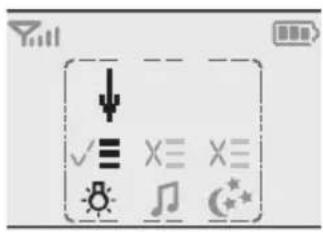
1. To open the soothing menu, press the soothing button.
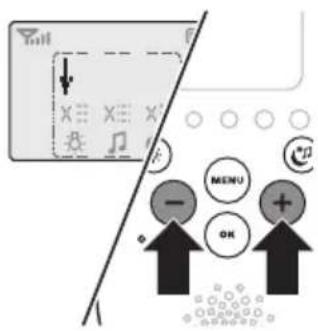
2. Use the + and - buttons to point the arrow to a soothing feature.
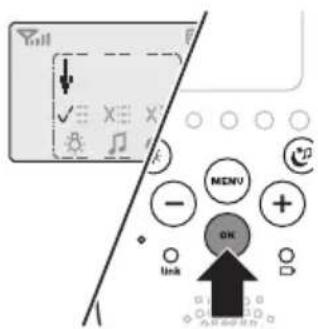
3. To switch on a soothing feature when it is off, or to switch it off when it is on, press OK. When the feature is on, there is a tick above the symbol of the feature. When the feature is off, there is a cross above the symbol of the feature.
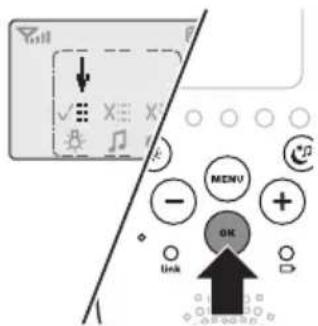
4. To open the menu with options for the feature, move the arrow over the options field and press OK. Use the - and + buttons to select items in the options field.
5. To leave the soothing menu, press the soothing button.
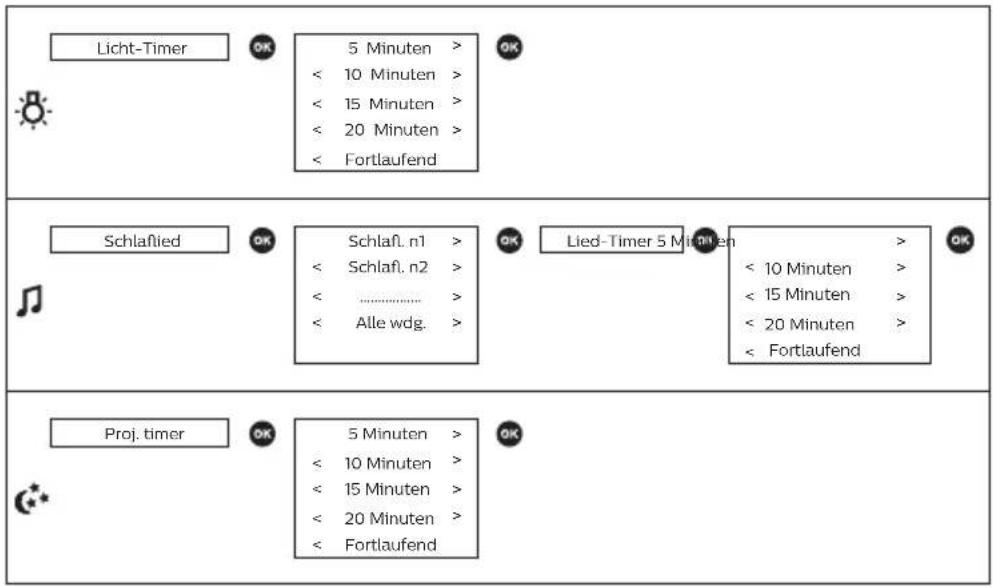
Nightlight
This soothing feature allows you to switch the nightlight on or off and to set the nightlight timer.
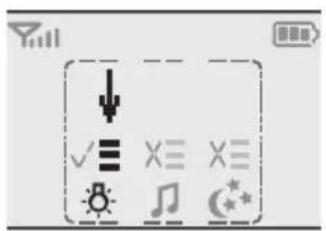
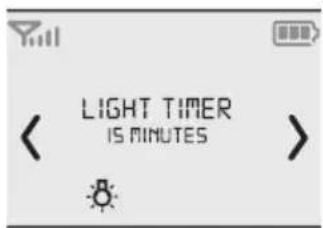
1. Select the nightlight feature and open the menu with nightlight options.
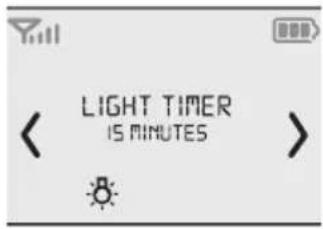
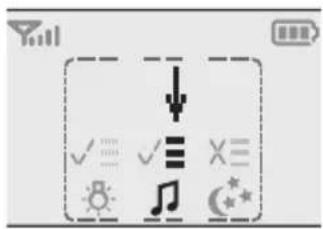
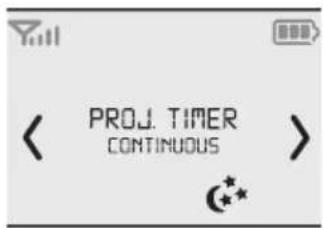
2. You can set the nightlight timer for 5 to 20 minutes, or you can switch on the nightlight continuously. Press OK to confirm. The nightlight symbol appears on the display.
If you set the nightlight timer, the nightlight switches off automatically. If you switch on the nightlight continuously, switch it off in the soothing menu or by pressing the button on the baby unit.
Lullaby
This soothing feature allows you to select the lullaby playing options and set the lullaby timer.
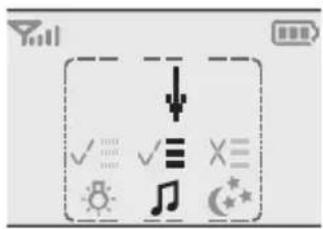
1 Select the lullaby feature and open the menu with lullaby options. 2 In the lullaby options menu, you can select a lullaby from the list of pre-stored lullabies. You can also select 'Play all' to play all pre-stored lullabies. 3 You can set the lullaby timer for 5 to 20 minutes or you can choose to play lullabies continuously. Press OK to confirm the timer setting. The lullaby symbol and the lullaby played are shown on the display. If you set the timer, the lullaby function switches off after the time set. If you choose play continuously, switch off the lullaby function in the soothing menu or by pressing the 📂 button on the baby unit.
Projector
This soothing feature allows you to switch on the projector on the baby unit and to program the duration of projection.
1 Select the projector feature and open the menu with projector options. 2 To access the projector options, point the arrow at the options field and press OK.
3 You can set the projector timer for 5 to 20 minutes or you can switch on the projector continuously. Press OK to confirm. The projector symbol appears on the display.
If you set the projector timer, the projector switches off automatically. If you switch on the projector continuously, switch off the projector in the soothing menu or by pressing the projector button on the baby unit.
Volume
The volume can be set if the menu is not active. There are seven volume levels and a 'volume off' setting.
Setting the volume level
1 Press the + button or the - button once.
The current volume level appears on the display.
2 Press the + button to increase the volume or press the - button to decrease the volume.
If no button is pressed for more than 2 seconds, the volume level indication disappears from the display and the volume setting is saved.
Volume off
Below the lowest volume setting, there is a 'volume off' setting.
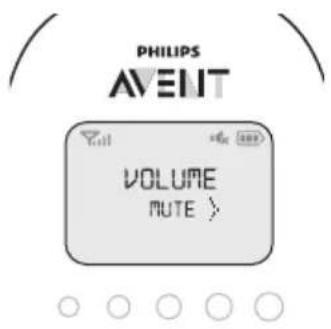
1 Press the + button or the - button once. The current volume level appears on the display. 2 Press and hold the - button for more than 2 seconds to set the volume to off.
The message 'MUTE' and the mute symbol appear on the display. Only the sound level lights show that the baby produces sounds.
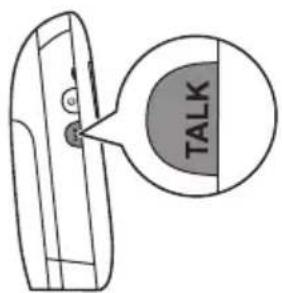
Talk function
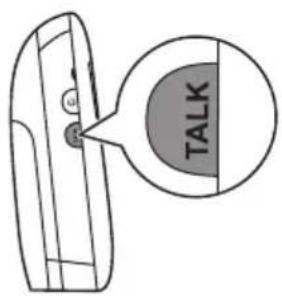
1 If you want to comfort your baby, press TALK on the parent unit and talk clearly into the microphone on the front from a distance of 15-30cm (0.5-1ft).
Note: If you have set the volume of the lullaby higher on the baby unit, the sound will also be louder when you use the talk function on the parent unit.
2 Release TALK when you have finished talking.
Night dim mode
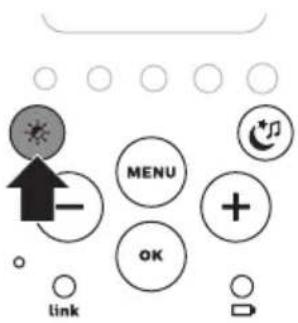
In night dim mode, the light intensity of the lights and the display is reduced and the volume of alert sounds is decreased.
1 Press the button to switch on the night dim mode. 2 Press the button again to switch back to normal operating mode.
Baby unit battery low alert
1 When the baby unit runs on battery power and its batteries are low, the parent unit beeps and the text 'Baby unit Change batteries' appears on the display. 2 If you do not replace the batteries in time, the link with the baby unit will be lost.
Battery status indications
Battery low
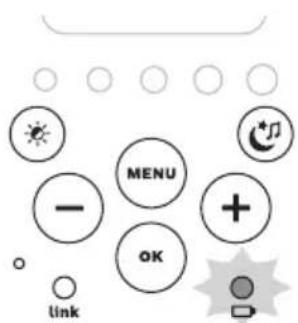
When the rechargeable batteries are low, 'BATTERY LOW' appears on the display, the status indicator is empty and flashes, and the parent unit beeps. The remaining operating time is at least 30 minutes.
Battery empty
1 If the rechargeable batteries are almost empty, the battery status light flashes red quickly. 2 If you do not connect the parent unit to the mains, it switches off.
Menu of the parent unit
Navigating the menu
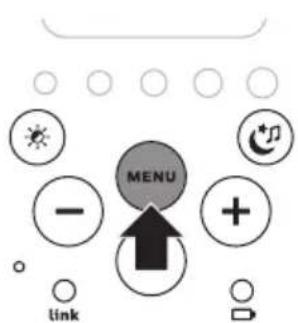
Note: Some menu functions only work when the baby unit and the parent unit are linked.
1 Press the MENU button to open the menu and to make the first menu option appear.
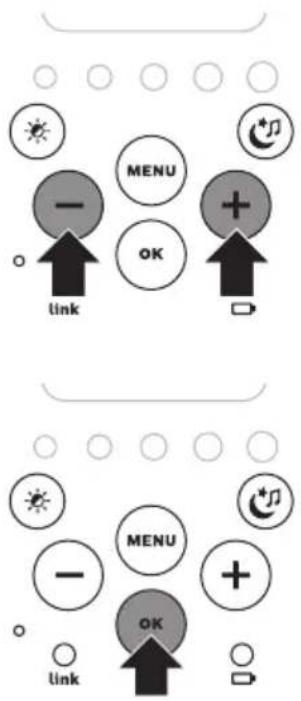
2 Use the + button to go to the next option or the - button to go to the previous option. The arrow on the display indicates in which direction you can navigate.
3 Press OK to confirm your selection.
Note: Press the MENU button if you want to leave the menu without making any changes. If there is no input in the menu for more than 20 seconds, the menu closes automatically.
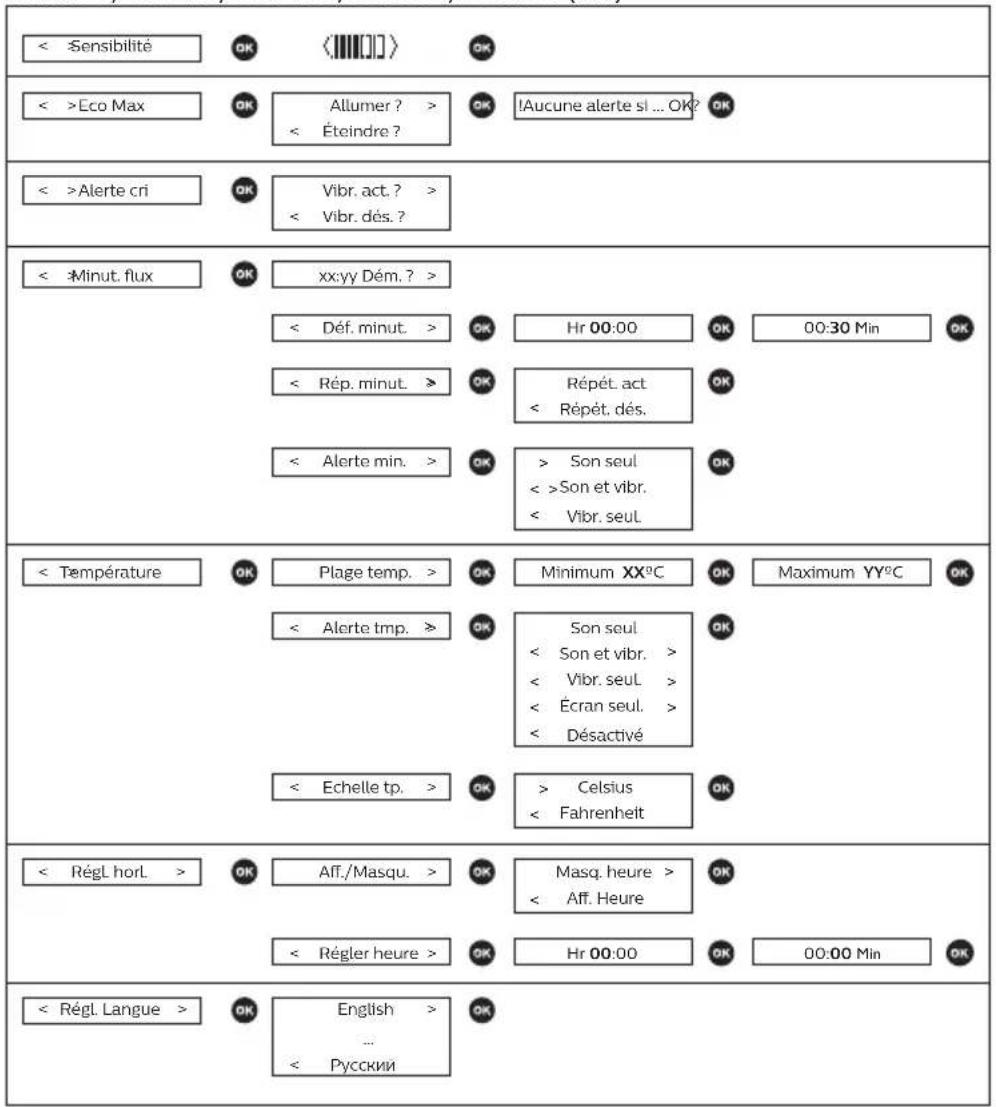
Sensitivity
This option in the parent unit menu allows you to set the microphone sensitivity of the baby unit.
The microphone sensitivity determines what noise level the baby unit picks up, e.g. you will want to hear when your baby cries, but you may be less interested in its babbling.
1 Select 'Sensitivity' in the menu with the + and - buttons and press OK to confirm.
2 Use the + and - buttons to increase or decrease the microphone sensitivity. The number of filled segments shows the sensitivity level selected. Press OK to confirm the setting.
Sensitivity levels and indications
Icon Sensitivity Description
 | highest Hear everything from your baby. The speaker of the parent unit is continuously on. |
 | high Hear all sounds from soft babbling and louder. If your baby does not make any sound, the speaker of the parent unit is off. |
 | medium Hear sounds from soft cries and louder. If your baby makes softer sounds, the speaker of the parent unit does not go on. |
Eco Max mode
Smart Eco is a standard feature on this baby monitor. It automatically reduces the DECT signal from the baby unit to save energy. To save even more energy, activate the Eco Max mode. In this mode, the DECT signal of the baby unit is switched off as long as the baby does not make a sound.
Caution: In Eco Max mode, the parent unit receives feedback from the baby unit with a delay. When your baby makes a sound, the baby unit first has to reactivate radio transmission before it can send feedback to the parent unit.
Please note the following:
- In Eco Max mode you do not receive feedback when the parent unit is out of range of the baby unit. You can check the link by pressing any button on the parent unit.
- The Eco Max mode cannot be activated if the microphone sensitivity is set to the highest level.
Activating Eco Max mode
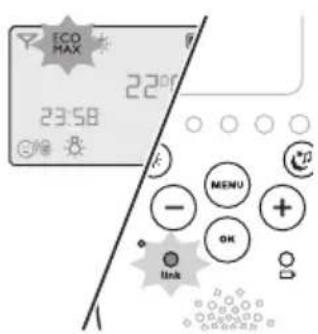
1 Select 'Eco Max' in the menu with the + and - buttons and press OK to confirm. 2 When the display shows 'Turn On', press OK to switch on the Eco Max mode. 3 The warning message '!No alert if out of range, OK?' appears on the display. Press OK to confirm.
Note: The warning message scrolls across the display twice. If you do not press OK, the parent unit leaves the menu and the Eco Max mode remains off.
4 The Eco Max indication flashes on the display. The 'link' light flashes green slowly when the baby unit does not transmit any signals to the parent unit.
5 When the parent unit receives a signal from the baby unit because radio transmission has been reactivated, the 'link' light turns solid green.
Deactivating Eco Max mode
1 Press the MENU button. 2 Use the + and - buttons to select 'Eco Max' and press OK to confirm. 3 When the display shows 'Turn Off', press OK to confirm.
Feed timer
You can set the feed timer to alert you that it is time to feed your baby. The timer can be set from 1 minute to 23 hours and 59 minutes.
1 To open the feed timer submenu, select 'Feed Timer' in the menu. Press OK to confirm.
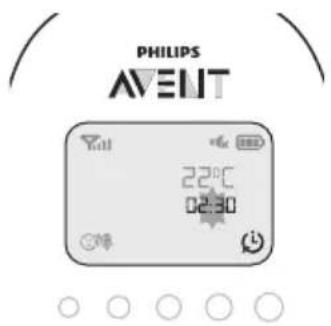
2 Select 'Set Timer' in the feed timer submenu. Press OK to start setting the timer. 3 Set the hour and the minutes and press OK to confirm. 4 To start the feed timer, select 'xx:xx Start' in the feed timer submenu. Press OK to confirm. The timer symbol appears on the display and the timer starts counting down.
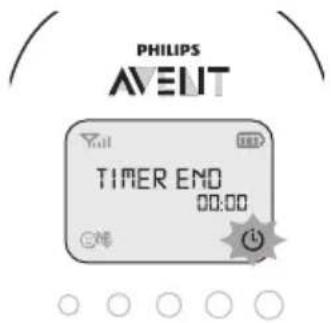
5 When the timer has reached 00:00, the feed timer alert goes off, the timer symbol starts flashing on the display and the message 'TIMER END' scrolls across the display. 6 To stop the timer, select 'Stop & Reset' in the feed timer submenu and press OK to confirm.
Setting the feed timer repeat
1 To make the feed timer go off after the same set time, select 'Timer repeat' in the feed timer submenu after you have set the timer. Press OK to confirm. 2 Choose 'Repeat ON' or 'Repeat OFF' and press OK to confirm. The timer repeat symbol appears on the display. 3 If 'Repeat ON' is set, the feed timer starts counting down again after you stop the alert.
Setting a feed timer alert
1 To set an alert, select 'Timer Alert' in the feed timer submenu. Press OK to confirm. 2 Choose one of the alert options. The options available are sound only, sound and vibration and vibration only. 3 Press any key to stop the alert or the alert stops automatically after 2 minutes. 4 To stop the timer, select 'Stop & Reset' in the feed timer submenu and press OK to confirm.
Room temperature
A baby sleeps comfortably at a temperature between 16°C / 61°F and 20°C / 68°F. You can set a minimum and a maximum temperature range and an alert.
1 To open the temperature submenu, select 'Temperature' in the menu. Press OK to confirm. 2 Select 'Temp Range' in the temperature submenu and press OK to confirm. 3 Use the + and - buttons to set the minimum temperature range between 10°C/50°F and 19°C/66°F and the maximum temperature range between 22°C/72°F and 37°C/99°F. Press OK to confirm. 4 Select 'Alert' in the temperature submenu. Press OK to confirm.
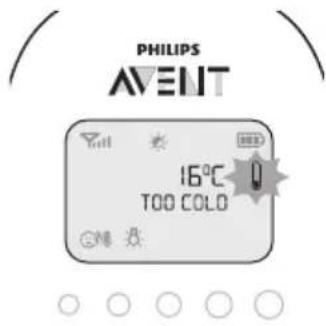
5 Choose one of the alert options. The options available are sound only, sound and vibration, vibration only and display only. Press OK to confirm. The temperature alert symbol appears on the display.
6 Select 'Temp Scale' in the temperature submenu. Press OK to confirm.
7 Select 'Celsius' or 'Fahrenheit' and press OK to confirm. The temperature in the set scale appears on the display.
If the temperature is within the set range, the temperature alert symbol has two segments.
If the temperature is below or above the set range, the temperature alert symbol on the display has only one segment and flashes. The message 'TOO COLD' or 'TOO HOT' appears on the display.
Cry alert
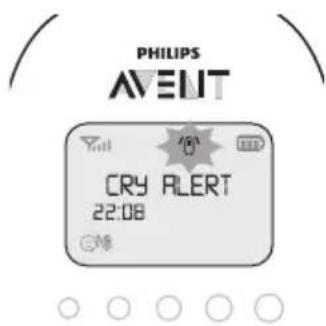
You can set a cry alert to warn you that the baby is crying.
1. Select 'Cry alert' in the menu with the + and - buttons. Press OK to confirm.
2. When the display shows 'Vibration ON', press OK to confirm. The cry alert indicator appears on the display.
The cry alert goes off when the sound in the baby room is loud enough to make the fourth sound level light go on. The parent unit vibrates and the message 'Cry alert' appears on the display for 4 seconds. The cry alert repeats every 8 seconds until the sound becomes less loud or you deactivate the cry alert.
3. To deactivate the cry alert, select 'Cry alert' in the menu. When the display shows 'Vibration OFF', press OK to confirm.
Clock
The default setting for the clock is hidden. You can choose to show the clock and set the clock time in the menu of the parent unit.
1. Select 'Set clock' in the menu with the + and - buttons. Press OK to confirm.
2. Select 'Show Time' and press OK to confirm.
3. Select 'Set the time' and press OK to confirm.
4. Set the hour and the minutes and press OK to confirm.
The clock time alternates with other indications in the message field of the display.
Language
You can use this menu option to change the language setting.
1 Select 'Set language' in the menu with the + and - buttons. Press OK to confirm.
2 Use the + and - buttons to select your language and press OK to confirm.
Key lock
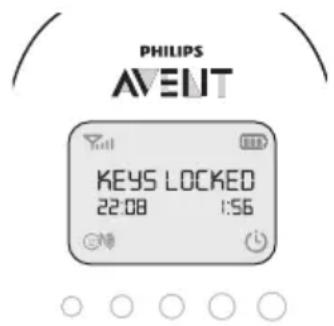
You can activate the key lock to prevent the buttons from being pressed accidentally while you carry the parent unit around.
1 To activate the key lock, press OK. 2 Press the + button within 2 seconds.
Note: If you do not press the + button within 2 seconds, the instruction remains on the display.
3 After you have pressed the + button, the message 'Keys locked' appears on the display. 4 To deactivate the key lock, press OK. When the display shows the instruction message, press the + button within 2 seconds.
Notes:
- When you press a button other than OK while the key lock is active, the display goes on and the second line on the display tells you how to deactivate the key lock.
- When you press OK while the key lock is active, the second line on the display tells you what second step is necessary to unlock the buttons.
Warranty and support
If you need information or support, please visit www.philips.com/support or read the international warranty leaflet.
SCD730/SCD731/SCD733/SCD734/SCD735 (EN)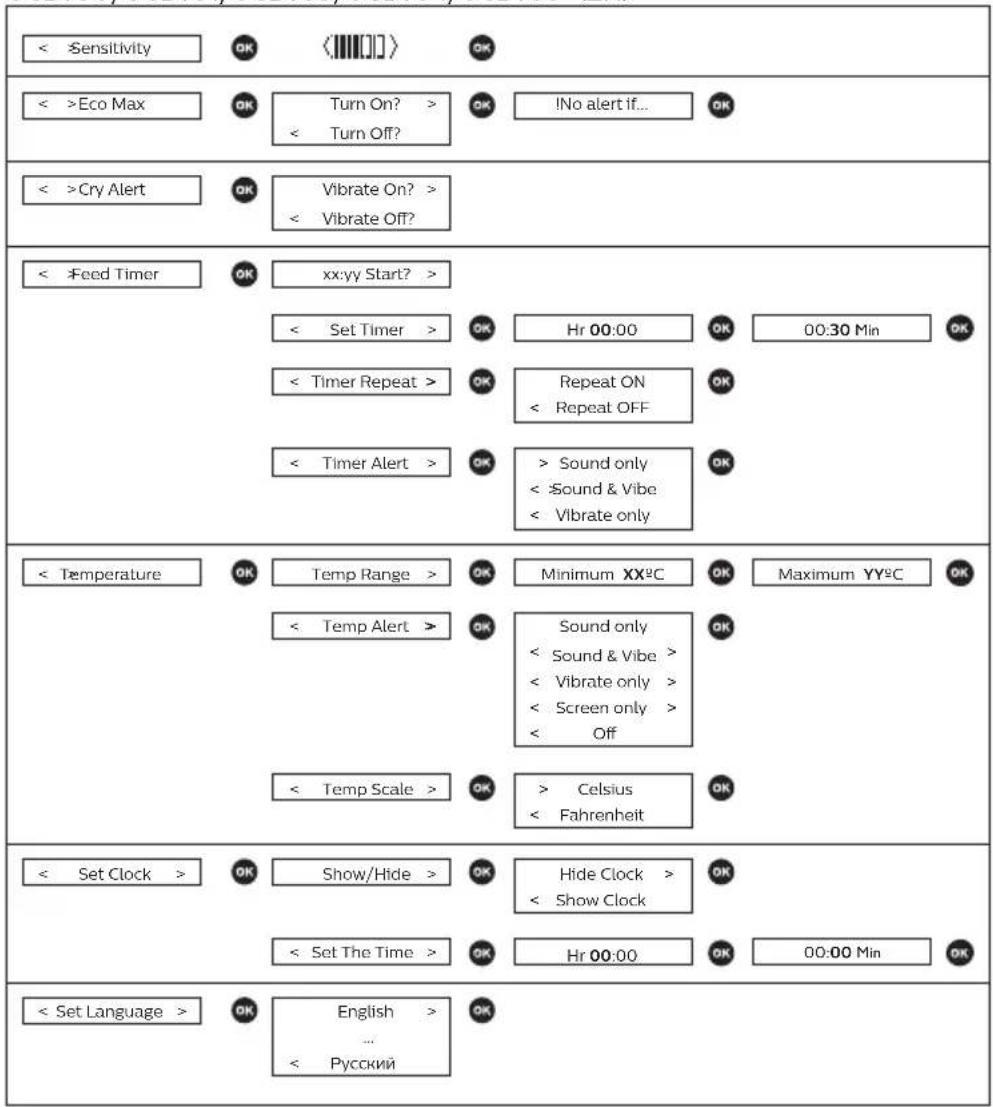
Press OK = OK < =
=

Press OK


Introduction
SCD730/SCD731/SCD733/SCD734/SCD735 (DE)![< >EmfindL OK < [1100] > OK < >Eco Max OK Einschalt? > < Ausschalt? > OK !Kein Alarm außer...Ok? OK < Weinalarm OK Vibrat. ein? > < Vibrat. aus? OK < Feed Timer OK xx:yy Start? > < Timer stl. > OK Std 00:00 OK 00:30 Min OK < Timer-wdh. > OK Wdh. ein < Wdh. Aus OK < Timer-Alarm > OK > Nur Ton < >Ton…](/content/2026/03/433475/images/99339b0b9f99646ea0897af4a2849895f8d89b0060643ec3d781d67efa36f4a7.jpg)
Press OK = OK <= - > = 4

Press OK = OK
<= - > = +
1
Introduction
Talk function
SCD730/SCD731/SCD733/SCD734/SCD735 (FR)
Press OK


Press OK


Introduction
Lullaby
Projector
SCD730/SCD731/SCD733/SCD734/SCD735 (IT)![< >Sensibilità OK <[1100] > OK < >Eco Max OK Attivare? > < Disattiv? OK No avvisi fuori portata, OK OK < >Avv. pianto OK Vibraz. On? > < Vibraz. Off? < >Timer feed OK xx:yy avv.? > < Imp. timer > < Rlp. timer > < Avv. Timer > < Audio e vib. < Solo vibr. OK H 00:00 OK 00:30 Min OK Rlpeti < Ripeti off…](/content/2026/03/433475/images/ccb075f8196749c8f9e3c7944999a7cc18b9e77dda6e558b323c05b1c733955d.jpg)
Press OK = OK < =
=

Press OK = OK


www.philips.com/avent
Philips Consumer Lifestyle BV
Tussendiepen 4, 9206 AD Drachten, the Netherlands
Trademarks owned by the Philips Group.


- INTRODUCTION
- DISPLAY OF THE PARENT UNIT (FIG. 1)
- PREPARING FOR USE
- BABY UNIT
- PARENT UNIT
- USING THE BABY MONITOR
- POSITIONING THE BABY MONITOR
- KEEP THE BABY UNIT OUT OF THE REACH OF THE BABY. NEVER PLACE THE BABY UNIT INSIDE THE BABY'S BED OR PLAYPEN
- LINKING PARENT UNIT AND BABY UNIT
- WHAT TO DO IF NO LINK IS ESTABLISHED
- OPERATING RANGE
- DRY MATERIALS MATERIAL THICKNESS LOSS OF RANGE
- FUNCTIONS AND FEEDBACK ON THE BABY UNIT
- NIGHTLIGHT
- LULLABY FUNCTION
- PROJECTOR
- PAGING THE PARENT UNIT
- BATTERY STATUS LIGHT
- FUNCTIONS AND FEEDBACK ON THE PARENT UNIT
- SOOTHING MENU
- LULLABY
- VOLUME
- SETTING THE VOLUME LEVEL
- VOLUME OFF
- TALK FUNCTION
- NIGHT DIM MODE
- BABY UNIT BATTERY LOW ALERT
- BATTERY STATUS INDICATIONS
- BATTERY LOW
- BATTERY EMPTY
- MENU OF THE PARENT UNIT
- NAVIGATING THE MENU
- SENSITIVITY
- SENSITIVITY LEVELS AND INDICATIONS
- ECO MAX MODE
- PLEASE NOTE THE FOLLOWING
- ACTIVATING ECO MAX MODE
- DEACTIVATING ECO MAX MODE
- FEED TIMER
- SETTING THE FEED TIMER REPEAT
- SETTING A FEED TIMER ALERT
- ROOM TEMPERATURE
- CRY ALERT
- CLOCK
- LANGUAGE
- KEY LOCK
- NOTES
- WARRANTY AND SUPPORT
Brand : PHILIPS
Model : AVENT SCD734
Category : Baby monitors