 ManualGo.com
NITP669SUC - Cooker BOSCH - Free user manual and instructions
Find the device manual for free NITP669SUC BOSCH in PDF.



Download the instructions for your Cooker in PDF format for free! Find your manual NITP669SUC - BOSCH and take your electronic device back in hand. On this page are published all the documents necessary for the use of your device. NITP669SUC by BOSCH.
USER MANUAL NITP669SUC BOSCH
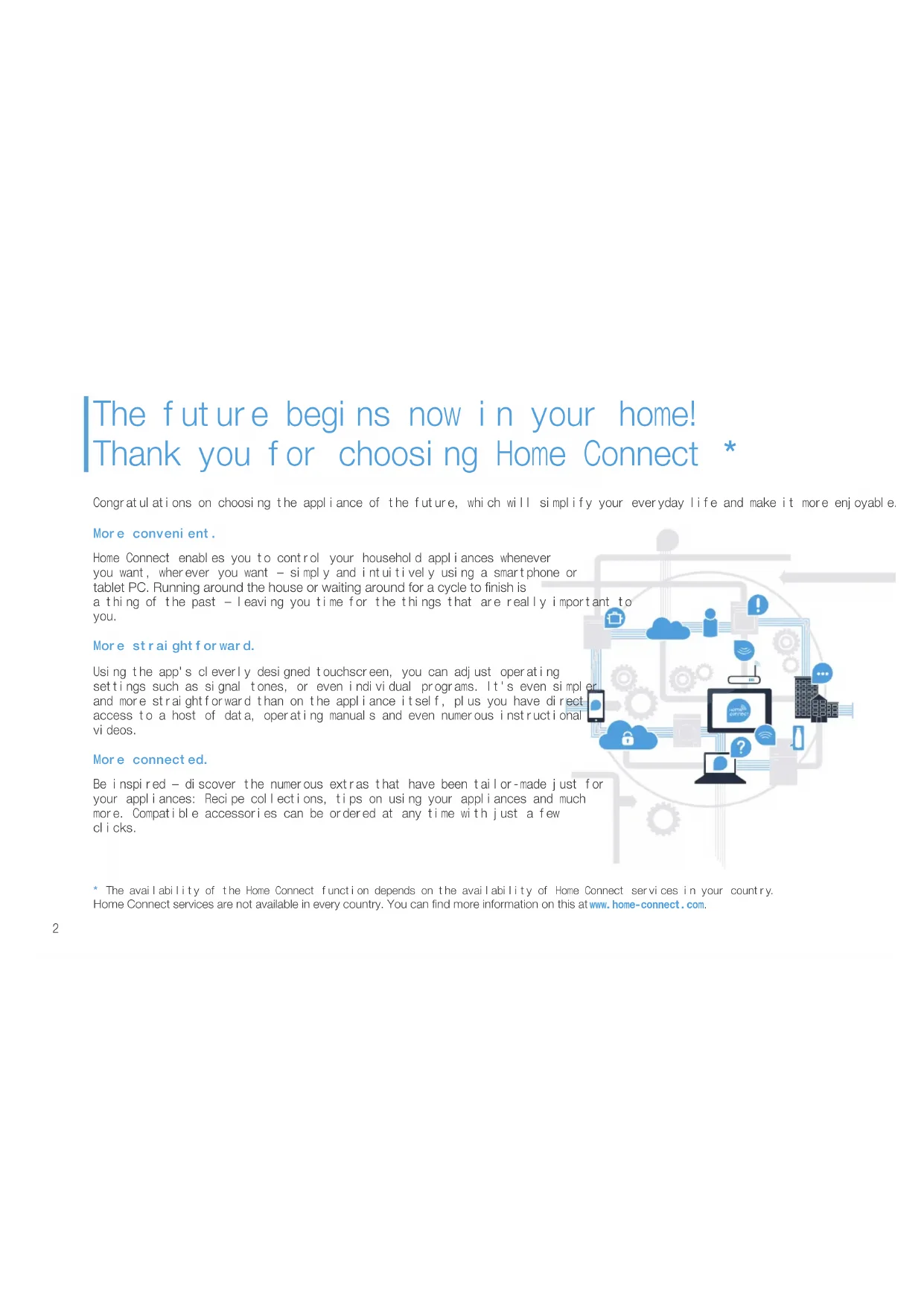
EN Connect your cooktop to the future. 2 FR Connectez table de cuisson sur l‘avenir. 12 ES Conecte su placa horno al futuro. 222 Congratulations on choosing the appliance of the future, which will simplify your everyday life and make it more enjoyable. More convenient. Home Connect enables you to control your household appliances whenever you want, wherever you want – simply and intuitively using a smartphone or
a thing of the past – leaving you time for the things that are really important to you. More straightforward. Using the app's cleverly designed touchscreen, you can adjust operating settings such as signal tones, or even individual programs. It's even simpler and more straightforward than on the appliance itself, plus you have direct access to a host of data, operating manuals and even numerous instructional videos. More connected. Be inspired – discover the numerous extras that have been tailor-made just for your appliances: Recipe collections, tips on using your appliances and much more. Compatible accessories can be ordered at any time with just a few clicks. The future begins now in your home! Thank you for choosing Home Connect *
- The availability of the Home Connect function depends on the availability of Home Connect services in your country.
www.home-connect.com.3 – A smartphone or tablet that is running the latest version of the operating system it uses.
Name and password for your home network (Wi-Fi): Network name (SSID): Password (key): Three steps to make your daily routine easier: What do you need to connect your cooktop to Home Connect?
1. Install the app 2. Connect the appliance to
3. Connect the appliance to the
app Important information: Cooktops are not designed to be left unattended. You must always be present when the cooktop is in use.4 Step 1: Installing the Home Connect app On your smartphone or tablet, go to the App Store (Apple devices) or Google Play Store (Android devices). Enter "Home Connect" Select the Home Connect app and install it on your smartphone or tablet. Start the app and create your Home Connect login details. The app will guide you through the registration process. Don't forget to make a note of your e-mail address and password. E-mail: Password: Home Connect login details: Please check availability at www.home-connect.com5 Step 2 (initial start-up): Connecting your cooktop to your home network (Wi-Fi) Connect the appliance and switch it on. Check whether your home network router has a WPS function (automatic connection).
router.) Does your router have a WPS function (automatic connection)? WPS WPS Yes Go on to Step 2.1 – Connecting automatically (WPS) Go on to Step 2.2 – Connecting manually (professional mode) No6 Step 2.1: Automatically connecting your cooktop to your home network (Wi-Fi) Open the basic settings and keep touching the kitchen timer button on your cooktop until and are displayed alternately. lights up on the cooking zone display. Set the value on the control panel. and the Activate the WPS function on your home network router within the next 2 minutes. (Some routers have a WPS/
WPS After a few seconds, the symbol lights up. The cooktop is connected to your home network.
appears on the cooking zone display (connect manually). The connection could not be established within 2 minutes. Check whether your cooktop is within range of your home network (Wi-Fi) and repeat the process if necessary, or refer to Step 2.2 to connect the cooktop manually.
Step 2.1: Automatically connecting your cooktop to your home network (Wi-Fi) The appliance automatically tries to connect to the app, and and are displayed alternately. The
Now go on to Step 3.
Step 2.2: Manually connecting your cooktop to your home network (Wi-Fi) Open the basic settings and keep touching the kitchen timer button on your cooktop until and are displayed alternately. lights up on the cooking zone display
Set the value on the control panel. and the cooking zone display
Go to the general settings menu on your smartphone or tablet (mobile device) and call up the Wi-Fi settings.
Step 2.2: Manually connecting your cooktop to your home network (Wi-Fi) Connect your smartphone or tablet to the "HomeConnect" Wi-Fi network (SSID) (the Wi-Fi password [key] is also "HomeConnect"). The connection process may take up to 60 seconds. Wi-Fi Once successfully connected, open the Home Connect app on your smartphone or tablet. The app will now take a few seconds to search for your cooktop. Once the cooktop (appliance) has been found, you will be prompted to enter the network name (SSID) and password (key) for your home network (Wi-Fi) into the
SSID KEY Then press "Transfer to household appliance". After a few seconds, appears on the cooking zone display for your cooktop and the symbol lights up.10 The appliance automatically tries to connect to the app, and and are displayed alternately. The
Now go on to Step 3. Step 2.2: Manually connecting your cooktop to your home network (Wi-Fi) speed boost kitchen timer cook timer count up timer auto chef hood light hood control
ØØØ11 Step 3: Connecting your cooktop to the Home Connect app Once your appliance is successfully connected to your home network, it automatically tries to connect to the app. Follow the instructions in the app. The app tells you when it is successfully connected; lights up on the cooking zone display.
You have successfully connected your cooktop. You can now beneit from all the advantages of the Home Connect app! The app tells you that a connection could not be established: Ensure that your smartphone or tablet is in your home network (Wi-Fi). Restart the connection by selecting on the control panel. speedboostkitchentimer cook timercount uptimer auto chef hood light hood control
ØØØHome Connect: Heading into a networked future with strong partners. Home Connect is a service provided by Home Connect GmbH. Apple App Store and iOS are trademarks of Apple Inc. Google Play Store and Android are trademarks of Google Inc. Wi-Fi is a trademark of the Wi-Fi Alliance. If you have any questions or would like to contact the Home Connect service hotline, please visit us at www.home-connect.com *9001459750* en fr es (9904) 9001459750