USER MANUAL BT2 MIDLAND
natural_image
Simple line drawing of a curved pipe or tube with two endpoints (no text or symbols)
natural_image
Simple line drawing of a headset with a circular head and loop (no text or symbols)
natural_image
3D technical illustration of a mechanical component with internal channels and mounting brackets (no text or symbols)
Inserimento e sgancio del Midland BT2
natural_image
Technical illustration of a mechanical component with internal grid structure and downward arrow (no text or symbols)

natural_image
3D model of a mechanical component with a black arrow pointing upward, labeled 'A' at the top (no text or symbols on the diagram itself)
natural_image
3D wireframe model of a stylized helmet or mask with eye contours and directional arrows indicating orientation (no text or symbols)
natural_image
3D model of a boat hull with visible structural details and directional arrows (no text or symbols)
Technical specifications of Midland BT2....3
Structure of the operator's manual 4
Charging batteries ....4
Description of the unit and installation brackets 4
Typical configurations of BT2 6
General considerations on priority....6
Switching your Midland BT2 on and off....7
Pairing with Bluetooth devices....7
Adjusting the volume 9
Using the features of the Bluetooth devices....9
Using the wired audio input....13
Using a Two Way Radio transceiver....13
Special configurations 13
Recommendations for specific uses....14
Light and sound signals/Unit functions....16
Thank you for purchasing the Midland BT2 Intercom, the first truly wireless multimedia system for bikers.
The Midland BT2 is designed to be fitted directly on to your helmet and to be used for communications with Bluetooth devices like mobile phones, GPS Sat-Navs and MP3 players. If desired, it can also be paired with another Midland BT2 unit and used as wireless Rider/Pillion Intercom system or Rider to Rider in bike-to-bike mode, within a maximum range of 200 meters. The Midland BT2 is also supplied with a wired connection that can be used to connect an iPod/MP3 player or PMR446 transceiver, which will then enable bike-to-bike communications up to a maximum range of 5 km.
Midland BT2 is available in two versions:
Single BT2 Intercom kit with one unit only >
BT2 Intercom TWIN with two units >
Depending on the model purchased, the package contains the following parts:
1 BT2 communication unit >
1 audio kit with two stereo speakers, microphone with boom and wire microphone
1 plate with bi-adhesive strip to fix the unit onto the helmet >
1 clamp to fix the unit onto the helmet >
1 stereo audio cable to connect an iPod/ or other models > of MP3 players
1 miniUSB wall-mounting power supply >
Wind Suppressing Foam Microphone Cover, Allen key and »
Velcro strip for assembly
2 BT2 communication units >
2 audio kits with two stereo speakers, microphone with > boom and wire microphone
2 plates with bi-adhesive strip to fix the unit onto the hel- > met
2 clamps to fix the unit onto the helmet >
2 stereo audio cables to connect an iPod/ or other models > of MP3 players
1 miniUSB wall-mounting power supply with double plug Wind Suppressing Foam Microphone Cover, Allen key and Velcro strip for assembly
The units included in the TWIN kit are already paired and can therefore be immediately used in the Intercom mode.
Technical specifications of Midland BT2
General:
Bluetooth ver. 2.0 stereo (Headset/Handsfree/A2DP protocol)
AGC system automatically controls the volume in relation to background noise
Voice (VOX) or manual communications option
Private or shared (3-way communications) call mode
Manual controls to enable: telephone, intercom and wire > connection
Fully waterproof
Lithium battery with 8 hours talk time (1 week in standby mode)
Recharge time: app. 4 hours
Dimensions. Length: 87 mm – Width: 47 mm - Thickness: 16 mm
Bluetooth connections:
Identical device for Rider to Pillion or Bike-to-Bike Intercom > mode, up to a maximum range of 200 meters
Bluetooth devices
- Mobile phone, GPS (Garmin Zumo and TomTom Rider 1 and 2), MP3 player Stereo (with A2DP protocol)
- PMR446 transceivers (with built-in or external Bluetooth connection) for group bike-to-bike communications
Wire connections:
For stereo audio input (iPod/MP3 player)
For PMR446 transceivers (with optional cable)
Attention: before using BT2 for the first time, remember to recharge it for at least 4 hours.
Attention: Midland BT2 is designed to withstand rain and water. However, if it is raining, always verify that the rubber caps protecting the sockets are fully fitted.
Structure of the operator's manual
This manual is divided into 5 main sections:
Description of the unit and installation brackets >
Pairing with Bluetooth devices
Using the features of Bluetooth devices >
Using the wire audio input >
Special configurations >
To easily configure your BT2 unit, please follow the sequence of steps described below:
Step 1: > fix the unit onto your helmet following the instructions provided in the "Fixing the unit onto the helmet" section.
Step 2: > pair the Bluetooth devices (for example a mobile phone or GPS) with the BT2 unit. Follow the procedure described in the chapter: "Pairing with Bluetooth devices", choosing the Bluetooth devices you are using.
Step 3: > after completing the pairing operation, go to the "Using the features of the Bluetooth devices" section, choosing Bluetooth devices you are using.
Step 4: if you have a wired audio input, read chapter "Using the wire audio input".
Step 5: for information on how to use the advanced features, read the "Special configurations" chapter.
Charging batteries
Make sure that the unit is fully charged before use. Allow at least 5-6 hours for a full charge before using the unit for the first time. Normally, after the first time, it takes 4 hours for a full charge.
Charge the unit by inserting the wall-charger into the charging socket (lift the rubber cover to insert the plug).
The red LED on the unit will start flashing when charging begins.
Allow the headset to charge until the red LED turns off. When the charge is complete, release the headset from the charger.
Description of the unit and installation brackets
Description of the BT2 unit
The BT2 has 5 multifunction buttons on the front and 3 wired connections in the lower section.
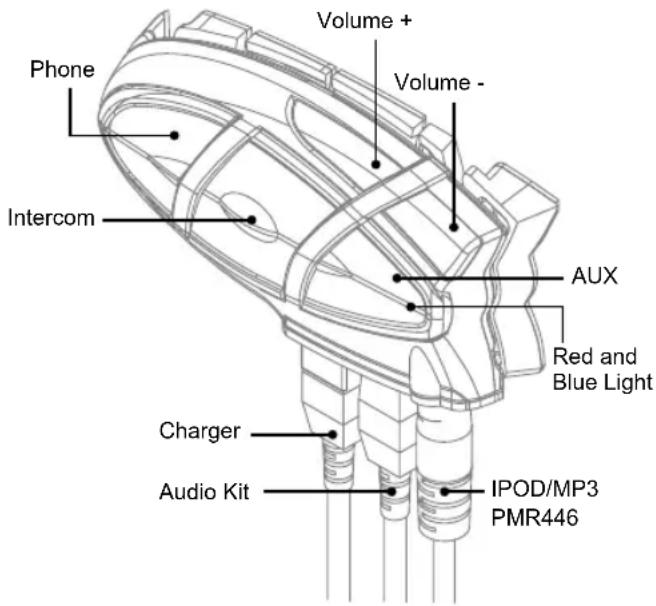
Telephone: can be used to enable/disable and manage mobile phone features
Intercom: can be used to enable/disable the Intercom feature and manage 3-way communications
AUX: can be used to enable/disable the wired audio input
Volume+: enables you to increase the volume
Volume -: enables you to decrease the volume
Description of the wired connections
Charger jack: enables to recharge the unit using a standard miniUSB power supply
Audio kit jack: enable to connect an audio kit (stereo headset and microphone)
Auxiliary audio jack (AUX): can be used to connect an audio source, like a stereo iPod/MP3 player or PMR446 transceiver
Description of the audio kit
The audio system includes two ultra-flat stereo speakers and two interchangeable microphones, which are both supplied with a bracket and wire connection.
Fixing the stereo speakers. The two stereo speakers have a Velcro/adhesive strip that aids their fixing to your helmet. Beware to not completely cover your ear with the speakers, you must always be able to listen to the traffic sound and indication.
The microphone can be fixed onto the helmet in two ways: Boom Microphone. Place the section with the Velcro/adhesive strip between the padding and the rigid cover of the helmet, so that the microphone is correctly positioned in front of your mouth and that the white symbol is facing your mouth. This type of microphone is suited for Open Faced and Flip Front helmets.

natural_image
Simple line drawing of a curved connector or connector (no text or symbols)
Wire microphone. Using the Velcro/adhesive strip, place the microphone inside the helmet in front of your mouth. This type of microphone is more suited for Full Faced helmets. The mini connector on the microphone allows you choose the microphone that best suits the helmet you are using.

The audio kit must then be connected to the central jack of the Midland BT2 Intercom unit using the "L" shaped connector. This connector is very flexible and can be easily adapted to most commercial helmets.
Description of the installation brackets
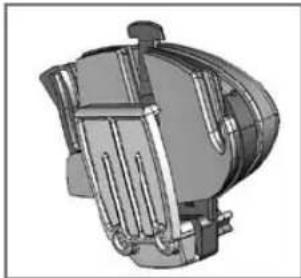
The Midland BT2 can be fixed onto the helmet in two different ways: By either using the plate with bi-adhesive strip, or the clamp. These methods allow you to safely "fix" the BT2 unit onto your helmet and to remove it at any time in order to recharge or store it.
Plate with bi-adhesive strip
The fixing plate has a bi-adhesive strip on one of its sides. To fix the plate in place, clean the application area on the helmet surface, remove the bi-adhesive film and place the fixing plate on the helmet by keeping it contact with the surface for a few seconds.
Clamp
Using the Allen Key, loosen the two screws on the clamp and place the rear plate between the helmet padding and the external rigid protection. Then, tighten the two screws in order to firmly fix the clamp in place.
natural_image
3D technical illustration of a mechanical component with internal channels and mounting brackets (no text or symbols)
Fitting and removing your Midland BT2
The BT2 can be easily fitted onto the helmet by sliding it downwards so that it fits into the slot of the selected fixing device (plate with bi-adhesive strip or clamp).
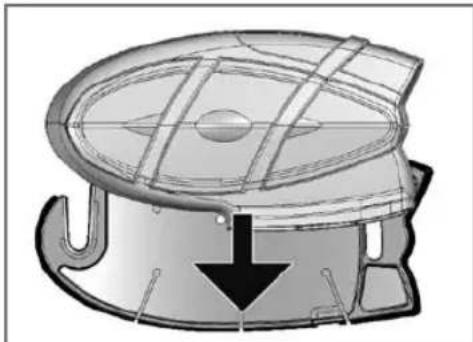
natural_image
Technical diagram of a mechanical component with internal grid structure and downward arrow (no text or symbols)
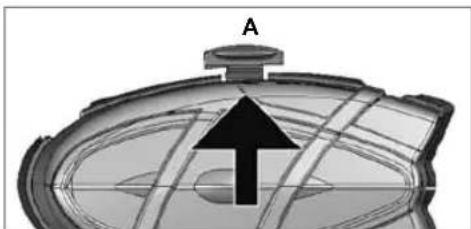
BT2 is maintained in position thanks to the fixing clip located on the upper section (A).
natural_image
3D rendered mechanical component with a central arrow and labeled point A (no text or symbols beyond label)
To detach the BT2, simply press the fixing clip and push the unit upwards.
Typical configurations of BT2

- Single Midland BT2, "Rider only"
Bluetooth connection for mobile > phone, GPS and MP3 player or a mobile phone with MP3 feature (to listen to music)
Wired connection for stereo music > player (iPod/MP3 player)
Bike to bike communication system that allows two riders to communicate up to maximum distances of 200 meters

- Midland BT2 paired, "Rider & Pillion"
Rider to Pillion intercom feature >
Rider can connect the GPS sys- > tem and both Rider and Pillion can connect/attach their own MP3 Players/Mobile phones etc to their own headsets and still be able to communicate with each other via the Intercom.
Wired connection for stereo music > player (iPod/MP3 player)

- Midland BT2 Bike-to-bike; "Riders & pillions equipped with Midland BT2 and PMR446 transceivers"
Rider to Pillion intercom system >
Bluetooth connections for Rider > and Pillion depending on needs: each connection is fit for mobile phone, Rider's GPS system and MP3 stereo player or mobile phone with MP3 feature (to listen to music)
Wired connection for stereo music > player (iPod/MP3 player)
Group communication ("bike to bike"): it is possible to connect a PMR446 transceiver to all motor-bikes in order to communicate as a group. The PMR446 transceiver can be connected in Bluetooth or wired mode to both the rider's or pillion's unit. There is no limit to the number of people who can communicate whilst using PMR446 to communicate whilst in a group.
General considerations on priority
The Midland BT2 is a Bluetooth unit that can be paired with other Bluetooth devices with different features: mobile phone, GPS, MP3 player, etc...
Depending on the type of device, Midland BT2 assigns operating priorities; for example calls have a higher priority compared to music. This means that if a call arrives whilst you are listening to music, your music will automatically be interrupted so that you can answer the call. There are three priorities available to meet the most common requirements.
Devices with (high) priority 1
Because of their use, mobile phones and GPS Sat-Navs always have a higher priority compared to other connected devices. Therefore, an incoming call or instruction from a GPS always interrupts all other active communications. Devices with priority 1 must be paired with the BT2 unit using the "Phone" button.
Devices with (Medium) priority 2
This priority can be assigned only to another BT2 with Intercom feature. Enabling the Intercom feature disables all other
communications except those with (High) priority 1. This is true if you haven't changed the default setting, following the procedure described in the final chapter "Special Configuration". The two Midland BT2 units can be paired by means of "Volume +" and "Volume −" buttons.
Devices with (Low) priority 3
MP3 players, Bluetooth adapters or PMR446 transceivers have the lower priority, which means that all communications with these devices will be disabled if a call or GPS communication (priority 1) arrives or if the Intercom feature is enabled (priority 2).
Devices with priority 3 must be paired with the BT2 unit using the "AUX" button.
Midland BT2 can also be paired with audio devices by means of a wired connection. This connection has the lowest priority and is disabled every time a Bluetooth connection is enabled.
Switching your MIDLAND BT2 on and off
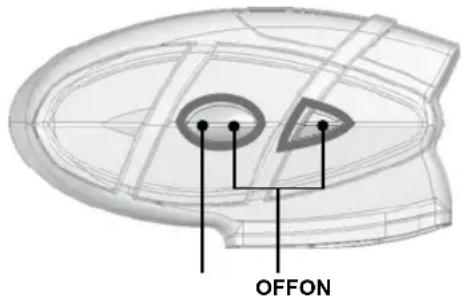
BT2 can be switched on by means of the central button labeled "Intercom".
To switch off the unit you must use a combination of two buttons (intercom+AUX), thus lessening the chances that you might turn off the unit accidentally (especially whilst wearing heavy gloves).
Switching the unit on:
Press and hold Intercom button down for approximately 3 > seconds until the BLUE indicator lights.
Switching the unit off:
Press and hold both "Intercom" and "AUX" buttons together for approximately 3 seconds until the RED indicator flashes 3 times.
Pairing with Bluetooth devices
Your Midland BT2 is a Bluetooth unit that can be paired with other Bluetooth devices.
Before performing this procedure, it is necessary to set BT2 into "Pairing mode" (Setup).
The only operations permitted in this mode are the pairing ones. To use the BT2 unit after pairing it with the desired devices, it is necessary to quit the "Setup" mode and switch to the "Operating" mode.
Setup mode
Switch off the BT2 device. Press and hold down the central button (Intercom/on) for about 7 sec. until the red indicator switches on permanently. BT2 is now in "Setup" mode and can therefore be paired with other devices.
Pairing the unit with another BT2 unit
The two units supplied in the Midland BT2 Intercom TWIN kit, are already paired and ready for use, which means that it is not necessary to perform this procedure.
If the devices are not part of the same kit, or one of the BT2 units has been purchased separately, you need to pair them in order to be able to use the Intercom function.
Place both BT2 units in Setup mode (red indicator permanently on)
Press the "Volume +" button on the first unit until the RED and BLUE lights begin to flash rapidly and alternately.
Then press the "Volume –"button on the second unit until the RED and BLUE lights begin to flash rapidly and alternately.
Now both BT2 units are trying to pair to each other.
When successfully paired, each device will light the BLUE light for 1 sec and go back to setting mode (red light always on) waiting for additional pairing or setting procedures.
Pairing the unit with your mobile phone
-
Enable the Bluetooth device search feature on your mobile phone. As this procedure varies according to the brand and model of the mobile phone, refer to the manual supplied to your particular phone for further information.
-
Set the BT2 unit in "Setup" mode, then press the "Phone" button on the unit until the red and blue indicators start flashing.
- After a few seconds the mobile phone will display "Midland BT2". Select it and follow the instructions provided in your mobile phone manual to accept the pairing. When prompted, enter the pairing code, which is 0000 (four zeroes). Your mobile phone should then display a confirmation message if the pairing operation has been successfully completed.
- The BT2 unit returns to the Setup mode (red indicator permanently on) to indicate that it is ready to be paired with other devices
If you pair the BT2 unit with a mobile phone, you will not be able to pair it with a GPS Sat-Nav, because both these devices are assigned (high) priority 1.
This problem can be easily solved by pairing your mobile phone directly with your GPS Sat-Nav and then pairing the GPS with your Midland BT2 using the above procedure. In this case, the mobile phone features will be managed by the GPS Sat-Nav.
Pairing the unit with a GPS Sat-Nav
It is generally possible to pair the BT2 unit with all GPS SatNavs that support Bluetooth earpieces.
Midland BT2 has been successfully tested for use with GPS ZUMO Sat-Navs manufactured by Garmin and TOMTOM Rider 1 and 2 Sat-Navs.
- On your GPS Sat-Nav, enable the Bluetooth earphone search feature. As this procedure varies according to the brand and model of GPS, we recommend you refer to the manual supplied with your GPS Sat-Nav for further information.
- Ensure that the BT2 is in Setup mode (Red light on) & Press the "Phone" button on the BT2 unit until the red and blue indicators start to flash.
- After a few seconds the GPS Sat-Nav will display "Midland BT2". Select it and follow the instructions provided in the GPS Sat-Nav manual to accept the pairing. When prompted, enter the pairing code, which is 0000 (four zeroes). The GPS should then display a confirmation message if the pairing operation has been successfully completed.
- The BT2 unit returns to the Setup mode (red indicator permanently on) to indicate that it is ready to be paired with other devices.
If you pair the BT2 unit with a GPS Sat-Nav, you will not be able to pair it with a mobile phone, because both these devices are assigned (high) priority 1.
This problem can be easily solved by pairing the mobile
phone directly with the GPS Sat-Nav and by then pairing your GPS with the Midland BT2. In this case, the mobile phone features will be managed by the GPS Sat-Nav.
Pairing the unit with a Bluetooth Enabled MP3 player
NB: Not all MP3 players are "Bluetooth Enabled" Please check your MP3 players specification before attempting to connect to the BT2 via Bluetooth.
- On you MP3 player enable the Bluetooth device search feature. As the procedure varies according to the brand and model, refer to the manual supplied with your MP3 player for further information.
- Ensure that the BT2 is still in Setup mode (Red light on) & Press the "AUX" button on the BT2 unit until the red and blue indicators start to flash.
- After a few seconds the MP3 player should display "Midland BT2". Select it and follow the instructions provided in the MP3 Player manual to accept the pairing. If requested, enter the pairing code, which is 0000 (four zeroes). The MP3 player should then display a confirmation message if the pairing operation has been successfully completed.
- The BT2 unit returns to the Setup mode (red indicator permanently on) to indicate that it is ready to be paired with other devices.
Pairing the unit with other Bluetooth devices
The Midland BT2 can also be paired with other Bluetooth devices such as non-Bluetooth enabled products connected to Bluetooth adapters (for example any personal audio product unit connected to a BPA100) or Two Way Radio transceivers with built-in Bluetooth connections (for example the Midland 445BT).
- Enable the pairing mode on the Bluetooth device. As the procedure varies according to the brand and mode, refer to the manual supplied with the Bluetooth device for further information.
- Ensure that the BT2 is in Setup mode (Red light on) & press "AUX" button on the BT2 unit until the red and blue indicators start to flash.
- The pairing will be completed in a few seconds and the BT2 unit then returns to the Setup mode (red indicator permanently on) to indicate that it is ready to be paired with other devices.
Attention: the device search procedure (red and blue lights flashing) continues for approximately 2 minutes. If no device is found within this interval of time, the BT2 returns to the Setup mode (red light permanently on). To start again the search, repeat the pairing procedure from step 2. To cancel the pairing procedure (red and blue indicators flashing) and return to the Setup mode at any time, press "Intercom" button twice.
Resetting all paired devices
Sometimes you may find it necessary to delete all the pairing references stored in the BT2 unit (reset operation).
To perform this operation, simultaneously press and hold down the "Volume +" and "Volume -" buttons for 4 seconds.
The Blue Light will be lit on for 1 sec.
This procedure deletes all the paired Bluetooth devices stored in the memory and it is therefore possible to start a new “clean” pairing session.
Exiting from the Setup mode
After you have paired the desired Bluetooth devices, you must quit the "Setup" mode in order to be able to use your BT2.
Press and hold the Intercom button (centre button) for 3 seconds. The red indicator switches off and the blue one starts to flash. You can now use your BT2.
Reconnecting the unit to bluetooth devices
After successfully pairing your devices, you can switch them off and on without having the repeat the pairing procedure. If a connection failure occurs between the two devices (for example because one device is switched off or you are not within the maximum range), it is not necessary to repeat the pairing procedure.
Simply switch the device on again or move within the maximum range. If the connection cannot be re-established automatically, select the device from the "devices menu" of your Bluetooth device (for example mobile phone, MP3 player, etc...) and re-enable the connection.
Adjusting the volume
Your Midland BT2 uses AGC technology, which automatically adjusts the listening volume in relation to background noise. However, it is also possible to manually adjust the volume by means of the "Volume+" and "Volume -" buttons.
For example, you can manually adjust the maximum volume in very noisy environments (for example when travelling at high speeds), to allow the AGC automatic system to change the volume and use the manually set volume as maximum setting. This operation is useful because each type and standard of helmet is influenced in different ways by wind and background noise.
Using the features of the bluetooth devices
To use the Intercom feature, be sure both units are turned on and correctly paired together.
If you have purchased a "single" version, follow the pairing procedure described in section "Pairing the unit with another BT2 unit" above.
Priority: Intercom communications always have a higher priority, compared to other communications, with the only exceptions being Telephone and GPS Sat-Nav. Therefore, the Intercom feature automatically disables all other communications.
The Intercom feature is disabled only when an incoming call or voice communication is received from the GPS Sat-Nav, and is automatically re-enabled as soon as these communications end.
Attention: some mobile phone release the line after a few seconds, which means that the Intercom feature may not be immediately available.
The Intercom feature can be enabled in two ways:
Manual activation:
Press "Intercom" button, on one of the two units. Commu-nication is enabled and remains active until you press the "Intercom" button again. You will hear 1 audio tone when the Intercom feature is enabled and 2 audio tones when it is disabled.
- Voice activation (VOX):
This is the default enabling mode. To start an Intercom communication, simply start talking. The communication will remain active for all the time you are talking. If there is no conversation, the Intercom feature is automatically disabled after 1 minute. To re-enable it, simply start talking again. When the Intercom is "VOX" activated, you can decide to disable it before the predefined time, simply by pressing the Intercom button once.
To disable the voice enabling mode, follow the instructions > provided in the "Special configurations" section.
Attention: when you use the Intercom feature, the first time you activate it (voice or manual) the communication will be established with a short delay because of the fact that the devices must first recognize each other. After that the communication will be immediately established.
Two Midland BT2 units can communicate up to a maximum range of approximately 200 meters outdoors. It is therefore possible to use BT2 as Intercom system for “BIKE-TO-BIKE” communications between two riders. The maximum range depends on the environment the units are being used in.
Using the telephone feature
To use the Telephone feature, be sure both units are turned on and correctly paired together, following the pairing procedure described in section "Pairing the unit with a mobile phone".
Attention: information provided in this section refers to the establishment of a direct communication between the mobile phone and the BT2 unit. If the mobile phone is connected via the GPS Sat-Nav, the mobile phone features can only be managed via the GPS itself.
Priority: Calls are always private and have a high priority, which means that all other communications are temporarily disabled when a call arrives and automatically re-enabled once the call ends.
Answering a call
When you hear the phone ring, you can answer in two different ways:
Vocally:
Simply say one word to answer the call and start talking. Remembering that you can only do this if you answer the call after the third Ring. (Be aware that some phones may not support voice answering)
Manually:
Tap the "Phone" button and start speaking.
Attention: Remember that you can answer the call only after the third Ring.
Rejecting a call
If you don't wish to answer, you can let the mobile phone ring or press the "Telephone" button for a few seconds (you will hear one audio confirmation tone).
Making a call
There are several ways to make a call.
From the mobile keypad:
Dial the number on the mobile keypad:
Press "Send" on the mobile phone.
This way of calling should never be carried out whilst in charge of a moving vehicle.
To redial the last number:
Press and hold "Telephone" button for 3 seconds in order to redial the last number (you will hear one audio confirmation tone).
To make a voice call:
Briefly press "Telephone" button. If your mobile phone supports voice calls, you will be asked to spell the name of the contact you wish to call.
The correct operation of this feature depends on the type of helmet used (Open or closed faced) and on the speed you are travelling at. We suggest you perform a few tests to determine the best settings for you as an individual.
Attention: if you are listening the music using an MP3 Player connected via Bluetooth (A2DP protocol), you will not be able to use the "Dial last number" and "Voice call" commands, because these buttons are used to control the MP3 player. Therefore, if you want to make a call, you must first disable the music by pressing the "Intercom" button for 1 second (you will hear two audio confirmation tone) before making the call.
Ending a call
There are several ways to end a call:
Wait for the called person to end the call.
Press the Telephone" button for 3 seconds (you will hear > an audio confirmation tone).
Press "End" button on the mobile phone. (This way of end- >
ing a call should never be carried out whilst in charge of a moving vehicle)
3-way telephone communications
The Intercom feature is temporarily disabled when a phone call is in progress. However, it is possible to add other parties to the conversation by simply enabling the 3-way communication feature. After the initial call has been established, briefly press the "Intercom" button on the BT2 device that has received the call (you will hear an audio confirmation tone). To re-establish a private conversation, press the "Intercom" button again (you will hear two audio confirmation tones).
Using the MP3 player feature of the mobile phone
Many mobile phones are now designed to be used as stereo MP3 players. Your Midland BT2 fully supports the A2DP and AVRCP protocols that enable you to listen to stereo music and remotely control your mobile phone's MP3 player.
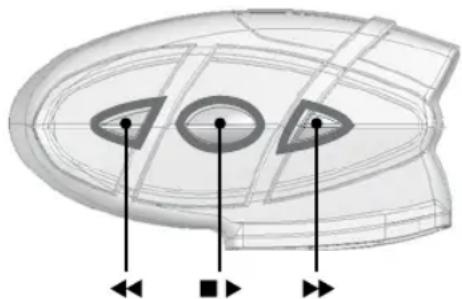
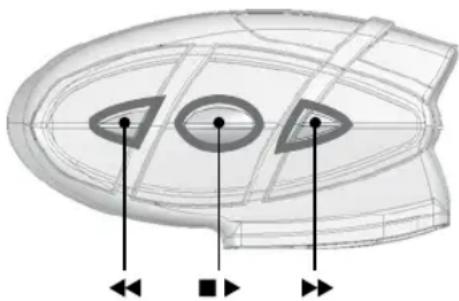
You can even use the buttons on the BT2 unit to control the following play options:
Play, Pause, Forward and Backward.
Attention: The remote control is enabled only if the MP3 player device supports the AVRCP protocol.
natural_image
3D wireframe model of a curved object with internal eye-like features and directional arrows indicating orientation (no text or symbols)
Available controls:
To enable your connected MP3 Player, press and hold > down the "Intercom" button for 3 seconds.
To play/pause music, press and hold down the "Intercom" > button for 3 seconds.
To skip forward to the next song, briefly press the "Tele-> phone" button.
To skip backwards to the previous song, briefly press the "AUX" button.
To disable the MP3 player, press the "Intercom" button (2 > beeps will confirm it)
To open the Intercom communication just talk or, for a manual activation, disable first the MP3 player, pressing the "Intercom" button and then press it again to open the Intercom.
The music listening mode has the lowest priority compared to other connections (such as phone calls or Intercom conversations). Therefore, the music will always be disabled when another type of communication is enabled.
Using the features of your GPS sat-nav
To use the features of your GPS Sat-Nav, be sure both units are turned on and correctly paired together, following the pairing procedure described in the "Pairing the unit with a GPS Sat-Nav" section.
Priority: communications with the GPS Sat-Nav have the highest priority, which means that the enabling of these communications causes the temporary disabling of all other communications (Intercom, music or two way radiotransceiver). Once the GPS communications have ended, all other communications are automatically re-enabled.
Listening to voice instructions from your GPS Sat-Nav
Traffic directions from your GPS Sat-Nav will always be immediately transmitted by temporarily disabling all other active communications. Once these voice directions have been transmitted, your BT2 will automatically re-enable all existing communications.
Listening to music from your GPS Sat-Nav
The most popular GPS devices usually enable you to listen to music when no directions are being given. In this case, the communication with the GPS is always active and has the highest priority compared to all other active devices.
However, it is possible to enable the Intercom feature at any time, while listening to music, simply by pressing the "Intercom" button to open a 3 way communication. For further information, see the "3-way communications with the GPS Sat-Nav" section below.
Using a mobile phone with a GPS Sat-Nav
If you have connected a GPS Sat-Nav to your Midland BT2,
you will not be able to connect the mobile phone directly to the unit; you must instead, connect the phone to the GPS Sat-Nav. By doing so, all the mobile phone features will be managed directly by your GPS Sat-Nav. For information on how to pair a mobile phone and answer/make calls, see the manual supplied with your particular Sat-Nav.
3-way communications with your GPS Sat-Nav
The Intercom feature is temporarily disabled when communication with your GPS Sat-Nav is active (street indication or music). However it is possible to allow the passenger to listen, by enabling a “3-way communication”.
When the communication with the GPS is active, briefly press the "Intercom" button on the BT2 device connected to the GPS Sat-Nav (you will hear an audio confirmation tone). The pillion will now be able to listen to the same information/music that the rider hears. To return to the private mode, press the "Intercom" button once more.(you will hear two audio confirmation tones).
Using other bluetooth devices
Midland BT2 can also be paired with other Bluetooth devices like MP3 players, Bluetooth adapters (for example BPA100) or Two Way Radio transceivers with built-in Bluetooth (for example Midland 445BT).
This can be a great advantage as it is possible to then increase your "Bike to Bike range" up to 5kms!
To use these devices, be sure your BT2 and other device are both turned on and correctly paired together, following the pairing procedure described in the "Pairing the unit with other Bluetooth devices" section.
Paired devices can be enabled or disabled without canceling the pairing by simply pressing the "AUX" button.
Disabling: press "AUX" button for 3 seconds (you will hear > two audio confirmation tones)
Enabling: press "AUX" button for 3 seconds (you will hear > one audio confirmation tone)
In this case the device is simply temporarily disconnected from the BT2 unit, although the devices continue to be paired.
Priority: communications with other Bluetooth devices have a lower priority compared to those established with a mobile phone, GPS Sat-Nav and Intercom system. This means that communications will always be disabled when a call arrives, when the GPS Sat-Nav transmits instructions, or when the Intercom feature is enabled.
Attention: if you use your GPS Sat-Nav to listen to music
(the communication with the GPS Sat-Nav is always active), all communications with other Bluetooth devices will be disabled, as they have a lower priority.
Using a Bluetooth MP3 player
The Midland BT2 fully supports the A2DP protocol that enables you to listen to stereo music and manage the main features of your MP3 player. It's even possible to use the buttons on the BT2 unit to manage the following play features: Play, Pause, Forward and Backward.
natural_image
3D wireframe model of a boat hull with three eye-shaped cutouts and directional arrows indicating orientation (no text or symbols)
Available controls:
To enable your connected MP3 Player, press and hold > down the "Intercom" button for 3 seconds.
To play/pause music, press and hold down the "Intercom" > button for 3 seconds.
To skip forward to the next song, briefly press the "Tele- > phone" button.
To skip backwards to the previous song, briefly press the > "AUX" button.
To disable the MP3 player, press the "Intercom" button (2 > beeps will confirm it)
To open the Intercom communication just talk or, for a manual activation, disable first the MP3 player, pressing the "Intercom" button and then press it again to open the Intercom.
It is not possible to guarantee the full compatibility with all the MP3 Bluetooth player in the market, because they often use different or proprietary procedures.
Using a Bluetooth adapter:
Your Midland BT2 can be connected to an external Bluetooth adapter (such as a BPA100) to use with audio devices without built-in Bluetooth connection (like Two Way radio transceivers or older GPS variants).
Using a Bluetooth Enabled Two Way Radio
The Midland BT2 can be connected to Bluetooth Enabled Two Way Radio (such as Midland 445BT) and used for bike-to-bike communications. Pair your BT2 with the Radio, as described in the "Pairing the unit with other Bluetooth devices" chapter, then enable the Bluetooth connection by pressing the button on the radio. This will then allow you to transmit over much greater distances, with more people at once, whilst still enjoying the flexibility and freedom of movement afforded you by the wireless Bluetooth Connection.
Your Midland BT2 is also fitted with a wired audio input (labeled AUX), that can be used to connect a stereo audio source, like an iPod (or any other MP3 Player) or a PMR446 transceiver for bike-to-bike communications.
Priority: the wired audio input has the lowest priority when compared to the other Bluetooth connections (including the Intercom) and will therefore always be disabled when another Bluetooth communication is opened.
Listening to music
To listen to music from the wired input, connect the audio source using the cable supplied with the BT2 unit. The volume level is automatically adjusted by the AGC system, which means that you only need to adjust the volume of your iPod/MP3 player to a level that will allow you to listen to music in normal speed.
Attention: never set the volume of the MP3 Player to the maximum possible.
Hint: We recommend that you perform a few tests adjusting the volume of your iPod/MP3 player so at the normal speed the Headset volume is suited to your needs.
The AGC system will automatically increase the volume on higher speed. Make a note to remember this setting for future trips.
Attention: the volume adjustment, ("Volume+" and "Volume−") buttons, cannot be used to adjust the volume of the wired audio source(eg MP3 player), only the volume of the BT2 that the device is connected to.
The wire input can be enabled and disabled by means of the
"AUX" button.
Disabling: briefly press the "AUX" button (you will hear two > audio confirmation tones).
Enabling: briefly press the "AUX" button (you will hear one > audio confirmation tone).
Using a Two Way Radio transceiver
To be able to use the transceiver, it is necessary to purchase a specific cable (sold separately) in order to connect the radio to your Midland BT2:
NB, Some manufacturers radios use a different pin con-figuration, so we recommend that you ask your dealer as to which cable is best suited to your needs
To communicate via the attached radio, press the transmission Press Top Talk (PTT) button to speak and release it to listen. It is not possible to talk and listen simultaneously. The cable connected to the transceiver has a PTT button that can be placed on the handlebar of your bike or held in your hand (If you are the pillion rider)
Adjust the volume of the transceiver to your needs, remembering that the volume adjustment is controlled by the automatic AGC system and that it will therefore be automatically increased in relation to background noise.
Special configurations
Your Midland BT2 can be configured with customized settings to suit the needs of even the most demanding bikers.
In particular, expert users may configure the following “advanced” features:
Permanently enable 3-way communications >
Voice enable Intercom (VOX) >
Adjust the microphone sensitivity
Disable the VOX feature
Permanently enabling 3-way communications
Bluetooth communications with a (low) priority and audio communications transmitted by the wired connection are usually disabled when the Intercom feature is enabled. By enabling this feature, you can maintain active communications whilst simply transferring the low priority feature to the other user (eg pillion).
This feature can be useful, for example, if you wish to main-
tain Intercom communications and simultaneously talk using a transceiver radio connected via Bluetooth or wired connection.
In addition it also allows you to share the music between Rider and Pillion. Considering that the music quality is “mono” for the second person who will share the music (see the chapter “Share the music between driver and passenger” below).
Enabling/disabling 3 way communications
Enter the Setup mode:
Switch your BT2 off. Press and hold down the central but- to ton (Intercom/on) until the red light switches on permanently. Your BT2 is now set in Setup mode.
Simultaneously press and hold down the "Telephone" and > "AUX" buttons for at least three seconds.
If the feature was enabled, it will be disabled (steady blue > light for 2 seconds).
If it was disabled, it will be enabled (blue light long flashes).> Quit the Setup mode by pressing the "Intercom" button for > a minimum of 3 seconds. The red light switches off and the blue light starts flashing. You can now use the BT2.
Attention: if the Bluetooth device is a stereo MP3 player, communications will always be disabled when the Intercom feature is enabled. (Only “mono” devices support a permanently active 3-way communication).
The Intercom feature can be enabled both manually and vo-cally (VOX). The VOX activation is influenced by the back-ground noise and therefore by the speed, type of bike and soundproof features of your helmet.
For optimum results, it is possible to choose one of the following four microphone sensitivity levels: high, medium, low and very low. The high settings suited for noiseless and protected bikes like scooters and fully faired/screened bikes. The low setting is more suited for naked/noisy bikes. The default setting of BT2 is “medium”.
It is also possible to disable the VOX feature in order to activate the Intercom and phone call answering features in manual mode only.
Adjusting the sensitivity of the microphone (VOX)
1) Enter the Setup mode: Switch your BT2 off.
Press and hold down the central button (Intercom) until the red indicator switches on permanently. Your BT2 is now in "Set up mode".
2) Briefly press the "AUX" button once, the red indicator will turn to steady Blue
3) Now, press "Volume +" or "Volume - "to increase or reduce sensitivity. Every time you press the Volume buttons the RED light will flash for confirmation. When you reach the end of the upper and lower limit, the RED light will not flash.
4) Press again the AUX button and the Blue light will flash several times, in order to let you know the selected sensitivity: once = VOX disabled / Twice = very low sensitivity / 3 times= low sensitivity / 4 times= medium sensitivity / 5 times = high sensitivity / Default = medium sensitivity
5) The light indicator is now back to steady RED ("Set up mode") and the changes are confirmed
6) If needed, you can adjust again the sensitivity repeating the steps from point 2.
7) Now quit the Setup mode by pressing and holding down the "Intercom" button for at least 3 seconds. The red light switches off and the blue light starts flashing. You can now use the BT2.
In addition to the 4 microphone sensitivity levels, there is a fifth state that allows you to turn off the VOX feature. Follow the same procedure used to adjust the sensitivity of the microphone (see above) and on step 3 press the "Volume -" to reduce the sensitivity till the RED light stop flashing. Press now the "AUX" button and the Blue light will flash one time, this means that the VOX feature is disabled. Follow now the procedure above from the point 5.
To enable it again, perform the complete procedure above, choosing one of the other four sensitivity levels available (from 2 to 5).
Recommendations for specific uses
The section that follows, provides a few useful suggestions on how to achieve maximum performance from your BT2 unit.
If you wish to use a PMR446 transceiver for group communications and simultaneously maintain the Intercom feature enabled between the pilot and passenger, you must remember that the Intercom feature is enabled every time you speak by means of the BT2's VOX feature.
Consequently, radio communications will be disabled whilst you are talking with your pillion, because they have a lower priority compared to Intercom communications. This can be prevented in two ways, which are:
Disabling the VOX feature
Disable the VOX feature, as explained in the previous section, to make sure that the intercom will not automatically be activated when you speak on the PMR446. To enable the Intercom feature when using this configuration, you will have to press Intercom button manually. (This operation disables radio communications that will be automatically re-enabled when the Intercom feature is disabled).
Attention! If you disable the VOX feature, you will only be able to answer incoming phone calls by pressing the "Phone" button.
Permanently enabling 3-way communications
If you enable this feature (as explained in the previous section), every time you talk the Intercom is enabled, but the two-way radio transceiver communications are not disabled. This means that you can share two-way radio communications between Rider and Pillion.
Share the music between Rider and Pillion
If you wish to share the same music between the Rider and the Pillion you must follow these simple steps:
Connect the music player to the Rider or Pillion unit, via wired connection trough the AUX plug
Enable the "3 way communications feature" (see the chapter above) on the unit which has the music player connected
Activate the Intercom, now the music is shared.
Attention: Only those who are connected to music by wire can listen to it in stereo mode.
Attention: It is not possible to share music if the source is Bluetooth Stereo Player (A2DP)
LIGHT AND SOUND SIGNALS
| LED indication Status | |
| GENERAL |
| None Unit is switched off or full charged when connected to the power supply |
| Single Blue flash every 3 seconds Unit being turned on |
| Triple red flash Unit being turned off | |
| Single Blue flash every 3 seconds Single Red flash every 3 seconds | Standby Standby - low battery |
| RED and BLUE (together) every 3 seconds | Active (Intercom, phone call or Bluetooth connection in progress) |
| RED and BLUE (together) and one flash of RED light every 3 seconds | Active but low battery |
| Single red flash every 2 seconds Unit in charge when connected to the power supply |
| SETUP |
| Steady Red Setup mode | |
| Rapid Red-Blue alternating flash Pairing mode (searching for devices) |
| Steady Blue for two second Successful pairing/ Reset paired devices/Three way enabled |
| Blue light two time long flash Three way disabled |
| Audio signals | Status |
| Ascending tone (low-high) Unit being turned on |
| Descending tone (high-low) Unit being turned off |
| Enable/Disable the Intercom 1 tone = enabled / 2 tones = disabled |
| 1 tone Specific feature turned on | |
| 2 tones | Specific feature turned off |
UNIT FUNCTIONS
| If you want to... ...do this | |
| GENERAL |
| Turn on the unit | Press the Intercom button for 3 seconds at least (start Blue flash) |
| Turn off the unit | Press the Intercom and AUX button together for 3 seconds (triple Red flash) |
| Increase the volume | Short or continues press on the Volume Up control |
| Decrease the volume | Short or continues press on the Volume Down control |
| MOBILE PHONE |
| Answer a call Short press of the Phone button / say a word |
| Reject a call Long press the Phone Button / remain silent until the rings stop |
| Terminate a call Short press the Phone Button |
| Voice Dial (in stand by mode) Short press | the Phone button and state the name of the person to call. |
| Redial Last number (in stand by mode) Long press of the Phone button |
| Conversation among passenger, driver and the phone | During a phone call, short pressure of the Intercom button on the unit which received the call |
| Release the ‘extended’ conversation above | Short pressure of the Intercom button |
| GPS Navigator |
| The control is done only by the GPS | |
| INTERCOM |
| Start using the Intercom Start talking/short press the Intercom button |
| Stop using the Intercom Stop talking (after 60 sec. you will return to stand by mode)/Short press the Intercom button |
| BLUETOOTH MP3 player |
| Activate the MP3 player/Play and Pause press and hold down the “Intercom” button for 3 seconds. |
| Forward (next song) While the music play, short press of the Phone button |
| Backword (previous song) While the music play, short press of the AUX button |
| Deactivate the MP3 Player Press the “Intercom” button |
| OTHER BLUETOOTH DEVICES (dongle, 2way radio) |
| Connect / Disconnect Long press of the AUX button |
| WIRED CONNECTION |
| Activate /Deactivate Short press of the AUX button |
| SETUP/PAIRING |
| Enter SETUP mode | Press the Intercom button for 7 seconds while the unit is off |
| Pairing a Phone or a GPS Navigator | While in Setup mode, press the phone button until the LED light flash Red and Blue alternately |
| Pairing a Bluetooth device | While in Setup mode, press the AUX button until the LED light flash Red and Blue alternately |
| Pairing another BT2 unit While in Setup mode, press the Volume + on one unit (the light will flash Red and Blue alternately), press the Volume - on the other unit (the light will flash Red and Blue alternately). On a successful pairing, both light turn to Blue for one second. |
| Reset all paired devices | While in Setup mode, long press he Volume + and he Volume -. On a successful reset, the Blue light will turn on for two second. |
| SPECIAL SETUP CONFIGURATION |
| 3 way conversation always on While in Setup mode, press the Phone and AUX buttons for 3 sec.Steady Blue for two seconds= activatedDouble long flash = deactivated |
| Change VOX sensitivity or disable it While in Setup mode, press short the AUX buttons (blue light on).Now, press “Volume +” or “Volume -”to increase or reduce sensitivity. Press again the AUX button to confirm the new setting and go back to the SETUP mode (Red light always on).Blue light flashing:Once = VOX disableTwice = very low sensitivity3 times = low sensitivity4 times = medium sensitivity.5 times = high sensitivity |
| Exit SETUP mode While in Setup mode, long press the Intercom button. The Red light will turn off and the Blue light starts flashing. |
This product is CE marked according to the RTTE Directive (99/5/EC) and is free use in all the EU countries.
Users are not permitted to make any changes or modifications to the device.
Modifications which are not expressly approved by the producer invalidate the warranty card.
For further information, please go to our website
www.cte.it
INHALT
natural_image
Simple line drawing of a headset with two circular heads and a curved cord (no text or symbols)
natural_image
3D mechanical component diagram showing internal structure with no visible text or symbols
natural_image
Technical illustration of a mechanical component with internal grid structure and downward arrow (no text or symbols)
natural_image
3D model of a boat hull with an arrow pointing upward (no text or symbols)
natural_image
3D wireframe model of a mechanical component with three circular eyes and directional arrows indicating orientation (no text or symbols)
natural_image
3D wireframe model of a boat hull with eye and arrow indicators (no text or symbols)
natural_image
Simple line drawing of a headset with two circular sensors (no text or symbols)
natural_image
3D mechanical component diagram showing internal structure with no visible text or symbols
natural_image
Technical line drawing of a mechanical component with internal grid structure and a downward arrow indicating motion (no text or symbols)
natural_image
3D rendered object with a black arrow pointing upward, labeled 'A' at the top (no text or symbols on the object itself)
3. Midland BT2 Bike-to-bike; "Pilots and passengers equipped with Midland BT2 and PMR446 transceivers"
Rider to Pillion intercom system > Bluetooth connections for Rider and Pillion depending on needs: each connection is fit for mobile phone, driver's GPS system and MP3 stereo player or mobile phone with MP3 feature (to listen to music)
Wired connection for stereo music player (iPod/MP3 player)
Group communication ("bike to bike"): it is possible to connect a PMR446 transceiver to all motor-bikes in order to be able to communicate as a group. The PMR446 transceiver can be connected in Bluetooth or wired mode to both the rider's or pillion's unit.
natural_image
3D wireframe model of a helmet or mask with three eye cutouts and directional arrows indicating orientation (no text or symbols)
Controles disponibles:
natural_image
3D wireframe model of a stylized object with eye-like cutouts and directional arrows, no text or symbols present
© ALAN COMMUNICATIONS, SA.
Description kit audio
natural_image
Simple line drawing of a curved connector or connector (no text or symbols)
natural_image
3D mechanical component diagram showing internal structure with no visible text or symbols
natural_image
Technical illustration of a mechanical component with internal grid structure and downward arrow (no text or symbols)
natural_image
3D model of a boat hull with an arrow pointing upward (no text or symbols)
natural_image
3D wireframe model of a helmet with eye and mouth features, showing structural details (no text or symbols)
Commandes disponibles:
natural_image
3D wireframe model of a curved object with three eye-like cutouts and directional arrows indicating orientation (no text or symbols)
Commandes disponibles:
Activation/Désactivation
Carregar as baterias....3
Carregando as baterias
natural_image
Simple line drawing of a curved path with two endpoints (no text or symbols)
natural_image
Simple line drawing of a headset with a circular head and curved arm (no text or symbols)
natural_image
3D mechanical component diagram showing internal structure with no visible text or symbols
natural_image
Technical diagram of a mechanical component with internal grid structure and directional arrow (no text or symbols)
natural_image
3D mechanical component with a black upward arrow indicating direction (no text or symbols)
natural_image
3D wireframe model of a helmet or helmet with eye contours and directional arrows indicating orientation (no text or symbols)
natural_image
3D wireframe model of a boat hull with eye contours and directional arrows indicating orientation (no text or symbols)
natural_image
Simple line drawing of a ear ear with two earbuds (no text or symbols)
natural_image
3D mechanical component diagram showing internal structure with no visible text or symbols
natural_image
Technical illustration of a mechanical component with internal grid structure and a downward arrow indicating force or direction (no text or symbols)
natural_image
3D model of a boat hull with an arrow pointing upward (no text or symbols)
natural_image
3D wireframe model of a boat hull with circular and triangular features, no text or symbols present
natural_image
3D wireframe model of a boat hull with three circular eyes and directional arrows indicating flow or movement (no text or symbols)
natural_image
Simple line drawing of a curved connector or connector (no text or symbols)
natural_image
3D technical illustration of a mechanical component with no visible text or symbols
natural_image
Technical illustration of a mechanical component with internal grid structure and downward arrow (no text or symbols)
natural_image
3D mechanical component with internal grid pattern and a labeled arrow (no text or symbols)
natural_image
3D model of a boat hull with three eye cutouts and directional arrows indicating orientation (no text or symbols)
natural_image
3D wireframe model of a boat hull with three eye cutouts and directional arrows indicating orientation (no text or symbols)