Soul Calibur V (Xbox 360) - Game MICROSOFT - Free user manual and instructions
Find the device manual for free Soul Calibur V (Xbox 360) MICROSOFT in PDF.


| Product Type | Video Game |
| Platform | Xbox 360 |
| Genre | Fighting |
| Number of Players | 1-2 (offline), up to 100 online (Global Colosseo) |
| ESRB Rating | M (Mature 17+) |
| Available Languages | French, English |
| Online Features | Xbox LIVE: ranked matches, player matches, Global Colosseo, leaderboards, replays |
| Game Modes | Arcade, Quick Battle, Duel, Training, Legendary Souls, Story |
| Character Creation | Yes (customization of regular characters and creation of new ones) |
| Save | Automatic (requires 7 MB free space) |
| Supported Controller | Xbox 360 Controller (wired and wireless) |
| Recommended Age | 17 years and up |
| Limited Warranty | 90 days from date of purchase |
| Technical Support | support.namcobandaigames.com |
Frequently Asked Questions - Soul Calibur V (Xbox 360) MICROSOFT
User questions about Soul Calibur V (Xbox 360) MICROSOFT
0 question about this device. Answer the ones you know or ask your own.
Ask a new question about this device
Download the instructions for your Game in PDF format for free! Find your manual Soul Calibur V (Xbox 360) - MICROSOFT and take your electronic device back in hand. On this page are published all the documents necessary for the use of your device. Soul Calibur V (Xbox 360) by MICROSOFT.
USER MANUAL Soul Calibur V (Xbox 360) MICROSOFT
WARNING Before playing this game, read the Xbox 360^ console and accessory manuals for important safety and health information. Keep all manuals for future reference. For replacement console and accessory manuals, go to www.xbox.com/support.
Important Health Warning About Playing Video Games
Photosensitive seizures
A very small percentage of people may experience a seizure when exposed to certain visual images, including flashing lights or patterns that may appear in video games. Even people who have no history of seizures or epilepsy may have an undiagnosed condition that can cause these "photosensitive epileptic seizures" while watching video games.
These seizures may have a variety of symptoms, including lightheadedness, altered vision, eye or face twitching, jerking or shaking of arms or legs, disorientation, confusion, or momentary loss of awareness. Seizures may also cause loss of consciousness or convulsions that can lead to injury from falling down or striking nearby objects.
Immediately stop playing and consult a doctor if you experience any of these symptoms. Parents should watch for or ask their children about the above symptoms—children and teenagers are more likely than adults to experience these seizures. The risk of photosensitive epileptic seizures may be reduced by taking the following precautions: Sit farther from the screen; use a smaller screen; play in a well-lit room; do not play when you are drowsy or fatigued.
If you or any of your relatives have a history of seizures or epilepsy, consult a doctor before playing.
ESRB Game Ratings
The Entertainment Software Rating Board (ESRB) ratings are designed to provide consumers, especially parents, with concise, impartial guidance about the age-appropriateness and content of computer and video games. This information can help consumers make informed purchase decisions about which games they deem suitable for their children and families.
ESRB ratings have two equal parts:
Rating Symbols suggest age appropriateness for the game. These symbols appear on the front of virtually every game box available for retail sale or rental in the United States and Canada.
Content Descriptors indicate elements in a game that may have triggered a particular rating and/or may be of interest or concern. The descriptors appear on the back of the box next to the rating symbol.

For more information, visit www.ESRB.org.
CONTENTS
Prologue 01 Creation 11
Controls 02 Offline Play 12
Getting Started 03 Limited Warranty 13
Game Screens 04 Frangais 14
Actions 05 Credits 28
Xbox LIVE 07
Attempting to repreduce the techniques used In this game is extremely dangerous and can lead to serious incidents or accidents. Please to not attempt to reproduce these techniques
Prologue
"Chosen by history, a man becomes a warrior.
Engraved into history, a warrior becomes a hero."
\~14thcenturytroubadour's song
"Transcending history and the world, a tale of souls and swords, eternally retold."
~Late medieval ballad, author unknown.
Soul Edge, the cursed sword which controls the minds of those who wield it and continues to consume the souls of mankind. Soul Calibur, the spirit sword destined to destroy Soul Edge.
The battle between these two swords has lasted for thousands of years. At the end of the 16th century, the tension between the two swords grew to its peak and their wielders, Siegfried and Nightmare, were poised for a showdown. After a deadly battle, Siegfried destroyed Soul Edge within a portal to another dimension the cursed sword had opened. A battle which decided the world's fate – a fate which only Siegfried was aware of – had finally ended.
The two opposing swords disappeared, but the world way left with the remnants of Soul Edge's curse. There were many whose souls were poisoned by the sword. They were known as the "malfested" and were hated and persecuted by society.
During these years of chaos, two siblings, a brother and sister, found their fates intertwined with those of the two swords. Patroklos, inheritor of the holy warrior heritage of his mother, Sophitia, and Pyrrah, who was burdened to follow a harrowing path just like her mother.
And so our story begins at the dawn of the 17th century, a time when a new chapter in history is about to unfold. A new generation of warriors prepares to face their destinies, while more battle-worn veterans prepare to stand their ground once again. As their battle begins, they will soon find each will have a part to play on the stage of history
Game Controls
TheXbox360Controller
This is the basic control method (Type A) for manipulating the menu screens and characters. Change control Types or specific controls through 'Control Settings' in the 'Options' menu.
BACK button
left trigger
Throw B+C simultaneously
left bumper
Throw A+G simultaneously
left stick
Move Chara
Select item
left stick button
D-Pad
Move Character /
Select Item
START button
Display Pause Menu
right trigger
A+B+Ksimultaneously
right bumper
A+Bsimultaneously
按钮
Vertical Strike B
按钮
Kick K/Cancel
A button
Guard G/Select
X button
Horizontal Strike A
mand Symbols
The directions of the arrows indicate the direction to push the Left Stick or D-pad.
Symbol Input Action
| → | Press left stick / D-Pad quickly | - |
| → | Hold left stick / D-Pad | - |
| A | 按钮 Horizontal Strike | |
| B | 按钮 Vertical Strike | |
| K | 按钮 Kick | |
| G | 按钮 Guard |
How to Read the Technique Tables
Symbol Input
| A A | Press the buttons in sequence |
| B | Press the buttons simultaneously |
| A | Hold the button down |
| B | Press the buttons in sequence quickly (slide input) |
| Return the left stick / D-Pad to the neutral position * Neutral position is where there is no input |
Getting Started
Insert the disc correctly and start the game and the title screen will appear.
Press the button and proceed to the Astral Home
- If you start the game without selecting a gamer profile and a storage device, then progress data will not be saved. Please select a gamer profile before starting the game.
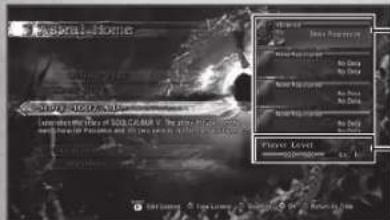
Astral Home
In the Astral Home you can select game modes from the menu and view player data.
Press the button to display your own License and the button to revise your
License. You can check your Soul Link rivals by pressing the × button.
Xbox Guide button
Player Information
Your own information (at the
top) and information about
your Soul Link rivals
is displayed.
Player Level
This shows the player
progress level.
Saving Game Data
Game progress will save automatically at the end of each mode or when the
'Options' settings are changed. To create a save game, there must be 7MB or
more of available space.

Story 1607 A.D.
Experience the story of SOULCALIBUR V.

-Xbox LIVE
Connect to Xbox LIVE to play against and interact with players around the world. You can also view leaderboards and replays.

Creation
In this mode you can change the weapons or equipment of existing characters and create original characters.

-Off line Play
This mode allows off line play against the CPU (computer) or friends. Select the stages
and characters to play against other players or practice your skills in Training mode.

-Options
Adjust options such as control settings, display settings, sound volume, etc.
Game Screens
Select a Character
First, select the character to use. Once a character is selected, choose a thumbnail to represent your character's model.
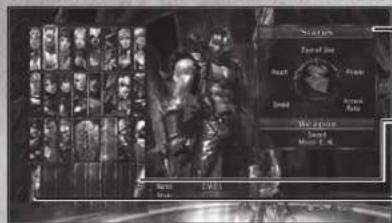
Status and Weapon
shows a basic graph of the character's abilities and name of the weapon used.
Random
Randomly selects a character
Creation Characters
Use to select characters created in 'Creation'.
How to Read the In-match Screen
This section explains how to read the screen using 'VS Battle' as an example.
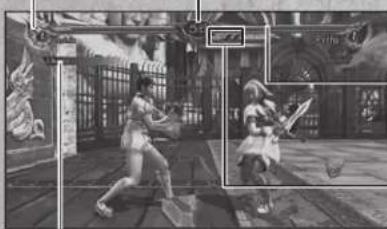
Critical Gauge
Battl Time
Time is up when this reaches zero. The player with the most health will win one Battle Count.
Health Gauge
Shows remaining health. You will win one Battle Count by depleting your opponent's health gauge to zero.
Battle Count
The player that reaches the required number of Battle Counts first wins.
Battle Messages
Displays actions currently being performed such as 'Ukomi' or 'Throw'.
Critical Gauge
The Critical Gauge, located to the side of the Health Gauge, fills up as you strike your opponent or receive damage. Critical Gauge energy can be consumed to perform Brave Edge. Guard Impact and devastating Critical Edge attacks. You may store a maximum of 2 bars of energy.
- Please note: The screen display and rules differ depending on the mode.
Actions
Commands and controls assume the character is facing right. The control type is the default (Type A).
Basic Attacks
The 3 basic attack types are 'Horizontal Strike', 'Vertical Strike' and 'Kick'.
Horizontal Strike A
Attacks quickly in a horizontal direction. The range is wide and the attack will also hit an opponent who is performing a left or right side step during an 8-Way Run, so it can be used to limit the movement of your opponent.
Vertical Strike

Attacks in a vertical direction, e.g., a thrust or upward swing. Generally does not hit an opponent standing to the left or right, but it yields a large amount of damage and can be used to launch or knock down an opponent.
Some characters are able to strike in diagonal directions and can attack characters standing to the left or right.
Kick K
Attacks with a kick. Lacks power, but the attack movement is quick, so it can be used to stop an opponent's action and can be followed up with another strike.
Throws
A+G/B+C
Perform a throw by pressing A+G or B+G while near an opponent, Guards are not effective against throws. When about to be thrown by an opponent, press A or B at the right timing to escape the throw. Use A to escape an A+G throw and press B to escape a B+G throw.
8-Way Run
#
Use any of ↑ → ↓ to run (8-Way Run) in the selected direction. During the 8-Way Run you can adjust your standing position or distance relative to an opponent. You can also use the 8-Way Run to sidestep to the left or right and avoid an opponent's vertical strike. By continuing to move to the left or right, you can switch position to the opponent's side or back
Step
Use any of to make one step in the selected direction This is effective for avoiding an opponent's attack while performing the minimum amount of movement.
Jump
Goror
Jump by holding and pressing any of Jumps can be used to avoid low attacks by an opponent.
Actions (2)
Quick Move
X2
Press any of 1 quickly twice in the same direction to move further than a step. You can use Quick Move to transition quickly to an 8-Way Run and perform a powerful technique while avoiding an opponent's attack.
Guard
The 2 types of guard are Standing Guard and Crouching Guard.

Standing Guard

Hold G to perform a Standing Guard and defend against an opponent's High or Mid-level Strike.

Crouching Guard

Press any of while holding to perform a Crouching Guard. While in Crouching Guard, you can defend against a Low-level Attack or evade a High-level Attack, but it will not guard against a Mid-level Attack.
Just Guard
Press and quickly release
Press and quickly release at the moment that an opponent attacks to perform a Just Guard. If successfully performed, you can move faster than normal guard and obtain an advantage in the match. Also, you can use Just Guard to defend against Unblockable attacks.
Brave Edge
When the Critical Gauge is filled at least halfway, you can use a 'Brave Edge' technique, which has a yellow aura. The Brave Edge command and effect differs per character. There are powerful effects such as follow-up attacks and guard breaks, so check what is available beforehand using the Technique Tables.
Guard Impact
A+B+K
When the Critical Gauge is filled at least halfway, a Guard Impact can be performed. Press (A) + (B) + (K) at the right moment just before an opponent's attack to repel the attack, regardless of the Attack Attribute of the attack. Guard Impact can not be used to repel Unblockable attacks, Throws or Critical Edge attacks.
Critical Edge
↓→↓→A+B+K
When the Critical Gauge has at least one full bar, you can use a 'Critical Edge', which can inflect a large amount of damage in one attack. All characters' Critical Edges are extremely powerful and can turn the tide of a match by catching an opponent off-guard.
X6ox LIVE
Xbox LIVE
Xbox LIVE® is your connection to more games, more entertainment, more fun. Go to www.xbox.com/live to learn more.
Connecting
Before you can use Xbox LIVE, connect your Xbox 360 console to a high-speed Internet connection and sign up to become an Xbox LIVE member. For more information about connecting, and to determine whether Xbox LIVE is available in your region, go to www.xbox.com/live/countries.
Family Settings
These easy and fl exible tools enable parents and caregivers to decide which games young game players can access based on the content rating. Parents can restrict access to mature-rated content. Approve who and how your family interacts with others online with the Xbox LIVE service, and set time limits on how long they can play. For more information, go to www.xbox.com/familysettings.
The Xbox LIVE Menu Screen
The menu below is displayed when 'Xbox LIVE' is selected from the Astral Home while connected to Xbox LIVE. Select any menu item to proceed to the next screen.
| Ranked Match | Play an on line match , the outcome of which will affect your Xbox LIVE ranking. |
| Player Match | Up to 6 players can join a room and enjoy battling or spectating. Match outcomes do not affect Xbox LIVE ranking. |
| Global Colossea | A lobby in which up to 100 players can participate and battle or communicate by text chat. |
| Leaderboards | View all types of ranking such as 'Arcade' mode clear times and Xbox LIVE battle rankings. |
| Replay | Watch your own saved replays or downloaded replays. You can also upload your own replays for others to watch. |
- Press the 8 button to see the room in which Xbox LIVE Party members are participating.
Saving Replays
Your 8 most recent online matches will be automatically saved as replays. The saved replays can be viewed by selecting 'Playback' in the Battle Log.
X6ox LIVE (2)
OnlineMatches
Players are separated by ability into 25 ranks. There are 5 major rank categories of A to E and each of those is split into levels 5 (Weak) to 1 (Strong). Changes in rank are dependent on the outcome of Ranked Matches. Your current ranking and rank points obtained can be viewed in your License or Soul Link.
Ranking up and Ranking down
Your rank in 'Ranked Matches' will change based on rank points that are obtained in matches. Collect rank points to achieve a higher Rank level.
Low Rank (Ranks D, E)
High Rank (Ranks A, B, C)
Rank up / rank down occurs when Rank Points reach certain levels.
Rank up / rank down occurs when Rank Points reach certain levels and depending on match outcomes.
- Please note: If your rank is C or higher, the rank of your opponent must also be C or higher in order for the match to qualify as a rank up match.

The Room Screen
In rooms, the top two players on the Player List battle in a knock-out match. Each player should press the button when ready. The match will begin when both players are ready. The losing player is moved to the bottom of the Player List to await their next match. Press the button to exit the lobby.
- Please note: The room will close if the Host exits.
Room Screen Options
| Invite Friend | ● button Invite a friend to the current room. | |
| View Licenses | ● button | Press the ● button to display the License of a selected player. Replays cannot be downloaded from a Room. |
| Text Chat | ● left bumper Type a message for text chat. | |
| Switch Side | ● right trigger Switch fi ngling side from 1P to 2P or vice-versa. | |
| Room Information | ● START button View room information. | |
| Switch Log Display | ● left trigger Sw ch your log display. | |
| Kick a Player from the Room | ● BACK button (Host only) | Kick the selected player from the room. |

Spectate Other Players'Matches
Players other than those in combat can speculate matches. While spectating, you may chat by text messages or view Licenses. Press the RB button while spectating to set the spectating window to full screen.
Global Colosseo
In the Global Colosseo, you can enjoy chatting and battling with many other players. You can create a Lounge (room) to invite like-minded players and test your skills against one another in tournaments. You can enter a Lobby by selecting your Area Lobby (City Name).
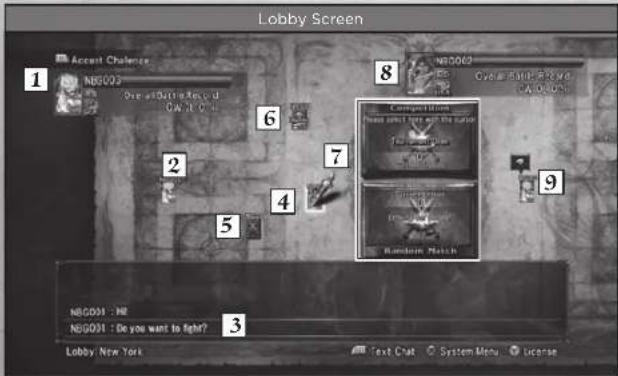
| 1 Challenge Notice | When a challenge is received, the information of the challenging player is displayed. |
| 2 Your Player Card Your Player card has a white frame. | |
| 3 chat Log | Displays chat messages in the Lobby. Press the n left trigger to expand. Green: Personal Message Blue: Message sent in the Lounge |
| 4 Lounge | Lounges (rooms) created by other players. |
| 5 in-battle | Indicatos that the players are fi ghting. |
| 6 Gamortag | The color of the Gamertag signifies the below statuses. Yellow: Friend / Rival Rod: A player you have fought Green: A player with whom you have swapped messages |
| 7 Tournament / Random Battle Zone | Select this zone with the cursor to participate in a Tournament or Random Battle. |
| 8 Player Information | Displays the information on the player selected by the cursor. |
| 9 Status Icon | Indicates the status of the players. ▲ Entoring a messagc ▲At Monu ▼Idle |
X6ox LIVE (3)

Chat / Send a Message
Press the button or the keys on a USB keyboard while in a Lobby or Lounge to chat. Try talking to a nearby player. You can also move the cursor to a player card (other than your own) and press the button to select 'Send a Message' to send a message directly.

How to Battle
Move the cursor to the card of another player you wish to battle, press the button and select 'Challenge to a Match'. When the challenged player accepts the match, the match will begin. When you receive a challenge, information about the challenger will appear in the upper-left part of the screen. Press button to accept the challenge.

How to Participate in a Tournament / Random Battle
To participate in a tournament, move the cursor to the Tournament Zone in the center of the Lobby and press the button. Tournaments are held over a set period of time in which each player battles to achieve the highest number of victories. Follow the same process to participate in Random Battles. These will not be reflected in the rankings, but you can join a Random Battle at any time.

How to Create a Lounge and Gather Players
To create a Lounge (room) that you can name freely within the Lobby, move the cursor to your own player card and press the button. Gather like-minded players and enjoy chatting and versus battles.
Creation
You can customize regular characters and create your own original characters by selecting characteristics such as gender / height / fi ghting style / etc.

The Creation Process
Below are the steps to edit a character.

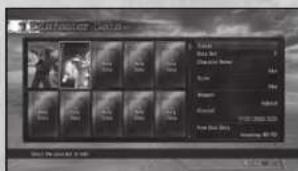
Select a Data Slot
Select the data slot (card) that you would like to edit. If you select a data slot without a character, you will proceed to the new character creation screen. If you select a slot that shows a created character, you can edit, delete or copy the character. Up to 50 data slots may be used.

Select a Type
Select 'Regular Character' to customize a regular character and 'Original Character' to create an original character.

Select a Character or Style
Select the character or style that will be the base for your customized or original character. Once you have selected a character or style, adjust the below settings.
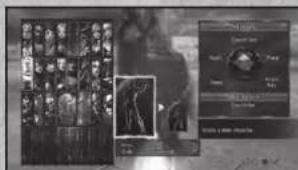
| Customize Regular Characters |
Select the model you wish to edit. Now select the card with the helmet mark to create a new model.
| Creating Original Characters |
Select Style, Gonder, Height, Body Type and Proced to the Editing Screen. Height affects the character's abilities. Please note that Gender cannot be changed later.

Edit
Use the Editing Screen to edit 'Body', 'Equipment', 'Weapon/Style', Colors/Patterns/Stickers', etc.
Offline Play
Arcade
Battle through all 6 stages in this mode. Set a 'Route' and 'Difficulty,' then select a character to use from the Character Select screen and the match will begin. If 'Route' has been set to 'Leaderboard,' the clear time will be uploaded to the leaderboards.
ROUTES
| Standard This is the basic route. | |
| Europe Only characters based in Europe will appear. | |
| Asia Only characters based in Asia will appear. | |
| Leaderboard | This route is ranked on the Xbox LIVE leaderboards. Difficulty is set to 'Normal.' |
Quick Battle
In this mode, battle various characters of differing appearance, strength and fighting style. Upon selecting a character to use, you are able to choose from a list of opponents. If you are victorious, a title will be awarded which can be set in your License. You may open a list of search criteria to help choose whom to fight by pressing the button.
VS Battle
Select a character and stage and battle against the CPU, friends, or spectate a CPU vs CPU match. *Two Xbox 360 controllers are required to fight against friends.
VS.BATTLE SETTINGS
Player Ghoos from Player vs. Player, Player vs. CPU, CPU vs. Player, and CPU vs. CPU
Battie Count Sel the Baitle Count number required to win from 1 to 5.
Battie Time:Set the Battle time for 30/45/60 seconds.
CPU Strength Set the CPU strength to Easy, Normal, Hard, or Very Hard.
Legendary Souls
In this mode, you battle against CPU opponents on high difficulty. You will be ranked on the time taken to complete all 7 stages.
Training
Press the START button in Training mode to set the training options. Set detailed conditions and practice against opponents. You may also set-training objectives to display advice text at the bottom of the screen for more effective training.
LIMITED WARRANTY
Ever get stuck and just need that extra edge to beat the level? Having problems getting your game to work properly? Now you can get one-on-one help from NAMCO BANDAI Games America Inc. using your web browser!
Simply go to support.namcobandaigames.com for more details. Live Counselors available from 9am-5pm Monday-Friday PacificTime.
NAMCO BANDAI Games America Inc.
ATTN: Customer Support
1740 Technology Drive, Suite 600
San Jose, CA 95110
Before returning any defective materials to us, please contact us for a Return Merchandise Authorization (RMA) number. You can reach us at the address above, via e-mail at support@namcobandalgames.com or contact us at (408) 235-2222. Please note that any materials sent to us without an RMA number will be refused and returned. We highly recommend that you use a traceable and / or insured method of shipping the materials to us.
Namco Bandai Games America Inc. Online:
www.namcobandaigames.com
Visit our Website to get information about our new titles.
LIMITED WARRANTY
NAMCO BANDAI Games America Inc. warrants to the original purchaser that this NAMCO BANDAI Games America Inc. Game Card shall be free from defects in material and workmanship for a period of ninety (90) days from the date of purchase. If a defect covered by this limited warranty occurs during this 90-day limited warranty period, NAMCO BANDAI Games America Inc. will repair or replace the defective Game Card or component part, at its option, free of charge. This limited warranty does not apply if the defects have been caused by negligence, accident, unreasonable use, modification, tampering, or any other cause not related to defective material or workmanship.
LIMITATIONS ON WARRANTY
Any applicable implied warranties of merchantability and fitness for a particular purpose, are hereby limited to ninety (90) days from the date of purchase and are subject to the conditions set forth herein. In no event shall NAMCO BANDAI Games America Inc. be liable for consequential or incidental damages resulting from the possession or use of this product. The provisions of the limited warranty are valid in the United States only. Some states do not allow limitations on how long an implied warranty lasts, or exclusion of consequential or incidental damages, so the above limitation or exclusion may not apply to you. This limited warranty provides you with specific legal rights. You may have other rights which vary from state to state.
To register product online go to
WWW.NAMCOREG.COM
Actions 19 Credits 28
Course A 8 Directions

1740 Technology Drive, Suite 600
San Jose, CA 95110

- Important Health Warning About Playing Video Games
- Photosensitive seizures
- ESRB Game Ratings
- CONTENTS
- Prologue
- Game Controls
- TheXbox360Controller
- mand Symbols
- How to Read the Technique Tables
- Getting Started
- Astral Home
- Player Information
- Game Screens
- Select a Character
- Status and Weapon
- Random
- Creation Characters
- How to Read the In-match Screen
- Battl Time
- Health Gauge
- Battle Count
- Battle Messages
- Critical Gauge
- Actions
- Basic Attacks
- Horizontal Strike A
- Vertical Strike
- Kick K
- Throws
- A+G/B+C
- 8-Way Run
- #
- Step
- Jump
- Goror
- Actions (2)
- Quick Move
- X2
- Guard
- Just Guard
- Brave Edge
- Guard Impact
- A+B+K
- Critical Edge
- ↓→↓→A+B+K
- X6ox LIVE
- Xbox LIVE
- Connecting
- Family Settings
- The Xbox LIVE Menu Screen
- Saving Replays
- X6ox LIVE (2)
- OnlineMatches
- Ranking up and Ranking down
- The Room Screen
- Room Screen Options
- Spectate Other Players'Matches
- Global Colosseo
- X6ox LIVE (3)
- Chat / Send a Message
- How to Battle
- How to Participate in a Tournament / Random Battle
- How to Create a Lounge and Gather Players
- Creation
- The Creation Process
- Select a Data Slot
- Select a Type
- Select a Character or Style
- Edit
- Offline Play
- Arcade
- ROUTES
- Quick Battle
- VS Battle
- VS.BATTLE SETTINGS
- Legendary Souls
- Training
- LIMITED WARRANTY
- LIMITATIONS ON WARRANTY
- Course A 8 Directions
Brand : MICROSOFT
Model : Soul Calibur V (Xbox 360)
Category : Game