Tales of Vesperia (Xbox 360) - Game MICROSOFT - Free user manual and instructions
Find the device manual for free Tales of Vesperia (Xbox 360) MICROSOFT in PDF.


| Product Type | Video game |
| Platform | Xbox 360 |
| Game Title | Tales of Vesperia |
| Publisher | Microsoft (Xbox 360) |
| Genre | RPG (role-playing game) |
| Number of players | 1 to 4 (local multiplayer in battle) |
| PEGI Rating | To be determined (contains mild violence) |
| Available languages | Text: French, English, etc.; Voice: English |
| Required memory (save) | 416 KB minimum per file |
| Supported controllers | Xbox 360 controller (wired/wireless) |
| Online features | Leaderboards, downloadable content (Xbox LIVE) |
| Special features | Story, real-time battle system, Artes, skills, cooking |
| Recommended minimum age | 12 years and up |
| Maintenance and cleaning | Wipe the disc with a soft cloth; avoid scratches and dust |
| Safety | Risk of photosensitive epilepsy; sit at a proper distance, play in a well-lit room |
| Spare parts and repairability | Contact customer service or exchange the disc at a store |
| General information | Released in 2008; developed by Namco Tales Studio |
Frequently Asked Questions - Tales of Vesperia (Xbox 360) MICROSOFT
User questions about Tales of Vesperia (Xbox 360) MICROSOFT
0 question about this device. Answer the ones you know or ask your own.
Ask a new question about this device
Download the instructions for your Game in PDF format for free! Find your manual Tales of Vesperia (Xbox 360) - MICROSOFT and take your electronic device back in hand. On this page are published all the documents necessary for the use of your device. Tales of Vesperia (Xbox 360) by MICROSOFT.
USER MANUAL Tales of Vesperia (Xbox 360) MICROSOFT
WARNING Before playing this game, read the Xbox 360^ Instruction Manual and any peripheral manuals for important safety and health information. Keep all manuals for future reference. For replacement manuals, see www.xbox.com/support or call Xbox Customer Support.
Important Health Warning About Playing Video Games
Photosensitive seizures
A very small percentage of people may experience a seizure when exposed to certain visual images, including flashing lights or patterns that may appear in video games. Even people who have no history of seizures or epilepsy may have an undiagnosed condition that can cause these "photosensitive epileptic seizures" while watching video games.
These seizures may have a variety of symptoms, including lightheadedness, altered vision, eye or face twitching, jerking or shaking of arms or legs, disorientation, confusion, or momentary loss of awareness. Seizures may also cause loss of consciousness or convulsions that can lead to injury from falling down or striking nearby objects.
Immediately stop playing and consult a doctor if you experience any of these symptoms. Parents should watch for or ask their children about the above symptoms—children and teenagers are more likely than adults to experience these seizures. The risk of photosensitive epileptic seizures may be reduced by taking the following precautions: Sit farther from the screen; use a smaller screen; play in a well-lit room; do not play when you are drowsy or fatigued.
If you or any of your relatives have a history of seizures or epilepsy, consult a doctor before playing.
Tales of Vesperia.
CONTENTS
Game Controls. 2
Story 4
Characters 5
Getting Started. 6
Game Rules.. 6
Map Screen 7
~Field Map 7
~Normal Map 8
Main Menu 9
\~Artes 10
~Equipment & Items 12
~Skills 13
Strategy. 14
\~Cooking. 15
~Status.. 16
~Library/ Save & Load.17
Battle Screen. 18
~Battle Menu. 19
~Attributes & Status Effects...20
Battle Actions. 21
Attacking. 22
Advanced Actions. 23
Xbox LIVE 25
Multiplier. 26
Warranty. 53
GAME CONTROLS
Basic controls are indicated by each screen. See each page for details on controls. You can change the battle controls in the "Button Configuration" in the Configs Menu.
This section gives the names and basic functions of the buttons on the XBOX 360 controller.
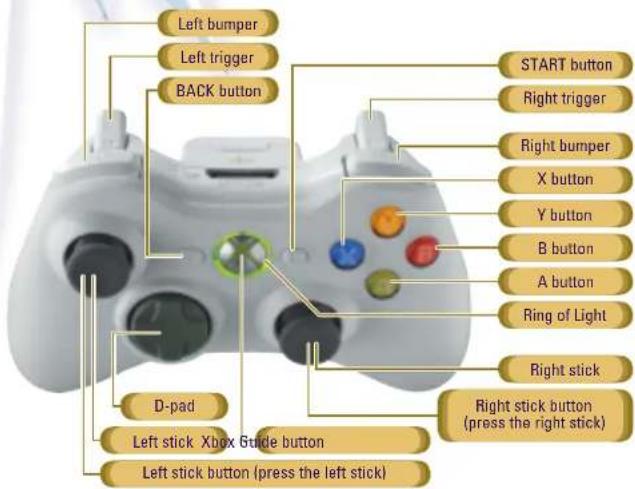

MAP SCREEN CONTROLS (see pgs. 7-8)
| FIELD MAP | NORMAL MAP | |
| Left stick | Move characters / Walk (Holding the B button) | Move characters / Walk (Holding the B button) |
| Right stick | Turn camera | Turn character |
| Right stick button | Turn camera to the North | - |
| Left stick button | Call Ba'ul | - |
| D-pad | Zoom in/out (Up&Down) Turn "characters" (Right&Left) | Turn "characters" |
| A button | Enter / Examine towns & dungeons | Talk / Examine |
| X button | Switch Mini Map display | Shoot Sorcerer's Ring |
| Y button | Display Main Menu | Display Main Menu |
| Left bumper / Right bumperper | Rotate camera view | Casual action (with Right bumperper) |
| START button | Pause | Pause |
| BACK button | Start a skit | Start a skit |

MAIN MENU CONTROL.S (see pgs. 9-17)
| Left stick / D-pad | Select menu items |
| A button | Confirm |
| B button | Cancel |
| X button | Change leader |
| Left trigger / Right trigger | Switch characters & item category. |
| Left bumper / Right bumper | Switch secondary categories. |

BATTLE SCREEN CONTROL S (scc pgs. 18-24)
| Left stick | Move characters / Free run (Pulling the left trigger) / Select a target (While casting magic) / Move free cursor |
| Right stick | Use Artes shortcut |
| D-pad | Activate Over Limit |
| A button | Activate Artes (with the left stick) |
| B button | Normal attack |
| X button | Guard |
| Y button | Display battle menu |
| Right trigger | Trigger Fatal Strike |
| Left bumper | Cancel item request |
| Right bumper | Select a target |
| START button | Pause |
| BACK button | Switch control mode |
NOTE: Some controls only become available as the game progresses.
STORY
"Aer" is a primeval power source of the universe. "Terca Lumireis" is a world sustained by "blastia", which is driven by aer. The People of Terca Lumireis enjoy their lives, living in cities shielded by barriers that keep them safe from the monsters of their world.
The Empire once reigned over the people as a bedrock of peace. Blastia, the legacy of an ancient civilization, was under the strict control of the Empire and only certain people became privileged to their use. The poor of the world soon formed organizations in search of freedom—the guilds—and strived to live outside the Empire's rule. Eventually, through conflict and compromise, a new society formed with a complicated relationship between the Empire and the guilds.
Even after the Great War ten years ago and disputed rights of succession after the demise of the Emperor, this world seemed peaceful...
AND NOW....
Yuri was raised in the lower quarter of Zaphias. He joined the Imperial Knights with Flynn-Yuri's childhood best friend-but quit because he was disappointed by the Imperial Knights' corruption. Now he lives the way he wants, solving people's troubles in the lower quarter.
One day, Yuri encounters a mysterious girl named Estelle. Upon discovering that she wants to meet Flynn, Yuri decides to accompany her.
Yuri doesn't know it yet but this strange encounter will soon tangle many people's fates.
CHARACTERS
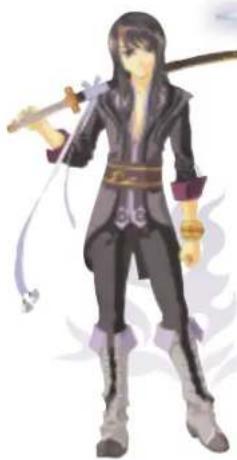
Yuri Lowell
Sex: Male Age: 21 years old Height: 180 cm (5 feet 9 inches)
A former Imperial Knight who lives in the lower quarter, protecting it's inhabitants. He hates the upper classes, such as nobles, because he has seen their oppressive way of doing things. Because of his helpful nature he is beloved by people like a big brother, despite being loudmouthed and sarcastic.
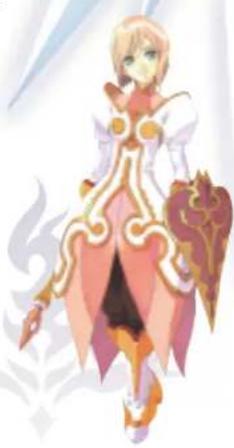
Estelle
Sex: Female Age: 18 years old Height: 165 cm (5 feet 4 inches)
A girl who mysteriously runs into Yuri in the castle. 1 Her sheltered nature, and fantastic words and deeds often confuse people. She is very dedicated. Seeing someone hurt, she would try to cure them with her healing artes, paying no attention to herself. Her real name is Estellise. Estelle is her nickname.
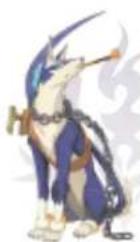
Repede
Sex: Male Age: 4.5 years old Height: 170 cm incl. tail (5 feet 6 inches)
Yuri's constant companion, a one-eyed dog with a big scar on his face. Though he holds a pipe as a memento from his former master, he does not smoke. He is not friendly but he never betrays anyone whom he has come to accept. He is totally in control and may be the most sensible and calm being among them all.

GETTING STARTED
The Title Screen is displayed after the opening movie when you start the game.
TITLE SCREEN
Use the left stick or the D-pad to select a menu item and press the START button or A button to confirm.

NEW GAME
Start a new game from the beginning. Make sure to select a storage device in order to save your play data.
CONTINUE
Continue the game from a previously saved position. Select the save data you wish to load to start playing from that point.
SAVING DATA
You can save your game data by opening the Main Menu on the Field Map (see p. 9) and choosing "Save data" (see p. 17) from the "Save & Load" option. Or pressing the A button over a "save point" (see p. 8) found in towns and dungeons. Saving the game requires at least 416KB of free space.
Note: Both an Xbox 360 User Profile and saved data for this game are required to load a saved game.
GAME RULES
The game mainly takes place on the Map Screen. When you encounter an enemy or when an event triggers a battle, you are brought to the Battle Screen. The Main Menu is displayed by pressing the Y button on the Map screen.

MAP SCREEN / FIELD MAP
On the Field Map, you can travel to towns and dungeons around the world. Let's visit various places!
FIELD MAP SCREEN
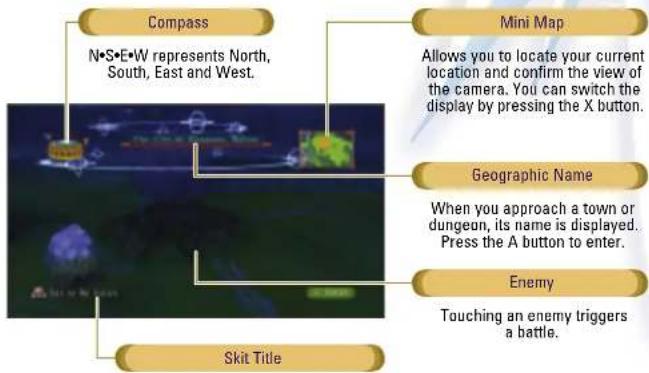
Use the left stick to move and use the right/left bumper or right stick to change the camera view on the Field Map screen. In order to reposition the camera north, press the right/left bumper simultaneously or use the right stick button.
ENCOUNTER
Coming in contact with an enemy on the Map Screen triggers a battle. This is called "Encounter" and depending on how you come in contact with the enemy, it may bring on a special encounter.
MAP SCREEN / NORMAL MAP
When you enter towns and dungeons, the Normal Map screen is displayed. On the Normal Map, you can gather information by talking to people and exploring dungeons to progress in the game.
TALK / EXAMINE
By facing a person and pressing the A button, you can talk to them. Also use the A button to examine signs and treasure chests, and open doors. Button help is displayed at the lower right part of the Map and Main Menu to show which controls are available.
MOVE OBJECTS
Some objects in towns and dungeons can be moved. After touching the front of the object you want to move, you can move it by grabbing with the button and using the left stick.
SORCERER'S RING
Once you acquire the Sorcerer's Ring, the X button allows you to shoot acr at things. There are various usages such as activating switches or moving machinery from a distance. More uses can become available as the game progresses.
SHOOTING AT ENEMY
Use the Sorcerer's Ring to fire a shot of aer at an enemy to attempt to give you an advantage. "Angry" makes it approach, "Afraid" makes it stand firm, and "Stunned" allows for an Advantage Encounter if you come in contact with it in this state.
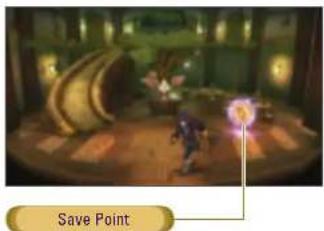
SAVE POINTS
Pressing the A button over a save point found in towns and dungeons allows you to save the game data.
Save your game data by opening the Main Menu over a save point and choosing "Save & Load", then "Save".
8 Tales of Vesperia
MAIN MENU
Press the Y button to open the Main Menu.
MAIN MENU
Use the left stick or D-pad to select a menu and confirm with the A button.
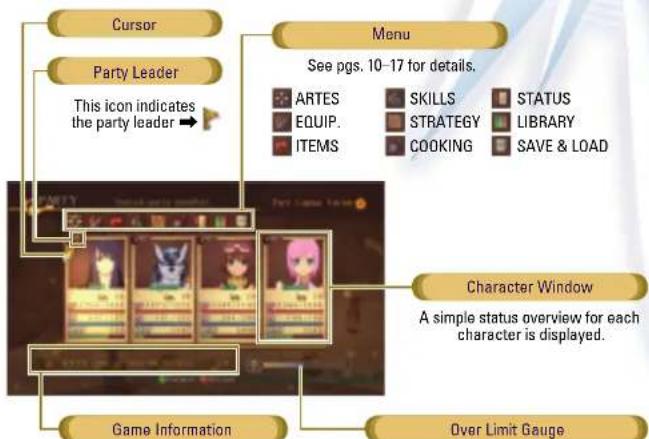
Some information during the game.
| Gald | Indicates how much money you have. |
| Play Time | Total playtime / Current playtime. |
| Max Hits | The highest hit combo achieved during battles. |
MAIN MENU / ARTES
ARTES MENU
Here you can check and assign the artes you have learned, use recovery artes, and change the control mode. Characters learn new artes through battles and events.
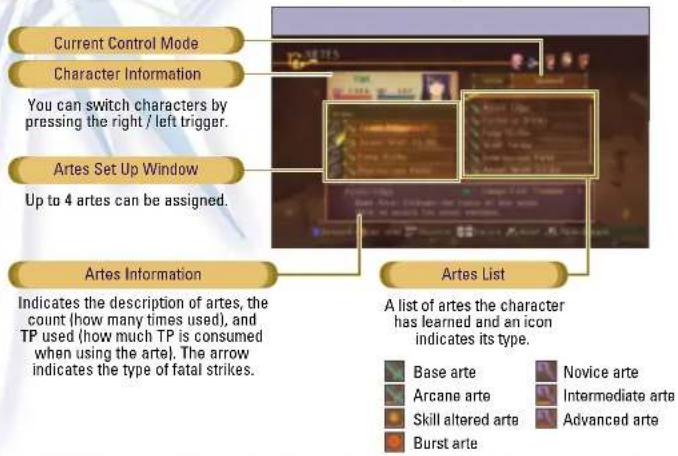
SELECT CONTROL MODE
There are three types of control modes for controlling your character during battle: Auto, Semi-Auto and Manual. To switch the control mode, use the BACK button. For single play, you control the character designated No. 1 on the Top Menu. Set Auto to the uncontrolled characters. NOTE: Uncontrolled characters will not fight during battle if you set them to Manual or Semi-Auto.
6THREE CONTROL MODES
| Manual | The player entirely controls the character. |
| Semi-Auto | The player controls most of the character's actions, but character will automatically run towards the target when attacking. |
| Auto | The character will fight automatically based on pre-set strategy settings. |
101
Tales of Vespereia
ASSIGN ARTES
You can assign up to four (4) artes to characters whose control mode is set to Manual or Semi-Auto. Assigned artes can be used during battles by pressing the left stick and the A button.
Use the A button
Use the left stick + A button
Use the left stick + A button
Use the left stick () + A button
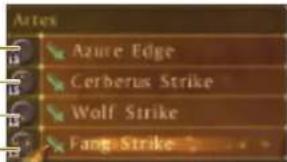
LEARNING ARTES
You can learn artes by leveling up your characters. Some artes can only be learned by using certain artes repeatedly during battle.
ASSIGNING SHORTCUTS
Press the left stick on the Artes Menu or scroll down to the Artes Shortcut window to assign shortcuts to artes used in battle. You can assign four additional artes shortcuts. You can also assign shortcuts to artes for characters other than the one you control. Press the right stick to use assigned artes during battle.
Use the right stick (↑)
Use the right stick (
Use the right stick (←)
Use the right stick ()
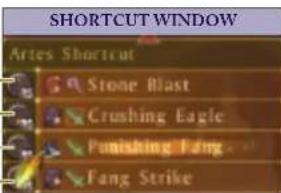
USE RECOVERY ARTES
Artes in green can be used outside of battle to recover HP and heal physical ailments. Use the left stick or D-pad to highlight the arc and press the A button or Y button to select it. Next, choose the target character and confirm with the A button to use the arc.
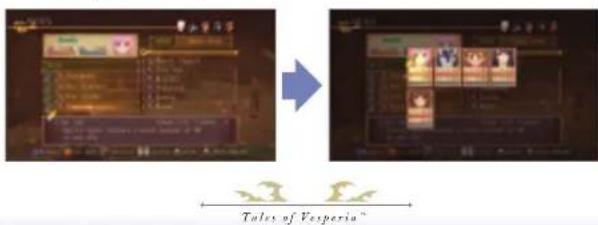
MAIN MENU / EQUIP. & ITEMS MAIN MENU / SKILLS
EQUIP.MENU
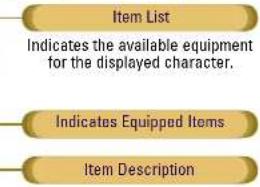
Each character can equip one item, such as weapons, armor, and accessories per slot.
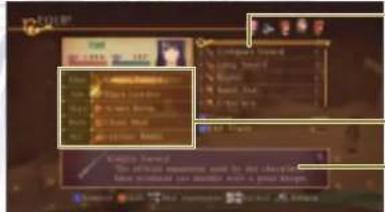
CHANGE EQUIPMENT
Select the equipment slot you wish to change and press the A button. Choose the item you wish to equip and press the A button. Stats in blue indicate an increase and stats in red indicate a decrease when equipping the selected item. By pressing the right stick button, you can equip the optimal set of equipment for the character. You can also remove non-equipment items by pressing the X button.
ITEMS MENU
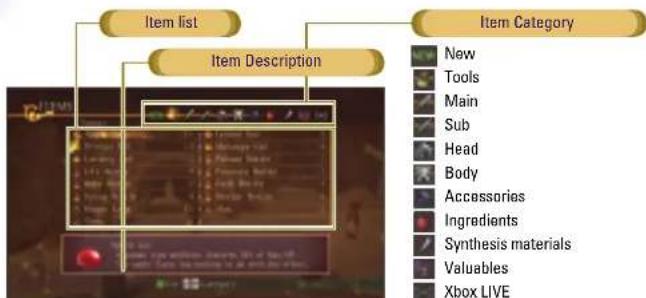
You can check the items you have acquired here. You can also use or equip them on a character. Items are categorized by group.
USING ITEMS
Select an item you wish to use and press the A button. Next, select the character you wish to use the item on and press the A button to confirm. You can also use the A button to equip.
Tales of Vesperin
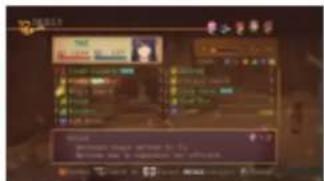
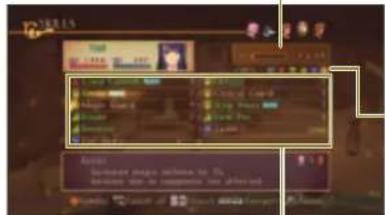
SKILLS MENU
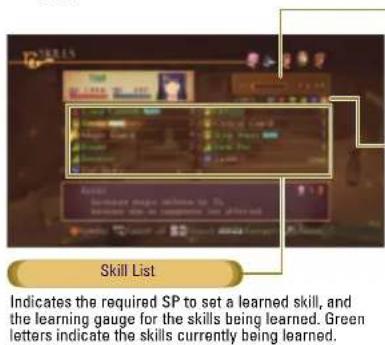
Using skills can raise the character's basic stats and enable special actions. Skills are linked with weapons, and a character learns the skill while using the equipped weapon. Learned skills can be used by the character regardless of which weapon is currently equipped.
SP{Skill Point}
Indicates remaining points/maximum points. You can set learned skills to a character equivalent to the value of their remaining SP.
Skill Category
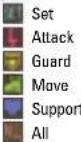
The Skill list is displayed by category.
LEARNING SKILLS
When battling with equipment that is associated with a skill, the skill learning gauge increases for the amount of LP (Learning Points) displayed on the Battle Result Screen. The skill is acquired when the gauge is filled.
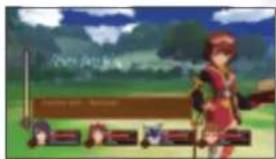
SETTING SKILLS
You can set skills for the SP remaining points. If you set multiple skills in the same category, the skill symbol may appear. Skill symbols produce special effects during an Over Limit.
Tales of Vesperis
MAIN MENU / STRATEGY MAIN MENU / COOKING
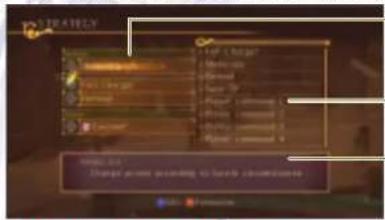
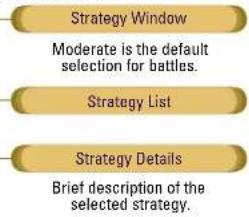
STRATEGY MENU
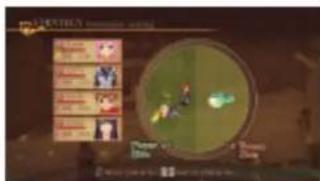
You can set a character's actions in battle for those with the Control Mode set to Auto. The starting formation for each character in battle can also be set.
ASSIGNING STRATEGY
You can assign three strategies on the Strategy window. Select a strategy and the slot where you want to assign it and confirm your selection with the A button. Change strategies during battle via the Battle Menu by holding down the left bumper and selecting with the left stick or D-pad.
PERSONALCALL
A Personal Call is a unique strategy for an individual character. When the Battle Menu is displayed, you can change the strategy to a controlled character's Personal Call with the left stick or D pad while holding down the left bumper.
EDIT STRATEGY
Press the X button to configure and view descriptions of strategy settings for each character.
FORMATION SETTING
Press the Y button on the Strategy Menu to set the party formation. Select a character with the A button and move that character to where you want them to be when a battle starts.
1413 Yesperaria
COOKING MENU
You can use ingredients you have obtained in your journey along with recipes learned from the Wonder Chef or recipes you have learned on your own for cooking. Cooking can help recover HP and TP, and raise stats temporarily. You can cook or set the menu(s) for when a battle is over.
Character
Indicates the character who will be cooking.
Menu
Indicates the recipe that will be cooked.
Needed Ingredients
Indicates the ingredients required to cook the selected recipe.
Menu Description
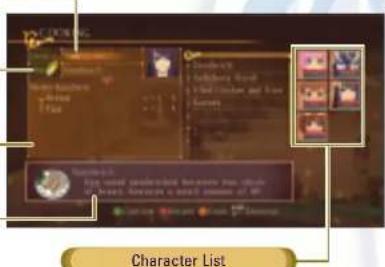
The number of stars indicates the cooking skill level.
HOW TO COOK
COOK
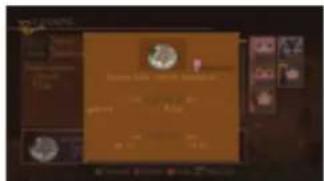
You can cook by pressing the Y button after selecting a character and a recipe. When you cook an item successfully, you may be granted a variety of effects. If you fail, the effects you receive will be weaker. Also, you cannot cook when the characters are full (immediately after having cooked something).
COOKING SHORTCUTS
If you have the cooking shortcuts, you can cook on the Battle Result Screen by selecting the recipe you want with the left stick or the D-pad and pressing the X button.
MAIN MENU / STATUS MAIN MENU
STATUS MENU
You can check the character's name, title, attachment, and basic stats here. Select each and press the A button to switch.
ENTERERING NAMES
Pressing the A button after selecting a character's name opens the Name Enter Screen. You can change the character name here.
NOTE: Character's name spoken during voiced over cut-scenes stays the same.
BASIC STATS
Shows character's maximum values of HIP & TP as well as other attribute's power levels. These stats will increase as the character's level rises. Stats vary due to the effect of the equipment or set of skills.
| Lv. | Current level |
| HP | Hit Points. Indicates current HP. When HP reaches zero, the character is KO'ed. |
| TP | Technical Points. Indicates current TP. Consumed when you use magic arts or base artes. When TP reaches zero, the artes become unavailable. |
| NEXT | Required EXP for the next level-up. |
| EXP | Experience points. When they reach a certain point, the character is promoted to the next level and his or her stats go up. |
| Physical Attack | Attack power of weapons and arts. |
| Physical Defense | Defense power against weapons and arts. |
| Magic Attack | Attack power of magic arts. |
| Agility | The higher, the more a character movement, speed, and critical rate go up. |
| Luck | How much luck you have affects battles, acquiring items, etc. |
| Attack Attribute | Normal attribute when the character attacks. (See pg. 22) |
| Resistance Attribute | When attacked, you get less damage from this attribute. |
| Weak Attribute | When attacked, you get more damage from this attribute. |
TITLE / ATTACHMENT
A title is bestowed when certain conditions are met during events. Some titles change the character's appearance. Attachments are accessories that the characters can wear to change their appearance but won't affect their abilities. You can usually obtain them by synthesizing items.
1617 Tales of Vespesie
LIBRARY / SAVE & LOAD
LIBRARY
You can view the story synopsis, various books, and game information here. NOTE: Only the Records option is available at the start of the game. Once you collect certain items, additional options become available.
SAVE&LOAD
I here you can save and load your game data and change various settings.
SAVE DATA
You can save game data by choosing "Save" while on the Field Map or on a Save Point found in towns and dungeons.
LOAD DATA
You can start the game from where you left off by loading saved game data. Select the saved data that you want to load and press the A button.
CONFIGS
You can change various game settings here. To select a category press the A button. For categories adjusted with a bar, such as "BGM volume," set with the left stick or D pad, and press the B button to confirm the change.
Tales of Vesperia
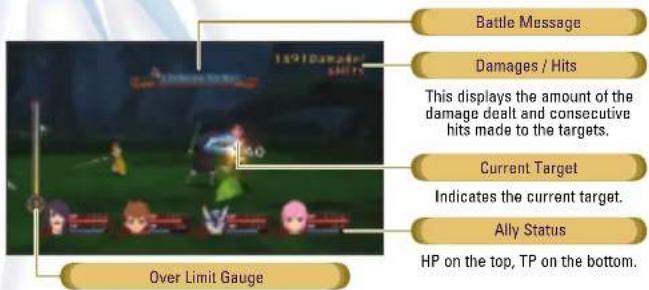
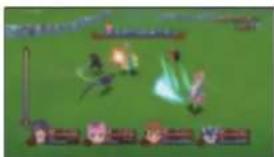
When you come in contact with an enemy on the Map Screen, or if an event triggers a battle, you are brought to the Battle Screen. You win when all on screen enemies are defeated. After a battle, you will obtain EXP or Gald, and characters' TP will recover slightly. You may occasionally gain items as well.
BATTLESCREEN
Press the Y button to display the Battle Menu; it will display many Encounter options. You can pause by pressing the START button.
GAMEOVER
When the HPs of all characters in battle reach zero and/or all non-KO'd characters are petrified, you are defeated and the game is over.
BATTLE RESULT SCREEN
Once you defeat your opponent(s), the result screen is displayed. Press the A button to view acquired items, titles, and level-up information. By pressing the B button, you can skip the result screen. Press the Y button to check your grade ranking in detail.
COOKING
View the assigned menus set in the shortcuts by using the left stick or the D-pad . You can cook by pressing the X button. Make sure to set the recipes beforehand.
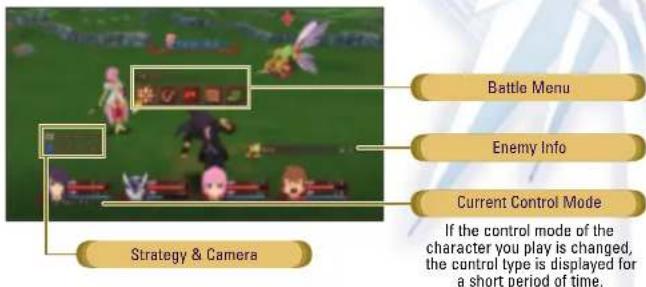
BATTCLE MENU
Pressing the Y button during battle brings up the Battle Menu. You can use items, change equipment and give the other party members instructions here. The game is paused while the Battle Menu is displayed.
AR TFS
You can assign arte and instruct auto-controlled characters to use arte immediately.
FQUIP.
You can examine and change equipment.
ITEMS
You can use items during battles. You must wait for the Item Gauge to run out before you can use another item in battle.
STRATEGY
You can examine and change the battle strategy.
FSCAPE
You can choose to escape from battles. When the Escape Gauge fills up, you will be able to run away from the battle. To cancel, select ESCAPRe again.
SWITCH CONTROL MODE
Press the BACK button to switch the control mode of the controlled character. Once the control mode setting is changed, it will remain in effect even after the battle ends.
SWITCH STRATEGY
Using the left stick or D-pad while holding the left bumper allows you to change strategy settings.
SWITCH BATTLE CAMERA
By holding down the X button and using the left/right trigger, you can adjust the battle camera.
ATTRIBUTES / STATUS EFFECTS BATTLE ACTIONS
Some equipment and artes have attributes. Enemies also have attributes, so the attributes both you and the enemies have affect the damage dealt and received in battle.
6 KINDS OF ATTRIBUTES

STATUS EFFECTS
Special attacks from enemies or effects from artes may cause changes to the character's conditions, known as Status Effects. Magical Ailments recover after a certain period of time but Physical Ailments can only be cured by using specific arts, using certain healing items, or staying at an inn.
6LIST OF PHYSICAL AILMENTS
| Poison | HP decreases over time. |
| Contamination | Spirit is affected and TP decreases over time. |
| Sealed Artes | Prevents use of artes. |
| Sealed Skills | Prevents use of skills. |
| Weak | Decreases max HP by half. |
| Paralysis | Restricts various actions. |
| Petrify | Character is unable to move. |
6 EXAMPLES OF MAGICAL AILMENTS
| Change in Physical Attack | Physical attack ability rises or falls. |
| Change in Physical Defense | Physical defense ability rises or falls. |
| Change in Magical Attack | Magical attack ability rises or falls. |
| Change in Magical Defense | Magical defense ability rises or falls. |
| Auto Recover | Automatically revived when KO ed. |
| Sleep | Unable to move. |
| Charm | Actions become randomized. |
2021
Tales of Vespereia
This section explains operation for when the control mode is either Manual or Semi-Auto. Note that the same operation can produce different actions for different characters.
NOTE: “↑/↓/←/→” indicate “Up/Down/Left/Right” on the left stick.
BASIC ACTIONS
RUN/WALK
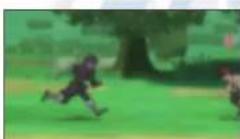
Pushing right or left on the left stick will cause the character to run in either direction. By only slightly pushing the left stick, you can make your character walk.
FREE RUN
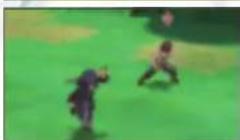
You can make the character move freely on the battlefield by using the left stick while holding down the left trigger.
JUMP
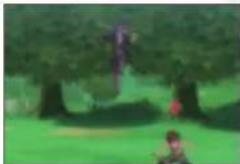
Pushing up on the left stick allows the character to jump when the control mode is set to Manual. In the Semi-Auto control, push up on the left stick while holding the X button to jump.
GUARD
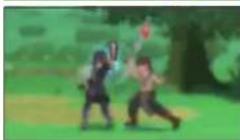
I hold down the X button to guard. Doing so protects the character from physical attacks such as sword attacks and punch attacks, as well as lowers damage received.
ADDITIONAL GUARDING ACTIONS
For characters that have learned special skills, multiple Guard actions become available.
SELECTING A TARGET
Tapping the right bumper switches the target selection of the controlled character to the nearest enemy. To freely choose a target, hold down the right bumper to pause the battle action and choose a new target with the left stick or D-pad.
ATTACKING ADVANCED ACTIONS
NORMAL ATTACKS
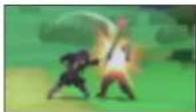
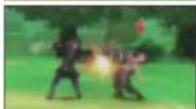
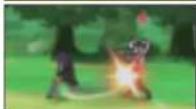
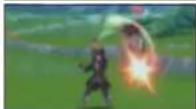
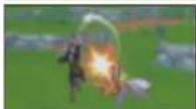
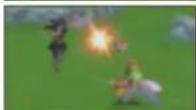
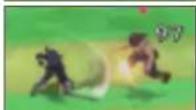
Here are the basic attacks using weapons. The default setting allows for three consecutive attacks. When you succeed in attacking an enemy without the enemy guarding, you recover 1 TP. We will use Yuri as an example.
SLASH
(B button)
Sliccs an enemy overhead.
THRUST
(←/→+Bbutton)
Thrusts a sword towards an enemy.
WIDE CUT
(+Bbutton)
Cuts horizontally.
ANTI-AIR ATTACK
(+Bbutton)
Uppercut attack, ideal against enemies in the air.
JUMPING SLASH
(+Bburton(whilejumping))
Uppercut attacks while in the air.
JUMPING CUT
( + B button (while jumping))
Cuts horizontally in the air.
FREE RUN ATTACK
(B button (during free run))
Horizontal wide cuts. When your attack hits an enemy, the enemy becomes the target automatically.
22.23
Tales of Vespereia
ARTES
You can use the artcs that you have assigned on the Main Menu by consuming TP. To activate an assigned arte, push the A button while pressing the left stick in the direction of the assigned arte. Casting starts when you use a magic arte and takes effect as soon as the casting finishes. Be aware that casting is cancelled if you get hit while casting.
ARTE STAND-BY
Holding the button allows the character to stand by in the state when the casting has finished, and releasing the button enables the use of the arc.
FREETARGET
With certain artes that have an area of effect, the Free Cursor appears. The arte originates from the location of the Free Cursor. Use the left stick to move the Free Cursor towards enemies if necessary.
USE SHORTCUTS
You can use assigned artes by using the right stick. You can also assign the artes of uncontrolled characters.
SKILL ALTERED ARTES
When using certain artes with specific skills, the arts may change. These are called Skill Altered Arts and by using them several times, they become available on the Arts Screen even after removing the skill.
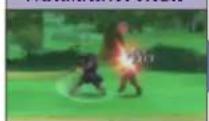
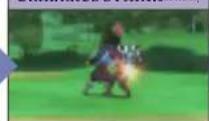
COMBO ATTACKS
In a combo attack, you can connect attacks in succession without a counterattack from the enemy. A combo is comprised of a normal attack base ar te ar cane arte. Shown below is an example of a combo.
NOTE: With the specific skill set, Skill Altered Artes can be combined.
NORMAL ATTACK
CERBERUS STRIKE
m = 311
Tales of Vespesio
ADVANCED ACTIONS
XBOX LIVE
ITEM REQUEST
For auto-controlled characters, an item request is made before using the item; the item will be automatically used after a while. Press the left bumper when you don't want them to use the item. You can also change the settings so that they won't make any item requests on the Edit Strategy Screen.
FATAL STRIKES
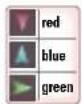
By repeatedly attacking an enemy during battle, red/blue/green formulas appear. Holding the right trigger when the formula appears allows you to activate a Fatal Strike that can beat the enemy in one attack. NOTE: For enemies that can't be defeated with a single Fatal Strike, the Fatal Strike will heavily damage them.
FS CHAIN
Various effects are added to the character by activating a series of Fatal Strikes. This is called an FS Chain. The added effects, such as an increase in acquired experience or altering item acquisition rates, vary depending on the color of the formula when activating the Fatal Strike.
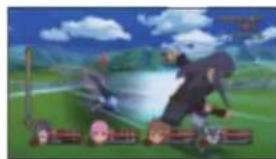
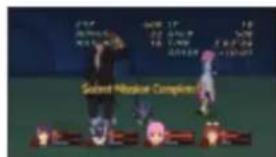
SECRET MISSION
A secret mission may be achieved when fighting against specific enemies. Achieving a secret mission may give a bonus to the battle grade or allow you to acquire an item. There are many kinds of secret missions, such as downing an enemy using a specific attack, so make sure to try to find them all.
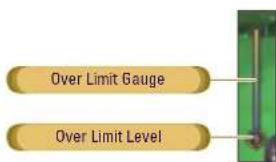
OVERLIMIT
The Over Limit Gauge increases whenever your attacks successfully hit the enemy without taking damage. Pressing the D-pad when at least one level of the Over Limit Gauge is full activates the Over Limit. You can consecutively attack and use artes without casting time during the Over Limit. As the game progresses, you may be able to unleash more powerful Over Limits and burst artes during an Over Limit.
2425
Tales of Vespereia
XBOX LIVE
Play anyone and everyone, anytime, anywhere on Xbox LIVE. Build your profile (your gamer card). Chat with your friends. Download content at Xbox LIVE Marketplace. Send and receive voice and video messages. Get connected and join the revolution.
CONNECTING
Before you can use Xbox LIVE, connect your Xbox 360^ console to a high-speed Internet connection and sign up to become an Xbox LIVE member. For more information about connecting, and to determine whether Xbox LIVE is available in your region, go to www.xbox.com/live/countries.
FAMILY SETTINGS
These easy and flexible tools enable parents and caregivers to decide which games young game players can access based on the content rating. For more information, go to www.xbox.com/familysettings.
LANGUAGESTHAT ARENT SUPPORTED
IN THE XBOX 360® DASHBOARD
If your game is available in a language that isn't supported in the Xbox 360® Dashboard, you must select a corresponding locale (region) in Console Settings to enable that language in the game. For more information, go to www.xbox.com.
PURCHASING CONTENT
You can purchase items by using Microsoft Points at the Marketplace. Go to CONFIGS on the Main Menu and select Xbox LIVE Marketplace and press the A button to confirm. NOTE: Purchasing Microsoft Points requires real money.
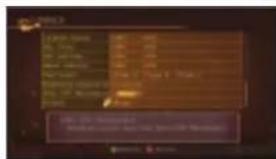
CHECKING RANKINGS
Once connected to Xbox LIVE, you can check your ranking such as MAX HIT and MAX DAMAGE. Go to the Record in the LIBRARY on the Main Menu and select the category displaying [ ] and press the A button. Your data gets assigned in the ranking when saving.
MULTIPLAYER
This game allows up to four players to play simultaneously on the same Xbox 360, during battle.
PREPARATION
Xbox 360 has wired and wireless controllers. You may need a special hub when playing multiplayer with wired controllers.
WITH 2-3 PLAYERS
Connect the same number of Xbox 360 controllers as there are players. When three players play using wired controllers, plug in two controllers at the front of the console and plug in one controller at the back.
WITH 4 PLAYERS
Prepare four Xbox 360 controllers. When all 4 players play using wired controllers, a special hub is required.
PLAY THE GAME
The first character on the Top Menu is 1P, second is 2P, and so forth. Characters 1P-4P are assigned to controllers in the order controllers are connected.
SETCONTROLMODE
Set the playable characters control mode to Manual or Semi-Auto in the Artes Screen on the Main Menu before entering the battle.
CONTROL DURING BATTLE
Each player controls their respective character in battle. When the Battle Menu is displayed, only the player who brought up the menu can control it.
MANUEL D'INSTRUCTIONS
DEPLACER DES OBJECTS
Arie outcompete Arte burst

SELECTION DU MODE DE CONTROLE
Listedes competences
Ever get stuck and just need that extra edge to beat the level? Having problems getting your game to work properly? Now you can get one-on-one help from NAMCO BANDAI Games America Inc. using your web browser! Simply go to livehelp.namco.com for more details. Live Counselors available from Sam-5pm Monday-Friday Pacific Time.
NAMCO BANDAI Games America Inc. ATIN: Customer Service 4555 Great America Parkway, Suite 201 Santa Clara, CA 95054 Before returning any defective materials to us, please contact us for a Return Merchandise Authorization (RMA) number. You can reach us at the address above, via e-mail at support@namcobandaignes.com or contact us at (408) 235-2222. Please note that any materials sent to us without an RMA number will be refused and returned. We highly recommend that you use a traceable and / or insured method of shipping the materials to us.
NAMCO BANDAI Games America Inc. Online: www.namcobandaigames.com Visit our Website to get information about our new titles. LIMITED WARRANTY: NAMCO BANDAI Games America Inc. warrants to the original purchaser that this NAMCO BANDAI Games America Inc. game pack shall be free from defects in material and workmanship for a period of ninety (90) days from the date of purchase. If a defect covered by this limited warranty occurs during this 90-day limited warranty period, NAMCO BANDAI Games America Inc. will repair or replace the defective game pack or component part, at its option, free of charge. This limited warranty does not apply if the defects have been caused by negligence, accident, unreasonable use, modification, tampering, or any other cause not related to defective material or workmanship.
LIMITATIONS ON WARRANTY: Any applicable implied warranties of merchantability and fitness for a particular purpose, are hereby limited to ninety (90) days from the date of purchase and are subject to the conditions set forth herein. In no event shall NAMCO BANDAI Game Americas Inc. be liable for consequential or incidental damages resulting from the possession or use of this product. The provisions of the limited warranty are valid in the United States only. Some states do not allow limitations on how long an implied warranty lasts, or exclusion of consequential or incidental damages, so the above limitation or exclusion may not apply to you. This limited warranty provides you with specific legal rights: Lu may have other rights which vary from state to state.
DES CONSEILS MAINTENANT OFFERTS EN LIGNE!
MicrosoftXhouXhou 360,and the Xhou logos are trademarks of the Microsoft group of companies and are used under license from Microsoft.
To register product online go to www.NAMCOREG.COM

- Important Health Warning About Playing Video Games
- Photosensitive seizures
- Tales of Vesperia.
- CONTENTS
- GAME CONTROLS
- STORY
- AND NOW....
- CHARACTERS
- Yuri Lowell
- Estelle
- Repede
- GETTING STARTED
- TITLE SCREEN
- NEW GAME
- CONTINUE
- SAVING DATA
- GAME RULES
- MAP SCREEN / FIELD MAP
- FIELD MAP SCREEN
- ENCOUNTER
- MAP SCREEN / NORMAL MAP
- TALK / EXAMINE
- MOVE OBJECTS
- SORCERER'S RING
- SHOOTING AT ENEMY
- SAVE POINTS
- MAIN MENU
- MAIN MENU / ARTES
- ARTES MENU
- SELECT CONTROL MODE
- ASSIGN ARTES
- LEARNING ARTES
- ASSIGNING SHORTCUTS
- USE RECOVERY ARTES
- MAIN MENU / EQUIP. & ITEMS MAIN MENU / SKILLS
- EQUIP.MENU
- CHANGE EQUIPMENT
- ITEMS MENU
- USING ITEMS
- SKILLS MENU
- SP{Skill Point}
- Skill Category
- LEARNING SKILLS
- SETTING SKILLS
- MAIN MENU / STRATEGY MAIN MENU / COOKING
- STRATEGY MENU
- ASSIGNING STRATEGY
- PERSONALCALL
- EDIT STRATEGY
- FORMATION SETTING
- COOKING MENU
- Character
- Menu
- HOW TO COOK
- COOK
- COOKING SHORTCUTS
- MAIN MENU / STATUS MAIN MENU
- STATUS MENU
- ENTERERING NAMES
- BASIC STATS
- TITLE / ATTACHMENT
- LIBRARY / SAVE & LOAD
- LIBRARY
- SAVE&LOAD
- SAVE DATA
- LOAD DATA
- CONFIGS
- BATTLESCREEN
- GAMEOVER
- BATTLE RESULT SCREEN
- COOKING
- BATTCLE MENU
- AR TFS
- FQUIP.
- ITEMS
- STRATEGY
- FSCAPE
- SWITCH CONTROL MODE
- SWITCH STRATEGY
- SWITCH BATTLE CAMERA
- ATTRIBUTES / STATUS EFFECTS BATTLE ACTIONS
- STATUS EFFECTS
- BASIC ACTIONS
- RUN/WALK
- FREE RUN
- JUMP
- GUARD
- ADDITIONAL GUARDING ACTIONS
- SELECTING A TARGET
- ATTACKING ADVANCED ACTIONS
- NORMAL ATTACKS
- SLASH
- THRUST
- WIDE CUT
- ANTI-AIR ATTACK
- JUMPING SLASH
- JUMPING CUT
- FREE RUN ATTACK
- ARTES
- ARTE STAND-BY
- FREETARGET
- USE SHORTCUTS
- SKILL ALTERED ARTES
- COMBO ATTACKS
- ADVANCED ACTIONS
- XBOX LIVE
- ITEM REQUEST
- FATAL STRIKES
- FS CHAIN
- SECRET MISSION
- OVERLIMIT
- CONNECTING
- FAMILY SETTINGS
- LANGUAGESTHAT ARENT SUPPORTED
- IN THE XBOX 360® DASHBOARD
- PURCHASING CONTENT
- CHECKING RANKINGS
- MULTIPLAYER
- PREPARATION
- WITH 2-3 PLAYERS
- WITH 4 PLAYERS
- PLAY THE GAME
- SETCONTROLMODE
- CONTROL DURING BATTLE
- MANUEL D'INSTRUCTIONS
- DEPLACER DES OBJECTS
- SELECTION DU MODE DE CONTROLE
- DES CONSEILS MAINTENANT OFFERTS EN LIGNE!
Brand : MICROSOFT
Model : Tales of Vesperia (Xbox 360)
Category : Game