Body and Brain Connection (Xbox 360) - Game MICROSOFT - Free user manual and instructions
Find the device manual for free Body and Brain Connection (Xbox 360) MICROSOFT in PDF.


| Product Type | Video Game |
| Platform | Xbox 360 |
| Category | Puzzle / Brain Training Game |
| Game Mode | Kinect (motion sensor) |
| Number of Players | 1 to 4 |
| Supported Languages | French, English |
| Release Date | 2011 |
| Publisher | Microsoft (under license from NAMCO BANDAI Games Inc.) |
| ESRB Rating | Everyone |
| Box Contents | Game disc, instruction manual |
| Main Features | Brain exercises, brain age test, multiplayer mode, body recognition via Kinect |
| Safety | Epilepsy warnings, Kinect usage precautions |
| Maintenance and Cleaning | Wipe with a soft, dry cloth |
| Data Storage | Save to Xbox 360 hard drive (3.2 MB minimum) |
| Required Accessories | Kinect sensor, Xbox 360 console |
| Warranty | 90-day limited (hardware and workmanship) |
| Case Dimensions | 19 cm x 13.5 cm x 1.5 cm |
| Case Weight | Approximately 100 g |
Frequently Asked Questions - Body and Brain Connection (Xbox 360) MICROSOFT
User questions about Body and Brain Connection (Xbox 360) MICROSOFT
0 question about this device. Answer the ones you know or ask your own.
Ask a new question about this device
Download the instructions for your Game in PDF format for free! Find your manual Body and Brain Connection (Xbox 360) - MICROSOFT and take your electronic device back in hand. On this page are published all the documents necessary for the use of your device. Body and Brain Connection (Xbox 360) by MICROSOFT.
USER MANUAL Body and Brain Connection (Xbox 360) MICROSOFT
WARNING Before playing this game, read the Xbox 360^山 console instructions, KINECT sensor manual, and any other peripheral manuals for important safety and health information. Keep all manuals for future reference. For replacement hardware manuals, go to www.xbox.com/support or call Xbox Customer Support.
For additional safety information, see the inside back cover.
Important Health Warning About Playing Video Games
Photosensitive seizures
A very small percentage of people may experience a seizure when exposed to certain visual images, including flashing lights or patterns that may appear in video games. Even people who have no history of seizures or epilepsy may have an undiagnosed condition that can cause these "photosensitive epileptic seizures" while watching video games.
These seizures may have a variety of symptoms, including lightheadedness, altered vision, eye or face twitching, jerking or shaking of arms or legs, disorientation, confusion, or momentary loss of awareness. Seizures may also cause loss of consciousness or convulsions that can lead to injury from falling down or striking nearby objects.
Immediately stop playing and consult a doctor if you experience any of these symptoms. Parents should watch for or ask their children about the above symptoms—children and teenagers are more likely than adults to experience these seizures. The risk of photosensitive epileptic seizures may be reduced by taking the following precautions: Sit farther from the screen; use a smaller screen; play in a well-lit room; do not play when you are drowsy or fatigued.
If you or any of your relatives have a history of seizures or epilepsy, consult a doctor before playing.
ESRB Game Ratings
The Entertainment Software Rating Board (ESRB) ratings are designed to provide consumers, especially parents, with concise, impartial guidance about the age-appropriateness and content of computer and video games. This information can help consumers make informed purchase decisions about which games they deem suitable for their children and families.
ESRB ratings have two equal parts:
Rating Symbols suggest age appropriateness for the game. These symbols appear on the front of virtually every game box available for retail sale or rental in the United States and Canada.
Content Descriptors indicate elements in a game that may have triggered a particular rating and/or may be of interest or concern. The descriptors appear on the back of the box next to the rating symbol.

For more information, visit www.ESRB.org.
TABLE OF CONTENTS
Xbox LIVE 1 Background 2
Game Controls 2
Getting Started 4
Brain Fitness Test 5
Group Exercises 6 Notes
Customer Support & Warranty
Francais 11
Credits. 18
Xbox LIVE
Xbox LIVE is the online game and entertainment service for Xbox 360. Just connect your console to your broadband Internet service and join for free. You can get free game demos and instant access to HD movies (sold separately) with KINECT, you can control HD movies with the wave of a hand. Upgrade to an Xbox LIVE Gold Membership to play games online with friends around the world and more. Xbox LIVE is your connection to more games, entertainment, and fun. Go to www.xbox.com/live to learn more.
Connecting
Before you can use Xbox LIVE, connect your Xbox 360 console to a high-speed Internet connection and sign up to become an Xbox LIVE member. For more information about connecting, and to determine whether Xbox LIVE is available in your region, go to www.xbox.com/live/countries.
Family Settings
These easy and flexible tools enable parents and caregivers to decide which games young game players can access based on the content rating. Parents can restrict access to mature-rated content. Approve who and how your family interacts with others online with the Xbox LIVE service, and set time limits on how long they can play. For more information, go to www.xbox.com/familysettings.
How to Get Help with KINECT
Learn More on Xbox.com
To find more information about KINECT, including tutorials, go to www.xbox.com/support.
Copyright text
BODY AND BRAIN CONNECTION*& 2010 NAMCO BANDAI Games Inc. KINET, Xbox, Xbox 360, Xbox LIVE, and the Xbox logos are trademarks of the Microsoft group of companies and are used under license from Microsoft. The typefaces included herein are developed by DynaComware. Fonts used in-game are provided by Bitstream Inc. All rights reserved.
SAVING DATA
When you leave the results screen after any exercise and after taking a souvenir photo, your Brain Fitness Test results, progress, and other assorted data are automatically saved to the selected gamer profile. At least 3.2MB of space is needed in order to save data to your storage device. When starting a game without selecting a gamor profile, you will be unable to save any data.
- Only one save data can be saved per gamer profile.
- When saving save data to a separate console, you will be unable to compare your records or progress with other players.
- More memory will be needed to save multiple photos in Group Exercises.
BACKGROUND
A NEW METHOD OF BRAIN EXERCISING
While some of you may be used to the idea of training your brain with the use of a stylus or game controller, BODY AND BRAIN CONNECTION introduces a whole new healthy way to work your brain by using the best controller of all—your body!
EXERCISING WITH OTHERS
Get even more out of your workouts by getting friends and family members to play together! Make a habit out of playing regularly to compete against each other for the youngest brain age!
CONTINUOUS TRAINING
With challenging exercises you can do again and again, BODY AND BRAIN CONNECTION lets you have fun while working out with others and keeping your brain young!
Let's work hard to keep our brains feeling fit and young!
DR.RYUTAKAWASHIMA
Born in Japan in 1959, Dr. Kawashima graduated from Tohoku University School of Medicine where he received his MD. He is an expert on the science of brain imaging, which maps the activity of the human brain. After becoming a guest researcher at the famed Karolinska Institutet in Sweden, he returned as an assistant researcher and a full-time lecturer and is now a doctor at the Tohoku University Institute of Development, Aging and Cancer.
GAME CONTROLS
This game utilizes the Kinect Sensor. Stand facing your television screen and move your hands to navigate the menus and make selections.
Hand Cursors
Hold your hands up so that your palms face the screen. A pair of hand cursors will appear: the red one represents your right hand and the blue one represents your left hand. Move either cursor to make menu selections.
NOTE: When you hold your hands close to your body, the hand cursors become transparent and can't be used to make selections. As you move your hands towards the sensor, the hand cursors become opaque and work properly.
Selection Gauge
To select an item from the menu, keep the hand cursor over your selection until the circular gauge appears. Once the gauge fills completely, your selection is made.
Player Recognition
Only the player standing closest to the camera within its range is recognized and able to control the game. Please make sure that anyone else besides the player does not enter the play space.

IF ANOTHER PLAYER IS RECOGNIZED
In the event that another player is accidentally recognized, simply have that player step away and out of view of the camera. Verify the correct player is being recognized by viewing the photo in the upper left hand corner of the screen.

WARNING ICON
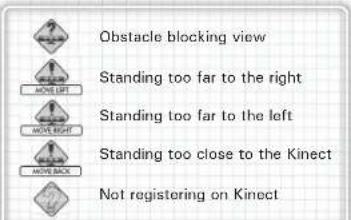
When the Kinect Sensor does not properly recognize the player's body, a warning icon (like the ones found to the right) appears. Adjust your positioning or reconfigure your Kinect through the Kinect Guide.
System Gesture
Make the System Gesture pose and hold it for a few seconds until the System Handle appears. When the gauge fills completely, the following list of options appears. The menu includes the Kinect Guide and allows the player to switch between player photos. Select CLOSE to return to the previous screen.

SIGN IN (outside an exercise)
Brings up the sign-in menu, where you can change the gamer profile.

QUIT (within an exercise)
End the current exercise and proceed to the next screen. Keep in mind that if you choose to proceed to the next screen, you will receive a score of 0 for the current exercise.

KINECT GUIDE
Brings up your console's Kinect Guide.

CHANGE PHOTO
Switch between players' photos.

CLOSE
Exit the pause menu and return to the previous screen.
Setting Your Kinect
When your Kinect sensor is not working properly, select the Kinect Guide or press the START button on the Xbox 360 controller to access the Kinect Settings screen and resolve the problem.
NOTE: You can press the START button and access the Kinect Settings guide even in the middle of an exercise.
GETTING STARTED
Place one hand cursor over the hand symbol next to the Touch to Start sign to begin. Once you select a gamer profile, you will proceed to the main menu.
Creating and Loading Data
Once you get past the title screen, please select a gamer profile. Follow the instructions on the next page to either create or load data. The gamer profile selected also supplies the avatar used in game.
NOTE: If you select a gamer profile that is not saved in the system's data, you will be prompted to create new data.
Main Menu Screen
When playing the game for the first time, you will proceed to the Brain Fitness Test after a brief message from Dr. Kawashima. After the test is complete, you are returned to the main menu where you can choose from five submenus. When continuing a game, simply select the menu you want to enter.
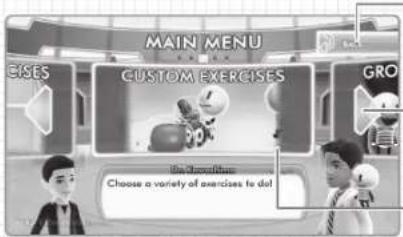
BACK
Hold the hand cursor over this symbol to return to the title screen, or go back one screen.
SCROLLING ARROWS
Select these to toggle through the menus. The current menu appears in the center of the screen.
MENU
The selected menu's content is displayed here. Hold the hand cursor here to enter that menu.
MESSAGE
Move forward in a message by selecting , or to go back.
Breakdown of Menus
The following is a brief summary of what each menu offers.
BRAIN FITNESS TEST
Choose to complete three exercises and have your brain's age measured in the Official Test, or have multiple players complete one exercise each to have their brains' ages measured in the Group Mock Test. The results are given after all the exercises have been completed.
TODAY'S EXERCISES
Train your brain by performing a variety of exercises based off of your play history. You can select exercises recommended by Dr. Kawashima, those recommended by Wattson, or exercises not yet played.
CUSTOM EXERCISES
Train with your choice of exercise, including genre and difficulty level!
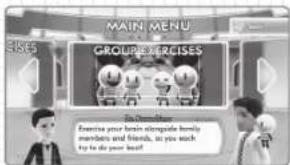
GROUP EXERCISES
Perform exercises with multiple players. Take turns performing the exercises or have two players compete together in the same exercise for the best score.
BRAIN FITNESS TEST
Perform the exercises to have your brain's age measured. Complete all the exercises to have the results displayed. You can also take the Brain Fitness Test with multiple players.
How to Play
Follow these steps to measure your brain's age.
TEST OPTIONS
Choose to complete three exercises and have your brain's age measured in the Official Test, or have multiple players complete one exercise each to have their brain's ages measured in the Group Mock Test.
CHOOSING EXERCISES
Once you've chosen a test, a series of exercises are displayed. Hold the hand cursor over an exercise to bring up the directions. Hold the hand cursor over the exercise again to select it.
3 PERFORMING EXERCISES
Complete an exercise and view your results. When you're done, the next exercise is displayed. Make sure you read the directions carefully before performing each exercise.
4 RESULTS SCREEN
After completing all the exercises, you can check your brain's age and mark your progress by putting a stamp on the calendar before returning to the main menu. Only the first test results of the day are recorded. You can also view the brain age of other gamer profiles, so keep training every day!
NOTE: When measuring results for the first time, this game's achievements are erased.
GROUP EXERCISES
Play with multiple players (two to four) to compete for the best score while having fun training! In some of the exercises, two players can play at the same time!
How to Play
Follow these steps to set the number of players and avatars used, and perform the exercises.
1 CHOOSING THE NUMBER OF PLAYERS
When choosing the number of participating players, make sure all the players fit into the frame while standing in a row. Once the avatars have been automatically selected for each player, select YES on the confirmation screen to begin playing, or select MANUALLY CREATE to reselect the avatars.
2 PERFORMING EXERCISES
Players are called forward to spin a roulette wheel and choose a theme and exercise. Read the directions carefully before performing the exercise.
3 RESULTS SCREEN AND PHOTOS
After completing all the exercises, you will proceed to the results screen where you are awarded a title and the MVP is announced. Confirm your results, and then take a commemorative photo. After your photo is taken, choose to return to the main menu or do the exercises over again.
NOTE: A maximum of 10 photos can be saved at a time. When the maximum number of photos has been reached, or there is not enough save space available, you can either overwrite the oldest photo or cancel the current save.
TWO PLAYERS AT ONCE
In Group Exercises mode, you have two players standing side-by-side performing the exercise. Please stand on the side that your photo appears.
NOTES
LIMITED WARRANTY
Ever get stuck and just need that extra edge to beat the level?
Having problems getting your game to work properly?
Now you can get one-on-one help from NAMCO BANDAI Games America Inc.
using your web browser!
Simply go to livehelp.namco.com for more details.
Live Counselors available from 9am-5pm Monday-Friday Pacific Time.
NAMCO BANDAI Games America Inc.
ATTN: Customer Service
4555 Great America Parkway, Suite 201
Santa Clara, CA 95054
Before returning any defective materials to us, please contact us for a Return Merchandise Authorization (RMA) number. You can reach us at the address above, via e-mail at support@namcobandaigames.com or contact us at (408) 235-2222. Please note that any materials sent to us without an RMA number will be refused and returned. We highly recommend that you use a traceable and / or insured method of shipping the materials to us.
Namco Bandai Games America Inc. Online:
www.namcobandaigames.com
Visit our Website to get information about our new titles.
LIMITED WARRANTY
NAMCO BANDAI Games America Inc. warrants to the original purchaser that this NAMCO BANDAI Games America Inc. game pack shall be free from defects in material and workmanship for a period of ninety (90) days from the date of purchase. If a defect covered by this limited warranty occurs during this 90-day limited warranty period, NAMCO BANDAI Games America Inc. will repair or replace the defective game pack or component part, at its option, free of charge.
This limited warranty does not apply if the defects have been caused by negligence, accident, unreasonable use, modification, tampering, or any other cause not related to defective material or workmanship.
LIMITATIONS ON WARRANTY
Any applicable implied warranties of merchantability and fitness for a particular purpose, are hereby limited to ninety (90) days from the date of purchase and are subject to the conditions set forth herein. In no event shall NAMCO BANDAI Games America Inc. be liable for consequential or incidental damages resulting from the possession or use of this product.
The provisions of the limited warranty are valid in the United States only. Some states do not allow limitations on how long an implied warranty lasts, or exclusion of consequential or incidental damages, so the above limitation or exclusion may not apply to you. This limited warranty provides you with specific legal rights. You may have other rights which vary from state to state.
To register product online go to www.NAMCOREG.COM
A Playing KINECT Safely
Make sure you have enough space so you can move freely while playing.
Gameplay with KINECT may require varying amounts of movement. Make sure you
won't hit, run into, or trip over other players, bystanders, pets, furniture, or other objects when playing. If you stand or move during gameplay, you need good footing.
Before playing: Look in all directions (right, left, forward, backward, down, and up) for things you might hit or trip over. Be sure your play area is far enough away from windows, walls, stairs, etc. Make sure there is nothing you might trip on—for example, toys, furniture, loose rugs, children, pets, etc. If necessary, move objects or people out of the play area. Don't forget to look up—be aware of light fixtures, fans, or other objects overhead when assessing the play area.
While playing: Stay far enough away from the television to avoid contact. Keep enough distance from other players, bystanders, and pets—this distance may vary between games, so take account of how you are playing when determining how far away you need to be. Stay alert for objects or people you might hit or trip on—people or objects can move into the area during gameplay, so you should always be alert to your surroundings.
Make sure you always have good footing while playing. Play on a level floor with enough traction for the game activities, and make sure you have appropriate footwear for gaming (no high heels, flip flops, etc.) or are barefoot if appropriate.
Before allowing children to use KINET: Determine how each child can use KINET and whether they should be supervised during these activities. If you allow children to use KINET without supervision, be sure to explain all relevant safety and health information and instructions. Make sure children using KINET play safely and within their limits, and make sure they understand proper use of the system.
To minimize eyestrain from glare: Position yourself at a comfortable distance from your monitor or television and the KINECT sensor; place your monitor or television and KINECT sensor away from light sources that produce glare, or use window blinds to control light levels; choose soothing natural light that minimizes glare and eyestrain and increases contrast and clarity, and adjust your monitor's or television's brightness and contrast.
Don't overexert yourself. Gameplay with KINECT may require varying amounts of physical activity. Consult a doctor before using KINECT if you have any medical condition or issue that affects your ability to safely perform physical activities or if: You are or may be pregnant; you have heart, respiratory, back, joint, or other orthopedic conditions; you have high blood pressure or difficulty with physical exercise; or you have been instructed to restrict physical activity. Consult your doctor before beginning any exercise routine or fitness regimen that includes KINECT. Do not play under the influence of drugs or alcohol, and make sure your balance and physical abilities are sufficient for any movements while gaming.
Stop and rest if your muscles, joints, or eyes become tired or sore. If you experience excessive fatigue, nausea, shortness of breath, chest tightness, dizziness, discomfort, or pain, STOP USING IMMEDIATELY, and consult a doctor.
See the Healthy Gaming Guide at www.xbox.com for more information.
BODY AND BRAIN CONNECTION™ & 2010 NAMCO BANDAI Games Inc. KINETXboxXbox 360, Xbox LIVE, and the Xbox logos are trademarks of the Microsoft group of companies and are used under license from Microsoft. The typefaces included herein are developed by DynaComware. Fonts used in-game are provided by Bitstream Inc. All rights reserved.
SAUVEGARDE DE DONNÉES
EXERCICES D'AUJOURD HUI
Chief Product Planner
Chihiro Kozasa
Product Planners
Daisuke Sekioka
Tetsutaro Hiraoka
General Manager
Takefumi Hyodo
Localization Manager
Shoko Doi
Localization Producer
Jeremy Clark
Marketing Manager
Kiyoshi Nishimura
Marketing Coordinator (North
America & PAL
Nao Takeda
NAMCO BANDA
Games America Inc.
President & CEO
Kenji Hisatsune
Executive VP & COO
Nobuhiro Kasahara
Executive VP & CFO
Shuji Nakata
Vice President of Marketing
Carlson Choi
Vice President of Studio Marketing
Yoshi Niki
Vice President of Sales
Susan Hughes-Taigen
Director of Japan Production
Takahiro Sasano
Sr. Localization Manager
Takashi Akiyama
Localization Manager
Ryota Toyama
Localization Producer
Katherine Schilling
Senior Brand Manager
Dennis Lee
Senior PR Manager
Arne Cual-Pedroso
PR Specialist
Nick O'Leary
Creative Services Manager
Michiko Wang
Senior Video Editor
Keisuke Kumiji
Director, Digital Media and Advertising
Paul Caparotta
Associate Media Manager
Julia Loranger
Senior Interactive Services Manager
Ryan Grissom
National Sales Manager
Terry Carlson
Director of Operations
Tad Hirabayashi
Senior Operations Manager
Jennifer Tersigni
Operations Analyst
Charmaine Morena
QA Manager
Charmaine Morena
Operations Analyst
Mike Peterson
CQC Supervisor
Damon Bernal
Project Coordinator
Jesse Mejia
Department Coordinator
Tereza Siegel
QA Lead
David Moya
QA Testers
Kristina Casto
John Donahue
Jimmy Tran
Ben Rogers
University of Washington
Johnny watson.
Nick Lemon
Stephen Bres
Talyo Nakata
CQC Testers
Greg Anderson
Saiho Kwan
Kevin Chen
Victor Del Rosario
Josh Glover
Josh Graves
Sharon Marmito
Eric Sawi
Min Sung
Konstantin Yavichev
Customer Support Manager
Jesus Barragar
Customer Support
Brian Ellak
Vilma Valdez
Special Thanks
Jun Omata
Kazuya Maruyama
Mizuki Tsuru
Makoto Iwai
Janna Smith
Martin Nguyen
Mara Aum
Ha Phan
Kyoko Kamimura Acheson
Moto Aida
Off Base Productions
English Voice Over Recordin
Recording Studio
Cup of Tea Productions, Inc & NSI
Recording Engineer
Danielle Hunt
Casting
Cup of Tea Productions, Inc.
Voice Director
Wendee Lee
Project Manager
Lainie Bushey
GARANTIE LIMITÉE
DES CONSEILS MAINTENANT OFFERTS EN LIGNE!

- Important Health Warning About Playing Video Games
- Photosensitive seizures
- ESRB Game Ratings
- TABLE OF CONTENTS
- Xbox LIVE
- Connecting
- Family Settings
- How to Get Help with KINECT
- Learn More on Xbox.com
- Copyright text
- SAVING DATA
- BACKGROUND
- A NEW METHOD OF BRAIN EXERCISING
- EXERCISING WITH OTHERS
- CONTINUOUS TRAINING
- DR.RYUTAKAWASHIMA
- GAME CONTROLS
- Hand Cursors
- Selection Gauge
- Player Recognition
- IF ANOTHER PLAYER IS RECOGNIZED
- WARNING ICON
- System Gesture
- SIGN IN (outside an exercise)
- QUIT (within an exercise)
- KINECT GUIDE
- CHANGE PHOTO
- CLOSE
- Setting Your Kinect
- GETTING STARTED
- Creating and Loading Data
- Main Menu Screen
- SCROLLING ARROWS
- MENU
- MESSAGE
- Breakdown of Menus
- BRAIN FITNESS TEST
- TODAY'S EXERCISES
- CUSTOM EXERCISES
- GROUP EXERCISES
- How to Play
- TEST OPTIONS
- CHOOSING EXERCISES
- PERFORMING EXERCISES
- RESULTS SCREEN
- CHOOSING THE NUMBER OF PLAYERS
- PERFORMING EXERCISES
- RESULTS SCREEN AND PHOTOS
- TWO PLAYERS AT ONCE
- NOTES
- LIMITED WARRANTY
- LIMITATIONS ON WARRANTY
- A Playing KINECT Safely
- SAUVEGARDE DE DONNÉES
- EXERCICES D'AUJOURD HUI
- NAMCO BANDA
- Games America Inc.
- Special Thanks
- English Voice Over Recordin
- GARANTIE LIMITÉE
- DES CONSEILS MAINTENANT OFFERTS EN LIGNE!
Brand : MICROSOFT
Model : Body and Brain Connection (Xbox 360)
Category : Game