DVR1B1161 - VCR BOSCH - Free user manual and instructions
Find the device manual for free DVR1B1161 BOSCH in PDF.


| Product Type | Digital Recorder (DVR) for video surveillance system |
| Brand | Bosch |
| Model | DVR1B1161 |
| Dimensions (W x H x D) | 346 x 88 x 269 mm |
| Weight | Approximately 5.5 kg |
| Power Supply | 100 to 240 V AC, 50/60 Hz, < 40 W |
| Main Functions | Digital recording (real-time, time-lapse, scheduled, alarm), playback, search by date, event list, copy to Compact Flash card, remote viewing via web browser, password protection |
| Video Formats | PAL / NTSC, M-JPEG compression, resolution up to 720x576 (PAL) |
| Video Inputs/Outputs | 1 BNC input (1 Vpp, 75 Ω), 1 BNC output main monitor, 1 S-Video input |
| Audio | 2 mono inputs, 2 mono outputs (1.6 Vpp) |
| Storage | 160 GB hard disk |
| Network Connectivity | Ethernet 10Base-T, RJ-45, TCP/IP |
| Remote Control | RS-232 port (D-Sub 9-pin), IR remote control (optional) |
| Alarm | Alarm inputs and outputs (N.O./N.C.), pre-alarm recording (up to 220 frames) |
| Security | Password protection (6 digits), key lock |
| Maintenance and Cleaning | Clean with a non-lint damp cloth or chamois. Do not use solvents. |
| Spare Parts and Repairability | Compact Flash card (type I/II), optional IR extension cable. Repair by qualified personnel only. |
| Operating Temperature | 0 °C to +40 °C |
| Certifications | CE, UL, C-Tick, FCC Class B |
Frequently Asked Questions - DVR1B1161 BOSCH
User questions about DVR1B1161 BOSCH
0 question about this device. Answer the ones you know or ask your own.
Ask a new question about this device
Download the instructions for your VCR in PDF format for free! Find your manual DVR1B1161 - BOSCH and take your electronic device back in hand. On this page are published all the documents necessary for the use of your device. DVR1B1161 by BOSCH.
USER MANUAL DVR1B1161 BOSCH
natural_image
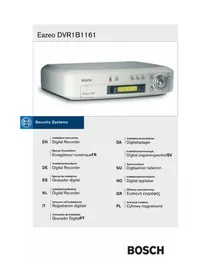
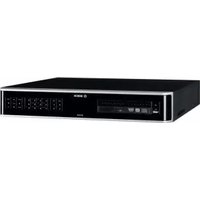
Exterior view of a Bosch Eazeo DVR electronic device (no visible text beyond branding)
Security Systems
EN | Installation Instructions Digital Recorder
DE | Installationshandbuch Digital Recorder
1.1 IMPORTANT SAFEGUARDS ....5
1.2 FCC INFORMATION ....6
2. INTRODUCTION 6
2.1 FEATURES 6
2.2 FRONT PANEL 7
2.3 REAR PANEL 8
2.3.1 Power 8
2.3.2 Eazeo Observation Unit 8
2.3.3 RS232 serial connector 8
2.3.4 IR remote control eye connector 8
2.3.5 LAN connector 8
2.3.6 Alarm connections 9
2.4 REMOTE CONTROL UNIT 9
3. OPERATION 10
3.1 INSTANT RECORDING 10
3.2 ALARM RECORDING 10
3.2.1 Pre-alarm recording 10
3.3 NORMAL PLAYBACK 10
3.4 SEARCH PLAYBACK 10
3.5 COPY 11
3.5.1 Still image copy 11
3.5.2 Copy to movie file 11
3.6 SECURITY LOCK SETTING 11
4. MENU SET-UP 12
4.1 MAIN MENU 12
4.2 CLOCK/LANGUAGE MENU 12
4.3 NORMAL RECORD MENU 12
4.4 ALARM RECORD MENU 12
4.5 TIMER MENU 13
4.6 BUZZER MENU 14
4.7 ARCHIVE MENU 14
4.8 NETWORK MENU 14
4.9 SYSTEM SETTING MENU 15
4.10 PASSWORD MENU 15
5. VIEW VIA INTERNET/INTRANET 16
5.1 LOGIN 16
5.2 MAIN SCREEN 16
5.2.1 Playback mode icons 17
5.2.2 Live mode icons 17
5.2.3 Search icons 17
6. SPECIFICATIONS 18
6.1 RS-232 INTERFACE 18
6.1.1 RS-232 control protocol 18
6.2 RECORDING TIME 19
6.3 TECHNICAL SPECIFICATIONS 20
Display abbreviations
II Pause
A.REC Alarm record
BASIC Basic quality
HIGH High quality
LOW Low quality
LOWER Lowest quality
MENU Menu
PAUSE Pause
P.END Pause end
PLAY Play
P.END Play end
P.RPT Play repeat
REC Record
SRCH Search
STDRD Standard quality
SUPER Superior quality
SYSLD System loading
T.REC Timer recording
1 SAFETY P

Danger
The lightning flash with arrowhead symbol, within an equilateral triangle, is intended to alert the user to the presence of an uninsulated "dangerous voltage" within the product's enclosure that may be of sufficient magnitude to constitute a risk of electric shock to persons.

Warning
The exclamation mark within an equilateral triangle is intended to alert the user to the presence of important operating and maintenance (servicing) instructions in the literature accompanying the appliance.

Caution
To reduce the risk of electric shock, do not remove cover (or back). No user-serviceable parts inside. Refer servicing to qualified service personnel.
1.1 IMPORTANT SAFEGUARDS
1 Please read these
2 P l e a s e k e e p t h i s U
3 Please disconnect before cleaning. Don't use liquid or sprayed detergent for cleaning. Use moisture sheet or cloth for cleaning.
4 Make sure the volt connect the equipment to the power outlet.
5 All cautions and w be noted.
6 Never pour any liq fire or electrical shock.
7 Never open the equipment should only be opened by qualified service personnel.
8 If one of the follow equipment checked by a service personnel :
a Liquid has penetrated into the equipment.
Rb The equipment has been exposed to moisture.
c The equipment has not work well or you can not get it work according to user's manual.
d The equipment has dropped and damaged.
e If the equipment has obv
9 D O N O T L E A V E T H I S E Q ENVIRONMENT UNCONDITIONED, STORAGE TEMPERATURE ABOVE 50°C, IT MAY DAMAGE THE EQUIPMENT.
10 Operation Ambient 50°C
11 Power cords : Use the proper power cord with correct attachment plug type. If the power source is 120 V AC, use a power cord that has UL and CSA approvals. If the power source is a 240 V AC supply, use the tandem (T blade) type attachment plug with ground conductor power cord that meets the respective European country's safety regulations, such as VDE for Germany. Plug need approval with VDE 0620, connector approval by VDE 0625, minimum 10A, power cord H05VV-F or VW-1,0.75 mm2 x 3G should be used.
12

Warning
To reduce the risk of fire or electric shock, this apparatus should not be exposed to rain or moisture and objects filled with liquids, such as vases, should not be placed on this apparatus.
13 The back of the recorder should only be removed by
a qualified nyainteiances and servicepersonnel. n s c a r e
ser's Manual for later r Ventilation
14 Keep ventilation openings free to avoid the recorder for overheating.
15 Do not place the recorder in the immediate vicinity of a heating source.
16 Do not install this equipment in a confined space such as a bookcase or similar unit.
Cleaning
17 You can clean the unit with p moistfluff-freecloth orth his shammy leather cloth.
ipment. For safety rea Disposal
18 This recorder contains a battery. Do not dispose of this battery with other solid waste. The battery is w i n g s i t u a t i o n s a r i s e s , located inside the enclosure of this recorder.
Remark
Bosch has a strong commitment towards the environment. This unit has been designed to respect the environment as much as possible.
1.2 FCC INFORMATION
This equipment has been tested and found to comply with the limits for a Class B digital device, pursuant to part 15 of the FCC Rules. These limits are designed to provide reasonable protection against harmful interference in a residential installation. This equipment generates, uses and can radiate radio frequency energy and, if not installed and used in accordance with the instructions, may cause harmful interference to radio communications. However, there is no guarantee that interference will not occur in a particular installation. If this equipment does cause harmful interference to radio or television reception, which can be determined by turning the equipment off and on, the user is encouraged to try to correct the interference by one or more of the following measures:
- Reorient or relocate the receiving antenna.
- Increase the separation between the equipment and receiver.
- Connect the equipment into an outlet on a circuit different from that to which the receiver is connected.
- Consult the dealer or an experienced radio/ TV technician for help.
Note
Any change or modification not expressly approved by Bosch of the equipment authorization could void the user's authority to operate the equipment. For additional information or to speak to a representative, please contact the Bosch Security Systems location nearest you or visit our web site at www.boschsecuritysystems.com (See: Your Guide To Observation)

Warning
This device is intended for use in public areas only. Surreptitious recording of oral communications is strictly prohibited by U.S. Federal law.
2 l n t r o d u c t i o
The Eazeo Digital Video Recorder brings advanced recording and playback technology to the Eazeo color observation system. The Eazeo DVR allows uninterrupted recording in either continuous or time-lapse modes for as long as a week or more. There are no video tapes to change or store, and frequent, costly VCR maintenance is eliminated.
The Eazeo DVR can record at speeds up to 25/30 images per second with PAL/NTSC formats and replay events instantly. The Eazeo DVR incorporates all the benefits of digital video recording, is simple to install, and operates just like a VCR. The highly efficient compression technology, as well as the superior clarity and detail of recorder images, make the Eazeo DVR ideally suited for integration with the Eazeo color observation system.
2.1 Features
- Provide ideas superior q
• Pre-Alarm image recording - Time lapse and real
- Refresh rate up to 25 images for PAL and 30 images for NTSC
- Quick Search by dat recording list
- Fast and slow play b speeds
- On - screen setup men
- Password protection
• RS-232 communication port - B u i l t - i n M - J P E G c o m configurable quality
• Audio recording cap - Programmed with var
• Data can be stored on Compact Flash Card - Remote control
- Remote view record i Web-based browser
2.2 Front panel
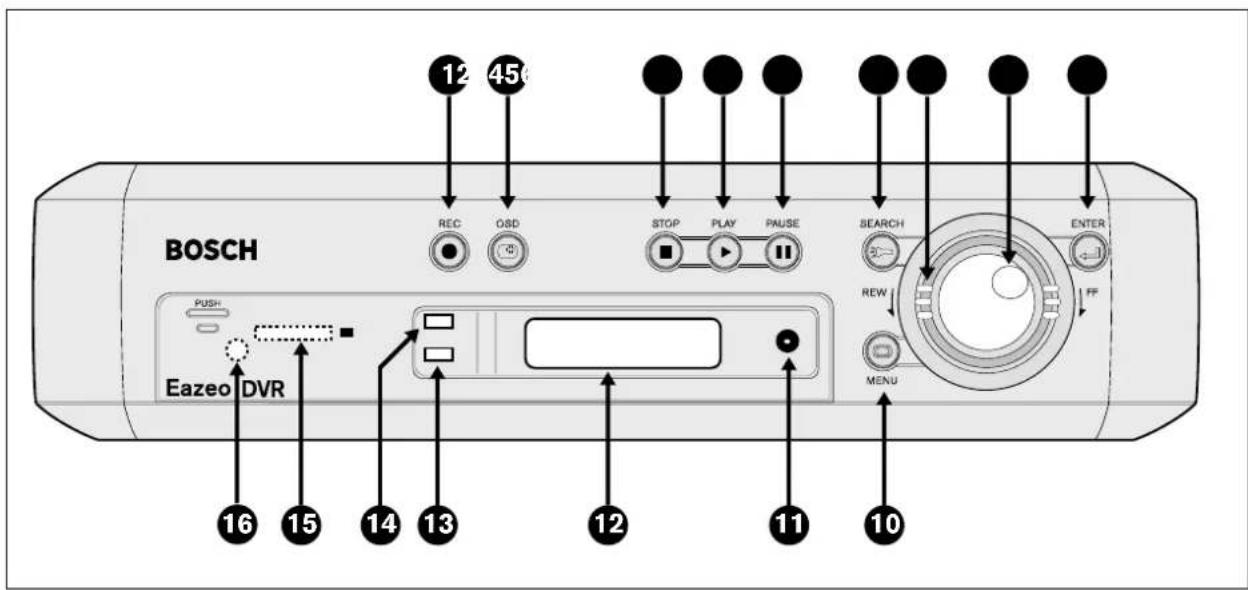
① REC: Press to start recording (red light in key lights when unit is recording).
2 OSD: - Press once to display the time/date and the disk usage.
- Press a second time to display disk size, record position, play position and and record quality.
- Press a third time to switch off the on-screen display.
3 STOP: Press to stop recording or playback.
4 PLAY: Press to start playback.
⑤ PAUSE: Press to pause the playback picture.
6 SEARCH: Press to enter the search menu.
⑦ Shuttle Ring:
In playback mode, turn Shuttle Ring clockwise to speed up or counterclockwise to slow down the forward or reverse play of the picture.
In pause mode, turn Shuttle Ring to move the picture slowly forward or reverse.
8 Jog Dial:
In playback mode, turn Jog Dial to select the playback speed.
In pause mode, turn Jog Dial to move forward or backward image by image.
In menu mode, turn Jog Dial to navigate through the menu pages or to select data values. Use together with the ENTER key to set menu values.
9 ENTER: Press to confirm a selection or a changed data value.
10 MENU: Press to enter or leave the setup menu.
11 Remote control IR receiver window.
12 LCD display
In standby mode, shows current date/time and the quality and rate setting for normal recording. In Recording mode, shows current date/time and the REC and current recording rate.
In Playback mode, shows playback date/time and the PLAY and current playback rate.
(For information on the displayed messages see the abbreviations list at the beginning of this manual.)
13 ALARM: Indicator lights when an alarm occurs.
14 LAN: Indicator lights when network is accessed.
15 Compact Flash card slot: Insert a Compact Flash Card. Press the black button beside the slot to remove the card.
16 COPY: Press to copy still picture or video stream onto Compact Flash card.
2.3 Rear panel
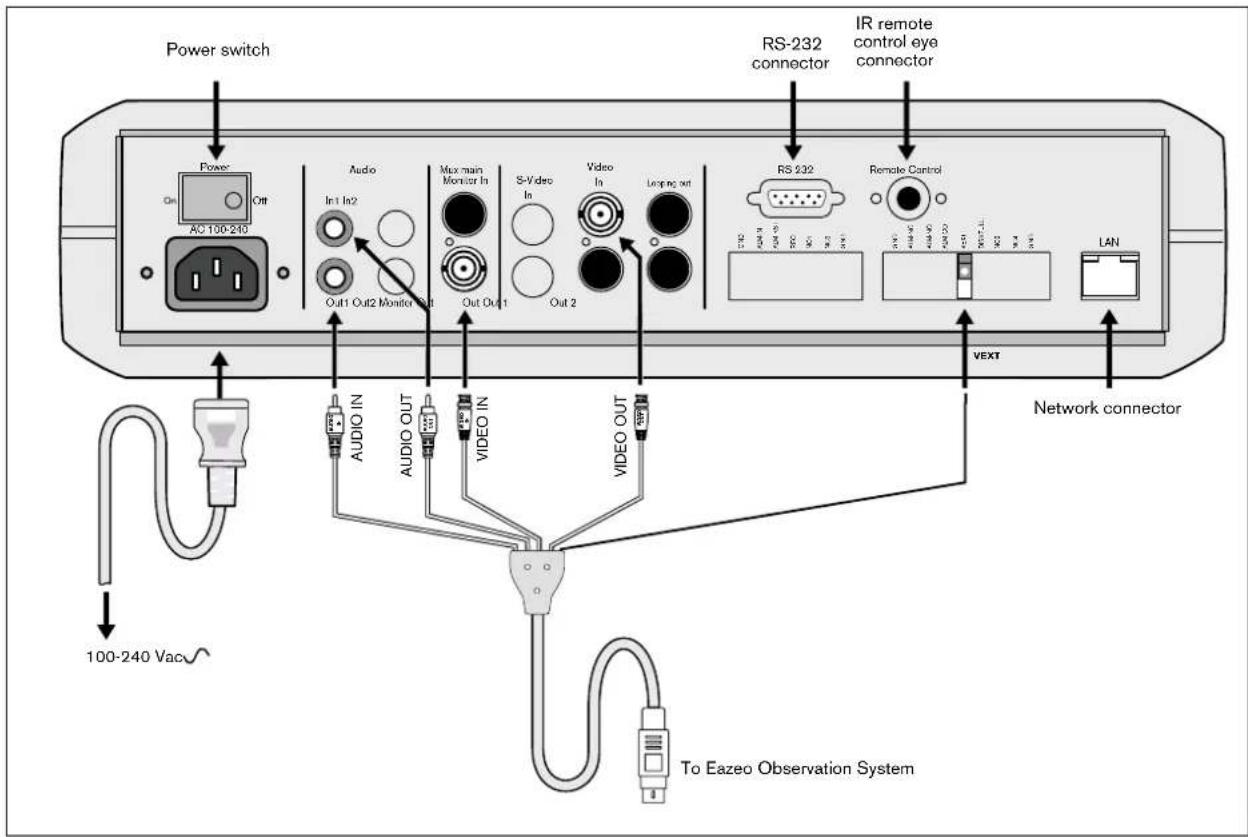
When connecting to an Eazeo Observation System only the connectors described below are used. The other connectors are present to facilitate the use of the unit in different application areas.
2.3.1 Power
Connect the power supply cable to the power socket at the rear of the unit. Use the power switch to switch the unit ON or OFF.
2.3.2 Eazeo Observation Unit
The supplied cable connects the audio and video signals from the Eazeo Observation System to the Eazeo DVR.
Note
Please note that in the following procedure the cable connectors marked OUT are connected to the IN sockets.
- Connect the cable connector marked VIDEO IN to the BNC socket marked Monitor Out on the rear of the unit.
- Connect the cable connector marked VIDEO OUT to the BNC socket marked Video In on the rear of the unit.
- Connect the cable connector marked AUDIO IN to the socket marked Audio Out 1 on the rear of the unit.
- Connect the cable connector marked AUDIO OUT to the socket marked Audio In 1 on the rear of the unit.
- To synchronise swit connect the single wire of the cable to the VEXT connection on the rear of the unit.
2.3.3 RS232 serial connector
Connect D-Sub 9-pin connector to the RS232 port if you want to control the unit remotely.
2.3.4 IR remote control eye connector
If the remote control IR receiver window at the front is hidden from view (if the unit is mounted in a cupboard), connect the optionally available extension IR cable to the remote control connector. Position the receiver eye so that it is in line-of-sight of the remote control unit.
2.3.5 LAN connector
To connect the unit to a network use the RJ-45 LAN connector at the rear of the unit.
2.3.6 Alarm connections
The ALM-IN and ALM-RST inputs can be set to Normally Open (N.O.) or Normally Closed (N.C.) in the Alarm record menu.
GND: Ground connection.
ALM-IN: Apply a signal* here to start alarm recording.
ALM-RST: Apply a signal* here to stop alarm recording.
REC: A high level external recording request signal* applied to this pin starts recording. When the signal drops to low, recording stops.
NC1, NC2: No connections.
* Signal
- switching voltage High: >2 Vdc
- switching voltage Low: < 0.5 Vdc
- max. input voltage: 12 Vdc
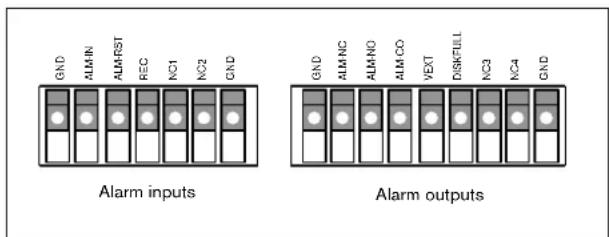
The alarm output signals are:
GND: Ground connection.
ALM-NC**: When an alarm occurs, the connection between this pin and ALM-COM is open. Otherwise it is closed.
ALM-NO**: When an alarm occurs, the connection between this pin and ALM-COM is closed. Otherwise it is open.
ALM-COM**: Alarm common contact.
VEXT: Synchronization signal for multiplexer.
Output voltage: 5 Vdc
Output current: 100mA
DISKFULL: Disk full alarm output signal.
Output voltage: 5 Vdc
Output current: 100mA
NC3, NC4: No connections.
** contact voltage max: 24 Vdc max. switching current: 2A dc
2.4 Remote control unit
The remote control unit is an accessory that makes it easy to control the Eazeo DVR from a distance. You can carry out the main operations using the remote control unit.
The keypad functions for the Eazeo DVR are as follows:
RECORD: Press to start recording.
STOP: Press to stop recording or playback.
PLAY: Press to start playback.
SEARCH: Increase the speed by 2x, 4x, 8x, 16x, 32x, 640x, 2x...
REWIND: In playback mode, press to reverse playback (Search key increases reverse speed).
STEP REW.: Press to stop playback. Press again to step backward image by image.
STEP FORW.: Press to stop playback. Press again to step forward image by image.
FORWARD: In reverse playback, press for forward playback (Search key increases forward speed).
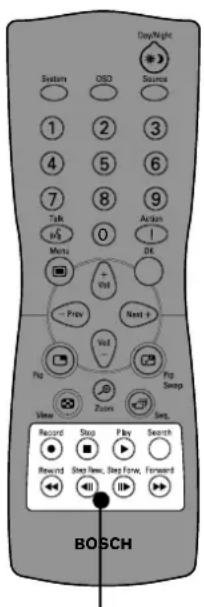
Eazeo DVR control keys
3 O p e r a t i o
3.1 Instant recording
Press the Record key to start the recording immediately - the images are recorded on the hard disk.
• The recording the Normal record and Alarm record menus.
- REC (record) appears in the LCD display.
Press the Stop key to stop recording.
- S to p key can on l
- When the hard disk is full, the DVR stops recording automatically or overwrites from the beginning of the hard disk depending on the setting in the Normal record menu.
3.2 Alarm recording
The monitor image is recorded automatically when an alarm occurs and stops recording at the end of the alarm duration period. Instant recording and timer recording stop when an alarm occurs. If the unit is already recording then the recording quality does not change for alarm recording. Set the options for alarm recording in the Alarm record menu.
3.2.1 Pre-alarm recording
A 220-image buffer (for example, 9 sec. at 25 IPS or 220 sec. at 1 IPS) is used to pre-capture video for recording images just before an alarm is triggered. Pre-alarm recording only occurs if the unit is not already recording during the pre-alarm period. The recording quality in the pre-alarm period is the same as the recording quality before the alarm occurs. If the recorder is not recording before the alarm occurs, the recording quality in the pre-alarm period is the same as normal recording quality.
3.3 Normal playback
Playback
- Press PLAY key to start playing back the stored image/audio from the last segment.
- Press S T O P k e y
Fast Forward
- Press - PLAY - key
• Turn the Shut t l
playback starts. The speed is shown on the display (normal play speed, 2x, 4x, 8x, 16x, 32x, 640x).
nReverse Playback
- Press PLAY key to s
- Turn the Shuttle Ring counterclockwise and fast reverse playback starts. The speed is shown on the display (normal play speed, 2x, 4x, 8x, 16x, 32x, 640x).
t e a n d r e c o r d i n g q u a
Slow Forward Playback
- Press Pause key to
- Turn the Shuttle Ring clockwise and slow forward playback starts. The speed is shown on the display y (>1/2, 1/4, 1/8, 1/16, 1/32, 1/64).
Slow Reverse Playback
- Press Pause key to
- Turn the Shuttle Ring counterclockwise to start slow reverse playback. The speed is shown on the display (<1/2, 1/4, 1/8, 1/16, 1/32, 1/64).
Lock displayed speed
- To lock the displayed speed, press the Enter key and then release the Shuttle Ring. If you turn the Shuttle Ring again, the speed returns to normal play speed or 1/2x .
Image advance Forward/Reverse
- Press Pause key to 1
- Turn the Jog Dial clockwise to advance the picture image by image.
- Turn the Jog Dial counterclockwise to rewind the picture image by image.
- The image speed in c quickly.
3.4 Search playback
Segment Search Playback
- Press the Search ke
- Move the cursor to the Enter key to select file search.
- Move the cursor to the segment you want to playback (pAlarm: Pre-alarm record, Timer: Timer record).
- If the selection list is full, turn the Jog Dial clockwise o to select the next page list a y i n g b a c k .
- Press Enter to start
t Alarm Search Playback p l a y i n g b a c k
- Press Search key to enter the Search menu. s e a n d
-
Move the cursor to Enter key to select alarm search.
-
Move the cursor played back.
- If the selection list is full, turn the Jog Dial clockwise to select the next page list.
- Press Enter to start playing back the alarm images.
- The alarm image is played back from the pre-alarm period and stops at the end of alarm duration.
Date/Time Search Playback
- Press Search key
- Move the cursor Enter key to select file search.
- Move the cursor press the Enter key.
- Turn the Jog Di and press the Enter key.
- Move the cursor to START SEARCH AND PLAY and press the Enter key and the playback starts from the date/time set in the menu.
If there is no image stored in the date/time specified then the unit automatically starts playing back from the nearest set time.
3.5.2 Copy to movie file the alarm
- Press the Play key t
- Press the Copy key
- Turn the Jog Dial to select the desired camera.
-
While the image is displayed, press the Copy key again. The message "Copying ..." appears on the screen during the process.
-
Press S T O P k e y t o e
• T h e m e s s a g e " S u c c e s t o e n t e r t h e S e a r c h
appears on the screen after the file is copied.
• t P o r e s y s D A I E / P l a y M E a n c t h e e k e y t
Copied imageshareestoredvas a movie picture inya MOV w i s file format.
l to increase or dec
3.6 Security lock setting
Press the Rec key for more than 5 seconds while in the record mode to lock all the keys on the front panel.
(Password must be set in System Setting Menu to enable this feature.)
Press Stop key, the system asks for the password. If you enter the correct password, the locked keys are released.
3.5 Copy
Insert a Compact Flash card into the Compact Flash slot on the front panel. When inserting the Compact Flash card, make sure that the direction of insertion is correct.
Use only a Compact Flash card with a capacity of 16MB or higher.
3.5.1 Still image copy
- Press the Play key to start playing b
- Press the Pause key to freeze the pic
- Turn the Jog Dial clockwise or count move to the desired image.
- Press the Copy key to enter the copy
- Turn the Jog Dial to select the desir
- While the image is displayed, press the Copy key again. The message "Copying ..." appears on the screen during the process. The message "Success" and the file identification appears on the screen after the file is copied.
- Press the Play key to continue play b
Copied images are stored as a single picture in a JPG file format.
4 Menu set-up
When system has been connected as described:
- Switch power on
• The display lights if power is normal. - Allow some time for the system to load.
- Press the MENU
When the main menu is displayed you see the different submenus where the settings can be changed.
To navigate through these menus, turn the Jog Dial clockwise or counterclockwise to scroll through the submenus. Press the ENTER key to open a submenu. In the submenus, continue using the Jog Dial and ENTER key to scroll through items and values and select them. To return to the main menu, scroll to the bottom of each submenu to the MAIN MENU item and select it by using the ENTER key.
4.1 Main menu
MAIN MENU
| CLOCK/LANGUAGE | > |
| NORMAL RECORD | > |
| ALARM RECORD | > |
| TIMER | > |
| BUZZER | > |
| ARCHIVE | > |
| NETWORK | > |
| SYSTEM SETTING | > |
4.2 Clock/Language menu
CLOCK/LANGUAGE MENU
| DATE 2002-04-24 |
| TIME 13:01:02 |
| DATE FORMAT YYYY-MM-DD |
| MENU LANGUAGE ENGLISH |
| MAIN MENU > |
DATE: Year: 2000\~2099 Month: 01\~12 Date: 01\~31
TIME: Hour: 00\~23 Minute : 00\~59 Second: 00\~59
DATE FORMAT: Set the display order for Year (YYYY), Month (MM) and Day (DD)
MENU LANGUAGE: English, German, French, Spanish, Italian, Portuguese, Dutch or Polish.
MAIN MENU: Return to the main menu.
4.3 Normal record menu
NORMAL RECORD MENU
| RECORD SPEED | 10 IPS | |
| RECORD QUALITY | STANDARD | |
| MULTIPLEXER ON VEXT ^y 1 FIELD | enter the | |
| DISK FULL | REWRITE | |
| MAIN MENU | > |
SPEED : Select the record speed from 0.1 to 25/30 IPS.
QUALITY: There are six quality levels for recording
LOWER 15 KB
LOW: 20 KB
BASIC: 25 KB
STANDARD: 30 KB
HIGH: 35 KB
SUPERIOR: 40 KB
MULTIPLEXER:
Select Multiplexer connection or one camera connection
ON : The video input from MUX MAIN MONITOR connector at the rear panel is looped through to the MONITOR OUT when the recorder is not in MENU mode.
OFF : The main monitor output is same as video out connector all the time.
VEXT: There are two modes for Time lapse recording, 1 FIELD (1, 2, 3, 4, 5 etc.) or 2 FIELDS of the same camera (1, 1, 2, 2, 3, 3, 4, 4, 5, 5 etc.).
DISK FULL:
STOP: When disk is full, the machine stops recording.
REWRITE : When disk is full, the current video overwrites the existing video from the beginning of the hard disk.
4.4 Alarm record menu
ALARM RECORD MENU
| ALARM OPERATION | ON |
| RECORD SPEED | 25 IPS |
| RECORD QUALITY | STANDARD |
| ALARM-IN TYPE | N.O. |
| ALARM-RESET TYPE | N.O. |
| ALARM DURATION TIME | 10 SECS |
| PRE-ALARM OPERATION | ON |
| RECORD SPEED | 25 IPS |
| MAIN MENU |
ALARM OPERATION:
ON : Record when alarm occurs.
OFF : Do not record when alarm occurs.
RECORD SPEED: Recording speed for the duration of the alarm.
The max. recording speed is 25/30 IPS (PAL/NTSC).
The min. recording speed is 0.1 IPS.
RECORD QUALITY: Recording picture quality when alarm occurs.
LOWER: 15 KB
LOW: 20 KB
BASIC: 25 KB
STANDARD: 30 KB
HIGH: 35 KB
SUPERIOR: 40 KB
ALARM-IN TYPE:
N.O.: Normally Open
N.C.: Normally Closed
ALARM-RESET TYPE:
N.O.: Normally Open
N.C.: Normally Closed
ALARM DURATION TIME: Alarm recording starts from the beginning of alarm and stops at the end of the duration or when alarm reset is activated. The max. duration is non-stop, the min. duration is 10 seconds.
PRE-ALARM OPERATION:
ON: Record the picture in pre-alarm recording speed in pre-alarm period.
OFF: No pre-alarm recording before alarm occurs.
RECORD SPEED: The recording speed in the pre-alarm period.
The max. recording speed is 25/30 IPS (PAL/NTSC).
The min. recording speed is 0.1 IPS.
Note
If the alarm occurs in standby or normal recording mode, the recording quality is the same as the normal recording quality. If the alarm occurs in timer recording mode, the recording quality is the same as the value set in timer recording quality.
4.5 Timer menu
The monitored image can be recorded automatically by setting the start and end times in the TIMER MENU.
There are 15 entries where a recording schedule for a particular day or set of days can be set for the week.
Move to an entry and press enter to select the day.
If you program for example the following:
START 09:00, STOP 23:59
Than recording starts at 09:00:00 and stops at 23:59:59.
TIMER MENU
| WEEK | START | STOP | SPEED | QUALITY | SET |
| SUN | 00:00 | 00:00 | 002 HR | STANDARD | OFF |
| MON | 00:00 | 00:00 | 002 HR | STANDARD | OFF |
| WDAY | 00:00 | 00:00 | 002 HR | STANDARD | OFF |
| WEND | 00:00 | 00:00 | 002 HR | STANDARD | OFF |
| DLY | 00:00 | 00:00 | 002 HR | STANDARD | OFF |
| MON | 00:00 | 00:00 | 002 HR | STANDARD | OFF |
| TUE | 00:00 | 00:00 | 002 HR | STANDARD | OFF |
| FRI | 00:00 | 00:00 | 002 HR | STANDARD | OFF |
| THU | 00:00 | 00:00 | 002 HR | STANDARD | OFF |
| WED | 00:00 | 00:00 | 002 HR | STANDARD | OFF |
| SAT | 00:00 | 00:00 | 002 HR | STANDARD | OFF |
| SUN | 00:00 | 00:00 | 002 HR | STANDARD | OFF |
MAIN MENU
WEEK: Selects the day or set of days for the timer.
DLY: every day
WDAY: Monday to Friday
WEND: Saturday and Sunday
Individual days of the week
START: Enter the start time for timer recording.
STOP: Enter the end time for timer recording.
STOP time needs to be later than the START time.
(e.g. START 16.00, STOP 03.00 is not correct
START 16.00, STOP 00.00 is not correct
START 16.00, STOP 23.59 is correct
SPEED: When SPEED FORMAT set by HOUR, the recording speed can be set from 4/6 (NTSC/PAL) HR to 960HR.
When SPEED FORMAT set by IPS, the recording speed can be set from 0.1\~30/0.1\~25(NTSC/PAL)IPS.
QUALITY: There are six recording picture quality levels
LOWER: 15 KB
LOW: 20 KB
BASIC: 25 KB
STANDARD: 30 KB
HIGH: 35 KB
SUPERIOR: 40 KB
SET: Set ON when using timer recording.
Set OFF when not using timer recording.
In Timer Recording mode, the display shows the Timer date/time and the Timer recording rate appears under T.REC.
You cannot change the quality level for continuous recording. For example:
Seg 1 08:30\~17:00
Seg 2 17:00\~23:59
Seg 1 and Seg 2 are treated as the continuous recording 08:30\~23:59.
If you need to set different quality level, set as follows:
Seg 1 08:30\~16:59
Seg 2 17:00\~23:59
4.6 Buzzer menu
BUZZER MENU
ENABLE: Select buzzer to be on.
DISABLE: Select buzzer to be off.
Note: Press Enter button to enable/disable in Record/Playback mode.
ALARM-IN: ON - the buzzer sounds when the alarm occurs.
RECORD-IN: ON - the buzzer sounds when Record-IN signal is applied on the Record-IN terminal.
DISK FULL: ON - the buzzer sounds when disk is nearly full 99.7%
VIDEO LOSS: ON - the buzzer sounds when the video signal is lost.
TIMER: ON - the buzzer sounds when timer record occurs.
4.7 Archive menu
ARCHIVE MENU
| PICTURE SIZE | 720 x 576 |
| TIME STAMP | ON |
| TIME STAMP POSITION | BOTTOM |
| WATER MARK | ON |
| WATER MARK POSITITON | BOTTOM |
| MAIN MENU | > |
PICTURE SIZE: Select picture size for copying image to CF card
Big size: 720x576 (PAL), 720x480 (NTSC)
Small size: 352x288 (PAL), 352x240 (NTSC)
TIME STAMP:
ON: Time stamp appears on the picture when copying image to CF card.
OFF: Time stamp does not appear on the picture when copying image to CF card.
TIME STAMP POSITION:
BOTTOM: Time stamp appears at the bottom
TOP: Time stamp appears at the top
WATER MARK:
ON: Water mark appears on the picture when copying image to CF card.
OFF: Water mark does not appear on the picture when copying image to CF card.
WATER MARK POSITION:
BOTTOM: Water mark appears at the bottom
TOP: Water mark appears at the top.
4.8 Network menu
NETWORK MENU
| IP ADDRESS 192.168.010.005 | |
| NETMASK ADDRESS 255.255.255.000 | |
| GATEWAY ADDRESS 000.000.000.000 | |
| SETUP USER 1 | > |
| SETUP USER 2 | > |
| SETUP USER 3 | > |
| MAIN MENU | > |
IP ADDRESS: Fill in the IP address of the unit in the network system.
NETMASK ADDRESS: Fill in the Netmask of the unit in the network system.
GATEWAY ADDRESS: Fill in the Gateway address of the unit in the network system.
SETUP USER: Three user names and passwords can be set up. A setup menu is available for each of the three users.
SETUP USER 1
| USER NAME | ADMIN _ _ _ |
| USER PASSWORD | ADMIN _ _ _ |
| USER LEVEL | SUPER |
| NETWORK MENU | |
| MAIN MENU |
The Eazeo DVR Login page appears on the PC screen when you connect a PC via a network to the Eazeo DVR. The Setup User menu allows the administrator to set the login User name and password, and the access level. The system has three different access levels:
- SUPER access can view live/playback video and control Eazeo DVR operation.
- G E N E R A L a c c e s s c a n
• G U E S T a c c e s s c a n o n
A maximum of four connections can be made at the same time (1 user name and password shared).
4.9 System setting menu
SYSTEM SETTING MENU
| PASSWORD ENABLE NO |
| PASSWORD 555555 |
VIDEO INPUT COMPOSITE
| PLAY WITH AUDIO 1 | ON |
| PLAY WITH AUDIO 2 | ON |
| SPEED FORMAT | BY IPS |
| VIDEO SYSTEM | PAL |
DISK RENEW >
SYSTEM UPDATE >
LOAD DEFAULT >
CF RENEW >
MAIN MENU >
PASSWORD ENABLE:
YES: PASSWORD required to enter the menu.
NO: PASSWORD not required to enter the menu.
PASSWORD :
When YES is set for PASSWORD ENABLE, a password is required to enter the menu. The code is six digits long and can be any digit from 1 to 5.
If you have activated the password, whenever you press the menu button in live mode or stop button in record mode the system asks you to enter the password. Therefore, be sure to make a note of the password.
VIDEO INPUT:
COMPOSITE: Select the video input from BNC connector (setting for Eazeo).
S-VIDEO: Select the S-VIDEO from S-VIDEO connector.
PLAY WITH AUDIO 1 / PLAY WITH AUDIO 2:
ON/OFF: Playback with or without audio.
Audio recording and playback is only possible in realtime mode with a speed of 1IPS or higher. (Playback at the same rate you record.)
SPEED FORMAT: Select recording speed by IPS (Images per second) or Hour
VIDEO SYSTEM: Select the video system NTSC or PAL (requires power reset to activate).
DISK RENEW:
Press Enter to erase or not to erase HDD.
The confirmation dialog box appears on the screen.
Select Yes or No and then press ENTER.
SYSTEM UPDATE:
Press Enter to update the system or not.
YES: Copy the update file onto the Compact Flash card on the PC and then insert the Compact Flash card into the slot. Press ENTER key to update the system. After the system is updated successfully, be sure to reset the power to activate.
LOAD DEFAULT:
Press Enter to load the factory default or not.
YES: The confirmation dialog box appears on the screen.
Select Yes or No and then press ENTER.
CF RENEW:
YES: will format the Compact Flash card.
NO: will not format the Compact Flash card.
4.10 Password menu
When password protection is enabled, a password menu appears on the screen when you try to open a menu or stop recording. You must enter the password using the following keys:
REC : 1
OSD : 2
STOP : 3
PLAY : 4
PAUSE : 5
5 View via Internet / Int
5.1 Login
Open your internet browser and enter the network IP address (for example, http://192.168.10.5). This must be the same IP address as set in the Eazeo DVR Network Menu.
The Eazeo DVR Login page appears on the screen. You must enter the correct user-name and password as are set in the Eazeo DVR Network Menu. (As default, enter ADMIN for user name and ADMIN for password and then click on Submit to enter to system.)
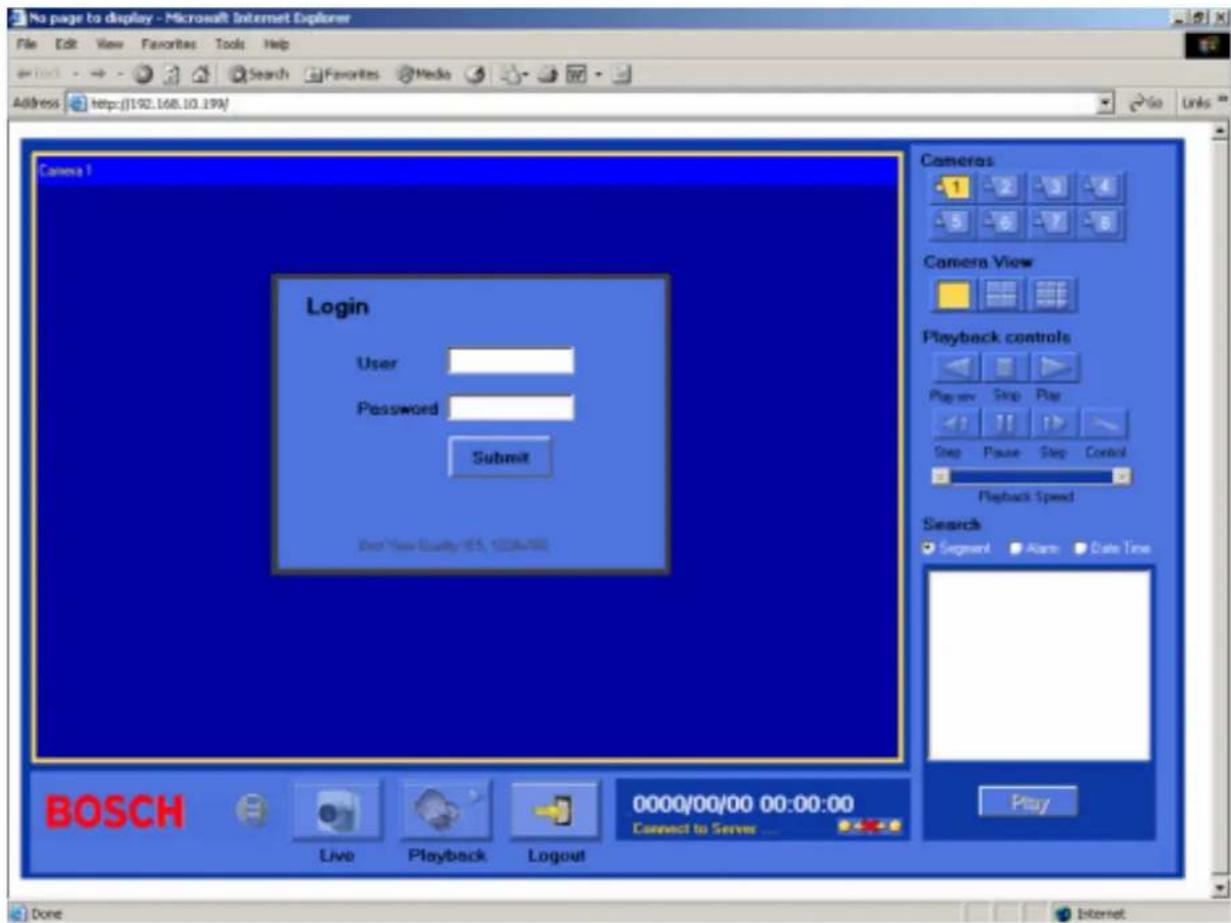
5.2 Main Screen
The three icons at the bottom of the screen are for switching to the Live mode, the Playback mode or for logging out. Information regarding the status of the system is also shown at the bottom of the screen. The present system status and the date and time are shown. The icons on the right select the cameras and determine how these are displayed on the screen. Playback controls are also located on the right. The search function allows you to select a clip for playback. If an icon is shaded, it means that the specific function is not accessible in the current mode.
Note
Update rate of LIVE images is dependent on the selected recording speed when the unit is in Record (e.g. recording in 0.5 IPS will give an update of 2 seconds per camera image.
It is not possible to display LIVE images when the recorder is in playback. The system status will indicate "SERVER IN PLAYBACK"
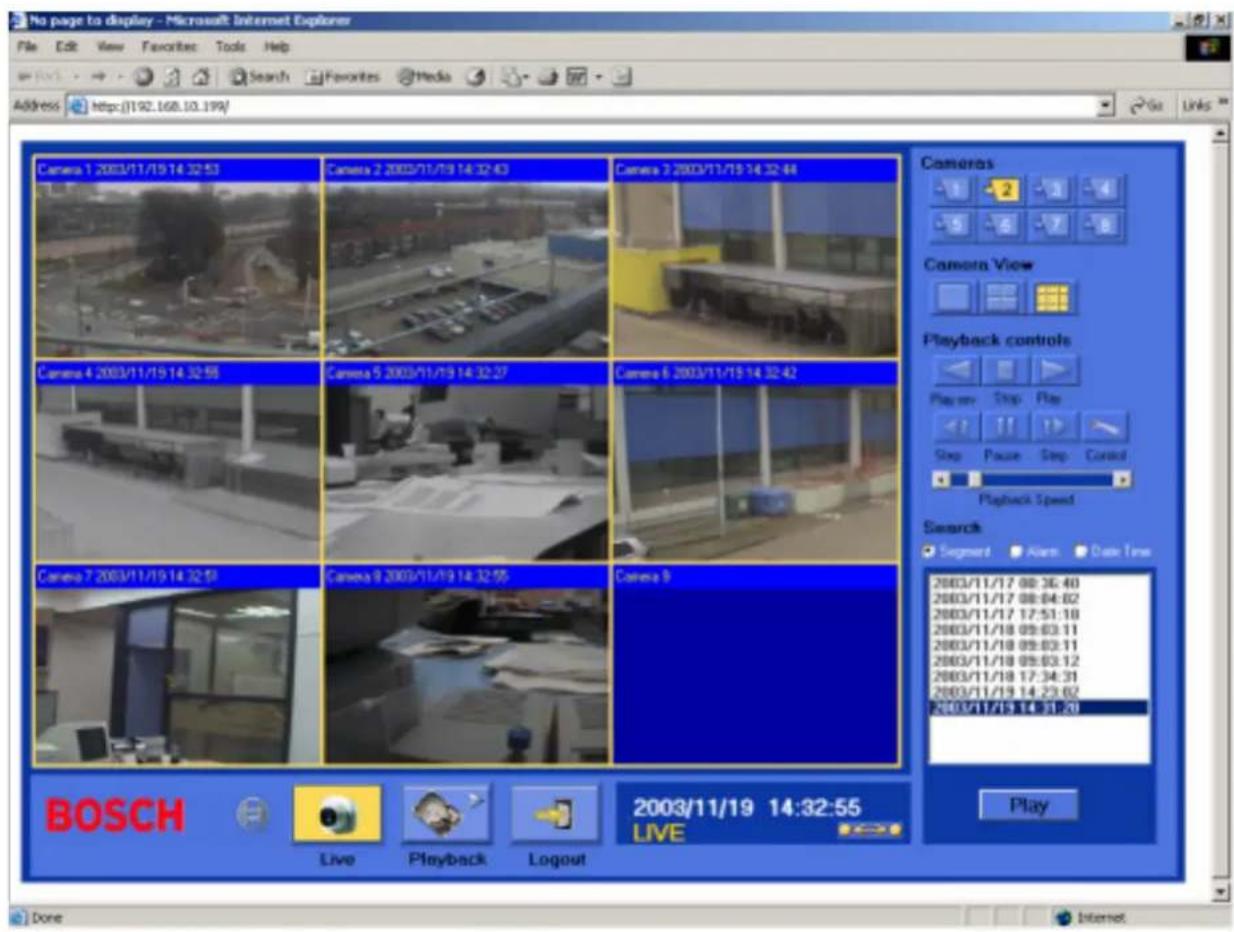
5.2.1 Playback mode icons
- STOP: Press this key to stop video display.
- PLAY: Playing back the video display.
• R E V . P L A Y : R e v e • rPlay video selected by segment list i s p l a y . - Step Forward the video display.
- Step Backward th • Play video is elected by date/time. s p l a y .
- PAUSE: Press this key to pause the video display.
- CONTROL: Press this key to switch to direct remote control mode (only allowed with access level SUPER). You can now start or stop playback and recording remotely.
• Control for playback speed.
• Control for playback position by search feature.
The system gives you three ways to select video for playing:
• rPlay video selected by segment list i s p l a y . - Play video selected by alarm list.
- Play video iselected by date/time. s p l a y .
An item shown in the list can be selected by a mouse click. Click PLAY to play the selected video.
5.2.2 Live mode icons
Only the camera icons and the camera view icons are enabled in the view mode.
5.2.3 Search icons
6 Specifications
6.1 RS-232 interface
The Eazeo DVR can be controlled by a computer or a terminal via the standard D-SUB 9-pin RS-232 connector.
| Pin PinEazeo HOST | |||
| 1 NC 1 NC | |||
| 2 TXD 2 RXD |  | ||
| 3 RXD 3 TXD | |||
| 4 NC 4 DTR | |||
| 5 GROUND | 5 GROUND | ||
| 6 NC | 6 DSR | ||
| 7 NC | 7 RTS | ||
| 8 NC | 8 CTS | ||
| 9 +5V | 9 NC | ||
The transmission setting is 9600 baud rate, 8 data bits, 1 start bit, 1stop bit and no parity.
6.1.1 RS-232 control protocol
A computer or a terminal can be used to control the unit by sending three character ASCII commands through the RS232 connector, these ASCII commands are started with 'K' or 'k'. There are 30 ASCII commands mapped to the 30 keypads in the front panel. The 30 ASCII commands are shown on the following table.
| ASCII CODE | FUNCTION | Keypad in front panel |
| K01 | Start Recording | REC |
| K03 | Stop Recording and Playing back | STOP |
| K04 | Playing back | PLAY |
| K05 | Pause the playback picture | PAUSE |
| K06 | Search playback | SEARCH |
| K00 | Copy picture into CF card | COPY |
| K02 | On screen display | DISPLAY |
| K07 | Confirm the selection | ENTER |
| K08 | Enter Setting Menu | MENU |
| K09-K15 | Fast reverse playback speed | << 1-640 x, 1/2-1/64 |
| K16 - K22 | Fast playback speed | >> 1-640 x, 1/2-1/64 |
| K23 | Rewind the still image | JOG-REW |
| K24 | Advance the still image | JOG-FF |
6.2 Recording time
Approximate recording times when recording with a 160-GB hard disk.
| PAL | |||||||
| Recording Rate (IPS) | Recording Speed (Hours) | Picture Quality | |||||
| Lower | Low | Basic | Standard | High | Superior | ||
| 25 6 119 | 89 71 59 51 44 | ||||||
| 16 | 18 | 185 | 139 | 111 | 93 | 79 | 69 |
| 10 | 30 | 296 | 222 | 178 | 148 | 127 | 111 |
| 5 | 48 | 593 | 444 | 356 | 296 | 254 | 222 |
| 2 | 72 | 1481 | 1111 | 889 | 741 | 635 | 556 |
| 1.5 | 120 | 1975 | 1481 | 1185 | 988 | 847 | 741 |
| 1.0 | 168 | 2963 | 2222 | 1778 | 1481 | 1270 | 1111 |
| 0.5 | 240 | 5926 | 4444 | 3556 | 2963 | 2540 | 2222 |
| 0.2 | 480 | 14815 | 11111 | 8889 | 7407 | 6349 | 5556 |
| 0.1 | 960 | 29630 | 22222 | 17778 | 14815 | 12698 | 11111 |
| Average File size | 15KB | 20KB | 25KB | 30KB | 35KB | 40KB | |
| NTSC | |||||||
| Recording Rate (IPS) | Recording Speed (Hours) | Picture Quality | |||||
| Lower | Low | Basic | Standard | High | Superior | ||
| 30 | 6 | 99 | 74 | 59 | 49 | 42 | 37 |
| 20 | 18 | 148 | 111 | 89 | 74 | 63 | 56 |
| 10 | 30 | 296 | 222 | 178 | 148 | 127 | 111 |
| 5 | 48 | 593 | 444 | 356 | 296 | 254 | 222 |
| 2 | 72 | 1481 | 1111 | 889 | 741 | 635 | 556 |
| 1.5 | 120 | 1975 | 1481 | 1185 | 988 | 847 | 741 |
| 1.0 | 168 | 2963 | 2222 | 1778 | 1481 | 1270 | 1111 |
| 0.5 | 240 | 5926 | 4444 | 3556 | 2963 | 2540 | 2222 |
| 0.2 | 480 | 14815 | 11111 | 8889 | 7407 | 6349 | 5556 |
| 0.1 | 960 | 29630 | 22222 | 17778 | 14815 | 12698 | 11111 |
| Average File size | 15KB | 20KB | 25KB | 30KB | 35KB | 40KB | |
Reference:
24H=1 day, 168H=1 week, 720H=1 month,
8760H=1year
(Estimated with typical image-low noise level)
Lower: 15 KB
Low: 20 KB
Basic: 25 KB
Standard: 30 KB
High: 35 KB
Superior: 40 KB
6.3 Technical specifications
Video
Format PAL/NTSC
Input 1 camera input (BNC), 1Vpp, 75Ohm
Output 1 video output (BNC) for main monitor, 1Vpp, 75Ohm
Compression M-JPEG
Resolution 720 x 576 (PAL) / 720 x 484 (NTSC)
Display Full display for live and playback
Audio
Connections 2 mono inputs, 1.6Vpp
±200mV@10K
2 mono outputs, 1.6Vpp
±200mV@10K
Alarm
Input Switching voltage High: > 2 Vdc
Switching voltage Low: < 0.5 Vdc
Output One relay output:
Contact voltage max.: 24 Vdc
Switching current max.: 2A dc
Storage
Hard disk 160 Gb
Recording
Mode Continuous, time-lapse, schedule or event recording
Rate Max. 25 images per sec. (PAL) Max. 30 images per sec. (NTSC)
Playback
Rate Max. 25 images per sec. (PAL) Max. 30 images per sec. (NTSC)
Search Date/time, segment list or event (alarm)
General
Video loss detection Yes
Power loss detectionYes
Alarm log Yes
User interface Menu-driven
Setup By on-screen display menu
User input device Front panel keypad, remote control (IR with wired receiver) optional
Image export Built-in Compact Flash slot
Security Password protection
Power supply 100 - 240 Vac, 50/60 Hz
Power consumption < 40 W
Timer Weekly timer, built-in real time clock
Network connection 10Base-T, TCP/IP via Ethernet, RJ-45 connector
Control connection RS-232, 9-pin D-Sub connector
Mechanical
Weight approx. 5.5 kg / 11.5 lbs
Dimensions (WxHxD)346 x 88 x 269 mm
13.6 x 3.5 x 10.5 inches
Ambient temperature
Operating +0°C ... +50°C
+32°F...+122°F
Approvals
Safety
Europe EN60950
USA UL60950 UL & cUL listed
Australia C-Tick
Electro Magnetic Compatibility (EMC)
Europe EN55022 Class B, EN50130-4
USA FCC part 15, class B
Australia AS/NZS 3548
Specifications may change without notice. If you have any problems, contact your dealer.
1. MESURES DE SÉCURITÉ ....25
1.1 CONSIGNES DE SÉCURITÉ IMPORTANTES 25
2. INTRODUCTION 26
2.1 CARACTÉRISTIQUES 26
2.2 PANNEAU AVANT 27
2.3 PANNEAU ARRIÈRE 28
© 2004 Bosch Security Systems B.V.
Subject to change. Printed in Taiwan.
- Security Systems
- INTRODUCTION 6
- OPERATION 10
- MENU SET-UP 12
- VIEW VIA INTERNET/INTRANET 16
- SPECIFICATIONS 18
- Display abbreviations
- SAFETY P
- Danger
- Warning
- Caution
- IMPORTANT SAFEGUARDS
- Rb The equipment has been exposed to moisture.
- Cleaning
- Remark
- FCC INFORMATION
- Note
- l n t r o d u c t i o
- Features
- Front panel
- Rear panel
- Power
- Eazeo Observation Unit
- RS232 serial connector
- IR remote control eye connector
- LAN connector
- Alarm connections
- Remote control unit
- O p e r a t i o
- Instant recording
- Alarm recording
- Pre-alarm recording
- Normal playback
- Search playback
- Security lock setting
- Copy
- Still image copy
- Menu set-up
- Main menu
- Clock/Language menu
- Normal record menu
- Alarm record menu
- Timer menu
- Buzzer menu
- Archive menu
- Network menu
- System setting menu
- PASSWORD ENABLE:
- PASSWORD :
- VIDEO INPUT:
- PLAY WITH AUDIO 1 / PLAY WITH AUDIO 2:
- DISK RENEW:
- SYSTEM UPDATE:
- LOAD DEFAULT:
- CF RENEW:
- Password menu
- View via Internet / Int
- Login
- Main Screen
- Playback mode icons
- Live mode icons
- Search icons
- Specifications
- RS-232 interface
- RS-232 control protocol
- Recording time
- Technical specifications
- Video
- Audio
- Alarm
- Storage
- Recording
- Playback
- General
- Mechanical
- Approvals
- Safety
- Electro Magnetic Compatibility (EMC)
- MESURES DE SÉCURITÉ ....25
- INTRODUCTION 26
Brand : BOSCH
Model : DVR1B1161
Category : VCR