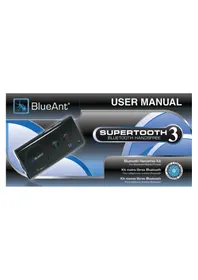
SuperTooth 3 - Built-in kit BLUEANT - Free user manual and instructions
Find the device manual for free SuperTooth 3 BLUEANT in PDF.

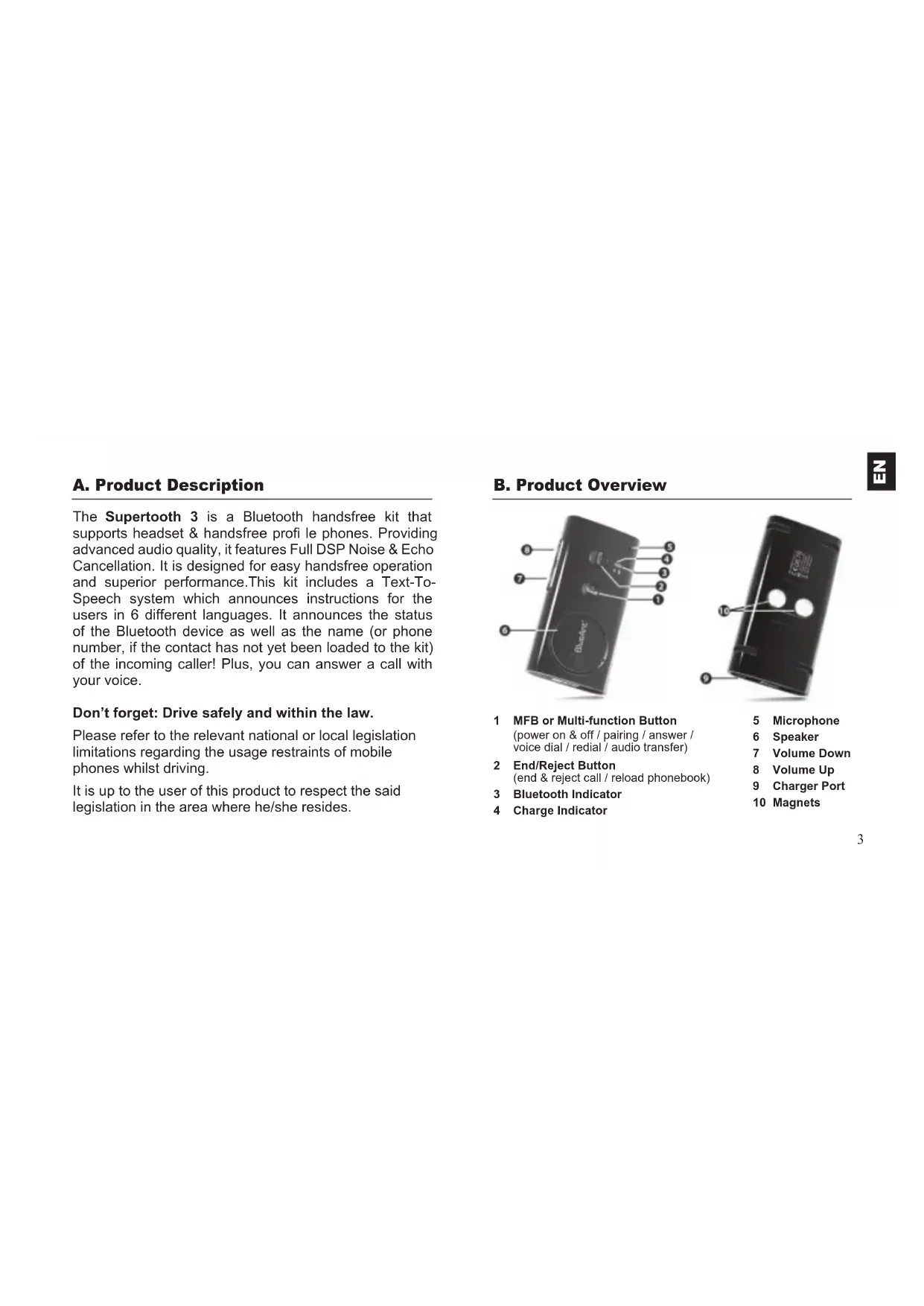


| Product Type | Bluetooth hands-free car kit (sun visor mounting with clip and magnet) |
| Brand | BlueAnt |
| Model | SuperTooth 3 |
| Dimensions | 121 x 61 x 20 mm |
| Weight | 115 g |
| Power | Rechargeable lithium-ion battery, charges via charger plug (or USB with cable not included), charging time 3 h |
| Talk time | Up to 15 hours |
| Standby time | Up to 800 hours |
| Bluetooth version | 2.0 |
| Bluetooth range | Up to 10 meters |
| Supported profiles | Hands-free and headset, automatic detection |
| Main functions | Voice announcement of caller (name or number), voice dialing, last number redial, call reject, voice answer by keyword, digital volume control, anti-echo and noise DSP, multiple pairing (8 phones), audio transfer, automatic reconnection, directory refresh |
| Available languages | English, American, French, Italian, Spanish, German |
| Installation | Quick clip attachment on sun visor + magnet, microphone orientation towards the user |
| Maintenance and cleaning | Clean with a soft, dry cloth. Do not use abrasive products. |
| Safety | Comply with local laws on phone use while driving. At end of life, dispose of in accordance with the WEEE directive (do not discard with household waste). |
| Spare parts and repairability | Integrated battery not user-replaceable. For any repairs, contact customer service. |
Frequently Asked Questions - SuperTooth 3 BLUEANT
User questions about SuperTooth 3 BLUEANT
0 question about this device. Answer the ones you know or ask your own.
Ask a new question about this device
Download the instructions for your Built-in kit in PDF format for free! Find your manual SuperTooth 3 - BLUEANT and take your electronic device back in hand. On this page are published all the documents necessary for the use of your device. SuperTooth 3 by BLUEANT.
USER MANUAL SuperTooth 3 BLUEANT
A. Product Description
The Supertooth 3 is a Bluetooth handsfree kit that supports headset & handsfree profi le phones. Providing advanced audio quality, it features Full DSP Noise & Echo Cancellation. It is designed for easy handsfree operation and superior performance.This kit includes a Text-To-Speech system which announces instructions for the users in 6 different languages. It announces the status of the Bluetooth device as well as the name (or phone number, if the contact has not yet been loaded to the kit) of the incoming caller! Plus, you can answer a call with your voice.
Don't forget: Drive safely and within the law.
Please refer to the relevant national or local legislation limitations regarding the usage restraints of mobile phones whilst driving.
It is up to the user of this product to respect the said legislation in the area where he/she resides.
B. Product Overview
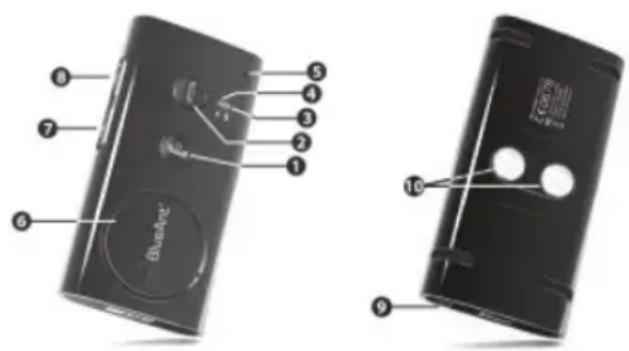
1 MFB or Multi-function Button (power on & off / pairing / answer / voice dial / redial / audio transfer)
2 End/Reject Button
(end & reject call / reload phonebook)
3 Bluetooth Indicator
4 Charge Indicator
5 Microphone
6 Speaker
7 Volume Down
8 Volume Up
9 Charger Port
10 Magnets
C. Charging
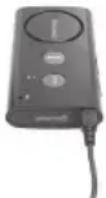
- Connect the charger's plug into the Charger Port (9) of the SUPERTOOTH 3. Connect the charger to an external power source.
Charge Indicator (4) Status:
Steady red: Low Battery Speech: Low Battery Steady orange: Charging Speech: Charging Steady green: Full Charge Speech: Fully Charged
- When the Supertooth 3 is fully charged, disconnect the charger.
D. Power On/Off
Power On: Press MFB (1) for 1 second. The Bluetooth Indicator (3) will turn blinking blue and a voice will say, "SUPERTOOTH 3 ready. Connected to phone (or if phone not available: No phone detected)."
Note: The first time the SUPERTOOTH 3 is switched on, the language selection is automatically activated. In this case, proceed to Section E (Procedure 2).
Power Off: Press and hold MFB (1) for 5 seconds until a voice announces, "SUPERTOOTH 3 powering down." The Bluetooth Indicator (3) will turn a steady red for 4 seconds, the device will then switch off.
E. Selecting desired Language and Pairing to your Bluetooth mobile phone
There are 6 languages featured in this kit. They are British English, American English, French, Italian, Spanish and German. After selecting your language, pair the SUPERTOOTH 3 to your Bluetooth mobile phone to create the link or audio connection between the two. The pairing process is required only once for each phone, unless the devices are deleted
Procedure:
-
From OFF, press and hold MFB (1) for 6 seconds until the Bluetooth Indicator (3) turns blinking red/blue. A voice will then announce, "Press green button to select British English." Instructions for other languages will follow.
-
As soon as the preferred language is spoken, press the green button or MFB (1) to select it. If British English is chosen, a voice will announce "British English selected. From phone's Bluetooth menu, search for devices then select BlueAnt ST 3 and enter pincode 0000." This means the kit is now ready to pair.
Note: If the wrong language has been selected, simply turn the SUPERTOOTH 3 off & initiate the pairing process once again. - Whilst the SUPERTOOTH 3 is in pairing mode, access the Bluetooth menu of your phone. Turn on the Bluetooth function, then execute a Bluetooth search. (Please refer to your phone's user manual for further instructions)
- Once the Bluetooth discovery is complete, please select the BlueAnt ST 3 from the list of available devices.
-
Enter password/pin code 0000 and press OK. "Pairing successful to phone. Loading phonebook. Please wait." will be announced on the kit.
-
The contacts in your phone will automatically be downloaded to the SUPERTOOTH 3. The Bluetooth Indicator (3) turns violet for 1-2 seconds whilst this process is being completed.
Note: Some phones require your authorisation prior to commencing the download of your phonebook entries to the SUPERTOOTH 3. You must accept a request such as the following, Connection...?, Allow Internet access...?, DUN...?
- The number of contacts will be announced whilst the download is in progress.
IMPORTANT NOTICE: Some Symbian phones do not allow the automatic download of Phonebook contacts. In this case, "Automatic transfer not supported by phone. Please refer to manual or press red button to cancel phonebook transfer." will be announced. If this occurs, please proceed to Section F to transfer the Phonebook entries manually via the phone's menu to the SUPERTOOTH 3 or press red button or End/Reject Button (2) of SUPERTOOTH 3 to connect the kit to the phone without phonebook transfer.
- When download is complete, "BlueAnt ST 3 ready. Connected to phone" will be announced. Accept connection request from the phone if a prompt is displayed.
Important Note:
Most phones automatically connect to the SUPERTOOTH 3 once the pairing process is complete. Other phones may require you to connect manually to the SUPERTOOTH 3 once the devices are paired. Go back to Bluetooth > Paired devices > highlight BlueAnt ST 3 > press Options > then press Connect.
The kit is now ready to use. When a call is received on your mobile phone, the name of the incoming caller will be announced on the kit.
F. Automatic Transfer Not Supported By Phone
If automatic transfer of phonebook failed, you can send or transfer the contacts to the SUPERTOOTH 3 by sending them via Bluetooth.
IMPORTANT:
This procedure will only work immediately after you have completed the pairing process or after you have executed a Phonebook update (see Sections E and G respectively).
Procedure:
- There are two ways in which you may proceed with phonebook transfer, this depends on your model of phone.
▶ The most common process is:
a. Access the Phonebook of your phone.
b. Choose the contacts you would like to transfer to the SUPERTOOTH 3
Note: Select "Mark all" (if this option is available in your phone), to transfer all contacts at once. If your phone does not allow for this, you must transfer each contact individually, one at a time.
c. Choose to send the contacts via Bluetooth
select BlueAnt ST 3
Note: Some phones do not allow the transfer of SIM contacts.
▶ Another method of transferring your contacts is: (for Blackberry phones)
a. Access the Options icon in your phone.
b. Select Bluetooth > Highlight BlueAnt ST 3 > press Key > Choose Transfer Address Book.
c. Choose to transfer via Bluetooth > select BlueAnt ST 3.
- "Loading phonebook. Please wait." will then be announced on the kit.
- The number of contacts will be announced whilst the download is in progress.
- After a few seconds, the phone will display "Data sent" or the kit will announce "BlueAnt ST 3 ready. Connected to phone." For some phones, you may need to accept any connection request on the phone before reconnection takes place.
The kit is now ready to use. When a call is received on the user's mobile phone, the name of the incoming caller will be announced on the kit.
G. Phonebook Update
If you renamed or added a contact in your phone, you can refresh the phonebook of the SUPERTOOTH 3 in order for the kit to recognize the change.
Procedure:
- Ensure that the phone is connected to the SUPERTOOTH 3 & in standby mode.
- Long press the End/Reject Button (2) for 10 seconds.
- "Loading phonebook. Please wait." will be announced. At this time, the phone will also disconnect from the SUPERTOOTH 3.
Note: Some phones require your authorisation prior to commencing the download of your Phonebook entries to the SUPERTOOTH 3. You must accept a request such as the following, Connection...?, Allow Internet access...?, DUN...?
- The number of contacts will be announced whilst the download is in progress.
IMPORTANT NOTICE: Some Symbian phones do not allow the automatic download of Phonebook contacts. In this case, "Automatic transfer not supported by phone. Please refer to manual or press red button to cancel phonebook transfer." will be announced. If this occurs, please refer to Section F to transfer the Phonebook manually via the phone's menu to the SUPERTOOTH 3 or press red button or End/Reject Button (2) of SUPERTOOTH 3 to connect the kit to the phone without phonebook transfer.
- When the download is complete, "BlueAnt ST 3 ready. Connected to phone." will be announced. Accept connection request from the phone if a prompt is displayed.
H. Installation
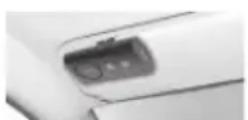
Attach the metal clip of the SUPERTOOTH 3 to the vehicle's sun visor.

Align & attach the magnets on the rear of the SUPERTOOTH 3 to the metal clip. The SUPERTOOTH 3 must be placed in a position that ensures the microphone is directed at the mouth of the user.


I. Basic Operations
IMPORTANT:
Ensure your SUPERTOOTH 3 is paired & connected prior to using the following functions. See Pairing to your Bluetooth Mobile Phone in Section E.
Make a Call (Normal Dial):
Dial the number on your phone. Audio will automatically be heard through the SUPERTOOTH 3. During an active call, the Bluetooth Indicator (3) will turn to a steady blue.
Note: With some phones such as the Siemens S55 and Panasonic X70, audio will initially be heard through the phone during an outgoing call. You will need to press the MFB (1) for 1 second to transfer the audio to the SUPERTOOTH 3.
Answer a Call:
- When a call is received, the name or phone number of the incoming caller will be announced on the kit.
To answer the call, simply press MFB (1) for 1 second, the Bluetooth Indicator (3) will then turn to a steady blue.
▶ Alternatively, assuming that Voice Answer is activated: (see Voice Answer Activation/Deactivation in Section K)
After a beep is heard on the kit, accept a call by loudly and clearly saying "ACCEPT CALL", "ACCEPT", "ANSWER" or "OK"; say it only once and within 3 seconds of the beep emphasizing each syllable. When the call is answered, the Bluetooth Indicator (3) will turn steady blue.
End a Call:
Press End/Reject Button (2) for 1 second to end the call. "End of call" will be announced.
Voice Dial: (Your phones Voice Dial feature)
Important: Before using this feature, make sure that the voice dialing function of your phone is activated and at least one voice tag is recorded on your phone. (Kindly refer to the procedure in your phone's manual.)
Note: Voice dialing entries must be stored in the phone's memory, not on the SIM card!
- Press the MFB (1) for 1 second.
- A beep will be heard through the SUPERTOOTH 3 prompting you to say the voice tag associated with the contact you wish to call. The Bluetooth Indicator (3) will turn to a steady blue.
- Say the voice tag exactly as how you recorded it.
- The voice tag will be played back to you to ensure you are calling the correct contact, the phone will then dial the number automatically.
Redial (For Handsfree Profi le Phones only):
Press the MFB (1) for 3 seconds. The SUPERTOOTH 3 will then proceed to call the last dialed number. "Redialing" will also be announced on the SUPERTOOTH 3.
Reject a Call (For Handsfree Profile Phones only):
During an incoming call, press End/Reject Button (2) for 1 second. The incoming call will be rejected and "Call rejected" will be announced on the kit.
Volume Setting:
Increase or decrease the volume level by pressing the Volume Up (8) or Volume Down (7) button. Press repeatedly until the desired level is reached.
The Bluetooth Indicator (3) will turn violet when the lowest and highest levels are reached. When the maximum volume is reached "Maximum Volume" will be announced on the SUPERTOOTH 3.
Audio Transfer (For Handsfree Profile Phones only):
During an active call, you can transfer the audio from the SUPERTOOTH 3 to your phone & from your phone to the SUPERTOOTH 3.
Supertooth 3 to Phone: Press and hold MFB (1) for 3 seconds and the audio will be transferred to the phone.
Phone to Supertooth 3: Press MFB (1) for 1 second and the audio will be transferred to the kit.
Note: Some phones require you to accept a connection prompt before an automatic transfer takes place.
J. Advanced Functions
Multi-Pairing / Switching Connections between Phones
The SUPERTOOTH 3 can be paired with up to 8 devices. Any additional pairing will automatically delete the phone that has not been used for the longest period of time. This means that the Supertooth 3 always maintains 8 phones in its memory.
You can easily switch to any of the paired phones by:
- Disconnecting the currently connected phone using the "Active devices" option in the Bluetooth menu of that phone.
- Connecting to the desired phone by accessing the "Paired devices" listing in the Bluetooth menu of that phone.
Note: Reconnection to a paired phone can also be done by pressing the MFB (1). However, the SUPERTOOTH 3 will attempt to connect to the last used phone only. Therefore, it is recommended to connect to another paired phone using the phone menu.
Deleting all Paired Devices & Phonebook entries:
- Ensure the SUPERTOOTH 3 is switched OFF, press & hold the Volume Up (8) Button.
- Whilst holding down the Volume Up (8) Button, press the MFB (1) for 1 second or until a distinctive melody is heard through the speaker, the software version will then be announced. Once this occurs, please switch the SUPERTOOTH 3 off for a minimum of 10 seconds.
All paired devices & phonebook entries have now been erased.
K. Special Features
Voice Answer Mode:
Important Notice: This feature may not perform well inside a vehicle with a high level of background noise.
- When activated, the user can accept a call by loudly and clearly saying “ACCEPT CALL”, “ACCEPT”, “ANSWER” or “OK”; say it only once and within 3 seconds emphasizing each syllable.
- When deactivated, answer call as per usual.
Activation: Press and hold Volume Up (8) Button for 5 seconds until a voice announces, "Voice answer enabled." At this point, when a call is received, a beep will be heard after the name or phone number of the caller is announced.
Deactivation: Press and hold Volume Down (7) Button for 5 seconds until a voice announces, "Voice answer disabled." When a call is received, only the name or phone number of the caller will be heard on the kit.
Automatic Vibration Sensor Reconnection:
▶ Automatic reconnection occurs when the user (without turning OFF the kit) goes out of Bluetooth range for longer than 20 seconds & then goes back into range. When the kit feels vibration (like a car door opening) it will search for and connect to your phone
Note: The automatic reconnection could take anywhere up to 10 seconds once the user comes back into range.
▶ In case of intentional disconnection (using the phone menu), this system is not activated.
SUPERTOOTH 3 Specifications
Bluetooth Compliance:
Bluetooth version 2.0 specifications
Supported Bluetooth Profiles: Supports headset and handsfree profi les with automatic detection
Operating Range: ..... Up to 10 meters
Frequency: 2.4 GHz
Talk Time: .... Up to 15 hours
Stand-by time: ...... Up to 800 hours
Charging Time: 3 hours
Battery Type: .... Rechargeable Lithium Ion
Special Features
Voice to announce CallerID, Bluetooth device status and instruction guides in 6 languages (British English, American English, French, Italian, Spanish and German)
Full Duplex
Full DSP Noise Cancellation / Echo Cancellation
Automatic Vibration Sensor Reconnection
Digital Volume Control
Voice Recognition Dialing (if phone supports)
Last Call Redial
Reject Incoming Call
Can also be charged directly from a PC via USB Cable (not included)
Compact Size
Answer incoming calls by voice control
Full automatic reconnection
Installation: Quick fixation on sun visor via magnetic clip
Dimensions (mm): 18.2 x 60.2 x 122
Weight: 115 g
SUPERTOOTH 3
General
- What is the main difference between the Supertooth 3 and the Supertooth Light?
- What is included in the Supertooth 3 package?
- How does the Supertooth 3 use Bluetooth Technology?
- How do I handle voice calls when the Supertooth 3 is connected?
- Can I transfer an active call back to my phone to continue it there?
- How many devices can I pair to the Supertooth 3?
- Is my phone compatible?
- What is the passcode/passkey for the Supertooth 3?
- Can I change the passcode of the Supertooth 3?
- Can I use voice activated dialling?
-
Can I use the Supertooth 3 to listen to music on my mobile?
-
How often should I charge my Supertooth 3?
- Can I use my Supertooth 3 with my computer for VOIP applications?
- Do I need to pair the devices every time I use them together?
- Is the Firmware upgradeable on the Supertooth 3?
- Where can I purchase extra accessories for the Supertooth 3?
Bluetooth
- What is Bluetooth Wireless Technology?
- Is it safe to use Bluetooth devices? I have heard they can allow unauthorised connections.
- Can somebody else take control of my Supertooth 3 if they are in range?
- What is the difference between Handsfree and Headset Bluetooth Profiles?
- How do I know if my devices are connected?
-
How far can my mobile be from the Supertooth 3 and still remain connected?
-
Can other electrical devices cause interference with Bluetooth?
- If I cup my hand over a Bluetooth device the signal strength and quality suffers. Why does this happen?
What Bluetooth mobile phones can I use with the 9. Supertooth 3?
What is the difference between Bluetooth V1.2 and V2.0?10.
Troubleshooting
- How do I re-connect my Supertooth 3?
- Why won't my Supertooth 3 go into pairing mode?
- Is my Supertooth 3 charged?
- Why can't I hear any sound from the Speaker?
- Why does my Supertooth 3 sound noisy and distorted?
-
My Supertooth 3 worked great but now it won't connect. What can I do?
-
Why can the talk time and standby time differ with the products specification description? Why does my phones battery not last as long as it used to?8.
-
I am having trouble pairing a second phone. What can I do?
- How can I stay near the Supertooth 3 but not have calls diverted through it?
- My phone says "Bluetooth Module not found". What can I do? I have a PDA phone that pairs to the Supertooth 3 but 12. has trouble transferring calls. How can I fix this problem?
- Why can't I hear the dial tone from the Supertooth 3 when I dial? Voice dialling is not successful every time. What can I do?14.
- I get an "Automatic transfer not supported by phone" error, what do I do?
- The Supertooth 3 announces the wrong name when a certain contact calls me. Why? I have read all the solutions in this document but I still 17. cannot get my Supertooth 3 to work properly. What can I do?
GENERAL
1. What is the main difference between the Supertooth 3 and the Supertooth Light?
The Supertooth 3 uses TTS technology (Text To Speech) to announce the name of the incoming caller and enables the driver to answer the call by simply saying "OK". The Supertooth 3 also features automatic reconnection when the phone and Supertooth 3 come back in range, ideal for those who are constantly getting in and out of their car regularly. The Supertooth Light is a smaller unit and has less talk time than the Supertooth 3. The Supertooth Light does not utilise TTS technology.
2. What is included in the Supertooth 3 package?
Included in the box is the Supertooth 3 main unit, a user guide, an AC wall charger and a magnetic sun visor clip.
3. How does the Supertooth 3 use Bluetooth technology?
Bluetooth is used to send and receive voice signals over radio waves between your mobile phone and the Supertooth 3. It allows the Supertooth 3 to control phone calls on your mobile phone remotely.
4. How do I handle voice calls when the Supertooth 3 is connected?
To answer an incoming call, simply press the MFB (Multi-Function Button).
Or to answer an incoming call, when voice answer is activated, clearly say "Accept Call", "Accept", "Answer" or "OK" within 3 seconds after hearing the beep.
To reject an incoming call, simply press the End/Reject button.
To redial the last number, press and hold the MFB for 3 seconds.
To terminate an ongoing/active call press the End/Reject button.
- Can I transfer an active call back to my phone to continue it there?
Yes. Simply press and hold the MFB for 3 seconds and the call will be transferred back to the phone.
- How many devices can I pair to the Supertooth 3?
The Supertooth 3 can store pairing information for up to 8 different devices. However, the Supertooth 3 can only connect to one phone at a time.
- Is my phone compatible?
If your phone has Bluetooth, it more than likely supports a Handsfree or Headset Bluetooth profile, so will work with the Supertooth 3. Check your phones manual to see if it supports Bluetooth Headset or Handsfree profile.
- What is the passcode/passkey for the Supertooth 3?
The Passcode for the Supertooth 3 is "0000".
- Can I change the passcode of the Supertooth 3?
No. The passkey is inbuilt and cannot be changed.
- Can I use voice activated dialling?
Yes. The Supertooth 3 supports voice activated dialling if your phone also supports this feature. Check your phones user manual for information on setting up this feature and how to record voice commands.
- Can I use the Supertooth 3 to listen to music on my mobile?
Mobiles that use the Handsfree profile are able to send music to the Supertooth 3, but it will be a mono signal and sound similar to an AM radio.
- How often should I charge my Supertooth 3?
You should only charge the Supertooth 3 when the LED Indicator changes to red and announces "Low Battery". The battery will last for about 800 hrs on standby and much longer if the Supertooth 3 is switched off in between uses.
- Can I use my Supertooth 3 with my computer for VOIP applications?
Yes. You can connect the Supertooth 3 to a PC or Mac that supports the Headset or Handsfree profile. To do this you need to have Bluetooth enabled in your computer by using a Bluetooth USB Dongle or having a computer that has inbuilt Bluetooth. Depending on the Bluetooth Software the connection process is different. Simply put the Supertooth 3 into Pairing mode, then search for it using your computers Bluetooth Software. Enter the Passkey "0000" then start the Headset/Handsfree service.
- Do I need to pair the devices every time I use them together?
No. The pairing process is required only once for each phone unless the devices are deleted.
- Is the Firmware upgradeable on the Supertooth 3?
No. The firmware is not upgradeable on the Supertooth 3.
- Where can I purchase extra accessories for the Supertooth 3?
Please check our web site www.bluleantwireless.com for your nearest authorised stockist of BlueAnt spare parts and accessories.
BLUETOOTH
- What is Bluetooth Wireless Technology?
Bluetooth Wireless Technology is a short-range communications technology using encryption for high security data/voice transmission
- Is it safe to use Bluetooth devices? I have heard they can allow unauthorised connections.
For Bluetooth security reasons, once you have set up your Bluetooth devices we recommend turning OFF the visibility option in the Bluetooth Menu of your phone so that other
Bluetooth users cannot see your phone. This only applies to a few (mainly older) Bluetooth enabled phones as most new phones have better security.
3. Can somebody else take control of my Supertooth 3 if they are in range?
No. The Supertooth 3 can only connect to previously paired devices that have been authorised. The Pairing procedure creates an encrypted key known only to the two devices paired.
4. What is the difference between Handsfree and Headset Bluetooth Profiles?
Handsfree Profile allows for extra features to be used with a mobile phone. Some features that Handsfree profile enables are voice dial, redial and call transfer. These particular features are not available using Headset profile. Handsfree Profile also allows for a slightly better call quality.
5. How do I know if my devices are connected?
When Bluetooth is turned ON in your phone you will see a Bluetooth symbol appear on your main screen that changes slightly (colours invert or arrows appear) when connected to the Supertooth 3. The Supertooth 3 will also announce when it connects with your phone. Some phones show a Headset or Car symbol to notify you that the devices are connected.
6. How far can my mobile be from the Supertooth 3 and still remain connected?
The Supertooth 3 will remain connected within a range of 10 metres (30 ft). Sound quality may start to deteriorate after approximately 7 metres, depending on your environment.
7. Can other electrical devices cause interference with Bluetooth?
Bluetooth technology employs a technique called 'frequency hopping' to constantly change the frequency at which it sends data, thus reducing interference with wireless devices
like wireless LAN's and cordless landline phones. However, noise interference can occur if the Bluetooth device is used in close proximity with a microwave. Check if there are any such devices in the surroundings, and if so keep the distance between the Supertooth 3 and such devices to at least 5 - 10m. Usually, any interference will only cause a slight crackling sound. The frequency of Bluetooth is much higher than that of radio station bands.
8. If I cup my hand over a Bluetooth device the signal strength and quality suffers. Why does this happen?
Bluetooth signals are radio waves, hence do not require a direct line of sight to operate. However, radio waves cannot travel through water and as the human body is made up of mostly water they cannot travel through it. Therefore, your hand will create a barrier causing slight interference and a loss of signal quality.
9. What Bluetooth mobile phones can I use with the Supertooth 3?
To use the Supertooth 3 the phone must support either headset or hands free Bluetooth profiles. Some devices may only support data transmissions and not audio.
10. What is the difference between Bluetooth V1.2 and V2.0?
V2.0 is the current version of Bluetooth with Enhanced Data Rate (EDR) technology, with data transfer rates of up to 3Mbps compared with 1Mbps in V1.2.
Note: All BlueAnt products are forward and backward compatible (Our V1.2 products can be used with V2.0 phones and our V2.0 products can be used with V1.2 phones)
TROUBLESHOOTING
1. How do I re-connect my Supertooth 3?
Switch the Supertooth 3 on by pressing the MFB and it will automatically connect to your phone. If the Supertooth 3 doesn't automatically connect, simply press the MFB once. If pressing the MFB starts voice dialling on your phone, simply press the MFB a 2nd time to cancel voice dialling.
2. Why won't my Supertooth 3 go into pairing mode?
Follow the instructions in the Supertooth 3 Manual. From off, press and hold the MFB until the LED starts flashing red and blue and you are prompted to select your preferred language. Once you have selected your preferred language follow the voice prompts to pair your Supertooth 3 to your phone. The Supertooth 3 sometimes requires a few seconds to establish a connection.
Please be patient while devices are searching.
3. Is my Supertooth 3 Charged?
When the battery is charged the LED will flash blue. When the battery is low the blue flashing LED will be replaced with a steady red LED and the Supertooth 3 will announce "Low Battery"
4. Why can't I hear any sound from the Speaker?
Check to make sure that both the Supertooth 3 and phone volume are not set too low. Alternatively, the phone's memory may have become corrupt and can be fixed by re-booting the phone (turning the phone off and on again). If this does not resolve the issue delete the pairing information and re-pair.
5. Why does my Supertooth 3 sound noisy and distorted?
Turn your mobile phone and Supertooth 3 volume down to a level that does not give echo or feedback. A low battery can also cause bad voice quality. If low battery is indicated, please charge the headset. Some people like to have their phone ring loudly, but this may cause distortion when transferred to the Supertooth 3 speaker. In your phone, set up a Profile with lower ringing volumes and keypad tones
and activate for use with Supertooth 3. (See your phones user manual for instructions on setting up profiles). You may also have low antenna strength from your phone network which may cause signal drop outs or disruption.
6. My Supertooth 3 worked great but now it won't connect. What can I do?
As newer phones are like mini-computers, they may become corrupt over time and you may need to reset them every so often (at least once a week is recommended). Simply switch off your phone, remove the battery for a few seconds, replace and reboot. The Supertooth 3 should now connect. If not, remove existing pairing and re-pair the devices.
7. Why can the talk time and standby time differ with the products specification description?
The talk time and stand by time will differ based on different brand of mobile phones, different distances between devices and the Bluetooth link status you are using (active, sleep, sniff mode etc.)
8. Why does my phone's battery not last as long as it used to?
When Bluetooth is switched ON, your phone will search for Bluetooth devices in the area to connect to, which will use more battery power. The Supertooth 3 has a standby mode that it enters when it's connected to your phone and is not being used, which helps minimise battery loss. This allows the Supertooth 3 to have outstanding battery life as well as reducing the power required by the phone.
9. I am having trouble pairing a second phone. What can I do?
When pairing a second mobile phone, make sure the first phone is off or out of range.
If you cannot connect to a previously paired and connected phone, go to the Bluetooth menu in the phone and select the Supertooth 3, then Press connect. Some phones may require this if it is the second device used. You do not have to re-pair the devices, simply manually connect.
- How can I stay near the Supertooth 3 but not have calls diverted through it?
The Supertooth 3 will remain connected within a range of 10 metres so if you are staying near the device but want to take calls through the phone simply switch the Supertooth 3 off.
- My phone says "Bluetooth Module not found". What can I do?
This means that your phone cannot find its internal Bluetooth chip for some reason. Restarting your phone should fix this problem. If not please contact your mobile phone manufacturer.
- I have a PDA phone that pairs to the Supertooth 3, but has trouble transferring calls. How can I fix this?
Go to the phone manufacturers' website and download and install the latest ROM software for your device. Many new PDA phones are software upgradeable and fixes are made available for problems such as this. This is especially the case with newly released devices.
- Why can't I hear the dial tone from the Supertooth 3 when I dial?
Check the Bluetooth protocol of your mobile phone to see if it supports in-band ring tone. If it does, then you should hear the dial tone (including some of the Nokia series handsets) or if it doesn't you cannot (including some of the Sony-Ericsson series handsets).
- Voice dialling is not successful every time. What can I do?
Using the Supertooth 3 to record to record the voice tags can enhance the recognition rate. Please refer to the user guide of your phone. Noisy environments can affect voice recognition. Record your voice commands in a quiet environment
- I get an "Automatic transfer not supported by phone" error, what do I do?
Some Symbian phones do not support automatic phonebook downloading and you will need to transfer the phone book manually. Refer to the Supertooth 3 manual on how to do this.
16. The Supertooth 3 announces the wrong name when a certain contact calls me. Why?
This usually occurs when the phonebook in the Supertooth 3 hasn't been reloaded after modifying a contact in your phone. Ensure the details are correct in your Phones contacts and reload the phonebook to the Supertooth 3. Refer to the Supertooth 3 manual on how to do this.
17. I have read all the solutions in this document but I still cannot get my Supertooth 3 to work properly. What can I do?
Please make an enquiry to customercare@blueant.com.au or call the BlueAnt Customer Service Team on
1300 669 049 (AUS)
or 0800 443 122 (NZ).
For Nth America call
1 866 891-3032 or customercare@myblueant.com.
BlueAnt Warranty Process
-
Should you be having difficulties in operation please refer to the online FAQ and support documents, or call us. Our number is on the back page of this manual.
-
Check our website for more information, updated manuals and troubleshooting. www.blueantwireless.com
-
Call us and speak to one of the BlueAnt Wireless Customer Service Team. We will clarify whether you have a hardware or connection issue.
-
If your unit is confirmed to be faulty, a Return Merchandise Authorization (RMA) will be issued.
-
Return the unit directly to BlueAnt for testing and repair or replacement of faulty items.
Warranty Terms and Conditions
- BlueAnt Warrant the original purchaser of this product only.
- BlueAnt will replace or repair any faulty product provided it has not been misused or abused in any way.
- There are no user serviceable parts inside this product. Using a non-authorized repairer will void the warranty.
- The Warranty is valid for 2 years (24 months) from the date of purchase.
• Proof of purchase must be provided to obtain warranty service. - The product must be in original packaging with serial number for warranty to be valid.
- Warranties are effective from the proof of purchase date and not from the date of any subsequent repair or replacement.
Disclaimers:
This manual is published by BlueAnt. The information contained in this document is subject to change without notice. All rights reserved. The Bluetooth word, mark and logos are owned by the Bluetooth SIG, Inc. and any use of such marks by BlueAnt is under license. Other trademarks and trade names are those of their respective owners.


A. Description
natural_image
Two-panel image showing a printer with a screen and a person's face, alongside a partial view of the device labeled 'BOXPHONE' (no readable text or symbols on the device itself)natural_image
Side-by-side comparison of a white car with a mounted phone and a person's face pointing to a labeled 'RICHOPHONE' (no text or symbols on the device itself)Greatest care has been taken to provide accurate and complete information in this manual. The manufacturer is not liable for errors and missing information. The manufacturer reserves the right to change and improve functions and specifications of the product without notice. Duplication, transmission of part or all of this manual without consent of the manufacturer is prohibited. All rights reserved. Bluetooth is a trademark owned by Bluetooth SIG, Inc., U.S.A. and licensed to EuroCB. Other trademarks and trade names belong of their respective owners.
Correct Disposal of This Product
(Waste Electrical & Electronic Equipment)
(Applicable in the European Union and other European countries with separate collection systems) This marking shown on the product or its literature, indicates that it should not be disposed with other household wastes at the end of its working life. To prevent possible harm to the environment or human health from uncontrolled waste disposal, please separate this from other types of wastes and recycle it responsibly to promote the sustainable reuse of material resources.
Household users should contact either the retailer where they purchased this product, or their local government office, for details of where and how they can take this item for environmentally safe recycling.
Business users should contact their supplier and check the terms and conditions of the purchase contract. This product should not be mixed with other commercial wastes for disposal.
Français
This equipment is in compliance with the essential requirements and other relevant provisions of directive
1999/5/EC
Français
Federal Communications Commission (FCC) Statement
15.21
You are cautioned that changes or modifications not expressly approved by the part responsible for compliance could void the user's authority to operate the equipment.
15.105(b)
This equipment has been tested and found to comply with the limits for a Class B digital device, pursuant to part 15 of the FCC rules. These limits are designed to provide reasonable protection against harmful interference in a residential installation. This equipment generates, uses and can radiate radio frequency energy and, if not installed and used in accordance with the instructions, may cause harmful interference to radio communications. However, there is no guarantee that interference will not occur in a particular installation. If this equipment does cause harmful interference to radio or television reception, which can be determined by turning the equipment off and on, the user is encouraged to try to correct the interference by one or more of the following measures:
-Reorient or relocate the receiving antenna.
-Increase the separation between the equipment and receiver.
-Connect the equipment into an outlet on a circuit different from that to which the receiver is connected.
-Consult the dealer or an experienced radio/TV technician for help.
Operation is subject to the following two conditions:
1) this device may not cause interference and
2) this device must accept any interference, including interference that may cause undesired operation of the device.
FCC RF Radiation Exposure Statement:
This equipment complies with FCC radiation exposure limits set forth for an uncontrolled environment. End users must follow the specific operating instructions for satisfying RF exposure compliance. This transmitter must not be co-located or operating in conjunction with any other antenna or transmitter.
Contact BlueAnt:
Nth America
customercare@myblueant.com
1 866 891-3032
Australia
customercare@blueant.com.au
1300 669 049
New Zealand
customercare@blueant.com.au
0800 443 122

natural_image
Blue stylized ant icon on dark background (no text or symbols)BlueAnt®
www.blueantwireless.com

- Product Description
- Don't forget: Drive safely and within the law.
- Product Overview
- Charging
- Charge Indicator (4) Status:
- Power On/Off
- Selecting desired Language and Pairing to your Bluetooth mobile phone
- Procedure:
- Important Note:
- Automatic Transfer Not Supported By Phone
- IMPORTANT:
- Phonebook Update
- Installation
- Basic Operations
- Make a Call (Normal Dial):
- Answer a Call:
- End a Call:
- Voice Dial: (Your phones Voice Dial feature)
- Redial (For Handsfree Profi le Phones only):
- Reject a Call (For Handsfree Profile Phones only):
- Volume Setting:
- Audio Transfer (For Handsfree Profile Phones only):
- Advanced Functions
- Multi-Pairing / Switching Connections between Phones
- Deleting all Paired Devices & Phonebook entries:
- Special Features
- Voice Answer Mode:
- Automatic Vibration Sensor Reconnection:
- SUPERTOOTH 3 Specifications
- Bluetooth Compliance:
- Special Features
- SUPERTOOTH 3
- General
- Bluetooth
- Troubleshooting
- What is the main difference between the Supertooth 3 and the Supertooth Light?
- What is included in the Supertooth 3 package?
- How does the Supertooth 3 use Bluetooth technology?
- How do I handle voice calls when the Supertooth 3 is connected?
- Can somebody else take control of my Supertooth 3 if they are in range?
- What is the difference between Handsfree and Headset Bluetooth Profiles?
- How do I know if my devices are connected?
- How far can my mobile be from the Supertooth 3 and still remain connected?
- Can other electrical devices cause interference with Bluetooth?
- If I cup my hand over a Bluetooth device the signal strength and quality suffers. Why does this happen?
- What Bluetooth mobile phones can I use with the Supertooth 3?
- What is the difference between Bluetooth V1.2 and V2.0?
- How do I re-connect my Supertooth 3?
- Why won't my Supertooth 3 go into pairing mode?
- Is my Supertooth 3 Charged?
- Why can't I hear any sound from the Speaker?
- Why does my Supertooth 3 sound noisy and distorted?
- My Supertooth 3 worked great but now it won't connect. What can I do?
- Why can the talk time and standby time differ with the products specification description?
- Why does my phone's battery not last as long as it used to?
- I am having trouble pairing a second phone. What can I do?
- The Supertooth 3 announces the wrong name when a certain contact calls me. Why?
- I have read all the solutions in this document but I still cannot get my Supertooth 3 to work properly. What can I do?
- BlueAnt Warranty Process
- Warranty Terms and Conditions
- Disclaimers:
- Description
- Français
- Federal Communications Commission (FCC) Statement
- 15.21
- 15.105(b)
- Operation is subject to the following two conditions:
- FCC RF Radiation Exposure Statement:
- Contact BlueAnt:
Brand : BLUEANT
Model : SuperTooth 3
Category : Built-in kit