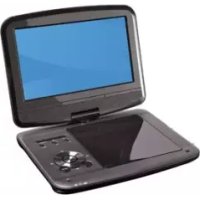
PDVS908 - DVD player MPMAN - Free user manual and instructions
Find the device manual for free PDVS908 MPMAN in PDF.



| Product type | Portable DVD player |
| Brand | Mpman |
| Model | PDVS908 |
| Dimensions (L x W x H) | 248 x 185.6 x 40 mm |
| Weight | Approximately 0.8 kg (estimated) |
| Power supply | DC input 9V 1.5A; built-in rechargeable lithium battery |
| Power consumption | 9 W |
| Screen | Built-in TFT screen |
| Supported disc formats | DVD-VIDEO, DVD-RW, CD-DA, CD-R, CD-RW, MP3-CD, MPEG4-CD, Kodak Picture CD, JPEG CD |
| Main functions | Playback DVD/CD/MP3/JPEG, USB and SD/MMC card playback, zoom, slow motion, repeat, search, program, audio/subtitle adjustment, multi-angle |
| Remote control | Yes, included |
| Outputs | A/V output (RCA), headphone jack, USB port, SD/MMC slot |
| Battery | Rechargeable lithium, battery life approximately 120 minutes |
| TV system | NTSC/PAL |
| Care and cleaning | Clean with a soft, dry cloth. Do not use solvents or chemicals. |
| Safety | Do not expose to water, do not block ventilation slots, use the recommended adapter. |
| Spare parts and repairability | Not specified by the manufacturer. Contact MPMAN after-sales service. |
| General information | Manual available in multiple languages. Operating temperature: +5°C to +35°C. Humidity: 10% to 75%. |
Frequently Asked Questions - PDVS908 MPMAN
User questions about PDVS908 MPMAN
0 question about this device. Answer the ones you know or ask your own.
Ask a new question about this device
Download the instructions for your DVD player in PDF format for free! Find your manual PDVS908 - MPMAN and take your electronic device back in hand. On this page are published all the documents necessary for the use of your device. PDVS908 by MPMAN.
USER MANUAL PDVS908 MPMAN
natural_image
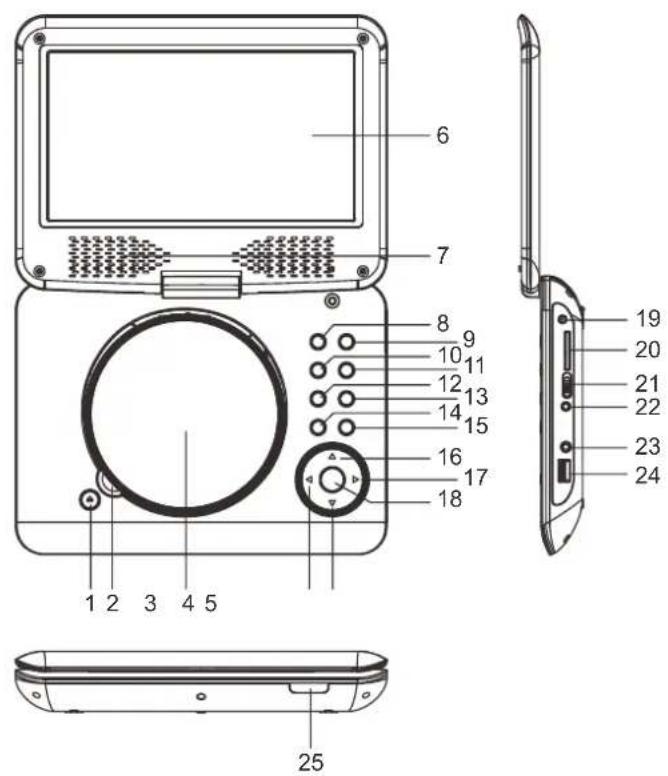
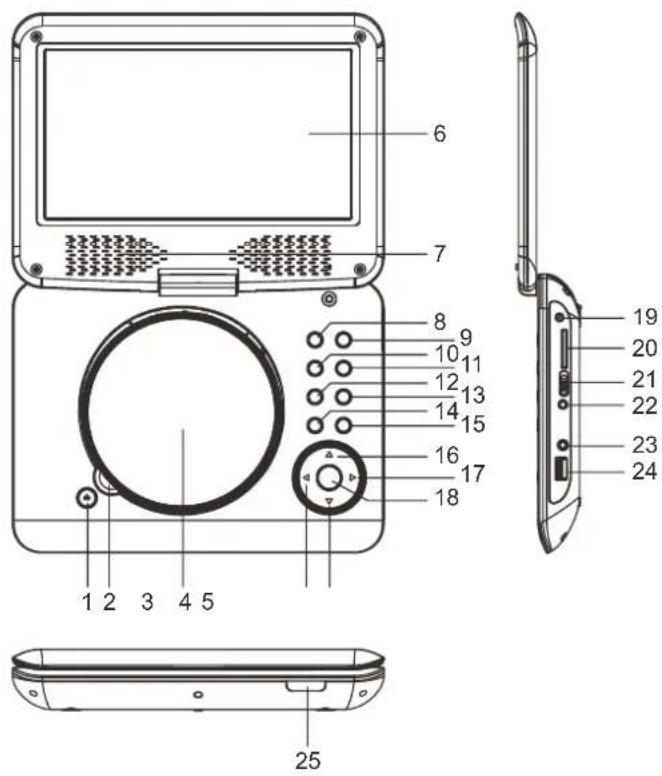
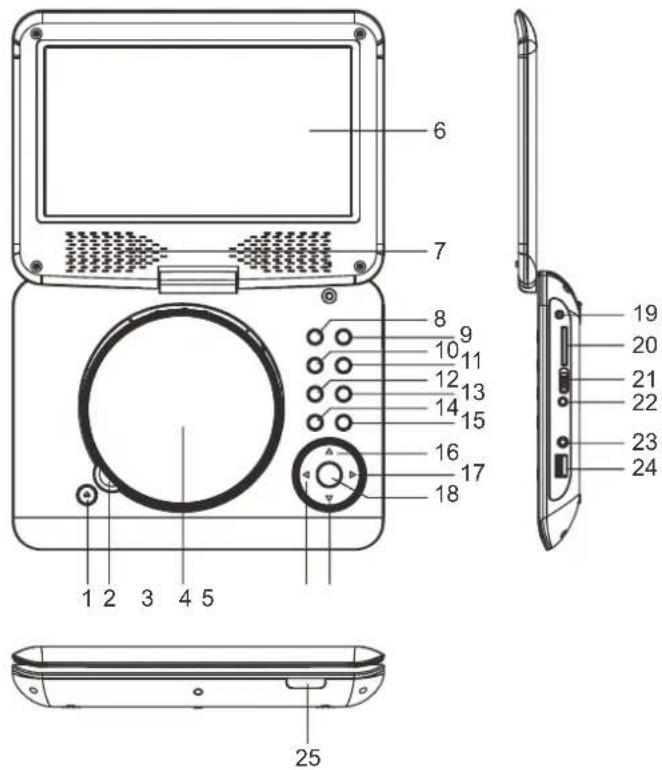
Line drawing of a vintage television set with monitor, tower, and remote control (no text or symbols)OVERVIEW OF THE DVD PLAYER:
-
DISC COVER OPEN KEY
-
DISC TAKEN AREA
-
DISC COVER
-
NAVIGATION LEFT KEY
-
NAVIGATION DOWN KEY
-
TFT SCREEN
-
SPEAKERS
-
PREV & F_BWD KEY
-
NEXT & F FWD KEY
-
PLAY/PAUSE KEY
-
STOP KEY
-
VOLUME-KEY
-
VOLUME + KEY
-
SETUP KEY
-
DVD/USB/SD KEY
-
NAVIGATION UP KEY
-
NAVIGATION RIGHT KEY
-
OK KEY
-
DC IN JACK
-
SD/MMC CARD SLOT
-
POWER ON/OFF SWITCH
-
A/V OUT JACK
-
PHONE JACK
-
USB PORT
-
CHARGE INDICATOR / REMOTE SENSOR / POWER INDICATOR
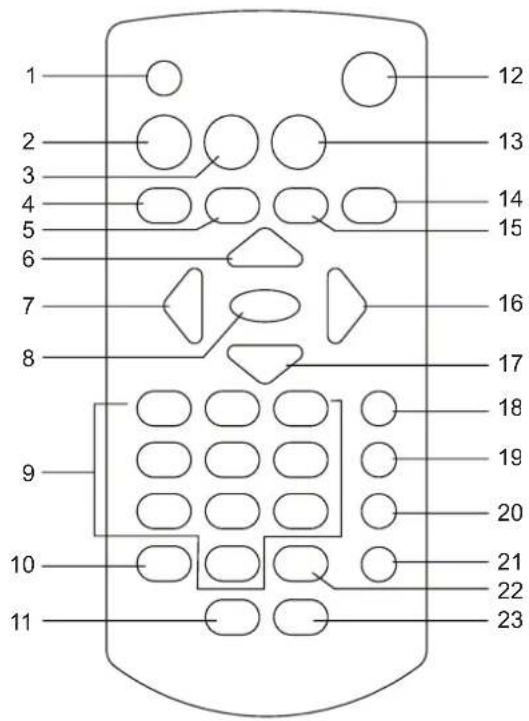
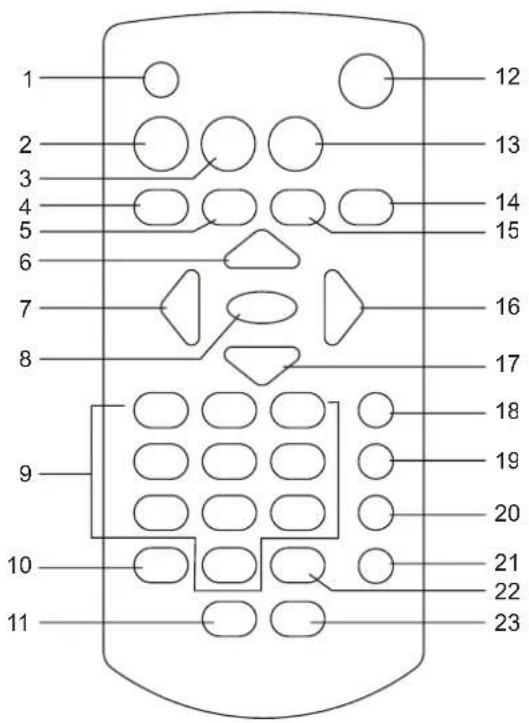
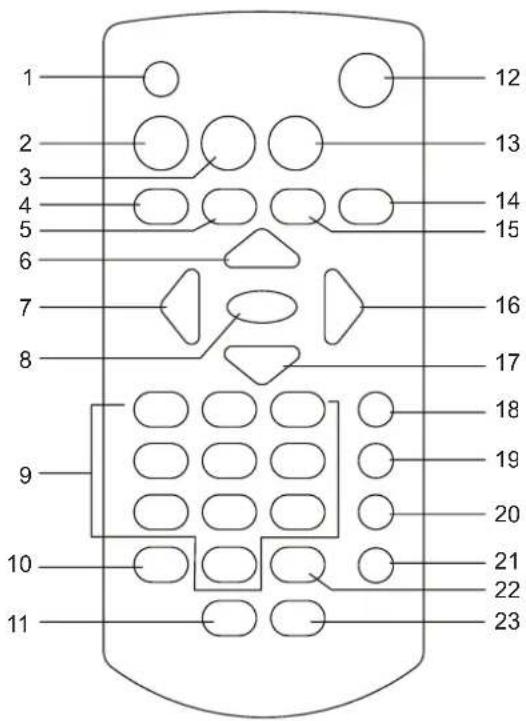
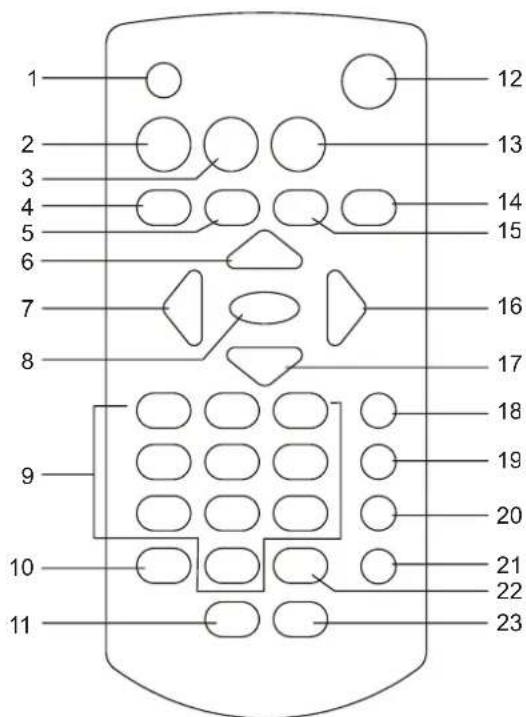
REMOTE CONTROL UNIT
-
SCREEN ON/OFF & BRI/COL button
-
TITLE button
-
MENU button
-
PREVIOUS & F BWD button
-
NEXT & F FWD button
-
NAVIGATION UP button
-
NAVIGATION LEFT button
-
OK/PLAY/PAUSE button
-
NUMERIC buttons
-
PROGRAM/ANGLE button
-
VOLUME- button
-
MUTE button
-
SETUP button
-
DISPLAY button
-
STOP&USB/SD/MMC CARD button
-
NAVIGATION RIGHT button
-
NAVIGATION DOWN button
-
SUBTITLE button
-
AUDIO button
-
SEARCH button
-
REPEAT button
-
ZOOM/SLOW button
-
VOLUME+ button
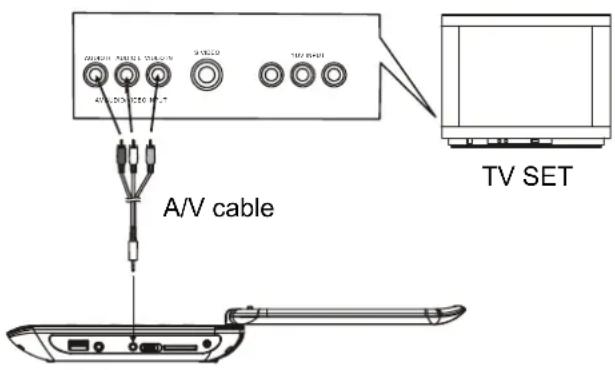
CONNECT DVD PLAYER TO OTHER APPLIANCES
- It is recommended you connect the player to a multi-system TV.
- Ensure that this player and other appliances (TV set and amplifier) that will be connected to the player are set to OFF mode and that the AC/DC adapter is disconnected from the wall outlet.
- Avoid blocking ventilation holes of the connected appliances and make sure air around there can circulate freely.
- Read carefully and follow the instructions before connecting other appliances.
- Observe the color coding when connecting audio and video cables, for instance connect yellow plug to the yellow jack, the red plug to the red jack and so on. If the RCA adapter is supplied only, the audio/video RCA cable is required. Plug one end of the RCA adapter to the unit. Then connect the audio/video RCA cable to the RCA adapter and the television.
CHARGE THE BUILT-IN BATTERY
The player is with a rechargeable lithium battery. Before using the battery, please make sure it is charged. If not, charge it first. Slide the power switch to OFF position and then connect one end of the supplied adapter to the wall outlet and the other end to the unit for charging the built-in battery.
Note:
- The battery only could be charged at powering off mode.
- If the unit is not in use for a prolonged period of time, it is recommendable to charge the built-in battery each three months.
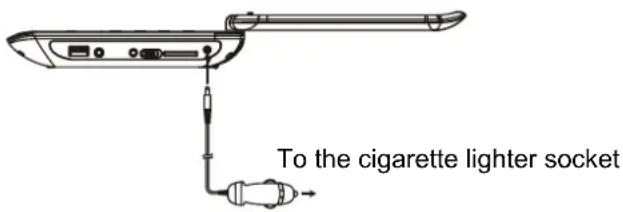
CONNECTING TO A CAR ADAPTOR
The car power adaptor is designed for use with vehicles that have a 12V, negative ground electrical system.
WARNING:
Disconnect the car power adaptor when not in use. Not in use in 24V vehicles.
CAUTIONS:
- Use the unit only with the recommended car power adaptor, use with other car power adaptor might damage the unit.
- The recommended car power adaptor is for use with this unit only. Do not use it with other equipment.
- In the interests of road traffic safety, do not operate the unit or view video software while driving a vehicle.
- Make sure the unit is fastened securely to prevent from moving outside of the vehicle in an accident
- When the inside of the cigarette lighter socket is dirty with ashes or dust, the plug section may become hot due to poor contact. Be sure to clean the cigarette lighter socket before use.
- After use, disconnect the car power adaptor from both the unit and cigarette lighter socket.
FUSE REPLACEMENT
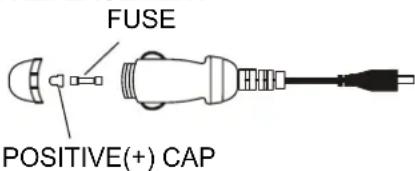
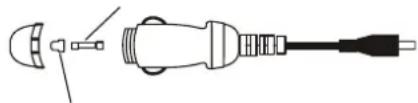
NOTE: Don't throw out the positive(+) cap when replace the fuse.
OPERATIONS
PREPARATION
Power on the TV set and select video input mode. Power on the audio system which is connected to the player.
GET STARTED
- Slide POWER ON/OFF switch to turn on the player.
- Press disc cover Open button to open the disc tray.
- Place a disc onto the disc tray.
- Close the disc tray by hand and the playback starts automatically.
- When a menu screen appears on the TV, press the navigation buttons or press the numeric buttons to select a preferred track number, then press OK button to start playback.
ADJUST THE VOLUME
Press the VOLUME +/- buttons to increase or reduce the volume.
MUTE
While the power is on, the audio output of the main unit is to be switched off by pressing the button. Press it again to resume sound output.
SKIP AHEAD OR BACK
Press PREVIOUS button during play to skip previous chapter (DVD) or a track (CD), Press NEXT button during play to skip next chapter (DVD) or a track (CD).
BRIGHTNESS AND COLOR ADJUSTMENT
During playback, press SCREEN ON/OFF&BRI/COL button repeatedly to adjust brightness and color respectively via navigation right/left button. Press and hold this button to turn on/off the screen.
RAPID ADVANCE/REVERSE
During playback, press and hold F_FWD button or F_BWD button to scan the disc forward or backward at X2, X4, X8, X20 of normal speed.
Press PLAY/PAUSE button to resume normal play.
STOP PLAYBACK
Press STOP button during playback to stop playback; the player activates its resume function when STOP is pressed in STOP mode; press PLAY/PAUSE button again, playback resumes at the point it stopped previously; open the disc tray or press the STOP button one more time to clear the resume function.
Press and hold SLOW button during playback, the disc will be played at 1/2 of normal speed at first, each time this button is pressed, the play speed becomes slower (down to 1/7 of normal speed.)
Press PLAY/PAUSE button, normal play will resume.
REPEAT
Press REPEAT button during play, it will repeat play one chapter/title or repeat all (for DVD disc), or repeat play a track or all tracks (for CD), or repeat the sections between two specific points (A-B).
SEARCH FOR PREFERRED SCENE
- Press SEARCH button during play and highlight the item to be played (Title, Chapter, or Chapter time) by navigation buttons.
- Input the desired number or time via the numeric buttons.
- Press OK button to confirm and the playback from the located scene starts.
- To exit search menu, press SEARCH button directly.
PROGRAM PLAY (UP TO 16 MEMORIES)
- Press PROGRAM during playback to display the program menu.
- Select location(s) to be memorized via navigation buttons and then enter desired Titles/Chapters numbers via numeric buttons.
Example: Track 3, press "3"
Track 12, press "1" and then "2"
Track 21, press "2" and then "1" - To start programmed playback, select PLAY on the menu; pressing PROGRAM button again to exit programming.
- To change programmed items, scroll the navigation button to the item to be changed and enter the desired track number on the screen, the selected Item will be changed. To clear all items, select the
on the menu, and then press OK button on remote control. - You can also cancel program mode by clearing all the items in the program menu.
ZOOM PLAY
Press ZOOM button continuously to zoom in the picture by 2, 3, and 4 times, zoom out by 1/2, 1/3, 1/4 of normal size.
Press this button once more when the picture is at 1/4 size to return to the normal size display.
Scroll to view the enlarged picture using Navigation buttons.
ON SCREEN DISPLAY INFORMATION
When the player is in operation, press DISPLAY button continuously, the screen will display parts of information (current disc type, title number, chapter number, playtime, audio language, audio type, subtitle language and multi angle, etc) in a sequence.
CHANGING AUDIO SOUNDTRACK LANGUAGE (DVD DISC)
It is possible to change the audio soundtrack language to a different language from the one selected at the initial settings (This operation works only with discs on which multiple audio soundtrack languages are recorded).
Press AUDIO button during DVD disc play, the sound track will be changed with a selected sound track showing on the screen.
NOTE: When no soundtrack languages are recorded, pressing this button will not work.
MULTI-ANGLE VIEWING (DVD ONLY)
Press and hold ANGLE button repeatedly to select your desired angle to view the scene.
Note: only the DVDs shot with multi-angle scenes have this function.
CHANGING SUBTITLE LANGUAGE (DVD ONLY)
Press SUBTITLE button several times during DVD playback, the subtitle language will be changed with the selected subtitle language showing on the screen; When the desired language appears, release the button to view the subtitle in that language.
Note: this function only works on the DVDs recorded with multi-language subtitles.
RETURN TO MAIN MENU AND PLAY THE TITLE (DVD)
During playback, press MENU button to return to main menu and press TITLE button to play the title.
MP3/MPEG 4 PLAYBACK
- Load the MP3/MPEG 4 disc onto the disc tray. A media menu shows on the screen, select a corresponding media type (picture, audio, video) to play the disc with navigation left/right button and press OK Button to confirm. Then the TV screen will show folders of corresponding format on the disc.
- Select the folder you want by the navigation buttons and then press OK button to confirm.
- The files in this folder are displayed and select your favourable track via navigation buttons and press ok button to start playback.
- Press NEXT and PREVIOUS button to select track directly.
- Press REPEAT button change play mode.
KODAK PICTURE CD / JPEG CD PLAYBACK
Load a Kodak picture CD/JPEG CD disc onto the disc tray, then select picture option to play the disc with navigation left/right button and press OK Button to confirm.
Slide show of Kodak Picture CD begins automatically; Folders of JPEG picture CD are displayed on the TV screen; use the navigation buttons on the remote to select the desired folder and then press OK button to confirm.
The files in this folder are displayed and you can select your favourite pictures using the up/down navigation buttons on the remote and press OK button to start playback.
Preview and the corresponding information (resolution, size, date) of the picture will be displayed while you scroll across the file names.
KODAK PICTURE CD / JPEG CD OPERATIONS
1. PLAY MODES
Press REPEAT button to change play mode.
During playback, press STOP to enter preview mode.
2. SKIP TO NEXT/PREVIOUS PICTURE
Press NEXT button to skip to the next picture or PREVIOUS button to the previous picture.
3. PICTURE ROTATIONS
Press RIGHT and LEFT navigation buttons to rotate the picture Clockwise and anti-clockwise respectively.
4. PICTURE FLIP AND TURN
Press UP navigation button to flip the picture up or down.
Press DOWN navigation button to flip the picture left or right.
5. PICTURE ZOOM IN/OUT
Press ZOOM button continuously, the picture zooms in by 2, 3, 4 times or zooms out by 1/2, 1/3, 1/4 of the original size.
Press this button once more when the picture getting 1/4 size to return to the normal play.
If the picture is enlarged, you may use the navigation buttons to view blocked parts of the picture.
6. SLIDE SHOW TRANSITION MODES
During slide show playback, press the PROGRAM button cyclically to select one slide show transition effect to play picture.
EXTERNAL MEMORY MEDIA OPERATION (USB&SD/MMC CARD)
Prepare the player for External Memory media operation
-
Slide the POWER ON/OFF switch to ON position, Insert a USB data traveller filled with media files into the USB port or plug a SD/MMC card into the card slot. After the USB or the SD/MMC card is successfully detected and read, a media menu shows on the screen, select a corresponding media type (picture, audio, video) to play the disc with navigation left/right button and press OK Button to confirm. Folders show on the screen and use navigation buttons to select your desired folder and track to play.
-
Press NEXT or PREVIOUS button to skip forward or backward.
Note: Press and hold STOP button on the remote or press DVD/USB/SD button on the unit to make selection among USB, card and disc via navigation LEFT/RIGHT button, confirm your selection by pressing OK button.
Note: During MP3 file playback, press TITLE button once to return back to the media menu. If the player is playing picture file, it is necessary to press TITLE button twice for showing the media menu (Press TITLE button once to display the file list, twice to show the media menu).
CAUTION: To avoid electronic static discharge, don't touch the USB port and card slot during playback.
INITIAL SETTINGS
Initial settings page is for you to make your preferred settings up for your player. Once the initial settings are done they are retained in the CPU of the player until otherwise modified.
COMMON PROCEDURES FOR INITIAL SETTINGS
- Press SETUP button to access the setup menu.
- Use the navigation buttons to select the item you want to modify, setting page with further setting items displayed shows on the TV screen. Again use navigation buttons to make changes. Press OK button to confirm modifications.
- Use navigation buttons to switch to another setting on the main setting page.
- Press SETUP button to exit main setting page.
1. SYSTEM SETUP
1.1 TV SYSTEM - it is used to select the TV mode.
Please select this option as per your TV set.
1.2 SCREEN SAVER - when the player is not in used for several minutes, a running DVD logo will move across the TV screen to protect the TV screen.
Options:
On: Screen saver is enabled
Off: Screen saver is disabled
1.3 TV TYPE - it is used to select the TV scan mode, please set as per your TV set.
Options: 4:3PS : Normal Pan & scan mode
4:3LB : Normal Letter box mode
16:9 : 16:9 wide screen mode
1.4 PASSWORD - input password to unlock the system. The steps are as follows:
1.4.1 Enter SYSTEM SETUP, select the PASSWORD item by scrolling the down navigation button, and then press the right navigation button to select the input box.
1.4.2 Input user's password "0000" to unlock it, in this case, select the input box again to change the password by inputting another new four numeric numbers and then press OK button to confirm. When the password is changed, you are needed to input the new one to unlock the system.
1.4.3 Once you forget your own password, use the supervisor's password "8200" to unlock it.
NOTE: If wrong password was input in unlock status, the system will lock.
1.5 RATING - Set the rating of this player. If you want to change the rating of parental lock, please input the password to unlock first.
Options: 1 KID SAFE / 2 G / 3 PG / 4 PG 13 / 5 PG-R / 6R / 7 NC-17 / 8 ADULT
1.6 DEFAULT - Reset to factory settings.
Options: RESTORE
2. LANGUAGE SETUP
2.1 OSD LANGUAGE - It is used to select different On Screen Display language for different user.
2.2 AUDIO LANG - Select preferred audio language. (DVD only, need disc software support)
2.3 SUBTITLE LANG - Select preferred subtitle language. (DVD only, need disc software support)
2.4 MENU LANG - Select preferred disc menu language. (DVD only, need disc software support)
3. VIDEO SETUP
3.1 BRIGHTNESS - to set the brightness for the display.
Options: 0/2/4/6/8/10/12
3.2 CONTRAST - to set the contrast effect for display. Options: 0/2/4/6/8/10/12
3.3 HUE - to set the colour impression for display. Options: -6/-4/-2/0/+2/+4/+6
3.4 SATURATION - to set the saturation level for display.
Options: 0/2/4/6/8/10/12
4. SPEAKER SETUP
4.1 DOWNMIX
Options: LT/RT - Left/Right mix mode
STEREO - Select this option if you don't have a 5.1 channels amplifier.
DISC HANDLING PRECAUTIONS


- Hold the disc by the edge so the surface will not be soiled with finger prints. Finger prints, dirt and scratches can cause skipping and distortion.
- Do not write on the label side with a ball-point pen or other writing utensils.
- Do not apply benzine, thinner, and liquid that prevents against static electricity.
- Be careful not to drop or bend the disc.
• Install only one disc on the disc tray. - Do not try to close the disc tray when the disc is not installed properly.
- Be sure to store the disc in its case when not in use.
TROUBLESHOOTING
If your DVD player does not seem to be functioning properly, check the items below before you contact an authorized service center.
| Symptom | Check |
| Power does not turn on or suddenly turns off. | Make sure the adapter is securely plugged in.Turn the power off and then back on. |
| Battery pack is in place but the power does not turn on or suddenly turns off. | Check that the battery pack is charged. If not, recharge it. |
| Remote control won't work | Check that the battery is inserted in the "+" and "-" direction properly.The battery may be flat. Replace it with a new one.Check that the signal transmission is directed at the remote control sensor on the DVD player.Remove the obstacle between the remote controller and remote control sensor. |
| No picture or sound | Check that the A/V cables are securely connected.Check that the disc is a DVD, DVD-RW or AUDIO CD.Do not use a disc that has scratches or dirt.Check that the label-side of the disc is facing up.The pick-up lens of the DVD player may be dirty. Contact the service center for lens cleaning.Check that the TV channel is set to VIDEO or AV if viewing with a TV. |
| No picture | Check that the LCD display is turned on. |
| No sound | Check that the display panel is open. If it is closed, audio will not be output to the speakers.Check the volume setting. If set to zero, turn up volume level.Check that the headphones are plugged into the PHONES socket. Speakers cannot be used with the headphones. |
| No picture and sound | Check that the battery is properly installed and the Adapter is properly connected. |
| Distorted video or sound | Use a disc without scratches or dents. |
IMPORTANT SAFETY INSTRUCTIONS
- The apparatus shall not be exposed to dripping or splashing and that no objects filled with liquids, such as vases, shall be placed on the apparatus.
- When the AC/DC adapter is used as the disconnect device, the disconnect device shall remain readily operable. To be completely disconnected the power input, the AC/DC adapter shall be disconnected from the mains completely.
- No naked flame sources, such as lighted candles, should be placed on the apparatus.
- Minimum distances 2.0cm around the apparatus for sufficient ventilation. The ventilation should not be impeded by covering the ventilation openings with items, such as newspapers, table-cloths, curtains, etc.
- The use of apparatus is in tropical and/or moderate climates.
- Attention should be drawn to the environmental aspects of battery disposal.
- CAUTION: Danger of explosion if battery is incorrectly replaced. Replace only with the same or equivalent type.
- Battery shall not be exposed to excessive heat such as sunshine, fire or the like.
- Excessive sound pressure from earphones and headphones can cause hearing loss.
- The marking plate is located at the bottom of the apparatus.
SPECIFICATIONS:
Power source: DC INPUT: 9V 1.5A
Power consumption: 9W
TV Output (DVD): NTSC/PAL
Operating temperature range: +5°C to +35°C
Continuous playing time: 120 minutes
Dimensions: 248mm (L) X 185.6mm (W) X 40mm (H)
Operating humidity range: 10 % to 75 %
Disc supportable:
- DVD-VIDEO disc
12 cm single-sided, single-layer
12 cm single-sided, dual-layer
12 cm double-sided, single-layer
8 cm single-sided, single-layer
8 cm single-sided, dual-layer
8 cm double-sided, single-layer
- CD-DA/CD-R/CD-RW/MP3-CD/MPEG4-CD
12cm disc
8cm disc
Audio signal output:
- DVD (linear audio)
(1) Frequency response: 20Hz-20KHz (48KHz sampling) &
20Hz-20KHz (96KHz sampling)
(2) S/N ratio: >65dB
(3) Dynamic range: 90dB
(4) Wow and flutter: below measurable level
- CD audio:
(1) Frequency response: 20Hz-20KHz
(2) S/N ratio: >65dB
(3) Dynamic range: 90dB
(4) Wow and flutter: below measurable level
Specifications are subject to change without notice.


This is to certify that the PORTABLE LCD DVD PLAYER is in conformity with Council directive 2004/108/EC (EMC Directive)
Applicable standards:
EN55013:2001+A1:2003+A2:2006
EN61000-4-2:2008
EN61000-4-4:2004+A1:2010
EN55020:2007
For more information please visit our website
www.mpmaneurope.com

natural_image
Line drawing of a vintage television set with monitor, circular dial, and remote control (no text or symbols)REPLACEMENT DU FUSIBLE
FUSIBLE
natural_image
Diagram of a plug assembly showing internal components and terminal connections (no text or labels)CAPUCHON DU POLE POSITIF (+)
12 cm uni-surface, surface simple
12 cm uni-surface, surface double
12 cm double surface, surface simple
8 cm uni-surface, surface simple
8 cm uni-surface, surface composée
natural_image
Line drawing of a vintage television set with monitor, circular dial, and remote control (no text or symbols)BEDIENELEMENTE UND FUNKTIONEN
natural_image
Diagram of a plug assembly showing internal components and terminal connectors (no text or labels)POSITIV (+) KAPPE
KODAK PICTURE-CD / JPEG-CD
BEDIENUNGSHINWEISE
1. WIEDERGABEMODI
4:3LB: Normal Letterbox
16:9: 16:9 Breitbild
12 cmsingle-sided, Single-Layer
12 cmsingle-sided, Dual-Layer
12 cmdouble-sided, Single-Layer
8 cmsingle-sided, Single-Layer
8 cmsingle-sided, Dual-Layer
8 cmdouble-sided, Single-Layer
- CD-DA/CD-R/CD-RW/MP3-CD/MPEG4-CD
natural_image
Line drawing of a vintage television set with front panel, control panel, and remote control (no text or symbols)PANORAMICA DEL LETTORE DVD:
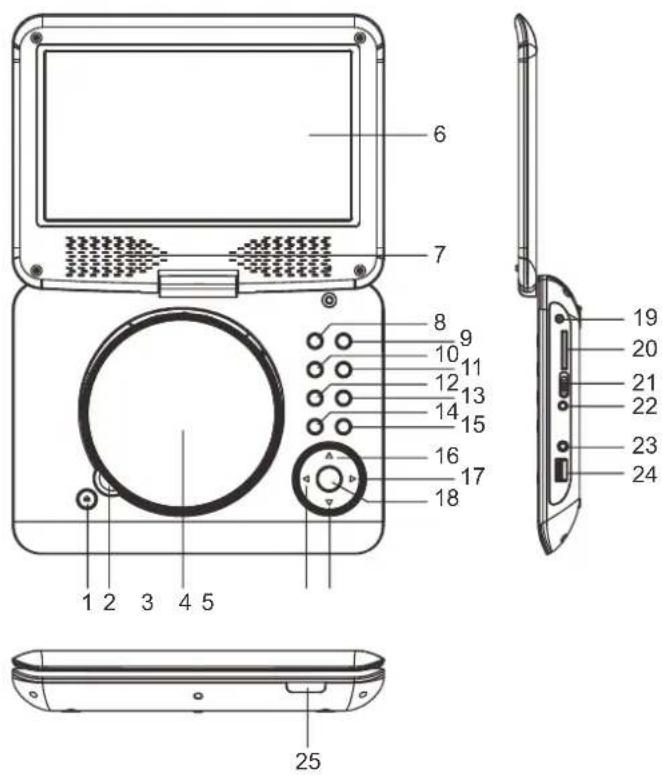
- TASTO APERTURA COPERCHIO DEL DISCO
- AREA PRESA DEL DISCO
- COPERCHIO DEL DISCO
- TASTO DI NAVIGAZIONE SINISTRO
- TASTO DI NAVIGAZIONE GIU'
- SCHERMATA TFT
- ALTOPARLANTI
- TASTO PREC E INDIETRO
- TASTO SUCC. E AVANTI
- TASTO PLAY/PAUSA
- TASTO STOP
- TASTO VOLUME-
- TASTO VOLUME +
- TASTO SETUP
- TASTO DVD/USB/SD
- TASTO NAVIGAZIONE SU
- TASTO NAVIGAZIONE DESTRO
- TASTO OK
- PRESA DC IN
- PORTA SCHEDA SD/MMC
- INTERRUTTORE ON/OFF
- PRESA A/V OUT
- PRESA CUFFIE
- PORTA USB
- INDICATORE DI CARICAMENTO/SENSORE TELECOMANDO/INDICATORE POTENZA
UNITA' DI CONTROLLO TELECOMANDO
- Pulsante SCREEN ON/OFF & BRI/COL
- Pulsante TITLE
- Pulsante MENU
- Pulsante PREC E INDIETRO
- Pulsante SUCC E AVANTI
- Pulsante NAVIGAZIONE SU
- Pulsante NAVIGAZIONE SINISTRA
- Pulsante OK/PLAY/PAUSA
- Pulsanti NUMERICI
- Pulsante PROGRAMMA/ANGOLO
- Pulsante VOLUME-
- Pulsante MUTO
- Pulsante SETUP
- Pulsante DISPLAY
- Pulsante STOP E SCHEDA USB/SD/MMC
- Pulsante NAVIGAZIONE SU
- Pulsante NAVIGAZIONE GIU'
- Pulsante SOTTOTITOLI
- Pulsante AUDIO
- Pulsante CERCA
- Pulsante RIPETI
- Pulsante ZOOM/LENTO
- Pulsante VOLUME+
COLLEGA IL LETTORE DVD AGLI ALTRI APPARECCHI
Prepare the player for External Memory media operation
Dimensioni: 248mm (L) X 185.6mm (W) X 40mm (H)
Standard Applicabile:
EN55013:2001+A1:2003+A2:2006
EN61000-4-2:2008
EN61000-4-4:2004+A1:2010
EN55020:2007
natural_image
Line drawing of a vintage television set with monitor, circular dial, and remote control (no text or symbols)LEES DEZE INSTRUCTIES IN DEZE GEBRUIKSAANWIJZING GOED DOOR ALVORENS HET APPARAAT AAN TE SLUITEN EN TE BEDIENEN.
BEWAAR DEZE HANDLEIDING VOOR HET GEVAL U HET NODIG HEBT VOOR TOEKOMSTIGE REFERENTIE. DE ILLUSTRATIES EN AFBEELDINGEN HIERIN OPGENOMEN ZIJN ALLEEN TER REFERENTIE EN KUNNEN ZONDER KENNISGEVING WORDEN GEWIJZIGD.
OVERZICHT VAN DE DVD-SPELER:
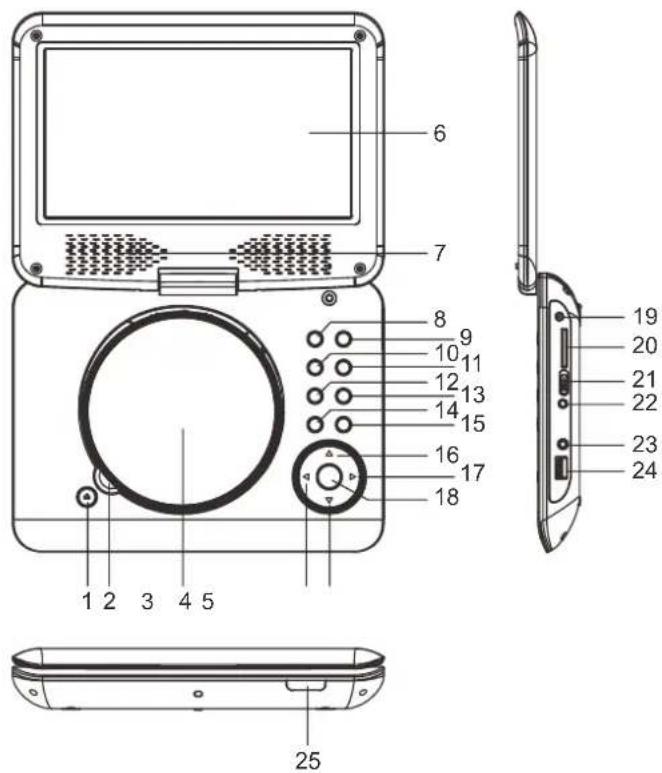
- DISC-KLEP OPENEN-toets
- BEZETTE GEBIED VAN DE DISK
- DISC-KLEP
- NAVIGEER LINKS-toets
- NAVIGEER OMLAAG-toets
- TFT-scherm
- LUIDSPREKERS
- VORIGE & SNEL ACHTERUIT-toets
- VOLGENDE & SNEL VOORUIT-toets
- AFSPELEN/PAUZE-toets
- STOP-toets
- "VOLUME-"-toets
- "VOLUME+" -toets
- INSTELLEN-toets
- DVD/USB/SD-toets
- NAVIGEER OMHOOG-toets
- NAVIGEER RECHTS-toets
- OK-toets
- DC IN adapterbus
- SD-MMC-kaartslot
- VOEDING AAN/UIT-schakelaar
- A/V OUT-bus
- HOOFDTELEFOONBUS
- USB-poort
- OPLAADINDICATOR/IR-SENSOR/VOEDINGSINDICATOR
AFSTANDSBEDIENING
- SCHERM AAN/UIT & HELDERHEID/KLEUR-toets
- TITEL-toets
- MENU-toets
- VORIGE & SNEL ACHTERUIT-toets
- VOLGENDE & SNEL VOORUIT-toets
- NAVIGEER OMHOOG-toets
- NAVIGEER LINKS-toets
- OK/AFSPELEN/PAUZE-toets
- Numerieke toetsen
- PROGRAMMA/BEELDHOEK-toets
- "VOLUME-"-toets
- GELUID UIT-toets (Mute)
- INSTELLEN-toets
- DISPLAY-toets
- STOP & USB/SD/MMC-toets
- NAVIGEER RECHTS-toets
- NAVIGEER OMLAAG-toets
- ONDERTITELING-toets
- AUDIO-toets
- ZOEKEN-toets
- HERHAAL-toets
- ZOOM/LANGZAAM-toets
- "VOLUME+" -toets
DE DVD-SPELER AANSLUITEN OP ANDERE APPARATEN
natural_image
Line drawing of a vintage television set with front panel, control panel, and remote control (no text or symbols)GENERALIDADES DO LEITOR DVD:
- TECLA PARA ABRIR A TAMPA DO DISCO
- ÁREA DE RECEPÇÃO DO DISCO
- TAMPA DO DISCO
- TECLA ESQUERDA DE NAVEGAÇÃO
- TECLA DE NAVEGAÇÃO PARA BAIXO
- ECRÃ TFT
- COLUNAS
- TECLA ANTER. E F_BWD
- TECLA SEG. E F FWD
- TECLA REPRODUZIR/PAUSA
- TECLA PARAR
- TECLA VOLUME -
- TECLA VOLUME +
- TECLA DE CONFIGURAÇÃO
- TECLA DVD/USB/SD
- TECLA DE NAVEGAÇÃO PARA CIMA
- TECLA DE NAVEGAÇÃO PARA DIREITA
- TECLA OK
- TOMADA DC IN
- RANHURA CARTÃO SD/MMC
- INTERRUPTOR LIGAR/DESLIGAR
- TOMADA SAÍDA A/V
- TOMADA TELEFONE
- PORTA USB
- INDICADOR DE CARGA/SENSOR REMOTO/INDICADOR DE ALIMENTAÇÃO
UNIDADE CONTROLO REMOTO
4. INCLINAR E RODAR A IMAGEM
- CONNECT DVD PLAYER TO OTHER APPLIANCES
- CHARGE THE BUILT-IN BATTERY
- Note:
- CONNECTING TO A CAR ADAPTOR
- WARNING:
- CAUTIONS:
- OPERATIONS
- PREPARATION
- GET STARTED
- ADJUST THE VOLUME
- MUTE
- SKIP AHEAD OR BACK
- BRIGHTNESS AND COLOR ADJUSTMENT
- RAPID ADVANCE/REVERSE
- STOP PLAYBACK
- REPEAT
- SEARCH FOR PREFERRED SCENE
- PROGRAM PLAY (UP TO 16 MEMORIES)
- ZOOM PLAY
- ON SCREEN DISPLAY INFORMATION
- CHANGING AUDIO SOUNDTRACK LANGUAGE (DVD DISC)
- MULTI-ANGLE VIEWING (DVD ONLY)
- CHANGING SUBTITLE LANGUAGE (DVD ONLY)
- RETURN TO MAIN MENU AND PLAY THE TITLE (DVD)
- MP3/MPEG 4 PLAYBACK
- KODAK PICTURE CD / JPEG CD PLAYBACK
- KODAK PICTURE CD / JPEG CD OPERATIONS
- PLAY MODES
- SKIP TO NEXT/PREVIOUS PICTURE
- PICTURE ROTATIONS
- PICTURE FLIP AND TURN
- PICTURE ZOOM IN/OUT
- SLIDE SHOW TRANSITION MODES
- EXTERNAL MEMORY MEDIA OPERATION (USB&SD/MMC CARD)
- Prepare the player for External Memory media operation
- INITIAL SETTINGS
- COMMON PROCEDURES FOR INITIAL SETTINGS
- SYSTEM SETUP
- LANGUAGE SETUP
- VIDEO SETUP
- SPEAKER SETUP
- DOWNMIX
- DISC HANDLING PRECAUTIONS
- TROUBLESHOOTING
- IMPORTANT SAFETY INSTRUCTIONS
- SPECIFICATIONS:
- Disc supportable:
- Audio signal output:
- REPLACEMENT DU FUSIBLE
- BEDIENELEMENTE UND FUNKTIONEN
- KODAK PICTURE-CD / JPEG-CD
- BEDIENUNGSHINWEISE
- WIEDERGABEMODI
- PANORAMICA DEL LETTORE DVD:
- UNITA' DI CONTROLLO TELECOMANDO
- COLLEGA IL LETTORE DVD AGLI ALTRI APPARECCHI
- OVERZICHT VAN DE DVD-SPELER:
- AFSTANDSBEDIENING
- DE DVD-SPELER AANSLUITEN OP ANDERE APPARATEN
- GENERALIDADES DO LEITOR DVD:
- UNIDADE CONTROLO REMOTO
- INCLINAR E RODAR A IMAGEM
Brand : MPMAN
Model : PDVS908
Category : DVD player