Andy 3.5EI2 - Smartphone YEZZ - Free user manual and instructions
Find the device manual for free Andy 3.5EI2 YEZZ in PDF.



| Product type | Smartphone |
| Brand | YEZZ |
| Model | Andy 3.5EI2 |
| Dimensions (estimated) | 115 x 62 x 12 mm |
| Weight (estimated) | 110 g |
| Screen | 3.5 inch touchscreen |
| Battery | Removable lithium-ion |
| Power supply | 5V mains adapter (provided) |
| SIM cards | Dual SIM (2 slots) |
| Connectivity | Wi-Fi 802.11 b/g/n, Bluetooth, GPRS/EDGE/3G/HSPA |
| Camera | Rear camera |
| FM radio | Yes (requires earphones) |
| Operating system | Android (version not specified) |
| Expandable memory | microSD card (optional) |
| Main functions | Calls, SMS/MMS, email, music, Wi-Fi, Bluetooth, assisted GPS |
| Maintenance and cleaning | Soft dry cloth; avoid chemical products |
| Safety | SAR head: 0.256 W/kg (GSM 900); recommended distance of 1.5 cm from body |
| Spare parts and repairability | Battery, charger, USB cable, earphones provided; professional repair recommended |
| Operating temperature | 5°C to 35°C |
| European directives | Compliant with WEEE and 1999/5/EC |
Frequently Asked Questions - Andy 3.5EI2 YEZZ
User questions about Andy 3.5EI2 YEZZ
0 question about this device. Answer the ones you know or ask your own.
Ask a new question about this device
Download the instructions for your Smartphone in PDF format for free! Find your manual Andy 3.5EI2 - YEZZ and take your electronic device back in hand. On this page are published all the documents necessary for the use of your device. Andy 3.5EI2 by YEZZ.
USER MANUAL Andy 3.5EI2 YEZZ
natural_image
Top-down view of a smartphone showing two red arrows inside a rectangular panel, with no text or symbols present.BAY AREA COMPLIANCE LABORATORIES CORP.
1274 Anvilwood Ave. Sunnyvale, CA 94089. USA
www.baclcorp.com
Phone: +1 408 732 9162 Fax: +1 408 732 9164
natural_image
Top-down view of a smartphone showing two red arrows inside a rectangular panel, with no text or symbols present.BAY AREA COMPLIANCE LABORATORIES CORP.
1274 Anvilwood Ave. Sunnyvale, CA 94089. USA
www.baclcorp.com
Phone: +1 408 732 9162 Fax: +1 408 732 9164
Please remember to obey relevant rules and regulations whenever use your phone. This will prevent bad effect from you and the environment.
General security
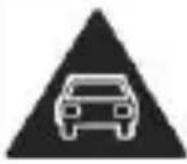 | Don’t make or receive handheld calls while driving. And never text while driving. |
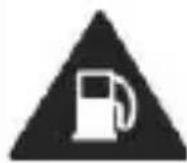 | Don’t use at petrol stations. |
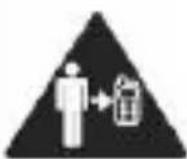 | Keep your phone at least 15 mm away from your ear or body while making calls. |
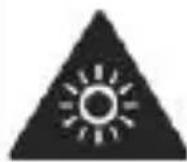 | Your phone may produce a bright or flashing light. |
 | Small parts may cause a choking. |
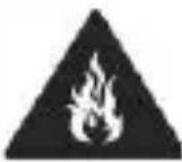 | Don’t dispose of your phone in fire. |
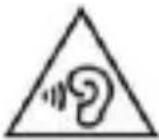 | Your phone can produce a loud sound. |
 | Avoid contact with anything magnetic. |
 | Keep away from pacemakers and other electronic medical devices. |
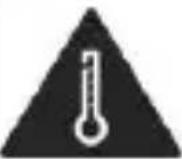 | Avoid extreme temperatures. |
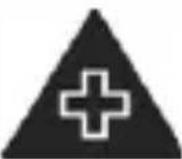 | Switch off when asked to in hospitals and medical facilities. |
 | Avoid contact with liquids. Keep your phone dry. |
 | Switch off when told to in aircrafts and airports. |
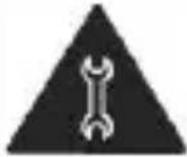 | Don’t take your phone apart. |
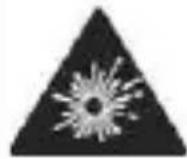 | Switch off when near explosive materials or liquids. |
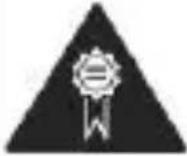 | Only use approved accessories. |
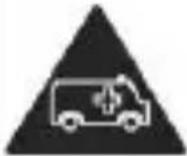 | Don’t rely on your phone for emergency communications. |
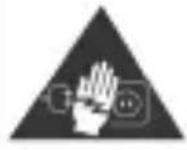 | Warning electrical hazard To avoid serious injury do not touch charger pins. Unplug the charger when not in use. To unplug a charger or an accessory, hold and pull the plug, not the cord. The power adaptor is the switch off device of the equipment. The wall power socket should be located near the equipment and easily accessible. |
Look at the adapter regularly, specifically at the plug and the layer to detect any damages. If the adapter is damaged, you can't use it until it's fixed.
Plug in the adapter to a power outlet which is easily accessible. Always unplug the adapter after using it.
Use only the adapter provided with the device.
Do not expose your device to direct sunlight, like on your car's dashboard, for example.
In case of overheating do not use the device.
Be careful when using the device while walking.
Do not subject the device to severe impact or drop it from high position, it could cause damages or malfunctions.
Do not disassemble, modify or fix the device by yourself.
To clean the device use a clean and soft rag. Do not use any chemical product or detergent.
INTRODUCING YOUR MOBILE PHONE
Learn about your mobile phone's layout, keys, display and icons.
Unpacking
Check the product box for the following items:
- Mobile phone
- Battery
- Travel adapter (charger)
- USB Cable
- Headset
- User manual
- Quick start guide
The supplied accessories perform best for your phone.
Phone layout
From the front view of your phone you will observe the following elements:
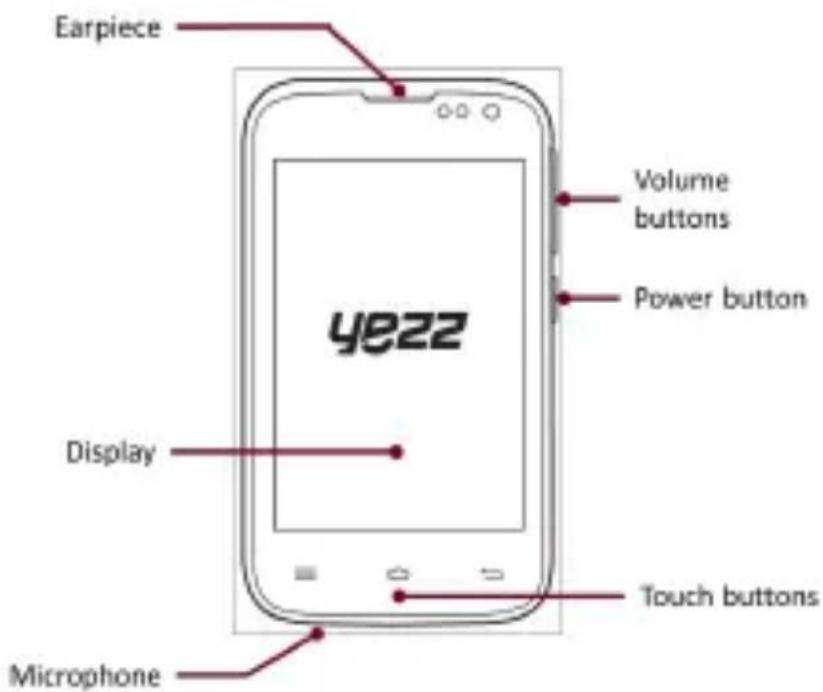
From the back view of your phone you will observe the following elements:
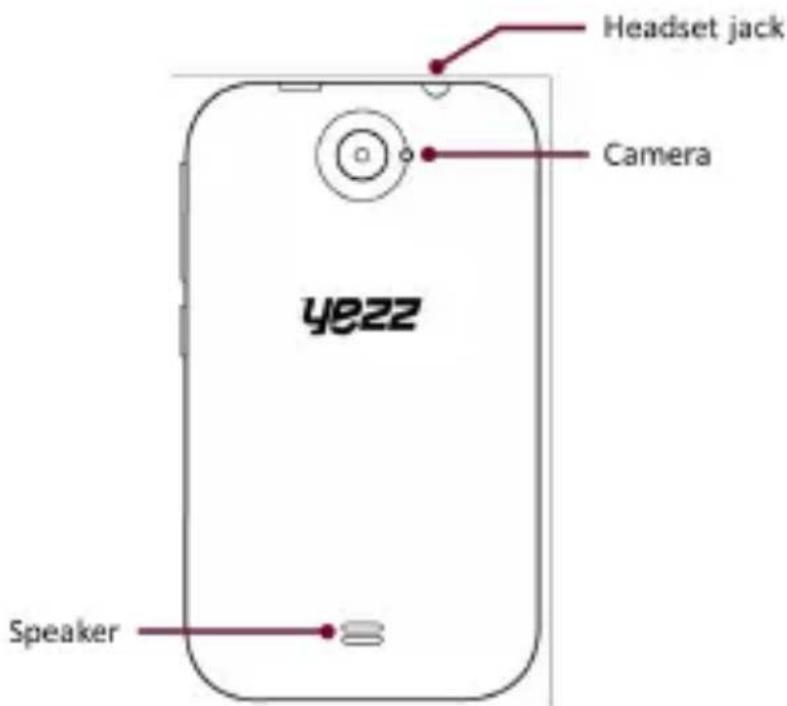
Keys
The following table offers you a quick description about the phone's keys:
| Key Function | |
| Power button | Allow you to turn on/off the device and to lock the screen. |
| Volume | Allow you to adjust the volume of ringing and notifications. Also allows you to adjust the volume of multimedia content playback. |
| Back | Allow you to return to the previous menu or screen. Also allow you to close some applications. |
| Home | It takes you directly to the home screen, leaving any application open. |
| Menu | Allow you to access to the functions menu of the application or screen you are. |
Screen
The screen of your mobile phone is designed as follows:
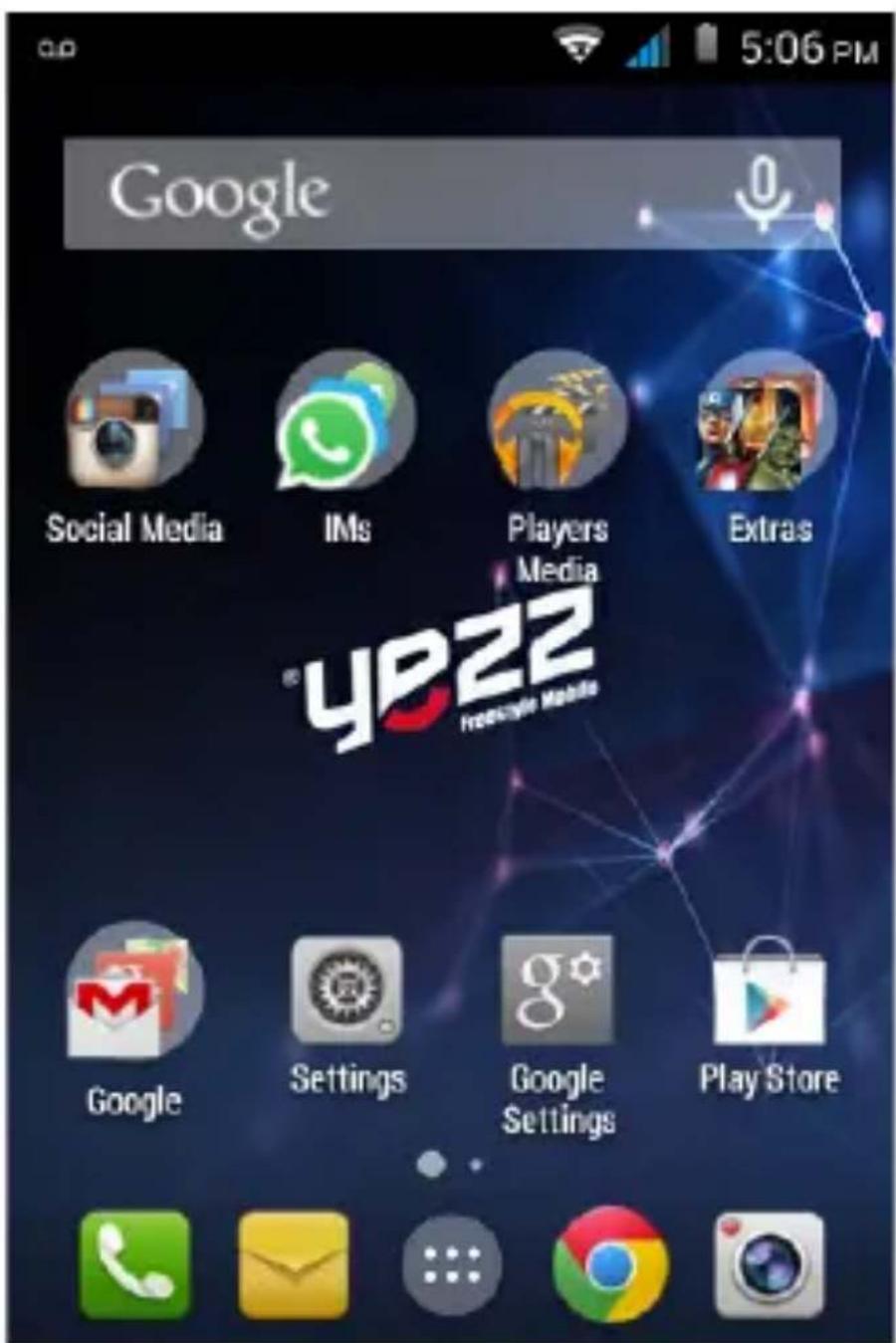
Icons
Learn about the icons that are displayed on the top of the screen, indicating the status of the phone:
 | Signal strength |  | Wi-Fi connection |
 | GPRS connected |  | EDGE connected |
 | 3G connected |  | HSPA connected |
 | Bluetooth On |  | New message |
 | USB connected |  | New email |
 | Battery meter |  | Alarm active |
 | Vibration profile |  | Silent profile |
 | Roaming indicator |  | Headset connected |
PREPARING YOUR MOBILE PHONE
Get started setting up your mobile phone for its first use.
Install the SIM card and battery
When you subscribe to a cellular service, you will receive a Subscriber Identity Module (SIM) card, with subscription details, such as your personal identification number (PIN) and optional services.
To install the SIM card and battery,
- Remove the battery cover.
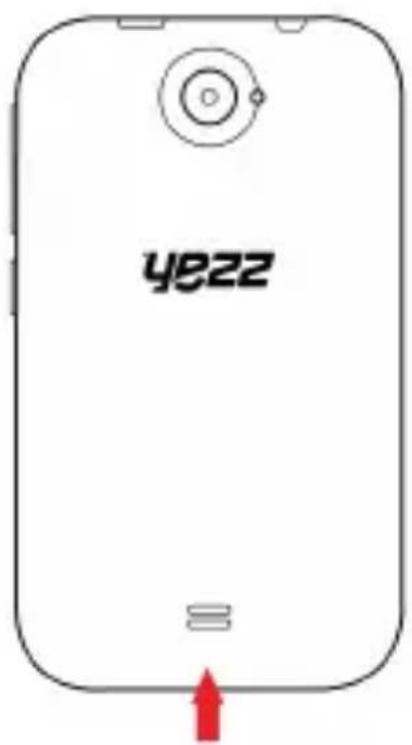
Z
2. Insert the SIM card.
Your phone has 2 SIM card slots to allow you use 2 SIM cards and switch between them.
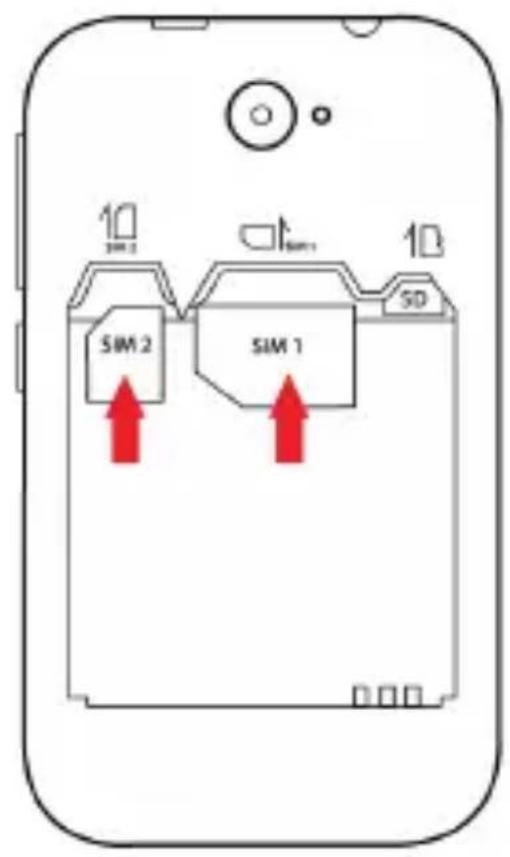
- Place the SIM card in the phone with the gold-colored contacts facing down.
- Without inserting a SIM card, you can use your phone's non-network services and some menus.
- Insert the battery.
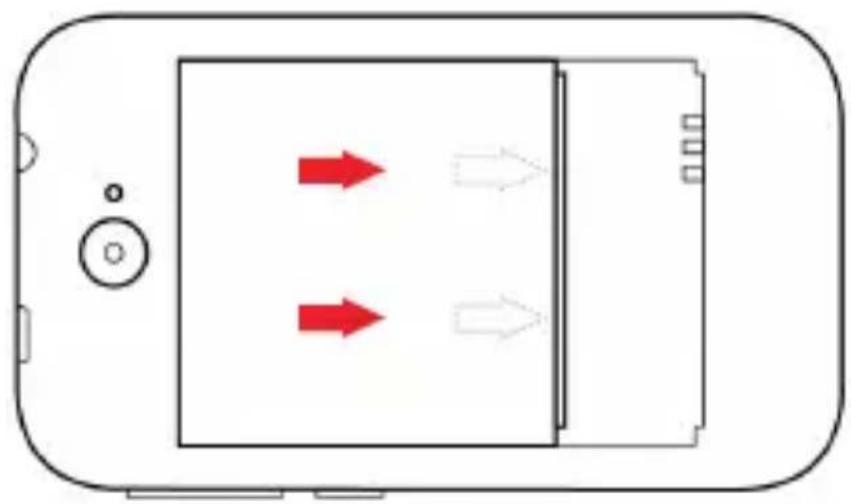
natural_image
Top-down view of a smartphone showing two red arrows inside a rectangular panel, with no text or symbols present.- Replace the battery cover.
Insert a memory card (optional)
To store additional multimedia files, you must insert a memory card.
- Formatting the memory card on a PC may cause incompatibility with your phone. Format the memory card only on the phone.
- Remove the battery cover.
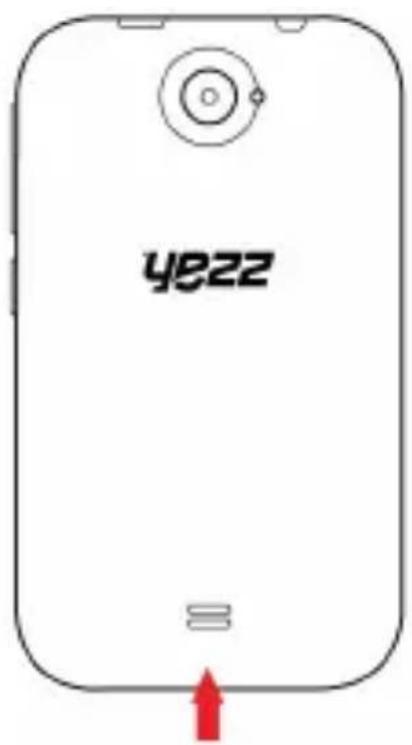
- Insert a memory holder with the label side facing up.
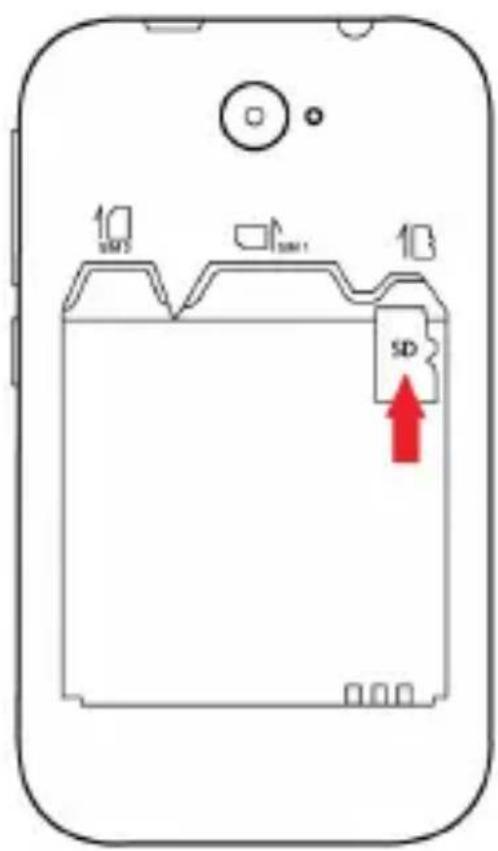
USING BASIC FUNCTIONS
Learn how to perform basic operations of your mobile phone.
Turn your phone on and off
To turn your phone on,
- Long press the power button.
- Type in your PIN number and press OK (if it is needed).
To shut down your phone, go to step 1 above.
Access menus and applications
To get access to the Menu and Applications,
- At the home screen, touch the button [ ] on the screen to pop up the list of Installed Applications in your phone.
- Slide your finger to the right or left to access other pages of apps.
- Touch any icon to enter to the application.
- To exit the application, press Back or Home at the bottom of the screen.
Use basic call functions
Learn to make or answer calls in this section.
Make a call:
- At the home screen or applications menu, touch the Phone icon [ ]
- Dial the area code and phone number.
- Touch [ ] to start the call.
- To end a call, touch [ ].
To answer a call:
- When you receive a call, slide the phone icon to the right to answer it or slide it to the left to reject it
- To end the call, touch [ ].
Send and view messages
In this section, learn how to send and receive:
- Text Messages (SMS).
- Multimedia Message (MMS).
Steps to send Text and Multimedia Messages:
- Touch [ ] Messages at the application list, then touch
[ ] on the left bottom corner.
- Type in the phone number or contact name on the field or touch [ ] to access to Contacts.
- Type in your message.
To send as text message go to step 5.
To attach a multimedia object (audio, image, etc.) continue to step 4.
- Touch [ + ] on the top right corner, select the attach type then choose the item.
- Touch [ ] to send the message.
Add contacts
Learn the basics of using the phonebook feature.
Add a new contact:
- In the application list touch Contacts, then touch [ ] on the bottom to add a new contact.
- Fill the contact information (Name, Last name and phone number). You can add more fields such as, email, address, etc.
- Touch [ ] on the top of the screen to save.
Search for a contact
- In the application list touch [ ] Contacts.
- Slide your finger from bottom to top to scroll the list or touch the search button [ ] and type in the first letters of the name or last name.
- To see the contact details touch the name or the picture of the contact.
If you want to call a contact touch the phone number.
Listen to music
Learn how to listen to music via the music player or FM radio.
Listen to the FM radio:
- Plug in the earphones in your phone.
- In the application list touch [ ] FM Radio.
- Use the tool bar at the bottom to change of station.
Listen to music files:
First, copy the music files into your phone internal memory or a MicroSD card.
- In the application list, touch [ ] Music.
-
Select an order at the top of the screen and touch the song that you want to listen to.
-
You can Pause, Loop, or change of song using the tool bar at the bottom.
Browse the web
Learn how to access to your favorites Web Sites.
-
In the application list, touch [ ] Browser.
-
Touch the address bar and type in the address of the web site you want to go and touch Go.
USING THE CAMERA
Learn the basics to capture and view photos.
Capture pictures
- In the applications list, touch [ ] Camera.
- Adjusts the lens at the photo target and make the desired adjustments by touching the settings button [ ]
- Touch the shot button [ ] on the screen to capture the picture. It will be saved automatically.
See the captured pictures
In the applications list, touch [ ] Gallery and then select the Camera folder [ ] access and visualize all the pictures captured by your phone.
CONNECTING TO INTERNET
Learn the basics to configure your phone and connect to Internet.
Add a new connection
- In the applications list, touch [ ] Settings to access to the device configuration.
- Touch the option "More...", then touch Mobile networks and touch Access Point Names. Now select the SIM Card that you want to configure.
- Touch the Menu key and select New APN then, type in the parameters according with your Carrier.
The basic parameters are:
- Name
- APN
- Username
- Password
Some carriers use Proxy Servers, refer to your carrier configuration for more information.
- When you finish typing in the parameters needed, touch Menu then Save.
If you have multiples APN Configurations for the same SIM card, choose which one you want to use touching the radio button [ ] at the right side of the name.
To add another connection, repeat from step 3.
Switch between carriers (SIM cards)
If you use multiple SIM cards and want to switch to another one, follow these steps:
-
In the applications list, touch [ ] Settings to access to the device configuration.
-
Touch SIM management [ ]
-
Choose the option Data connection and select the SIM Card that you want to use.
USING THE BLUETOOTH
Learn about your phone's ability to connect to other wireless devices for exchanging data.
Turn on the Bluetooth wireless feature
- In the applications list, touch [ ] Settings to access to the device configuration.
- Touch the Bluetooth option [ ] Bluetooth
- To turn the Bluetooth touching the button [ ] on the right top corner.
Find and pair with other Bluetooth enabled devices
- When you turn the Bluetooth on, the list will show all the available devices near you.
- Touch the device that you want to pair with your phone.
- Enter a PIN for the Bluetooth wireless feature or the other device's Bluetooth PIN, if it has one, and press OK.
When the owner of the other device enters the same code or accepts the connection, the pairing will be complete.
Send images using the Bluetooth wireless feature
- Open Gallery [ ].
- Choose a picture and press Share [ ] on the top right corner of the screen and select Bluetooth [ ]
- Touch the device that you want to send the picture then accept the file in the receiver.
Receive images using the Bluetooth wireless feature
- Turn on the Bluetooth at System Settings.
- Type in the Bluetooth PIN or accept it (if it is needed).
- Accept the receiving file if you want to receive data from the other device.
When the transferring is finished you can see the picture using the Gallery Application [ ]
USING THE Wi-Fi
Learn to use the phone's wireless capabilities to connect to any wireless local area network compatible.
Connect to a wireless network
- In the applications list, touch [ ] Settings to access to the device configuration.
- Touch the Wi-Fi option [ ] Wi-Fi
- To turn the On the Wi-Fi touching the button [ ] on the right top corner.
- Choose a wireless network and enter the security password if it is needed.
Disconnect from a wireless network
- In the applications list, touch [ ] Settings to access to the device configuration.
- Touch the Wi-Fi option [ ] Wi-Fi
- To turn the Wi-Fi off touch the button [ ] on the right top corner.
View the technical details of a wireless network
- In the applications list, touch [ ] Settings to access to the device configuration.
- Touch the Wi-Fi option [ Wi-Fi
- Touch the active wireless network to see details such as Link Speed, Signal strength and more.
EU WEEE
Information to consumers in application of EU WEEE.
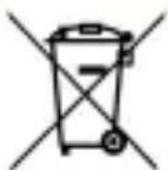
This product is subject to European Union regulations that promote the re-use and recycling of used electrical and electronic equipment. This product required the extraction and use of natural resources and may contain hazardous substances. The symbol above, on the product or its packaging, indicates that this product must not be disposed of with your other household waste. Instead, it is your responsibility to dispose of your waste equipment by handling it over to a designated collection point for the recycling of waste electrical and electronic equipment.
The separate collection and recycling of your waste equipment at the time of disposal will help to conserve natural resources and ensure that it is recycled in a manner that protects human health and the environment.
For more information about where you can drop of your waste equipment for recycling, please contact your local city office, your household waste disposal service, or the store from which you purchased the product.
Recommendations:
- Do not disassemble, open or tear up the device or the batteries.
- Do not expose the product or the battery to heat or fire. Avoid storage the device directly to the sunlight.
- Do not short-circuit a battery. Do not stock batteries in a drawer where it could short-circuit between each other or get in contact by any other metallic objects.
- Do not cause mechanical shocks to batteries.
- In case of the leak, do not let the liquid get in contact with your eyes or skin. If that happens wash with clear water the affected zone and seek medical advice.
- Follow the marks plus (+) and minus (-) on the battery and the device and ensure that the use is correct.
- Do not use any accessories or batteries that are not made to be used with the device.
- Monitor the use of batteries by children.
- Consult a doctor immediately in case of ingestion of an element or a battery.
- Always buy the battery recommended by the manufacturer of the device.
-
Always maintain the product and the battery clean and dry.
-
Wipe the terminals of the product or the battery, if it became dirty, with a clean and dry rag.
- It is necessary to charge the battery before its use. Always use the charger and read the manufacturer instructions or the manual of the device for the instructions regarding charging.
- Do not leave a battery charged when it's not going to be used.
- After long periods of storage, it may be necessary to charge and discharge the battery several times in order to achieve maximum performance.
- Always keep the original documentation of the device, you might need it later for future reference.
- If it's possible, take out the battery of the device when it's not used.
- Do not store your device in extremely hot or cold places like inside of a car during the summer. It might damage the device and cause explosion of the battery. It's recommended to use the device in a range of temperatures between 5°C and 35°C.
RADIO WAVES
Proof of compliance whit international standards (ICNIRP) or with European Directive 1999/5/EC (R&TTE) is required of all mobile phone models before they can be put on the market. The protection of the health and safety for the user any other person is an essential requirement of these standards or this directive.
THIS DEVICE MEETS INTERNATIONAL GUIDELINES FOR EXPOSURE TO RADIO WAVES
Your mobile device is a radio transmitter and receiver. It is designed not to exceed the limits for exposure to radio waves (radio frequency electromagnetic fields) recommended by international guidelines. The guidelines were developed by an independent scientific organization (ICNIRP) and include a substantial safety margin designed to assure the safety of all persons, regardless of age and health.
The radio wave exposure guidelines use a unit of measurement known as the Specific Absorption Rate, or SAR. The SAR limit for mobile devices is 2 W/kg.
Tests for SAR are conducted using standard operating positions with the device transmitting at its highest certified
power level in all tested frequency bands.
Body-worn SAR testing has been carried out at a separation distance of 1.0 cm. to meet RF exposure guidelines during body-worn operation, the device should be positioned at least this distance away from the body. If you are not using an approved accessory ensure that whatever product is used is free of any metal and that it positions the phone the indicated distance away from the body.
For more information you can go to www.sayyezz.com
Additional information about electromagnetic fields and public health are available on the following site. http://www.who.int/peh-emf.
Your telephone is equipped whit a built-in antenna. For optimal operation, you should avoid touching it or degrading it.
As mobile devices offer a range of functions, they can be used in positions other that against your ear. In such circumstances the device will be compliant whit the guidelines when used with headset or USB data cable. If you are using another accessory ensure that whatever product is used is free of any metal and that it positions the phone at least 1.0 cm away from the body.
LICENCES
The Bluetooth word mark and logos are owned by Bluetooth SIG, Inc. and any use of such marks by DDMBrands LLC and its affiliates is under license. Other trademarks and trade names are those of their respective owners.
RADIO WAVES
Proof of compliance whit international standards (ICNIRP) or with European Directive 1999/5/EC (R&TTE) is required of all mobile phone models before they can be put on the market. The protection of the health and safety for the user any other person is an essential requirement of these standards or this directive.
THIS DEVICE MEETS INTERNATIONAL GUIDELINES FOR EXPOSURE TO RADIO WAVES
Your mobile device is a radio transmitter and receiver. It is designed not to exceed the limits for exposure to radio waves (radio frequency electromagnetic fields) recommended by international guidelines. The guidelines were developed by an independent scientific organization (ICNIRP) and include a substantial safety margin designed to assure the safety of all persons, regardless of age and health.
EU Regulatory Conformance
Hereby, this device is in compliance with the essential requirements and other relevant provisions of Directive 1999/5/EC.
For the declaration of conformity, visit the Web site www.sayyezz.com/certifications.
Notice: Observe the national local regulations in the location where the device is to be used. This device may be restricted for use in some or all member states of the European Union (EU)
Notes:
- Due to the used enclosure material, the mobile phone shall only be connected to a USB Interface of version 2.0 or higher. The connection to so called power USB is prohibited.
- The adapter shall be installed near the equipment and shall be easily accessible.
- Do not use the mobile phone in the environment at too high or too low temperature, never expose the mobile phone under strong sunshine or too wet environment. The suitable temperature for the phone and accessories is -10°C-55°C.
- When charging, please place the phone in an environment that has a normal room temperature and good ventilation. It is recommended to charge the phone in an environment with a temperature that ranges from 5°C\~25°C. Please ensure to use only the charger offered by the manufacturer. Using unauthorized charger may cause danger and violate the authorization of the phone and the guarantee article.
- CAUTION: RISK OF EXPLOSION IF BATTERY IS REPLACED WITH AN INCORRECT TYPE. DISPOSE USED BATTERIES ACCORDING TO THE INSTRUCTIONS
- Excessive sound pressure from earphones and
headphones can cause hearing loss.
For more information you can go to www.sayyezz.com
Additional information about electromagnetic fields and public health are available on the following site. http://www.who.int/peh-emf.
Your telephone is equipped whit a built-in antenna. For optimal operation, you should avoid touching it or degrading it.
As mobile devices offer a range of functions, they can be used in positions other that against your ear. In such circumstances the device will be compliant whit the guidelines when used with headset or USB data cable. If you are using another accessory ensure that whatever product is used is free of any metal and that it positions the phone at least 1.5 cm away from the body.
LICENCES
Bluetooth SIG, Inc. owns the Bluetooth word mark and logos and any use of such marks by DDM Brands LLC and its affiliates is under license. Other trademarks and trade names are those of their respective owners.
We, DDM BRANDS LLC
(1616 NW, 84 ^TH Ave. Miami, Florida U.S.A. 33126)
Hereby declares that:
YEZZ compiles with the standards and provisions of the directives. The certificate of conformity procedure defined in article IV of directive 1999/5/EC has been under the control of the following organization:
BAY AREA COMPLIANCE LABORATORIES CORP.
1274 Anvilwood Ave. Sunnyvale, CA 94089. USA
www.baclcorp.com
Phone: +1 408 732 9162 Fax: +1 408 732 9164
The full text of the certificate of conformity of the device is available upon request by mail at the following address: DDM BRANDS LLC – 1616 NW 84 ^TH Ave. Miami, Florida U.S.A. 33126.
2015/06/25
(Date)
Luis Sosa / CEO
(Name and signature of authorized person)
| Maximum SAR for this model and conditions under which it was recorded: | |
| EGSM 900 | 0.256 W/kg 10g Head SAR | 0.580 W/kg 10g Body SAR |
| DCS 1800 | 0.269 W/kg 10g Head SAR | 0.628 W/kg 10g Body SAR |
| WCDMA 900 | 0.096 W/kg 10g Head SAR | 0.232 W/kg 10g Body SAR |
| WCDMA 2100 | 0 245 W/kg 10g Head SAR | 0.491 W/kg 10g Body SAR |
During use, the actual SAR values for this device are usually well below the values stated above. This is because, for purposes of system efficiency and to minimize interference on the network, the operating power of your mobile device is automatically decreased when full power is not needed for the call. The lower the power output of the device, the lower its SAR value.
FCC
Please take time to read this important section.
FCC Caution
Any Changes or modifications not expressly approved by the party responsible for compliance could void the user's authority to operate the equipment.
Before a new model phone is available for sale to the public, it must be tested and certified to the FCC that it does not exceed the exposure limit established by the FCC, Tests for each phone are performed in positions and locations (e.g. at the ear and worn on the body) as required by the FCC.
This device complies with part 15 of the FCC Rules. Operation is subject to the following two conditions: (1) This device may not cause harmful interference, and (2) this device must accept any interference received, including interference that may cause undesired operation.
Note: This equipment has been tested and found to comply with the limits for a Class B digital device, pursuant to part 15 of the FCC Rules. These limits are designed to provide reasonable protection against harmful interference in a residential installation.
This equipment generates, uses and can radiate radio frequency energy and, if not installed and used in accordance
with the instructions, may cause harmful interference to radio communications. However, there is no guarantee that interference will not occur in a particular installation. If this equipment does cause harmful interference to radio or television reception, which can be determined by turning the equipment off and on, the user is encouraged to try to correct the interference by one or more of the following measures:
- Reorient or relocate the receiving antenna.
- Increase the separation between the equipment and receiver.
- Connect the equipment into an outlet on a circuit different from that to which the receiver is connected.
- Consult the dealer or an experienced radio/TV technician for help.

natural_image
Top-down view of a smartphone showing two red arrows inside a rectangular panel, with no text or symbols present.BAY AREA COMPLIANCE LABORATORIES CORP.
1274 Anvilwood Ave. Sunnyvale, CA 94089. USA
www.baclcorp.com
Phone: +1 408 732 9162 Fax: +1 408 732 9164
| Maximum SAR for this model and conditions under which it was recorded: | |
| GSM 900 | 0.256 W/kg 10g Head SAR – 0.580 W/kg 10g Body SAR |
| GSM 1800 | 0.269 W/kg 10g Head SAR – 0.628 W/kg 10g Body SAR |
| WCDMA 900 | 0.096 W/kg 10g Head SAR – 0.232 W/kg 10g Body SAR |
| WCDMA 2100 | 0.245 W/kg 10g Head SAR – 0.491 W/kg 10g Body SAR |
The supplied accessories perform best for your phone.
natural_image
Top-down view of a smartphone showing two red arrows inside a rectangular panel, with no text or symbols present.Learn the basics of using the phonebook feature.
Adauga un prieten:
Adauga o cenexiune noua
BAY AREA COMPLIANCE LABORATORIES CORP.
1274 Anvilwood Ave. Sunnyvale, CA 94089. USA
www.baclcorp.com
Phone: +1 408 732 9162 Fax: +1 408 732 9164
natural_image
Top-down view of a smartphone showing two red arrows inside a rectangular panel, with no text or symbols present.BAY AREA COMPLIANCE LABORATORIES CORP.
1274 Anvilwood Ave. Sunnyvale, CA 94089. USA
www.baclcorp.com
Phone: +1 408 732 9162 Fax: +1 408 732 9164



- BAY AREA COMPLIANCE LABORATORIES CORP.
- INTRODUCING YOUR MOBILE PHONE
- Unpacking
- Phone layout
- Keys
- Screen
- Icons
- PREPARING YOUR MOBILE PHONE
- Install the SIM card and battery
- Insert the SIM card.
- Insert a memory card (optional)
- USING BASIC FUNCTIONS
- Turn your phone on and off
- Access menus and applications
- Use basic call functions
- Make a call:
- To answer a call:
- Send and view messages
- Steps to send Text and Multimedia Messages:
- Add contacts
- Add a new contact:
- Search for a contact
- Listen to music
- Listen to the FM radio:
- Listen to music files:
- Browse the web
- USING THE CAMERA
- Capture pictures
- See the captured pictures
- CONNECTING TO INTERNET
- Add a new connection
- Switch between carriers (SIM cards)
- USING THE BLUETOOTH
- Turn on the Bluetooth wireless feature
- Find and pair with other Bluetooth enabled devices
- Send images using the Bluetooth wireless feature
- Receive images using the Bluetooth wireless feature
- USING THE Wi-Fi
- Connect to a wireless network
- Disconnect from a wireless network
- View the technical details of a wireless network
- EU WEEE
- Recommendations:
- RADIO WAVES
- THIS DEVICE MEETS INTERNATIONAL GUIDELINES FOR EXPOSURE TO RADIO WAVES
- LICENCES
- EU Regulatory Conformance
- Notes:
- FCC
- FCC Caution
- Adauga un prieten:
- Adauga o cenexiune noua
Brand : YEZZ
Model : Andy 3.5EI2
Category : Smartphone