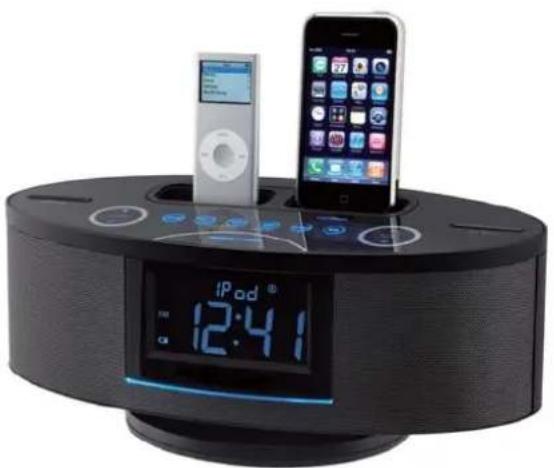
AMP10 - Docking station AKAI - Free user manual and instructions
Find the device manual for free AMP10 AKAI in PDF.


| Brand | AKAI |
| Model | AMP10 |
| Product type | Multimedia docking station with alarm clock |
| Dimensions (L x W x H) | 320 x 136.7 x 122.5 mm |
| Weight | 1.35 kg |
| Power supply | 230 V AC, 50 Hz (power adapter) |
| Power consumption | 21 W |
| Output power | 2 × 5 W (THD 10%) |
| Speakers | 2 x 2.5 in (8 Ω) speakers + 1 passive subwoofer |
| FM frequency range | 87.5 MHz – 108.0 MHz |
| MW frequency range | 522 kHz – 1620 kHz |
| Radio presets | 40 (20 FM + 20 MW) |
| Auxiliary input | 3.5 mm jack socket (AUX IN) |
| Dock compatibility | iPod (various generations) and iPhone (3G, 3GS, etc.) |
| Main features | FM/MW radio, iPod/iPhone playback, dual alarms with radio/iPod/buzzer, sleep timer, 6-level dimmer, remote control |
| Backup battery | CR2032 (for clock and presets) |
| Maintenance and cleaning | Unplug before cleaning; soft dry cloth. Do not use abrasive products. |
| Safety | Do not expose to moisture or heat sources; leave 10 cm around for ventilation. |
| Spare parts and repairability | Entrust all repairs to a qualified technician. Use only manufacturer-recommended parts. |
| Included accessories | Power adapter, 6 iPod adapters, MW loop antenna, remote control (CR2032 battery included) |
| General information | AKAI AMP10 docking station - User manual available in PDF. |
Frequently Asked Questions - AMP10 AKAI
User questions about AMP10 AKAI
0 question about this device. Answer the ones you know or ask your own.
Ask a new question about this device
Download the instructions for your Docking station in PDF format for free! Find your manual AMP10 - AKAI and take your electronic device back in hand. On this page are published all the documents necessary for the use of your device. AMP10 by AKAI.
USER MANUAL AMP10 AKAI
1 MANUEL D'UTILISATION
29 USER MANUAL
AMP-10
Lire attentivement la notice avant d'utiliser l'appareil Before operating this product, please read user manual completely

Made for iPod
iPod is a trademark of Apple Inc., registered in the U.S. and other countries. iPod shown not included.
"Made for iPod" means that an electronic accessory has been designed to connect specifically to iPod and has been certified by the developer to meet Apple performance standards. Apple is not responsible for the operation of this device or its compliance with safety and regulatory standards.

Works with iPhone
iPhone is a trademark of Apple Inc., iPhone shown is not included.
"Works with iPhone" means that an electronic accessory has been designed to connect specifically to iPhone and has been certified by the developer to meet Apple performance standards. Apple is not responsible for the operation of this device or its compliance with safety and regulatory standards.
Table des matieres
INTRODUCTION 1
CONSIGNES DE SECURITE IMPORTANTES 2
AVANT L'UTILISATION 4
ENTRETIEN 4
ALIMENTATION DE RÉSERVE 5
COMMANDES ET INDICATEURS 7
TELECOMMANDE 9
FONCTIONNEMENT 10
RACCORDEMENT DE DISPOSITIFS EXTERNES 10
RéGLAGES ET FONCTIONNEMENT DE BASE 11
FONCTIONNEMENT DE LA RADIO 14
PREREGLAGE DES STATIONS DANS LA MEMOIRE DU SYNTONISEUR 16
MINUTERIE D'ARRÉT DIFFÉRÉ 18
RéGLAGE DE L'ALARME 19
FONCTIONNEMENT DU BALADEUR iPod/TELEPHONE-BALADEUR iPhone 21
TABLEAU DE COMPATIBILITÉ (ADAPTATEUR/STATION D'ACCUEIL) 23
COMMANDES DU BALADEUR iPod/TELPHONE-BALADEUR iPhone 24
GUIDE DE DÉPANNAGE 26
FICHE TECHNIQUE 27
BALADEURS iPod/TELÉPHONES-BALADEURS iPhone POUVANT ÉTRE UTILISÉS AVEC CET APPAREIL 28
INTRODUCTION
Introduction 29
Important Safety Instructions 30
Preparation for Use 32
Maintenance 32
Battery Back-Up System 33
Location of Controls & Indicators 35
Remote Control 37
Operating instructions 38
Connecting External Devices. 38
Setting & Basic Operations 39
Radio Operations 42
Presetting Stations In The Tuner Memory 44
Sleep Timer 46
Alarm Setting 47
iPod® / iPhone Operations 49
Dock Adaptor Compatibility 51
iPod / iPhone Operation Controls 52
Troubleshooting Guide. 54
Technical Specifications 55
The unit supports the listed iPod®s / iPhones .56
INTRODUCTION
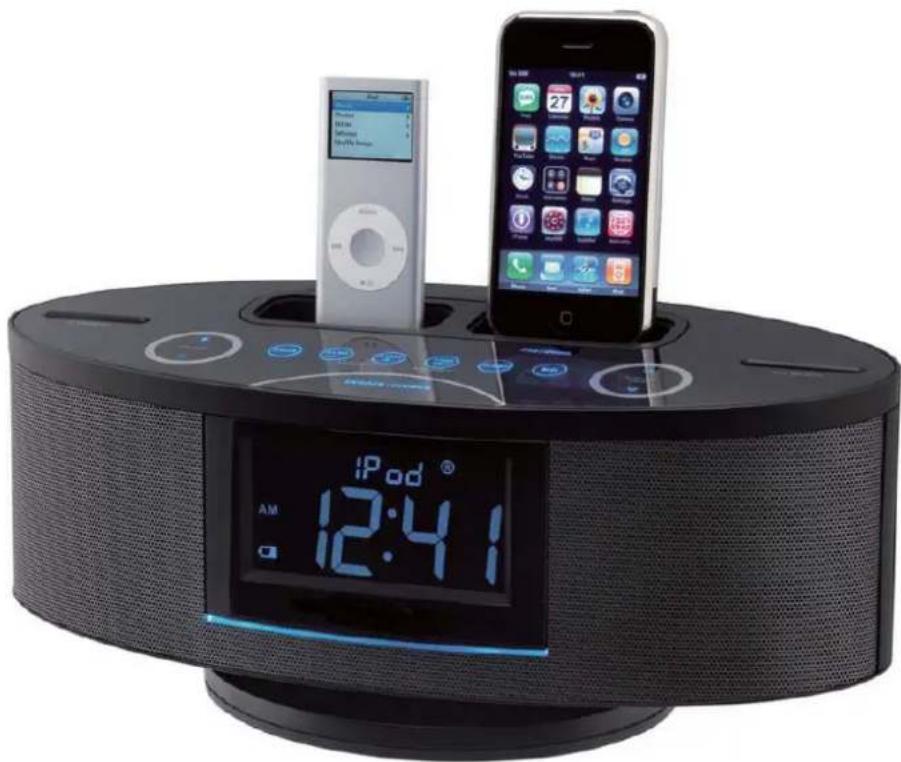
Thank-you for choosing the audio product. This digital music system comes with dual docks for playing and charging iPhone/iPod®, a MW/FM stereo digital tuner with 40 presets, dual alarm clock function with wake to iPhone/iPod®/radio/buzzer, jumbo backlit LCD display with six level dimmer control, two 2.5" speaker drivers, rear passive subwoofer, 10W system power and a full function remote control.
IMPORTANT SAFETY INSTRUCTIONS
1.) Read these instructions. Keep these instructions. Follow all instructions. Heed all warnings.
2.) Install this unit in accordance with the manufacturer's instructions.
3.) Only use attachments / accessories specified by the manufacturer.
4.) Use only with the cart, stand, tripod, bracket, or table specified by the manufacturer, or sold with the unit. When a cart is used, use caution when moving the cart/unit combination to avoid injury from tip-over.
5.) Use replacement parts as specified by the manufacturer.
6.) Do not install this unit near any heat sources such as radiators, heat registers, stoves, or other apparatus (including amplifiers) that produce heat.
7.) The unit shall not be exposed to dripping or splashing water and no object filled with liquids, such as vases, shall be placed on the apparatus.
8.) Do not use this apparatus near water and clean the unit with dry cloth only.
9.) Disconnect the unit from the power source when cleaning.
10.) No naked flame sources, such as lighted candles, should be placed on the unit.
11.) Keep the player clean and never store it next to a heat source or in dirty, humid or wet places. Keep it out of direct sunlight.
12.) Do not block any ventilation openings; the ventilation should not be impeded by covering the ventilation openings with items, such as newspapers, table-cloths, curtains, etc. Give minimum 100mm distances around the apparatus for sufficient ventilation.
13.) To prevent fire or shock hazard, do not expose this unit to rain or moisture.
14.) Do not subject the product to harsh impacts. Do not drop the appliance. This may result in damage to the product and loss of data.
15.) Care required with the use of this apparatus in tropical and/or moderate climates.
16.) Do not use this apparatus in an extremely dry environment, as this can lead to static discharge which can damage the player.
17.) When the unit experienced a crash due to a strong electromagnetic field or other interference. Please first switch off the mains and disconnect the main unit with the main power supply for a few minutes. Reconnect the unit with the power supply to reset the unit software, the unit will return to normal operation.
18.) To prevent fire or shock hazard, do not use this plug with an extension cord. receptacle or other outlet unless the blades can be fully inserted to prevent blade exposure.
19.) Unplug this unit during lightning storms or when unused for long periods of time.
20.) Where the MAINS plug is used as the disconnect device, the disconnect device shall remain readily operable.
IMPORTANT SAFETY INSTRUCTIONS
21.) Do not destruct the safety purpose of the polarized or grounding-type plug. A polarized plug has two blades with one wider than the other. A grounding type plug has two blades and a third grounding prong. The wide blade or the third prong is provided for your safety. If the provided plug does not fit into your outlet, consult an electrician for replacement of the obsolete outlet.
22.) Protect the power cord from being walked on or pinched particularly at plugs, convenience receptacles, and the point where they exit from the apparatus.
23.) Do not overload wall outlet. Use only power source as indicated.
24.) Upon completion of any service or repairs to this product, ask the service technician to perform safety checks.
25.) Refer all servicing to qualified service personnel. Servicing is required when the unit has been damaged in any way, such as power-supply cord of plug is damaged. Liquid has been spilled of objects have fallen into the unit, the unit has been exposed to rain or moisture, or has been dropped, does not operate normally.
26.) Batteries shall not be exposed to excessive heat such as sunshine, fire or the like.
27.) Attention should be drawn to the environmental aspects or battery disposal.
28.) This product is not intended for commercial use. Household use only.
29.) Do not install this apparatus in confined space, such as a book case or built-in cabinet. Minimum distance (about 10cm) around the apparatus for sufficient ventilation.
30.) To be completely disconnected the power input, the mains plug of apparatus shall be disconnected from the mains.
WARNING:
Handling the cord on this product or cords associated with accessories sold with this product, will expose you to lead, a chemical known to the state of California to cause cancer, and birth defects or other reproductive harm. Wash hands after handling.
PREPARATION FOR USE
Unpacking And Set Up
- Remove the main unit, the AC adaptor, the 6 iPod® adaptors, the lithium battery(CR2032) and the external MW Loop Antenna from the carton, and remove all packing material from the main unit. We recommend that you save the carton and packing material in the event that the unit ever needs to be returned for service.
- Remove any descriptive labels or stickers from the top or front panels of the unit but do not remove any labels or stickers from the back or bottom panels.
MAINTENANCE
Cleaning The Unit
- To prevent fire or shock hazard, disconnect your unit from the main power source when cleaning.
If the cabinet becomes dusty wipe it with a soft dry cloth. Do not use any wax or polish sprays on the cabinet. - If the cabinet becomes dirty or smudged with fingerprints, it may be cleaned with a soft cloth slightly dampened with a mild soap and water solution. Never use abrasive cloths or polishes, which will damage the finish of your unit.
Caution: Never allow any water or other liquids to get inside the unit while cleaning.
BATTERY BACK-UP SYSTEM
This system includes a battery back-up circuit that will maintain the time and alarm settings, and the preset tuner memories, in the event of a temporary power interruption. The battery back-up system requires one 3-Volt lithium button cell (Type CR2032 or equivalent). If the back-up battery is not installed, or the battery is exhausted, and the AC power supply is interrupted, the time, alarm, and preset memory stations will be lost. It will be necessary to reset the unit when the power is restored.
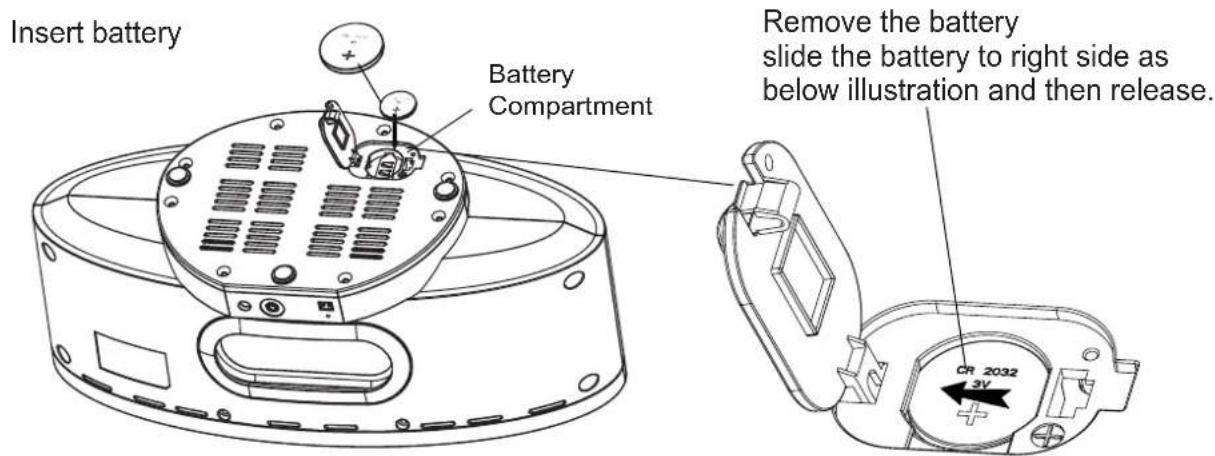
The Battery Back-Up compartment is located on the bottom cabinet.
Activating the Back-Up Battery
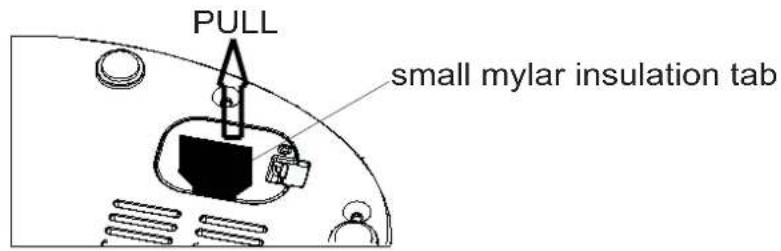
The CR2032 lithium battery is already installed in the battery compartment on the bottom, pull out the small mylar insulation tab as shown in the illustration to begin using the unit for maintain the time and alarm settings and the preset tuner memories.
Replacing The Back Up Battery
When it's time to replace the battery the Low Battery Icon ( ) will be shown in the lower left corner of the display. Insert a fresh CR2032 battery following the below procedure, however leave the unit connected to the AC adaptor while replacing the battery to avoid losing all of your settings.
- Turn the unit upside down on a soft surface such as a cloth or towel to avoid scratching the top cabinet surface.
- Open the battery compartment cover and remove the old battery as shown in the illustration.
- Insert a fresh, well-known brand of CR2032 lithium battery into the compartment with the "+" side facing up. Close the battery compartment cover.
- Turn the unit right side up.
Battery Precautions
Follow these precautions when using a battery in this device.
- Warning -Danger of explosion if battery is incorrectly replaced. Replace only with the same or equivalent type.
- Use only the size and type of battery specified.
- Be sure to follow the correct polarity when installing the battery as indicated in the Battery Compartment. A reversed battery may cause damage to the device.
- If the device is not to be used for a long period of time, remove the battery to prevent damage or injury from possible battery leakage.
- Do not try to recharge a battery not intended to be recharged; it can overheat and rupture. (Follow battery manufacturer's directions.)
- Battery shall not be exposed to excessive heat such as sunshine, fire or the like.
Using The AC Adaptor
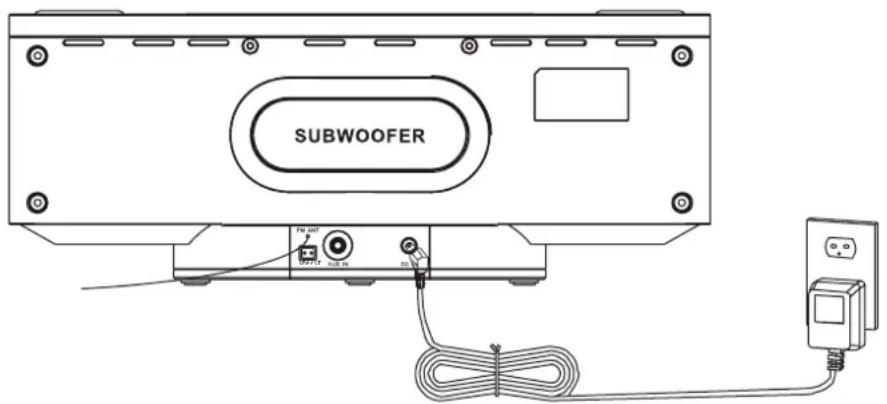
Connect the small female plug of the AC adaptor to the DC In Jack on the back panel. Connect the housing of the AC adaptor to the 230V AC outlet.
NOTES:
- The housing of the AC adaptor may become warm during operation. This is normal.
- To reduce the risk of electric shock never connect or disconnect the AC adaptor while your hands are wet.
- Please use original AC adaptor supplied with the unit, otherwise, will damage the unit.
LOCATION OF CONTROLS & INDICATORS
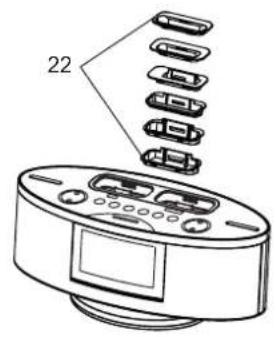
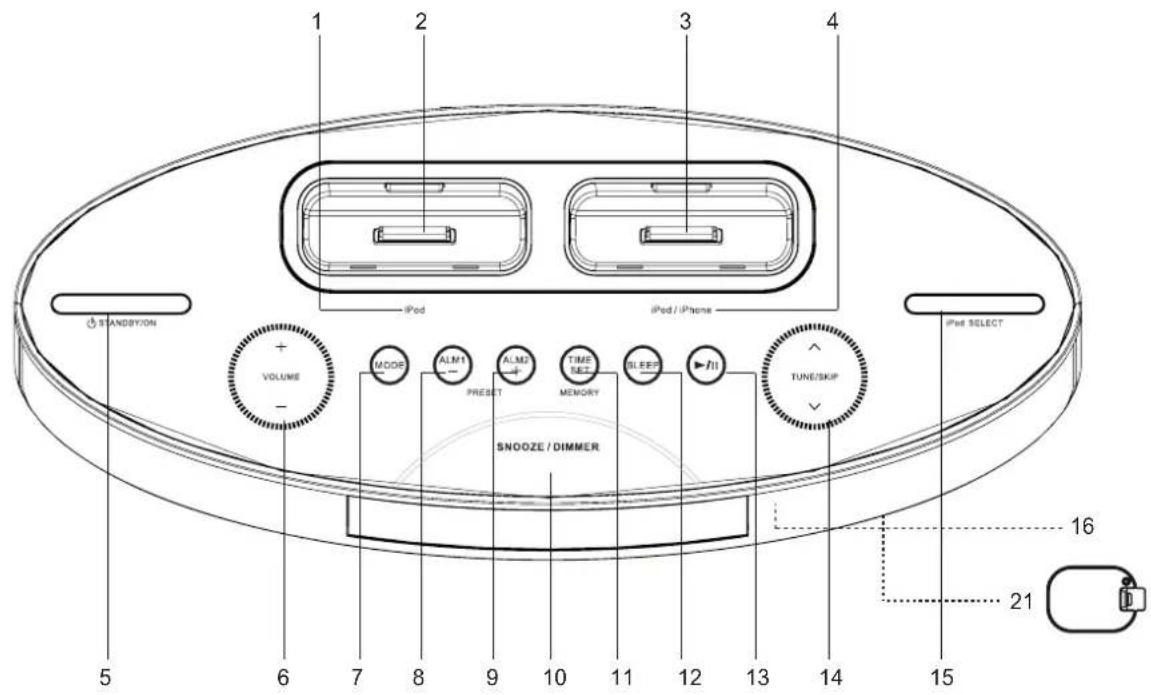
- iPod® Indicator
- Universal Dock for iPod®
- Universal Dock for iPod®/iPhone
- iPod®/iPhone Indicator
- STANDYBY/ON Button
- VOLUME + / - Control
- MODE Control
- ALM 1 / PRESET - Control
- ALM 2 / PRESET + Control
- SNOOZE/DIMMER Control
- TIME SET/MEMORY Control
-
SLEEP Control
-
PLAY/PAUSE /II Control
- TUNE/SKIPA / Control
- iPod SELECT Button
- Remote Sensor
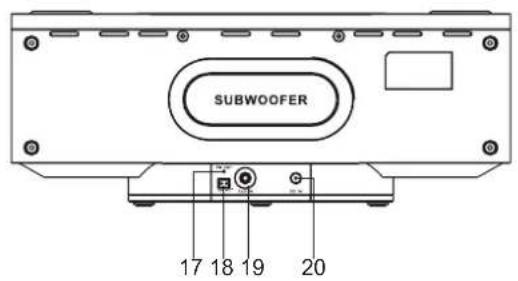
- FM ANTENNA
- MW ANTENNA Socket
- AUX IN Jack
- DC IN Jack
- Back-Up Battery Compartment (On Bottom Cabinet)
- iPod® Holders (6 inserts)
LOCATION OF CONTROLS & INDICATORS
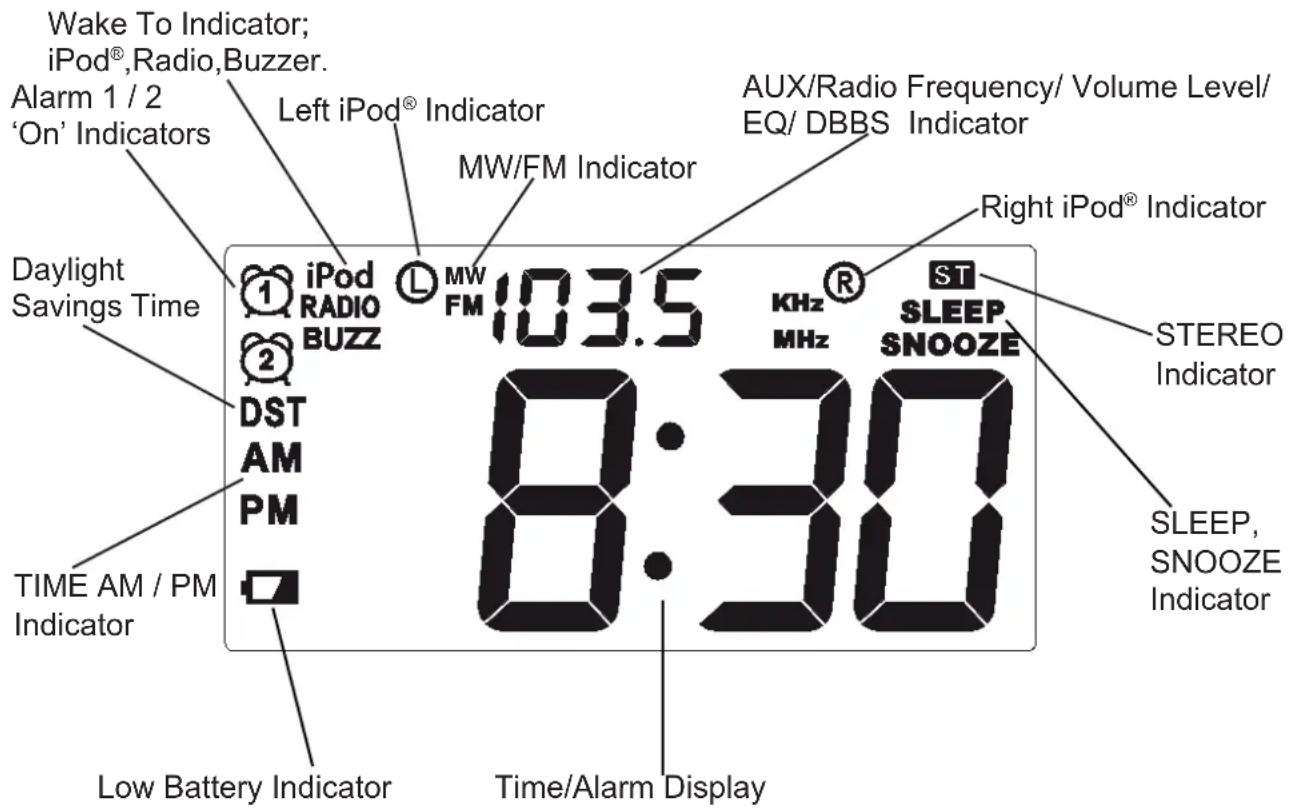
LCD DISPLAY
REMOTE CONTROL
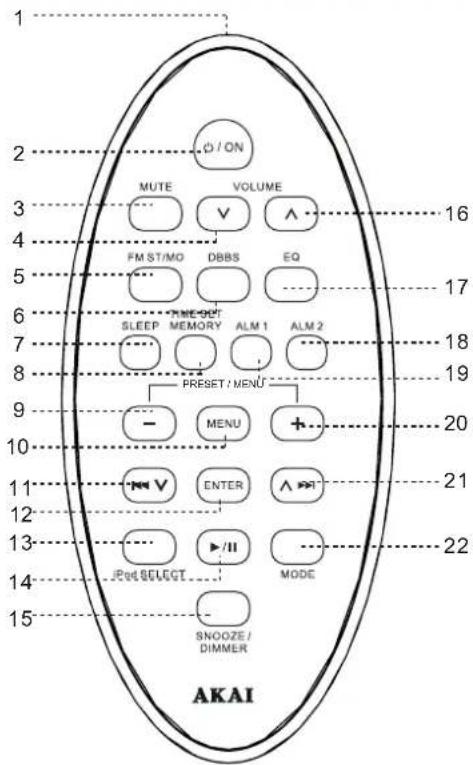
- Remote Control Transmitter
- /ONButton
- MUTE Button
- VOLUME · Button
- FM ST/MO Button
6.DBBSButton
7.SLEEPButton - TIME SET/MEMORY Button
- PRESET/MENU-Button
- MENU Button
- TUNE / SKIP V Button
- ENTER Button
- iPod SELECT Button
- PLAY/PAUSE Button
- SNOOZE / DIMMER Button
- VOLUME Button
- EQ Button
- ALM2Button
- ALM 1 Button
- PRESET / MENU + Button
- TUNE / SKIP A▶ Button
- MODE Button
Using The Remote Control
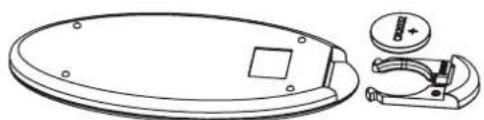
The CR2032 lithium battery is already installed in the remote control. Pull out the small mylar insulation tab as shown in the illustration to begin using the remote control.
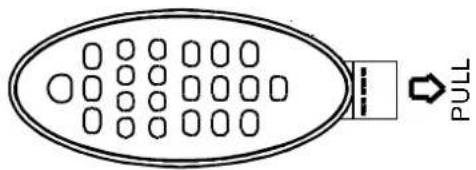
To use the remote controller, point the remote control transmitter on the remote control toward the remote control receiver on the front panel of the main unit and press the desired button. The effective range of the remote controller is approximately 20 feet. Please note that bright sunlight or artificial light may interfere with the proper operation of the remote control.
Battery Replacement
When the remote operation becomes weak or intermittent, it is time to replace the remote control battery. Pull out the battery holder, remove the old battery and install a new CR2032 battery in the holder as shown in the illustration. Slide the holder back into the remote control. NOTE: If the battery is installed incorrectly the remote control will not work.
OPERATING INSTRUCTIONS
- Make sure that you have fully extended the FM antenna wire.
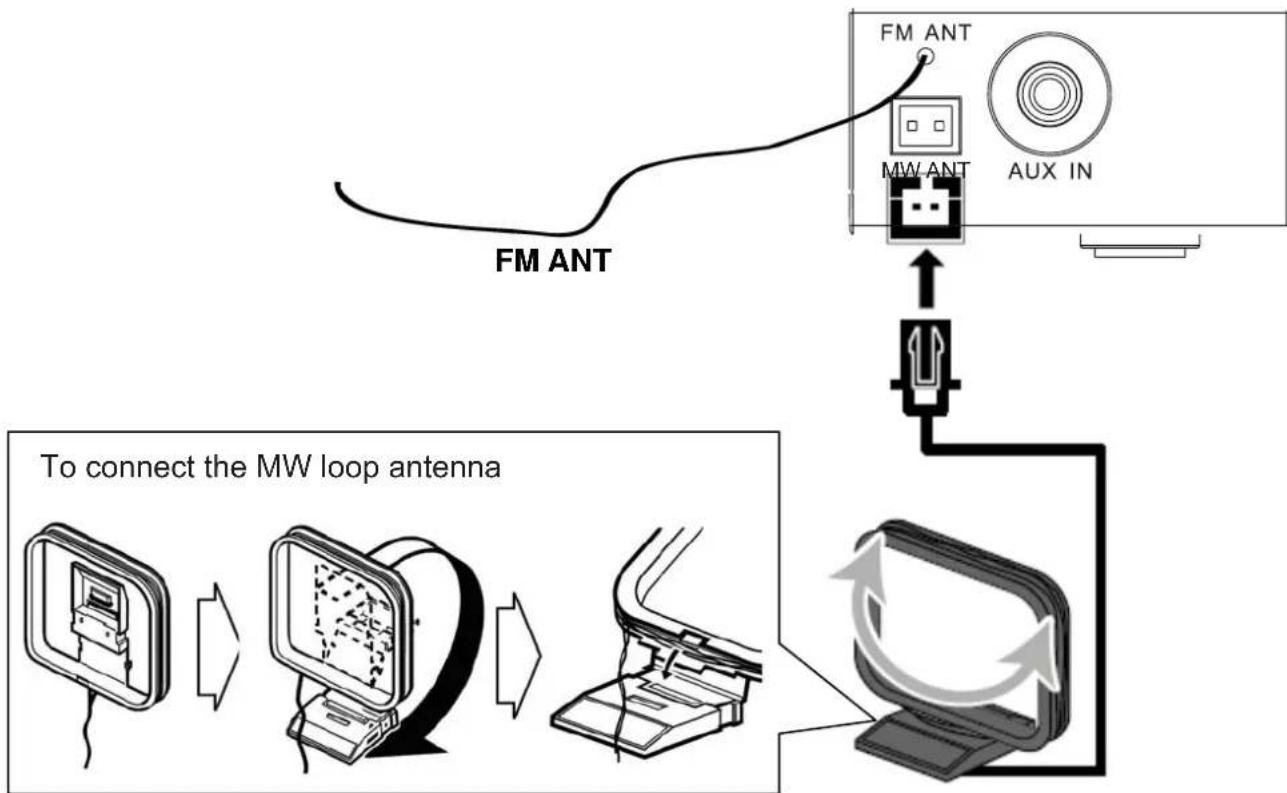
- Be sure to connect the external MW Loop Antenna to the MW Antenna Jack on the back panel if you are planning to listen to MW radio stations (refer to page 43 for connection information).
- Make sure you have removed the mylar insulation tab from the remote control.
- Make sure that the system is connected to an AC outlet that is always "live".
- Do not connect the system to an AC outlet controlled by a wall switch.
General Controls
Most of the main functions of this system can be operated by the controls on the top panel of the main unit, or by the buttons on the remote control. If a specific function can only be operated by the remote control, or by the top panel controls, this will be clearly indicated in the instructions.
When operating this system with the remote control, make sure that the IR (Infrared) transmitter on the front of the remote control is pointed at the remote sensor on the front panel of the main unit.
The effective operating range of the remote control is approximately 20 feet. Please note that bright sunlight or room lighting may interfere with the remote control operation. If the remote control is not operating properly, try reducing the brightness of the room or moving closer to the main unit. If this does not solve the problem, it may be time to change the remote control battery.
CONNECTING EXTERNAL DEVICES
Auxiliary Input Jack
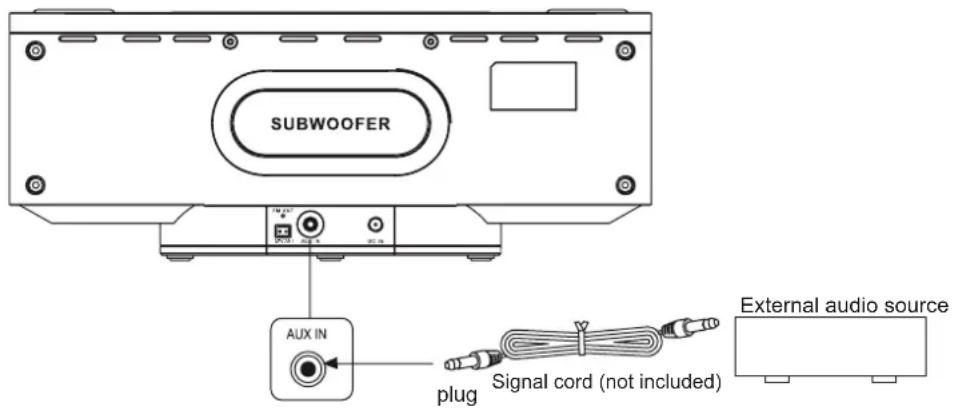
This system includes an AUX IN Jack to allow you to connect external audio equipment and listen to the sound from the external equipment through the speakers of this system.
To listen to the external audio source:
- Connect the external audio equipment to AUX IN jack on the rear panel of the system as shown below. The connection cable is not included:
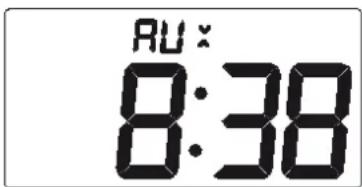
Select the AUX mode by repeatedly touching the MODE button on the top panel or by repeatedly pressing the MODE button on the remote control until the "AUX" indicator appears above the time display.
Sensor-Touch Control Information
All of the controls on the top panel of the main unit, with the exception of the / ON control and the iPod SELECT control, are special 'Sensor-Touch' controls. There are no buttons to 'push'. When you softly touch one of these 'buttons', it will flash 3 times to confirm it understood the command, and then the system will react accordingly.
Daylight Saving / Standard Time Selection
Note: This adjustment can only be made when the system is in the Standby Mode.
If you are currently observing Daylight Saving Time you should make this adjustment before you set the actual time. If you are currently observing Standard Time you do not need to make this adjustment now. Wait until the beginning of Daylight Saving Time.
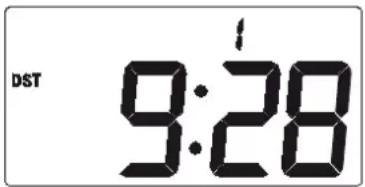
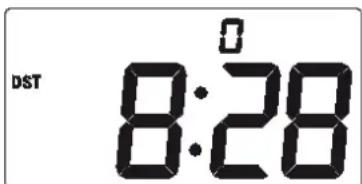
- With the system in the Standby mode, touch and hold the MODE control on the top panel or press and hold the MODE button on the remote control until the number "1" will briefly appear above the time display and the DST indicator also appears. The display will advance by one hour. After a few seconds the number "1" indicator disappears but the DST indicator remains in the display to confirm that the clock is showing Daylight Saving Time.
- At the end of Daylight Saving Time touch and hold the MODE control on the top panel or press and hold the MODE button on the remote control. Until the number "0" will briefly appear above the time display. The display will back up by one hour. After a few seconds the number "0" indicator and the DST disappears to confirm that the clock is showing Standard Time.
SETTING & BASIC OPERATIONS
Setting The Clock
When the system is connected to the 230V 50Hz AC Outlet for the first time, "0:00" will flash on the display.
0:00
Important: Do not press the / ON button to turn the system 'On'. The clock can only be set when the system is in the Standby Mode.
1.) Touch and hold the TIME SET control on the top panel, or depress and hold the TIME SET button on the remote control until only the "Hour" digits are flashing.
2.) Touch the TUNE/SKIP / Buttons on the top panel, or press the / Buttons on the remote control to set the correct hour. Be sure to observe the word to confirm that the hour is set correctly.
3.) Touch the TIME SET button on the top panel or depress the TIME SET button on the remote control then the "Minute" digits are flashing. Press the / buttons on the remote control or touch the TUNE/SKIP / buttons on the top panel to set the correct minute.
4.) When the correct time appears on the display, touch the TIME SET button on the top panel or press the TIME SET button on the remote control once more. The display stops flashing and the clock begins to run.
2:08
8:28
8:28
SETTING & BASIC OPERATIONS
Volume Controls
To increase or decrease the system volume, press the VOLUME or button on the remote control or VOLUME ^+ or - on the top panel.
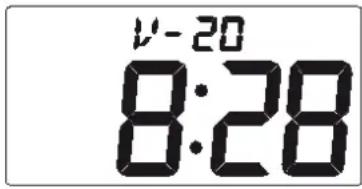
The Volume Level Indicator will appear on the display when you change the volume level.
The level indicator ranges from "00" (Minimum) to "30" (Maximum).
If the volume level is less than VOL 24, the system remembers the volume level when the power is switched 'off' and automatically returns to the same level when the power is switched 'on' again.
If the volume is level over VOL 24, When the power is switched 'off' and automatically returns to the default level(VOL 15) when the power is switched 'on' again.
EQ (ELECTRONIC Preset Equalizer)(On Remote Control Only)
The preset equalizer allows you to adjust the sound characteristic for the most popular types music.
Press the EQ button on the remote control to cycle through the following equalization modes:
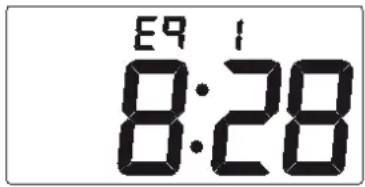

The appropriate EQ indicator briefly appears in the display to confirm your selection. The system remembers the EQ setting when the power is switched 'Off' and returns to the same setting when the power is switched 'On' again.
DBBS (Dynamic Bass Boost) Control(On Remote Control only)
Press the DBBS button on the remote control to increase the bass response. Press again to cancel the Bass Boost function.

MUTE Button (On Remote Control Only)
Press the MUTE button on the remote control to shut off the speakers temporarily, for example, to answer the telephone.
The sound stops and the Volume Level indicator begins flashing on the display.
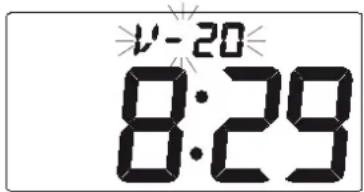
Press the MUTE button again to cancel the mute function and restore the sound.
The mute function will also be cancelled automatically by pressing the VOLUME or button on the remote control or touch the VOLUME ^+ or - on the top panel.
RADIO OPERATIONS
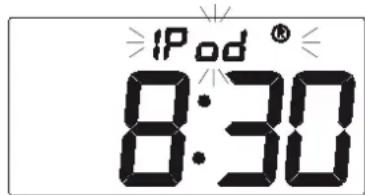
1.) Press the /ON button on the top panel or on the remote control to turn the system 'On'. The initial default Mode for this system is the iPod® function. The "iPod® indicator will flash above the time display.
2.) Touch the MODE button on the top panel or press the MODE button on the remote control until a FM or MW frequency appears above the time display.
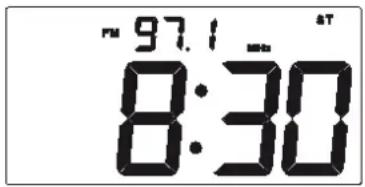
3.) Tune to the desired station as follows:
Automatic Tuning
Press and hold the / buttons on the remote control or touch the TUNE/SKIP v/ a buttons on the top panel until the frequency display starts to change, then release the buttons. The Tuner will search up or down the band for the next strong signal and stop on that station.
Manual Tuning
Repeatedly press the / buttons on the remote control or touch the TUNE/SKIP / buttons on the top panel until the display shows the frequency of the desired station. Note: Use the Manual Tuning method to tune to stations with weaker signals that may be bypassed during Automatic Tuning.
4.) If you tuned to a FM Stereo station the Stereo (ST) indicator will appear in the display. If FM stereo reception is noisy or weak, press the FM ST/MO button on the remote control to select the FM Mono mode. This will usually improve the reception but the sound will no longer be in stereo.
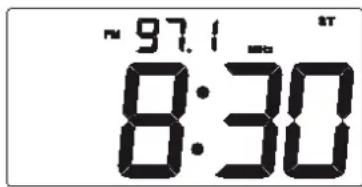
5.) When you finished listening press the / ON button on the top panel or on the remote control to turn the system 'Off'. The radio station frequency disappears from the display.
RADIO OPERATIONS
Hits For Better Reception
FM: The FM lead wire antenna on the back panel should be extended to its full length. You may also have to vary the direction of this antenna until you find the position that provides the best reception.
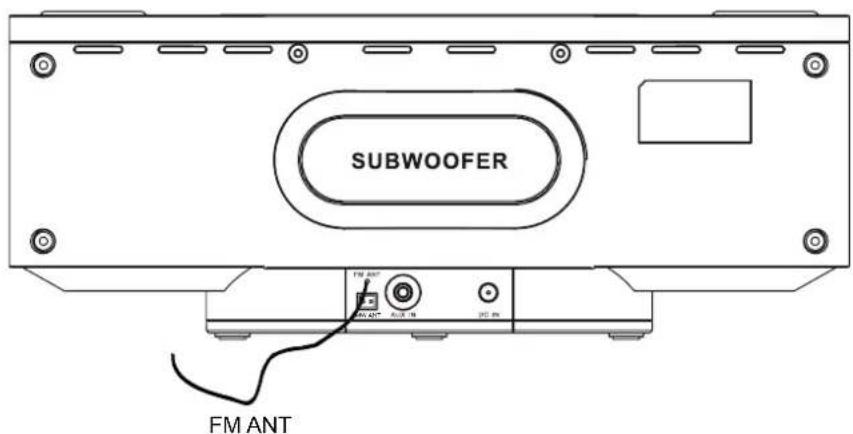
MW: Insert the small black plug at the end of the MW Loop antenna wire into the MW ANT jack on the back panel as shown in the illustration.
PRESETTING STATIONS IN THE TUNER MEMORY
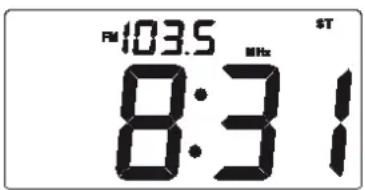
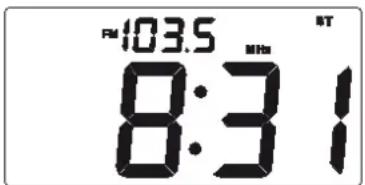
Up to 40 stations (20 MW / 20 FM) can be stored in the tuner memory for easy recall at any time. Use either the Automatic or Manual tuning methods described on page 42 to tune to the first station to be stored in memory. (Example "FM 103.5 MHz")
1.) When the desired station frequency appears in the display, press
and release the TIME SET / MEMORY button on the remote control or touch TIME SET / MEMORY on the top panel. The P-01(Preset Memory #1) indicator will begin flashing in place of the radio frequency display.
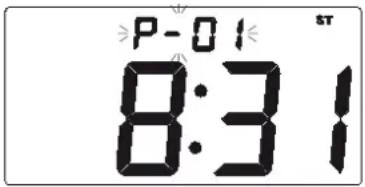
To enter your station in Preset Memory #1, press the TIME SET / MEMORY button on the remote control or touch TIME SET / MEMORY control on the top panel again. The P - 01 will stop flashing and remain on the display for 5 seconds, and then the display will return to the selected radio frequency. Your selected station has now been entered in Preset Memory #1.
Note: You must press the TIME SET / MEMORY button while the memory indicator is flashing in order to enter the station in memory. If the memory indicator stops flashing the station will not be entered in the memory.
2.) Tune to the next station that you want to memorize and when
that station appears in the display press the TIME SET / MEMORY once. The P - 01 indicator begins flashing. Press the PRESET / MENU + or - button on the remote control or touch PRESET / ALM1 - or PRESET / ALM2 + control on the top panel to select a different preset memory number, and then press the TIME SET / MEMORY button once more to enter your station in the selected preset memory number.
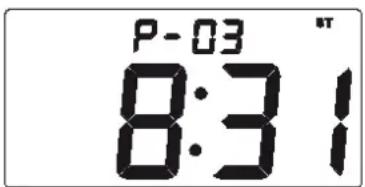
3.) Repeat Step 2, choosing a different preset memory number
each time until you have entered up to 20 stations on one band.
You may then select the MW band and follow the same
procedure to preset up to 20 MW stations in the tuner memory.
PRESETTING STATIONS IN THE TUNER MEMORY
Recalling Preset Stations
Simply press the PRESET / MENU + or - buttons on the remote control or touch the PRESET / ALM1 - or PRESET / ALM2 + control on the top panel to scroll forward or backward through the preset station memories.
Changing Preset Stations
Tune to the new station you want to memorize, press the TIME SET / MEMORY button on the remote control or touch the TIME SET / MEMORY control on the top panel, then press the PRESET / MENU + or - buttons on the remote control or touch the PRESET / ALM1 - or PRESET / ALM2 + control on the top panel to select the memory number you wish to change. When that memory number is flashing in the display, press the TIME SET / MEMORY button once. The new station is entered in the memory and the previously memorized station is erased.
Important: The back-up batteries will maintain the preset tuner memories in the event of a power interruption. However if the back up batteries are not installed, or exhausted, and the Adaptor is disconnected from the wall outlet or the plug is removed from the back of this system, the preset tuner memories will be erased. It will be necessary to re-enter the stations in the preset tuner memories when power is restored.
SLEEP TIMER
This system includes a programmable Sleep Timer that allows you to fall asleep to between 10 and 120 minutes of music and then turns the unit to standby automatically.
To operate the sleep timer:
1.) Turn the system 'On' and operate the TUNER function as usual.
2.) Press the SLEEP button on the remote control or the SLEEP control on the top panel.
3.) The display will show "SLEEP 120" indicating that the sleep timer will shut the power off after 120 minutes.
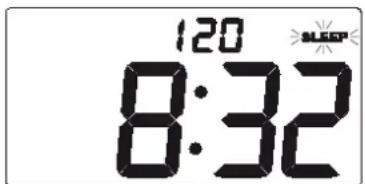
Repeatedly press the SLEEP button to decrease the amount of sleep timer operation.
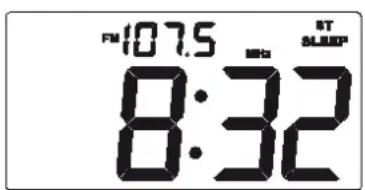
4.) After a few seconds the Sleep Time display disappears and the normal TUNER display returns, but the small SLEEP indicator remains in the display. When the Sleep Timer counts down to "00", the unit returns to the Standby (Power 'Off') mode automatically.
Note:
- You can shut the unit off manually before the Sleep Timer counts down to "00" by pressing the ON button at any time.
ALARM SETTING
NOTES:
- Use the Remote Control, you can set the Alarms in STANDBY mode or operation mode. (The ALM1/ALM2 on the top panel can only be set when the system is in the standby mode.)
- When setting the alarm be sure to observe to confirm that you have set the wake-up hour correctly.
The procedure for setting Alarm 1 and Alarm 2 is the same. The example below is for Alarm 1.
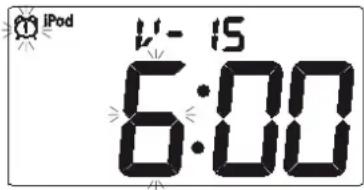
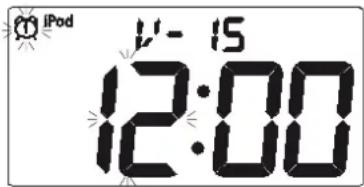
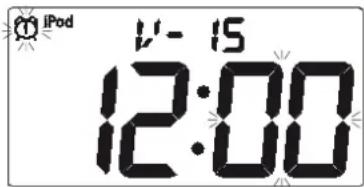
1). Press and hold the ALM 1 button on remote control or touch and hold the ALM 1 control on top panel, while the system is in the standby mode, the default alarm time (6:00) and the default alarm mode (iPod®) begin flashing in the display. Continue holding the ALM 1 button until only the HOUR digits are flashing.
2). Press the or buttons on the remote control or touch the TUNE/SKIP v or control on the top panel repeatedly to set the display to the desired wake-up Hour.
3). Press the ALM 1 button again. The Hour digits stop flashing and the Minute digits begin flashing.
4). Press the or buttons on the remote control or touch the TUNE/SKIP v or control on the top panel repeatedly to set the display to the desired wake up minutes.
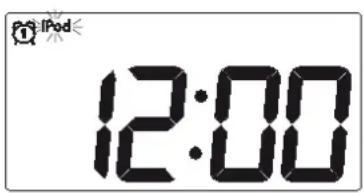
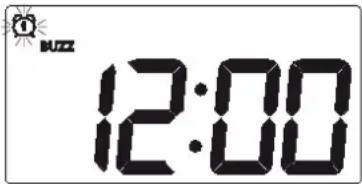
5). Press the ALM 1 button once more to select the wake-up Alarm Mode (iPod®, Radio or Buzzer). One of the 3 Alarm Mode indicators will be flashing in the display. Press the on buttons on the remote control or touch the TUNE/SKIP v or control on the top panel repeatedly to select the desired wake up mode, iPod®, Radio, or Buzzer (BUZZ).
6). Press the ALM 1 button once more. If you selected either the iPod® or Radio Alarm Mode, the Volume Level indicator begins flashing. Press the or buttons on the remote control or touch the TUNE/SKIP v or control on the top panel - not the Volume v / buttons - repeatedly to set the desired wake up volume level. Note: if you selected the wake up to Buzzer alarm mode the volume level is fixed and cannot be adjusted.
7). When all settings are completed press the ALM 1 button once more to exit the setting mode and activate Alarm 1. The display will continue to show all of your alarm settings for a few seconds and then return to the current time. However the Alarm 1 indicator (w) will remain in the display to confirm that the alarm is active.
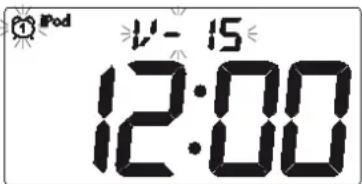
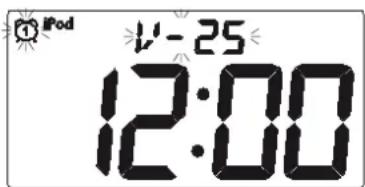
ALARM SETTING
8). At the selected wake-up time the system will turn on to the mode you selected. The alarm will continue for 1 hour and then shut off automatically and reset itself for the same time on the following day. Note: If you selected the wake to iPod mode but there is no iPod docked at the wake up time, the system will default to the wake to Buzzer mode automatically.
NOTE: If you selected the RADIO alarm mode, at the selected wake-up time the system will turn on to the last station you have listened. If you selected the wake to iPod® or radio mode, and the system is in iPod® or radio operation mode at the wake up time, the system will default to the wake to Buzzer mode automatically.
9). To shut the alarm off sooner, press the / ON (Power "Off") button at any time.
To check the alarm settings at any time, press the appropriate ALM 1 or ALM 2 button. The display will briefly show the current alarm settings for a few seconds and then return to the correct time, but the Alarm indicator will remain in the display indicating that the alarm is active. To deactivate the alarm press the appropriate ALM 1 or ALM 2 button once more. The Alarm indicator disappears and the alarm is cancelled.
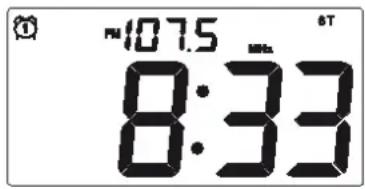
Snoopze / Display Dimmer Control
When the alarm turns the system 'On' to wake you, touch the SNOOZE / DIMMER area on the top panel or press the SNOOZE / DIMMER button on the remote control. The alarm will stop for 9 minutes and then turn 'On' again. This action can be repeated continuously, but if you don't press SNOOZE / DIMMER button again, after one hour the alarm will not turn 'On' again. The SNOOZE indicator appears in the display during Snooze Timer operation." To switch SNOOZE function off, you can press 口 /ON button.
During normal operation touch the SNOOZE / DIMMER area on the top panel or press the SNOOZE / DIMMER button on the remote control to control the brightness of the display. There are 6 levels of brightness that you can select. If you continue to press this control the display will return to full brightness.
This AKAI system includes two separate docking stations so that you can dock and charge two separate iPod® models, or one iPod® and one iPhone model simultaneously. Since this model is 'Works With iPhone' certified it is not necessary to place your iPhone in the Airplane mode to avoid audio interference. You will be able to make and receive calls, without interference, while the system is in operation.
Use the left side dock for any docking iPod® model. Use the right side dock for any docking iPod® model or any iPhone model.
IMPORTANT NOTES:
A. The right side dock labeled iPod®/iPhone has priority in this model. If you are playing an iPod® in the left side dock labeled iPod® and you insert an iPhone or iPod® in the right side dock, the system will automatically switch to the iPod® or iPhone in the right side dock.
B. When you dock an iPhone or certain newer iPod® models in either dock there may be a delay of several seconds before the system recognizes the device and the main menu is displayed. This is because the system and the docked device must go through an 'Authentication Process' before the docked device can accept any commands. THIS IS NORMAL AND NOT AN INDICATION OF ANY PROBLEM WITH YOUR SYSTEM.
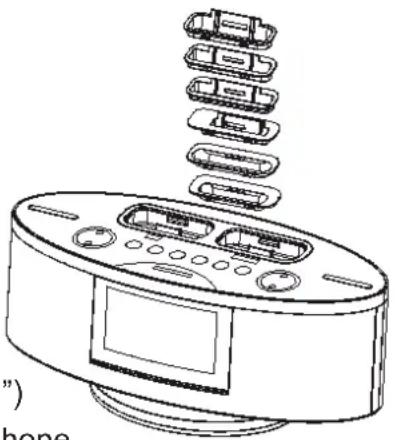
This system is supplied with 6 different iPod® adaptor/inserts intended to insure that older iPod® models fit properly in the docking area. If your iPod® was supplied with a docking adaptor at the time of purchase, that adaptor will fit properly into the docking area of this system. If you have an older iPod® model that was not supplied with a docking adaptor, please select the appropriate adaptor from the chart below. Each adaptor is identified by the letters "A" through "F" on the bottom of the adaptor. Select the adaptor with the letter that corresponds to your iPod® model. Position the adaptor in the docking area as shown and make sure that it 'locks' in place, then place your iPod® into the adaptor and make sure that the iPod® connector on this system is fully inserted into the slot on the bottom of your iPod®. When properly docked your iPod® should be 'leansing backward' slightly on a 15 degree angle. DO NOT ATTEMPT TO "STRAIGHTEN" YOUR IPOD®. THIS COULD RESULT IN DAMAGE TO THE DOCKING CONNECTOR OR DAMAGE TO YOUR IPOD®.
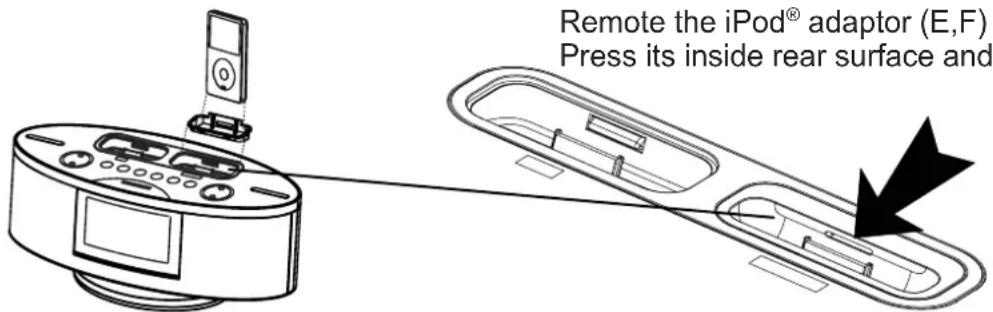
Remote the iPod adaptor (E,F) illustration Press its inside rear surface and pull it upward.
Choosing The Correct Adaptor

When connecting an iPod® / iPhone to this iPod® Dock, please ensure that the correct adaptor plate is used. FAILURE TO DO SO MAY RESULT IN DAMAGE TO THE iPod® / iPhone.
This iPod® Dock comes with 6 removable dock adaptors. Using the correct adaptor ensures the proper fit for your iPod® / iPhone and helps to reduce the stress on the connector when operating the iPod® / iPhone.
To place a dock adaptor:
- Refer to the compatibility table below and select the correct dock adaptor for the iPod® / iPhone.
- Place the proper adaptor into the dock and press it into position. The adaptor will only go in one way. The iPod® dock connector should fit through the opening in the bottom of the adaptor.
- Carefully align and then gently insert the iPod® / iPhone into the dock. (The iPod® / iPhone must not be in a case or "SKIN")
- To remove/replace a dock adaptor, first remove the iPod® / iPhone, then grip the adaptor and pull gently upwards.
Charging your iPod® / iPhone
Note: Please make sure you are using the correct insert for your iPod® / iPhone and that it is properly docked into this unit.
FAILURE TO DO SO MAY DAMAGE THE iPod®/ iPhone.
When an iPod® / iPhone is inserted into the dock, it will go to standby mode then turn off. While the iPod® / iPhone is docked in the system, it will recharge (until fully charged). Please note that older 3rd generation iPod® cannot be charged by this unit.
NOTE: In order to avoid interfering with the reception, the iPod® / iPhone will not be charged in the TUNER mode(FM / MW).
Dock Adaptor Compatibility
| A | B | C | D | E | F | ||
| 3G iPhone | 8GB | X | |||||
| 16GB | X | ||||||
| 3GS iPhone | 16GB | X | |||||
| 32GB | X | ||||||
| iPhone | 4GB | X | |||||
| 8GB | X | ||||||
| 16GB | X | ||||||
| 4G nano | 8GB | X | |||||
| 16GB | X | ||||||
| iPod® touch | 8GB | X | |||||
| 10GB | X | ||||||
| 3G nano | 4GB | X | |||||
| 8GB | X | ||||||
| iPod® classic | 80GB | X | |||||
| 120GB | X | ||||||
| 160GB | X | ||||||
| 2G nano | 2GB | X | |||||
| 4GB | X | ||||||
| 8GB | X | ||||||
| 5G iPod® (with video) | 30GB | X | |||||
| 60GB | X | ||||||
| 80GB | X | ||||||
| iPod® nano | 2GB | X | |||||
| 4GB | X | ||||||
| iPod® photo | 20GB | X | |||||
| 30GB | X | ||||||
| 40GB | X | ||||||
| 60GB | X | ||||||
| 4G iPod® | 20GB | X | |||||
| 40GB | X | ||||||
| iPod® mini | 4GB | X | |||||
| 6GB | X | ||||||
| 3G iPod® (Play only will not charge) | 10GB | X | |||||
| 15GB | X | ||||||
| 20GB | X | ||||||
| 30GB | X | ||||||
| 40GB | X | ||||||
iPod®/iPhone OPERATION CONTROLS
▶/II Play/Pause) - Touch this area on the top panel or Press this button on the remote control to begin playback on your iPod®/iPhone. Press again to Pause playback.
/ TUNE/SKIP buttons on Main Unit - During playback press to skip forward or backward to the next or previous track.
/ Skip Back/Forward buttons on Remote control - During playback press to skip forward or backward to the next or previous track.
iPod® SELECT - Touch or press this button to switch between the iPod® in the left dock and the iPod® or iPhone in the right dock. Indicators on the top panel and in the main display will show which device has been selected.
MENub button (Remote control Only) - Press this button to access the Menu of the iPod or iPhone which is playing. This button operates exactly like the Menu button on the iPod itself.
- / - (Plus/Minus) buttons on Remote Control – After pressing the MENU button to access the iPod®/iPhone Menu, press the + or - buttons to move up(+) or down(-) within the Menu display.
ENTER button (Remote Control Only) - After selecting the desired Genre, Album, Song, etc in the Menu display with the + or - buttons, press the ENTER button to Enter (Open) that Genre, Album, or begin playback of the selected song.
1). If necessary, press the / button on the top panel or the remote control to turn the system 'On'.
2). If necessary, touch the MODE control on the top panel or press the MODE button on the remote control to select the iPod mode. The word "iPod" begins flashing above the time display and the "R" (Right) iPod indicator appears
3). Make sure that you have inserted the correct adaptor into the right dock and then insert your iPod® or iPhone into the adaptor. The word "iPod®" stops flashing and remains 'On'. Your iPod®/iPhone display will come on. If you were playing music on your iPod®/iPhone before inserting in the dock your iPod®/iPhone may change to pause mode, but it may take several seconds for your iPod® or iPhone to go through the authentication process. If your iPod® or iPhone was in the Pause mode when inserted into the dock it may remain in the Pause mode. In that case touch the Play/Pause (▶/II) area on the top panel or press the Play/Pause (▶/II) button on the remote control to release the Pause mode and resume playback.
4). To skip forward or backward to different tracks, touch the TUNE/SKIP / controls on the top panel or press the / buttons on the remote control.
iPod®/iPhone OPERATION CONTROLS
5). The MENU button on the remote control works the same way as the MENU button on your iPod®. Press the MENU button repeatedly to access the Main Menu of your iPod®. Press the + or - buttons on the remote control to navigate Up or Down through the displayed Menu list. When the desired Genre, Artist, Album, or Song is 'highlighted' on your iPod® Menu display, press the ENTER button on the remote control to 'Enter' or 'Select' the highlighted item. If the highlighted item is a specific song, pressing the ENTER button will begin playback of that song.
6). If you have two iPod models, or an iPod® and an iPhone docked at the same time you can switch between the two devices by pressing the iPod® SELECT button on the top panel or the remote control.
7). To pause iPod® playback touch the / control on the top panel or press the / button on the remote control. Press again to release pause and resume iPod® playback.
8). To stop iPod® playback touch and hold the /II control on the top panel or depress the /II button on the remote control until your iPod® shuts off and enters the 'Charging' mode. However please note that the system power remains 'On'.
9). To shut the system 'Off' completely, press the ON button on the top panel or remote control. The control panel lighting turns 'Off' and any iPod® or iPhone in the docking area will shut off and enter the Charging mode.
TROUBLESHOOTING GUIDE
| Symptom | Possible Cause | Solution |
| Radio | ||
| Noise or sound distorted on FM or MW broadcasts. | Station not tuned properly for FM or MW. | Retune FM or MW broadcast station. |
| FM: Wire aerial is not positioned correctly. | Extend FM wire aerial. | |
| Loop aerial is not positioned correctly. | Reposition so that the best reception is obtained. | |
| FM STEREO indicator does not light. | FM station is mono or station signal is weak. | Extend FM aerial. Try other strong stations. |
| MW or FM, no sound. | Function is not set to Tuner. | Press MODE button to select Tuner function. |
| Volume at minimum. | Increase Volume. | |
| iPod® Player | ||
| Unit does not respond (no power) | AC adaptor is not plugged into a wall outlet or the connector is not plugged into the DC IN jack on the back of the unit. | Plug the AC adaptor into a wall outlet and plug the connector into the DC IN jack on the unit. |
| Using no or wrong iPod® insert | Make sure the dock insert is the proper fit for the iPod®. | |
| iPod® does not dock porperly | iPod® did not install properly | Remove the iPod® from the dock and check for obstruction on the connections in the dock and on the iPod®, Then reseat it in the dock. |
| iPod® does not respond to the unit. | iPod® is not installed properly | Remove the iPod® from the dock and check for obstruction on the connections in the dock and on the iPod®, Then reseat it in the dock. |
| iPod® is locked up | Please make sure your iPod® is working properly before docking into the unit. Please refer to the iPod® manual for details. | |
| Using first or second generation iPod®, iPod® Shuffle or other devices. | This unit cannot control those iPod® or other devices. | |
| iPod® did not charge up | iPod® is not installed properly | Remove the iPod® from the dock and check for obstruction on the connections in the dock and on the iPod®, Then reseat it in the dock. |
| iPod® is locked up/frozen | Please make sure your iPod® is working properly before docking into the unit. Please refer to the iPod® manual for details. | |
| iPod® battery has problem |
Remarks:
If troubleshooting(see above) does not eliminate the problem, disconnect the unit from the main power and re-connect after a few seconds. Resetting causes the unit to restore its factory default setting and results in all the setting made by the user being deleted.
TECHNICAL SPECIFICATIONS
1. General
Power requirements
Power consumption
Dimensions of main unit
Weight of main unit
AC 230V, 50Hz
21W
320mm(W) x 136.7mm(D) X 122.5mm(H)
1.35 Kg
2. Amplifier
Power Output
5W×2 THD 10%
3. Tuner
MW Tuning range
FM Tuning range
520 KHz to 1710 KHz
87.5 MHz to 108.0 MHz
4. Speaker system
Impedance
8Ω 2.5" Speaker x 2 + passive subwoofer panel system
5. AUX IN
Input
Φ3.5mm
Max voltage
1V
Impedance
47 KΩ
Specifications subject to change without notice.
THE UNIT SUPPORTS THE LISTED iPod®s / iPhones
- iPod® / iPhone charge and operation only*
iPod®s / iPhones shown are not included
| Made for iPod® mini (4GB, 6GB only) | Made for iPod® (4th generation) (20GB only) | Made for iPod® (4th generation) (40GB only) |
| Made for iPod® with color display (4th generation) (20GB, 30GB only) | Made for iPod® with color display (4th generation) (40GB, 60GB only) | Made for iPod® with video (5th generation) (30GB only) |
| Made for iPod® with video (5th generation) (60GB, 80GB only) | Made for iPod® nano (1st generation) (1GB, 2GB, 4GB only) | Made for iPod® nano (2nd generation) (aluminum) (2GB, 4GB, 8GB only) |
| Made for iPod® nano (3rd generation) (video) (4GB, 8GB only) | Made for iPod® nano (4th generation) (8GB, 16GB only) | Made for iPod® classic (80GB, 160GB only) |
| Made for iPod® classic (2nd generation) (120GB only) | Made for iPod® touch (8GB, 16GB, 32GB only) | Made for iPod® touch (2nd generation) (8GB, 16GB, 32GB only) |
| Made for iPhone (4GB, 8GB, 16GB only) | Made for 3G iPhone (8GB, 16GB only) | Made for 3GS iPhone (16GB, 32GB only) |
AKAI
www.akai-france.com