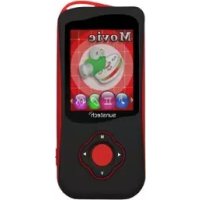
Gaia - Mp3 player Sunstech - Free user manual and instructions
Find the device manual for free Gaia Sunstech in PDF.



| Product type | MP3 player |
| Brand | Sunstech |
| Model | Gaia |
| Dimensions | 40 x 87 x 10.5 mm |
| Weight | Approximately 50 g |
| Display | 1.8 inch TFT (128x160) |
| Memory capacity | 4 GB (Flash) |
| Supported audio formats | MP3, WMA |
| Supported video formats | AMV |
| Supported image formats | JPG, BMP |
| FM radio | Yes (76-108 MHz) |
| Voice recording | Yes (WAV format up to 256 Kbps) |
| Connectivity | USB 2.0 (5-pin micro USB), micro SD card reader |
| Headphone output | 2 x 10 mW (32 Ohms) |
| Power | Rechargeable battery via USB, battery life approximately 10 hours |
| Display languages | Multi-language (English, French, Spanish, etc.) |
| Supported systems | Windows, Mac |
| Operating temperature | 5°C to 40°C |
| Additional functions | Shuffle play, A-B repeat, equalizer (Rock, Pop, Classic, etc.) |
| Included accessories | USB cable, earphones |
| Maintenance | Clean with a soft dry or slightly damp cloth |
| Safety | Do not expose to water, fire, extreme temperatures (>60°C) |
| Warranty | 2 years |
Frequently Asked Questions - Gaia Sunstech
User questions about Gaia Sunstech
0 question about this device. Answer the ones you know or ask your own.
Ask a new question about this device
Download the instructions for your Mp3 player in PDF format for free! Find your manual Gaia - Sunstech and take your electronic device back in hand. On this page are published all the documents necessary for the use of your device. Gaia by Sunstech.
USER MANUAL Gaia Sunstech
Technical Specifications. 13
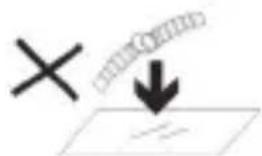
- DO NOT place objects on top of the device, as objects may scratch the device.
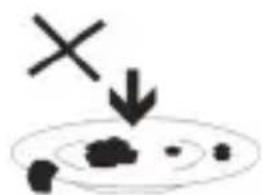
- DO NOT expose the device to dir environments.
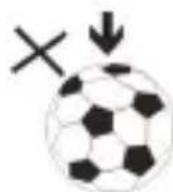
- DO NOT place the device on an uneven or unstable surface.
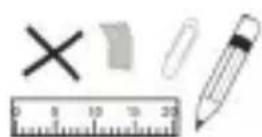
- DO NOT insert any foreign objects into the device.
- DO NOT expose the device to strong magnetic or electrical field.

- DO NOT expose the device to direct sunlight as it can damage the device. Keep it away from heat sources.
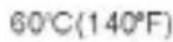
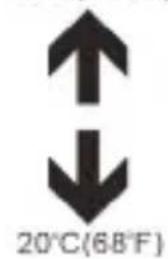
- DO NOT store your device in temperatures hig than 40^(104^) . The internal operating temperature for this device is from 20^(68^) to 60^(140^) .

- DO NOT use the device in the rain.
- Please check with your Local Authority or retailer for proper disposal of electronic products.
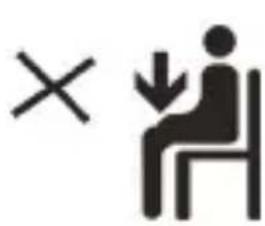
- The device and adaptor may product some heat during normal operation of charging. To prevent discomfort or injury from heat exposure, leave the device on your lap.
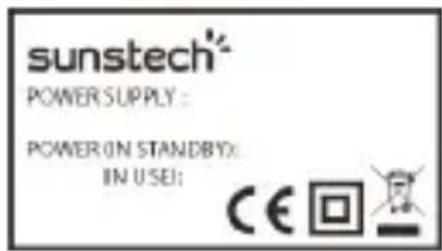
- POWER INPUT RATING: Refer to the rating label on the device and be sure that the power adaptor complies with the rating. Only use accessories specified by the manufacturer.
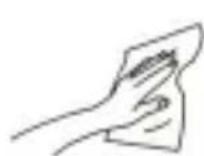
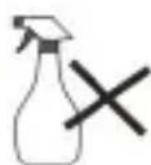
- Clean the device with a soft cloth. If needed, dampen the cloth slightly before cleaning. Never use abrasives or cleaning solutions.
- Always power off the device to install or remove external devices that do not support hot-plug.
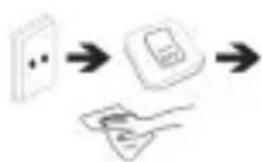
- Disconnect the device from an electrical outlet and power off before cleaning the device.
- DO NOT disassemble the device. Only a certified service technician should perform repair.
- The device has apertures to disperse heat. DO NOT block the device ventilation, the device may become hot and malfunction as a result.
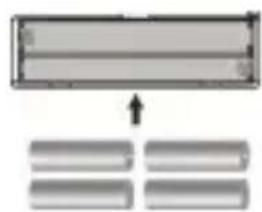
- Risk of explosion if battery incorrect type. Dispose of used batteries according to the instruction.
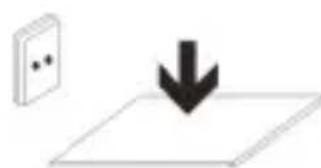
- PLUGGABLE EQUIPMENT: the socket-outlet shall be installed near the equipment and shall be easily accessible.
Key Definitions
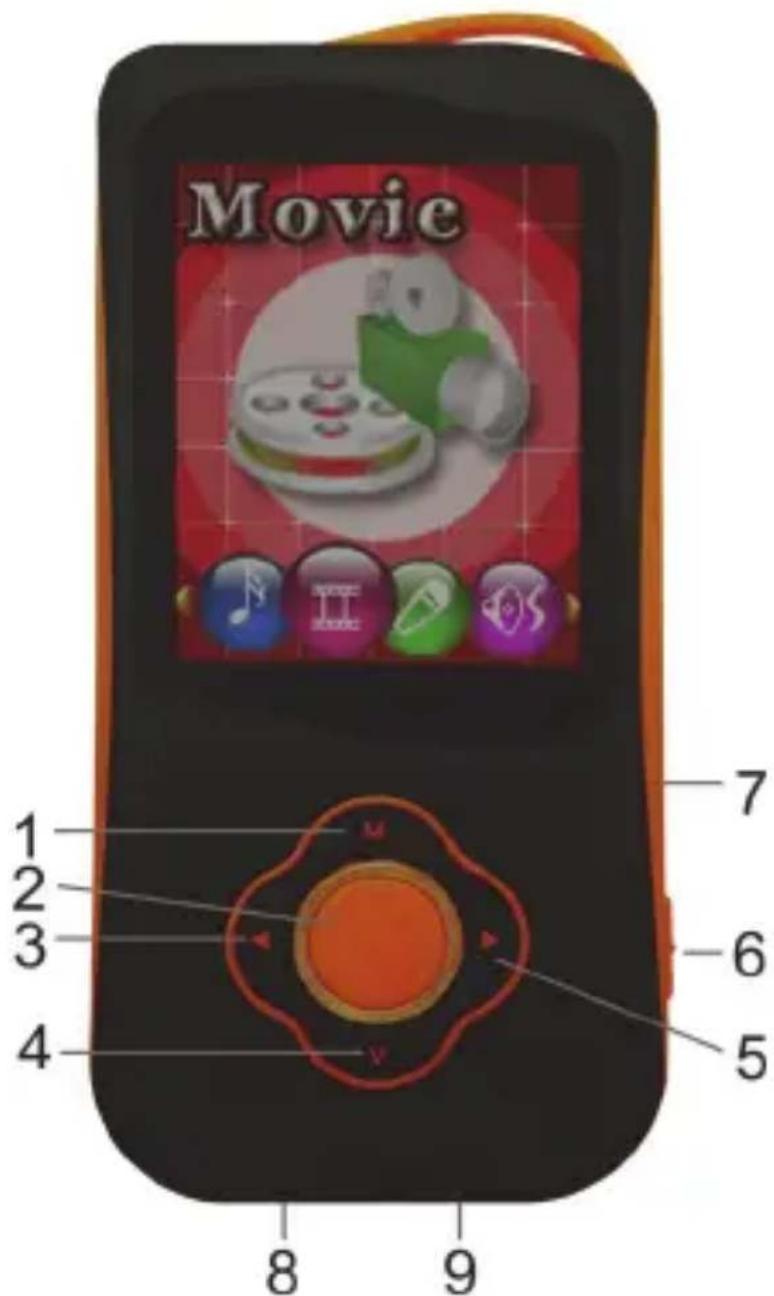
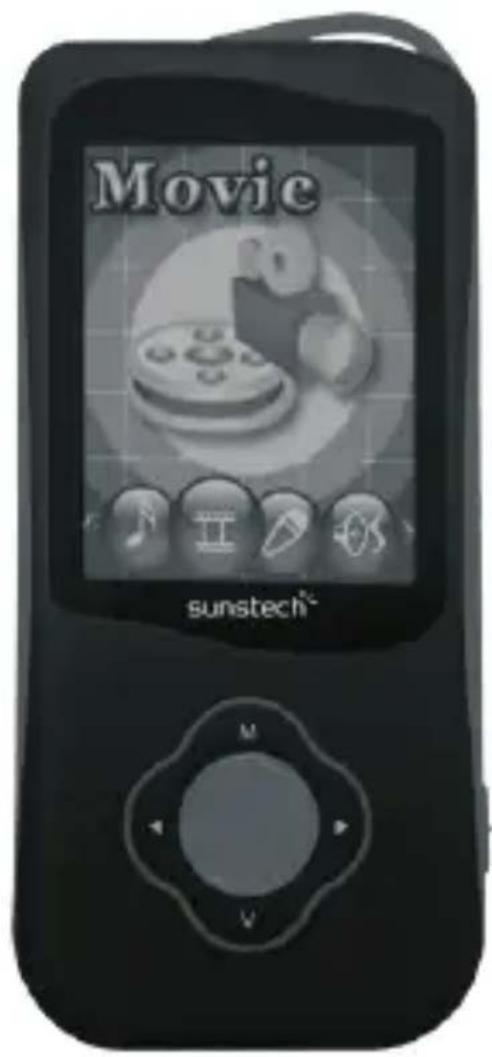
- MODE/MENU: Entry main menu or exit from current menu
- PLAY: Play/Pause button
- LAST: Previous Music/ Backward/ Rewind
- Volume: Volume Adjustment
- NEXT: Next Music/ Forward/ Fast-Forward
- ON/OFF: Power switch
- micro SD Card (TF Card)
- USB slot (mini 5PIN)
- Standard Earphone output
Basic Functions
Volume Adjust
Press the VOL key to enter the volume selection, short press Next / Last button to increase or decrease the volume.
- Switch on/off
Press and hold Play to switch on when the player is off. Press and hold Play to switch off when the player is on.
- Play & Pause; exit from submenu
On music mode, Press Play to play music.
When playing music, press Play to pause; press and hold to stop playing.
1. Play music
- Simple actions
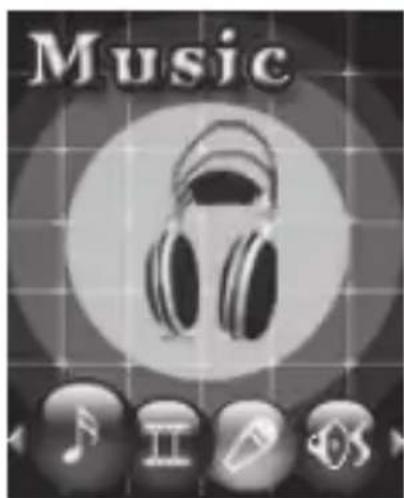
- Enter Music Mode and press PLAY to play music.
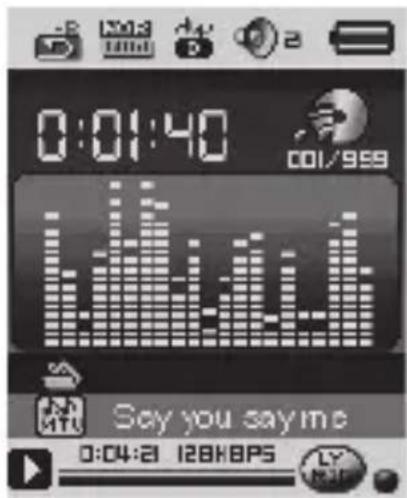
- Select a Track: LAST: Previous Track; NEXT: Next Track.
Equalizer Mode
-
When playing music, Press MODE to enter in the submenu.
-
Push NEXT choosing Equalizer Mode;
-
Press MODE to enter 'Equalizer Mode' submenu.
-
Detail of each equalizer (EQ):
Natural, Rock, Pop, Classic, Soft, Jazz, DBB
- Push NEXT to select an EQ and press MODE to confirm.
Synchronize Lyric Display
The player supports lyric files with *.LRC suffix, and displays simultaneously.
How to use lyric files?
Please make sure the lyrics file has the same name as the music file. Press MODE and hold for a few seconds.
For example:
Music file: Journey.mp3
Lyric file: Journey.lrc
2. Play Videos
- Enter main menu, press NEXT scrolling to "Video" (Only available to AMV files).
- Press MODE to enter:

- Press PLAY to start video.
1). When in the interface of 'Movies stop'.
2). Press MODE to enter submenu.
Local Folder, Delete file, Delete all, Repeat (Normal, repeat one, Folder, Repeat Folder, Repeat all, Random ,intro), Exit.
3. Record
Recording in "Record mode"
- Enter the main menu:
- Push NEXT scroll to Record mode.
- Push MODE to select Record mode, screen will display as below:
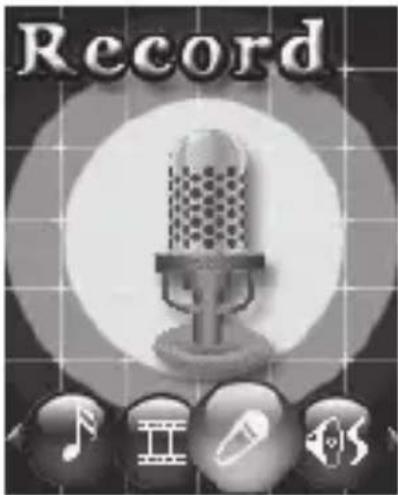
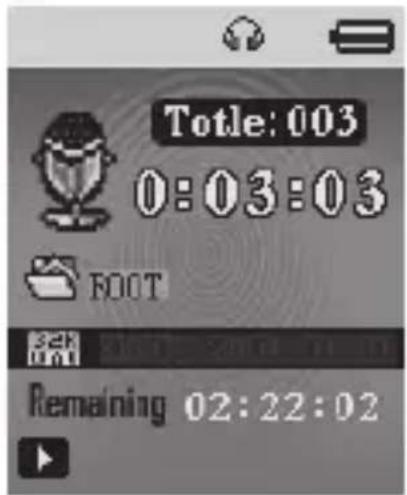
- Press PLAY to start / pause recording.
- Press MODE for a few seconds to save the recording.
- Select Record Type
- Press MODE to enter record submenu.
- Push NEXT scrolling into 'REC type' submenu then presses MODE to select it.
- Press NEXT to choose the appropriate type and press MODE to select it.
- . Press PLAY to start recording.
4. Voice
- Enter main menu
- Push NEXT to choose 'Play mode'
- Push MODE to enter playing interface
- Press PLAY again to play the file.
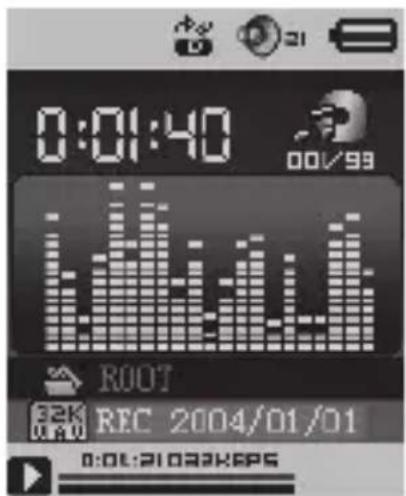
- Choose voice record files:
LAST: Select previous file;
NEXT: Select the next file; - When in the interface of 'Voice stop'
- Press MODE to enter submenu.
Local Folder, Delete file, Delete all, Exit. - When in the interface of 'Voice play'
- Press MODE to enter submenu.
Repeat, Replay mode, Exit.
5. Using FM radio
- Enter main menu;
- Push NEXT scrolling "FM Mode"
- Push MODE to enter
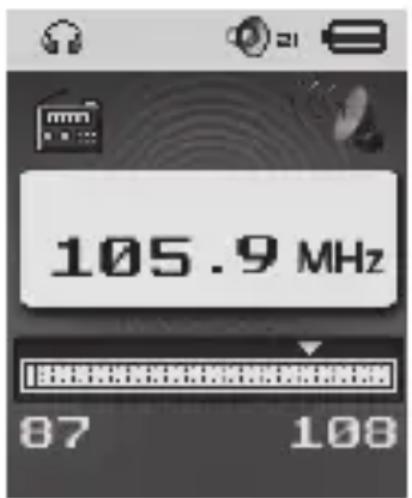
- Auto search "20 resets maximum"
Hold LAST/NEXT 2 seconds to start the channel search in 100kHz
interval upwards or downwards. To stop tuning, push LAST/NEXT. - Manual tuning
Push LAST: Downward 100 KHz
Push NEXT: Upward 100 KHz - Save current channel:
Push MODE to enter FM submenu
Press MODE again to save channel. - Listening to a saved channel:
You can press PLAY to choose a saved channel. - Record.
A. Press PLAY to start recording.
B. Press MODE for a few seconds to save the record.
C. When in the interface of 'Record stop'
D. Press MODE to enter record submenu
6. Photo Browsing
This function is only available for JPG and BMP format.
- In the main menu, press LAST/NEXT choosing Browsing pictures.
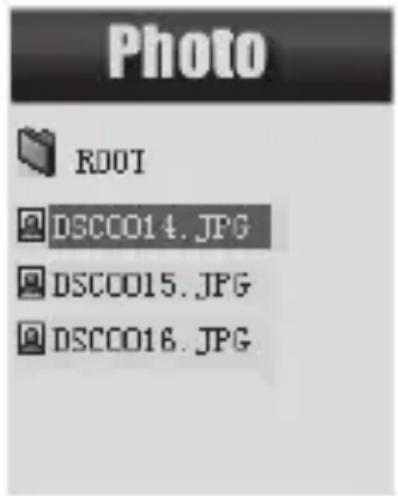
- Press MODE to enter corresponding submenu.
- Press LAST or NEXT choosing the document you want to read, then press PLAY to play it.
- In stop mode we have a submenu.
Local folder, Playback set (Manual play, autplay), delete file, delete all, exit.
7. Setup
- Enter Settings
You can set system performances here, options may vary in different versions of the firmware.
- Entry main menu.
- Push NEXT Scrolling into "Settings".
- Press MODE to entry.
- Options introduction:
| Clock Setting system | date and time |
| LCD set Screenshotaver | setting |
| Language Choosing | different languages |
| Power off | Setting a count down time in minutes, the player will shut off when time out. |
| Online mode | Multiply driver Normal only Encrypted only Card only |
| Memory info | Show memory capacity and used percentage |
| Firmware Version | Version of player's firmware |
| Firmware upgrade | se for upgrade firmware |
| Exit Exit from Setting | interface |
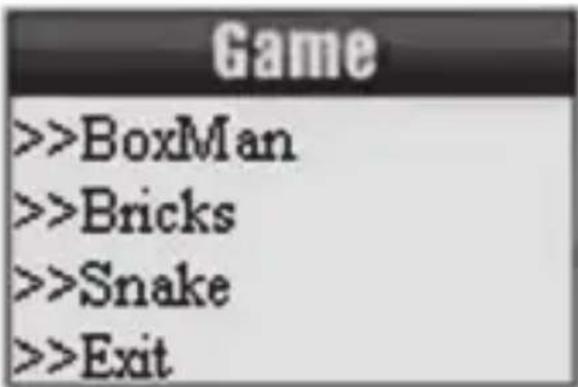
9. Game
Enter main menu.
10. Using USB Disk
The player is also a standard USB disk. Supported by Windows / Mac/XP.
The player supports USB power supply, can be used without using the battery when connected to a PC. To enter, when in' waiting mode' press MODE return to main menu and choose the operation you need.
When connected to PC, The player works on the three modes below:
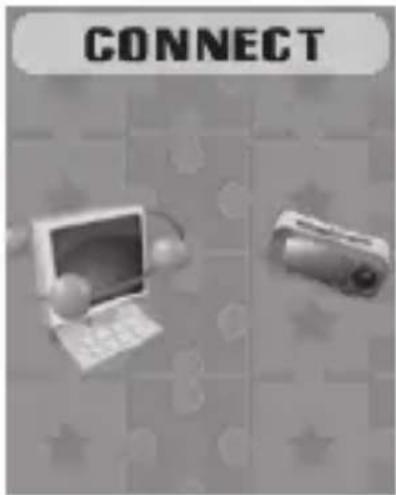
1. Waiting
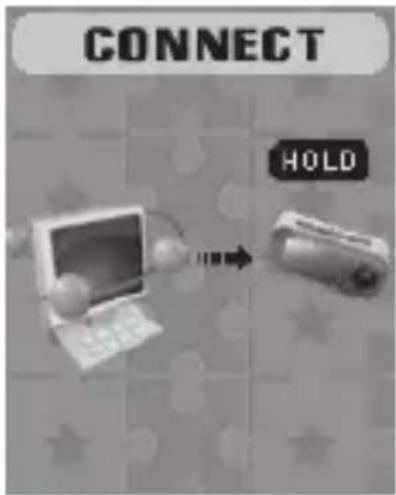
2. Downloading
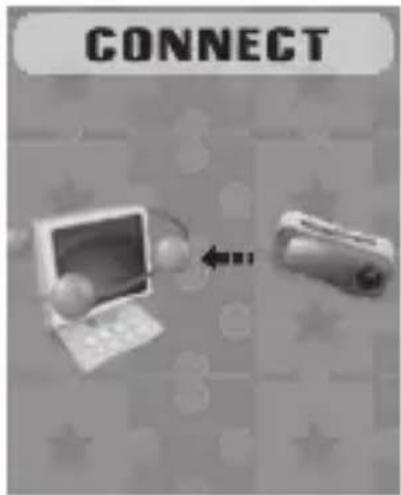
3. Upl o a
11. Other Settings
- Play mode (Play submenu)
You can choose different play mode (repeat, shuffle) when playing music or recorded files.
The first option on Play submenu is 'Play mode'.
REPEAT: Normal, Repeat One, Folder, Repeat Folder, Repeat All, Random, Intro.
Replay mode (Play submenu)
Enter from Play submenu:
A-B Repeat
- When play music or recorder.
- Push MODE to entry play submenu.
- Push NEXT scrolling into 'Repeat Mode' option.
- Push MODE to enter:
Repeat Mode: 'A' of Symbol flashes, waiting for starter A
- Push NEXT to select 'A':
'B' of symbol flashes, waiting end B.
- Push NEXT to select B fixed land starting repeat between A-B, while playing, you can push LAST to reset A point.
Replay times (Play submenu)
Please consult into 'Replay mode'.
Replay time determines the times of play A-B repeat until exit.
12. Battery Level
The power displays full. With the increase in the use of time, the battery indicator will be reduced.
- When the battery is almost /completely run out. The battery icon will be completely white and the unit should be charged to through of the mini USB.
- Needs to be charged, you must turn the power switch for charging. Otherwise, the player will not be able to respond to the charge task.
Without the use of the player, please try to turn off the power.
13. Troubleshooting
| No Power Make sure you have switched the player on. |
| No Sound Make sure the volume is not at 0 and that the earphones are connected correctly. Please make sure the earphone jack is clean. Damaged MP3 files may have background noise and may not even play. |
| Strange characters on display Make sure you have ch language. |
| FM has bad performance Adjust place of player and earphone. Switch off nearby power appliance. Earphone is used as antenna. |
| Cannot Download Music Check USB cable, and make sure the player is properly connected to the PC. Check if the driver has been well installed. Make sure there is sufficient memory. |
Technical Specifications
| Dimension 40mm | x 87mm x 10.5mm | |
| Screen | 1.8 TFT (128*160) | |
| Connecting to PC | High Speed USB2.0 (micro 5PIN) | |
| Memory | 4GB Flash | |
| Voice Recorder For | format WAV | (32K, 64K,128K,256Kbps) |
| Music Formats MP3, WMA | ||
| MP3, WMA | Max. Output (L) | 10mW + (R)10mW (32Ohm) |
| MP3 Bit rate 8K | bps – 320K bps | |
| WMA Bit rate 5K | bps – 384K bps | |
| FM radio | Receiver frequency range | 76MHz – 90MHz / 87MHz – 108MHz |
| Storage units 20 | + 20 | |
| Maximum headphone output | (L) 10mW + (R)10mW (32Ohm) | |
| Signal to noise ratio | 45dB | |
| Photo | Format | JPG, BMP |
| Operate Temperature | 5 to 40 degree | |
| Multi-Languages Display | English, Spanish, French, Portuguese, Italian, German... | |
| Supported Systems | Windows / Mac, etc. | |
Please note: Design and characters may change without prior notice.
Made in China
Warranty conditions
-
The warranty of this product is for 2 years since the purchase date.
-
The warranty will exclude breakdowns caused by bad use of the product, wrong installation or installation in not desirable places for a proper maintenance of the product, rips, updates of the products that are not the supplied by the brand, pieces wore away for its use or for not domestic or inappropriate use. Also are excluded breakdowns caused for manipulations of the products by people or companies alien to our company.
-
For any request regarding the warranty terms, the purchase receipt must be attached.
Correct disposal of this Product
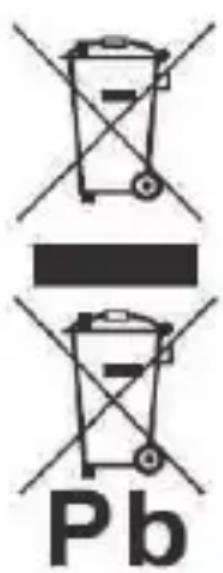
Waste Electrical & Electronic Equipment (WEEE)
Your product is designed and manufactured with high quality materials and components which can be recycled and reused.
This symbol means that electrical and electronic equipment, at their endof-life should be disposed of separately from your household waste.
Please dispose of this equipment at your local community waste collection/ recycling
centre.
In the European Union there are separate collection systems for used electrical and electronic products. Please help us to conserve the environment we live in!
DECLARATION OF CONFORMITY
Council Directive(s) to which conformity is declared:
Directive (2004/108/EC) - EMC Directive (2011/65/EU recasting 2002/95/EC) - RoHS
Application of the Standards:
EN 61000-3-2:2006+A1:2009+A2:2009
EN 61000-3-2:2008
EN 55022:2010
EN 55024:2010
IEC 62321:2008
Manufacturer's name: AFEX SUNS, S.A.
Manufacturer's address: C/Pallars 189, 08005 Barcelona
Type of equipment: MP4 PLAYER
Trade: SUNSTECH
Model no.: GAIA
We, the undersigned, hereby declare under our sole responsibility that the specified equipment is in conformity with the above Directive(s) and Standard(s)
Place: Barcelona
Date: 17 - March - 2015
sunstech
GAIA
Manual del Nombre
Directive (2004/108/EC) - EMC Directive (2011/65/EU recasting 2002/95/EC) - RoHS
Repeter, Mode de repetition, Quitter.
Directive (2004/108/EC) - EMC Directive (2011/65/EU recasting 2002/95/EC) - RoHS
Natural, Rock, Pop, Clássica, Suave, Jazz, DBB
Directive (2004/108/EC) - EMC Directive (2011/65/EU recasting 2002/95/EC) - RoHS
Aplicacao das Normas:
EN 61000-3-2:2006+A1:2009+A2:2009
EN 61000-3-2:2008
EN 55022:2010
EN 55024:2010
IEC 62321:2008
Nome do fabricante: AFEX SUNS, S.A.

- Key Definitions
- Basic Functions
- Volume Adjust
- - Switch on/off
- - Play & Pause; exit from submenu
- Play music
- - Simple actions
- Equalizer Mode
- Synchronize Lyric Display
- Play Videos
- Record
- Recording in "Record mode"
- - Select Record Type
- Voice
- Using FM radio
- Photo Browsing
- Setup
- - Enter Settings
- - Options introduction:
- Game
- Using USB Disk
- Other Settings
- Battery Level
- Troubleshooting
- Technical Specifications
- Made in China
- Warranty conditions
- Correct disposal of this Product
- DECLARATION OF CONFORMITY
- Directive (2004/108/EC) - EMC Directive (2011/65/EU recasting 2002/95/EC) - RoHS
- sunstech
- GAIA
Brand : Sunstech
Model : Gaia
Category : Mp3 player