Dressy - Radio HDigit - Free user manual and instructions
Find the device manual for free Dressy HDigit in PDF.


User questions about Dressy HDigit
0 question about this device. Answer the ones you know or ask your own.
Ask a new question about this device
Download the instructions for your Radio in PDF format for free! Find your manual Dressy - HDigit and take your electronic device back in hand. On this page are published all the documents necessary for the use of your device. Dressy by HDigit.
USER MANUAL Dressy HDigit
natural_image
Solid green textured square with no visible text, symbols, or markings
Instruction Manual
Internet, DAB/DAB+, FM Radio with iPod/iPhone Docking
text_image
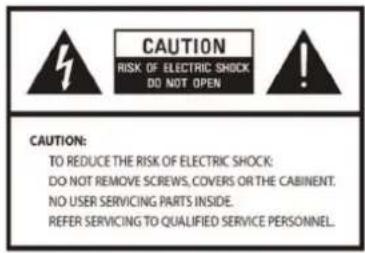
CAUTION RISK OF ELECTRIC SHOCK DO NOT OPEN CAUTION: TO REDUCE THE RISK OF ELECTRIC SHOCK: DO NOT REMOVE SCREWS, COVERS OR THE CABINET. NO USER SERVICING PARTS INSIDE. REFER SERVICING TO QUALIFIED SERVICE PERSONNEL.DANGEROUS VOLTAGE
The lightning flash with arrowhead symbol within an equilateral triangle is intended to alert the user to the presence of uninsulated “dangerous voltage” within the product’s enclosure that may be of sufficient magnitude to constitute a risk of electric shock to persons.
ATTENTION
The exclamation point within an equilateral triangle is intended to alert the user to the presence of important operating and maintenance (servicing) instructions in the literature accompanying the appliance.
WARNING: TO REDUCE THE RISK OF FIRE OR ELECTRIC SHOCK, DO NOT EXPOSE THIS APPLIANCE TO RAIN OR MOISTURE.
IMPORTANT SAFETY INSTRUCTIONS
To reduce the risk of electrical shock, fire, etc.:
- Read these instructions.
- Keep these Instructions.
- Heed all Warnings.
- Follow all instructions.
- Do not use this apparatus near water.
- Clean only with dry cloth. For stubborn stains, use a soft cloth dampened with a weak solution of mild detergent and water. Dry the apparatus immediately afterwards with a clean cloth. Do not use abrasive clothes, thinners, alcohol, or other chemical solvents, because they may damage the finish or remove the panel lettering.
- Do not block any ventilation openings. The ventilation should not be impeded by covering the ventilation openings with items, such as newspapers, table clothes, curtains, etc.
-
Do not install near any heat source such as radiators, heat registers, stoves, or other apparatus (including amplifiers) that produce heat.
-
Do not defeat the safety purpose of the polarized or grounding-type plug. A polarized plug has two blades with one wider than the other. A grounding-type plug has two blades and a third grounding prong. The wide blade or the third prong are provided for your safety. If the provided plug does not fit into your outlet, consult an electrician for replacement of the obsolete outlet.
- Protect the power cord from being walked on or pinched, particularly at plugs, convenience receptacles, and the point where they exit from the apparatus. If the power cord is damaged, it must be repaired by a qualified service technician.
- Only use attachments/accessories specified by the manufacturer.
- Use only with the cart, stand, tripod, bracket or table specified by the manufacturer, or sold with the apparatus. When a cart is used, use caution when moving the cart/apparatus combination to avoid injury from tip-over.

PORTABLE CART WARNING
-
Unplug this apparatus during lightning storms or when unused for long periods of time.
-
Refer all servicing to qualified service personnel. Servicing is required when the apparatus has been damaged in any way, such as when the power-supply cord or plug is damaged, liquid has been spilled or objects have fallen into the apparatus, the apparatus has been exposed to rain or moisture, does not operate normally, or has been dropped.
- The apparatus should not be exposed to dripping or splashing and no objects filled with liquids, such as vases, should be placed on the apparatus.
- The mains plug or an appliance coupler is used as the disconnect device. The disconnect device shall remain readily operable.
- Please read Rating Labels on the back of the unit for power input and other safety information.
Contents
Safety Information 2
Package Contents 6
Overviews
Unit Front Overview 7
Unit Top Overview 7
Unit Back Overview 8
Replace Speaker Grill 8
Internet Radio Quick Start Guide 10
What you need before you can use your Internet Radio 10
Chapter 1 Internet Radio Mode 11
1.1 Turning on 11
1.2 Setup Wizard 11
1.3 Access Wireless Network 13
1.4 Local Stations 13
1.5 Choose a Station 14
1.6 Select a Station through Podcasts 15
1.7 Get Access Code and FAQ Solutions 15
1.8 Add Station to 'My Favourites' 16
1.9 Add Station to 'My Added Stations' 18
1.10 Connecting to Wired Network 20
1.11 Shift to Wireless Network 21
Chapter 2 Music Player Mode 22
2.1 Setting up a Music Server 22
2.2 Sharing Media with Windows Media Player 22
2.3 Play Shared Media 23
Chapter 3 DAB/DAB+ Mode 24
3.1 Getting Started 24
3.2 Shift to another DAB/DAB+ Station 25
3.3 Update Station List 25
3.4 Dynamic Label Segment (DLS) 25
3.5 Prune Invalid 25
3.6 DRC (Dynamic Range Control) Value 26
3.7 To change station order 26
Chapter 4 FM Mode 27
4.1 General Operation 27
4.2 Scan Setting 27
4.3 Audio Setting 28
4.4 Station Presets (for Internet, DAB and FM Mode) 28
4.5 Access Preset Station (for Internet, DAB and FM Mode) 29
Chapter 5 iPhone Mode 30
Docking and Playing Your iPod/iPhone 30
Chapter 6 AUX IN Mode 31
Chapter 7 General Settings 32
7.1 Sleep Function 32
7.2 Setting Clock 33
7.3 Browse Station Information 33
7.4 Setting Alarm 34
7.5 Equaliser 35
7.6 Language 36
7.7 Factory Reset 36
7.8 Enter Setup Wizard 36
7.9 SW Version and Radio ID (or System Info) 37
7.10 Network Setup 37
7.11 Software Update 37
Chapter 8 Specification 38
Chapter 9 Troubleshooting 39
Package Contents
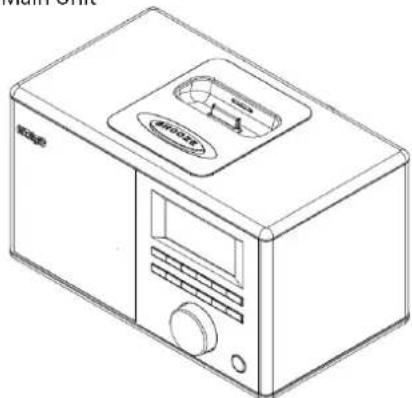
Main Unit
natural_image
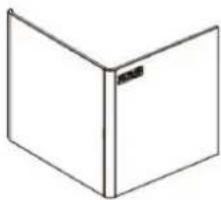
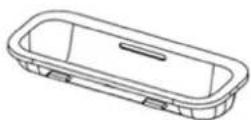
Line drawing of a microwave oven with control panel and display (no text or symbols)Interchangeable speaker grill
natural_image
Simple line drawing of a 3D rectangular box with a small label on the front face (no text or symbols)
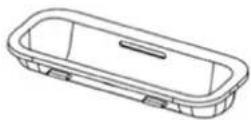
iPod Adapter (please refer to iPod/iPhone section)
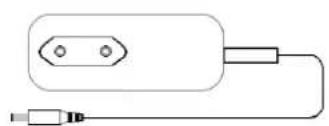
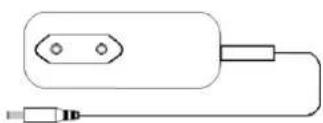
Adapter
natural_image
Simple line drawing of a plug with two pins and a connector (no text or symbols)Instruction Manual
text_image
HDigit Instruction Manual Internet, DAB/DAB+, FM Radio with iPod/iPhone Docking
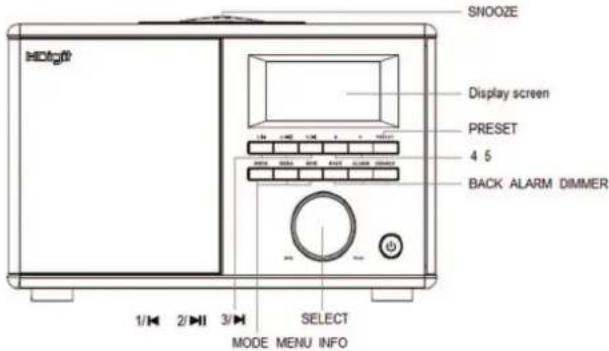
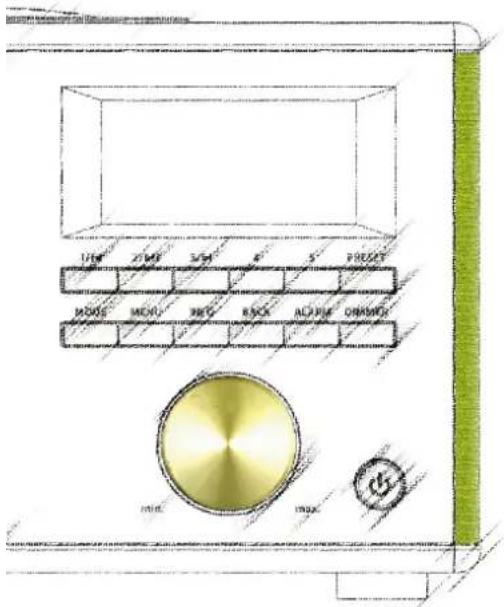
a. Press to turn radio on/off.
b. When alarm sounds, press to turn off alarm.

Note: to obtain stronger signal, please extend the antenna found on the rear of the unit.
MODE
Press to change mode.
MENU
Press to go to 'main menu' and other options.
INFO
Internet, Music Player, DAB/DAB+ and FM mode: Press to browse station info.
BACK
Press to go to previous page.
ALARM
a. Press to enter alarm setting.
b. When alarm sounds, press to turn off alarm.
DIMMER
Press to change backlight.
SNOOZE
When alarm sounds, press to postpone alarm.

4 5
Internet, DAB/DAB+ and FM mode:
a. Press and hold one button to store current playing station.
b. Press to recall relevant preset station.
Music player and iPod/iPhone mode:
Press 1/▶ to return to previous track, press 3/▶ to go to next track, press 2/▶ to play or pause.
Unit Overview
Unit Front Overview
text_image
SNOOZE Display screen PRESET 4 5 BACK ALARM DIMMER 1/H 2/H 3/H SELECT MODE MENU INFOPRESET
Internet, DAB/DAB+ and FM mode:
Press and hold to activate preset stations function; and press and release to load preset stations.

a. In Menu, turn to browse options, press to confirm. b. While a program is playing, turn to adjust volume level. c. FM mode: when frequency is displayed, press to autoscan active stations, or press and hold, and then turn it to manually adjust frequency 0.05MHz per step.

Note: in the following chapters, we refer to this as SELECT'.
Top/Back Overview
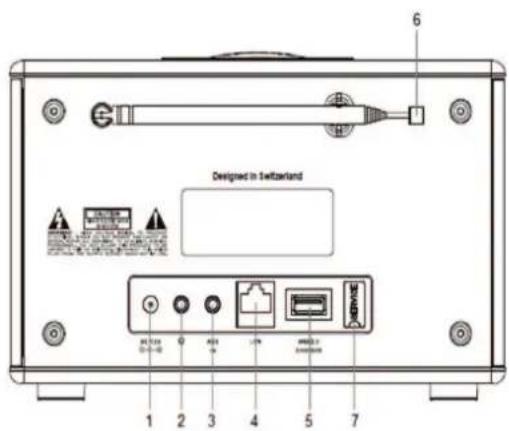
text_image
6 Designed in Switzerland 1 2 3 4 5 7Top Unit OverviewBack Unit Overview
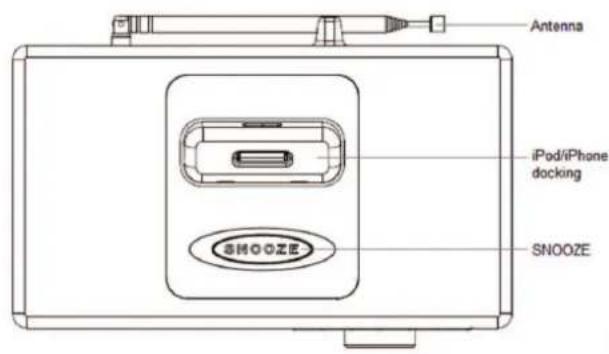
text_image
Antenna iPod/iPhone docking SNOOZE SNOOZENo. Items
Remark:
1 Power cord socket:
Connect to DC adaptor.
2 Earphone socket:
For inserting 3.5mm earphone.
3 AUX IN socket:
This is for connecting the audio cable.
4 LAN socket:
This is for inserting the LAN cable to connect to a wired network.
5 Mobile charger socket:
5V voltage output for charging your smart phone.
6 Antenna.:
A telescopic antenna. Adjust the antenna to obtain the best reception.
7 SERVICE cover:
Open to find a USB upgrade socket.
Please leave the upgrade socket to professional use only!
Replace Speaker Grill
The speaker grills come in three different colours: Pearl-Black, Bordeaux and Lemon-Green. Change the speaker grill to your preferred colour, please refer to the following steps.
Step 1
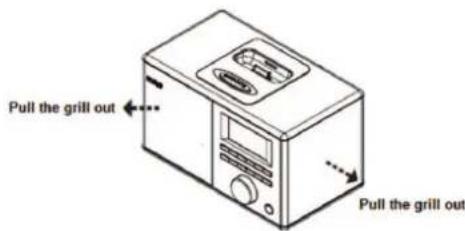
text_image
Pull the grill out Pull the grill outStep 2 Each corner of the speaker grill is installed with a magnet to make changing it easy.
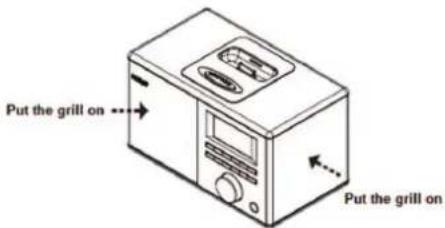
text_image
Put the grill on ... Put the grill onInternet Radio Quick Start Guide
What you need before you can use your Internet Radio
Thank for your purchase! Before you start using it, you need to know the following:
Wireless LAN Setting:
• A broadband Internet connection.
- A wireless access point (Wi-Fi) connected to your broadband Internet, preferably via a router.
- If your wireless network is configured to use Wired Equivalent Privacy (WEP) or Wi-Fi Protected Access (WPA) data encryption then you need to know the WEP or WPA code so you can get the Internet Radio to communicate with the network.
- For security reasons, you may need to enter the Radio's MAC address into your wireless access point. To find the Radio's MAC address, use the menu items as follows:
Main menu →System settings →Network →View settings →MAC Address
• To enter the MAC address into your wireless access point, you must read the instructions supplied by the wireless access point.
Before you continue, make sure that your wireless access point is powered up and connected to your broadband Internet. To get this part of the system to work, it is highly recommended you read the instructions supplied by the wireless access point!
Chapter 1 - Internet Radio Mode
1.1 Turning on
- Connect to your Internet Radio adapter and ensure the power LED lights up, extend antenna.
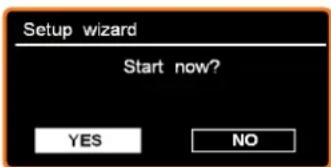
- Press the ⏻ button to switch on your radio, for initial use, you will be asked if you want to start 'Setup wizard'.
1.2 Setup Wizard
- Continue above step, press SELECT to confirm 'YES' and then turn SELECT to your preferred 'hour format', press SELECT to confirm.
- Press SELECT to confirm 'Update from Network', and then follow your radio's instructions and configure the following parameters:
√ Time zone: select your local time zone.
√ Daylight savings: On or Off
√ Wlan region: Most of Europe/USA/Canada/Spain etc.
√ SSID: In some cases, your radio may find more than one network. Turn SELECT to your favorite one, press to confirm.
Note: If a password (WEP/WPA) isn't required by your network, the radio will connect to the network automatically.
text_image
Setup wizard Start now? YES NO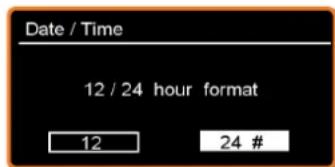
text_image
Date / Time 12 / 24 hour format 12 24 #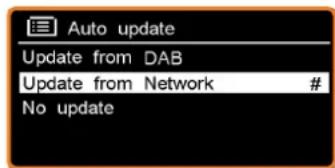
text_image
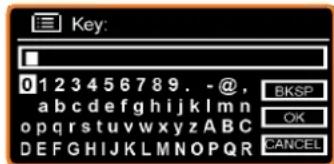
Auto update Update from DAB Update from Network # No update- If a WEP/WPA key (password) is required, the radio will ask you to input the WEP/WPA code and display the password entry screen as follows:
- Turn SELECT to cycle through the alphanumeric character list, press SELECT to select an appointed character.
Note: WEP/WPA pass codes are case-sensitive.
- If the wrong character is input while entering your password, select 'BKSP' to delete that character.

Note:
a. BKSP = Backspace.
b. the method of select BKSP, OK or CANCEL: while the cursor is pointing to '0', Turn SELECT counter-clockwise and select CANCEL, then continue to turn counter-clockwise and select OK or BKSP in turn.
c. Selecting CANCEL will return to the previous track.
d. The radio will automatically save the WEP/WPA you've input, so you do not need to re-enter these codes.
e. After selecting the final character of your password, turn SELECT to OK, press SELECT to confirm.
- Press the SELECT knob to exit. The setting is OK now!
text_image
Key: 0123456789. -@, abcdefghijklmnopqrstuvwxyz ABC DEFGHIJKLMNOPQR BKSP OK CANCEL
text_image
Key: XXXXX 0 1 2 3 4 5 6 7 8 9. - @, a b c d e f g h i j k l m n o p q r s t u v w x y z A B C D E F G H I J K L M N O P Q R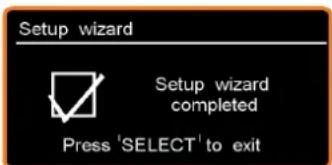
text_image
Setup wizard Setup wizard completed Press 'SELECT' to exit1.3 Access Wireless Network

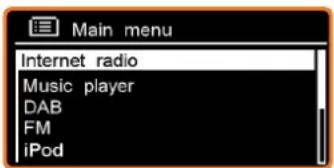
- After setting the 'setup wizard', it will show you as below, and then you can press SELECT to enter 'Internet radio' mode.
Note: Or, you may also press Mode repeatedly until 'Internet radio' shows up, then stop pressing to enter. - When the cursor is pointing to
, press SELECT to confirm. - If it fails to connect to the internet, please do the following: a. Check your Router, see if it is working normally or not; b. You need to relocate your radio to a stronger signal position! c. Make sure your password is input correctly.
1.4 Local Stations
Make sure your radio is connected to the network.
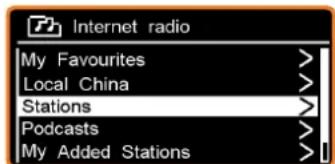
'Local China' can be changed to your current location, for instance, it can be local Germany, US, or local UK, etc. In a word, it's a very easy way for you to find your local programs.
- To enter Local stations, press MENU →
→ , press SELECT to confirm.
text_image
Main menu Internet radio Music player DAB FM iPod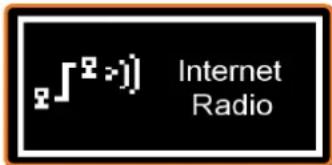
text_image
∫² >>) Internet Radio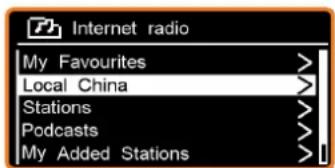
text_image
Internet radio My Favourites > Local China > Stations > Podcasts > My Added Stations >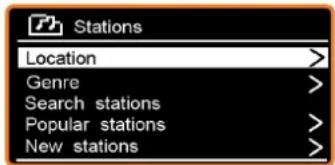
text_image
Stations Location > Genre > Search stations > Popular stations > New stations >1.5 Choose a station
- There are five options available for you to choose a station as in the photo above.
* 'LOCATION' enables you to choose from the radio stations provided by any country which you choose from a list.
a. While the cursor is pointing to < Location >, press SELECT to confirm.
b. Turn SELECT to the region you want, press SELECT to confirm.
c. Using the same method to choose the country and station in turn, the radio will load.
* 'GENRE' enables you to choose radio stations according to their content such as Classic Rock, Sport, News, etc.
Note: a. Some radio stations do not broadcast 24 hours a day, and some stations are not always on-line.
b. If this station has on-demand content, it gives you the option of listening to old programs which have already been broadcast.
text_image
Internet radio My Favourites > Local China > Stations > Podcasts > My Added Stations >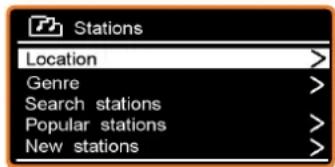
text_image
Stations Location > Genre > Search stations > Popular stations > New stations >1.6 Select a Station through Podcasts
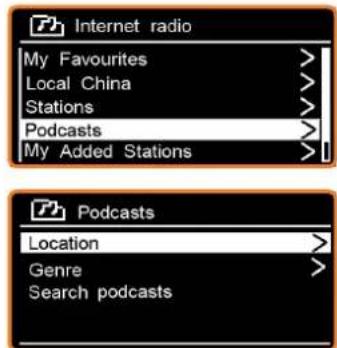
- To access this order, press MENU →
→ , press SELECT to confirm, and then turn SELECT to your favorite option. - Press SELECT to confirm, and then step by step until you find your selected program
1.7 Get Access Code and FAQ Solutions
- Press MENU → < Station list > → < Help >, press SELECT to confirm.

Note: at this step, you can also listen to radio FAQ solutions.
- While the cursor is pointing to
, press SELECT to confirm, then you will get it.
text_image
Internet radio My Favourites > Local China > Stations > Podcasts > My Added Stations > Podcasts Location > Genre > Search podcasts >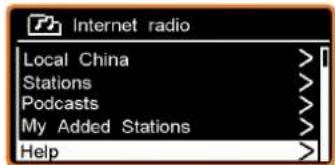
text_image
Internet radio Local China > Stations > Podcasts > My Added Stations > Help >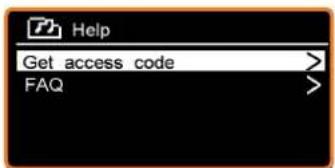
text_image
Help Get access code > FAQ >1.8 Add Station to 'My Favourites'
- Visit the website: http://www.wifiradio-frontier.com
- Click on the register link.
text_image
FRONTIER SILICON Radio PortalMember Login
Email address

Password

Forgot your pass
Not a member
Access global stations Personalise favourites
Search. Browse. Find.
Welcome to your Wi-Fi Radio Portal
text_image
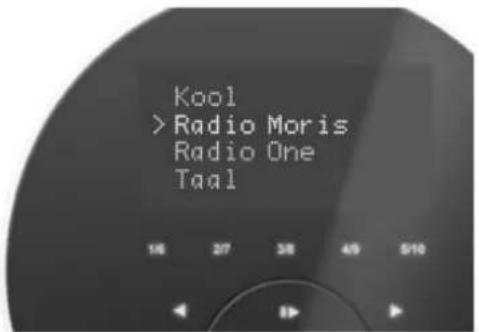
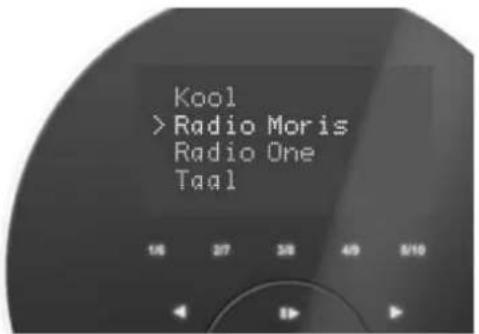
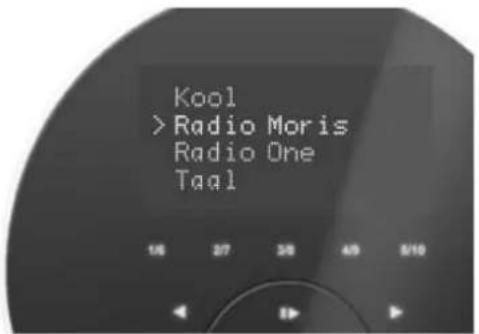
Kool > Radio Moris Radio One Taal- Create an account login, you need an Access code to complete it. For how to get this code, please refer to the previous page.

Note: want a member login? Then save your registered 'Email address' and 'Password'.
- You will able to take advantage of the various additional features and services offered by the Frontier Internet Radio Portal.
- After the above setting is done, in order to have your radio access your new settings, you need to turn your radio power off for several minutes.
- How to play 'My favourites'? There are two steps:
a. Press MENU → < Station list > → < My favourites >, press SELECT to confirm.
b. Turn SELECT to your favorite option, and then press SELECT to load...

Note: Your added 'my favourites' stations will show up in the 'my favourites' subdirectory. Doing a 'factory reset' cannot erase them.
text_image
FRONTIER SILICON Radio Portal
Browse Podcasts
Access global stations Personalise favourites
Search. Browse. Find.
text_image
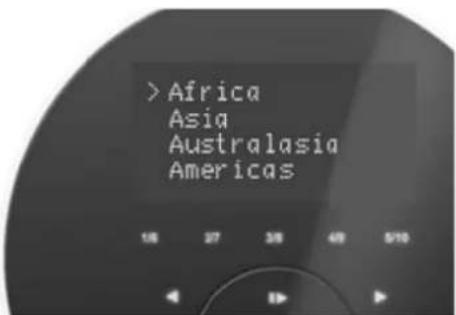
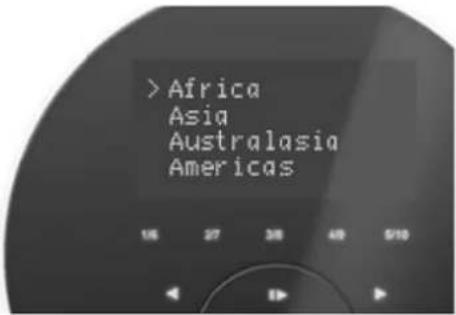
> Africa Asia Australasia AmericasMy favourites
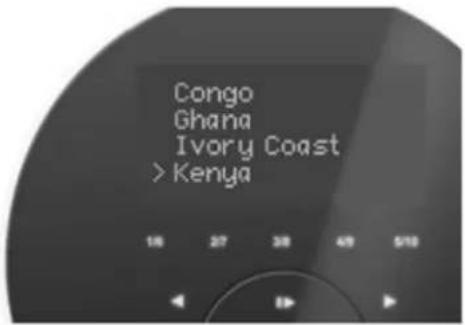
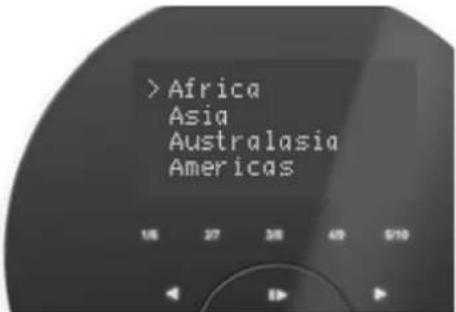
To add a Favourite Station, first use Browse or Search for Stations to find a station, and then click the "Add" icon 🤊.
1.9 Add Station to 'My Added Stations'
Even though the Internet radio portal contains thousands of stations, you may want listen to stations not listed. You can add your own stations via the portal.
- Visit website: http://www.wifiradio-frontier.com
- Login as a member (you registered on the previous page).
text_image
FRONTIER SILICON Radio Portal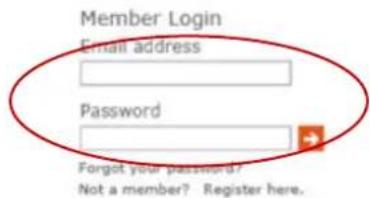
text_image
Member Login Email address Password Forgot your password? Not a member? Register here.Access global stations Personalise favourites
Search. Browse. Find.
Welcome to your Wi-Fi Radio Portal
text_image
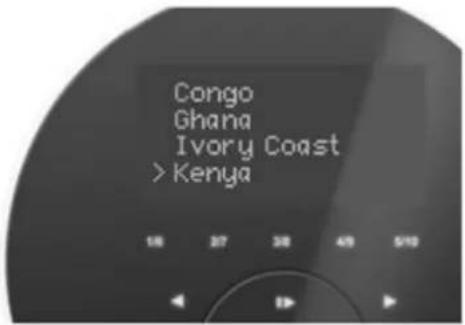
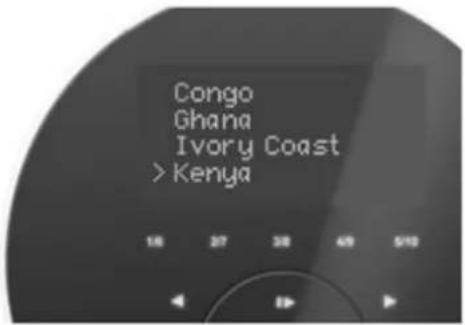
Congo Ghana Ivory Coast >Kenya- You will able to take advantage of the various additional features and services offered by the Frontier Internet Radio Portal.
text_image
FRONTIER SILICON Radio Portal
Access global stations Personalise favourites
Search. Browse. Find.
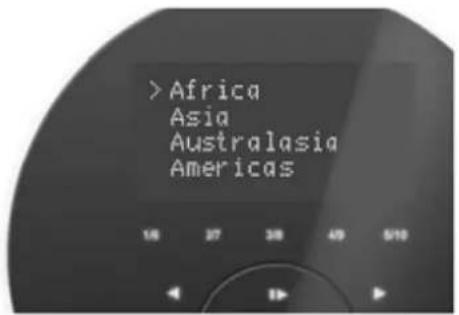
text_image
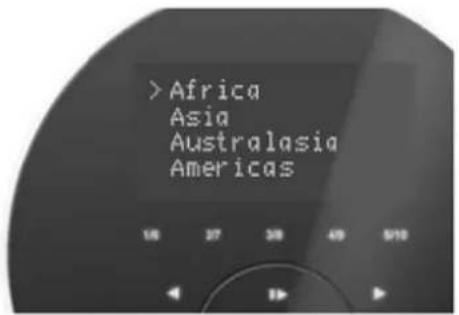
>Africa Asia Australasia AmericasMy favourites
To add a Favourite Station, first use Browse or Search for Stations to find a station, and then click the "Add" icon 🤊.
My added stations
If you have found a station that is not in our list, you can add it yourself.
- After the above setting is done, in order to have your radio access your new settings, you need to turn your radio power off for several minutes.
- How to play 'My added stations'? Your need to do the following two steps:
a. Press MENU→< Station list >→< My added stations >, press SELECT to confirm.
b. Turn SELECT to your favorite option, and then press SELECT to load...

Note: Your added stations will show up in the 'my added stations' subdirectory. Doing a 'factory reset' cannot erase them.
1.10 Connecting to a Wired Network
Step 1 – Choose LAN Setting
Note: make sure LAN cable is already connected to the LAN socket.
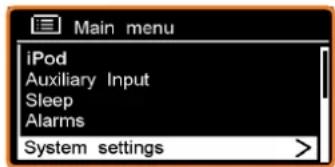
- Press MENU→Turn SELECT to
, press SELECT to confirm. - Turn SELECT to < System settings >, press SELECT to confirm.
- Turn SELECT to < Network >, press SELECT to confirm.
- Turn SELECT to < Manual settings >, press SELECT to confirm.
5 While the cursor is pointing to, press SELECT to confirm. - While the cursor is pointing to < DHCP enable >, press SELECT to confirm. The LAN setting is OK now!
Step 2 – Enter Internet Radio mode
- Press MENU→ 'Main menu', press SELECT to confirm, while the cursor is pointing to 'Internet Radio', press SELECT to confirm. Or, press MODE repeatedly until < Internet Radio > is displayed and then stop pressing.
text_image
Main menu iPod Auxiliary Input Sleep Alarms System settings >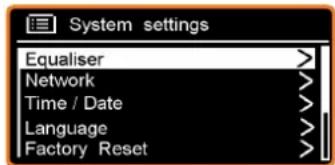
text_image
System settings Equaliser > Network > Time / Date > Language > Factory Reset >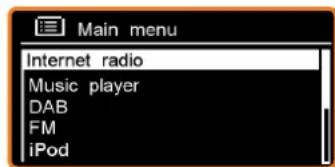
text_image
Main menu Internet radio Music player DAB FM iPod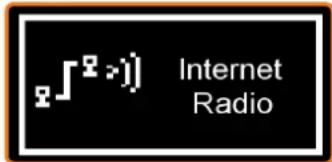
text_image
∫²>1) Internet RadioStep3 - Access Network
Continue the steps above, a few seconds later, it will be displayed:
* If it fails to connect to the network, please do the following:
a. Check your Router to see if it is working normally or not.
b. Check your LAN cable to make sure it hasn't been damaged,
c. Make sure the port of the cable is securely inserted into the LAN socket.
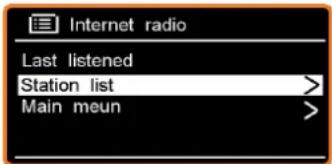
text_image
Internet radio Last listened Station list > Main meun >1.11 Shift to Wireless Network
- Refer to previous page 'choose LAN setting' steps 1-4, turn SELECT to
, press SELECT. - While the cursor is pointing to < DHCP enable >, press SELECT to confirm, and then step by step to access the wireless network.
Now, the wireless setting is OK!
Chapter 2 - Music Player Mode
2.1 Setting up a Music Server
√ In order for your radio to play music files from a computer, the computer must be set up to share files or media.
√ UPnP media sharing allows devices like this radio to play music from a shared media library, navigating through tag menus such as Artist, Album or Genre.
√ If you are running a suitable server system such as a PC with Windows Media Player10 or later (WMP), and your music library is well-tagged, then it is recommended you use media sharing.
√ Only the UPnP server needs to be set up.
2.2 Sharing Media with Windows Media Player
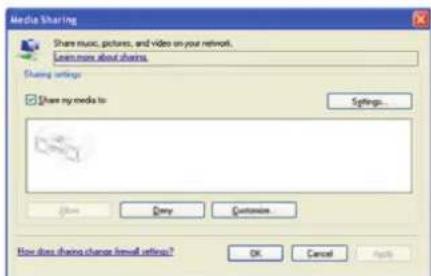
The most common UPnP server is Windows Media Player (10 or later). Alternatively, other UPnP platforms and servers may be used. To set up WMP for media sharing, perform the following steps:
- Ensure that the PC is connected to the network.
- Ensure that the radio is powered on and connected to the same network.
- In WMP, add to the media library the audio files and folders you want to share with your radio (Library > Add to Library...).
-
In WMP, enable media sharing (Library > Media sharing...).
-
Make sure your radio has access to the shared media by selecting it and clicking Allow. You can also set a name for the shared media in Settings... Click OK to close the dialogue boxes.
-
The PC is now ready to stream the music to the radio. The WMP UPnP service runs in the background; there is no need to start WMP explicitly.
text_image
Media Sharing Share music, pictures, and video on your network. Learn more about shares Sharing settings Show my needs to: Settings... Show Apply Customs How does share change email settings? OK Cancel Apply2.3 Play Shared Media
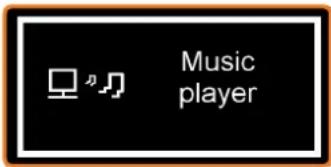
- Press MODE repeatedly until < Music player > is displayed.
Or, enter < Main menu >, and then turn SELECT to < Music player >, press SELECT to confirm. - While the cursor is pointing to
, press SELECT to confirm, and then step by step to your selected Music. Press 1/▶ for previous track, Press 3/▶ for Next Track, Press 2/▶ to play/pause. - Adjust the volume by turning the VOLUME/SELECT knob.
text_image
Music player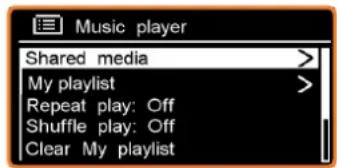
text_image
Music player Shared media > My playlist > Repeat play: Off Shuffle play: Off Clear My playlist >\* My Playlist
- This is a collection of songs added by the user from UPnP, it can be achieved by pressing MENU, and then turn SELECT to
, press SELECT to confirm.
\*Repeat Play Mode
Press MENU→ turn SELECT to < Repeat play: Off >, press SELECT to shift 'Off' to 'On', or press SELECT again to shift from 'On' to 'Off'.
\*Shuffle Play Mode
Press MENU→ turn SELECT to < Shuffle play: Off >, press SELECT to shift 'Off' to 'On'.
\*Clear My Playlist
Note: sometimes, you might want to refresh your media station list.
The Path is: Press MENU→
\*Prune Servers
- Press MENU, and then turn SELECT to
, press SELECT to confirm. - Turn SELECT to 'Yes' when your radio asks you 'Prune shared media on LAN servers?', press SELECT to confirm.
\*Now Playing Information
- While a track is playing, the screen shows the track, artist and album if provided. There is also a progression bar with figures for elapsed and total track time.
- To view further information, press INFO repeatedly and the screen will display information such as Artist, Album, Playback buffer indication bar and Today's Date etc.
Chapter 3 - DAB/DAB+ Mode
3.1 Getting Started
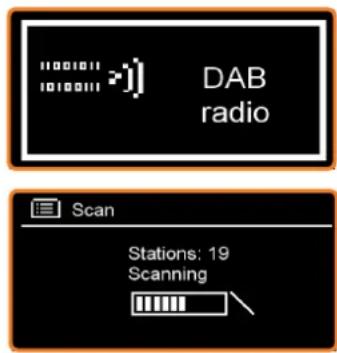
- Press MODE repeatedly to enter the DAB function.
For initial use, it will conduct a full scan and store all DAB/DAB+ radio stations.
Note: or press MENU to enter < Main menu >, and then turn SELECT to < DAB >, press SELECT to confirm.
- Once the scanning is completed, the DAB/DAB+ stations will be displayed in alphanumeric order. The first station in the list will be selected.
Note: if no DAB/DAB+ signal is found in your area, it may be necessary to relocate your radio to a stronger signal area
text_image
DAB radio Scan Stations: 19 Scanning3.2 Shift to another DAB/DAB+ Station
- While a DAB/DAB+ program is playing, you can move back to the previous screen at any time by pressing BACK, or pressing MENU to go to 'station list'
- While the cursor is pointing to 'Station list', press SELECT to confirm.
- Turn SELECT to cycle through the stations list, and then press SELECT to confirm
3.3 Update Station List
* It's a good idea to carry out a 'scan' from time to time to keep your DAB/DAB+ station list up-to-date.
Press MENU → turn SELECT to < Full scan >, press SELECT to confirm.
3.4 Dynamic Label Segment (DLS)
- This is scrolling text information supplied by the DAB/DAB+ station. It may comprise information on the music title or detail of the program which is provided by the broadcaster.
- To view further information, press INFO repeatedly while a DAB/DAB+ program is playing, the screen will display information such as Artist, Album, playback buffer indicating bar and today's date etc.
3.5 Prune Invalid
- Press MENU, and then turn SELECT to
, press SELECT to confirm. - Turn SELECT to 'YES', and press SELECT to confirm.
3.6 DRC (Dynamic Range Control)
You can set the level of the compression of stations to eliminate the differences in dynamic range or sound level between radio stations.

Note:
a. Setting DRC to off indicates no compression.
b. Setting DRC to low indicates little compression.
c. Setting DRC to high shows maximum compression.
- Press MENU, and then turn SELECT to
, press SELECT to confirm. - Turn SELECT to the option you want, press SELECT to confirm.
3.7 To Change Station Order
- Press MENU, and then turn SELECT to
, press SELECT to confirm.

Note: There are 3 options: Alphanumeric, Ensemble and Valid. # shows before the default of your setting
option to indicate the current station order.
STATION ORDER DESCRIPTION
Alphanumeric Displays all stations in alphanumeric order.
Ensemble Lists currently broadcasting active stations before inactive ones.
Valid Removes inactive stations from the station list.
- Turn SELECT to the option you want, press SELECT to confirm.
4.1 General Operation
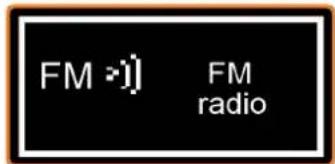
- Press MODE repeatedly until < FM Radio > is displayed.
For initial use, it will start at the beginning of the FM frequency range (87.50MHz).
Otherwise, the last FM station listened to will be selected.

Note: or enter < Main menu >, and then turn SELECT to < FM >, press SELECT to confirm.
While the frequency is displayed, press SELECT for a long time and then turn SELECT to manually adjust frequency 0.05MHz per step.
- For auto-searching, while the frequency is displayed, simply press SELECT.

Note: a. To 'auto-search' for the next active station, repeat step 3.
b. The unit will display the frequency, changing until it stops on the next station.
Chapter 4 - FM Mode
text_image
FM ->) FM radio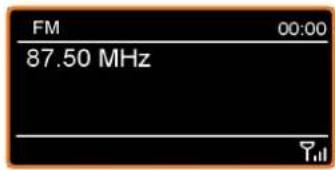
text_image
FM 00:00 87.50 MHz4.2 Scan Settings
√ By default, FM scans stop at any available station. This may result in a poor signal-to-noise ratio (hiss) from weak stations.
√ To change the scan settings so that they stop only at stations with good signal strength, press
MENU→< Scan setting >→Strong stations only?→Yes, press SELECT to confirm.
4.3 Audio Settings
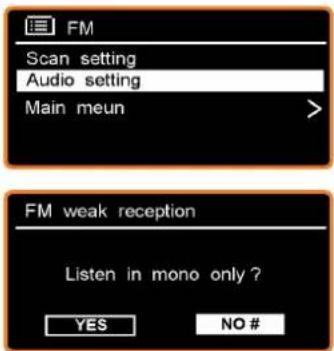
- By default, all stereo stations are reproduced in stereo. For weak stations, this may result in a poor signal-to-noise ratio (hiss).
- To play weak stations in mono, press MENU → < Audio setting > → Listen in mono only?
→Yes, press SELECT to confirm
text_image
FM Scan setting Audio setting Main meun > FM weak reception Listen in mono only ? YES NO #4.4 Station Presets (for Internet, DAB and FM Mode)
Note: Your radio can store 10 Internet, 10 DAB/DAB+ and 10 FM stations preset. This order is only limited to Internet, DAB and FM mode.
To store the current station:
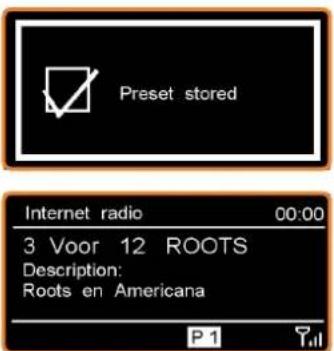
- Press and hold PRESET until it shows: 'Save to Preset', and then turn SELECT to your desired option 1-10.
- Press SELECT to confirm, your radio will indicate 'Preset stored', and then your radio will return to its normal working condition, and the preset icon will appear on the display.
- Or, press and hold your target Preset No. 1-5 until it says: 'Preset stored'.
text_image
Preset stored Internet radio 00:00 3 Voor 12 ROOTS Description: Roots en Americana P 14.5 Access Preset Station (for Internet, DAB and FM Mode)

Note: this order is only limit to Internet, DAB and FM mode, To select a stored station:
- Press Mode to go to the relative mode: Internet, DAB or FM mode.
- Press PRESET, it will show 'Recall Preset', and then turn SELECT to the one you want.
- Press SELECT to confirm.
Or:
- Press Mode to go to the relative mode: Internet, DAB or FM mode.
- Directly press your target Preset No. 1-5 and it is done!
Chapter 5 - iPod/iPhone
Docking and Playing Your iPod/iPhone
By docking, music files stored on your iPod/iPhone can be played through the radio speakers. The method of playing iPod or iPhone are alike, below we show how to play iPod as an example.
Docking your iPod
- Insert the Dock Adapter that fits your iPod model, and then plug in your iPod. The adapter number is marked on the back or side of each dock adapter.
Apple's adapter no.
iPod/iPhone adapter Versions
| 10 | 5G iPod with video, iPod classic | |||
| 14 | iPod touch | |||
| iPhone 3G & 3GS | ||||
| 16 | iPod | touch | 2G/3G | |
| iPod nano (4th generation) | ||||
| 18 | iPhone4 | |||
| iPod nano (5th generation) |
-
Insert your iPod into the top of the iPod docking unit. The dock will begin to charge it if necessary. Charging will stop when it is fully charged (check the iPod screen).
-
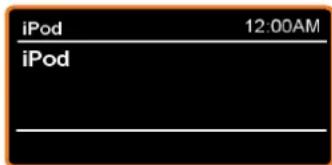
In use, we can shift to iPod mode by pressing MODE repeatedly until iPod is displayed.
text_image
iPod 12:00AM iPod- How to play
a. Press 1/▶ or 3/▶ to go to a previous or next track, press 2/▶ to pause, press again to continue play.
b. Or, select and play a track by using your iPod.
5. Adjust the volume by turning the SELECT knob.
Chapter 6 - Aux In Mode
- Repeatedly press MODE until
is displayed
Note: Or enter 'Main menu', and then turn SELECT to, press SELECT to confirm. - Through a 3.5mm cable connection, a high quality digital audio source can be automatically output through the radio.
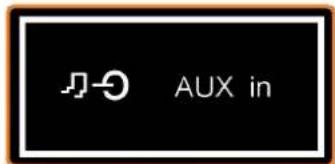
- Connect one end of the audio cable to the headphone (or auxiliary out) socket of your source device, connect the other end to the AUX IN socket on the rear of your radio. The radio display will show:
- To gain optimal volume levels, adjusting the output volume level on both the source device and on radio itself is recommended.
Note: AUX IN allows for quick and easy connection of the MP3 player or other external sound sources.
text_image
AUX in
text_image
Auxiliary input 12:00AM Audio In Today's Date : 25/12/2012Chapter 7 - General Settings
7.1 Sleep Function
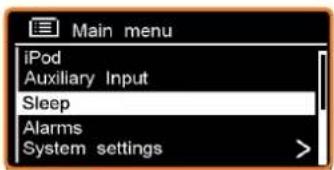
- Activate by pressing MENU → < Main menu > → < Sleep >, press SELECT to confirm.
- Turn SELECT to define the sleep period: 15/30/45/60 minutes.
- When your selected period is displayed, press SELECT to confirm.

Note: At this step, a sleep icon is displayed, and it also shows how long until it expires.
- The radio will automatically put itself into standby mode after it has elapsed.
- To continue enjoying your program, press.
text_image
Main menu iPod Auxiliary Input Sleep Alarms System settings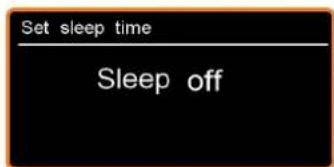
text_image
Set sleep time Sleep off7.2 Setting the Clock
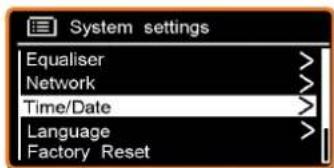
- It can be activated by pressing MENU →
→ →
Note: Here, turn the SELECT knob, a range of time settings is available, which include the functionality to set:
text_image
System settings Equaliser > Network > Time/Date > Language > Factory Reset >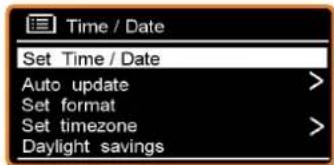
text_image
Time / Date Set Time / Date Auto update > Set format > Set timezone > Daylight savings >7.3 Browse Station Information
It is possible to view the information that is displayed on the second line of the display when you are listening to a radio program.
To can browse more information by pressing INFO repeatedly.

Note: for this function, 'AUX in' mode is out of service.
7.4 Setting the Alarm
Note: When setting the Alarm, make sure you set the time first.
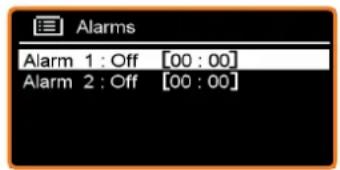
- You can set the alarm by simply pressing ALARM, or by pressing MENU → < Main menu > → < Alarms >, press SELECT to confirm.
- Turn SELECT to your selection, press SELECT to confirm.
- Configure the following parameters:
Enable: Off, Daily, Once, Weekends or Weekdays
Time: 00:00
Mode: Buzzer, Internet radio, DAB or FM, or iPod,
Note: if you set alarm sound mode to iPod, and there is no iPod inserting into your radio, when the alarm goes off, the 'Buzzer' will sound instead.
Preset: this option depends on which alarm mode you have set, this option won't be available unless you choose Internet radio, DAB, FM as your alarm sound mode
Volume: Muted-32
Save: finally, turn SELECT to this option, and press SELECT to make sure the alarm is saved.
The screen shows active alarms with an icon at the bottom left.
To check alarm status, press ⏻ to enter standby mode.
When the alarm sounds, press ⏻ to turn it off, or
- Play Snooze Function
Press SNOOZE to postpone it for 5 minutes, repeatedly press to prolong snooze to other user-defined snooze time.
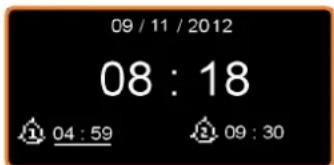
Note: a. While in SNOOZE function, the relative alarm should be blinking, and shows how long it will last, during this time, you also can press ⏻ to stop snooze, and press ⏻ again to have your radio play. b. After reached the SNOOZE time, it should sound again.
• To cancel the Alarm
Refer to steps1-2 above, set 'Alarm Enable status' to 'Off', and then turn SELECT to 'Save', press SELECT to confirm, your radio will save your settings and show 'Alarm saved'.
7.5 Equaliser
Note: Several preset EQ modes are available; also a user-defined setting through 'My EQ profile setup'
- These settings can be reached by pressing MENU to < Main menu >→ < System settings >→ < Equaliser >, press SELECT to confirm.
- You can then choose from a variety of preset modes or create your own through My EQ profile setup, then follow your radio's demonstration to adjust relative bass, treble and loudness settings:
Turn SELECT to the one you want, take set 'My EQ profile setup' as example:
a. Press SELECT to confirm 'My EQ profile setup'.
b. Press SELECT to confirm Bass, turn SELECT to adjust, and then press SELECT to confirm.
c. Setting Treble accordingly.
d. Finally turn SELECT to 'Loudness', press SELECT to shift it from off to on, or vice versa, shift from on to off.
7.6 Language
- This can be activated by pressing MENU →
→ → , press SELECT to confirm. - Turn SELECT to the one you want, and then press SELECT to confirm, it is done!
7.7 Factory Reset
A factory reset resets all user settings to default values, so time/date, network configuration and presets are lost. However, the radio's current software version is maintained, as is registration with the Internet radio portal. Internet radio favourites are kept unless you re-register your radio with another account on the portal website.
- It can be achieved by pressing MENU → < Main menu > → < System settings > → < Factory Reset > → Proceed? YES or NO.
- Press SELECT to confirm 'YES'.
7.8 Enter Setup Wizard
When this unit is started for the first time, it runs through a setup wizard to configure settings for date/time and network. Once this has finished, the system is ready to use in most modes.
- To run the setup wizard again, press MENU→Main menu→System settings → Setup wizard→Yes.
- Press SELECT to confirm 'Yes', then step by step to set it.
7.9 SW Version and Radio ID (or System Info)
This information may be requested when dealing with technical support issues, system info includes SW version, radio ID and Friendly name (radio name).
It can be activated from
7.10 Network Setup
Note: Users experiencing network issues may find these options useful for diagnosing and fixing network problems.
-
The path is: press MENU → < Main menu > → < System settings > → < Network >.
-
Turn SELECT to your desired network setting option:
Want to access to another Router? ---- Network wizard
Want to set up a WPS encrypted network? ----PBC Wlan setup
Want to get a MAC address, Wlan region, IP address etc.? ---- View settings.
Want to set it to another region? ---- Wlan region
Want to shift your radio connection between wired network (LAN) and wireless? ---- Manual settings
Want to see the list of registered networks or delete some unwanted networks? ---- Network profile
- Press SELECT to confirm to enter setting.
7.11 Software Update
From time to time, your radio may make software upgrades due to bug fixes and/or additional features.
If your radio detects that newer software is available, it asks if you want to go ahead with an update.
If you agree, the new software is then downloaded and installed.

English
HDigit
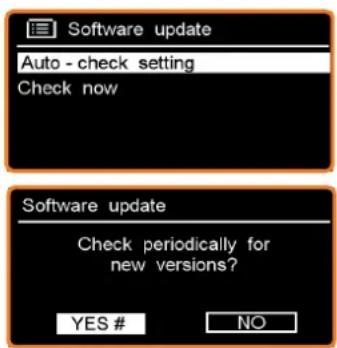
- It can be activated from press MENU → Main menu → System settings → Software update → Auto-check setting, press SELECT to confirm. 'Check now' is also a convenient option for your radio to detect new software.
- Turn SELECT to
, press this knob to confirm.
text_image
Software update Auto - check setting Check now Software update Check periodically for new versions? YES # NOChapter 8 - Specifications
| Specifications: | Internet, DAB/DAB+, FM radio with dock for iPod/iPhone | |
| Speaker: | 6 ohm | |
| Frequency Ranges: | FM: 87.5-108MHz | DAB/DAB+: 174 – 240MHz |
| LCD Display: | High resolution display | |
| Power Requirements: | 100-240 Vac, 50-60 Hz | |
| Rated Output Power: | 5W rms | |
| Dimension: | 213 x 123 x 131mm | |

This symbol on the product or in the instructions means that your electrical and electronic equipment should be disposed at the end of its life separately from your household waste. There are separate collection systems for recycling in the EU.
Chapter 9 - Troubleshooting
If you experience any trouble with your wireless Internet Radio, then you may find it useful to visit the help section on our webpage: http://www.wifiRadio-frontier.com
If you have trouble connecting the Radio to your wireless network, these steps may help to resolve the problem:
- Confirm that a Wi-Fi connected PC can access the Internet (i.e. can browse the web) using the same network.
- Check that a DHCP server is available, or that you have configured a static IP address on the Radio. You can configure a static IP address on the Radio using the menu item 'System settings → Network → Manual settings → Wireless', and then select 'DHCP disable'.
- Check the your access point does not restrict connections to particular MAC addresses. You can view the Radio's MAC address using the menu item 'System settings → Network → View settings → MAC address'.
- If you have an encrypted network, check that you have entered the correct key or password into the Radio. Remember that text-format keys are case sensitive. If, when attempting to connect to an encrypted network, your Radio displays: 'Wireless error' followed by a 5-digit number, then please ensure that you enter the correct passphrase for the network. If the problem persists, then you may need to consult your network configuration.
- If your Radio can connect to the network successfully, but is unable to play particular stations, it may be due to one of the following causes:
a. The station is not broadcasting at this time of the day (remember it may be located in a different time zone).
b. The station has reached the maximum allowed number of simultaneous listeners.
c. The station is not broadcasting anymore.
d. The link on the Radio is out of date.
e. The Internet connection between the server (often located in a different country) and yours is slow.
Try using a PC to play back the stream via the broadcaster's web site.
- If you can play back the station with a PC, use the form at http://www.wifiRadio-frontier.com to notify us so that we can change the station data that is used by the Radio.
www.hdigit.ch
text_image
1/14 2/14 3/14 4 5 PREFR MODE MCH RGB RISC ACRUM ORANGE min. max. CSHDigit
Instruction Manual
Internet, DAB/DAB+, FM Radio with iPod/iPhone Docking
HDigit
EN D

FR


natural_image
Solid green textured square with no visible text, symbols, or markings
Benutzerhandbuch

PORTABLE CART WARNING
natural_image
Line drawing of a microwave oven with control panel and display (no text or symbols)natural_image
Simple line drawing of a 3D rectangular box with a small label on the front face (no text or symbols)
iPod Adapter
Adapter
natural_image
Simple line drawing of a plug with two pins and a connector (no text or symbols)Benutzerhandbuch
text_image
6 Designed in Switzerland 1 2 3 4 5 7text_image
Pull the grill out Pull the grill outtext_image
Put the grill on ... Put the grill ontext_image
Setup wizard Start now? YES NO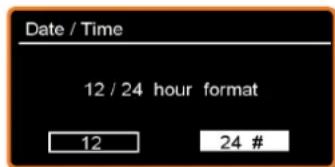
text_image
Date / Time 12 / 24 hour format 12 24 #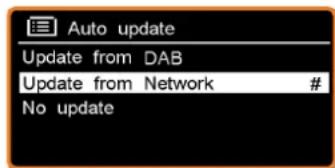
text_image
Auto update Update from DAB Update from Network # No update
Deutsch
HDigit
text_image
Setup wizard Setup wizard completed Press 'SELECT' to exit
Deutsch
Dressy
text_image
Main menu Internet radio Music player DAB FM iPod Internet Radio1.4 Lokale Sender
text_image
Internet radio My Favourites > Local China > Stations > Podcasts > My Added Stations >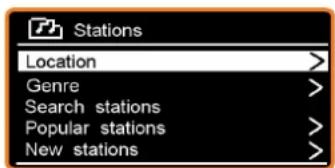
text_image
Stations Location > Genre > Search stations > Popular stations > New stations >text_image
Internet radio My Favourites > Local China > Stations > Podcasts > My Added Stations >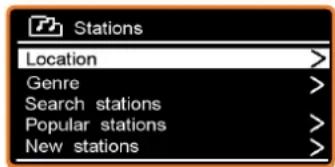
text_image
Stations Location > Genre > Search stations > Popular stations > New stations >
Deutsch
Dressy
text_image
Internet radio My Favourites > Local China > Stations > Podcasts > My Added Stations > Podcasts Location > Genre > Search podcasts >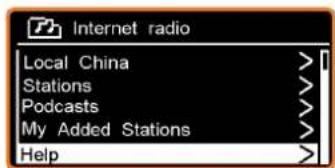
text_image
Internet radio Local China > Stations > Podcasts > My Added Stations > Help >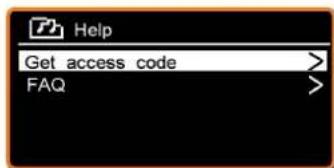
text_image
Help Get access code > FAQ >
Deutsch
HDigit
Forgot your password?
Not a member? Register here.
Access global stations
Personalise favourites
Search. Browse. Find.
Welcome to your Wi-Fi Radio Portal
text_image
Kool > Radio Moris Radio One Tagl
Deutsch
Dressy
Browse Stations By location By genre By language New stations Most popular
Browse Podcasts
Access global stations Personalise favourites
Search. Browse. Find.
text_image
> Africa Asia Australasia AmericasMy favourites
To add a Favourite Station, first use Browse or Search for Stations to find a station, and then click the "Add" icon.

Deutsch
HDigit
text_image
Member Login Email address Password Forgot your password? Not a member? Register here.Access global stations Personalise favourites
Search. Browse. Find.
Welcome to your Wi-Fi Radio Portal
text_image
Congo Ghana Ivory Coast >KenyaAccess global stations Personalise favourites
Search. Browse. Find.
text_image
> Africa Asia Australasia AmericasMy favourites
To add a Favourite Station, first use Browse or Search for Stations to find a station, and then click the "Add" icon 🤊.
My added stations
If you have found a station that is not in our list, you can add it yourself.
text_image
Main menu Internet radio Music player DAB FM iPod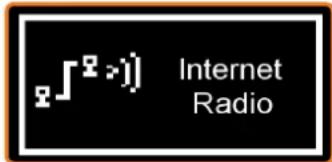
text_image
∫²>1) Internet Radio
Deutsch
Dressy
text_image
Internet radio Last listened Station list > Main meun >text_image
Share Sharing Share music, pictures, and video on your network. Common about shares. Sharing settings Share my needs to Settings... Show Deny Customize How does sharing change email settings? OK Cancel Help
Deutsch
Dressy
text_image
Music player
text_image
Music player Shared media > My playlist > Repeat play: Off Shuffle play: Off Clear My playlist >text_image
DAB radio Scan Stations: 19 Scanning
Deutsch
Dressy
3.4 Dynamic Label Segment (DLS)
text_image
FM >)) FM radio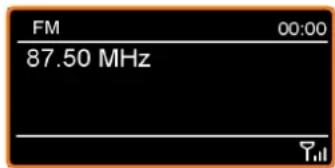
text_image
FM 00:00 87.50 MHz TJ
Deutsch
HDigit
text_image
FM Scan setting Audio setting Main meun
text_image
FM weak reception Listen in mono only ? YES NO #text_image
Preset stored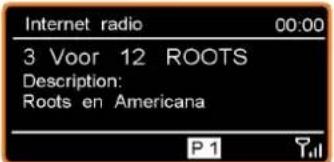
text_image
Internet radio 00:00 3 Voor 12 ROOTS Description: Roots en Americana P 1 Ttext_image
Auxiliary input 12:00AM Audio In Today's Date : 25/12/2012
Deutsch
HDigit
text_image
Set sleep time Sleep off√ Mode: Buzzer, Internet Radio, DAB, FM, oder iPod.
text_image
1/4" 2/5" 3/4" 4" 5" PROCT MODE MOUNT RED REDS CAPS ONDMING min max CSHDigit
Bedienungsanleitung
Internet, DAB/DAB+, FM Radio
natural_image
Solid green textured square with no text or symbols
Guide d'utilisation

PORTABLE CART WARNING
natural_image
Line drawing of a microwave oven with control panel and display (no text or symbols)natural_image
Simple line drawing of a 3D rectangular box with a small label on the front face (no text or symbols)
natural_image
Simple line drawing of a plug with two pins and a connector (no text or symbols)Guide d'utilisation
text_image
6 Designed in Switzerland 1 2 3 4 5 7text_image
Pull the grill out Pull the grill outtext_image
Put the grill on ... Put the grill on ...text_image
Setup wizard Start now? YES NO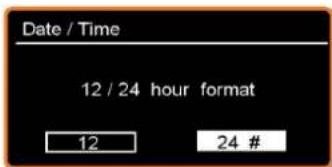
text_image
Date / Time 12 / 24 hour format 12 24 #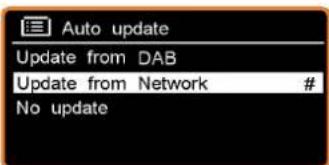
text_image
Auto update Update from DAB Update from Network # No update

French
HDigit
text_image
Setup wizard Setup wizard completed Press 'SELECT' to exit

French
Dressy
1.4 Stations locales
text_image
Main menu Internet radio Music player DAB FM iPod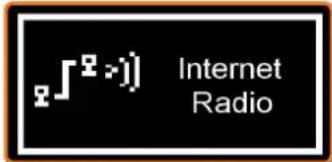
text_image
∫² >>) Internet Radio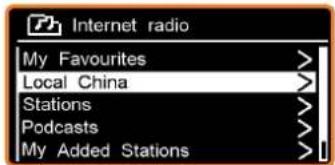
text_image
Internet radio My Favourites > Local China > Stations > Podcasts > My Added Stations >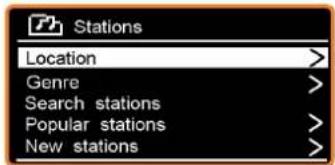
text_image
Stations Location > Genre > Search stations > Popular stations > New stations >

French
text_image
Internet radio My Favourites > Local China > Stations > Podcasts > My Added Stations >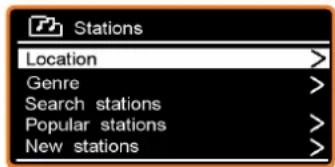
text_image
Stations Location > Genre > Search stations > Popular stations > New stations >

French
Dressy
text_image
Internet radio My Favourites > Local China > Stations > Podcasts > My Added Stations >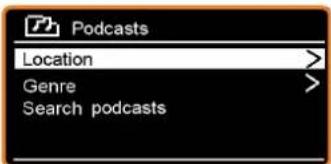
text_image
Podcasts Location > Genre > Search podcasts >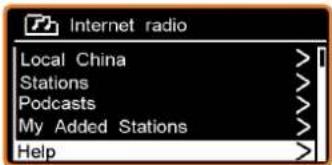
text_image
Internet radio Local China > Stations > Podcasts > My Added Stations > Help >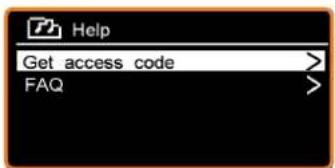
text_image
Help Get access code > FAQ >

French
HDigit
Forgot your password?
Not a member? Register here.
Access global stations
Personalise favourites
Search. Browse. Find.
Welcome to your Wi-Fi Radio Portal
text_image
Kool > Radio Moris Radio One Tagl

French
Dressy
Browse Stations By location By genre By language New stations Most popular
Browse Podcasts
Access global stations Personalise favourites
Search. Browse. Find.
My favourites
text_image
> Africa Asia Australasia AmericasTo add a Favourite Station, first use Browse or Search for Stations to find a station, and then click the "Add" icon


French
HDigit
text_image
Member Login Email address Password Forgot your password? Not a member? Register here.Access global stations Personalise favourites
Search. Browse. Find.
Welcome to your Wi-Fi Radio Portal
text_image
Congo Ghana Ivory Coast > KenyaAccess global stations Personalise favourites
Search. Browse. Find.
text_image
>Africa Asia Australasia AmericasMy favourites
To add a Favourite Station, first use Browse or Search for Stations to find a station, and then click the "Add" icon 🤊.
My added stations
If you have found a station that is not in our list, you can add it yourself.
text_image
Main menu Internet radio Music player DAB FM iPod
text_image
∫²>)) Internet Radio

French
Dressy
text_image
Internet radio Last listened Station list > Main meun >text_image
Media Sharing Share music, pictures, and videos on your network. Save more about sharing. Sharing settings Share my cards to Settings... Show Deny Customize How does sharing change Email settings? OK Cancel Help

French
Dressy