Noxon 2 audio for ipod - Hi-fi system TERRATEC - Free user manual and instructions
Find the device manual for free Noxon 2 audio for ipod TERRATEC in PDF.



User questions about Noxon 2 audio for ipod TERRATEC
0 question about this device. Answer the ones you know or ask your own.
Ask a new question about this device
Download the instructions for your Hi-fi system in PDF format for free! Find your manual Noxon 2 audio for ipod - TERRATEC and take your electronic device back in hand. On this page are published all the documents necessary for the use of your device. Noxon 2 audio for ipod by TERRATEC.
USER MANUAL Noxon 2 audio for ipod TERRATEC
natural_image
Close-up of a white electronic device with ports and a red circular button (no visible text or symbols)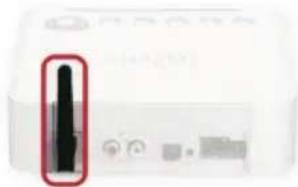
natural_image
Close-up of a white electronic device with a black connector and indicator lights, no visible text or symbols.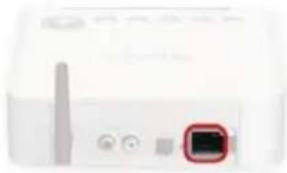
natural_image
Close-up of a white electronic device with a black square button and control buttons (no visible text or symbols)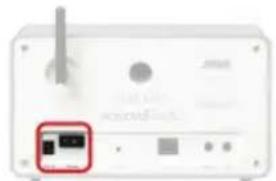
natural_image
Front view of a white electronic device with a red button highlighting a small black component (no visible text or symbols)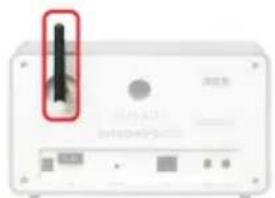
natural_image
Front view of a white electronic device with a black vertical indicator and control buttons (no readable text or symbols)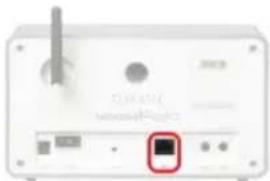
natural_image
Front view of a white electronic device with a red square button highlighting a component (no readable text or symbols)natural_image
Close-up of a white electronic device with two red square eyes highlighting the front panel (no visible text or symbols)natural_image
Black electronic charger with attached cable and connector (no visible text or symbols)natural_image
Front view of a white electronic device with a red button highlighting a small black square (no visible text or symbols)text_image
Schlüssel 1 : ASCII, 128 Bit p34c3!0n34r7h ^http:\supportde.terratec.net
NOXON
This guide shows you how to start up your NOXON device.
You can find detailed descriptions and special configurations in your manual.
I. Pretest
Your NOXON is a network device that needs to be connected to your network before you can get started. This takes just a few easy stepsall you need is some basic information about your network.
What do you need?
A fast internet connection (for example, DSL, ideally with a flat rate).
A router, called a WLAN router, for wireless operation (wireless LAN).
A PC (just for updates and your digital music collection. You don't need a PC to receive Internet radio).
Your network key ("WEP / WPA / WPA2").
This key, just like any key, protects your network from unauthorized access and was generated when your network was set up. To allow NOXON access to a key-protected network, you will need to enter the network key into NOXON in a later step. Please ask your network specialist for the key.
If your network does not have a key, the NOXON can connect to the Internet without a network key.
Note: If you are not sure whether or not you have a network key, try to connect the NOXON to the Internet without one. If this does not work, repeat the setup process from the beginning. However, you will need to know your network key at this point.
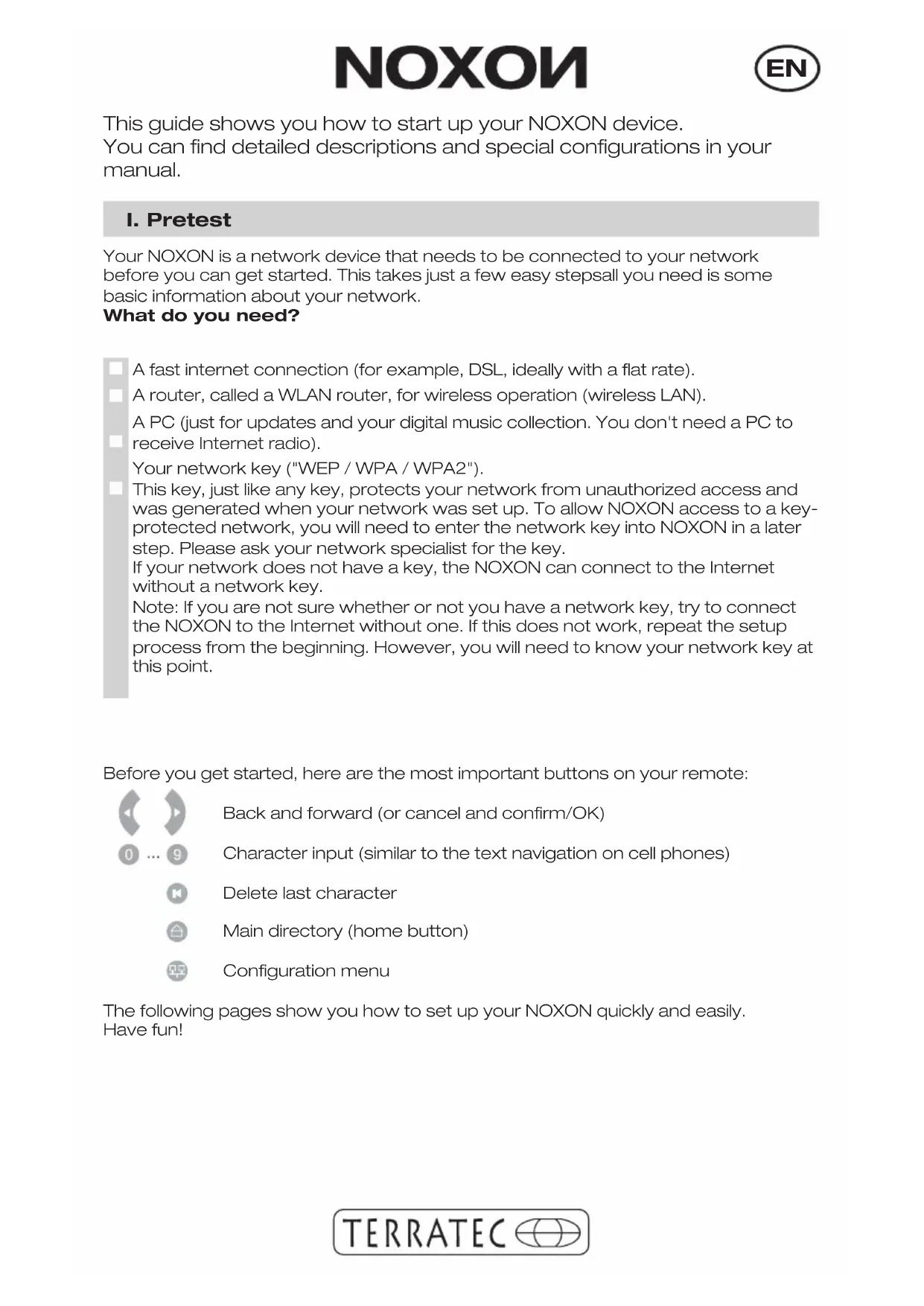
Before you get started, here are the most important buttons on your remote:

Back and forward (or cancel and confirm/OK)

Character input (similar to the text navigation on cell phones)

Delete last character

Main directory (home button)

Configuration menu
The following pages show you how to set up your NOXON quickly and easily. Have fun!
II. Start up
Before you can configure your NOXON, you'll need to:
natural_image
White electronic device with ports and a red button (no visible text or symbols)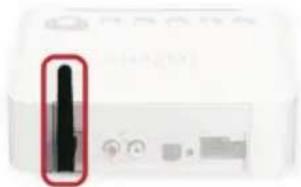
natural_image
Close-up of a white electronic device with a black vertical indicator and control buttons (no visible text or symbols)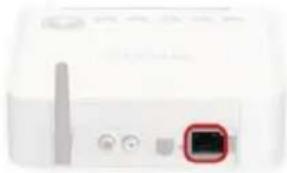
natural_image
Close-up of a white electronic device with a red button and control buttons (no visible text or symbols)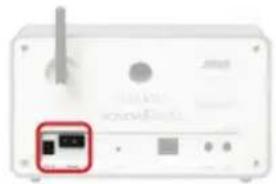
natural_image
Front view of a white electronic device with a red button highlighting a small black component (no visible text or symbols)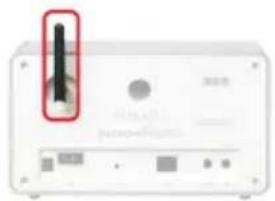
natural_image
Front view of a computer monitor with a black indicator light and a red button (no visible text or symbols)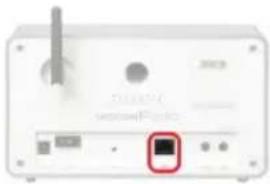
text_image
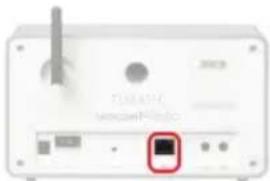
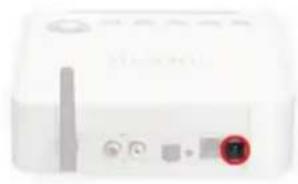
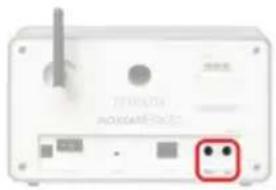
TELENT sensell®/PacnolConnect the power adapter, the antenna and a network cable (if you do not use a wireless network).
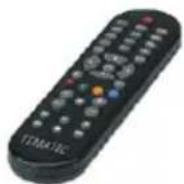
Insert the batteries into the remote control (The NOXON works without a remote too! For more information, refer to your manual.)
text_image
Device front panel with labeled ports and a red square button highlighting a small circular icon.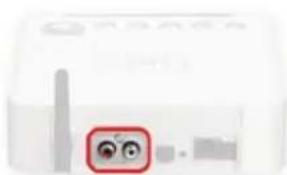
natural_image
Close-up of a white electronic device with two red square eyes highlighting the interior (no visible text or symbols)Connect an amplifier or speaker system if necessary
natural_image
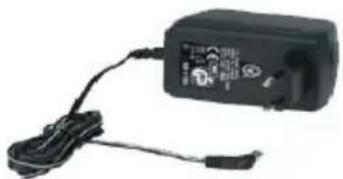
Black electronic device with attached cable and connector (no visible text or symbols)Plug the power adapter into the electrical socket
natural_image
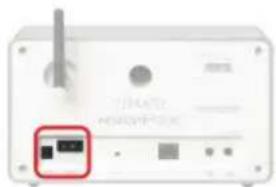
Front view of a white electronic device with a red button highlighting a small black square (no visible text or symbols)Press the on/off button (NOXON iRadio only).
III. Configuration
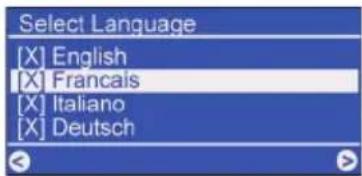
text_image
Select Language [X] English [X] Francais [X] Italiano [X] Deutsch1) Select your language and confirm it with

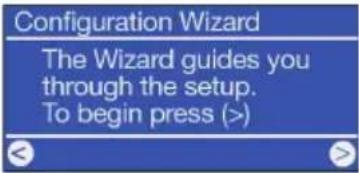
text_image
Configuration Wizard The Wizard guides you through the setup. To begin press (>)2) As with all other NOXON menus, please press to confirm.

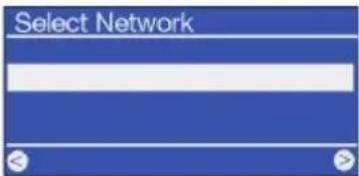
text_image
Select Network3a) You may also find other wireless networks in the area! Select your home network and confirm it with
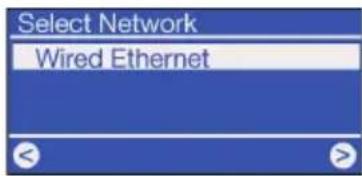
text_image
Select Network Wired Ethernet3b) If you have connected your NOXON with a cable (wired Ethernet), you can skip step 4 because you do not need a key. Simply confirm with
text_image
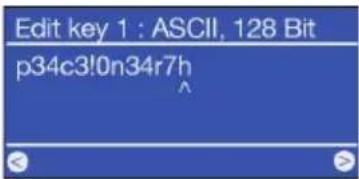
Edit key 1 : ASCII, 128 Bit p34c3!0n34r7h ^4) If using a wireless network, please enter your network key (see Pretest) and confirm with
text_image
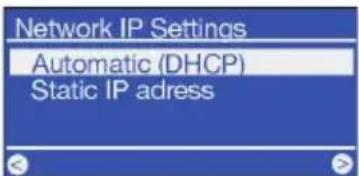
Network IP Settings Automatic (DHCP) Static IP adress5) For most users, the "Automatic (DHCP)" setting is the right setting because the router assigns the IP address automatically. If you are not sure, simply select and confirm this setting.
If you want to assign a static IP address (kind of like a "home address" for your network) for your NOXON, select the corresponding entry. For more information, refer to the manual or the CD.
text_image
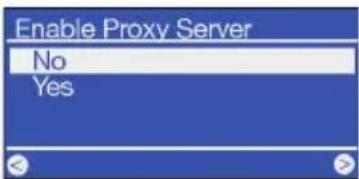
Enable Proxy Server No Yes6) Not usually needed for home users (select "no" and follow step 7). If you are using a proxy server, select "yes" and confirm. You should know the entries that follow. For more information, refer to the manual or the CD!
text_image
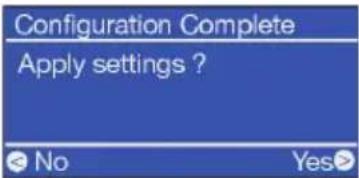
Configuration Complete Apply settings ? No Yes>7) Now all you need to do is confirm the configuration with Done!

NOXON
If all of the settings are correct, you should be able to access the Internet radio stations in the main menu (💡) or look at the podcast directory. If you can't, then your NOXON cannot connect to the Internet. Please check the settings and repeat the configuration process if necessary. Sometimes even a single incorrect character can be the source of the problem. We hope your NOXON brings you hours of enjoyment!
NOXON
Répertoire principal (touche Home)

Menu de configuration
natural_image
White electronic device with indicator lights and a red button (no visible text or symbols)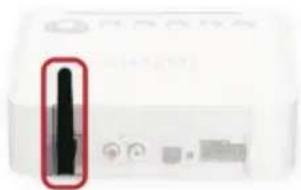
natural_image
Close-up of a white electronic device with a black connector and indicator lights, no visible text or symbols.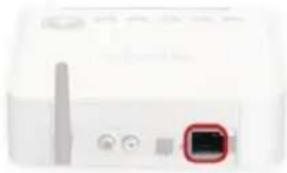
natural_image
Close-up of a white electronic device with a black square button and control buttons (no visible text or symbols)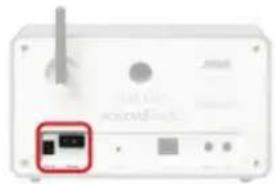
natural_image
Front view of a white electronic device with a red button highlighting a small black object (no visible text or symbols)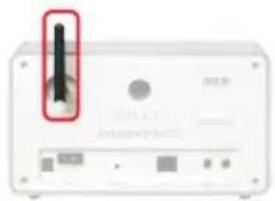
natural_image
Front view of a white electronic device with a black vertical indicator and control panel (no visible text or symbols)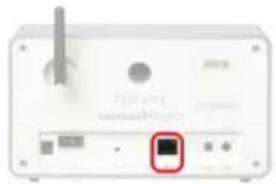
natural_image
Front view of a white electronic device with a black square button and ports (no readable text or symbols)natural_image
Close-up of a white electronic device with two red square highlights on the side (no visible text or symbols)natural_image
Black electronic charger with attached cable and connector (no visible text or symbols)natural_image
Front view of a white electronic device with a red button highlighting a small black square (no visible text or symbols)natural_image
White electronic device with indicator lights and a red button (no visible text or symbols)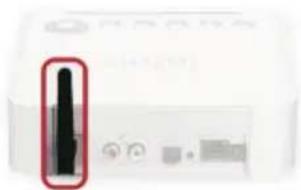
natural_image
Close-up of a white electronic device with a black connector and indicator lights (no visible text or symbols)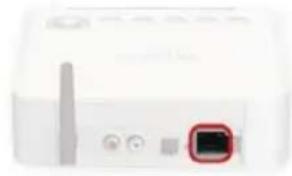
natural_image
Close-up of a white electronic device with a small black square button and control buttons (no visible text or symbols)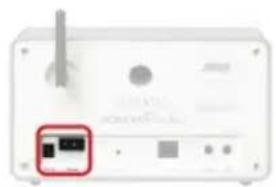
natural_image
Front view of a white electronic device with a small black button and indicator lights (no visible text or symbols)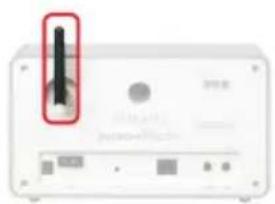
natural_image
Front view of a white electronic device with a black vertical indicator and control buttons (no readable text or symbols)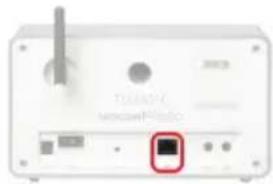
text_image
TELASTIC microcontrollernatural_image
Close-up of a white electronic device with two red square buttons highlighting the front and side ports (no visible text or symbols)natural_image
Black electronic charging plug with attached cable and connector (no visible text or symbols)natural_image
Front view of a white electronic device with a red button highlighting a small black square (no visible text or symbols)natural_image
White electronic device with indicator lights and a red circular button (no visible text or symbols)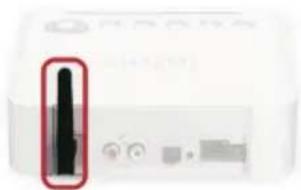
natural_image
Close-up of a white electronic device with a black vertical indicator and red oval highlight (no visible text or symbols)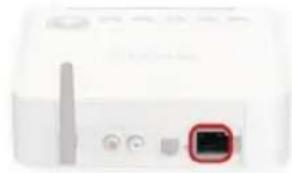
natural_image
Close-up of a white electronic device with a small black square button and control buttons (no visible text or symbols)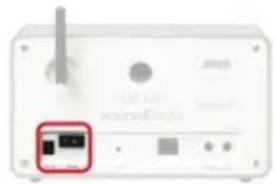
natural_image
Front view of a white electronic device with a red button highlighting a small black component (no visible text or symbols)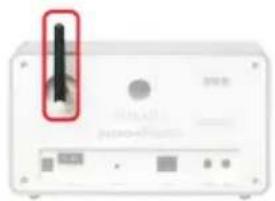
natural_image
Front view of a white electronic device with a black vertical indicator and ports (no visible text or symbols)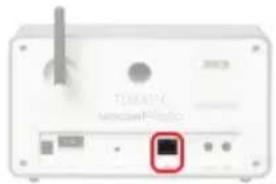
natural_image
Front view of a white electronic device with ports and a highlighted square button (no readable text or symbols)natural_image
Close-up of a white electronic device with two red square buttons highlighting the front and side ports (no visible text or symbols)natural_image
Black electronic charger with attached cable and connector (no visible text or symbols)natural_image
Front view of a white electronic device with a red button highlighting a small component (no visible text or symbols)natural_image
White electronic device with indicator lights and a red button (no visible text or symbols)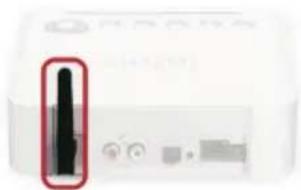
natural_image
Close-up of a white electronic device with a black vertical indicator and red oval highlight (no visible text or symbols)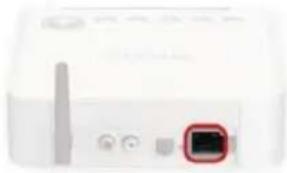
natural_image
Close-up of a white electronic device with a red button and ports (no visible text or symbols)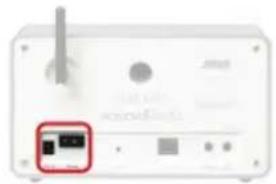
natural_image
Front view of a white electronic device with a red button highlighting a small black component (no visible text or symbols)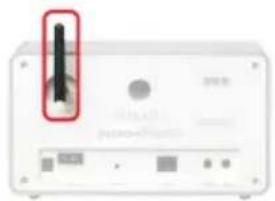
natural_image
Front view of a white electronic device with a black vertical indicator and ports (no visible text or symbols)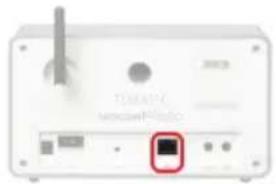
natural_image
Front view of a white electronic device with ports and a highlighted square button (no readable text or symbols)natural_image
Close-up of a white electronic device with two red square highlights highlighting the eyes (no text or symbols visible)natural_image
Black electronic charger with attached cable and connector (no visible text or symbols)natural_image
Front view of a white electronic device with a red button highlighting a small component (no visible text or symbols)text_image
Select Language [X] English [X] Francais [X] Italiano [X] Deutschtext_image
Configuration Wizard The Wizard guides you through the setup. To begin press (>)text_image
Select Network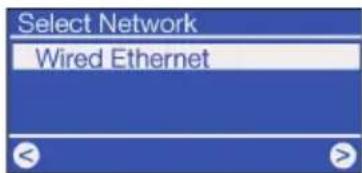
text_image
Select Network Wired Ethernettext_image
Network IP Settings Automatic (DHCP) Static IP adressnatural_image
Close-up of a white electronic device with a red circular button labeled '11' (no readable text or symbols beyond the button)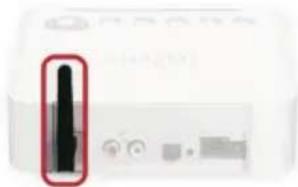
natural_image
Close-up of a white electronic device with a black vertical indicator and red oval highlight (no visible text or symbols)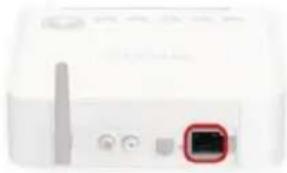
natural_image
Close-up of a white electronic device with a red button and ports (no visible text or symbols)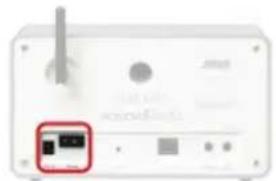
natural_image
Front view of a white electronic device with a red button highlighting a small black square (no visible text or symbols)
natural_image
Front view of a white electronic device with a black vertical indicator and control panel (no visible text or symbols)