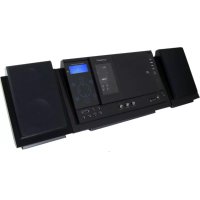
LCXUM500iPod - Hi-fi system Sunstech - Free user manual and instructions
Find the device manual for free LCXUM500iPod Sunstech in PDF.



| Product type | Hi-Fi system with iPod docking station |
| Brand | Sunstech |
| Model | LCXUM500iPod |
| Dimensions (W x D x H) | 400 x 154 x 211 mm |
| Net weight | 5.1 kg |
| Power supply | 230 V ~ 50 Hz |
| Output power | 2 x 10 W RMS |
| Radio receiver | FM 87.5 - 108 MHz |
| Optical disc player | CD, CD-R, CD-RW, MP3, WMA |
| Removable media | USB port, SD/MMC card reader (up to 32 GB) |
| iPod/iPhone compatibility | iPod nano, classic, touch (multiple generations) |
| Connectors | Auxiliary input (RCA), video output, 3.5 mm headphone jack |
| Audio functions | Preset equalizer, random playback, repeat, programming |
| Timer | Sleep timer and alarm |
| Display | Backlit LCD screen |
| Remote control | Yes (AAA batteries not included) |
| Antenna | FM wire antenna |
| Backup memory | AAA batteries (not included) |
| Included accessories | Power cable, remote control, iPod adapters, manual |
| Maintenance | Clean with a soft, dry cloth. Do not use solvents. |
| Safety | Do not expose to moisture. Do not block ventilation slots. |
Frequently Asked Questions - LCXUM500iPod Sunstech
User questions about LCXUM500iPod Sunstech
0 question about this device. Answer the ones you know or ask your own.
Ask a new question about this device
Download the instructions for your Hi-fi system in PDF format for free! Find your manual LCXUM500iPod - Sunstech and take your electronic device back in hand. On this page are published all the documents necessary for the use of your device. LCXUM500iPod by Sunstech.
USER MANUAL LCXUM500iPod Sunstech
SUNSTECH by i-CONNEX
LCXUM500
iPod is a trademark of Apple Inc., registered in the U.S. and other countries. iPod shown not included.
"Made for iPod" means that an electronic accessory has been designed to connect specifically to iPod and has been certified by the developer to meet Apple performance standards. Apple is not responsible for the operation of this device or its compliance with safety and regulatory standards.
SUNSTECH by i-CONNEX
LCXUM500
FREQUENCY RESPONSE: 100 Hz-16 kHz
SUNSTECH by i-CONNEX
LCXUM500
Docking Station with CD/MP3/USB/SD CARD Player, Radio and iPod
iPod is a trademark of Apple Inc., registered in the U.S. and other countries. iPod shown not included.
"Made for iPod" means that an electronic accessory has been designed to connect specifically to iPod and has been certified by the developer to meet Apple performance standards. Apple is not responsible for the operation of this device or its compliance with safety and regulatory standards.
INSTRUCTIONMANUAL

To achieve the utmost in enjoyment and performance, please read this manual carefully before attempting to operate the unit in order to became familiar with its features, and assure you years of faithful, trouble free performance and listening pleasure.
Important Notes
- Keep instructions the safety and operating instructions should be retained for future reference.
Avoid installing the unit in locations described below:
Places exposed to direct sunlight or close to heat radiating appliances such as electric heaters.
On top of other stereo equipment that radiate too much heat , Places lacking ventilation or dusty
places . Places subject to constant vibration . Humid or moist places .
Make sure not to obstruct the ventilation openings. - Before turning on the power for the first time, make sure the power cord is properly installed.
- Mains plug is used as the disconnect device and it shall remain readily operable completely.
The product shall not be exposed to drinping or splashing and that no objects filled with liquids such as vases shall be placed on the
product.
The apparatus shall not be exposed to dripping or splashing and that no objects filled with liquids, such as vases, shall be placed on apparatus.
To be completely disconnect the power input, the mains plug of apparatus shall be disconnected from the mains.
When the stand-by LED gives no color, the apparatus is completely disconnected from mains.
Minimum distances10cm around the apparatus for sufficient ventilations.
Attention should be drawn to the environmental aspects of battery disposal.
The use of apparatus in moderate climates.
The mains plug should not be obstructed or should be easily accessed during intended use.
The ventilation should not be impeded by covering the ventilation openings with items such as newspaper, table-clothes, curtains etc.
No naked flame sources such as lighted candles should be placed on the apparatus.
Battery shall not be exposed to excessive heat such as sunshine, fire or the like.
For safety reasons, do not remove any covers or attempt to gain access to the inside of the product. Refer any servicing to qualified personnel.
Do not attempt to remove any screws, or open the casing of the unit; there are no user serviceable parts inside, refer all servicing to qualified service personnel.


CAUTION : TO REDUCE THE RISK OF ELECTRIC SHOCK DO NOT REMOVE COVER (OR BACK),NO USER SERVICEABLE PARTS INSIDE, REFER SERVICING TO QUALIFIED SERVICE PERSONNEL.

DANGEROUSVOLTAGE
Conductor dangerous voltage, that may be of sufficient magnitude to constitute a risk of electric shock to persons is present within this products enclosure.

ATTENTION
The owners manual contains important operating and maintenance instructions, for your safety, it is necessary to refer to the manual.
WARNING : TO PREVENT FIRE OR SHOCK HAZARD. DO NOT EXPOSE THIS APPLIANCE TO DRIPPING OR SPLASHING.
Note:
- This unit will become warm when used for a long period of time. This is normal and does not indicate a problem with the unit.
- The CD player includes micro-processors which may malfunction as a result of external electrical interference or noise. If the CD
player is not working properly, disconnect the power source and then reconnect it. - Excessive sound pressure from earphones and headphones can cause hearing loss
- If an unusual conditions occurs in the display window or key button, switch the unit off, then turn on the unit again.
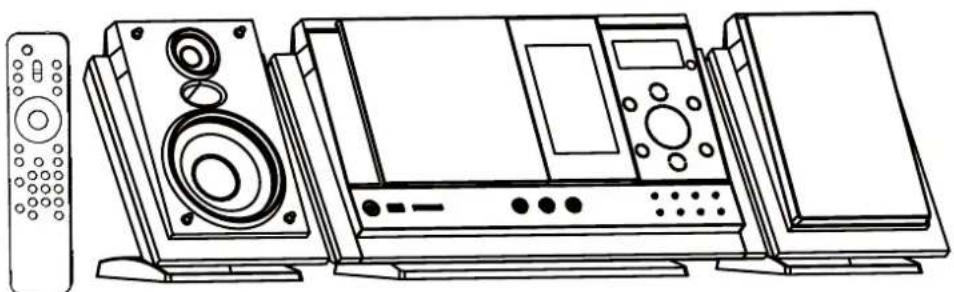
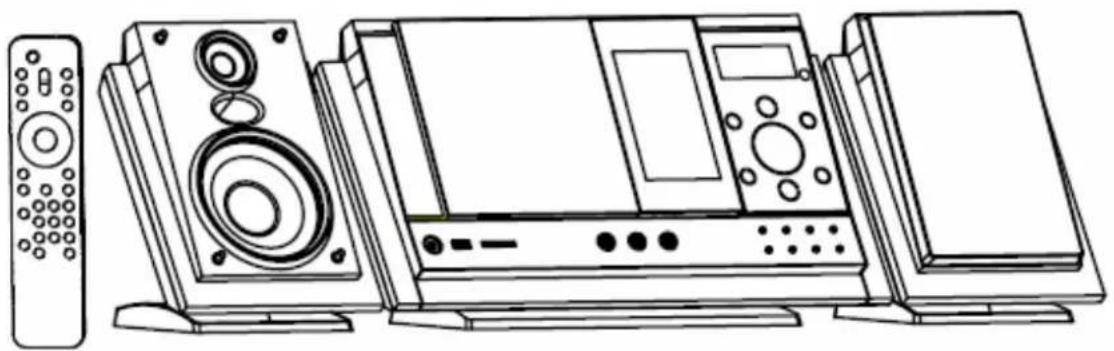
AssemblyDrawingofUnitandspeaker
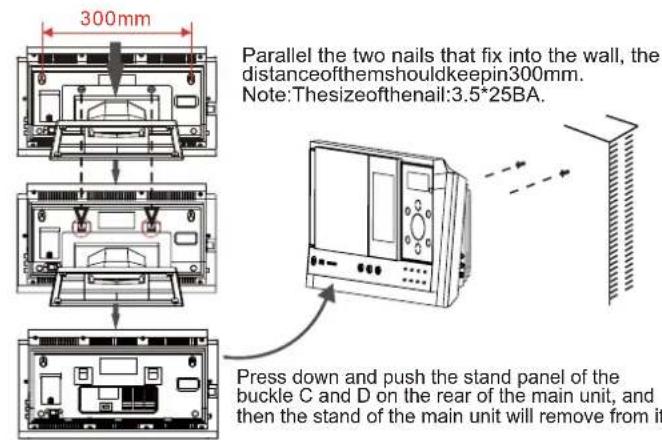
1. Fixing the whole set of the unit on the wall
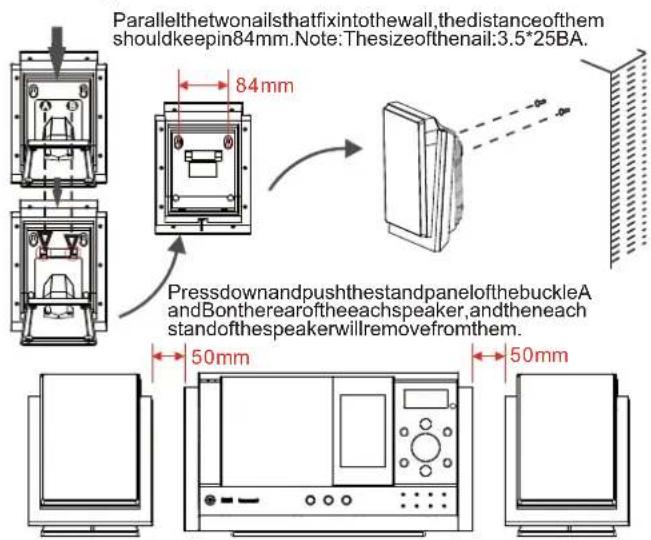
Note:Whenwall-mountingthesetofproductline,suggestkeepingat least50mmdistancefromthemainunittothespeakerstcoachievebetter stereoeffectandtoensurethesideCDdoorwithprefectmovement.
2. Speakers connection
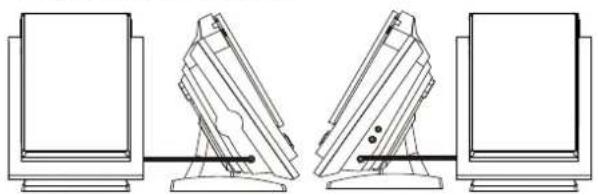
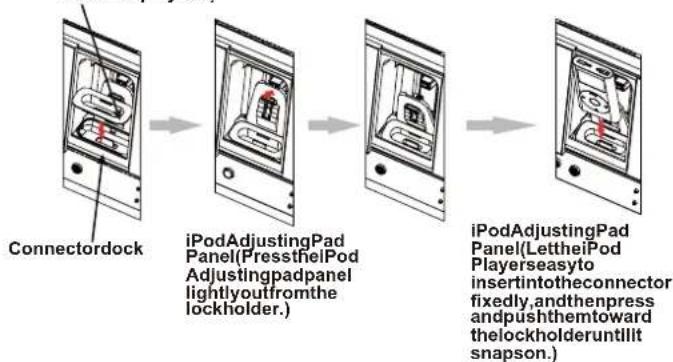
3. Docking bracket and iPod Adjusting pad panel
UniversalDockadapter(UsingtheDockAdapterstosupporttype oftheiPodplayers.)
4. Adjust the adjusting pad knob
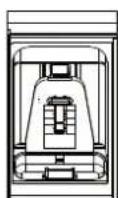
iPod classic 2nd generation 120GB
Adjust the Adjusting pad Knob at the level 1 to support these iPod Playersasbelows:
Made for iPod with
colordisplay generation)40GB, 60GB only. d(4thgeneration)40GBonly
iPodwithvideo
(5th generation)30GB only iPodclassic80GB
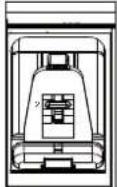
Adjust the Adjusting pad Knob at the level 2 to support these iPod Playersasbelows:
Made for iPod mini (1st generation)4GB, 6GB only
(4thgeneration)20GBonly U2SpecialEdition
iPodwith colordisplay (ation)20GB, 30GB Special Edition
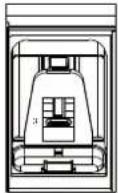
AdjusttheAdjustingpadKnobathe level3tosupporttheseiPod Playersasbelows:
MadeforPodnan eration)1GB,2GB,4GBonly
iPodtouch2ndgeneration 8GB/16GB/32GB
FEATURESANDCONTROLS
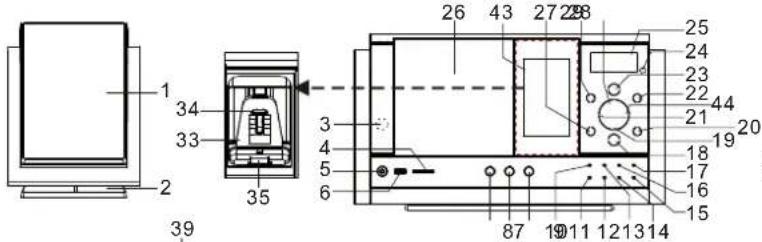
iPodwithvideo (5thgeneration)60GB,80GBonly iPodclassic160GB
1.SPEAKER
2.SPEAKERSTAND
3.STANDBYLEDINDICATOR
4.SD/MMCCARDINSLOT
5.HEADPHONESJACK
6.USBDEVICEINPUT
7.iPodOPEN/CLOSEBUTTON
8.STANDBY/ONBUTTON
9.CDOPEN/CLOSEBUTTON
10.SLEEPBUTTON
20.VOLUMEDOWNTOUCHPLATE
21.SKIP/TUNESEARCHDOWN T OUCHPLATE
22.VOLUMEUPT OUCHPLATE
23.FUNCTIONTOUCHPLATE
24.IRSENSOR
25.LCDDDISPLAYWINDOW
26.CDDOOR
27.REPEATTOUCHPLATE
- INTROTOUCHPLATE
29.PLAY/PAUSE/ENTERTOUCH PLATE
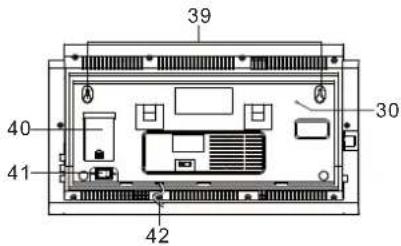
30.FMANTENNA
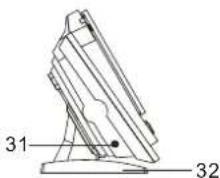
31 SPEAKEROUT"J"
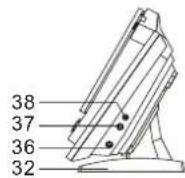
32.MAINUNITSTAND
33.DOCKINGBRACKET
34.iPodADJUSTINGPA DKNOB
35.IPodCONNECTOR
11.ID3/MONO/ST.BUTION
12.iPod/MEM/CLOCK-ADJ.BUTION
13.TIMERBUTTON
14.RANDOMBUTTON
15.MUTEBBUTTON
16.PRESET/FOLDERDOWNBUTTON
17.PRESET/FOLDERUPBUTTON
18.EQTOUCHPLATE
19.STOP/MENUTOUCHPLATE
36.SPEAKEROUT"R"
37.VIDEOOUTJACK
38 LINEINJACK
39.HITCHINGHOLE
40.MEMORYBACK-UPBATTERYDOOR
41.ACPOWERSWITCH
42.ACPOWERCORD
43.iPodPLAYERDOOR
44.SKIP/TUNESEARCHUPTOUCHPLATE
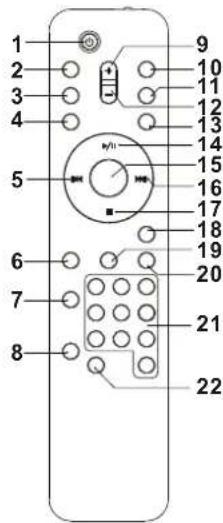
REMOTECONTROL
1.ST AND BY BUTTON
2.MUTEBFUNCTION
3. PRESET/FOLDER UP BUTTON
4. PRESET/FOLDER DOWN BUTTON
5. SKIP/TUNE SEARCH DOWN BUTTON
6. INTRO BUTTON
7.ID3/MONO/ST.BUTTON
8. RANDOM BUTTON
9. VOLUME UP BUTTON
10FUNCTIONBUTTON
11.CD OPEN/CLOSE BUTTON
- VOLUME DOWN BUTTON
13.iPod OPEN/CLOSE BUTTON
14.PLAY/PAUSE/ENTERBUTTON
15.EQBUTION
16.SKIP/TUNE SEARCH UP BUTTON
17.STOP/MENUBUTION
18.SLEEPBUTTON
19.iPod/MEM/CLOCK-ADJ.BUTION
20.TIMERBUTTON
21.NUMBERSEARCHBUTTON
22.REPEATBUTTON
PUTTING THE BATTERIES INTO THE REMOTE CONTROL UNIT
Press down the compartment cover, and slide the cover off to open the compartment. Place the two (UM4), (AAA), (R03) batteries in the remote control according to the polarity markings (^ + ^ and "一 " ) inside the compartment and on the batteries. Place the cover over the compartment, press down lightly, and push it upward until it snaps on.
Note: Remove the batteries from the remote control if not in use for long period of the time. Do not mix normal batteries with rechargeable batteries, when the batteries become weak, remote control will not function and replace with new batteries.
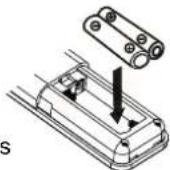
**BATTERIESNOT INCLUDED**
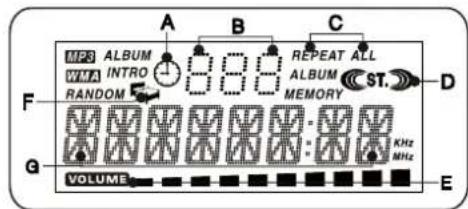
LCDDISPLAYWINDOW
A.TIMERINDICATOR
B.ALBUMNUMBERINDICATOR
C.REPEAT1&ALLINDICATOR
D.STEREOIDICATOR
E.VOLUMEHIGH/LOWINDICATOR
F.SLEEPINDICATOR
G.TRACK/NUMBER/TIMEINDICATOR
COMPACTDISC
- Always use a compact discs bearing the mark as shown.
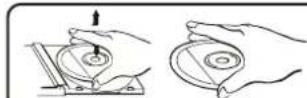
- Notes on handling discs
Removing the disc from its storage case and loading it.
Do not touch the reflective recorded surface.
Do not stick paper or write anything on the surface.
* Do not bend the disc.

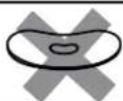
3. Storage
- Store the disc in its case.
- Do not expose discs to direct sunlight or high temperatures, high humidity or dusty places.
4.Cleaningadisc
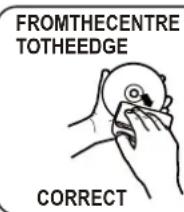
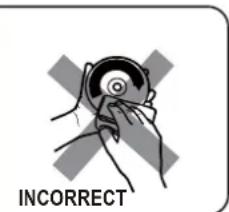
- Should the disc become soiled, wipe off dust, dirt and fingerprints with a soft cloth.
- The disc should be cleaned from the center to the edge.
- Never use benzene, thinners, record cleaner fluid or anti static spray.
- Be sure to close the CD door so the lens is not contaminated by dust.
- Do not touch the lens.
OPERATINGTHEUNIT
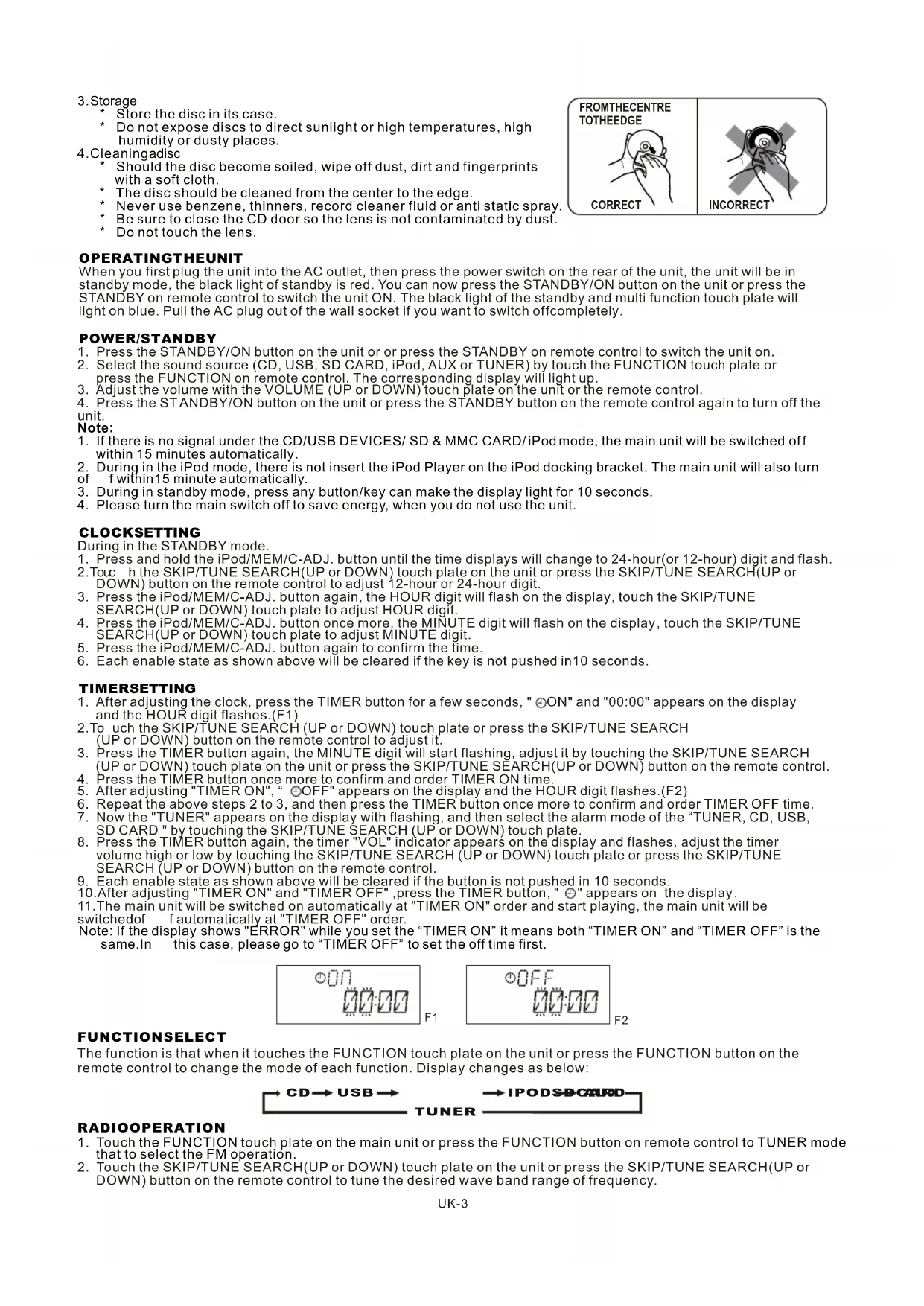
When you first plug the unit into the AC outlet, then press the power switch on the rear of the unit, the unit will be in standby mode, the black light of standby is red. You can now press the STANDBY/ON button on the unit or press the STANDBY on remote control to switch the unit ON. The black light of the standby and multi function touch plate will light on blue. Pull the AC plug out of the wall socket if you want to switch offcompletely.
POWER/STANDBY
-
Press the STANDBY/ON button on the unit or or press the STANDBY on remote control to switch the unit on.
-
Select the sound source (CD, USB, SD CARD, iPod, AUX or TUNER) by touch the FUNCTION touch plate or press the FUNCTION on remote control. The corresponding display will light up.
-
Adjust the volume with the VOLUME (UP or DOWN) touch plate on the unit or the remote control.
-
Press the STANDBY/ON button on the unit or press the STANDBY button on the remote control again to turn off the unit.
Note:
- If there is no signal under the CD/USB DEVICES/ SD & MMC CARD/iPod mode, the main unit will be switched off within 15 minutes automatically.
- During in the iPod mode, there is not insert the iPod Player on the iPod docking bracket. The main unit will also turn of f within 15 minute automatically.
- During in standby mode, press any button/ key can make the display light for 10 seconds.
- Please turn the main switch off to save energy, when you do not use the unit.
CLOCKSETTING
During in the STANDBY mode.
1. Press and hold the iPod/ME/MC-ADJ. button until the time displays will change to 24-hour (or 12-hour) digit and flash.
2. Tou h the SKIP/TUNE SEARCH(UP or DOWN) touch plate on the unit or press the SKIP/TUNE SEARCH(UP or DOWN) button on the remote control to adjust 12-hour or 24-hour digit.
3. Press the iPod/MEM/C-ADJ. button again, the HOUR digit will flash on the display, touch the SKIP/TUNE SEARCH(UP or DOWN) touch plate to adjust HOUR digit.
4. Press the iPod/MEMC-ADJ button once more, the MINUTE digit will flash on the display, touch the SKIP/TUNE SEARCH(UP or DOWN) touch plate to adjust MINUTE digit.
5. Press the iPod/MEM/C-ADJ. button again to confirm the time.
6. Each enable state as shown above will be cleared if the key is not pushed in 10 seconds.
TIMERSETTING
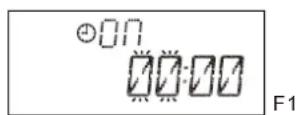
- After adjusting the clock, press the TIMER button for a few seconds, "ON" and "00:00" appears on the display and the HOUR digit flashes.(F1)
- To uch the SKIP/TUNE SEARCH (UP or DOWN) touch plate or press the SKIP/TUNE SEARCH (UP or DOWN) button on the remote control to adjust it.
- Press the TIMER button again, the MINUTE digit will start flashing, adjust it by touching the SKIP/TUNE SEARCH (UP or DOWN) touch plate on the unit or press the SKIP/TUNE SEARCH(UP or DOWN) button on the remote control.
- Press the TIMER button once more to confirm and order TIMER ON time.
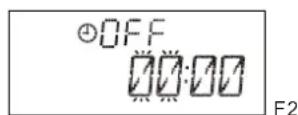
- After adjusting "TIMER ON", "OFF" appears on the display and the HOUR digit flashes.(F2)
- Repeat the above steps 2 to 3, and then press the TIMER button once more to confirm and order TIMER OFF time.
- Now the "TUNER" appears on the display with flashing, and then select the alarm mode of the "TUNER, CD, USB, SD CARD" by touching the SKIP/TUNE SEARCH (UP or DOWN) touch plate.
- Press the TIMER button again, the timer "VOL" indicator appears on the display and flashes, adjust the timer volume high or low by touching the SKIP/TUNE SEARCH (UP or DOWN) touch plate or press the SKIP/TUNE SEARCH (UP or DOWN) button on the remote control.
- Each enable state as shown above will be cleared if the button is not pushed in 10 seconds.
10.After adjusting "TIMER ON" and "TIMER OFF",press the TIMER button, 气 ^ appears on the display. - The main unit will be switched on automatically at "TIMER ON" order and start playing, the main unit will be switched off automatically at "TIMER OFF" order.
Note: If the display shows "ERROR" while you set the "TIMER ON" it means both "TIMER ON" and "TIMER OFF" is the same. In this case, please go to "TIMER OFF" to set the off time first.
FUNCTIONSELECT
The function is that when it touches the FUNCTION touch plate on the unit or press the FUNCTION button on the remote control to change the mode of each function. Display changes as below:

RADIOOPERATION
- Touch the FUNCTION touch plate on the main unit or press the FUNCTION button on remote control to TUNER mode that to select the FM operation.
- Touch the SKIP/TUNE SEARCH(UP or DOWN) touch plate on the unit or press the SKIP/TUNE SEARCH(UP or DOWN) button on the remote control to tune the desired wave band range of frequency.
ManualTuning
To tune for weak stations, use manual tuning by touching the SKIP/TUNE SEARCH(UP or DOWN) touch plate continuously until you read the correct frequency or the reception is at its best.
Automatic Tuning
- Touch the SKIP/TUNE SEARCH(UP or DOWN) touch plate on the unit or press the SKIP/TUNE SEARCH(UP or DOWN) button on the remote control for a second or more, then release the button. The tuner will automatically search the first station of sufficient signal strength.
- Repeat above procedure if you wish to select another station.
Mono/stereoselect
You can select the MONO/STEREO only in FM mode.
- When you want to select FM stereo station, press the ID3/MONO/STEREO button. When you receive a FM stereo station the "CST.D" indicator will appear on the display, you can receive FM stereo transmission.
- When you press the ID3/MONO/STEREO button again, the FM STEREO indicator will turn off and switch to MONO FM status.
Programmingpresetstations
You can also preset stations of your choice and store up to 30 FM stations in its memory. To store your selected broadcastingstations:
- Tune to the required station.
- Press the iPod/MEM/CLOCK-ADJ. button.
- Press the PRESET/FOLDER (Up or DOWN) button for your desired station number.
- Press the iPod/MEM/CLOCK-ADJ. button again to confirm your selection.
- To program more stations into memory, repeat the above steps 2 to 4.
- To change the stored preset stations, repeat the above steps 2 to 4.
Note: 1. Storing a new station into a preset location will erase the previously stored station in that location.
- Power of f will not erase the memory of preset stations. Perform the stations presetting procedures again to store the stations.
Selecting the Preset Stations
- Press the PRESET/FOLDER (UP or DOWN) button to select the desired preset station number.
- The numeric location of that preset station is displayed along with the corresponding frequency.
FMAntenna
FM antenna wire is for better FM reception.
CD/MP3/WMAOPERATION
Listening To Compact Disc (CD/MP3/WMA)
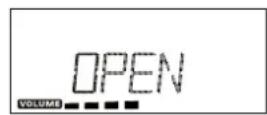
- If you want to enjoy CD/MP3, press the CD OPEN/CLOSE button once on the unit first, and then the CD door will open automatically.(F3)
- Insert the CD/MP3 disc into the CD compartment, press the CD OPEN/CLOSE button again, and then the CD door will close automatically.
- Touch the FUNCTION touch plate on the unit or press the FUNCTION button on the remote control is select to CD/MP3 mode. The unit will read the CD/MP3/WMA disc automatically.
Note: (1) This unit can play CD, CD-R, CD-RW, MP3 and WMA discs.
(2) It can read " 8 cm " and " Multi Section " of MP3 DISC.
(3) The "Playback Transfer Rate" in MP3 and WMA.
a. In MP3, transfer bit rate: 8 - 256 kbps.
b. In WMA, transfer bit rate: 8 - 192 kbps.
(4) The "Max Readable 99 folders and 999 tracks".
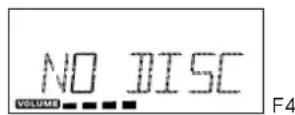
(5) If no disc or can't read TOC, NO DISC will be displayed.(F4)
F3
Playing The Entire CD/MP3/WMA
-CD
-
To resume playback, touch the PLAY/PAUSE/ENTER touch plate on the unit or press the PLAY/PAUSE/ENTER button on the remote control once more again.
-
To stop playback, touch the STOP/MENU touch plate on the unit or press the STOP/MENU button on the remote contrololence.
-
Insert the CD disc into the CD compartment, the main unit will automatically read the total number of the folders and tracks at the same time.
- Touch the PLAY/PAUSE/ENTER touch plate on the unit or press the
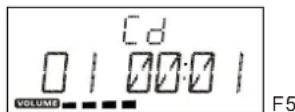
PLAY/P AUSE/ENTER button on the remote control, the unit will play the first track of the CD disc automatically.(F5) - Touch the PLAY/PAUSE/ENTER touch plate on the unit or press the
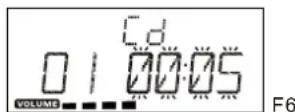
PLA Y/PAUSE/ENTER button on the remote control once again, the time elapsed indicator will flash and pause CD playback.(F6) - Touch the SKIP/TUNE SEARCH(UP or DOWN) touch plate once to change Track NO., Touch and hold the SKIP/TUNE SEARCH (UP or DOWN) touch plate on the unit once or (on the remote control) to skip fast forward or backward of each song.
-MP3/WMA
- Insert the MP3/WMA disc into the CD compartment, the main unit will automatically read the total number of the folders and tracks at the same time.
- Touch the PLAY/PAUSE/ENTER touch plate on the unit or press the PLAY/PAUSE /ENTER button on the remote control, the unit will play the first track of the CD disc automatically .(F7)
-
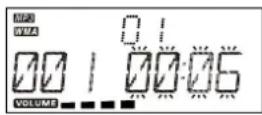
Touch the PLAY/PAUSE/ENTER touch plate on the unit or press the PLAY/PAUSE /ENTER button on the remote control once again, the time elapsed indicator will flash and pause CD playback.(F8)
-
To change Track NO., touch SKIP/TUNE SEARCH(UP or DOWN) touch plate on the unit or press the PLAY/PAUSE/ENTER button on the remote control once. And touch and hold the SKIP/TUNE SEARCH (UP or DOWN) touch plate on the unit once or (on the remote control) to skip fast forward or backward of each song
-
To resume playback, touch the PLAY/PAUSE/ENTER touch plate on the unit or press the PLAY/PAUSE/ENTER button on the remote control once more again.
-
To change the ALBUM NO., press the PRESET/FOLDER UP or PRESET/FOLDER ON once.
-
To stop playback, touch the STOP/MENU touch plate once on the unit (or remote control).
Note: If the main unit is not working properly, disconnect the power source and then reconnect it again.
F8
ID3OPERATION
During in the MP3/WMA mode
-
Press the ID3/MONO/STEREO button on th unit (or remote control) once to open the ID3 function.
-
If the MP3/WMA file is write in "ID3" it will automatically to search the information of "TITLE NAME", "ARTIST NAME" and "ALBUM NAME" indicated on the display.
-
Press the ID3/MONO/STEREO button on the on th unit (or remote control) again. Then the unit will resume to play normally.

USB/SDCARDOPERATION
During in the STANDBY mode
-
Insert the USB DEVICE or SD/MMC CARD, and then press the STANDBY button on the main unit (or remote control) to power"ON" the unit.
-
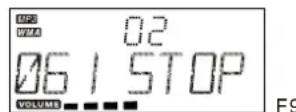
Touch the FUNCTION touch plate on the main unit (or remote control) to select the USB or SD/MMC mode. The main unit will tomatically read the total number of the folders and tracks at the same time. (F9)
-
If the USB memory device more than one folder.
a. Press the PRESET/FOLDER (UP or DOWN) button to select each folder.
b.Touch the SKIP/TUNE SEARCH(UP or DOWN) touch plate to select current track in desired folder.
- If the MP3 and WMA are written in "ID3".
a. During the unit in the MP3 or WMA playing. Press the ID3/MONO/STEREO button once. The display will shows a "ID3 ON", and then it will automatically to search more than 64 letters of "TITLE NAME", "ARTIST NAME" or "ALBUM NAME" which move from the right corner to the left corner on the display continuously.
b. Press the ID3/MONO/STEREO button once again. The display will show a "ID3 OFF", and then the main unit will play normally.
Note: 1. The main unit can play MP3 and WMA only in this mode.
- This unit can support most of USB devices and SD/MMC/SDHC cards. The memory capacity up-to 32GB. It can not access (or access a longer time) the memory capacity over 32GB. Otherwise, make an others to access it.
- It can support USB version 1.1 and 2.0.
- Not support all kinds of " dual voltage-MMC" card nor "MMC-Plus" card.
- The main unit does not support the WMA file which is protected "DRM FILE".
Playing The Entire flash disc
-
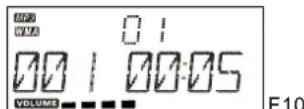
Playback will start by touching the PLAY/PAUSE/ENTER touch plate on the unit or press the PLAY/PAUSE/ENTER button on the remote control. Playback starts with the first track. The display shows the current track number and its elapsed time. (F10)
-
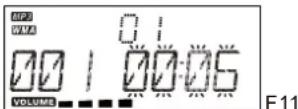
To interrupt playback, touch the PLAY/PAUSE/ENTER touch plate on the unit on press the PLAY/PAUSE/ENTER button on the remote control. The time elapsed indicator will flash.(F1 1)
-
To resume playback, touch the PLAY/PAUSE/ENTER touch plate on the unit or press the PLAY/PAUSE/ENTER button on the remote control again.
-
To stop playback, touch the STOP/MENUbutton
Note: In any time, the USB DEVICE or SD CARD must be fixed well under in the STANDBY mode to avoid the main unit and USB DEVICE or SD CARD were damaged.
REPEATPLAYFUNCTION
-CD
-
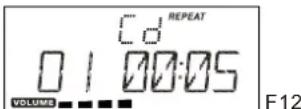
Touch the REPEAT touch plate on the unit or press the REPEAT button on the remote control once, "REPEAT" is displayed. CD will play the current track repeatedly.(F12)
-
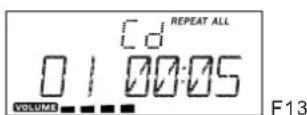
T ouch the REPEAT touch plate on the unit or press the REPEAT button on the remote control twice, "REPEAT ALL" is displayed. CD will play all tracks repeatedly.(F13)
-
Touch the REPEAT touch plate on the unit or press the REPEAT button on the remote control once more again, REPEAT function will be off.
-MP3/WMA/USB/SDCARD
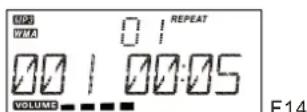
- Touch the REPEAT touch plate on the unit or press the REPEAT button on the remote control once, then"REPEAT" is displayed. It will play the current track repeatedly.(F14)
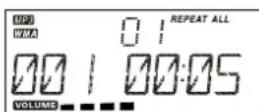
- Touch the REPEAT touch plate on the unit or press the REPEAT button on the remote control twice, "REPEAT ALL" is displayed. It will play all tracks repeatedly.(F15)
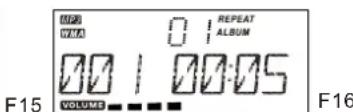
- Touch the REPEAT touch plate on the unit or press the REPEAT button on the remote control thrice, "REPEAT ALBUM" is displayed. It will play all tracks in the current folder repeatedly. (F16)
- T ouch the REPEAT touch plate on the unit or press the REPEAT button on the remote control once more again, then REPEAT function will be off.
PROGRAM FUNCTION
User can make the program up to 32 tracks in CD mode or 64 tracks in MP3/WMA/USB/SD CARD mode in any desired order. Program mode is activated while in stop mode.
1. How to play the program
-CD
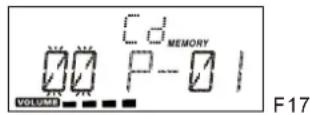
1) Press the iPod/MEM/C-ADJ. button, shift to MEMORY mode.(F17)
2)Touch the SKIP/TUNE SEARCH (UP or DOWN) touch plate on the unit or press the SKIP/TUNE SEARCH(UP or DOWN) button on remote control, the track number will be changed.
3) Press the iPod/MEM/C-ADJ. button to confirm the track number.
-MP3/WMA
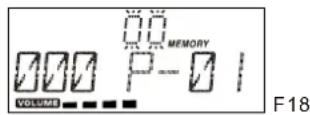
1) Press the iPod/MEM/C-ADJ. button, shift to MEMORY mode. The album number is flashing.(F18)
2) Press the PRESET/FOLDER button on the unit or on the remote control, the album number will be changed.
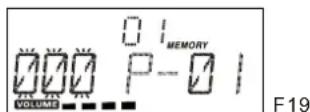
3) Press the iPod/MEM/C-ADJ. button, the first track number will be displayed.(F19)
4)Touch the SKIP/TUNE SEARCH(UP or DOWN) touch plate on the unit or press the SKIP/TUNE SEARCH(UP or DOWN) button on remote control, the track number will be changed.
5) Press the iPod/MEM/C-ADJ. button to confirm the favorite track number.
2.PROGRAM PLAY
TouchthePLA Y/PAUSE/ENTER touch plate on the unit or press the PLAY/PAUSE/ENTER button on remote control. The unit will play the first track of the program. When all tracks have been played, the unit display will be shows the number of tracks and the playing time of the CD/MP3 songs.
3. CANCEL PROGRAM
- Touch the STOP/MENU touch plate on the unit or press the STOP/MENU button on remote control once, or open the CD tray door and close it again that the memory will be erased.
- Set a new program, the existing one will be cleared.
Note: During in the program mode.
- Touch the REPEAT touch plate on the unit or press the REPEAT button on the remote control once, the "REPEAT" indicator will light on the display. Then the unit will repeat the current track.
- Touch the REPEAT touch plate on the unit or press the REPEAT button on the remote control twice, the "REPEAT
ALL" will light on the display. Then the unit will repeat all the total number of tracks. - Touch the REPEAT touch plate on the unit or press the REPEAT button on the remote control once more again.
The unit will return to play the program in normally.
RANDOM PLAY
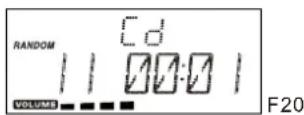
- Press the RANDOM button on the unit (or remote control), then RANDOM is displayed.(F20)
- Press the RANDOM button again, then the audio device unit will resume to normally play.
INTRO PLAY(on the remote control)
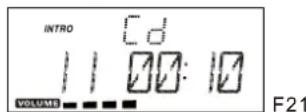
- Press the INTRO button on the remote control, INTRO is displayed. INTRO will play the first 10 seconds of each track.(F21)
- Press the INTRO button twice, then the audio device unit will resume to normally play.
iPod OPERATION
Note: To avoid damage the iPod, please make sure the iPod in standby mode to insert and take out.
During the unit in STANDBY mode:
1.P ress the iPod OPEN/CLOSE button once on the unit first to open the iPod door.
2. Insert the iPod players in the iPod docking bracket on the front of the main unit fixedly.
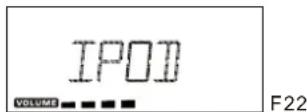
3. Power on the main unit, and then Touch the FUNCTION touch plate on the unit or press the FUNCTION button on remote control to the iPod mode, the iPod indicator will appear on the main unit display.(F22)
During the unit in iPod mode:
- Touch the PLAY/PAUSE/ENTER (only in iPod) touch plate or press the PLAY/PAUSE/ENTER button on the remote control once to start the iPod playing. Adjust the volume control by touch the VOLUME (UP or DOWN) button or press the VOLUME (UP or DOWN) button to stop the current playing, touchtheST OP/MENU(onlyiniPod) touch plate once.
- Touch the PLAY/PAUSE/ENTER (only in iPod) touchplate once to pause the current track. To resume the playback,
touch the PLAY/PAUSE/ENTER (only in iPod) touchplate once again - To skip forwards or backwards, touch the SKIP/TUNE SEARCH (UP or DOWN) touch plate to select the desired track.
- Touch the REPEAT touch plate or press the RANDOM button on the unit (or on the remote control).
Note: iPod touch version 1.1.4 or above can support REPEAT or RANDOM function.
During the unit in iPod MENU mode:
- During the unit in iPod mode, press the iPod/MEM/CLOCK-ADJ button once, the unit will enter to the iPod MENU mode. The iPod MENU indicator will appear on the unit display .(F23)
2.thetop OP/MENU (only in iPod) touch plate return to the iPod menu.
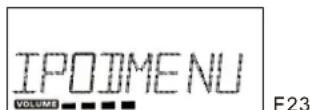
a. To select the current menu as belows : Music > Extras > Photo Import (without this function display on the iPod Mini) > Settings > ShuffleSongs>Backlight > Now Playing will shows on the iPod Player display. b. Touch the SKIP/TUNESEARCH (UP or DOWN) touch plate on the unit (or remote control) to search the current menu.
3.tfouch ePLAY/PAUSE/ENTER(onlyiniPod)touc h plate enter to the desired menu folder.
a. Touch the SKIP/TUNESEARCH (UP or DOWN) touch plate on the unit (or remote control) to search the current content in the each desired menu folder.
b. If you want return to the iPodmenu, tthe
P/MENU (only in iPod) touch plate again.
- To resume playback, press the iPod/MEM/CLOCK-ADJ. button once again, the unit will return to iPod mode.
Charging the iPod Player battery through the main unit:
-
iPod Player has a internal nonremovable battery, the battery may need to be charged that is not used for a while.
-
You can charge the iPod Player through the main unit automatically under the STANDBY or POWER ON mode.
Note : 1. The iPod Player battery is 80-percent charged in about an hour, and fully charged in about a few hours. If you charge it while playing music, it may take longer.
- It is not better to charge under the TUNER mode. It may interfere the reception.
Note:
- In any time, you can control the iPod player on the main unit, remote control or iPod player itself while the unit in the "iPod"or"iPodMENU"mode.
- In any time, the iPod player must be fixed well under in the STANDBY mode to avoid the unit and iPod player were damaged.
3.Du ring the unit in iPod mode. The video function of the iPod with abnormal working normally. Update the latest version of the iPod video function from the apple web-site.
VIDEO OUT SETTING (for i-Pod Video only)
- During the unit in the STANDBY mode : Connect the TV set with a videos cable (RCA-type cables) to the VIDEO out jack on the rear of the unit.
- During the unit in the iPod mode : Press the "MENU" button on the iPod Click Wheel to set the video function. 3. TosetiP odtodisplayvideoosonaTV:
(a) Choose Videos > Video Settings, and then set TV Out to Ask or On.
(b) If you set TV Out to Ask, iPod gives you the option of showing videos on TV or on iPod while everytimeyou playavideo.
Note : 1. The Vedio mode only support that the iPod players have a vedio function. - iPod classic 80/160GB, iPod nano 3rd generation(Video) 4/8GB and iPod touch 8/16GB should be fixed well un derintheSTANDB Y mode before operation of the Vedio function.
- Vedio cable (RCA-type cable) not included.
AUXINPLAY
- Touch the FUNCTION touch plate on the unit or press the FUNCTION button on the remote control, until the"AUX" indicator light on the display. This unit can input analog audio through the AUX(LINE) IN jack on the right of the unit.
- Use a cable with RCA jack to connect external audio source.
Note: Aux in cable not included.
TO SET SLEEP FUNCTION
1.If you want to fall asleep to music, press the SLEEP button on the unit or on the remote control.
2. You may select the TUNER, CD/MP3, USB, SD/MMC, iPod or AUX mode in sleep function to play from 90, 80, 70 upto10minutesofmu sic before shutting itselfoffautomatically.

EQCONTROL
EQ shows the present sound tone
When you touch the EQ touch plate or press the EQ button on the remote control, the sound tone changes as below:

MUTESETTING
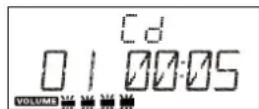
- When you press the MUTE button on the unit or on the remote control once, the volume level will flash and the audio output will be temporarily terminated.(F24)
- Press the MUTE button on the unit or on the remote control again, the volume level and the audio output will return to normal.
F24
LISTEN TO THE MUSIC BY USING HEADPHONE
A stereo headphone jack is provided for private listening. To listen to the unit with headphones (not included) insert the 3.5mm mini-stereo plug from the headphones into the PHONES jack on the front panel. The external speakers are automatically disconnected when headphones are using.
MEMORYBACK-UP
To insert 1.5V x 3, UM-4, AAA or equivalent batteries in the battery compartment of the unit. It is used to back-up the memory of the main CPU.
SPECIFICATION
POWERSUPPLY: 230V~50Hz
OUTPUT POWER : 10 Watts x 2
UNIT DIMENSION: 400 (W) x 154 (D) x 211(H)mm
SPEAKER BOX DIMENSION: 160 (W) x 154 (D) x 211 (H) mm
N.W.: 5.1 kg
RADIOSECTION
FREQUENCY RANGE: FM 87.5-108 Mhz
COMPACT DISC SECTION
OPTICAL PICKUP : 3 - BEAM LASER
FREQUENCYRESPONSE: 100Hz-16kHz
SPECIFICATION SUBJECT TO CHANGE WITHOUT FURTHERNOTICE.
Ventilation warning : " The normal ventilation of the product shall not be impeded for intended use."
SUNSTECH by i-CONNEX
LCXUM500
SUNSTECH by i-CONNEX
LCXUM500
Docking Station con Lettore CD/MP3/USB/ Scheda SD, Radio e iPod

FINESTRA SCHERMO LCD
SUNSTECH by i-CONNEX
LCXUM500
Mono/stereo selecteer
U kunt de MONO / STEREO alleen in de FM-modus
a. In MP3-, transfer bit rate: 8 - 256 kbps.
b. In WMA, overdracht bit rate: 8 - 192 kbps.
- SUNSTECH by i-CONNEX
- LCXUM500
- INSTRUCTIONMANUAL
- Important Notes
- DANGEROUSVOLTAGE
- ATTENTION
- Note:
- AssemblyDrawingofUnitandspeaker
- Fixing the whole set of the unit on the wall
- Speakers connection
- Docking bracket and iPod Adjusting pad panel
- Adjust the adjusting pad knob
- FEATURESANDCONTROLS
- 1.SPEAKER
- REMOTECONTROL
- PUTTING THE BATTERIES INTO THE REMOTE CONTROL UNIT
- LCDDISPLAYWINDOW
- COMPACTDISC
- Storage
- 4.Cleaningadisc
- OPERATINGTHEUNIT
- POWER/STANDBY
- CLOCKSETTING
- TIMERSETTING
- FUNCTIONSELECT
- RADIOOPERATION
- ManualTuning
- Automatic Tuning
- Mono/stereoselect
- Programmingpresetstations
- Selecting the Preset Stations
- FMAntenna
- CD/MP3/WMAOPERATION
- Listening To Compact Disc (CD/MP3/WMA)
- Playing The Entire CD/MP3/WMA
- -CD
- -MP3/WMA
- ID3OPERATION
- During in the MP3/WMA mode
- USB/SDCARDOPERATION
- During in the STANDBY mode
- Playing The Entire flash disc
- REPEATPLAYFUNCTION
- -MP3/WMA/USB/SDCARD
- PROGRAM FUNCTION
- How to play the program
- 2.PROGRAM PLAY
- CANCEL PROGRAM
- Note: During in the program mode.
- RANDOM PLAY
- INTRO PLAY(on the remote control)
- iPod OPERATION
- During the unit in STANDBY mode:
- During the unit in iPod mode:
- During the unit in iPod MENU mode:
- VIDEO OUT SETTING (for i-Pod Video only)
- AUXINPLAY
- TO SET SLEEP FUNCTION
- EQCONTROL
- MUTESETTING
- LISTEN TO THE MUSIC BY USING HEADPHONE
- MEMORYBACK-UP
- SPECIFICATION
- RADIOSECTION
- COMPACT DISC SECTION
- FINESTRA SCHERMO LCD
- Mono/stereo selecteer
Brand : Sunstech
Model : LCXUM500iPod
Category : Hi-fi system