BZ1M - Projector HITACHI - Free user manual and instructions
Find the device manual for free BZ1M HITACHI in PDF.


User questions about BZ1M HITACHI
0 question about this device. Answer the ones you know or ask your own.
Ask a new question about this device
Download the instructions for your Projector in PDF format for free! Find your manual BZ1M - HITACHI and take your electronic device back in hand. On this page are published all the documents necessary for the use of your device. BZ1M by HITACHI.
USER MANUAL BZ1M HITACHI
natural_image
Line drawing of a portable electronic device casing with ventilation slots and ports (no text or symbols)TEINTE, NETTETE, IRIS ACTIF, MA MEMOIRE
Menu AFFICHAGE .....38
ASPECT, SUR-BAL., POSIT.V, POSIT.H,
PHASE.H, TAIL.H, EXÉCUT.D'AJUST.AUTO
Menu ENTR. 41
PROGRESSIF, N.R.VIDÉO, ESP. COUL.,
FORMAT VIDEO, FORMAT HDMI,
PLAGE HDMI, COMPUTER-IN, BLOC IMAGE, RESOLUTION
Menu INSTALLAT° 45
ZOOM-D, DÉPLAC.-D, POSITION IMAGE H,
KEYSTONE, KEYSTONE, AJUSTEMENT,
MODE ÉCO.AUTO, MODE ÉCO., MIROIR, MODE PAUSE,
SORTIE MONITEUR
Menu AUDIO IN 48
VOLUME, HAUT-PARL, SOURCE AUDIO,
HDMI AUDIO, NIVEAU MICRO, VOLUME MICRO
Menu ECRAN 50
LANGUE, POS. MENU, SUPPR.,
MESSAGE, NOM DU SOURCE, MODÈLE, S.T.C.
Menu OPT. 56
RECHER. AUTO., ALLUM. DIRECT, AUTO OFF,
USB TYPE B, TEMPS LAMPE, TEMPS FILTRE,
MA TOUCHE, MA SOURCE, SERVICE
Menu RÉSEAU 67
CONF., NOM DU PROJECTEUR, MES IMAGES,
AMX D.D., PRESENT., INFOS, SERVICE
Menu SECURITE .....7 4
MODIF. MOT DE PASSE SÉCUR.,
MOT DE PASSE Mon Écran, VERROU PIN,
DÉTECT. TRANSITION, M.D.P. MON TEXTE,
AFFICHER MON TEXTE, ÉDITER MON TEXTE
Presentation PC-LESS 87
Mode Thumbnail, Mode Plein Écran,
Mode Diapositive, Playlist
Affichage USB 96
text_image
Technical diagram showing exploded and assembled views of a mechanical component with numbered parts and directional arrows indicating assembly or assembly steps.text_image
Diagram showing three-step instructions for using a device to adjust or install a component, labeled 1, 2, and 3.natural_image
Diagram of a pen-like device with a battery and arrow indicating rotation (no text or symbols)natural_image
Technical diagram of an aircraft fuselage with no visible text or symbolsMise hors tension
natural_image
Line drawing of a mechanical device with a lever and handle (no text or symbols)text_image
LUMIN. RETOUR +0 ARRET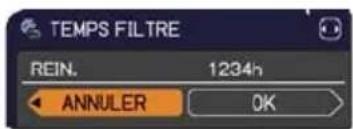
text_image
TEMPS FILTRE REIN. 1234h ANNULER OK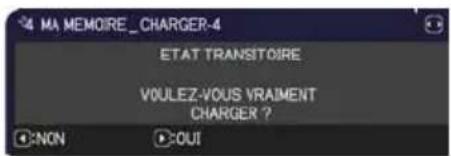
text_image
MA MEMOIRE_CHARGER-4 ETAT TRANSITOIRE VOULEZ-VOUS VRAIMENT CHARGER ? NON OUTnatural_image
Line drawing of a hand holding a pen (no text or symbols)
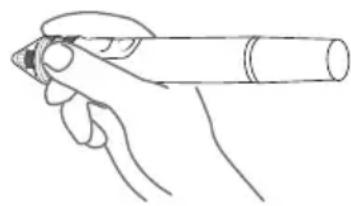
natural_image
Line drawing of a hand holding a pen (no text or symbols)
Presentation PC-LESS
Presentation PC-LESS (suite)
Mode Thumbnail
Presentation PC-LESS (suite)
Presentation PC-LESS (suite)
Presentation PC-LESS (suite)
Presentation PC-LESS (suite)
Mode Plein Écran
Presentation PC-LESS (suite)
Mode Diapositive
Presentation PC-LESS (suite)
Presentation PC-LESS (suite)
Playlist
text_image
LiveViewer Lite for USB Cannot start LiveViewer Lite for USB while LiveViewer is running. OKtext_image
LiveViewer Lite for USB ① ③ ④ ⑤ ②Affichage USB (suite)
Fenêtre Options
text_image
Options Settings About Optimize Performance Transmission speed Image quality Keep PC resolution Sound Display LiveViewerLite for USB CloseOptimize Performance (Optimiser la Performance)
Transmission speed (Vitesse de Transmission)
natural_image
Line drawing of a portable electronic device with a scroll wheel and control knob (no text or symbols)natural_image
Line drawing of a mechanical device with no visible text or symbols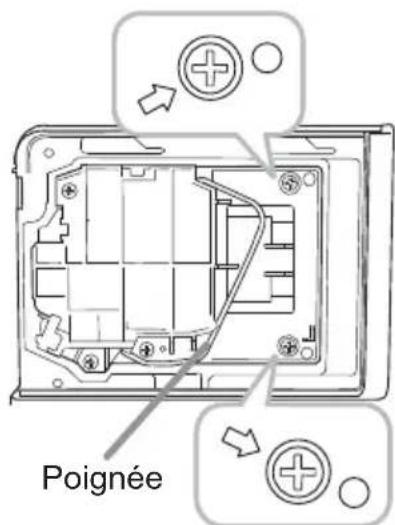
text_image
Poignéetext_image
Diagram illustrating the 90-degree rotation of a computer monitor, showing hand positioning and tool path changes.natural_image
Diagram of a mechanical assembly with rollers and a labeled component (no readable text or symbols)Capteur du stylet
natural_image
Line drawing of a computer monitor case with ventilation slots and ports (no text or symbols)text_image
Choose Setup Language Select the language for the installation from the choices below. English OK Canceltext_image
LiveViewer - InstallShield Wizard Welcome to the InstallShield Wizard for LiveViewers The InstallShield Wizard will install LiveViewer on your computer. To continue, click Next.1.2 Installation de "LiveViewer" (suite)
text_image
LiveViewer - InstallShield Wizard License Agreement Please read the following license agreement carefully. License Agreement Hitachi Consumer Electronics Co., Ltd. To the Customers/Users: Be sure to read the following "License Agreement" carefully. By installing and/or using of this software, you agree to this License Agreement. If you do NOT agree to the License Agreement, you are NOT adhered to install and/or use this software. 1. You may use the software under the terms of this License Agreement. ○ I accept the terms of the license agreement ○ I do not accept the terms of the license agreement < Back Next > Cancel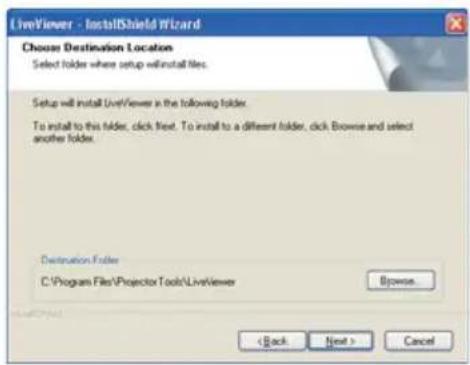
text_image
LiveViewer - InstallShield Wizard Choose Destination Location Select folder where setup will install files. Setup will install LiveViewer in the following folder. To install to this folder, click next. To install to a different folder, click Browse and select another folder. Destination Folder C:\Program Files\Projector Tools\LiveViewer Browse... < Back Next > Cancel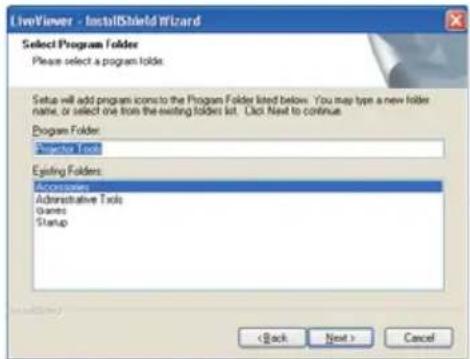
text_image
LiveViewer - InstallShield Wizard Select Program Folder Please select a program folder. Setup will add program icons to the Program Folder listed below. You may type a new folder name, or select one from the existing folder list. Click Next to continue. Program Folder: Starting Tools Existing Folders: Accessories Administrative Tools Games Startup < Back Next > Cancel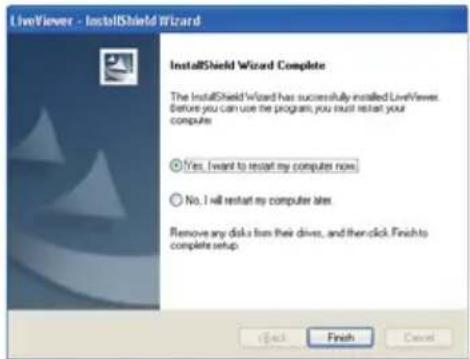
text_image
LiveViewer - InstallShield Wizard InstallShield Wizard Complete The InstallShield Wizard has successfully installed LiveViewer. Before you can use the program, you must restart your computer Yes, I want to restart my computer now. No, I will restart my computer later. Remove any disk from their drive, and then click Finish to complete setup. Finish Canceltext_image
Projector Connection Select the Network Connection that you would like to use. ● Wireless LAN ○ Wired LAN Connection Name Adapter Name Wireless Network Conne... 11a/b/g Wireless LAN Mini PCI Express ... My Connection Next > Exittext_image
Projector Connection Select the Network Connection that you would like to use. • Wireless LAN • Wired LAN Connection Name Adapter Name Wireless Network Connec 11a/b/o Wireless LAN Min PC Express My Connection Next > Exittext_image
Projector Connection Are you sure that you want to turn on the network adapter? Yes Notext_image
Projector Connection A network connection was not established. Please check the network connection.text_image
Projector Connection Select the Network Connection that you would like to use. Wireless LAN Wired LAN Connection Name Adapter Name My Connection Connect Exittext_image
Projector Connection A network connection could not be established. Windows prevented network configuration changes. Please insure that you are authorized to make these changes or check your security settings.text_image
Projector Connection Are you sure you want to connect the selected projector? Yes Notext_image
Projector Connection Select the option that describes the connection method you would like to use: • Enter PassCode • Configure Manually • Select From List Projector name IP address Find The PassCode is a 12-digit code, that can be found on the Startup Screen of the projector you are currently trying to connect to. < Back Next > ExitEnter PassCode (Tapez le Passcode)
text_image
Projector Connection Please enter the PassCode. PASSCODE : The PassCode is a 12-digit code, that can be found on the Startup Screen of the projector you are currently trying to connect to. < Back Connect Exittext_image
Projector Connection A network connection could not be established. Windows prevented network configuration changes. Please insure that you are authorized to make these changes or check your security settings.text_image
Projector Connection Do you want to apply suggested network settings as follows? IP Address : 192.168.1.105 Subnet mask : 255.255.255.0 Change... Not displaying confirmation dialog for adding Network settings. Yes Notext_image
Projector Connection Enter Computer IP Address and Subnet mask. IP address : Subnet mask : OK Canceltext_image
Projector Connection An IP Address overlaps with the IP Address of the projector you are trying to connect to. Please choose an IP Address that is currently not in use.text_image
Projector Connection Incorrect IP Address. OKtext_image
Projector Connection Are you sure you want to connect the selected projector? Yes Nonatural_image
Illustration of a desktop computer with an open port and a laptop connected to a power outlet (no text or symbols present)text_image
Projector Connection Enter the following information. SSID : Encryption : OFF Encryption key : Subset mask : SSID,Encryption and Encryption key: use wireless access point configuration settings. Subset mask: enter the Subset mask that the projector is using. < Back Connect Exittext_image
Projector Connection Enter the following information. Subnet mask : Please enter the projector subnet mask. < Back Connect Exittext_image
Projector Connection Select the manual connection method you would like to use Profile Profile name Date created Profile-1 11/30/2009 3:19:46 PM Profile-2 11/30/2009 3:19:41 PM New Exit Delete My Connection History Projector name IP address Last connected Projector-1 192.168.1.101 11/30/2009 3:23:24 PM Projector-2 192.168.1.102 11/30/2009 3:22:24 PM Projector-3 192.168.1.103 11/30/2009 3:21:24 PM Register to profile Configure Network Settings Manually. < Back Connect Exittext_image
Projector Connection Select the manual connection method you would like to use. Profile Profile name Date created Profile-1 11/30/2009 3:19:46 PM Profile-2 11/30/2009 3:19:41 PM New Edit Delete My Connection History Projector name IP address Last connected Projector-1 192.168.1.101 11/30/2009 3:23:24 PM Projector-2 192.168.1.102 11/30/2009 3:22:24 PM Projector-3 192.168.1.103 11/30/2009 3:21:24 PM Configure Network Settings Manually. < Back Connect Exittext_image
Projector Connection Select: the manual connection method you would like to use Profile Profile name Date created Profile-1 11/30/2009 3:19:46 PM Profile-2 11/30/2009 3:19:41 PM New Edit Delete My Connection History Projector name IP address Last connected Projector-1 192.168.1.101 11/30/2009 3:23:24 PM Projector-2 192.168.1.102 11/30/2009 3:22:24 PM Projector-3 192.168.1.103 11/30/2009 3:21:24 PM Register to profile Configure network Settings Manually. < Back Connect Exittext_image
Projector Connection Select: the manual connection method you would like to use Profile Profile name Date created Profile-1 11/30/2009 3:19:46 PM Profile-2 11/30/2009 3:19:41 PM New Exit Delete My Connection History Projector name IP address Last connected Projector-1 192.168.1.101 11/30/2009 3:23:24 PM Projector-2 192.168.1.102 11/30/2009 3:22:24 PM Projector-3 192.168.1.103 11/30/2009 3:21:24 PM Configure Network Settings Manually < Back Next > Exitnatural_image
Illustration of a printer connected to a laptop via wireless signal transmission (no text or symbols)Mode: INFRASTRUCTURE
text_image
Projector Connection Enter the following information. SSID : Encryption : OFF Encryption key : Mode : INFRASTRUCTURE Enter Wireless Access Point Configuration information. < Back Finish > Exit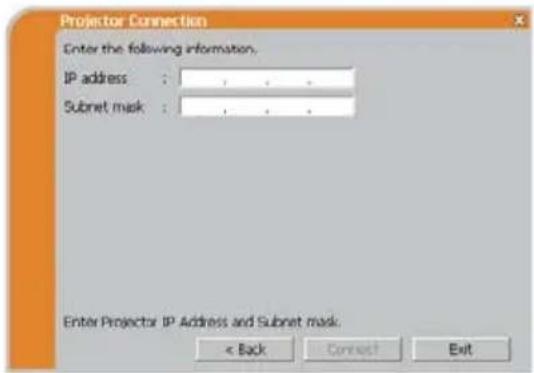
text_image
Projector Connection Enter the following information. IP address : Subnet mask : Enter Projector IP Address and Subnet mask. < Back Connect Exittext_image
Projector Connection Enter the following information. IP address : Subnet mask : Enter Projector IP Address and Subnet mask < Back Connect Exittext_image
Projector Connection A network connection could not be established. Windows prevented network configuration changes. Please insure that you are authorized to make these changes or check your security settings.text_image
Projector Connection Do you want to apply suggested network settings as follows? IP Address : 192.168.1.105 Subnet mask : 255.255.255.0 Change... Not displaying confirmation dialog for adding Network settings. Yes Notext_image
Projector Connection Enter Computer IP Address and Subnet mask. IP address : .... Subnet mask : .... OK Canceltext_image
Projector Connection An IP Address overlaps with the IP Address of the projector you are trying to connect to. Please choose an IP Address that is currently not in use.text_image
Projector Connection Incorrect IP Address.text_image
Projector Connection Are you sure you want to connect the selected projector? Yes Notext_image
Projector Connection Connection to Projector successful. Projector name : PRJ_0123456789ab IP address : 192.168.1.100 Are you sure that you want to display images on the projector? Register this setting to My Connection Yes Notext_image
Projector Connection This projector is currently in use (Presenting) by another user. You cannot connect with this projector until the other session (Presenter Mode) is finished.text_image
Projector Connection A Sideshow is currently running on the projector that you are trying to display to (PC-Less Presentation Mode). If you continue, you will cancel the current Sideshow. Yes Notext_image
Projector Connection Are you sure you want to change the input channel of the Projector to "LAN"?text_image
Projector Connection Network Connection not established. OKtext_image
Projector Connection Select: the manual connection method you would like to use. Profile Profile name Date created Profile-1 11/30/2009 3:19:46 PM Profile-2 11/30/2009 3:19:41 PM New Edit Delete My Connection History Projector name IP address Last connected Projector-1 192.168.1.101 11/30/2009 3:23:24 PM Projector-2 192.168.1.102 11/30/2009 3:22:24 PM Projector-3 192.168.1.103 11/30/2009 3:21:24 PM Register to profile Configure Network Settings Manually. < Back Connect Exit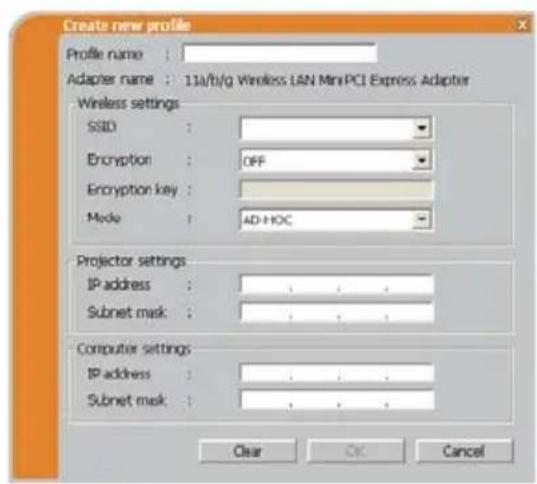
text_image
Create new profile Profile name : Adapter name : 11a/b/g Wireless LAN MiniPCI Express Adapter Wireless settings SSID : Encryption : OFF Encryption key : Mode : AD-HOC Projector settings IP address : Subnet mask : Computer settings IP address : Subnet mask : Clear OK Canceltext_image
Projector Connection Select the manual connection method you would like to use Profile Profile name Date created Profile-1 11/30/2009 3:19:46 PM Profile-2 11/30/2009 3:19:41 PM New Edit Delete My Connection History Projector name IP address Last connected Projector-1 192.168.1.101 11/30/2009 3:23:24 PM Projector-2 192.168.1.102 11/30/2009 3:22:24 PM Projector-3 192.168.1.103 11/30/2009 3:21:24 PM Regular to profile Configure Network Settings Manually. < Back Connect Exit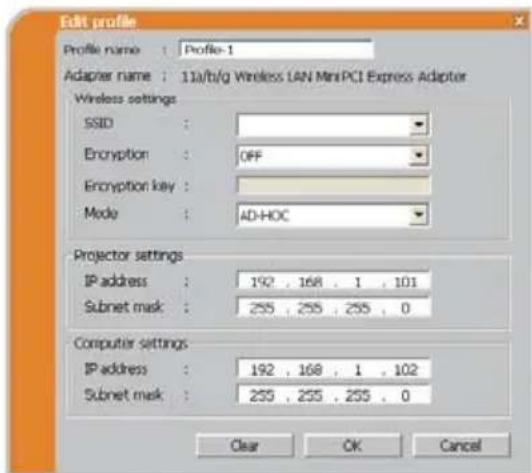
text_image
Edit profile Profile name : Profile-1 Adapter name : 11a/b/g Wireless LAN MiniPCI Express Adapter Wireless settings SSID : Encryption : OFF Encryption key : Mode : AD-HOC Projector settings IP address : 192 , 168 , 1 , 101 Subnet mask : 255 , 255 , 255 , 0 Computer settings IP address : 192 , 168 , 1 , 102 Subnet mask : 255 , 255 , 255 , 0 Clear OK Canceltext_image
Projector Connection Select the manual connection method you would like to use: Profile Profile name Date created Profile-1 11/30/2009 3:19:46 PM Profile-2 11/30/2009 3:19:41 PM New Edit Delete My Connection History Projector name IP address Last connected Projector-1 192.168.1.101 11/30/2009 3:23:24 PM Projector-2 192.168.1.102 11/30/2009 3:22:24 PM Projector-3 192.168.1.103 11/30/2009 3:21:24 PM Register to profile Configure Network Settings Manually. < Back Connect Exit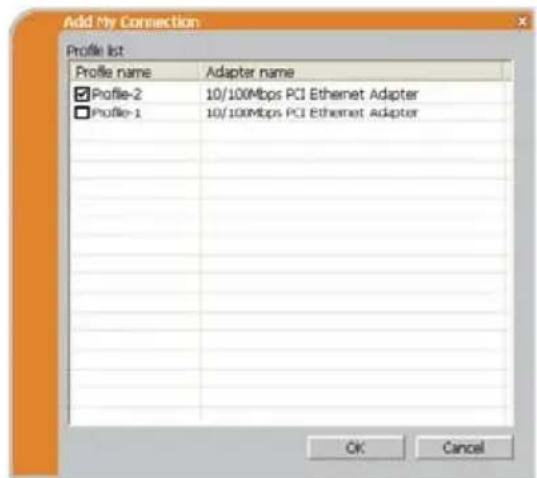
text_image
Add My Connection Profile list Profile name Adapter name ✓ Profile-2 10/100Mbps PCI Ethernet Adapter □ Profile-1 10/100Mbps PCI Ethernet Adapter OK Canceltext_image
Projector Connection Connection to Projector successful. Projector name : PRJ_0123456789ab IP address : 192.168.1.100 Are you sure that you want to display images on the projector? ✓ Register this setting to My Connection Yes No⑤ Touche Connect (connector)
text_image
Options Not displaying confirmation dialog for adding Network settings. Optimize Performance Transmission speed Image quality Presenter Mode Display User Name: Unnamed Display LiveViewer CloseCommunication Port (Port de Communication)
Example of computer signal
| Resolution (H x V) | H. frequency (kHz) | V. frequency (Hz) | Rating Signal mode |
| 720 x 400 | 37.9 85.0 VESA TEXT | ||
| 640 x 480 31.5 | 59.9 VESA VGA (60Hz) | ||
| 640 x 480 37.9 | 72.8 VESA VGA (72Hz) | ||
| 640 x 480 37.5 | 75.0 VESA VGA (75Hz) | ||
| 640 x 480 43.3 | 85.0 VESA VGA (85Hz) | ||
| 800 x 600 35.2 | 56.3 VESA SVGA (56Hz) | ||
| 800 x 600 37.9 | 60.3 VESA SVGA (60Hz) | ||
| 800 x 600 48.1 | 72.2 VESA SVGA (72Hz) | ||
| 800 x 600 46.9 | 75.0 VESA SVGA (75Hz) | ||
| 800 x 600 53.7 | 85.1 VESA SVGA (85Hz) | ||
| 832 x 624 49.7 | 74.5 Mac 16" mode | ||
| 1024 x 768 48.4 | 60.0 VESA XGA (60Hz) | ||
| 1024 x 768 56.5 | 70.1 VESA XGA (70Hz) | ||
| 1024 x 768 60.0 | 75.0 VESA XGA (75Hz) | ||
| 1024 x 768 68.7 | 85.0 VESA XGA (85Hz) | ||
| 1152 x 864 67.5 | 75.0 VESA | 1152 x 864 (75Hz) | |
| 1280 x 768 47.7 | 60.0 VESA W-XGA (60Hz) | ||
| 1280 x 800 49.7 | 60.0 VESA | 1280 x 800 (60Hz) | |
| 1280 x 960 60.0 | 60.0 VESA | 1280 x 960 (60Hz) | |
| 1280 x 1024 | 64.0 60.0 VESA SXGA (60Hz) | ||
| 1280 x 1024 | 80.0 75.0 VESA SXGA (75Hz) | ||
| *1280 x 1024 | 91.1 85.0 VESA SXGA (85Hz) | ||
| 1440 x 900 55.9 | 59.9 VESA WXGA+ (60Hz) | ||
| 1680 x 1050 | 65.3 60.0 VESA WSXGA+ (60Hz) | ||
| *1600 x 1200 | 75.0 60.0 VESA UXGA (60Hz) | ||
NOTE • Be sure to check jack type, signal level, timing and resolution before connecting this projector to a PC.
- Some PCs may have multiple display screen modes. Use of some of these modes will not be possible with this projector.
- Depending on the input signal, full-size display may not be possible in some cases. Refer to the number of display pixels above.
- Although the projector can display signals with resolution up to UXGA (1600x1200), the signal will be converted to the projector's panel resolution before being displayed. The best display performance will be achieved if the resolutions of the input signal and projector panel are identical.
• Automatic adjustment may not function correctly with some input signals. - The image may not be displayed correctly when the input sync signal is a composite sync or a sync on G.
- The HDMI ^TM input does not support the signals marked with *.
Initial set signals
The following signals are used for the initial settings. The signal timing of some computer models may be different. In such case, adjust the items V POSITION and H POSITION in the IMAGE menu.
text_image
Data H. Sync. V. Sync. Sync (A) Sync (a) Active video (C)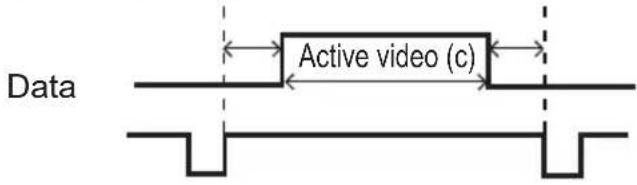
text_image
Data Active video (c)| Resolution (H x V) | Horizontal signal timing (μs) | Vertical signal timing (lines) | Signal mode | ||||||
| (A) | (B) | (C) | (D) | (a) | (b) | (c) | (d) | ||
| 720 x 400 | 2.0 | 3.0 | 20.3 | 1.0 | 3 | 4 | 2 | 400 | 1 |
| 640 x 480 | 3.8 | 1.9 | 25.4 | 0.6 | 2 | 33 | 480 | 10 | VGA (60Hz) |
| 640 x 480 | 1.3 | 4.1 | 20.3 | 0.8 | 3 | 28 | 480 | 9 | VGA (72Hz) |
| 640 x 480 | 2.0 | 3.8 | 20.3 | 0.5 | 3 | 16 | 480 | 1 | VGA (75Hz) |
| 640 x 480 | 1.6 | 2.2 | 17.8 | 1.6 | 3 | 25 | 480 | 1 | VGA (85Hz) |
| 800 x 600 | 2.0 | 3.6 | 22.2 | 0.7 | 2 | 22 | 600 | 1 | SVGA (56Hz) |
| 800 x 600 | 3.2 | 2.2 | 20.0 | 1.0 | 4 | 23 | 600 | 1 | SVGA (60Hz) |
| 800 x 600 | 2.4 | 1.3 | 16.0 | 1.1 | 6 | 23 | 600 | 37 | SVGA (72Hz) |
| 800 x 600 | 1.6 | 3.2 | 16.2 | 0.3 | 3 | 21 | 600 | 1 | SVGA (75Hz) |
| 800 x 600 | 1.1 | 2.7 | 14.2 | 0.6 | 3 | 27 | 600 | 1 | SVGA (85Hz) |
| 832 x 624 | 1.1 | 3.9 | 14.5 | 0.6 | 3 | 39 | 624 | 1 | Mac 16" mode |
| 1024 x 768 | 2.1 | 2.5 | 15.8 | 0.4 | 6 | 29 | 768 | 3 | XGA (60Hz) |
| 1024 x 768 | 1.8 | 1.9 | 13.7 | 0.3 | 6 | 29 | 768 | 3 | XGA (70Hz) |
| 1024 x 768 | 1.2 | 2.2 | 13.0 | 0.2 | 3 | 28 | 768 | 1 | XGA (75Hz) |
| 1024 x 768 | 1.0 | 2.2 | 10.8 | 0.5 | 3 | 36 | 768 | 1 | XGA (85Hz) |
| 1152 x 864 | 1.2 | 2.4 | 10.7 | 0.6 | 3 | 864 | 1 | 1152 x 864 (75Hz) | |
| 1280 x 768 | 1.7 | 2.5 | 16.0 | 0.8 | 3 | 23 | 768 | 1 | W-XGA (60Hz) |
| 1280 x 800 | 1.6 | 2.4 | 15.3 | 0.8 | 3 | 800 | 1 | 1280 x 800 (60Hz) | |
| 1280 x 960 | 1.0 | 2.9 | 11.9 | 0.9 | 3 | 36 | 960 | 1 | 1280 x 960 (60Hz) |
| 1280 x 1024 | 1.0 | 2.3 | 11.9 | 0.4 | 3 | 38 | 1024 | 1 | SXGA (60Hz) |
| 1280 x 1024 | 1.1 | 1.8 | 9.5 | 0.1 | 3 | 38 | 1024 | 1 | SXGA (75Hz) |
| 1280 x 1024 | 1.0 | 1.4 | 8.1 | 0.4 | 3 | 44 | 1024 | 1 | SXGA (85Hz) |
| 1440 x 900 | 1.4 | 2.2 | 13.5 | 0.8 | 6 | 25 | 900 | 3 | WXGA+ (60Hz) |
| 1680 x 1050 | 1.2 | 1.9 | 11.5 | 0.7 | 6 | 30 | 1050 | 3 | WSXGA+ (60Hz) |
| 1600 x 1200 | 1.2 | 1.9 | 9.9 | 0.4 | 3 | 46 | 1200 | 1 | UXGA (60Hz) |
Connection to the ports
NOTICE ▶ Use the cables with straight plugs, not L-shaped ones, as the input ports of the projector are recessed.
▶ Only the signal that is input from the COMPUTER IN1 or IN2 can be output from the MONITOR OUT port.
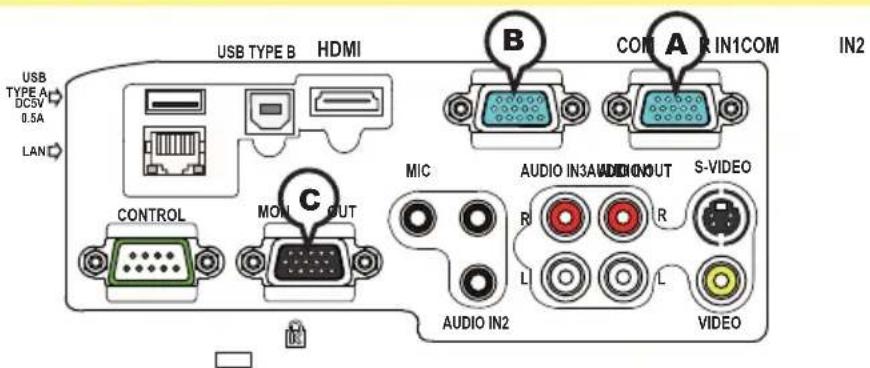
text_image
USB TYPE A DCSV 0.5A LAN USB TYPE B HDMI B COM A R IN1COM IN2 CONTROL MON OUT MIC AUDIO IN3A AUDIO OUT S-VIDEO R L L AUDIO IN2 VIDEOⒶCOMPUTER IN1, ⒷCOMPUTER IN2, ⒶMONITOR OUT
• Video signal: RGB separate, Analog, 0.7Vp-p, 75Ω terminated (positive)
• H/V. sync. Signal: TTL level (positive/negative)
• Composite sync. Signal: TTL level
| Pin | Signal Pin Signal | ||
| 1 | Video Red 10 Ground | ||
| 2 | Video Green 11 (No connection) | ||
| 3 | Video Blue | 12 | A: SDA (DDC data)B, C: (No connection) |
| 4 | (No connection) | ||
| 5 | Ground 13 H. sync / Composite sync. | ||
| 6 | Ground Red 14 V. sync. | ||
| 7 | Ground Green | 15 | A: SCL (DDC clock)B, C: (No connection) |
| 8 | Ground Blue | ||
| 9 | (No connection) - | - |
(2) for Component signal
- Y : Component video Y with composite sync, 1.0±0.1 Vp-p, 75 Ω terminator
- Cr/Pr : Component video Cr/Pr, 0.7±0.1 Vp-p, 75 Ω terminator
- Cb/Pb : Component video Cb/Pb, 0.7±0.1 Vp-p, 75 Ω terminator
System:480i@60,480p@60,576i@50,576p@50,720p@50/60,1080i@50/60,1080p@50/60
| Pin | Signal Pin Signal | ||
| 1 | Cr/Pr | 9 (No connection) | |
| 2 Y | 10 Ground | ||
| 3 Cb/Pb | 11 (No connection) | ||
| 4 (No connection) | 12 (No connection) | ||
| 5 Ground 13 (No connection) | |||
| 6 Ground Cr/Pr | 14 (No connection) | ||
| 7 Ground Y | 15 (No connection) | ||
| 8 Ground Cb/Pb | - | - | |
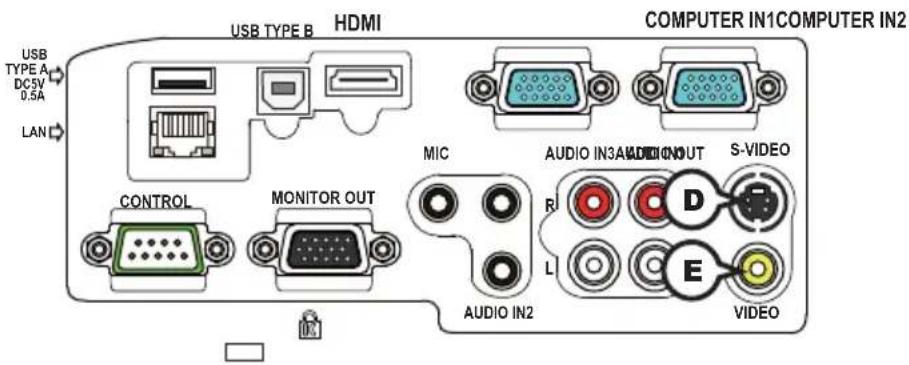
text_image
USB TYPE A DC5V 0.5A LAN USB TYPE B HDMI COMPUTER IN1COMPUTER IN2 CONTROL MONITOR OUT MIC AUDIO IN3A AUDIO OUT S-VIDEO R L AUDIO IN2 D E VIDEODS-VIDEO
Mini DIN 4pin jack
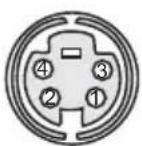
• System: NTSC, PAL, SECAM, PAL-M, PAL-N, NTSC4.43, PAL(60Hz)
| Pin Signal | |
| 1 | Color signal 0.286Vp-p (NTSC, burst), 75Ω terminatorColor signal 0.300Vp-p (PAL/SECAM, burst) 75Ω terminator |
| 2 Brightness signal, 1.0Vp-p, 75Ω terminator | |
| 3 Ground | |
| 4 Ground | |
©VIDEO
RCA jack
• System: NTSC, PAL, SECAM, PAL-M, PAL-N, NTSC4.43, PAL(60Hz)
• 1.0±0.1Vp-p, 75Ω terminator
text_image
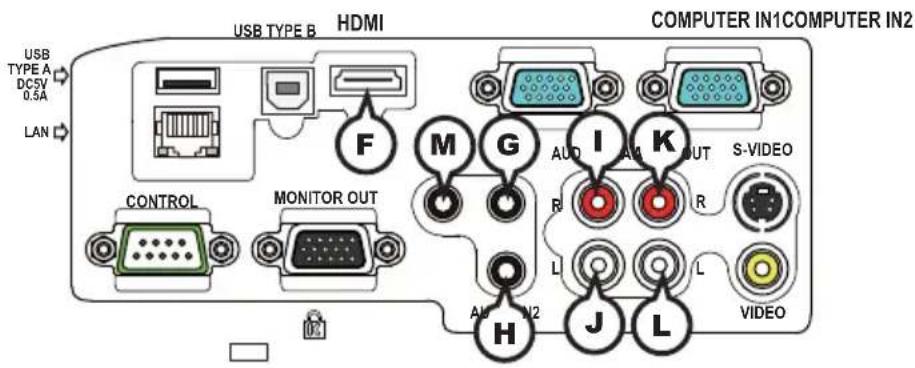
USB TYPE B HDMI COMPUTER IN1COMPUTER IN2 USB TYPE A DCSV 0.5A LAN F M G I K CONTROL MONITOR OUT AUD OUT S-VIDEO R L L H J L AUDIO N2 VIDEOFHDMI
- Type :Digital audio/video connector
• Audio signal : Linear PCM (Sampling rate; 32/44.1/48 kHz)
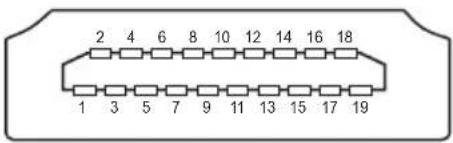
text_image
2 4 6 8 10 12 14 16 18 1 3 5 7 9 11 13 15 17 19| Pin | Signal Pin Signal Pin Signal | ||||
| 1 T | M.D.S. Data2 + 8 T.M.D.S. Data0 | Shield 15 SCL | |||
| 2 T | M.D.S. Data2 Shield 9 T.M.D.S. Data0 - 16 SDA | ||||
| 3 T | M.D.S. Data2 - 10 T.M.D.S. Clock | + 17 DDC/CEC Ground | |||
| 4 | T.M.D.S. Data1 + | 11 T.M.D.S. Clock Shield | 18 | +5V Power | |
| 5 T | M.D.S. Data1 Shield | 12 T.M.D.S. Clock - | 19 Hot | Plug Detect | |
| 6 T | M.D.S. Data1 - 13 CEC | ||||
| 7 T | M.D.S. Data0 + | 14 Reserved(N.C. on device) |
©AUDIO IN1, ⒽAUDIO IN2
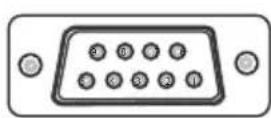
- About the details of RS-232C communication, please refer to the section "RS-232C Communication".
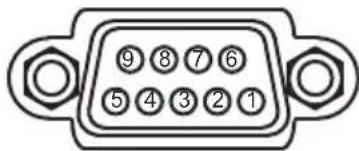
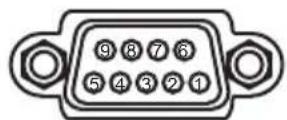
text_image
⑨ ⑧ ⑦ ⑥ ⑤ ④ ③ ② ①| Pin Signal Pin Signal Pin Signal | ||||
| 1 (No connection) 4 (No connection) 7 RTS | ||||
| 2 RD 5 Ground 8 CTS | ||||
| 3 TD 6 (No connection) 9 (No connection) | ||||
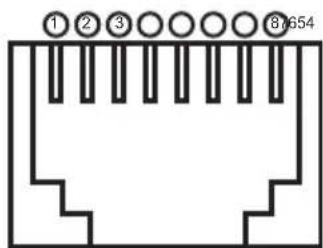
©LAN
RJ-45 jack
| Pin | Signal Pin | Signal P | n Signal | ||
| 1 | TX+ | 4 | - | 7 | - |
| 2 | TX- | 5 | - | 8 | - |
| 3 | RX+ | 6 | RX- |
To input component video signal to COMPUTER IN ports
ex.
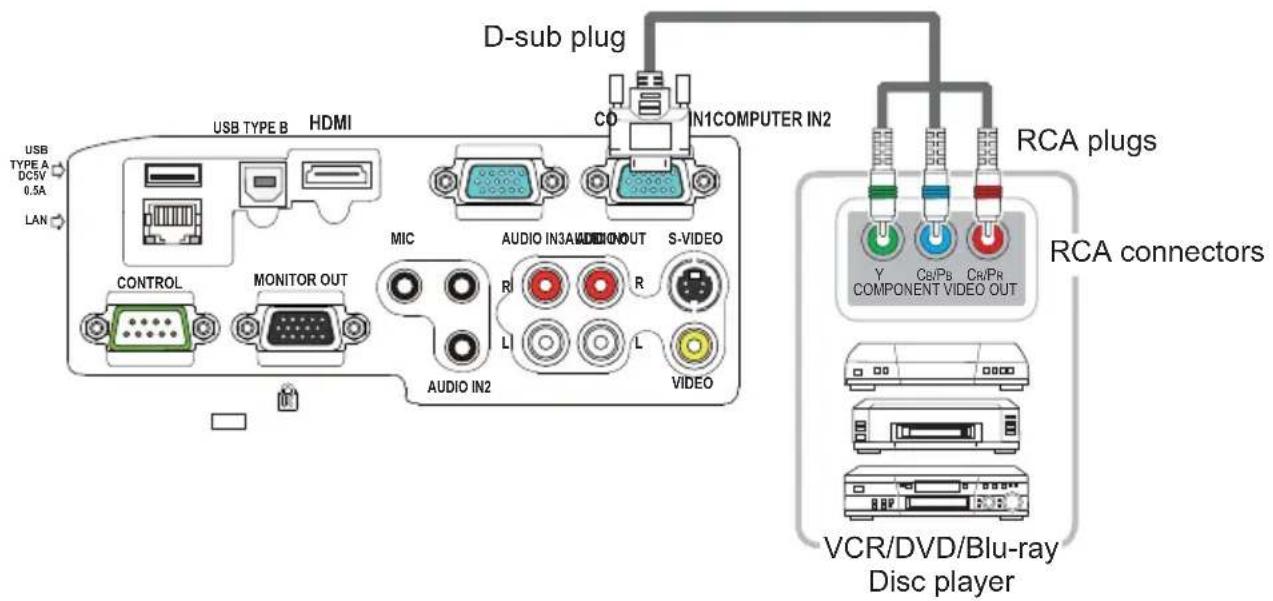
text_image
USB TYPE A DC5V 0.5A LAN USB TYPE B HDMI D-sub plug CO N1COMPUTER IN2 CONTROL MONITOR OUT MIC AUDIO IN3A AUDIO OUT S-VIDEO AUDIO IN2 L L VIDEO RCA plugs Y Cn/Pb Cr/Pr COMPONENT VIDEO OUT VCR/DVD/Blu-ray Disc player RCA connectorsTo input component video signal to the COMPUTER IN1 or IN2 port of the projector, use a RCA to D-sub cable or adapter.
For about the pin description of the required cable or adapter, refer to the descriptions about COMPUTER IN1 and IN2 port (3).
RS-232C Communication
When the projector connects to the computer by RS-232C communication, the projector can be controlled with RS-232C commands from the computer. For details of RS-232C commands, refer to RS-232C Communication / Network command table (17).
Connection
- Turn off the projector and the computer.
- Connect the projector's CONTROL port and the computer's RS-232C port with a RS-232C cable (cross). Use the cable that fulfi Ils the specifi cation shown in fi gure
- Turn the computer on, and after the computer has started up turn the projector on.
- Set the COMMUNICATION TYPE to OFF. (OPTION menu - SERVICE - COMMUNICATION in the User's Manual - Operating Guide)
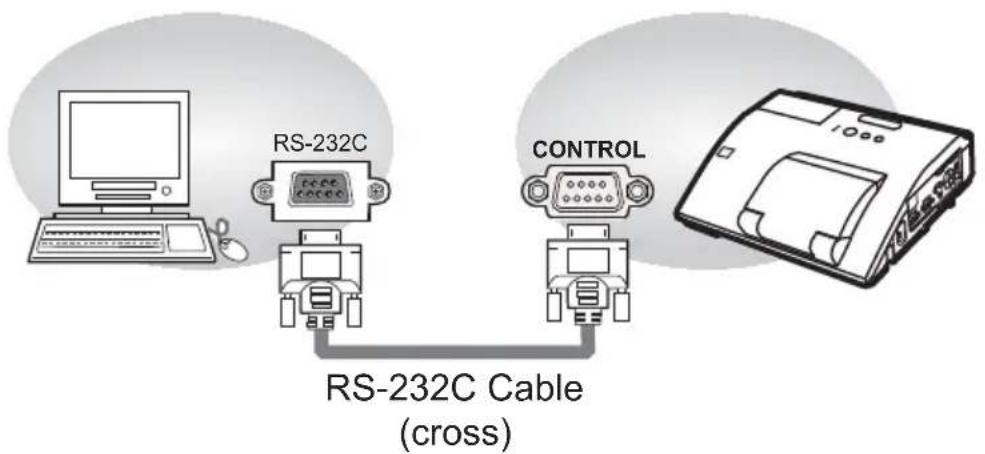
flowchart
graph TD
    A["Computer"] --> B["RS-232C Cable (cross)"]
    C["Robot"] --> B
    D["Controller"] --> B
    B --> E["Printer"]
RS-232C port of the computer
CONTROL port of the projector
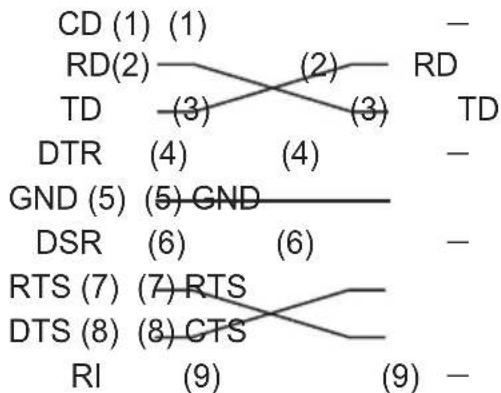
flowchart
graph TD
    CD["CD (1) (1)"] --> RD2["RD(2)"]
    RD2 --> TD2["TD (3)"]
    RD2 --> TD3["TD (3)"]
    RD2 --> TD4["TD (4)"]
    TD2 --> DTR["DTR (4)"]
    TD3 --> DTR2["DTR (4)"]
    TD4 --> DTR3["DTR (4)"]
    DTR --> GND["GND (5)"]
    GND --> DSR["DSR (6)"]
    GND --> DSR2["DSR (6)"]
    GND --> RTS["RTS (7)"]
    RTS --> DTS["CTS (8)"]
    RTS --> DTS2["DTS (8)"]
    DTS --> RI["RI (9)"]
    DTS2 --> RI2["RI (9)"]
    RD2 --> TD4
    TD3 --> TD4
    TD4 --> TD5["TD (9)"]
    style TD5 fill:#f9f,stroke:#333
    style TD4 fill:#f9f,stroke:#333
    style TD5 fill:#f9f,stroke:#333
Communication settings
1. Protocol
19200bps,8N1
2. Command format ("h" shows hexadecimal)
| Byte Number | 0 | 1 | 2 | 3 | 4 | 57 | 8 | 9 | 1 | 0 | 1 | ||
| CommandAction | Header Data | ||||||||||||
| Header code | Packet L | Data size | CRC flag | Action Type | Setting code | ||||||||
| L | H | L | H | L | H | L | H | L | H | L | H | ||
| Change setting to desired value [(cL)(cH)] by [(bL)(bH)]. | 03h | 06h | 00h | (aL) | (aH) | 01h | 00h | (bL) | (bH) | (cL) | (cH) | ||
| Read projector internal setup value [(bL) (bH)]. | (aL) | (aH) | 02h | 00h | (bL) | (bH) | 00h | 00h | |||||
| Increment setup value [(bL)(bH)] by 1. | (aL) | (aH) | 04h | 00h | (bL) | (bH) | 00h | 00h | |||||
| Decrement setup value [(bL)(bH)] by 1. | (aL) | (aH) | 05h | 00h | (bL) | (bH) | 00h | 00h | |||||
| Run a command [(bL)(bH)]. | (aL) | (aH) | 06h | 00h | (bL) | (bH) | 00h | 00h | |||||
[Header code] [Packet] [Data size]
Set [BEh, EFh, 03h, 06h, 00h] to byte number 0\~4.
[CRC flag]
For byte number 5, 6, refer to RS-232C Communication / Network command table (17).
[Action]
Set functional code to byte number 7, 8.
Refer to the Communication command table (above).
[Type] [Setting code]
For byte number 9\~12, refer to RS-232C Communication / Network command table (17).
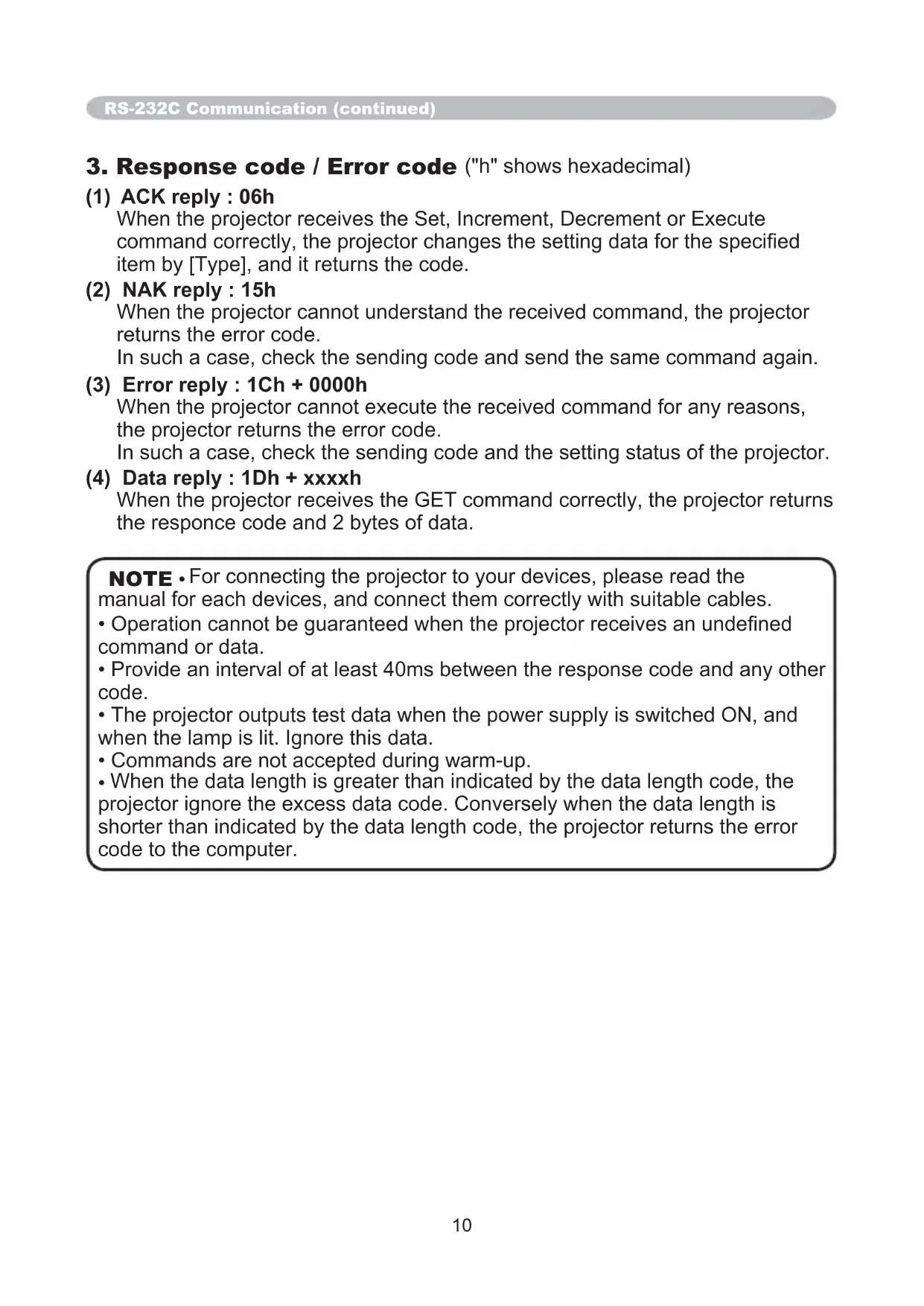
3. Response code / Error code ("h" shows hexadecimal)
(1) ACK reply : 06h
When the projector receives the Set, Increment, Decrement or Execute command correctly, the projector changes the setting data for the specified item by [Type], and it returns the code.
(2) NAK reply : 15h
When the projector cannot understand the received command, the projector returns the error code.
In such a case, check the sending code and send the same command again.
(3) Error reply : 1Ch + 0000h
When the projector cannot execute the received command for any reasons, the projector returns the error code.
In such a case, check the sending code and the setting status of the projector.
(4) Data reply : 1Dh + xxxxh
When the projector receives the GET command correctly, the projector returns the response code and 2 bytes of data.
NOTE • For connecting the projector to your devices, please read the manual for each devices, and connect them correctly with suitable cables.
- Operation cannot be guaranteed when the projector receives an undefined command or data.
- Provide an interval of at least 40ms between the response code and any other code.
- The projector outputs test data when the power supply is switched ON, and when the lamp is lit. Ignore this data.
- Commands are not accepted during warm-up.
- When the data length is greater than indicated by the data length code, the projector ignore the excess data code. Conversely when the data length is shorter than indicated by the data length code, the projector returns the error code to the computer.
Command Control via the Network
When the projector connects network, the projector can be controlled with RS-232C commands from the computer with web browser.
For details of RS-232C commands, refer to RS-232C Communication / Network command table (17).
Connection
-
Turn off the projector and the computer.
-
Connect the projector's LAN port and the computer's LAN port with a LAN cable. Use the cable that fulfi lls the specifi cation shown in fi gure (Use CAT-5 or greater LAN Cable when LAN ports are used)
-
Turn the computer on, and after the computer has started up turn the projector on.
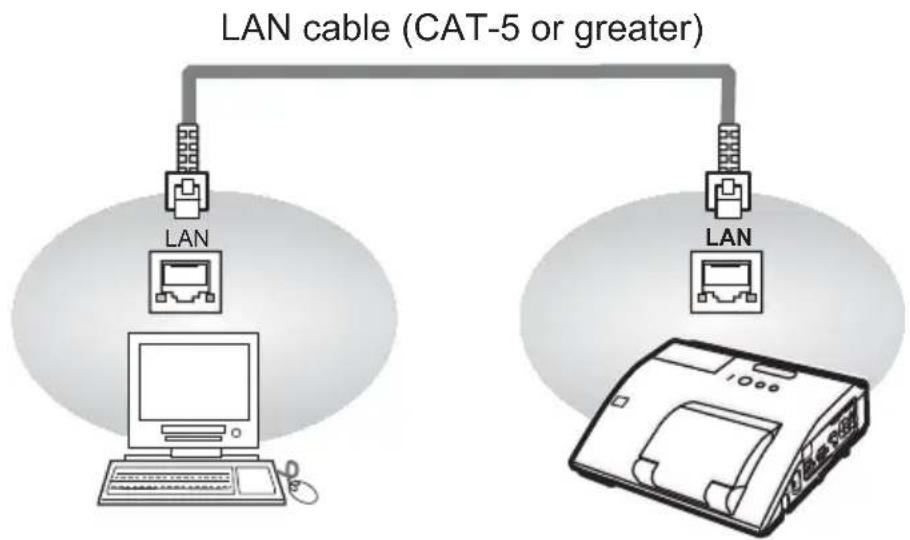
flowchart
graph TD
    A["LAN"] --> B["CAT-5 or greater"]
    C["Computer"] --> D["LAN"]
    E["Printer"] --> F["LAN"]
Communicaion Port
The following two ports are assigned for the command control.
TCP #23
TCP #9715
Configure the following items form a web browser when command control is used.
Port Settings
| Port open | Click the [Enable] check box to open [Network Control Port1 (Port: 23)] to use TCP #23. Default setting is “Enable”. | |
| Network Control Port1 (Port: 23) | Authentication | Click the [Enable] check box for the [Authentication] setting when authentication is required. Default setting is “Disable”. |
| Port open | Click the [Enable] check box to open [Network Control Port2 (Port: 9715)] to use TCP #9715. Default setting is “Enable”. | |
| Network Control Port2 (Port: 9715) | Authentication | Click the [Enable] check box for the [Authentication] setting when authentication is required. Default setting is “Enable”. |
When the authentication setting is enabled, the following settings are required.
Security Settings
| Network Control | AuthenticationPassword | Enter the desired authentication password.This setting will be the same for [Network Control Port1 (Port: 23)] and [Network Control Port2 (Port: 9715)].Default setting is blank. |
| Re-enterAuthenticationPassword |
Command control settings
[TCP #23]
1. Command format
Same as RS-232C communication, refer to RS-232C Communicaton command format.
2. Response code / Error code ("h" shows hexadecimal)
Four of the response / error code used for TCP#23 are the same as RS-232C Communication (1)\~(4). One authentication error reply (5) is added.
(1) ACK reply : 06h
Refer to RS-232C communication (10).
(2) NAK reply : 15h
Refer to RS-232C communication (10).
(3) Error reply : 1Ch + 0000h
Refer to RS-232C communication (10).
(4) Data reply : 1Dh + xxxxh
Refer to RS-232C communication (10).
(5) Authentication error reply : 1Fh + 0400h
When authentication error occurred, the projector returns the error code.
[TCP #9715]
1. Command format
The commands some datum are added to the head and the end of the ones of TCP#9715 are used.
| Header Data | length RS-232 | C command Check sum | m Connection ID | |
| 0×02 0×0D | 13 bytes 1 byte | 1 byte |
[Header]
02, Fixed
[Data Length]
RS-232C commands byte length (0×0D, Fixed)
[RS-232C commands]
Refer to RS-232C Communication command format (☐9).
[Check Sum]
This is the value to make zero on the addition of the lower 8 bits from the header to the checksum.
[Connection ID]
Random value from 0 to 255 (This value is attached to the reply data).
NOTE • Operation cannot be guaranteed when the projector receives an undefined command or data.
- Provide an interval of at least 40ms between the response code and any other code.
- Commands are not accepted during warm-up.
2. Response code / Error code ("h" shows hexadecimal)
The connection ID is attached for the TCP#23's response / error codes are used. The connection ID is same as the sending command format.
(××h : connection ID)
(1) ACK reply : 06h + xxh
(2) NAK reply : 15h + xxh
(3) Error reply : 1Ch + 0000h + xxh
(4) Data reply : 1Dh + xxxxh + xxh
(5) Authentication error reply : 1Fh + 0400h + xxh
(6) Projector busy reply: 1Fh + xxxxh + xxh
When the projector is too busy to receive the command, the projector returns the error code.
In such a case, check the sending code and send the same command again.
Automatic Connection Break
The TCP connection will be automatically disconnected after there is no communication for 30 seconds after being established.
Authentication
The projector does not accept commands without authentication success when authentication is enabled. The projector uses a challenge response type authentication with an MD5 (Message Digest 5) algorithm. When the projector is using a LAN, a random 8 bytes will be returned if authentication is enabled. Bind this received 8 bytes and the authentication password and digest this data with the MD5 algorithm and add this in front of the commands to send.
Following is a sample if the authentication password is set to “password” and the random 8 bytes are “a572f60c”.
1) Select the projector.
2) Receive the random 8 bytes "a572f60c" from the projector.
3) Bind the random 8 bytes "a572f60c" and the authentication password "password" and it becomes "a572f60cpassword".
4) Digest this bind "a572f60cpassword" with MD5 algorithm.
It will be "e3d97429adffa11bce1f7275813d4bde".
5) Add this "e3d97429adffa11bce1f7275813d4bde" in front of the commands and send the data.
Send “e3d97429adffa11bce1f7275813d4bde”+command.
6) When the sending data is correct, the command will be performed and the reply data will be returned. Otherwise, an authentication error will be returned.
NOTE • As for the transmission of the second or subsequent commands, the authentication data can be omitted when the same connection.
Network Bridge Communication
This projector is equipped with NETWORK BRIDGE function.
When the projector connects to the computer by LAN communicaton, an external device that is connected with this projector by RS-232C communication can be controlled from the computer as a network terminal.
For details, see the 6. Network Bridge Function - Network Guide.
Connection
- Connect the computer's LAN port and the projector's LAN port with a LAN cable.
- Connect the projector's CONTROL port and the RS-232C port of the devices that you want to control with a RS-232C cable.
- Turn the computer on, and after the computer has started up turn the projector on.
- Set the COMMUNICATION TYPE to NETWORK BRIDGE. (OPTION menu - SERVICE - COMMUNICATION in the User's Manual - Operating Guide)
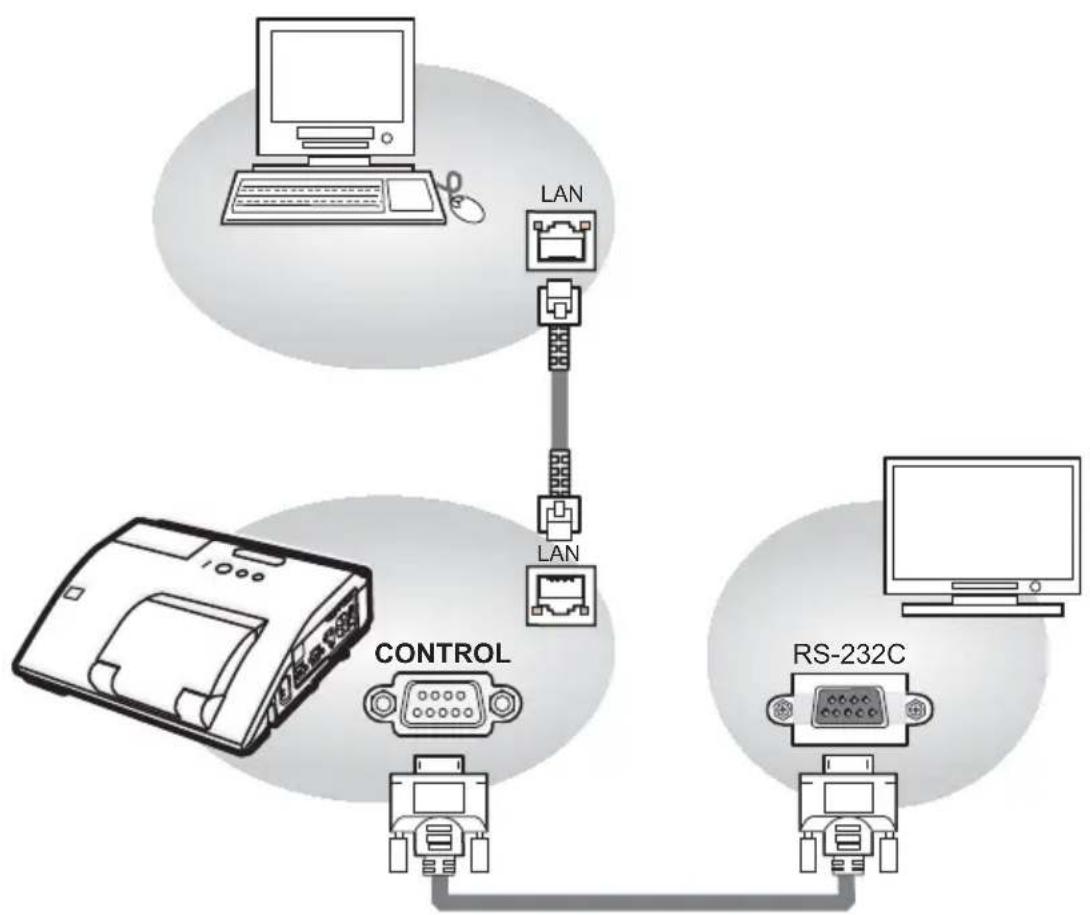
flowchart
graph TD
    A["控制 Unit"] --> B["LAN"]
    A --> C["Robot"]
    D["RS-232C"] --> E["Computer"]
    style A fill:#f9f,stroke:#333
    style B fill:#ccf,stroke:#333
    style C fill:#cfc,stroke:#333
    style D fill:#fcc,stroke:#333
Communication settings
For communication setting, use the OPTION - SERVICE - COMMUNICATION menu. (OPTION menu - SERVICE - COMMUNICATION in the User's Manual - Operating Guide)
| Item Condition | |
| BAUD RATE 4800bps / 9600bps / 19200bps / 38400bps | |
| Data length 8 bit (fixed) | |
| PARITY NONE/ODD/EVEN | |
| Start bit 1 bit (fixed) | |
| Stop bit 1 bit (fixed) | |
| Transmission method HALF-DUPLEX/FULL-DUPLEX | |
NOTE • For connecting the projector to your devices, please read the manual for each devices, and connect them correctly with suitable cables.
- Turn off (the power of) both the projector and other devices and unplug, beore connecting them.
- For details of Transmission method, refer to 6.4 Transmission method - Network Guide.
RS-232C Communication / Network command table
| Names Operation Type Header | Command Data | |||||||||
| CRC Action Type Setting code | ||||||||||
| Power | Set | Turn off BE E | F 03 06 00 2A | D3 01 00 | 00 60 00 | 00 | ||||
| Turn on BE E | F 03 06 00 BA | D2 01 00 | 00 60 01 | 00 | ||||||
| Get | BE EF 03 06 | 00 19 D3 | 02 00 00 | 60 00 00 | ||||||
| [Example return]00 00 01 00 02 00[Off] [On] [Cool down] | ||||||||||
| Input Source | Set | COMPUTER IN1 BE | BE EF 03 06 00 | FE D2 01 | 00 00 20 | 00 00 | ||||
| COMPUTER IN2 BE | BE EF 03 06 00 | 3E D0 01 | 00 00 20 | 04 00 | ||||||
| HDMI | BE EF | 03 | 06 00 | 0E D2 | 01 00 | 00 20 | 03 00 | |||
| S-VIDEO | BE EF | 03 06 | 00 9E D3 | 01 00 00 | 20 02 00 | |||||
| VIDEO | BE EF | 03 06 | 00 6E D3 | 01 00 00 | 20 01 00 | |||||
| USB TYPE A | BE EF | 03 | 06 00 | 5E D1 | 01 00 | 00 20 | 06 00 | |||
| LAN | BE EF | 03 | 06 00 | CE D5 | 01 00 | 00 20 | 0B 00 | |||
| USB TYPE B | BE EF | 03 | 06 00 | FE D7 | 01 00 | 00 20 | 0C 00 | |||
| Get | BE EF | 03 | 06 00 | CD D2 | 02 00 | 00 20 | 00 00 | |||
| Error Status | Get | BE EF | 03 06 | 00 D9 D8 | 02 00 20 | 60 00 00 | ||||
| [Example return]00 00 01 00 02 00 03 00[Normal] [Cover error] [Fan error] [Lamp error]04 00 05 00 07 00 08 00 0C 00[Temp error] [Air flow error] [Cold error] [Filter error] [Lens Door error] | ||||||||||
| MAGNIFY | Get | BE EF | 03 06 | 00 7C D2 | 02 00 07 | 30 00 00 | ||||
| Increment BE EF | 03 06 00 | 1A D | 2 04 00 07 | 30 00 00 | ||||||
| Decrement | BE EF | 03 06 | 00 CB | D3 05 00 | 07 30 00 | 00 | ||||
| FREEZE | Set | NORMAL | BE EF | 03 06 | 00 83 D2 | 01 00 02 | 30 00 00 | |||
| FREEZE | BE EF | 03 06 | 00 13 D3 | 01 00 02 | 30 01 00 | |||||
| Get | BE EF | 03 06 | 00 B0 D2 | 02 00 02 | 30 00 00 | |||||
| PICTURE MODE | Set | NORMAL | BE EF | 03 06 | 00 23 F6 | 01 00 BA | 30 00 00 | |||
| CINEMA | BE EF | 03 06 | 00 B3 F7 | 01 00 BA | 30 01 00 | |||||
| DYNAMIC | BE EF | 03 06 | 00 E3 F4 | 01 00 BA | 30 04 00 | |||||
| BOARD(BLACK) | BE EF | 03 06 | 00 E3 EF | 01 00 BA | 30 20 00 | |||||
| BOARD(GREEN) | BE EF | 03 06 | 00 73 EE | 01 00 BA | 30 21 00 | |||||
| WHITEBOARD | BE EF | 03 06 | 00 83 EE | 01 00 BA | 30 22 00 | |||||
| DAYTIME | BE EF | 03 06 | 00 E3 C7 | 01 00 BA | 30 40 00 | |||||
| Get | BE EF | 03 06 | 00 10 F6 | 02 00 BA | 30 00 00 | |||||
| [Example return]00 00 01 00 04 00 10 00[Normal] [Cinema] [Dynamic] [Custom]20 00 21 00 22 00 40 00[BOARD(BLACK)][BOARD(GREEN)][WHITEBOARD][DAY TIME] | ||||||||||
| BRIGHTNESS | Get | BE EF | 03 06 | 00 89 D2 | 02 00 03 | 20 00 00 | ||||
| Increment BE EF | 03 06 00 | EF D | 2 04 00 03 | 20 | 00 00 | |||||
| Decrement | BE EF | 03 06 | 00 3E D3 | 05 00 03 | 20 00 00 | |||||
| BRIGHTNESS Reset | Execute BE EF | 03 06 00 | 58 D3 | 06 00 00 | 70 00 00 | |||||
| CONTRAST | Get | BE EF | 03 06 | 00 FD D3 | 02 00 04 | 20 00 00 | ||||
| Increment BE EF | 03 06 00 | 9B D | 3 04 00 04 | 20 00 00 | ||||||
| Decrement | BE EF | 03 06 | 00 4A D2 | 05 00 04 | 20 00 00 | |||||
| Names Operation Type Header | Command Data | |||||||||
| CRC Action Type | Setting code | |||||||||
| CONTRAST Reset | Execute BE EF | 03 06 00 | A4 D2 | 06 00 01 | 70 00 00 | |||||
| GAMMA | Set | 1 DEFAULT BE | EF 03 06 | 00 07 | E9 01 00 | A1 30 20 | 00 | |||
| 1 CUSTOM BE | EF 03 06 | 00 07 | FD 01 00 | A1 30 10 | 00 | |||||
| 2 DEFAULT BE | EF 03 06 | 00 97 | E8 01 00 | A1 30 21 | 00 | |||||
| 2 CUSTOM BE | EF 03 06 | 00 97 | FC 01 00 | A1 30 11 | 00 | |||||
| 3 DEFAULT BE | EF 03 06 | 00 67 | E8 01 00 | A1 30 22 | 00 | |||||
| 3 CUSTOM BE | EF 03 06 | 00 67 | FC 01 00 | A1 30 12 | 00 | |||||
| 4 DEFAULT BE | EF 03 06 | 00 F7 | E9 01 00 | A1 30 23 | 00 | |||||
| 4 CUSTOM BE | EF 03 06 | 00 F7 | FD 01 00 | A1 30 13 | 00 | |||||
| 5 DEFAULT BE | EF 03 06 | 00 C7 | EB 01 00 | A1 30 24 | 00 | |||||
| 5 CUSTOM BE | EF 03 06 | 00 C7 | FF 01 00 | A1 30 14 | 00 | |||||
| 6 DEFAULT BE | EF 03 06 | 00 57 | EA 01 00 | A1 30 25 | 00 | |||||
| 6 CUSTOM BE | EF 03 06 | 00 57 | FE 01 00 | A1 30 15 | 00 | |||||
| Get BE EF 03 | 06 00 F4 | F0 02 | 00 A1 30 | 00 00 | ||||||
| User Gamma Pattern | Set | Off BE EF | 03 06 00 | FB FA | 01 00 80 | 30 00 00 | ||||
| 9 steps gray scale | BE EF 03 | 06 | 00 6B FB | 01 00 80 | 30 01 00 | |||||
| 15 steps gray scale | BE EF 03 | 06 | 00 9B FB | 01 00 80 | 30 02 00 | |||||
| Ramp | BE EF 03 | 06 | 00 0B FA | 01 00 80 | 30 03 00 | |||||
| Get BE EF 03 | 06 00 C8 | FA | 02 00 80 | 30 00 00 | ||||||
| User Gamma Point 1 | Get BE EF | 03 06 00 | 08 FE | 02 00 90 | 30 00 00 | |||||
| Increment | BE EF | 03 | 06 00 | 6E FE | 04 00 | 90 30 | 00 00 | |||
| Decrement | BE EF | 03 | 06 00 | BF FF | 05 00 | 90 30 | 00 00 | |||
| User Gamma Point 1 Reset | Execute BE EF | 03 06 00 | 58 C2 | 06 00 50 | 70 00 00 | |||||
| User Gamma Point 2 | Get BE EF | 03 06 00 | F4 FF | 02 00 91 | 30 00 00 | |||||
| Increment | BE EF | 03 06 | 00 92 | FF 04 00 | 91 30 00 | 00 | ||||
| Decrement | BE EF | 03 06 | 00 43 | FE 05 00 | 91 30 00 | 00 | ||||
| User Gamma Point 2 Reset | Execute BE EF | 03 06 00 | A4 C3 | 06 00 51 | 70 00 00 | |||||
| User Gamma Point 3 | Get BE EF | 03 06 00 | B0 FF | 02 00 92 | 30 00 00 | |||||
| Increment | BE EF | 03 | 06 00 | D6 FF | 04 00 | 92 30 | 00 00 | |||
| Decrement | BE EF | 03 06 | 00 07 | FE 05 00 | 92 30 00 | 00 | ||||
| User Gamma Point 3 Reset | Execute BE EF | 03 06 00 | E0 C3 | 06 00 52 | 70 00 00 | |||||
| User Gamma Point 4 | Get BE EF | 03 06 00 | 4C FE | 02 00 93 | 30 00 00 | |||||
| Increment | BE EF | 03 06 | 00 2A | FE 04 00 | 93 30 00 | 00 | ||||
| Decrement | BE EF | 03 | 06 00 | FB FF | 05 00 | 93 30 | 00 00 | |||
| User Gamma Point 4 Reset | Execute BE EF | 03 06 00 | 1C | C2 06 00 | 53 70 00 | 00 | ||||
| User Gamma Point 5 | Get BE EF | 03 06 00 | 38 FF | 02 00 94 | 30 00 00 | |||||
| Increment | BE EF | 03 06 | 00 5E | FF 04 00 | 94 30 00 | 00 | ||||
| Decrement | BE EF | 03 06 | 00 8F | FE 05 00 | 94 30 00 | 00 | ||||
| User Gamma Point 5 Reset | Execute BE EF | 03 06 00 | 68 C3 | 06 00 54 | 70 00 00 | |||||
| User Gamma Point 6 | Get BE EF | 03 06 00 | C4 FE | 02 00 95 | 30 00 00 | |||||
| Increment | BE EF | 03 | 06 00 | A2 FE | 04 00 | 95 30 | 00 00 | |||
| Decrement | BE EF | 03 06 | 00 73 | FF 05 00 | 95 30 00 | 00 | ||||
| User Gamma Point 6 Reset | Execute BE EF | 03 06 00 | 94 C2 | 06 00 55 | 70 00 00 | |||||
RS-232C Communication / Network command table (continued)
| Names Operation Type Header | Command Data | |||||||||
| CRC Action Type | Setting code | |||||||||
| User Gamma Point 7 | Get BE EF 03 | 06 00 80 | FE 02 | 00 96 | 30 | 00 00 | ||||
| Increment BE EF | 03 06 00 | E6 FE | 04 00 96 | 30 | 00 00 | |||||
| Decrement BE EF | 03 06 00 | 37 FF | 05 00 96 | 30 | 00 00 | |||||
| User Gamma Point 7 Reset | Execute BE EF | 03 06 00 | D0 C2 | 06 00 56 | 70 | 00 00 | ||||
| User Gamma Point 8 | Get BE EF 03 | 06 00 70 | FF 02 | 00 97 | 30 | 00 00 | ||||
| Increment BE EF | 03 06 00 | 1A FF | 04 00 97 | 30 | 00 00 | |||||
| Decrement BE EF | 03 06 00 | CB FE | 05 00 97 | 30 | 00 00 | |||||
| User Gamma Point 8 Reset | Execute BE EF | 03 06 00 | 2C C3 | 06 00 57 | 70 | 00 00 | ||||
| COLOR TEMP | Set | 1 HIGH BE EF | 03 06 00 | 0B F5 | 01 00 | B0 30 03 | 00 | |||
| 1 CUSTOM | BE EF | 03 06 | 00 CB F8 | 01 00 B0 | 30 | 13 00 | ||||
| 2 MID BE EF | 03 06 00 | 9B F4 | 01 00 B0 | 30 02 00 | ||||||
| 2 CUSTOM | BE EF | 03 06 | 00 5B F9 | 01 00 B0 | 30 12 00 | |||||
| 3 LOW | BE EF | 03 06 | 00 6B F4 | 01 00 B0 | 30 01 00 | |||||
| 3 CUSTOM | BE EF | 03 06 | 00 AB F9 | 01 00 B0 | 30 11 00 | |||||
| 4 Hi-BRIGHT-1 | BE EF | 03 06 | 00 3B F2 | 01 00 B0 | 30 08 00 | |||||
| 4 CUSTOM | BE EF | 03 06 | 00 FB FF | 01 00 B0 | 30 | 18 00 | ||||
| 5 Hi-BRIGHT-2 | BE EF | 03 06 | 00 AB F3 | 01 00 B0 | 30 | 09 00 | ||||
| 5 CUSTOM | BE EF | 03 06 | 00 6B FE | 01 00 B0 | 30 | 19 00 | ||||
| 6 Hi-BRIGHT-3 | BE EF | 03 06 | 00 5B F3 | 01 00 B0 | 30 | 0A 00 | ||||
| 6 CUSTOM | BE EF | 03 06 | 00 9B FE | 01 00 B0 | 30 | 1A 00 | ||||
| Get BE EF 03 | 06 00 C8 | F5 02 | 00 B0 | 30 00 | 00 | |||||
| COLOR TEMP GAIN R | Get BE EF 03 | 06 00 34 | F4 02 | 00 B1 | 30 00 00 | |||||
| Increment BE EF | 03 06 00 | 52 F4 | 04 00 B1 | 30 00 00 | ||||||
| Decrement BE EF | 03 06 00 | 83 F5 | 05 00 B1 | 30 00 00 | ||||||
| COLOR TEMP GAIN R Reset | Execute BE EF | 03 06 00 | 10 C6 | 06 00 46 | 70 00 00 | |||||
| COLOR TEMP GAIN G | Get BE EF 03 | 06 00 70 | F4 02 | 00 B2 | 30 00 00 | |||||
| Increment BE EF | 03 06 00 | 16 F4 | 04 00 B2 | 30 00 00 | ||||||
| Decrement BE EF | 03 06 00 | C7 F5 | 05 00 B2 | 30 | 00 00 | |||||
| COLOR TEMP GAIN G Reset | Execute BE EF | 03 06 00 | EC C7 | 06 00 47 | 70 00 00 | |||||
| COLOR TEMP GAIN B | Get BE EF 03 | 06 00 8C | F5 02 | 00 B3 | 30 00 | 00 | ||||
| Increment BE EF | 03 06 00 | EA F5 | 04 00 B3 | 30 | 00 00 | |||||
| Decrement BE EF | 03 06 00 | 3B F4 | 05 00 B3 | 30 00 | 00 | |||||
| COLOR TEMP GAIN B Reset | Execute BE EF | 03 06 00 | F8 C4 | 06 00 | 48 70 00 | 00 | ||||
| COLOR TEMP OFFSET R | Get BE EF 03 | 06 00 04 | F5 02 | 00 B5 | 30 00 00 | |||||
| Increment BE EF | 03 06 00 | 62 F5 | 04 00 B5 | 30 00 00 | ||||||
| Decrement BE EF | 03 06 00 | B3 F4 | 05 00 B5 | 30 00 00 | ||||||
| COLOR TEMP OFFSET R Reset | Execute BE EF | 03 06 00 | 40 C5 | 06 00 4A | 70 00 00 | |||||
| COLOR TEMP OFFSET G | Get BE EF 03 | 06 00 40 | F5 02 | 00 B6 | 30 00 00 | |||||
| Increment BE EF | 03 06 00 | 26 F5 | 04 00 B6 | 30 00 00 | ||||||
| Decrement BE EF | 03 06 00 | F7 F4 | 05 00 B6 | 30 00 00 | ||||||
| COLOR TEMP OFFSET G Reset | Execute BE EF | 03 06 00 | BC C4 | 06 00 4B | 70 | 00 00 | ||||
| CRC A | Action Type | Setting code | ||||||||
| COLOR TEMP OFFSET B | Get BE EF 03 | 06 00 BC | F4 02 | 00 B7 | 30 00 00 | |||||
| Increment BE EF | 03 06 00 | DA F4 | 04 00 B7 | 30 00 00 | ||||||
| Decrement BE EF | 03 06 00 | 0B F5 | 05 00 B7 | 30 00 00 | ||||||
| COLOR TEMP OFFSET B Reset | Execute BE EF | 03 06 00 | C8 C5 | 06 00 40 | 70 00 00 | |||||
| COLOR | Get BE EF 03 | 06 00 B5 | 72 02 | 00 02 22 | 00 00 | |||||
| Increment BE EF | 03 06 00 | D3 72 | 04 00 02 | 22 00 00 | ||||||
| Decrement BE EF | 03 06 00 | 02 73 | 05 00 02 | 22 00 00 | ||||||
| COLOR Reset | Execute BE EF | 03 06 00 | 80 D0 | 06 00 0A | 70 00 00 | |||||
| TINT | Get BE EF 03 | 06 00 49 | 73 02 | 00 03 22 | 00 00 | |||||
| Increment BE EF | 03 06 00 | 2F 73 | 04 00 03 | 22 00 00 | ||||||
| Decrement BE EF | 03 06 00 | FE 72 | 05 00 03 | 22 00 00 | ||||||
| TINT Reset | Execute BE EF | 03 06 00 | 7C D1 | 06 00 0B | 70 00 00 | |||||
| SHARPNESS | Get BE EF 03 | 06 00 F1 | 72 02 | 00 01 22 | 00 00 | |||||
| Increment BE EF | 03 06 00 | 97 72 | 04 00 01 | 22 00 00 | ||||||
| Decrement BE EF | 03 06 00 | 46 73 | 05 00 01 | 22 00 00 | ||||||
| SHARPNESS Reset | Execute BE EF | 03 06 00 | C4 D0 | 06 00 09 | 70 00 00 | |||||
| ACTIVE IRIS | Set | OFF BE EF | 03 06 00 | 0B 22 | 01 00 04 | 33 00 00 | ||||
| THEATER | BE EF 03 06 | 00 CB 2F | 01 00 04 | 33 10 00 | ||||||
| PRESENTATION | BE EF | 03 | 06 00 | 5B 2E | 01 00 | 04 33 | 11 00 | |||
| Get BE EF 03 | 06 00 38 | 22 02 | 00 04 38 | 00 00 | ||||||
| MY MEMORY Load | Set | 1 | BE EF 03 06 | 00 0E D7 | 01 00 14 | 20 00 00 | ||||
| 2 | BE EF 03 06 | 00 9E D6 | 01 00 14 | 20 01 00 | ||||||
| 3 | BE EF 03 06 | 00 6E D6 | 01 00 14 | 20 02 00 | ||||||
| 4 | BE EF 03 06 | 00 FE D7 | 01 00 14 | 20 03 00 | ||||||
| MY MEMORY Save | Set | 1 | BE EF 03 06 | 00 F2 D6 | 01 00 15 | 20 00 00 | ||||
| 2 | BE EF 03 06 | 00 62 D7 | 01 00 15 | 20 01 00 | ||||||
| 3 | BE EF 03 06 | 00 92 D7 | 01 00 15 | 20 02 00 | ||||||
| 4 | BE EF 03 06 | 00 02 D6 | 01 00 15 | 20 03 00 | ||||||
| ASPECT | Set | 4:3 BE EF | 03 06 00 | 9E | D0 01 00 | 08 20 00 | 00 | |||
| 16:9 BE EF | 03 06 00 | 0E | D1 01 | 00 08 20 | 01 00 | |||||
| NATIVE | BE EF | 03 | 06 00 | 5E D7 | 01 00 | 08 20 | 08 00 | |||
| 14:9 BE EF | 03 06 00 | CE D6 | 01 00 08 | 20 09 00 | ||||||
| 16:10 | BE EF 03 06 | 00 3E D6 | 01 00 | 08 20 0A | 00 | |||||
| NORMAL | BE EF 03 06 | 00 5E DD | 01 00 08 | 20 10 00 | ||||||
| Get BE EF 03 | 06 00 AD | D0 02 | 00 08 | 20 00 00 | ||||||
| OVER SCAN | Get BE EF 03 | 06 00 91 | 70 02 | 00 09 22 | 00 00 | |||||
| Increment BE EF | 03 06 00 | F7 70 | 04 00 09 | 22 00 00 | ||||||
| Decrement BE EF | 03 06 00 | 26 71 | 05 00 09 | 22 00 00 | ||||||
| OVER SCAN Reset | Execute BE EF | 03 06 00 | EC D9 | 06 00 27 | 70 00 00 | |||||
| V POSITION | Get BE EF 03 | 06 00 0D | 83 02 | 00 00 21 | 00 00 | |||||
| Increment BE EF | 03 06 00 | 6B 83 | 04 00 00 | 21 00 00 | ||||||
| Decrement BE EF | 03 06 00 | BA 82 | 05 00 | 00 21 00 | 00 | |||||
| V POSITION Reset | Execute BE EF | 03 06 00 | E0 | D2 06 00 | 02 70 00 | 00 | ||||
| CRC Action Type | Setting code | |||||||||
| H POSITION | Get BE EF 03 | 06 00 F1 | 82 02 | 00 01 | 21 | 00 00 | ||||
| Increment BE EF | 03 06 00 | 97 82 | 04 00 01 | 21 00 00 | ||||||
| Decrement BE EF | 03 06 00 | 46 83 | 05 00 01 | 21 00 00 | ||||||
| H POSITION Reset | Execute BE EF | 03 06 00 | 1C D3 | 06 00 03 | 70 00 00 | |||||
| H PHASE | Get BE EF 03 | 06 00 49 | 83 02 | 00 03 | 21 | 00 00 | ||||
| Increment BE EF | 03 06 00 | 2F 83 | 04 00 03 | 21 00 00 | ||||||
| Decrement BE EF | 03 06 00 | FE 82 | 05 00 03 | 21 00 00 | ||||||
| H SIZE | Get BE EF 03 | 06 00 B5 | 82 02 | 00 02 | 21 | 00 00 | ||||
| Increment BE EF | 03 06 00 | D3 82 | 04 00 02 | 21 00 00 | ||||||
| Decrement BE EF | 03 06 00 | 02 83 | 05 00 02 | 21 00 00 | ||||||
| H SIZE Reset | Execute BE EF | 03 06 00 | 68 D2 | 06 00 04 | 70 00 00 | |||||
| AUTO ADJUST EXECUTE | Execute BE EF | 03 06 00 | 91 D0 | 06 00 0A | 20 00 00 | |||||
| PROGRESSIVE | Set | OFF BE EF | 03 06 00 | 4A 72 | 01 00 07 | 22 00 00 | ||||
| TV | BE EF | 03 06 | 00 DA 73 | 01 00 07 | 22 01 00 | |||||
| FILM BE EF | 03 06 00 | 2A 73 | 01 00 07 | 22 02 00 | ||||||
| Get BE EF 03 | 06 00 79 | 72 02 | 00 07 | 22 | 00 00 | |||||
| VIDEO NR | Set | LOW BE EF | 03 06 00 | 26 72 | 01 00 06 | 22 01 00 | ||||
| MID | BE EF | 03 06 | 00 D6 72 | 01 00 06 | 22 02 00 | |||||
| HIGH | BE EF | 03 06 | 00 46 73 | 01 00 06 | 22 03 00 | |||||
| Get BE EF 03 | 06 00 85 | 73 02 | 00 06 | 22 | 00 00 | |||||
| COLOR SPACE | Set | AUTO | BE EF | 03 06 | 00 0E 72 | 01 00 04 | 22 00 00 | |||
| RGB BE EF | 03 06 00 | 9E 73 | 01 00 04 | 22 01 00 | ||||||
| SMPTE240 | BE EF | 03 06 | 00 6E 73 | 01 00 04 | 22 02 00 | |||||
| REC709 | BE EF | 03 06 | 00 FE 72 | 01 00 04 | 22 03 00 | |||||
| REC601 | BE EF | 03 06 | 00 CE 70 | 01 00 04 | 22 04 00 | |||||
| Get BE EF 03 | 06 00 3D | 72 02 | 00 04 | 22 | 00 00 | |||||
| S-VIDEO FORMAT | Set | AUTO | BE EF | 03 06 | 00 E6 70 | 01 00 12 | 22 0A 00 | |||
| NTSC BE EF | 03 06 00 | 86 74 | 01 00 12 | 22 04 00 | ||||||
| PAL | BE EF | 03 06 | 00 16 75 | 01 00 12 | 22 05 00 | |||||
| SECAM | BE EF | 03 06 | 00 16 70 | 01 00 12 | 22 09 00 | |||||
| NTSC4.43 | BE EF | 03 06 | 00 26 77 | 01 00 12 | 22 02 00 | |||||
| M-PAL | BE EF | 03 06 | 00 86 71 | 01 00 12 | 22 08 00 | |||||
| N-PAL | BE EF | 03 06 | 00 76 74 | 01 00 12 | 22 07 00 | |||||
| Get BE EF 03 | 06 00 75 | 76 02 | 00 12 | 22 | 00 00 | |||||
| C-VIDEO FORMAT | Set | AUTO | BE EF | 03 | 06 00 | A2 70 | 01 00 | 11 22 | OA 00 | |
| NTSC BE EF | 03 06 00 | C2 74 | 01 00 11 | 22 04 00 | ||||||
| PAL | BE EF | 03 | 06 00 | 52 75 | 01 00 | 11 22 | 05 00 | |||
| SECAM | BE EF | 03 06 | 00 52 70 | 01 00 11 | 22 09 00 | |||||
| NTSC4.43 | BE EF | 03 06 | 00 62 77 | 01 00 11 | 22 02 00 | |||||
| M-PAL | BE EF | 03 | 06 00 | C2 71 | 01 00 | 11 22 | 08 00 | |||
| N-PAL | BE EF | 03 | 06 00 | 32 74 | 01 00 | 11 22 | 07 00 | |||
| Get BE EF 03 | 06 00 31 | 76 02 | 00 11 | 22 | 00 00 | |||||
| HDMI FORMAT | Set | AUTO | BE EF | 03 | 06 00 | BA 77 | 01 00 | 13 22 | 00 00 | |
| VIDEO | BE EF | 03 | 06 00 | 2A 76 | 01 00 | 13 22 | 01 00 | |||
| COMPUTER | BE EF | 03 | 06 00 | DA 76 | 01 00 | 13 22 | 02 00 | |||
| Get | BE EF | 03 | 06 00 | 89 77 | 02 00 | 13 22 | 00 00 | |||
| HDMI RANGE | Set | AUTO BE EF | 03 06 00 | 86 D8 | 01 00 22 | 20 00 00 | ||||
| NORMAL BE EF | 03 06 00 | 0 16 D | 9 01 00 22 | 20 01 00 | ||||||
| ENHANCED BE | EF 03 06 | 00 E6 | D9 01 00 | 22 20 02 00 | ||||||
| Get BE EF 03 | 06 00 B5 | D8 02 | 00 22 20 | 00 00 | ||||||
| COMPUTER IN1 | Set | AUTO | BE EF | 03 | 06 00 | CE D6 | 01 00 | 10 20 | 03 00 | |
| SYNC ON G OFF | BE EF | 03 | 06 00 | 5E D7 | 01 00 | 10 20 | 02 00 | |||
| Get | BE EF | 03 | 06 00 | 0D D6 | 02 00 | 10 20 | 00 00 | |||
| COMPUTER IN2 | Set | AUTO | BE EF | 03 | 06 00 | 32 D7 | 01 00 | 11 20 | 03 00 | |
| SYNC ON G OFF | BE EF | 03 | 06 00 | A2 D6 | 01 00 | 11 20 | 02 00 | |||
| Get | BE EF | 03 | 06 00 | F1 D7 | 02 00 | 11 20 | 00 00 | |||
| FRAME LOCK - COMPUTER IN1 | Set | OFF | BE EF | 03 | 06 00 | 3B C2 | 01 00 | 50 30 | 00 00 | |
| ON | BE EF | 03 | 06 00 | AB C3 | 01 00 | 50 30 | 01 00 | |||
| Get | BE EF | 03 | 06 00 | 08 C2 | 02 00 | 50 30 | 00 00 | |||
| FRAME LOCK - COMPUTER IN2 | Set | OFF | BE EF | 03 | 06 00 | 0B C3 | 01 00 | 54 30 | 00 00 | |
| ON | BE EF | 03 | 06 00 | 9B C2 | 01 00 | 54 30 | 01 00 | |||
| Get | BE EF | 03 | 06 00 | 38 C3 | 02 00 | 54 30 | 00 00 | |||
| FRAME LOCK - HDMI | Set | OFF | BE EF 03 | 06 00 | 07F C2 01 | 100 53 30 | 00 00 | |||
| ON | BE EF 03 | 06 00 | 0EF C3 01 | 100 53 30 | 01 00 | |||||
| Get BE EF 03 | 06 00 4C | C2 02 | 00 53 | 30 00 00 | ||||||
| D-ZOOM | Get | BE EF | 03 | 06 00 | D0 D0 | 02 00 | 0A 30 | 00 00 | ||
| Increment | BE EF | 03 | 06 00 | B6 D0 | 04 00 | 0A 30 | 00 00 | |||
| Decrement | BE EF | 03 | 06 00 | 67 D1 | 05 00 | 0A 30 | 00 00 | |||
| D-ZOOM Reset | Execute | BE EF | 03 | 06 00 | 98 C9 | 06 00 | 70 70 | 00 00 | ||
| D-SHIFT V | Get | BE EF | 03 | 06 00 | 2C D1 | 02 00 | 0B 30 | 00 00 | ||
| Increment | BE EF | 03 | 06 00 | 4A D1 | 04 00 | 0B 30 | 00 00 | |||
| Decrement | BE EF | 03 | 06 00 | 9B D0 | 05 00 | 0B 30 | 00 00 | |||
| D-SHIFT V Reset | Execute | BE EF | 03 | 06 00 | A8 C8 | 06 00 | 74 70 | 00 00 | ||
| D-SHIFT H | Get | BE EF | 03 | 06 00 | 58 D0 | 02 00 | 0C 30 | 00 00 | ||
| Increment | BE EF | 03 | 06 00 | 3E D0 | 04 00 | 0C 30 | 00 00 | |||
| Decrement | BE EF | 03 | 06 00 | EF D1 | 05 00 | 0C 30 | 00 00 | |||
| D-SHIFT H Reset | Execute | BE EF | 03 | 06 00 | 54 C9 | 06 00 | 75 70 | 00 00 | ||
| PICT.POSIT.H | Set | RIGHT | BE EF | 03 | 06 00 | 46 D5 | 01 00 | 1E 20 | 01 00 | |
| MIDDLE | BE EF | 03 | 06 00 | D6 D4 | 01 00 | 1E 20 | 00 00 | |||
| LEFT | BE EF | 03 | 06 00 | B6 D5 | 01 00 | 1E 20 | 02 00 | |||
| Get | BE EF | 03 | 06 00 | E5 D4 | 02 00 | 1E 20 | 00 00 | |||
| KEYSTONE V | Get | BE EF | 03 | 06 00 | B9 D3 | 02 00 | 07 20 | 00 00 | ||
| Increment | BE EF | 03 | 06 00 | DF D3 | 04 00 | 07 20 | 00 00 | |||
| Decrement | BE EF | 03 | 06 00 | OE D2 | 05 00 | 07 20 | 00 00 | |||
| KEYSTONE V Reset | Execute | BE EF | 03 | 06 00 | 08 D0 | 06 00 | 0C 70 | 00 00 | ||
| KEYSTONE H | Get | BE EF | 03 | 06 00 | E9 D0 | 02 00 | 0B 20 | 00 00 | ||
| Increment | BE EF | 03 | 06 00 | 8F D0 | 04 00 | 0B 20 | 00 00 | |||
| Decrement | BE EF | 03 | 06 00 | 5E D1 | 05 00 | 0B 20 | 00 00 | |||
| KEYSTONE H Reset | Execute | BE EF | 03 | 06 00 | 98 D8 | 06 00 | 20 70 | 00 00 | ||
| PERFECT FIT | Set | Disable | BE EF | 03 | 06 00 | FE 88 | 01 00 | 20 21 | 00 00 | |
| Enable | BE EF | 03 | 06 00 | 6E 89 | 01 00 | 20 21 | 01 00 | |||
| Get | BE EF | 03 | 06 00 | CD 88 | 02 00 | 20 21 | 00 00 | |||
| Names Operation Type Header | Command Data | |||||||||
| CRC Action Type | Setting code | |||||||||
| PERFECT FIT Left Top -H | Get BE EF 03 | 06 00 31 | 89 02 | 00 21 | 21 | 00 00 | ||||
| Increment BE EF | 03 06 00 | 57 89 | 04 00 21 | 21 00 00 | ||||||
| Decrement BE EF | 03 06 00 | 86 88 | 05 00 21 | 21 00 00 | ||||||
| PERFECT FIT Left Top -V | Get BE EF 03 | 06 00 75 | 89 02 | 00 22 | 21 | 00 00 | ||||
| Increment BE EF | 03 06 00 | 13 89 | 04 00 22 | 21 00 00 | ||||||
| Decrement BE EF | 03 06 00 | C2 88 | 05 00 22 | 21 00 00 | ||||||
| PERFECT FIT Right Top -H | Get BE EF 03 | 06 00 89 | 88 02 | 00 23 | 21 | 00 00 | ||||
| Increment BE EF | 03 06 00 | EF 88 | 04 00 23 | 21 00 00 | ||||||
| Decrement BE EF | 03 06 00 | 3E 89 | 05 00 23 | 21 00 00 | ||||||
| PERFECT FIT Right Top -V | Get BE EF 03 | 06 00 FD | 89 02 | 00 24 | 21 | 00 00 | ||||
| Increment BE EF | 03 06 00 | 9B 89 | 04 00 24 | 21 00 00 | ||||||
| Decrement BE EF | 03 06 00 | 4A 88 | 05 00 24 | 21 00 00 | ||||||
| PERFECT FIT Left Bottom -H | Get BE EF 03 | 06 00 01 | 88 02 | 00 25 | 21 | 00 00 | ||||
| Increment BE EF | 03 06 00 | 67 88 | 04 00 25 | 21 00 00 | ||||||
| Decrement BE EF | 03 06 00 | B6 89 | 05 00 25 | 21 00 00 | ||||||
| PERFECT FIT Left Bottom -V | Get BE EF 03 | 06 00 45 | 88 02 | 00 26 | 21 | 00 00 | ||||
| Increment BE EF | 03 06 00 | 23 88 | 04 00 26 | 21 00 00 | ||||||
| Decrement BE EF | 03 06 00 | F2 89 | 05 00 26 | 21 00 00 | ||||||
| PERFECT FIT Right Bottom -H | Get BE EF 03 | 06 00 B9 | 89 02 | 00 27 | 21 | 00 00 | ||||
| Increment BE EF | 03 06 00 | DF 89 | 04 00 27 | 21 00 00 | ||||||
| Decrement BE EF | 03 06 00 | OE 88 | 05 00 27 | 21 00 00 | ||||||
| PERFECT FIT Right Bottom -V | Get BE EF 03 | 06 00 AD | 8A 02 | 00 28 | 21 | 00 00 | ||||
| Increment BE EF | 03 06 00 | CB 8A | 04 00 28 | 21 00 00 | ||||||
| Decrement BE EF | 03 06 00 | 1A 8B | 05 00 28 | 21 00 00 | ||||||
| PERFECT FIT All Corners Reset | Execute BE EF | 03 06 00 | D5 8A | 06 00 29 | 21 00 00 | |||||
| PERFECT FIT Left Side Distortion | Get BE EF 03 | 06 00 31 | 97 02 | 00 41 | 21 | 00 00 | ||||
| Increment BE EF | 03 06 00 | 57 97 | 04 00 41 | 21 00 00 | ||||||
| Decrement BE EF | 03 06 00 | 86 96 | 05 00 41 | 21 00 00 | ||||||
| PERFECT FIT Right Side Distortion | Get BE EF 03 | 06 00 75 | 97 02 | 00 42 | 21 | 00 00 | ||||
| Increment BE EF | 03 06 00 | 13 97 | 04 00 42 | 21 00 00 | ||||||
| Decrement BE EF | 03 06 00 | C2 96 | 05 00 42 | 21 00 00 | ||||||
| PERFECT FIT Distortion Position V | Get BE EF 03 | 06 00 89 | 96 02 | 00 43 | 21 | 00 00 | ||||
| Increment BE EF | 03 06 00 | EF 96 | 04 00 43 | 21 00 00 | ||||||
| Decrement BE EF | 03 06 00 | 3E 97 | 05 00 43 | 21 00 00 | ||||||
| PERFECT FIT Top Side Distortion | Get BE EF 03 | 06 00 FD | 97 02 | 00 44 | 21 | 00 00 | ||||
| Increment BE EF | 03 06 00 | 9B 97 | 04 00 44 | 21 00 00 | ||||||
| Decrement BE EF | 03 06 00 | 4A 96 | 05 00 44 | 21 00 00 | ||||||
| PERFECT FIT Bottom Side Distortion | Get BE EF 03 | 06 00 01 | 96 02 | 00 45 | 21 | 00 00 | ||||
| Increment BE EF | 03 06 00 | 67 96 | 04 00 45 | 21 00 00 | ||||||
| Decrement BE EF | 03 06 00 | B6 97 | 05 00 45 | 21 00 00 | ||||||
| PERFECT FIT Distortion Position H | Get BE EF 03 | 06 00 45 | 96 02 | 00 46 | 21 | 00 00 | ||||
| Increment BE EF | 03 06 00 | 23 96 | 04 00 46 | 21 00 00 | ||||||
| Decrement BE EF | 03 06 00 | F2 97 | 05 00 46 | 21 00 00 | ||||||
| PERFECT FIT All Sides Reset | Execute BE EF | 03 06 00 | 3D 96 | 06 00 47 | 21 00 00 | |||||
| AUTO ECO MODE | Set | OFF BE EF | 03 06 00 | FB 27 | 01 00 10 33 | 00 00 | ||||
| ON | BE EF | 03 | 06 00 | 6B 26 | 01 00 | 10 33 | 01 00 | |||
| Get | BE EF | 03 | 06 00 | C8 27 | 02 00 | 10 33 | 00 00 | |||
RS-232C Communication / Network command table (continued)
| Names Operation Type Header | Command Data | |||||||||
| CRC Action Type | Setting code | |||||||||
| ECO MODE | Set | NORMAL BE | EF 03 06 | 00 3B | 23 01 00 | 00 33 00 | 00 | |||
| ECO BE EF | 03 06 00 | AB 2 | 201 00 00 | 33 01 00 | ||||||
| Get BE EF 03 | 06 00 08 | 23 02 | 00 00 33 | 00 00 | ||||||
| MIRROR | Set | NORMAL BE | EF 03 06 | 00 C7 | D2 01 00 | 01 30 00 | 00 | |||
| H:INVERT BE | EF 03 06 | 00 57 | D3 01 00 | 01 30 01 | 00 | |||||
| V:INVERT BE | EF 03 06 | 00 A7 | D3 01 00 | 01 30 02 | 00 | |||||
| H&V:INVERT | BE EF | 03 06 | 00 37 D2 | 01 00 01 | 30 03 00 | |||||
| Get BE EF 03 | 06 00 F4 | D2 02 | 00 01 30 | 00 00 | ||||||
| STANDBY MODE | Set | NORMAL BE | EF 03 06 | 00 D6 | D2 01 00 | 01 60 00 | 00 | |||
| SAVING | BE EF | 03 06 | 00 46 D3 | 01 00 01 | 60 01 00 | |||||
| Get BE EF 03 | 06 00 E5 | D2 02 | 00 01 60 | 00 00 | ||||||
| MONITOR OUT - COMPUTER IN1 | Set | COMPUTER IN1 BE | EF 03 | 06 00 | 3E F4 01 | 00 B0 20 | 00 | 00 | ||
| OFF | BE EF | 03 06 | 00 CE B5 | 01 00 B0 | 20 | FF 00 | ||||
| Get BE EF 03 | 06 00 0D | F4 02 | 00 B0 20 | 00 | 00 | |||||
| MONITOR OUT - COMPUTER IN2 | Set | COMPUTER IN2 BE | EF 03 | 06 00 | CE F7 01 | 00 B4 20 | 04 | 00 | ||
| OFF | BE EF | 03 06 | 00 FE B4 | 01 00 B4 | 20 | FF 00 | ||||
| Get BE EF 03 | 06 00 3D | F5 02 | 00 B4 20 | 00 | 00 | |||||
| MONITOR OUT - S-VIDEO | Set | COMPUTER IN1 BE | EF 03 | 06 00 | 86 F5 01 | 00 B2 20 | 00 | 00 | ||
| COMPUTER IN2 BE | EF 03 | 06 00 | 46 F7 01 | 00 B2 20 | 04 | 00 | ||||
| OFF | BE EF | 03 06 | 00 76 B4 | 01 00 B2 | 20 | FF 00 | ||||
| Get BE EF 03 | 06 00 B5 | F5 02 | 00 B2 20 | 00 | 00 | |||||
| MONITOR OUT - VIDEO | Set | COMPUTER IN1 BE | EF 03 | 06 00 | C2 F5 01 | 00 B1 20 | 00 | 00 | ||
| COMPUTER IN2 BE | EF 03 | 06 00 | 02 F7 01 | 00 B1 20 | 04 | 00 | ||||
| OFF | BE EF | 03 06 | 00 32 B4 | 01 00 B1 | 20 | FF 00 | ||||
| Get BE EF 03 | 06 00 F1 | F5 02 | 00 B1 20 | 00 | 00 | |||||
| MONITOR OUT - HDMI | Set | COMPUTER IN1 | BE EF | 03 | 06 00 | 7A F4 | 01 00 | B3 20 | 00 00 | |
| COMPUTER IN2 | BE EF | 03 | 06 00 | BA F6 | 01 00 | B3 20 | 04 00 | |||
| OFF | BE EF | 03 | 06 00 | 8A B5 | 01 00 | B3 20 | FF 00 | |||
| Get | BE EF | 03 | 06 00 | 49 F4 | 02 00 | B3 20 | 00 00 | |||
| MONITOR OUT - LAN | Set | COMPUTER IN1 | BE EF | 03 | 06 00 | 1A F6 | 01 00 | BB 20 | 00 00 | |
| COMPUTER IN2 | BE EF | 03 | 06 00 | DA F4 | 01 00 | BB 20 | 04 00 | |||
| OFF | BE EF | 03 | 06 00 | EAB7 | 01 00 | BB 20 | FF 00 | |||
| Get | BE EF | 03 | 06 00 | 29 F6 | 02 00 | BB 20 | 00 00 | |||
| MONITOR OUT - USB TYPE A | Set | COMPUTER IN1 | BE EF | 03 | 06 00 | B6 F4 | 01 00 | B6 20 | 00 00 | |
| COMPUTER IN2 | BE EF | 03 | 06 00 | 76 F6 | 01 00 | B6 20 | 04 00 | |||
| OFF | BE EF | 03 | 06 00 | 46 B5 | 01 00 | B6 20 | FF 00 | |||
| Get | BE EF | 03 | 06 00 | 85 F4 | 02 00 | B6 20 | 00 00 | |||
| MONITOR OUT - USB TYPE B | Set | COMPUTER IN1 | BE EF | 03 | 06 00 | 6E F7 | 01 00 | BC 20 | 00 00 | |
| COMPUTER IN2 | BE EF | 03 | 06 00 | AE F5 | 01 00 | BC 20 | 04 00 | |||
| OFF | BE EF | 03 | 06 00 | 9E B6 | 01 00 | BC 20 | FF 00 | |||
| Get | BE EF | 03 | 06 00 | 5D F7 | 02 00 | BC 20 | 00 00 | |||
| MONITOR OUT - STANDBY | Set | COMPUTER IN1 BE | EF 03 | 06 00 | 2A F7 01 | 00 BF 20 | 00 | 00 | ||
| COMPUTER IN2 BE | EF 03 | 06 00 | EA F5 01 | 00 BF 20 | 04 | 00 | ||||
| OFF | BE EF | 03 | 06 00 | DA B6 | 01 00 | BF 20 | FF 00 | |||
| Get BE EF 03 | 06 00 19 | F7 02 | 00 BF 20 | 00 | 00 | |||||
| VOLUME - COMPUTER IN1 | Get BE EF 03 | 06 00 | CD CC | 02 00 | 60 20 00 | 00 | ||||
| Increment BE EF | 03 06 00 | AB | CC 04 00 | 60 20 | 00 00 | |||||
| Decrement | BE EF | 03 | 06 00 | 7A CD | 05 00 | 60 20 | 00 00 | |||
| VOLUME - COMPUTER IN2 | Get | BE EF | 03 | 06 00 | FD CD | 02 00 | 64 20 | 00 00 | ||
| Increment BE EF | 03 06 | 00 9B | CD 04 00 | 64 20 | 00 00 | |||||
| Decrement | BE EF | 03 | 06 00 | 4A CC | 05 00 | 64 20 | 00 00 | |||
| Names Operation Type Header | Command Data | |||||||||
| CRC Action Type | Setting code | |||||||||
| VOLUME - S-VIDEO | Get BE EF 03 | 06 00 75 | CD 02 | 00 62 | 20 00 00 | |||||
| Increment BE EF | 03 06 00 | 13 CD | 04 00 62 | 20 00 00 | ||||||
| Decrement BE EF | 03 06 00 | C2 | CC 05 00 | 62 20 00 | 00 | |||||
| VOLUME - VIDEO | Get BE EF 03 | 06 00 31 | CD 02 | 00 61 | 20 00 00 | |||||
| Increment BE EF | 03 06 00 | 57 CD | 04 00 61 | 20 00 00 | ||||||
| Decrement BE EF | 03 06 00 | 86 CC | 05 00 61 | 20 00 00 | ||||||
| VOLUME - HDMI | Get | BE EF | 03 | 06 00 | 89 CC | 02 00 | 63 20 | 00 00 | ||
| Increment | BE EF | 03 | 06 00 | EF CC | 04 00 | 63 20 | 00 00 | |||
| Decrement | BE EF | 03 | 06 00 | 3E CD | 05 00 | 63 20 | 00 00 | |||
| VOLUME - LAN | Get | BE EF | 03 | 06 00 | E9 CE | 02 00 | 6B 20 | 00 00 | ||
| Increment | BE EF | 03 | 06 00 | 8F CE | 04 00 | 6B 20 | 00 00 | |||
| Decrement | BE EF | 03 | 06 00 | 5E CF | 05 00 | 6B 20 | 00 00 | |||
| VOLUME - USB TYPE A | Get | BE EF | 03 | 06 00 | 45 CC | 02 00 | 66 20 | 00 00 | ||
| Increment | BE EF | 03 | 06 00 | 23 CC | 04 00 | 66 20 | 00 00 | |||
| Decrement | BE EF | 03 | 06 00 | F2 CD | 05 00 | 66 20 | 00 00 | |||
| VOLUME - USB TYPE B | Get | BE EF | 03 | 06 00 | 9D CF | 02 00 | 6C 20 | 00 00 | ||
| Increment | BE EF | 03 | 06 00 | FB CF | 04 00 | 6C 20 | 00 00 | |||
| Decrement | BE EF | 03 | 06 00 | 2A CE | 05 00 | 6C 20 | 00 00 | |||
| VOLUME - STANDBY | Get BE EF 03 | 06 00 D9 | CF 02 | 00 6F | 20 00 00 | |||||
| Increment BE EF | 03 06 00 | BF CF | 04 00 6F | 20 00 00 | ||||||
| Decrement BE EF | 03 06 00 | 6E CE | 05 00 6F | 20 00 00 | ||||||
| MUTE | Set | OFF | BE EF | 03 | 06 00 | 46 D3 | 01 00 | 02 20 | 00 00 | |
| ON | BE EF | 03 06 | 00 D6 D2 | 01 00 02 | 20 01 00 | |||||
| Get BE EF 03 | 06 00 | 75 D3 | 02 00 | 02 20 00 | 00 | |||||
| SPEAKER | Set | ON | BE EF | 03 | 06 00 | FE D4 | 01 00 | 1C 20 | 01 00 | |
| OFF | BE EF | 03 | 06 00 | 6E D5 | 01 00 | 1C 20 | 00 00 | |||
| Get BE EF 03 | 06 00 5D | D5 02 | 00 1C 20 | 00 00 | ||||||
| AUDIO SOURCE - COMPUTER IN1 | Set | AUDIO IN1 | BE EF | 03 06 | 00 6E DC | 01 00 30 | 20 01 00 | |||
| AUDIO IN2 | BE EF | 03 06 | 00 9E DC | 01 00 30 | 20 02 00 | |||||
| AUDIO IN3 | BE EF | 03 06 | 00 0E DD | 01 00 30 | 20 03 00 | |||||
| OFF | BE EF | 03 06 | 00 FE DD | 01 00 30 | 20 00 00 | |||||
| Get BE EF 03 | 06 00 | CD DD | 02 00 | 30 20 00 | 00 | |||||
| AUDIO SOURCE - COMPUTER IN2 | Set | AUDIO IN1 | BE EF | 03 06 | 00 5E DD | 01 00 34 | 20 01 00 | |||
| AUDIO IN2 | BE EF | 03 06 | 00 AE DD | 01 00 | 34 20 02 | 00 | ||||
| AUDIO IN3 | BE EF | 03 06 | 00 3E DC | 01 00 34 | 20 03 00 | |||||
| OFF | BE EF | 03 | 06 00 | CE DC | 01 00 | 34 20 | 00 00 | |||
| Get BE EF 03 | 06 00 | FD DC | 02 00 | 34 20 00 | 00 | |||||
| AUDIO SOURCE LAN | Set | OFF | BE EF | 03 | 06 00 | DA DF | 01 00 | 3B 20 | 00 00 | |
| AUDIO IN1 | BE EF | 03 | 06 00 | 4A DE | 01 00 | 3B 20 | 01 00 | |||
| AUDIO IN2 | BE EF | 03 | 06 00 | BA DE | 01 00 | 3B 20 | 02 00 | |||
| AUDIO IN3 | BE EF | 03 | 06 00 | 2A DF | 01 00 | 3B 20 | 03 00 | |||
| Get | BE EF | 03 | 06 00 | E9 DF | 02 00 | 3B 20 | 00 00 | |||
| AUDIO SOURCE - USB TYPE A | Set | OFF | BE EF | 03 | 06 00 | 76 DD | 01 00 | 36 20 | 00 00 | |
| AUDIO IN1 | BE EF | 03 | 06 00 | E6 DC | 01 00 | 36 20 | 01 00 | |||
| AUDIO IN2 | BE EF | 03 | 06 00 | 16 DC | 01 00 | 36 20 | 02 00 | |||
| AUDIO IN3 | BE EF | 03 | 06 00 | 86 DD | 01 00 | 36 20 | 03 00 | |||
| Get | BE EF | 03 | 06 00 | 45 DD | 02 00 | 36 20 | 00 00 | |||
| AUDIO SOURCE USB TYPE B | Set | OFF BE EF 03 06 00 AE DE 01 00 3C 20 00 00 | ||||||||
| AUDIO IN1 BE EF 03 06 00 3E DF 01 00 3C 20 01 00 | ||||||||||
| AUDIO IN2 BE EF 03 06 00 CE DF 01 00 3C 20 02 00 | ||||||||||
| AUDIO IN3 BE EF 03 06 00 5E DE 01 00 3C 20 03 00 | ||||||||||
| Get BE EF 03 06 00 9D DE 02 00 3C 20 00 00 | ||||||||||
| AUDIO SOURCE - HDMI | Set | OFF BE EF 03 06 00 BA DD 01 00 33 20 00 00 | ||||||||
| AUDIO IN1 BE EF 03 06 00 2A DC 01 00 33 20 01 00 | ||||||||||
| AUDIO IN2 BE EF 03 06 00 DA DC 01 00 33 20 02 00 | ||||||||||
| AUDIO IN3 BE EF 03 06 00 4A DD 01 00 33 20 03 00 | ||||||||||
| HDMI BE EF 03 06 00 7A C4 01 00 33 20 20 00 | ||||||||||
| Get BE EF 03 06 00 89 DD 02 00 33 20 00 00 | ||||||||||
| AUDIO SOURCE - S-VIDEO | Set | AUDIO IN1 BE EF 03 06 00 D6 DD 01 00 32 20 01 00 | ||||||||
| AUDIO IN2 BE EF 03 06 00 26 DD 01 00 32 20 02 00 | ||||||||||
| AUDIO IN3 BE EF 03 06 00 66 DC 01 00 32 20 03 00 | ||||||||||
| OFF BE EF 03 06 00 46 DC 01 00 32 20 00 00 | ||||||||||
| Get | BE EF 03 06 00 75 DC 02 00 32 20 00 00 | |||||||||
| AUDIO SOURCE - VIDEO | Set | AUDIO IN1 BE EF 03 06 00 92 DD 01 00 31 20 01 00 | ||||||||
| AUDIO IN2 BE EF 03 06 00 62 DD 01 00 31 20 02 00 | ||||||||||
| AUDIO IN3 BE EF 03 06 00 F2 DC 01 00 31 20 03 00 | ||||||||||
| OFF BE EF 03 06 00 02 DC 01 00 31 20 00 00 | ||||||||||
| Get | BE EF 03 06 00 31 DC 02 00 31 20 00 00 | |||||||||
| AUDIO SOURCE STANDBY | Set | AUDIO IN1 BE EF 03 06 00 7A DF 01 00 3F 20 01 00 | ||||||||
| AUDIO IN2 BE EF 03 06 00 8A DF 01 00 3F 20 02 00 | ||||||||||
| AUDIO IN3 BE EF 03 06 00 1A DE 01 00 3F 20 03 00 | ||||||||||
| OFF BE EF 03 06 00 EA DE 01 00 3F 20 00 00 | ||||||||||
| Get | BE EF 03 06 00 D9 DE 02 00 3F 20 00 00 | |||||||||
| HDMI AUDIO | Set | 1 BE EF 03 06 00 AE C6 01 00 40 20 01 00 | ||||||||
| 2 BE EF 03 06 00 5E C6 01 00 40 20 02 00 | ||||||||||
| Get BE EF 03 06 00 02 00 00 | ||||||||||
| MIC LEVEL | Set | LOW BE EF 03 06 00 02 F1 01 00 A1 20 00 00 | ||||||||
| HIGH BE EF 03 06 00 92 F0 01 00 A1 20 01 00 | ||||||||||
| Get BE EF 03 06 00 12 00 00 | ||||||||||
| MIC VOLUME | Get BE EF 03 06 00 75 F1 02 00 A2 20 00 00 | |||||||||
| Increment | BE EF 03 06 00 13 F1 04 00 A2 20 00 00 | |||||||||
| Decrement | BE EF 03 06 00 C2 F0 05 00 A2 20 00 00 | |||||||||
| LANGUAGE | Set | ENGLISH BE EF 03 06 00 F7 D3 01 00 05 30 00 00 | ||||||||
| FRANÇAIS BE EF 03 06 00 67 D2 01 00 05 30 01 00 | ||||||||||
| DEUTSCH BE EF 03 06 00 97 D2 01 00 05 30 02 00 | ||||||||||
| ESPAÑOL BE EF 03 06 00 07 D3 01 00 05 30 03 00 | ||||||||||
| ITALIANO BE EF 03 06 00 37 D1 01 00 05 30 04 00 | ||||||||||
| NORSK BE EF 03 06 00 A7 D0 01 00 05 30 05 00 | ||||||||||
| NEDERLANDS BE EF 03 06 00 57 D0 01 00 05 30 06 00 | ||||||||||
| PORTUGUÊS BE EF 03 06 00 C7 D1 01 00 05 30 07 00 | ||||||||||
| 日本語 BE EF 03 06 00 37 D4 01 00 05 30 08 00 | ||||||||||
| 简体中文 BE EF 03 06 00 A7 D5 01 00 05 30 09 00 | ||||||||||
| 繁體中文 BE EF 03 06 00 37 DE 01 00 05 30 10 00 | ||||||||||
| 한글 BE EF 03 06 00 57 D5 01 00 05 30 0A 00 | ||||||||||
| SVENSKA BE EF 03 06 00 C7 D4 01 00 05 30 0B 00 | ||||||||||
| PYCCKIЙ BE EF 03 06 00 F7 D6 01 00 05 30 0C 00 | ||||||||||
| SUOMI BE EF 03 06 00 67 D7 01 00 05 30 0D 00 | ||||||||||
| NOTE) Not all of the languages in this table are supported. | ||||||||||
RS-232C Communication / Network command table (continued)
| Names Operation Type Header | Command Data | ||||||||||
| CRC Action Type | Setting code | ||||||||||
| LANGUAGE | Set | POLSKI BE EF 03 06 00 97 D7 01 00 05 30 0E | 00 | ||||||||
| TÜRKÇE BE EF 03 06 00 07 D6 01 00 05 30 0F | 00 | ||||||||||
| DANSK BE EF 03 06 00 A7 DF 01 00 05 30 11 | 00 | ||||||||||
| ČESKY BE EF 03 06 00 57 DF 01 00 05 30 12 | 00 | ||||||||||
| MAGYAR | BE EF 03 06 00 C7 DE 01 00 05 30 13 00 | 30 13 00 | |||||||||
| ROMÂNÃ | BE EF 03 06 00 F7 DC 01 00 05 30 14 00 | 30 14 00 | |||||||||
| SLOVENSKI | BE EF 03 06 00 67 DD 01 00 05 30 15 00 | 30 15 00 | |||||||||
| HRVATSKI | BE EF 03 06 00 00 00 00 00 00 00 00 00 00 00 00 00 00 00 00 00 00 00 00 00 00 00 00 00 00 00 00 00 00 00 00 00 00 | 01 00 05 30 17 00 | |||||||||
| ΕΛΛΗΝΙΚΑ | BE EF 03 06 00 07 DC 01 00 05 30 18 00 | 30 18 00 | |||||||||
| LIETUVIŲ | BE EF 03 06 00 F7 D9 01 00 05 30 18 00 | 30 18 00 | |||||||||
| EESTI | BE EF 03 06 00 67 D8 01 00 05 30 19 00 | 30 19 00 | |||||||||
| LATVIEŠU | BE EF 03 06 00 97 D8 01 00 05 30 1A 00 | 30 1A 00 | |||||||||
| Inu | BE EF 03 06 00 07 D9 01 00 05 30 1B 00 | 30 1B 00 | |||||||||
| اللغة العربية | BE EF 03 06 00 37 DB 01 00 05 30 1C 00 | 30 1C 00 | |||||||||
| فارسی | BE EF 03 06 00 A7 DA 01 00 05 30 1D 00 | 30 1D 00 | |||||||||
| PORTUGUÊS BRA | BE EF 03 06 00 57 DA 01 00 05 30 1E 00 | 30 1E 00 | |||||||||
| BAHASA IND | BE EF 03 06 00 C7 DB 01 00 05 30 1F 00 | 30 1F 00 | |||||||||
| TIENG VIET | BE EF 03 06 00 37 CA 01 00 05 30 20 00 | 30 20 00 | |||||||||
| Get | BE EF 03 06 00 C4 D3 02 00 05 30 00 00 | 30 00 00 | |||||||||
| NOTE) Not all of the languages in this table are supported. | |||||||||||
| MENU POSITION H | Get | BE EF 03 06 00 04 D7 02 00 15 30 00 00 | 30 00 00 | ||||||||
| Increment | BE EF 03 06 00 62 D7 04 00 15 30 00 00 | 30 00 00 | |||||||||
| Decrement | BE EF 03 06 00 B3 D6 05 00 15 30 00 00 | 30 00 00 | |||||||||
| MENU POSITION H Reset | Execute BE EF 03 06 00 DC C6 06 00 43 70 00 00 | ||||||||||
| MENU POSITION V | Get | BE EF 03 06 00 40 D7 02 00 16 30 00 00 | 30 00 00 | ||||||||
| Increment | BE EF 03 06 00 26 D7 04 00 16 30 00 00 | 30 00 00 | |||||||||
| Decrement | BE EF 03 06 00 F7 D6 05 00 16 30 00 00 | 30 00 00 | |||||||||
| MENU POSITION V Reset | Execute BE EF 03 06 00 A8 C7 06 00 44 70 00 00 | ||||||||||
| BLANK | Set | MyScreen | BE EF 03 06 00 FB CA 01 00 00 30 30 20 00 | 30 30 20 00 | |||||||
| ORIGINAL | BE EF 03 06 00 FB E2 01 00 00 30 40 00 | 30 40 00 | |||||||||
| BLUE | BE EF 03 06 00 CB D3 01 00 00 30 30 03 00 | 30 30 03 00 | |||||||||
| WHITE | BE EF 03 06 00 6B D0 01 00 00 30 05 00 | 30 05 00 | |||||||||
| BLACK | BE EF 03 06 00 6B D0 9B D0 01 00 00 30 30 06 00 | 30 30 06 00 | |||||||||
| Get | BE EF 03 06 00 08 D3 02 00 30 30 00 00 | 30 30 06 00 | |||||||||
| BLANK On/Off | Set | OFF | BE EF 03 06 00 FB D8 01 00 20 30 00 00 | 30 30 06 00 | |||||||
| ON | BE EF 03 06 00 6B D9 01 00 20 30 01 00 | 30 30 06 00 | |||||||||
| Get | BE EF 03 06 00 C8 D8 02 00 20 30 00 00 | 30 30 06 00 | |||||||||
| START UP | Set | MyScreen | BE EF 03 06 06 00 CB CB 01 00 04 30 30 20 00 | 30 30 20 00 | |||||||
| ORIGINAL | BE EF 03 06 00 0B D2 01 00 04 30 30 20 00 | 30 30 20 00 | |||||||||
| OFF | BE EF 03 06 00 9B D3 01 00 04 30 30 20 00 | 30 30 20 00 | |||||||||
| Get | BE EF 03 06 00 38 D2 02 00 30 30 20 00 | 30 30 20 00 | |||||||||
| MyScreen Lock | Set | OFF | BE EF 03 06 00 3B EF 01 00 C0 30 30 20 00 | 30 30 20 00 | |||||||
| ON | BE EF 03 06 00 AB EE 01 00 C0 30 30 20 00 | 30 30 20 00 | |||||||||
| Get | BE EF 03 06 00 8F EF 02 00 C0 30 30 20 00 | 30 30 20 00 | |||||||||
| MESSAGE | Set | OFF | BE EF 03 06 00 8F D6 01 00 17 30 30 20 00 | 30 30 20 00 | |||||||
| ON | BE EF 03 06 00 1F D7 01 00 17 30 30 20 00 | 30 30 20 00 | |||||||||
| Get | BE EF 03 06 00 BC D6 02 00 17 30 30 20 00 | 30 30 20 00 | |||||||||
| Names Operation Type Header | Command Data | ||||||||||
| CRC Action Type | Setting code | ||||||||||
| TEMPLATE | Set | TEST PATTERN BE EF 03 06 00 43 D9 01 00 22 30 00 00 | |||||||||
| DOT-LINE1 BE EF 03 06 00 D3 D8 01 00 22 30 01 00 | |||||||||||
| DOT-LINE2 BE EF 03 06 00 23 D8 01 00 22 30 02 00 | |||||||||||
| DOT-LINE3 BE EF 03 06 00 B3 D9 01 00 22 30 03 00 | |||||||||||
| DOT-LINE4 BE EF 03 06 00 83 DB 01 00 22 30 04 00 | |||||||||||
| CIRCLE 1 BE EF 03 06 00 13 DA 01 00 22 30 05 00 | |||||||||||
| CIRCLE 2 BE EF 03 06 00 E3 DA 01 00 22 30 06 00 | |||||||||||
| MAP 1 BE EF 03 06 00 06 00 83 D4 01 00 22 30 10 00 | |||||||||||
| MAP 2 BE EF 03 06 00 06 00 13 D5 01 00 22 30 11 00 | |||||||||||
| Get | BE EF 03 06 00 70 D9 02 00 22 30 00 00 | ||||||||||
| TEMPLATE On/Off | Set | OFF | BE EF 03 06 00 BF D8 01 00 23 30 00 00 | ||||||||
| ON | BE EF 03 06 00 2F D9 01 00 23 30 01 00 | ||||||||||
| Get | BE EF 03 06 00 8C D8 02 00 23 30 00 00 | ||||||||||
| C. C. - DISPLAY | Set | OFF | BE EF 03 06 00 FA 62 01 00 00 37 00 00 | ||||||||
| ON | BE EF 03 06 00 6A 63 01 00 00 37 01 00 | ||||||||||
| AUTO | BE EF 03 06 00 9A 63 01 00 00 37 02 00 | ||||||||||
| Get | BE EF 03 06 00 C9 62 02 00 00 37 00 00 | ||||||||||
| C. C. - MODE | Set | CAPTIONS BE EF 03 06 00 06 63 01 00 01 37 00 00 | |||||||||
| TEXT | BE EF 03 06 00 96 62 01 00 01 37 01 00 | ||||||||||
| Get | BE EF 03 06 00 35 63 02 00 01 37 00 00 | ||||||||||
| C. C. - CHANNEL | Set | 1 | BE EF 03 06 00 D2 62 01 00 02 37 01 00 | ||||||||
| 2 | BE EF 03 06 00 22 62 01 00 02 37 02 00 | ||||||||||
| 3 | BE EF 03 06 00 B2 63 01 00 02 37 03 00 | ||||||||||
| 4 | BE EF 03 06 00 82 61 01 00 02 37 04 00 | ||||||||||
| Get | BE EF 03 06 00 71 63 02 00 02 37 00 00 | ||||||||||
| AUTO SEARCH | Set | OFF | BE EF 03 06 00 B6 D6 01 00 16 20 00 00 | ||||||||
| ON | BE EF 03 06 00 26 D7 01 00 16 20 01 00 | ||||||||||
| Get | BE EF 03 06 00 85 D6 02 00 16 20 00 00 | ||||||||||
| DIRECT POWER ON | Set | OFF | BE EF 03 06 00 3B 89 01 00 20 31 00 00 | ||||||||
| ON | BE EF 03 06 00 AB 88 01 00 20 31 01 00 | ||||||||||
| Get | BE EF 03 06 00 08 89 02 00 20 31 00 00 | ||||||||||
| AUTO POWER OFF | Get | BE EF 03 06 00 08 86 02 00 10 31 00 00 | |||||||||
| Increment | BE EF 03 06 00 6E 86 04 00 10 31 00 00 | ||||||||||
| Decrement | BE EF 03 06 00 BF 87 05 00 10 31 00 00 | ||||||||||
| USB TYPE B | Set | MOUSE | BE EF 03 06 00 00 00 6F 23 01 00 50 26 00 00 | ||||||||
| USB DISPLAY | BE EF 03 06 00 6F 22 01 00 50 26 01 00 | ||||||||||
| Get | BE EF 03 06 00 6F 23 02 00 50 26 00 00 | ||||||||||
| LAMP TIME | Get | BE EF 03 06 00 C2 FF 02 00 90 10 00 00 | |||||||||
| LAMP TIME Reset | Execute BE EF | 03 06 00 58 DC 06 00 30 70 00 00 | |||||||||
| FILTER TIME | Get | BE EF 03 06 00 C2 F0 02 00 A0 10 00 00 | |||||||||
| FILTER TIME Reset | Execute BE EF | 03 06 00 98 C6 06 00 40 70 00 00 | |||||||||
RS-232C Communication / Network command table (continued)
| Names Operation Type Header | Command Data | ||||||||
| CRC Action Type | Setting code | ||||||||
| MY BUTTON-1 | Set | COMPUTER IN1 BE EF 03 06 00 3A 33 01 00 00 36 00 00 | |||||||
| COMPUTER IN2 BE EF 03 06 00 FA 31 01 00 00 36 04 00 | |||||||||
| LAN BE EF 03 06 00 0A 34 01 00 00 36 0B 00 | |||||||||
| USB TYPE A BE EF 03 06 00 9A 30 01 00 00 36 06 00 | |||||||||
| USB TYPE B BE EF 03 06 00 3A 36 01 00 00 36 0C 00 | |||||||||
| HDMI BE EF 03 06 00 CA 33 01 00 00 36 03 00 | |||||||||
| S-VIDEO BE EF 03 06 00 5A 32 01 00 00 36 02 00 | |||||||||
| VIDEO BE EF 03 06 00 06 00 AA 32 01 00 00 36 01 00 | |||||||||
| SLIDESHOW BE EF 03 06 00 9A 2B 01 00 00 36 22 00 | |||||||||
| MY IMAGE BE EF 03 06 00 5A 3D 01 00 00 36 16 00 | |||||||||
| MESSENGER BE EF 03 06 00 AA 29 01 00 00 36 25 00 | |||||||||
| INFORMATION BE EF 03 06 00 FA 3E 01 00 00 36 10 00 | |||||||||
| MY MEMORY BE EF 03 06 00 06 00 9A 3F 01 00 00 36 15 00 | |||||||||
| ACTIVE IRIS BE EF 03 06 00 AA 3D 01 00 00 36 15 00 | |||||||||
| PICTURE MODE BE EF 03 06 00 06 00 0A 3E 01 00 00 36 13 00 | |||||||||
| FILTER RESET BE EF 03 06 00 3A 3C 01 00 00 36 14 00 | |||||||||
| AV MUTE BE EF 03 06 00 06 00 AA 38 01 00 00 36 16 00 | |||||||||
| TEMPLATE BE EF 03 06 00 CA 39 01 00 00 36 1B 00 | |||||||||
| D-ZOOM BE EF 03 06 00 06 00 FA 3B 01 00 00 36 1C 00 | |||||||||
| D-SHIFT BE EF 03 06 00 06 00 6A 3A 01 00 00 36 1D 00 | |||||||||
| RESOLUTION BE EF 03 06 00 9A 3A 01 00 00 36 1E 00 | |||||||||
| MIC VOLUME BE EF 03 06 00 9A 24 01 00 00 36 36 00 | |||||||||
| ECO MODE BE EF 03 06 00 0A 25 01 00 00 36 37 00 | |||||||||
| CALIBRATE BE EF 03 06 00 06 00 3A 0F 01 00 00 36 16 00 | |||||||||
| Get | BE EF 03 06 00 09 33 02 00 00 36 00 00 | ||||||||
| MY BUTTON-2 | Set | COMPUTER IN1 BE EF 03 06 00 C6 32 01 00 01 36 00 00 | |||||||
| COMPUTER IN2 BE EF 03 06 00 06 30 01 00 01 36 04 00 | |||||||||
| LAN BE EF 03 06 00 F6 35 01 00 01 36 0B 00 | |||||||||
| USB TYPE A BE EF 03 06 00 66 31 01 00 01 36 06 00 | |||||||||
| USB TYPE B BE EF 03 06 00 C6 37 01 00 01 36 0C 00 | |||||||||
| HDMI BE EF 03 06 00 36 32 01 00 01 36 03 00 | |||||||||
| S-VIDEO BE EF 03 06 00 A6 33 01 00 01 36 02 00 | |||||||||
| VIDEO BE EF 03 06 00 56 33 01 00 01 36 01 00 | |||||||||
| SLIDESHOW BE EF 03 06 00 66 2A 01 00 01 36 22 00 | |||||||||
| MY IMAGE BE EF 03 06 00 A6 3C 01 00 01 36 16 00 | |||||||||
| MESSENGER BE EF 03 06 00 56 28 01 00 01 36 25 00 | |||||||||
| INFORMATION BE EF 03 06 00 06 3F 01 00 01 36 10 00 | |||||||||
| MY MEMORY BE EF 03 06 00 66 3E 01 00 01 36 12 00 | |||||||||
| ACTIVE IRIS BE EF 03 06 00 56 3C 01 00 01 36 15 00 | |||||||||
| PICTURE MODE BE EF 03 06 00 F6 3F 01 00 01 36 13 00 | |||||||||
| FILTER RESET BE EF 03 06 00 C6 3D 01 00 01 36 14 00 | |||||||||
| AV MUTE BE EF 03 06 00 56 39 01 00 01 36 19 00 | |||||||||
| TEMPLATE BE EF 03 06 00 36 38 01 00 01 36 1B 00 | |||||||||
| D-ZOOM BE EF 03 06 00 06 3A 01 00 01 36 1C 00 | |||||||||
| D-SHIFT BE EF 03 06 00 96 3B 01 00 01 36 1D 00 | |||||||||
| RESOLUTION BE EF 03 06 00 66 3B 01 00 01 36 1E 00 | |||||||||
| MIC VOLUME BE EF 03 06 00 66 25 01 00 01 36 36 00 | |||||||||
| ECO MODE BE EF 03 06 00 F6 24 01 00 01 36 37 00 | |||||||||
| CALIBRATE BE EF 03 06 00 C6 0E 01 00 01 36 50 00 | |||||||||
| Get | BE EF 03 06 00 F5 32 02 00 01 36 00 00 | ||||||||
| MY SOURCE | Set | COMPUTER IN1 BE EF 03 06 00 FA 38 01 00 20 36 00 00 | |||||||
| COMPUTER IN2 BE EF 03 06 00 3A 3A 01 00 20 36 04 00 | |||||||||
| LAN BE EF 03 06 00 CA 3F 01 00 20 36 0B 00 | |||||||||
| USB TYPE A BE EF 03 06 00 06 00 5A 3B 01 00 20 36 0C 00 | |||||||||
| USB TYPE B BE EF 03 06 00 FA 3D 01 00 20 36 0C 00 | |||||||||
| HDMI BE EF 03 06 00 0A 38 01 00 20 36 03 00 | |||||||||
| S-VIDEO BE EF 03 06 00 9A 39 01 00 20 36 02 00 | |||||||||
| VIDEO BE EF 03 06 00 6A 39 01 00 20 36 01 00 | |||||||||
| Get | BE EF 03 06 00 C9 38 02 00 20 36 00 00 | ||||||||
| Magnify Position H | Get | BE EF 03 06 00 06 00 C8 D7 02 00 10 30 00 00 | |||||||
| Increment | BE EF 03 06 00 06 00 AE D7 04 00 10 30 00 00 | ||||||||
| Decrement | BE EF 03 06 00 7F D6 05 00 10 30 00 00 | ||||||||
| Magnify Position V | Get | BE EF 03 06 00 06 00 34 D6 02 00 11 30 00 00 | |||||||
| Increment | BE EF 03 06 00 06 00 52 D6 04 00 11 30 00 00 | ||||||||
| Decrement | BE EF 03 06 00 06 00 83 D7 05 00 11 30 00 00 | ||||||||
| REMOTE FREQ. NORMAL | Set | OFF | BE EF 03 06 00 FF 3D 01 00 30 26 00 00 | ||||||
| ON | BE EF 03 06 00 6F 3C 01 00 30 26 01 00 | ||||||||
| Get | BE EF 03 06 00 CC 3D 02 00 30 26 00 00 | ||||||||
| REMOTE FREQ. HIGH | Set | OFF | BE EF 03 06 00 06 00 03 3C 01 00 31 26 00 00 | ||||||
| ON | BE EF 03 06 00 93 3D 01 00 31 26 01 00 | ||||||||
| Get | BE EF 03 06 00 30 3C 02 00 31 26 00 00 | ||||||||
| MY IMAGE | Set | OFF | BE EF 03 06 00 06 00 3A C3 01 00 00 35 00 00 | ||||||
| IMAGE-1 | BE EF 03 06 00 06 00 AA C2 01 00 00 35 01 00 | ||||||||
| IMAGE-2 | BE EF 03 06 00 5A C2 01 00 00 35 02 00 | ||||||||
| IMAGE-3 | BE EF 03 06 00 06 00 CA C3 01 00 00 35 03 00 | ||||||||
| IMAGE-4 | BE EF 03 06 00 FA C1 01 00 00 35 04 00 | ||||||||
| Get | BE EF 03 06 00 09 C3 02 00 00 35 00 00 | ||||||||
| MY IMAGE IMAGE-1 Delete | Execute | BE EF 03 06 00 71 C3 06 00 01 35 00 00 | |||||||
| MY IMAGE IMAGE-2 Delete | Execute | BE EF 03 06 00 35 C3 06 00 02 35 00 00 | |||||||
| MY IMAGE IMAGE-3 Delete | Execute | BE EF 03 06 00 C9 C2 06 00 03 35 00 00 | |||||||
| MY IMAGE IMAGE-4 Delete | Execute | BE EF 03 06 00 BD C3 06 00 04 35 00 00 | |||||||
| INTERACTIVE CALIBRATE | Execute | BE EF 03 06 00 89 93 06 00 50 21 00 00 | |||||||
PJLink command
| Commands | Control Description Parameter or Response | |
| POWR Power Contorol | 0 = Standby | |
| 1 = Power On | ||
| POWR ? Power Status inquiry | 0 = Standby | |
| 1 = Power On | ||
| 2 = Cool Down | ||
| INPT Input Source selection | 11 = COMPUTER IN 1 | |
| 12 = COMPUTER IN 2 | ||
| 22 = S-VIDEO | ||
| 23 = VIDEO | ||
| 31 = HDMI | ||
| 41 = USB TYPE A | ||
| 51 = LAN | ||
| 52 = USB TYPE B | ||
| INPT ? Input Source inquiry | 11 = COMPUTER IN 1 | |
| 12 = COMPUTER IN 2 | ||
| 22 = S-VIDEO | ||
| 23 = VIDEO | ||
| 31 = HDMI | ||
| 41 = USB TYPE A | ||
| 51 = LAN | ||
| 52 = USB TYPE B | ||
| AVMT AV | Mute | 10 = BLANK off |
| 11 = BLANK on | ||
| 20 = Mute off | ||
| 21 = Mute on | ||
| 30 = AV Mute off | ||
| 31 = AV Mute on | ||
| AVMT ? AV | Mute inquiry | 10 = BLANK off |
| 11 = BLANK on | ||
| 20 = Mute off | ||
| 21 = Mute on | ||
| 30 = AV Mute off | ||
| 31 = AV Mute on | ||
| ERST ? Error Status inquiry | 1st byte: Refers to Fan error; one of 0 to 2 | |
| 2nd byte: Refers to Lamp error; one of 0 to 2 | ||
| 3rd byte: Refers to Temptrature error; one of 0 to 2 | ||
| 4th byte: Refers to Cover error; one of 0 to 2 | ||
| 5th byte: Refers to Filter error; one of 0 to 2 | ||
| 6th byte: Refers to Other error; one of 0 to 2 | ||
| The meaning of 0 to 2 is as given below | ||
| 0 = Error is not detected; 1 = Warning; 2 = Error | ||
| LAMP ? Lamp Status inquiry | 1st number (digits 1 to 5): Lamp Time | |
| 2nd number : 0 = Lamp off, 1 = Lamp on | ||
| INST ? Input Source List inquiry 11 12 | 22 23 31 41 51 52 | |
| NAME ? Projector Name inquiry | Responds with the name set in "PROJECTOR NAME" of "NETWORK" | |
| INF1 ? | Manufacturer's Name inquiry | HITACHI |
| INF2 ? Model Name inquiry BZ-1 | ||
| INFO ? Other Information inquiry | Responds with the factory information and so on | |
| CLSS ? Class Information inquiry 1 | ||
NOTE • The password used in PJLink™ is the same as the password set in the Web Brouwser Comtrol. To use PJLink™ without authentication, do not set any password in Web Browser Control.
- For specifications of PJLink™, see the web site of the Japan Business Machine and Information System Industries Association.
natural_image
Technical line drawing of a device rear panel with ventilation grilles and a cable (no text or symbols)Capteur du stylet
text_image
Technical diagram showing exploded and assembled views of a vehicle chassis with numbered componentsnatural_image
Technical diagram of a device's internal components with no visible text or symbolsnatural_image
Line drawing of a mechanical device with a lever and handle (no text or symbols)natural_image
Hand holding a device with an arrow indicating rotation (no text or symbols)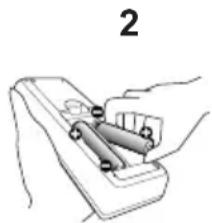
natural_image
Illustration of a hand holding a tool with two cylindrical objects, labeled with number 2 (no text or symbols on the objects themselves)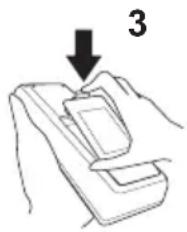
text_image
3natural_image
Diagram of a cylindrical device with internal components and an arrow indicating rotation (no text or symbols)natural_image
Illustration of a hand holding a tool interacting with a circular device, with an inset showing a magnified view of the device (no text or symbols present)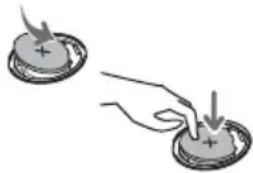
natural_image
Illustration of a hand pressing down on two circular objects with plus signs, no text or symbols present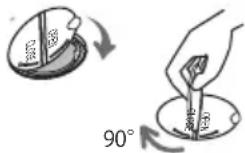
text_image
a c2 b2 c1 b1F-2
- Mounted on the wall or ceiling
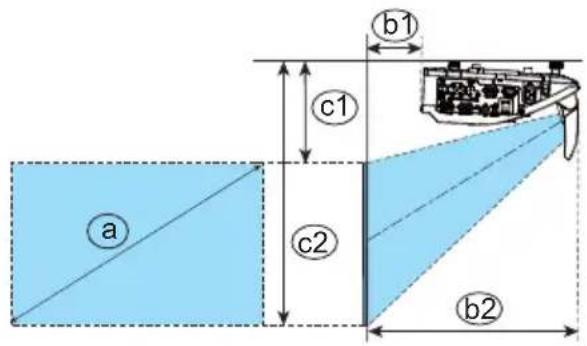
text_image
a c1 b1 c2 b2T-1
| Screen size (diagonal) a | Projection distance Screen height | ||||||||
| b1 b2 c1 c2 | ○ | ○ | ○ | ||||||
| type(inch) | m m inch | ch m inch | m inch m inch | ||||||
| 60 | 1.5 | 0.120 | 4.7 | 0.426 | 16.8 | 0.29 | 5 | 11.6 | 102 |
| 70 | 1.8 | 0.188 | 7.4 | 0.494 | 19.5 | 0.33 | 2 | 13.1 | 1.274 |
| 80 | 2.0 | 0.256 | 10.1 | 0.562 | 22.1 | 0.369 | 14.5 | 1.446 | 56.9 |
| 90 | 2.3 | 0.324 | 12.8 | 0.631 | 24.8 | 0.407 | 16.0 | 1.618 | 63.7 |
| 100 | 2.5 | 0.392 | 15.4 | 0.699 | 27.5 | 0.444 | 17.5 | 1.791 | 70.5 |
F-3
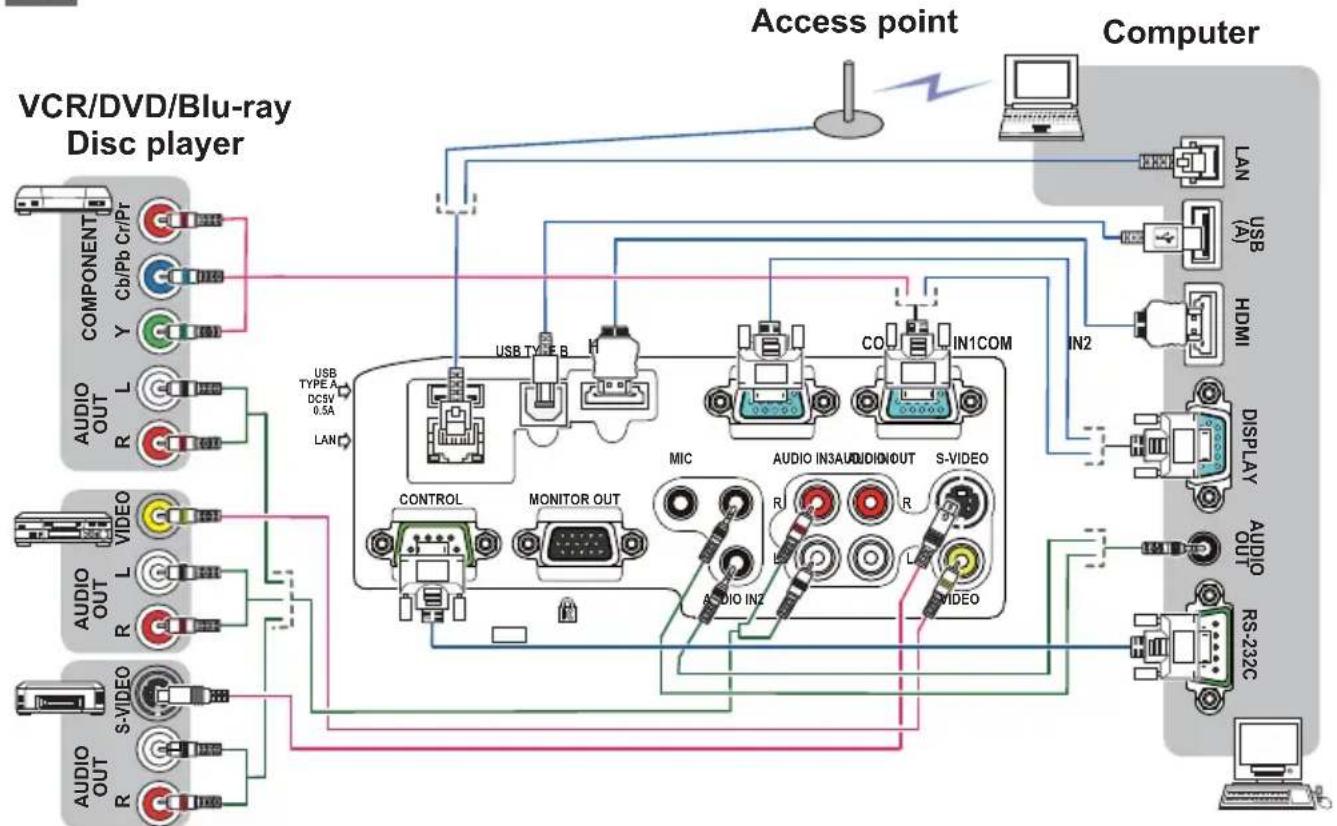
flowchart
graph TD
    subgraph VCR/DVD/Blu-ray Disc Player
        A["COMPONENT"] --> B["USB TYPE A"]
        C["AUDIO OUT"] --> D["USB TYPE A DC5V 0.5A"]
        E["VIDEO"] --> F["CONTROL"]
        G["AUDIO OUT"] --> H["MONITOR OUT"]
        I["S-VIDEO"] --> J["VIDEO IN2"]
    end

    subgraph Access Point
        K["Computer"] --> L["LAN"]
        K --> M["USB (A)"]
        K --> N["HDMI"]
        K --> O["DISPLAY"]
        K --> P["Audio OUT"]
        K --> Q["RS-232C"]

    subgraph Computer
        R["IN1COM"] --> S["CO"]
        S --> T["Audio IN3AUDIO"]
        T --> U["S-VIDEO"]
    end

    VCR_DVD_DiscPlayer["VCR/DVD/Blu-ray Disc Player"] --> A
    VCR_DVD_DiscPlayer --> C
    VCR_DVD_DiscPlayer --> E
    VCR_DVD_DiscPlayer --> G
    VCR_DVD_DiscPlayer --> I
    VCR_DVD_DiscPlayer --> S

    AccessPoint --> K
    AccessPoint --> S
    AccessPoint --> R
    AccessPoint --> M
    AccessPoint --> N
    AccessPoint --> O
    AccessPoint --> P
    AccessPoint --> Q

    style VCR_DVD_DiscPlayer fill:#f9f,stroke:#333
    style Computer fill:#ccf,stroke:#333
F-4
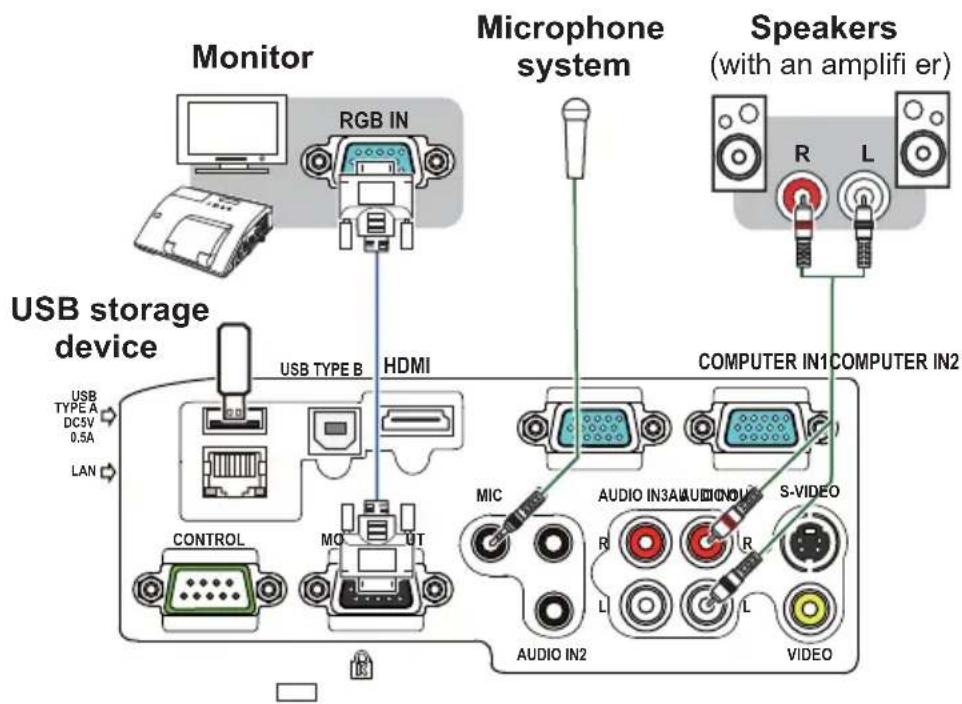
text_image
Monitor RGB IN USB storage device USB TYPE B HDMI CONTROL MO UT LAN Microphone system MIC AUDIO IN2 S-VIDEO AUDIO IN3A R L L L COMPUTER IN1 COMPUTER IN2 Speakers (with an amplifi er) R LF-5
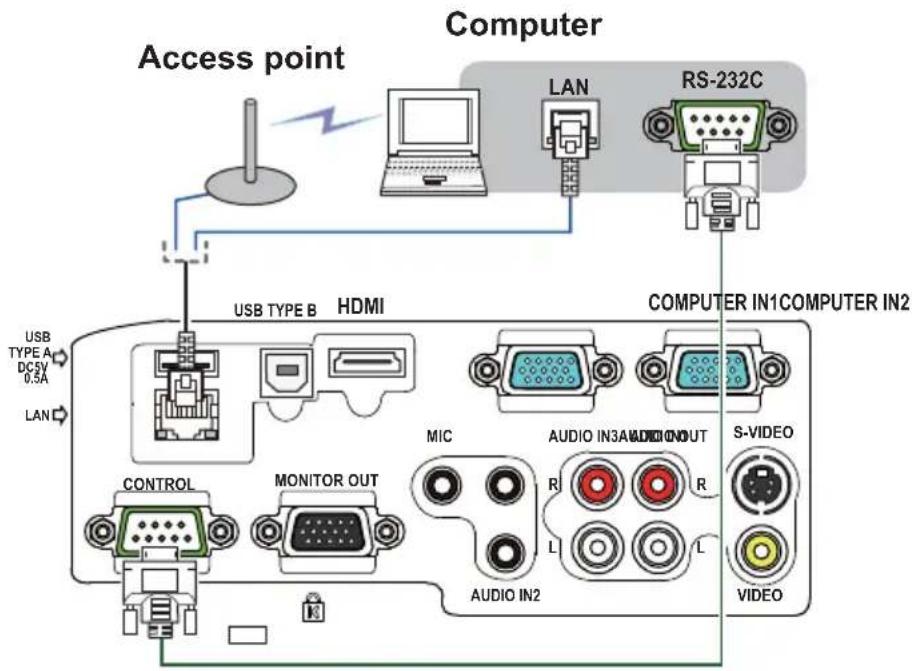
flowchart
graph TD
    A["Access point"] --> B["Computer"]
    B --> C["LAN"]
    B --> D["RS-232C"]
    C --> E["USB TYPE B"]
    D --> F["COMPUTER IN1"]
    D --> G["COMPUTER IN2"]
    E --> H["HDMI"]
    F --> I["HDMI"]
    H --> J["CONTROL"]
    H --> K["MONITOR OUT"]
    I --> L["AUDIO IN2"]
    I --> M["AUDIO IN3A"]
    I --> N["S-VIDEO"]
    I --> O["VIDEO"]
    style A fill:#f9f,stroke:#333
    style B fill:#ccf,stroke:#333
    style C fill:#cfc,stroke:#333
    style D fill:#fcc,stroke:#333
    style E fill:#ffc,stroke:#333
    style F fill:#cfc,stroke:#333
    style G fill:#cfc,stroke:#333
    style H fill:#fcc,stroke:#333
    style I fill:#cfc,stroke:#333
    style J fill:#fcc,stroke:#333
    style K fill:#fcc,stroke:#333
    style L fill:#cfc,stroke:#333
    style M fill:#cfc,stroke:#333
    style N fill:#cfc,stroke:#333
    style O fill:#cfc,stroke:#333
F-6
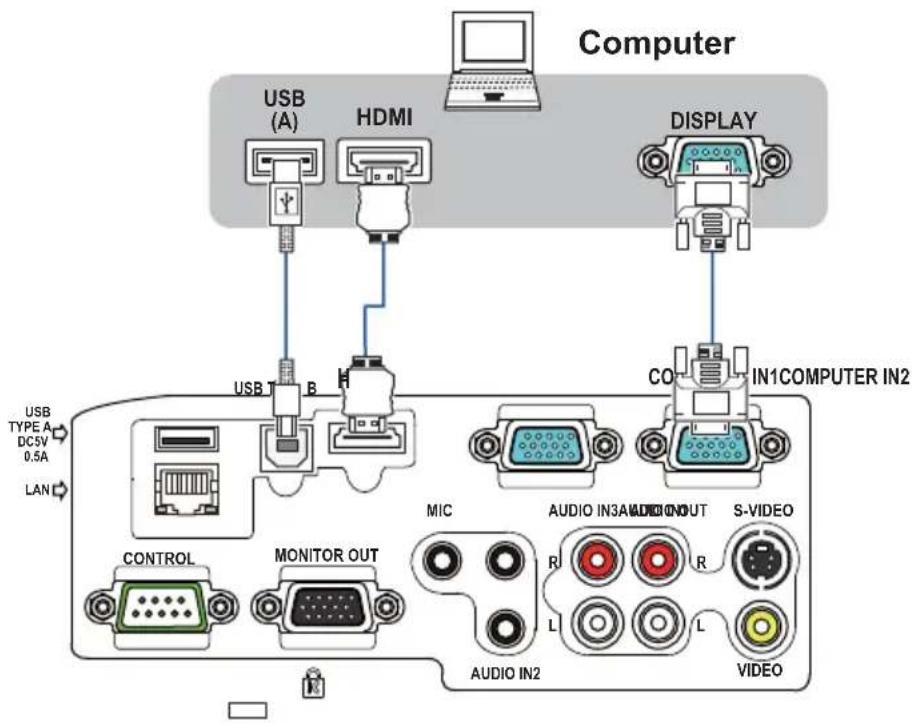
text_image
Computer USB (A) HDMI DISPLAY USB TYPE A DCSV 0.5A LAN CONTROL MONITOR OUT MIC AUDIO IN3A AUDIO OUT S-VIDEO R L L AUDIO IN2 VIDEOF-7
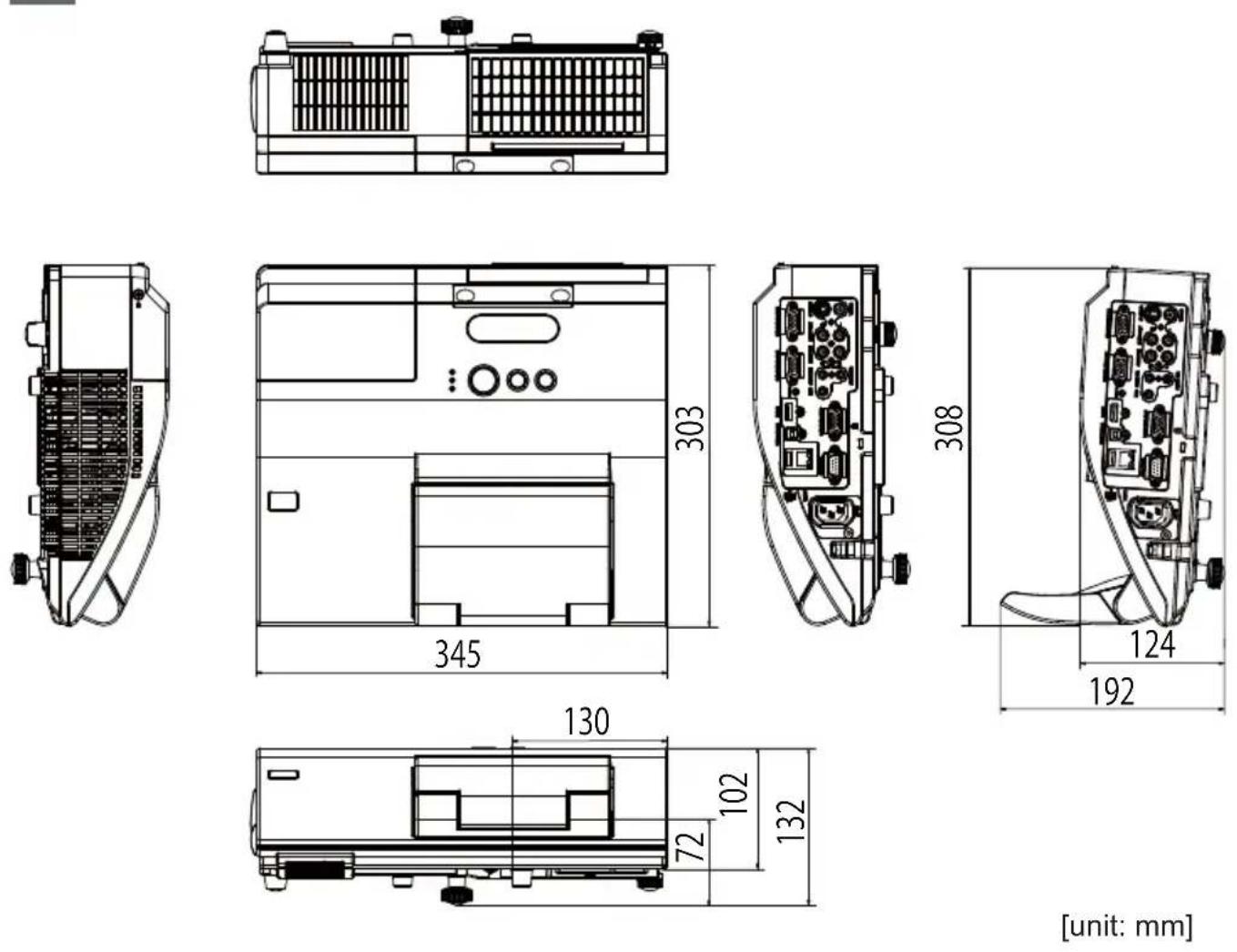
[unit: mm]
F-8
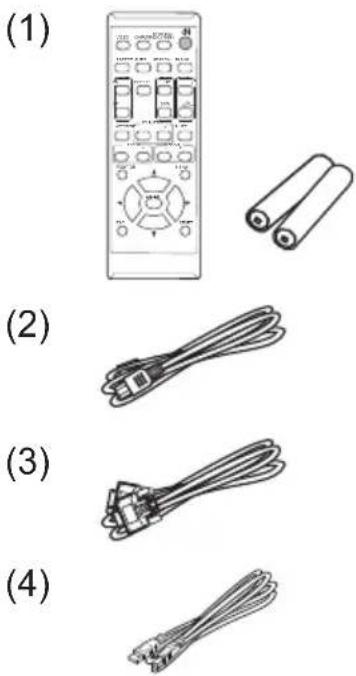
natural_image
Illustration of four different cable types: a remote control panel, rolled sheets, and two connected cables (no text or symbols)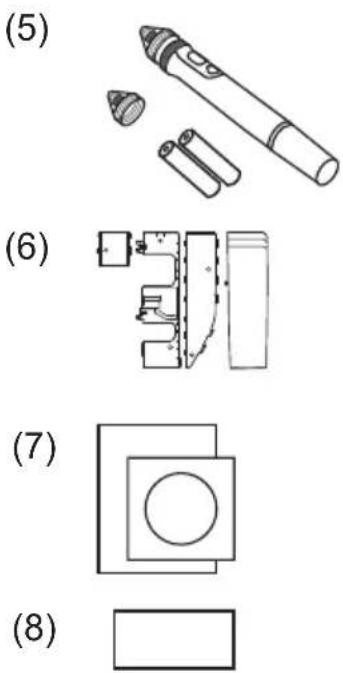
text_image
(5) (6) (7) (8)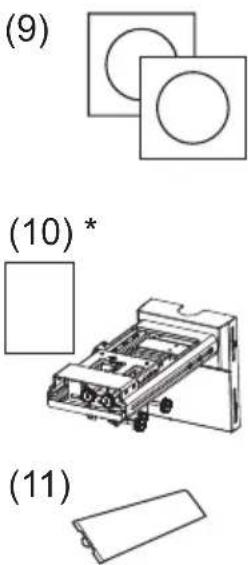
text_image
(9) (10)* (11)NOTE • The information in this manual is subject to change without notice. • The manufacturer assumes no responsibility for any errors that may appear in this manual. • The reproduction, transfer or copy of all or any part of this document is not permitted without express written consent.
Business Solutions Group
900 Hitachi way, Chula Vista
CA 91914-3556 USA CANADA
Tel: +1 -800-448-2244
http://www.hitachi-america.us/projectors
Hitachi Europe Ltd., Digital Media Group Consumer Affairs Department
Whitebrook Park, Lower Cookham Road, Maidenhead
Berkshire SL6 8YA UNITED KINGDOM
Tel: 0844 481 0297
Email: consumer.mail@hitachi-eu.com
Hitachi Europe S.A.S., Digital Media Group
Email: customerservice.italy@hitachi-eu.com
Hitachi Europe S.A.
Gran Via Carles III, 86 Planta 5 ^a
Denmark Tel: +46 8 562 711 00
http://www.hitachidigitalmedia.com
Hitachi Australia Pty Ltd.
Suite 801, Level 8, 123 Epping Road
North Ryde N.S.W 2113 AUSTRALIA
Tel: +61 -2-9888-4100
http://www.hitachi.com.au
Hitachi (Hong Kong), Ltd.
18/F., Ever Gain Centre, 28 On Muk Street.,
Shatin, N.T. HONG KONG
Tel: +852 -2113-8883
http://www.hitachi-hk.com.hk
Hitachi Sales (Malaysia) Sdn. Bhd.
Lot 12, Jalan Kamajuan, Bangi Industrial Estate, 43650 Bandar Baru Bangi, Selangor Darul Ehsan MALAYSIA
Tel: +60 -3-8911-2670
http://www.hitachiconsumer.com.my
Hitachi Home Electronics Asia (S) Pte. Ltd.
438A Alexandra Road #01-01/02/03
Alexandra Technopark, 119967 SINGAPORE
Tel: +65 -6536-2520
http://www.hitachiconsumer.com.sg
Hitachi Sales Corp. of Taiwan
2nd Floor, No.65, Nanking East Road, Section 3,
Taipei 104 TAIWAN
Tel: +886-2-2516-0500
http://www.hsct.com.tw
Hitachi Sales (Thailand), Ltd.
994, 996 Soi Thonglor, Sukhumvit 55 Rd.,
Klongtonnua, Vadhana, Bangkok 10110
THAILAND
Tel: +66 -2381-8381-98
http://www.hitachi-th.com
Hitachi Consumer Electronics Co., Ltd.
292 Yoshida-cho, Totsuka-ku
Yokohama 244-0817 JAPAN