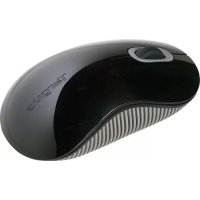
AMW51CA - Mouse TARGUS - Free user manual and instructions
Find the device manual for free AMW51CA TARGUS in PDF.


| Product type | Comfort wireless laser mouse |
| Brand | Targus |
| Model | AMW51CA |
| Detection technology | Laser |
| Connection type | Wireless 2.4 GHz (via Micro USB receiver) |
| Interface | USB (Micro USB receiver) |
| Power | 2 AA batteries (included) |
| Estimated battery life | Several months depending on usage (built-in power saving mode) |
| Battery level indicator | Yes (3 LEDs: green, orange, red) |
| Compatible operating systems | Windows 2000/XP/Vista/7, Mac OS X 10.4 or later |
| Key features | Plug & Play, programmable 4-way scroll wheel (Windows), power saving mode, on/off button |
| Box contents | Mouse, Micro USB receiver, 2 AA batteries, user manual |
| Dimensions (approx.) | 10.5 cm (L) x 6.5 cm (W) x 3.5 cm (H) |
| Weight (with batteries) | Approximately 120 g |
| Warranty | 1 year limited (material and workmanship defects) |
| Color | Black / Gray |
| Care and cleaning | Use a soft, dry cloth; do not use chemicals |
| Safety | Compliant with FCC Part 15, Canada's CNR-210 |
| Repairability | Product not user-serviceable; contact Targus support in case of failure |
Frequently Asked Questions - AMW51CA TARGUS
User questions about AMW51CA TARGUS
0 question about this device. Answer the ones you know or ask your own.
Ask a new question about this device
Download the instructions for your Mouse in PDF format for free! Find your manual AMW51CA - TARGUS and take your electronic device back in hand. On this page are published all the documents necessary for the use of your device. AMW51CA by TARGUS.
USER MANUAL AMW51CA TARGUS
Thank you for your purchase of the Targus Wireless Comfort Laser Mouse. The accompanying micro USB receiver is small enough to leave plugged into your computer or simply store it inside the mouse when travelling. This is a plug and play device so no additional software is required. The advance scroll wheel feature program can be downloaded from the Targus website.
Contents
• Targus Wireless Comfort Laser Mouse
- 2 x AA Batteries
- Micro USB Receiver
- User Guide
System Requirements
Hardware
- USB port
Operating System
- Microsoft Windows® 2000
- Microsoft Windows® XP
- Microsoft Windows Vista®
- Microsoft Windows® 7
• Mac OS® X 10.4 or later
Installing the Batteries
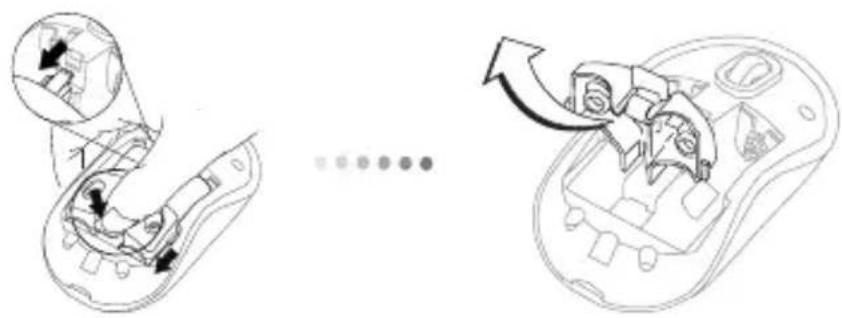
- Remove the battery cover from the top of the mouse by using the notch on the back. Carefully lift the cover up as shown in the diagram.
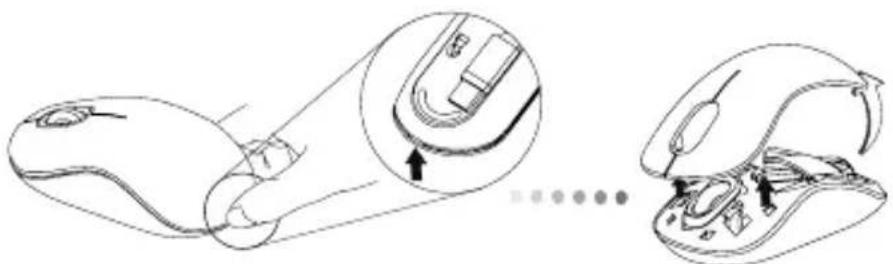
natural_image
Diagram showing a computer mouse with internal components and a close-up view of the interior (no text or symbols)- Remove the battery safety clip by squeezing the center of the clip and sliding it back, towards the rear of the mouse. Lift up and rotate the clip out of the way.
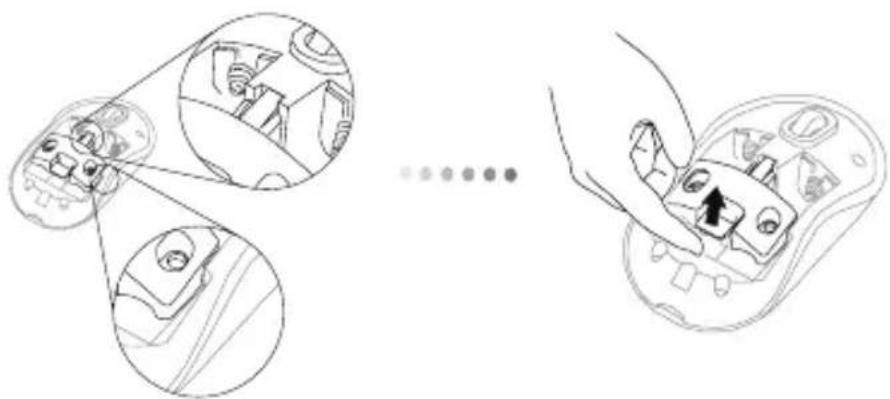
natural_image
Diagram showing a hand holding a game controller with a close-up of its interior components (no text or symbols present)
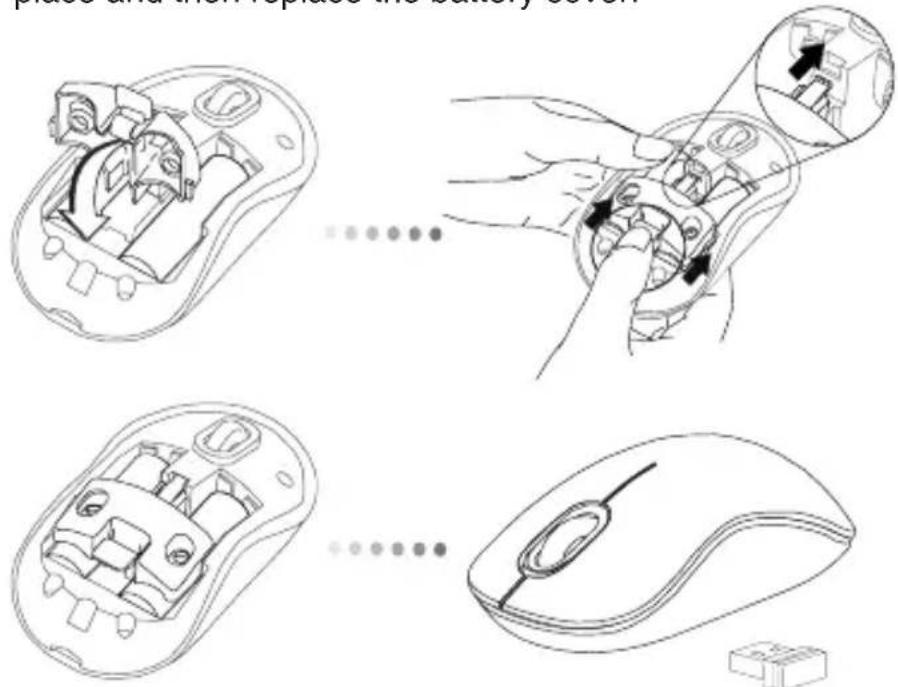
NOTE: THE BATTERY SAFETY CLIP WILL NEED TO BE IN THE SECURE, LOCKED POSITION BEFORE THE BATTERY COVER CAN BE PUT BACK IN PLACE.
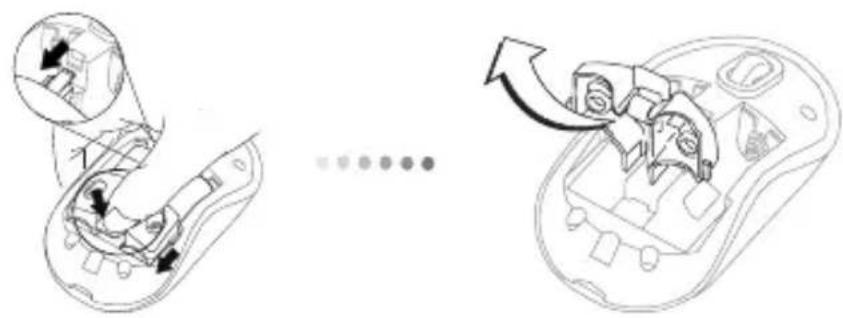
natural_image
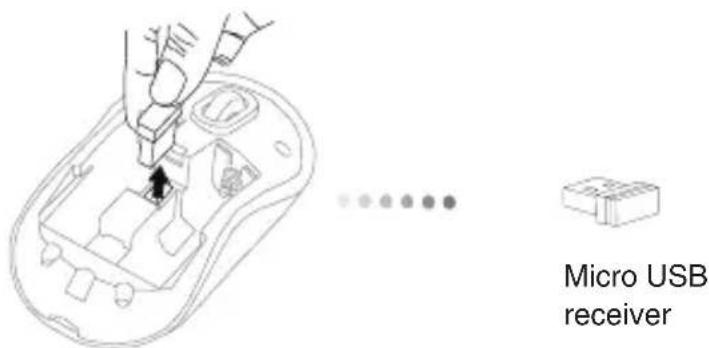
Diagram showing a device's internal components before and after assembly, with no visible text or symbols.- Remove the micro USB receiver stored inside the center compartment.
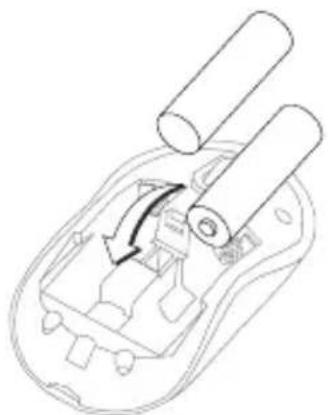
- Insert the two AA batteries, making sure that the positive (+) and negative (-) ends of each battery match the polarity indicators inside the battery compartment.
natural_image
Line drawing of a mechanical component with cylindrical parts and internal mechanism (no text or symbols)- Replace the battery safety clip by sliding it forward until it clicks into place and then replace the battery cover.
Establishing the Connection
(A) Plug the USB receiver into an available USB port on your computer.
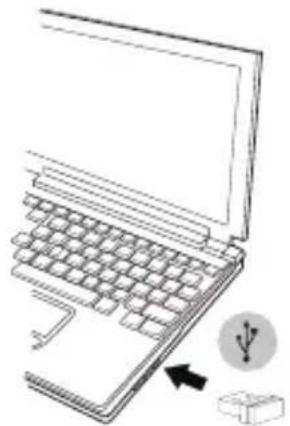
natural_image
Line drawing of a laptop keyboard with an icon indicating USB connection (no text or symbols present)(B) Turn on the mouse pressing the power button, located on the bottom of the mouse, for 3 seconds and then release.
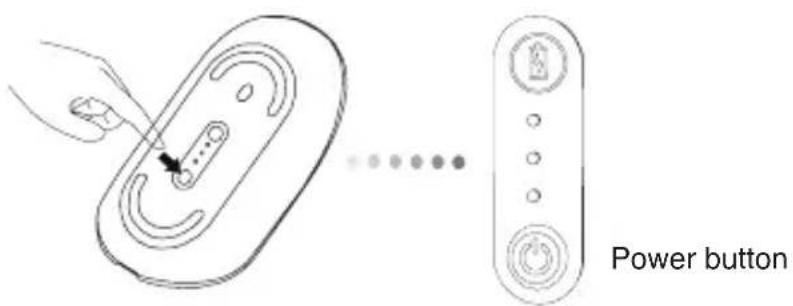
This mouse is a plug and play device. It will automatically operate when the USB receiver is connected to the computer.
Power On:
Press and hold the power button for 3 seconds and then release. The battery life indicator will briefly light up showing the current power level of the batteries.
Power Off:
Press and hold the power button for 3 seconds and then release. The battery life indicator will briefly light up and then fade out.
Battery Check:
After the mouse is turned on, quickly press and release the power button. The battery life indicator will light up showing the current power level of the batteries.
Power Saving mode:
After an extended period of time, if the mouse is not used, it will automatically enter power saving mode to conserve power and increase battery life. Click on any mouse button to resume the normal operation. The mouse may take a few seconds to reconnect with your computer.
Battery Life Indicator
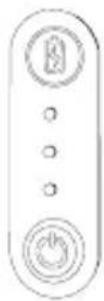
| 3 LEDs lit Full power | |
| 2 LEDs lit Half power | |
| 1 LED lit Low power |

NOTE: WHEN THE FIRST LIGHT IS BLINKING, PLEASE REPLACE THE BATTERIES
Power Management
- To extend the life of your battery, turn off the mouse while travelling or when you're not using it.
Programming Your Mouse (Windows Only)
To access the advanced scroll wheel features you will need to download and install the software driver. This can be downloaded from the following location:
Visit www.targus.com to download and install the driver.
Once installation is complete, open the driver software and select the desired setting for the scroll-wheel button. Close the driver software application and you're ready to go. Activate your selected feature by pressing down on the scroll wheel.
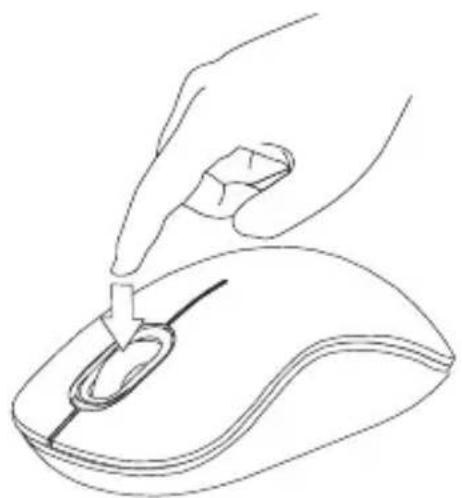
natural_image
Line drawing of a hand using a computer mouse to press or install a cable (no text or symbols present)Technical Support
For technical questions, please visit:
Internet: www.targus.com/support.asp
Email: info.cn@targus.com
Product Registration
Targus recommends that you register your Targus accessory shortly after purchasing it. Go to:
http://www.targus.com/registration.asp
You will need to provide your full name, email address, country of residence and product information.
Warranty
Targus warrants this product to be free from defects in materials and workmanship for one year. If your Targus accessory is found to be defective within that time, we will promptly repair or replace it. This warranty does not cover accidental damage, wear and tear, or consequential or incidental loss. Under no conditions is Targus liable for loss of, or damage to devices; nor loss of, or damage to, programs, records, or data; nor any consequential or incidental damages, even if Targus has been informed of their possibility. This warranty does not affect your statutory rights.
Regulatory Compliance
This device complies with Part 15 of the FCC Rules. Operation is subject to the following two conditions: (1) This device may not cause harmful interference, and (2) This device must accept any interference received, including interference that may cause undesired operation.
This Class B digital apparatus complies with Industrial Canada RSS-210
FCC Statement
Tested to Comply
This equipment has been tested and found to comply with the limits of a Class B digital device, pursuant to Part 15 of the FCC Rules. These limits are designed to provide reasonable protection against harmful interference in a residential installation. This equipment generates, uses, and can radiate radio frequency energy and if not installed and used in accordance with the instructions, may cause harmful interference to radio communications. However, there is no guarantee that interference will not occur in a particular installation. If this equipment does cause harmful interference to radio or television reception, which can be determined by turning the equipment off and on, the user is encouraged to try to correct the interference by one or more of the following measures:
- Reorient or relocate the receiving antenna;
- Increase the separation between the equipment and receiver;
- Connect the equipment into an outlet on a circuit different from that to which the receiver is connected;
- Consult the dealer or an experienced radio/TV technician for help.
Changes or modifications not authorized by the party responsible for compliance could void the user's authority to operate this product.
Microsoft, Windows, and Windows Vista are either registered trademarks or trademarks of Microsoft Corporation in the United States and/or other countries. All trademarks and registered trademarks are the properties of their respective owners. All rights reserved.

CAUTION
LASER RADIATION. DO NOT STARE INTO THE BEAM OR VIEW DIRECTLY WITH OPTICAL INSTRUMENTS. CLASS I LASER PRODUCT. NEVER POINT A LASER BEAM INTO A PERSON'S EYES OR VIEW A LASER BEAM DIRECTLY, AS PROLONGED EXPOSURE CAN BE HAZARDOUS TO THE EYES. MOMENTARY EXPOSURE FROM A LASER POINTER, SUCH AS AN INADVERTENT SWEEP OF THE LIGHT ACROSS A PERSON'S EYES, MAY CAUSE TEMPORARY FLASH BLINDNESS SIMILAR TO THE EFFECT OF A CAMERA FLASH BULB. ALTHOUGH THIS CONDITION IS TEMPORARY, IT CAN BECOME MORE DANGEROUS IF THE EXPOSED PERSON IS ENGAGED IN A VISION-CRITICAL ACTIVITY SUCH AS DRIVING.
Introduction
natural_image
Diagram showing a computer mouse being opened into a closed, partially open button (no text or symbols present)natural_image
Diagram showing a hand holding a game controller with multiple circular views of the device (no text or symbols present)
REMARQUE : VÉRIFIEZ QUE LA BRIDE DE SÉCURITÉ EST FIXÉE DANS SA POSITION AVANT DE REMETTRE LE COUVERCLE DU COMPARTIMENT DE PILES.
natural_image
Diagram showing a computer mouse with a close-up of the internal components and a separate view of the mouse's internal structure (no text or symbols present)natural_image
Line drawing of a mechanical component with cylindrical parts and an arrow indicating rotation (no text or symbols)natural_image
Line drawing of a laptop keyboard with an icon indicating USB connection (no text or symbols present)natural_image
Diagram showing a hand inserting a button into a device with dotted lines indicating alignment or connection (no text or symbols present)natural_image
Line drawing of a hand using a computer mouse to press a button (no text or symbols)Support technique
ATTENTION
RAYONNEMENT LASER. NE FIXEZ PAS LE FAISCEAU ET NE L'EXAMINEZ PAS DIRECTEMENT AU MOYEN D'INSTRUMENTS OPTIQUES. PRODUIT LASER DE CLASSE I.
NE DIRIGEZ JAMAIS UN FAISCEAU LASER VERS LES YEUX D'UNE PERSONNE ET NE REGARDEZ JAMAIS DIRECTEMENT UN FAISCEAU LASER, TOUTE EXPOSITION PROLONGÉE À UN FAISCEAU LASER POUVANT ÊTRE DANGEREUX POUR LES YEUX.
UNE EXPOSITION MOMENTANÉE À UN POINTEUR LASER RÉSULTANT PAR EXEMPLE DU PASSAGE ACCIDENTEL DU FAISCEAU DANS LES YEUX D'UNE PERSONNE PEUT AVOIR POUR CONSÉQUENCE UN AVEUGLEMENT PAR L'ÉCLAIR TEMPORAIRE SIMILAIRE AUX EFFETS PROVOQUÉS PAR L'AMPOULE DE FLASH D'UN APPAREIL PHOTO. BIEN QUE CET ÉTAT SOIT TEMPORAIRE, IL PEUT SE RÉVÉLER DANGEREUX SI LA PERSONNE EXPOSÉE EST ENGAGÉE DANS UNE ACTIVITÉ DANS LE CADRE DE LAQUELLE SA VUE LUI EST INDISPENSABLE (CONDUIRE, PAR EXEMPLE).

bar
| Category | Value | |---|---| | Category 1 | 100 | | Category 2 | 100 | | Category 3 | 100 | | Category 4 | 100 | | Category 5 | 100 | | Category 6 | 100 | | Category 7 | 100 | | Category 8 | 100 | | Category 9 | 100 | | Category 10 | 100 | | Category 11 | 100 | | Category 12 | 100 | | Category 13 | 100 | | Category 14 | 100 | | Category 15 | 100 | | Category 16 | 100 | | Category 17 | 100 | | Category 18 | 100 | | Category 19 | 100 | | Category 20 | 100 | | Category 21 | 100 | | Category 22 | 100 | | Category 23 | 100 | | Category 24 | 100 | | Category 25 | 100 | | Category 26 | 100 | | Category 27 | 100 | | Category 28 | 100 | | Category 29 | 100 | | Category 30 | 100 | | Category 31 | 100 | | Category 32 | 100 | | Category 33 | 100 | | Category 34 | 100 | | Category 35 | 100 | | Category 36 | 100 | | Category 37 | 100 | | Category 38 | 100 | | Category 39 | 100 | | Category 40 | 100 | | Category 41 | 100 | | Category 42 | 100 | | Category 43 | 100 | | Category 44 | 100 | | Category 45 | 100 | | Category 46 | 100 | | Category 47 | 100 | | Category 48 | 100 | | Category 49 | 100 | | Category 50 | 100 | | Category 51 | 100 | | Category 52 | 100 | | Category 53 | 100 | | Category 54 | 100 | | Category 55 | 100 | | Category 56 | 100 | | Category 57 | 100 | | Category 58 | 100 | | Category 59 | 100 | | Category 60 | 100 | | Category 61 | 100 | | Category 62 | 100 | | Category 63 | 100 | | Category 64 | 100 | | Category 65 | 100 | | Category 66 | 100 | | Category 67 | 100 | | Category 68 | 100 | | Category 69 | 100 | | Category 70 | 100 | | Category 71 | 100 | | Category 72 | 100 | | Category 73 | 100 | | Category 74 | 100 | | Category 75 | 100 | | Category 76 | 100 | | Category 77 | 100 | | Category 78 | 100 | | Category 79 | 100 | | Category 80 | 100 | | Category 81 | 100 | | Category 82 | 100 | | Category 83 | 100 | | Category 84 | 100 | | Category 85 | 100 | | Category 86 | 100 | | Category 87 | 100 | | Category 88 | 100 | | Category 89 | 100 | | Category 90 | 100 | | Category 91 | 100 | | Category 92 | 100 | | Category 93 | 100 | | Category 94 | 100 | | Category 95 | 100 | | Category 96 | 100 | | Category 97 | 100 | | Category 98 | 100 | | Category 99 | 100 | | Total (Category) |1 YEAR LIMITED WARRANTY: We pride ourselves on the quality of our products. For complete warranty details and a list of our worldwide offices, please visit www.targus.com. Features and specifications are subject to change without notice. Microsoft, Windows and Windows Vista are registered trademarks or trademarks of Microsoft Corporation in the United States and/or other countries. Mac is a trademark of Apple Inc., registered in the U.S. and other countries. Logitech is a registered trademark of Logitech International in the United States and other countries. All trademarks and registered trademarks are the property of their respective owners. ©2009 Targus Group International, Inc.