Ketab Premier - E-reader i-Joy - Free user manual and instructions
Find the device manual for free Ketab Premier i-Joy in PDF.



| Product type | E-book reader |
| Brand | i-Joy |
| Model | Ketab Premier |
| Screen | E-ink screen, 6 inches |
| Screen resolution | 800 × 600 pixels |
| Internal memory | 4 GB (flash memory) |
| Expandable storage | Yes, MicroSD card up to 32 GB |
| Supported book formats | PDF, EPUB, FB2, TXT, HTML, MOBI, PRC |
| Supported image formats | JPEG, BMP, GIF, PNG |
| Battery | Rechargeable lithium polymer, 1500 mAh |
| Battery life | Up to 4 weeks (depending on usage) |
| Connectivity | Micro USB for data transfer and charging |
| Dimensions | 170 × 120 × 10 mm |
| Weight | 180 g |
| Key features | E-book reading, photo display, slideshow, calendar, bookmarks, last read book, night mode, screen rotation, font settings |
| Usage precautions | Do not expose to moisture, magnetic fields, extreme temperatures; do not use abrasive cleaning products |
| Cleaning | With a damp cloth only, no alcohol |
| Warranty | 2 years (parts and labor, subject to conditions) |
| Package contents | eReader, Micro USB cable, power adapter, quick start guide |
| Country of manufacture | China (PRC) |
| Certifications | CE (directive 2004/108/EC) |
Frequently Asked Questions - Ketab Premier i-Joy
User questions about Ketab Premier i-Joy
0 question about this device. Answer the ones you know or ask your own.
Ask a new question about this device
Download the instructions for your E-reader in PDF format for free! Find your manual Ketab Premier - i-Joy and take your electronic device back in hand. On this page are published all the documents necessary for the use of your device. Ketab Premier by i-Joy.
USER MANUAL Ketab Premier i-Joy
Instead of using the keyboard, you can also enter a calendar year in the calendar year. This is a way to enter a calendar year in the calendar year. It's important to enter a year in the calendar year because it will be used for calculating the date of the year.
3.14 CONFIGURación
Instead of using the is, you can also use the js.
4. SOLUCIOn DE PROBLEMAS
- Avoid throwing or hitting your device.
- Do not use it with extreme weather conditions such as cold or hot too long time. Keep it safe from the sunlight.
- Do not use the device near magnetic or electrostatic fields.
- If the device happens to be splashed with water or any other liquid, turn it off immediately and dry it with a cloth. Wait until it is totally dry to turn it back on.
- Avoid using abrasive products such as alcohol to clean the device. Use only a wet cloth.
- Backup your data often. I-Joy is not responsible for any loss of important data.
- Do not repair your device yourself; it will avoid the warranty provided.
RECYCLE
Do not throw this device or any of its parts to the garbage.
Ask at your local council about the possibilities for proper disposal without compromising the environment. The cardboard box, the plastic contained in the packaging as well as the component parts of the device can be recycled in accordance with the European Law.
When the device has reached the end of its useful life, it must be brought to a collection center.
2. INTRODUCTION
Thank you for purchasing this eBook. The following sections provide an overview of your new device and its basic features. Please read carefully before start using the product.
2.1 GENERAL VIEW OF THE DEVICE
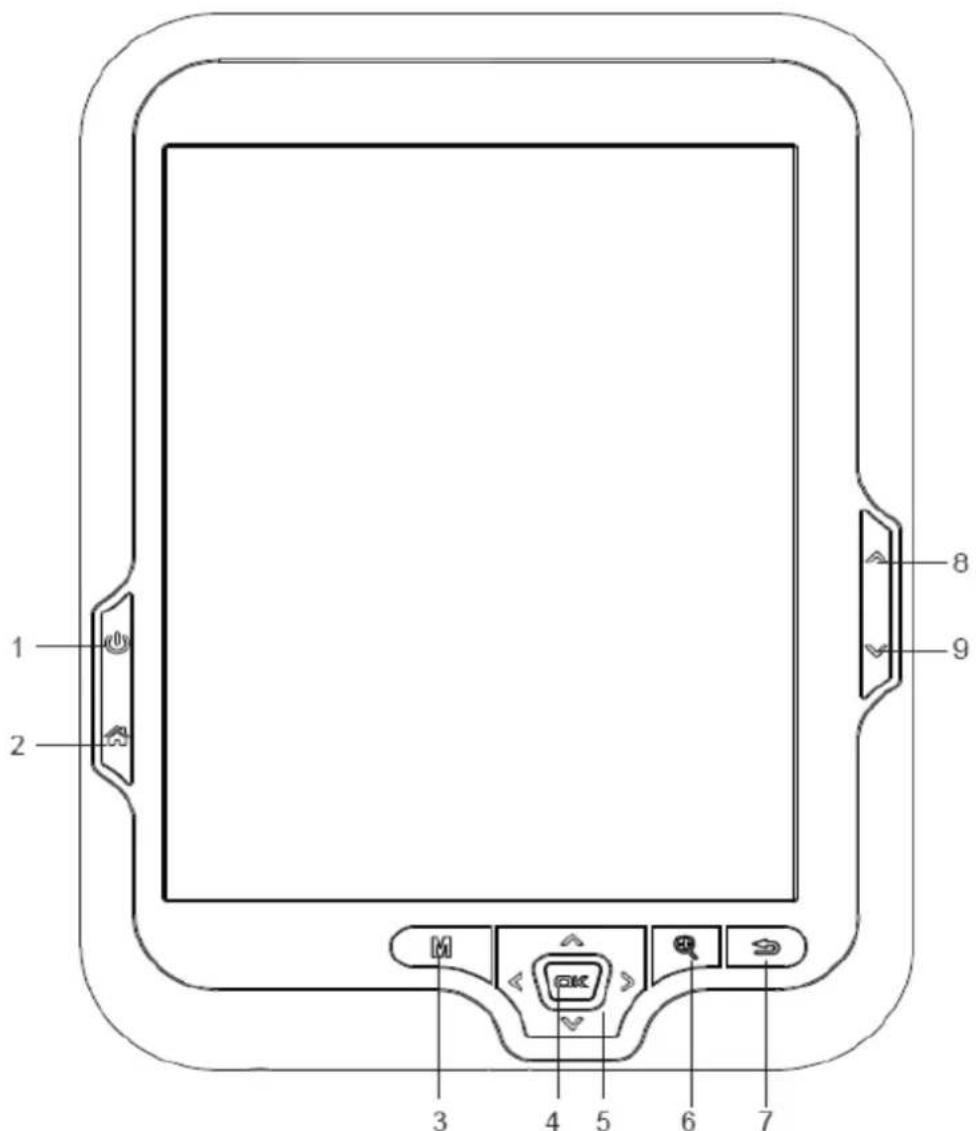
1- Power ON/OFF: Press until the eBook turns ON. The starting takes a few seconds and the welcome screen will be displayed. To power OFF keep pressing the Power button.
2- Main Menu: To Access the main menu.
3- Options: To Access the option menu during Reading. Press to change the view to thumbnails or list view.
4- Enter Button: To confirm a selection.
5- Navigation Button: To move up/down/left/right on the different menus. During Reading, playback or image visualization is used to open the previous/next file.
6- Zoom Button: To Access the front settings menu during reading. During images visualization is used to zoom in/zoom out.
7- Return/Cancel: To cancel selection or return on previous menu.
8- Previous Button: During reading, move to the previous page. In navigation mode, move to the previous page in the list.
9- Next Button: During reading, move to the next page. In navigation mode, move to the next page in the list.
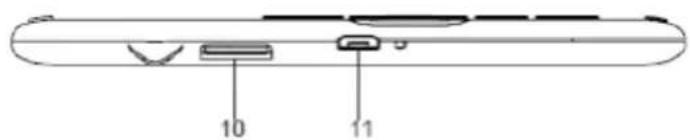
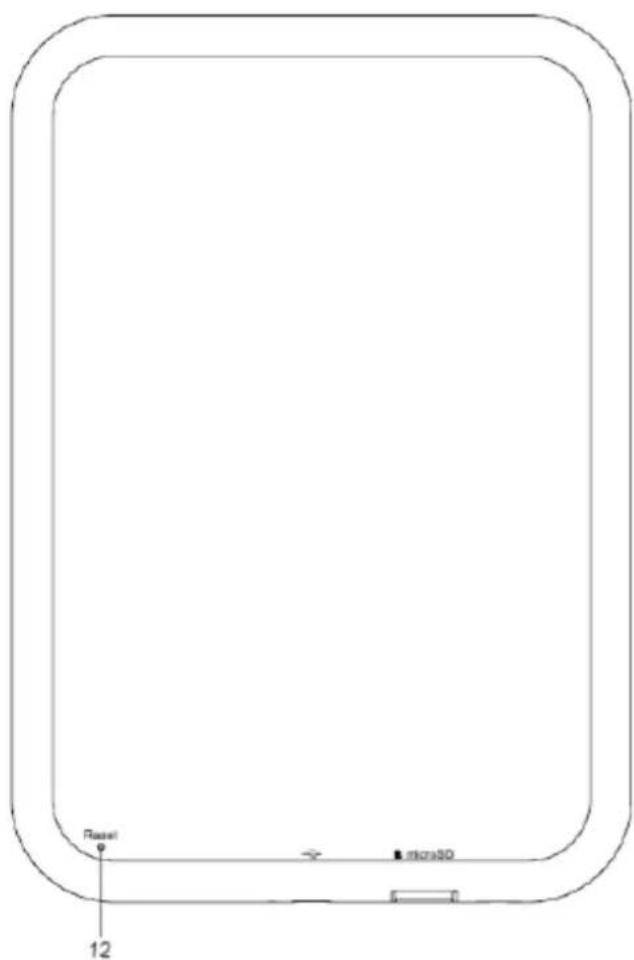
10-Micro SD card slot.
11- Micro USB Jack for data transfer or battery charging via computer.
12- Reset Button to restart the device when it is not working properly. Press the button with a small and thin object.
3. OPERATIONING INSTRUCTIONS
3.1 PREVIOUS CONSIDERATIONS
- We recommend making a full charge of the battery before first use. Connect the eBook through the supplied USB cable to your personal computer. Or use the supplied USB cable and the adapter to charge.
- We recommend that the first three charges of the battery are 12 hours each; with this you will extend the battery life and will give you a longer use time. The following chargers only will require about 5 hours to fully charge the battery.
- Your eBook is powered by a special Li-ion polymer rechargeable battery. When the battery becomes low, connect the reader through the micro USB cable to your computer USB port. Or use the supplied USB cable and the adapter to charge.
3.2 POWER ON/OFF
To power your eBook press the POWER button for 2 seconds to turn on/off the device.
3.3 FILES MANAGEMENT
From the browser of your computer you can copy, delete and organize files or folders. When you connect the device to the computer, the eBook is blocked and it is not possible to use it until the connection is completed.
The internal memory files are organized in multiple folders. You can create, delete and organize internal folders. If you have a MicroSD card inserted, the device will compile all the information stored in it.
3.4 USING MICROSDCARDS
This eBook supports standard MicroSD cards for storing thousands of books and pictures:
Supports standard MicroSD cards up to 32GB
- To begin, slide in the card into the slot, be sure that contacts of the card must be face down and the label face up (holding the device with the screen facing down)
- To eject the card, just gently push it and it will be expelled.
Notes:
- You will know when the MicroSD is ready to use when it appears as Card device in the Explorer.
- If MicroSD card cannot be recognized by the device, you should remove the MicroSD card again and reboot the device.
- When the system is reading or writing data, please do not remove the memory card or reset the system.
- If you need to reformat the MicroSD card please create a backup copy of your files previously and format the MicroSD card.
- To perform a search of the files stored in the memory card access to the Explorer menu.
3.5 FIRST STEPS
Main Menu:
The main menu appears automatically when power on the eReader. You can return to the Main Menu always you need by pressing on the button.
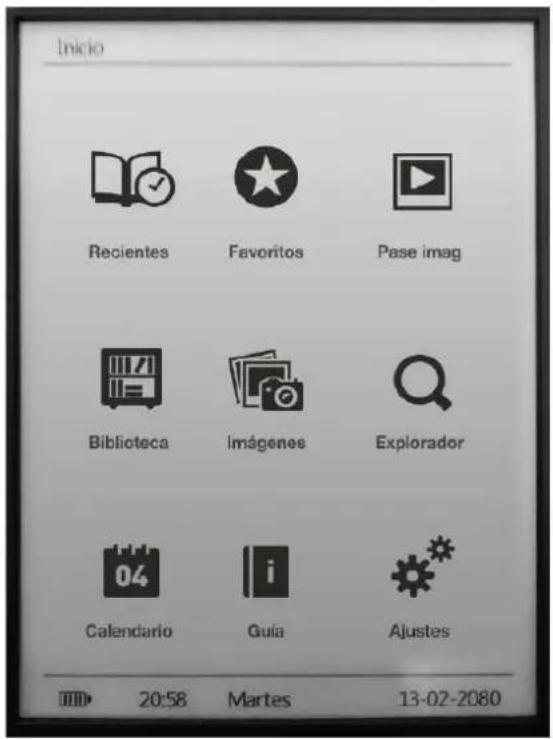
Library: Access to the explorer for the eBooks stored in the reader internal memory (flash memory) or at the MicroSD memory card.

Photo: Access to the explorer for the images files stored in the reader internal memory
(flash memory) or at the MicroSD memory card.

Slide Show: Access to flip mode for the images stored in the reader.

Explorer: Open the files explorer.

Favorites: Access to all the Ebooks you have marked as Favorites.

Last Read: Access to the last read eBooks list.

Settings: Access to the system settings menu.

User Manual: Access to the eReader user manual.

Calendar: Access to the Calendar function.
3.6 LIBRARY
Display all the eBooks included in the internal memory or external MicroSD memory card.
You can select how the eBooks browser displays by pressing the M options button on your device: list or thumbnails mode.
To open an ebook moves the cursor to the desired book with the navigation buttons and press the enter button.
Note: If the file is stored on a MicroSD will be displayed in the list but can not be opened if the MicroSD card has been extracted.
3.7 EBOOK READING FEATURES
After opening an ebook, you can use these features to make appropriate adjustments.
To access these features press the mOptions button:
- Go to page: To go to the desired page enter the exact page number, use the navigation button to select the page number appears on the screen and to confirm press the enter button.
-
Add bookmark: To improve the reading experience you can add bookmarks. The bookmarks are organized and accessible when you require. Access to this option to add a bookmark.
-
Get bookmark: To open a bookmark.
- Delete bookmark: To delete a bookmark.
- Auto mode: To start the automatic reading. You can define the turning pages time as follows: 20 seconds, 30 seconds, 40 seconds, 1 minute or off.
- Screen Rotate set: To rotate the screen vertically and horizontally. You can choose from the following functions: automatic rotation enabled (g-sensor), disable or manual rotation.
- Screen refresh: Select the screen refresh mode. You can choose a total refresh each age or a partial refresh every 5 pages. The partial refresh guarantees a higher level of battery life of your eReader.
- Night mode: Enable/unable the night mode. This function changes the background color to black and the font color to white making easier to read poorly-lit rooms.
- Add to favorites: Add the current ebook to the favorites list. You can quickly access to the eBooks marked as favorites selecting the icon from the main menu. By pressing the enter button you can access the settings menu font size and type.
When reading books, access these features press the Zoom Button:
Font size: Choose from 5 different font sizes available on your eReader: S, M, L, XL, XXL.
Font type: select from 4 different font types on your eReader. This option is available only for epub and fb2 formats.
3.8 PHOTOS
This option allows you to access to the complete library of images files stored in the reader internal memory (flash memory) or at the MicroSD memory card.
From main menu, select the ton to access to the pictures menu.
You can select how the photos browser displays by pressing the M options button on your device: list or thumbnails mode (preview of the images).
During images visualization by pressing the M options button on your device, you can select:
- Sliders: to enable/disable the automatic images playback. You can set interval time for a slide show: 5 Sec, 10 Sec, 20 Sec, 30 Sec, 50 Sec or off.
- Screen rotation: to enable/disable the automatic screen rotation (g-sensor).
3.9 EXPLORER
From this option you can explore all the files stored in the reader internal memory (flash memory) or at the MicroSD memory card. Select the Q icon on main menu to access the Explorer.
3.10 FAVORITES
This option allows you to access the books marked as Favorites. From main menu, select the icon to open the Favorites Menu. All the books marked as favorites will be displayed.
To add an ebook to your favorite list just add it from the M options button, when reading. The file will be automatically marked as favorite. You can add up to 9 eBooks as favorites.
3.11 LAST READ
From this option you can access to the last read eBooks. Select the icon on main menu to access the last read list.
3.12 SLIDESHOW MODE
After setting the time interval between images during playback, select the icon from the main menu to begin playback immediately.
3.13CALENDAR
From this option you can access to calendar list. Select the 04 icon on main menu to access the list. You can change month by short press side previous and next button, change year by long press side previous and next button, and choose date by short press of navigation button.
3.14 SETTINGS
From Main Menu you can access to the Settings menu by selecting the lubsuit icon. The Settings menu comprises the following features:
- Language.
- Time and Date.
-
Auto-off (timer to shut down the system).
-
Start reading: Option "book" turns on the device and shows your last reading and the "home" options turns on the device on the main screen.
- Clear reading history.
- Restore to factory default settings.
- System Information: displays the information of your eBook reader (Model No., FW version, available internal memory size and available memory in the MicroSD card).
3.15 MANUAL
From Main Menu select the icon Manual to access the Digital version of the User Manual
4. TROUBLESHOOTING
The device hang or cannot be switched on
If battery has been fully deplete the device will not have enough capacity to power on.
- Charge the device using the USB cable at least for one hour. Press the POWER button.
- If you have the eReader connected to the computer, please disconnect and press the POWER button.
- Restart the device by pressing the Reset button.
- As last resource we recommend you to update the firmware with the last version available in our website.
Battery capacity seems short.
- The battery was not used for a long time. Please charge the device completely.
The battery is not fully charged. Please charge the device for at least 5 hours.
Cannot read/oped an ebook.
- Check if the ebook format is supported by device.
The device cannot be operated during micro USB connection.
- The device cannot be operated while it is transferring data to a computer to prevent any damage on reader internal memory or micro SD card.
Micro SD card is not being detected.
-
After inserted a micro SD card, if your device is has no response, please take out and insert again.
-
Do not remove micro SD card or turn off during data writing or reading to prevent damage to data and your device.
- Backup your files and data before formatting the micro SD card. Please format the micro SD card.
- Your eReader only can read micro SD cards up to 32 GB.
Why do some EPUB documents not look wight on my Book?
- Many publishers and convert software are supporting this format, but without maintaining a single standard set. One of the most common problem is when the creator puts everything EPUB e-book content in a "chapter" in EPUB. This can cause the document reading differs with formatted text, margins, gaps, etc. (Some of this problems may occur with other formats).
Conditions of Guarantee
- For the guarantee to be carried out, all products must be delivered to IJOY perfectly packed, preferably in its own original packing, with all accessories, user manuals and drivers that the packaging would originally contain. Otherwise, IJOY will not be held responsible for damages that might occur during transportation.
- To be able to carry out the guarantee it will necessary to have a copy of the proof of purchase, preferably with a copy of the original bill.
- The repair of the products will be carried out according to the problem reported by the client; therefore it is essential that the client indicates in a clear form and in the most specific way possible where the problem lies, to be able to solve it in the correct manner. In the case that there is not problem with the product a diagnosis and transportation charge can be applied.
- The client must have carried out a security copy of the data as during the reparation process there exists the possibility that such data may be lost and/or erased. In any case IJOY will not be held responsible for the loss of data contained in hard drives, as well as any other non-original accessory, might there be batteries, memory cards, CD's DVD's, etc.
- In the case that there is no possibility of repair of the product, it can be replaced by another one of similar or superior characteristics, taking into consideration the state in which the product is received, such as usage marks, scratches, etc. In any case the product returned to the customer will have been tested to be functioning correctly.
- The Guarantee will only cover errors caused by deficiencies in manufacturing, and does not therefore cover damage caused by mis-use, modifications or damages caused by accidents of any nature of caused by the client. The guarantee does not cover: Accessories, pieces exposed to normal wear and tea. The Guarantee will not be valid when the product is not used for the purpose for which it was originally conceived.
- In the case of TFT, there exists what are known as dead pixels or bright dots (due to the complexity of the manufacturing process), in such cases, there exists a maximum limit permitted by law (ISO 13406/02) that allows this not to be considered defective.
- The power supplies or chargers and batteries will have a guarantee limited to six months as long as they used within the established operating conditions for the correct usage have not been exposed to power surges.
- It will be necessary that the equipment has a legible serial number, that the guarantee seal has not been manipulated and in perfect state; that the equipment has all original seals in all components so that the guarantee is valid.
- The guarantee period starts in the moment of first purchase of the product. The reparation or substitution of the product will not imply an extension of the guarantee period.
- In the case that the product is not covered by the guarantee, a budget will be drawn up which has to be approved by the client. In the case that the budget is not approved by the client, the client must pay for the cost incurred in the transportation, manipulation and diagnosis of the product.
- Once the product is repaired after notifying the client, the client will have a period of ten working days to pick up the product. After this period of time, a daily storage charge will be applicable depending on the volume of the product.
i-Joy
C/ Mario Roso de Luna, 31 P.I. Fin de Semana -28022-Madrid (Spain)
Tel. +34 902 55 55 60
E-mail: rma@i-joy.es (Under warranty) | postventa@i-joy.es (Technical doubts)
Web: www.i-joy.es
DECLARATION OF CONFORMITY
Manufacturer Name:
I-JOY EUROPE INTERNATIONAL, S.L
C/MARIO ROSO DE LUNA,31
28022-MADRID,ESPANA
TEL: +34 91 551 1787
B86300548
We declare under our own exclusive responsibility, that the product:
Product: eBook
Model Name: Ketab Premier
Brand Name: i-Joy
Manufacturing country: RPC
Is in compliance with the essential directives, norms and standards of the Directive 2004/108/CE of the European Parliament and of the Council of 15th December 2004.
EN55022: 2010
EN55024: 2010
EN61000-3-2:2006+A1:2009+A2
EN61000-3-3:2008

Fernando Robles / Administrador
Madrid, 31th October 2013
CONTEUDO
CONDITIONS DE GARANTIES
- CONFIGURación
- SOLUCIOn DE PROBLEMAS
- RECYCLE
- INTRODUCTION
- GENERAL VIEW OF THE DEVICE
- OPERATIONING INSTRUCTIONS
- PREVIOUS CONSIDERATIONS
- POWER ON/OFF
- FILES MANAGEMENT
- USING MICROSDCARDS
- FIRST STEPS
- Main Menu:
- LIBRARY
- EBOOK READING FEATURES
- PHOTOS
- EXPLORER
- FAVORITES
- LAST READ
- SLIDESHOW MODE
- 3.13CALENDAR
- SETTINGS
- MANUAL
- TROUBLESHOOTING
- The device hang or cannot be switched on
- Battery capacity seems short.
- Cannot read/oped an ebook.
- The device cannot be operated during micro USB connection.
- Micro SD card is not being detected.
- Why do some EPUB documents not look wight on my Book?
- Conditions of Guarantee
- i-Joy
- DECLARATION OF CONFORMITY
- CONTEUDO
- CONDITIONS DE GARANTIES
Brand : i-Joy
Model : Ketab Premier
Category : E-reader