UE40F8000SL - TV SAMSUNG - Free user manual and instructions
Find the device manual for free UE40F8000SL SAMSUNG in PDF.



User questions about UE40F8000SL SAMSUNG
0 question about this device. Answer the ones you know or ask your own.
Ask a new question about this device
Download the instructions for your TV in PDF format for free! Find your manual UE40F8000SL - SAMSUNG and take your electronic device back in hand. On this page are published all the documents necessary for the use of your device. UE40F8000SL by SAMSUNG.
USER MANUAL UE40F8000SL SAMSUNG
Contact SAMSUNG WORLD WIDE
If you have any questions or comments relating to Samsung products, please contact the SAMSUNG customer care centre.
| Country | Customer Care Centre ☎ | Web Site |
| AUSTRIA 0810 - SAMSUNG (7267864, € 0.37/min) www.samsung.com | ||
| BELGIUM 02-201-24-18 www.samsung.com/be (Dutch) | www.samsung.com/be_fii (French) | |
| BOSNIA 051 331 899 www.samsung.com | ||
| BULGARIA 07001 33 11 , share czel tariff www.samsung.com/ng | ||
| CROATIA 062 SAMSUNG (62 726 766) www.samsung.com/hr | ||
| CZECH 800 - SAMSUNG (900-726785) www.samsung.com | ||
| Samsung Electronics Czech and Slovak, s.r.o. V Parku 2343/24, 148 30 - Praha 4 | ||
| DENMARK | 70 70 19 70 | www.samsung.com |
| FINLAND | 030-6227 515 | www.samsung.com |
| FRANCE | 01 48 63 00 00 | www.samsung.com/fi |
| GERMANY 0180 6 SAMSUNG bzw.0180 6 7267864"(*0,20 C/Anruf aus dem dt. Festnetz, aus dem Mobilitrik max. 0,90 C/Anruf) | www.samsung.com | |
| CYPRUS | 8009 4000 only from landline | www.samsung.com/gr |
| GREECE | 80111-SAMSUNG (80111 726 7864) only from land line(+30; 210 6887651 from mobile and land line | www.samsung.com/gr |
| HUNGARY | 06-80-SAMSUNG (726-7864) http://www.samsung.com/hu | |
| ITALIA | 800-SAMSUNG (726-7864) | www.samsung.com |
| LUXEMBURG | 261 03 710 | www.samsung.com |
| MONTENEGRO | 020 405 888 www.samsung.com | |
| NETHERLANDS | 0900-SAMSUNG (0900-7267864) (€ 0,10/Min) | www.samsung.com |
| NORWAY | 815 56480 | www.samsung.com |
| POLAND | 0 901-172-578" Up +52 22 007-93-33"*parkowy kozt poledznia jak za 1 Inputs wedug aryf operataj"*kazt prozania wedug tanyf operataj" | www.samsung.com/pl |
| PORTUGAL | 808 20-SAMSUNG (808 20 7267) | www.samsung.com |
| ROMANIA | 08008 SAMSUNG (08008 726 7864)TOLL FREE No. | www.samsung.com/lo |
| SERBIA | 011 321 6889 www.samsung.com/nrs | |
| SLOVAKIA | 0800 - SAMSUNG (0800-726 786) | www.samsung.com |
| SPAIN | 902-172676 | www.samsung.com |
| SWEDEN | 0771 726 7864 (SAMSUNG) | www.samsung.com |
| SWITZERLAND | 0848 - SAMSUNG(7267864, CHF 0,09/min) | www.samsung.com/ch (German)www.samsung.com/ch_9 (French) |
| U.K | 0330 SAMSUNG (7267864) | www.samsung.com |
| EIRE | 0818 717100 | www.samsung.com |
| LITHUANIA | 8-800-77777 | www.samsung.com/fl |
| LATVIA | 8005-7267 | www.samsung.com/fv |
| ESTONIA | 800-7267 | www.samsung.com/fee |
| TURKEY | 444 77 11 | www.samsung.com |
© 2013 Samsung Electronics Co., Ltd. All rights reserved.
BN68-04794C-06
- DNA DNA Control
©
SAMSUNG

LED TV usermanual
text_image
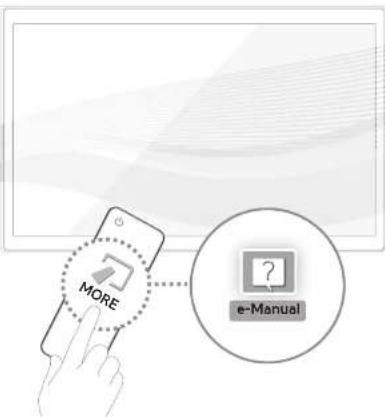
MORE e-ManualThank you for purchasing this Samsung product.
To receive more complete service, please register your product at
www.samsung.com/register
Model ____ Serial No. ____
2013 11 05 国工出版社
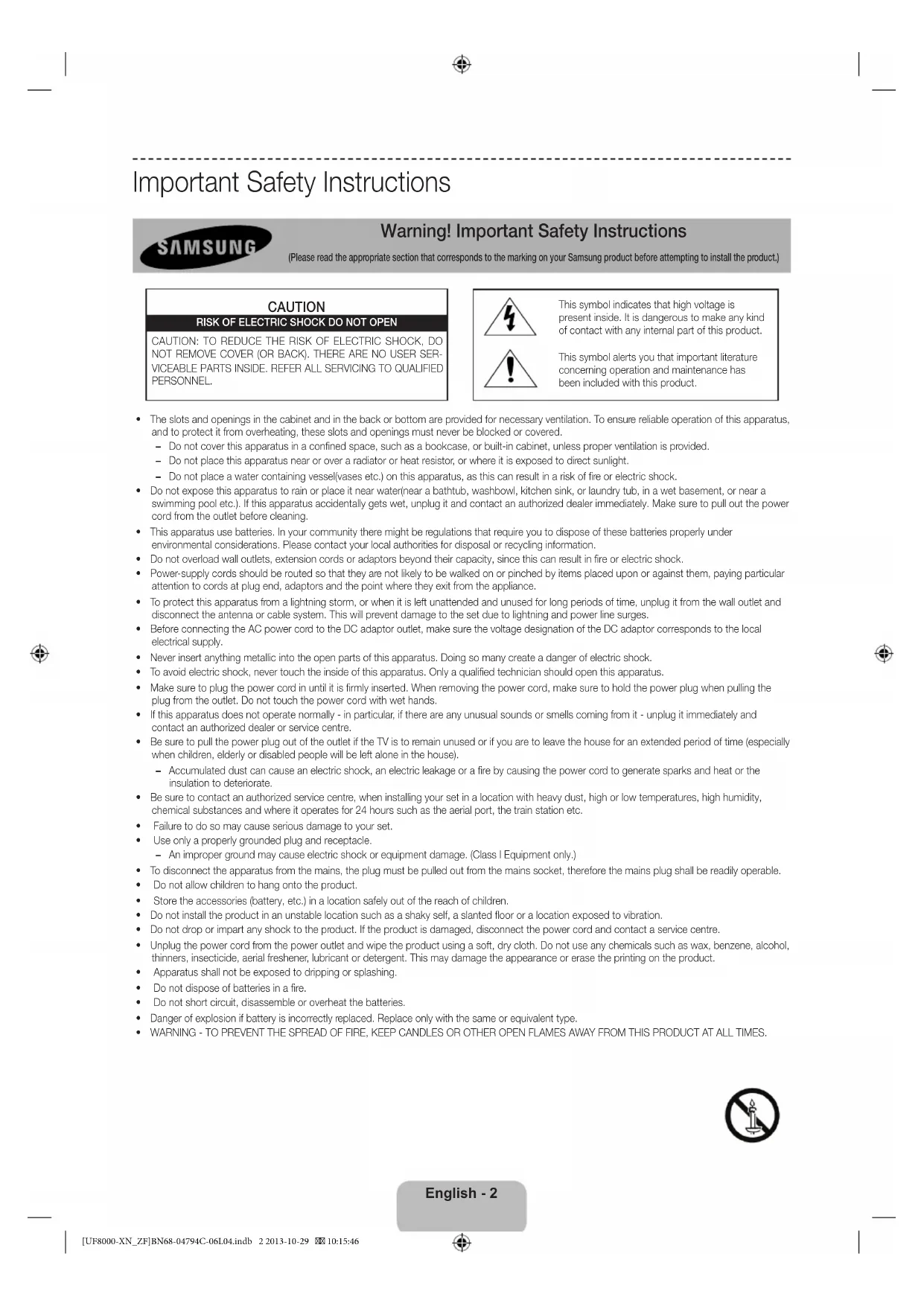
Important Safety Instructions
Warning! Important Safety Instructions
(Please read the appropriate section that corresponds to the marking on your Samsung product before attempting to install the product.)
CAUTION
RISK OF ELECTRIC SHOCK DO NOT OPEN
CAUTION: TO REDUCE THE RISK OF ELECTRIC SHOCK, DO NOT REMOVE COVER (OR BACK). THERE ARE NO USER SERVICEABLE PARTS INSIDE. REFER ALL SERVICING TO QUALIFIED PERSONNEL.
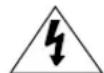
This symbol indicates that high voltage is present inside. It is dangerous to make any kind of contact with any internal part of this product.
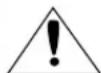
This symbol alerts you that important literature concerning operation and maintenance has been included with this product.
- The slots and openings in the cabinet and in the back or bottom are provided for necessary ventilation. To ensure reliable operation of this apparatus, and to protect it from overheating, these slots and openings must never be blocked or covered.
- Do not cover this apparatus in a confined space, such as a bookcase, or built-in cabinet, unless proper ventilation is provided.
- Do not place this apparatus near or over a radiator or heat resistor, or where it is exposed to direct sunlight.
- Do not place a water containing vessel(vases etc.) on this apparatus, as this can result in a risk of fire or electric shock.
- Do not expose this apparatus to rain or place it near water(near a bathtub, washbowl, kitchen sink, or laundry tub, in a wet basement, or near a swimming pool etc.). If this apparatus accidentally gets wet, unplug it and contact an authorized dealer immediately. Make sure to pull out the power cord from the outlet before cleaning.
- This apparatus use batteries. In your community there might be regulations that require you to dispose of these batteries properly under environmental considerations. Please contact your local authorities for disposal or recycling information.
- Do not overload wall outlets, extension cords or adaptors beyond their capacity, since this can result in fire or electric shock.
- Power-supply cords should be routed so that they are not likely to be walked on or pinched by items placed upon or against them, paying particular attention to cords at plug end, adaptors and the point where they exit from the appliance.
- To protect this apparatus from a lightning storm, or when it is left unattended and unused for long periods of time, unplug it from the wall outlet and disconnect the antenna or cable system. This will prevent damage to the set due to lightning and power line surges.
- Before connecting the AC power cord to the DC adaptor outlet, make sure the voltage designation of the DC adaptor corresponds to the local electrical supply.
- Never insert anything metallic into the open parts of this apparatus. Doing so many create a danger of electric shock.
• To avoid electric shock, never touch the inside of this apparatus. Only a qualified technician should open this apparatus. - Make sure to plug the power cord in until it is firmly inserted. When removing the power cord, make sure to hold the power plug when pulling the plug from the outlet. Do not touch the power cord with wet hands.
- If this apparatus does not operate normally - in particular, if there are any unusual sounds or smells coming from it - unplug it immediately and contact an authorized dealer or service centre.
- Be sure to pull the power plug out of the outlet if the TV is to remain unused or if you are to leave the house for an extended period of time (especially when children, elderly or disabled people will be left alone in the house).
- Accumulated dust can cause an electric shock, an electric leakage or a fire by causing the power cord to generate sparks and heat or the insulation to deteriorate.
- Be sure to contact an authorized service centre, when installing your set in a location with heavy dust, high or low temperatures, high humidity, chemical substances and where it operates for 24 hours such as the aerial port, the train station etc.
- Failure to do so may cause serious damage to your set.
• Use only a properly grounded plug and receptacle. - An improper ground may cause electric shock or equipment damage. (Class I Equipment only.)
• To disconnect the apparatus from the mains, the plug must be pulled out from the mains socket, therefore the mains plug shall be readily operable.
• Do not allow children to hang onto the product. - Store the accessories (battery, etc.) in a location safely out of the reach of children.
- Do not install the product in an unstable location such as a shaky self, a slanted floor or a location exposed to vibration.
- Do not drop or impart any shock to the product. If the product is damaged, disconnect the power cord and contact a service centre.
- Unplug the power cord from the power outlet and wipe the product using a soft, dry cloth. Do not use any chemicals such as wax, benzene, alcohol, thinners, insecticide, aerial freshener, lubricant or detergent. This may damage the appearance or erase the printing on the product.
• Apparatus shall not be exposed to dripping or splashing. - Do not dispose of batteries in a fire.
- Do not short circuit, disassemble or overheat the batteries.
- Danger of explosion if battery is incorrectly replaced. Replace only with the same or equivalent type.
• WARNING - TO PREVENT THE SPREAD OF FIRE, KEEP CANDLES OR OTHER OPEN FLAMES AWAY FROM THIS PRODUCT AT ALL TIMES.

Figures and illustrations in this User Manual are provided for reference only and may differ from the actual product appearance. Product design and specifications may change without notice.
CIS languages (Russian, Ukrainian, Kazakhs) are not available for this product, since this is manufactured for customers in EU region.
Features for your new TV
• 3D: This new feature enables you to view 3D content.
- SMART HUB:
This TV features Smart Hub, a multi-purpose entertainment and family centre. With Smart Hub, users can surf the web, download applications, and stay in touch with family and friends through social networking services. In addition, you can enjoy photo, video, and music files stored on external storage devices.
Press the ⏻ button to launch Smart Hub. Choose a service using the icons displayed in the top part of the screen.
Social: Watch the latest YouTube videos and you and your friends' video posts on Facebook and Twitter. You can also make video calls to friends by the TV camera.
Apps: Download and install applications such as Web Browser.
On TV: Check a listing of programmes that are currently aerialing and are scheduled to aerial. (Depending on the country)
Films and TV Shows: Purchase and watch movies and series without a separate external device. (Depending on the country)
Photos, Videos & Music: Play back photo, video, and music files from an external storage device.
- Anynet+ (HDMI-CEC): This allows you to control all connected Samsung devices that support Anynet+ with your Samsung TV's remote.
• e-Manual: Provides a detailed, on-screen user's manual built into your TV. (page 13)
• SMART Interaction: Using this function, you can access and control menu options and functions using motions.
• Device Manager: Use the TV features with a USB or Bluetooth keyboard and mouse.
• MHL & Screen Mirroring: Displays mobile device screens on your TV using a wired or wireless connection.
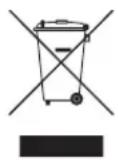
Correct Disposal of This Product (Waste Electrical & Electronic Equipment)
(Applicable in countries with separate collection systems)
This marking on the product, accessories or literature indicates that the product and its electronic accessories (e.g. charger, headset, USB cable) should not be disposed of with other household waste at the end of their working life. To prevent possible harm to the environment or human health from uncontrolled waste disposal, please separate these items from other types of waste and recycle them responsibly to promote the sustainable reuse of material resources.
Household users should contact either the retailer where they purchased this product, or their local government office, for details of where and how they can take these items for environmentally safe recycling.
Business users should contact their supplier and check the terms and conditions of the purchase contract. This product and its electronic accessories should not be mixed with other commercial wastes for disposal.
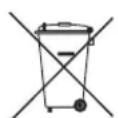
Correct disposal of batteries in this product
(Applicable in countries with separate collection systems)
This marking on the battery, manual or packaging indicates that the batteries in this product should not be disposed of with other household waste at the end of their working life. Where marked, the chemical symbols Hg, Cd or Pb indicate that the battery contains mercury, cadmium or lead above the reference levels in EC Directive 2006/66. If batteries are not properly disposed of, these substances can cause harm to human health or the environment.
To protect natural resources and to promote material reuse, please separate batteries from other types of waste and recycle them through your local, free battery return system.
Accessories
Please make sure the following items are included with your TV. If any items are missing, contact your dealer.
The items' colours and shapes may vary depending on the models.
Cables not included in the package contents can be purchased separately.
Check that there is no accessory hidden behind packing materials when you open the box.
CAUTION: INSERT SECURELY LEST SHOULD BE DETACHED IN SET
• Smart Touch Control & Batteries (AAA x 2) • Power Cord
• Remote Control & Batteries (AAA x 2)
• Samsung 3D Active Glasses
- User Manual • Warranty Card (Not available in some locations)
• Regulatory Guide
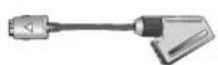
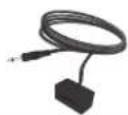
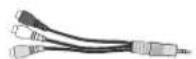
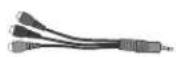
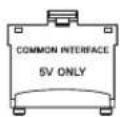
Scart Adapter IR Extender Cable AV Adapter Component adapter CI Card Adapter

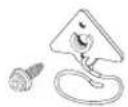
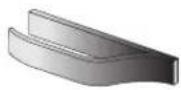
Power cover Wall mount adapter x 2 TV-Holder Kit Cable manager
• An administration fee may be charged if either
- (a) an engineer is called out at your request and there is no defect in the product (i.e. where you have failed to read this user manual)
- (b) you bring the unit to a repair centre and there is no defect in the product (i.e. where you have failed to read this user manual).
- The amount of such administration charge will be advised to you before any work or home visit is carried out.

Warning: Screens can be damaged from direct pressure when handled incorrectly. We recommend lifting the TV by the edges, as shown.
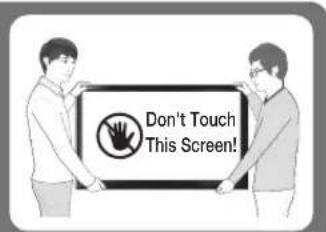
text_image
Don't Touch This Screen!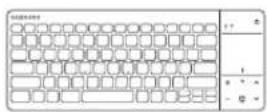
Wireless Keyboard (Sold Separately)
Using the Smart Touch Control
You can use the MIC to give Voice Recognition commands. Simply press the VOICE↓ button.
Voice Recognition function can be affected by unclear pronunciation, voice level, or surrounding noise.
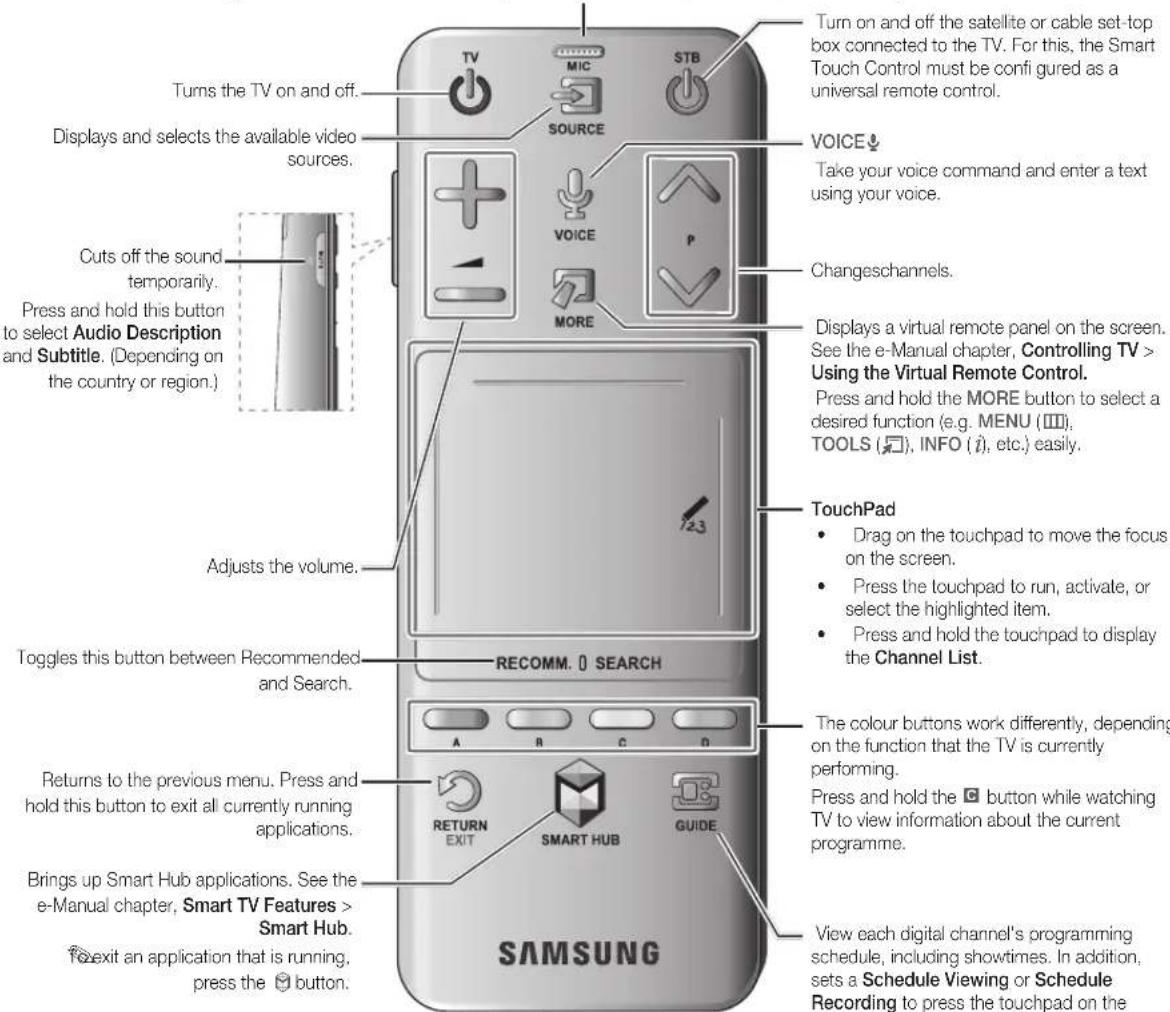
text_image
Turn on and off the satellite or cable set-top box connected to the TV. For this, the Smart Touch Control must be configured as a universal remote control. Turns the TV on and off. Displays and selects the available video sources. Cuts off the sound temporarily. Press and hold this button to select Audio Description and Subtitle. (Depending on the country or region.) Adjusts the volume. Toggles this button between Recommended and Search. Returns to the previous menu. Press and hold this button to exit all currently running applications. Brings up Smart Hub applications. See the e-Manual chapter, Smart TV Features > Smart Hub. To exit an application that is running, press the button. SAMSUNG Turn on and off the satellite or cable set-top box connected to the TV. For this, the Smart Touch Control must be configured as a universal remote control. VOICE↓ Take your voice command and enter a text using your voice. Changeschannels. Displays a virtual remote panel on the screen. See the e-Manual chapter, Controlling TV > Using the Virtual Remote Control. Press and hold the MORE button to select a desired function (e.g. MENU (Ⅲ), TOOLS (➋), INFO (➋), etc.) easily. TouchPad • Drag on the touchpad to move the focus on the screen. • Press the touchpad to run, activate, or select the highlighted item. • Press and hold the touchpad to display the Channel List. The colour buttons work differently, depending on the function that the TV is currently performing. Press and hold the Ⓐ button while watching TV to view information about the current programme. View each digital channel's programming schedule, including showtimes. In addition, sets a Schedule Viewing or Schedule Recording to press the touchpad on theConnecting to the TV
In order to operate the TV using a Smart Touch Control, you must first pair it to the TV via Bluetooth. However, the Smart Touch Control is only available for the paired Samsung TV.
We recommend to use the Smart Touch Control in less than 6m. A usable distance may differ depending on the wireless environmental conditions.
- When the TV is off, point the Smart Touch Control at the remote control receiver of the TV and press the TV button for the first pairing. Only this buttons sends an IR signal. The remote control receiver's location may vary depending on the model.
- A Bluetooth icon will appear at the bottom left of the screen as shown below. The TV will then attempt to connect to the Smart Touch Control automatically.

flowchart
graph LR
    A["..."] --> B["111000"]
    B --> C[" "]
Reconnecting the Smart Touch Control
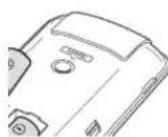
(The Smart Touch Control's pairing button>
If the Smart Touch Control stops operating or works abnormally, replace the battery as this may be caused by insufficient battery power. If the problem persists, press the PAIRING button on the Smart Touch Control to restore pairing with the TV. The PAIRING button cannot be accessed without removing the Smart Touch Control's battery cover. Within a distance between 30cm to 4m, point the Smart Touch Control to the TV receiver and press the PAIRING button. When pairing is complete, the pairing image displays at the bottom left of the TV screen.
Battery Low Alarm
If the battery becomes and blanks low while using the Smart Touch Control, the following alarm window blinks and appears at the bottom left of the screen. If the alarm window pops up, replace the batteries of the Smart Touch Control. Use alkaline batteries for longer usage.
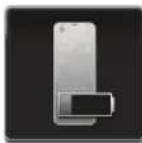
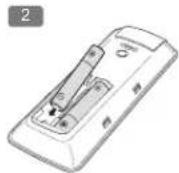
Inserting the Batteries (AAA X 2)
- Slightly lift the battery cover using a plastic card. Next, pull on the cover's notch with a fingemail to remove the cover completely.
Check the location of the battery cover groove. The groove's location may vary depending on the type of Smart Touch Control is provided with the product.
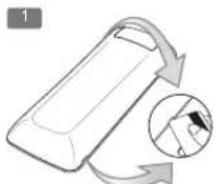
natural_image
Diagram showing a device with a circular arrow indicating rotation or movement, no text or symbols present.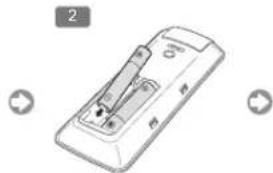
natural_image
Illustration of a handheld device with a handle and control panel, shown in two circular buttons (no text or symbols)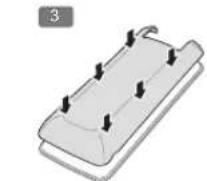
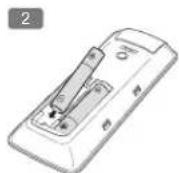
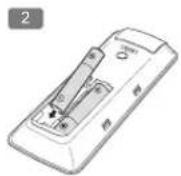
- Insert 2 AAA batteries, making sure to align the positive and negative ends correctly.
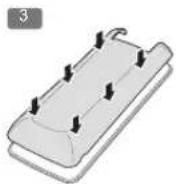
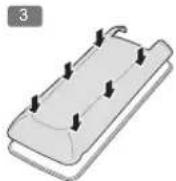
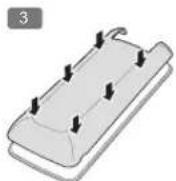
- Align the battery cover with the back of the remote control and press down along the edges until it is cleanly attached to the remote control.
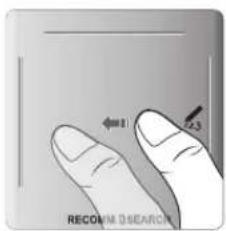
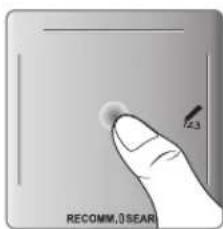
Using the Touchpad
Use the touchpad to perform various commands. Navigate to Tutorial (Screen Menu > System > Device Manager > Smart Touch Control Settings > Tutorial) to view an on-screen guide to using the Smart Touch Control.
Dragging Press
text_image
←1 23 RECOMM DSEARCHDrag on the touchpad in the desired direction. Move the focus or the pointer in the direction the finger is dragging.
text_image
Z3 RECOMM, SEARPress on the touchpad. This selects the focused item. When watching TV, pressing and holding the touchpad displays the channel list. On some apps, pressing and holding the touchpad for over 2 seconds displays a list of functions available for the app.
Changing Channels by Entering Numbers
While watching TV, tap on the protruding line on the left or right edge of the touchpad to bring up the numerical input window on the screen. Use your finger to enter the number for the channel you want to watch. The recognised number is displayed on the screen and the TV switches to the corresponding channel. See the e-Manual chapter, Controlling TV > Touchpad.
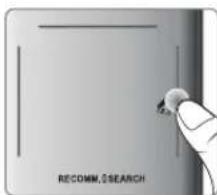
text_image
RECOMM. SEARCHNumerical Input Guide
Refer to the diagrams below when entering numerical values. The TV may not recognise your entries if you do not follow the sequences shown below.
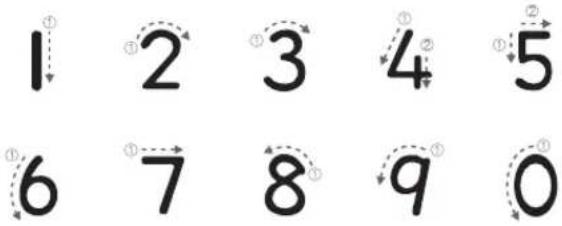
text_image
1 2 3 4 5 6 7 8 9 0Show Status and Notification Banner
Press the MORE button on the Smart Touch Control and then select STATUS on the virtual remote panel to display the status and notification banner at the top of the screen.
Recommendations
Press the RECOMM. / SEARCH button and then select Recommended from the list displayed at the bottom of the screen. Select a programme that is currently airing to jump to the corresponding channel or a programme that is scheduled to air to set up a Schedule Viewing or Schedule Recording setting. Select an application to launch. Samsung Apps will launch if the selected application is not installed on the TV.
History
Press the RECOMM. / SEARCH button and then select History from the list displayed at the bottom of the screen. This displays an interactive list of recently accessed channels, media content and applications.
The RECOMM. / SEARCH button may function as a History recall feature, depending on your country or region.
Deleting History Data
You can delete the history information about recently viewed channels, content and applications.
Searching
Press the RECOMM. / SEARCH button on the Smart Touch Control. The list appears at the bottom of the screen. Press the RECOMM. / SEARCH button again. The keypad will appear on the screen. Enter search criteria to search not only many apps and their contents on the TV but also the Web. This button toggles between Recommended and Search.
Adjusting the Touchpad
Users can adjust the sensitivity of the Smart Touch Control's touchpad. Set Touch Sensitivity to adjust sensitivity and make it more convenient to use.
Using the Virtual Remote Control
Press MORE button to display the virtual remote panel on the screen. The virtual remote panel consists of a number panel, a playback control panel, and a quick access panel. Use the touchpad to select numbers and buttons.
The displayed virtual remote panel on the TV screen may differ depending on the country.
Changing the Virtual Remote Panel
Choose the number panel, playback control panel, or quick access panel as the panel to be shown on the screen.
Use the touchpad to keep moving the focus left or right. The panel changes when the focus is moved beyond the leftmost or rightmost edge.
Use left / right scroll function on the touchpad to change the panel easily.
Using the Number Panel
Use the number panel to enter numbers on a keypad screen or webpage or to change the channel while watching TV. Changing the channel using the number pad leaves a record, allowing you to easily return to previous channels.
Using the Playback Control Panel
Use the playback control panel to pause, rewind, fast forward, skip to the next file, and much more while enjoying media content.
Using the Quick Access Panel
Quickly access the INFO, MENU and e-Manual buttons. However, the availability of buttons vary depending on the operating mode of the Smart Touch Control unit (with the TV only, as a universal remote, etc.).
Using the Remote Control
Learn where the function buttons are on your remote. Especially note these: SOURCE, MUTE, -▲+, ∧P∨, MENU, TOOLS, →, INFO, CH LIST, RETURN, GUIDE and EXIT.
This remote control has Braille points on the Power, Channel, and Volume buttons and can be used by visually impaired persons.
Your TV also comes with a Smart Touch Control. For information about the Smart Touch Control, refer to the e-Manual.
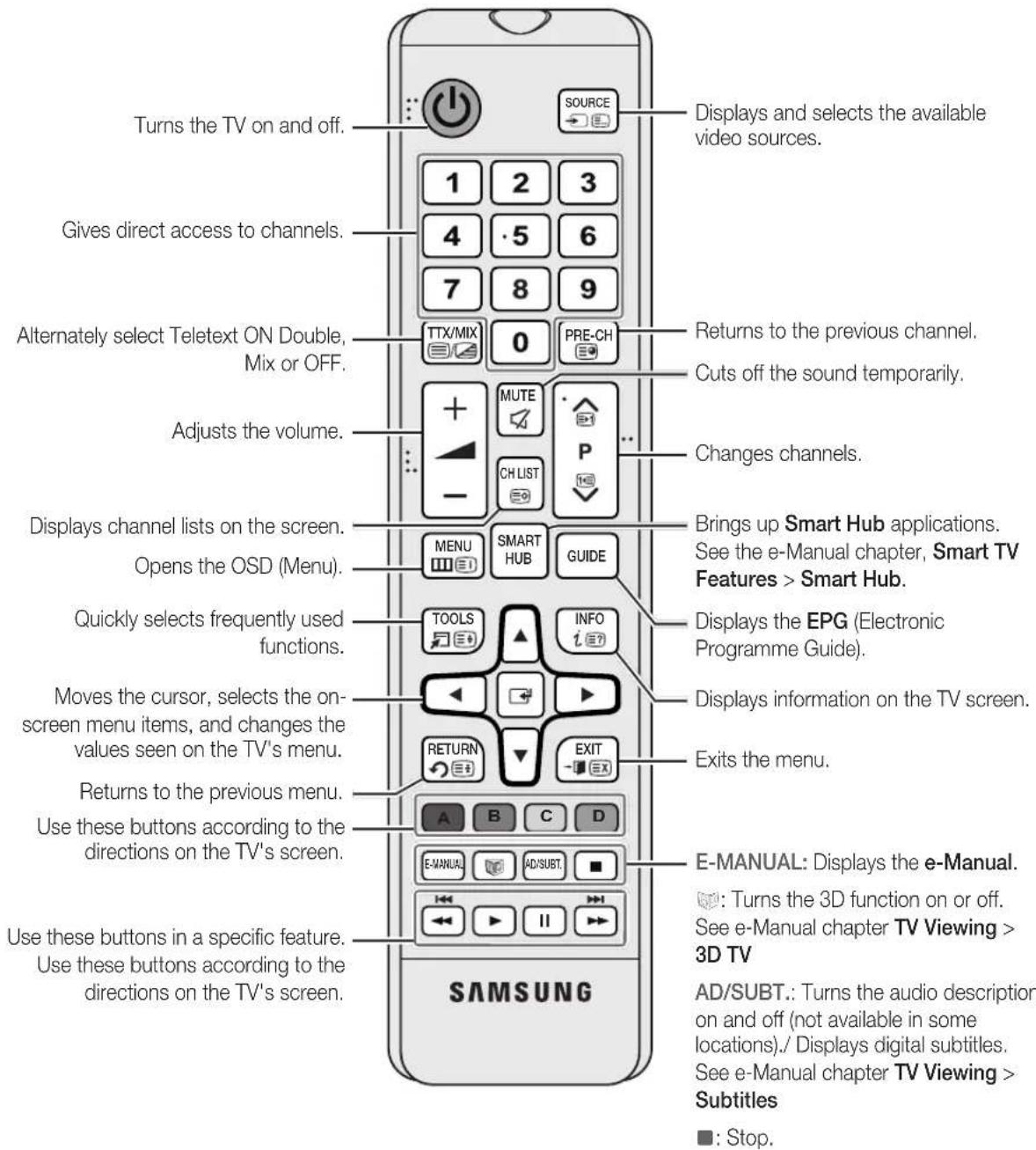
text_image
Turns the TV on and off. Gives direct access to channels. Alternately select Teletext ON Double, Mix or OFF. Adjusts the volume. Displays channel lists on the screen. Opens the OSD (Menu). Quickly selects frequently used functions. Moves the cursor, selects the on-screen menu items, and changes the values seen on the TV's menu. Returns to the previous menu. Use these buttons according to the directions on the TV's screen. Use these buttons in a specific feature. Use these buttons according to the directions on the TV's screen. SOURCE 1 2 3 4 5 6 7 8 9 TTX/MIX 0 PRE-CH MUTE CH LIST P - - CHANGE CHANNELS. BRings up Smart Hub applications. See the e-Manual chapter, Smart TV Features > Smart Hub. DISPLAYS EPG (Electronic Programme Guide). DISPLAYS information on the TV screen. EXIT E-MANUAL: Displays the e-Manual. Turns the 3D function on or off. See e-Manual chapter TV Viewing > 3D TV AD/SUBT.: Turns the audio description on and off (not available in some locations)./ Displays digital subtitles. See e-Manual chapter TV Viewing > Subtitles ■: Stop. SAMSUNGInstalling batteries (Battery size: AAA)
Match the polarity of the batteries to the symbols in the battery compartment.
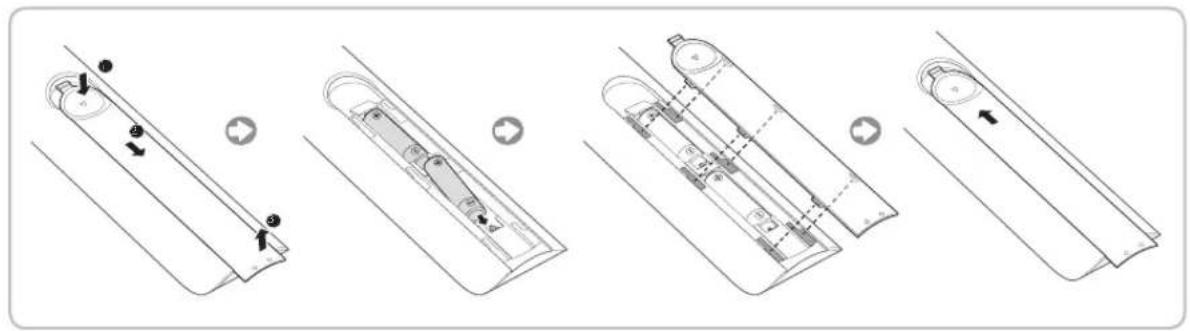
text_image
Technical diagram showing exploded view of a device with labeled components and directional arrows indicating assembly or assembly steps.NOTE
- Use the remote control within 23 feet of the TV.
- Bright light may affect the performance of the remote control. Avoid using when near special fluorescent lights or neon signs.
- The colour and shape may vary depending on the model.
Turning on the TV
Turn on the TV using the ⏻ button on the remote control or TV panel.
The product colour and shape may vary depending on the model.
The TV's Controller, a small joy stick like button on the rear right side of the TV, lets you control the TV without the remote control.
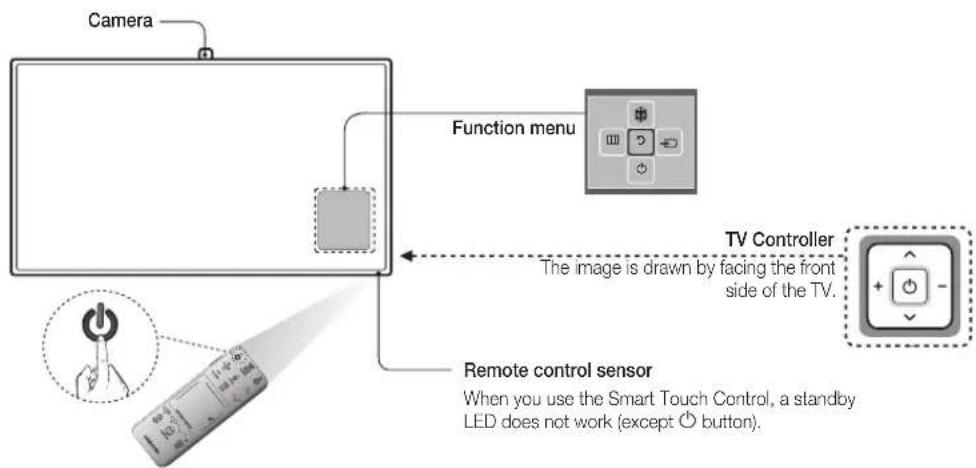
text_image
Camera Function menu TV Controller The image is drawn by facing the front side of the TV. Remote control sensor When you use the Smart Touch Control, a standby LED does not work (except ⏻ button).Built-in TV Camera and MicroPhone
This TV features a built-in TV camera that can be used for the Motion Control, Voice Recognition (built-in microphone), and Face Recognition features. You can also use the knob for camera's angle adjustment to change the camera's viewing angle.
From the Top From Behind
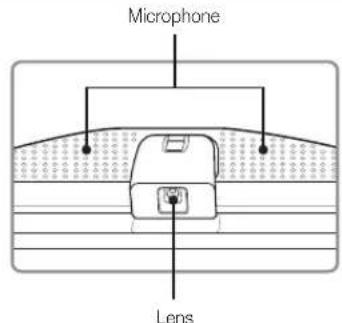
text_image
Microphone Lens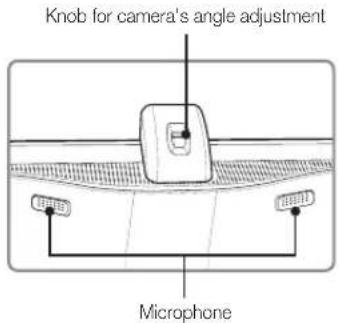
text_image
Knob for camera's angle adjustment MicrophoneExtending the TV Camera
In order to use the TV camera, you must first extend it.
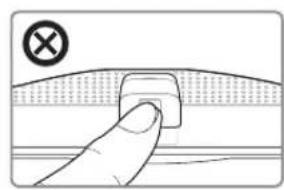
Gently push the camera in without touching the lens until you hear a click.

flowchart
graph LR
    A["Initial pad with pad icon"] --> B["Adjustment button"]
    B --> C["Reversal pad with pad icon"]
Retracting the Camera
If you are not using the TV camera, keep it retracted inside the TV. The Motion Control and Face Recognition features cannot be used while the TV camera is in the retracted state, but Voice Recognition will still be available.
Gently push the camera in without touching the lens until you hear a click.

text_image
Diagram illustrating a step-by-step sequence of fabric application or repair process, showing hand positioning and adjustment steps.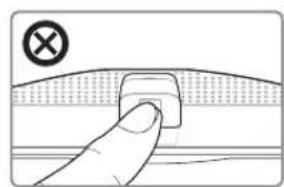
natural_image
Hand pressing a button on a curved surface with a cross symbol (no text or labels)
Do not touch the lens while operating the TV camera. Leave fingerprints that may affect the image quality. If the lens gets dirty, clean it using a soft piece of cloth.
Universal Remote Setup
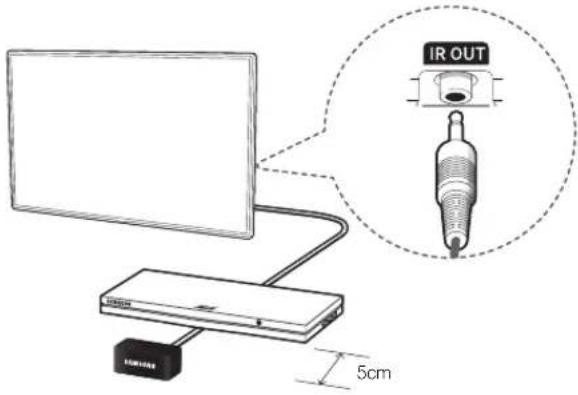
This TV has a universal remote control feature that lets you control cable boxes, Blu-ray players, home theatres, and other third-party external devices connected to the TV using the TV's remote control.
text_image
IR OUT 5cmPlug the cable into the TV IR connector and then point the transmitter at the other end of the cable towards the external device's remote panel receiver. However, there can' be any obstacles between the IR extension cable and the external device. The presence of an obstacle will interfere with the transmission of the remote control signal.
Add the External Device
- Turn on the external device you wish to set up universal remote function for and then press SOURCE to bring up the Source screen.
- Select Universal remote setup from the top of the screen. This initiates the universal remote setup process.
- Follow the on-screen instruction and set up the universal remote control. If it does not work, set up the remote control by entering the model number manually.
SETUP
The initial setup dialog appears when the TV is first activated. Follow the on-screen instructions to finish the initial setup process, including menu language choice, channel scan, network connection, and more. At each step, either make a choice or skip the step. Users can manually perform this process at a later time under the Screen Menu > System > Setup menu.
If you connect any device to HDMI1 before starting the installation, the Channel Source will be changed to Set-top box automatically.
If you do not want to select Set-top box, please select Aerial.
Password Change
Screen Menu > System > Change PIN
Change the TV's password.
- Run Change PIN and then enter the current password in the password field. The default password is "0-0-0-0" (France: "1-1-1-1").
- Enter a new password and then enter it again to confirm it. The password change is complete.
If you forget the PIN code, press the buttons in the following sequence which resets the PIN to "0-0-0-0" (France: "1-1-1-1"):
For Standard Remote Control: In Standby mode: MUTE → 8 → 2 → 4 → POWER (On)
For Smart Touch Control: When the TV turns on: MUTE → Volume up → RETURN → Volume down → RETURN → Volume up → RETURN
Switching Between Video Sources
Press SOURCE button to switch between devices connected to the TV.
For example, to switch to a game console connected to the second HDMI connector, press SOURCE button. From the Source list, select HDMI2. The connector names may vary depending on the product. Select Tools button at the upper-right corner of the screen to access the following functions.
• Anynet+ (HDMI-CEC)
A list appears showing Anynet+ compatible ones of external devices connected to the TV.
This function is only available Anynet+ (HDMI-CEC) function set to On.
- Edit Name
You can rename devices connected to the TV to more easily identify external sources.
With a computer connected to the TV's HDMI (DVI) port via an HDMI cable, for example, you can change Edit Name to PC.
With a computer connected to the TV's HDMI (DVI) port via an HDMI-to-DVI cable, for example, you can change Edit Name to DVI PC.
With an AV device connected to the TV's HDMI (DVI) port via an HDMI-to-DVI cable, for example, you can change Edit Name to DVI Devices.
• Information
View detailed information about the connected devices.
- Disconnect USB Device
Remove the USB device from the list safely. This function is only available when the USB device selected.
• Universal remote setup
To add a new external device to control it with the Smart Touch Control, press the SOURCE button and select Universal remote setup on the top right of the screen.
Using the universal remote control, users can control external devices connected to the TV, such as a setup box, Blu-ray player, and AV receiver.
Connecting to a COMMON INTERFACE slot (Your TV viewing Card Slot)
Turn the TV off to connect or disconnect a CI card or CI card adapter.
Attaching the CI Card Adapter
text_image
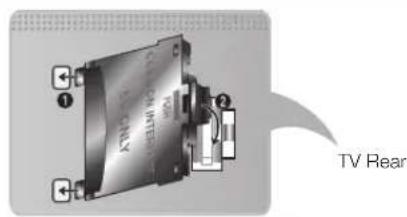
TV RearAttach the adapter as shown above.
To install the CI CARD Adapter, please remove the sticker attached to the TV.
To connect the CI CARD Adapter, follow these steps.
We recommend attaching the adapter before installing the wall mount, or inserting the "CI or CI+ CARD".
- Insert the CI CARD Adapter into the two holes on the product ①.
Please find two holes on the rear of the TV, beside the COMMON INTERFACE port.
-
Connect the CI CARD Adapter into the COMMON INTERFACE port on the product ②.
-
Insert the "CI or CI+ CARD".

We recommend that you insert the CI card before you mount the TV on a wall. It may be difficult to insert after mounting. Insert the card after attaching the CI Card Adapter on TV. It is difficult to attach the module if you insert the card before attaching.
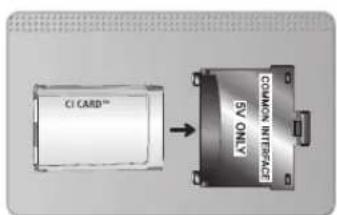
Using the "CI or CI+ CARD"
text_image
CI CARD™ COMMON INTERFACE 5V ONLY- If you don't insert the "CI or CI+ CARD", some channels will display the message "Scrambled Signal".
- The pairing information containing a telephone number, the "CI or CI+ CARD" ID the Host ID and other information will be displayed in about 2\~3 minutes. If an error message is displayed, please contact your service provider.
- When the configuration of channel information has finished, the message "Updating Completed" is displayed, indicating the channel list is updated.
NOTE
- You must obtain a "CI or CI+ CARD" from a local cable service provider.
- When removing the "CI or CI+ CARD", carefully pull it out with your hands since dropping the "CI or CI+ CARD" may cause damage to it.
- Insert the "CI or CI+ CARD" in the direction marked on the card.
- The location of the COMMON INTERFACE slot may be different depending on the model.
- “CI or CI+ CARD” is not supported in some countries and regions; check with your authorized dealer.
- If you have any problems, please contact a service provider.
- Insert the "CI or CI+ CARD" that supports the current aerial settings. The screen will be distorted or will not be seen.
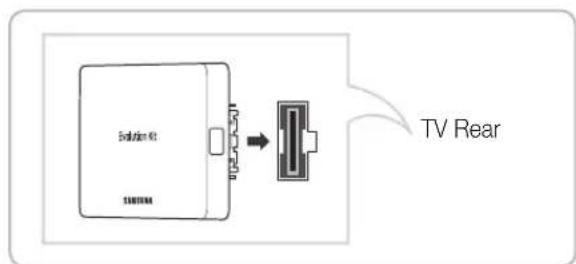
The Evolution Kit Slot (Kit Sold Separately)
text_image
TV RearAttaching the Evolution Kit to your Samsung TV upgrades the TV's hardware and software without your needing to purchase a new TV. With the Evolution Kit, you can keep your TV updated with the latest features and services provided by Samsung Electronics.
The Evolution Kit is sold separately. When users purchase an Evolution Kit released in 2014 or later, the user's TV can be upgraded to match the software version of the Evolution Kit. However, an Evolution Kit may not be available, depending on the product.
The colour and design of the Evolution Kit may vary depending on the model.
Viewing the e-Manual
The embedded e-Manual contains information about your TV's key features.
This TV has a built-in user guide. To read it, use one of the following methods:
- Open the Support menu and choose e-Manual (Troubleshooting).
- Press the E-MANUAL button on the standard remote control.
- Press the MORE button on the Smart Touch Control to display control buttons on the screen. Flick the touchpad until e-Manual appears and select it. Words in blue refer to screen menu options and words in light blue refer to remote control buttons. A printable version of this guide is also available at www.samsung.com/support.
Scrolling a Page
To scroll a page, use of one of the following methods:
- Press the ▲ or ▼ button on the scroll bar at the right edge of the screen.
- Drag or flick up or down the line on either the left or right edge of the touchpad.
- Place the focus on the ▲ or ▼ button at the right edge of the screen, drag or flick up or down on the touchpad.
Using the Top Icons
Use the Back, Forward, and Opened page icons on the top left of the screen to navigate through pages. These icons are available when two or more pages are passed.
Returning to the Home Page
To return to the home page, press the A button or select on the top right of the screen.
Searching the Index
Press the B button or select on the top right of the screen to display the index. Select a term to display the page containing the term.
Searching Pages
Press the Ⓞ button or select on the top of the screen to access the search screen. Enter a search phrase and select Done. Select an item from the search results list to navigate to the relevant page.
Closing the e-Manual
To close the e-Manual, press and hold the RETURN button or select ✗ at the upper-right corner of the screen or press EXIT button.
Jumping to a Menu Item
To directly jump to the menu item that is described in the current section, select Try Now. It is possible to jump from a menu item directly to the related section in the e-Manual. If you want to read an e-Manual entry on a specific screen menu feature, press the virtual remote panel's or the regular remote's E-MANUAL button to load the corresponding e-Manual page.
This feature may not be available, depending on the menu.
Updating the e-Manual
Open the Smart Hub and select Apps, and then select More Apps. The e-Manual can be updated in the same way with an application update.
On the More Apps screen, select Apps to update, and then select e-Manual from the list. The e-Manual starts updating to the latest version. However, Apps to update appears on the screen only when the update is required.
Connecting to a Network
Connecting the Smart TV to a network gives you access to online services such as the Smart Hub, as well as software updates.
Network Connection - Wireless
Connect the TV to the Internet using a standard router or modem.
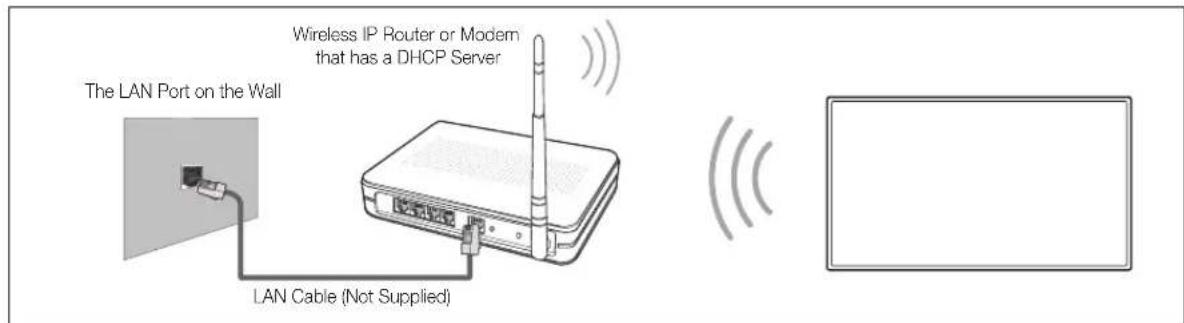
text_image
The LAN Port on the Wall Wireless IP Router or Modem that has a DHCP Server LAN Cable (Not Supplied)Wireless Network Precautions
- This Smart TV supports the IEEE 802.11a/b/g /n communication protocols. Samsung recommends using IEEE 802.11n. Otherwise when you play video over a network connection, the video may not play smoothly.
- To use a wireless network, the TV must be connected to a wireless router or modem. If the wireless router supports DHCP, the TV can use a DHCP or static IP address to connect to the wireless network.
- Select a channel that is not currently in use for the wireless router. If the channel set for the wireless router is currently being used by another device, the result is usually interference and/or a communications failure.
- Most wireless networks have an optional security system. To enable a wireless network's security system, you need to create a security key using characters and numbers. This security key is then needed to connect to the wireless network.
Network Security Protocols
The TV only supports the following wireless network security protocols and is unable to connect to non-certified wireless routers:
• Authentication Modes: WEP, WPAPSK, WPA2PSK
• Encryption Types: WEP, TKIP, AES
If the wireless router has been set to Pure High-throughput (Greenfield) 802.11n mode and the Encryption Type to WEP or TKIP, Samsung Smart TVs will not support the connection in compliance with the new Wi-Fi certification specifications.
If the wireless router supports WPS (Wi-Fi Protected Setup), it is possible to connect to the network using PBC (Push Button Configuration) or a PIN (Personal Identification Number). WPS automatically configures the SSID and WPA key settings.
Network Connection - Wired
There are three main ways to connect your TV to your network using cable, depending on your network setup. They are illustrated starting below:
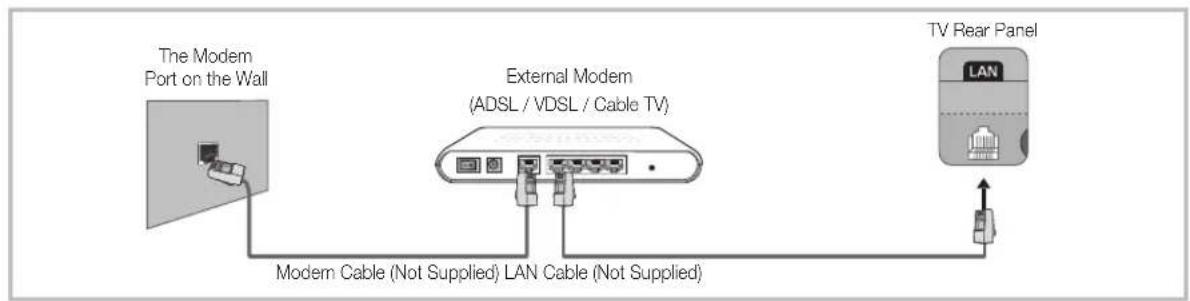
flowchart
graph LR
    A["The Modem Port on the Wall"] --> B["External Modem (ADSL / VDSL / Cable TV)"]
    B --> C["TV Rear Panel"]
    B --> D["Modern Cable (Not Supplied) LAN Cable (Not Supplied)"]
    D --> E["Return Line"]
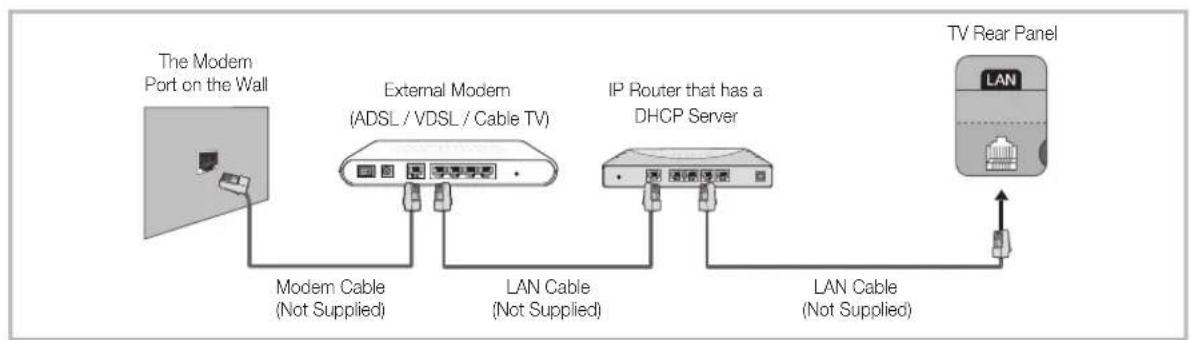
flowchart
graph LR
    A["The Modern Port on the Wall"] -->|Modem Cable (Not Supplied)| B["External Modem (ADSL / VDSL / Cable TV)"]
    B -->|LAN Cable (Not Supplied)| C["IP Router that has a DHCP Server"]
    C -->|LAN Cable (Not Supplied)| D["TV Rear Panel"]
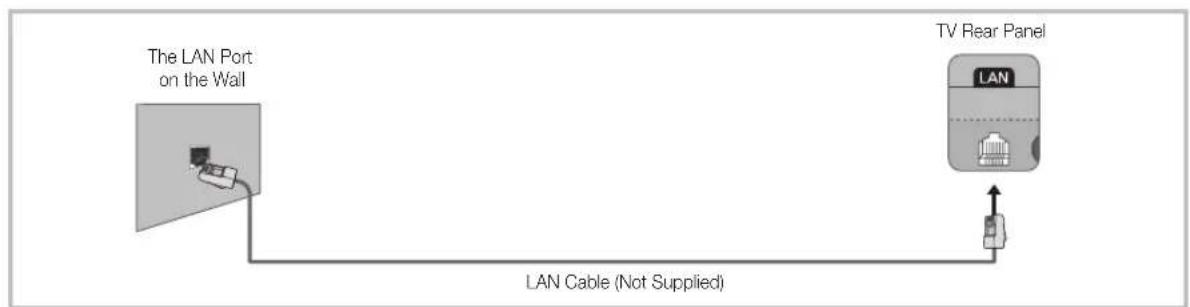
text_image
The LAN Port on the Wall LAN Cable (Not Supplied) TV Rear PanelThe TV does not support network speeds less than or equal to 10Mbps.
Use Cat 7 cable for the connection.
3D Active Glasses
Features
Samsung's SSG-5100GB 3D glasses enable you to view 3D images on your 3D TV. The Samsung 3D glasses communicate with Samsung 3D TVs via the 2.4GHz RF band.
The Samsung 3D glasses are only compatible with Samsung D, E, and F series 3D TV's that were released in 2011, 2012, and 2013. These 3D glasses cannot be connected to other Bluetooth devices.
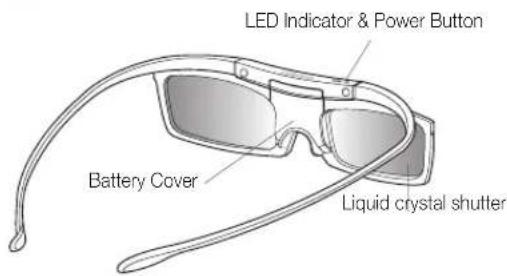
Parts
text_image
LED Indicator & Power Button Battery Cover Liquid crystal shutterFor details on how to attach the glasses' temples and how to pair the glasses with the TV, refer to the separate 3D glasses manual.
Replacing the Battery
If the red LED blinks every two seconds continually, replace the battery with a new one.
Insert the "+" side of the battery into the side marked with "+" in the battery compartment.
To check the remaining battery capacity, refer to the pairing section in this manual.
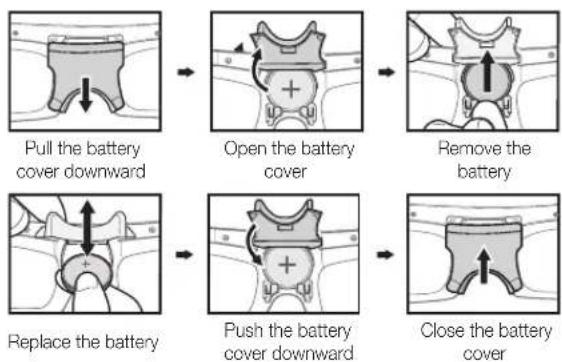
flowchart
graph TD
    A["Pull the battery cover downward"] --> B["Open the battery cover"]
    B --> C["Remove the battery"]
    C --> D["Replace the battery"]
    D --> E["Push the battery cover downward"]
    E --> F["Close the battery cover"]
Pairing 3D Active Glasses
What is Pairing? Pairing is the process of connecting 3D glasses and a 3D TV so that the two devices can exchange data.
Ensure your Samsung TV and 3D glasses are no farther than 19.5 in (50 cm) apart from each other while pairing is in progress.
- Turning the glasses on
Press the power button briefly. The green LED is turned on for 3 seconds. (Make sure that 3D is activated on the TV before using the 3D glasses.)
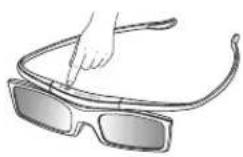
- Turning the glasses off
Press the power button briefly. The red LED is turned on for 3 seconds.
• Performing the pairing process
Turn the TV on and let it power up completely. Press and hold the Power button on the glasses. The green and the red LEDs blink alternately for 2 seconds.
- Operating range
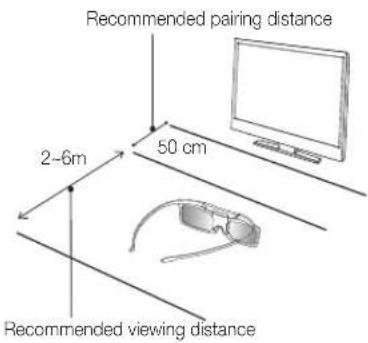
text_image
Recommended pairing distance 2-6m 50 cm Recommended viewing distanceRecommended viewing distance 2\~6m (6.5 to 19.5 ft)
Recommended pairing distance 50 cm or less (19.5 in)
Once the 3D glasses are paired, the remaining battery capacity is displayed on the TV screen. (This feature only applies to Samsung F series 3D TVs and 3D glasses that have been available since 2013.)
If you keep trying to pair the glasses and the TV, the battery level will decrease significantly. However, the battery level will recover to a certain degree in about a minute.
The working distance depends on the existence of obstacles (a person, metal, walls, etc.) between the glasses and the TV and the strength of the Bluetooth signal.
Turn off the 3D glasses while they are not in use. If you leave the 3D glasses on, the battery lifespan decreases.
Pairing steps
- Turn on the TV, and then move the glasses within 19.5 inches of the TV.
- Press the power button on the 3D glasses briefly. The 3D glasses will power on and pairing will start.
- The message "3D glasses are connected to TV." will be displayed on the TV screen when the pairing is successfully completed.
• If pairing fails, the 3D glasses will power off.
- If the first attempt to pair fails, power the TV off and on again and perform step 2.
- How to pair again: Press the power button on the 3D glasses for more than 1 second.
Pairing is needed again in the following situations:
- If the 3D glasses do not function, even when the power button is pressed, especially with a 3D TV after a repair.
- If you want to play 3D content on another Samsung 3D TV model that belongs to the D, E, or F series released in 2011 through 2013. You must pair the glasses with the other TV.
Watching 3D Video
Some 3D modes may not be available depending on the format of the image source.
To watch in 3D, you must wear 3D Active Glasses and turn the glasses on by pressing the power button.
- Go to the 3D screen. (Picture > 3D)
- Select the 3D Mode. The 3D Mode screen appears.
- Set the 3D Mode of the image you want to view.
Troubleshooting
| If you encounter... Try this... | |
| My 3D glasses do not work. | Replace the battery.The 3D glasses should be close to the TV. Make sure that the distance between the TV and your 3D glasses is less than 19.5 feet (6m) in a straight line.Check the 3D function settings of your TV. |
| The LED keeps blinking The battery is dead. | Replace the battery. |
Specifications (Model Number: SSG-5100GB)
| Optics | Shutters Liquid crystal T | Transmittance 36±2% | |||
| Recommended operating distance | 2 ~ 6m (6.5 to 19.5 ft) Field Rate | 120 fields/second | |||
| Weight | Glasses | 21.5g/.76 oz. (including the battery: 24.0±0.5g/.85±.018oz.) | |||
| Power | Glasses | One 3V lithium/manganese dioxide battery 3V(CR2025) | |||
| Power consumption | Glasses | 0.85mA (Average) | |||
| Battery | Type | 165mAh, 3.0V (CR2025) | |||
| Operating time | 150 hours | ||||
| Operating conditions | Operating temperature | 50 °F - 104 °F (10°C - 40°C) | |||
| Custody temperature | -4 °F ~ 113 °F (-20°C ~ 45°C) | ||||
Product specifications may be changed without notice in order to enhance product performance.
The continuous operating time may differ depending on the wireless communication environment and usage conditions.
[ Recommendation ]- EU ONLY
![SAMSUNG UE40F8000SL - [ Recommendation ]- EU ONLY - 1](/content/2026/02/365338/images/cfca6fbb88c15a3a7e8c336933998e4301c37b2a135d1552745b1015038a666e.jpg)
Hereby, Samsung Electronics, declares that this 3D Active Glasses is in compliance with the essential requirements and other relevant provisions of Directive 1999/5/EC.
This equipment may be operated in all EU countries.
What is Remote Support?
Samsung Remote Support service offers you one-on-one support with a Samsung Technician who can remotely.
- Diagnose your TV
- Adjust the TV settings for you
• Perform a factory reset your TV
• Install recommended firmware updates
How Does it Work?
Having a Samsung Tech remotely service your TV is really pretty simple
text_image
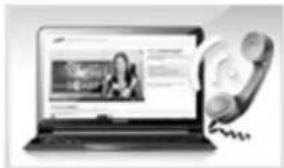
Laptop screen displaying a news article with a person, alongside a telephone handset and a separate image of a person.- Call Samsung Contact Centre and ask for remote support.
natural_image
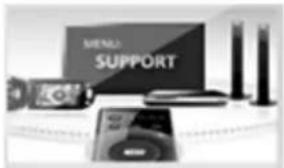
Product display of a Lenovo support device with speakers, headphones, and cylindrical devices (no visible text or symbols)- Open the menu on your TV and go to the Support section.
text_image
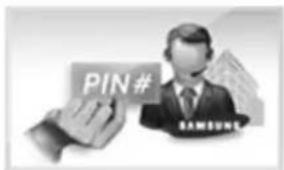
PIN# SAMSUNG- Select Remote Management and Provide the Pin# to the agent.
natural_image
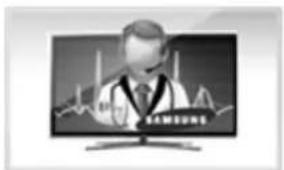
Illustration of a Samsung monitor displaying a doctor with a stethoscope (no text or symbols on the screen)- The agent will then access your TV. That's it!
Assembling the Cable manager
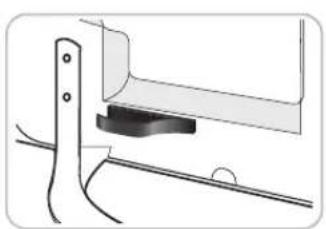
natural_image
Technical line drawing of a mechanical assembly with no visible text or symbols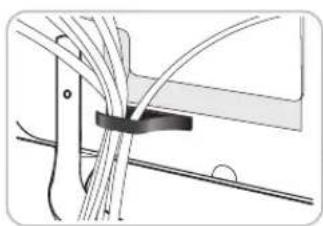
natural_image
Pure mechanical diagram showing intersecting wires and a central block (no text or symbols)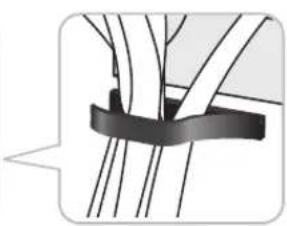
natural_image
Pure diagram of a mechanical clamp or bracket with no text, numbers, or symbolsAssembling the Power Cover
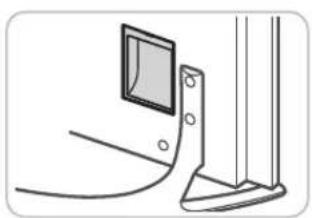
natural_image
Simple line drawing of a monitor mounted on a stand with a cable, no text or symbols present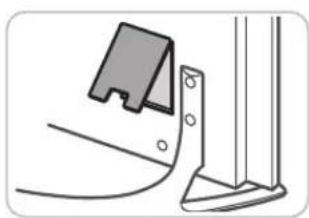
natural_image
Pure mechanical assembly diagram showing a bracket and mounting bracket without any text or symbols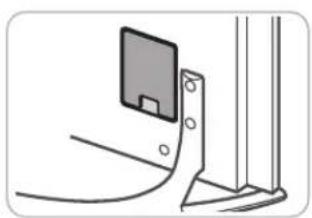
natural_image
Simple line drawing of a device with a rectangular panel and mounting bracket (no text or symbols)Troubleshooting
If you have any questions about the TV, first refer to this list. If none of these troubleshooting tips apply, please visit "www.samsung.com," then click on Support, or contact the call centre listed on the back-cover of this manual.
Issues Solutions and Explanations
| The TV won't turn on. | Make sure the AC power cord is securely plugged in to the wall outlet and the TV.Make sure the wall outlet is working.Try pressing the button on the TV to make sure the problem is not the remote. If the TV turns on, refer to “Remote control does not work” below. |
| There is no picture/video. | Check the cable connections. Remove and reconnect all cables connected to the TV and external devices.Set the video outputs of your external devices (Cable/Sat Box, DVD, Blu-ray etc) to match the TV's input connections. For example, if an external device's output is HDMI, it should be connected to an HDMI input on the TV.Make sure your connected devices are powered on.Be sure to select the correct input source.Reboot the connected device by unplugging it, and then reconnecting the device's power cable. |
| The remote control does not work. | Replace the remote control batteries. Make sure the batteries are installed with their poles (+/-) in the correct direction.Clean the sensor's transmission window on the remote.Try pointing the remote directly at the TV from 5~6 feet away. |
| The cable/set top box remote control doesn't turn the TV on or off or adjust the volume. | Programme the Cable/Set remote control to operate the TV. Refer to the Cable/Set-Top-Box user manual for the SAMSUNG TV code. |
This TFT LED panel uses a panel consisting of sub pixels which require sophisticated technology to produce. There may be, however, be a few bright or dark pixels on the screen. These pixels will have no impact on the performance of the product.
To keep your TV in optimum condition, upgrade to the latest firmware on the Samsung web site by USB (Samsung.com > Support > Downloads).
Some of above pictures and functions are available at specific models only.
Mounting the TV on the Wall Using the Wall Mount Kit (Optional)

Wall or Ceiling Mounting
If you mount this product on a wall, it should be mounted only as recommended by the manufacturer. Unless it is correctly mounted, the product may slide or fall, causing serious injury to a child or adult, and serious damage to the product.
Installing the Wall Mount Kit
The wall mount kit (sold separately) lets you mount the TV on the wall.
For detailed information about installing the wall mount, see the instructions provided with the wall mount. We recommend you contact a technician for assistance when installing the wall mount bracket. We do not advise you to do it yourself. Samsung Electronics is not responsible for any damage to the product or injury to yourself or others if you select to install the wall mount on your own.
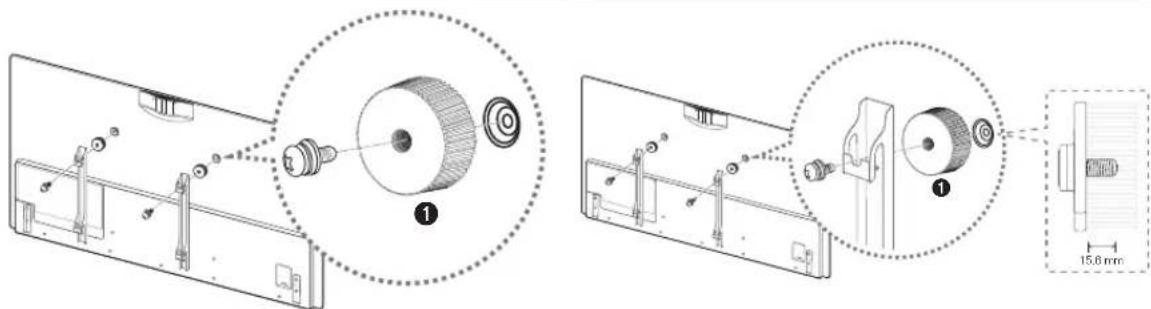
Preparing before installing Wall-Mount
Case A. Installing the SAMSUNG Wall-Mount Case B. Installing another company's Wall-Mount
text_image
Technical diagram showing mechanical assembly with labeled components and a 15.6 nm scale indicatorTo install a wall-mount, use the Wall mount adapter ①.
Wall Mount Kit Specifications (VESA)
The wall mount kit is not supplied, but sold separately. Install your wall mount on a solid wall perpendicular to the floor. When attaching to other building materials, please contact your nearest dealer. If installed on a ceiling or slanted wall, it may fall and result in severe personal injury.
NOTE
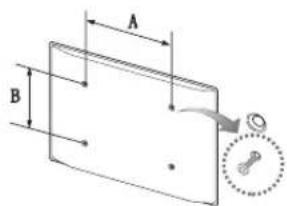
- Standard dimensions for wall mount kits are shown in the table below.
- When purchasing our wall mount kit, a detailed installation manual and all parts necessary for assembly are provided.
- Do not use screws that do not comply with the VESA standard screw specifications.
- Do not use screws that are longer than the standard dimension or do not comply with the VESA standard screw specifications. Screws that are too long may cause damage to the inside of the TV set.
- For wall mounts that do not comply with the VESA standard screw specifications, the length of the screws may differ depending on the wall mount specifications.
- Do not fasten the screws that are too strongly; this may damage the product or cause the product to fall, leading to personal injury. Samsung is not liable for these kinds of accidents.
- Samsung is not liable for product damage or personal injury when a non-VESA or non-specified wall mount is used or the consumer fails to follow the product installation instructions.
- Do not mount the TV at more than a 15 degree tilt.
| Product Family | Inch VESA Spec.(A * B) Standard Screw Quantity | |||
| LED-TV | 40 - 46 200 X | 200 | M8 | 4 |
| 55 - 75 400 X | 400 | |||
text_image
A B
Do not install your Wall Mount Kit while your TV is turned on. It may result in personal injury due to electric shock.
Storage and Maintenance
If a sticker was attached to the TV screen, some debris can remain after you remove the sticker. Please clean the debris off before watching TV.
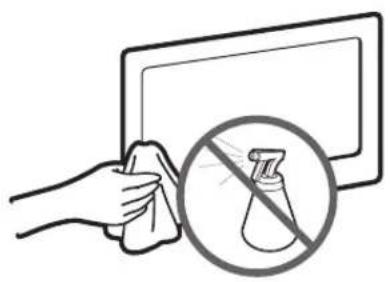
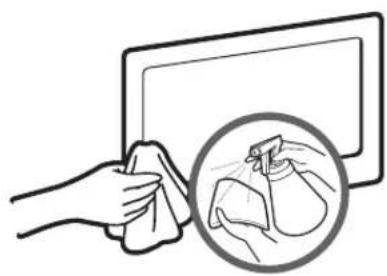
The exterior and screen of the product can get scratched during cleaning. Be sure to wipe the exterior and screen carefully using a soft cloth to prevent scratches.
natural_image
Illustration of a hand cleaning a tablet with a crossed-out flask symbol (no text or labels)Do not spray water directly onto the product. Any liquid that goes into the product may cause a failure, fire, or electric shock.
natural_image
Illustration of a hand cleaning a surface with a magnified inset showing a bag being cleaned (no text or symbols)Clean the product with a soft cloth dampened with a small amount of water. Do not use a flammable liquid (e.g. benzene, thinners) or a cleaning agent.
Providing Proper Ventilation for Your TV
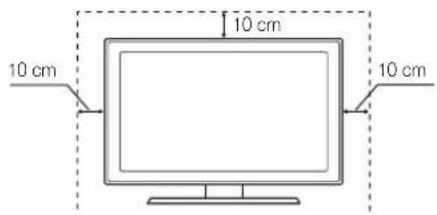
When you install your TV, maintain a distance of at least 10 cm between the TV and other objects (walls, cabinet sides, etc.) to ensure proper ventilation. Failing to maintain proper ventilation may result in a fire or a problem with the product caused by an increase in its internal temperature.
Whether you install your TV using a stand or a wall-mount, we strongly recommend you use parts provided by Samsung Electronics only.
- If you use parts provided by another manufacturer, it may cause difficulties with the product or result in injury caused by the product falling.
Installation with a stand. Installation with a wall-mount.
text_image
10 cm 10 cm 10 cm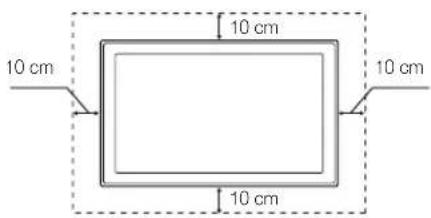
text_image
10 cm 10 cm 10 cm 10 cmOther Warnings
The actual appearance of the TV may differ from the images in this manual, depending on the model.
Be careful when you touch the TV. Some parts can be somewhat hot.
Eco Sensor and Screen Brightness
natural_image
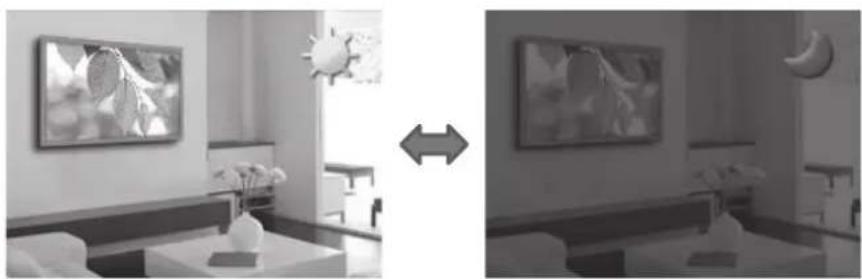
Interior scene showing a room with framed pictures and a sun icon, connected by an arrow indicating transformation (no text or symbols)Eco Sensor measures the light in your room and optimizes the brightness of the TV automatically to reduce power consumption. This causes the TV to brighten and dim automatically. If you want to turn this function off, go to Screen Menu > System > Eco Solution > Eco Sensor
natural_image
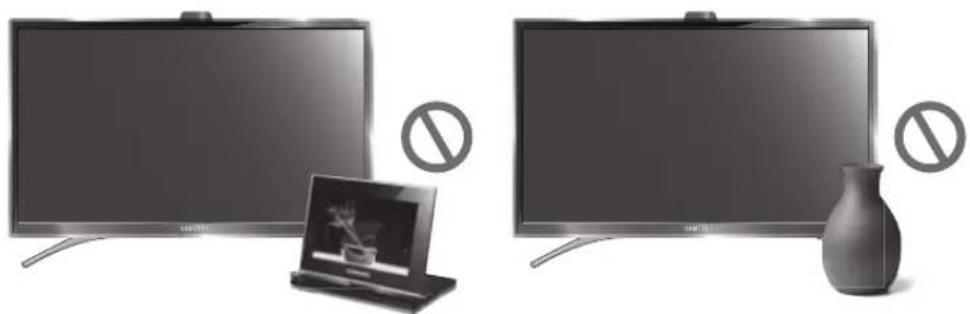
Two black-and-white photos of flat-screen TVs with no visible text or symbols on the screens or background.Do not block the sensor with any material. It can decrease picture brightness.
- Eco Sensor: This power-saving feature automatically adjusts the screen brightness of the TV according to the ambient light intensity detected by the Light Sensor.
- To enable or disable Eco Sensor, go to Screen Menu > System > Eco Solution > Eco Sensor and select On or Off.
- Precaution: If you find the screen too dark while watching the TV in a dark area, this may be caused by the Eco Sensor.
Tip Prevention – Securing the TV to the Wall
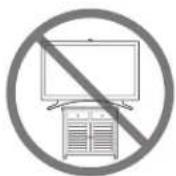
Caution: Pulling, pushing, or climbing on the TV may cause the TV to fall. In particular, ensure your children do not hang on or destabilize the TV. Doing so may cause the TV to tip over, causing serious injuries or death. Follow all safety precautions provided in the Safety Flyer included with your TV. For added stability and safety, you can purchase and install the anti-fall device as described below.
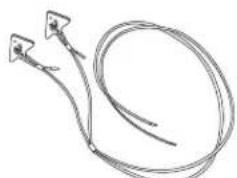
Installing the TV-Holder Kit:
natural_image
Simple line drawing of a coiled cable or wire with two connectors (no text or symbols)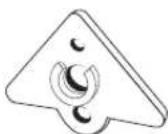
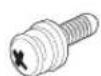
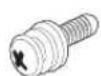
TV-Holder Holder Screw (M8 X L28) 2ea
Installing the TV-Holder
- Screw the provided wall mount adapters on the back of the TV.
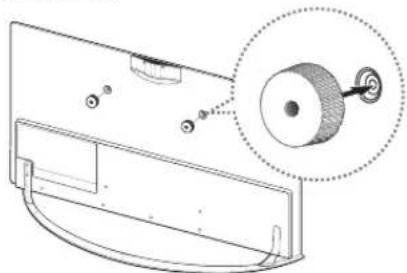
natural_image
Technical line drawing of a mechanical component with a magnified inset showing a circular component (no text or symbols)- Tighten the TV-holders on the wall mount adapters, as shown by the illustration.
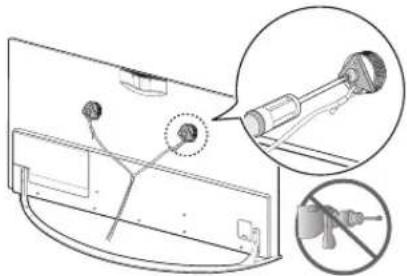
natural_image
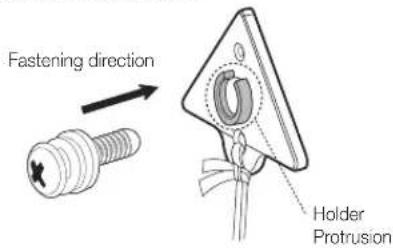
Diagram of a device with cable and connector, showing a close-up of a mechanical component (no text or symbols present)- Insert the screw into the centre of the TV-holder, as shown by the illustration.
text_image
Fastening direction Holder Protrusion- Fasten the Holder to the cabinet using a wood screw.
natural_image
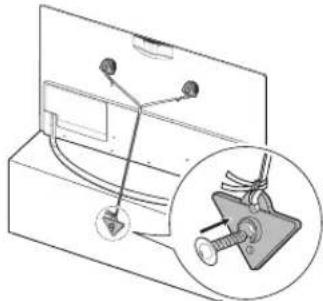
Technical diagram of a mechanical assembly with a magnified inset showing a component detail (no text or symbols)Use an M5 x L35 or a larger screw. Ensure that the Holder cord is in the middle of the TV Holder and that the Holder cord is stretched tight.
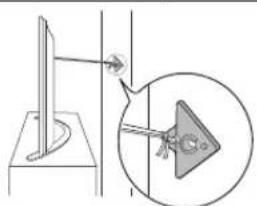
- If you fasten the Holder to a wall, attach it as described in Step 4. Make sure to centre the Holder cord and stretch it tight. Also, attach the Holder so that the cord is level with the ground or slanted downwards from the wall.
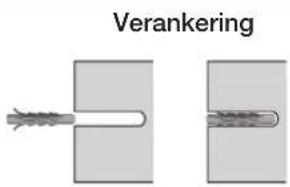
When attaching the holder to a wall, use an anchor compatible with the wall's material. If you can, drive the screw into a stud (Recommended).
natural_image
Diagram showing a mechanical setup with a lever and a magnified inset of a component (no text or symbols)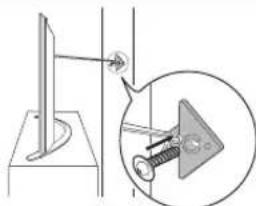
natural_image
Diagram showing a mechanical assembly with a bracket and a magnified inset of a pin inserted into a component (no text or symbols)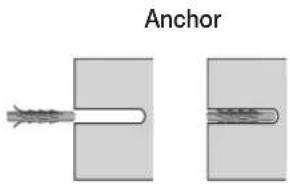
text_image
AnchorInstall the TV close to the wall so that it does not fall.
When attaching the TV-Holder cord to the wall, tie the cord level with the ground or slanted downwards for safety purposes.
Check the cord occasionally to make sure it is secure.
Before moving the TV, separate the connected cord first.
- Verify all connections are properly secured. Periodically check the connections for any sign of fatigue or failure. If you have any doubt about the security of your connections, contact a professional installer.
IMPORTANT INFORMATION
If a television is not installed in a stable location, it can fall and cause serious injuries. To prevent injuries, particularly to children, take these simple precautions:
• Use cabinets or stands recommended by the manufacturer of the television.
• Only use furniture that can safely support the television.
- Ensure the television is not overhanging the edge of the supporting furniture.
- Do not place the television on tall pieces of furniture (for example, cupboards or bookcases) without anchoring both the furniture and the television to a suitable support.
- Do not rest the television on a piece of cloth or or similar material placed between the television and the supporting furniture.
• Educate children about the dangers of climbing on furniture to reach the television or its controls.
Specifications - TV
| Display Resolution 1920 x 1080 | |||
| Environmental ConsiderationsOperating TemperatureOperating HumidityStorage TemperatureStorage Humidity | 50°F to 104°F (10°C to 40°C)10% to 80%, non-condensing-4°F to 113°F (-20°C to 45°C)5% to 95%, non-condensing | ||
| Stand Swivel (Left / Right) 0° | |||
| Model Name UE40F8000 UE46F8000 | |||
| Screen Size(Diagonal) | 40 inches (101 cm) 46 inches (116 cm) | ||
| Sound(Output) 40W (10x2, woofer 10x2) | |||
| Dimensions (W x H x D)BodyWith stand | 900.2 x 525.0 x 34.9 mm900.2 x 559.0 x 235.0 mm | 1032.7 x 599.5 x 34.9 mm1032.7 x 634.3 x 257.7 mm | |
| WeightWithout StandWith Stand | 10.3 kg11.2 kg | 12.8 kg14.0 kg | |
| Model Name UE55F8000 UE65F8000 UE75F8000 | |||
| Screen Size(Diagonal) | 55 inches (138 cm) 65 inches (163 cm) 75 inches (189 cm) | ||
| Sound(Output) 40W (10x2, woofer 10x2) 60W (15x2, woofer 15x2) | |||
| Dimensions (W x H x D)BodyWith stand | 1224.2 x 707.2 x 34.9 mm1224.2 x 741.9 x 310.3 mm | 1447.3 x 837.6 x 38.4 mm1447.3 x 876.0 x 330.3 mm | 1670.2 x 962.7 x 39.9 mm1670.2 x 1000.5 x 342.1 mm |
| WeightWithout StandWith Stand | 16.8 kg18.3 kg | 24.6 kg26.9 kg | 35.9 kg42.7 kg |
Design and specifications are subject to change without prior notice.
For information about the power supply, and more about power consumption, refer to the label attached to the product.
Typical power consumption is measured according to IEC 62087 Ed.2
Standby mode
To decrease power consumption unplug the power cord when you don't use the TV for a long time.
Recommendation - EU Only

- Hereby, Samsung Electronics, declares that this LED TV is in compliance with the essential requirements and other relevant provisions of Directive 1999/5/EC.
- The official Declaration of Conformity may be found at http://www.samsung.com, go to Support > Search Product Support and enter the model name.
• This equipment may only be used indoors.
• This equipment may be operated in all EU countries.
Licences

DOLBY. DIGITAL PLUS

dts Premium Sound | 5.1
DIVX HD
HDMI

guide

*MHL
Still image warning
Avoid displaying still images (such as jpeg picture files), still image elements (such as TV channel logos, stock or news bars at the screen bottom etc.), or programmes in panorama or 4:3 image format on the screen. Constantly displaying still pictures can cause image burn-in on the LED screen, which will affect image quality. To reduce risk of this effect, please follow the recommendations below:
- Avoid displaying the same TV channel for long periods.
• Always try to display any image in full screen. Use the TV set's picture format menu for the best possible match. - Reduce brightness and contrast to avoid the appearance of after-images.
- Use all TV features designed to reduce image retention and screen burn. Refer to the e-Manual for details.
RISQUE D'ELECTROCUTION - NE PAS OUVRIR
ATTENTION : POUR REDUIRE LES RISQUES D'ELECTROCUTION, NE RETIREZ PAS LE COUVERCLE (NI LE PANNEAU ARRIERE). AUCUNE DES PIECES SITUEES A L'INTERIEUR DU PRODUIT NE PEUT ETRE REPAREE PAR L'UTILISATEUR. POUR TOUT DEPANNAGE, ADRESSEZ-VOUS A UN SPECIALISTE.

natural_image
Diagram of a device with a curved arrow indicating rotation, and an inset showing a hand holding a small object (no text or symbols present)○
○
text_image
7.3 RECOMM.0 SEARtext_image
Technical diagram showing five sequential steps of a device's internal components with directional arrows and labeled parts.Français
REMARQUE
text_image
Microphoneflowchart
graph LR
    A["Initial grip"] --> B["Adjustment step"]
    B --> C["Press press with scroll arrow"]
text_image
Diagram illustrating a step-by-step sequence of fabric application or repair process, showing hand positioning and adjustment steps.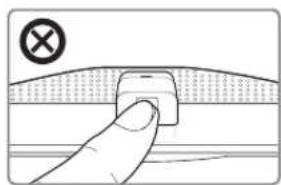
natural_image
Hand pressing a button on a curved surface with a cross symbol (no text or labels)
natural_image
Close-up of a metallic GPU chip with mounting bracket (no visible text or symbols)text_image
Laptop screen displaying a video call interface with Chinese text, alongside a close-up of hands holding a phone with coins.natural_image
Product display set including a monitor labeled 'MENU SUPPORT' and various electronic devices (no readable text beyond label)natural_image
Illustration of a person wearing a headset on a TV screen with a line graph and 'SAMSUNG' logo (no text or symbols on the person or background)natural_image
Technical line drawing of a mechanical assembly with no visible text or symbols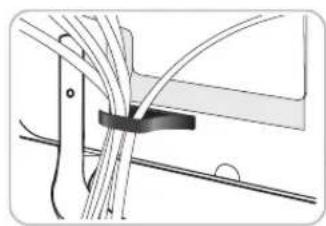
natural_image
Pure diagram of cable or wire routing without any text, numbers, or symbols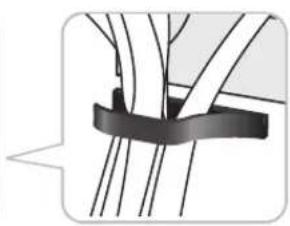
natural_image
Pure diagram of a mechanical clamp or bracket with no text, numbers, or symbolsnatural_image
Simple line drawing of a wall-mounted device with a screen and base mount (no text or symbols)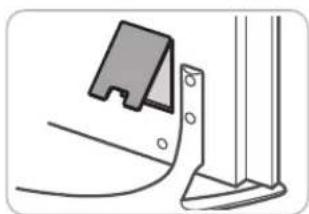
natural_image
Technical line drawing of a mechanical bracket and mounting bracket (no text or symbols)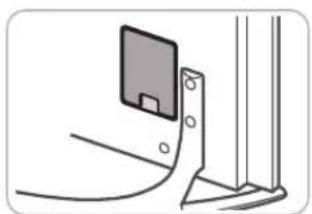
natural_image
Simple line drawing of a device with a rectangular panel and mounting bracket (no text or symbols)text_image
Technical diagram showing mechanical assembly with labeled components and a 15.6 mm scale indicatornatural_image
Illustration of a hand cleaning a tablet with a 'no spray bottle' symbol (no text or labels)natural_image
Illustration of a hand cleaning a tablet with a magnified inset showing a bag disposal (no text or symbols)natural_image
Interior scene with two wall-mounted screens and a double-headed arrow indicating bidirectional interaction (no text or symbols)natural_image
Two flat-screen TVs with no visible text, numbers, or symbols on the screens or background.natural_image
Simple line drawing of a coiled cable or wire with two connectors (no text or symbols)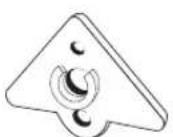
natural_image
Technical line drawing of a mechanical component with a magnified inset showing a circular detail (no text or symbols)natural_image
Diagram of a device with labeled components and an inset showing a mechanical assembly (no text or symbols present)natural_image
Technical diagram of a mechanical assembly with a magnified inset showing a component detail (no text or symbols present)natural_image
Diagram showing a mechanical assembly with a bracket and a close-up inset of a component (no text or symbols)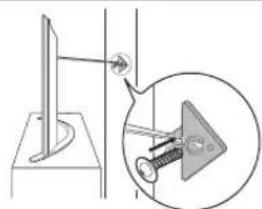
natural_image
Diagram showing a mechanical assembly with a bracket and a magnified inset of a component (no text or symbols)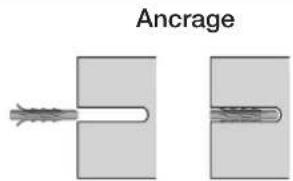
text_image
Ancragenatural_image
Diagram showing a device with a curved arrow indicating rotation, and an inset circular diagram illustrating the process (no text or symbols)○
○
text_image
2.3 RECOMM.0 SEARtext_image
Technical diagram showing exploded view of a device with labeled components and directional arrows indicating assembly or assembly steps.HINWEIS
flowchart
graph LR
    A["Start Button"] --> B["Adjusting Button"]
    B --> C["Rotate Button with Arrow"]
text_image
Diagram illustrating a step-by-step assembly of a device with rotation and adjustment, showing sequential states from pin to pad.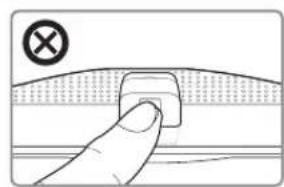
natural_image
Hand pressing a button on a curved surface with a cross symbol (no text or labels)
natural_image
Close-up of a metallic electronic component with labeled parts (no readable text or symbols)natural_image
Illustration of a laptop displaying a news app interface next to a telephone handset (no text or symbols visible)natural_image
Product display set including a screen with 'MENU SUPPORT' and various electronic devices (no readable text beyond label)natural_image
Illustration of a person in a suit standing on a monitor with a cityscape background (no text or symbols)natural_image
Pure mechanical assembly diagram showing a bracket and rod without any text, numbers, or symbols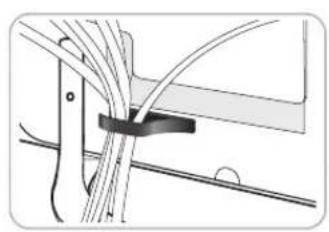
natural_image
Pure mechanical diagram showing intersecting wires and a rectangular block (no text or symbols)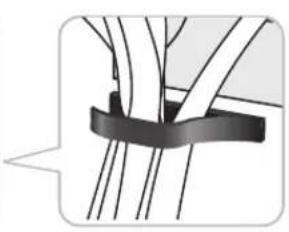
natural_image
Pure mechanical assembly diagram showing a clamping bracket with no text or symbolsnatural_image
Simple line drawing of a wall-mounted device with a screen and base mount (no text or symbols)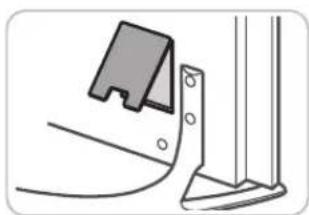
natural_image
Simple line drawing of a mechanical bracket and mounting bracket (no text or symbols)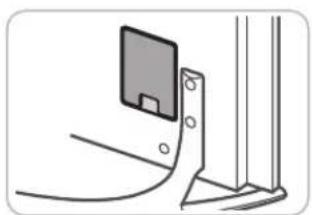
natural_image
Simple line drawing of a device with a screen and bracket, no text or symbols presentFehlerbehebung
text_image
Technical diagram showing mechanical assembly steps with labeled components and a 15.6 mm scale indicator.natural_image
Illustration of a hand cleaning a surface with a 'no spray' symbol (no text or labels)natural_image
Illustration of a hand cleaning a tablet with a magnified inset showing a bag being cleaned (no text or symbols)natural_image
Interior scene showing a room with framed pictures and a sun icon, connected by an arrow indicating bidirectional transformation (no text or symbols)natural_image
Two flat-screen TVs with no visible text, numbers, or symbols on the screens or background.natural_image
Simple line drawing of two coiled cable or wire with connectors (no text or symbols)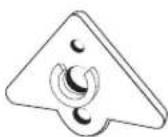

natural_image
Technical line drawing of a mechanical component with a magnified inset showing a circular detail (no text or symbols)natural_image
Diagram of a device with labeled ports and a magnified inset showing internal components (no text or symbols present)natural_image
Diagram of a device with cable and connector, showing internal components and an inset close-up view (no text or symbols)natural_image
Diagram showing a mechanical setup with a bracket and a magnified inset of a triangular component (no text or symbols)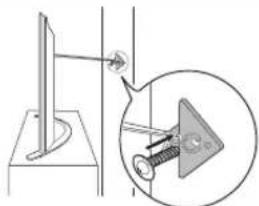
natural_image
Diagram showing a mechanical assembly with a bracket and a magnified inset of a component (no text or symbols)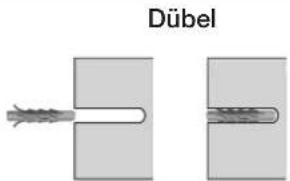
text_image
Dübelnatural_image
Five different types of electronic devices and cables, including a connector, cable, and a common interface device (no text or symbols visible on the devices themselves)Scart-adapter IR-verlengkabel AV-adapter Componentadapter CI-kaartadapter
flowchart
graph LR
    A["..."] --> B["Bluetooth Signal"]
    B --> C["Device"]
    C --> D["L-shaped Device"]
natural_image
Diagram showing a device with a circular arrow indicating rotation or cycle, no text or symbols present©
○
text_image
2.3 RECOMM @ SEARCHtext_image
2.3 RECOMM.1SEARtext_image
Technical diagram showing exploded view of a device's internal components with labeled parts and directional arrows indicating assembly or inspection.LET OP
flowchart
graph LR
    A["Start with button icon"] --> B["Step 1: Click button"]
    B --> C["Step 2: Click button on device"]
    C --> D["Step 3: Roll button with rotation arrow"]
De camera induwen
flowchart
graph LR
    A["Step 1: Hand press on pad"] --> B["Step 2: Change in switch"]
    B --> C["Step 3: Down arrow indicates change"]
    C --> D["Step 4: Final state with two square buttons"]
natural_image
Hand holding a button on a curved surface with a cross symbol (no text or labels)
text_image
Solution Kit Achterzijde televisionWat is Remote Support?
text_image
Laptop displaying a news app interface with a person, alongside a telephone handset and a coffee cup illustration.natural_image
Product display set with a screen labeled 'MENU SUPPORT' and various electronic devices (no readable text beyond label)text_image
Illustration of a doctor on a computer screen displaying the Samsung logo and cityscape backgroundnatural_image
Technical line drawing of a mechanical assembly with no visible text or symbols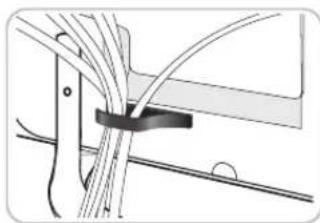
natural_image
Pure mechanical diagram showing a lever and guide mechanism without any text or symbols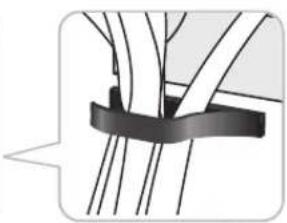
natural_image
Pure diagram of a mechanical clamp or bracket with no text, numbers, or symbolsnatural_image
Simple line drawing of a monitor mounted on a stand, no text or symbols present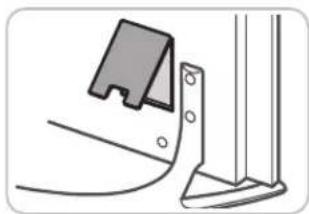
natural_image
Technical line drawing of a mechanical bracket and mounting bracket assembly (no text or symbols)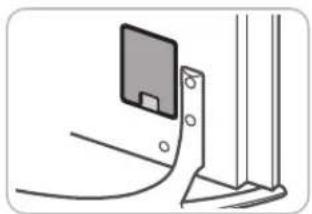
natural_image
Simple line drawing of a device with a rectangular panel and mounting bracket (no text or symbols)Problemen oplossen
text_image
Technical diagram showing mechanical assembly with labeled components and dimension annotationnatural_image
Illustration of a hand cleaning a tablet with a 'no spray bottle' symbol (no text or labels)natural_image
Illustration of a hand cleaning a tablet with a magnified inset showing a bag being cleaned (no text or symbols)natural_image
Interior scene showing a room with framed pictures and a sun icon, connected by an arrow indicating bidirectional interaction (no text or symbols)natural_image
Two flat-screen TVs with no visible text, numbers, or symbols on the screens or background.natural_image
Simple line drawing of a coiled cable or tube with two connectors (no text or symbols)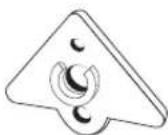

natural_image
Technical line drawing of a mechanical component with an inset showing a cylindrical assembly (no text or symbols)natural_image
Diagram of a device with cable and connector, showing internal components and a magnified inset (no text or symbols)natural_image
Technical diagram of a mechanical assembly with a magnified inset showing a component detail (no text or symbols present)natural_image
Diagram showing a computer monitor connected to a wall-mounted device, with an inset close-up of its component (no text or symbols present)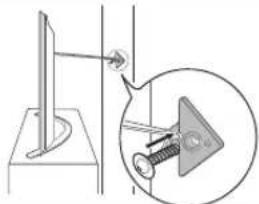
natural_image
Diagram showing a mechanical assembly with a bracket and a magnified inset of a pin inserted into a socket (no text or symbols)