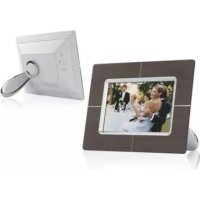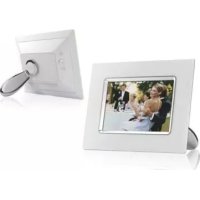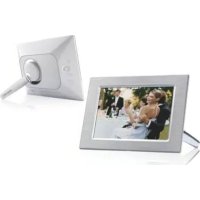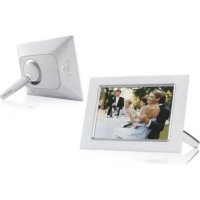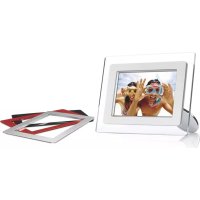
7FF2M4 - Digital photo frame PHILIPS - Free user manual and instructions
Find the device manual for free 7FF2M4 PHILIPS in PDF.


User questions about 7FF2M4 PHILIPS
0 question about this device. Answer the ones you know or ask your own.
Ask a new question about this device
Download the instructions for your Digital photo frame in PDF format for free! Find your manual 7FF2M4 - PHILIPS and take your electronic device back in hand. On this page are published all the documents necessary for the use of your device. 7FF2M4 by PHILIPS.
USER MANUAL 7FF2M4 PHILIPS
natural_image
Digital photo of a family taking a selfie in front of a blank digital display frame (no text or symbols visible)10FF2 Series
7FF2 Series
5FF2 Series
natural_image
Simple grayscale gradient rectangle with rounded corners (no text or symbols)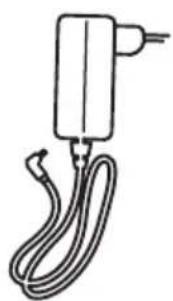
natural_image
Simple line drawing of a handheld electrical plug with wires (no text or symbols)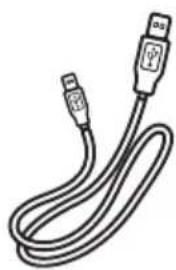
natural_image
Line drawing of a USB cable with two connectors (no text or symbols)text_image
Setup PHILIPS Options Brightness Language English French Memory Card Deutsch Event Reminder Spanish Time and Date Italy Auto On/Off Danish Status Butch Auto Tilt pyccnnng Choose preferred language. Play Slideshow OKtext_image
Photo display (underside)A. Carte CF
B. Carte SD/MMC/MS/xD
text_image
PhotoFrame PC
text_image
Philips Manager 1.0 for Philips Photo Frames File Edit Tools Help PHILIPS Photography Photo Frame Photo Frame Photo Frame Photo Frame Photo Frame Photo Frame Photo Frame Photo Frame Photo Frame Photo Frame Photo Frame Photo Frame Photo Frame Photo Frame Photo Frame Photo Frame Photo Frame Photo Frame Photo Frame Photo Frame Photo Frame Photo Frame Photo Frame Photo Frame Photo Frame Photo Frame Photo Frame Photo Frame Photo Frame Photo Frame Photo Frame Photo Frame Photo Frame Photo Frametext_image
Setup PHILIPS Options Brightness Language English French Memory Card Deutsch Event Reminder Spanish Time and Date Italons Auto On/Off Danish Status Durch Auto: Tilt pyctahis Choose preferred language. Play Slideshow OKtext_image
Setup PHILIPS Options Brightness English Language Francils Memory Card Deutsch Event Reminder Español Time and Date Italiano Auto On/Off Danish Status Dutch Auto Tilt Pycnost Choose preferred language. Play Slideshow OKtext_image
Setup PHILIPS Options Brightness Time Language Date Memory Card Show Clock Event Reminders Time and Date Auto On/Off Status Auto Tilt Play Slideshow OK3 Heure:
text_image
Setup Options PHILIPS Time and Date Time Date Show clock Time 01:18 AM Play Slideshow OKDate:
text_image
Setup PHILIPS Options Brightness Time Language Date Memory Card Show clock Event Reminder Time and Date Auto On/Off Status Auto Tilt Play Slidershow OKtext_image
Setup1 Options PHILIPS Time and Date Time Date Show clock Time 01:00 AM Play Skiseshow OKtext_image
PHILIPS Source PhotoFrame™ SMMC card C7 Card Memory Stick ×D Card Memory Stick Duo New Album Default album Choose the Photo source: Play Slideshow OKtext_image
Photos [Source] Photo Frame PHILIPS Detail album 000 X 600 2005/07/01 source: Photo Frame: Press OK to select and deselect photos.. Long press Ok to select all seen thumbnails. Press menu key to edit chosen photos. Play Slideshow OK Photo MenuRemarque:
text_image
Photos PHILIPS Source Photoframe™ New Album Default album C:\MSC Card CI Card Memor Stick x0 Card Memory Stick Duo Choose the Photo source. Play Slideshow OKtext_image
Photos I Source PHILIPS Photoframe™ New Albums Default album Navigate to the right to view your album thumbnail photos. Or Press Album menu key to access album menu Play Slideshow OK Album Menutext_image
Photos [Source] Photo Frame PHILIPS Default albums 000 X 600 2006/07/01 source: Photo Frame Press Ok to select and deselect photos. Long press Ok to select all seven thumbnails. Press menu key to edit chosen photos. Play Slideshow OK Photo Menutext_image
Slideshow PHILIPS Settings Slideshow Slideshow sequence Sequential Random Transition Effect Frequency Collage Background Color Play Slideshow OKtext_image
Photos fSource PHILIPS PhotoName™ New Album Default album Navigate to the right to view your album thumbnail photos. Or Press Album menu key to access album menu Play Slideshow OK Album Menutext_image
Photos J:Source I:Photo Frame PHILIPS Default album 000 X 600 2005/07/01 source: Photo Frame Press Ok to select and deselect photos. Long press Ok to select all seven thumbnails. Press menu key to edit chosen photos. Play Slideshow OK Photo Menutext_image
Photo | Source | SD/MMC | PC Photos PHILIPS Photo Menu Copy to Delete Move to Photo Effects Frames Rotate Photo Frame SD/MMC Card LF Card Memory Stick XO Card Memory Stick Due 08/06/00 20/06/07/01 Source SD/MMC Card Choose your storage media to copy your photos. To: Play Skisshow OK Exit Photo Menutext_image
Photos | Source | Photo Frame™ | Default album | Photo Menu PHILIPS Copy to 1. Photo Boring Compact ©2006/07/01 2006/07/01 source: Photo Frame View Album stored in the Photo Frame. Play Slokeshow OK Exit Photo Menutext_image
Photos PHILIPS Source Photoframe™ New Album Custom album SCANVR (cmd) CI Card Memory Stick v1 Card Memory Stick Duo Choose the Photo source. Play Sideshow OKtext_image
Photos I Source PHILIPS PhotoFrame™ New Albums Default album Navigate to the right to view your album albuminal photos. Or Press Album menu key to access album menu. Play Slideshow OK Album Menutext_image
Photos J Source I Photo Frame PHILIPS Draft album 900 X 600 2006/07/01 source: Photo Frame Press Ok to select and deselect photos. Long press Ok to select all seen thumbnails. Press menu key to edit chosen photos. Play Slideshow OK Photo Menutext_image
Photos | Source | SD/MMC Card | Untitled PHILIPS Photo Menu Copy to Delete Move to Photo Effects Frames Rotate and Crop No Effects Black and White Sepal 1 Sepal 2 Sepal 3 800600 2006/02/03 source SD/MMC Card Added effects can always be removed by selecting No Effect. Play Slideshow OK Eat Photo Menutext_image
Photos [Source] SGMMC | PC Photos PHILIPS Photo Menu Copy to No 1 Photo Being Deleted 2006/07/01 source Delete the selected photo Play Skisshow OK Exit Photo Menutext_image
PHILIPS Source PhotoFrame™ Standard card CI Card Memory Stick eD Card Memory Stick Duo New Album Default album Choose the Photo source. Play Skarshow OKtext_image
Photos /Source: PHILIPS PhotoFrame™ New Album Default album Navigate to the right to view your album thumbnail photos. Or Press Album menu key to access album menu. Play Slideshow OC Album Menutext_image
Photos | Source | SD/MMC | PC Photos | Photo Menu PHILIPS Rotate and Crop 800 X 600 2006/07/01 source: Press Zoom in/out to zoom in the picture and navigate in 4 directions. Press OK to navigate. Zoom in Pan/OK Zoom outtext_image
PHILIPS Photo Menu Copy to Delete Move to Photo Effects Frames Rotate 000 X 600 2006/07/01 SOURCE: PHILIPS CARD Choose a photo orientation, Press OK to Validate Play Slideshow OK Edit Photo MenuRemarque:
text_image
PHILIPS Source PhotoFrame™ New Album V-USB card Default album ○ Card Memory Stick ×1 Card Memory Stick Duo Choose the Photo source. Play Skisshow OKtext_image
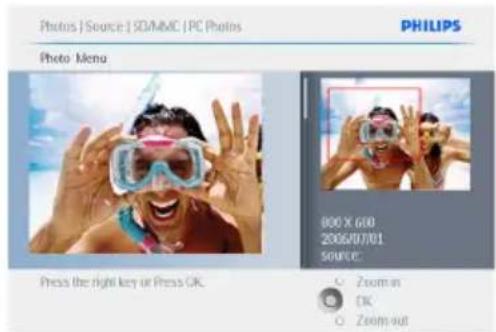
Photos /Source PHILIPS PhotoFrame™ New Album Default album Navigate to the right to view your album thumbnail photos: Or Press Album menu key to access album menu. Play Slideshow OK Album Menu- Use the Navigation button to move the frame around the image.
text_image
Photos | Source | SDMMC | PC Photos PHILIPS Photo Menu Press the right key or Press OK. 000 X 600 2006/07/01 SOURCE: Zoom in OK Zoom outtext_image
PHILIPS Photo Menu Cropy Photo Press the right key or Press OK. 2005/07/01 SOURCE: Zoom in OK Zoom outtext_image
Photos Source PHILIPS PhotoFrame™ New Album Default album Navigate to the right to view your album thumbnail photos. Or Press Album menu key to access album menu. Play Slideshow OK Album Menutext_image
Photos | Source | Photo Frame PHILIPS Distub album 900 X 600 2005/07/01 source: Photo Frame Press Ok to select and deselect photos. Long press Ok to select all seen thumbnails. Press menu key to edit chosen photos. Play Slideshow OK Photo Menutext_image
Photos | Source | SD/MMC Card | Untitled PHILIPS Photo Menu Copy to Delete Move to Photo effects Frames Rotate and Crop PhotoName: SD/MMC Card 12 Card Membrane Box M1 Card Membrane Set ID S006000 2006/07/01 source: SD/MMC Card Choose your storage media to move your photos to. Play Slideshow OK Edit Photo Menutext_image
Photos | Source | SD/MMC Card | Untitled PHILIPS Photo Menu Copy to Delete Move to Photo Effects Frames Rotate and Copy Photo Frame STVMUFT Card 12 Card Memories such M1 Card Monetary with Fan S00X600 2006/07/01 source:SD/MMC Card Choose your storage media to copy your photos to. Play Slideshow OK Exit Photo Menutext_image
PHILIPS Source PhotoFrame™ New Album Default album S-100/45 card Cl Card Memory Stick eD Card Memory Sink Duo Choose the Photo source. Play Skideshow OKtext_image
Photos I Source PHILIPS PhotoFrame™ New Album Default album Navigate to the right to view your album thumbnail photos. Or Press Album menu key to access album menu. Play Skideshow OK Album Menutext_image
Photos [Source] SD/MMC] PC Photos 1Photo Menu PHILIPS Rotate and Crop 000 X 600 2006/07/01 SOURCE Press Zoom In/out to zoom in the picture and navigate is 4 directions. Press OK to validate. Zoom in Pan/OK Zoom outtext_image
Photos | Source | SD/MMC Card | Untitled PHILIPS Photo Menu Copy to Delete Move to Photo Effects Frames Rotate No Effect Back and White Sepin 1 Sepin 2 Sepin 3 800K600 2006/02/01 source SD/MMC Added effects can always be removed by selecting No Effect. Play Slideshow OK Exit Photo/Menutext_image
Photo Frame™ SD/MMC Card CT Card Memory stick v0 Card Memory stick Dru Default albums 8006/00 2006/07/01 source:SD/MMC Card View Minutes stored in the Photofire... Play Slideshow OK Edit Photo Menutext_image
PHILIPS Source PhotoFrame™ New Album SCAMC card Default album CF Card Memory Stick vDJ Card Memory Stick Duo Choose the Photo source. Play Sideshow OKtext_image
Photos /Source PHILIPS PhotoFrame™ New Album Default album Navigate to the right to view your album thumbnail photos. Or Press Album menu key to access album menu. Play Slideshow OK Album Menutext_image
Photos | Source | SD/MMC | IPC Photos | Photo.Memo PHILIPS Rotate: and Crop 800 X 600 2006/07/01 SOURCE: Press Zoom in/out to zoom in the picture and navigate in 4 directions. Press OK to navigate. Zoom-in Pan/OK Zoom-outtext_image
Photos | Source | S2/MMC Card | PC Photos PHILIPS Photo Menu Copy to Delete Move to Photo Effects Frames Rotate No frame Banner Bob Broken Cloud Eclipse Explosion Starot 800X600 2005/07/01 source: S2/MMC Card Add a shape to your photo Play Slideshow OK Bit Photom Menutext_image
Photos / Source: SDAMMC Card PHILIPS Untitled 800 X 600 2006/07/01 source:SDAMMC Card Press OK to select and deselect photos. Long press OK to select all seem thumbnails. Press menu key to edit chosen photos. Play Slideshow OK Photo Menutext_image
PHILIPS Source PhotoFrame™ SDMMC card O Card Memory Stick all Card Memory Stick Duo New Album Default album Choose the Photo source. Play Slideshow OKtext_image
Photos | Source | Photo Frame™ | Album Menu PHILIPS Create New Album Album: Birthday_2007 1 2 3 4 5 6 7 8 9 0 A B C D E F G H I I J K L M N O P Q R ... S T U V W X Y Z ... Space ABC Cancel Enter an Album Name and press enter to confirm. Play Slideshow OK Exit Keypadtext_image
PHILIPS Source PhotoFrame™ SODMC card New Album default album CT Card Memory Stick WD Card Memory Stick Duo Choose the Photo source. Play Slideshow OKtext_image
Photos | Source PHILIPS PhotoFrame™ New Album Default album Press OK to Create a New Album. Play Slideshow OKtext_image
Photos | Source | Photo Frame™ | Album Menu PHILIPS Create New Album Album: New_name 1 2 3 4 5 6 7 8 9 0 A B C D E F G H I I J K L M N O P Q R S T U V W X Y Z Space ABC Cancel Enter an Album Name and press enter to continue. Play Slideshow OK Exit Keypadtext_image
PHILIPS Source PhotoFrame™ SDMMC card C Card Memory Stick x1 Card Memory Stick Too New Album Default album Choose the Photo source. Play Skisshow OKtext_image
Slideshow PHILIPS Settings Slideshow Slideshow sequence Transition Effect Frequency Collage Background Color Protelieve™ STVMMC Card Off Card Memory card 40 Card MWindows Link (L) Play the slide show or press Slideshow Menu to left this slideshow Play Slideshow OKtext_image
Slideshow | Settings | Slideshow | SDMMC Card PHILIPS New Slideshow Album: Slideshow Family 1 2 3 4 5 6 7 8 9 10 A B C D E F G H I I J K L M N O P Q R . . S T U V W X Y Z . Space ABC Cancel Play Slideshow OK Bit.Kespadtext_image
Sideshow PHILIPS Setting Slideshows Photo games™ Slideshow sequence SD/MMC Card Transition Effect 17 Card Frequency Memory size Collage 40 Card Background Color Memory size 10% Play the slide show or press Slideshow Menu to edit this slideshow. Play Slideshow OKtext_image
Slideshow PHILIPS Setting Slideshows Slideshow sequence Transition Effect Frequency Collage Background Color Photocians™ STAME: Font @ Call Monetary card @ Call Monetary card file Play the slide show or press Slideshow Menu to edit this slideshow Play Slideshow OCtext_image
Slideshow | Settings | Slideshow | PhotoFrame? PHILIPS Slideshow 1 Add Album Remove Album Rename Slideshow Delete Slideshow Default albums Birthday 2007 Add an Album to this slideshow. Play Slideshow OK Exit Slideshow Menutext_image
Slideshow / Settings PHILIPS Slideshow 1 Add Altam add Altam Remove Altam from slideshow Altum Name: 8 Play Edit and Crease Slideshows Choose the source to view your slideshow from Play Slideshow OKtext_image
Sideshow PHILIPS Setting Slideshows PhotoScene™ Slideshow sequence SEMAAC Card Transition Effect CD Line Frequency Memory stick Collage CD Card Background Color Memory Back-Up Play the slide show or press Slideshow Menu To Edit this slideshow. Play Slideshow OKtext_image
Slideshow | Settings | Slideshow | PhotoFrame™ PHILIPS Slideshow 1 Add Album Remove Album Rename Slideshow Delete Slideshow Default albums Birthday 2012 Add an Album to this slideshow. Play Slideshow OK Edit Slideshow Menutext_image
Slideshaw | Settings | Slideshow | PhotoFrame? PHILIPS Slideshaw 1 Add Albums Remove Albums Rename Slideshow Delete Slideshow Rename this slideshow Phy: Slideshow OK Edit Slideshow Menutext_image
Slideshow | Settings | Slideshow | SDVMMC Card PHILIPS New Slideshow Album: Slideshow Family 1 2 3 4 5 6 7 8 9 0 A B C D E F G H I I J K L M N O P Q R . S T U V W X Y Z . Enter Space ABC Cancel Play Slideshow OK Edit Keypadtext_image
Slideshow | Settings PHILIPS Slideshow PhotoFrame™ SDMMC card CT Card Memory Stick dJ Card Memory Stick Duo New Slideshow Album Limited Create a new slideshow, chooses a slideshow to play or edit it Play Slideshow OKtext_image
Sideshaw | Settings | Slideshaw PHILIPS SDMMC Card New Slideshaw All albums Albums Installed Play Slideshaw OKtext_image
Sideshow | Settings | Slideshow | SDMMC Card PHILIPS Slideshow 1 Add Album Free sure you want to delete an album from your sideshow® Yes No Delete the slideshow. Play Slideshow OK Edit Slideshow Menutext_image
Slideshow PHILIPS Settings Slideshow Slideshow sequence Sequential Random Transition Effect Frequency Collage Background Color Play Slideshow OKtext_image
Slideshow PHILIPS Settings Slideshow Slideshow sequence Transition Effect Frequency Collage Background Color No Transition Random Sliding Fadey Bars Translation Small States Choose the transition effect between Pholes Play Slideshow OKtext_image
Sideshow PHILIPS Settings Sideshow No Transition Sideshow sequence Random Transition Effect Sliding Frequency Fading Collage Bars Background Color Translation Small States Change the transition effect between phrases. Play Sideshow OKtext_image
Slideshow PHILIPS Settings Slideshow Slideshow sequence Transition Effect Frequency Collage Background Color PhotoFrame™ 50V/MD Card CT Card Monetary card 4Q Card Morphs via Fis Play the slide show or press Slideshow Menu to Edit this slideshow. Play Slideshow OKtext_image
Slideshow PHILIPS Settings Slideshow >5 Seconds Slideshow sequence 10 Seconds Transition Effect 30 Seconds Frequency 1 Minute Collage 5 Minutes Background Color 30 Minutes 1 Hour 4 Hours Choose the slideshow transition time. Play Slideshow OKtext_image
Slideshow PHILIPS Settings Slideshow Ctrl Slideshow sequence Random Transition Effect Layout 1 Frequency Layout 2 Collage Layout 3 Background Color Layout 4 Layout 5 Display multiple photos in one frame. Play Slideshow OKtext_image
Slideshow PHILIPS Settings Slideshow Slideshow sequence Transition Effect Frequency College Background Color Off Random Layout 1 Layout 2 Layout 3 Layout 4 Layout 5 Display multiple photos in one frame. Play: Slideshow OKtext_image
Slideshow PHILIPS Settings Slideshow PhotoFrame™ Sideshow sequence SED/MUC Card Transition Effect CF Card Frequency Memory Stick Collage x0 Card Background Color Memory Stick Due Play Edit and Create Slideshows Choose the source to view your slideshow from. Play Slideshow OK Slideshow Menutext_image
Slideshow PHILIPS Settings Slideshow White Slideshow sequence Black Transition Effect Grey Frequency Collage Background Color Choose the Photo background colour when the photo doesn't fill the entire display. Play Slideshow OKtext_image
Slideshow PHILIPS Settings Slideshow White Slideshow sequence Black Transition Effect Grey Frequency Collage Background Color Choose the photo background colour when the photo doesn't fill the entire display. Play Slideshow OKtext_image
Slideshow PHILIPS Settings Slideshow Photo frame™ Sideshow sequence SEM/MAC Card Transition Effect CF Card Frequency Memory Stick Collage X2 Card Background Color Memory Stick Two Play Edit and Create Slideshows Choose the source to draw your slideshow from. Play Slideshow OK Slideshow Menutext_image
Sideshow PHILIPS Setting Photo frame Yes Slideshow sequence No Transition Frequency Collage Background Color Show Clock Play Slideshow OKtext_image
Shieshow PHILIPS Setting Photo frame Slieshow sequence Transition Frequency Collage Background Color Show Clock Yes No Play Slidershow OKtext_image
Setup PHILIPS Options Brightness Language Memories Card Event Reminder Time and Date Auto On/Off Status Auto-Till Set a reminder. New reminder Snage Play Slideshow OKtext_image
Setup | Options | Event reminder | New reminder PHILIPS New Name New_name 1 2 3 4 5 6 7 8 9 0 A R C D E F G H I I J K L M N O P Q R . S T U V W X Y Z . Space abc Cancel Play Skirtshow OK Zai Keypadtext_image
Setup Options PHILIPS Event reminder New reminder Show New event 1 Set Delete Reminder Photo Time Date Set the reminder interval Play Slideshow OKtext_image
Setup | Options | Event Reminder PHILIPS New event 1 Set Delete reminder Photo Time Date On On Play Slideshow OK Otext_image
Setup Options Event Reminder PHILIPS New event 1 Set Delete reminder Photo Time Date Photo-frame STUBAC CF Card Memory stick xG Card Choose the Photo from an Album to display for the reminders. Play: Slideshow OKtext_image
Setup | Options | Event | Reminder | New event 1 PHILIPS Photo Album Name Navigate to the right to view your album inmbreal photos. Or Press/Album menu key to access album menu. Play Slideshow OK Album Menutext_image
Setup | Option | Event Reminder PHILIPS New event 1 Set Delete reminder Photo Time Date Time: 01:00 AM Set the event time: Play Sideshow OKtext_image
Setup-1 Options Event.Remindler PHILIPS New event 1 Set Delete reminder Photo Time Date Time: 01:00 AM Set the event time. Play. Slideshow OKÉtape 4
text_image
Setup-1 Options 1 Event.Remindler PHILIPS New event 1 Set Date 01/02/01 Delete reminder Everyday Photo Time Date Set the event date Play Slideshow OKtext_image
Setup Options / Event Reminders PHILIPS New event 1 Set Date 01/01/00 Delete reminder Everyday Photo Time Date Set the event date. Play Slideshow OKtext_image
Setup PHILIPS Options Brightness Language Memory Card Event Reminder Time and Date Auto On/Off Status Auto Hit New reminder Snone Set a reminder. Play Slideshow OKtext_image
Setup PHILIPS Options Brightness Language Memory Card Event Reminder Time and Date Auto On/Off Status Auto Tilt Adjust the screen brightness. Play Slideshow OKtext_image
Setup PHILIPS Options Brightness Language English French Memory Card Deutsch Event Reminder Spanish Time and Date Italiano Auto On/Oft Banska Status Butch Auto. Tilt Python Choose preferred language. Play Slideshow OKtext_image
Setup PHILIPS Options Brightness Language Memory Card Event Reminder Time and Date Auto On/Off Status Auto Tilt Delete Function Enable to delete original photos on memory cards. Play Slideshow OKtext_image
Setup / Options PHILIPS Memory Card Delete function To: Not Allow Allow Trouble to delete original photos on memory cards. Play Slideshow OKtext_image
Setup PHILIPS Options Brightness Language Memory Card Event Reminder Time and Date Auto On/Off Status Auto Tilt Time Date Show Grid Play Slideshow OKtext_image
Setup Options PHILIPS Time and Date Time Date Show clock Time 01:00 AM Play Sideshow OKtext_image
Setup 1 Options 1 Auto On/OFF 1 Weekday PHILIPS Time Period 1 Set On/OFF Auto On Auto Off On On Play Slideshow OKtext_image
Setup 1 Options | Auto On/OFF | Weekday PHILIPS Time Period 1 Set On/OFF Auto On Auto Off Auto On 01:00 AM Play Slideshove OKtext_image
Setup | Options | Auto On/Off | Workday PHILIPS Time Period 1 Set On/Off Auto On Auto Off Auto off 81:00 AM Play Slideshow OKtext_image
Setup PHILIPS Options Brightness Language Memory Card Event Reminder Time and Date Auto On/Off Status Auto Tilt Weekday Weekend Play Sideshow OKtext_image
Setup Options PHILIPS Auto DevOff Weekday Set DevOff Weekend Auto On Auto Off Play SkIOSNow OKtext_image
Setup1 Options 1 Auto On/Off PHILIPS Weekend Set On/Off Auto On Auto Off Auto off 01:00 AM Play Slideshow OKtext_image
Setup PHILIPS Options Brightness ON Language On Memory Card Event Reminder Time and Date Auto On/Off Status Auto Tilt Adjust automatically the photo orientation when the Photo Frame is in Landscape or portrait position. Play Slideshow OKPCSupports de stockage-
Recycling Information for Customers
Philips establishes technically and economically viable objectives to optimize the environmental performance of the organization's product, service and activities.
From the planning, design and production stages, Philips emphasizes the important of making products that can easily be recycled. At Philips, end-of-life management primarily entails participation in national take-back initiatives and recycling programs whenever possible, preferably in cooperation with competitors.
There is currently a system of recycling up and running in the European countries, such as The Netherlands, Belgium, Norway, Sweden and Denmark.
In U.S.A., Philips Consumer Electronics North America has contributed funds for the Electronic Industries Alliance (EIA) Electronics Recycling Project and state recycling initiatives for end-of-life electronics products from household sources. In addition, the Northeast Recycling Council (NERC) - a multi-state non-profit organization focused on promoting recycling market development - plans to implement a recycling program.
In Asia Pacific, Taiwan, the products can be taken back by Environment Protection Administration (EPA) to follow the IT product recycling management process, detail can be found in web site www.epa.gov.tw
For help and service, please read the section of Service and Warranty or the following team of Environmental specialist can help.
Mr. Job Chiu - Environment manager Philips Electronics Industries (Taiwan) Ltd, Monitor Business Unit
E-mail: job.chiu@philips.com
Tel: +886 (0) 3 454 9839
Mr. Maarten ten Houten - Senior Environmental Consultant
Philips Consumer Electronics
E-mail: marten.ten.houten@philips.com
Tel: +31 (0) 40 27 33402
Ms. Delmer F. Teglas
Philips Electronics North America
E-mail: butch.teglas@philips.com
Tel: +1 865 521 4322
Banned Substance Declaration
This product comply with RoHs and Philips BSD (AR17-G04-5010-010) requirements
CE Declaration of Conformity
Philips Consumer Electronics declare under our responsibility that the product is in conformity with the following standards
• EN60950:2000 (Safety requirement of Information Technology Equipment)
• EN55022:1998 (Radio Disturbance requirement of Information Technology Equipment)
• EN55024:1998 (Immunity requirement of Information Technology Equipment)
• EN61000-3-2:2000 (Limits for Harmonic Current Emission)
- EN61000-3-3:1995 (Limitation of Voltage Fluctuation and Flicker) following provisions of directives applicable
• 73/23/EEC (Low Voltage Directive)
• 89/336/EEC (EMC Directive)
• 93/68/EEC (Amendment of EMC and Low Voltage Directive)
and is produced by a manufacturing organization on ISO9000 level.
Federal Communications Commission
(FCC) Notice (U.S. Only)

Note:
This equipment has been tested and found to comply with the limits for a Class B digital device, pursuant to Part 15 of the FCC Rules. These limits are designed to provide reasonable protection against harmful interference in a residential installation. This equipment generates, uses and can radiate radio frequency energy and, if not installed and used in accordance with the instructions, may cause harmful interference to radio communications. However, there is no guarantee that interference will not occur in a particular installation. If this equipment does cause harmful interference to radio or television reception, which can be determined by turning the equipment off and on, the user is encouraged to try to correct the interference by one or more of the following measures:
- Reorient or relocate the receiving antenna.
- Increase the separation between the equipment and receiver.
- Connect the equipment into an outlet on a circuit different from that to which the receiver is connected.
- Consult the dealer or an experienced radio/TV technician for help.

Caution:
Changes or modifications not expressly approved by the party responsible for compliance could void the user's authority to operate the equipment.
Connections to this device must be made with shielded cables with metallic RFI/EMI connector hoods to maintain compliance with FCC Rules and Regulations.
To prevent damage which may result in fire or shock hazard, do not expose this appliance to rain or excessive moisture.
THIS CLASS B DIGITAL APPARATUS MEETS
ALL REQUIREMENTS OF THE CANADIAN INTERFERENCE-CAUSING EQUIPMENT REGULATIONS.
FCC Declaration of Conformity
Model Number: 9FF2
Trade Name: Philips
Responsible Party: Philips Consumer
Electronics North America
P.O. Box 671539
Marietta, GA 30006-0026
1-888-PHILIPS (744-5477)
Declaration of Conformity for Products Marked with FCC Logo, United States Only
Trade Name Model Number

Tested To Comply With FCC Standards
FOR HOME OR OFFICE USE
This device complies with Part 15 of the FCC Rules. Operation is subject to the following two conditions: (1) this device may not cause harmful interference, and (2) this device must accept any interference received, including interference that may cause undesired operation.
Commission Federale de la Communication (FCC Declaration)

Note:
EN 55022 Compliance (Czech Republic Only)
This device belongs to category B devices as described in EN 55022, unless it is specifically stated that it is a Class A device on the specification label. The following applies to devices in Class A of EN 55022 (radius of protection up to 30 meters). The user of the device is obliged to take all steps necessary to remove sources of interference to telecommunication or other devices.
VCCI Notice (Japan Only)
This is a Class B product based on the standard of the Voluntary Control Council for Interference (VCCI) for Information technology equipment. If this equipment is used near a radio or television receiver in a domestic environment, it may cause radio Interference. Install and use the equipment according to the instruction manual.
Class B ITE

Polish Center for Testing and Certification Notice
- The equipment should draw power from a socket with an attached protection circuit(a three-prong socket). All equipment that works together (computer, monitor, printer, and so on) should have the same power supply source.
-
The phasing conductor of the room's electrical installation should have a reserve short-circuit protection device in the form of a fuse with a nominal value no larger than 16 amperes (A).
-
To completely switch off the equipment, the power supply cable must be removed from the power supply socket, which should be located near the equipment and easily accessible.
- A protection mark “B” confirms that the equipment is in compliance with the protection usage requirements of standards PN-93/T-42107 and PN-89/E-06251.
North Europe Information (Nordic Countries)
WARNING:
FÖRSÄKRA DIG OM ATT HUVUDBRYTARE OCH UTTAG ÄR LÄTÄTKOMLIGA, NÄR DU STÄLLER DIN UTRUSTNING PÅPLATS.
Placering/Ventilation
ADVARSEL:
S∅RG VED PLACERINGEN FOR, AT NETLEDNINGENS STIK OG STIKKONTAKT ER NEMT TILGÆNGELIGE.
Paikka/Ilmankierto
VAROITUS:
SIJOITA LAITE SITEN, ETTÄ VERKKOJOHTO VOIDAAN TARVITTAESSA HELPOSTI IRROTTAA PISTORASIASTA.
BSMI Notice (Taiwan Only)
符合乙類資訊產品之標準
End-of-Life Disposal
- Your new product contains materials that can be recycled and reused. Specialized companies can recycle your product to increase the amount of reusable materials and to minimize the amount to be disposed of.
- Please find out about the local regulations on how to dispose of your old monitor from your local Philips dealer.
• (For customers in Canada and U.S.A.) Dispose of in accordance to local-state and federal regulations.
For additional information on recycling contact www.eia.org (Consumer Education Initiative)
Waste Electronics and Electrical Equipment (WEEE)
This product is labelled with this symbol in accordance with European Directive 2002/96/EG to indicate that it must not be disposed of with your other household waste. Please check your local city office or waste disposal service for the return and recycling of this product.

Waste Electronics and Electrical Equipment (WEEE)
This product is labelled with this symbol in accordance with European Directive 2002/96/EG to indicate that it must not be disposed of with your other household waste. Please check your local city office or waste disposal service for the return and recycling of this product.
End of life directives - Recycling
Your new TV contains several materials that can be recycled for new uses.
Like all LCD products, this set contains a lamp with Mercury, please dispose of according to all Local, State and Federal laws.