ManualGo.com
 Lifestyle RoomMate LRMWH - Haut-parleur BOSE - Free user manual and instructions
Find the device manual for free Lifestyle RoomMate LRMWH BOSE in PDF.


Download the instructions for your Haut-parleur in PDF format for free! Find your manual Lifestyle RoomMate LRMWH - BOSE and take your electronic device back in hand. On this page are published all the documents necessary for the use of your device. Lifestyle RoomMate LRMWH by BOSE.
USER MANUAL Lifestyle RoomMate LRMWH BOSE
This PDF includes both the English and
the French versions of this document.
Ce PDF inclut les versions anglaises
EnglishFrançais Español
SAFETY INFORMATION Please read this owner’s guide
Please take the time to follow the instructions in this owner’s guide carefully. It will help you set up and
operate your system properly and enjoy all of its advanced features. Please save this owner’s guide for
WARNING: To reduce the risk of fire or electrical shock, do not expose the product to rain or moisture.
WARNING: The apparatus shall not be exposed to dripping or splashing, and objects filled with liquids,
such as vases, shall not be placed on the apparatus. As with any electronic product, use care not to spill liq-
uids into any part of the system. Liquids can cause a failure and/or a fire hazard.
WARNING: No naked flame sources, such as lighted candles, should be placed on the apparatus.
The lightning flash with arrowhead symbol, within an equilateral triangle, alerts the user to the presence
of uninsulated dangerous voltage within the system enclosure that may be of sufficient magnitude to
constitute a risk of electric shock.
The exclamation point within an equilateral triangle alerts the user to the presence of important operat-
ing and maintenance instructions in this owner’s guide.
• The product label is located on the bottom of the product.
• This product is intended to be used only with the power supply provided.
• Where the mains plug is used as the disconnect device, such disconnect device shall remain readily
• This product must be used indoors. It is neither designed or tested for use outdoors, in recreation vehi-
• Unauthorized modification of the radio remote control could void the user’s authority to operate this
powered speaker conforms to the EMC directive 89/336/EEC and to the Low Voltage
Directive 73/23/EEC. The PERSONAL
music center II conforms to the RTTE Directive 99/5/EC
(R+TTED). The complete Declarations of Conformity can be found on www.bose.com.
Please dispose of used batteries properly,
following any local regulations. Do not incinerate.
Additional safety information
See the additional instructions on the
Important Safety Instructions
sheet (North America only) enclosed
in the shipping carton.
%RVH&RUSRUDWLRQ1RSDUWRIWKLVZRUNPD\EHUHSURGXFHGPRGLILHGGLVWULEXWHGRURWKHUZLVHXVHGZLWKRXWSULRUZULWWHQSHUPLVVLRQ$OOWUDGHPDUNV
UHIHUHQFHGKHUHLQDUHSURSHUW\RI%RVH&RUSRUDWLRQ$OOULJKWVUHVHUYHG%RVH/LIHVW\OHDQG3HUVRQDODUHUHJLVWHUHGWUDGHPDUNVRI%RVH&RUSRUDWLRQ3
INTRODUCING THE ROOMMATE
Connecting the speaker to your LIFESTYLE
system . . . . . . . . . . . . . . . . . . . . . . . . . . 7
Installing batteries in the PERSONAL
music center II . . . . . . . . . . . . . . . . . . . . . . . . . . 9
Changing the room code for your RoomMate
Adjustable features of the PERSONAL
Please record the serial numbers of your RoomMate
speaker and PERSONAL
music center II here
and on your Product Registration Card. This provides easy access to this information if you ever need
Dealer phone: _________________________________ Purchase date: ________________________
Be sure to fill out your Product Registration Card and mail it to Bose. Failure to do so does not affect
your limited warranty. Please keep your sales receipt and product registration together with this
INTRODUCING THE ROOMMATE
POWERED SPEAKER Before you begin
Thank you for purchasing a LIFESTYLE
powered speaker system, a small
speaker system that delivers surprisingly great sound. This speaker system provides a simple
and elegant solution for enjoying the sound from your LIFESTYLE
home entertainment sys-
tem in your living room, kitchen, bedroom or any other room in your home.
This product works with LIFESTYLE
48, 38, 28 Series II and 18 Series II DVD home enter-
An AUX IN jack on the rear panel allows you to listen to an external audio device through this
remarkable speaker, even if it is disconnected from your home entertainment system.
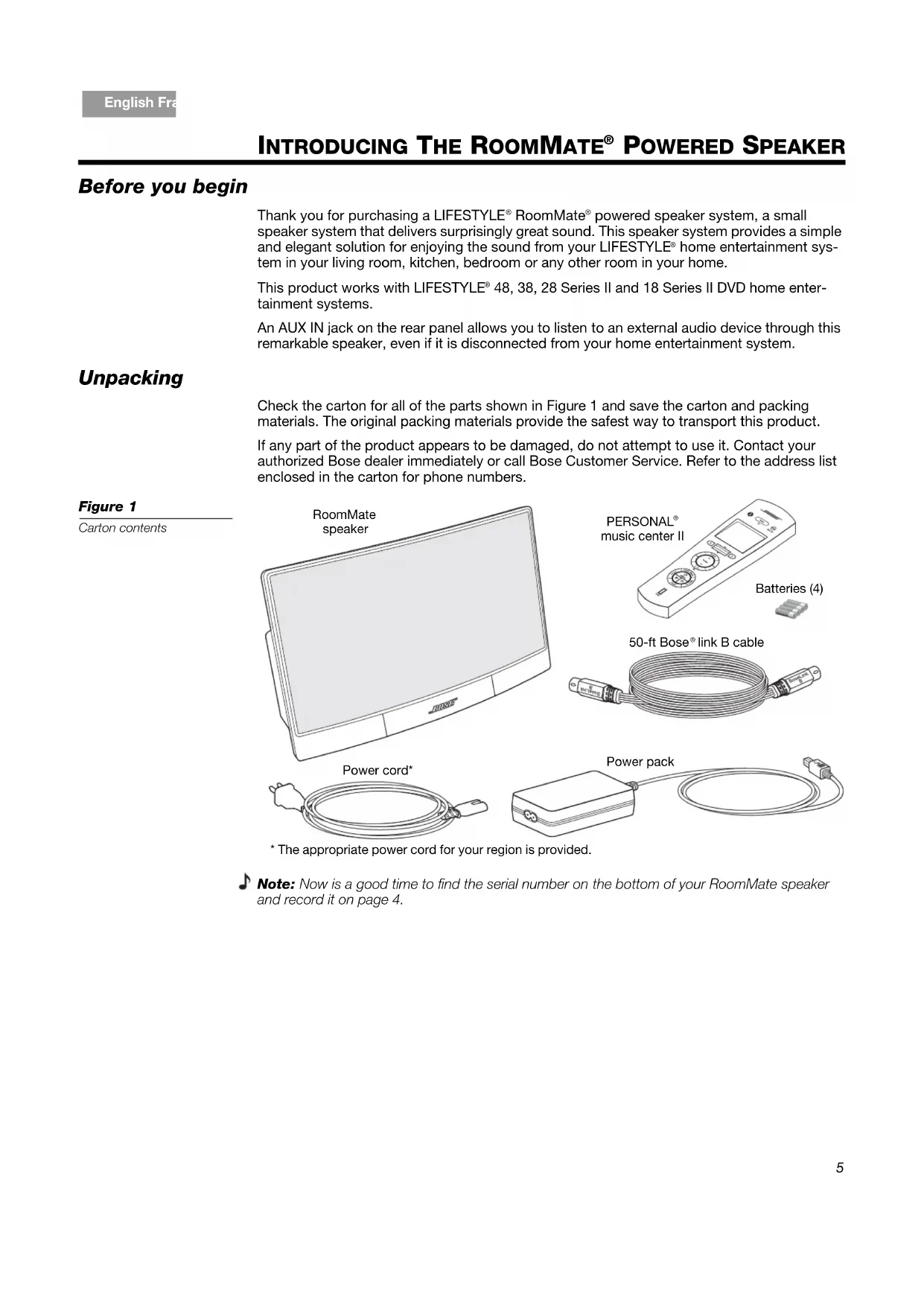
Check the carton for all of the parts shown in Figure 1 and save the carton and packing
materials. The original packing materials provide the safest way to transport this product.
If any part of the product appears to be damaged, do not attempt to use it. Contact your
authorized Bose dealer immediately or call Bose Customer Service. Refer to the address list
enclosed in the carton for phone numbers.
music center II Batteries (4)
* The appropriate power cord for your region is provided.
Note: Now is a good time to find the serial number on the bottom of your RoomMate speaker
and record it on page 4.6
I NTRODUCING THE ROOMMATE
POWERED SPEAKER EnglishFrançais Español
The rear panel provides a power connector, audio input connectors, and room code
switches used to set
put jack for connecting
A multi-pin jack for
connecting your speaker
Front panel mute switch
The bottom front center of the speaker enclosure contains a touch-sensitive mute switch.
To mute or unmute the speaker, just touch the Bose logo.
RoomMate speaker mute
Note: This symbol appears on the
when the speaker is muted. See
“Display symbols” on page 15. You
can also mute the speaker by
SETUP Connecting the speaker to your LIFESTYLE
Using the supplied Bose
link “B” cable, connect your RoomMate
speaker to the media
center as shown in Figure 4.
speaker is shipped from the factory already set up to operate
in a Bose link network using room code I. If room code I is already assigned to another Bose
link product in your home, you will need to change the room code. For more information, see
“Changing the room code for your RoomMate
media center connection
RoomMate speaker rear panel
Rear panel of media center*
48, 38, 28 Series II and 18 Series II DVD home entertainment systems, only.
If you already have one Bose
If you already have a Bose
link cable plugged into the Bose link speakers jack, you will
need to obtain a Bose link extension/expansion cable. This will enable you to connect
both your existing Bose link cable and your new Bose link B cable to your media center.
Another solution is to purchase the AL8 Homewide Wireless Audio Link. This product can
provide wireless communication to both your existing Bose link product and your new
RoomMate speaker system.
For more information on either of these solutions, contact Bose Customer Service. Refer
to the Bose address list included with your LIFESTYLE
S ETUP EnglishFrançais Español
Making the power connections
1. Insert the DC power cord from the power pack into the DC Power jack on the rear panel
speaker. Make sure the DC Power label faces up (Figure 5).
2. Insert the small connector of the AC power cord into the power pack. Plug the other end
into an appropriate AC receptacle.
The speaker is now in standby mode, ready to use. Turn to
“Installing batteries in the PERSONAL
music center II” on page 9.
RoomMate speaker power
Installing batteries in the PERSONAL
music center II The PERSONAL
music center II is shipped from the factory already set up to operate your
system using room code I. If room code I is already assigned to another Bose
your home, you will need to change the room code. Refer to “When to change the room
Make sure the room code assigned to your PERSONAL
music center II is the same room
code assigned to your RoomMate
speaker system. See “Changing the room code for your
music center II with your LIFESTYLE
system, just install the
supplied batteries as follows:
1. On the back of the PERSONAL
music center II, slide the battery compartment cover off
2. Install the four AA (IEC LR6) batteries, matching the polarity markings (+ and –) to the
markings inside the battery compartment (Figure 6).
3. Slide the battery cover back into place.
Battery compartment cover
AA (IEC LR6) batteries (4)
music center II is now ready to operate your LIFESTYLE
operating instructions, refer to “Using The PERSONAL
Music Center II” on page 12.
Change the batteries when you notice a marked decrease in the range or response of your
music center II, or when the battery indicator reads low (see “Display symbols” on
You can use your RoomMate
speaker to listen to an external audio source such as a TV, or a
portable CD or MP3 player. Just plug the output cable from your source into the The AUX IN
jack on the rear panel of your speaker. The cable must be equipped with a male
For operating instructions on listening to an external audio source, refer to “Listening to Your
music center II will not operate any external audio device connected to
Using an external source without a Bose
When your RoomMate speaker is disconnected from a Bose link network, the AUX IN source
is automatically selected. This means that you can listen to an external audio source without
music center II. Use the volume control on your external device to
set the volume level of the speaker. You can still use the mute switch on the front of the
speaker to mute the audio at any time.
Auxiliary audio source
RoomMate speaker rear panel
Changing the room code for your RoomMate
link product connected to your LIFESTYLE
home entertainment system needs
to have a unique room code. This code is what enables the PERSONAL
operate your LIFESTYLE
link room (a room in which a Bose
speaker is shipped from the factory already set up to operate
link room using room code I. If room code I is already used by another Bose
product in your home, you will need to change the room code. To do this, refer to Figure 8
and set the room code switches for the room code you want to use.
Make sure the room code assigned to your RoomMate speaker system is the same room
code assigned to your PERSONAL
music center II opens the door to a variety of new options for playing your
DVD home entertainment system in almost any area of your home.
music center II provides you with:
• Control of your LIFESTYLE
(18 or 28 Series II or the 38 or 48) system from a different room
or floor of your house.
• On-screen information about your stored music and the uMusic
intelligent playback sys-
tem choices for enjoying it (on LIFESTYLE
38 or 48 systems, only).
• The option to readily switch between the two audio streams from the system and multiply
your choice of programs.
• Control of speakers set up in the same area as the remote.
• Easy access to system options, which appear right on the remote control screen.
• Instant confirmation of your selection, because you not only hear, but also see what you’ve
selected on the display screen.
Confirm that current settings are right
music center II is set up at the factory for compatibility, as follows:
• To control the sound from a LIFESTYLE RoomMate
speaker connected to the Bose
output on your LIFESTYLE system media center.
• A house code identical to the one given every new LIFESTYLE
system. For details, see
“Why would you change the house code?” on page 19.
• To receive Audio stream 2, which is different from the stream that delivers sound in the main
room where the LIFESTYLE
media center is located. For details, see “Audio streams multi-
ply your options” on page 20.
• English as the language used for display text.
system previously set up and used with another language, your
music center II detects the difference (only the first time you turn it on), and
pauses operation to switch to that language.
To learn how to select a different text display language for your system, refer to “Media
center options” in the Operating Guide that came with the system.
If the above settings are right, you can begin to use your PERSONAL
music center II now.
Note: To change any settings, refer to “Adjustable features of the PERSONAL
Using just a few selection buttons and the display screen, you can see, choose from, and
enjoy a wide variety of LIFESTYLE
system capabilities in your Bose
Remember that you can use the PERSONAL
music center II, with no need to aim it, all
around your home, even outside. Its radio frequency (RF) signals can reach the system from
as far away as 80 feet (24.4 meters).
Getting to what you want
The few buttons explained below will enable you to get started, move around on the display
screen, and make selections from the display.
See how quickly you get a feel for what happens.
• Turns on your RoomMate
speaker in the Bose link room.
• Alerts your LIFESTYLE
system media center in the main room.
• Activates the last used source at its previous volume level and preset.
• Turns off the current source, the PERSONAL
music center II, and your
RoomMate speaker in the Bose link room.
Moves around on the display.
• Tipping the center bar up or down moves up or down.
• Pressing a left or right arrow button moves left or right.
Increases or decreases selection values.
• Tipping the center bar up or down adds to or subtracts from a value (for
example, the frequency of the FM stations).
There are guides at the bottom of the display (Figure 9) showing which
arrows to use for other actions.
Confirms a selection.
Pressing in on the center bar completes your action and moves to the next
Shows the sources you can choose to hear.
Pressing and holding this button turns the display backlight off and on.14
MUSIC CENTER II EnglishFrançais Español
What appears on the display
Press Source to see the list of the available sources (Figure 9).
Your list may look different, depending on the type of system you have. (For instance, Stored
will appear only if you have a LIFESTYLE
Other choices available using:
Audio stream and source in use elsewhere
Audio steam and source in use here
Audio 2, the stream selected to deliver sound to the Bose
music system commands it to, appears briefly in the line for Room label, also.
Note: To understand what Audio 1 and 2 mean, refer to “Audio streams multiply your options”
What you can do in the source display
• Move up or down to highlight a preferred source.
• Confirm your new choice [OK].
• Move left to return to a previous display.
When you confirm or cancel a choice, the display changes to information about the source
that is playing now (Figure 10).
Other choices available using:
When you see the display above, you may:
• Change the station selected by using the up and down arrows, which move forward or
backward through the preset stations.
• Confirm a new selection by pressing in on the center bar.15
MUSIC CENTER II English FrançaisEspañol
Where you can go from here:
• Move up or down to another preset station.
• Move left to return to the source selection screen.
• Move right to see the station tuning screen (Figure 11).
Example of a radio tuning
Or, press to return to the list of the sources.
At times, you may notice that a symbol appears on the display. These symbols indicate
special conditions, as described below:
Battery indicator: Your PERSONAL
music center II battery is
depleted by 75% or more.
Speakers muted: The Mute button (on your RoomMate
speaker or your PERSONAL
music center II) has been pressed
and the speakers in the room with your PERSONAL
center II are silenced.
All speakers muted: The Mute button – on your PERSONAL
music center II or in another room – has been pressed and
held, silencing the speakers in all Bose
link rooms. Pressing
Mute now will unmute the speakers in your room only.
Information: Pressing the center bar will provide further
information about a track.
Setup button: use as needed
Pressing Setup presents a list of the adjustable features on
music center II. Display characteristics are
MUSIC CENTER II EnglishFrançais Español
Buttons to use while you listen
There are two circular button sets for use while listening to a source. For details on how each
button works for a specific source, refer to “Listening to Your LIFESTYLE
Use the upper button set to:
Adjust the speaker volume up or down.
Establish and select presets.
Skip and scan forward and back.
Begin or pause play.
Use the lower button set while listening to a music disc or stored music (if available on your
changes operation to the next play mode.
1RUPDO These modes apply to LIFESTYLE
system CD play; they may not apply to another
system used as an Bose link room local source.
Use the remaining buttons in this circular set only with stored music, available on
Use these buttons with your stored music to:
playback system and turn on the LIFESTYLE
system if it is off.
Hear all other tracks from the CD that provided the current track.
Rate the track that is playing, or multiple tracks or CDs selected in the Music Library.
Hear the tracks that are included in the Playlist or add a selection to the Playlist.
Hear music that is similar in mood and style to the track that is playing.
Mutes and unmutes the speakers in the room where the PERSONAL
When pressed and held, mutes all speakers connected to the LIFESTYLE
When pressed and held again, returns all speakers to their previous state.17
Adjustable features of the PERSONAL
music center II You can change some factory default settings of the PERSONAL
music center II to custom-
Press the Setup button near the bottom of the PERSONAL
music center II to see a list of the
feature settings you can change.
To learn more about house codes, room codes, and audio streams, refer to the sections
about these features.
To change settings for a feature
1. Tip the center bar down to move down the list in the Setup menu, and highlight
the feature you want to adjust (Figure 12).
2. Press the right arrow button
to move right for the setting options for the
3. Tip the center bar
up or down to move through the list and highlight the setting
4. Press the center bar
to confirm your choice.
5. Or, if you decide no change is needed, press the left arrow button
Following step 4 or 5 will exit the list of options and return to the features list.
Music center II features that
are adjustable Back [Open]SetupName: BedroomRoom Code: I Audio Stream: 2Contrast: DefaultBacklight Bright: 100%Backlight: On Feature Possible settings
Name Default: Bedroom.
Designates where you use this PERSONAL
Choose from a list of possible rooms to label your music center and
distinguish it from any others.
Room Code Default: I.
Distinguishes each room (up to 15) connected to the system.
Choosing A will match the setting for the LIFESTYLE
music center II to work with older
(legacy) products, such as Bose
radio, or other amplifiers, with limited functionality.
For further information about room codes, refer to “The importance
of room codes” on page 18.18
The importance of room codes
music center II is set at the factory for use in a Bose
link room, while the
system media center and primary remote are set for use in the main room. The
use of unique room codes lets your LIFESTYLE
system know where commands that come
to it originate, so it can respond in the appropriate room.
Audio Stream Default: 2.
Delivers audio to the room where the PERSONAL
used and possibly to other rooms.
For further information about audio streams, refer to “Audio
streams multiply your options” on page 20.
Contrast Default: Default.
Visually distinguishes display text from background.
Increase or reduce the display contrast as needed.
Backlight Bright Default: 100%.
Varies the amount of light on the display.
Choose a lower % setting to reduce intensity.
Backlight Default: On.
Choose Off to eliminate backlighting.
LCD Delay Default: 30 seconds.
Increase or decrease (in 10-second increments) the pause before
the setup display turns off.
For further information about house codes, refer to “Why would you
situation underlined
Matches the display text to language selected for use on the
system. This match should occur automatically.*
If it does not, select this item to initiate a language download from the
Indicates which version of the PERSONAL
music center II software
is installed currently.
Feature Possible settings19
With just your RoomMate
speaker system set up in one Bose
link room, the PERSONAL
music center should remain set to Room Code I, as shown (Figure 13).
Room Code I setting on the
However, to use more than one PERSONAL
music center II, or with other LIFESTYLE
system remotes in your home, they all need to have different room codes.
When to change the room code
• If you have set up other Bose
link rooms already. There are 14 room codes in addition to
• If you prefer to use your PERSONAL
music center II in the main room, in addition to the
primary remote control, it must be set for Room A.
music center II and your RoomMate speaker must have identical room
codes. Like the PERSONAL
music center II, the RoomMate speaker system is set at the
factory for Room I. If you change this setting for any reason, you must also change the
music center II to the same room code.
To learn how to choose a different room code, see “To change settings for a feature” on
For more room code details, refer to the operating guide that came with your LIFESTYLE
Why would you change the house code?
music center II is set at the factory with a house code identical to the fac-
tory setting on other LIFESTYLE
systems and remote controls. If you have not changed the
house code setting in your LIFESTYLE
system, there is no need to change that code in your
system radio frequency (RF) remote has a long range and the ability to pene-
trate walls. Therefore, the signals from a remote in one home can possibly reach and affect
the operation of a LIFESTYLE
system in another. Changing the house code for the system
and all the remotes used with it avoids possible conflict.
To learn how to choose a different house code, see “To change settings for a feature” on
For more details on the system house code, refer to the operating guide included with
system is playing in the main room, you can use your PERSONAL
music center II in another room to play a completely different choice from that same system.
The system provides this choice by employing two independent audio streams to deliver the
sound. So, while the Audio 1 stream fills the main room with spine-tingling DVD special
effects, you can move to another room and switch to FM radio on the other stream.
music center II is set at the factory to control the Audio 2 steam, you
can easily change it to Audio 1 – the stream that delivers sound in the main room.
For example, there may be times when you don’t want to hear what is playing in one of your
link rooms. Without disturbing the person enjoying sound on the Audio 2
stream there, you can switch to Audio 1, which may not otherwise be in use. This option also
allows people in different rooms to use the uMusic
system with two different presets
To learn how to choose a different audio stream, see “To change settings for a feature” on
SYSTEM Performance at your command
By pressing , you turn on your PERSONAL
music center II to the last source selected on
the selected audio stream. Select a different source by pressing
down on the display to highlight the preferred source. Then press in on the center bar (
to confirm your selection.
Use the buttons shown in Figure 14 as you listen. Your options will vary according to the
source that is playing.
Buttons to use while
listening to a source
•Press to Seek backward or Play
• Press and hold to Fast reverse
• Press and hold to Set a preset
• Press to Play/Pause
• Press and hold to Stop
• Press to Seek forward or Play next track
• Press and hold to Fast forward
Playing stored music
To listen to your stored music, press the uMusic
system, if it is off, and begins to play stored tracks.
intelligent playback system is possible only on LIFESTYLE
systems, and only after CDs are stored in the system. For details on how to store CDs, refer to
system operating manual.
The display on your PERSONAL
music center II provides information about the music play-
L Title and Artist playing
Stored music preset number
and assigned name (if any)
Searchable catalog of stored music
• Check to be sure that the uMusic system preset currently selected is the one you want.
Presets, for use by different people or assigned for specific themes, help the system match
its music selections to preferences associated with that preset.
Refer to your LIFESTYLE
38 or 48 system Operating Guide for detailed information on the
uMusic intelligent playback system, the importance of presets, and how the system knows what
2. Move up or down to highlight the preferred preset and press in on the center bar
confirm the new selection.
This returns to the original display screen.
• To see more information on the current track:
Press in on the center bar
• To stop text from moving across the display:
Press in and hold the center bar
. Press again to resume movement.
To simply listen and enjoy:
No particular action is required. You may want to simply listen and respond to the music as
you normally do. For this, use the circular button sets on the music center II.
In order to... Do this...
Tell the system your strong reaction to
Press the minus (–) button if you are not in the
mood for or do not like this song.
Press the plus (+) button if you especially like this
Play more tracks like the one playing
Play the whole CD that this track came
Play the tracks in the Playlist... Press Playlist.
Delete this track from the Playlist... While listening to the Playlist, press and hold
Add this track to the Playlist... While listening to a track in uMusic, Encore or
Whole CD play modes, but not in the Playlist,
press and hold Playlist.
Let the system pick the tracks for you... Press uMusic to exit the Encore, Whole CD, or
Hear this track again... Press Repeat.
Hear the music playing in a different
Press Shuffle while in Whole CD, Playlist, or
Encore play mode. Otherwise, it has no effect.
Pause the music... Press
Resume play where the music
SYSTEM English FrançaisEspañol
Searching the library of stored music
You may want to locate other tracks in your collection, which is easy to do using the display
While listening to the Stored source, press the right arrow button to see the library search
Artist: - All artists-
Album: - All albums-
Track: - All tracks-
16 albums / 221 tracks
To search and use what you find
1. Move up or down to highlight the category you want to use to search the library. The
• Genre: one of 19 music types that describe stored tracks.
• Artist: the primary performer or group
• Album: name of the disc
• Track: title of the track
Scan forward through the current
Scan backward through the current
Skip to the beginning of this track... Press
Or, tip down on the center bar
Skip to the beginning of the previous
Skip this track... Tip up on the center bar
Tip up and hold to skip more tracks.
Return to a previous track... Tip down on the center bar
Tip down and hold to skip more tracks.
In order to... Do this...24
SYSTEM EnglishFrançais Español
2. Press in on the center bar
to see the possible choices in that category (Figure 17).
Results of the search for
artists in all genres Cancel PlaySelect ArtistGenre: Rock / PopArtist: The Beatles Album: - All albums -
Track: - All tracks -
16 albums / 221 tracks - All artists - ABBA Beatles, TheBee Gees, TheBig Audio Dynam...Cure, The [Ok]
3. Move up or down to make a selection.
4. Press in on the center bar
to confirm the selection and return to the category list.
• Or, move right to play your selection and continue browsing the choices for this
• Or, move left to cancel the selection.
5. Move down the categories and repeat steps 2 through 4 to further narrow your search.
6. Move right to play all tracks in the selected category.
7. When you finish searching, you can move left to return to the Stored music display.
To listen to the radio, select AM or FM from your list of sources. The LIFESTYLE
activates, as needed, and begins play.
The display on your PERSONAL
music center II provides information about the radio station
Station information display Back TuneFM RadioStation FM 103.3 Jump to preset 2
While listening to a station, you have several options.
In order to... Do this...
Tune to a specific station... Move right for FM tuning, then up or down to the station
Tune to the next or previous
Tip up on the center bar
Tip up and hold to tune more quickly.25
system can store up to 20 AM and 20 FM stations as radio presets. By
assigning a preset number to the stations you like most, you can get to them quickly and
easily. All of the presets can be used in any of the Bose link rooms.
To assign preset numbers
Most simply, you can let the system assign the next available preset number to the station
• Press and hold the Presets button until a preset number appears on the display next to the
Or, assign a specific preset number to a station by following steps 1 through 5:
1. Press the Presets button to see the list of established presets for FM or AM.
2. Move up or down to highlight the preset you prefer.
3. Move right to select that preset number.
4. Tip up or down on the center bar
to tune in the station you want assigned to the
selected preset number.
5. Press in on the center bar
to confirm the assignment.
Tune to higher or lower
Move right into station tuning, then tip up or down on the
Tip and hold to tune more quickly.
Tune forward to the next strong
Press and hold to tune quickly and release to stop at the
Tune backward to the next
Press and hold to tune quickly and release to stop at the
In order to... Do this...26
SYSTEM EnglishFrançais Español
Playing a CD Make sure there is a CD in the disc tray. The player can then begin to play as soon as you
select CD/DVD from the source list.
The display on your PERSONAL
music center II provides information about the disc and
track playing. The display indicates whether the disc is a regular or MP3 CD (Figure 19).
CD and MP3 CD displays
CD Track 3 of 14 [123... ] Back MP3-CDSong, Title, Artist Name Track 9 of 127 [123... ] • Move up or down to change tracks one by one.
• Press in on and hold the center bar
to see the numeric selection display, where you
can choose the track directly by number (Figure 20).
Numeric selection display Track 1 2 3 Erase Done[Add]Enter number To select a specific track by number
When the numeric selection display appears:
• Move up or down to increase or decrease the highlighted number.
• Press in on the center bar
to confirm the digit and add another.
• Move left to erase a number.
• Move right when you have set the number as you want it.27
Or, simply listen and use the PERSONAL
music center II buttons to choose from the full
range of control options.
In order to... Do this...
Pause the music... Press
Resume play from where the music
Stop and start again at the beginning of
Scan forward through the current track... Press and hold
Scan backward through the current
Skip to the next track... Press
Or, tip up on the center bar
Skip to the beginning of the current track... Press
Skip to the beginning of the previous
Skip quickly forward... Tip up on the center bar
Skip quickly backward... Tip down on the center bar
Select a track by number... Press in on the center bar
Move up or down to change to the first digit of
Press in to confirm the number and move on to
See the list of other sources... Press the left arrow button
Playing a DVD or VCD With a DVD or VCD loaded in the disc tray of the LIFESTYLE
system in your main room,
select CD/DVD from your list of sources. This turns on the player, if it is off, and begins video
The display on your PERSONAL
music center II provides information about the DVD and
• You can move up or down to change chapters (or tracks) one by one, or press the center
to see the screen that allows you to select a chapter (track) by number.
• Or, just listen and use the PERSONAL
music center II buttons to choose from the following
In order to... Do this...
DVDs vary in their content presentation. After
pressing Play the first time, you may see a menu of multi-
ple options. Before the main attraction begins to play, you
may need to press Play a second or even a third time.
Pause the sound... Press
Resume sound at the point of
Stop and start again at the beginning of
Skip to the next chapter (track)... Tip up on the center bar
Tip and hold to skip more than one.
Skip to the beginning of the previous
Tip down on the center bar
Tip and hold to skip more chapters.
(silences temporarily)
Press repeatedly to increase speed.
(silences temporarily)
Press repeatedly to increase speed.
Select a chapter (track) by number... Press and hold the center bar
Then move up or down to change a number and
Listening to other sources
system has connection jacks for other components, like a TV, VCR, and
cable or satellite box, and can select and operate the additional source connected using
Each one of these components also appears in the source list of your PERSONAL
center II. So, once a component in the list has been turned on, you can select and listen to it.
Except for a TV, the PERSONAL
music center II will not turn components connected to
• For a video component, use the up and down arrows
center II to change channels.
Or use numeric entry as described on page 26. You can enter up to 5 digits.
• For other components, you may also be able to seek, pause, and resume play as you can
for a CD or DVD playing on the system. However, this depends on the type and brand of
the connected equipment.
Listening to Your Local Source
The device connected to the AUX IN jack on your RoomMate
speaker is identified as a Local
source in the list of sources on your PERSONAL
music center II display.
“Local” is not an available selection when your PERSONAL
music center II is set for use in
To listen to your local source:
Press Source to see the list of sources.
2. Move up or down to highlight Local and press in on the center bar
This turns on your RoomMate speaker to the volume, play medium (radio, CD, etc.), and pre-
set (if that applies) last selected.
music center II display (Figure 22) offers a generic guide to the actions you
— See Local Device —
• Move up or down to scroll through local selections.
• Move right to change inputs (for audio on your local source, or connected to it).30
doesn’t work as expected
• It could be time to change batteries.
• In some buildings, you may experience “dead spots” when the PERSONAL
music center II will
not operate effectively. If this happens, simply move it a foot or two and try again.
• Make sure the cord that connects the power supply to the LIFESTYLE
(which contains the remote antenna) is vertically oriented, stretched to its full length, and sepa-
rated from other power cords.
• Try moving the LIFESTYLE
media center a few feet to see if this provides a better response.
• You may need an antenna extender, which is described in the LIFESTYLE
• Make sure the RoomMate
speaker is plugged in and the Bose
link cable is connected.
• Make sure you select a source on WKH3(5621$/
• Make sure the house code setting for the PERSONAL
music center II matches the house code
in the primary remote. Unless you changed it, the house code setting in both should be 0.
• Make sure the PERSONAL
music center II room code setting matches the RoomMate speaker
Intermittent response from the
mands from the PERSONAL
• It could be time to change batteries.
music center II to see if the problem is caused by “dead spots” in the
• You may need an antenna extender, which is described in the LIFESTYLE
Your system turns on or off unex-
pectedly or other tuning changes
occur when no buttons on the
• Check to see if someone in the main room is using the primary remote and is experiencing
the same problem. If not, you may be experiencing a control conflict with another nearby
system. Changing the house code may solve the problem.
• Refer to your LIFESTYLE
operating guide for details on when and how to change the house
Audio 1 stream doesn’t work • If you are using an older Bose product, which is not Bose link compatible, you may be limited to
the Audio 2 stream only.
Cannot hear my external source • Make sure cable from the external device is connected to the AUX IN jack.
• Make sure the external device is turned on.
• Turn up the volume on the external device.31
To clean your RoomMate
powered speaker or PERSONAL
music center II, wipe the enclo-
sure using a soft dry cloth. You can also lightly vacuum the grille on the speaker.
• DO NOT use solvents, chemicals, or sprays.
• DO NOT allow liquids to spill or objects to drop into any openings.
Contacting customer service
For additional help in solving problems, contact Bose
Customer Service. See the address
and phone number list included with your LIFESTYLE
powered speaker and PERSONAL
music center II are covered by a trans-
ferable limited warranty. See your product registration card for details. Please be sure to fill
out the information section on the card and mail it to Bose. Failure to do so will not affect your
powered speaker PERSONAL
Weight with batteries installed
audio externe (source
4 piles AA (IEC-LR6)