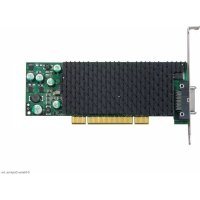
EpicA TC4 - Graphic card MATROX - Free user manual and instructions
Find the device manual for free EpicA TC4 MATROX in PDF.


| Product Type | Professional multi-display graphics card |
| Model | Matrox EpicA TC4 |
| Brand | Matrox Graphics Inc. |
| Dimensions (approximate) | 168 mm x 111 mm (low profile) |
| Weight (approximate) | 200 g |
| Power | Powered by PCI Express bus (25 W maximum) |
| Output connectors | 4 DVI or DisplayPort outputs (depending on configuration) |
| Maximum supported resolution | 1920 x 1200 per output (or higher depending on model) |
| Main features | Multi-display output, extended desktop management, support for DirectX and OpenGL. |
| Electromagnetic compatibility class | Class A (professional use) |
| Standards and certifications | CE, FCC, IC, compliance with directive 89/336/EEC |
| Maintenance and cleaning | Dusting with compressed air without direct contact with components. |
| Safety | Respect epilepsy warnings and standard precautions for video games. |
| Spare parts and repairability | The card is not user-repairable. No spare parts available. |
| General information | Manual available in French and English. Limited to professional use; in residential environments may cause interference. |
Frequently Asked Questions - EpicA TC4 MATROX
User questions about EpicA TC4 MATROX
0 question about this device. Answer the ones you know or ask your own.
Ask a new question about this device
Download the instructions for your Graphic card in PDF format for free! Find your manual EpicA TC4 - MATROX and take your electronic device back in hand. On this page are published all the documents necessary for the use of your device. EpicA TC4 by MATROX.
USER MANUAL EpicA TC4 MATROX
Graphics Solutions for Professionals
Matrox Epica Series
User Guide
10963-301-0111
2008.01.28
Overview
Thank you for purchasing a Matrox Epic graphics card. Your Matrox Epic product is a high performance, low-powered graphics card designed for thin client systems. Matrox Epic server-side software manages your Windows desktop in remote sessions.
Hardware supplied
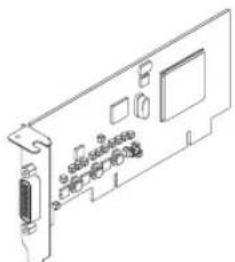
Matrox Epica card (Epica TC2 card shown)
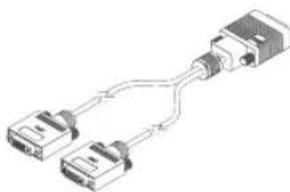
DVI dual-monitor cable*
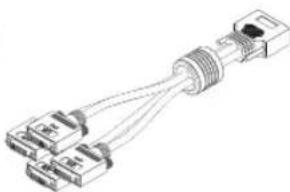
DVI quad-monitor cable†

DVI-to-HD15 adapters
- Included with Matrox Epica TC2 or TC2-Lite products.
† Included with Matrox EpicA TC4 products.
2 adapters included with a dual-monitor cable and 4 with a quad-monitor cable.
Software supplied
Matrox software is available from the Matrox Web site
(www.matrixx.com/graphics/en/finent/products/epica/driverssoftware.php).
Client-side software (Windows 2000/XP/XPe and Linux)
- Matrox display drivers and PowerDesk-SE-to use your Matrox graphics hardware and manage program windows in your local session
- Matrox PowerSpace - to organize your Windows desktop in your local session
Server-side software (Windows 2000/XP and Windows Server 2003)
- Matrox PowerDesk Epic A - to manage program windows in remote sessions
Matrox PowerSpace Epic A -to organise your Windows desktop in remote sessions
Installation overview

Note: If your Matrox product is already partially or fully installed on your computer, some or all the installation information in this guide may not apply to you. However, this information may be useful if you need to reinstall your Matrox product.
To install your Matrox product:
1 Install the Matrox card - see "Hardware installation", page 4.
2 Connect your monitors - see "Connection setup", page 7.
3 Install the software - see "Software setup", page 11.
Hardware installation
This section describes how to install your Matrox card. If your Matrox graphics card is already installed in your computer, skip to "Connection setup", page 7. For information specific to your computer, like how to remove its cover, see your system manual.

WARNING: To avoid personal injury and to prevent damage to your computer or Matrox hardware, turn off your computer, unplug it, and then wait for it to cool before you install your Matrox product and touch any of the internal parts of your computer.
While your computer is turned off but still plugged in, some electrical current is supplied to the motherboard. This current may prevent newly installed hardware from working properly.
Also, static electricity can severely damage electronic parts. Before touching any electronic parts, drain static electricity from your body (for example, by touching the metal frame of your computer). When handling a card, carefully hold it by its edges and avoid touching its circuitry.

Note: Matrox low-profile graphics cards ship with ATX brackets compatible with most systems. If you have a low-profile system, you may need to change the standard bracket on your graphics card to a low-profile bracket. For more information, see "Replacing brackets on a low-profile graphics card", page 6.

Note: Server only - If you're not installing a Matrox graphics card on your server, skip to "Server-side software setup", page 12.
1 Open your computer and remove your existing graphics card *
If a graphics card isn't already installed in your computer, skip to step 2.
a Using Add/Remove Programs in the Windows Control Panel, remove any currently installed display drivers. Restart your computer for the changes to take effect.
After your computer restarts, you're prompted to install drivers for the new graphics hardware detected. ClickCancel.
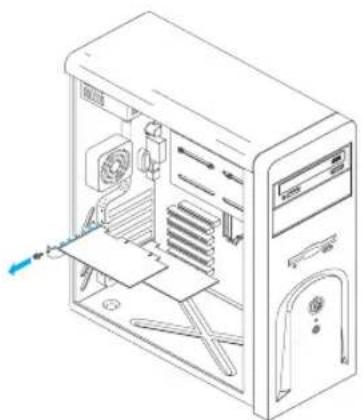
b Turn off your computer and all peripherals such as your monitor or printer.
c Open the computer and remove your existing graphics card. (If graphics hardware is built into the motherboard of your computer, you may need to disable it manually. For more information, see your system manual.)
2 Choose a PCI slot
Most computers have different types of expansion slots. Choose a PCI (not PCI Express) slot for your graphics card. Your card supports both 64-bit and 32-bit PCI slots. Your system manual should identify the location of each type of expansion slot in your computer.
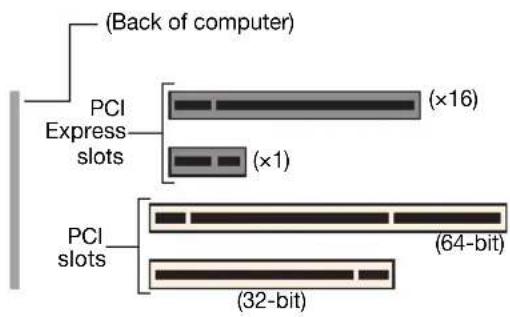

Note: If you're using a PCI graphics card in a PCI 64-bit compatible slot, your choice of PCI slot may affect your card or system performance. For more information, see your computer manual.

WARNING: Inserting your Matrox card into the wrong type of slot could damage your card, your computer, or both.
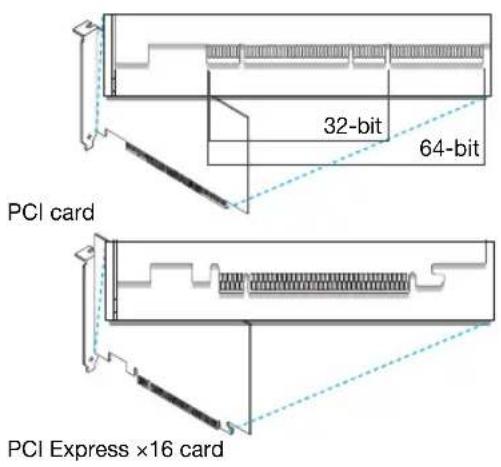
If you have a PCI card and the versions (32- or 64-bit) of your card and PCI expansion slot are different, only part of the card's edge connector (the part closest to the bracket) or expansion slot (the part closest to the back of the computer) should be used.
3 Insert your Matrox card
a Position your Matrox card over the expansion slot you've chosen.
b Push the card in firmly and evenly until it's fully seated in the slot.
c Secure the bracket of your Matrox card to the computer frame.
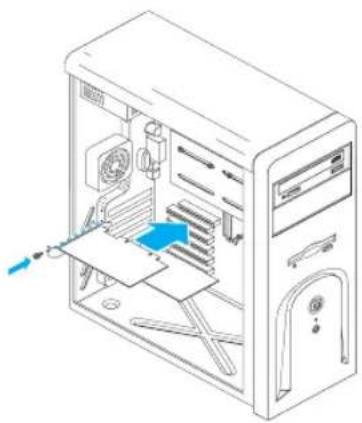
Your Matrox card is now installed.Before restarting your computer, connect your monitor or monitors ("Connection setup", page 7).After connecting, restart your computer and install your Matrox software (see "Software setup", page 11).
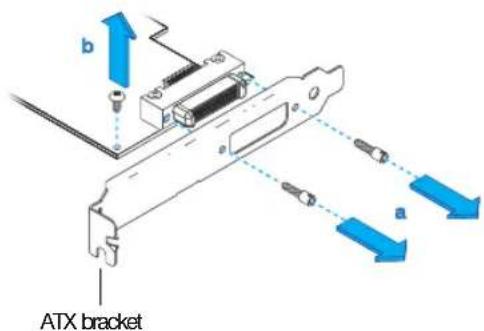
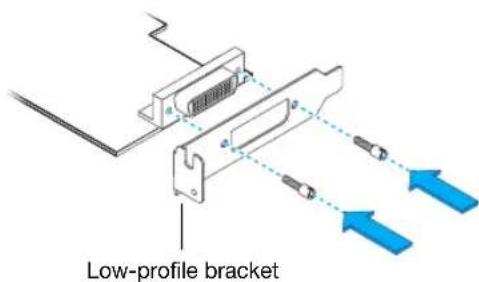
Replacing brackets on a low-profile graphics card
Matrox low-profile graphics cards ship with ATX brackets compatible with most systems. The following explains how to change your standard bracket to a low-profile bracket.
1 Remove the standard bracket from your Matrox graphics card by removing the nuts (a) on either side of the monitor connector. Depending on your Matrox product, you may need to remove a screw (b) on top of the graphics card.
2 Attach and fasten the low-profile bracket with the two nuts you just removed.
Connection setup
This section describes how to connect your monitors to your Matrox product.
Connector overview - EpicA TC2 and EpicA TC2-Lite
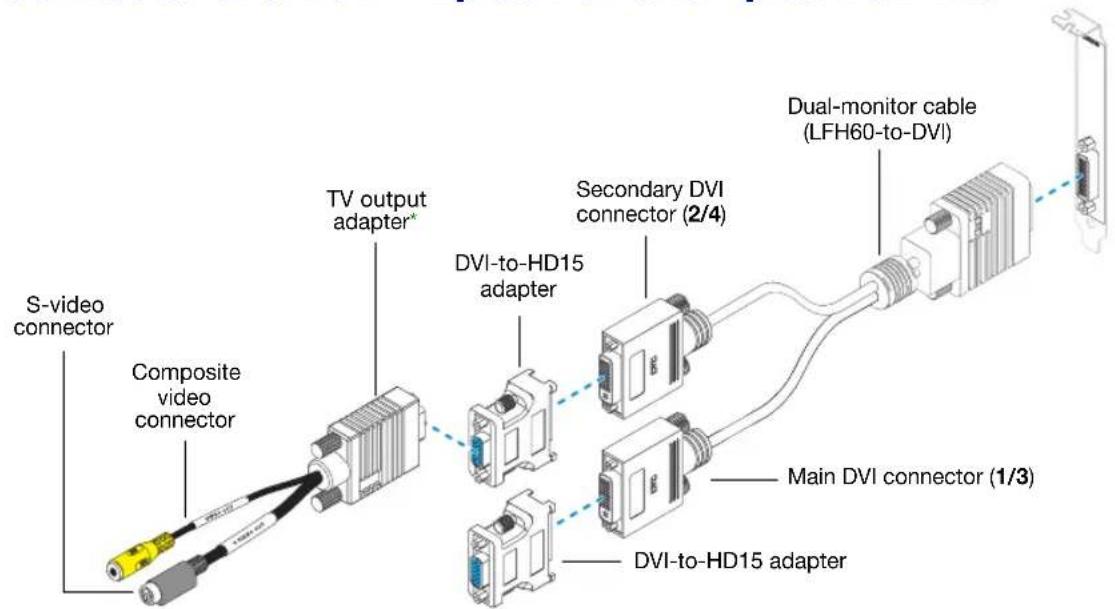
* Supported with EpicA TC2-Lite and EpicA TC2 only. TV output adapters are sold separately (see http://shopmatrox.com).
Connector overview - Epica TC4
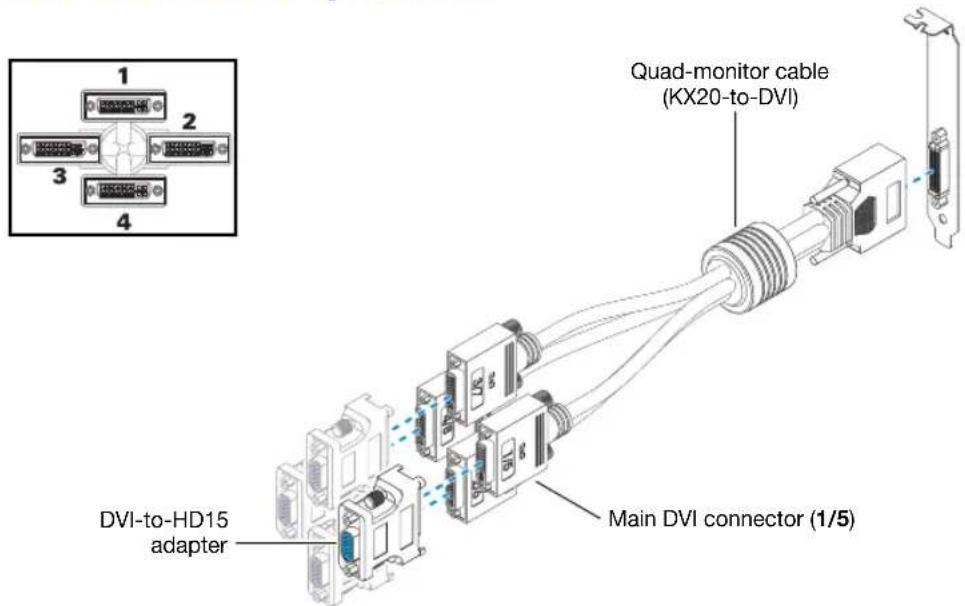
Step-by-step connection setup

WARNING: Don't change monitor connections while your computer is turned on. While your computer is turned on, it may be using monitor settings that are specific to the current monitor connections. Some devices may be permanently damaged if incorrect settings are used.

Note: Whenever you change your connection setup, make sure you're using the correct connectors and that all connectors are properly fastened.
Whenever you restart your computer, make sure your monitors are already turned on. Otherwise, the software may not be able to properly detect your monitors.
1 Attach the dual-monitor cable or quad-monitor cable
Epic TC-2 and Epic TC-2-Lite - Attach your Matrox dual-monitor cable to the connector on the bracket of your Matrox card. Make sure the connectors are properly fastened.
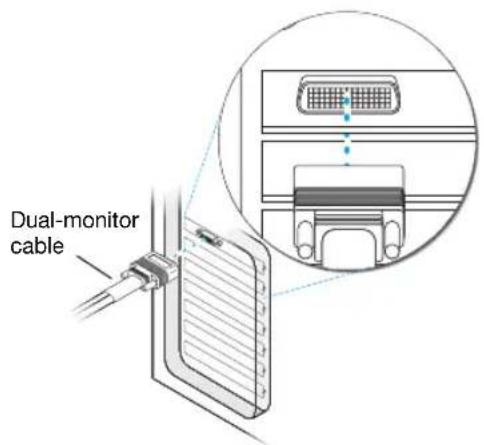

WARNING: To avoid damaging the LFH-60 connector on your dual-monitor cable or on your graphics card, carefully insert the connector on your dual-monitor cable as straight as possible into the connector on your graphics card. Specifically, inserting the connectors into each other at an angle is likely to bend and damage the pins on the connector of the dual-monitor cable.
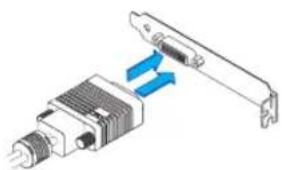
EpicA TC4 - Attach your Matrox quad-monitor cable to the connector on the bracket of your Matrox card. Make sure the connectors are properly fastened.
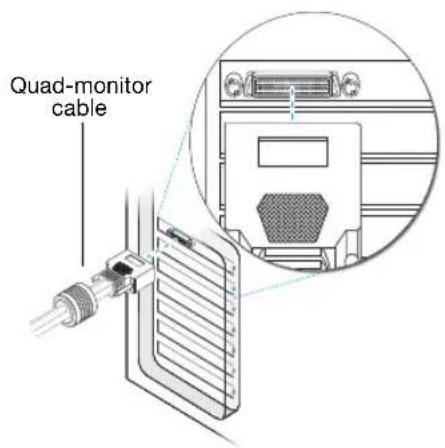
2 Connect your monitors
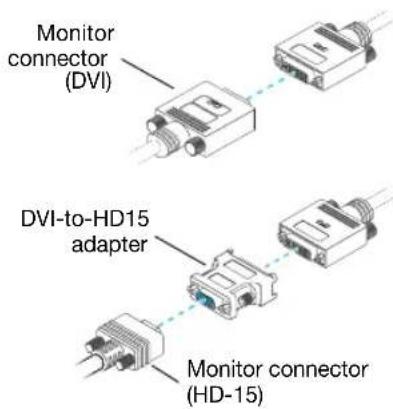
Connect your preferred monitor to the main DVI connector of your multi-monitor cable.
If your monitor has a DVI connector, connect it directly to the main DVI connector of your multi-monitor cable.
If your monitor has an HD-15 connector, use the DVI-to-HD15 adapter included with your product to connect your monitor to the main connector. Make sure the connectors are properly fastened
Your Matrox card is now installed. Restart your computer and install your Matrox software (see "Software setup", page 11).
i
Note: Monitors are numbered consecutively based on which connector each is attached to. Numbering starts with the primary display - the one that first displays information when you restart your computer. If another graphics card is installed in your computer, display numbering may be different.
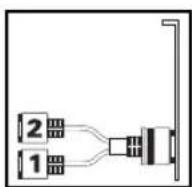
Epica TC2 and Epica TC2-Lite
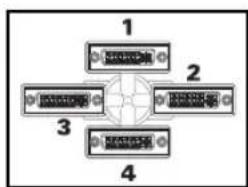
Epica TC4

Note: To connect a digital monitor (a monitor that uses digital input, usually a flat panel monitor) to your Matrox product, your monitor must have a DVI connector.
Some monitors with DVI connectors support both digital and analog input. If you're using one of these monitors with your Matrox product, make sure it's configured to use the correct type of input. For more information, see your monitor documentation.
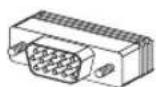
HD-15 connector (analog)
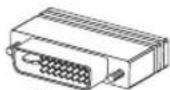
DVI connector
(DVI-D: digital)
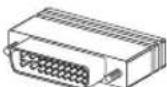
DVI connector
(DVI-I: analog/digital)
Software setup
This section describes how to install Matrox software for Windows 2000/XP/XPe and Windows Server 2003. For the Linux operating system, see the documentation included with your Linux software package.
You may need administrator rights to install certain software. For more information, see Windows documentation or contact your system administrator.
Software overview
Client-side software
- Matrox PowerDesk-SE and display drivers for EpicA
- Matrox PowerSpace (optional)
Supported OS
Microsoft Windows 2000/XP/XPe
Linux
Client-side hardware
Matrox EpicA
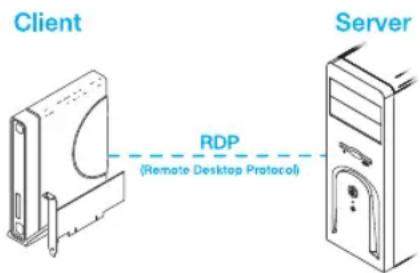
Supported remote protocols
Microsoft RDP
Linux rDesktop
Citrix ICA (Windows only)
Server-side software
Matrox PowerDesk EpicA
Matrox PowerSpace EpicA (optional)
Supported OS
Microsoft Windows XP and Windows Server 2000/2003
Client-side software setup
1 Download your Matrox software package
Download the latest client-side software package for your Epic product from the Matrox Website (www.matrox.com/graphics/en/finent/products/epica/driverssoftware.php). Your software package includes Matrox display drivers and Matrox PowerDesk software.
To run Matrox PowerSpace locally on the client side, download Matrox PowerSpace from the Matrox Web site (www.matrox.com/graphics/support/drivers).
2 Install your software package
Windows detects new hardware when you restart. If Matrox display drivers haven't been previously installed, Windows prompts you to install a display driver. ClickCancel, then run the software package you downloaded.
3 Install Matrox PowerSpace (optional)
Run the Matrox PowerSpace software package you downloaded. While PowerSpace is running on the client side, it organizes your Windows desktop in your local session. Matrox PowerSpace Epica needs to be installed on the server to organise your Windows desktop in remote sessions.
4 Configure your monitor settings (EpicA TC2 and EpicA TC2-Lite)
To take full advantage of your graphics card, make sure you have the correct monitor settings selected in Windows for each of your monitors:
a Right-click your Windows desktop background, then click Properties Settings Advanced Monitor. If you're using a multi-display desktop, select a display before clicking Advanced.
b If "Hide modes that this monitor cannot display" is available, make sure it's enabled. Under Screen refresh rate, select the highest refresh rate listed.
c Click OK OK.
For more information on Windows monitor settings, see Windows documentation.

WARNING: If incorrect software monitor settings are applied, some monitors can be permanently damaged. For more information, see your monitor manual.
5 Set up your display software
Use Matrox PowerDesk software to change certain display settings or access Matrox features. To access PowerDesk, click its icon on your Windows taskbar. To see the PowerDesk icon in Windows XP, you may need to click the Show hidden icons button (on your Windows taskbar. For more information on how to use Matrox PowerDesk, see the online help.
Server-side software setup
1 Download your Matrox software package
Download the latest server-side Matrox PowerDesk Epiα software package for your product from the Matrox Web site (www.matrox.com/graphics/en/finent/products/epica/driverssoftware.php). Make sure you download the proper package for the clients and operating system you want to support.
Download Matrox PowerSpace EpicA if you want PowerSpace to organize your Windows desktop in the remote sessions of your clients.

Note: Matrox PowerDesk and PowerSpace software can be run locally on the server only if Matrox hardware is installed in your server.
2 Install your software package
Run the software package you downloaded and follow the on-screen instructions. For more information, see theREADME file included with your software package.
3 Install Matrox PowerSpace Epica (optional)
Run the PowerSpace software package you downloaded.
TV output (EpicA TC2-Lite and EpicA TC2 only)
If your Matrox product supports TV output, you can use the TV output adapter to connect a video recorder or a TV to your Matrox graphics card. This adapter is only included with certain Matrox products. To purchase a Matrox TV output adapter for your product, see the Matrox online store (http://shopmatrox.com).

This section describes how to use the TV output feature.

Note: TV output isn't supported with full-screen DOS display modes (for example, the information you see before Windows starts) or with standard VGA mode (for example, when you restart Windows in "safe mode"). Older programs may use these display modes. While one of these display modes is in use, your TV displays nothing (black).
Connection setup
1 Turn off computer
Windows 2000/XP- To shut down your computer, click Start Shut Down Shut down OK, then turn off your computer.

WARNING: Don't change monitor connections while your computer is turned on. While your computer is turned on, it may be using monitor settings that are specific to the current monitor connections.
If a display device (monitor, TV, or video recorder) is connected while your computer is using settings intended for another display device, the display of the new device may be garbled or unusable. Some devices may be permanently damaged if incorrect settings are used.
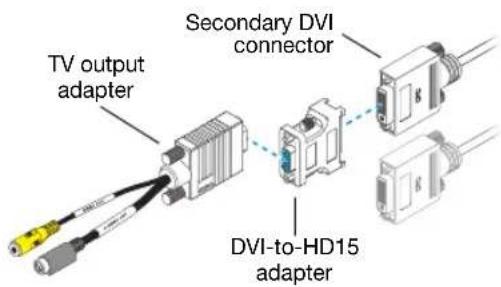
2 Attach TV adapter
Use a DVI-to-HD15 adapter to connect the TV output adapter to the secondary DVI connector (2/4) on your dual-monitor cable.
3 Connect video output
To connect to a TV or a video recorder, you'll need a composite video (RCA) or S-video cable.
If your video device (a TV or a video recorder) didn't come with one of these cables, these types of cable are available at most electronics stores. The type of cable you use depends on what your video device supports. Many video devices support composite video connections, and some higher-quality video devices support S-video connections.
a Attach one end of your composite video or S-video cable to the appropriate connector on your TV adapter.
b Attach the other end to theVIDEO IN* connector on your TV† or video recorder.
c Before viewing or recording video output directly from your computer, make sure your TV or video recorder is set up to use line input. For example, if your TV has a TV/VIDEO switch, set it to Video; or if your video recorder has a TUNER/LINE switch, set it to LINE.
Optionally, if you use the composite video and S-video connectors on your Matrox TV adapter,
you can directly connect two different video devices at the same time.
To view and record output from the same Matrox video connector, you can connect it to a video recorder and connect the video recorder to a TV. For more information, see your video recorder and TV manuals.
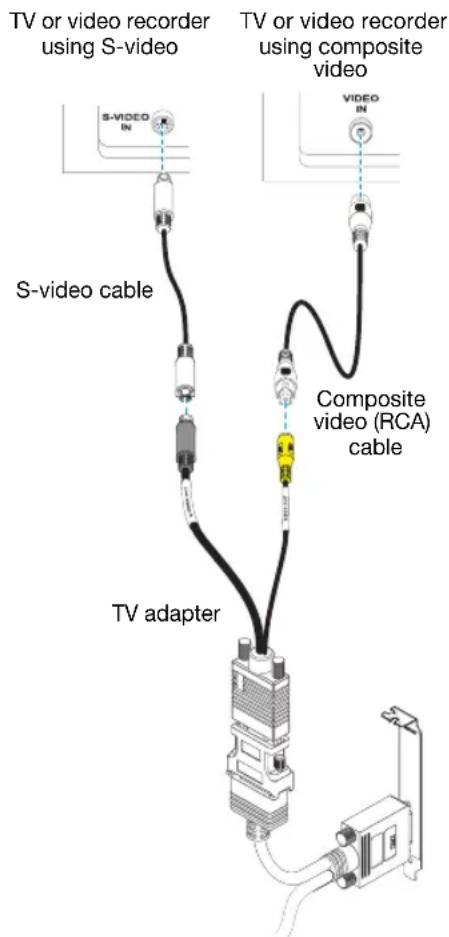
(Note: Using the Matrox composite video and S-video connectors at the same time is optional.)
4 Connect audio output
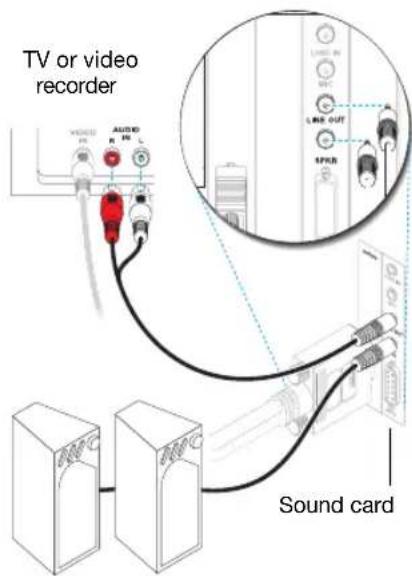
Typically, the sound output from a computer comes from speakers connected to your sound card. If you prefer, you can hear or record the sound output from your computer using the same TV or video recorder you connect to your graphics card. To do this, you need an audio cable with a stereo jack on one end and two RCA connectors on the other end. If you don't have this type of cable, you can buy one at most consumer electronics stores.
Plug the stereo-jack end of the audio cable into the LINE OUT ^* (connector on your sound card.
b Plug the other end of the cable into the left (L) and right (R) AUDIO IN connectors of your video device. For more information, see your sound card manual.
Software setup
If a TV or video recorder is connected to your Matrox product, you can use TV output mode to view or record your display on your TV or video recorder. (To connect video devices to your computer, see page 14.)
TV settings have lower resolutions and refresh rates than typical computer monitor settings. Lower refresh rates may result in more noticeable flicker.
i
Note: Two TV standards are supported for TV output. The NTSC standard is used in North America and Japan, among other places. The PAL standard is used in most of Western Europe and in China, among other places.
If an incorrect TV standard is selected in Matrox software, the output from your computer may not appear or record properly on your TV or your video recorder. To find out what standard your TV or video recorder supports, see its documentation.
Windows 2000/XP - To adjust TV settings, access the Multi-Display Setupdialog box for your Matrox product (see "Set up your display software", page 12).
Troubleshooting
Basic procedures
This section explains basic procedures that are referred to by some troubleshooting items in this guide.
Restarting in VGA mode
Windows 2000/XP- What follows is information on how to restart your computer in VGA mode .
1 Click Start Shut Down Restart OK* to restart your computer. (* Depending on your version and configuration of Windows, this part of the step may not be necessary.) If your primary monitor is unusable, see your system manual for information on how to restart your computer using a hardware control.
2 Before Windows starts, press [F8] for the Windows startup menu to appear. (If [F8] doesn't work, instead try pressing and holding [Ctrl] before Windows starts.)
3 Select "VGA mode", then press [Enter].
Graphics - Main troubleshooting
This section addresses possible problems that could prevent you from using your computer.
Problem Computer doesn't display information or boot after Matrox card is installed
Cause Your Matrox card may not be properly installed.
Solution Make sure your Matrox card is properly installed. Specifically, make sure the card is firmly inserted in its expansion slot and that all connections to it are firmly in place. For more information, see "Hardware installation", page 4.
Cause There may be unsupported graphics hardware in your computer.
Solution If an unsupported graphics card is plugged into an expansion slot, remove it.
Solution If graphics hardware is built into your computer motherboard, your system may not have automatically disabled it when you inserted your Matrox card. Check your system manual for instructions on how to disable your computer's built-in graphics hardware.
Cause Your computer BIOS (Basic Input/Output System) settings may be incorrect.
Solution Change your BIOS settings. For more information on your computer BIOS, see your system manual.
Cause Your computer BIOS may not be up to date. For more information on your computer BIOS, see your system manual.
Solution Reinstall your previous graphics card and, if possible, update your computer BIOS. This can usually be done with software from the manufacturer of your computer. Contact your system vendor or manufacturer to get a BIOS update for your computer.
To get the correct BIOS update, you may need to know the serial number your computer displays when it restarts. (This number is usually in the lower-left corner of the display.)
Problem Wrong color balance, screen image off-center, or no picture at all
Cause Your monitor video controls may be improperly set.
Solution Adjust your monitor controls (brightness, contrast, and so on). For more information, see your monitor manual.
Cause Your monitor may not be properly connected.
Solution Make sure you're using the correct connectors ( see "Connection setup", page 7) and that all connectors are properly fastened.
Solution Make sure the monitor power cable is firmly in place.
Solution Make sure the connection to the back of the monitor is firmly in place.
Cause If display problems occur after the startup screen of your operating system, your software monitor settings may be incorrect.
Solution Make sure correct software monitor settings are selected.
If your primary display is still usable, see " page 12. Otherwise, see the next troubleshooting item.
Solution Windows 2000/XP- Make sure you're not using inappropriate monitor setting customizations:
1 Click the PowerDesk icon (on your Windows taskbar to access the PowerDesk main interface. To see the PowerDesk icon in Windows XP, you may need to click the Show hidden icons button (on your Windows taskbar.
2 Click Monitor Adjustments
3 Select the appropriate device.
4 Click Adjust visible area and refresh rate Restore defaults.
Problem After the startup screen, or after display settings are changed, the screen image is garbled or unusable
(blank screen, rolling or overlapping screen images)
Cause
The Matrox display driver may be trying to use settings your monitor doesn't support. This can happen if a monitor was never selected in the software and the display resolution was changed to one your monitor doesn't support, or if the monitor connected to your computer was changed without changing it in the software.

WARNING: If incorrect software monitor settings are applied, some monitors can be permanently damaged. For more information, see your monitor manual.
Solution
Windows 2000/XP-
1 If your primary display is unusable, restart your computer in VGA mode (see "Restarting in VGA mode", page 17).
2 Right-click your Windows desktop background, then click Properties Settings.
3 Move the Screen area (Windows 2000) or Screen resolution (Windows XP) slider down to its lowest setting, then click OK.
4 Restart your computer normally.
5 Make sure the correct monitor is selected in Windows(see " page 12).
6 Restore your original display settings (see steps 2 and 3).
Cause
Files on your system may have been deleted or corrupted.
Solution
Remove, then restore Matrox software:

Note: Before removing software, make sure you have all the necessary files to reinstall software that may still be needed.

Note: Windows 2000/XP- You may need administrator rights to remove certain software. For more information, see Windows documentation.
Windows 2000/XP-
1 If your primary display is unusable, restart your computer in VGA mode (see "Restarting in VGA mode", page 17).
2 To remove Matrox software, click Start Settings Control Panel Add/Remove Programs (double-click*) Matrox PowerDesk-HF and Driver Change/Remove Yes. (* Depending on your version and configuration of Windows, this part of the step may not be necessary.)
3 Restart your computer for the changes to take effect.
4 After your computer has restarted, install the latest display driver for your Matrox card. You may also need to reinstall other Matrox software.
Graphics - Extra troubleshooting
The following are extra troubleshooting items related to graphics hardware.
Problem Can't use Windows, Windows reports a configuration error, and/or can't install or uninstall Matrox display driver

Note: Windows 2000/XP - You may need administrator rights to install certain software. For more information, see Windows documentation.
Cause The problem may be specific to the motherboard in your computer.
Solution There may be a software update available for your motherboard. To find out what motherboard model your computer is using, see your system manual. For more information, contact the maker of your motherboard or computer. Many motherboard or computer manufacturers have software updates available on their Web site.
Cause Files on your system may have been deleted or corrupted.
Solution Remove, then restore Matrox software. For more information, see page 19.
Problem Monitor settings aren't automatically detected

WARNING: If incorrect software monitor settings are used, your display may become unusable and some monitors can be permanently damaged. For more information, see your monitor manual.

Note: Windows 2000/XP - To check if your monitor settings are properly selected:
1 Right-click your Windows desktop background, then click Properties Settings Advanced Monitor. If you're using multiple displays inindependent mode, select a display before clicking Advanced.
2 If you see the name of your monitor or "Plug-and-Play", your monitor settings are properly selected.
If you see the wrong monitor name or Default monitor, your monitor settings aren't properly selected.
Cause
Your monitor may not be Plug-and-Play. Most new monitors are Plug-and-Play but many older ones aren't. Software can't automatically detect settings for monitors that aren't Plug-and-Play.
Solution
Manually select your monitor settings in the software. For more information, see " page 12.
Cause
If a monitor was changed or added while Windows was running, the new monitor may not be detected by the software.
Solution
Restart your computer. If your monitor is a Plug-and-Play (DDC) monitor, it should be automatically detected by the software.
Problem Using multiple displays under Windows 2000/XP, program doesn't work with main graphics card
Cause
Your main graphics card may not be controlling your primary display. The graphics card that controls your primary display is the one that first displays information when you restart your computer.
A program that doesn't recognize multiple displays may not work with a graphics card unless it's controlling your primary display.
Your computer BIOS (Basic Input/Output System) and the slot type (AGP, PCI, or PCIe - see "Choose a PCI slot", page 5) of each graphics card help determine which graphics card controls your primary display.
Solution
If you're having problems with a program that can be moved on your Windows desktop, run this program on your primary display. Make sure the program window doesn't overlap any other display. If the program doesn't work with the graphics card controlling your primary display, or you want your main graphics card to control your primary display, see the other solutions.
Solution
Change the configuration of your computer BIOS so that the slot type of your main graphics card has priority for becoming the primary display. For information on how to change your computer BIOS settings, see your system manual.
If your computer BIOS doesn't let you select which slot type has priority for becoming the primary display, a BIOS update may be available to let you do this. (The BIOS of most computers can be updated with software.) For a possible BIOS update for your computer, contact your system vendor.
Solution
If there's a graphics controller built into the motherboard of your computer, by changing your computer BIOS settings, you may be able to change which device controls your primary display. For more information, see your system manual.
Solution
If you don't need to use the graphics card that's controlling your primary display, remove it from your computer. If your primary display is controlled by the motherboard of your computer, see your system manual for information on how to disable this graphics controller.
Cause
The program you're using may not work properly with systems using more than one display at a time.
Solution
An update may be available for the program you're using. This update may fix problems this program has with multi-display systems. For more information, contact the software distributor for the program you're using.
Solution
If you're using multiple displays inindependent mode, try using stretched mode instead. Programs that don't work in independent mode may work in stretched mode. For more information, see Matrox PowerDesk help.
Solution
Windows 2000/XP- For advanced users - To use a program that doesn't support multidisplay systems, you can disable all displays other than your primary display:
1 Double-click the PowerDesk icon (on your Windows taskbar to access the PowerDesk main interface. To see the PowerDesk icon in Windows XP, you may need to click the Show hidden icons button (on your Windows taskbar.
2 Click Multi-Display Setup Make sure you're using1 display.
3 Click Start Settings* Control Panel Performance and Maintenance* System (double-click*) Hardware Device Manager. (* Depending on your version and configuration of Windows, this part of the step may not be necessary.)
4 Click the plus sign to the left of the Display adapters.
5 For each display adapter, except for the one controlling your primary display, right-click the name of a display adapter, then click Disable Yes.
i
Note: Your primary display can't be disabled.
6 Restart your computer for changes to take effect.
Note: To restore display adapters, repeat steps 3-5, but click Enable in step 5.
Problem Not all graphics cards in the computer are fully supported
(Software doesn't work with a certain graphics card, or another graphics card doesn't work at all)
Cause If you have different models of graphics cards in your computer, your Matrox display driver may not support all the graphics cards in your computer.
Solution Under Windows 2000/XP, a display driver may support one or more graphics cards. If a display driver doesn't support a certain card, a different display driver must be used for that card. Software that depends on a certain display driver may not work with a graphics card that's not using the same display driver.
Note: If your Matrox product was provided by the manufacturer of your computer, check the Web site of that manufacturer for the latest display driver. A display driver provided by the manufacturer of your computer is more likely to be tested with your computer model.
Solution If a graphics card isn't supported, you may need to remove it. If there's graphics hardware built into the motherboard of your computer that's not supported by your software, see your system manual for information on how to disable this graphics hardware.
Cause Windows 2000/XP - If the Windows method for display driver installation was used (instead of running the setup program included with your Matrox display driver), the driver may not be installed for all the graphics cards it supports.
Solution Run the setup program included with the Matrox display driver. The setup program automatically installs the display driver for each Matrox graphics card it supports.
Problem In multi-display mode, displays aren't numbered consecutively
Cause If you have more than one graphics card in your computer, the display numbering may not be consecutive for the displays of a multiple-display card (for example, a DualHead supporting
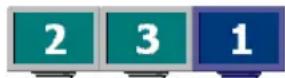
card). Display numbering depends on the types of expansion slots used in your computer (AGP, PCI and PCIe) and the BIOS settings of your computer.
Solution Windows* 2000/XP- Move the displays in Windows.
- Only while using multiple displays in "independent" mode. For more information, see PowerDesk help.)
1 Right-click your Windows desktop background, then click Properties Settings.
2 Select a display and move it according to the physical position of the monitor it's associated with.

Note: In multi-display mode, you may have limited control over the arrangement of your displays. For more information, see Matrox PowerDesk documentation.
Problem Screen image defects appear, program doesn't run properly, or Windows doesn't work properly
(example: mouse pointer not drawn properly)
Cause Some programs may not work properly with some Matrox acceleration.
Solution Disable specific types of software acceleration:
Windows 2000/XP-
1 Double-click the PowerDesk icon (on your Windows taskbar to access the PowerDesk main interface. To see the PowerDesk icon in Windows XP, you may need to click the Show hidden icons button (on your Windows taskbar.
2 Click Help Troubleshooting settings
3 Disable one or more features. For more information, see Matrox PowerDesk help.
4 Click OK or Apply for your changes to take effect. (Depending on the feature you disabled, you may have to restart your computer for the changes to take effect.)
Solution Disable Windows effects:
Windows 2000-
1 Right-click your Windows desktop background, then click Properties Effects.
2 Disable one or more features under Visual effects.
Windows XP -
1 Right-click your Windows desktop background, then click Properties Appearance Effects.
2 Disable one or more features.
Solution If possible, update your Matrox display driver. Matrox makes new display drivers available on the Matrox Web site (www.matrox.com/mga).

Note: If your Matrox product was provided by the manufacturer of your computer, check the Web site of that manufacturer for the latest display driver. A display driver provided by the manufacturer of your computer is more likely to be tested with your computer model.
Solution Windows 2000/XP- Disable Matrox hardware acceleration:
1 Right-click your Windows desktop background, then click Properties Settings Advanced Troubleshooting.
2 Move the Hardware acceleration slider to None.
3 Click OK OK to accept the changes.
Note: If you identify a program that doesn't work well with Matrox acceleration, please contact Matrox technical support (see page 40) and describe the problem. This information may help us come up with a fix or work-around in a future driver release.
Problem Program window or dialog box doesn't appear on screen
Cause Another window or dialog box may be covering the window or dialog box you want to see.
Solution Move, close, or minimize any window or dialog box that may be covering the window or dialog box you want to see.
Cause If you're using multi-display mode, the program window or dialog box may be in a display or on a monitor that's unusable. (For example, your monitor may not be properly connected or configured.)
Solution Make sure all the displays and monitors you want to use are usable. For more information, see other troubleshooting items in this guide.
Cause The software may be using a display you didn't intend to use or the software may be configured to use more displays than the actual number of monitors you have. (For example, you may be in DualHead Multi-Display mode but you only have one monitor.)
Solution Disable the display:
Windows 2000/XP- ( Only while using multiple displays in "independent" mode. For more information, see PowerDesk help.)
1 Right-click your Windows desktop background, then click Properties Settings.
2 Select the display you want to disable, then clear the Extend my Windows desktop onto this monitor check box.
3 Click OK or Apply for your changes to take effect.
Cause The program window or dialog box may be somewhere off-screen.
Solution If the program window you want to see is named on the Windows taskbar, right-click on it and select Maximize. (If you click Restore the program window goes back to its previous position. To fix this problem, see the other solutions.)
Solution Manually move the program window or dialog box:
1 Press [Alt] + [Space].
2 If you see a pop-up menu, click Move. If you don't see a pop-up menu, press [M] (for Move).
3 Press on one of the arrow keys once and move your mouse pointer to where you want the window or dialog box to appear, then click. The program window or dialog box should appear where you clicked.
Solution Windows 2000/XP-
1 Double-click the PowerDesk icon (on your Windows taskbar to access the PowerDesk main interface. To see the PowerDesk icon in Windows XP, you may need to click the Show hidden icons button (on your Windows taskbar.
2 Click Desktop Management.
3 Enable one or more of the following features:
- Open program windows
- Maximize windows
- Center dialog boxes and message boxes
4 Choose where you want the program window or dialog box to appear.
For more information, see Matrox PowerDesk help.
Problem Display on digital monitor appears blurry or uses only a portion of the screen
Cause You may be using a lower display resolution than what your digital monitor supports. If your monitor supports display scaling, the image on your screen may appear blurry. If display scaling isn't supported, the display may use only a portion of your screen.
Solution Select the highest display resolution available. This generally results in better image quality. (While using 2 digital monitors at the same time, certain limitations may apply. For more information, see page 34.)
Video
The following troubleshooting items address problems related to video files.
Problem Video file playback is jerky (skipping frames)

Note: Jerky video file playback may be the result of slow playback or recording. Slow recording causes frames to be dropped (frames aren't recorded). If jerky video is caused by frames that were dropped during recording or by the video settings such as the encoding method, the problem can only be fixed by recapturing the video under better conditions or with different video settings.
Cause
Your hard disk may be too slow.
Solution
Try defragmenting your hard disk. To defragment a hard disk:
Windows 2000/XP- Click Start Programs Accessories System Tools Disk Defragmenter.
Solution
If possible, try using a faster disk.

Tip: If your computer has more than one hard disk, you may get better results if you play back video files from a disk other than the one where the Windows swap file is stored. The Windows swap file is usually stored on drive "C".
Solution
Make sure the drive you're using (a hard disk or DVD drive) is using DMA (if your drive supports DMA transfers). To use DMA:

WARNING: Not all drives support DMA well. For more information, see the documentation that came with your hard disk.
Windows 2000/XP-
1 Click Start Settings Control Panel Performance and Maintenance System (double-click*) Hardware Device Manager. (* Depending on your version and configuration of Windows, this part of the step may not be necessary.)
2 Double-click the IDE ATA/ATAPI controllers list item to expand it, then double-click the name of the appropriate controller.
3 Change each Transfer Mode setting to "DMA if available".
4 Click OK to accept the changes.
Cause Too many programs may be running (using up computer resources).
Solution Close other programs, including memory-resident programs likeSystem Agent.
Cause Your Matrox graphics card may be sharing an IRQ (interrupt request) with another PCI card in your computer (for example, a network card).
Solution Try moving the PCI card to another PCI slot in your computer. For more information, see the documentation for this card or see your system manual.
Problem Mouse pointer flickers or disappears when it's over a video window
Cause You may be using a customized mouse pointer. Windows draws customized mouse pointers in a way that may cause them to flicker or disappear while they're over a video window.
Solution Windows 2000/XP- Use default Windows mouse pointers:
1 Click Start Settings* Control Panel Printers and Other Hardware* Mouse (double-click*). (* Depending on your version and configuration of Windows, this part of the step may not be necessary.)
2 Click the Pointers tab.
3 In the Scheme box, select (or reselect) “(None)”, then click OK.
DVD
The following troubleshooting items address problems related to DVD. (For general video-related troubleshooting items, see "Video", page 27.)
Problem DVD video playback is jerky (skipping frames)
Cause Your DVD drive may be too slow.
Solution If your DVD drive supports DMA transfers, enable this feature (see page 27).
Problem Can't play certain DVD videos
Cause A DVD video may not play back because the region setting on your DVD player doesn't match the region code on the DVD-ROM disc. DVD players and videos use region codes to prevent the playback of video that was intended only for a certain region or market.
Solution To get a copy of a DVD video that's compatible with the region code of your DVD player, contact the vendor of that video.
Problem Can't record DVD video
See "Can't record video with a video recorder", page 31.
TV output
The following troubleshooting items are related to TV output support (see "TV output (Epica TC2-Lite and Epica TC2 only)", page 14).
Problem TV image is garbled or unusable. (blank screen, rolling or overlapping screen images)
Cause Your TV or video recorder may not be properly connected.
Solution Make sure your TV or video recorder is properly connected. For more information, see "Connection setup", page 14.
Cause Your TV or video recorder may not be properly set up.
Solution If a TV is connected to your Matrox graphics card and the TV has a TV/VIDEO switch, set it toVIDEO. For more information, see your TV manual.
Solution If a video recorder is connected to your Matrox graphics card and the video recorder has a TUNER/LINE switch, set it to LINE. For more information, see your video recorder manual.
Cause Matrox software may not be set up for TV output. Particularly, the TV standard selected may not be correct.
Solution Windows 2000/XP- See "Software setup", page 16.
Cause TV output isn't supported with full-screen DOS display modes (for example, the information you see before Windows starts) or with standard VGA mode (for example, when you restart Windows in "safe mode"). Older programs may use these display modes. While one of these display modes is in use, your TV displays nothing (black).
Solution View the program you're using with your computer monitor instead of your TV.
Problem Computer text is hard to read with a TV
Cause The resolution of a TV is lower than a typical computer display. As a result, some text may be harder to read with a TV than with a computer monitor.
Solution Lower your computer display resolution:
Windows 2000/XP-
1 Right-click your Windows desktop background, then click Properties Settings.
2 Move the Screen area (Windows 2000) or Screen resolution (Windows XP) slider to a lower setting.
3 Click OK to close the dialog box and apply changes.
Solution If you're using a display area larger than 640 × 480 , you can use larger system fonts to make some text more readable:
Windows 2000/XP-
1 Right-click your Windows desktop background, then click Properties Settings Advanced General.
2 Under Font size, select Large Fonts.
3 Click OK to close the dialog box and apply changes.
Problem Poor TV or video recorder image quality
Cause Your software TV settings may need adjusting.
Solution See "Software setup", page 16.
Cause There may be too many video devices between your video source and destination, or one or more of the video devices may be degrading the quality of the video signal. Demodulators, long cables, cable extensions and improper connections can all affect video signal quality.
Solution If your video equipment supports it, use S-video connections. For more information, see "Connection setup", page 14.
Solution Try changing one or more video devices.
Solution If possible, use fewer connections. For example, don't use cable extensions.
Cause The image settings on your TV may need adjusting.
Solution Some TVs have an aperture control sometimes called PICTURE. Lowering this setting may reduce this problem. Reducing your TV's brightness setting may also improve image quality. For more information, see your TV manual.
Problem Can't record video with a video recorder
Cause
The video source may be copy protected. Your Matrox product may not let you make copies of copy-protected video. (Some video sources let you make a copy of a video, but you may not be able to make a copy of that copy.)
Solution
To get copies of a copy-protected video, contact the vendor of the video.
Problem Video appears stretched or squished on a TV
Cause
Windows 2000/XP-If you're using the PureVideo/DVDMax feature to view video full-screen on your TV, the aspect ratio of a video may not match the aspect ratio of your TV.
Solution
Adjust software settings:
1 Double-click the PowerDesk icon (on your Windows taskbar to access the PowerDesk main interface. To see the PowerDesk icon in Windows XP, you may need to click the Show hidden icons button (on your Windows taskbar.
2 Click Video Playback Settings PureVideo/DVDMax settings.
3 Select Preserve aspect ratio.
4 Select Detect video aspect ratio based on Video window.
5 Select the aspect ratio of your TV (4:3 or 16:9 - most TVs are 4:3).
6 Click OK or Apply for your changes to take effect.
For more information, see context-sensitive help.
Sound
The following troubleshooting items address problems related to sound cards.
Problem Sound doesn't record, video files play back with no sound, or sound output is distorted or too loud
Cause
If the sound problem is with a particular device (for example, TV or speaker), the volume control on the device itself may need adjusting.
Solution
Adjust the volume control on the device itself.
Cause
Audio cables may be loose or incorrectly wired.
Solution
Make sure your sound card cables are properly connected (see "Connect audio output", page 16).
Cause
Your sound card's Windows software settings may be incorrect. Specifically, input or output may be disabled, or volume levels may be too low or too high.
Solution
Windows 2000/XP- Make sure your sound card's Windows software settings are correct.
1 Double-click the speaker icon (br) on the Windows taskbar.
If you don't see the speaker icon:
Windows 2000
a Click Start Settings Control Panel.
b Double-click the Multimedia or Sounds and Multimedia icon.
c Enable "Show volume control on the taskbar".
d Click OK.
e Double-click the speaker icon on the taskbar.
Windows XP -
a Click Start Settings Control Panel Sound, Speech, and Audio Devices Sounds and Audio Devices (double-click ). ( Depending on your configuration of Windows, this part of the step may not be necessary.)
b Enable "Place volume icon in the taskbar".
Click OK.
d Double-click the speaker icon on the taskbar.
2 Click Options Properties.
3 Click the Recording button, enable all check boxes in the list box, then click OK.
4 For the Line In and/or Microphone controls, make sure the Volume slider levels are okay (if you're not sure, try half level), and the appropriate Select check box is enabled.
5 Click Options Properties.
6 Click the Playback button, enable all check boxes in the list box, then click OK.
7 For the Master, Line, Aux, and/or Wave controls, make sure the Volume sliders are at one-quarter to one-half levels (if you're not sure, try half level), and the Mute check boxes are cleared.
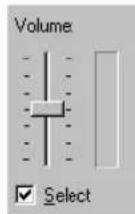
8 Close the dialog box.

Note: Depending on your sound driver, certain labels may be different. For example, Line In may be labeled Line.
Cause The problem may be specific to the sound card you have.
Solution For more information, see your sound card manual.
More Information
We provide additional information in help and Readme files. Be sure to check for any last-minute release notes included with your product. Also, check the Matrox Web site (www.matrox.com/mga) for the latest Matrox software, technical support, and product information.
Display information
- Your Matrox graphics card is 100% VGA compatible and supports all VESA standards: VBE 2.0 (Super VGA modes), DPMS (energy saving), and DDC-2B (Plug-and-Play monitor).
- To get the most of your Matrox product, we recommend using the highest color palette setting (a 32-bit color palette) for all your displays.
If you're using BNC connectors with a Plug-and-Play monitor, the Plug-and-Play feature of your monitor can't be used. To use the Plug-and-Play feature of your monitor, instead of the BNC connectors, use the 15-pin connector at the back of your monitor. - The display resolutions and refresh rates available depend on your Matrox graphics card, display driver, software monitor settings, and monitor. For information on the capabilities of your monitor, see your monitor documentation.
- While using the highest number of displays at a time at the highest resolution, certain limitations may apply. For example, video playback may be limited.
- While using full-screen remote sessions, your maximum display resolution may be different than the maximum of your Matrox graphics hardware.
- Wide screen modes may be available. For more information, contact your Matrox representative.
Epica TC2-Lite
- Your Matrox product supports DualHead features DualHead features control 2 displays at a time.
- While using only 1 display, your Matrox graphics card supports display resolutions up to 2048 × 1536 .
- While using 2 displays at a time, your Matrox graphics card supports display resolutions up to 1600 × 1200 .
The highest display resolution supported for digital monitors is 1280 × 1024 . - While using 2 displays in independent mode, each monitor has its own monitor settings (refresh rates).
Epica TC2
- Your Matrox product supports DualHead features DualHead features control 2 displays at a time.
- While using only 1 display, your Matrox graphics card supports display resolutions up to 2048 × 1536 .
! While using 2 displays at a time, your Matrox graphics card supports display resolutions up to 1920 × 1440 .
The highest display resolution supported for digital monitors is 1920 × 1200 .
! While using 2 displays in independent mode, each monitor has its own monitor settings (refresh rates).
EpicA TC4
! While using Matrox advanced display control with multiple displays in independent mode, monitor settings are shared by pairs of monitors. monitors 1 and 2 have their own monitor settings (display resolution and refresh rates) and monitors 3 and 4 have their own monitor settings (display resolution and refresh rates)
! The highest display resolution supported for analog and digital computer monitors is 1600 × 1200 .
Hardware information
Features
| Matrox Epica TC2-Lite | Matrox Epica TC2 | Matrox Epica TC4 | |
| # of displays supported | 2 | 2 | 4 |
| TV output | ✓* | ✓* | — |
| Display rotation | — | ✓ | ✓ |
| Main RAMDAC 360 MHz 400 MHz 400 MHz | |||
| Secondary RAMDAC | 230 MHz 400 MHz 400 MHz | ||
| Memory 32 MB 64 MB 128 MB | |||
| Memory type | DDR (Double Data Rate) SDRAM | DDR (Double Data Rate) SDRAM | DDR (Double Data Rate) SDRAM |
| Card type PCI PCI PCI | |||
| Form factor Low-profile Low-profile Low-profile | |||
- TV output adapter sold separately (see http://shopmatrox.com).
Environmental specifications
Minimum/maximum ambient operating temperatures: 0 to 55^
Minimum/maximum storage temperature: -40 to 75^
Maximum altitude for operation: 3,000 meters
Maximum altitude for transport: 12,000 meters
Operating humidity: 20 to 80% relative humidity (non-condensing)
Storage humidity: 5 to 95% relative humidity (non-condensing)
Digital monitor information
TMDS (Transition Minimized Differential Signaling) encoding based on the Silicon Image PanelLink standard
- DDWG (Digital Display Working Group) compliant DVI connector
■ EDID (Extended Display Identification Data) 1.2, 1.3 (without the extended data block), and 2.0 support
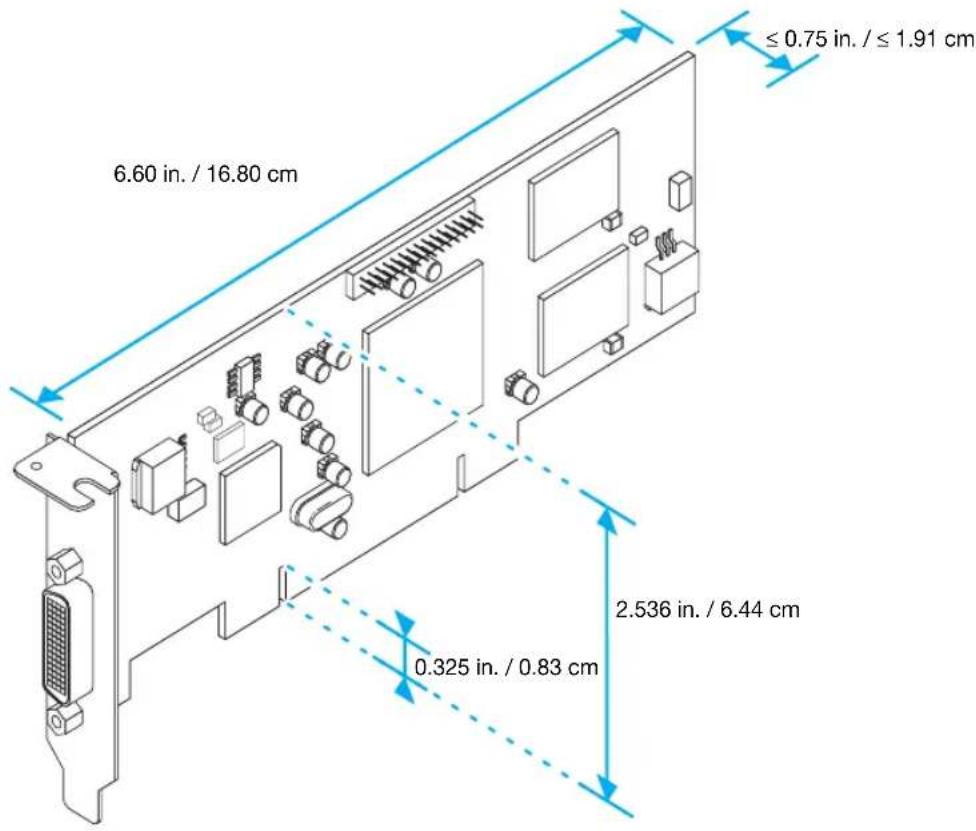
Maximum card dimensions - Matrox Epica TC2-Lite
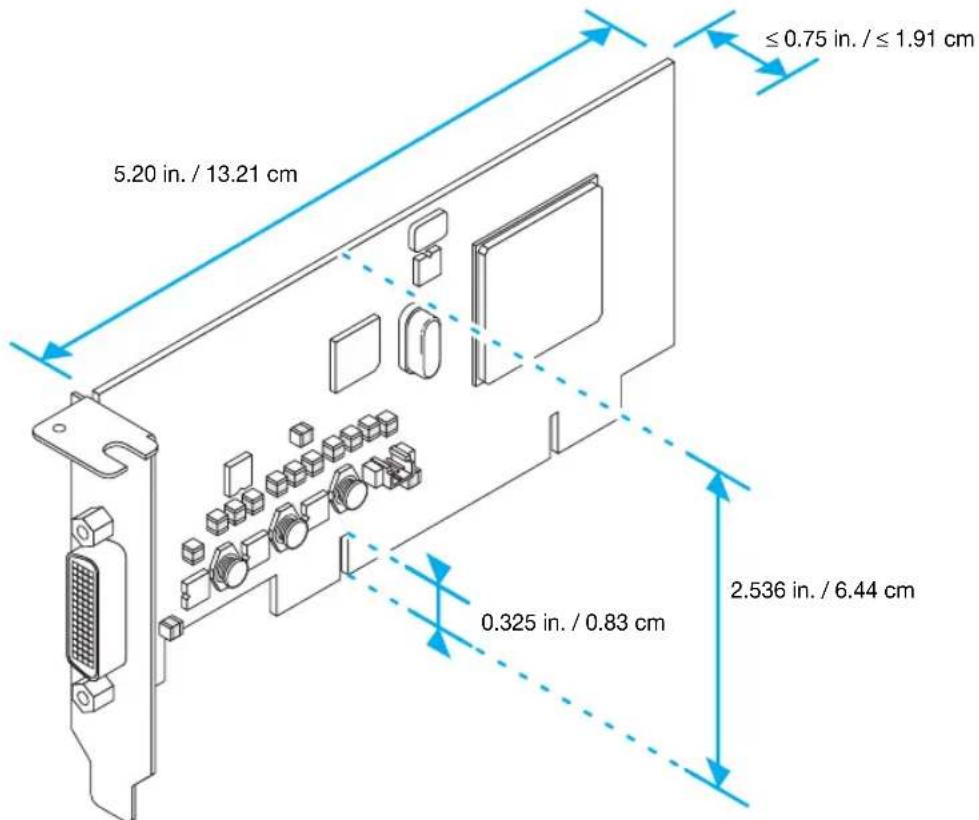
Maximum card dimensions - Matrox Epica TC2
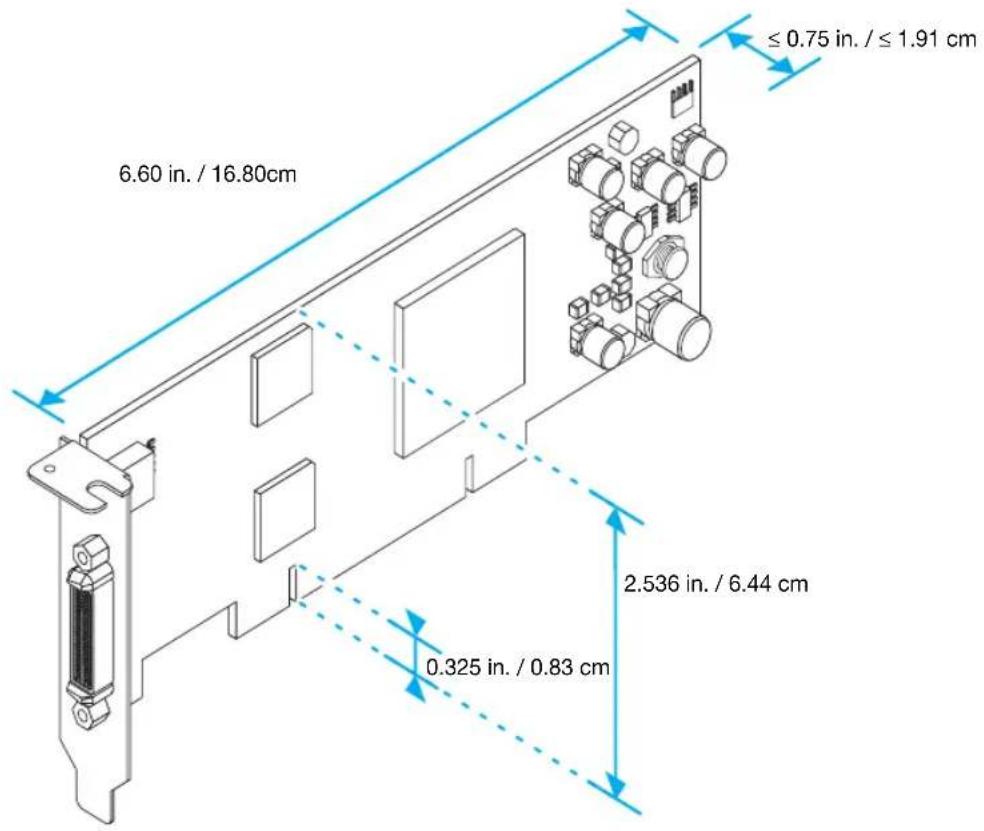
Maximum card dimensions - Matrox Epica TC4
Customer support
Matrox Web
Matrox is on the Internet with a World Wide Web (WWW) site. Our Web site has product literature, press releases, technical material, a sales office list, trade show information, and other relevant material.
- Visit the Matrox Graphics Web site at www.matrox.com/graphics.
E-mail questions or comments regarding the site to webmaster@matrox.com.
If you have a problem
Matrox values your business and offers professional support for your Matrox product. For product support, contact your Matrox representative or visit our technical support Web site at www.matrox.com/graphics/support/.
Information we need
Please give a complete description of the problem, and include:
- Matrox card serial number, model number, revision number, BIOS number, driver type and version, and memory address at which the Matrox card is installed.
Computer brand and model name.
Monitor brand and model name. - Operating system, version, and service pack.
■ Brand and model of any other cards and devices installed on your system.
Program specific problems
If a problem appears with a specific program, please give us the following information:
- Display settings (color palette, display resolution, and so on) applied when the problem occurs.
If possible, take note of the file and segment address that caused the problem.
Detailed steps known to cause the bug, so we can reproduce it.
Where to get information
For system information:
Windows 2000-Right-click the My Computer icon on your Windows desktop background, then click Properties.
Windows 2000/XP-Click Start Programs Accessories System Tools System Information.
- Windows XP/XPe - Click Start Settings* Control Panel Performance and Maintenance* System (double-click*). (* Depending on your configuration of Windows, this part of the step may not be necessary.)
Warranty
A. Limited Warranty Statement
- Matrox Graphics Inc. ("Matrox") warrants to the end-user customer, who provides adequate proof of purchase that Matrox hardware products purchased from Matrox authorized dealers will be free from defects in materials and workmanship for a period of 3 years from the date of purchase. This warranty applies only to the original end-user purchaser and is non-transferable. Conditions and limitations of Matrox's warranty are stated below.
- Matrox's limited warranty covers only those defects which arise as a result of normal use of the hardware and does not apply to any:
a. improper or inadequate maintenance;
b. incompatibilities due to the user's hardware or software applications with or in which the Matrox product interfaces;
c. product of a special or custom-made nature;
d. unauthorized modification or misuse;
e. improper installation, misapplication or negligence;
f. operation outside the product's environmental specifications;
g. improper site preparation or maintenance;
h.software;
i. other causes that do not relate to a product defect;
j. defects or damage suffered as a result of force majeure (including theft);
k. defects or damage suffered as a result of normal wear and tear, and/or
I.stolen goods.
- If Matrox receives, during the applicable warranty period, notice of a defect in a warranted hardware product and the defective Matrox product in question, Matrox shall at its sole option, either repair or replace the product, and shall return the repaired product or a replacement product within a reasonable delay. The replacement product may not be new, provided that it has functionality at least equal to that of the product being replaced.
- This warranty is valid in any country where Matrox hardware products are distributed by Matrox or its authorized dealers.
- This Limited Warranty Statement gives the customer specific legal rights. The customer may also have other rights which vary from state to state in the United States, from province to province in Canada, and from country to country elsewhere in the world.
B. Limitations of Warranty
- NEITHER MATROX NOR ANY OF ITS THIRD PARTY SUPPLIERS MAKES ANY OTHER WARRANTY OF ANY KIND, WHETHER EXPRESSED OR IMPLIED, WITH RESPECT TO MATROX PRODUCTS. MATROX SPECIFICALLY DISCLAIMS (and the customer, by accepting the Matrox product, specifically accepts such disclaimer and waivers) ALL OTHER WARRANTYES, EITHER EXPRESSED OR IMPLIED, INCLUDING BUT NOT LIMITED TO THE IMPLIED WARRANTY OF MERCHANTABILITY AND FITNESS FOR A PARTICULAR OR INTENDED PURPOSE OR USE AND THE WARRANTY AGAINST LATENT DEFECTS, WITH RESPECT TO THE HARDWARE AND/OR SOFTWARE. MATROX FURTHER DISCLAIMS ANY WARRANTY THAT MATROX PRODUCTS, IN WHOLE OR IN PART, WILL BE FREE FROM INFRINGEMENT OF ANY THIRD PARTY INTELLECTUAL PROPERTY OR PROPRIETARY RIGHTS.
- To the extent that this Limited Warranty Statement is inconsistent with the law of the locality where the customer purchases the Matrox product, this Limited Warranty Statement shall be deemed modified to be consistent with such local law. Under such local law, certain limitations of this Limited Warranty Statement may not apply to the consumer.
- To the extent allowed by local law, the remedies provided in this Limited Warranty Statement are the customer's sole and exclusive remedies.
C. Limitations of Liability
- EXCEPT FOR THE OBLIGATIONS SPECIFICALLY SET FORTH IN THE LIMITED WARRANTY STATEMENT, IN NO EVENT SHALL MATROX BE LIABLE FOR:
a. any direct, indirect, special, incidental, consequential, foreseeable or unforeseeable, or punitive damages, whether based on contract, tort, delict or any other legal theory and whether advised of the possibility of such damages, and/or
b. damages arising from the loss of use, data, production revenue and/or profit of in connection with the Matrox product or any business interruption.
- Without prejudice to the foregoing, any liability of Matrox for any breach of warranty shall be limited to the amount paid by the customer for the defective hardware in question.
- To the extent allowed by local law, Matrox's entire liability and the customer's exclusive remedy shall be the repair or replacement of any defective product during the warranty period. Matrox does not offer any other warranty with respect to Matrox hardware or software or any other hardware or software.
- Customer shall be responsible for all applicable taxes, duties and customs fees on any replacement unit, as well as all transport, insurance, storage and other charges incurred on all returned products.
D. Obtaining Service
- Verify that your Matrox product was installed and configured according to the information in its accompanying documentation.
- If you are still experiencing difficulties, please contact your dealer where you purchased your Matrox product.
- If you must return a Matrox product, leave the configuration as it was when you were using it, and leave all identification stickers on the product. Pack the product in its original box and return to your Matrox dealer where the product was purchased, together with your proof of purchase. Your Matrox dealer will return the product for you. Alternatively, if this first option is unavailable to you, you may contact the Matrox Technical Support group who will issue an Return Merchandise Authorization (RMA) number, upon receipt of adequate proof of purchase, and inform you of shipping instructions. DO NOT RETURN THE PRODUCT TO MATROX WITHOUT MATROX'S RMA NUMBER AND EXPRESS AUTHORIZATION.
E. General
This limited warranty shall be governed by the laws of the Province of Quebec, Canada and the federal laws of Canada applicable therein and the courts of the Province of Quebec shall have exclusive jurisdiction to hear and decide any dispute instituted by the customer in connection with this limited warranty; the customer waives, by accepting the product, its rights to institute proceedings in connection with this warranty against Matrox in any jurisdiction other than Quebec.
Software license agreement
Single User Products This Matrox software (the "Software") is copyrighted by Matrox Graphics Inc. All rights are reserved. The purchaser is granted a license to use the software only, subject to the following restrictions and limitations:
- The license is for the original purchaser only, and is not transferable without written permission of Matrox.
- The original purchaser may use the Software on a single computer owned or leased by the original purchaser. You may not use the Software on more than a single computer, even if you own or lease more than one computer, without written consent of Matrox.
- The original purchaser may make back-up copies of the Software for his or her own use only, subject to the use limitations of this license.
-
The original purchaser may not engage in, nor permit third parties to engage in, any of the following:
-
Providing or disclosing the Software to third parties.
- Providing use of the Software in a computer service business, network, time-sharing, multiple CPU or multi-user arrangement to users who are not individually licensed by Matrox.
- Making alterations or copies of any kind in the Software (except as specifically permitted above).
- Attempting to unassemble, de-compile or reverse engineer the Software in any way.
- Granting licenses, leases, or other rights in the Software to others.
- Making copies, or verbal or media translations, of the user's guide.
- Making telecommunication data transmissions of the Software.
Matrox reserves the right to terminate this license if there is a violation of its term or default by the Original Purchaser. Upon termination, for any reason, all copies of the Software must be immediately returned to Matrox, and the Original Purchaser shall be liable to Matrox for any and all damages suffered as a result of the violation or default.
Limited warranty Matrox warrants to you, for a period of 90 days normal use from your date of purchase, that:
- The CD/disks on which the software is furnished and the documentation are not defective.
- The Software is properly recorded upon the CD/disks included.
- The documentation is substantially complete and contains all the information Matrox deems necessary to use the software.
- The Software functions substantially as described in the documentation.
Matrox's entire liability and your exclusive remedy shall be the replacement of any CD/Disks or documentation not meeting these warranties, which is returned to Matrox or an authorized dealer, together with a copy of your paid receipt. The above is the only warranty of any kind, either express or implied, including, but not limited to the implied warranties of merchantability and fitness for a particular use that is made by Matrox on this Licensed Software. In no event shall Matrox be liable to you or to any third party for consequential, special, indirect or incidental damages which you may incur as a result of using the licensed software, including, but not limited to, loss of data, or information of any kind which you may experience.
Index
B
BIOS 21
C
Connection setup 7-10
Connector
KX-20 9
LFH-60 8
Customer support 40-41
D
Display
Information 34
Primary 21
DVD 28
E
Expansion slots 17
G
Graphics
Troubleshooting 17-26
H
Hardware
Acceleration 24
Information 2,36-39
Installation 4-6
1
Installation
Hardware 4-6
Overview 3
L
Low-profile
Bracket 6
M
Monitor
Settings 18-20
Multi-display
Mode 23
P
PCI 5
PowerDesk 12
PowerSpace 12, 13
s
Software
Setup 11-13
Sound output 16
T
Troubleshooting 17-33
DVD 28-29
Extra 20-26
Graphics 17-26
Sound 31-32
TV output 29-31
Video 27-28
TV output
Connection setup 14-16
Display modes 29
Software setup 16
Troubleshooting 29-31
V
VESA 34
VGA 34
W
Warning 4,5,8,12,14,19,20
27
Warranty 42-43
Web, Matrox 40
Thank you for choosing Matrox
Please register online (http://www.matrixx.com/graphics/registration) to be eligible for customer support, new product announcements, and information on special offers and upcoming events.
FCC Compliance Statement

Remark for the Matrox product support by this guide (Matrox EpicA TC2, Matrox EpicA TC2-Lite)
This equipment has been tested and found to comply with the limits for a Class B digital device, pursuant to Part 15 of the FCC Rules. These limits are designed to provide reasonable protection against harmful interference in a residential installation. This equipment generates, uses and can radiate radio frequency energy and, if not installed and used in accordance with the instructions, may cause harmful interference to radio communications. However, there is no guarantee that interference will not occur in a particular installation. If this equipment causes harmful interference to radio or television reception, which can be determined by turning the equipment off and on, the user is encouraged to try to correct the interference by one or more of the following measures: • Reorient or relocate the receiving antenna • Increase the separation between the equipment and receiver • Connect the equipment into an outlet on a circuit different from that to which the receiver is connected • Consult the dealer or an experienced radio/TV technician for help.
WARNING Changes or modifications to this unit not expressly approved by the party responsible for the compliance could void the user's authority to operate this equipment. The use of shielded cables for connection of the monitor to the card is required to meet FCC requirements.
Declaration of conformity of a Class B digital device according to the FCC rules
We, the Responsible Party Matrox, 625 State Route 3, Unit B, Plattsburg, NY 12901 • Telephone: (514) 822-6000 (extension 2026) • Attention: Conformity Group Matrox
Declaration The Matrox hardware products supported by this guide (Matrox EpicA TC2, Matrox EpicA TC2-Lite) comply with Part 15 of the FCC Rules. Operation is subject to the following two conditions: (1) these devices may not cause harmful interference, and (2) these devices must accept any interference received, including interference that may cause undesired operation. Any question regarding this declaration should be forwarded to the above coordinates.
CANADA
(English) Industry Canada Compliance Statement
Remark for the Matrox product support by this guide (Matrox EpicA TC2, Matrox EpicA TC2-Lite) These digital devices do not exceed the Class B limits for radio noise emission from digital devices set out in the Radio Interference Regulation of Industry Canada.
FCC Compliance Statement
Remark for the Matrox product support by this guide (Matrox EpicA TC4) This equipment has been tested and found to comply with the limits for a Class A digital device, pursuant to Part 15 of the FCC Rules. These limits are designed to provide reasonable protection against harmful interference when the equipment is operated in a commercial environment. This equipment generates, uses, and can radiate radio frequency energy and, if not installed and used in accordance with the instructions manual, may cause harmful interference to radio communications. Operation of this equipment in a residential area is likely to cause harmful interference in which case the user will be required to correct the interference at his own expense.
WARNING Changes or modifications to this unit not expressly approved by the party responsible for the compliance could void the user's authority to operate this equipment. The use of shielded cables for connection of the monitor to the card is required to meet FCC requirements.
CANADA
(English) Industry Canada Compliance Statement
Remark for the Matrox product support by this guide (Matrox EpicA TC4) These digital apparatus does not exceed the Class A limits for radio noise emission from digital devices set out in the Radio Interference Regulation of Industry Canada.
VCCI Compliance Statement
Remark for the Matrox hardware products supported by this guide (Matrox EpicA TC2, Matrox EpicA TC2-Lite) This is a Class B product based on the standard of the Voluntary Control Council for Interference from Information Technology Equipment (VCCI). If this is used near a radio or television receiver in a domestic environment, it may cause radio interference. Install and use the equipment according to the instruction manu

VCCI Compliance Statement
Remark for the Matrox hardware products supported by this guide (Matrox EpicA TC4) This is a Class A product based on the standard of the Voluntary Control Council for Interference by Information Technology Equipment (VCCI). If this equipment is used in a domestic environment, radio disturbance may occur, in which case, the user may be required to take corrective actions.
(English) European user's information - Declaration of Conformity

Remark for the Matrox hardware products supported by this guide (Matrox EpicA TC2, Matrox EpicA TC2-Lite) These devices comply with EC Directive 89/336/EEC for a Class B digital device. They have been tested and found to comply with EN55022/CISPR22 and EN55024/CISPR24. In a domestic environment these products may cause radio interference in which case the user may be required to take adequate measures. To meet EC requirements, shielded cables must be used to connect the monitor and other peripherals to the card. These products have been tested in a typical class B compliant host system. It is assumed that these products will also achieve compliance in any class B compliant system.
(English) European user's information - Declaration of Conformity
Remark for the Matrox hardware products supported by this guide (Matrox EpicA TC4) These
devices comply with EC Directive 89/336/EEC for a Class A digital device. They have been tested and found to comply with EN55022/CISPR22 and EN55024/CISPR24. In a domestic environment these products may cause radio interference in which case the user may be required to take adequate measures. To meet EC requirements, shielded cables must be used to connect the monitor and other peripherals to the card. These products have been tested in a typical class A compliant host system. It is assumed that these products will also achieve compliance in any class A compliant system.

(English) A. Apparatus claims of US patent numbers 4,631,603, 4,577,216, 4,819,098, and 4,907,093 licensed for limited viewing uses only. B. This product incorporates copyright protection technology that is protected by method claims of certain U.S. patents and other intellectual property rights owned by Macrovision Corporation and other rights owners. Use of this copyright protection technology must be authorized by Macrovision Corporation, and is intended
for home and other limited viewing uses only unless otherwise authorized by Macrovision Corporation. Reverse engineering or disassembly is prohibited.
Macrovision Corporation. MacrovisionTM
Microsoft Corporation . AeroTM, Direct3D®, DirectDraw®, DirectShow™, DirectX™, Microsoft®, MS-DOS®, PowerPoint®, Windows®, Windows NT®, Windows Server®, Windows Vista™
Silicon Graphics, Inc. . OpenGL
Silicon Image, Inc. PanelLinkTM
U.S. Environmental Protection Agency. Energy Star™
- (English) Registered trademarks are registered in the United States, Canada, and/or other countries. All other nationally and internationally recognized trademarks and tradenames are hereby acknowledged. • (François) Les marques déposées sont déposées aux États-Unis, au Canada et/ou dans d'autres pays. Toutes les autres marques et tous les autres noms déposés reconnus nationalement ou internationally sont également reconnus par les générés. • (Deutsch) Die eingetragenen Warenzeichen sind in den USA, Kanada und/oder anderen Ländern registriert. Alle sonstigen national und international betrachten Warenzeichen und Produktnamen werden hiermit anerkannt. • (Italiano) I marchi registrati sono registrati negli Stati Uniti, in Canada e/o in altri paesi. Tutti gli和其他 marchi registrati e nomi commerciali riconosciuti a livello nazionale e internazionale sono ugualmente riconosciuti qui. • (Espanol) Las MARCAS registradas estarán registradas en los EE.UU., Canadá u otros paises. Por medio del presente se reconocen todas lasdemás MARCAS y nombres commerciales reconocidos a nivel nacional e internacional.
(English) Disclaimer
THE INFORMATION IN THIS GUIDE IS SUBJECT TO CHANGE AT ANY TIME AND WITHOUT NOTICE.
Matrox Graphics Inc. reserves the right to make changes in specifications at any time and without notice. The information provided by this document is believed to be accurate and reliable. However, no responsibility is assumed by Matrox Graphics Inc. for its use; nor for any infringements of patents or other rights of third parties resulting from its use. No license is granted under any patents or patent rights of Matrox Graphics Inc.
Dorval, Quebec, Canada H9P 2T4
North America: 1-800-361-1408
International: (514) 822-6000
Email: graphics@matrox.com
Web site: www.matrox.com/graphics
Technical support:
www.matrixx.com/graphics/support
To locate the sales office nearest you, visit
www.matrox.com/graphics/contact

- Matrox Epica Series
- Overview
- Hardware supplied
- Software supplied
- Client-side software (Windows 2000/XP/XPe and Linux)
- Server-side software (Windows 2000/XP and Windows Server 2003)
- Installation overview
- Hardware installation
- Open your computer and remove your existing graphics card *
- Choose a PCI slot
- Insert your Matrox card
- Replacing brackets on a low-profile graphics card
- Connection setup
- Connector overview - EpicA TC2 and EpicA TC2-Lite
- Connector overview - Epica TC4
- Step-by-step connection setup
- Attach the dual-monitor cable or quad-monitor cable
- Connect your monitors
- i
- Software setup
- Software overview
- Client-side software
- Supported OS
- Client-side hardware
- Supported remote protocols
- Server-side software
- Client-side software setup
- Download your Matrox software package
- Install your software package
- Install Matrox PowerSpace (optional)
- Configure your monitor settings (EpicA TC2 and EpicA TC2-Lite)
- Set up your display software
- Server-side software setup
- Install Matrox PowerSpace Epica (optional)
- TV output (EpicA TC2-Lite and EpicA TC2 only)
- Turn off computer
- Attach TV adapter
- Connect video output
- Connect audio output
- Troubleshooting
- Basic procedures
- Restarting in VGA mode
- Graphics - Main troubleshooting
- Problem Computer doesn't display information or boot after Matrox card is installed
- Problem Wrong color balance, screen image off-center, or no picture at all
- Problem After the startup screen, or after display settings are changed, the screen image is garbled or unusable
- Cause
- Solution
- Graphics - Extra troubleshooting
- Problem Can't use Windows, Windows reports a configuration error, and/or can't install or uninstall Matrox display driver
- Problem Monitor settings aren't automatically detected
- Problem Using multiple displays under Windows 2000/XP, program doesn't work with main graphics card
- Problem Not all graphics cards in the computer are fully supported
- Problem In multi-display mode, displays aren't numbered consecutively
- Problem Screen image defects appear, program doesn't run properly, or Windows doesn't work properly
- Problem Program window or dialog box doesn't appear on screen
- Problem Display on digital monitor appears blurry or uses only a portion of the screen
- Video
- Problem Video file playback is jerky (skipping frames)
- Windows 2000/XP-
- Problem Mouse pointer flickers or disappears when it's over a video window
- DVD
- Problem DVD video playback is jerky (skipping frames)
- Problem Can't play certain DVD videos
- Problem Can't record DVD video
- TV output
- Problem TV image is garbled or unusable. (blank screen, rolling or overlapping screen images)
- Problem Computer text is hard to read with a TV
- Problem Poor TV or video recorder image quality
- Problem Can't record video with a video recorder
- Problem Video appears stretched or squished on a TV
- Sound
- Problem Sound doesn't record, video files play back with no sound, or sound output is distorted or too loud
- More Information
- Display information
- Epica TC2-Lite
- Epica TC2
- EpicA TC4
- Hardware information
- Environmental specifications
- Digital monitor information
- Maximum card dimensions - Matrox Epica TC2-Lite
- Maximum card dimensions - Matrox Epica TC2
- Maximum card dimensions - Matrox Epica TC4
- Customer support
- Matrox Web
- If you have a problem
- Information we need
- Program specific problems
- Where to get information
- Warranty
- Limited Warranty Statement
- Limitations of Warranty
- Limitations of Liability
- Obtaining Service
- General
- Software license agreement
- Index
- B
- C
- D
- E
- G
- H
- 1
- L
- M
- P
- s
- T
- V
- W
- Thank you for choosing Matrox
- FCC Compliance Statement
- Remark for the Matrox product support by this guide (Matrox EpicA TC2, Matrox EpicA TC2-Lite)
- Declaration of conformity of a Class B digital device according to the FCC rules
- CANADA
- (English) Industry Canada Compliance Statement
- VCCI Compliance Statement
- (English) European user's information - Declaration of Conformity
- (English) Disclaimer
Brand : MATROX
Model : EpicA TC4
Category : Graphic card