
Archer TXE50UH - Wireless USB Adapter TP-LINK - Free user manual and instructions
Find the device manual for free Archer TXE50UH TP-LINK in PDF.


| Product Type | Wireless USB Adapter |
| Brand | TP-Link |
| Model | Archer TXE50UH |
| Wi-Fi Standard | Wi-Fi 6 (IEEE 802.11ax) |
| Frequency Bands | 2.4 GHz and 5 GHz |
| Maximum Data Rate | Up to 1200 Mbps (2.4 GHz: 600 Mbps, 5 GHz: 600 Mbps) |
| Interface | USB 3.0 |
| Antenna | Detachable external antenna |
| Wireless Security | WEP, WPA/WPA2, WPA3 |
| Dimensions | 92.5 x 30.2 x 14.4 mm |
| Weight | 35 g |
| Operating Temperature | 0 °C to 40 °C |
| Operating Humidity | 10 % to 90 % non-condensing |
| Supported Operating Systems | Windows 10/11, macOS, Linux |
| Power Supply | Via USB port (5 V / 1 A) |
| Power Consumption | Max 2.5 W |
| Maintenance and Cleaning | Disconnect the adapter and clean with a dry, lint-free cloth. |
| Safety | For indoor use only. Maintain a minimum distance of 5 mm from the body. |
| Spare Parts and Repairability | Not user-repairable. Spare parts available through after-sales service. |
| General Information | Compliant with ISED and FCC standards. Indoor use only for 5 GHz band. |
| Warranty | 3 years (depending on region) |
Frequently Asked Questions - Archer TXE50UH TP-LINK
User questions about Archer TXE50UH TP-LINK
0 question about this device. Answer the ones you know or ask your own.
Ask a new question about this device
Download the instructions for your Wireless USB Adapter in PDF format for free! Find your manual Archer TXE50UH - TP-LINK and take your electronic device back in hand. On this page are published all the documents necessary for the use of your device. Archer TXE50UH by TP-LINK.
USER MANUAL Archer TXE50UH TP-LINK
Chapter 1. Get to Know About Your Adapter
1.1. Product Overview 3 1.2. LED Status 3
Chapter 2. Use the Adapter
2.1. Install Driver 5 2.2. Join a Wireless Network 5 2.3. Uninstall Driver 5
Appendix: Troubleshooting 6
About This Guide
This guide is a complement to the Quick Installation Guide. The Quick Installation Guide instructs you on quick installation, and this guide provides the product overview and detailed instructions for each step.
When using this guide, please note that features available on the adapter may vary by model and software version. They may also vary by region or ISP. All images, steps, and descriptions in this guide are only examples and may not reflect your actual experience.
Conventions
In this guide, the following conventions are used:
| Convention | Description |
| Underlined | Underlined words or phrases are hyperlinks. You can click to redirect to a website or a specific section. |
| Teal | Contents to be emphasized and texts on the web page are in teal, including the menus, items, buttons, etc. |
| ■ Note: | Ignoring this type of note might result in a malfunction or damage to the device. |
| ► Tips: | Indicates important information that helps you make better use of your device. |
† Maximum wireless signal rates are the physical rates derived from IEEE Standard 802.11 specifications. Actual wireless data throughput, wireless coverage, and number of connected devices are not guaranteed and will vary as a result of network conditions, AP limitations, and environmental factors, including building materials, obstacles, volume and density of traffic, and AP location. † Use of Wi-Fi 6 (802.11ax), Wi-Fi 6E, and features including OFDMA, MU-MIMO, Beamforming, 1024-QAM require APs to also support the corresponding features. *Actual network speed may be limited by the rate of the product's USB port, PCI Express Interface, Ethernet WAN or LAN port, the rate supported by the network cable, internet service provider factors, and other environmental conditions. § Functionality of Archer TXE50UH may be restricted on some operating systems and platforms. Please try to update the device's driver for feature compatibility. △ Use of WPA3 requires APs to also support the corresponding feature.
More Info
- The latest driver can be found at the Download Center at https://www.tp-link.com/support.
- The Quick Installation Guide can be found where you find this guide or inside the package of the router.
- Specifications can be found on the product page at https://www.tp-link.com.
- A TP-Link Community is provided for you to discuss our products at https://community.tp-link.com.
- Our Technical Support contact information can be found at the Contact Technical Support page at https://www.tp-link.com/support.
Chapter 1
Get to Know About Your Adapter
This chapter introduces what the adapter can do and shows its appearance. This chapter contains the following sections:
Product Overview - LED Status
1.1. Product Overview
Archer TXE50UH arms your PC with Wi-Fi 6E technology and the brand-new 6 GHz band, unlocking your Wi-Fi 6E router's full potential. The latest band is exclusive to Wi-Fi 6E devices, which prevents drops in speed and interference from legacy devices.‡
- Boost Wi-Fi Reception Range — High-gain antenna and detachable cradle with 1.2-meter cable, flexibly combines with Beamforming technology to concentrate Wi-Fi signal towards your router for better reception and reliable connections from far away.‡
- Ultra-Low Latency — The revolutionary combo of OFDMA and MU-MIMO ensures the most efficient Wi-Fi connection for your PC, reducing latency for faster speeds.‡
- Highly Secure WPA3 — The latest encryption technology eliminates brute-force attacks and provides better security.
- Super Speed USB 3.0 — Experience blazing-fast data transfers with USB 3.0 -the latest USB connectivity standard which is 10x faster than USB 2.0.*
- Flexible Design — The detachable cradle with USB cable allows you to flexibly place the adapter in the most suitable position according to your needs.
LED Status
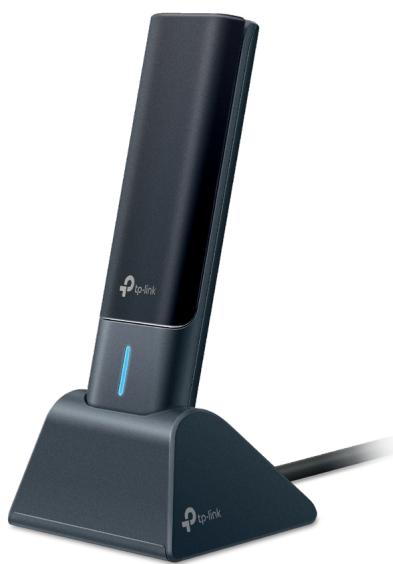
You can check the adapter's working status by following the LED explanation table.
| Status | Indication |
| Stable Blue | The adapter is connected to your Wi-Fi network. |
| Flashing Blue | The adapter is discovering Wi-Fi networks. |
| Off | The driver is not installed. The adapter is not detected. The adapter is not connected to any Wi-Fi. |
Tips:
If the LED is off, try these troubleshooting tips:
- Check if the adapter is recognized and enabled or not. Refer to Appendix: Troubleshooting for detailed instructions.
- Remove and reinsert the adapter.
- Reinstall the software, if necessary.
Chapter 2
Use the Adapter
This chapter introduces how to install your adapter's driver, use your adapter to join a wireless network, and uninstall your adapter in a Windows system. The adapter is equipped with a Setup Wizard, which can guide you through the installation process.
This chapter includes the following sections:
Install Driver - Join a Wireless Network - Uninstall Driver
2.1. Install Driver
1. Insert the CD and run the Autorun.exe.
Notes:
- For some system versions, the drivers will be installed automatically when connected to the internet. If not, please run the driver installation manually.
- You can also download drivers manually from the product's Support page at www.tp-link.com.
2. Select your model and follow the onscreen instructions to install the Wi-Fi driver.
Notes:
- If an unknown publisher message pops up, select Yes to continue.
- If Windows User Account Control requires admin credentials, type user name and password of your Windows administrator account.
2.2. Join a Wireless Network
You can join a wireless network via Windows built-in wireless utility. Follow the instructions below to use your computer system's built-in wireless utility:
Click the Network icon on the taskbar. Select the Wi-Fi network you want to join, and click Connect. Enter the network password when prompted.
2.3. Uninstall Driver
The software uninstallation steps vary a bit from different systems. Here we take the instructions for Windows 10 as an example.
Go to Control Panel > Programs, click Uninstall a program, then double-click TP-Link Archer TXE50UH Driver, then follow the on-screen instructions to complete the uninstallation.
Appendix: Troubleshooting
T1. What should I do if the adapter is not detected?
- Make sure the adapter is securely connected to the computer.
- Make sure you meet the minimum system requirements for the adapter and that the latest Windows and system updates are installed on your computer.
- Make sure you use the latest driver for your specific adapter. The latest drivers can be found at https://www.tp-link.com/download-center. Try a different USB port on the computer.
- Try restarting the computer or try using the adapter on a different computer.
T2. How to check if I have installed the driver for my adapter successfully or not?
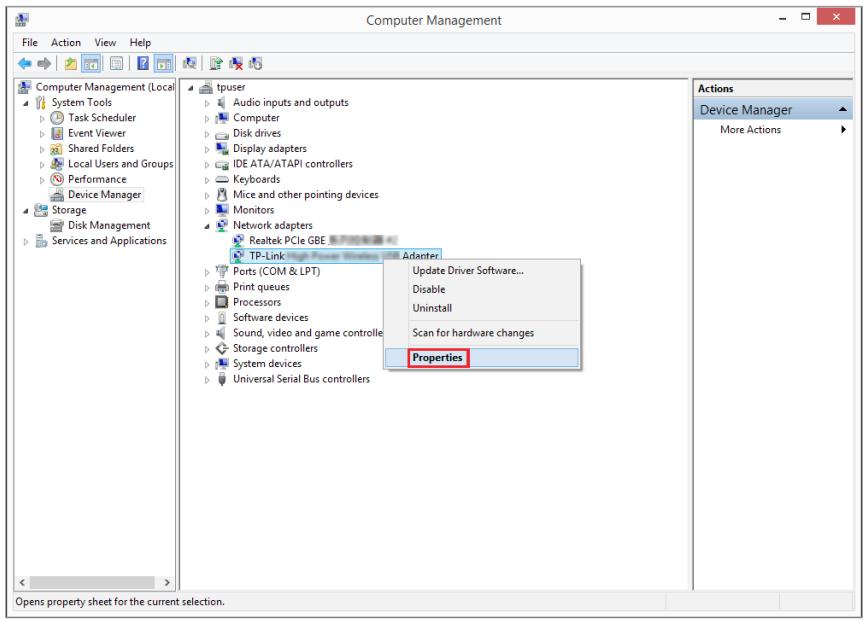
- On your computer, please right-click the Computer icon and go to Manage;
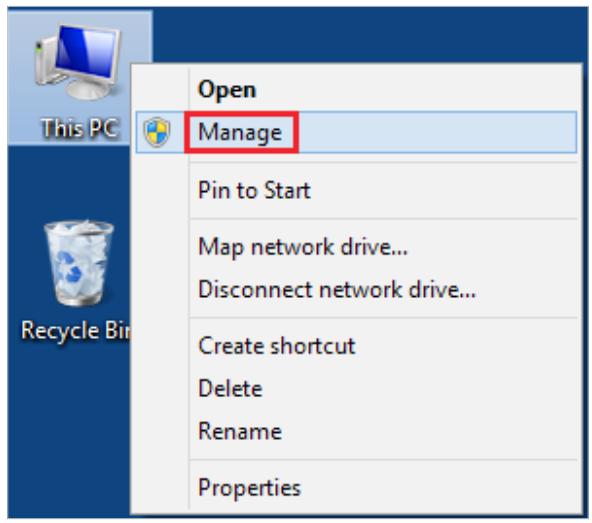
- Open the Device Manager and go to Network adapters, and then find the corresponding TP-Link adapter, right-click it and then go to Properties;
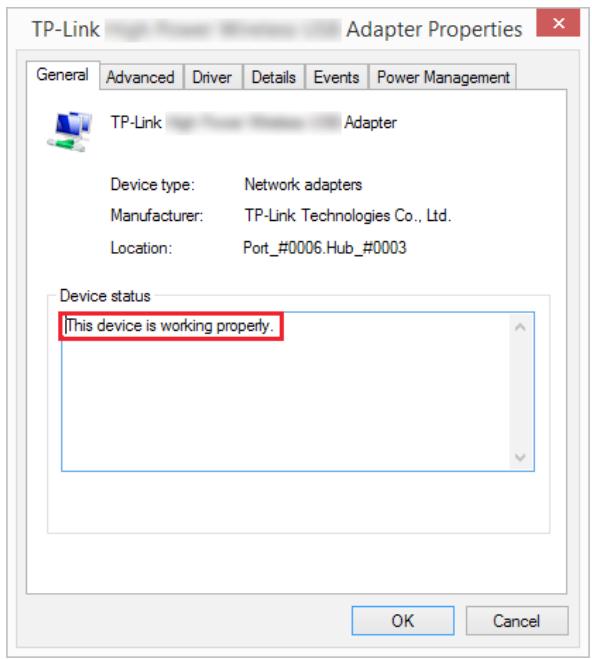
- If you can see "This device is working properly." in the red box, you have already installed the driver successfully.
T3. What should I do if I can't connect to the Wi-Fi after installing the driver?
Refer to T2 to check if you have installed the driver for your adapter successfully. - Make sure the adapter is securely connected to the computer. - Disable the antivirus software and firewall, then try again. - Try a different USB port on the computer. - Restart your computer and try again.
- Re-install the driver and try again.
T4. How to find the hardware version of the adapter?
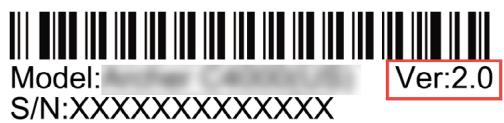
- The hardware version is printed on the product label on the package or the adapter. There is a character string "Ver:X.Y" (for example, Ver:2.0) in the Serial Number field, and the number X is the hardware version of the adapter.
- Visit https://www.tp-link.com/faq-46.html and follow the second method to find the hardware version of the adapter.
For more detailed instructions:
- Can't find the hardware version of the adapter: https://www.tp-link.com/faq-46.html
- Can't find or join the wireless networks: https://www.tp-link.com/faq-2253.html
- Can't install the driver: https://www.tp-link.com/faq-2252.html
FCC compliance information statement

Product Name: AXE3000 High Gain Wireless USB Adapter
Model Number: Archer TXE50UH
Responsible party:
TP-Link USA Corporation
Address: 10 Mauchly, Irvine, CA 92618
Website: https://www.tp-link.com/us/
Tel: +1 626 333 0234
This equipment has been tested and found to comply with the limits for a Class B digital device, pursuant to part 15 of the FCC Rules. These limits are designed to provide reasonable protection against harmful interference in a residential installation. This equipment generates, uses and can radiate radio frequency energy and, if not installed and used in accordance with the instructions, may cause harmful interference to radio communications. However, there is no guarantee that interference will not occur in a particular installation. If this equipment does cause harmful interference to radio or television reception, which can be determined by turning the equipment off and on, the user is encouraged to try to correct the interference by one or more of the following measures:
- Reorient or relocate the receiving antenna.
- Increase the separation between the equipment and receiver.
- Connect the equipment into an outlet on a circuit different from that to which the receiver is connected.
- Consult the dealer or an experienced radio/TV technician for help.
This device complies with part 15 of the FCC Rules. Operation is subject to the following two conditions:
1) This device may not cause harmful interference. 2) This device must accept any interference received, including interference that may cause undesired operation.
Any changes or modifications not expressly approved by the party responsible for compliance could void the user's authority to operate the equipment.
Note: The manufacturer is not responsible for any radio or TV interference caused by unauthorized modifications to this equipment. Such modifications could void the user's authority to operate the equipment.
FCC RF Radiation Exposure Statement:
This equipment complies with FCC radiation exposure limits set forth for an uncontrolled environment. End users must follow the specific operating instructions for satisfying RF exposure compliance. This transmitter must not be co-located or operating in conjunction with any other antenna or transmitter. This equipment has been SAR-evaluated for use in hand. SAR measurements are based on a 5mm spacing from the body and that compliance is achieved at that distance.
FCC regulations restrict operation of this device to indoor use only. The operation of transmitters in the 5.925-7.125 GHz band is prohibited for control of or communications with unmanned aircraft systems.
We, TP-Link USA Corporation, has determined that the equipment shown as above has been shown to comply with the applicable technical standards, FCC part 15. There is no unauthorized change is made in the equipment and the equipment is properly maintained and operated.
Issue Date: 2022.06.30
Canadian Compliance Statement
This device contains licence-exempt transmitter(s)/receiver(s) that comply with Innovation, Science and Economic Development Canada's licence-exempt RSS(s). Operation is subject to the following two conditions:
(1) This device may not cause interference. (2) This device must accept any interference, including interference that may cause undesired operation of the device.
Caution: The device for operation in the band 5150-5250 MHz is only for indoor use to reduce the potential for harmful interference to co-channel mobile satellite systems.
DFS (Dynamic Frequency Selection) products that operate in the bands 5250-5350 MHz, 5470-5600MHz, and 5650-5725MHz.
ISED regulations restrict operation of this device to indoor use only. The operation of this device is prohibited on oil platforms, cars, trains, boats, and aircraft, except that operation of this device is permitted in large aircraft while flying above 10000 feet. Operation of transmitters in the 5.925-7.125 GHz band is prohibited for control of or communications with unmanned aircraft systems.
Radiation Exposure Statement:
This EUT is compliance with SAR for general population/uncontrolled exposure limits in RSS-102 and had been tested in accordance with the measurement methods and procedures specified in IEEE 1528 and IEC 62209. This equipment should be installed and operated with minimum distance 0.5 cm between the radiator and your body. This device
and its antenna(s) must not be co-located or operating in conjunction with any other antenna or transmitter.
Industry Canada Statement
CAN ICES-3(B)/NMB-3(B)
Korea Warning Statements
NCC Notice
Warning!
- Keep the device away from water, fire, humidity or hot environments.
- Do not attempt to disassemble, repair, or modify the device. If you need service, please contact us.
- Do not use the device where wireless devices are not allowed.
- This product can be powered only by computers that comply with Power Source Class 2 (PS2) or Limited Power Source (LPS) of IEC 62368-1.
- This product uses radios and other components that emit electromagnetic fields. Electromagnetic fields and magnets may interfere with pacemakers and other implanted medical devices. Always keep the product and its power adapter more than 15 cm (6 inches) away from any pacemakers or other implanted medical devices. If you suspect your product is interfering with your pacemaker or any other implanted medical device, turn off your product and consult your physician for information specific to your medical device.
Operating Temperature: 0°C to 40°C (32°F to 104°F)
Please read and follow the above safety information when operating the device. We cannot guarantee that no accidents or damage will occur due to improper use of the device. Please use this product with care and operate at your own risk.
Attention: This device may only be used indoors in all EU member states and EFTA countries.
Explanation of the symbols on the product label
Symbols may vary from products.
| Symbol | Explanation |
| □ | Class II equipment |
| □ | Class II equipment with functional earthing |
| ~ | Alternating current |
| — | Direct current |
| ◇●◇ | Polarity of d.c. power connector |
| For indoor use only | |
| Dangerous voltage | |
| Caution, risk of electric shock | |
| VI | Energy efficiency Marking |
| Protective earth | |
| Earth | |
| Frame or chassis | |
| Functional earthing | |
| Caution, hot surface | |
| Caution | |
| Operator's manual | |
| Stand-by | |
| "ON"/"OFF" (push-push) | |
| Fuse | |
| N | Fuse is used in neutral N |
| RECYCLINGThis product bears the selective sorting symbol for Waste electrical and electronic equipment (WEEE). This means that this product must be handled pursuant to European directive 2012/19/EU in order to be recycled or dismantled to minimize its impact on the environment.User has the choice to give his product to a competent recycling organization or to the retailer when he buys a new electrical or electronic equipment. | |
| Caution, avoid listening at high volume levels for long periods | |
| Disconnection, all power plugs | |
| m | Switch of mini-gap construction |
| μ | Switch of micro-gap construction (for US version)Switch of micro-gap / micro-disconnection construction (for other versions except US) |
| ε | Switch without contact gap (Semiconductor switching device) |
- CHAPTER 1. GET TO KNOW ABOUT YOUR ADAPTER
- CHAPTER 2. USE THE ADAPTER
- APPENDIX: TROUBLESHOOTING
- ABOUT THIS GUIDE
- CONVENTIONS
- MORE INFO
- CHAPTER
- GET TO KNOW ABOUT YOUR ADAPTER
- PRODUCT OVERVIEW
- LED STATUS
- TIPS
- USE THE ADAPTER
- INSTALL DRIVER
- INSERT THE CD AND RUN THE AUTORUN.EXE
- NOTES
- SELECT YOUR MODEL AND FOLLOW THE ONSCREEN INSTRUCTIONS TO INSTALL THE WI-FI DRIVER
- JOIN A WIRELESS NETWORK
- UNINSTALL DRIVER
- T1. WHAT SHOULD I DO IF THE ADAPTER IS NOT DETECTED
- T2. HOW TO CHECK IF I HAVE INSTALLED THE DRIVER FOR MY ADAPTER SUCCESSFULLY OR NOT
- T3. WHAT SHOULD I DO IF I CAN'T CONNECT TO THE WI-FI AFTER INSTALLING THE DRIVER
- T4. HOW TO FIND THE HARDWARE VERSION OF THE ADAPTER
- FOR MORE DETAILED INSTRUCTIONS
- FCC COMPLIANCE INFORMATION STATEMENT
- FCC RF RADIATION EXPOSURE STATEMENT
- CANADIAN COMPLIANCE STATEMENT
- RADIATION EXPOSURE STATEMENT
- INDUSTRY CANADA STATEMENT
- KOREA WARNING STATEMENTS
- NCC NOTICE
- EXPLANATION OF THE SYMBOLS ON THE PRODUCT LABEL
Brand : TP-LINK
Model : Archer TXE50UH
Category : Wireless USB Adapter