DP-541 - Printer Dascom - Free user manual and instructions
Find the device manual for free DP-541 Dascom in PDF.


User questions about DP-541 Dascom
0 question about this device. Answer the ones you know or ask your own.
Ask a new question about this device
Download the instructions for your Printer in PDF format for free! Find your manual DP-541 - Dascom and take your electronic device back in hand. On this page are published all the documents necessary for the use of your device. DP-541 by Dascom.
USER MANUAL DP-541 Dascom
This device complies with Part 15 of the FCC Rules. Operation is subject to the following two conditions: (1) this device may not cause harmful interference, and (2) this device must accept any interference received, including interference that may cause undesired operation.
This equipment has been tested and found to comply with the limits for a Class B digital device, pursuant to Part 15 of the FCC rules. These limits are designed to provide reasonable protection against harmful interference in a residential installation. This equipment generates, uses, and can radiate radio frequency energy and, if not installed and used in accordance with the instructions, may cause harmful interference to radio communications. However, there is no guarantee that interference will not occur in a particular installation. If this equipment does cause harmful interference to radio or television reception, which can be determined by turning the equipment off and on, the user is encouraged to try to correct the interference by one or more of the following measures:
Reorient or relocate the receiving antenna.
- Increase the separation between the equipment and the receiver.
- Connect the equipment into an outlet on a circuit different from that to which the receiver is connected.
- Consult the dealer or an experienced radio/TV technician for help.
This equipment complies with Canadian and FCC radiation exposure limits set forth for an uncontrolled environment. This equipment is in direct contact with the body of the user under normal operating conditions. This transmitter must not be collocated or operating in conjunction with any other antenna or transmitter.
Part 15.21 Caution: Changes or modifications not expressly approved by Dascom, could void the user's authority to operate the equipment.
NOTE: The manufacturer is not responsible for any radio or TV interference caused by unauthorized modifications to this equipment. Such modifications could void the user's authority to operate the equipment.
RF Exposure
The SAR limit adopted by FCC is 1.6W / kg averaged over one gram of tissue. The highest SAR value reported to the FCC for this device type complies with this limit. The highest SAR value reported to the FCC for this device type when using in portable exposure conditions is 0.01W / kg .
Canadian Department of Communications Radio Interference Statement
This device complies with Industry Canada license-exempt RSS standard(s). Operation is subject to the following two conditions: 1) this device may not cause interference; 2) this device must accept any interference, including interference that may cause undesired operation of the device. Under Industry Canada regulations, this radio transmitter may only operate using an antenna of a type and maximum (or lesser) gain approved for the transmitter by Industry Canada. To reduce potential radio interference to other users, the antenna type and its gain should be so chosen that the equivalent isotropically radiated power (e.i.r.p.) is not more than that necessary for successful communication. Maximum power output plus maximum antenna gain of the EUT is: 4.5W / m^2 , Limit is 10Wm^2 .
Only dispose of used batteries according to your local regulations. If you do not know your local regulations, the Rechargeable Battery Recycling Corporation (RBRC) is a non-profit organization created to promote recycling of rechargeable batteries. For more information visit www.rbrc.org.
Acknowledgments:
Bluetooth is a registered trademark of Bluetooth SIG, Inc.
Zebra, CPCL and ZPLare registered trademarks of Zebra Technologies
Windows is a registered trademark of Microsoft Corporation
All other trademarks are the property of their respective owners.
© 2017 by DASCOM. All rights reserved.

Read all set up and operating instructions before proceeding with operation. Do not operate in an enclosure unless properly
ventilated. Do not operate near a heat source.

No user-serviceable parts inside. Refer service or repairs to a qualified service professional. Use of genuine Dascom replacement
parts is required to warrant proper, safe operation. Any alteration or modification of this device voids the user warranty and may make the product unsafe to operate. The print head and motors get hot during use. Wait until they cool before touching them. Make certain the printer is disconnected from AC power before removing any covers or performing any required cleaning or maintenance. Connecting this printer to an ungrounded receptacle can result in electrical shock. Never place the printer near inflammable or explosive substances. Do not operate near liquid or spill liquid into the printer at any time.

Specifications are subject to change without notice.
TABLE OF CONTENTS
Introduction 2
Printer Features 3
Quick Start Instructions 4
A. Paper Load 4
B. Battery Installation 5
C. Charge Battery 5
D. Power On 5
E. Control Panel 6
F. Performing a Printer Self-Test 6
Configuration 7
A. Connectivity Parameters 8
B. Image Parameters 12
C. Device Config 13
D. Fonts 15
E. Graphics 16
F. Update Printer Firmware, Upload Files to Printer Memory 17
G. Reset Printer Configuration to Factory Defaults (Safe Mode) 17
Printing Modes 18
A. ASCII Based Print Jobs 18
B. Graphic Based Print Jobs 18
Integrating the Printer into your Business Applications 19
A. Windows Desktop Computers 19
Print Drivers 19
I. USB 19
II. Bluetooth - General 19
III. Bluetooth-Windows 7 and above 19
B. Windows Tablets and Smartphones 20
C. Android Tablets & Smart phones 20
I. Bluetooth 20
D. Apple™ Tablets & Smartphones 21
I. Bluetooth 21
Media 22
A. Standard Media 22
B. Black Mark Media Position 22
Maintenance and Troubleshooting 23
A. Cleaning 23
B. Battery Care 23
I. Getting the Maximum Battery Life 23
II. Charging the Battery 23
III. Additional Battery and Safety Information 24
IV. Testing the Power Adapter and Battery 24
C. Troubleshooting 25
I. General Error Conditions 25
II. Fault Description and Resolution 25
D. Obtaining Service 26
APPENDIX 27
A. Appendix A - DP-541Printer Specifications 27
B. Appendix B - Supplies and Accessories 28
C. Appendix C - Media 29
D. Appendix D - Mounting Options 29
Glossary of Terms 30
Index 32
Thank you for purchasing the Dascom DP-541 Series mobile thermal printer also referred to in this manual as the "DP-541". The DP-541 series prints on special thermal media supplied in roll form up to 4.1 inches wide. All models are equipped with a USB port which supports cabled communications. All models support an optional internal Bluetooth interface. Complete specifications may be found in Appendix A - DP-541Printer Specifications.
The remainder of this manual focuses on preparing the printer for initial use and performing tasks that will be encountered during daily use.
Maintenance and Troubleshooting describes how to maintain the printer for optimal performance and has information on how to diagnose any problems that may occur.
Dascom recommends using genuine Dascom supplied media and accessories. For detailed lists and contact information, please see Appendix B – Supplies and Accessories & Appendix C – Media.
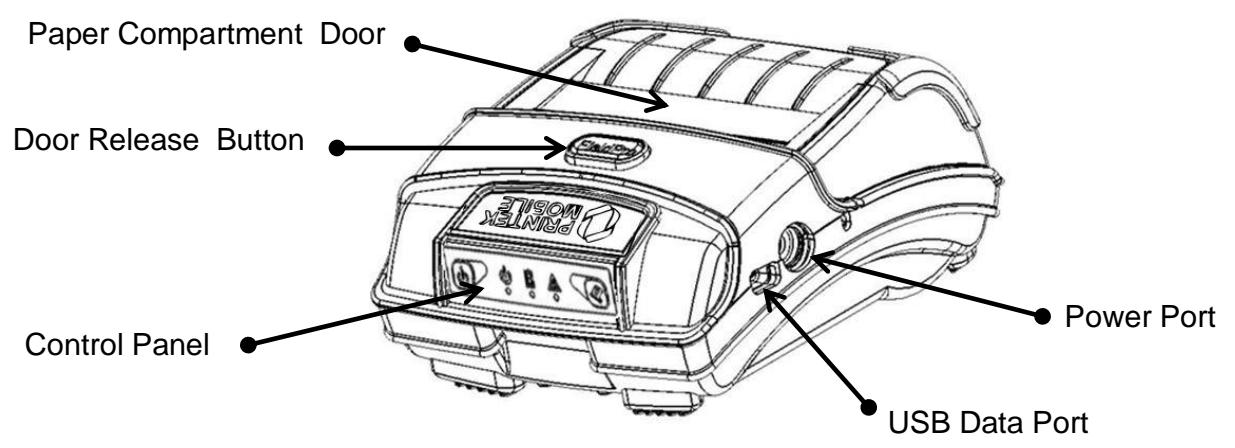
Your DP-541features:
- Easy-to-read control face and simple drop-in paper loading
- Quickly prints a wide variety of tickets, and receipts.
IP54 rated for water and dust resistance... plus rated for repeated 6-foot drops to concrete - Print speeds up to 5 ips
- Extensive fonts, character sets, bar codes and graphic capabilities
- Printer configuration is quick and easy with a web based interface
- The latest in battery technology provides for full-shift printing in all modes
- Compatible with Windows, Windows Mobile, Apple iOS, and Android
- Emulations that allow the printer to be a drop-in replacement for nearly any mobile printer
For detailed specifications reference Appendix A - DP-541Printer Specifications.
A. Paper Load
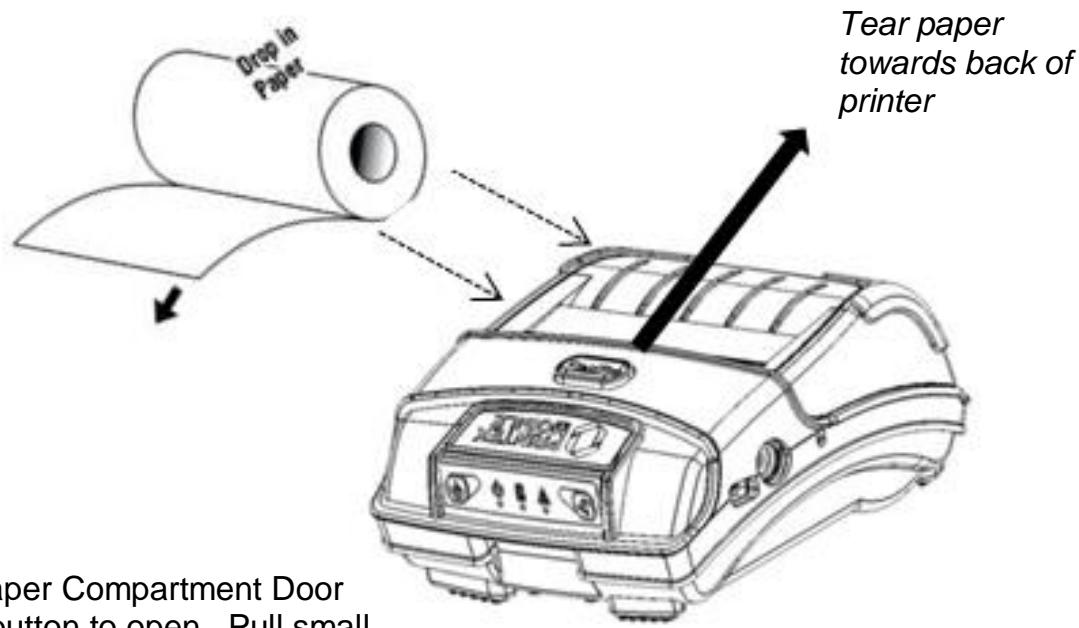
NOTE: When using 3" paper, install spacer P/N: 93194
Press Paper Compartment Door release button to open. Pull small leader of paper out and close door; "clicks" when properly closed.
B. Battery Installation
Press button to see Battery charge level.
4 LED 100% charge
3 LED 75% 2 LED 50% 1 LED 25%
Use Bay Chargers or AC/DC Power Adapter to charge.
Please contact your Printek Sales representative for price and availability.
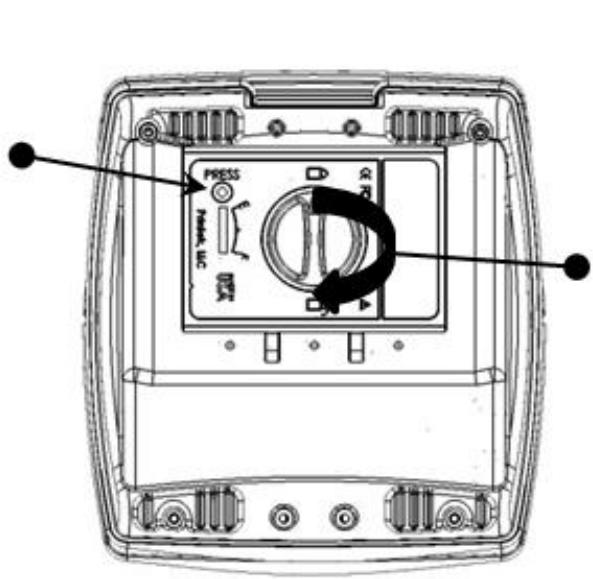
Loosen hand strap (not pictured) to access battery door.
Rotate knob 180^ to unlock battery door.
Drop in battery.
Close battery door and rotate knob 180^ to lock.
C. Charge Battery
Uncover the printer ports and plug in your AC power adapter to the Power port (must be a Dascom-supplied accessory). The yellow LED will show solid ON while the printer battery is charging.
D. Power On
Depress the Power button on the control panel. The green LED and the red LED will both be lit while the printer is going through its startup sequence (about 10 seconds). The red LED will go off, leaving the green LED on to indicate the printer is ready to print.
E. Control Panel
| Control Panel | ||
| Power Button | Power Up Power Down Toggle IP over USB on/off | Press & Release Press & Hold Press twice |
| Paper Feed Button | Advance paper Print Setup Report | Press once Press twice |
| Power & Status (Green/Red) | Battery (Yellow) | Alert (Red) | A | Indication |
| On | Off | On | Booting up | |
| On | Off | Off | Ready | |
| On | Off | Flashing | Paper Error/Lid Open | |
| Flashing | Off | Off | Job is arriving | |
| Flashing | Off | Off | Job is printing | |
| Flashing | Off | Flashing | IP over USB active | |
| Solid, Flashes Off Every 2 Seconds | Off | Off | Wireless Personal Area Network active | |
| Solid Flashing | Charging Battery Battery Low |
F. Performing a Printer Self-Test

With power on, press the paper feed button twice quickly.
Configuration of the DP-541 printer is done through a built-in web page. This allows you to configure the printer from any device that has a browser and is compatible with your DP-541 communication capabilities.
- Turn the printer ON.
- Connect a USB cable between the printer and a PC.
- To access the DP-541 web page, push the Power button twice rapidly. This will put the printer into Configuration mode.
- When the printer is in Configuration mode the POWER and FAULT LEDs will flash together.
a. Open browser on your PC and type 169.254.200.1 into the address bar of the browser and hit Enter - A login box should appear:
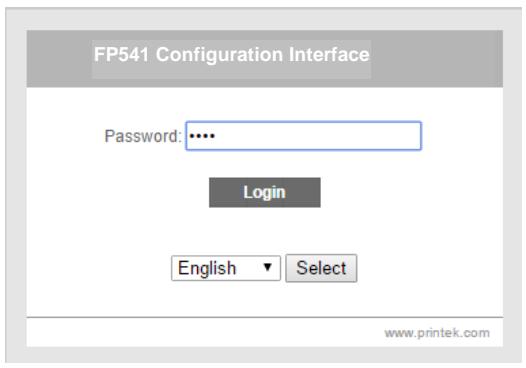
b. Type "0000" and hit Enter- you should now be at the home page for DP-541 Configuration.
- The main configuration screen of the DP-541:
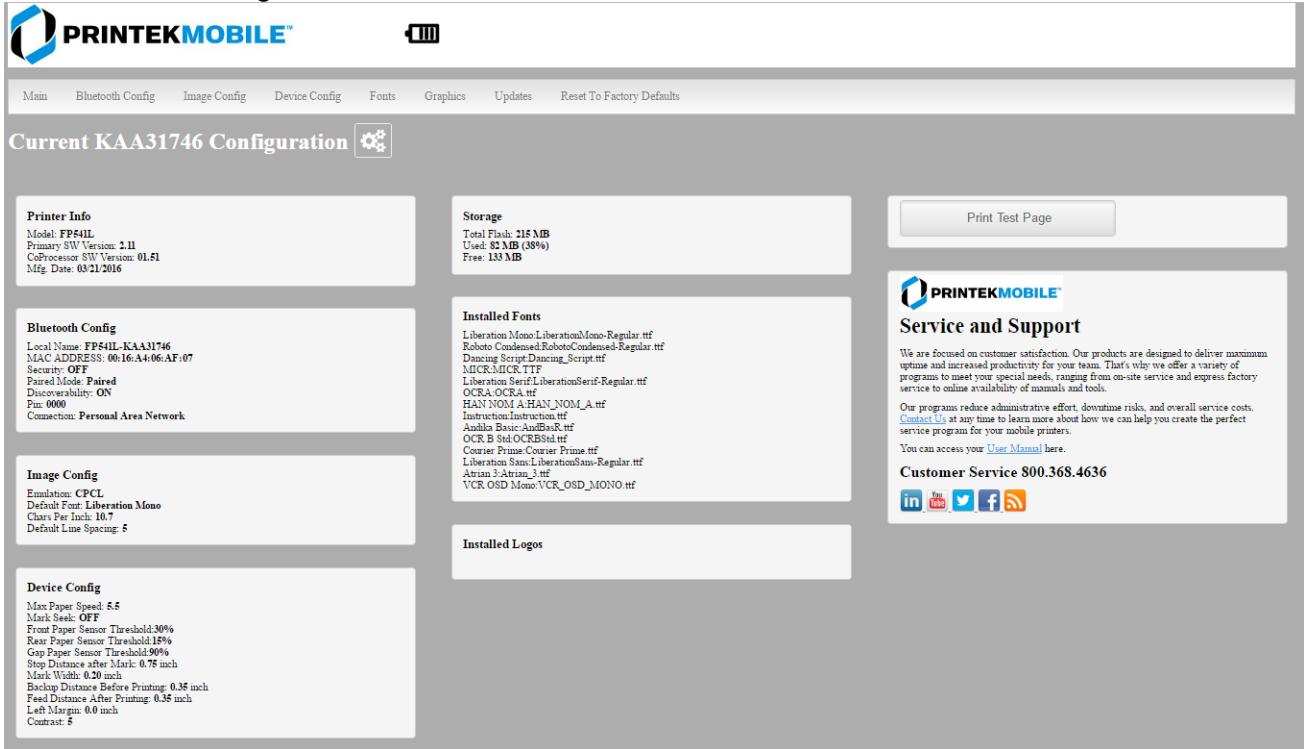
This is an overview of the printer configuration. The battery icon shows the relative charge in the battery. The more bars, the higher the charge. An AC plug will appear in the battery icon when the printer is plugged into an external power source.
To return the printer to normal operating mode, double-click the Power button. The POWER LED will be returned to a solid light.
At the top of the Main Page are selections to access the sub-menus.

Wherever the book icon appears in the printer configuration pages, click it to access the user manual pages for help.
A. Connectivity Parameters
This page allows you to setup the connection to your printer. Depending on the optional interface installed, you will see Bluetooth Config. In the detailed descriptions, an asterisk (*) indicates the factory default value.
Bluetooth Config:
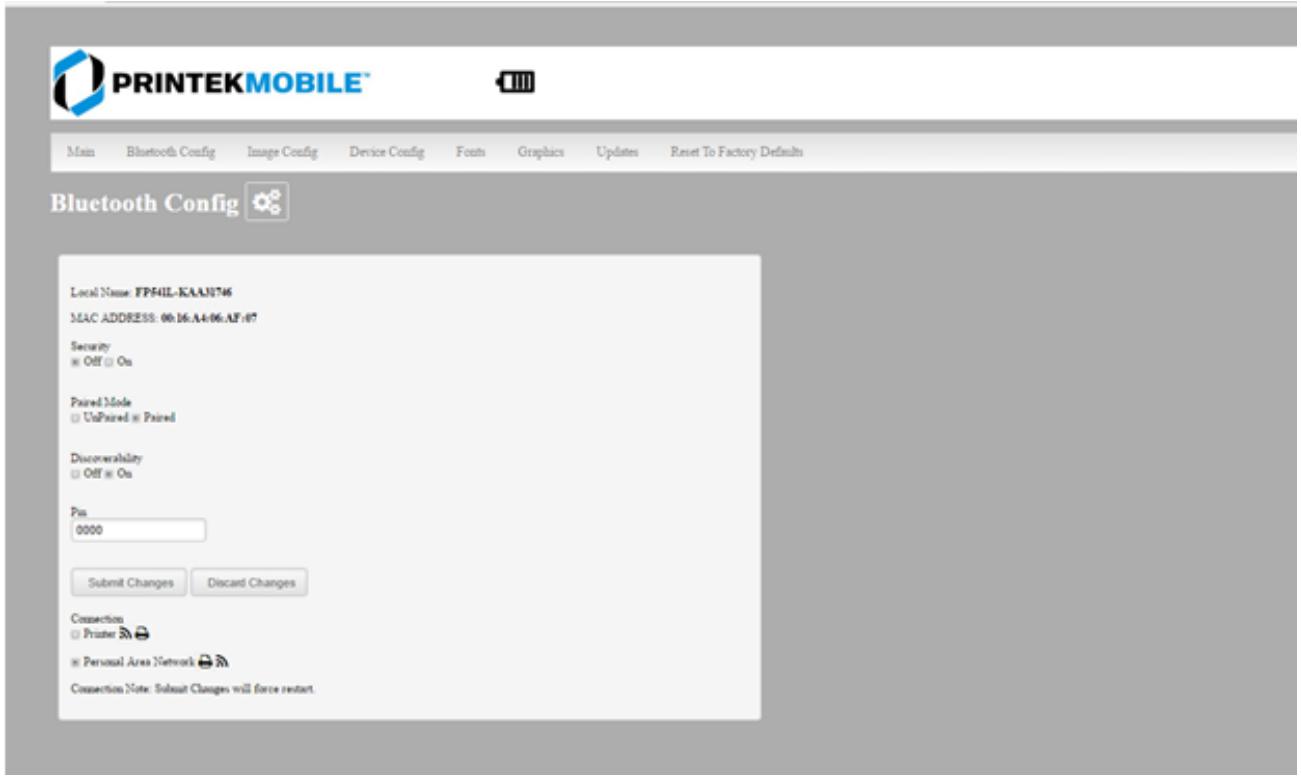
Paired Mode:
Possible values: UnPaired, Paired*
This feature allows Bluetooth pairing to occur between the printer and the connecting device whenever Pairing is required by either device. Pairing requires that the PIN on the printer and the connecting device exactly match each other.
Discoverability:
Possible Values: Off, On*
This feature is used to set whether the printer may be discovered by other Bluetooth devices. It should only be set to "Off" after the printer has been discovered and paired with a host computer.
PIN:
Possible Values: 0000^* , Up to 16 Numeric Characters.
Note that this feature is only available if Pairing Mode is set to "Paired". The PIN value must exactly match the PIN value set in the Bluetooth manager on the host computer.
Connection:
Possible Values: Printer*, Personal Area Network
This feature selects the role of the printer's interface in the Bluetooth network.
In Printer mode, the printer behaves as a regular Bluetooth device.
Personal Area Network mode can also be activated outside of the printer web page.
To enter Personal Area Network mode, press and hold the Power and Paper Feed buttons until the Power and Alert LEDs light. Release both buttons, and the printer will restart in Personal Area Network mode. To exit Personal Area Network mode, press and hold the Power and Paper Feed buttons until the Power and Alert LEDs light. Release both buttons, and the printer will restart in normal Bluetooth mode.
B. Image Parameters
This page allows you to make selections about the image to be printed.
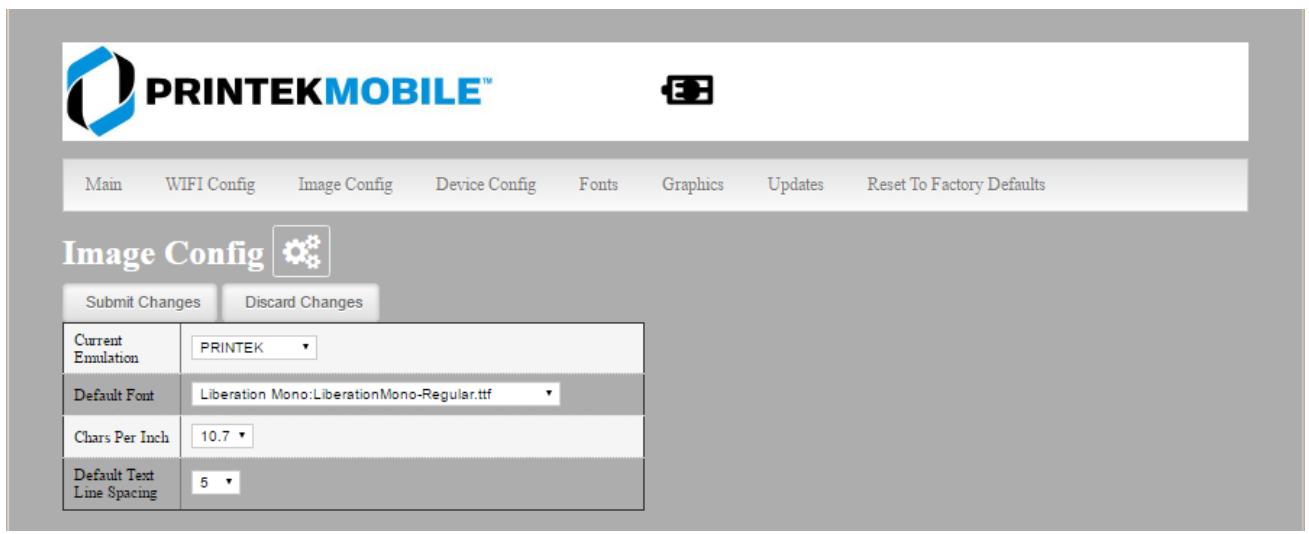
Current Emulation:
Possible Values: ZPL, CPCL, ESCPOS, IPL, AUTOIMAGE, PDF, POSTSCRIPT, IMAGE
The DP-541 printer is capable of using several different emulation modes. This feature sets the family of printer commands that may be used by a host application program to control the various capabilities of the printer. The printer will only respond to commands valid for the currently selected emulation. For more information, please refer to the Integrator's Guide.
Besides the popular printer languages to choose from, the following selections allow the DP-541 to print many other file formats directly, without the need for a driver.
AUTOIMAGE - selected when mixed PDF and POSTSCRIPT images are sent to the printer. The printer will determine which type of file has been sent. This can increase printer response time.
PDF - When in this mode the printer will directly print Portable Document Files (PDF).
POSTSCRIPT - When in this mode the printer will directly print Postscript formatted files (.ps). You can also use a generic Postscript driver to print when in this mode.
IMAGE - selected if just image files are being sent to the printer. When in this mode the printer will directly print the following file types: .png, .jpg, .bmp, .pbm, .svg, .tiff
Default Font:
The DP-541 has the ability to use True Type Fonts. All True Type Fonts loaded into printer memory are listed here. When using emulations that do not specify the font for each line of text, select the font you would like to use as the default font. All print jobs will use the default font unless a command is sent to the printer to use another font.
Chars Per Inch and Default Text Line Spacing:
This determines how large the characters are and how many characters will print in a one inch space. The higher the number, the greater the number of lines per vertical inch of print.
C. Device Config
This page allows you to set certain hardware parameters on the printer.

Login Password
This allows the printer webpage password to be changed.
Units
Select between inches or millimeters. If you change units, do so before entering other settings.
Max Paper Speed
Possible values: 1.0 to 5.0 ips, Default = 5.0
When using labels or heavy paper stock, you may need to decrease the paper speed to prevent paper jams.
Mark Seeking
Possible values: Off*, Front, Rear, Gap. (Note: Rear and Gap are available only on 541L models). Set the value when using regular or label media with black alignment marks or label media with gaps between the labels
Sensor Brightness
Possible values 0-100%. This displays the reflectivity or light transmission of the media, depending on the setting for Mark Seeking. This value is updated once per second.
Note: Before adjusting black mark thresholds, set Mark Width to match the width of the black mark or label gap on your media.
Front Paper Sensor Threshold
When using paper with a black on the front adjust this setting to insure the paper stops at the black mark.
- With the lid closed and the black mark not over the front paper sensor, note the Sensor Brightness.
- Open the paper lid and hold the paper against the front paper sensor so that the black mark is over the sensor. Note the Sensor Brightness.
- Set Threshold = black mark brightness + ((paper brightness - black mark brightness) / 2) and click Submit Changes. Example: black mark brightness = 10%, paper brightness = 80%. Threshold = 10% + ((80% - 10%) / 2) = 45%.
- Close lid and press paper feed. The paper should stop with the bottom of the form at the tearbar.
Rear Paper Sensor Threshold
This is set the same as the front paper threshold, but using the rear (in lid) paper sensor and the Rear Sensor Brightness.
Gap Paper Sensor Threshold
When using labels without a Black Mark, adjust this setting to insure the label stops at the gap in between labels.
- Remove 2 labels from the backing paper, and close the lid so the backing is over the paper sensor. Note Sensor Brightness for Gap.
- Open the lid and close it so a label is over the paper sensor. Note Sensor Brightness for Gap.
- Set Gap Threshold = label brightness + ((backing brightness - label brightness) / 2) and click Submit Changes.
- Close lid and press paper feed. The paper should stop with the bottom of the form at the tearbar.
Backup Distance Before Printing
Used with Mark Seek. User defined. This is the distance the printer will pull in the paper before starting to print.
Max Mark Search Distance
Used with Mark Seek. User defined. This is the distance the printer will advance paper to seek the mark before displaying a Paper Out condition.
Stop Distance after Mark
Use with Mark Seeking. User defined. This is the distance the printer will advance the paper after the mark is detected.
Left Margin
Setting this value will tell the printer how far from the left edge of the paper to start the print job.
Contrast
Possible values 0 – 10 . Default value is 5
The lower the value the lighter the print. The higher the value the darker the print.
Paper Energy Values
This is a locked value. These settings are supplied by the paper manufacturer. The default settings cover most grades of paper. If you are using non-standard paper consult the paper manufacturer for recommended settings.
Auto Off Timer
Possible values 0 – 1440 minutes. Default value is 60.
This timer will turn the printer off if it has not been used for the time set. Disable this feature by setting the time at 0. The printer will give a 1 minute warning before shutting off.
D. Fonts
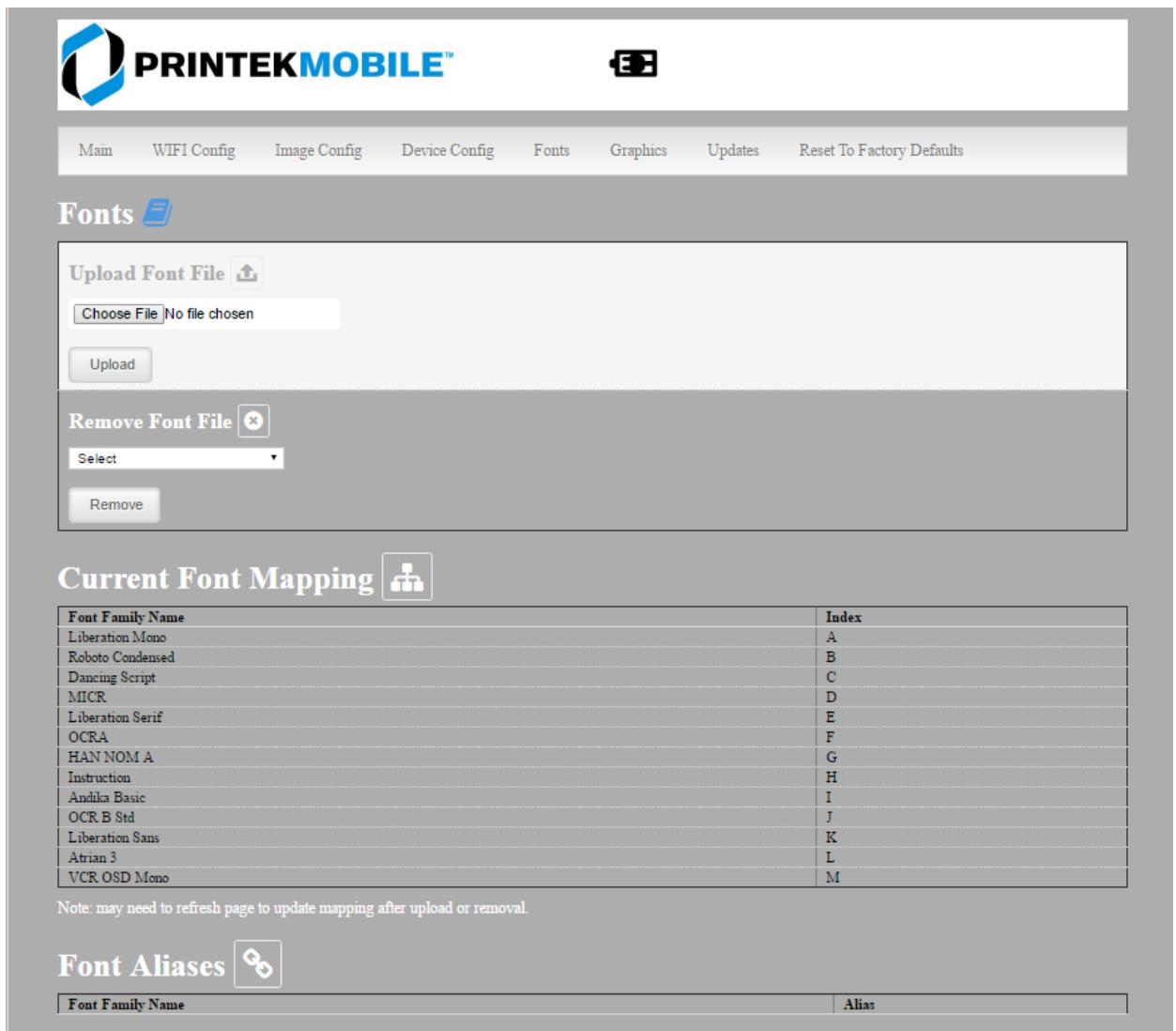
Upload Font File
Truetype Fonts (.ttf, .otf, .ttc and .pdf) can be uploaded here.
Languages like ZPL and CPCL can use the fonts by referring to them by their Font Family Name.
Font Aliases
Languages like ZPL and CPCL can use an uploaded Font Alias Table so legacy jobs can have their font names mapped to other uploaded fonts. Contact Dascom retailer for more information.
E. Graphics
This menu will allow you to load a graphics file into printer memory for use in creating your output. For instance, logos can be stored for recall and use by your host program (see Integrator's Guide for more details).

PRINTEKMOBILE

Main
WIFI Config
Image Config
Device Config
Fonts
Graphics
Updates
Reset To Factory Defaults
Graphics
Upload Logo
Choose File No file chosen
Set
Width
Full
Set
Inde
0
Upload Logo
Remove Logo File

S
Remove Logo

Current Logo Mapping
Logo Name
Index
Note: may need to refresh page to update mapping after upload or removal.
Upload File
Select the graphics file to load into printer memory. Acceptable graphics formats are .jpeg, .pbm, .pcx, .bmp, .png and .svg.
Set Width
Select the width you want to use to display your logo: full width, half width, or quarter width.
Set index
Depending on the Index value used, you can automatically print the graphics file as a header (prints at the beginning of the print job), footer (prints at the end of a print job) or use the graphics print command to print anywhere on your receipt or label. See Integrator's Guide for more information on graphics commands.
When selecting header, the graphics file will automatically print the logo at the beginning of each print job. When selecting footer, the graphics file will automatically print the logo at the end of each print job.
You must set each of these values before selecting Upload Logo or the default values will be associated with your image.
Current Logo Mapping
Once uploaded into the printer memory, your image and settings will be displayed here.
F. Update Printer Firmware, Upload Files to Printer Memory

PRINTEKMOBILE

Main
WIFI Config
Image Config
Device Config
Fonts
Graphics
Updates
Reset To Factory Defaults
Upload Firmware
File must end with .tar
Choose File No file chosen
Upload
This upload will extract and place applications to correct root directory.
Printer Application Updates, OEM information and Manuals and more can be uploaded here. Contact Dascom retailer for more information.
G. Reset Printer Configuration to Factory Defaults (Safe Mode)

PRINTEKMOBILE

Main
WIFI Config
Image Config
Device Config
Fonts
Graphics
Updates
Reset To Factory Defaults
Reset To Factory Defaults

Note: Submit Changes will force restart.
Submit Changes
Discard Changes

Device Config To Factory Defaults

Image Config To Factory Defaults

Network Config To Factory Defaults
Printer settings can be restored to factory configurations.
There are two fundamental printing modes with mobile printers.
A. ASCII Based Print Jobs
The host sends the print job as a series of lines of characters, some of which represent the text to be printed, while other portions are command codes which tell the printer which font to use, where to locate the text, what barcodes to use, etc. These text-based files are encoded in a print language specific to the target printer.
The DP-541 understands ASCII based jobs in several different print languages. Refer to the Appendix or the Integrator's Guide for the list of print languages supported.
B. Graphic Based Print Jobs
The host assembles the printed image as a series of lines of dots, and transmits this image as a sequence of data bytes that represent the dot patterns assembled. Often these jobs or files have some control characters on the front end and / or rear end of the dot pattern bytes to define their format, help control pagination, etc.
Windows drivers in particular encode the image as a graphic based print job before it is passed along to the printer.
In addition to accepting graphic jobs from its Windows driver, the DP-541 can accept and print directly many other graphic image file types. This opens up the option to print job images from a variety of devices for which drivers or print utilities don't exist, such as some tablets and smartphones.
Please see the Integrator's Guide or your system integrator for more details.
A. Windows Desktop Computers
Print Drivers
You may download the appropriate Windows driver from our website. Install the printer driver by the standard method for your version of Windows.
I. USB
a) Install the printer driver onto your host before connecting the printer. Follow prompts displayed during installation.
b) Plug the printer into a USB port on your host system using a mini-USB cable.
c) The printer will appear in the "Unspecified" devices section. Right click on the icon.
d) In the popup window, select the Hardware tab. Note the USB port number displayed.
e) Using the "Add Printer" wizard, install the printer using the driver file obtained from Dascom and the USB port number noted above.
f) After the printer driver installs, the printer will appear as "Dascom 4-inch printer" under the "Printers and Faxes" heading of your Windows "Devices and Printers" screen.
II. Bluetooth - General
a) Turn on printer. Make sure Bluetooth on your host device is turned ON.
b) Your host Bluetooth manager may automatically scan for new devices, or you may need to tell it to scan. The discover name of the DP-541 printer will be “DP-541-XXXXxxx”, where XXXxxxxx = the Printer Serial Number.
c) For Pairing, the default passkey is "0000".
Note: Bluetooth host devices pair after discovery, but only connect to Bluetooth printers when the host application has asked it to print.
III. Bluetooth - Windows 7 and above
a) Turn on printer. Make sure Bluetooth on your host device is turned ON.
b) Open the "Devices and Printers" folder.
c) Select “Add a Device”. The printer will display using the discover name listed above.
d) Select the printer from the list of devices.
e) Select "Enter the Device's Pairing Code". The default pairing code is "0000".
f) A window will display informing you the device was successfully added, and the printer name will appear in the devices list. Close this.
g) Printer now appears under "Printer and Faxes" heading of the "Devices and Printers" screen, as "DP-541-serial #". The icon may show that it is still configuring.
h) Right click on the printer name or icon and select Properties. Select "Services" tab and deselect all items except for "SPP".
i) Now select "Hardware" tab. A virtual com port number will be listed here – make note of this COM Port number. Use this Com Port number when setting up the printer driver, under the "port settings".
j) Install the printer driver. Using the "Add Printer" wizard, install the printer using the driver file obtained from Dascom and the COM port number noted above.
k) After the printer driver installs, the printer will appear as "DP-541-serial#" under the "Printers and Faxes" heading of your Windows "Devices and Printers" screen.
B. Windows Tablets and Smartphones
This feature and/or specific directions for use were not available as of this printing.
C. Android Tablets & Smart phones
I. Bluetooth
a) Turn on printer . Make sure Bluetooth on your host device is turned ON .
b) Your host Bluetooth manager may automatically scan for new devices, or you may need to tell it to scan. The discover name of the DP-541 printer will be “DP-541-XXXXxxx”, where XXXxxxxx = the Printer Serial Number.
c) For Pairing, the default passkey is "0000".
d) The printer should appear in your paired devices list.
Note: Android devices pair after discovery, but only connect to Bluetooth printers when the host application has asked it to print.
D. Apple™ Tablets & Smartphones
I. Bluetooth
This feature and/or specific directions for use were not available as of this printing.
A. Standard Media
Dascom offers a variety of media types. See Appendix C for detailed descriptions and ordering information. You may also visit our website or contact your Dascom Mobile sales representative for a complete and up to date description of our consumables and accessory products.
B. Black Mark Media Position
For automatic ticket printing, the Black Mark should be positioned as shown in the figure below. When using Mark Sensing mode (see Configuration, earlier in this document), FieldPro printers will automatically position the output for tear-off and printing following a Form Feed command or by pressing the Paper Feed button.
For non-automatic paper positioning, refer to the Integrator's Guide for sensing and positioning commands.
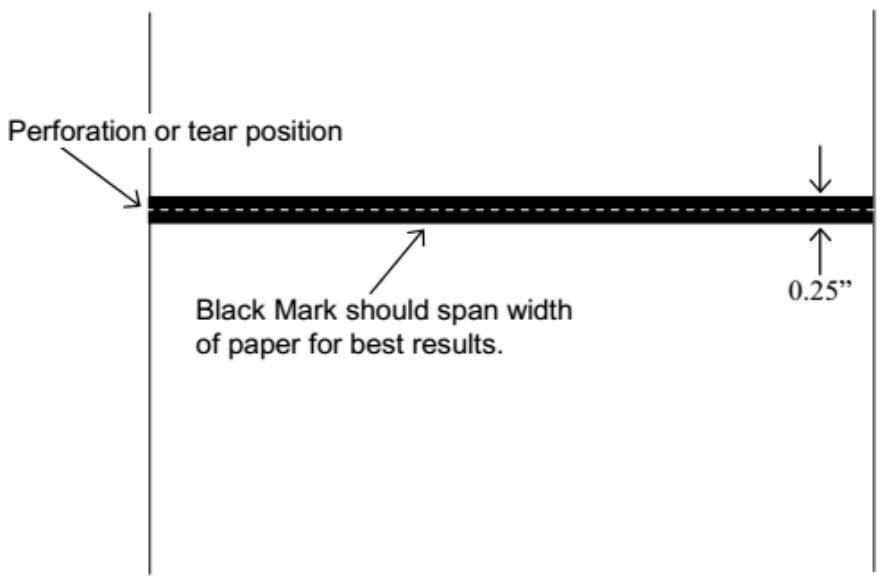
Optimum Black Mark Position
A. Cleaning
In normal environments, the printer should be cleaned after printing a few rolls of paper or if there are voids in the printout. For optimum performance and life, you should clean the Print Head and Platen Roller whenever you load new paper.
To clean the printer areas as described below, use a Thermal Head Cleaning Pen and MCR Cleaning Card available from Dascom, or you may use cotton swabs moistened with isopropyl alcohol.
- Turn the printer off. Open the Paper Door and remove the paper.
Using a Thermal Head Cleaning Pen, clean the white ceramic surface on the Print Head.
Caution: Do not use sharp objects to clean the print head. This may damage the printer and require service. Such damage is not covered under warranty.
- Clean the Black Mark Sensor below the print head.
Clean the Tear Bar. - Clean the Platen Roller. Turn the Platen Roller with your finger to clean the entire surface.
- If a Magnetic Card Reader is installed, pass and MCR Cleaning Card through the MCR slot to clean the head.
You may also experience a buildup of paper dust in the printer. This may be removed using a can of compressed air or by vacuuming.
To clean the exterior of the printer, turn the printer off and use a soft cloth moistened with a mild detergent.
B. Battery Care
I. Getting the Maximum Battery Life
New batteries are shipped in an "uncharged" state and must be charged for at least 4 hours prior to the first use. Maximum battery capacity is not reached until after completing a minimum of three complete charge and discharge cycles.
II. Charging the Battery
- Plug the power adapter into a power source appropriate for the adapter being used.
- Plug the power adapter into the power connector on the side of the printer. The printer's battery charging circuitry will analyze the condition of the battery and begin charging it if necessary.
- If the battery is not fully charged, charging will begin and the Battery Indicator will illuminate.
- When the battery is fully charged, the Battery Indicator will turn off. Charging may take up to 8 hours (4 hours with external desktop charger accessory) depending on the condition of the battery.
-
The printer may be used while the battery is charging, but this will extend the time required to fully charge the battery.
-
The power adapter may remain connected to the printer to keep the battery fully charged and will not cause damage to the printer or battery.
III. Additional Battery and Safety Information
- The DP-541series printers use an 11.25 volt 2950 mAH Lithium Ion battery.
Caution: Risk of explosion if battery is replaced by incorrect type. Dispose of used batteries according to the instructions.
-
The recommended ambient temperature for charging is 68 - 77^ Fahrenheit (20-25° Centigrade).
-
Take the battery out of the printer when storing the printer for long periods of time. The battery storage temperature is 40 - 104^ Fahrenheit (4-40° Centigrade). Do not store a fully charged battery at temperatures above this range for long periods of time or the battery may permanently lose charge capacity.
-
Do not disassemble, short circuit, heat above 80^ , or incinerate the battery. The battery may explode.
-
Only dispose of used batteries according to your local regulations. If you do not know your local regulations, the Rechargeable Battery Recycling Corporation (RBRC) is a non-profit organization created to promote recycling of rechargeable batteries. For more information visit www.rbrc.org.
IV. Testing the Power Adapter and Battery
To verify that the printer's internal battery charger is functioning properly, perform the following steps
- Test the power adapter (100-240VAC/50-60Hz, 12/24VDC adapter) with a voltmeter to verify that its output voltage is 19 VDC.
- Connect the power adapter to a power source and then connect it to the printer.
- Verify that the printer's Battery Indicator is illuminated. If illuminated, the charging circuit is functioning properly.
Note: If the battery is already fully charged, the Battery Indicator may not illuminate.
After the battery has been charged for five minutes, disconnect the power adapter.
Perform a printer Self-Test.
o Make sure the printer is turned off.
Press and hold the Paper Feed Button while turning the printer on.
- If the printer successfully prints the Self-Test, the battery is functional. If the Self-Test does not complete and the printer turns off, repeat this test with a known good battery.
- Once this test has completed successfully, allow the battery to fully charge. At the end of this time the Battery Indicator will turn off.
If the printer and battery do not appear to successfully pass these tests, refer to the Troubleshooting section for possible causes and solutions.
Note: This test only verifies that the power adapter, the internal charging circuit, and the battery are functioning properly. This test does not provide a valid indication of the relative capacity of the battery or how long it may hold a charge.
C. Troubleshooting
When encountering problems, the cause may be the printer or may sometimes be due to other problems with your system. Please review the following tables to solve common problems you may encounter with your printer. You may also visit www.dascom.com for additional “FAQ’s” that may assist you.
If you are still unable to solve your problem, please contact the company from whom you purchased your printer since they are most familiar with your systems.
I. General Error Conditions
Whenever the printer detects an error condition the Alert (red) Indicator will either flash or stay on. In some cases the audible alarm will also sound. Please refer to the following table for a list of what causes these conditions and how they may be corrected.
| Error Indicator | Possible Cause | Solution |
| Flashes | Paper Out or Paper Door not fully closed | Make sure the door is fully closed by opening the door and closing it again until the door “clicks” closed. Check the platen roller for damage. |
| Stays On, With Alarm | Print job too large for printer memory | Divide long documents into individual pages. Printer power must be cycled to clear error. |
II. Fault Description and Resolution
| Problem | Possible Cause | Solution |
| Printer will not turn on. | Battery not installed properly | Remove and reinstall battery making sure the battery is seated with door closed. |
| Discharged battery | Recharge battery. | |
| Printer turns itself off. | Battery discharged | Replace or recharge battery. |
| Electrostatic discharge | May occur in extreme low humidity conditions. Turn printer back on with power button. | |
| Battery Indicator does not light or does not stay lit when power adapter is connected. | Battery already fully charged | No action required. |
| Power supply not receiving power | Check building/vehicle circuit breakers/fuses. | |
| Faulty power adapter | Check output of power adapter with voltmeter. Should be 19 VDC. | |
| Battery not charging. | Faulty power adapter or battery | Try new power adapter, or replace battery. |
| Poor print quality. | Low battery | Check and recharge battery. |
Problem
Possible Cause
Solution
| Print head dirty | Clean print head. Refer to "Maintenance" section of this document. | |
| Poor quality or "old" paper | Verify paper from approved source. Try new roll of paper. | |
| Paper not feeding. | Obstruction in paper path, or paper improperly installed | Check paper path and reinstall paper (see "Quick Start Instructions"). |
| Poor quality paper | Verify paper from approved source. | |
| Paper Door not fully closed | Verify door is closed. | |
| Paper does not advance to black mark reliably. | Dirty Black Mark/Paper Sensor | Clean Sensor as described in "Maintenance" section of this document. |
| Black Mark density/contrast | Adjust Mark Sensitivity as described in Device Settings Menu. | |
| Paper not feeding reliably or print is compressed vertically | Poor quality paper | Verify paper from approved source. |
| Heavy or thick forms; specialty paper with slick finish | Lower the Max Paper Speed as described in Device Config Menu. | |
| Paper Door not fully closed | Verify door is closed. | |
| Print Garbled. | Low Battery | Check and recharge battery. |
| Improper Interface configuration | Verify printer and host settings match. | |
| Paper Door not fully closed | Verify door is closed. | |
| Printer will not print. | Low Battery | Check and recharge battery. |
| Paper not loaded correctly | Check paper path and reinstall paper (see "Quick Start Instructions"). | |
| Improper Interface configuration | Verify printer and host settings match. Print a self-test to verify printer settings and to verify printer is functioning properly. |
D. Obtaining Service
If service is required for your printer, please contact the company where you purchased your printer.
If they are unable to assist you, contact Dascom retailer to obtain a Return Authorization Number.
Printers without Return Authorization will not be accepted.
A. Appendix A - DP-541Printer Specifications
Printing Specifications
Printing Method: Direct thermal.
Printing Resolution: 203 dpi (8 dots per mm).
Printing Speed: Up to 5 ips.
Printing Width: Up to 4.1 inches (104 mm).
Fonts/Characters/Bar Codes
Fonts: Virtually all TrueType fonts, from 6 cpi to 34 cpi depending on emulation chosen, plus scaling.
International Characters: All common sets available via UTF-8 encoding. Unicode support.
Bar Codes: Virtually all 1D and 2D codes supported, depending on emulation chosen.
Downloadable firmware, fonts, graphics, and logos.
Connectivity
Standard (All Units): USB 2.0 PNP.
USB-C input connector.
Wireless Options:
Bluetooth®
Complete Bluetooth® 4.0 Stack
Dual Mode with EDR
Modulation:BT,BLE
Operation frequency:2402~2480Mhz
MaxEIRP(dBm):≤20dBm
Software
Drivers and Utilities: Drivers for XP, WIN 7, WIN 8, WIN 10.
Compatible with Windows CE/Pocket PC, Windows Mobile, Apple iOS,
Android. Print utilities and SDK's for all platforms. Native App and Web printing.
Printer Setup via internal web page, access with browser from any host (tablets and smartphones included).
Emulations: Emulates many popular printer brands and languages including: Zebra CPCL and ZPL, Extech, IPL, and ESC POS. Firmware can be upgraded as new emulations become available. Supports direct printing of Postscript, PDF, PBM, JPG, PNG, BMP, SVG, & TIFF files.
Print Media
Paper Type: Direct Thermal Roll.
Roll Size: Maximum roll diameter 2.625" (66.7 mm), roll widths up to 4.125" (80 mm).
Roll Capacity
Label Media: Approx. 75' (23 m), creating 148 6" long labels.
Receipt Media: Approx. 173' (52.6 m), creating 346 6" long receipts.
Core Size: 0.75" Recommended (19 mm).
Power Management
Battery: Rechargeable 3 cell Lithium Ion, (11.3 V, 2950 mAh, 33.2 Wh).
Endurance: Over 3,500 printed inches per charge.
Power Option: 100-240 VAC wall adapter, or 12-24 VDC in-vehicle adapter. When plugged in, the printer can be used while recharging the battery or can be run without the battery (print & charge adapter).
Physical Specifications
L x W x H: 6.1" x 5.7" x 2.7" (15.5 x 14.5 x 6.9 cm). Weight: 24 ounces (.68 kg) with battery.
Environmental Specifications
Operating Temp: 0^ to 122^ (-18^ to 50^) .
Storage Temp: -4^ to 140^ (-20° to 60°C).
Humidity: 10% to 90% RH (non-condensing).
Rated IP54 per IEC 529
Operator Controls and Indicators
3 LED indicators for general fault, power and battery status indication. Buttons for power and paper feed. Sensors for paper out, black mark detection, and door open. "Gas gauge" on battery door.
Memory Capacity
256 MB Flash, 512 MB DDR2.
Standard memory supports large and graphic intensive print jobs.
Durability and Reliability
Survives multiple 6 foot drops to concrete (each face) per IEC 68-2. MTBF: 10,000 hours in normal use.
Regulatory Approvals
FCC Class B, CE mark, RoHS, UL listed AC adapters, e-mark.
Warranty
2-year printer warranty on the entire printer—case and print head included. 1-year warranty on the battery.
Options and Accessories
- AC Wall Adapter, 100 to 240 VAC
Print and charge version
Charge only version
In-Vehicle Power Adapter, 12 to 24 VDC
Shoulder Strap
Data Cables; USB - Spare Batteries in Multi-Packs
Media in Case Quantities - Popular Mounting Systems
In-Vehicle Systems
Cart Mounting Systems
Fixed Mounting Systems
B. Appendix B - Supplies and Accessories
Part # ACCESSORIES
| 93181 | AC Charge & Print Adapter - North America, 100-240VAC 50/60Hz |
| 93180 | AC Charging Adapter - North America, 100-240VAC 50/60Hz |
| xxxxx | USB Cable, A to C, 6 Ft. |
| 91868 | Shoulder Carrying Strap |
| 93176 | DP-541 Battery Charger 1 bay |
| 93177 | DP-541 Battery Charger 2 bay |
| 93194 | Spacer for 3" paper DP-541 |
Part # SUPPLIES
| 93104 | DP-541 Battery (3 cell Li-ION; 33WH) |
| 93124 | DP-541 Battery, 5-Pack |
| 93106 | DP-541 Battery, 20-Pack |
91393 Thermal Printhead Cleaning Pen (12/box)
C. Appendix C - Media
| Part # | Grade | Type | Qty |
| xxxxx | STANDARD | Receipt Paper, 4.125" W (94 Linear feet per roll) | 36 ROLLSS |
| 93110 | STANDARD | Receipt Paper, 3.125" W (94 Linear feet per roll) | 36 ROLLSS |
| xxxxx | PREMIUM | Premium Receipt Paper, 4.125" W (70 Linear ft per roll) | 36 ROLLSS |
| 93111 | PREMIUM | Premium Receipt Paper, 3.125" W (70 Linear ft per roll) | 36 ROLLSS |
D. Appendix D - Mounting Options
Part # PRECONFIGURED KITS
| xxxxx | DP-541Round Base Mount with Bracket |
| xxxxx | DP-541Magnetic Base Mount with Bracket |
| xxxxx | DP-541Suction Base Mount with Bracket |
| xxxxx | DP-541U-Bolt Mount with Bracket |
| xxxxx | DP-541Round Base Mount with Long Arm Bracket |
| xxxxx | DP-541Mounting Pole with Bracket |
Part # PRINTER ATTACHMENTS
| xxxxx | DP-541Direct Mount Plate * |
| xxxxx | DP-541Printer Plate With Ball |
*For direct mounting. Not compatible with connecting arms or bases.
Please contact your Dascom sales representative for price and availability.
| baud rate | The rate at which characters are transmitted over a serial interface. This is also often referred to as bits per second. |
| Bluetooth | A definition for short range radio frequency communications. |
| client | Any node on a network that requests services from another node (server). |
| character pitch | The horizontal spacing of characters. Measured in cpi. |
| cpi | Characters per inch. |
| default | Value or configuration assumed when the printer is powered on or reset. |
| DHCP | Dynamic Host Configuration Protocol. A method used to centrally control the assignment of IP addresses on a network. |
| dpi | Dots per inch. Generally used to refer to graphics density or resolution. |
| font | A group of characters of a given shape or style. |
| interface | The connection between the printer and the host computer. |
| IP | Internet Protocol. A specification for packets, or datagrams, of data and an addressing method to allow the exchange of data with another system. Must be combined with another protocol such as TCP to create a complete connection with the other system. |
| LAN | Local Area Network. |
| LED | Light emitting diode. |
| Ipi | Lines per inch. |
| margin | An area along any edge of a form where data may not be printed. |
| Peer-to-Peer | A network consisting of only stations (no access point or central server). Same as Ad-Hoc. |
| reset | Initialization of various operating features of the printer to the value or state assumed when the printer is powered on. |
| server | Any node on a network that provides services to another node (client). |
| TCP | Transmission Control Protocol. A specification that controls the connection between systems on a network. |
| top of form | The vertical position where the first line is printed on the paper. Also the position the paper is advanced to when a form feed (FF) character is received from the host or the Form Feed button is pressed on the printer's control panel. |
USB Universal Serial Bus.
WAN Wide Area Network. Refers to connections that allow one LAN to communicate with another LAN(s).
WEP Wired Equivalent Privacy. A security protocol for wireless LANs designed to provide data security similar to a wired LAN.
Index
802.11, 30
Add Enterprise Network, 11
Add Personal Network, 11
Address Method, 10
Ad-Hoc, 30
Alert, 6
Android, 3, 20
Android Tablets & Smart phones, 20
Apple, 3, 21
authentication, 30
Auto Off Timer, 15
AUTOIMAGE, 12
Available Networks, 11
Backup Distance Before Printing, 14
battery, 3, 5, 7, 23, 24, 25, 26
Battery Care, 23
Battery Disposal, ii
Battery Installation, 5
baud rate, 30
Bluetooth, ii, 2, 8, 9, 19, 20, 21, 30
Canadian Department of Communications Radio Interference Statement, i
character pitch, 30
Charge Battery, 5
Charging the Battery, 23
Cleaning, 23, 29
client, 30
Com Port, 19
Configuration, 7, 22, 30
Connectivity Parameters, 8
Contrast, 14
Control Panel, 6
CPCL, ii, 12
cpi, 30
Current Emulation, 12
Current Logo Mapping, 16
Current Printer Config, 10
default, 30
Default Font, 12
Default Text Line Spacing, 13
Device Config, 13
DHCP, 30
discovername,19,21
Discoverability, 9
dpi, 30
driver, 19
Drivers, 19
ESCPOS, 12
Fault Description and Resolution, 25
FCC Part 15 Class B, i
features, 31
Font Aliases, 15
Fonts, 15
form, 31
Front Paper Sensor Threshold, 14
Gap Paper Sensor Threshold, 14
GateWay, 10
General Error Conditions, 25
Graphics, 16
IMAGE, 12
Image Parameters, 12
infrastructure, 30
interface, 30
IP Address, 10
IP54, 3
IPL, 12
LAN, 30
LED, 30
Left Margin, 14
lpi, 30
Maintenance, 2, 23, 26
margin, 30
Mark Seeking, 14
Max Mark Search Distance, 14
Max Paper Speed, 13, 26
Maximum Battery Life, 23
Media, 2, 22, 27, 28, 29
Mounting Options, 29
Obtaining Service, 26
Paired Mode, 8
pairingcode,19
Paper Energy Values, 14
Paper Feed Button, 6
Paper Load, 4
passkey, 19, 21
PDF, 12
Peer-to-Peer, 30
PIN, 8, 9
POSTSCRIPT, 12
power, i, ii
Power Button, 6
Power On, 5
Quick Start Instructions, 4
Rear Paper Sensor Threshold, 14
reset, 31
Role Policy, 9
Safety Information, 24
Self-Test, 6, 24
server, 31
Set Date, 11
Set index, 16
SetWidth,16
Specifications, 2, 3, 27, 28
SSID, 31
Stop Distance after Mark, 14
SubNetMask, 10
Supplies and Accessories, 2, 29
TCP, 31
Testing the Power Adapter and Battery, 24
Troubleshooting, 2, 23, 24, 25
Units, 13
Upload Digital Certificate, 12
Upload File, 16
Upload Font File, 15
USB, 19, 31
USB port, 2, 19
WAN, 31
web page, 7
WEP, 31
Windows, ii, 3, 18, 19, 20
WLAN, 31
ZPL, 12
DASCOM REPRESENTATIVES
GERMANY
DASCOM Europe GmbH
Heuweg 3
D-89079 UIm
Deutschland
Tel.: +49 (0) 731 2075 0
Fax: +49 (0) 731 2075 100
www.dascom.com
UNITED KINGDOM
DASCOMGBLtd
Hart House, Priestley Road,
Basingstoke, Hampshire
RG24 9PU, England
Phone: +44 (0) 1256 355130
Fax: +44 (0) 1256 481400
www.dascom.com
SINGAPORE (ASIA PACIFIC)
DASCOM AP Pte Ltd
2 Jurong East Street 21
05-42, IMM Building
Singapore 609601
Phone: +65 6760 8833
Fax: +65 6760 1066
www.dascom.com
AMERICAS
DASCOM Americas Corporation
34 Lakeview Court
Verona, VA 24482
USA
No.399, Jinxing Road,
Jianghai District, Jiangmen,
P.R. China
www.dascom.com
"All rights reserved. Translations, reprinting or copying by any means of this manual completeor in part or in any different form requiresour explicit approval. We reserve the right to make changes to this manual without notice. All care has been taken to ensure accuracy of information contained in this manual. However, we cannot accept responsibility for any errors or damages resulting from errors or inaccuracies of information herein."