ASCM1420 - Sensor AirSuite - Free user manual and instructions
Find the device manual for free ASCM1420 AirSuite in PDF.


| Product Type | Sensor |
| Brand | AirSuite |
| Model | ASCM1420 |
| Dimensions (L x W x H) | 10 x 10 x 3 cm |
| Weight | 200 g |
| Power supply | AAA batteries (not included) or USB power adapter |
| Main functions | Indoor air quality measurement (temperature, humidity, CO2, fine particles) |
| Regulatory compliance | CAN ICES-3 (B)/NMB-3 (B), CNR-102, RSS-102 |
| Minimum safety distance | 20 cm between device and body |
| Maintenance and cleaning | Clean with a soft, dry cloth. Do not use abrasive products. |
| Spare parts and repairability | No spare parts available. The device is not user-serviceable. |
| Storage | In a dry place away from direct sunlight |
Frequently Asked Questions - ASCM1420 AirSuite
User questions about ASCM1420 AirSuite
0 question about this device. Answer the ones you know or ask your own.
Ask a new question about this device
Download the instructions for your Sensor in PDF format for free! Find your manual ASCM1420 - AirSuite and take your electronic device back in hand. On this page are published all the documents necessary for the use of your device. ASCM1420 by AirSuite.
USER MANUAL ASCM1420 AirSuite
Getting started guide
4G connected
Contents
Introduction 3
What's in the box? 4
Your sensor 5-6
Before you start 7
Installation 8-9
Deployment 10-11
Usage information 12-13
Safety & compliance 14-15
Introduction
AirSuite™ Sensors are a range of intelligent devices designed to monitor indoor environmental conditions.
Each device is packed with a powerful array of sensors that monitor all important environmental factors including thermal comfort, ventilation, lighting, and acoustics. AirSuite™ Sensors have a wireless connection to the Internet and provide a live feed of sensor data securely into the AirSuite™ Monitor Portal and to the AirSuite™ Monitor App.
This AirSuite sensor is battery-powered, and connects to the Internet over the Spark mobile network for Internet of Things (IoT) devices. The network uses LTE Cat-M1 technology and runs over Spark's 4G mobile network. This network allows this sensor to operate in an ultra low-power mode, meaning its battery should last for up to 5 years, depending on the configured reporting frequency.
AirSuite sensors with LTE are especially suitable for:
Rapid deployment for large numbers of sensors
- No-cable deployments, and deployment in locations where it would be difficult to connect to a power supply
- Deployment in buildings without a secure Wi-Fi network for IoT devices
Temporary deployments
Check the network connection at your intended deployment location here: www.spark.co.nz/coverage
What's in the box?
Included are enough accessories to support a variety of installation scenarios. It is recommended that you select the mounting solution that best suits your intended installation location.
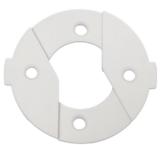
A.
Mounting bracket

B.
2x Command adhesive strips
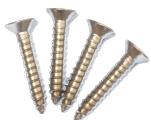
C.
4x mounting bracket screws
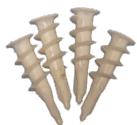
D.
4x hollow wall anchor screws
Command adhesive strips (B) can be used as an alternative to mounting with screws. Hollow wall anchor screws (D) can be used for mounting on plasterboard.
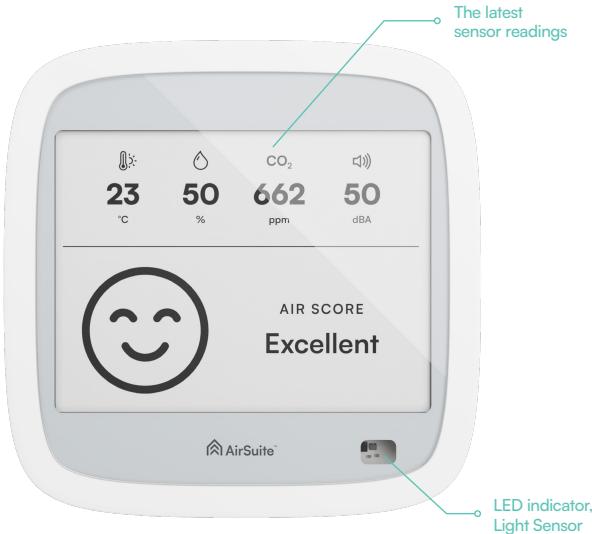
Your sensor — Front
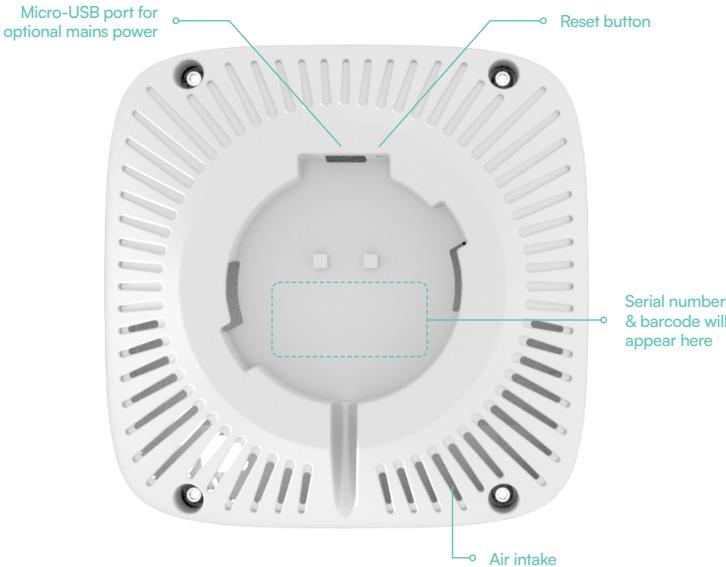
Your sensor — Back
Before you start
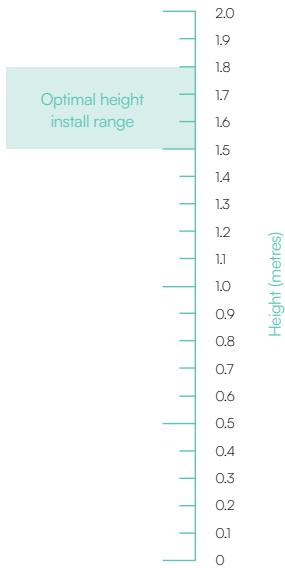
- We recommend installing on the wall at a height of 1.5m to 1.8m from the ground, so that it has a good view of the room.
- Avoid positioning facing windows, where it would be exposed to direct sunlight, as this will affect temperature and light level measurements.
- Avoid positioning too close to where people will be using the space, as this could affect carbon dioxide level measurements.
- Avoid placing near a stove or kettle, as this may affect temperature and humidity measurements.
Installation
- Locate the mounting kit (A) included in the box.
- Determine the best way to mount the bracket to your chosen surface. In this example, we are mounting to a wooden board, so screws (C) are used to install the bracket permanently. For a temporary installation, substitute the screws for the two Command adhesive strips (B).
- Mount the bracket to the wall. The "wings" of the mounting bracket should sit level across the wall as shown in Figure 1. This ensures that the sensor sits plumb.
- With the bracket installed on the wall, it is time to turn your sensor on. With a ball-point pen or the end of a paperclip, press and hold down the reset button for 2 seconds until the LED illuminates solid green in the Indicator LED window.
- The LED will flash green once every second to indicate that the sensor is connecting to the mobile network. This could take up to 5 minutes. When it successfully connects, the LED will illuminate solid green briefly.
- To confirm that the sensor has connected successfully, press the reset button once. The LED will flash green twice to indicate it is connected.
Continued on the following page
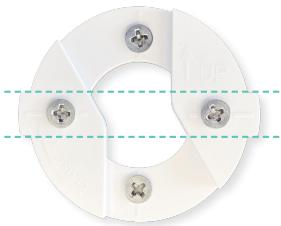
Figure 1: The mounting bracket secured to a wall. The dashed lines illustrate how the "wings" on either side are horizontally level.
Installation continued
- Place the sensor on the wall mount at an angle, then rotate it clockwise until it clicks into place.
- The sensor is now reporting to the Cloud. To set its name and location, you can either sign in to the AirSuite™ Monitor Portal, or follow the instructions on the next page to create a new deployment for the sensor using the AirSuite™ Monitor app.
Indoor. Outcomes.
Deployment
After physically installing your sensor, you can set its name and location (which will appear in the Portal) using the mobile app as follows:
- Scan the QR code, or visit the link provided in Figure 2 to download and install the AirSuite Monitor App.
- Open the app and accept the prompts to enable the required permissions for Bluetooth and Location access.
- The app will automatically scan for nearby devices. When it finds the device you are setting up, select it from the list.
- Press the "Setup" button to start the deployment process.
- Enter the password provided to you by AirSuite or your organisation. If your organisation has not chosen a password, it may be set to "password" by default.
Continued on the following page
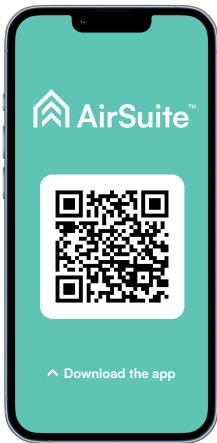
Figure 2: Scan the QR code above to download the AirSuite 一 _ 一 Monitor App, or visit app.airsuite.com
Deployment continued
- Enter a descriptive name for the deployment. For deployments across a large number of rooms and buildings, we recommend that your organisation uses a consistent naming scheme so that deployments are easy to identify later for management purposes.
- Press "Finish setup" and wait for the deployment to complete. This should only take a few moments.
- Return to the sensor status page and wait until you see your device has entered the "Reporting to Cloud" state. This will take 10 to 30 seconds, but can vary depending on the cellular signal.
Your device is now nected.
Usage information
Mobile app usage
You can use the AirSuite™ Monitor App to see the latest information reported by your sensors. Your sensors will be available to see in the app while you are nearby, within about 10-15 metres. The Bluetooth signal may be obstructed by walls, so it is best to be in the same room as the device.
If you have a particular sensor, or sensors, that you want to keep an eye on while you're out and about, tap the "Get Alerts" button on that sensor's page in the mobile app. You will receive notifications to your mobile phone when any of the sensor readings exceed the thresholds defined by your organisation, and you will be able to see the latest information reported by that sensor even when you aren't nearby.
If you are an organisation manager, use the AirSuite™ Monitor Portal to manage and monitor all the sensors across your organisation.
Turning your device off and on
If the device is going to be transported or put into storage, it should be turned off to preserve its battery capacity and the longevity of the e-paper display.
If there is information visible on the display, this indicates the device is turned on, unless its battery has run flat. You can double-check by pressing the reset button once: if the LED flashes either green or red, your device is turned on. If the LED does not flash, the device is turned off.
To turn off your device, press and hold the reset button until the LED illuminates solid orange - the display will be cleared and the device will turn off. To turn the device back on again, press and hold the reset button until the LED illuminates solid green.
Usage information
AirSuite™ Smart Sleep
To preserve battery life, your device will go to sleep periodically using Smart Sleep, which will optimise itself based on occupancy and usage. When the device is asleep, some features of the device will be turned off or limited. For example, the display may update less frequently, and reporting to the Cloud will be scheduled for when the device wakes up. While asleep, the device will continue to take sensor measurements at regular intervals, and all data will be uploaded to the Cloud when the device wakes up.
How do I know my device is working?
If the screen is blank, the device is turned off. When a device is turned on, the display will update with the latest sensor readings periodically - usually at least once every 5 minutes, depending on the device configuration. The LED will flash green to let you know the device is trying to connect to the mobile network, and it will flash red if it hasn't been able to connect for a long time.
If the LED has been flashing for more than a few minutes, the device may be having trouble connecting to the network. Try moving it around the room, or into a different room to see if this improves the mobile network signal.
Safety & Compliance
FCC compliance statement
This device complies with part 15 of the FCC Rules. Operation is subject to the following two conditions: (1) this device may not cause harmful interference, and (2) this device must accept any interference received, including interference that may cause undesired operation.
This equipment has been tested and found to comply with the limits for a Class B digital device, pursuant to part 15 of the FCC Rules. These limits are designed to provide reasonable protection against harmful interference in a residential installation. This equipment generates, uses and can radiate radio frequency energy and, if not installed and used in accordance with the instructions, may cause harmful interference to radio communications. However, there is no guarantee that interference will not occur in a particular installation. If this equipment does cause harmful interference to radio or television reception, which can be determined by turning the equipment off and on, the user is encouraged to try to correct the interference by one or more of the following measures:
Reorient or relocate the receiving antenna.
- Increase the separation between the equipment and receiver.
- Connect the equipment into an outlet on a circuit different from that to which the receiver is connected.
- Consult the dealer or an experienced radio/TV technician for help.
Caution: Any changes or modifications to this device not explicitly approved by AirSuite could void your authority to operate this equipment.
This equipment complies with FCC radiation exposure limits set forth for an uncontrolled environment. This device should be installed and operated with minimum distance of 20cm between the equipment and a person's body.
ISED Canada compliance statement
English:
This device complies with Industry Canada license-exempt RSS standard(s). Operation is subject to the following two conditions: (1) this device may not cause interference, and (2) this device must accept any interference, including interference that may cause undesired operation of the device.
The digital apparatus complies with Canadian CAN ICES-3 (B)/NMB-3(B).
This device meets the exemption from the routine evaluation limits in section 2.5 of RSS 102 and compliance with RSS 102 RF exposure, users can obtain Canadian information on RF exposure and compliance.
This equipment complies with Canada radiation exposure limits set forth for an uncontrolled environment.
This equipment should be installed and operated with minimum distance 20cm between the equipment and a person's body.
French:
Le present appeareil est conforme aux CNR d'Industrie Canada applicables aux appeareils radio exempts de license.
To log in to the AirSuite™ Monitor Portal, visit portal.airsuite.com
Having trouble logging in?
Please contact us at support@airsuite.com
Level 1, SkyPoint Building, Waikato Innovation Park,
3 Melody Lane, Hamilton, 3216, NZ