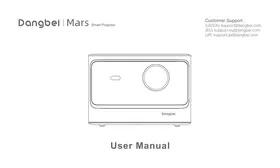
Mars - Projector DANGBEI - Free user manual and instructions
Find the device manual for free Mars DANGBEI in PDF.


| Product type | Portable projector |
| Brand | Dangbei |
| Model | Mars |
| Model number | DBOX01 |
| Power supply | 18.0 V ⎓ 10.0 A, 180 W |
| USB output | 5 V ⎓ 0.5 A |
| Audio technology | Dolby Audio |
| Wi-Fi bands | 2.4 GHz and 5 GHz |
| 5 GHz band usage | Indoor only |
| Minimum operating distance | 20 cm |
| Compliance | CAN ICES-3 (B)/NMB-3 (B) |
| Maintenance and cleaning | Clean the lens with a soft, dry cloth. Do not use abrasive products. |
| Safety | Do not look directly into the light beam. Maintain a distance of at least 20 cm. |
| Spare parts | Available on the manufacturer's website. |
| Repairability | Repairability index not provided. |
Frequently Asked Questions - Mars DANGBEI
User questions about Mars DANGBEI
0 question about this device. Answer the ones you know or ask your own.
Ask a new question about this device
Download the instructions for your Projector in PDF format for free! Find your manual Mars - DANGBEI and take your electronic device back in hand. On this page are published all the documents necessary for the use of your device. Mars by DANGBEI.
USER MANUAL Mars DANGBEI
Please read the product instructions carefully:
Thank you for purchasing and using these products.
For your safety and interests, please read the Product Instructions carefully before using the product.
About the Product Instructions:
The trademarks and names mentioned in the Product Instructions are the property of their respective owners.
All Product Instructions shown are for illustration purposes only. The actual product may vary due to product enhancements.
We shall not be liable for any personal injury, property damage, or other damages caused by the failure of the user to comply with the Product Instructions or precautions.
- Dangbei reserves the right to interpret and modify the Product Instructions.
Packing List
Before using this product, please check that all items are included in the box.
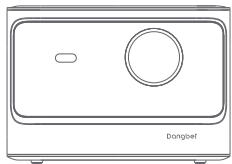
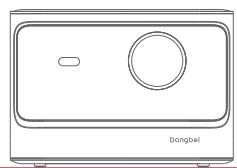
Projector
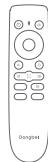
Remote Control (batteries not included)

Wipe cloth
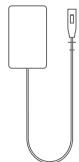
Power Adapter
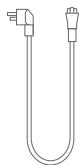
Power Cable
User Manual
Projector Overview
Overview and interface description.
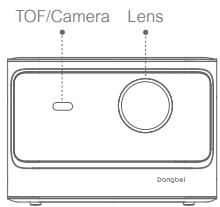
Front view
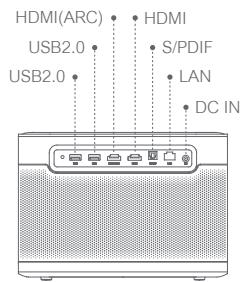
Rear view
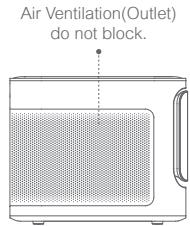
Left View
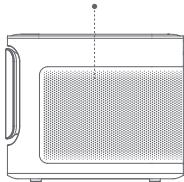
Air Ventilation(Inlet) do not block.
Right View
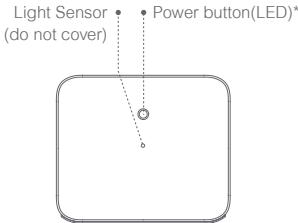
Top View
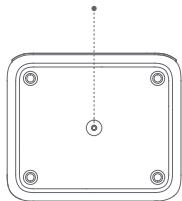
PTZ bracket socket
Bottom View
| Power Button LED Indicator Guide | ||
| Button | LED Status | Description |
| Power button | Solid White | Power Off |
| Off | Power on | |
| Flashing White | Upgrading Firmware | |
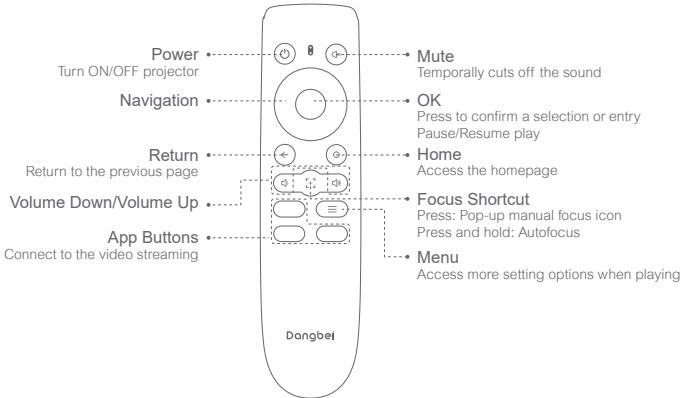
Remote Control Overview
- Open the battery compartment cover of the remote control.
Install 2 AAA batteries (not included) *.
Put back the battery compartment cover.
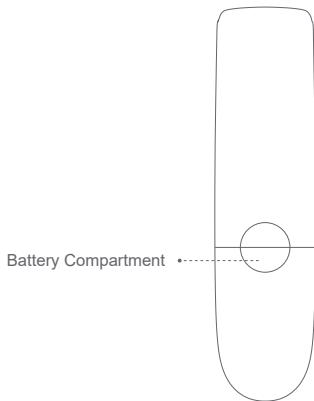
* Please insert new batteries according to the polarity indication.
Getting Started
1.Placement
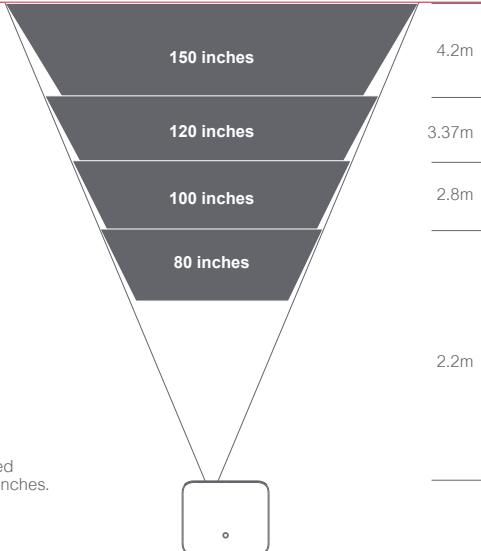
Position the projector on a stable, flat surface in front of the projection surface. A flat and white projection surface is recommended. Please follow the instructions below to determine the distance between the projector and the projection surface, and the corresponding projection size:
| Size | Screen (Length × Width) |
| 80 inches | 177 × 100 cm 5.8x 3.28 ft |
| 100 inches | 221 × 124 cm 7.25 x 4.06 ft |
| 120 inches | 265 × 149 cm 8.69 x 4.88 ft |
| 150 inches | 332 x 187 cm 10.89x 6.14 ft |

The best recommended projection size is 100 inches.
2.Power on
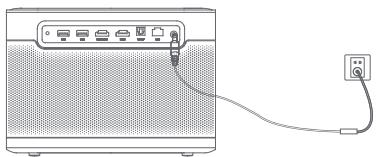
① Connect the projector to the power outlet.
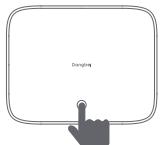
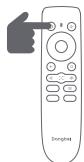
② Press the power button on either the projector or the remote control to turn on the projector.
3.Remote Control Pairing
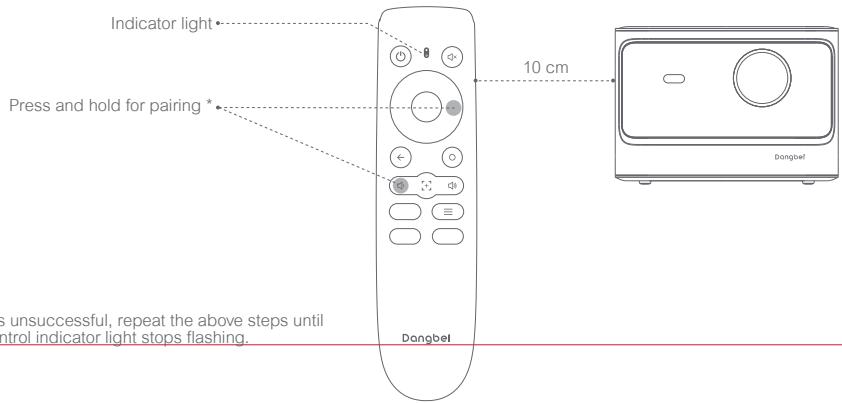
- Place the remote control within 10cm of the projector.
For first-time use, follow the on-screen projector instructions:
Simultaneously press and hold the [Volume Down] and [Right] buttons until the indicator light begins to flash.
(This means that the remote control is entering pairing mode.)
The connection is successful when the indicator light stops flashing.
Network Settings
Go to [Settings] -- [Network].
Focus Settings
- Go to [Settings] -- [Focus].
- To use Auto focus, select [Auto], and the screen will automatically become clear.
- To use Manual focus, select [Manual], and use the up/down buttons on the navigation keys of the remote control to adjust the focus based on what is displayed.
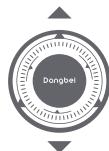
Image Correction Settings
1. Keystone Correction
- Go to [Settings] -- [Keystone].
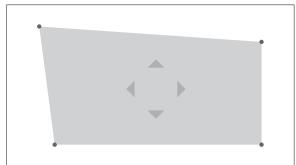
To use Auto keystone correction, select [Auto], and the screen will automatically be corrected.
To use Manual keystone correction, select [Manual] to adjust the four points and the image shape.
2.Intelligent Screen Fit
- Go to [Settings] -- [Keystone], and turn on [Fit to Screen].
Follow the on-screen instructions to automatically adjust the projected image to fit the screen.
3.Intelligent Obstacle Avoidance
- Go to [Settings] -- [Keystone] -- [Advanced], and turn on [Avoid Obstacles].
Follow the on-screen instructions to automatically adjust the projected image to avoid any objects on the projection surface.
Bluetooth Speaker Mode
- Open the Bluetooth Speaker application on the device.
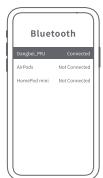
- Turn on the Bluetooth of your mobile phone/tablet/laptop, select the device of [Dangbei_PRJ], and connect to it.
- Use the projector to play audio from the devices mentioned above, or connect the projector to a speaker/headphone to play the audio from the projector.

Screen Mirroring & Casting
1.Mirrorcast
To mirror the screen of an Android/Windows device to the projector, open the app Mirrorcast, and follow the on-screen instructions.
2.Homeshare
To stream content from an iOS/Android device to the projector, open the app Homeshare, and follow the on-screen instructions.
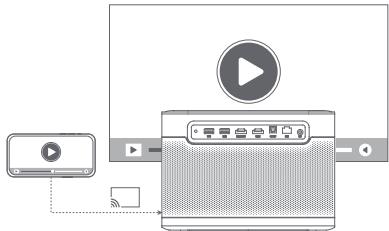
- Mirrorcast does not support iOS devices. Homeshare only supports apps with DLNA protocol.
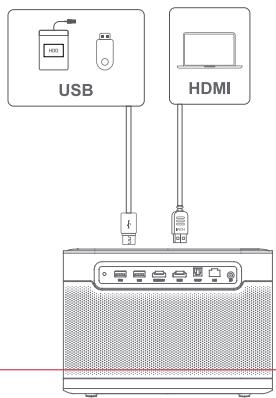
Inputs
Go to [Inputs] - HDMI/HOME/USB.
Watch the content from the different signal sources.
More Settings
1.Picture Mode
Go to [Settings] -- [Picture Mode] to choose a picture mode from [Standard/Custom/Cinema/Sport/Vivid].
2.Sound Mode
Go to [Settings] -- [Audio] to choose a sound mode from [Standard/Sport/Movie/Music].
3.Projection Mode
Go to [Settings] -- [Projection] to choose the placement method of the projector.
4.Zoom
Go to [Settings] -- [Zoom] to decrease the image size from 100% to 50% .
5.Product Info
Go to [Settings]--[About] to check the product information.
Specifications
| Display Technology | 0.47 in, DLP |
| Display Resolution | 1920 x 1080 |
| Throw Ratio | 1.27:1 |
| Speakers | 2 x 10 W |
| Bluetooth Version | 5.0 |
| WI-FI | Dual Frequency 2.4/5.0 GHz |
| Dimensions (L x W x H) | 246 × 209 × 173 mm 9.69 × 8.23 × 6.81 inches |
| Weight | 4.6kg/10.14lb |
| Troubleshooting 1.No audio output a. Check if the remote control "Mute" button is pressed. b. Check if the projector interface "HDMI ARC" or Bluetooth is connected to an external audio device. 2. No image output a. Press the power button on the top cover. The power button indicator light will turn off if the projector is powered on successfully. b. Ensure that the power adaptor has power output. 3. No network a. Enter settings, and check the network connection status in the network option. b. Ensure that the network cable is correctly inserted to the projector interface "LAN". c. Ensure that the router is correctly configured. 4. Blurry Image a. Adjust the focus or keystone. b. The projector and screen/wall must be positioned with an effective distance. c. Projector lens is not clean. 5. Non-rectangular Image a. Place the projector perpendicular to the screen/wall if keystone correction function is not used. b. Use the keystone correction function to adjust the display. | |
| 14 |
6. Automatic keystone correction failed
a. Ensure that the Camera/TOF on the front panel is not blocked or dirty.
b. The best automatic keystone correction distance is 1.5 - 3.5m , horizontal ± 30^
7. Autofocus failure
a. Ensure that the Camera/TOF on the front panel is not blocked or dirty.
b. The best autofocus distance is 1.5-3.0m, horizontal ± 20^
B. Intelligent Screen Fit failure
a. Ensure that the projector is correctly positioned, so that the projected image extends beyond the edges of the screen.
b. Ensure that the projection screen has a colored border/frame on all four sides, so that the projector can recognize the frame.
c. Ensure that the red box pattern is within the screen frame, and is not blocked.
B. The Remote Control is unresponsive
a. Ensure that the remote control is successfully paired via Bluetooth connection. If the pairing is successful, the indicator light will not flash when the button is pressed.
p. If the pairing is unsuccessful, and the Remote Control is at IR communication, the indicator light will flash when the button is pressed.
c. Ensure that there are no interferences or obstructions between the projector and remote control.
d. Check the battery and installation polarity.
10. Connect the Bluetooth devices
Enter settings, open the Bluetooth option to check the Bluetooth device list, and connect the device.
11. Others
Please feel free to contact us at support@dangbei.com
Important Precautions
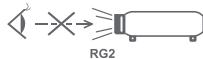
Do not look directly at the projection beam with your eyes, because the strong beam may harm your eyes. RG2 IEC 62471-5:2015
Do not block or cover the heat dissipation holes of the device to avoid affecting the heat dissipation of the internal parts, and damaging the device.
- Keep away from humidity, exposure, high temperature, low pressure, and magnetic environments.
Do not place the device in areas susceptible to excessive dust and dirt.
Place the device in a flat and stable station, and do not place the device on a surface that is prone to vibration.
Do not allow children to handle the device without supervision.
Do not place heavy or sharp objects on the device.
Avoid extreme vibrations, because these may damage the internal components.
Please use the correct type of battery for the remote control.
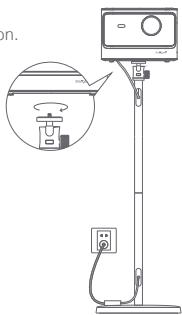
Only use attachments/accessories specified or provided by the manufacturer (such as the exclusive power adapter, bracket, etc.).
Do not disassemble the device. The device should only be repaired by staff authorized by the manufacturer.
Place and use the device in a 0 - 40^ environment.
The plug is considered as a disconnected device of the adapter.
The adapter should be installed near the equipment, and should be easily accessible.
- Protect the power cord from being walked on or pinched, particularly at the plugs, convenience receptacles, and the point where this exits from the device.
Unplug this device if there are lightning storms or when unused for a long period of time.
Where the power plug or an appliance coupler is used to disconnect the device, the disconnected device would remain readily operable.
- Never touch the power cable or power connector with wet hands.
Risk of explosion if battery is replaced by an incorrect type.Dispose of used batteries according to local regulations.
STATEMENT
This equipment has been tested and found to comply with the limits for a Class B digital device, pursuant to Part 15 of the FCC Rules. These limits are designed to provide reasonable protection against harmful interference in a residential installation. This equipment generates uses and can radiate radio frequency energy and, if not installed and used in accordance with the instructions, may cause harmful interference to radio communications. However, there is no guarantee that interference will not occur in a particular installation. If this equipment does cause harmful interference to radio or television reception, which can be determined by turning the equipment off and on, the user is encouraged to try to correct the interference by one or more of the following measures:
-- Reorient or relocate the receiving antenna.
-- Increase the separation between the equipment and receiver.
- Connect the equipment to an outlet on a circuit different from that to which the receiver is connected.
-- Consult the dealer or an experienced radio/TV technician for help.
Changes or modifications not expressly approved by the party responsible for compliance could void the user's authority to operate the equipment.
We declare that this device is in compliance with the essential requirements and other relevant provisions of Directive 2014/53/EU. Satisfies all the technical regulations applicable to the product within the scope of UK Radio Equipment Regulations (SI 2017/1206); UK Electrical Equipment (Safety) Regulations (SI 2016/1101); and UK Electromagnetic Compatibility Regulations (SI 2016/1091). This device operating frequency:2402-2480MHz(EIRP<20dBm),2412-2472MHz(EIRP<20dBm),5150-5250MHz(EIRP<23dBm), 5250-5350MHz(EIRP<20dBm),5470-5725MHz(EIRP<27dBm),5725-5850MHz(EIRP<13.98dBm).

We declares that this device is in compliance with the essential requirements and other relevant provisions of Directive 2014/53/EU.

Satisfies all the technical regulations applicable to the product within the scope of UK Radio Equipment Regulations (SI 2017/1206); UK Electrical Equipment (Safety) Regulations (SI 2016/1101); and UK Electromagnetic Compatibility Regulations (SI 2016/1091).
THIS DEVICE COMPLIES WITH DHHS RULES 21 CFR CHAPTER I SUBCHAPTER J.
Manufacturer : Shenzhen Dangs Science and Technology Co., Ltd.
Address: 901,GDC Building,Gaoxin Mid 3nd Road, Maling Community,Yuehai Sub-district,
Nanshan District,Shenzhen, China.
Customer Support :
(US/CA) support@dangbei.com
(EU) support.eu@dangbei.com
(JP) support.jp@dangbei.com
For FAQs and more information, please visit : mall.dangbei.com


- About the Product Instructions:
- Packing List
- Projector Overview
- Remote Control Overview
- Getting Started
- 1.Placement
- 2.Power on
- 3.Remote Control Pairing
- Network Settings
- Focus Settings
- Image Correction Settings
- Keystone Correction
- 2.Intelligent Screen Fit
- 3.Intelligent Obstacle Avoidance
- Bluetooth Speaker Mode
- Screen Mirroring & Casting
- 1.Mirrorcast
- 2.Homeshare
- Inputs
- More Settings
- 1.Picture Mode
- 2.Sound Mode
- 3.Projection Mode
- 4.Zoom
- 5.Product Info
- Specifications
- Automatic keystone correction failed
- Autofocus failure
- Intelligent Screen Fit failure
- The Remote Control is unresponsive
- Connect the Bluetooth devices
- Others
- Important Precautions
- STATEMENT
Brand : DANGBEI
Model : Mars
Category : Projector