FZ-55series - Laptop PANASONIC - Free user manual and instructions
Find the device manual for free FZ-55series PANASONIC in PDF.


User questions about FZ-55series PANASONIC
0 question about this device. Answer the ones you know or ask your own.
Ask a new question about this device
Download the instructions for your Laptop in PDF format for free! Find your manual FZ-55series - PANASONIC and take your electronic device back in hand. On this page are published all the documents necessary for the use of your device. FZ-55series by PANASONIC.
USER MANUAL FZ-55series PANASONIC
OPERATING INSTRUCTIONS
Read Me First
Personal Computer
Model No. FZ-55 series
Contents
Read Me First / Lecture préliminaire
Before Turning on the Computer 21
First-time Operation 22
Appendix
Software License 26
Trademarks 27
Terms and illustrations in these instructions
In these instructions, the names and terms are referred as follows.
- "Windows 11 Pro" as "Windows" or "Windows 11"
- This manual explains operation procedures using the touchpad or mouse as typical examples.
In addition, you can touch the display screen to operate the computer.
When using the touch operation, please replace the terms as described below, and read the instructions.
Operation terms to be replaced:
- Click Touch

- [Settings]:

(Start) and then click [Settings].

: Page in these Operating Instructions.

: Reference to the on-screen manuals.
To reduce the risk of injury, loss of life, electric shock, fire, malfunction, and damage to equipment or property, always observe the following safety precautions.
DANGER
Precautions on the Battery Pack
Electrolyte leakage, generation of heat, ignition or rupture of the Battery Pack may result.
■ Do Not Throw the Battery Pack into a Fire or Expose It to Excessive Heat
■ Do Not Deform, Disassemble, or Modify the Battery Pack
■ Do Not Short the Positive (+) and Negative (-) Contacts
Do not place the battery pack together with articles such as necklaces or hairpins when carrying or storing.
■ Do Not Apply Shocks to the Product by Dropping It, Applying Strong Pressure to It, etc.
If this product is subjected to a strong impact, remove the battery pack from the computer immediately.
■ Do Not Charge the Battery Using Methods Other Than Those Specified
■ Do Not Use the Battery Pack with Any Other Product
- The battery pack is rechargeable and was intended for the specified product.
■Do Not Use This Product with a Battery Pack Other Than the One Specified
Use only the specified battery pack with your product.
Avoid Extreme Heat (Near the Fire, in Direct Sunlight, for Example)
■When the Battery Pack Has Deterior-rated or If Abnormal Swelling Occur, Replace It With a New One
Do not continue to use a damaged battery pack.
If a Malfunction or Trouble Occurs, Immediately Stop Use
If the battery pack appears to be damaged or deformed, or if it emits smoke, abnormal odor, excessive heat, or other abnormality, remove it from the computer immediately.
WARNING
Fire or electric shock may result.
■ Do Not Do Anything That May Damage the AC Cord, the AC Plug, or the AC Adaptor
Do not damage or modify the cord, place it near hot tools, bend, twist, or pull it forcefully, place heavy objects on it, or bundle it tightly.
Do not continue to use a damaged AC cord, AC plug and AC adaptor.
- Contact your technical support office for repair.
■ Do Not Connect the AC Adaptor to a Power Source Other Than a Standard Household AC Outlet
Connecting to a DC/AC converter (inverter) may damage the AC adaptor. On an airplane, only connect the AC adaptor/charger to an AC outlet specifically approved for such use.
■ Do Not Pull or Insert the AC Plug If Your Hands Are Wet
■ Do Not Disassemble This Product
- No user serviceable parts inside this unit. Refer servicing to qualified technician.
■ Do Not Touch This Product In a Thunderstorm If Connected with the AC Cable or Any Other Cables
■ Do Not Place Containers of Liquid or Metal Objects on Top of This Product
If foreign matter has found its way inside, immediately turn the power off and unplug the AC plug (and remove the battery pack). Then contact your technical support office.
If a Malfunction or Trouble Occurs, Immediately Stop Use
If the Following Malfunction Occurs, Immediately Unplug the AC Plug and the Battery Pack
This product is damaged
Foreign object inside this product
Smoke emitted
- Unusual smell emitted
- Unusually hot
After the above procedure, contact your technical support office for repair.
WARNING
Fire or electric shock may result.
Clean Dust and Other Debris of the AC Plug Regularly
- If dust or other debris accumulates on the plug, humidity, etc. may cause a defect in the insulation.
Insert the AC Plug Completely
Do not use a damaged plug or loose AC outlet.
- Close the Connector Cover Tightly When Using This Product Where Is a Lot of Water, Moisture, Steam, Dust, Oily Vapors, etc.
If foreign matter has found its way inside, immediately turn the power off and unplug the AC cord, and then remove the battery pack. Then contact your technical support office.
Turn the Power off Beforehand when Entering Locations, Such as a Gas Station Where Inflammable Gases Are Generated
- Such gases may be ignited.
Burns or low-temperature burns may result.
■ Do Not Use This Product in Close Contact With Your Body For a Long Period of Time
Do not use this product with its heat-emitting parts in close contact with your body for a long period of time.
- Low-temperature burns may result.
■ Do Not Expose Yourself or Other Persons to the Hot Wind from the Ventilation Hole (Exhaust) For a Long Period of Time
Depending on the direction of the computer or the way you hold the computer, your hands and body will be more exposed to the hot wind.
- Covering the ventilation hole (exhaust) with your hand or other object can cause heat to build up inside, possibly resulting in burns.
■ Do Not Touch The Surface of The AC Adaptor Continuously While Using/ Charging
- Burns may result.
■ Do Not Place the Product in a Bag or Case While It is Turned On
- Doing so may cause the product to overheat and result in burns.
Detrimental health effects on your body may result.
■ Do Not Turn the Volume Up Too Loud When Using Headphones
- Listening at high volumes that over-stimulate the ear for long periods of time may result in loss of hearing.
■ Do Not Leave a nanoSIM Card within Reach of Infants
In case of swallowing, consult a doctor immediately.
Radio waves transmitted from this product may affect the surrounding area.
■ Do Not Use This Product near Automatic Control Devices, Such As Automatic Doors And Fire Alarms
Automatic control devices may malfunction, resulting in accidents.
Turn the Power Off on an Airplane
For use on a plane, follow the airline's instructions.
- The safety of navigation may be compromised.
Turn the Power Off in Hospitals or at Locations Where Medical Equipment is Present
Do not bring this product into operating rooms, intensive care units, CCU, etc.
Medical electrical equipment may be affected, and malfunction may occur, resulting in accidents.
Turn the Power Off in Crowded Locations, Such As a Crowded Train, Where There May Be a Person with a Cardiac Pacemaker
- The operation of a pacemaker may be affected.
■ Keep This Product at Least 15 cm Away from the Position of an Implantable Pacemaker
- The operation of a pacemaker may be affected.
1 If there is no choice but to use this product in such an environment, turn the wireless capability off. However, bear in mind that use of a computer may be prohibited during takeoff and landing of an aircraft, etc. even if the wireless capability is turned off.
2 CCU is an abbreviated term of Coronary Care Unit.
CAUTION
Fire or electric shock may result.
■ Do Not Move This Product While the AC Plug Is Connected
If the AC cord is damaged, unplug the AC plug immediately.
■ Do Not Connect a Telephone Line, or a Network Cable Other Than the One Specified, Into the LAN Port
Do not connect to a network such as the ones listed below.
Networks other than 1000BASE-T, 100BASE-TX or 10BASE-T
- Phone lines (IP phone (Internet Protocol Telephone), Telephone lines, internal phone lines (on-premise switches), digital public phones, etc.)
■ Do Not Subject the AC Adaptor To Any Strong Impact
Do not continue to use the AC adaptor after a strong impact such as being dropped.
Contact your technical support office for repair.
Do Not Leave This Product in High Temperature Environment for a Long Period of Time
- Leaving this product where it will be exposed to extremely high temperatures such as near fire or in direct sunlight may deform the cabinet and/or cause trouble in the internal parts.
■ Do Not Block the Ventilation Hole (Exhaust/Intake)
Do not use this product wrapped in cloth or on top of bedding or a blanket.
Hold the Plug When Unplugging the AC Plug
■ Use Only the Specified AC Adaptor With This Product
Do not use an AC adaptor other than the one supplied (supplied with the unit or one sold separately as an accessory).
This product may fall over or drop, resulting in an injury.
■ Do Not Place This Product on Unstable Surfaces
Avoid Stacking
Detrimental health effects on your body may result.
- Looking directly at the internal laser light source may result in damage to eyesight.
Contact your technical support office for check, maintenance and repair.
■ Do Not Use Discs That Are Cracked or Deformed
- Because the discs rotate at high speeds, damaged discs may break apart causing injury.
Discs that are not round and discs that have been repaired using adhesives are similarly dangerous, and so should not be used.
Take a Break Of 10-15 Minutes Every Hour
- Using this product for long periods of time may have detrimental health effects on the eyes or hands.
Burns, low-temperature burns, or frostbite may result.
■ Do Not Expose the Skin To This Product When Using the Product In A Hot Or Cold Environment
When it is necessary to expose the skin to this product such as to scan a fingerprint, perform the operation in the shortest time possible.
NOTICE
- Do not place the computer near a television or radio receiver.
- Keep the computer away from magnets. Data stored on the hard disk may be lost.
This computer is not intended for the display of images for use in medical diagnosis.
This computer is not intended for a use with connection of medical equipment for the purpose of medical diagnosis. - Panasonic shall not be liable for loss of data or other incidental or consequential damages resulting from the use of this product.
- Do not touch the terminals on the battery pack. The battery pack may no longer function properly if the contacts are dirty or damaged.
- Do not expose the battery pack to water, or allow it to become wet.
- If the battery pack will not be used for a long period of time (a month or more), charge or discharge (use) the battery pack until the remaining battery level becomes 30% to 40% and store it in a cool, dry place.
- This computer prevents overcharging of the battery by recharging only when the remaining power is less than approx. 95% of capacity.
- The battery pack is not charged when the computer is first purchased. Be sure to charge it before using it for the first time. When the AC adaptor is connected to the computer, charging begins automatically.
- Should the battery leak and the fluid get into your eyes, do not rub your eyes. Immediately flush your eyes with clear water and see a doctor for medical treatment as soon as possible.
NOTE
- The battery pack may become warm during recharging or normal use. This is completely normal.
- Recharging will not commence if internal temperature of the battery pack is outside of the allowable temperature range (0 °C to 50 °C {32 °F to 122 °F}). (→ Operating Instructions - Reference Manual "Basic Operation" "Battery Power") Once the allowable range requirement is satisfied, charging begins automatically. Note that the recharging time varies based on the usage conditions. (Recharging takes longer than usual when the temperature is 10 °C {50 °F} or below.)
-
If the temperature is low, the operating time is shortened. Only use the computer within the allowable temperature range.
-
The battery pack is a consumable item. If the amount of time the computer can be run by using a particular battery pack becomes dramatically shorter and repeated recharging does not restore its performance, the battery pack should be replaced with a new one.
- When transporting a spare battery inside a package, briefcase, etc., it is recommended that it be placed in a plastic bag so that its contacts are protected.
Always power off the computer when it is not in use. Leaving the computer on when the AC adaptor is not connected will exhaust the remaining battery capacity.
While we anticipate use of our products in certain environments such as nuclear equipment/systems, air traffic control equipment/systems, aircraft equipment/systems (as defined in ^3 ), medical devices or accessories (as defined in ^4 ), medical treatment diagnosis image display, life-support system, or other equipment/devices/ systems that are involved with ensuring human life or safety, we do not allow users to integrate our product such that it becomes an integral part of the systems found in these environments. Panasonic will not be responsible for any liability resulting, and in any way for any damages or loss resulting from the use of this product arising out of the foregoing uses.
3 Aircraft equipment/systems include Electric Flight Bag (EFB) systems are defined by FAA AC120-76D or EASA Commission Regulation (EU) No 965/2012.
4 As defined by the Regulation (EU) 2017/745 Medical Device Regulation.
Panasonic cannot guarantee any specifications, technologies, reliability, safety (e.g. flammability/ smoke/toxicity/radio frequency emission, etc.) requirement related to aviation standards that exceed the specifications of our COTS products.
This computer has been designed so as to minimize shock to the LCD and hard disk drive, the leakage of liquid (e.g., water) on to the keyboard, etc., but no warranty is provided against such trouble. Therefore, as a precision instrument, be extremely careful in the handling.
This product and your Health
This product, like other radio devices, emits radio frequency electromagnetic energy. The level of energy emitted by this product however is far much less than the electromagnetic energy emitted by wireless devices like for example mobile phones.
Because this product operates within the guidelines found in radio frequency safety standards and recommendations, we believe this product is safe for use by consumers. These standards and recommendations reflect the consensus of the scientific community and result from deliberations of panels and committees of scientists who continually review and interpret the extensive research literature.
In some situations or environments, the use of this product may be restricted by the proprietor of the building or responsible representatives of the organization. These situations may for example include:
Using this product on board of airplanes, or
- In any other environment where the risk of interference to other devices or services is perceived or identified as harmful.
If you are uncertain of the policy that applies on the use of wireless devices in a specific organization or environment (e.g. airports), you are encouraged to ask for authorization to use this product prior to turning on the product.
Regulatory Information
We are not responsible for any radio or television interference caused by unauthorized modification of this product. The correction of interference caused by such unauthorized modification will be the responsibility of the user. We and its authorized resellers or distributors are not liable for damage or violation of government regulations that may arise from failing to comply with these guidelines.
26-1-M
- The light from the LED is strong and can injure human eyes. Do not look directly at the LEDs with naked eyes.

57-E-1
ATTENTION
THIS PRODUCT UTILIZES A CLASS 1 LASER. USE OF CONTROLS, ADJUSTMENTS OR PERFORMANCE OF PROCEDURES OTHER THAN THOSE SPECIFIED HEREIN MAY RESULT IN HAZARDOUS RADIATION EXPOSURE.
DO NOT DISASSEMBLE OR REPAIR YOURSELF.
REFER SERVICING TO QUALIFIED PERSONNEL.
Complies with FDA radiation performance standards 21 CFR chapter I, Subchapter J
12-E-1
AVERTISSEMENT!
CET APPAREIL UTILISE UN LASER DE CLASSE 1. L'UTILISATION DE COMMANDES OU DE RÉGLAGES OU L'EXÉCUTION DE PROCÉDURES AUTRES QUE CELLES SPECIFIÉES ICI PEUVENT PROVOQUER UNE EXPOSITION À DES RADIATIONS DANGEREUSES.
NE PAS DEMONTER OU ESSAYER DE RÉPARER SOI MÈME.
CONFIER TOUT TRAVAIL D'ENTRETIEN À UN PERSONNEL QUALIFIÉ.
Conforme aux règlementations IEC 60825-1:2014, EN 60825-1:2014+A11:2021, GB 7247.1-2012, JIS C 6802:2014.
12-F-1
The following label is put on the side of the computer.
CLASS 1.LASER PRODUCT
APPAREL A LASER DE CLASSE 1
THIS PRODUCT CONTAINS CERTIFIED CLASS I LASER PRODUCT
THAT COMPLIES WITH FDA RADIATION PERFORMANCT STANDARD 31 CFR QUARTER 1. CUSSED QUARTER (FEN)
THIS PRODUCT UTILIZES A CLASS 2 LASER.
USE OF CONTROLS, ADJUSTMENTS OR PERFORMANCE OF PROCEDURES OTHER THAN THOSE SPECIFIED HEREIN MAY RESULT IN HAZARDOUS RADIATION EXPOSURE.
DO NOT DISASSEMBLE OR REPAIR YOURSELF.
REFER SERVICING TO QUALIFIED PERSONNEL.
Complies with 21 CFR 1040.10 and 1040.11 except for conformance with IEC 60825-1 Ed. 3., as described in Laser Notice No. 56, dated May 8, 2019.
The laser is a "Class 2" laser which is indicated on the label for this product. Class 2 laser readers use a low power, visible light diode. As with any very bright light source, such as the sun, the user should avoid staring directly into the light beam.
Looking directly at the laser beam for a long time, it may cause damage to your eyes.
Labeling/Marking
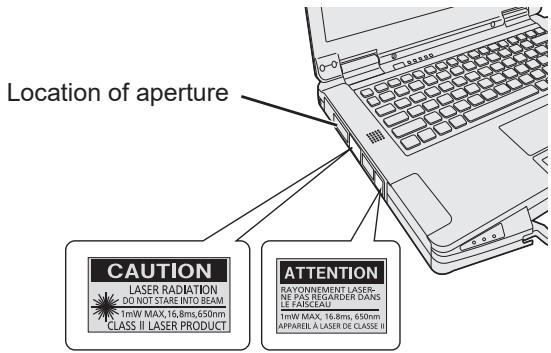
Laser radiation information (FZ-VBR551)
Beam Divergence
-
Vertical angle: 30 degree
-
Horizontal angle: 36 degree
Wavelength: 650~nm
Radiant Power (Max) : 1 mW
Pulse duration: 16.8 ms
Repetition rate: 60Hz
13-E-1
AVERTISSEMENT!
CET APPAREIL UTILISE UN LASER DE CLASSE 2.
L'UTILISATION DE COMMANDES OU DE RÉGLAGES OU L'EXÉCUTION DE PROCÉDURES AUTRES QUE CELLES SPECIFIÉES ICI PEUVENT PROVOQUER UNE EXPOSITION À DES RADIATIONS DANGEREUSES.
NE PAS DÉMONTER OU ESSAYER DE RÉPARER SOI MÈME.
CONFIER TOUT TRAVAIL D'ENTRETIEN À UN PERSONNEL QUALIFIÉ.
Conforme aux règlementations IEC 60825-1:2014, EN 60825-1:2014+A11:2021, GB 7247.1-2012, JIS C 6802:2014.
- The AC adaptor used for the specified computers and Port Replicator option is Class I Equipment ^1 . When using the computer and Port Replicator option, the AC adaptor must be earthed. The power plug must be connected to a properly wired earth ground socket outlet. Hazardous voltage could occur on user accessible metal parts by improperly wiring socket outlet.
Equipment with basic insulation used as a basic safeguard, and with protective bonding and protective earthing used as a supplementary safeguard for electrically-caused injury.
77-M-1
Risk of Explosion if Battery is replaced by an Incorrect Type. Dispos of Used Batteries According to the Instructions.
58-E-1
Handling of lithium ion battery pack

Do not charge, use, or leave the battery in extremely high temperature or extremely low air pressure like high altitude where ordinary not entered, as this may result in explosion or leakage of flammable liquids.
81-E-1
ATTENTION:
As an ENERGY STAR® Partner, Panasonic has determined that this product meets ENERGY STAR® guidelines for energy efficiency. By enabling available power management settings, Panasonic computers enter a low-power sleep mode after a period of inactivity, saving the user energy.
To learn more about power management, please visit the web site: www.energystar.gov
Outline of the International ENERGY STAR® Office Equipment Program
The international ENERGY STAR® Office Equipment Program is an international program that promotes energy saving through the use of computers and other office equipment. The program backs the development and dissemination of products with functions that effectively reduce energy consumption. It is an open system in which business proprietors can participate voluntarily. The targeted products are office equipment such as computers, displays, printers, facsimiles, and copiers. Their standards and logos are uniform among participating nations.
For information about ENERGY STAR, refer to the following web site:
Web Site: www.energystar.gov
This model is not certified to the ENERGY STAR®.
22-M-2

Federal Communications Commission Radio Frequency Interference Statement
Note: This equipment has been tested and found to comply with the limits for a Class B digital device, pursuant to Part 15 of the FCC Rules. These limits are designed to provide reasonable protection against harmful interference in a residential installation. This equipment generates, uses and can radiate radio frequency energy and, if not installed and used in accordance with the instructions, may cause harmful interference to radio communications. However, there is no guarantee that interference will not occur in a particular installation. If this equipment does cause harmful interference to radio or television reception, which can be determined by turning the equipment off and on, the user is encouraged to try to correct the interference by one or more of the following measures:
Reorient or relocate the receiving antenna.
- Increase the separation between the equipment and receiver.
- Connect the equipment into an outlet on a circuit different from that to which the receiver is connected.
- Consult the Panasonic Service Center or an experienced radio/TV technician for help.
Warning
To assure continued compliance, use only shielded interface cables when connecting to a computer or peripheral. Also, any changes or modifications not expressly approved by the party responsible for compliance could void the user's authority to operate this equipment.
This device complies with Part 15 of the FCC Rules. Operation is subject to the following two conditions:
(1) This device may not cause harmful interference, and
(2) This device must accept any interference received, including interference that may cause undesired operation.
FCC RF Exposure Warning:
- Other third-party wireless transmitters have not been RF exposure evaluated for use with this computer and may not comply with FCC RF exposure requirements.
- This equipment complies with FCC radiation exposure limits set forth for an uncontrolled environment.
- This equipment has been approved for mobile operation. Under normal operating conditions with the display open, a minimum separation distance of 20~cm must be maintained between the antennas and user in order to comply with RF exposure requirements, including when the display is closed.
- This equipment may not be colocated or operated with any other antenna or transmitter.
- Operation of transmitters in the 5.925-7.125 GHz band is prohibited for control of or communications with unmanned aircraft systems.
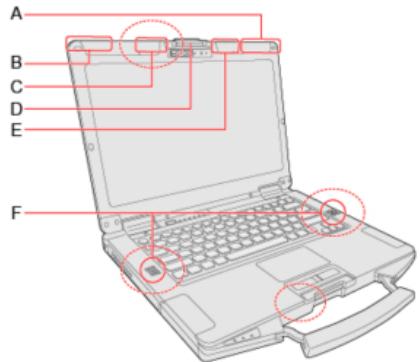
A. Wireless WAN Antenna / GPS Antenna
B. Wireless WAN Antenna
C. Wireless LAN Antenna
D. Display Latch
E. Wireless LAN Antenna / Bluetooth Antenna
F. Speaker
Responsible Party: Panasonic Corporation of North America
Two Riverfront Plaza
Newark, NJ 07102
Support Contact: https://na.panasonic.com/us/support
6-M-1
To dispose of your product, please recycle in accordance with local environmental regulations. For further recycling please visit
https://shop.panasonic.com/recycle
65-M-1
External Antenna
FCC RF Exposure Warning:
- This equipment is provided with external antenna connector(s) for connection to optional Car Mounter or Port Replicator for mobile external mounted antenna(s). External antenna(s) must be professionally installed and cannot exceed recommended maximum antenna gain as described in individual provided supplement instructions for wireless transmitters. The Car Mounter is provided with Radiall/Larsen WLAN whip antenna, type NMO5E2400BKTNC with 5 dBi antenna gain. The maximum allowable antenna gains for the external WWAN base whip antenna for the 700 MHz, 850 MHz, 1700 MHz and 1900 MHz bands are 6 dBi, 9 dBi at 2500 MHz and 2600 MHz bands and 0 dBi at 3600 MHz band. Also, user must maintain minimum 20 cm spacing between external antenna(s) and all person's body (excluding extremities of hands, wrist and feet) during wireless modes of operation.
32-M-1

A lithium ion battery that is recyclable powers the product you have purchased.
Please call 1-800-8-BATTERY for information on how to recycle this battery.
This product contains a CR Coin Cell Lithium Battery which contains Perchlorate Material - special handling may apply.
See https://dtsc.ca.gov/perchlorate/
38-M-2
For Canada / Pour le Canada
Canadian ICES-003
CAN ICES-003(B)/NMB-003(B)
7-1-M
Innovation, Science and Economic Development Canada (ISED)
This product complies with ISED's licence-exempt RSSs.
Operation is subject to the following two conditions;
(1) this device may not cause interference, and
(2) this device must accept any interference, including interference that may cause undesired operation of the device.
This product (local network devices) for the band 5150-5250 MHz is only indoor usage to reduce potential for harmful interference to co-channel Mobile Satellite systems.
High power radars are allocated as primary users (meaning they have priority) of 5250-5350 MHz and 5650-5850 MHz and these radars could cause interference and/or damage to LELAN devices.
Devices shall not be used for control of or communications with unmanned aircraft systems.
- This computer complies with ISED Canada radiation exposure limits set forth for an uncontrolled envi-ronment.
- This equipment has been approved for mobile operation. Under normal operating conditions with the display open, a minimum separation distance of 20~cm must be maintained between the antennas and user in order to comply with RF exposure requirements, including when the display is closed.
- Compliance to ISED Canada's bystander SAR requirements has been evaluated. A minimum distance of 25mm from the antennas of the display must be maintained from all persons.
A. Wireless WAN Antenna / GPS Antenna
B. Wireless WAN Antenna
C. Wireless LAN Antenna
D. Display Latch
E. Wireless LAN Antenna / Bluetooth Antenna
F. Speaker
A. Antenne WAN sans fil / Antenne GPS
B. Antenne WAN sans fil
C. Antenne LAN sans fil
D. Loquet d'affichage
E. Antenne LAN sans fil / Antenne Bluetooth
F. Haut-parleur
External Antenna
This device has been designed to operate with the Radiall/Larsen whip antenna, type NMO5E2400BKTNC WLAN antenna having a maximum gain of 5 dBi. A WLAN Antenna having a higher gain is strictly prohibited per regulations of ISED Canada. The Required antenna impedance is 50 ohms.
To reduce potential radio interference to other users, the antenna type and its gain should be so chosen that the equivalent isotropically radiated power (EIRP) is not more than that required for successful communication.
This device has been designed to operate with the WWAN antenna having a maximum gain of 6 dBi for the 700 MHz, 850 MHz, 1700 MHz, 1900 MHz bands and 9 dBi for the 2500 MHz band and 0 dBi for the 3600 MHz band. WWAN Antenna having a higher gain is strictly prohibited per regulations of ISED Canada. The Required antenna impedance is 50 ohms.
To reduce potential radio interference to other users, the antenna type and its gain should be so chosen that the equivalent isotropically radiated power (EIRP) is not more than that required for successful communication.
Antenne Externe
Disposal of Old Equipment and Batteries
Only for European Union and countries with recycling systems

These symbols on the products, packaging, and/or accompanying documents mean that used electrical and electronic products and batteries must not be mixed with general household waste. For proper treatment, recovery and recycling of old products and used batteries, please take them to applicable collection points, in accordance with your national legislation. By disposing of them correctly, you will help to save valuable resources and prevent any potential negative effects on human health and the environment.
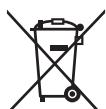
For more information about collection and recycling, please contact your local authority. Penalties may be applicable for incorrect disposal of this waste, in accordance with national legislation.
Note for the battery symbol (bottom symbol):
This symbol might be used in combination with a chemical symbol. In this case it complies with the requirement set by the Directive for the chemical involved.
For India
Information on hazardous constituents as specified in sub-rule1 of rule16 in electrical and electronic equipment.
Declaration of Conformity with the requirements of the E-Waste (Management) Rules with the sub-rule1 of rule16 limits with respect to Lead, Mercury, Cadmium, Hexavalent chromium, Polybrominated biphenyls, Polybrominated diphenyl ethers.
The content of hazardous substance with the exemption of the applications listed in SCHEDULE II of the E-Waste (Management) Rules:
- Lead (Pb) - not over 0.1% by weight;
- Cadmium (Cd) - not over 0.01% by weight;
- Mercury (Hg) - not over 0.1% by weight;
- Hexavalent chromium (Cr6 + ) - not over 0.1% by weight;
- Polybrominated biphenyls (PBBs) - not over 0.1% by weight;
- Polybrominated diphenyl ethers (PBDEs) - not over 0.1% by weight.

For the purpose of recycling to facilitate effective utilization of resources, please return this product to a nearby authorized collection center, registered dismantler of recycler, or Panasonic service center when disposing of this product.
Please see the Panasonic website for further information on collection centers, etc., or call the customer care toll-free number below.
Website:
https://www.panasonic.com/in/corporate/e-waste-management.html
Customer care number ( Toll free ): 1800 103 1333 or 1800 108 1333
Do's & Don'ts
| S.No. | Do's | Don'ts |
| 1 | All electrical and electronic products are required to be handed over only to the Authorized recycler. | The product should not be opened by the user himself/herself, but only by authorized service personnel. |
| 2 | The product should be handed over only to authorized recycler for disposal. | The product is not meant for re-sale to any unauthorized agencies/scrap dealers/kabariwalias. |
| 3 | Keep the product in an isolated area, after it becomes non-functional/unrepairable so as to prevent its accidental breakage. | The product is not meant for mixing into house-hold waste stream. |
| 4 | Refer to Operating Instructions for handling of end of life products. | Do not keep any replaced spare part(s) from the product in an exposed area. |
| 5 | Always dispose of products that have reached end-of-life at Panasonic Life Solutions India Authorized Service Centre. | Do not donate old electronic items to anybody. Do not dispose of your product in garbage bins along with municipal waste that ultimately reach-es landfill. |
| 6 | Wherever possible or as instructed, separate the packaging material according to responsible waste disposal options and sorting for recycling. | Do not give e-waste to informal and unorganized sectors like Local Scrap Dealers/Rag Pickers. |
68-M-4
Before Turning on the Computer
Refer to the following URL for how to attach options to the Expansion areas and replace the keyboard. Confirm the part numbers of the optional items before connection.
https://askpc.panasonic.co.jp/manual/option/w/
IMPORTANT
- If the options are not attached, be sure to attach a dummy pack or cover before using.
Preparation
① Check and identify the supplied accessories.
If you do not find the described accessories, contact your support office.
- AC Adaptor ^+1 . . . . 1
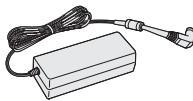
Model No: CF-AA5713A
- AC Cord ^+1 1
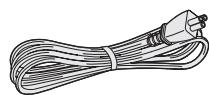
- Battery Pack ^2 . . . 1 or 2
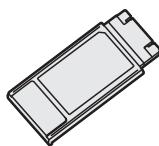
Model No:FZ-VZSU1HU
FZ-VZSU1HAU
- OPERATING INSTRUCTIONS - Read Me First (This book) 1
Stylus 1
Tether 1
*1 Depending on the model, these items are not supplied.
^2 Stored in the computer at the time of packing.
Latest Information on Windows
When Windows is updated, the screen display or operation procedures may be changed. For the latest information on Windows, see the following web page.
https://pc-dl.panasonic.co.jp/itn/win11/
IMPORTANT
Inserting RAM module for expansion
- Use recommended RAM module products. Do not use non-recommended RAM modules. Non-recommended RAM modules may not operate properly, and may cause damage to your computer.
- When adding a RAM module, read Operating Instructions - Reference Manual and mount it using the specified method. Otherwise, the expected performance may not be achieved.
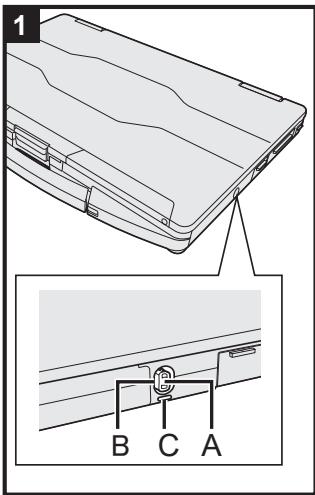
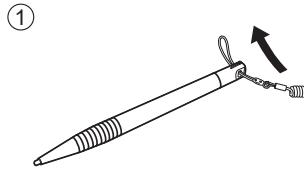
1 Use the tether to attach the stylus to the computer (only for model with touchscreen)
Use the tether to attach the stylus to the computer so you will not lose it. Before attaching the pen (A), take out it from the pen holder (B). There is a tether hole (C) to attach it.
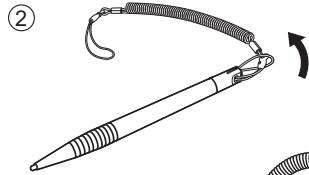
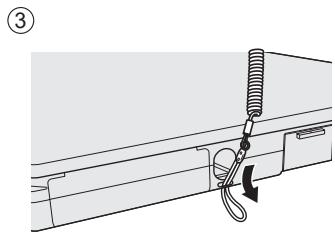
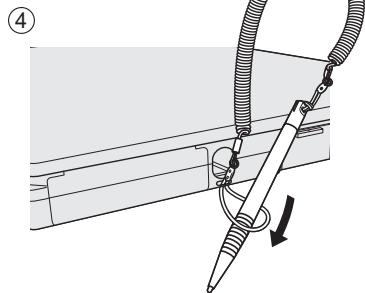
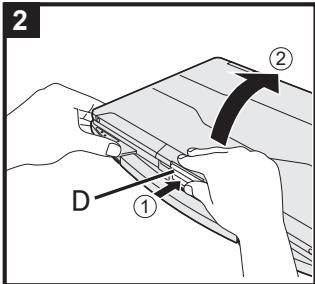
2 Open the display
① Push the top of the latch (D) to release it.
(2) Hold the side/handle of the computer with either of your hands and then lift up the display to open.
IMPORTANT
- Do not open the display wider than necessary (180° or more), and do not apply excessive pressure to the LCD. Do not open or close the computer holding the edge of the LCD segment.
3 Connect your computer to a power outlet
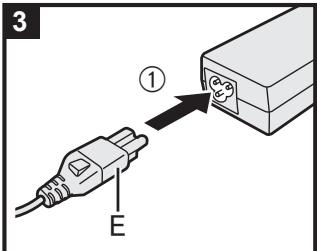
① Connect the power cord and AC adaptor. Hold the plug (E) of the power cord, and securely insert it straight to the end.
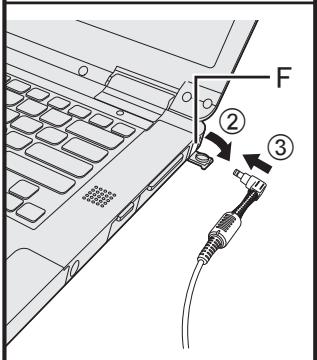
② Open the cover.
③ Connect the AC adaptor to the DC-IN jack (F) of the computer.
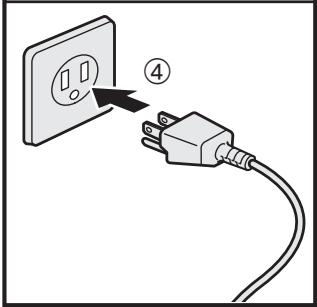
④ Connect your computer to a power outlet. The shape of AC Plug and AC Outlet depend on the country.
The battery charging starts automatically.
IMPORTANT
- Do not disconnect the AC adaptor until the first-time operation procedure is completed.
- When using the computer for the first time, do not connect any peripheral device except the battery pack and AC adaptor.
- Handling the AC adaptor
Problems such as sudden voltage drops may arise during periods of thunder and lightning. Since this could adversely affect your computer, an uninterruptible power source (UPS) is highly recommended unless running from the battery pack alone.
- When the DC plug is not connected to the computer, disconnect the AC cord from your electrical outlet. Power is consumed simply by having the AC adaptor plugged into an electrical outlet.
4 Turn on the computer
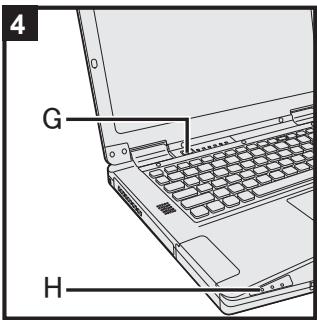
Press the power switch (G) to turn on the power indicator (H).
IMPORTANT
- Do not press the power switch repeatedly.
- Once you turn off the computer, wait for 30 seconds or more before you turn on the computer again.
-
Do not perform the following operation until the drive indicator turns off.
-
Disconnecting the AC adaptor
- Pressing the power switch
- Touching the keyboard, touchpad, touchscreen
or external mouse
Closing the display -
Any changes from the default setting of the Setup Utility
-
When the CPU temperature is high, the computer may not start up to prevent overheating of the CPU. Wait until the computer cools down, and then turn the power on again. If the computer does not power on even after cooling down, contact Panasonic Technical Support (→ Operating Instructions - Reference Manual).
5 Setup Windows
Select language and click [Yes].
Follow the on-screen instructions.
- The computer restarts several times. Do not touch the touchscreen, external keyboard or external mouse, and wait until the drive indicator has turned off.
- After the computer is turned on, the screen remains black or unchanged for a while, but this is not a malfunction. Wait for a moment until the Windows setup screen appears.
- During setup of Windows, use the touchpad and clicking to move the pointer and to click an item.
- The active network connection and your Microsoft account are required to complete the Windows setup.
- When the "How would you like to set up this device" screen appears, choose your setup method.
- For further information (e.g. network connection, Microsoft account, Wi-Fi point, etc.), contact your technical support office.
6 Restart the computer
① Click Start.
② Click (Power) - [Restart].
- A portion of the Panasonic PC Settings Utility functions will be enabled after the computer restarts.
NOTE
- When the "Emergency notification setting" screen appears, read the on-screen messages carefully. Follow the on-screen instructions. You can set the "Emergency notification setting" after the setup of Windows is complete.
7 Update the on-screen manual
① Connect to the internet. Sign in to Windows as an administrator.
For further information, refer to Connect to a network.
② Update the on-screen manual.
Click (Start) - [All apps] - [Panasonic PC Manual Selector].
Follow the on-screen instructions.
NOTE
- To display the password input screen every time the computer is resumed from the modern standby or hibernation, perform the following setting.
① Click (Start) - [Settings] - [Accounts] - [Sign-in options].
② Select [Every Time] in “If you’ve been away, when should Windows require you to sign in again?”
- Set the key entry mode to English ("ENG") and enter characters.
The keyboard layout can be added or changed in the following steps.
① Click (Start) - [Settings] - [Time & language] - [Language & region].
② Click … - [Language options] in the language.
③ Click [Add a keyboard] in "Installed keyboards" and choose a keyboard from the list.
- Remember your password. If you forget the password, you cannot use Windows. Creating a password reset disk beforehand is recommended.
PC Information Viewer
This computer periodically records the management information of the flash memory, etc.
The maximum data volume for each record is 1024 bytes.
This information is only used for estimating the cause in the case when the flash memory goes down by any possibility. They are never sent to outside via network nor used for any other purpose except for the purpose described the above.
To disable the function, add the check mark for [Disable the automatic save function for management information history] in [Hard Disk Status] of PC Information Viewer, and click [OK].
Then follow the on-screen instructions.
() Operating Instructions - Reference Manual "Troubleshooting" "Troubleshooting"
"Checking the Computer's Usage Status")
How to create a recovery disc
Connect to the Internet before creating a recovery disc.
Note that the Windows version of the recovery disc to be created may be newer than the version at the time of factory shipment.
For detailed information and creation method, see the following web page.
https://pc-dl.panasonic.co.jp/itin/support/recv/win11recv-dls.html
"Windows 11 Recovery Image Download Service"
This product incorporates the following software:
(1) the software developed independently by or for Panasonic Connect Co., Ltd.,
(2) the software owned by third party and licensed to Panasonic Connect Co., Ltd.,
(3) the software licensed under the GNU General Public License Version 2.0 (GPL V2.0),
(4) the software licensed under the GNU LESSER General Public License, Version 2.1 (LGPL V2.1), and/or
(5) open source software other than the software licensed under the V2.0 and/or LGPL V2.1.
The software categorized as (3) - (5) are distributed in the hope that it will be useful, but WITHOUT ANY WARRANTY, without even the implied warranty of MERCHANTABILITY or FITNESS FOR A PARTICU
LAR PURPOSE. Please refer to the detailed terms and conditions thereof shown in the Operating Instructions - Reference Manual "Appendix" "Software License".
At least three (3) years from delivery of this product, Panasonic will give to any third party who contacts us at the contact information provided below, for a charge no more than our cost of physically performing source code distribution, a complete machine-readable copy of the corresponding source code covered under GPL V2.0, LGPL V2.1 or the other licenses with the obligation to do so, as well as the respective copyright notice thereof.
Contact Information: oss-cd-request@gg.jp.panasonic.com
The source code and the copyright notice are also available for free in our website below.
https://panasonic.net/cns/oss/
- Microsoft, the Microsoft logo, Windows, the Windows logo, Outlook, OneDrive and Microsoft Teams are registered trademarks or trademarks of Microsoft Corporation of the United States and/or other countries.
- The Bluetooth® word mark and logos are registered trademarks owned by Bluetooth SIG, Inc. and any use of such marks by Panasonic Connect Co., Ltd. is under license. Other trademarks and trade names are those of their respective owners.
- USB Type-C® and USB-C® are registered trademarks of USB Implementers Forum.
- Names of products, brands, etc., appearing in this manual are trademarks or registered trademarks of their respective own companies. However, the ^TM or ^ marks may not be used in all cases in this manual.
Panasonic Connect Co., Ltd.
Panasonic Connect North America
Two Riverfront Plaza
Newark, NJ 07102
Panasonic Canada Inc.
5770 Ambler Drive, Mississauga,
Ontario L4W 2T3
Panasonic Australia Pty. Limited
ACN 001 592 187 ABN 83 001 592 187
1 Innovation Road, Macquarie Park, NSW 2113
Web Site : https://panasonic.net/cns/pc/