X16 - Haptic clothing bHaptics - Free user manual and instructions
Find the device manual for free X16 bHaptics in PDF.


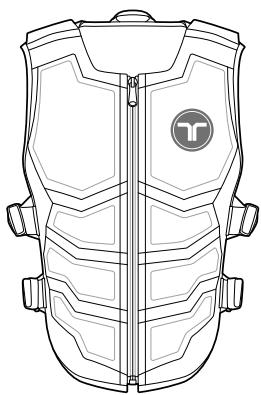
| Product Type | Haptic garment (haptic vest) |
| Brand | bHaptics |
| Model | X16 |
| Battery | Rechargeable lithium-ion, 3.63 V, 9800 mAh, 35.574 Wh |
| Charging | 5 V, 2 A max (via included USB cable) |
| Connectivity | Bluetooth |
| Software Compatibility | bHaptics Studio (Windows), VR applications |
| Material | Fabric with removable mesh inner lining |
| Weight | Approximately 1.5 kg |
| Operating Temperature | 0 to 35 °C |
| Operating Humidity | 5 to 95% |
| Main Features | Directional haptic feedback, Surround mode, audio haptics, PC FPS compatibility |
| Maintenance | Clean with a soft cloth; inner lining machine washable at 30 °C, low heat drying |
| Safety | Not recommended for individuals with heart, respiratory, skin, or musculoskeletal disorders; do not use in hazardous environments |
| Box Contents | X16 haptic vest, charging cable, inner lining, quick start guide |
| Spare Parts and Repairability | Integrated battery not user-replaceable; replaceable inner lining; repair by official bHaptics service |
| Warranty | Standard manufacturer warranty (check local conditions) |
Frequently Asked Questions - X16 bHaptics
User questions about X16 bHaptics
0 question about this device. Answer the ones you know or ask your own.
Ask a new question about this device
Download the instructions for your Haptic clothing in PDF format for free! Find your manual X16 - bHaptics and take your electronic device back in hand. On this page are published all the documents necessary for the use of your device. X16 by bHaptics.
USER MANUAL X16 bHaptics
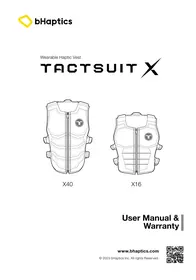
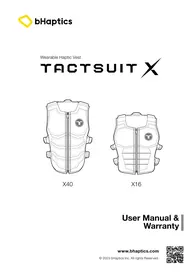
Wearable Haptic Vest
TACTSUITX
X40
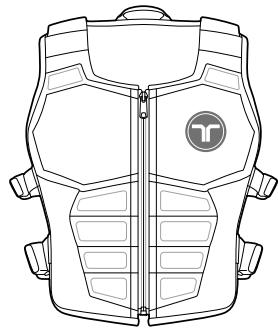
X16
User Manual & Warranty
Before Getting Started
Be sure to read the user manual before using the product to ensure safe and proper use of the product.
- Please read carefully the bHaptics Limited Warranty before using the product.
- Do not use the product for any purpose other than the intended purpose.
- Do not attempt to modify, disassemble or repair the product.
- Do not drop the product or subject the product to other forms of strong impacts.
- Users with sensitive skin should avoid wearing the product directly on the skin.
- Do not excessively pull on the side straps while wearing the product, as it may irritate your body.
- This product is not waterproof. Store the product in a dry place free from humidity and moisture.
- The main body of the product contains electronic components and must not be washed in water under any circumstances. Should the product need to be cleaned, gently wipe it with a soft cloth. The mesh lining may be removed, and machine washed with neutral detergent. (Do not use strong chemicals or strong detergents.)
- The latest user manual for the device and related software can be found at https://www.bhaptics.com/support/downloads.
Table of Contents
01 Overview
General Information 4
What's in the Box 5
Part Names 6
LED Indicator 8
02 Getting Started
Product Charging 9
Power On/Off 10
Product Fitting 11
Enjoy 12
03 How to Play
PC VR 14
Standalone VR 18
PC Game 20
Music/Movie 20
Console 21
04 bHaptics Software
bHaptics Player (PC) 23
bHaptics Player (Mobile) 26
bHaptics Studio 29
bHaptics Designer 31
05 Appendix
Product Specifications 32
Support 34
Health & SafetyWarnings 36
Cautions 42
Limited Customer Warranty 50
TACTSUIT

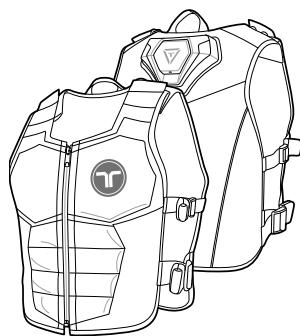
Introducing the TactSuit X40, a wireless haptic vest that packs 40 individually controllable vibrotactile motors.
Stay immersed in your content with positional haptic feedback delivered to every corner of your body.
TactSuit is compatible with a wide range of platforms, including PC, VR, Mobile, and console.
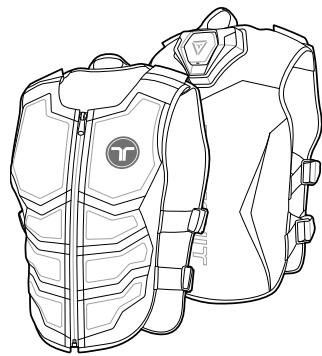
TACTSU16
TactSuit X16 is designed to be a strong, yet lightweight haptic vest that you can wear for hours. The short and breathable design makes long sit-down gaming sessions much more enjoyable.
TactSuit X16 packs the same vibro-tactile motors used in the TactSuit X40, giving you the same powerful haptic feedback.
Basic Components
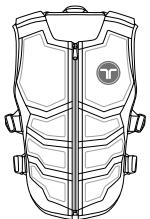
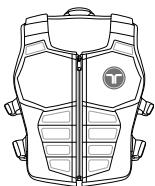
TactSuit X40 or TactSuit X16
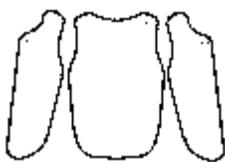

Mesh Lining*
*Mesh Lining is attached to the device.

Bluetooth Dongle

USB Type C Charging Cable

User Manual & Warranty
Additional Components (purchased separately)
bhaptics.com/shop
Additional Components can be purchased from bHaptics online shop.

Y Jack
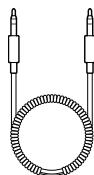
Audio Cable
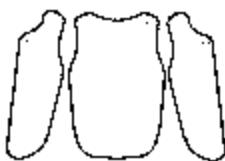
Additional Mesh Lining

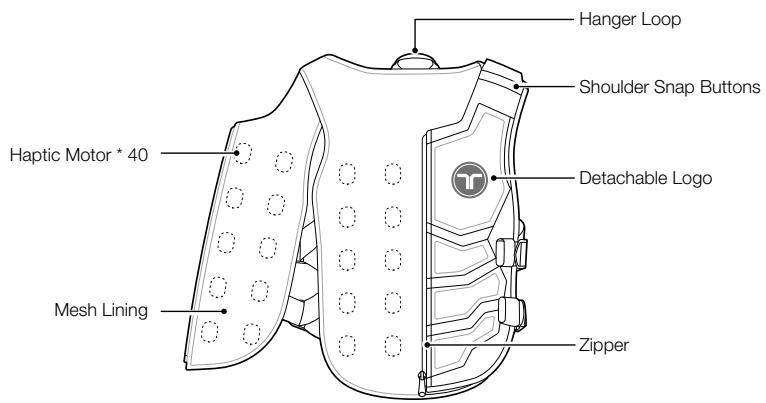
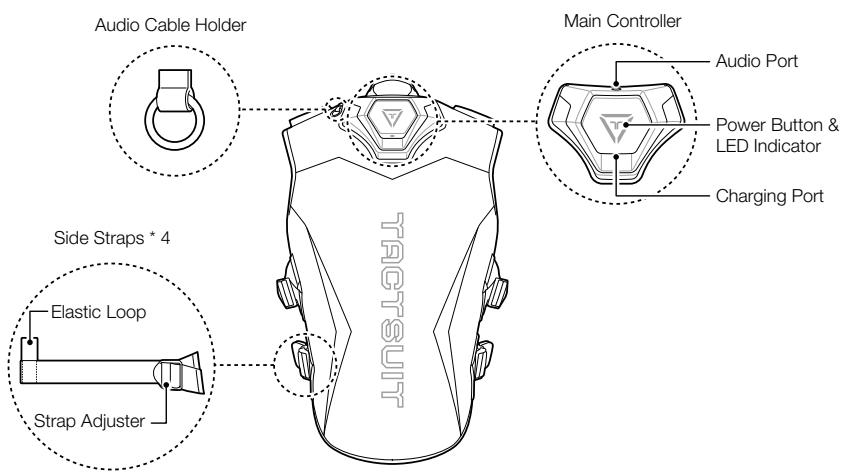
| Blue | Purple | Mint | Red/Green | Yellow |
| Bluetooth | Wired | Button Lock | Battery Status | Device Management |
| LED State | Indication |
| Yellow Activated | Power On |
| Blue Blinking | Bluetooth Pairing |
| Blue Solid | Bluetooth Paired |
| Purple Solid | Audio Cable In |
| Purple & Blue Blinking | Audio Cable In & Bluetooth Pairing |
| Purple & Blue Solid | Audio Cable In & Bluetooth Paired |
| Mint Solid | Power Button Lock |
| Red Solid | Low Battery or Charging |
| Green Solid | Fully Charged |
| Yellow Rotating | Updating Firmware |
Product Charging
TactSuit is shipped in Sleep Mode for safety during transportation.
Before using your TactSuit for the first time, plug it into a charger to bring it out of sleep mode and fully charge the device.
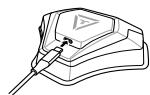
You can use 2A charging cable included in the package to charge the device.
It takes about 5 hours, TactSuit X40, and 2.5 hours, TactSuit X16, to fully charge the device using 2A charging current.
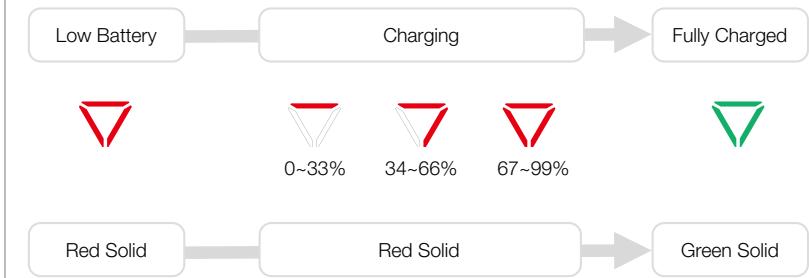
LED Indication for each battery status

Be sure to use an authorized AC adapter and included charging cable to charge the product. Use of an unauthorized device or accessory may result in personnel injury, may cause damage of the product or your property, and may void your warranty.
If the product is left unattended for a long time while the battery is discharged, the LED may not light even if the charging cable is connected. In this case, the light turns on again after charging for more than 1 hour.
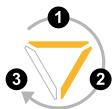
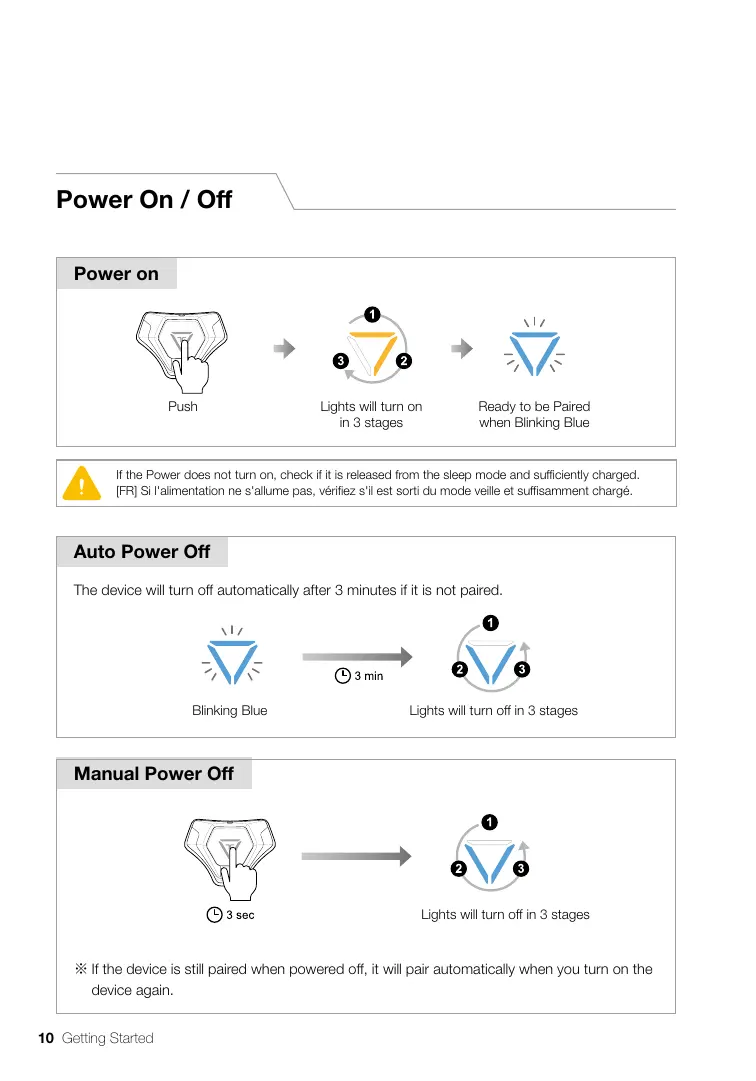
Lights will turn on in 3 stages


Ready to be Paired when Blinking Blue

If the Power does not turn on, check if it is released from the sleep mode and sufficiently charged. [FR] Si l'alimentation ne s'allume pas, vérifie s'il est sorti du mode veille et suffisamment chargé.
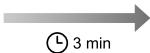
Auto Power Off
The device will turn off automatically after 3 minutes if it is not paired.

Blinking Blue
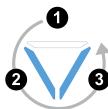
Lights will turn off in 3 stages
Manual Power Off
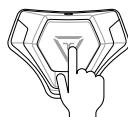
3 sec

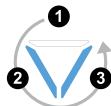
Lights will turn off in 3 stages
※ If the device is still paired when powered off, it will pair automatically when you turn on the device again.
Product Fitting
1 Loosen all the side straps and unzip the zipper.
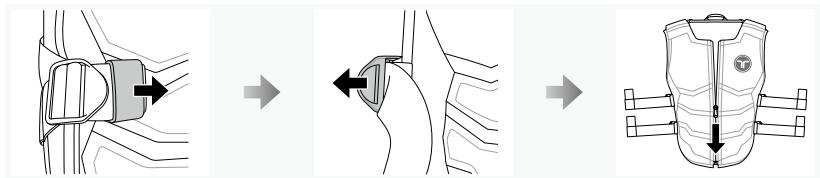
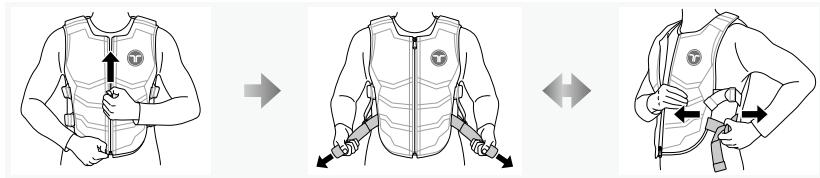
Wear the device, zip up and pull the side straps (*4) towards the front to adjust the suit and fit to your body.
※ You can also adjust the length of the device using the shoulder snap buttons.
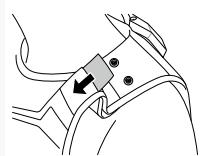
When fastening the snap buttons, please be careful not to fold the cable. [FR] Lors de la fixation des boutons pression, veillez à ne pas plier le cable.
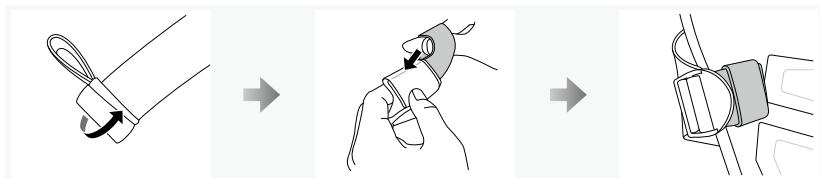
After adjusting the size, organize the straps hanging with the elastic loop located at the end of the strap. You do not need to repeat this step again once it is organized to fit your body.
Enjoy
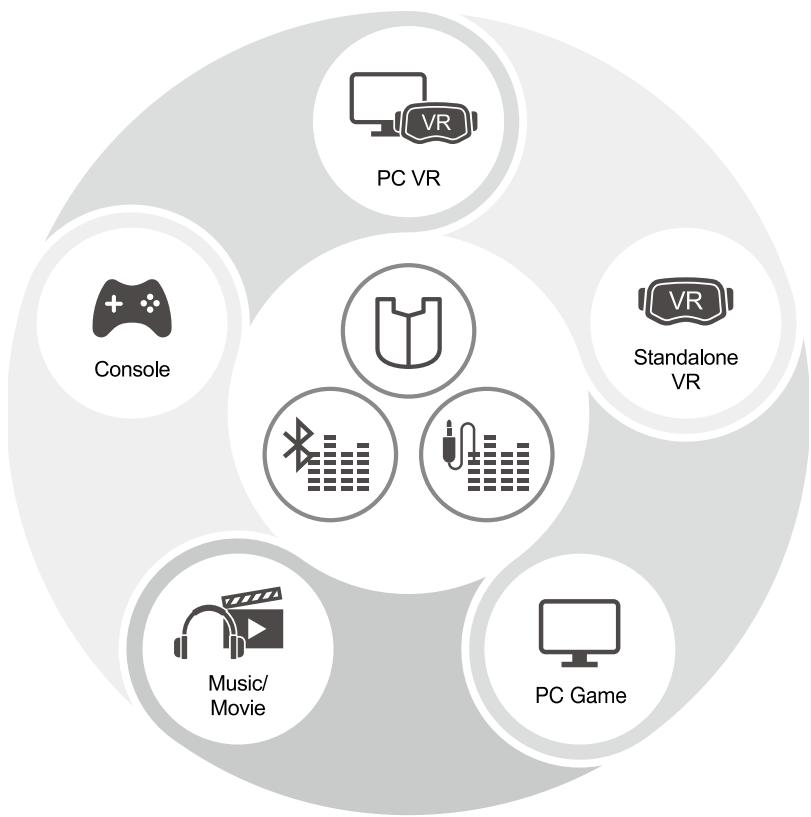
Enjoy state-of-the-art haptic feedback and seamless connectivity for every media.
Embedded Haptics
Playing Content with Embedded Haptics
Audio-based Haptics
(Wireless)
Playing Content without Embedded Haptics
(Wired)



Go to Setup

Playing Content with Embedded Haptics
Embedded haptic feedback for this content will be delivered according to the events, enhancing your immersion more than ever before.

Be sure to disable the "Audio-based Haptics" feature. Leaving the feature ON will deliver automatic feedback generated by the "Audio-based Haptic cs" function instead of the content's embedded feedback.
1) Pairing the TactSuit with PC
1 Install Bluetooth Driver
- Insert the provided dongle into a USB port on your Windows PC. The driver will be automatically installed.
- If you have previously installed other Bluetooth drivers, open [Device Manager] > [Bluetooth] on Windows, and disable all previously installed Bluetooth drivers except 'Generic Bluetooth Radio', 'Bluetooth Enumerator', 'Bluetooth LE enumerator.'

Do NOT try pairing on Windows Settings.
Install and run bHaptics Player
www.bhaptics.com/support/downloads
3 Right click the blinking device icon and click "Pair"
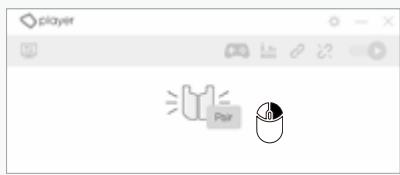


Paired
2) Open "bHaptics Portal"

3) Choose the content you want to play and install it
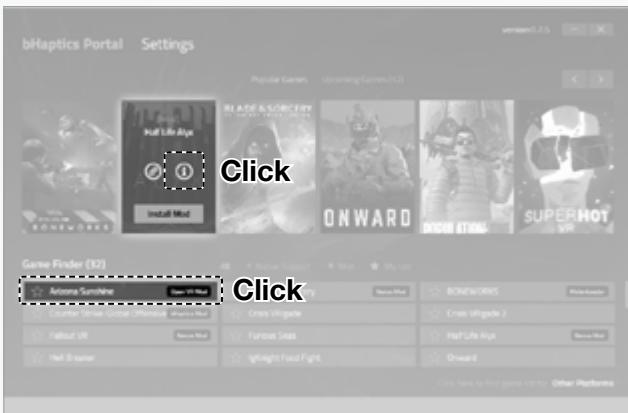

Some content requires mod tool installation.
The installation guide can be found by clicking "①" icon from each game page.
Playing content without Embedded Haptics

Enjoying Audio-based Haptics (Wireless)
Audio-based Haptics feature creates haptic feedback in real time based on audio output of content. You can now enjoy all content regardless of native integration.

Be sure to turn off Wired Audio or remove the audio cable from the device. [FR] Assurez-vous de désactiver Wired Audio ou de-retirer le cable audio de l'appareil.
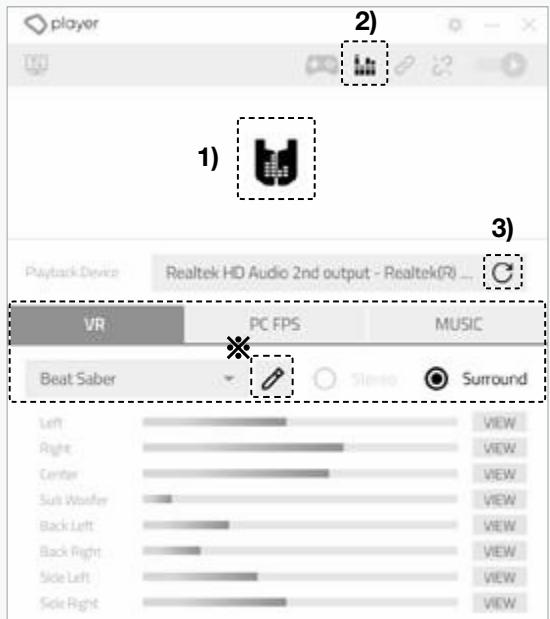
4)
- Refer to p. 25
1) Pairing the TactSuit with PC*
- Refer to p. 14
2) Turn on Audio to Haptic function
When Audio to Haptic function and audio signals are on, the audio signal animation will appear on the device icon.
3) Click to sync audio capturing device and playback device of Windows
4) Select Content Type (VR / PC FPS / Music), Profile and Mode (stereo/surround) you will be using

You need to have a surround audio driver installed on your PC in order to use the Surround mode.
※ Click to customize frequency, threshold, activation area using bHaptics Studio*
*Refer to p. 29 for more details

Playing Content with Embedded Haptics
Check the Standalone VR content with embedded haptics at www.bhaptics.com/games.
1) Pairing the TactSuit with Meta Quest
① Go to [Settings] on your Quest headset
② Select [Device] > [Bluetooth]
③ Find [Bluetooth Pairing] and tap [Pair]
4 Select [+Pair new device] and pair your TactSuit
2) Run a native supported game and enjoy
Enjoy optimized haptic feedback pre-embedded in VR games.

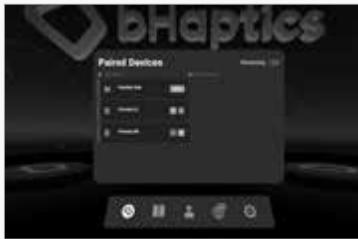
You can manage more detailed settings of the TactSuit by downloading 'bHaptics player' from Meta Quest App Lab
Please search 'bHaptics player' on the Quest store or download from our website (https:// www.bhaptics.com/support/downloads).

Enjoying Audio-based Haptics (Wired)
You can use Y jack and audio cable (stereo only) to enjoy every standalone VR content with TactSuit.
1) Plug & Play
Connect your 1) Audio Source with 2) Headphone and 3) TactSuit using Y jack and audio cable as shown in the diagram below.
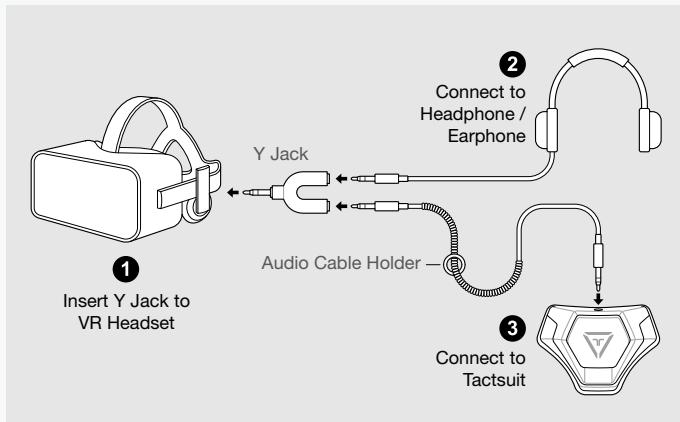
Y jack and audio cable can be purchased as separate accessory from bHaptics online shop. (www.bhaptics.com/shop)
*TactSuit does not generate sound output. The audio jack is used for converting external sound sources into haptic feedback.
2) You can customize the intensity, Profile, frequency and threshold using bHaptics Player app on your phone*

"BHaptics Player" Application is available in Google Play Store and iOS App Store.
*Refer to p. 26 for more details

Enjoying Audio-based Haptics (Wireless)
Enjoy the most dynamic gameplay with 360^ directional haptic feedback converted from 7.1 surround sound.
Please refer to PC VR >Enjoying Audio-based Haptics (Wireless)*
*Refer to p. 16

Enjoying Audio-based Haptics (Wireless)
Feel the trembling bass, beats, rhythm and action with audio-based haptics.
Please refer to PC VR >Enjoying Audio-based Haptics (Wireless)*
*Refer to p. 16

Enjoying Audio-based Haptics (Wired)
Plug in Audio Jack and take your console gaming to the next level with real-time stereo haptics.
1) Plug & Play
Connect your 1) Audio Source with 2) Headphone and 3) TactSuit using Y jack and audio cable as shown in the diagram below.
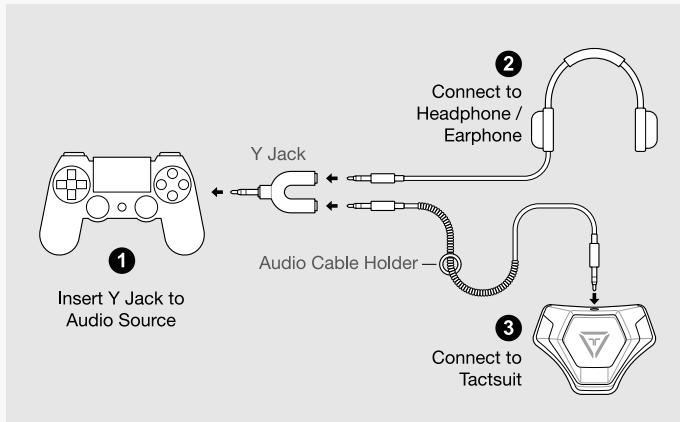
*Y jack and audio cable can be purchased as separate accessory from bHaptics online shop. (www.bhaptics.com/shop)
**TactSuit does not generate sound output. The audio jack is used for converting external sound sources into haptic feedback.
2) You can customize the intensity, Profile, frequency and threshold using bHaptics Player app on your phone*

"BHaptics Player" Application is available in Google Play Store and iOS App Store.
*Refer to p. 26 for more details

bHaptics player
bHaptics Player
bHaptics Player is an essential software required to connect your device with PC and mobile. You can manage the play mode (Embedded Haptics / Audio-based Haptics), haptic intensity, visualization tool and access bHaptics Portal using this software.
https://www.bhaptics.com/support/downloads

bHaptics studio
bHaptics Studio
bHaptics Studio is an audio based haptic customization tool which allows you to create or edit the profile by selecting range of frequencies, threshold and activation area of the vest to feel the sound.
https://studio.bhaptics.com/

bHaptics designer
bHaptics Designer
bHaptics Designer is a web-based haptic feedback authoring tool that you can use to create haptic patterns by clicking and dragging between visualized haptic feedback points. Simply click on the "Export" button to integrate haptic patterns into your content.
https://designer.bhaptics.com/

unity

UNREAL
SDKs
SDKs are available for Unity and Unreal. The SDKs include a library of over 300 different haptic feedback. For more information, please refer to the manual that is provided with respective plug-in.
https://www.bhaptics.com/support/developer/
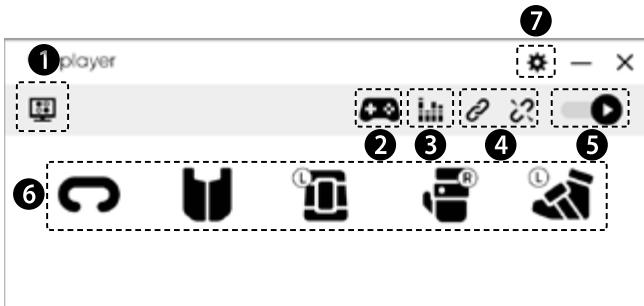
1 Feedback Visualization Overlay
bHaptics Portal
3 Audio-to-Haptic
4 Pair/Unpair All
5 Play & Pause
6 Device Panel
7 Settings
Monitor the haptic feedback in realtime
Find, download and install the list of games with Embedded Haptics
Activate wireless Audio-based Haptics
Pair or Unpair all scanned or paired devices
Play & Pause haptic feedback
List of devices which are paired and waiting to be paired Pairs, unpairs and controls intensity of haptics for each devices
Manage device pairing, run feedback test, find opensource license and control settings

Device Control

Device Status
Scanned

Connected

Audio-based Haptics (Wireless)

Audio-based Haptics (Wired)

Button Lock

Notice
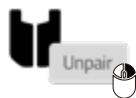
Individual Pairing: Right Click on the device icon to pair/unpair.
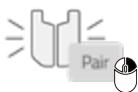
Device Pairing
Pair All: Click on Toolbox icon to pair/unpair all devices.

Device Information
Mouse over each device icon to check the device information.
Or you can also go to Settings Device

Scanned
TactSuit X40
RSSI-47dB

Connected
TactSuit X40
Status: Connected / Aux
Battery : 35%
Feedback Intensity : 40%
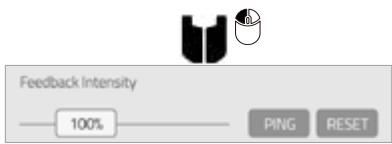
Intensity Adjustment
You can adjust the feedback intensity of each device in realtime by clicking on each device icons.
Device Management
You can check the list of device from Settings ^(0) > Device. Here you can pair/unpair devices, check the device information, and change the devices settings.
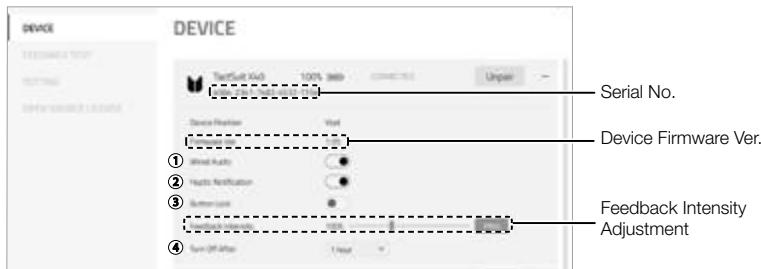
1 Wired Audio
Haptic Notification
3 Button Lock
4 Turn off After
Deactivate Wired Audio-based Haptics when the audio cable is plugged in.
Activate and deactivate the "haptic alerts" which you can feel when you turn the device on and off.
Lock the power button to avoid the device turning off during your play.
Set the time to turn off the device automatically when there is no active haptic feedback for the set time.
bHaptics Player (Mobile) is an application used to change profiles and settings when using "wired" options for Audiobased Haptics.

https://www.bhaptics.com/support/download
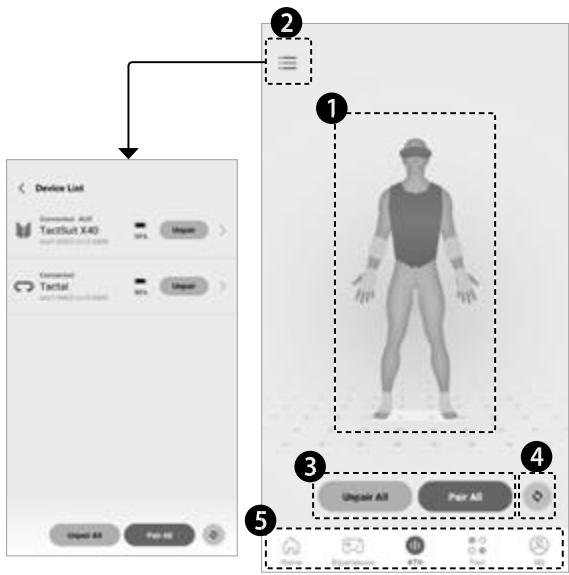
Device Pannel
Device List
3 Pair/Unpair All
4 Scan
5 Menu
Find devices ready to be paired, Pair the searched devices by a drag and drop, Unpair the devices by clicking the icons and selecting the unpair button
Check scanned or paired device information
Pair all scanned devices / Unpair all paired devices
Scan all active devices in pairing mode
Manage device pairing, Find the list of supported games, configure Audio-based haptics frequency settings, run feedback test, and manage account

Device Control

Bluetooth and location setting must be activated from your mobile settings.
Do not pair directly from the Bluetooth settings on your mobile phone.
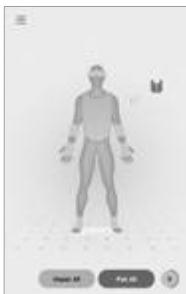
1 Click the Scan button to search for TactSuit devices.
Drag and Drop the icon of the scanned device to pair.
※ Click the Pair All button to pair all scanned devices.
※ Go to the Device List menu to selectively pair multiple devices.
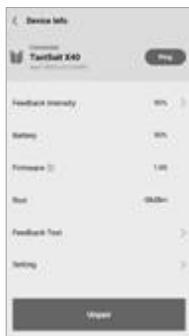
Device Management
Manage more detailed settings of the paired devices from the Device List menu.
ATH (Audio-to-Haptic)
When using wired options for Audio-based Haptics, you can select the profile and customize the settings by connecting the device with bHaptics Player (Mobile).
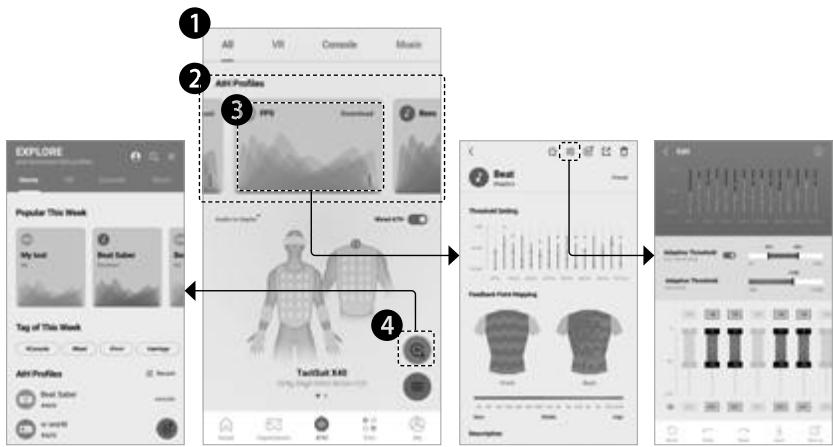
1 AtH Main Panel
2 Profile List
3 Profile Editing
4 Profile Explore
Monitor a real-time visualization of the vibration patterns automatically generated by the AtH conversion using the chosen profile.
The list of downloaded AtH profiles. You can manage your list by creating, editing, and deleting profiles.
Edit thresholds, gains, and frequency bands of a selected profile.
Explore and download a new profile, create and upload your profile, share your profile by providing a Profile ID to other users.
bHaptics Studio is an Audio-based Haptics customization tool which allows you to create or edit the profile by selecting range of frequencies, threshold and activation area to feel the sound.

1 Menu
2 Profile List
Audio to Haptic Mode (Stereo / Surround)
4 Tools
3 Frequency and Threshold Setting
6 Feedback Point Setting
Haptic Feedback Monitoring
Create new profile / Import / Export / Delete
Select/Edit list of profiles
Select sound channels (Stereo/Surround)
Edit the profile using the tools
Set threshold value by monitoring the dB changes of each frequencies for each audio input real-time.
When an audio signal is input, the haptic feedback point for each devices can be selected.
Monitor how the audio signal input is being converted to haptic feedback real-time.
How to Use
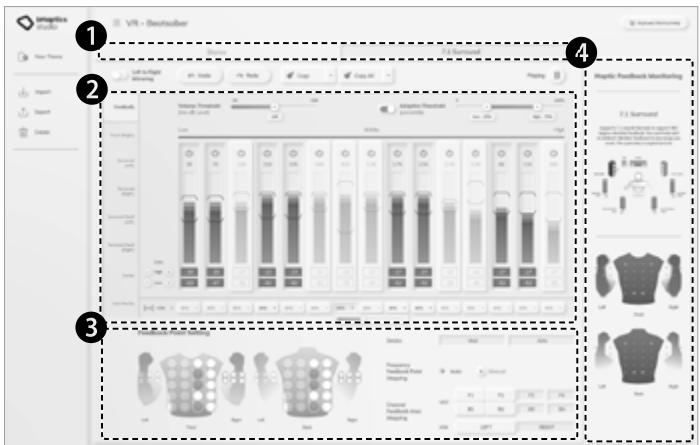
1 Select from Stereo or Surround mode for your sound channel. ex.For 7.1 sound channel, select surround mode
2 Select frequency band using on/off button and adjust the threshold by dragging the brackets based on the decibel (dB) level on the Audio Signal Panel. The audio signal panel will show frequency response of the sound you are playing now.
3 Select activation area for each frequency.
Monitor activated haptics in realtime for each frequencies and feedback point.
※ Full guide video is available at www.youtube.com/bhaptics
bHaptics Designer is a web-based haptic feedback authoring tool that you can use to create haptic patterns by clicking and dragging between visualized haptic feedback points. Simply click on the "Export" button to integrate haptic patterns into your content. This tool will help you minimize development time and effort significantly.
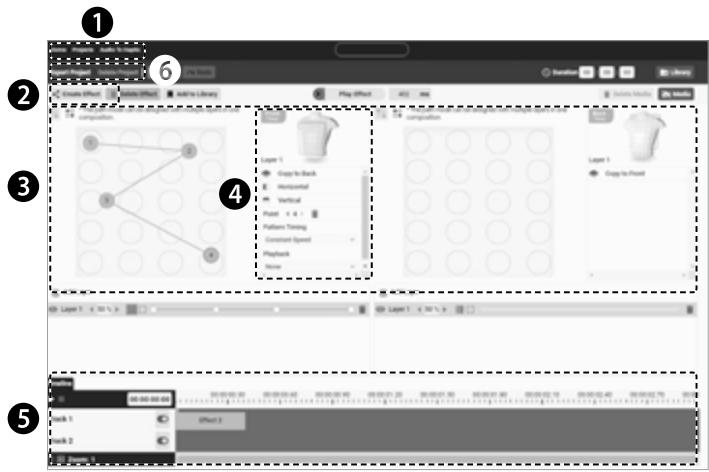
How to Use
1 Projects > Create Project.
2 Create Effect.
3 Click on feedback point and drag to the next point to create path and design patterns you wish to create.
4 Edit more sophisticated settings such as timing, speed and directions.
5 Play and edit timeline of the haptic feedback pattern you have created.
Export Project and import your ".tact" files into your own engine.
※ Full guide video is available at www.youtube.com/bhaptics

Product Specifications
| TACTSUIT X40 |
| Product Name | TACTSUIT X40 |
| Model Name | BHTV40D001 |
| Main Functions | Replicate and deliver stimulation through vibrotactile feedback |
| Feedback Point | Total: 40 (front: 20, rear: 20) |
| Size | Body Circumference : 25-50 inchesLength : 22.5 inches / 24 inches |
| Weight | 1.7 kg |
| Operation Time | 12 hours (Measured when all feedback points operating for 1 second every 10 seconds with maximum intensity.) |
| Operational Temperature | 0 ~ 35 °C |
| Operational Relative Humidity | From 5% to approx. 95% |
| Wireless Frequency | 2.402 - 2.480 GHz (Bluetooth LE) |
| Peak Output Power | TBD |
| Connection Type | Bluetooth Low Energy (BLE), Auido Port, and USB |
| Battery | Li-ion rechargeable battery (3.63V, 9800mAh, 35.574Wh) |
| Charging | 5hrs with 5V 2A (max) |
| Product Name | TACTSUIT X16 |
| Model Name | BHTV16D001 |
| Main Functions | Replicate and deliver stimulation through vibrotactile feedback |
| Feedback Point | Total: 16 (front: 8, rear: 8) |
| Size | Body Circumference : 25-50 inchesLength : 19.7 inches / 20.8 inches |
| Weight | 0.95 kg |
| Operation Time | 12 hours (Measured when all feedback points operating for 1 second every 10 seconds with maximum intensity.) |
| Operational Temperature | 0 ~ 35 °C |
| Operational Relative Humidity | From 5% to approx. 95% |
| Wireless Frequency | 2.402 - 2.480 GHz (Bluetooth LE) |
| Peak Output Power | TBD |
| Connection Type | Bluetooth Low Energy (BLE), Audio Port, and USB |
| Battery | Li-ion rechargeable battery (3.63V, 4900mAh, 17.787Wh) |
| Charging | 2.5hrs with 5V, 2A (max) |

FAQ
Which Content(Platform) can I enjoy?
You can enjoy various contents on VR(PCVR, Standalone VR), PC(Games, Music and Movie) and Console etc, using embedded haptics or audio-based haptics.
Does TactSuit provide body tracking?
All TactSuit series does not provide body tracking.
What is the playtime of TactSuit?
You can use TactSuit X40 for 12 hours and TactSuit X16 for 12 hours.
(Measured when All feedback points are operating for 1 second in every 10 second at maximum intensity.)
How can I control the intensity of haptic feedback?
P C - Pair the device using bHaptics Player on your PC. The intensity control bar will appear when you click on the paired device icon. You can click and drag the bar to adjust the intensity of haptic feedback.
Mobile - Pair the TactSuit via bHaptics Player app on your mobile device. Click the Device List menu and find the Feedback Intensity menu to adjust the intensity of haptic feedback.
Can I wash TactSuit?
The main part of TactSuit contains electric motors and wires and cannot be washed. In case of contamination, gently wipe the contaminated area with a soft cloth. (The mesh lining can be detached and washed)
I can't connect TactSuit to my PC. Is the TactSuit or Bluetooth dongle defective?
Open Device Manager on your PC and disable PC's internal Bluetooth before inserting the provided dongle. If you see CSR Bluetooth Radio under Bluetooth, please uninstall all software related to CSR Bluetooth, then insert the provided dongle.
I keep losing connection to the PC when I turn around or stand up.
Securing the line-of-sight between the TactSuit and the Bluetooth dongle is required for seamless Bluetooth connection. Please insert the Bluetooth dongle to the front of the PC, rather than the back.
I can't feel surround feedback while playing content with 7.1 channel sound (ex. PC FPS game).
You need to select Audio-based Haptics from bHaptics Player, then turn on surround mode. Please note that you need to have a surround audio driver installed on your PC in order to use the Surround mode. Please also note that surround mode is not supported for Wired Audio-based Haptics.
The device can be turned off during your play if you lean back to rest against the chair.
You can lock the device during your play from the settings menu in bHaptics Player. If you are using bHaptics Player (PC), please go to Settings > Device > Device List. Press + button next to the paired device icon to turn on the "Button Lock". If you are using bHaptics Player (Mobile), please go to Device List. Press button next to the paired device icon to turn on the "Button Lock".
To ensure the safety of all users and to minimize the problems that may occur during using the product, please carefully read and follow the manual and warnings before using the product.
Before Using the Product
- Please read and follow all the instructions and warnings for set up and operate the product.
- The product is not a toy and should not be used children under age 12. The product is not sized for children and improper sizing can lead to discomfort or adverse health effects.
- Be sure to use recommended hardware, software and certified devices, accessories. If you don't, it may result in device performance and may cause damage not covered by your warranty. Also may result in injury to you or others.
- Do not use the product if you have muscle aches, headache, colds, hangover, stress, intoxicated or while taking any kind of medicine.
- If you are pregnant, elderly, mentally ill or suffering from heart disease or spinal/skin/muscle diseases, please consult your doctor before using the product
- Keep the product out of the reach of children and pets. Children and pets may swallow small parts, may pull on the charging cables and cause the damage of processor unit, or may wrap the cables around themselves, which may inflict injury or cause an accident or a malfunction of the product.
Always use in a safe environment to secure physical/mental safety and prevent damage to property.
- Never handle dangerous goods such as fire, knives, hot water, etc. while using the product, and do not use the product in situations that require attention(such as bicycling, driving or walking and in unstable locations such as car, train or bus). And do not do any activities that may cause serious consequences(any activities that may cause death, personal injury or damage to property).
- You may experience reflex actions when startled by haptic feedback of the product, so please be sure to check your surroundings before use the product.
- Especially, if you using the product with VR HMD should pay special attention because wearing the VR headset will completely block your ability to see your surroundings.
- Before using the product, clean up the things that may cause serious injuries such as sharp objects and furniture, and always pay special attention while using the product.
- Be careful that people, pets and other obstacles do not suddenly appear during use of the product.
If you are affected by any of the following, please be use caution when using the product.
Heart Disease
If you are startled by the haptic feedback delivered by the product, it can be hard on your heart. Please consult your doctor before using this product.
Respiratory Disease
Excessive tightening of the side straps may cause breath problems or seizures.
- Spine/ Muscle Disease
When strong haptic feedback is delivered to your body, it can affect your spine and muscles. Please consult your doctor before use and do not use the product for too long.
- Skin Disease
Do not put on the product on bare skin if you have sensitive or weak skin (especially children). If haptic feedback is delivered to the bare skin directly, it may cause itching, rash or swelling of skin.
If you experience any of the following symptoms, stop to use the product immediately and consult your doctor.
- Difficulty in breathing, dizziness, seizures, muscle cramps or stiffness, skin burning, excessive sweating, headache, fatigue, involuntary movements, nausea, swelling, itching or rashes.
- Don't use the product until symptoms described above are relieved. If symptoms persist, consult your doctor and you have to get your doctor's approval to use the product again.
- You may be more sensitive to specific content. Therefore remember the type of content you were playing while you experience those symptoms and please take special care when you use that type of content.
The device can emit radio wave that could affect the operation of nearby electronic devices including medical devices.
- Do not use the product in hospitals or any transportations including aircrafts and automobiles.
- If there is any electronic devices nearby, make sure to maintain a safe distance between the product and the electronic devices.
- We recommend do not use the product if you or nearby person has a pacemaker or any other implanted medical devices.
- If you have to use the product inevitably even though you have pacemaker, please consult your doctor before using the product and be sure to maintain at least 15cm distance between the product and you.
- Stop using the product as soon as you experience interference between the product and your medical devices.
- Use the product only for its intended purpose.
-
The recommended environments for stable operation are as follows:
-
Temperature: 0 35^ C , Huminity: 5 95%
-
Do not use the product in dusty places
-
You may get zapped when you use the product in a dry place. This is caused by static electricity, and not a product malfunction.
- Be sure to use accessories and parts that bHaptics Inc. provides, or get official approval from us before using. If not, we cannot guarantee the safety of the user and we are not responsible for any damage caused by this.
- Please follow the instructions to wear the device fit to your body. Otherwise, you may feel discomfort and may not feel the haptic feedback properly.
- When you use the product while the charging cable is connected, be careful the cable is not wrapped around your body or legs and check frequently during use.
- Use of the product in a moving vehicle such as a car, bus, plane or train may increase your susceptibility to adverse symptoms due to variation in speed or sudden movement.
- We recommend you not to share the product with the others. If you have to inevitably, clean the device between each use with clean and soft cloth. Also we recommend you to replace or wash the inner mesh lining periodically to maintain the product in hygienic conditions.
- If you use the product frequently or for long time period, you may experience tiredness or soreness in your muscles and body parts. Therefore, take a rest between uses even if you do not think you need it. And if you feel discomfort, take longer and more frequent breaks.
-
Do not cause a strong impact to the product (do not drop the product or place a heavy object on it).
-
The product contains a rechargeable Lithium-lon battery. Please follow below instructions for your safe usage of the product and prevent personal injury, damage of the product.
- Do not use external battery packs or power sources other than the included charging cable and if you want to use your own cable, please contact bHaptics official service center.
- If you have any problems related to the battery, contact official service center. Never open the main controller of the device and attempt to repair or replace the battery by yourself.
- Please follow the instructions below when pairing via Bluetooth.
- When pairing, place the product near your PC, laptop or mobile. If not, the product can be connected to a different device or can fail to pair with your device.
- To secure a stable connection remove any obstacles between the product and your device. Also please use the product within the Bluetooth range.
Bluetooth uses the same frequency band as some industrial, scientific, medical devices and electronics, and low power devices such as wireless LAN, which may cause electronic interference between devices. Therefore please do not use this device in the places where it can cause malfunctioning of the electronic devices, resulting in serious personal injury and damage to property (ex. hospital, transportation etc.) - The product may not be compatible with some devices, including those that are not approved by Bluetooth Special Interest Group (SIG)
- Do not use Bluetooth for illegal purposes (ex. Pirating copies, Illegal public transmission etc.)
- Stop using the product immediately when you have an allergic reaction to the clothes or metals of the product.
- To prevent electric shot, do not disassemble, modify or open any of the product component. And if the product is broken or damaged (especially any cable is damaged or a wire is exposed) do not use the product and ask for repairs from the official service center.
Product Care Precautions
-
Keep the product in the following environment to prevent degradation of the product.
-
Keep the product in cool and dry place(Recommended storage temperatures: 0 35^ C , 5 95 % humidity)
- Do not expose the product to dust, smoke, steam or direct sunlight.
- The product includes haptic motors and cables, so to prevent breakdown of the product, do not leave or store the product folded and crumped. Put the product in the package box and store it in safe place when not in use.
Cautions for Product Maintenance


-
Keep the product out of reach of children and pet for their safety and to prevent the damage of the product.
-
Children or pets may swallow small parts of the product or wrap the cables around themselves which may inflict injury or cause an accident or malfunction.
If they swallow any of parts, please consult with the doctor immediately. -
Be careful not to drop, throw and bend the product. Those may cause damage of the product. If it happens and suspect any damages please contact to the bHaptics official service center.
-
If the product is damaged or malfunctioning, stop to use it immediately and contact bHaptics official service center. Unauthorized repairing may cause further damage of the product and your Warranty will become null and void.
-
Do not allow liquid, small particles or other foreign objects to get into the product. If this happens, stop use, turn off the product and disconnect the product from electrical outlet immediately and contact the official service center.
If battery leaks: -
Do not allow the leaking fluid to come in contact with skin, eyes or clothing. If already in contact, DO NOT RUB; flush the affected area immediately with clean water and consult with your doctor.
Take extra precautions to keep a leaking battery away from fire as there is a danger of ignition or explosion. -
The product is an electronic device, so it is non-washable. If it is contaminated, just drop a few drops of water and gently wipe with soft cloth.
-
Do not use strong chemicals such as solvents, cleaners, chemically treated cloth etc. to clean the product and inner mesh lining. If you use these on the devices, it will cause internal and external damage to the product.
-
The inner mesh lining can be detached and machine washed with neutral detergent (Frequent machine wash can cause deterioration)
-
If you use the dryer machine, please set the temperature as "low" to prevent deterioration of the product.
- We recommend you replace the inner mesh lining periodically to maintain the product in hygienic conditions.
Wash Mesh Lining
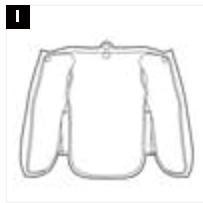
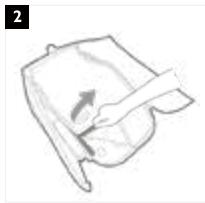
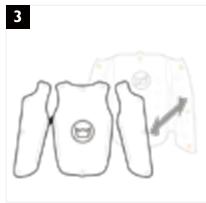

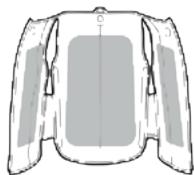
Body: Non-washable

Mesh lining : Washable
- If the product or accessories need repair, please contact bHaptics official service.
-
Do not dispose the product in a fire and never place the product near the heating equipment or high voltage appliances.
-
When the product or the battery is overheated, it may explode.
- Please follow all applicable laws and regulations when you recycle or dispose the product and battery. Disposal of certain electronic devices is strictly regulated in some areas.
Read this information before using your device.
By using your bHaptics product, you agree to the limited warranty.
If you do not accept this limited warranty, do not use your bHaptics product.
Instead, Please return it to bHaptics or the retailer from whom you purchased it within the return period stated in bHaptics return policy (Found at www.bhaptics.com/legals/cancellation-return-refund) for refund.
- Intellectual Property
All Intellectual Property, as defined below, owned by or which is otherwise the property of bHaptics or its respective suppliers relating to the Product, including but not limited to, accessories, parts, or software relating thereto, is proprietary to bHaptics and protected under international treaty provisions, country laws, federal laws, and states laws. Intellectual Property includes, but is not limited to, inventions (patentable or unpatentable), patents, trade secrets, copyrights, software, computer programs, and related documentation and other works of authorship.
You may not infringe or otherwise violate the rights secured by the Intellectual Property. Moreover, you agree that you will not (and will not attempt to) modify, prepare derivative works of, reverse engineer, decompile, disassemble, or otherwise attempt to create source code from the software. No title to or ownership in the Intellectual Property is transferred to you. All applicable rights of the Intellectual Property shall remain with bHaptics and its suppliers.
Who is this warranty from?
This limited consumer warranty (the "Warranty") is issued by bHaptics Inc. of Bldg 3 Unit 503, 70, Yuseong-daero 1689beon-gil, Yuseong-gu, Daejeon, Republic of Korea (34047) ("bHaptics", "we", "us").
Who is this warranty to?
bHaptics issues this warranty to you, as a consumer who has purchased a new, covered product from bHaptics or an authorized retailer ("you"). This Warranty is not available to products that were purchased from any source other than bHaptics or an authorized retailer.
This Warranty applies only to those countries to which bHaptics ships and supports. For information about the countries bHaptics supports, go to www.bhaptics.com/legals
- What is covered by this limited warranty and for how long?
This Warranty covers defects and malfunctions in the new bHaptics product(s) it accompanies (the "Product"). We warrant that the Product will, under normal and intended use, function substantially in accordance with our technical specifications or accompanying product documentation (the "Warranted Functionality") during the Warranty Period.
This limited Warranty continues for one (1) year from the date of purchase or delivery of the Product, whichever is later (the "Warranty Period"). However, if you purchase the Product from within the EU or EFTA, the Warranty Period shall be two (2) years.
If and to the extent the Product needs bHaptics software or services to achieve the Warranted Functionality, we will make and keep software and services available during the Warranty Period. We may update, modify or limit such software and services in our sole discretion so long as we continue to maintain (or exceed) the Warranted Functionality.
This Warranty gives you specific legal rights, and you may also have other rights, which vary from country to country (or by state or province). This Warranty is in addition to, and does not affect any rights you have under the laws in your jurisdiction concerning the sale of consumer goods.
- What is not covered by this limited warranty?
This limited Warranty does not apply: (i) if the Product serial number, the date code or the water indicator has been removed, erased, defaced, or altered, or is illegible; (ii) to any deterioration of the cosmetic appearance of the Product due to normal wear and tear; (iii) to rips and peeling of textile elements, straps, or zippers; (iv) to protective coatings that are designed to diminish over time or batteries, unless failure has occurred due to a defect in materials or workmanship; (v) to damage caused by misuse, accident (e.g. accidental physical impact, exposure to liquid id, food or other contaminants, etc.), neglect, abuse, forces of nature, or other actions beyond the reasonable control of bHaptics (including but not limited to deficiencies in consumable parts) unless the defect was caused directly by a malfunction; (vi) to damage caused by improper or unauthorized repair or other modification, tampering, or use with unsuitable equipment, devices, software, services or other unauthorized third-party item(s); (vii) to used or resold products; (viii) to Products purchased from sources other than bHaptics or a bHaptics authorized retailer (including non-authorized online auctions); (ix) to use of the Product in violation of any laws, regulations or ordinances in effect where the Product is used; (x) to features or performance parameters pertaining to any software or services beyond the Warranted Functionality of the Product.
This Warranty does not include any specific guarantees that the product will be error-free, or regarding uptime or continued availability, data security features of software or online accounts, or that any software, firmware or online sites will function uninterrupted or error-free.
- What will bHaptics do if there is a problem with the product?
If your Product is defective or malfunctioning, we will either repair or replace that Product, or update software or services, so that the Product performs substantially according to the Warranted Functionality. The approach taken to resolve any issues will be at our sole choice. If we determine that a product should be replaced, the replacement may be a new, refurbished, or remanufactured Product. If we determine, in our sole discretion, that none of the listed means are reasonable to correct for a defect or malfunction, then we may refund to you the price you paid to purchase the Product.
Any repaired or replaced Product will continue to be covered by this Warranty for the remainder of the original Warranty Period or ninety (90) days following your receipt of the replacement or repaired Product, whichever is greater.
- What must you do to obtain warranty service?
In the event of a perceived malfunction in the Product, please visit us at www.bhaptics.com/ support to get helpful services, the user manuals and contact information, and to submit a claim form to obtain warranty service.
If it is necessary for you to send your Product in for service, we will provide you with a pre-addressed shipping label, and you will have to send the Product in an adequate container for shipping, accompanied by the sales receipt or comparableproof of purchase showing the original date of purchase by the first consumer purchaser, the serial number of the Product and the seller's name and address.
You may be required to pay the cost of shipping the Product to us, and by sending the Product, you agree to transfer ownership of that Product to bHaptics. When we receive the Product, we will determine if there is a defect or malfunction covered by this Warranty. If we find a defect or malfunction covered by this Warranty, we will repair or replace the Product to provide the Warranted Functionality, and we will send the repaired Product, if any, to you at our cost. We may not return the original Product to you.
If we are unable to verify your proof of purchase in advance, and you send us a Product without a valid proof of purchase, then we reserve the right to return the Product to you at your cost, subject to prepayment, or, if such costs are not prepaid, we will keep the Product for thirty (30) days for your pick-up before it is disposed of.
What are the limits on bHaptics' liability?
TO THE EXTENT PERMITTED BY LAW, THIS LIMITED WARRANTY AND THE REMEDIES SET FORTH ARE EXCLUSIVE AND IN LIEU OF ALL OTHER WARRANTYES, REMEDIES, AND CONDITIONS. BHAPTICS LIMITS THE DURATION AND REMEDIES OF ALL STATUTORY AND IMPLIED WARRANTYES, INCLUDING WITHOUT LIMITATION, WARRANTYES OF MERCHANTABILITY AND FITNESS FOR A PARTICULAR PURPOSE AND WARRANTYES AGAINST HIDDEN OR LATENT DEFECTS TO THE DURATION OF THIS WARRANTY AND, AT BHAPTICS' OPTION, THE REPAIR OR REPLACEMENT SERVICES DESCRIBED BELOW. IN NO EVENT SHALL BHAPTICS BE LIABLE FOR DAMAGES IN EXCESS OF THE PURCHASE PRICE OF THE PRODUCT OR FOR, WITHOUT LIMITATION, COMMERCIAL LOSS OF ANY SORT; LOSS OF USE, TIME, DATA, REPUTATION, OPPORTUNITY, GOODWILL, PROFITS OR SAVINGS; INCONVENIENCE; INCIDENTAL, SPECIAL, CONSEQUENTIAL OR PUNITIVE DAMAGES; OR DAMAGES ARISING FROM THE USE OR INABILITY TO USE THE PRODUCT.
Some countries and jurisdictions (states and provinces) do not allow limitations on how long an implied warranty lasts, or the disclaimer or limitation of incidental or consequential damages, so the above limitations and disclaimers may not apply to you.
- SEVERABILITY
If any portion of this Limited Warranty is held to be illegal or unenforceable, such partial illegality or unenforceability shall not affect the enforceability of the remainder of the Limited Warranty.
GENERAL
Nothing contained in the user manual or any other document shall be construed to create an express warranty of any kind with respect to the Product. No agent, employee, dealer, representative or reseller is authorized to modify or extend this Limited Warranty or to make binding representations or claims, whether in advertising, presentations or otherwise, on behalf of bHaptics regarding the Products or this Limited Warranty.
The following terms and conditions of the limited customer warranty apply to U.S and Canadian customers only.
- Agreement to arbitrate disputes (Not applicable to residents of Quebec who enter into a contract to which the Consumer Protection Act (CPA) applies)
PLEASE READ THE FOLLOWING SECTION CAREFULLY BECAUSE IT REQUIRES YOU TO ARBITRATE CERTAIN DISPUTES AND CLAIMS WITH BHAPTICS AND LIMITS THE MANNER IN WHICH YOU CAN SEEK RELIEF FROM BHAPTICS
- Binding Arbitration
Except for disputes in which either party seeks to bring an individual action in small claims court, You and bHaptics agree (a) to waive Your and bHaptics' respective rights to have any and all disputes or claims arising from or related to this Limited Warranty or the sale, condition, use, or performance of the Product (collectively, "Disputes") resolved in a court, and (b) to waive Your and bHaptics' respective rights to a jury trial. Instead, You and bHaptics agree to arbitrate Disputes through binding arbitration (which is the referral of a Dispute to one or more persons charged with reviewing the Dispute and making a final and binding determination to resolve it instead of having the Dispute decided by a judge or jury in court).
- No Class Arbitrations, Class actions or Representative Actions.
You and bHaptics agree that any Dispute arising out of or related to this Limited Warranty, is personal to You and bHaptics and that such Dispute will be resolved solely through individual arbitration and will not be brought as a class arbitration, class action, or any other type of representative proceeding. You and bHaptics agree that there will be no class arbitration or arbitration in which and individual attempt to resolve a Dispute as a representative of another individual or group of individuals. Further, You and bHaptics agree that a Dispute cannot be brought as a class or other type of representative action, whether within or outside of arbitration, or on behalf of any other individual or group of individuals.
- Notice; Informal Dispute Resolution.
Notice; Informal Dispute Resolution. You and bHaptics agree that each party will notify the other party in writing of any arbitrable or small claims Dispute not less than thirty (30) days of the date it arises, so that the parties can attempt in good faith to resolve the Dispute informally. Notice to bHaptics shall be sent to bHaptics Inc., Bldg 3 Unit 503, 70, Yuseong-daero 1689beon-gil, Yuseong-gu, Daejeon, Republic of Korea (34047). Your notice must include (a) Your name, postal address, telephone number, the email address You use, (b) a description in reasonable detail of the nature or basis of the Dispute, and (c) the specific relief that You are seeking.

bHaptics
©2023 bHaptics Inc. All rights Reserved.
Trademarks
- TACTSUIT, TACTSUIT logo, bHaptics, bHaptics logo and all other product and services names of bHaptics are registered trademarks of bHaptics Inc.
- All company/product/service names, trademarks are copyright material of their respective owners. And use of those trademarks in this document doesn't mean affiliation, cooperation or endorsement with bHaptics Inc.
- Not all marks are used in this manual.
Copyright
- This manual is protected under international copyright laws. Any part of this user manual is permitted to reproduce, translate, distribute or transmit in any form or by any means, including photocopying, recording, or other electronic or mechanical methods, without the prior written permission of bHaptics Inc.
FCC Information to User
This equipment has been tested and found to comply with the limits for a Class B digital device, pursuant to Part 15 of the FCC Rules. These limits are designed to provide reasonable protection against harmful interference in a residential installation. This equipment generates, uses and can radiate radio frequency energy and, if not installed and used in accordance with the instructions, may cause harmful interference to radio communications. However, there is no guarantee that interference will not occur in a particular installation. If this equipment does cause harmful interference to radio or television reception, which can be determined by turning the equipment off and on, the user is encouraged to try to correct the interference by one of the following measures:
- Reorient or relocate the receiving antenna.
- Increase the separation between the equipment and receiver.
- Connect the equipment into an outlet on a circuit different from that to which the receiver is con- nected.
- Consult the dealer or an experienced radio/TV technician for help.
Caution
Modifications not expressly approved by the party responsible for compliance could void the user's authority to operate the equipment.
FCC Compliance Information : This device complies with Part 15 of the FCC Rules. Operation is subject to the following two conditions: (1) This device may not cause harmful interference, and (2) this device must accept any interference received, including interference that may cause undesired operation
RSS-GEN Section
This device complies with Industry Canada licence-exempt RSS standard(s). Operation is subject to the following two conditions: (1) this device may not cause interference, and (2) this device must accept any interference, including interference that may cause undesired operation of the device.