 ManualGo.com
 STVG789BK - Lecteur de CD karaoke The Singing Machine - Free user manual and instructions
Find the device manual for free STVG789BK The Singing Machine in PDF.


Download the instructions for your Lecteur de CD karaoke in PDF format for free! Find your manual STVG789BK - The Singing Machine and take your electronic device back in hand. On this page are published all the documents necessary for the use of your device. STVG789BK by The Singing Machine.
USER MANUAL STVG789BK The Singing Machine
creating Joy through music"
CAUTION: TO REDUCE THE RISK OF ELECTRIC SHOCK, DO NOT REMOVE COVER (OR BACK). NO USER-SERVICEABLE PARTS INSIDE. REFER SERVICING TO QUALIFIED SERVICE PERSONNEL.
important operating and maintenance (servicing) instructions in the literature accompanying this product. DRIPPING WARNING: This product shall not be exposed to dripping or splashing, and no objects filled with liquids, such as vases, shall be placed on the product. VENTILATION WARNING: The normal ventilation of the product shall not be impeded for intended use.
THIS PRODUCT COMPLIES WITH DHHS RULES 21 CFR CHAPTER 1, SUBCHAPTER J APPLICABLE AT DATE OF MANUFACTURED.
CAUTION RISK OF ELECTRIC SHOCK DO NOT OPEN DANGEROUS VOLTAGE: The lightning flash with arrowhead symbol within an equilateral triangle is intended to alert the user to the presence of uninsulated dangerous voltage within the products enclosure that may be of sufficient magnitude to constitute a risk of electric shock to persons.
ATTENTION: The exclamation point within an equilateral triangle is intended to alert the user to the presence of
Warning: Changes or modifications to this unit not expressly approved by the * party responsible for compliance could void the user's authority to operate *
+ This CD player employs a laser light beam. Only a qualified service person
should remove the cover or attempt to service this device, due to possible
+ The use of controls, adjustments, or procedures other than those specified herein might result in hazardous radiation exposure
The apparatus shall be used in an open area
Invisible laser radiation when open and interlocks defeated. Avoid exposure
WARNING: TO PREVENT FIRE OR SHOCK HAZARD, DO NOT EXPOSE THIS UNIT TO RAIN OR MOISTURE.
FCC WARNING: This equipment may generate or use radio frequency energy. Changes or modifications to this equipment may cause harmful interference unless the modifications are expressiy approved in the instruction manual. The user could lose the authority to operate this equipment if an unauthorized change or modification is made.
This device complies with part 15 of the FCC Rules. Operation is subject to the following two conditions: (1) This device may not cause harmful interference, and (2) this device must accept any interference received, including interference that may cause undesired operation.
Changes or modifications not expressly approved by the party responsible for compliance could void the user's authority to operate the equipment Radiation Exposure Statement
This equipment complies with FCC radiation exposure limits set forth for an uncontrolled environment. This equipment should be installed and operated with minimum distance 20cm between the radiator and your body.
NOTE: This equipment has been tested and found to comply with the limits for à Class B digital device, pursuant to part 15 of the FCC Rules. These limits are designed to provide reasonable protection against harmful interference in a residential installation. This equipment generates, uses and can radiate radio frequency energy and, if not installed and used in accordance with the instructions, may cause harmful interference to radio communications However, there is no guarantee that interference will not occur in a particular installation. If this equipment does cause harmful interference to radio or television reception, which can be determined by turning the equipment off and on, the user is encouraged to try to correct the interference by one or more of the following measures:
Reorient or relocate the receiving antenna
Increase the separation between the equipment and receiver.
Connect the equipment into an outlet on a circuit different from that to which the receiver is connected.
+ Consult the dealer or an experienced radio/TV technician for help.
The rating information is located at the rear of the unit
1 Read these Instructions.
2. Keep these Instructions.
3. Heed all Warnings
4. Follow all Instructions.
5. Do not use this apparatus near water.
6. Clean only with a dry cloth
7. Do not block any of the ventilation openings. Install in accordance with the Manufacturer's instructions.
8. Do not install near any heat sources such as radiators, heat registers, stoves, or other apparatus (including amplifiers) that produce heat.
9. Donot defeat the safety purpose of the polarized or grounding- type plug. À polarized plug has two blades with one wider than the other. A grounding type plug has two blades and a third grounding prong. The wide blade or the third prong are provided for your safety. When the provided plug does not fit into your outlet, consult an electrician for replacement of the obsolete outlet.
10. Protect the power cord from being walked on or pinched particularly at plugs, convenience receptacles, and the point where they exit from the apparatus.
11. Only use attachments/accessories specified by the
12. Use only with a cart, stand, tripod, bracket, PORTABLE CART WARNING or table specified by the manufacturer, or (5y"be! prouded by RETAG) sold with the apparatus. When à cart is
used, use caution when moving the cart/
apparatus combination to avoid injury
Unplug this apparatus during lightning
storms or when unused for long periods of
Refer all servicing to qualified service personnel. Servicing is required when the apparatus has been damaged in any way, such as power-supply cord or plug is damaged, liquid has been spilled or objects have fallen into the apparatus, the apparatus has been exposed to rain or moisture, does not operate normally, or has been dropped
WARNING: To reduce the risk of fire or electric shock, do not expose this apparatus to rain or moisture. Do not place objects filled with water, such as a vase, on the apparatus.
The AC mains plug is used as the power disconnect device and it should remain readily accessible and operable during intended use. In order to completely disconnect the apparatus from power, the mains plug should be completely removed from the AC outlet socket.
CAUTION: To reduce the risk of fire or explosion, do not expose batteries to excessive heat such as sunshine, fire or other heat sources.
Please make sure that the following items are included.
Location of Controls (Top/Front)
10. Navigation < (Skip <)
Location of Controls (Rear)
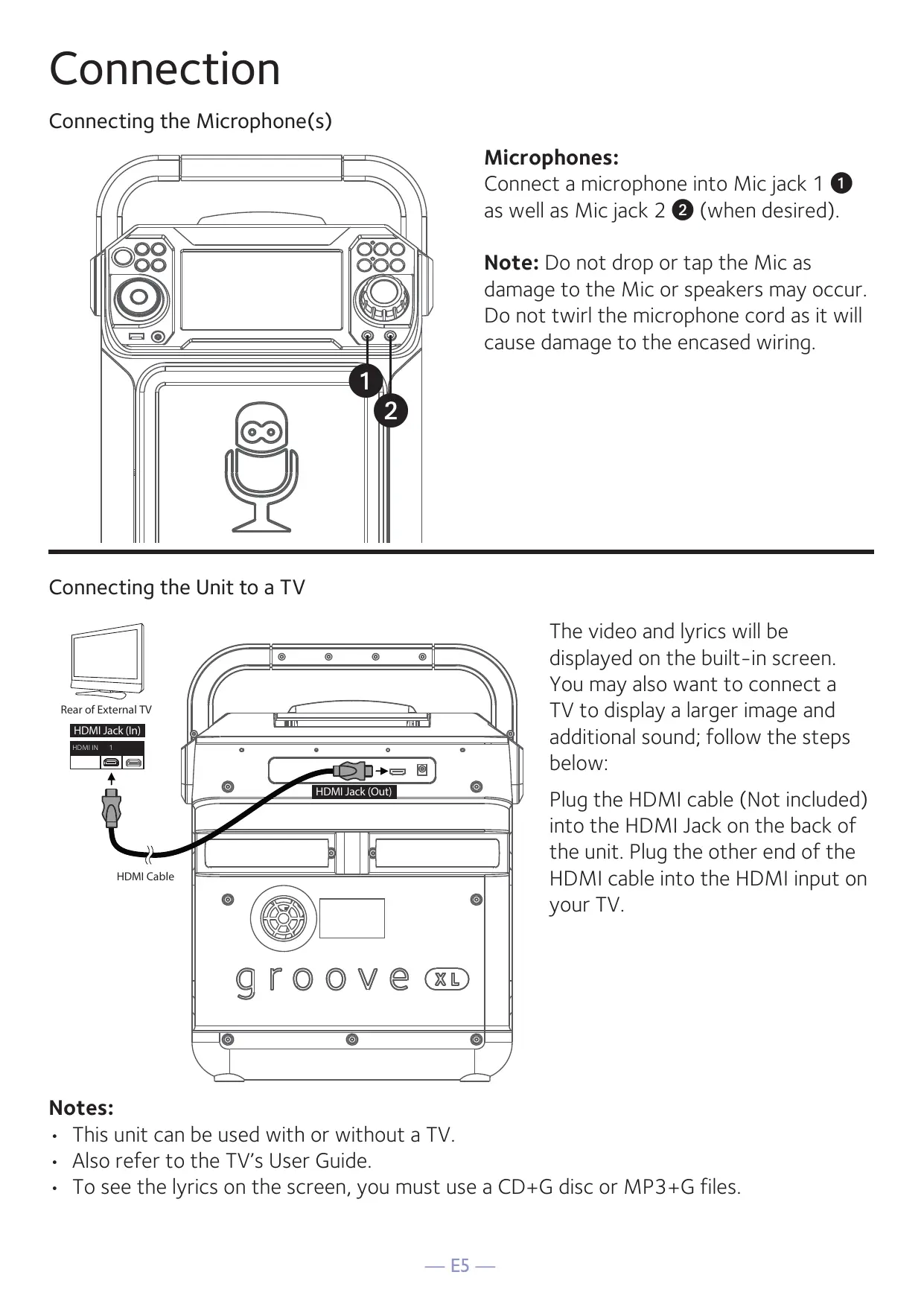
Connecting the Microphone(s)
Microphones: Connect a microphone into Mic jack 1 [1] as well as Mic jack 2 @ (when desired).
Note: Do not drop or tap the Mic as damage to the Mic or speakers may occur. Do not twirl the microphone cord as it will cause damage to the encased wiring.
Connecting the Unit to a TV Rear of External TV FC] == €
+ This unit can be used with or without a TV.
- Also refer to the TV's User Guide.
The video and lyrics will be displayed on the built-in screen. You may also want to connect a TV to display a larger image and additional sound; follow the steps below:
Plug the HDMI cable (Not included) into the HDMI Jack on the back of the unit. Plug the other end of the HDMI cable into the HDMI input on your TV.
+ To see the lyrics on the screen, you must use a CD+G disc or MP3+G files.
Connecting to AC Power
Insert the small end of the AC adapter into the DC IN jack on the rear of the unit. Insert the other end (with the 2 blades) into a conveniently located AC outlet having 120V AC, 60Hz.
(( )E 9 Note: Make all connections before 2 connecting to AC power. groove
Connecting to Line In Jack
am +=To External Unit
/ HEADPHONE JACK Connect an external device by using an appropriate cable (3.5mm audio cable not included) as shown.
Note: See page E19 to select and use the Line In function.
When the unit is turned on, the Light mode 1 is automatically activated. The lights will light up and will synchronize with sound when you speak or sing into the microphone.
Press the LIGHT button for Light mode 2 which will display the light show but will not respond to the microphone. Press the LIGHT button once again to turn off the Lights.
Press the À button to easily set the machine into bluetooth mode.
Playing a CD 1 Connect the unit as described (F N\ previously. Press the ON/ 72) STANDBY (D button to turn the unit on. The power indicator will OS (52 light solid.
QC) ( © 2 Lift the CD door and insert a CD 2) (with standard or MP3+G files) or a CD+G by gently pressing it on the center spindle. Then close the CD door.
A CD+G (CD+Graphics) is the standard format for most karaoke discs that will display the words on the screen.
MP3+G is the newest format for karaoke music utilizing the MP3's small file size. It will display the words on the screen. See page E21 to order and download MP3+G files.
+ Never place anything other than a CD in the compartment, as foreign objects can damage the unit.
- Ifno disc is inserted, “NO DISC" will appear on the screen.
+ If connected to a TV or other audio source, adjust the volume of the TV using its own volume control.
3 Repeatedly press the FUNCTION button to select the CDG/CD mode; “READ” will appear when searching the disc and then the total number of tracks will appear.
À Press the PLAY/PAUSE BII button to start playback. You can view the image and lyrics on the screen, if listening to a CD. Press the MONITOR button to turn off the screen.
Playing a CD (Continued)
Adjust the volume to a comfortable level using the MASTER VOLUME control.
Connect microphone(s) and slide the ON/OFF switch on the microphone to the ON position.
Pressing MIC VOLUME A or V button to adjust the mic volume as desired. Increasing this control will increase the volume of both microphones.
AUTO VOICE CONTROL can be
activated by pressing the A.V.C. (AUTO VOICE CONTROL) button. The vocals on a multiplex recording will be muted as soon as the singer begins singing into the microphone. When the singer stops singing, the recorded vocals on the multiplex recording will resume to normal.
Note: This is only for files recorded with
this multiplex feature.
Playing a CD (Continued)
SKIP: Advance or go back one track by pressing the > or < buttons.
SEARCH: When playing any audio CD, press and hold the > or < button. The CD will search at high speed in the forward or backward direction. Normal play will continue when you release the button.
SEARCH function only works with CD+G discs.
REPEAT: To repeat the current track, press the REPEAT/PROG button once during playback, 1 will appear in the display and the current track will be repeated. To repeat all tracks, press the REPEAT/PROG button again, CA will appear. Press again to cancel the Repeat feature; x will appear.
PROGRAM: You can program
up to 20 tracks for playback in any desired order. While in Stop mode, press the REPEAT/PROG button; PROG SET OO:XX (xx is the total tracks) will appear in the display. Select the first track using the > or < buttons, then press the REPEAT/PROG button. Repeat to set up to 20 tracks into memory. When done, press the PLAY/PAUSE BII button to start playback.
+ Press and hold the REPEAT/PROG button to stop and clear the program.
+ If more than 20 tracks are attempted to be programmed, “FUL” will appear in the display.
Playing a CD (Continued)
RECORDING YOUR SINGING: Insert a USB drive first, then press the REC button; the song will start over and recording will begin. The recording indicator will light solid. REC with track progress in percentage will appear at the top left of the screen. When done recording, press the REC button again to stop recording. The recording indicator will turn off.
See “Playing Songs from the USB” to play back your recorded files saved in the USB flash drive.
VOICE EFFECTS: Repeatedly
press the VOICE EFFECT button to select from ECHO, FEMALE, MALE, CHIPMUNK, ROBOT or RADIO vocal effects. Select NONE to sing without any voice effect.
PAUSE: During playback, if
you wish to pause the disc momentarily, press the PLAY/ PAUSE BII button. Press again to resume normal playback.
Press and hold the PLAY/PAUSE BI button to stop playback.
Press the ON/STANDBY (D button to turn the unit off. The power indicator will turn off.
Playing Songs from the USB
1 Connect the unit as described previously. Press the ON/ STANDBY (D button to turn the unit on. The power indicator will light solid.
2 Insert a USB flash drive into the USB port on the unit. Make sure to download music from the Karaoke store.
3 Repeatedly press the FUNCTION button to select the USB mode; “READ USB” will appear when searching the drive and then the total number of files will appear.
À Press the PLAY/PAUSE BII button to start playback. You can
view the image and lyrics on the screen, if listening to an MP3 file. Press the MONITOR button to turn off the screen.
Note: On the screen, folders that contain
recordings and songs appear to the left
and the list of tracks from a selected
folder will appear to the right. To navigate
these folders see “Skip” section.
D Adjust the volume to a comfortable level using the MASTER VOLUME control. Note: If connected to a TV or other audio source, adjust the volume of the TV using its own volume control.
Playing Songs from the USB (Continued)
Connect microphone(s) and slide the ON/OFF switch on the microphone to the ON position.
Pressing MIC VOLUME A or V button to adjust the mic volume as desired. Increase this control
will increase the volume of both microphones.
AUTO VOICE CONTROL can be activated by pressing the A.V.C. (AUTO VOICE CONTROL) button. The vocals on a multiplex recording will be muted as soon as the singer begins singing into the microphone. When the singer stops singing, the vocals are automatically unmuted.
Note: This is only for files recorded with this multiplex feature.
SKIP: Advance or go back one file by pressing the > or < buttons. SEARCH: When playing any audio from the USB, press and hold
the > or < buttons. The USB
will search at high speed in the forward or backward direction. Normal play will continue when you release the button.
During Stop mode you can also select a file using the À or V buttons to scroll up/down and/ or the > or < buttons to scroll right/left. Recorded music will be in the folder labeled, REC.
Playing Songs from the USB (Continued)
REPEAT: To repeat the current track, press the REPEAT/PROG button once during playback, 1 will appear in the display and the current track will be repeated. Press the REPEAT/PROG button twice, C2 will appear and all MP3 tracks inside the current folder will be repeated continuously. To repeat all tracks, press the REPEAT/PROG button again, ŒA will appear. Press again to cancel the Repeat feature; x will appear.
PROGRAM: You can program
up to 20 tracks for playback in any desired order. While in Stop mode, press the REPEAT/PROG button; PROG SET OO:XX (xx is the total tracks) will appear in the display. Select the first track using the > or < buttons, then press the REPEAT/PROG button. Repeat to set up to 20 tracks into memory. When done, press the PLAY/PAUSE BII button to start playback.
Notes: + Press and hold the REPEAT/PROG
button to stop and clear the program.
- If more than 20 tracks are attempted
to be programmed, “FUL” will appear in the display.
Playing Songs from the USB (Continued)
Ï i 1 PAUSE: During playback, if (F S\ you wish to pause the music [l {_ M "1 3] momentarily, press the PLAY/ | PAUSE BI button. Press again to O88 SSS resume normal playback.
1 3 VOICE EFFECTS: Repeatedly press the VOICE EFFECT or buttons to select from ECHO, FEMALE, MALE, CHIPMUNK, ROBOT or RADIO vocal effects. Select NONE to sing without any voice effect.
1 Press and hold the PLAY/PAUSE DIE button to stop playback
1 D Press the ON/STANDBY (D button to turn the unit off. The power indicator will turn off.
Using a Bluetooth Device
Connect the unit as described previously. Press the ON/ STANDBY (D button to turn the unit on. The power indicator will light solid.
Press the @ button or repeatedly press the LIGHTS/FUNCTION button to select the Bluetooth mode; “bt” will appear in the display.
The unit automatically searches for and pairs a previously paired Bluetooth device (if previously paired). If no previously paired devices are present and you cannot find this unit on your bluetooth compatible device's search list. Press and hold the à button; the indicator will flash alternatively blue and red in 60 seconds.
Note: You can also press and hold the @ button to disconnect any paired devices in order to pair another device.
Singing Machine Not Connected Outdoor Speaker Not Connected Sound X Not Connected
3 Turn on your device's Bluetooth option in settings to search for a discoverable device with a Bluetooth signal. Select “Singing ER Machine” from the device results snneane — eomeus 4] on the Bluetooth menu.
SoundX Not Conmneted Note: Also refer to the user manual of your Bluetooth device for detailed instructions.
À The screen will show that your Bluetooth device is connected successfully followed by a paired sound. Notes: - If your Bluetooth prompts you for a passcode during the pairing process, please enter “0000” to connect.
Using a Bluetooth Device (Continued)
+ On some Bluetooth devices, once pairing is complete, select your Bluetooth device as “Use as Audio Device” or similar.
+ If connection is lost after successful pairing, check to make sure the distance between speaker and Bluetooth enabled device does not exceed 30 feet/10 meters.
D To control your Bluetooth device from this unit, press the PLAY/ PAUSE BI button to start playback (music app must be open). Press the PLAY/PAUSE BII button during playback to pause the song.
G Adjust the volume to a comfortable level using the MASTER VOLUME control on this unit as well as the volume on your Bluetooth device.
Connect microphone(s) and slide the ON/OFF switch on the microphone to the ON position.
Pressing MIC VOLUME A or V button to adjust the mic volume as desired. increasing this control will increase the volume of both microphones.
Using a Bluetooth Device (Continued)
SKIP: Advance or go back one track by pressing the > or < buttons.
RECORDING YOUR SINGING: Insert a USB drive first, then press the REC button; the song will start over and recording will begin. The recording indicator will light solid. REC with track progress in percentage and will appear at the top left of the screen. When done recording, press the REC button again to stop recording. The recording indicator will turn off.
See “Playing Songs from the USB” to play back your recorded files saved in the USB flash drive.
VOICE EFFECTS: Repeatedly press the VOICE EFFECT button to select from ECHO, FEMALE, MALE, CHIPMUNK, ROBOT or RADIO vocal effects. Select NONE to sing without any voice effect.
Press the ON/STANDBY (D button to turn the unit off. The power indicator will turn off.
Using the LINE IN Jack
Connect the unit as described previously. Press the ON/ STANDBY ( button to turn the unit on. The power indicator will light solid.
Connect the external unit to the LINE IN Jack on the front of this
unit. Connecting an external unit will allow the audio to be played
through your Singing Machine.
+ _Itis highly recommended to set the
Skipping files/tracks is not possible on
volume on the auxiliary unit to 1/3 or lower to avoid distortion.
O0O this unit when using an external device.
Repeatedly press the FUNCTION button to select the Line In; “LINE IN” will appear on the screen.
Adjust the volume using the MASTER VOLUME control on this unit or your external device’s volume control.
Connect microphone(s) and slide the ON/OFF switch on the microphone to the ON position.
Using the LINE IN Jack (Continued)
Pressing MIC VOLUME A or V button to adjust the mic volume as desired. increasing this control will increase the volume of both microphones.
RECORDING YOUR SINGING: Insert a USB drive first, then press the REC button; the song will start over and recording will begin. The recording indicator will light solid. REC with track progress in percentage and will appear at the top left of the screen. When done recording, press the REC button again to stop recording. The recording indicator will turn off.
See “Playing Songs from the USB” to play back your recorded files saved in the USB flash drive.
VOICE EFFECTS: Repeatedly press the VOICE EFFECT button to select from ECHO, FEMALE, MALE, CHIPMUNK, ROBOT or RADIO vocal effects. Select NONE
to sing without any voice effect.
Press the ON/STANDBY (D button to turn the unit off. The power indicator will turn off.
Where to Download MP3+G Files
Helpful Hints: To purchase and download karaoke music, please visit http://store.singingmachine.
The .mp3 and .cdg files are delivered for download in : Ë com to access over 15,000+ of your
a single, compressed MP3+G.zip file. The MP3+G file
cannot be played as a zip file on a USB flash drive. favorite karaoke songs. You will need a USB To play karaoke songs using a USB flash drive, the flash drive (not included) to transfer the MP3+G zip file must be unzipped as follows: downloads to this unit.
Connect a USB flash drive to your computer. Download the MP3+G file from your Digital Locker and save the zip* file to a folder on your
Follow these easy steps:
computer. . | Go to http://store.singingmachine.com Double click the .zip file to open the zip (you using your internet browser, and then will see the .mp3 and .cdg files). reaister . Drag and drop the .mp3 and .cdg files to the 9 : USB flash drive. Remove (eject) the USB flash drive from your 2 Select and purchase your favorite cmpuer. . karaoke music from the Singing
Turn on the Singing Machine and connect the USB Machine Download Store
FAQ 3 Download your selected purchase(s)
from the Singing Machine Digital
+ Where can | get additional help with the file formats? Visit http://singingmachine.com/smc- . music/ to get additional resources about À Insert the USB flash drive as shown on the right type of FILE FORMAT for your page E12 and enjoy! system.
Locker to your USB flash drive.
Note: Your downloaded songs can also be burned to a blank CDR/CDRW.
E FEATURED PACKS SONGS ARTISTS FEATURED PACKS amas se
Should this unit exhibit a problem, check the following before seeking service:
+ Power is not on; press the ON/STANDBY (D button to turn power on.
+ Confirm that the AC adapter is connected securely to the back of the unit. + Connect the unit to a different outlet.
+ Master Volume is set to minimum; raise volume.
+ _ Correct Function was not selected; select using the FUNCTION button. + If using an external device, raise the volume.
No Sound - If connected to a TV + Volume on the TV is muted or too low. + _ Correct source (usually AV) was not selected on the TV's menu.
No sound from the microphone
+ Make sure the microphone is firmly connected to the MIC 1 or MIC 2 jack. + Make sure the mic's ON/OFF switch is set to the ON position.
+ Make sure the MIC VOLUME control is not set too low.
+ MASTER VOLUME control is set to minimum; raise volume.
File(s) on USB jack not playing
- The file is corrupted; replace the file.
+ The file is not in a format this unit will play.
+ The connected USB device is not supported by the product.
The Bluetooth device cannot be paired or connected with the unit
+ Ensure any other Bluetooth devices are turned off to avoid accidental pairing.
+ You have not activated the Bluetooth function of your device; see page E16 or refer to the Bluetooth device user's manual.
+ The system is not in pairing mode; press and hold the @ button to restart pairing.
The Music is not available on the unit after successfully connecting the Bluetooth + Ensure your Bluetooth device can support the A2DP Bluetooth profile. - The volume on the external Bluetooth device is set too low or muted; raise as desired.
The unit will not record
+ No USB device inserted, or USB device is full. Move all recordings to your computer to make room.
Up to 30 feet/10 meters measured in open space
Maximum Compatibility …
GENERAL POWEr ue AC 100-240V, 50-60Hz
DC12V == 2A Dimensions - Main Unit .. 13.0 x 9.1 x 17.04 inches (33.0 x 23.0 x 43.1cm)
Weight - Main Unit... mens 8.7Lbs (4.0kgs)
Microphone. -74 dB 600 Ohms impedance with 6.3 mm Dynamic Microphone
LINE IN... rennes 3.5mm Stereo Jack
Specifications are subject to change without notice.
@ The terms HDMI and HDMI High-Definition Multimedia HA LD mi Interface, and the HDMI Logo are trademarks or registered HIGH-DEFINITION MULTIMEDIA INTERFAGE trademarks of HDMI Licensing Administrator, Inc. in the United States and other countries.
© he Bluetooth® word mark and logos are registered O Bluetooth trademarks owned by Bluetooth SIG, Inc. and any use of such marks by The Singing Machine Company, Inc. is under license. Other trademarks and trade names are those of their respective owners. — E23 —
© © © © es N Em THII ] ( is j —S
Not Connected Not Connected Not Connected
Singing Machine Outdoor Speaker Sound
Singing Machine Outdoor Speaker Sound X
© © © © es N Em TE | 5 © ( o 6 j 2) —S
Singing Machine Not Connected Outdoor Speaker Not Connected Sound X Not Connected
Singing Machine Connected Outdoor Speaker Not Connected
Sound X Not Connected
Raccordez l'appareil de la manière décrite précédemment. Appuyez sur la touche MARCHE/ARRÊT (D pour allumer l'appareil. Le témoin d'alimentation s’allumera.
Copyright © 2021 All Rights Reserved. Derechos de autor © 2021 Todos los derechos reservados. Droit d'auteur © 2021 Tous Droits Réservés.
The Singing Machine Company, Inc.
4060 E Jurupa Street, Unit B Ontario, CA91761-1413 USA The Responsible Party Company Name: The Singing Machine Company, Inc.
Address :6301 NW 5th Way, Suite 2900, Fort Lauderdale,
F-33309, USA PRINTED IN CHINA Telephone :954 -596-1000 IMPRESO EN CHINA Website : www.singingmachine.com IMPRIMÉ EN CHINE