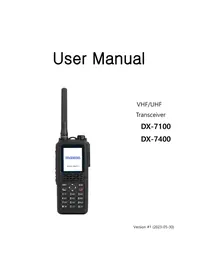
DX-7400 - Transceiver MAXON - Free user manual and instructions
Find the device manual for free DX-7400 MAXON in PDF.


| Product Type | Professional Portable Transceiver |
| Brand | MAXON |
| Model | DX-7400 |
| Output Power | 5 W (max) |
| Frequency Range | UHF/VHF Bands |
| Number of Channels | 16 |
| Power Supply | Rechargeable Li-ion Battery |
| Battery Life | Up to 12 hours (50% transmit/receive cycle) |
| Antenna | Fixed Antenna (gain ≤0 dBi) |
| Safety Distance | At least 2.5 cm from face |
| Usage | Professional / controlled (not general public) |
| Compliance | ISED Canada, IEEE C95.1, ICNIRP |
| Included Accessories | Antenna, battery, charger |
| Maintenance | Clean with a soft dry cloth. Do not use solvents. |
| Repairability | Spare parts available from manufacturer |
| Weight | 280 g (approx) |
| Dimensions (L x W x H) | 130 x 60 x 40 mm (approx) |
| Operating Temperature | -20°C to +60°C |
Frequently Asked Questions - DX-7400 MAXON
User questions about DX-7400 MAXON
0 question about this device. Answer the ones you know or ask your own.
Ask a new question about this device
Download the instructions for your Transceiver in PDF format for free! Find your manual DX-7400 - MAXON and take your electronic device back in hand. On this page are published all the documents necessary for the use of your device. DX-7400 by MAXON.
USER MANUAL DX-7400 MAXON
Version #1 (2023-05-30)
1. DX-7000 Series Features
The DX-7000 series digital radio is equipped with a large, cool 2.0-inch TFT color LCD and a full keyboard to provide a variety of services, including control of various industrial facilities.
- Dual-mode(Analog & DMR) Operation
1024 Channel Capacity, 64 Zones (1zone = Max 1024 Channels)
5/1 Watt RF Power Setting - Text Messaging with inbox and outbox, Up to 10 Predefined messages.
Voice Recording and playback - Remote Stun / Revive / Monitor function.
- Alpha-Numeric Full Keypad
TDMA Direct Mode
Voice Encryption Mode (AES256, DMRA256)
DTMF Encode & Decode
2-Tone Encode & Decode - Lone Worker Mode
- Multiple Scan Modes
- VOX (Voice Operated Transmit)
- Busy Channel Lock (BCL) / Busy Channel Lock Override (BCLO) / Time-Out Timer (TOT)
- Emergency / Siren
- Transmit Interrupt (Option)
- Man down function(Option)
- SFR(Single Frequency Repeater) (Option)
- Etiquette (Vibration) Function (Option)
Built in GPS(Option)
1Watt Audio output
Built in Flash Lamp
2.0 inch TFT LCD(176 x 220) Display - Waterproof IP67
MIL STD 810F/G
DC+7.4V Li-ion / 2,600mAh
2. Specification
DX-7000 Series
General
Frequency Range
DX-7100 VHF:136~174MHz
DX-7400 UHF:400\~470MHz
Frequency Stability
± 1.5ppm (-30 to +60^ )
Programmable Channels
64 Zones / 1,024 Channels
Channel Spacing
12.5KHz(DMR), 12.5KHz/25KHz(Analog)
Digital Vocoder
AMBE++ Voice Compression Algorithm
Dimensions
103 mm( H) × 52 mm( W) × 32 mm( D)
Weight
275g
Power Source
DC +7.4V Li-ion 2,600mAh Battery
Current Drain (maximum)
Receive mode, rated audio out - 420 (Audio Max)
Transmit mode - 1,200mA
Standby mode - 100mA
Receiver
Sensitivity
0.22uV 12 dB SINAD
Squelch Sensitivity
0.20uV 10dB SINAD
Selectivity
60dB @12.5KHz
Spurious and Harmonic Rejection
-57 dBm (< 1GHz) -47 dBm (> 1GHz)
FM Hum and Noise
40dB (12.5KHz)
Audio Output Power
1 Watt across an 16-ohm load
Audio Distortion
Less than 3% at rated output
Audio Response
+1, -3 dB from 6dB per octave de-emphasis Characteristic from 300 3000Hz
Input Impedance
50 ohms
Transmitter
RF Power Output
5/1Watt
Adjacent Channel Power
60 dB @12.5 kHz
Spurious and Harmonic
-36 dBm (< 1GHz) -30 dBm (> 1GHz)
FM Hum and Noise
40dB (12.5KHz)
Audio Distortion
3% maximum with 1KHz modulation
Audio Frequency Response
+1, -3dB from 6dB per octave pre-emphasis Characteristic from 300 3000Hz
Output Impedance
50ohms
3. In-Box Contents
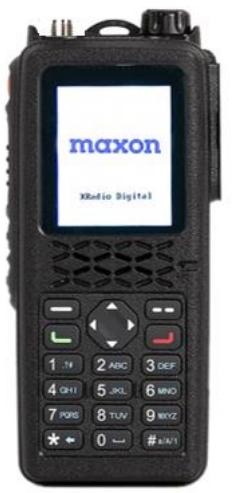
Radio Unit
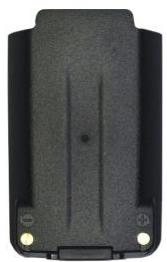
Battery
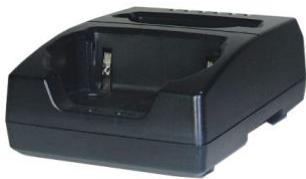
2 Slot Charger
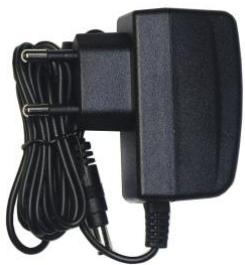
Adapter

Antenna
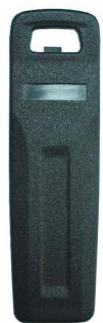
Belt Clip
User Manual
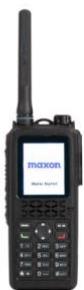
User Manual
Figure 3-1) DX-7000 Series Main Package Contents
XRadio
VHF/UHF
Transceiver
DX-7100
DX-7400
XB-2600 : 2,600mAh Li-ion Battery Pack
XC-100D : One Slot Charger
XC-200D : Dual Slot Charger
XC-1000D : 10 Slot Gang Charger
423D-WS:400~450MHz SMAWhip Antenna
460D-WS:440~470MHz SMAWhip Antenna
4. Buttons & LCD Icons
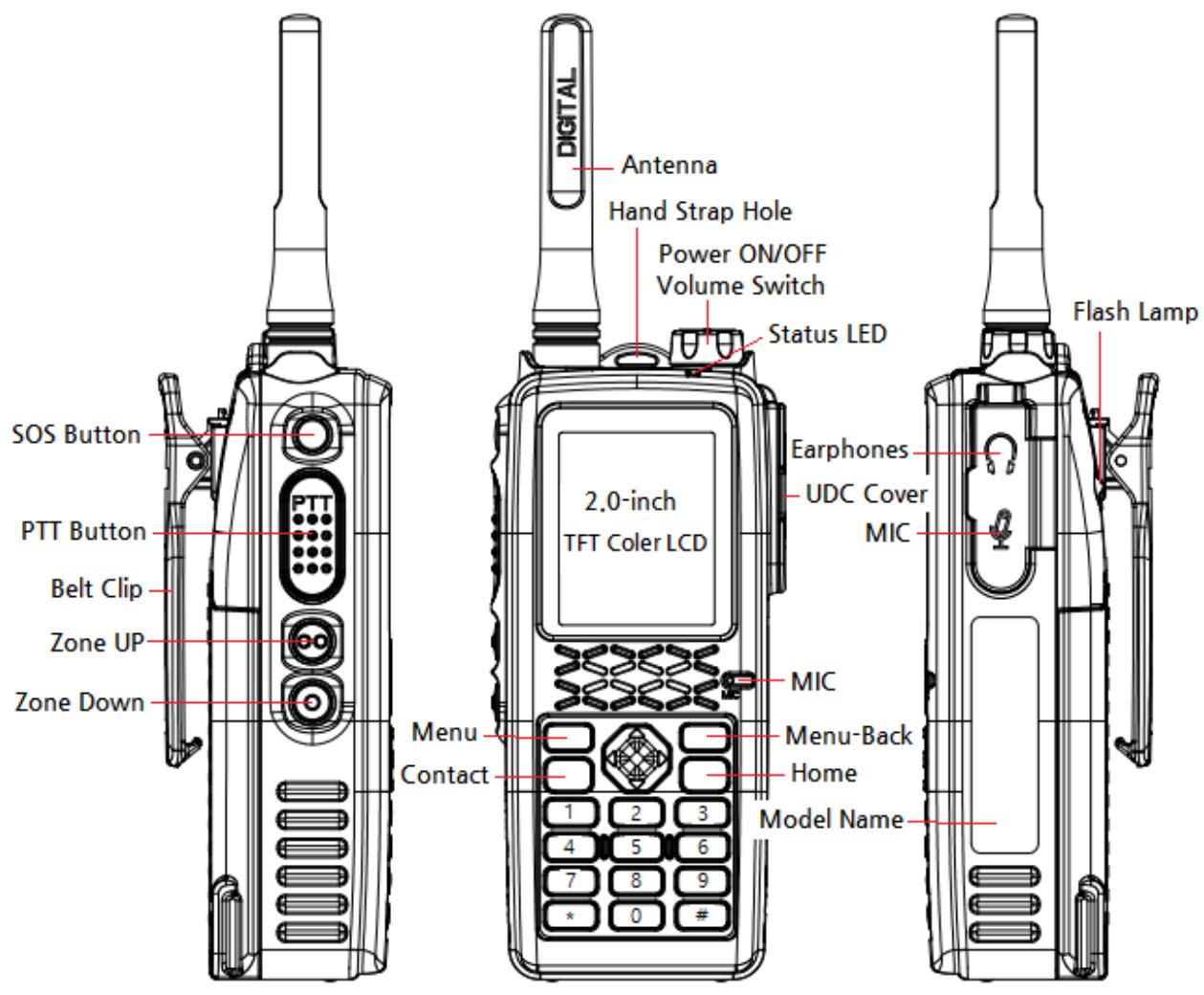
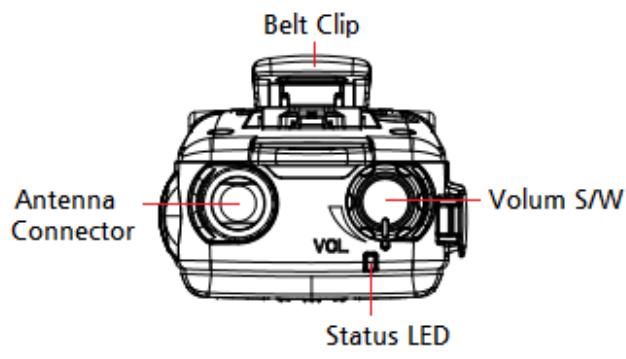
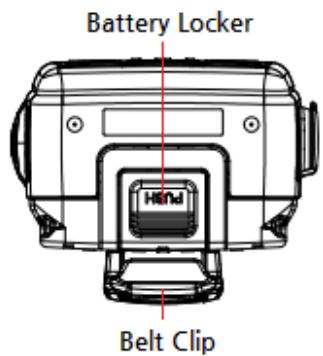
Figure 4-1) DX-7000 Series buttons and knobs
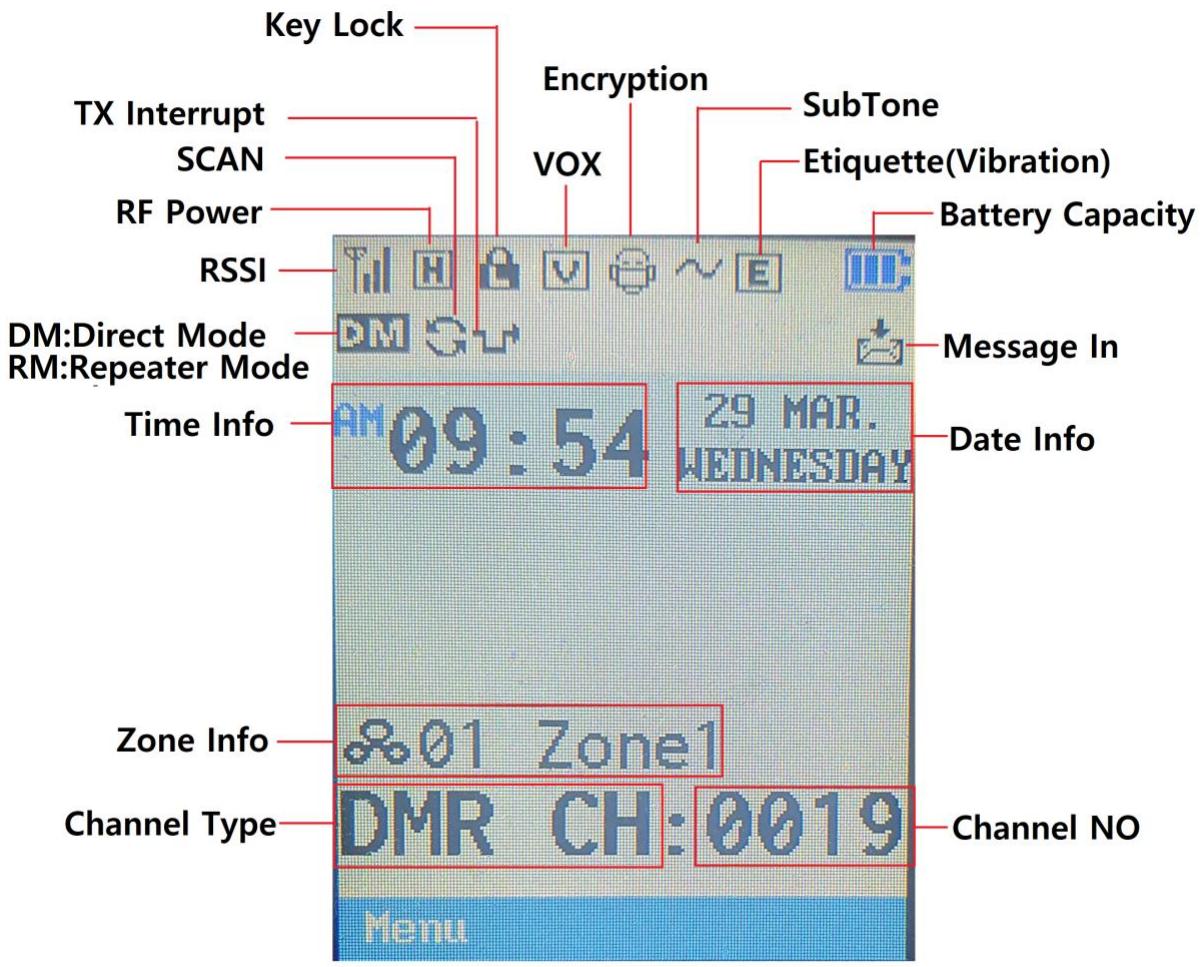
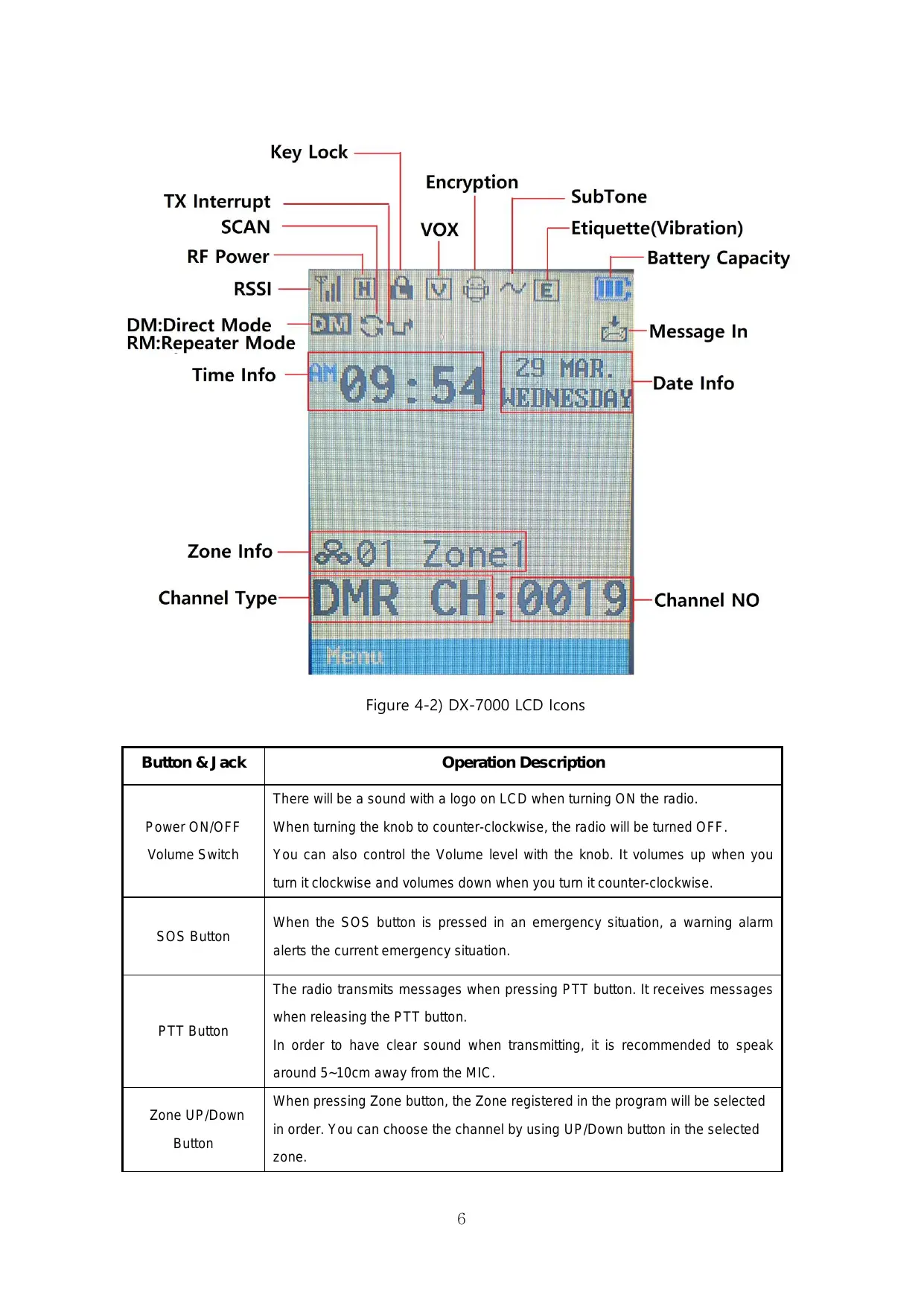
Figure 4-2) DX-7000 LCD Icons
| Button & Jack | Operation Description |
| Power ON/OFF Volume Switch | There will be a sound with a logo on LCD when turning ON the radio. When turning the knob to counter-clockwise, the radio will be turned OFF. You can also control the Volume level with the knob. It volumes up when you turn it clockwise and volumes down when you turn it counter-clockwise. |
| SOS Button | When the SOS button is pressed in an emergency situation, a warning alarm alerts the current emergency situation. |
| PTT Button | The radio transmits messages when pressing PTT button. It receives messages when releasing the PTT button. In order to have clear sound when transmitting, it is recommended to speak around 5~10cm away from the MIC. |
| Zone UP/Down Button | When pressing Zone button, the Zone registered in the program will be selected in order. You can choose the channel by using UP/Down button in the selected zone. |
| Menu / select Button | Press the Menu/select button to make a selection on the menu or enter its menu options. |
| Contact Messages Call Logs Record Scan Zone Setting Radio Info | |
| Contact Button | Press the button to enter the contact list programmed into the radio such as Private, Group and All Call. |
| Menu-Back Button | Menu-back button is used to cancel out of a menu or return to the previous menu screen. |
| Home Button | Home button is used to return to the initial screen. |
5. Installation and Removal
5.1 Antenna Installation and Removal
To install the antenna, insert the antenna into antenna connector and screw the antenna clockwise. To remove the antenna, screw the antenna counter clockwise.
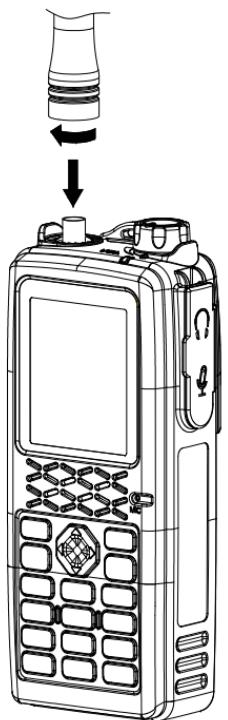
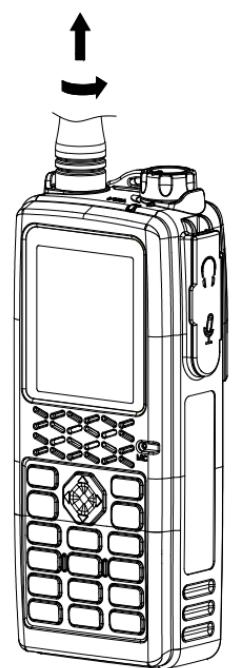
Figure 5-1) Antenna Installation and Removal
- Do not over tighten the antenna as it may cause damage to the radio
- NEVER HOLD by the antenna when carrying the transceiver.
- Transmitting without an antenna may damage the transceiver.
5.2 Battery Installation and Removal
As shown the figure 5-2) below, to remove the battery, press the locking latch in the direction of arrow 1 and pull up the battery latch in the direction of arrow 2 to pull it away from the radio.
To attach the battery, align the battery pack with the groove of the body (arrow 3) and push the locking latch down to the direction of arrow 4. The battery latch will click shut when locked.
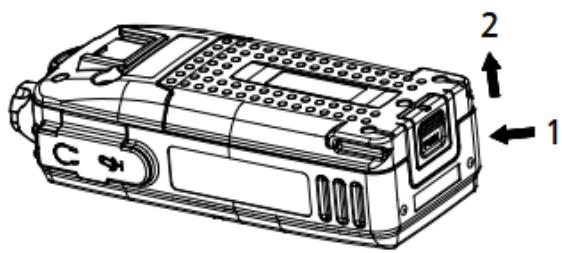
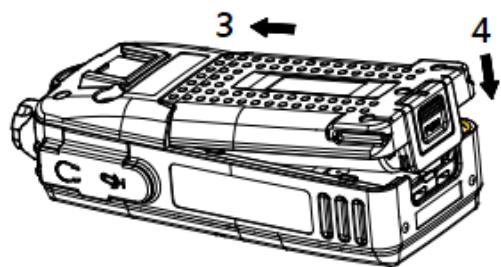
Figure 5-2) Battery Removal and Installation
5.3 Belt Clip Installation and Removal
As shown the figure 5-3) below, Belt clip attaches to the back of the radio above the battery. To attach the belt clip, align the belt clip to the grooves on the back of the radio and push it down to the direction of arrow 1. Clip will click when locked. To remove the belt clip, push the belt clip locking tab in the direction of arrow 2 and pull the belt clip up to the direction of arrow 3 at the same time.
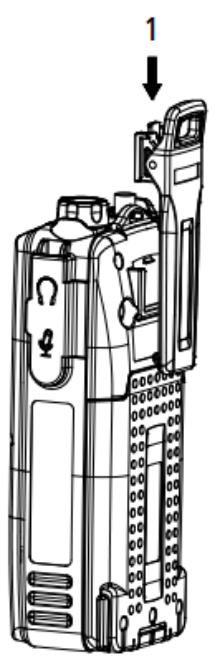
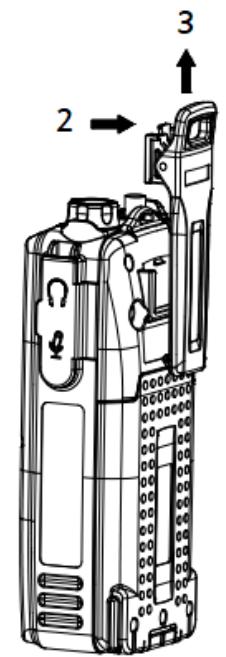
Figure 5-3) Belt Clip Installation and Removal
5.4 External Accessory Connector Jack
To connect the external accessory as shown in Figure 5-4, unscrew the accessory jack cover to the direction of arrow 1, align the accessory with the radio, and then put the accessory on the accessory connector position to screw up.
To remove the external accessory, unscrew the accessory to direction of arrow 3 and then pull it away to the direction of arrow 4.
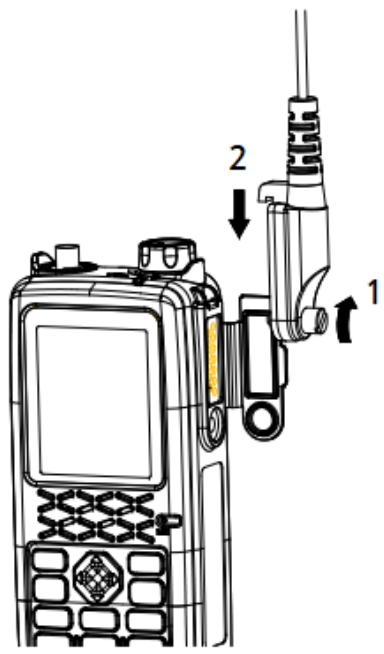
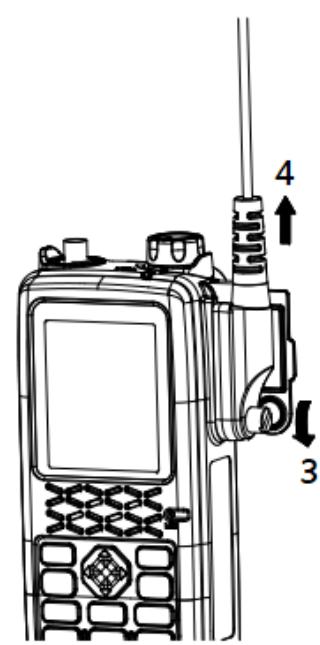
Figure 5-4) External Accessory Installation and Removal
6. Charging the Battery
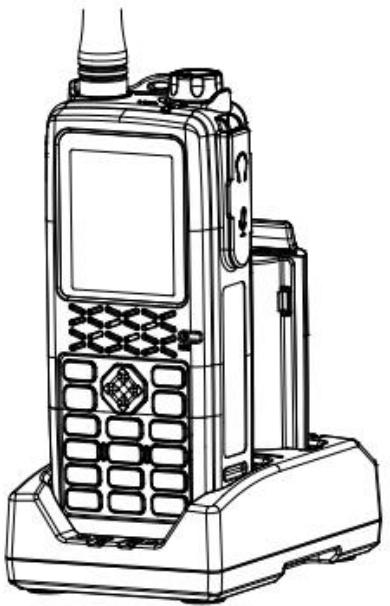
RED lamp indicates the radio is on the charger (XC-200D) that the unit is starting to charge and the LED will illuminate GREEN when the charging is completed.
Charger (XC-200D) is dual to charge both the main unit and the battery pack.
When both of them are connected to the charger, the front radio with the battery will be charged first and the batter pack later.
6.1 The Time of Charging
Low battery voltage may reduce communication coverage and also make the performance worse.
Please charge the battery in case of following:
1) When you think the performance of the radio has degraded.
2) When the red lamp on RX / TX LED blinks (every 0.5 seconds) during transmission or reception.
3) When the battery icon flickers.
4) When you hear the "beep" sound while the radio is in use.
6.2 How to Charge
1) Plug the adaptor of XC-200D charger in general power AC220V.
2) When charging the battery that is equipped with radio, please turn off the power of the radio, and plug it into the charger.
3) Even if charging it completed (green lamp lights shown), please charge about 30 more minutes for a full charge.
| Status | LED Indication | Status | LED Indication |
| Charging | Red LED lights | Error Detection | Red LED flickers |
| Complete Charging | Green LED lights | Keep Charging | Green LED Appears |
7. Radio Operation
1) MENU Functions
To enter the menu tree as displayed in Figure7, press the menu button.
When pressing the menu button once more while in the menu, it moves to detailed menu section of the selected one.

Contact

Messages

Call Logs

Record

Scan

Zone

Setting

Radio Info
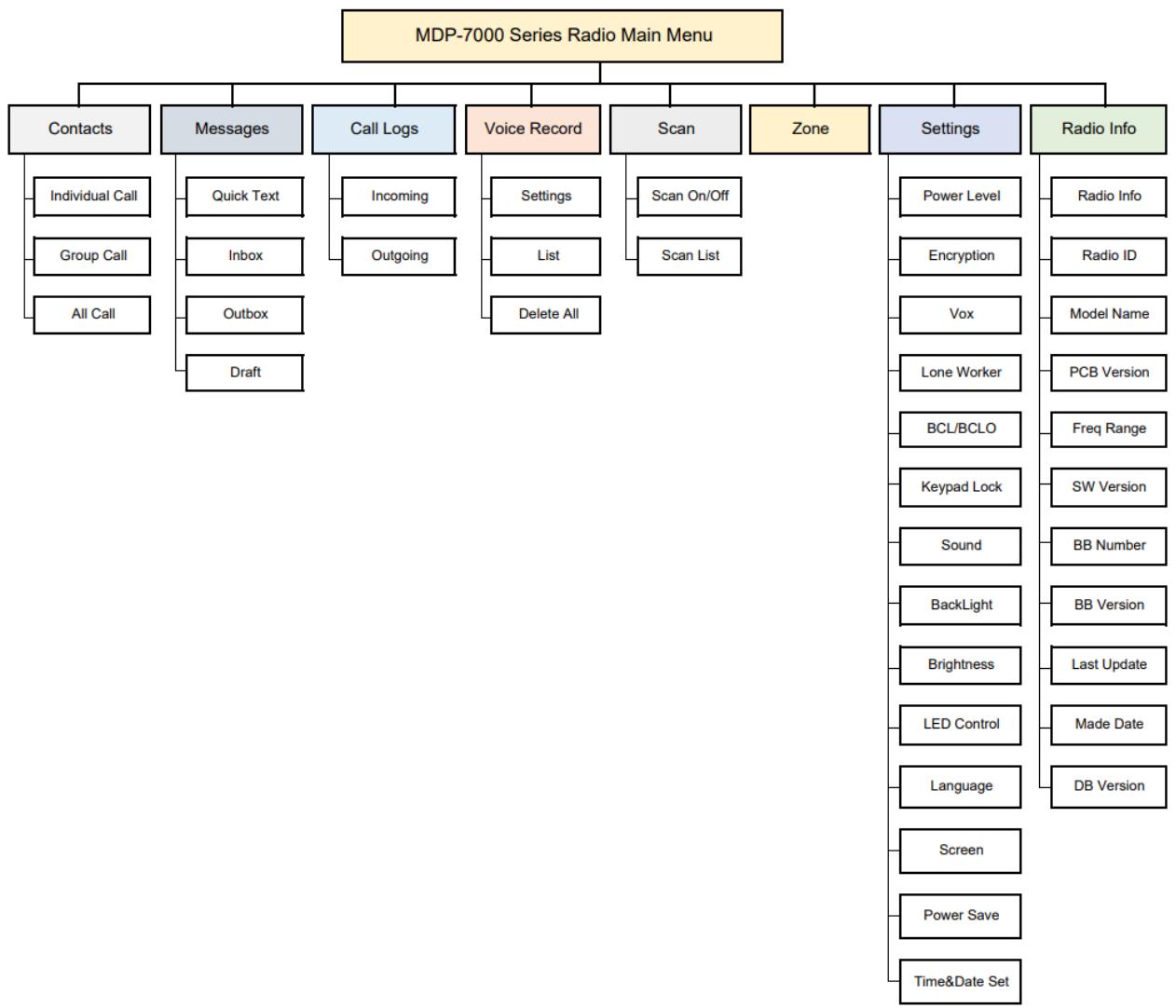
Figure 7-1) DX-7000 Menu Tree
Note) If the menu is not operated for at least 25 seconds after launch, the radio will revert to standby mode.
2) Contact List (Digital Mode Only)
The Contact List Provides a list of individuals, groups or all calls of which you can make a direct call. The lists of contact are set within the radio by the PS. To initiate a call, select the Contact section from the menu (or press the contact button for direct access_, Press the menu/enter button to see the list of contact, press the keys to the desired contact and press the PTT button to initiate the call. The radio will revert to the original contact/channel after a preset time as set by the PS. When you enter in the contact menu, the applicable icon will be shown indicating the type of call.
ICON.
-: Individual Contact List
- Group Contact List
- All Contact List (Can be used the terminals with the same channel and color code)
3) Messages (Digital Mode Only)
The message section offers the ability to perform one of the three functions.
Quick Text – The ability to send from a choice of 10 preset messages with up to 40 characters per message. The preset messages are set by the PS.
Inbox - Stores up to 10 received text messages; when the received messages 10, the oldest message is cleared and the newest incoming message is registered. When a new message arrives, the contents will be displayed on the LCD .When you choose messages stored in the list, you can view the sent messages and the caller ID that initiated the call.
Outbox - stores up to 10 outgoing text messages; when the outgoing messages exceed 10, the oldest message is cleared and the newest sent message is registered. When you choose messages stored in the list, you can view the sent messages and the caller ID to whom they were sent.
To obtain access, select the Messages section from the menu, press the menu/enter button to enter into Messages and use the keys to highlight one of the three choices:
a) Quick Text
Select Quick Text from the message menu by pressing the menu/enter button to view the registered message(s) using the keys, select the message you want to send, and press the menu/enter button to see the contents of the message. Press the menu/enter button again to view the list of contacts, and using the keys, select the contact for the message to be sent. Press the menu/enter button and the message will be sent to the contact(s). An acknowledgement will be shown on the display of either "Sent Success" or "Sent Fail". If the message is failed, check to make sure that the user receiving the message has their unit powered on.
b) Inbox
Text messages are shown initially on the screen. If you are in another mode or miss the message, the message icon will be displayed indicating a new message(s) has arrived. Select inbox from the message menu by pressing the menu/enter button to view the registered message(s). Using the keys, select the message you want to view, and press the menu/enter button to see the contents of the messages. Messages that have yet to be viewed will be indicated with a downward arrow inside the envelope; after a message is viewed the arrow will no longer be shown.
If you want to delete messages from the Inbox, select #2 Delete All from within the Inbox menu by pressing the menu/enter button, the question to Delete All will appear with the word "Yes?" Press the menu/enter button to delete all messages. If you choose not to delete the messages, press the return button to exit out.
c) Outbox
Select Outbox from the message menu by pressing the men/enter button to view the outgoing message(s). Using the keys, select the message you want to view. At this point, you can rerend the message. Press the menu/enter button to view the contents of the message. Using the keys, select the message you want to send, and press the menu/enter button to see the contents of the message. Press the menu/enter button again to view the list of contacts, and using the keys, select the contact for the message to be sent. Press the menu/enter button and the message will be sent to the contact(s). An acknowledgement will be shown on the display of either "Sent Success" or "Sent Fail". If the message is failed, check to make sure that the user receiving the message has their unit powered on.
To delete messages from the outbox, select #2 Delete All from within the Outbox menu by pressing the menu/enter button, the question to Delete All will appear with the word "Yes?" Press the menu/enter button to delete all messages. If you choose not to delete the messages, press the return button to exit out.
Note - When sending and receiving text messages, turn off the power saving mode
d) Message draft
A new text message can be created using the keypad. Letters, numbers, and special symbols can be input up to 40 characters. The message can be forwarded to an address in the address book.
4) Call Logs (Digital Mode Only)
The function allows the viewing of incoming and outgoing calls from individuals only. The call log contents are managed in the same manner as in the inbox/outbox of the messages section (reference 7.3 Messages).
5) Call Recording (Digital Mode Only)
This function is used to record the content of outgoing and incoming calls in digital mode only. There are 3 choices of Settings, Lists, and Delete All. Up to 63 conversations/recordings can be stored with each recording limited to 150 seconds. When the recordings exceed 63, the oldest message is cleared and the newest incoming message is registered,
Settings - This section allows the capability to turn the recording capability on off.
Lists – This section allows the viewing of the recorded messages and to play back each message. To play back a message, use the key to the desired message and press the menu/enter button to play the recording.
Delete all - This function provides the capability to delete stored recordings. To delete recordings, select Delete All from within the Voice Recording menu by pressing the menu/enter button, the question to delete all will appear with the word "Yes" Press the menu/enter button to delete all messages. If you choose not to delete the messages, press the return button to exit out.
6) Scan
This function provides the ability to turn scan on/off and review the scan list as programmed into the radio via the PS. The ability to scan digital and analog channels are available. Contact your Authorized Dealer for further information.
7) Zone
Up to 16 zones (with up to 32 channels per zone) can be programmed into the radio via the PS. To select the desired zone, press the keys and press the menu/enter button to accept the zone. Contact your Authorized Dealer for further information.
8) Settings
This function allows the change to the settings of Power Level, Squelch Level, and Voice Operated Transmit (VOX). Lone Worker, Busy Channel Lock (BCL), Busy Channel Lock Out (BCLO). Keypad Lock, Tones, Backlight, Brightness, LED Control, Language, Screen, and Power Save.
(1) Power level
This function sets the power transmitting level at high or low. The setting of low power improves battery life, but diminishes talk range.
(2.1) Squelch Level (Analog only)
This function allows the ability to change the squelch levels of Open, 1,2,3,4, or Tight.
(2.2) Voice Encryption (Digital Only)
This is a features to encrypt the incoming and outgoing voice. Voice Encryption can only be performed through digital channels. The setting of voice encryption codes is set via the PS. Contact your Authorized Dealer for further information.
(3)VOX
VOX function allow transmitting without using the PTT button.
VOX sensitivity level is adjusted from 1 to 5 with 5 being the most sensitive.
(4) Lone Worker (Digital Mode Only)
This function can inform others about your safety within the time set in the menu. Contact your authorized Dealer for further information.
(5) BCL/BCLO
This function prevents interference when the channel is busy.
- . Digital Mode Only
BCL On: If the current channel is busy, the transmission is prohibited.
- . Analog Mode
BCL On & BCLO Off: If the current channel is busy, transmitting is prohibited.
BCL On & BCLO On: Transmitting occurs when it matches the received tone.
(6) Keypad Lock
This is function locks the keypad to prohibit the accidental press of keys and buttons. When the keypad lock is enabled, all keys/buttons are locked except the PTT button, the emergency button, and power ON/OFF button. If any of these buttons are pushed, the keypad lock will enable again after 25 seconds from the pressing of the last button. Press the F1 key for 2 seconds to temporarily unlock the keypad for 25 seconds.
(7) Tones
This function allows the sound of the Radio to be turned ON/OFF. The kind of the tones is set via the PS. Contact your Authorized Dealer for further information.
(8) Backlight
This function allows you to adjust the time for turning on and off the LCD backlight. The duration of the timed section is set via PS. More information, contact your authorized dealer.
(9) Brightness
This function is to adjust the contrast/brightness of the LCD from low to high.
(10) LED Control
This function is to set the enable or disable the radio status LED. The LED status can be set via the PS.
(11) Language
This function is to select the language (English or Korean) for the menus.
(12) Screen Setting
This function allows the ability to change between Screen1 for Numeric or Screen2 for Alphanumeric. The information displayed is set via the PS. Contact your Authorized Dealer for further information.
(13) Power Saving Mode
This function allows the radio to enter a power saving mode to extend battery usage time.
Off is full power, 1/1 is 50% on 50% off; 1/2 is 33% on 67% off; 1/4 is 25% on 75% off.
Note: When sending and receiving text messages, turn off the power saving mode.
Additional features that can only be set and initiated through PS.
(14) Time & Date Set
The built-in RTC Chip of the radio can set a time and can display the time, day, and date on the main screen.
Note: In case the power was off for a long time, or the battery is not charged, the time will have to be reset because the RTC Chip has stopped working.
9) Radio Information
This informs all the information of the device such as Radio ID, Model Name, PCB Version, Frequency Range, SW Version, BB Number, BB Version, Last Update, Made Date, and DB Version.
8. Precautions
8.1 Precautions for safe operation of this equipment
| WARNING | Do not remove the antenna from the radio or do not transform the antenna or do not make any changes on the antenna. The strong electronic emitted from the radio can have an effect on the performance of the radio if the antenna is modified and can cause the radio to have a defect not covered under warranty. |
| Caution | Do not use other manufacturer's accessories (such as rechargeable battery, adaptor, external speaker microphone and earphone etc.). Unknown or unauthorized accessories may damage the radio and invalidate the warranty. |
| WARNING | Do not disassemble or reorganize the radio. The disassembly or reorganization of your radio is punishable by law and can cause damage to the radio that will not be covered by the warranty. |
| WARNING | Do not use other frequency except for the permitted frequency in order not to be punished by the Radio Waves Act. |
| Caution | ·Do not give an excessive shock to the radio. ·Do not place the radio where the direct sunlight and/or the high temperature occurs. ·If the radio is placed for a long time in a car in summer, the hot temperature in the car may cause explosion of battery. ·Do not make a damage to the battery by a sharp substance and/or an excessive shock. |
8.2 Do not use the radio where prohibited
The radio emits a strong electronic wave, which may have an effect on the operation of other equipment and also can be affected by those other devices.
| WARNING | Please turn off the radio before boarding on the airplane. When using the radio in the airplane, please follow the rules or the instructions of the flight attendants. |
| WARNING | In case of the area that medical equipment are being used, please use the radio after discussion with the equipment producer or the related doctor. |
| Caution | Please do not use the radio at the place where computer or other electric/electronic devices are being used because the strong electronic wave from the radio can affect the equipment. |
9. Safety Note & FCC
Please make sure to read the followings above for safe and effective use of the radio.

- Please keep the Radio away at least 1 inch from the body.
- Do not touch antenna if it is damaged. Risk of skin burn can occur if the outside surface of antenna gets stripped out.
- Please be careful when putting the battery in a pocket or a bag. If you contact a conductive metal to a battery terminal, there is a heat and fire risk to your radio.
- Please don't listen to the radio at a high-volume level when using earphones. Loud volume may have a lasting bad effect on your hearing.
- It is recommended to adjust the volume step by step to the level you want after you set the radio volume of the radio at a low level.
- Please don't remove or replace or charge or discharge the battery in a hazard area where sparks could cause an electrical fire.
Turn off the radio in areas where there is a strong electromagnetic force.
FCC statement
This device complies with Part 15 of the FCC Rules. Operation is subject to the following two conditions: (1) this device may not cause harmful interference, and (2) this device must accept any interference received, including interference that may cause undesired operation.
Changes or modifications not expressly approved by the party responsible for compliance could void the user's authority to operate the equipment.
NOTE: This equipment has been tested and found to comply with the limits for a Class B digital device, pursuant to Part 15 of the FCC Rules. These limits are designed to provide reasonable protection against harmful interference in a residential installation. This equipment generates, uses and can radiate radio frequency energy and, if not installed and used in accordance with the instructions, may cause harmful interference to radio communications. However, there is no guarantee that interference will not occur in a particular installation. If this equipment does cause harmful interference to radio or television reception, which can be determined by turning the equipment off and on, the user is encouraged to try to correct the interference by one or more of the following measures:
-- Reorient or relocate the receiving antenna.
-- Increase the separation between the equipment and receiver.
-- Connect the equipment into an outlet on a circuit different from that to which the receiver is connected.
-- Consult the dealer or an experienced radio/TV technician for help.
This device and its antenna(s) must not be co-located or operation in conjunction with any other antenna or transmitter.
Radiation Exposure Statement
To maintain compliance with FCC's RF Exposure guidelines, This equipment should be installed and operated with minimum distance of 2.5cm from your body.
RF Energy Exposure Awareness and Control Information and Operational Instructions for Occupational Use
Notice: this radio is intended for use in occupational/controlled conditions where users have full knowledge of their exposure and can exercise control over their exposure to meet the occupational limits in FCC and International standards. This radio device is NOT authorized for general population consumer use.
Federal Communication Commission (FCC) Regulations
When Device is used as a consequence of employment, the FCC requires users to be fully aware of and able to control their exposure to meet occupational requirement. Exposure awareness can be facilitated by the use of a product label directing users to specific user awareness information. Your Device has a RF Exposure Product Label. Also, your Device Radio user manual includes information and operating instructions required to control your RF exposure and satisfy compliance requirements.
Compliance with RF Exposure Standards
Your Device is designed and tested to compliance with a number of national and international standards and guidelines for human exposure to radio frequency electromagnetic energy. This radio compliance with the IEEE (FCC) and ICNIRP exposure limits for occupational/controlled RF exposure environments at operating duty factors of up to 50% talk - 50% listen and is approved for occupational use only. In terms of measuring RF energy for compliance with these exposure guidelines, your radio generates measureable RF energy only while it is transmitting (during talking), not when it is receiving (listening) or in standby mode.
Your Device complies with the following RF energy exposure standards and guidelines:
United States Federal Communications Commission (FCC), Code of Federal Regulations;
Institute of Electrical and Electronic Engineers (IEEE) C95.1
International Commission on Non-lionizing Radiation Protection (ICNIRP)
RF Exposure Compliance and Control Guidelines and Operating Instructions for Two-Way Radio Operations
To control your exposure and ensure compliance with the occupational/controlled environment exposure limits, always adhere to the following procedures;
DO NOT remove the RF Exposure Label from the device
User awareness instructions should accompany device when transferred to other users.
Operational Instructions and Training Guidelines
To ensure optimal performance and compliance with the occupational/controlled environment RF energy exposure limits in the above standards and guidelines, users should transmit no more than 50% of the time and always adhere to the following procedures;
In front of the face, hold the radio in a vertical position with microphone (and other parts of the radio including the antenna) at least 2.5 centimeters away from the nose or lips. Keep the radio at a proper distance is important to ensure compliance.
Note: RF exposure decrease with increasing distance from the antenna.
- Body Worn Operation; when worn the body, always place the radio in an approved clip, holder, or body harness for this product.
Using approved body-worn accessories is important because the use of non-approved accessories may results in exposure levels, which exceed the occupational/controlled environment RF exposure limits
Using only approved supplied or replacement antennas, batteries, and audio accessories, use of non-approved antennas, batteries, and wired or wireless accessories may exceed the applicable RF exposure guidelines (IEEE, ICNIRP or FCC).
IC statement
English Statement
This device contains licence-exempt transmitter(s)/receiver(s) that comply with Innovation, Science and Economic Development Canada's licence-exempt RSS(s). Operation is subject to the following two conditions: 1, This device may not cause interference. 2, This device must
accept any interference, including interference that may cause undesired operation of the device.
Safety Information
This equipment complies with IC radiation exposure limits set forth for an controlled exposure environment. When the talk bottom is pushed, it sends out radio frequency (RF) signals. The devices is authorized to operate at a duty not to exceed 50% .
For body-worn operation, this radio has been tested and meets the IC RF exposure guidelines when used with manufacturer accessories supplied or designated for this product. Use of other accessories may not ensure compliance with FCC RF exposure guidelines. Use only the supplied antenna. Unauthorized antennas, modifications, or attachments could damage the transmitter and may violate FCC regulations.
To maintain compliance with RF Exposure guidelines, This equipment should be installed and operated with minimum distance of 2.5cm from your body.
Canada Déclaration
Notice: this radio is intended for use in occupational/controlled conditions where users have full knowledge of their exposure and can exercise control over their exposure to meet the occupational limits in ISED and International standards. This radio device is NOT authorized for general population consumer use.
Innovation, Science and Economic Development Canada (ISED) Regulations
When Device is used as a consequence of employment, the ISED requires users to be fully aware of and able to control their exposure to meet occupational requirement. Exposure awareness can be facilitated by the use of a product label directing users to specific user awareness information. Your Device has a RF Exposure Product Label. Also, your Device user manual includes information and operating instructions required to control your RF exposure and satisfy compliance requirements.
Compliance with RF Exposure Standards
Your Device is designed and tested to compliance with a number of national and international standards and guidelines for human exposure to radio frequency electromagnetic energy. This radio compliance with the IEEE (ISED) and ICNIRP exposure limits for occupational/controlled RF exposure environments at operating duty factors of up to 50% talk - 50% listen and is approved for occupational use only. In terms of measuring RF energy for compliance with these exposure guidelines, your radio generates measureable RF energy only while it is transmitting (during talking), not when it is receiving (listening) or in standby mode.
Your Device complies with the following RF energy exposure standards and guidelines:
Innovation, Science and Economic Development Canada (ISED), Code of Canada Regulations;
Institute of Electrical and Electronic Engineers (IEEE) C95.1
International Commission on Non-lionizing Radiation Protection (ICNIRP)
RF Exposure Compliance and Control Guidelines and Operating Instructions for Two-Way Radio Operations
To control your exposure and ensure compliance with the occupational/controlled environment exposure limits, always adhere to the following procedures;
DO NOT remove the RF Exposure Label from the device
User awareness instructions should accompany device when transferred to other users.
Operational Instructions and Training Guidelines
To ensure optimal performance and compliance with the occupational/controlled environment RF energy exposure limits in the above standards and guidelines, users should transmit no more than 50% of the time and always adhere to the following procedures;
In front of the face, hold the radio in a vertical position with microphone (and other parts of the radio including the antenna) at least 2.5cm away from the nose or lips. Keep the radio at a proper distance is important to ensure compliance.
Note: RF exposure decrease with increasing distance from the antenna.
Body Worn Operation; when worn the body, always place the radio in an approved clip, holder, or body harness for this product.
Using approved body-worn accessories is important because the use of non-approved accessories may results in exposure levels, which exceed the occupational/controlled environment RF exposure limits
Using only approved supplied or replacement antennas, batteries, and audio accessories, use of non-approved antennas, batteries, and wired or wireless accessories may exceed the applicable RF exposure guidelines (IEEE, ICNIRP or ISED).
The Antenna which will used with this device must equal or below 0dBi.