G73L - Telephone BLU - Free user manual and instructions
Find the device manual for free G73L BLU in PDF.



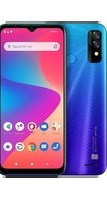
| Product Type | Mobile phone |
| Brand | BLU |
| Model | G73L |
| Touchscreen | Yes |
| Front Camera | Yes, high resolution |
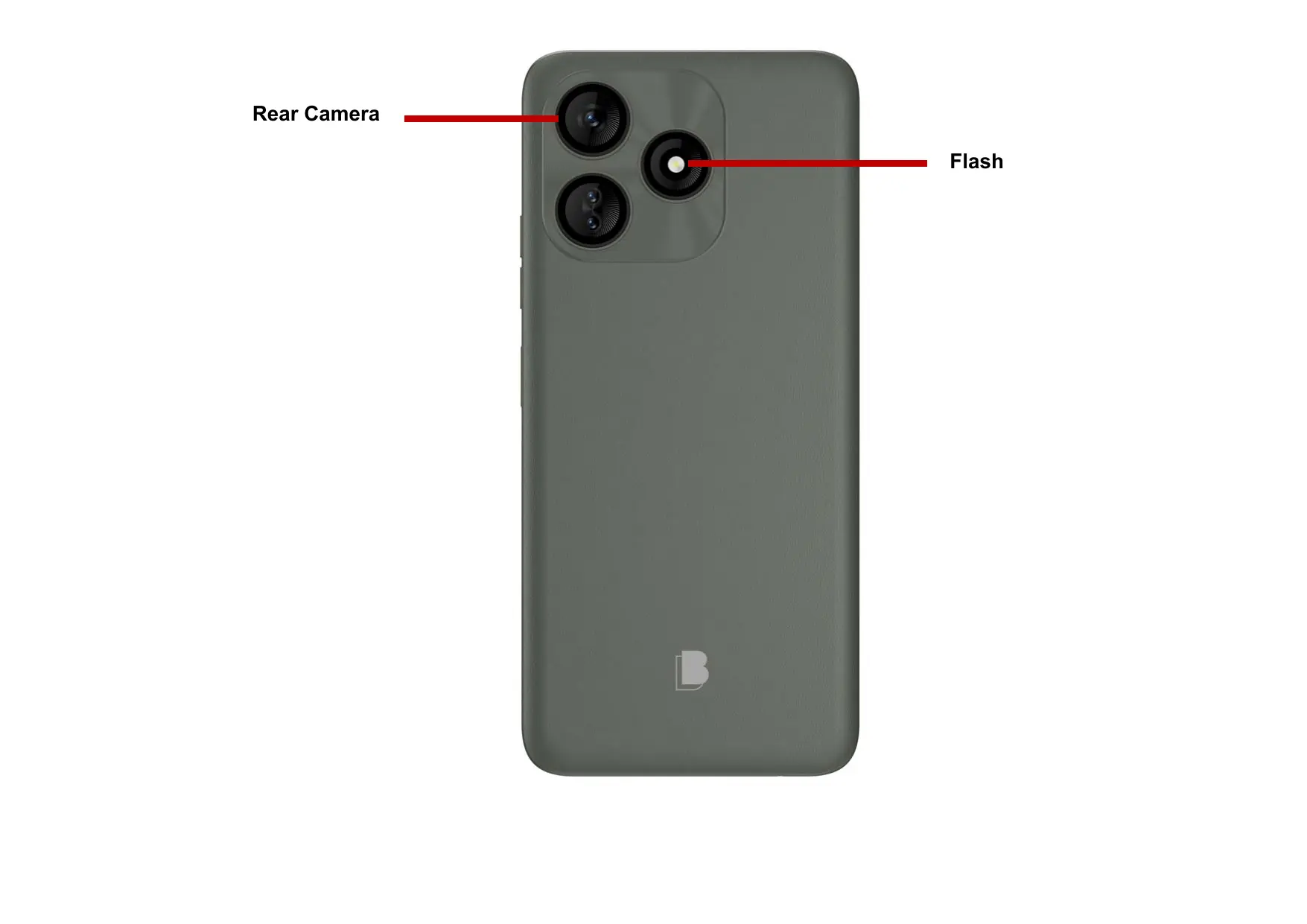
| Rear Camera | Yes, high resolution with flash |
| Fingerprint Sensor | Yes |
| Face Recognition | Yes |
| SIM Card | Dual SIM (Nano SIM) |
| microSD Memory Card | Yes, for additional storage |
| USB Port | Yes, charging and data transfer |
| Headphone Jack | Yes, 3.5 mm jack |
| Buttons | Power, Volume, Home, Recent Apps, Back |
| Operating System | Android (with Google services) |
| Google Assistant | Yes |
| Rechargeable Battery | Lithium-ion, recommended charging cycles |
| Emergency Calls | Yes, dial emergency number |
| Driving Safety | Never text and drive |
| Water Resistance | No, avoid any liquid |
| IMEI | Obtained by dialing *#06# |
| Maintenance | Clean with a soft, dry cloth; avoid water |
| Repairability | Contact the manufacturer or an authorized service center |
Frequently Asked Questions - G73L BLU
User questions about G73L BLU
0 question about this device. Answer the ones you know or ask your own.
Ask a new question about this device
Download the instructions for your Telephone in PDF format for free! Find your manual G73L - BLU and take your electronic device back in hand. On this page are published all the documents necessary for the use of your device. G73L by BLU.
USER MANUAL G73L BLU
natural_image
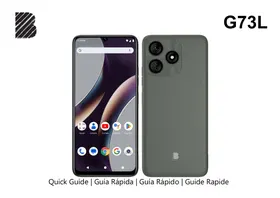
Front view of a gray smartphone with dual camera lenses and a logo (no text or symbols on the device body)Quick Guide | Guía Rápida | Guía Rápido | Guide Rapide
ATTENTION
For instructions or any questions pertaining to phone usage, please click on the BLU page by visiting the following address: manuals.bluproducts.com
Para obtener instrucciones o preguntas relacionadas con el uso del teléfono, por favor haga clic en la página de BLU visitando la siguiente dirección: manuals.bluproducts.com
Para obter instruções ou perguntas relacionadas ao uso do telefone, por favor, clique na página de BLU visitando o seguinte endereço: manuals.bluproducts.com
Pour des instructions ou pour toutes questions sur l'utilisation du téléphone, veuillez cliquer sur à la page BLU en visitant l'adresse suivante: manuals.bluproducts.com
Transportation Safety
Observe all transportation laws and regulations.
PLEASE DRIVE RESPONSIBLY - DO NOT TEXT & DRIVE
Hospital Safety
Follow hospital rules and limitations and turn off your mobile phone when near medical instruments.
Airport Safety
Remember to follow all airport and flight safety regulations.
Water Hazard
Your phone is not waterproof. Keep your phone away from water or liquid to avoid damage.
Emergency Calls
Make sure your mobile phone is switched on and in a service area. On home screen, tap the phone key and dial the emergency number.
Battery Usage
For better performance and longer battery life, it is recommended that you charge the battery fully before using the mobile phone for the first time and that you initially complete two to three charge cycles.
IMEI Information
To check your IMEI, press *#06#
Rear Camera
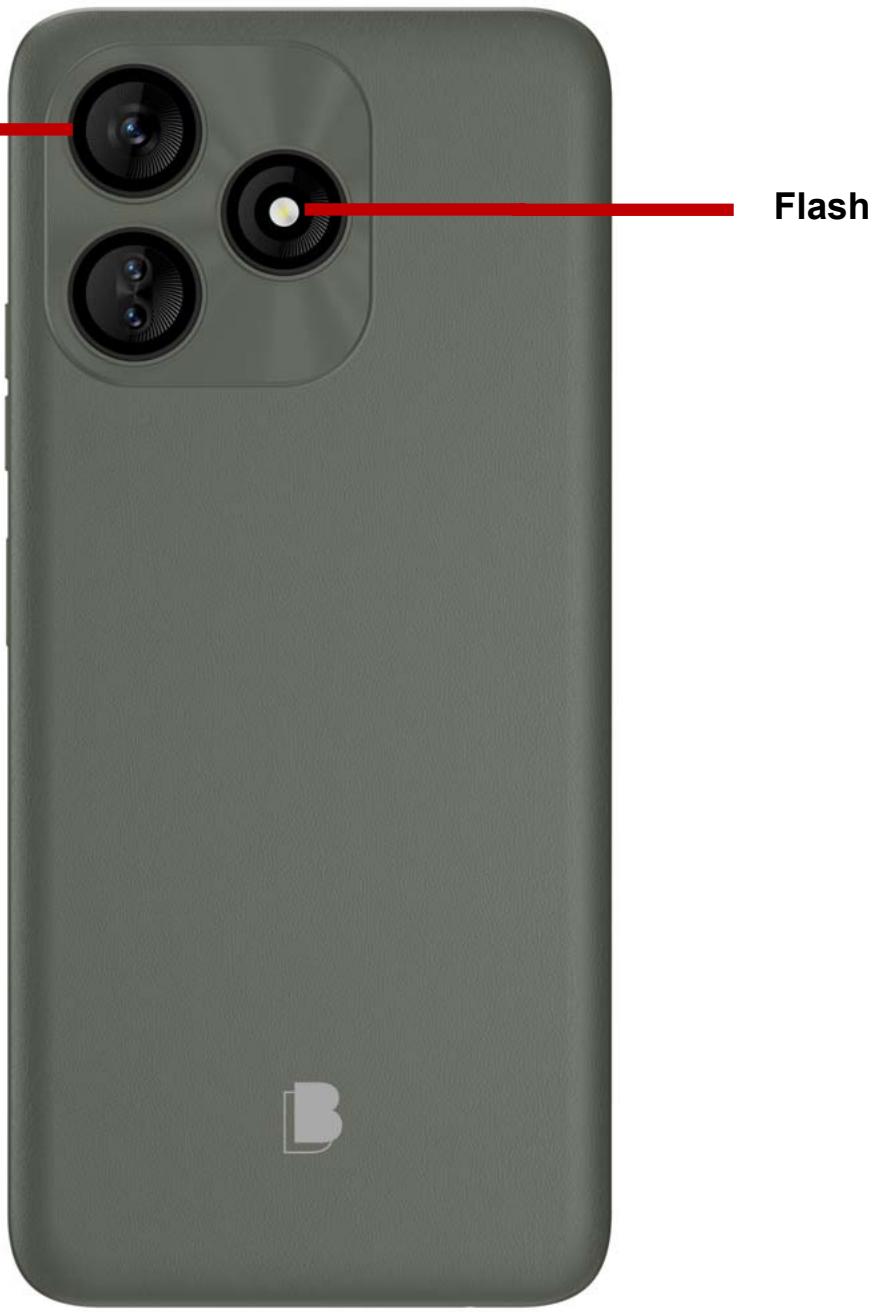
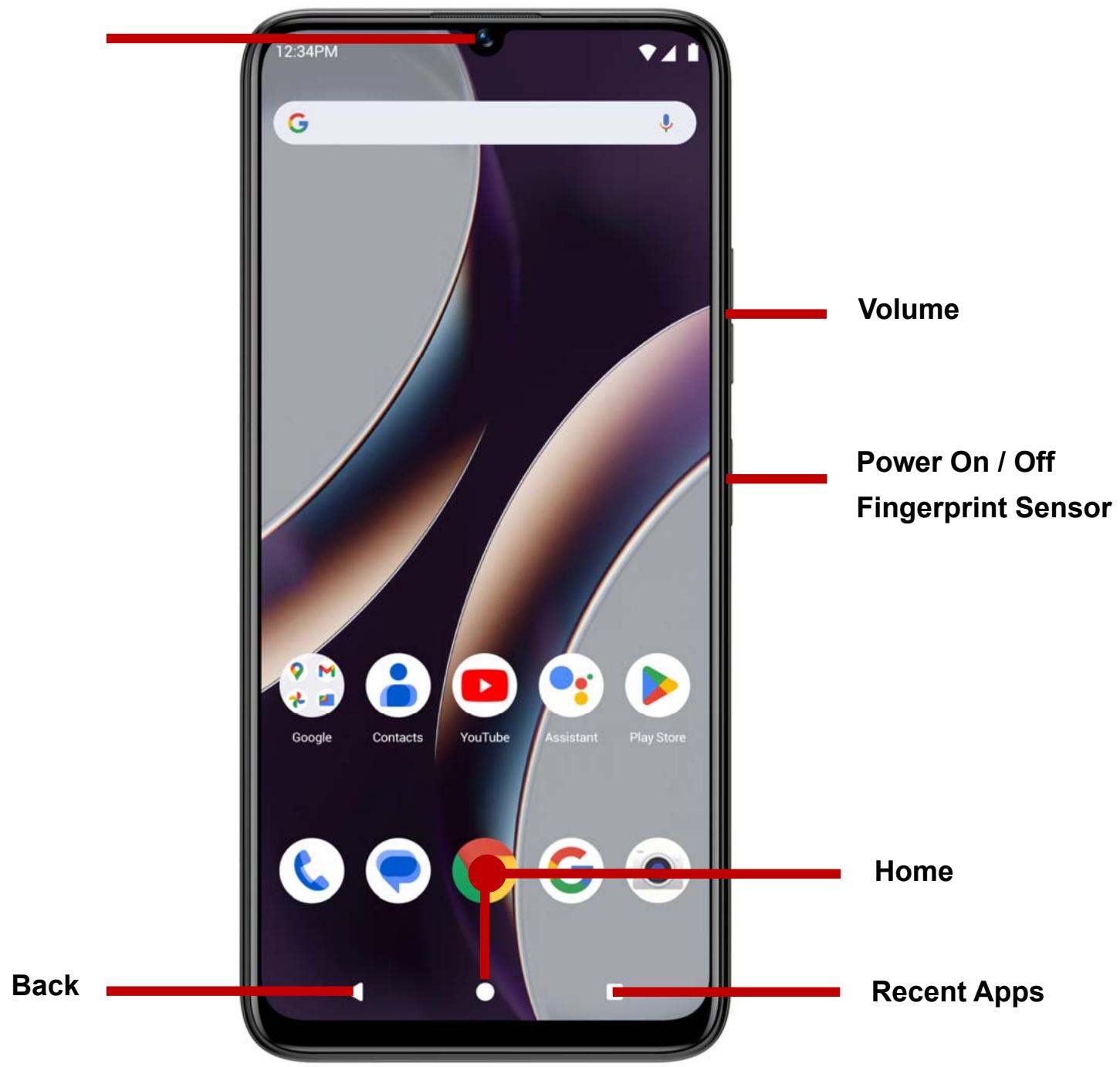
| Power On / Off | Used to power on/off the device and to lock the screen.» Long press the power button to power on» While the phone is powered on, press the power button and volume + simultaneously to access the power off menu |
| Volume | Adjusts the ringer volume, call volume, and multimedia volume. |
| Home | The home button pauses any current action and returns to the home screen. |
| Recent Apps | Opens a list of recently opened applications that allows you to switch conveniently between them. This option can also close any open applications by swiping to the side. |
| Back | Returns to the previous screen; Closes the keyboard, any open program, or any menu option. |
| USB Port | Charges the device and transfers files such as music and video between your device and a PC. |
| Headset Port | Connect earphones to this port for hands-free capabilities. You may also to listen to music or FM radio. |
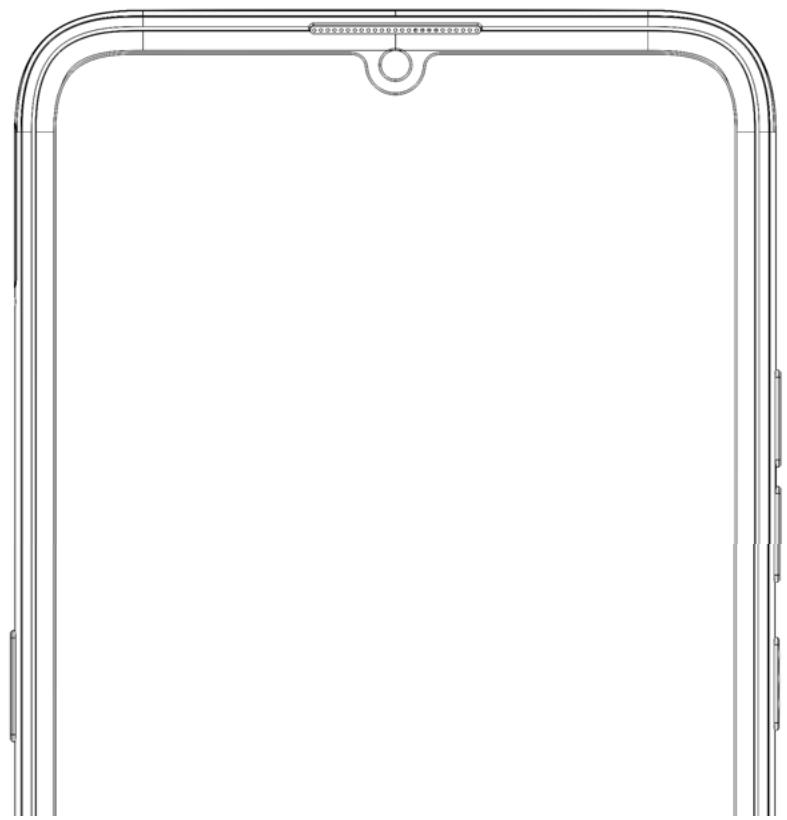
| Front Camera | A high-resolution front camera to take pictures and video. This option is ideal for self-portraits. |
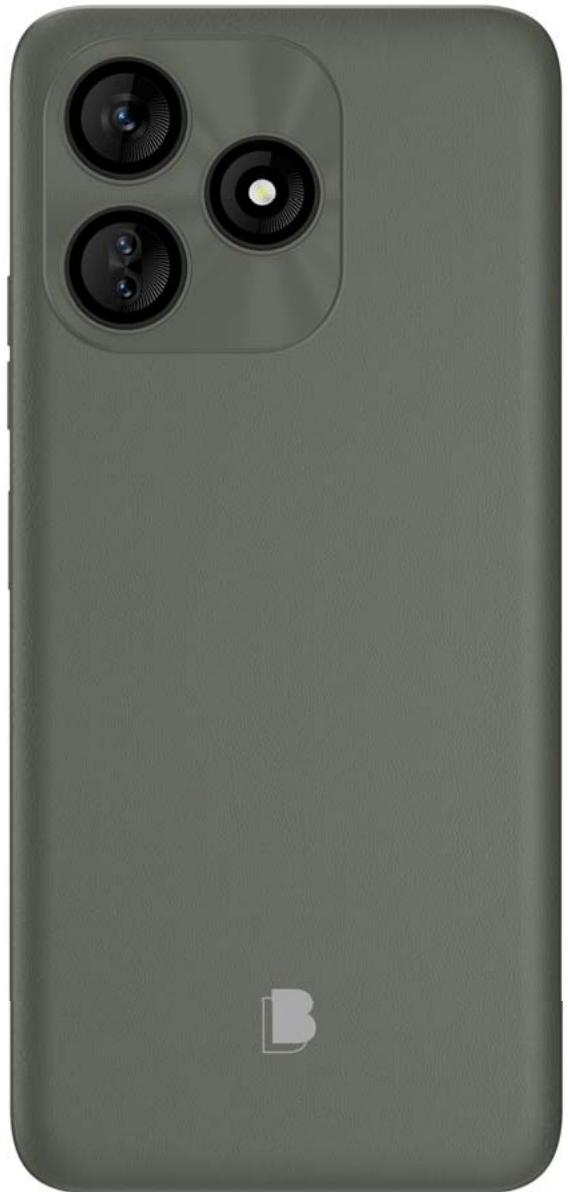
| Rear Camera | A high-resolution rear camera to take pictures and video. |
| Flash | Provides light for pictures in low-light conditions. It also may be used as a flashlight. |
| Fingerprint Sensor | Security measure that unlocks your device with the User's fingerprints. |
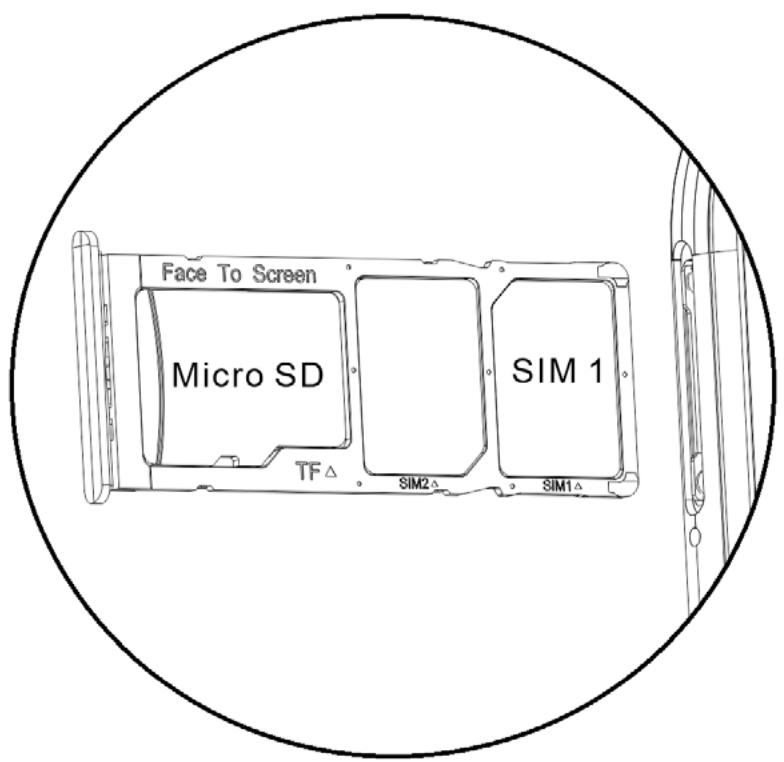
Installation of the SIM Card
Warning: Please keep the SIM card out of the reach of children. The SIM card and its contact are easily damaged due to scratching or bending. Please use caution when carrying, installing, or taking out the SIM card. Note: Please contact your cellular phone service provider directly to obtain your SIM card.
To insert SIM card:
★ Remove the SIM card tray (with tool). Insert the SIM card.
★ Insert the SD card (For additional storage capacity)
natural_image
Pure technical line drawing of a rectangular frame with rounded corners and a central hole, no text or symbols present.★ Replace the SIM card tray and power on the phone.
DEVICE CONFIGURATION
When you initially power on your phone, there will be a series of steps to set up basic features.
INSERT SIM
Insert your SIM card so the phone can register to the network.
SELECT LANGUAGE
While on the Welcome screen, please scroll to select your language. In this step, you also have the option to adjust Vision Settings such as magnification, font, and display size. You have the ability to place an Emergency Call.
CONNECT TO WI-FI
This step allows the device to connect to the internet. Click on the desired Wi-Fi network that the device that will be connected. Please note that any unsecured Wi-Fi networks can be connected to without credentials and any secured Wi-Fi networks require a password for credentials prior to connection. It is recommended that you connect to a Wi-Fi network to check for software updates prior to startup to avoid any data overages.
COPY APPS & DATA
This step allows you to select transfer options such as applications, pictures, music and more from a previous device. You may also setup as new if you choose not to from a previous device.
ADD YOUR ACCOUNT
Sign in to your Google™ Account in order to keep accounts streamlined with Google services. Your account will be used for Google programs such as Google Play™, Google Drive, and Google Pay. If you do not have a Google account, click to create a new account. If the device is not recognized by your Google account, you will have to complete a security verification.
GOOGLE SERVICES
Click to add Google services that include Backup and Restore, Location Services, Install Updates and Apps.
SET SECURITY
Setup your face recognition and fingerprint to unlock your phone and for authorization on certain applications.
There will be different options to setup security: with PIN, Password or Pattern. In this step, you will have the ability to setup a PIN at startup as an extra layer of security. You also have the option of skipping the fingerprint setup and completing it at a later time.
FINALIZE SETUP
The last step allows you to setup Google Assistant. You may also add another email address, control what information is visible through the phones lock screen, and lets you also review any additional apps. You may skip this step and setup later.
Google, Google Play, Google Maps, YouTube, Gmail, and other marks are trademarks of Google LLC.
natural_image
Pure technical line drawing of a rectangular frame with rounded corners and a central hole, no text or symbols present.natural_image
Front view of a gray smartphone with two camera lenses and a red laser pointer line (no text or symbols visible)Flash
natural_image
Pure technical line drawing of a rectangular frame with rounded corners and a central hole, no text or symbols present.CONECTAR-SE A REDE WI-FI
natural_image
Front view of a gray smartphone with two camera lenses and a red laser line indicator (no text or symbols on the device body)Flash
natural_image
Pure technical line drawing of a rectangular frame with rounded corners and a central hole, no text or symbols present.SE CONNECTER AU WI-FI
Federal Communication Commission Interference
FCC ID: YHLBLUG73L
This device complies with Part 15 of the FCC Rules. Operation is subject to the following two conditions: (1) This device may not cause harmful interference, and (2) this device must accept any interference received, including interference that may cause undesired operation.
This equipment has been tested and found to comply with the limits for a Class B digital device, pursuant to Part 15 of the FCC Rules. These limits are designed to provide reasonable protection against harmful interference in a residential installation. This equipment generates, uses and can radiate radio frequency energy and, if not installed and used in accordance with the instructions, may cause harmful interference to radio communications. However, there is no guarantee that interference will not occur in a particular installation. If this equipment does cause harmful interference to radio or television reception, which can be determined by turning the equipment off and on, the user is encouraged to try to correct the interference by one of the following measures:
-Reorient or relocate the receiving antenna.
-Increase the separation between the equipment and receiver.
-Connect the equipment into an outlet on a circuit different from that to which the receiver is connected.
-Consult the dealer or an experienced radio/TV technician for help.
FCC Caution:
Any changes or modifications not expressly approved by the party responsible for compliance could void the user's authority to operate this equipment.
Radiation Exposure Statement:
This device meets the government's requirements for exposure to radio waves.
This device is designed and manufactured not to exceed the emission limits for exposure to radio frequency (RF) energy set by the Federal Communications Commission of the U.S. Government.
The exposure standard for wireless device employs a unit of measurement known as the Specific Absorption Rate, or SAR. The SAR limit set by the FCC is 1.6W/kg. Tests for SAR are conducted using standard operating positions (10mm) accepted by the FCC with the device transmitting at its highest certified power level in all tested frequency bands.
- ATTENTION
- Transportation Safety
- PLEASE DRIVE RESPONSIBLY - DO NOT TEXT & DRIVE
- Hospital Safety
- Airport Safety
- Water Hazard
- Emergency Calls
- Battery Usage
- IMEI Information
- Installation of the SIM Card
- To insert SIM card:
- DEVICE CONFIGURATION
- INSERT SIM
- SELECT LANGUAGE
- CONNECT TO WI-FI
- COPY APPS & DATA
- ADD YOUR ACCOUNT
- GOOGLE SERVICES
- SET SECURITY
- FINALIZE SETUP
- CONECTAR-SE A REDE WI-FI
- SE CONNECTER AU WI-FI
- Federal Communication Commission Interference
- FCC ID: YHLBLUG73L
- FCC Caution:
- Radiation Exposure Statement:
Brand : BLU
Model : G73L
Category : Telephone