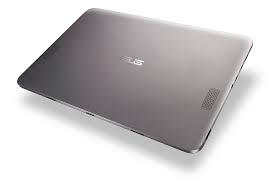
TRANSFORMER BOOK T101HA - Laptop ASUS - Free user manual and instructions
Find the device manual for free TRANSFORMER BOOK T101HA ASUS in PDF.


| Product type | Hybrid laptop (tablet + detachable keyboard) |
| Brand | ASUS |
| Model | Transformer Book T101HA |
| Screen | 10.1 inches, touchscreen, 1280 x 800 pixels resolution (estimated) |
| Processor | Intel Atom x5-Z8350 (estimated) |
| RAM memory | 2 GB or 4 GB LPDDR3 (estimated) |
| Storage | eMMC 32 GB or 64 GB (estimated) |
| Operating system | Windows 10 (Home or Pro edition) |
| Wireless connectivity | Wi-Fi 802.11 a/b/g/n, Bluetooth 4.0 |
| Cameras | Front: 2 MP, Rear: 5 MP (estimated) |
| Battery | Lithium-ion, 30 Wh (estimated), up to 10 hours battery life |
| Power supply | Power adapter 5.2 V, 2 A (estimated) |
| Dimensions (tablet) | 262 x 173 x 9.6 mm (estimated) |
| Weight (tablet) | Approximately 0.58 kg |
| Weight (with keyboard) | Approximately 1.1 kg |
| Ports | 1x USB 3.0, 1x micro-USB, 1x micro-HDMI, 3.5 mm headphone jack |
| Maintenance and cleaning | Clean with a soft dry cloth. Do not use abrasive products. Avoid moisture. |
| Safety | Do not expose to excessive heat. Do not disassemble the battery. Follow RF warnings. |
| Spare parts and repairability | Battery, power adapter and keyboard available from authorized dealers. Professional repair recommended. |
Frequently Asked Questions - TRANSFORMER BOOK T101HA ASUS
User questions about TRANSFORMER BOOK T101HA ASUS
0 question about this device. Answer the ones you know or ask your own.
Ask a new question about this device
Download the instructions for your Laptop in PDF format for free! Find your manual TRANSFORMER BOOK T101HA - ASUS and take your electronic device back in hand. On this page are published all the documents necessary for the use of your device. TRANSFORMER BOOK T101HA by ASUS.
USER MANUAL TRANSFORMER BOOK T101HA ASUS
IN SEARCH OF INcredible
E-Manual
COPYRIGHT INFORMATION
No part of this manual, including the products and software described in it, may be reproduced, transmitted, transcribed, stored in a retrieval system, or translated into any language in any form or by any means, except documentation kept by the purchaser for backup purposes, without the express written permission of ASUSTeK COMPUTER INC. ("ASUS").
ASUS PROVIDES THIS MANUAL "AS IS" WITHOUT WARRANTY OF ANY KIND, Either EXPRESS OR IMPLIED, INCLUDING BUT NOT LIMITED TO THE IMPLIED WARRANTY OR CONDITIONS OF MERCHANTABILITY OR FITNESS FOR A PARTICULAR PURPOSE. IN NO EVENT SHALL ASUS, ITS DIRECTORS, OFFICERS, EMPLOYEES OR AGENTS BE LIABLE FOR ANY INDIRECT, SPECIAL, INCIDENTAL, OR CONSEQUENTIAL DAMAGES (INCLUDING DAMAGES FOR LOSS OF PROFITS, LOSS OF BUSINESS, LOSS OF USE OR DATA, INTERUPTION OF BUSINESS AND THE LIKE), EVEN IF ASUS HAS BEEN ADVISED OF THE POSSIBILITY OF SUCH DAMAGES ASING FROM ANY DEFECT OR ERROR IN THIS MANUAL OR PRODUCT.
Products and corporate names appearing in this manual may or may not be registered trademarks or copyrights of their respective companies, and are used only for identification or explanation and to the owners' benefit, without intent to infringe.
SPECIFICATIONS AND INFORMATION CONTAINED IN THIS MANUAL ARE FURNISHED FOR INFORMATIONAL USE ONLY, AND ARE SUBJECT TO CHANGE AT ANY TIME WITHOUT NOTICE, AND SHOULD NOT BE CONTRUED AS A COMMITMENT BY ASUS. ASUS ASSUMES NO RESPONSIBILITY OR LIABILITY FOR ANY ERRORS OR INACCURACIES THAT MAY APPEAR IN THIS MANUAL, INCLUDING THE PRODUCTS AND SOFTWARE DESCRIBED IN IT.
Copyright © 2016 ASUSTeK COMPUTER INC. All Rights Reserved.
LIMITATION OF LIABILITY
Circumstances may arise where because of a default on ASUS' part or other liability, you are entitled to recover damages from ASUS. In each such instance, regardless of the basis on which you are entitled to claim damages from ASUS, ASUS is liable for no more than damages for bodily injury (including death) and damage to real property and tangible personal property; or any other actual and direct damages resulted from omission or failure of performing legal duties under this Warranty Statement, up to the listed contract price of each product.
ASUS will only be responsible for or indemnify you for loss, damages or claims based in contract, tort or infringement under this Warranty Statement.
This limit also applies to ASUS' suppliers and its reseller. It is the maximum for which ASUS, its suppliers, and your reseller are collectively responsible.
UNDER NO CIRCUMSTANCES IS ASUS LIABLE FOR ANY OF THE FOLLOWING: (1) THIRD-PARTY CLAIMS AGAINST YOU FOR DAMAGE; (2) LOSS OF, OR DAMAGE TO, YOUR RECORDS OR DATA; OR (3) SPECIAL, INCIDENTAL, OR INDIRECT DAMAGES OR FOR ANY ECONOMIC CONSEQUENTIAL DAMAGES (INCLUDING LOST PROFITS OR SAVINGS), EVEN IF ASUS, ITS SUPPLIER OR YOUR RESELLER IS INFORMED OF THEIR POSSIBILITY.
SERVICE AND SUPPORT
Visit our multi-language website at https://www.asus.com/support/
Table of Contents
About this manual. 7
Conventions used in this manual 8
Icons 8
Typography 8
Safety precautions. 9
Using your ASUS Tablet 9
Caring for your ASUS Tablet. 10
Proper disposal 11
Chapter 1: Hardware Setup
Top View 14
ASUS Tablet features. 16
Top and back view. 16
Bottom Side 20
ASUS Mobile Dock features 21
Top view 21
Chapter 2: Using your ASUS Tablet and Asus Mobile Dock
Getting started 24
Dock the ASUS Tablet on the ASUS Mobile Dock 24
Charge your ASUS Tablet 25
Lift to open the display panel 27
Press the power button 27
Gestures for the touch screen panel and touchpad 28
Using touch screen panel gestures 28
Using the touchpad 31
Using the keyboard 38
Function keys 38
Windows 10 keys 39
Chapter 3: Working with Windows® 10
Starting for the first time. 42
Start menu 43
Windows® apps 45
Working with Windows® apps. 46
Customizing Windows® apps 46
Task view. 49
Snap feature 50
Snap hotspots 50
Action Center 52
Other keyboard shortcuts 53
Connecting to wireless networks 55
Wi-Fi 55
Bluetooth 56
Airplane mode 57
Turning your ASUS Tablet off. 58
Putting your ASUS Tablet to sleep. 59
Chapter 4: Power-On Self-Test (POST)
The Power-On Self-Test (POST) 62
Using POST to access BIOS and Troubleshoot 62
BIOS 62
Accessing BIOS 62
BIOS Settings 63
Recovering your system 70
Performing a recovery option. 71
Tips and FAQs
Useful tips for your ASUS Tablet 74
Hardware FAQs. 75
Software FAQs. 78
Appendices
Internal Modem Compliancy 82
Overview. 82
Network Compatibility Declaration 83
Non-Voice Equipment 83
Federal Communications Commission Interference Statement. 85
FCC Radio Frequency (RF) Exposure Caution Statement 87
RF Exposure Information (SAR) 87
CE Mark Warning. 88
Prevention of Hearing Loss. 89
Japan Technical Conformity Mark 89
RF Exposure information (SAR) - CE. 90
IC Radiation Exposure Statement for Canada 91
Radiation Exposure Statement 93
Wireless Operation Channel for Different Domains. 95
France Restricted Wireless Frequency Bands 95
UL Safety Notices 97
Power Safety Requirement. 98
TV Notices 98
REACH 98
Macrovision Corporation Product Notice 98
Nordic Lithium Cautions (for lithium-ion batteries) 99
Optical Drive Safety Information 100
CTR 21 Approval (for ASUS Tablet with built-in Modem) 101
ENERGY STAR complied product 103
Global Environmental Regulation Compliance and Declaration 104
ASUS Recycling/Takeback Services. 104
Rechargeable Battery Recycling Service in North America. 104
Regional notice for California. 104
Regional notice for India. 105
Regional notice for Singapore 105
Regional notice for Turkey. 105
Notices for removable batteries. 105
Avis concernant les batteries replacables. 105
About this manual
This manual provides information about the hardware and software features of your ASUS Tablet and ASUS Mobile Dock, organized through the following chapters:
Chapter 1: Hardware Setup
This chapter details the hardware components of your ASUS Tablet and ASUS Mobile Dock.
Chapter 2: Using your ASUS Tablet and Asus Mobile Dock
This chapter shows you how to use the different parts of your ASUS Tablet and its ASUS Mobile Dock.
Chapter 3: Working with Windows® 10
This chapter provides an overview of using Windows® 10 in your ASUS Tablet.
Chapter 4: Power-On Self-Test (POST)
This chapter shows you how to use POST to change the settings of your ASUS Tablet.
Tips and FAQs
This section presents some recommended tips, hardware FAQs, and software FAQs you can refer to for maintaining and fixing common issues with your ASUS Tablet.
Appendices
This section includes notices and safety statements for your ASUS Tablet and ASUS Mobile Dock.
Conventions used in this manual
To highlight key information in this manual, some text are presented as follows:
IMPORTANT! This message contains vital information that must be followed to complete a task.
NOTE: This message contains additional information and tips that can help complete tasks.
WARNING! This message contains important information that must be followed to keep you safe while performing tasks and prevent damage to your ASUS Tablet's data and components.
Icons
The icons below indicate the devices you can use for completing a series of tasks or procedures on your ASUS Tablet.

= Use the touch screen panel.

= Use the touchpad.

= Use the keyboard.
Typography
Bold = This indicates a menu or an item that must be selected.
Italic =This indicates sections that you can refer to in this manual.
Safety precautions
Using your ASUS Tablet
This ASUS Tablet should only be used in environments with ambient temperatures between 5^ (41^) and 35^ (95^) .

Refer to the rating label on the bottom of your ASUS Tablet and ensure that your power adapter complies with this rating.

Do not leave your ASUS Tablet on your lap or near any part of your body to prevent discomfort or injury from heat exposure.

Do not use damaged power cords, accessories, and other peripherals with your ASUS Tablet.

While powered on, ensure that you do not carry or cover your ASUS Tablet with any materials that can reduce air circulation.

Do not place your ASUS Tablet on uneven or unstable work surfaces.

You can send your ASUS Tablet through x-ray machines (used on items placed on conveyor belts), but do not expose them to magnetic detectors and wands.

Contact your airline provider to learn about related in-flight services that can be used and restrictions that must be followed when using your ASUS Tablet in-flight.
Caring for your OSUS Tablet

Disconnect the AC power and remove the battery pack (if applicable) before cleaning your ASUS Tablet. Use a clean cellulose sponge or chamos cloth dampened with a solution of nonabrasive detergent and a few drops of warm water. Remove any extra moisture from your ASUS Tablet using a dry cloth.
Do not use strong solvents such as thiners, benzene, or other chemicals on or near your ASUS Tablet.

Do not place objects on top of your ASUS Tablet.

Do not expose your ASUS Tablet to strong magnetic or electrical fields.

Do not use or expose your ASUS Tablet near liquids, rain, or moisture.

Do not expose your ASUS Tablet to dusty environments.

Do not use your ASUS Tablet near gas leaks.
Proper disposal

Do not throw your ASUS Tablet/ASUS Mobile Dock in municipal waste. This product has been designed to enable proper reuse of parts and recycling. The symbol of the crossed out wheeled bin indicates that the product (electrical, electronic equipment and mercury-containing button cell battery) should not be placed in municipal waste. Check local regulations for disposal of electronic products.

Do not throw the battery in municipal waste. The symbol of the crossed out wheeled bin indicates that the battery should not be placed in municipal waste.
Chapter 1: Hardware Setup
NOTE:
- The keyboard's layout may vary per region or country. The top view may also vary in appearance depending on the ASUS Tablet model.
The ASUS Mobile Dock is compatible with T101 series ASUS Tablets.
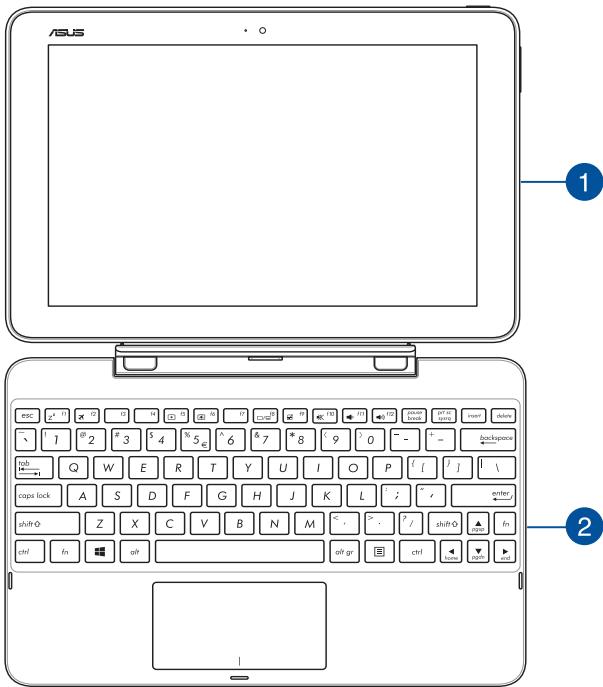

ASUS Tablet
Your ASUS Tablet comes with an optional ASUS Mobile Dock to suit your mobile needs. The ASUS Tablet is also equipped with its own features for work and play which can be accessed using touch screen gestures.
NOTE: For more details on using the ASUS Tablet, refer to the ASUS Tablet features and Gestures for the touch screen panel and touchpad sections in this manual.

ASUS Mobile Dock
The ASUS Mobile Dock provides additional input features to your touch screen panel via its touchpad and keyboard functions.
IMPORTANT! To know more about connecting or disconnecting your ASUS Tablet from its ASUS Mobile Dock, refer to the Dock the ASUS Tablet on the ASUS Mobile Dock section in this manual.
ASUS Tablet features
Top and back view

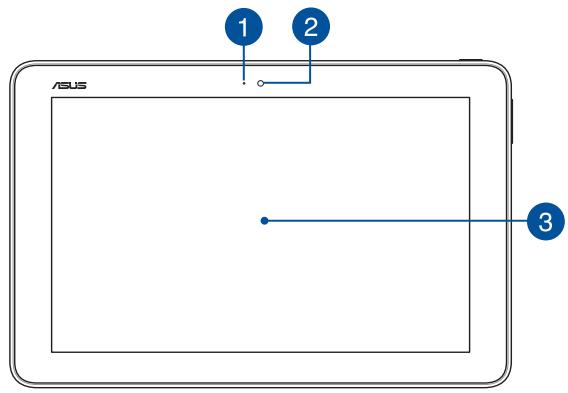
Camera indicator
The camera indicator lights up when the built-in camera is in use.

Camera
The built-in 2.0-megapixel front camera allows you to take pictures or record videos using your ASUS Tablet.

Touch screen panel
This high-definition touch screen panel provides excellent viewing features for photos, videos, and other multimedia files on your ASUS Tablet. It also allows you to operate your ASUS Tablet using touch gestures.
NOTE: To know more about using touch screen gestures when operating your ASUS Tablet, refer to the Using touch screen panel gestures section in this manual.

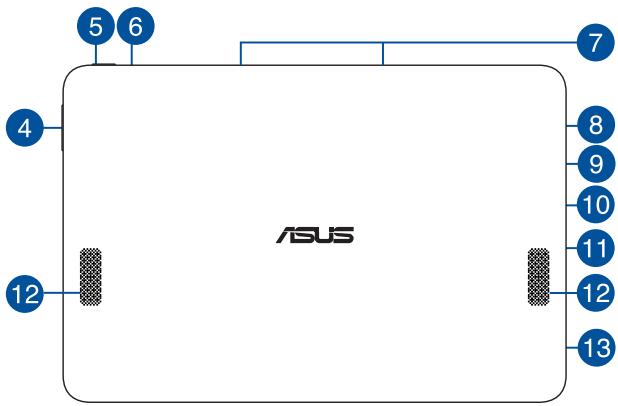
Volume button
The volume button allows you to increase or decrease the volume level of your ASUS Tablet.

Power button
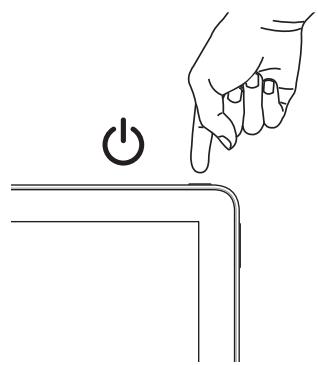
Press the power button to turn your ASUS Tablet on, put it to sleep mode, and wake it up from sleep mode.
In the event that your ASUS Tablet becomes unresponsive, press and hold the power button for at least four (4) seconds to force it to shut down.
IMPORTANT! Forcing the system to restart may result in data loss. We strongly recommend that you back up your data regularly.

Two-color battery charge indicator
This two-color LED provides a visual indication of the battery's charge status. Refer to the following table for details:
| Color | Status |
| White | The ASUS Tablet is plugged to a power source and the battery power is between 95% and 100%. |
| Orange | The ASUS Tablet is plugged to a power source, charging its battery, and the battery power is less than 95%. |
| Lights off | The Tablet PC is running on battery mode and the battery power is between 10% to 100%. |

Array microphones
The array microphones feature echo canceling, noise suppression, and beam forming functions for better voice recognition and audio recording.

MicroSD card slot
This built-in memory card reader slot supports microSD, microSDHC, and microSDXC card formats.

Micro HDMI port
This port is for the micro HDMI (High-Definition Multimedia Interface) connector and is HDCP compliant for HD DVD, Blu-ray, and other protected content playback.

Micro USB 2.0 port
Use the micro USB (Universal Serial Bus) port 2.0 to charge or supply power to your ASUS Tablet.

Headphone/Headset jack
This port allows you to connect amplified speakers or headphones. You can also use this port to connect your headset.
NOTE: This port does not support three-conductor 3.5mm microphones.

Audio speakers
The built-in audio speakers allow you to hear audio straight from your Tablet. Audio features are software-controlled.

USB 2.0 port
The USB (Universal Serial Bus) port is compatible with USB 2.0 or USB 1.1 devices such as keyboards, pointing devices, flash disk drives, external HDDs, speakers, cameras and printers.
Bottom Side
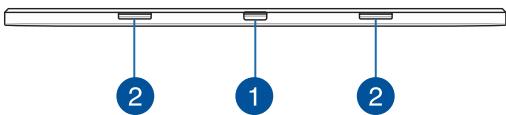
Dock port
Connect the ASUS Mobile Dock to this port to support keyboard and touchpad functions.
Hinge holes
Align and insert the latch hooks into these holes to securely attach the tablet to the ASUS Mobile Dock.
ASUS Mobile Dock features
IMPORTANT! The ASUS Mobile Dock is optional accessory.
NOTE: The keyboard's layout may vary per region or country.
Top view
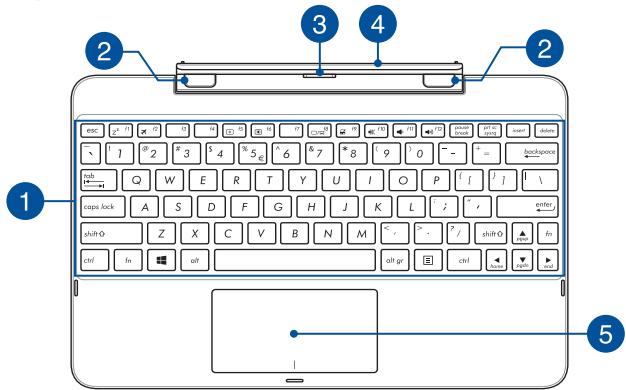
1 Keyboard
The keyboard provides QWERTY keys with a comfortable travel depth for typing. It also enables you to use the function keys, allows quick access to Windows®, and controls other multimedia functions.
NOTE: The keyboard layout differs by territory.

Latch hooks
The latch hooks allow you to securely attach the ASUS Tablet on the ASUS Mobile Dock.

Dock connector
Securely attach the tablet into the ASUS Mobile Dock by aligning the dock port on top of this connector.

Hinge
This hinge supports the tablet while it is connected to the ASUS Mobile Dock. It also holds the tablet in place while you adjust it into different viewing angles.

Touchpad
The touchpad allows the use of multi-gestures to navigate onscreen, providing an intuitive user experience. It also simulates the functions of a regular mouse.
NOTE: For more details, refer to the Using the touchpad section in this manual.
Chapter 2: Using your ASUS Tablet and Asus Mobile Dock
Getting started
Dock the ASUS Tablet on the ASUS Mobile Dock
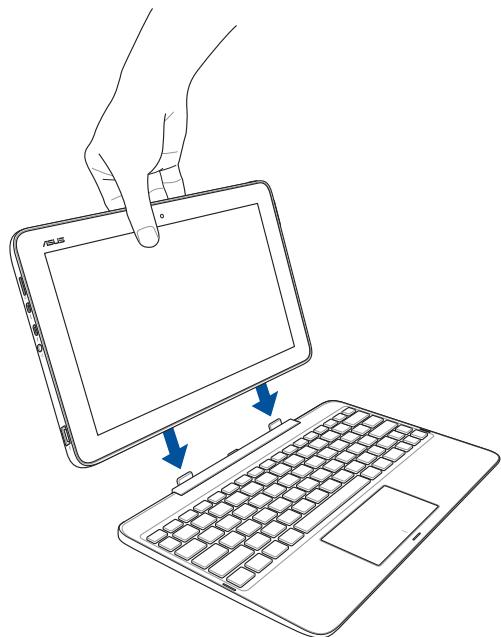
WARNING! Ensure to dock your ASUS Tablet on the ASUS mobile dock by the orientation shown above. Incorrect docking may cause damage to your device.
Charge your OSUS Tablet
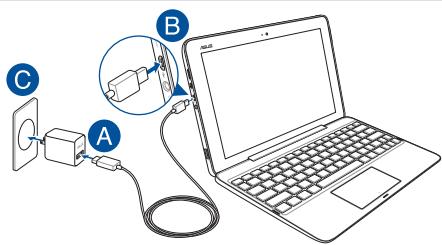
A. Connect the micro USB cable to the power adapter.
B. Plug the micro USB connector into your ASUS Tablet.
C. Plug the power adapter into a grounded power outlet.

Charge the ASUS Tablet for 8 hours before using it in battery mode for the first time.
NOTE: The power adapter may vary in appearance, depending on models and your region. Use only the bundled power adapter for charging.
IMPORTANT!
Power adapter information:
Input voltage: 100-240Vac
Input frequency: 50-60Hz
Rating output current: 2A
Rating output voltage: 5V (10W)
Power Bank (on selected models) information:
Rating output current: 2A
Rating output voltage: 9.1V
IMPORTANT!
- Locate the input/output rating label on your ASUS Tablet and ensure that it matches the input/output rating information on your power adapter. Some ASUS Tablet models may have multiple rating output currents based on the available SKU.
- Ensure that your ASUS Tablet is connected to the power adapter before turning it on for the first time. We strongly recommend that you use a grounded wall socket while using your ASUS Tablet on power adapter mode.
- The socket outlet must be easily accessible and near your ASUS Tablet.
- To disconnect your ASUS Tablet from its main power supply, unplug your ASUS Tablet from the power socket.
WARNING!
Read the following precautions for your ASUS Tablet's battery:
- Only ASUS-authorized technicians should remove the battery inside the device (for non-removable battery only).
- The battery used in this device may present a risk of fire or chemical burn if removed or disassembled.
- Follow the warning labels for your personal safety.
- Risk of explosion if battery is replaced by an incorrect type.
Do not dispose of in fire. - Never attempt to short-circuit your ASUS Tablet's battery.
- Never attempt to disassemble and reassemble the battery (for non-removable battery only).
Discontinue usage if leakage is found. - The battery and its components must be recycled or disposed of properly.
- Keep the battery and other small components away from children.
Lift to open the display panel
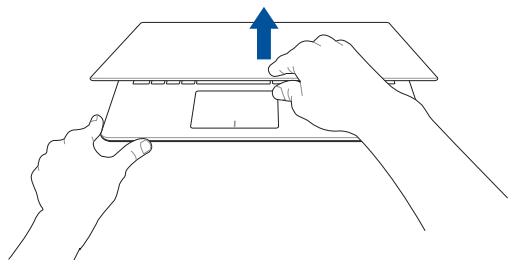
Press the power button
Gestures for the touch screen panel and touchpad
Gestures allow you to launch programs and access the settings of your ASUS Tablet. Refer to the following illustrations when using hand gestures on your touch screen panel and touchpad.
NOTE: The following screenshots are for reference only. The touch screen panel's appearance may vary depending on model.
Using touch screen panel gestures
The gestures allow you to launch programs and access the settings of your ASUS Tablet. The functions can be activated by using the hand gestures on your ASUS Tablet's touch screen panel.
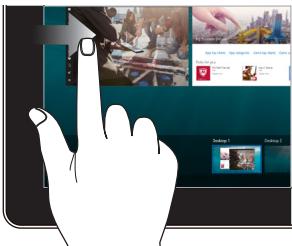
Left edge swipe
Swipe from the left edge of the screen to launch Task view.
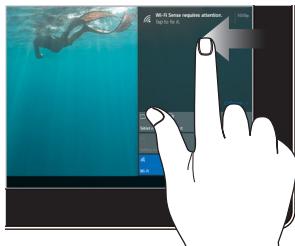
Right edge swipe
Swipe from the right edge of the screen to launch Action Center.
Tap/Double-tap
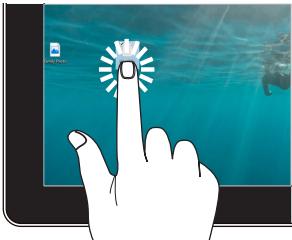
- Tap an app to select it.
Double-tap an app to launch it.
Zoom in
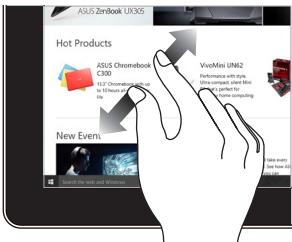
Spread apart your two fingers on the touch screen panel.
Press and hold
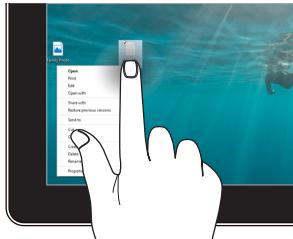
Press and hold to open the right-click menu.
Zoom out
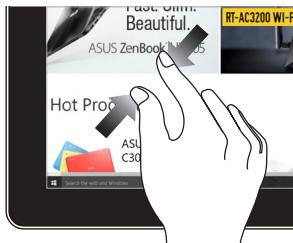
Bring together your two fingers on the touch screen panel.
Finger slide
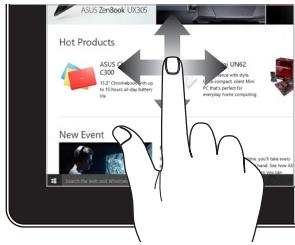
Slide your finger to scroll up and down and slide your finger to pan the screen left or right.
Drag
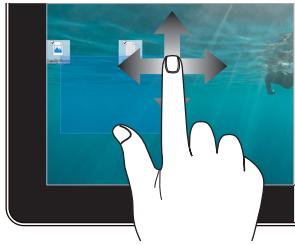
Drag to create a selection box around multiple items.
Drag and drop an item to move it to a new location.
Using the touchpad
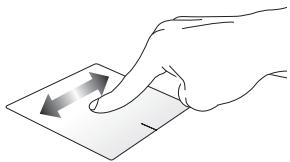
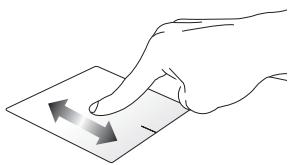
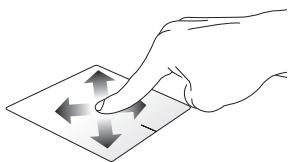
Moving the pointer
You can tap anywhere on the touchpad to activate its pointer, then slide your finger on the touchpad to move the pointer onscreen.
Slide horizontally
Slide vertically
Slide diagonally
One-finger gestures
Tap/Double-tap
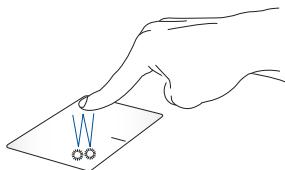
- Tap an app to select it.
Double-tap an app to launch it.
Drag and drop
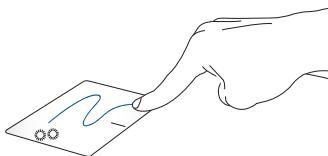
Double-tap an item, then slide the same finger without lifting it off the touchpad. To drop the item to its new location, lift your finger from the touchpad.
Left-click
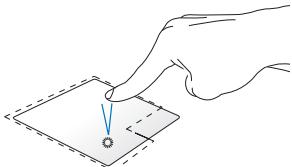
- Click an app to select it.
Double-click an app to launch it.
Right-click
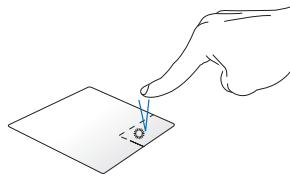
Click this button to open the right-click menu.
NOTE: The areas inside the dotted line represent the locations of the left mouse button and the right mouse button on the touchpad.
Two-finger gestures
Tap
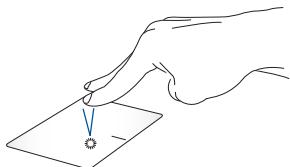
Tap two fingers on the touchpad to simulate the right-click function.
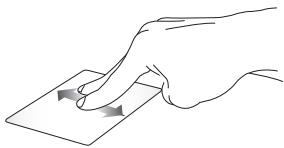
Two-finger scroll (up/down)
Slide two fingers to scroll up or down.
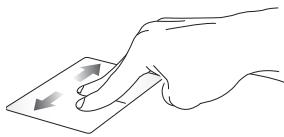
Two-finger scroll (left/right)
Slide two fingers to scroll left or right.
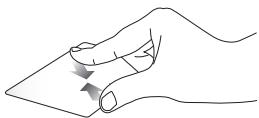
Zoom out
Bring together your two fingers on the touchpad.
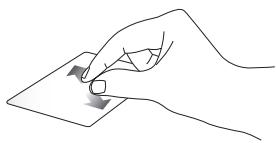
Zoom in
Spread apart your two fingers on the touchpad.
Drag and drop
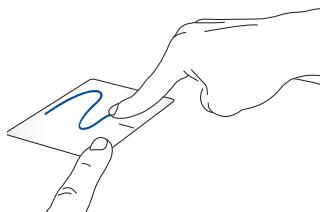
Select an item then press and hold the left button. Using your other finger, slide on the touchpad to drag the item, lift your finger off the button to drop the item.
Three-finger gestures
Tap
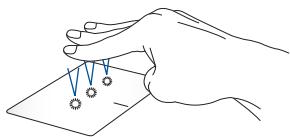
Tap three fingers on the touchpad to invoke Cortana.
Swipe left/Swipe right
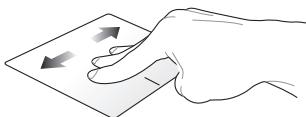
If you opened multiple apps, swipe three fingers left or right to switch between these apps.
Swipe up
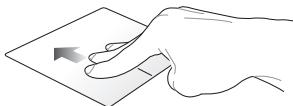
Swipe up to see an overview of all the apps currently opened.
Swipe down
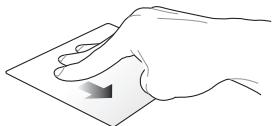
Swipe down to show the desktop.
Four-finger gestures
Tap
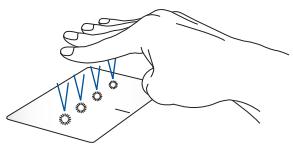
Tap four fingers on the touchpad to invoke Action Center.
Customizing your touchpad
- Launch All settings from the Action Center.
- Select Devices, then select Mouse & touchpad.
- Adjust the settings to your preference.
Using the keyboard
Function keys
The function keys on your ASUS Tablet's keyboard can trigger the following commands:
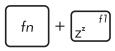
Puts the ASUS Tablet into Sleep mode
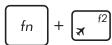
Turns Airplane mode on or off
NOTE: When enabled, the Airplane mode disables all wireless connectivity.
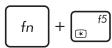
Decreases display brightness
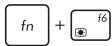
Increases display brightness
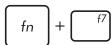
Turns the display panel on or off
Toggles the display mode
NOTE: Ensure that the second display is connected to your ASUS Tablet.
Enables or disables the touchpad
Turns the speaker on or off
Turns the speaker volume down
Turns the speaker volume up
Windows® 10 keys
There are two special Windows® keys on your ASUS Tablet's keyboard used as below:

Launches the Start menu

Displays the drop-down menu
Chapter 3:
Working with Windows® 10
Starting for the first time
When you start your ASUS Tablet for the first time, a series of screens appear to guide you in configuring your Windows® 10 operating system.
To start your ASUS Tablet for the first time:
- Press the power button on your ASUS Tablet. Wait for a few minutes until the setup screen appears.
- From the setup screen, pick your region and a language to use on your ASUS Tablet.
- Carefully read the License Terms. Select I accept.
- Follow the onscreen instructions to configure the following basic items:
Personalize
Get online
- Settings
Your account
- After configuring the basic items, Windows® 10 proceeds to install your apps and preferred settings. Ensure that your ASUS Tablet is kept powered on during the setup process.
- Once the setup process is complete, the Desktop appears.
NOTE: The screenshots in this chapter are for reference only.
Start menu
The Start menu is the main gateway to your ASUS Tablet's programs, Windows® apps, folders, and settings.
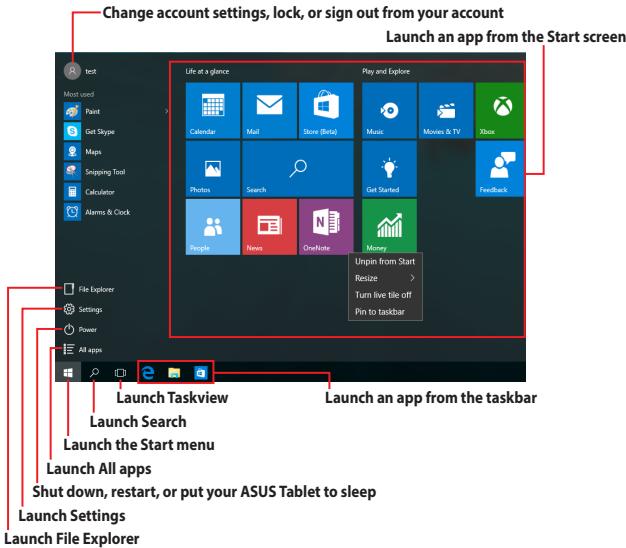
You can use the Start menu to do these common activities:
Start programs or Windows® apps
- Open commonly used programs or Windows® apps
Adjust ASUS Tablet settings
Get help with the Windows operating system
- Turn off your ASUS Tablet
- Log off from Windows or switch to a different user account
Launching the Start menu

Tap the Start button in the lower-left corner of your desktop.

Position your mouse pointer over the Start button

in the lower-left corner of your desktop then click it.

Press the Windows logo key on your keyboard.
Opening programs from the Start menu
One of the most common uses of the Start menu is opening programs installed on your ASUS Tablet.

Tap the program to launch it.

Position your mouse pointer over the program then click to launch it.

Use the arrow keys to browse through the programs.
Press enter to launch it.
NOTE: Select All apps at the bottom of the left pane to display a full list of programs and folders on your ASUS Tablet in alphabetical order.
Windows® apps
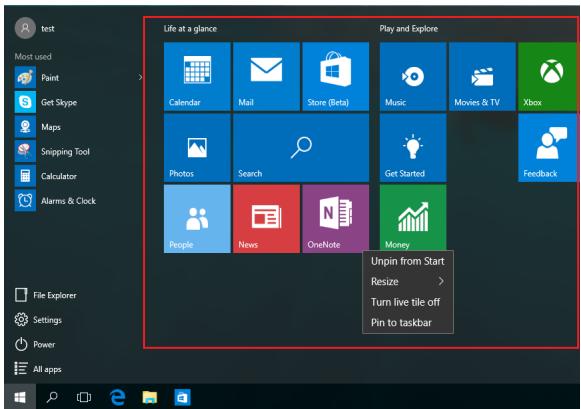
These are apps pinned on the right pane of the Start menu and displayed in tiled-format for easy access.
NOTE: Some Windows® apps require signing in to your Microsoft account before they are fully launched.
Working with Windows® apps
Use your ASUS Tablet's touch screen, touchpad, or keyboard to launch, customize, and close apps.
Launching Windows® apps from the Start menu

Tap the app to launch it.

Position your mouse pointer over the app then click to launch it.

Use the arrow keys to browse through the apps. Press enter to launch an app.
Customizing Windows® apps
You can move, resize, unpin, or pin apps to the taskbar from the Start menu using the following steps:
Moving apps

Press and hold the app, then drag and drop it to a new location.

Position your mouse pointer over the app, then drag and drop the app to a new location.
Resizing apps

Press and hold the app, then tap and select an app tile size.

Position your mouse pointer over the app and right-click it, then click Resize and select an app tile size.

Use the arrow keys to navigate to the app. Press 回 then select Resize and select an app tile size.
Unpinning apps

Press and hold the app, then tap the icon.

Position your mouse pointer over the app and right-click it, then click Unpin from Start.

Use the arrow keys to navigate to the app. Press, then select Unpin from Start.
Pinning apps to the taskbar

Press and hold the app, then tap Pin to taskbar.

Position your mouse pointer over the app and right-click it, then click Pin to taskbar.

Use the arrow keys to navigate to the app. Press, then select Pin to taskbar.
Pinning more apps to the Start menu

From All apps, press and hold the app you want to add to the Start menu, then tap Pin to Start.

From All apps, position your mouse pointer over the app you want to add to the Start menu and right-click it, then click Pin to Start.

From All apps, press on the app that you want to add to the Start menu, then select Pin to Start.
Task view
Quickly switch between opened apps and programs using the task view feature, you can also use task view to switch between desktops.
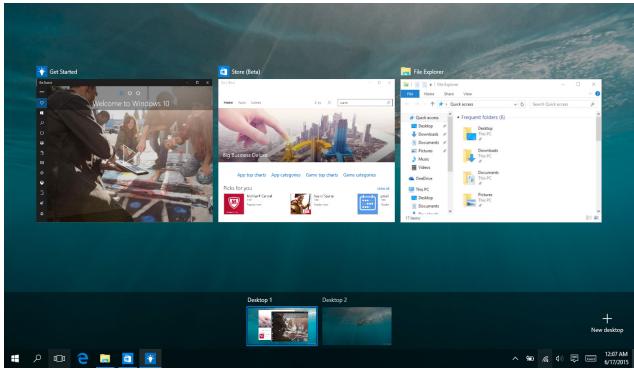
Launching task view

Tap the icon on the taskbar or swipe form the left edge of the screen.
Position your mouse pointer over the icon on the taskbar and click it.

Press 猫 + on your keyboard.
Snap feature
The Snap feature displays apps side-by-side, allowing you to work or switch between apps.
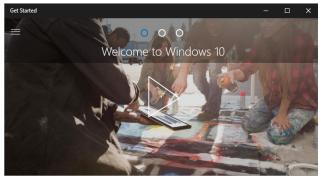
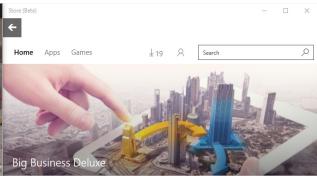
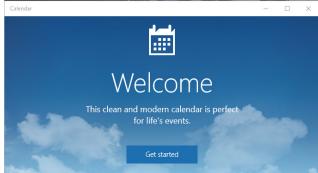
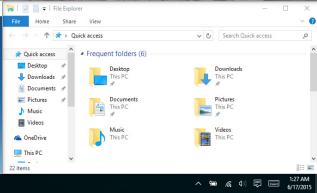

Snap hotspots
You can drag and drop apps to these hotspots to snap them into place.
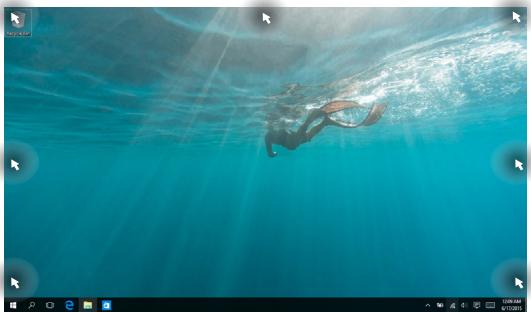
Using Snap

or

- Launch the app you wish to snap.
- Drag the title bar of your app and drop the app to the edge of the screen to snap.
- Launch another app and repeat the above steps to snap another app.

- Launch the app you wish to snap.
- Press and hold the key, then use the arrow keys to snap the app.
- Launch another app and repeat the above steps to snap another app.
Action Center
Action Center consolidates notifications from apps and presents a single place where you can interact with them. It also has a really useful Quick Actions section at the bottom.
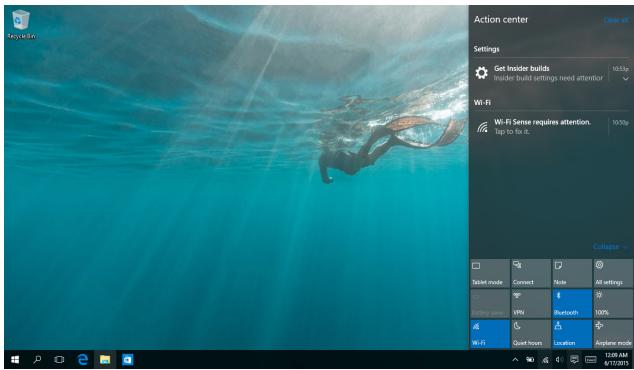
Launching Action Center

Click the icon on the taskbar or swipe from the right edge of the screen.

Position your mouse pointer over the icon on the taskbar and click it.

Press + on your keyboard.
Other keyboard shortcuts
Using the keyboard, you can also use the following shortcuts to help you launch applications and navigate Windows® 10.
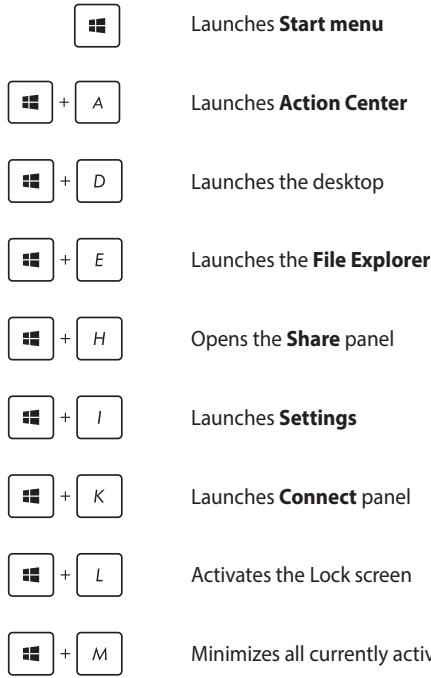
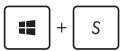
Launches Search
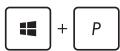
Launches Project panel
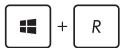
Opens the Run window
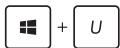
Opens Ease of Access Center
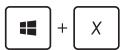
Opens the context menu of the Start button
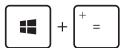
Launches the magnifier icon and zooms in your screen
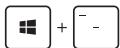
Zooms out your screen
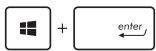
Opens Narrator Settings
Connecting to wireless networks
Wi-Fi
Access emails, surf the Internet, and share applications via social networking sites using your ASUS Tablet's Wi-Fi connection.
IMPORTANT! Airplane mode disables this feature. Ensure that Airplane mode is turned off before enabling the Wi-Fi connection of your ASUS Tablet.
Connecting Wi-Fi
Connect your ASUS Tablet to a Wi-Fi network by using the following steps:

or

- Select the icon from the taskbar.
- Select the icon to enable Wi-Fi.
- Select an access point from the list of available Wi-Fi connections.
- Select Connect to start the network connection.
NOTE: You may be prompted to enter a security key to activate the Wi-Fi connection.
Bluetooth
Use Bluetooth to facilitate wireless data transfers with other Bluetooth-enabled devices.
IMPORTANT! Airplane mode disables this feature. Ensure that Airplane mode is turned off before enabling the Bluetooth connection of your ASUS Tablet.
Pairing with other Bluetooth-enabled devices
You need to pair your ASUS Tablet with other Bluetooth-enabled devices to enable data transfers. Connect your devices by using the following steps:

or
- Launch Settings from the Start menu.
- Select Devices, then select Bluetooth to search for Bluetooth-enabled devices.
- Select a device from the list. Compare the passcode on your ASUS Tablet with the passcode sent to your chosen device. If they are the same, select Yes to successfully pair your ASUS Tablet with the device.
NOTE: For some Bluetooth-enabled devices, you may be prompted to key in the passcode of your ASUS Tablet.
Airplane mode
Airplane mode disables wireless communication, allowing you to use your ASUS Tablet safely while in-flight.
NOTE: Contact your airline provider to learn about related in-flight services that can be used and restrictions that must be followed when using your ASUS Tablet in-flight.
Turning Airplane mode on

or
- Launch Action Center from the taskbar.
- Select the Airplane mode icon to enable Airplane mode.


Press _n +
Turning Airplane mode off

or
- Launch Action Center from the taskbar.
- Select the Airplane mode icon to disable Airplane mode.


Press _n +
Turning your Asus Tablet off
You can turn off your ASUS Tablet by doing either of the following procedures:

or
Launch the Start menu, then select Power> Shut down to do a normal shutdown.

From the log-in screen, select > Shut down.

Press / t + ^d to launch Shut down Windows. Select Shut down from the drop-down list then select OK.
If your ASUS Tablet is unresponsive, press and hold the power button for at least four (4) seconds until your ASUS Tablet turns off.
Putting your ASUS Tablet to sleep
To put your ASUS Tablet to Sleep mode:

or
Launch the Start menu, then select Power >
Sleep to put your ASUS Tablet to sleep.
From the log-in screen, select > Sleep.


Press + 4 to launch Shut down Windows. Select Sleep from the drop-down list then select OK.
NOTE: You can also put your ASUS Tablet to Sleep mode by pressing the power button once.
Chapter 4:
Power-On Self-Test (POST)
The Power-On Self-Test (POST)
The POST (Power-On Self-Test) is a series of software-controlled diagnostic tests that run when you turn on or restart your ASUS Tablet. The software that controls the POST is installed as a permanent part of the ASUS Tablet's architecture.
Using POST to access BIOS and Troubleshoot
During POST, you can access the BIOS settings or run troubleshooting options using the function keys of your ASUS Tablet. You may refer to the following information for more details.
BIOS
The BIOS (Basic Input and Output System) stores system hardware settings that are needed for system startup in the ASUS Tablet.
The default BIOS settings apply to most conditions of your ASUS Tablet. Do not change the default BIOS settings except in the following circumstances:
An error message appears onscreen during system bootup and requests you to run the BIOS Setup.
You have installed a new system component that requires further BIOS settings or updates.
WARNING! Using inappropriate BIOS settings may result in system instability or boot failure. We strongly recommend that you change the BIOS settings only with the help of a trained service personnel.
Accessing BIOS

Restart your OSUS Tablet then press ^/2 during POST.
NOTE:
- The BIOS screens in this section are for reference only. The actual screens may differ by model and territory.
- You may press
+ to simulate the key, and + to simulate the key.
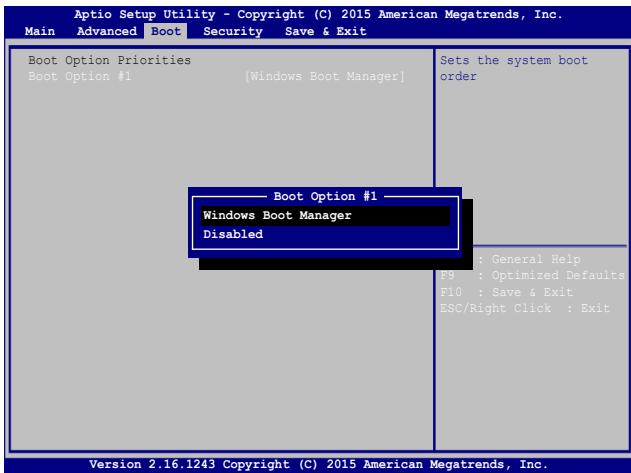
Boot
This menu allows you to set your boot option priorities. You may refer to the following procedures when setting your boot priority.
- On the Boot screen, select Boot Option #1.
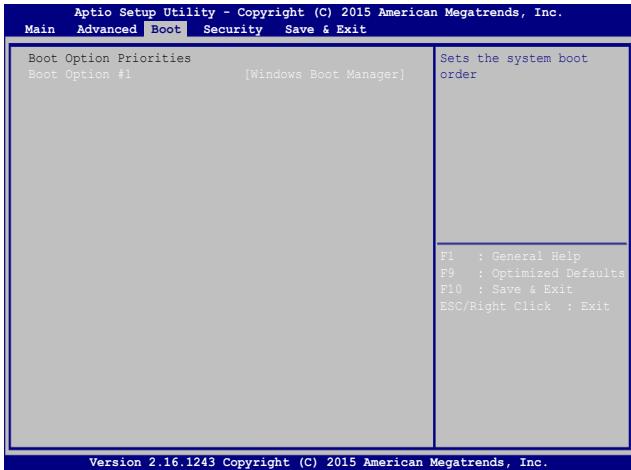
2.
Press

and select a device as the Boot Option #1.
Security
This menu allows you to set up the administrator and user password of your ASUS Tablet. It also allows you to control the access to your ASUS Tablet's hard disk drive, input/output (I/O) interface, and USB interface.
NOTE:
If you install a User Password, you will be prompted to input this before entering your ASUS Tablet's operating system.
- If you install an Administrator Password, you will be prompted to input this before entering BIOS.
Aptio Setup Utility - Copyright (C) 2015 American Megatrends, Inc.
Main Advanced Boot Security Save & Exit
Password Description
If ONLY the Administrator's password is set, then this only limits access to Setup and is only asked for when entering Setup. If ONLY the user's password is set, then this is a power on password and must be entered to boot or enter Setup. In Setup, the User will have Administrator rights.
Administrator Password Status NOT INSTALLED
User Password Status NOT INSTALLED
Administrator Password
User Password
Secure Boot Menu
Set Administrator Password. The password length must be in the following range:
Minimum length 3
Maximum length 20
Must type with
character:
a-z,0-9
F1 : General Help
F9 : Optimized Defaults
F10 : Save & Exit
ESC/Right Click : Exit
Version 2.16.1243 Copyright (C) 2015 American Megatrends, Inc.
To set the password:
- On the Security screen, select Administrator Password or User Password.
- Type in a password then press enter
- Re-type to confirm the password then press enter
To clear the password:
- On the Security screen, select Administrator Password or User Password.
- Type in the current password then press enter
- Leave the Create New Password field blank then press enter
- Select Yes in the confirmation box then press enter
Save & Exit
To keep your configuration settings, select Save Changes and Exit before exiting the BIOS.
| Optio Setup Utility - Copyright (C) 2015 American Megatrends, Inc. | |||
| Main | Advanced | Boot | Security Save & Exit |
| Save Changes and Exit | |||
| Discard Changes and Exit | |||
| Save Options | |||
| Save Changes | |||
| Discard Changes | |||
| Restore Defaults | |||
| Boot Override | |||
| Windows Boot Manager | |||
| Launch EFI Shell from filesystem device | |||
| F1 : General HelpsS | |||
| F9 : Optimized Defaults | |||
| F10 : Save & Exit | |||
| ESC/Right Click : Exit | |||
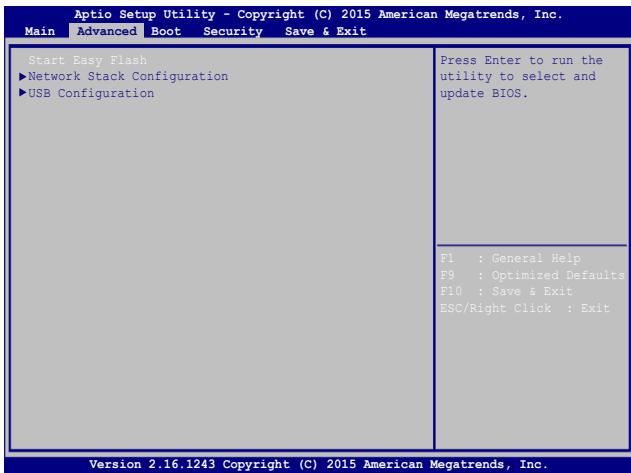
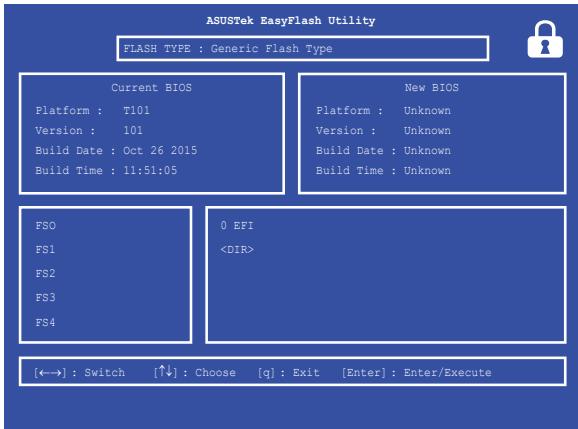
To update the BIOS:
- Verify the ASUS Tablet's exact model then download the latest BIOS file for your model from the ASUS website.
- Save a copy of the downloaded BIOS file to a flash disk drive.
- Connect your flash disk drive to your ASUS Tablet.
- Restart your ASUS Tablet then press ×^f2 during POST.
- From the BIOS menu, Select Advanced > Start Easy Flash, then press enter
- Locate your downloaded BIOS file in the flash disk drive then
press enter
- After the BIOS update process, select Exit > Restore Defaults to restore the system to its default settings.
Recovering your system
Using recovery options on your ASUS Tablet allows you to restore the system to its original state or simply refresh its settings to help improve performance.
IMPORTANT!
- Backup all your data files before doing any recovery option on your ASUS Tablet.
Note down important customized settings such as network settings, user names, and passwords to avoid data loss. - Ensure that your ASUS Tablet is plugged in to a power source before resetting your system.
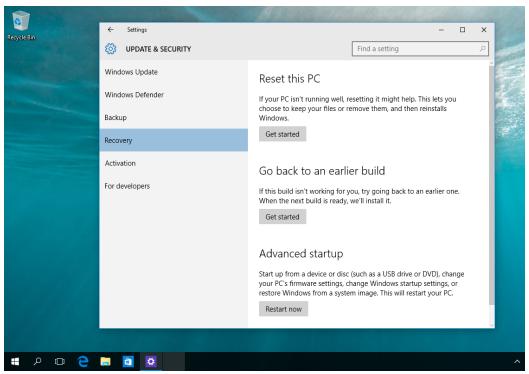
Windows® 10 allows you to do any of the following recovery options:
- Keep my files - This option allows you refresh your ASUS Tablet without affecting personal files (photos, music, videos, documents).
Using this option, you can restore your ASUS Tablet to its default settings and delete other installed apps.
-
Remove everything - This option resets your ASUS Tablet to its factory settings. You must backup your data before doing this option.
-
Go back to an earlier build - This option allows you to go back to an earlier build. Use this option if this build is not working for you.
- Advanced startup - Using this option allows you to perform other advanced recovery options on your ASUS Tablet such as:
Using a USB drive, network connection or Windows recovery DVD to startup your ASUS Tablet.
- Using Troubleshooting to enable any of these advanced recovery options: System Restore, System Image Recovery, Startup Repair, Command Prompt, EFI Firmware Settings, and Startup Settings.
Performing a recovery option
Refer to the following steps if you want to access and use any of the available recovery options for your ASUS Tablet.
- Launch Settings and select Update and security.
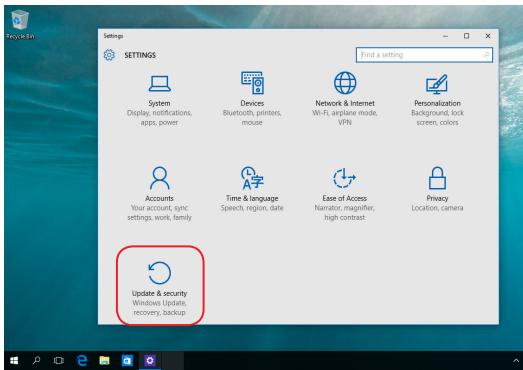
2. Under the Update and security option, select Recovery then select the recovery option you would like to perform.
Tips and FAQs
Useful tips for your ASUS Tablet
To help you maximize the use of your ASUS Tablet, maintain its system performance, and ensure all your data are kept secured, here are some useful tips that you can follow:
- Update Windows® periodically to ensure that your applications have the latest security settings.
Use an anti-virus software to protect your data and keep this updated too.
Unless absolutely necessary, refrain from using force shutdown to turn off your ASUS Tablet.
Always backup your data and make it a point to create a backup data in an external storage drive. - Refrain from using the ASUS Tablet at extremely high temperatures. If you are not going to use your Asus Tablet for a long period of time (at least a month), we recommend that you take out the battery if the battery is removable.
- Disconnect all external devices and ensure you have the following items prior to resetting your ASUS Tablet:
Product key for your operating systems and other installed applications
- Backup data
- Log in ID and password
- Internet connection information
Hardware FAQs
- A black dot, or sometimes a colored dot, appears onscreen when I turn on the ASUS Tablet. What should I do?
Although these dots normally appear onscreen, they will not affect your system. If the incident continues and subsequently affects system performance, consult an authorized ASUS service center.
- My display panel has an uneven color and brightness. How can I fix this?
The color and brightness of your display panel may be affected by the angle and current position of your ASUS Tablet. The brightness and color tone of your ASUS Tablet may also vary per model. You may use the function keys or the display settings in your operating system to adjust the appearance of your display panel.
- How can I maximize my ASUS Tablet's battery life?
You can try doing any of the following suggestions:
Use the function keys to adjust the display brightness.
If you are not using any Wi-Fi connection, switch your system into Airplane mode.
Disconnect unused USB devices.
- Close unused applications, especially those that take up too much system memory.
-
My battery charge indicator does not light up. What's wrong?
-
Check whether the power adapter or battery pack is attached correctly. You may also disconnect the power adapter or battery pack, wait for a minute, then reconnect them again to the power outlet and ASUS Tablet.
If the problem still exists, contact your local ASUS service center for assistance. -
Why is my touchpad not working?
Press _n + to enable your touchpad.
- When I play audio and video files, why can't I hear any sound from my ASUS Tablet's audio speakers?
You can try doing any of the following suggestions:
Press f_n + to turn up the speaker volume.
Check if your speakers were set to mute.
- Check if a headphone jack is connected to your ASUS Tablet and remove it.
- What should I do if my ASUS Tablet's power adapter gets lost or my battery stops working?
Contact your local ASUS service center for assistance.
8. My ASUS Tablet cannot do keystrokes correctly because my cursor keeps on moving. What should I do?
Make sure that nothing accidentally touches or presses on your touchpad while you type on the keyboard. You can also disable your touchpad by pressing _n + ^0 .
Instead of showing letters, pressing the "U", "I", and "O" keys on my keyboard displays numbers. How can I change this?
Press the lk scc lk key or + lk scc lk (on selected models) on your ASUS Tablet to turn off this feature and use the said keys for inputting letters.
Software FAQs
1. When I turn on my ASUS Tablet, the power indicator lights up but nothing appears on my screen. What can I do to fix this?
You can try doing any of the following suggestions:
- Force shutdown your ASUS Tablet by pressing the power button for at least four (4) seconds. Check if the power adapter and battery pack are inserted correctly then turn on your ASUS Tablet.
If the problem still exists, contact your local ASUS service center for assistance.
2. What should I do when my screen displays this message: "Remove disks or other media. Press any key to restart."?
You can try doing any of the following suggestions:
- Remove all connected USB devices then restart your ASUS Tablet.
- Remove any optical discs that are left inside the optical drive then restart.
If the problem still exists, your ASUS Tablet might have a memory storage problem. Contact your local ASUS service center for assistance.
3. My ASUS Tablet boots slower than usual and my operating system lags. How can I fix this?
Delete the applications you recently installed or were not included with your operating system package then restart your system.
4. My ASUS Tablet does not boot up. How can I fix this?
You can try doing any of the following suggestions:
- Remove all connected devices to your ASUS Tablet then restart your system.
If the problem still exists, contact your local ASUS service center for assistance.
5. Why can't my ASUS Tablet wake up from sleep mode?
You need to press the power button to resume your last working state.
- Your system might have completely used up its battery power. Connect the power adapter to your ASUS Tablet and connect to a power outlet then press the power button.
Appendices
Internal Modem Compliancy
The ASUS Tablet with internal modem model complies with JATE (Japan), FCC (US, Canada, Korea, Taiwan), and CTR21. The internal modem has been approved in accordance with Council Decision 98/482/EC for pan-European single terminal connection to the public switched telephone network (PSTN). However due to differences between the individual PSTNs provided in different countries, the approval does not, of itself, give an unconditional assurance of successful operation on every PSTN network termination point. In the event of problems you should contact your equipment supplier in the first instance.
Overview
On 4th August 1998 the European Council Decision regarding the CTR 21 has been published in the Official Journal of the EC. The CTR 21 applies to all non voice terminal equipment with DTMF-dialling which is intended to be connected to the analogue PSTN (Public Switched Telephone Network).
CTR 21 (Common Technical Regulation) for the attachment requirements for connection to the analogue public switched telephone networks of terminal equipment (excluding terminal equipment supporting the voice telephony justified case service) in which network addressing, if provided, is by means of dual tone multi-frequency signalling.
Network Compatibility Declaration
Statement to be made by the manufacturer to the Notified Body and the vendor: "This declaration will indicate the networks with which the equipment is designed to work and any notified networks with which the equipment may have interworking difficulties."
Statement to be made by the manufacturer to the user: "This declaration will indicate the networks with which the equipment is designed to work and any notified networks with which the equipment may have inter-working difficulties. The manufacturer shall also associate a statement to make it clear where network compatibility is dependent on physical and software switch settings. It will also advise the user to contact the vendor if it is desired to use the equipment on another network."
Up to now the Notified Body of CETECOM issued several pan-European approvals using CTR 21. The results are Europe's first modems which do not require regulatory approvals in each individual European country.
Non-Voice Equipment
Answering machines and loud-speaking telephones can be eligible as well as modems, fax machines, auto-dialers and alarm systems. Equipment in which the end-to-end quality of speech is controlled by regulations (e.g. handset telephones and in some countries also cordless telephones) is excluded.
This table shows the countries currently under the CTR21 standard.
| Country | Applied | More Testing |
| Austria1 | Yes | No |
| Belgium | Yes | No |
| Czech Republic | No | Not Applicable |
| Denmark1 | Yes | Yes |
| Finland | Yes | No |
| France | Yes | No |
| Germany | Yes | No |
| Greece | Yes | No |
| Hungary | No | Not Applicable |
| Iceland | Yes | No |
| Ireland | Yes | No |
| Italy | Still Pending | Still Pending |
| Israel | No | No |
| Lichtenstein | Yes | No |
| Luxemburg | Yes | No |
| The Netherlands1 | Yes | Yes |
| Norway | Yes | No |
| Poland | No | Not Applicable |
| Portugal | No | Not Applicable |
| Spain | No | Not Applicable |
| Sweden | Yes | No |
| Switzerland | Yes | No |
| United Kingdom | Yes | No |
This information was copied from CETECOM and is supplied without liability. For updates to this table, you may visit http://www.cetecom.de/technologies/ctr_21.html
1 National requirements will apply only if the equipment may use pulse dialling (manufacturers may state in the user guide that the equipment is only intended to support DTMF signalling, which would make any additional testing superfluous).
In The Netherlands additional testing is required for series connection and caller ID facilities.
Federal Communications Commission Interference Statement
This device complies with FCC Rules Part 15. Operation is subject to the following two conditions:
This device may not cause harmful interference.
This device must accept any interference received, including interference that may cause undesired operation.
This equipment has been tested and found to comply with the limits for a class B digital device, pursuant to Part 15 of the Federal Communications Commission (FCC) rules. These limits are designed to provide reasonable protection against harmful interference in a residential installation. This equipment generates, uses, and can radiate radio frequency energy and, if not installed and used in accordance with the instructions, may cause harmful interference to radio communications. However, there is no guarantee that interference will not occur in a particular installation. If this equipment does cause harmful interference to radio or television reception, which can be determined by turning the equipment off and on, the user is encouraged to try to correct the interference by one or more of the following measures:
Reorient or relocate the receiving antenna.
- Increase the separation between the equipment and receiver.
- Connect the equipment into an outlet on a circuit different from that to which the receiver is connected.
Consult the dealer or an experienced radio/TV technician for help.
WARNING! The use of a shielded-type power cord is required in order to meet FCC emission limits and to prevent interference to the nearby radio and television reception. It is essential that only the supplied power cord be used. Use only shielded cables to connect I/O devices to this equipment. You are cautioned that changes or modifications not expressly approved by the party responsible for compliance could void your authority to operate the equipment.
(Reprinted from the Code of Federal Regulations #47, part 15.193, 1993. Washington DC: Office of the Federal Register, National Archives and Records Administration, U.S. Government Printing Office.)
FCC Radio Frequency (RF) Exposure Caution Statement
WARNING! Any changes or modifications not expressly approved by the party responsible for compliance could void the user's authority to operate this equipment. "The manufacture declares that this device is limited to Channels 1 through 11 in the 2.4GHz frequency by specified firmware controlled in the USA."
This equipment complies with FCC radiation exposure limits set forth for an uncontrolled environment. To maintain compliance with FCC RF exposure compliance requirements, please avoid direct contact to the transmitting antenna during transmitting. End users must follow the specific operating instructions for satisfying RF exposure compliance.
RF Exposure Information (SAR)
This device meets the government's requirements for exposure to radio waves. This device is designed and manufactured not to exceed the emission limits for exposure to radio frequency (RF) energy set by the Federal Communications Commission of the U.S. Government.
The exposure standard employs a unit of measurement known as the Specific Absorption Rate, or SAR. The SAR limit set by the FCC is 1.6W / kg . Tests for SAR are conducted using standard operating positions accepted by the FCC with the EUT transmitting at the specified power level in different channels.
The highest SAR values for this device, as reported to the FCC, are 1.08W / kg for T101HA when placed next to the body.
The FCC has granted an Equipment Authorization for this device with all reported SAR levels evaluated as in compliance with the FCC RF exposure guidelines. SAR information on this device is on file with the FCC and can be found at www.fcc.gov/general/fcc-id-search-page after searching on FCC ID.
| HOST MODEL | HOST FCC ID | FUNCTION | CONTAINS MODULE |
| T101H/H101H/R105H | N/A | WLAN Only | PPD-QCNFA425 |
This transmitter must not be co-located or operating in conjunction with any other antenna or transmitter.
CE Mark Warning
This device complies with the R&TTE Directive 1999/5/EC (replaced in 2017 by RED 2014/53/EU), the EMC Directive 2004/108/EC (replaced in April 2016 by 2014/30/EU), and the Low Voltage Directive 2006/95/EC (replaced in April 2016 by 2014/35/EU) issued by the Commission of the European Community.
Countries where the device will be sold to:
| AT | BE | BG | CH | CY | CZ | DE | DK |
| EE | ES | FI | FR | GB | GR | HU | IE |
| IT | IS | LI | LT | LU | LV | MT | NL |
| NO | PL | PT | RO | SE | SI | SK | TR |
C E
This device have been tested to comply with the Sound Pressure Level requirement laid down in the applicable EN 50332-1:2013 and/or EN 50332-2:2013 standards. Permanent hearing loss may occur if earphones or headphones are used at high volume for prolonged periods of time.
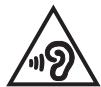
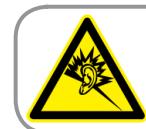
Prevention of Hearing Loss
To prevent possible hearing damage, do not listen at high volume levels for long periods.
Japan Technical Conformity Mark
The internal wireless module of this ASUS Tablet has been certified by Japan Telec.

003-150189
D150133003
RF Exposure information (SAR) - CE
This device meets the EU requirements (1999/519/EC) on the limitation of exposure of the general public to electromagnetic fields by way of health protection.
The limits are part of extensive recommendations for the protection of the general public. These recommendations have been developed and checked by independent scientific organizations through regular and thorough evaluations of scientific studies. The unit of measurement for the European Council's recommended limit for mobile devices is the "Specific Absorption Rate" (SAR), and the SAR limit is 2.0 W/Kg averaged over 10 gram of body tissue. It meets the requirements of the International Commission on Non-Ionizing Radiation Protection (ICNIRP).
For next-to-body operation, this device has been tested and meets the ICNRP exposure guidelines and the European Standard EN 50566 and EN 62209-2. SAR is measured with the device directly contacted to the body while transmitting at the highest certified output power level in all frequency bands of the mobile device.
IC Radiation Exposure Statement for Canada
This equipment complies with IC radiation exposure limits set forth for an uncontrolled environment. To maintain compliance with IC RF exposure compliance requirements, please avoid direct contact to the transmitting antenna during transmitting. End users must follow the specific operating instructions for satisfying RF exposure compliance.
Operation is subject to the following two conditions:
This device may not cause interference and
This device must accept any interference, including interference that may cause undesired operation of the device.
To prevent radio interference to the licensed service (i.e. co-channel Mobile Satellite systems) this device is intended to be operated indoors and away from windows to provide maximum shielding. Equipment (or its transmit antenna) that is installed outdoors is subject to licensing.
This device complies with Industry Canada licence-exempt RSS standard(s).
CANICES-3(B)/NMB-3(B)
This device and its antenna(s) must not be co-located or operating in conjunction with any other antenna or transmitter, except tested built-in radios. The County Code Selection feature is disabled for products marketed in the US/ Canada.
This device contains a RF module, the IC ID for this module is 4104A-QCNFA425.
| HOST MODEL | HOST IC ID | FUNCTION | CONTAINS MODULE |
| T101H/H101H/R105H | N/A | WLAN Only | 4104A-QCNFA425 |
Radiation Exposure Statement
The product comply with the Canada portable RF exposure limit set forth for an uncontrolled environment and are safe for intended operation as described in this manual. The further RF exposure reduction can be achieved if the product can be kept as far as possible from the user body or set the device to lower output power if such function is available.
(i) the device for operation in the band 5150-5250 MHz is only for indoor use to reduce the potential for harmful interference to co-channel mobile satellite systems;
(ii) the maximum antenna gain permitted for devices in the bands 5250-5350 MHz and 5470-5725 MHz shall comply with the e.i.r.p. limit; and
(iii) the maximum antenna gain permitted for devices in the band 5725-5825 MHz shall comply with the e.i.r.p. limits specified for point-to-point and non point-to-point operation as appropriate.
(iv) Users should also be advised that high-power radars are allocated as primary users (i.e. priority users) of the bands 5250-5350 MHz and 5650-5850 MHz and that these radars could cause interference and/or damage to LE-LAN devices.
(v) the worst-case tilt angle(s) necessary to remain compliant with the e.i.r.p. elevation mask requirement set forth in Section 6.2.2(3) shall be clearly indicated.
Avertissement
Wireless Operation Channel for Different Domains
N. America
2.412-2.462 GHz
Ch01 through CH11
Japan
2.412-2.484 GHz
Ch01 through Ch14
Europe ETSI
2.412-2.472 GHz
Ch01 through Ch13
France Restricted Wireless Frequency Bands
Some areas of France have a restricted frequency band. The worst case maximum authorized power indoors are:
10mW for the entire 2.4 GHz band (2400 MHz-2483.5 MHz)
100mW for frequencies between 2446.5 MHz and 2483.5 MHz
NOTE: Channels 10 through 13 inclusive operate in the band 2446.6 MHz to 2483.5 MHz.
There are few possibilities for outdoor use: on private property or on the private property of public persons, use is subject to a preliminary authorization procedure by the Ministry of Defense, with maximum authorized power of 100mW in the 2446.5-2483.5 MHz band. Use outdoors on public property is not permitted.
In the departments listed below, for the entire 2.4 GHz band:
Maximum authorized power indoors is 100mW
Maximum authorized power outdoors is 10mW
Departments in which the use of the 2400-2483.5 MHz band is permitted with an EIRP of less than 100mW indoors and less than 10mW outdoors:
| 01 Ain | 02 Aisne | 03 Allier |
| 05 Hautes Alpes | 08 Ardennes | 09 Ariège |
| 11 Aude | 12 Aveyron | 16 Charente |
| 24 Dordogne | 25 Doubs | 26 Drôme |
| 32 Gers | 36 Indre | 37 Indre et Loire |
| 41 Loir et Cher | 45 Loiret | 50 Manche |
| 55 Meuse | 58 Nièvre | 59 Nord |
| 60 Oise | 61 Orne | 63 Puy du Dôme |
| 64 Pyrénées Atlantique | 66 Pyrénées Orientales | 67 Bas Rhin |
| 68 Haut Rhin | 70 Haute Saône | 71 Saône et Loire |
| 75 Paris | 82 Tarn et Garonne | 84 Vaucluse |
| 88 Vosges | 89 Yonne | 90 Territoire de Belfort |
| 94 Val de Marne |
This requirement is likely to change over time, allowing you to use your wireless LAN card in more areas within France. Please check with ART for the latest information (www.arcep.fr)
NOTE: Your WLAN Card transmits less than 100mW , but more than 10mW .
UL Safety Notices
Required for UL 1459 covering telecommunications (telephone) equipment intended to be electrically connected to a telecommunication network that has an operating voltage to ground that does not exceed 200V peak, 300V peak-to-peak, and 105V rms, and installed or used in accordance with the National Electrical Code (NFPA 70).
When using the ASUS Tablet modem, basic safety precautions should always be followed to reduce the risk of fire, electric shock, and injury to persons, including the following:
DO NOT use the ASUS Tablet near water, for example, near a bath tub, wash bowl, kitchen sink or laundry tub, in a wet basement or near a swimming pool.
DO NOT use the ASUS Tablet during an electrical storm. There may be a remote risk of electric shock from lightning.
DO NOT use the ASUS Tablet in the vicinity of a gas leak.
Required for UL 1642 covering primary (nonrechargeable) and secondary (rechargeable) lithium batteries for use as power sources in products. These batteries contain metallic lithium, or a lithium alloy, or a lithium ion, and may consist of a single electrochemical cell or two or more cells connected in series, parallel, or both, that convert chemical energy into electrical energy by an irreversible or reversible chemical reaction.
DO NOT dispose the ASUS Tablet battery pack in a fire, as they may explode. Check with local codes for possible special disposal instructions to reduce the risk of injury to persons due to fire or explosion.
DO NOT use power adapters or batteries from other devices to reduce the risk of injury to persons due to fire or explosion. Use only UL certified power adapters or batteries supplied by the manufacturer or authorized retailers.
Power Safety Requirement
Products with electrical current ratings up to 6A and weighing more than 3Kg must use approved power cords greater than or equal to: H05VV-F, 3G, 0.75mm^2 or H05VV-F, 2G, 0.75mm^2 .
TV Notices
Note to CATV System Installer—Cable distribution system should be grounded (earthed) in accordance with ANSI/NFPA 70, the National Electrical Code (NEC), in particular Section 820.93, Grounding of Outer Conductive Shield of a Coaxial Cable – installation should include bonding the screen of the coaxial cable to the earth at the building entrance.
REACH
Complying with the REACH (Registration, Evaluation, Authorization, and Restriction of Chemicals) regulatory framework, we publish the chemical substances in our products at ASUS REACH website at http://csr.asus.com/english/REACH.htm.
Macrovision Corporation Product Notice
This product incorporates copyright protection technology that is protected by method claims of certain U.S.A. patents and other intellectual property rights owned by Macrovision Corporation and other rights owners. Use of this copyright protection technology must be authorized by Macrovision Corporation, and is intended for home and other limited viewing uses only unless otherwise authorized by Macrovision Corporation. Reverse engineering or disassembly is prohibited.
Nordic Lithium Cautions (for lithium-ion batteries)
CAUTION! Danger of explosion if battery is incorrectly replaced. Replace only with the same or equivalent type recommended by the manufacturer. Dispense of used batteries according to the manufacturer's instructions. (English)
BHHAMAHIE!Ptn 3aemeHe aKKyMynIaTOp Ha aKKyMynIaTOp INHO TnA BO3MOXHO erO BO3rpanHe. YtJIIN3uPyTe aKKyMynIaTOp B COOTBETCTBnC INHCTpyKzIMn npO3BQdITeRn.(Russian)
Optical Drive Safety Information
Laser Safety Information
CD-ROM Drive Safety Warning
CLASS 1 LASER PRODUCT
WARNING! To prevent exposure to the optical drive's laser, do not attempt to disassemble or repair the optical drive by yourself. For your safety, contact a professional technician for assistance.
Service warning label
WARNING! INVISIBLE LASER RADIATION WHEN OPEN. DO NOT STARE INTO BEAM OR VIEW DIRECTLY WITH OPTICAL INSTRUMENTS.
CDRH Regulations
The Center for Devices and Radiological Health (CDRH) of the U.S. Food and Drug Administration implemented regulations for laser products on August 2, 1976. These regulations apply to laser products manufactured from August 1, 1976. Compliance is mandatory for products marketed in the United States.
WARNING! Use of controls or adjustments or performance of procedures other than those specified herein or in the laser product installation guide may result in hazardous radiation exposure.
Coating Notice
IMPORTANT! To provide electrical insulation and maintain electrical safety, a coating is applied to insulate the device except on the areas where the I/O ports are located.
CTR 21 Approval (for ASUS Tablet with built-in Modem)
Danish
- Udstyret er i henhold til Radets beslutting 98/482/EF EU-godkindt til at blve opkoblet pa de offenteig Telefonnet son enkeltbordunet terminal. Pargd aul for forskelle mellem de offenteig Telefonnet i de forskellige lande giver godkenden do dog ie i sigsv ubertogent garanti for, at udstyret kan fungeere korrett a Samuelte netteriminergsponkert pa de offenteig Telefonnet.
The equipment has been approved in accordance with Council Decision 98/482/EC for pan-European single terminal connection to the public switched telephone network (PSTN). However, due to differences between the individual PSTNs provided in different countries, the approval does not, of itself, give an unconditional assurance of successful operation on every PSTN network termination point.
In the event of problems, you should contact your equipment supplier in the first instance.'
Finnish
ENERGY STAR complied product

ENERGY STAR is a joint program of the U.S. Environmental Protection Agency and the U.S. Department of Energy helping us all save money and protect the environment through energy efficient products and practices.
All ASUS products with the ENERGY STAR logo comply with the ENERGY STAR standard, and the power management feature is enabled by default. The monitor and computer are automatically set to sleep within 10 and 30 minutes of user inactivity. Users could wake your computer through click the mouse, press any key on the keyboard, or press the power button. Please visit http://www.energystar.gov/powermanagement for detail information on power management and its benefits to the environment. In addition, please visit http://www.energystar.gov for detail information on the ENERGY STAR joint program.
NOTE: Energy Star is NOT supported on FreeDOS and Linux-based operating systems.
Global Environmental Regulation Compliance and Declaration
ASUS follows the green design concept to design and manufacture our products, and makes sure that each stage of the product life cycle of ASUS product is in line with global environmental regulations. In addition, ASUS disclose the relevant information based on regulation requirements.
Please refer to http://csr.asus.com/english/Compliance.htm for information disclosure based on regulation requirements ASUS is complied with:
Japan JIS-C-0950 Material Declarations
EU REACH SVHC
Korea RoHS
ASUS Recycling/Takeback Services
ASUS recycling and takeback programs come from our commitment to the highest standards for protecting our environment. We believe in providing solutions for you to be able to responsibly recycle our products, batteries, other components as well as the packaging materials. Please go to http://csr.asus.com/ english/Takeback.htm for detailed recycling information in different regions.
Rechargeable Battery Recycling Service in North America

For US and Canada customers, you can call 1-800-822-8837 (toll-free) for recycling information of your ASUS products' rechargeable batteries.
Regional notice for California
WARNING! This product may contain chemicals known to the State of California to cause cancer, birth defects or other reproductive harm. Wash hands after handling.
Regional notice for India
This product complies with the "India E-waste (Management and Handling) Rule 2011" and prohibits use of lead, mercury, hexavalent chromium, polybrominated biphenyls (PBBs) and polybrominated diphenyl ethers (PBDEs) in concentrations exceeding 0.1% by weight in homogenous materials and 0.01% by weight in homogenous materials for cadmium, except for the exemptions listed in Schedule-II of the Rule.
Regional notice for Singapore
Complies with IDA Standards DB103778
This ASUS product complies with IDA Standards.
Regional notice for Turkey
Notices for removable batteries
- Risk of explosion if battery is replaced by an incorrect type.
The battery and its component must be recycled or disposed of properly.
Avis concernant les batteries replacables
EU Declaration of Conformity
ASUS IN SEARCH OF INCRIDIBLE
We, the undersigned,
| Manufacturer: | ASUSTeK COMPUTER INC. |
| Address: | 4F, No. 150, LL-TE Rd., PEITOU, TIAPEI 112, TAIWAN |
| Authorized representative in Europe: | ASUS COMPUTER GmbH |
| Address, City: | HARKORT STR. 21-23, 40880 RATINGEN |
| Country: | GERMANY |
declare the following apparatus:
| Product name : | ASUS Tablet |
| Model name : | T101H, H101H, R105H |
The object of the declaration described above is in conformity with the relevant Union harmonisation legislation:
EMC - Directive 2004/108/EC (until April 19th, 2016) and Directive 2014/30/EU (from April 20th, 2016)
EN55032:2012+AC:2013
EN61000-3-2:2014ClassA
EN55013:2001+A1:2003+A2:2006
EN55024:2010
EN61000-3-3:2013
EN55020:2007+A11:2011
R&TTE-Directive 1999/5/EC
EN300328V1.9.1(2015-02)
EN300440-1V1.6.1(2010-08)
EN300440-2V1.4.1(2010-08)
EN301511V9.0.2(2003-03)
EN301908-1V6.2.1(2013-04)
EN301908-2V6.2.1(2013-10)
EN301908-13V6.2.1(2014-02)
EN301893V1.8.1(2015-03)
EN300330-2V1.5.1(2010-02)
EN50360:2001/A1:2012
EN62479:2010
EN62311:2008
EN301489-1V1.9.2(2011-09)
EN301489-3V1.6.1(2013-12)
EN301489-4V2.1.1(2013-12)
EN301489-7V1.3.1(2005-11)
EN301489-9V1.4.1(2007-11)
EN301489-17V2.2.1(2012-09)
EN301489-24V1.5.1(2010-09)
EN301357-2V1.4.1(2008-11)
EN 302 291-2 V1.1.1(2005-07)
EN 302 623 V1.1.1(2009-01)
EN 50566:2013/AC:2014
EN62209-2:2010
LVD - Directive 2006/95/EC (until April 19th, 2016) and Directive 2014/35/EU (from April 20th, 2016)
EN60950-1:2006/A12:2011
EN60950-1:2006/A2:2013
EN60065:2002/A12:2011
Ecodesign - Directive 2009/125/EC
Regulation (EC) No. 1275/2008
Regulation (EC) No. 642/2009
Regulation (EC) No. 278/2009
Regulation (EU) No.617/2013
RoHS - Directive 2011/65/EU
CE marking
Equipment Class 2
Ver. 160217
C∈
(EU conformity marking)
Signature
Jerry Shen
Printed Name
CEO
Position
Taipei, Taiwan
Place of issue
17/6/2016
Date of issue
2016
Year CE marking was first affixed
EU Declaration of Conformity
We, the undersigned,
| Manufacturer: | ASUSTek COMPUTER INC. |
| Address: | 4F. No. 150, LI-TE Rd., PEITOU, TIAPIE 112, TAIWAN |
| Authorized representative in Europe: | ASUS COMPUTER GmbH |
| Address, City: | HARKORT STR. 21-23, 40880 RATINGEN |
| Country: | GERMANY |
declare the following apparatus:
| Product name : | Mobile Dock |
| Model name : | T101H Mobile Dock , H101H Mobile Dock , R105H Mobile Dock |
The object of the declaration described above is in conformity with the relevant Union harmonisation legislation:
EMC - Directive 2004/108/EC (until April 19th, 2016) and Directive 2014/30/EU (from April 20th, 2016)
| EN 55032.2012 + AC:2013 | EN 55024.2010 |
| EN 61020.3-2014 Class A | EN 55020.2013 |
| EN 55013.2001+A:2013+A:2006 | EN 55020.2007+A1:2011 |
R&TTE - Directive 1999/5/EC
| EN 300 328 V1.8(2012-06) | EN 301 489-1 V1.9(2011-09) |
| EN 300 440-1 V1.6(2010-08) | EN 301 489-3 V1.6(2013-12) |
| EN 300 440-2 V1.4(2010-08) | EN 301 489-2 V1.1(2013-12) |
| EN 301 398-1 V1.9(2012-05) | EN 301 398-1 V1.9(2007-11) |
| EN 301 908-1 V6.2(2013-04) | EN 301 489-8 V1.4(2007-11) |
| EN 301 908-2 V6.2(2013-10) | EN 301 489-17 V2.2(2012-09) |
| EN 301 908-13 V6.2(2014-02) | EN 301 489-24 V1.5(2010-09) |
| EN 301 893 V1.7(2012-06) | EN 301 357-2 V1.4(2008-11) |
| EN 300 330-2 V1.5(2010-02) | EN 302 291-2 V1.1(2005-07) |
| EN 300 50360 V1.1(2012-03) | EN 301 50360-2 V1.1(2009-01) |
| EN 62479.2010 | EN 50566.2013AC.2014 |
| EN 62311.2008 | EN 50385.2002 |
LVD - Directive 2006/95/EC (until April 19th, 2016) and Directive 2014/35/EU (from April 20th, 2016)
| EN 60950-1:2006/A12:2011 EN 60950-1:2006/A2/2013 | EN 60065:2002/A12:2011 |
Ecodesign - Directive 2009/125/EC
RoHS - Directive 2011/65/EU
| □ Regulation (EC) No. 1275/2008 □ Regulation (EC) No. 642/2009 | □ Regulation (EC) No. 278/2009 □ Regulation (EU) No. 617/2013 |
ECEmarking EquipmentClass1
Ver. 160217

(EU conformity marking)
Signature
Jerry Shen
Printed Name
CEO
Position
Taipei, Taiwan
Place of issue
17/6/2016
Date of issue
2016
Year CE marking was first affiliated