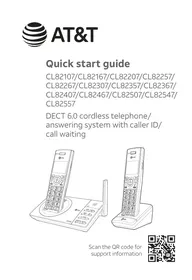
CL82407 - Cordless phone AT&T - Free user manual and instructions
Find the device manual for free CL82407 AT&T in PDF.

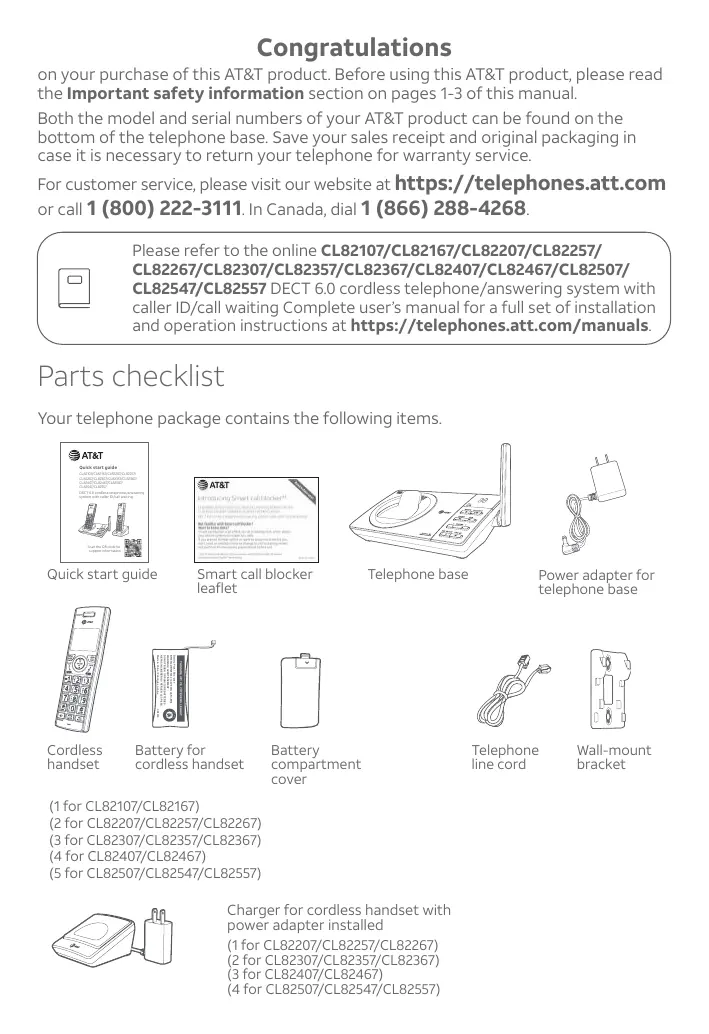

| Product Type | Cordless phone with digital answering machine |
| Brand | AT&T |
| Model | CL82407 |
| Technology | DECT 6.0 |
| Number of handsets included | 4 handsets (expandable up to 12) |
| Indoor range | Approximately 50 meters |
| Outdoor range | Approximately 300 meters |
| Handset display | Backlit display with caller ID |
| Digital answering machine | Yes, recording capacity up to 22 minutes |
| Caller ID | Yes, with call history |
| Phonebook | Up to 50 contacts |
| Call blocking | Yes (block list) |
| ECO mode | Yes, automatic power reduction based on distance |
| Base power supply | AC adapter (included) |
| Handset power supply | Rechargeable NiMH battery (model BT183342/BT283342) |
| Standby time | Up to 7 days |
| Talk time | Up to 10 hours |
| Handset dimensions (approx.) | 16 x 4 x 2 cm |
| Handset weight (approx.) | 130 g |
| Color | Black/gray |
| Maintenance | Clean with a dry, soft cloth. Do not use liquids or aerosols. |
| Safety | Unplug during storms; do not use near water; replace batteries with recommended model. |
| Warranty | 1 year (limited) |
Frequently Asked Questions - CL82407 AT&T
User questions about CL82407 AT&T
0 question about this device. Answer the ones you know or ask your own.
Ask a new question about this device
Download the instructions for your Cordless phone in PDF format for free! Find your manual CL82407 - AT&T and take your electronic device back in hand. On this page are published all the documents necessary for the use of your device. CL82407 by AT&T.
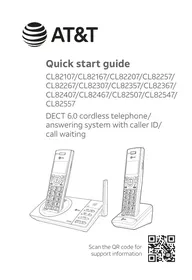
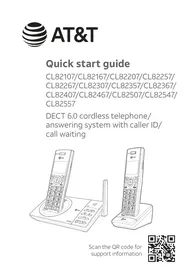
USER MANUAL CL82407 AT&T
CL82107/CL82167/CL82207/CL82257/
CL82267/CL82307/CL82357/CL82367/
CL82407/CL82467/CL82507/CL82547/
CL82557
DECT 6.0 cordless telephone/
answering system with caller ID/
call waiting
Congratulations
on your purchase of this AT&T product. Before using this AT&T product, please read the Important safety information section on pages 1-3 of this manual.
Both the model and serial numbers of your AT&T product can be found on the bottom of the telephone base. Save your sales receipt and original packaging in case it is necessary to return your telephone for warranty service.
For customer service, please visit our website at https://telephones ATT.com or call 1 (800) 222-3111. In Canada, dial 1 (866) 288-4268.

Please refer to the online CL82107/CL82167/CL82207/CL82257/
CL82267/CL82307/CL82357/CL82367/CL82407/CL82467/CL82507/
CL82547/CL82557 DECT 6.0 cordless telephone/answering system with caller ID/call waiting Complete user's manual for a full set of installation and operation instructions at https://telephones ATT.com/manuals.
Parts checklist
Your telephone package contains the following items.
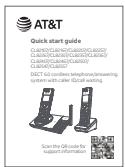
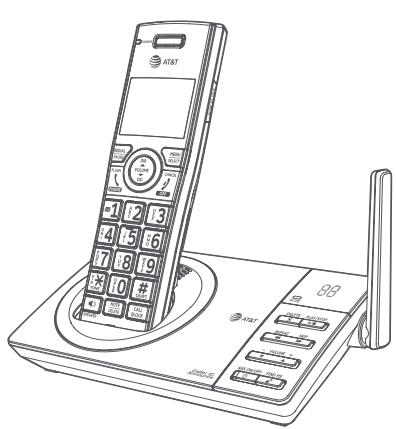
Quick start guide
Smart call blocker leaflet
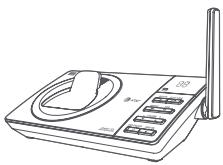
Telephone base
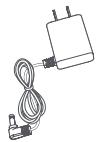
Power adapter for telephone base
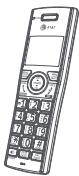
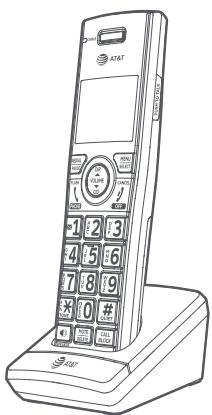
Cordless handset
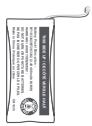
Battery for cordless handset
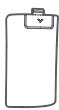
Battery compartment cover
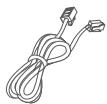
Telephone line cord
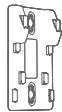
Wall-mount bracket
(1 for CL82107/CL82167)
(2 for CL82207/CL82257/CL82267)
(3 for CL82307/CL82357/CL82367)
(4 for CL82407/CL82467)
(5 for CL82507/CL82547/CL82557)
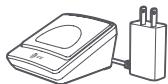
Charger for cordless handset with power adapter installed
(1 for CL82207/CL82257/CL82267)
(2 for CL82307/CL82357/CL82367)
(3 for CL82407/CL82467)
(4 for CL82507/CL82547/CL82557)
Important safety information

This symbol is to alert you to important operating or servicing instructions that may appear in this user's manual. Always follow basic safety precautions when using this product to reduce the risk of injury, fire, or electric shock.
Safety information
- Read and understand all instructions in the user's manual. Observe all markings on the product.
- Avoid using a telephone during a thunderstorm. There may be a slight chance of electric shock from lightning.
- Do not use a telephone in the vicinity of a gas leak. Under certain circumstances, a spark may be created when the adapter is plugged into the power outlet, or when the handset is replaced in its cradle. This is a common event associated with the closing of any electrical circuit. In an inadequately ventilated environment, the user should not plug the phone into a power outlet, nor put a charged handset into the cradle where there are concentrations of flammable or flame-supporting gases. A spark in such an environment could create a fire or explosion. Such environments might include: medical use of oxygen without adequate ventilation; industrial gases (cleaning solvents; gasoline vapors; etc.); a leak of natural gas; etc.
- Do not use this product near water or when you are wet. For example, do not use it in a wet basement or shower, nor next to a swimming pool, bathtub, kitchen sink and laundry tub. Do not use liquids or aerosol sprays for cleaning. If the product comes in contact with any liquid, unplug any line or power cord immediately. Do not plug the product back in until it has dried thoroughly.
Install this product in a protected location where no one can trip over any line or power cords. Protect cords from damage or abrasion.
If this product does not operate normally, see the Troubleshooting section of the online Complete user's manual. If you cannot solve the problem, or if the product is damaged, refer to the Limited warranty section (pages 35 - 37). Do not open this product except as directed in your user's manual. Opening the product or reassembling it incorrectly may expose you to hazardous voltages or other risks. - Replace batteries, only as described in your user's manual (Page 6). Do not burn or puncture batteries — they contain caustic chemicals.
This power adapter is intended to be correctly oriented in a vertical or floor mount position. The prongs are not designed to hold the plug in place if it is plugged into a ceiling or an under-the-table/cabinet outlet.
For pluggable equipment, the socket-outlet shall be installed near the equipment and shall be easily accessible.

CAUTIONS:
Use only the power adapter provided with this product. To obtain a replacement, visit our website at https://telephones ATT.com or call 1 (800) 222-3111 In Canada, dial 1 (866) 288-4268.
Important safety information

CAUTION: To prevent risk of fire or battery explosion, replace with the correct battery type. Dispose of used batteries according to the instructions.
Disconnect the telephone line from the equipment before open the battery door.
Do not use the battery in following conditions:
High or low extreme temperature during use, storage or transportation.
Replacement of a battery with an incorrect type that can defeat a safeguard.
- Disposal of a battery into fire or a hot oven, or mechanically crushing or cutting of a battery, that can result in an explosion.
Leaving a battery in an extremely high temperature surrounding environment that can result in an explosion or the leakage of flammable liquid or gas.
A battery subjected to extremely low air pressure that can result in an explosion or the leakage of flammable liquid or gas.
- Use only the supplied rechargeable battery or replacement battery (model BT183342/BT283342). To order, visit our website at
https://telephones ATT.com, or call 1 (800) 222-3111. In Canada, dial 1 (866) 288-4268.
The applied nameplate is located at the bottom or near of the product.
Especially about cordless telephones
- Privacy: The same features that make a cordless telephone convenient create some limitations. Telephone calls are transmitted between the telephone base and the handset by radio waves, so there is a possibility that your cordless telephone conversations could be intercepted by radio receiving equipment within range of the cordless handset. For this reason, you should not think of cordless telephone conversations as being as private as those on corded telephones.
- Electrical power: The telephone base of this cordless telephone must be connected to a working electrical outlet which is not controlled by a wall switch. Calls cannot be made from the handset if the telephone base is unplugged, switched off or if the electrical power is interrupted.
- Potential TV interference: Some cordless telephones operate at frequencies that may cause interference to TVs and VCRs. To minimize or prevent such interference, do not place the telephone base of the cordless telephone near or on top of a TV or VCR. If interference is experienced, moving the cordless telephone farther away from the TV or VCR will often reduce or eliminate the interference.
- Rechargeable batteries: This product contains nickel-metal hydride rechargeable batteries. Exercise care in handling batteries in order not to create a short circuit with conductive material such as rings, brackets, and keys. The battery or conductor may overheat and cause harm. Observe proper polarity between the battery and the battery charger.
Important safety information
- Nickel-metal hydride rechargeable batteries: Dispose of these batteries in a safe manner. Do not burn or puncture. Like other batteries of this type, if burned or punctured, they could release caustic material which could cause injury.
The RBRC Seal means that the manufacturer is voluntarily participating in an industry program to collect and recycle nickel-metal hydride rechargeable batteries when taken out of service within the United States. These batteries may be taken to a participating local retailer of replacement batteries or recycling center. You may call 1-800-8-BATTERY® for locations accepting spent Ni-MH batteries.
The RBRC Seal and 1-800-8-BATTERY® are registered trademarks of Call2recycle, Inc.
Precautions for users of implanted cardiac pacemakers
Cardiac pacemakers (applies only to digital cordless telephones):
Wireless Technology Research, LLC (WTR), an independent research entity, led a multidisciplinary evaluation of the interference between portable wireless telephones and implanted cardiac pacemakers. Supported by the U.S. Food and Drug Administration, WTR recommends to physicians that:
Pacemaker patients:
Should keep wireless telephones at least six inches from the pacemaker.
- Should NOT place wireless telephones directly over the pacemaker, such as in a breast pocket, when it is turned ON.
Should use the wireless telephone at the ear opposite the pacemaker.
WTR's evaluation did not identify any risk to bystanders with pacemakers from other persons using wireless telephones.
ECO mode
This power conserving technology reduces power consumption for optimal battery performance. The ECO mode activates automatically whenever the handset is synchronized with the telephone base.
Especially about telephone answering systems
Two-way recording: This unit does not sound warning beeps to inform the other party that the call is being recorded. To ensure that you are in compliance with any federal or state regulations regarding recording a telephone call, you should start the recording process and then inform the other party that you are recording the conversation.
SAVE THESE INSTRUCTIONS
Table of contents
Important safety information. 1
Install 5
Wall-mount installation (optional) 7
Handset overview 8
Telephone base overview 11
Initial basic settings 13
Smart call blocker setup via voice guide. 13
Basic answering system setup via voice guide 13
Date and time 14
Record your own announcement. 14
Number of rings. 14
Ringer volume. 15
LCD language 15
Voice language 15
Dial mode 15
Temporary tone dialing. 16
Set speed dial voicemail number 16
Operate 16
Directory 17
Bluetooth® 18
Pair a Bluetooth cell phone and download the phonebook. 18
Caller ID 20
Caller ID announce. 20
Review and dial a number in the call log. 20
Delete a caller ID log entry. 20
Erase missed calls indicator in the call log. 20
Smart call blocker *s 21
Turn Smart call blocker on or off. 21
Call controls. 21
Call block settings 24
Block the caller while on a call 25
Unblock a telephone number 25
Answering system 26
About answering system and voicemail 26
Turn answering system on or off 27
Message alert tone 27
Call screening 27
Message playback 28
For C-UL compliance. 29
FCC Part 68 and ACTA 33
FCC Part 15 34
Limited warranty 35
Technical specifications. 38
Telephone base
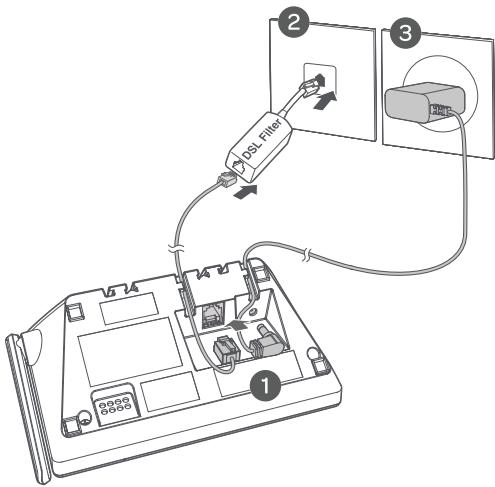

Notes:
Plug one end of the telephone line cord into a telephone jack or a DSL filter.
If you have DSL high-speed Internet service, a DSL filter (not included) is required.
Charger
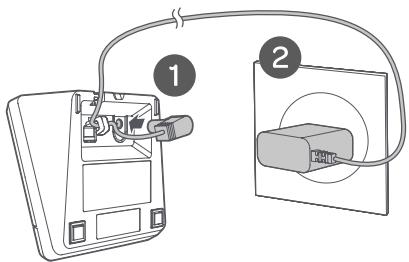

Caution: Use only the power adapter(s) provided with this product. To obtain a replacement, visit our website at
https://telephonesAtt.com or call 1 (800) 222-3111. In Canada, dial 1 (866) 288-4268.
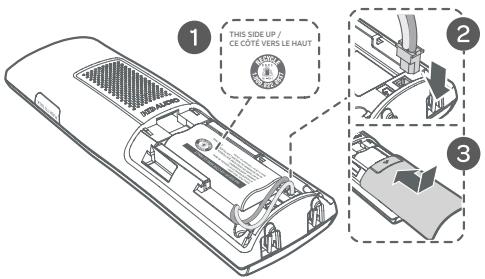
Battery
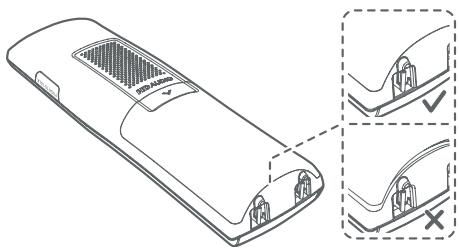
Install the battery, as shown below.
1
(2)
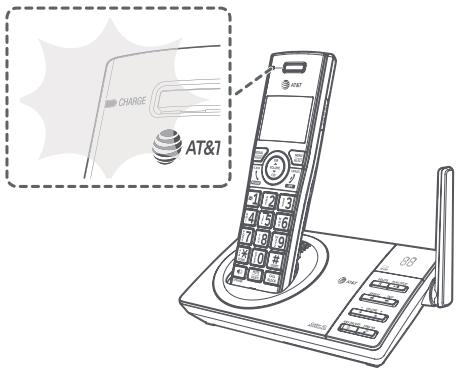
Charge your handset(s) before initial use. The battery is fully charged after 11 hours of continuous charging. The CHARGE light on the top of the handset is on during charging.
(3)

Caution: Use only the supplied rechargeable battery or replacement battery (model BT183342/BT283342).

Wall-mount installation (optional)
Plug the telephone line into the telephone base.
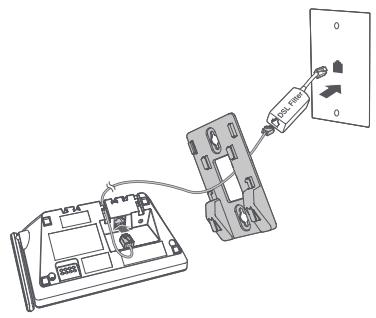
2 Align the holes on the wall-mount bracket with the standard wall plate and slide the wall-mount bracket down until it locks securely.
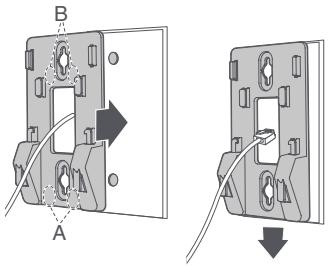
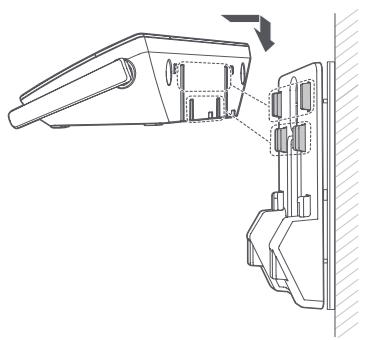
3 Insert the extended tabs of the wall-mount bracket into the slots on the back of the telephone base. Push the telephone base down until it is securely in place.
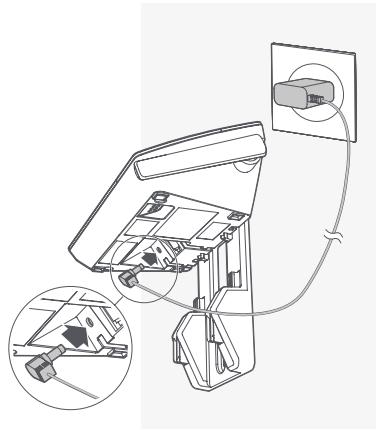
Plug the power adapter into a power outlet not controlled by a wall switch. Plug the other end of the power adapter into the telephone base.
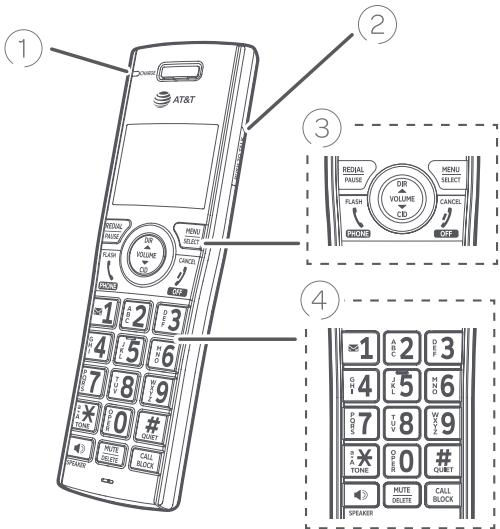
Handset
| 1 | CHARGE light | On when the handset is charging in the telephone base or charger. |
| 2 | PUSH TO TALK | Press to initiate a one-to-one or one-to-group broadcast. Press and hold to broadcast to a group of system devices. |
| 3 | REDIAL PAUSE | Press repeatedly to view the last ten numbers dialed. While entering numbers, press and hold to insert a dialing pause. |
| MENU SELECT | When the handset is not in use, press to show the menu. While in the menu, press to select an item or save an entry or setting. | |
| FLASH PHONE | Press to make a call. Press to answer a call. During a call, press to answer an incoming call when you receive a call waiting alert. |
Handset
| 3 | CANCE OFF | During a call, press to hang up. While in a menu, press to cancel an operation. Press to back up to the previous menu. Press and hold to exit the menu display completely. When the handset is ringing, press to mute the ringer temporarily. Press and hold while the telephone is not in use to erase the missed call indicator. |
| DIR | Press DIR to show directory entries when the handset is not in use. | |
| ▲ VOLUME | While entering names or numbers, press to move the cursor to the left or right. Press to increase or decrease the listening volume when on a call. Press to increase or decrease the message playback volume. | |
| CID | Press CID to show caller ID log when the handset is not in use. | |
| 4 | Press and hold to set or dial your voicemail number. | |
| a X TONE | Press to switch to tone dialing temporarily during a call if you have pulse service. While entering names, press to change the next letter to upper or lower case. | |
| # QUIET | Press repeatedly to display other dialing options when reviewing a caller ID log entry. Press and hold to enter the QUIET mode setting screen, or to deactivate QUIET mode. | |
| SPEAKER | Press to make or answer a call using the speakerphone. | |
| MUTE DELETE | During a call, press to mute the microphone. Press to delete digit or character. | |
| CALL BLOCK | Press to block the incoming call when the telephone is ringing. When on a call, press to block the call. When the handset is not in use, press to show the call block menu. |
HANDSET 1


MUTE ANS ON
NEW
C
10:3
AM
PM

Handset display
| The battery icon flashes when the battery is low and needs charging. | |
| The battery icon animates when the battery is charging. | |
| The battery icon becomes solid when the battery is fully charged. | |
| The handset speakerphone is in use. | |
| The handset ringer is turned off. | |
| There are new voicemail received from the telephone service provider. | |
| ANS ON | The built-in answering system is turned on. |
| ○○ | There are new messages in the built-in answering system. |
| NEW | The entry you are reviewing is new in the caller ID log. |
| MUTE | The handset microphone is off. |
| 10:30 AM PM | Time with AM and PM. |
| MSG# 10/15 | The message number currently playing and total number of new/ old messages recorded. |
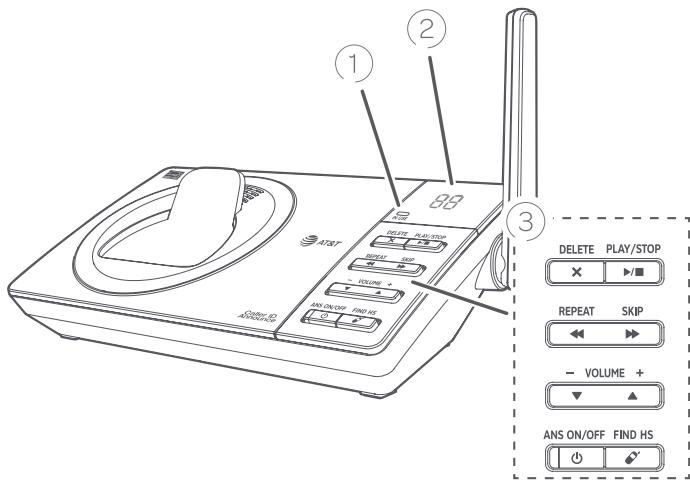
Telephone base
| ① IN USE indicator | • On when the telephone is in use. • On when the answering system is answering an incoming call. • Flashes when another telephone is in use on the same line. |
| ② 88 Message counter | • Shows the number of messages. |
| ③ X / DELETE | • Press to delete the message currently playing. • Press twice to delete all old messages when the telephone is not in use. |
| / PLAY/STOP | • Press to start message playback. • Press to stop message playback. |
| REPEAT | • Press to repeat a message. • Press twice to play the previous message. |
| SKIP | • Press to skip a message |
Telephone base
(3) / -VOLUME + /
While in idle mode, press to adjust the base ringer volume.
During message playback, press to adjust the listening volume.
/ANSON/OFF
Press to turn the built-in answering system on or off.
FIND HS
While the phone is idle, press to page all handsets.
After you install your telephone or power returns following a power outage, the handset will prompt you to set the date and time. To skip setting the date and time, press OFF/CANCEL on the handset.
Voice guide to set Smart call blocker and answering system
After the date and time setting is done or skipped, the handset then prompts if you want to set Smart call blocker. Press MENU/SELECT to start the Smart call blocker setup via voice guide. To skip the setup, press OFF/CANCEL.
Smart call blocker setup via voice guide
You can follow the voice guide to set up Smart call blocker.
Using the cordless handset:
Press 1 if you want to screen calls with telephone numbers that are not saved in your directory, allow list or star name list;
Press 2 if you only want to screen calls that do not display a phone number; or
Press 3 if you do not want to screen calls, and want to allow all incoming calls to get through.

Note: You can restart the voice guide to set Smart call blocker by resetting your handset power.
After the Smart call blocker setting is done or skipped, the handset will then prompt if you want to set up the answering system. Press MENU/SELECT to start the answering system setup via voice guide. To skip the setup, press OFF/CANCEL
Basic answering system setup via voice guide
You can follow the voice guide to record your own announcement, set the number of rings and set the message alert tone.
You can also restart the voice guide to set answering system using the cordless handset:
- MENU -> ▼ or ▲ -> Answering sys -> SELECT.
- ▼ or ▲ -> Voice guide -> SELECT.
- Set up the answering system by inputting the designated numbers, as instructed.
We recommend you program your telephone system before use. The following are a few examples of common features to set before using the telephone. Refer to the Handset settings and Answering system settings in the Complete user's manual for detailed instructions on setting all telephone features.
Date and time

Note: Set the date/time before using the answering system.
Using a cordless handset:
- MENU -> ▷ or ▲ -> Set date/time -> SELECT.
- Enter the month (MM), day (DD) and year (YY) using the dialing keys -> SELECT.
- Enter the hour (HH) and minute (MM) using the dialing keys.
- or to choose AM or PM -> SELECT.
Record your own announcement
Your outgoing announcement plays when calls are answered by the answering system. You can use the preset announcement to answer calls, or replace it with your own recorded announcement.
Using a cordless handset:
- MENU -> ▽ or ▲ -> Answering sys -> SELECT.
- SELECT to select Announcement.
- SELECT to select Record annc.
- Speak towards the handset to record your announcement and press 5 to end recording and save it.
Number of rings
You can set the answering system to answer an incoming call after 2, 3, 4, 5, or 6 rings. You can also select toll saver. If you choose toll saver, the answering system answers a call after two rings when you have new messages, and after four rings when there are no new messages. This enables you to check for new messages and avoid paying unnecessary long distance charges if you are calling from out of your local area.
If you want the built-in answering system instead of the voicemail to answer a call, you should set the answering system to answer a call at least two rings before the voicemail is set to answer. Contact your telephone service provider for information on your voicemail settings.
Using a cordless handset:
- MENU -> ▲ → Answering sys -> SELECT.
- or -> Ans sys setup -> SELECT.
- ▼or ▲ -> # of rings -> SELECT.
- ▼ or ▲ to choose among 2, 3, 4, 5, 6, or Toll saver -> SELECT.

Initial basic settings
Ringer volume
You can set the ringer volume level to one of the six levels, or turn the ringer off.
Using a cordless handset:
- MENU -> ▽ or ▲ -> Ringers -> SELECT.
- SELECT to select Ringer volume.
- or to choose the desire level -> SELECT.
LCD language
Using a cordless handset:
- MENU -> ▲ -> Settings -> SELECT.
- SELECT again to select LCD language.
- ▼ or ▲ to choose English, Français or Espanol -> SELECT.

Note: If you accidentally change the LCD language to French or Spanish, you can reset it back to English without going through the French or Spanish menus.
Press MENU on the handset in idle mode -> enter 364#.
Voice language

Note: This feature is available in Canada version only.
You can select the voice language (English or French) to be used for the voice prompts in your answering system and caller ID announce.
Using a cordless handset:
- MENU -> ▼ or ▲ -> Settings -> SELECT.
- ▼ or ▲ to choose Voice language -> SELECT.
- ▼ or ▲ to choose English or Français -> SELECT.
Dial mode
The dial mode is preset to touch-tone dialing. If you have pulse (rotary) service, you need to change the dial mode to pulse dialing before using the telephone to make a call.
- MENU -> ▲ or ▲ -> Settings -> SELECT.
- ▼ or ▲ -> Dial mode -> SELECT.
- ▼ or ▲ to choose Touch-tone or Pulse -> SELECT.
Temporary tone dialing
If you have pulse (rotary) service only, you can switch from pulse to touch-tone dialing temporarily during a call. This is useful if you need to send touch-tone signals to access your telephone banking or long distance services.
- During a call, press TONE×
- Use the dialing keys to enter the number. The telephone sends touch-tone signals. The telephone automatically returns to pulse dialing mode after you end the call.
Set speed dial voicemail number
If you subscribe to a voicemail service offered by your telephone service provider, you can save the voicemail number to 1 on each handset for easy access. When you want to retrieve voicemail messages, press and hold 1.
- MENU -> ▼ or ▲ -> Settings -> SELECT.
- ▼ or ▲ -> Voicemail # -> SELECT.
- Enter the voicemail number (up to 30 digits) -> SELECT to save.

Note: Contact your telephone service provider for more information and assistance about your voicemail service.

Operate
| Operation | Steps |
| Make a call | Press \PHONE or \SPEAKER -> Enter the telephone number. |
| On-hook dialing (predialing) | Enter the telephone number -> Press \PHONE or \SPEAKER to call. |
| Answer a call | Press \PHONE or \SPEAKER, or press any dialing keys (0-9, TONE ✘ or #). |
| End a call | Press \OFF or return the handset to the telephone base or charger. |
| Handset speakerphone | During a call, press \SPEAKER to switch between handsfree speakerphone and normal handset use. |
| Redial | Press REDIAL repeatedly to select the desired entry ->PHONE or /SPEAKER to call. |
| Volume control | Press / VOLUME to decrease or press ▲/VOLUME to increase the listening volume during a call. |
| Call waiting (Requires subscription from telephone service provider) | Press FLASH to put current call on hold and to take the new call; press again to switch back and forth between calls. |

Directory
The directory can store up to 50 entries, which are shared by all system devices.
| Operation | Steps |
| Add an entry | 1. MENU-> ▼ or ▲ -> Directory -> SELECT. 2. ▼ or ▲ -> Add contact -> SELECT. 3. Enter a telephone number up to 30 digits -> SELECT. 4. Enter a name up to 15 characters -> SELECT. |
| Search/dial an entry | 1. DIR in idle mode. 2. Press ▼ or ▲ to browse through the directory, or press the dialing keys (0-9) to start a name search. 3. Press ↗PHONE or ↗/SPEAKER on a handset to call. |
| Save a caller ID log entry to the directory | 1. CID when the handset is not in use -> ▼ or ▲ to browse. 2. When the desired entry displays -> SELECT. 3. SELECT again to choose Directory. 4. Edit the telephone number, if needed -> SELECT. 5. Edit the name, if needed -> SELECT. |
Pair a Bluetooth cell phone and download the phonebook
Your telephone system is enhanced with Bluetooth feature. You can download up to 1,000 cell phone phonebook entries to your telephone system via Bluetooth wireless technology. Each downloaded entry is stored in the telephone's phonebook with up to 30 digits for phone number and 15 characters for name.
Bluetooth wireless technology operates within a short range (up to 30 feet). Keep the connected device within 15 feet of the telephone base for optimal performance.

Notes:
- Your CL82107/CL82167/CL82207/CL82257/CL82267/CL82307/CL82357/CL82367/CL82407/CL82467/CL82507/CL82547/CL82557 is compatible with Bluetooth version 2.0 or above devices.
Before you begin, make sure that you have cellular coverage and your Bluetooth enabled cell phone is not connected to any other Bluetooth device.
Make sure you turn on the Bluetooth feature of your cell phone. Refer to your cell phone user's manual to learn how.
Pair your cell phone and download the phonebook:
- Place your cell phone next to the telephone base.
- Press and hold /REPEAT on the base for at least 4 seconds. The base will beep once, then shows Pb on the display. It enters pairing mode.
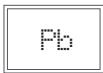
After your cell phone finds your AT&T telephone system (AT&T DECT 6.0), press the appropriate key on your cell phone to continue the pairing process.
- Once paired, your cell phone may request for the permission of allowing the telephone system (AT&T DECT 6.0) to access your cell's phonebook.
- Permit the request if you wish to continue.
The telephone starts downloading, and the base's display animates.


Note: The process may take around 30 minutes, depending on the number of your cell phone phonebook's entries.
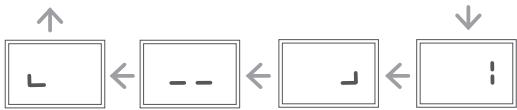
- When the download completes, the base plays a confirmation tone, and its display returns to idle. The base will disconnect from the cell phone.
Cancel the download
You can cancel the download by pressing X/DELETE on the base.
Restart the download
When error occurs during downloading, the base plays an error tone with 4 beeps. Its display shows Er for 5 seconds, then it returns to idle.
1
To restart the download:
Repeat the process from step 1.

Note: The telephone system will remove any duplicate entries, and any entries that contain unrecognizable symbols; therefore, the number of entries downloaded from your cell phone phonebook may be less than the number of entries stored in your cell phone.
The Bluetooth® word mark and logos are owned by Bluetooth SIG, Inc. and any use of such marks by Advanced American Telephones and its parent, VTech Holdings Limited, is under license. VTech Holdings Limited is a member of Bluetooth SIG, Inc. Other trademarks and trade names are those of their respective owners.
CID Caller ID
This product supports caller ID services offered by most telephone service providers. The telephone stores caller ID information of the last 50 incoming calls in the telephone base. This information is common to all devices.
Caller ID announce
When this feature is on and you have an incoming call, the handset and/or base speaks "Call from..." and the name of the caller based on the directory or caller ID information. You can turn this feature off for the base or each individual handset, or both.
- MENU->▼ or ▲ -> Settings -> SELECT.
- ▼ or ▲ -> Caller ID annc -> SELECT.
- or to choose Set all On/Off, Local handset or Base -> SELECT.
- or to choose On or Off -> SELECT.
Review and dial a number in the call log
- CID-> ▼ or ▲ to scroll through the list.
- PHONE or /SPEAKER to call when the desired entry is displayed.
Delete a caller ID log entry
- CID-> ▼ or ▲ to scroll through the list.
- When your desired caller ID entry displays on the handset-> DELETE.
Erase missed calls indicator in the call log
When you have missed calls, the screen shows XX Missed calls.
This is the total number of calls you have not yet reviewed in the call log.
To erase this missed call indicator, you can:
Scroll and review the call log one by one, or
Press and hold OFF/CANCEL on the handset when it is not in use.
If you have subscribed to caller ID service, then you can use the Smart call blocker feature to filter incoming calls from unknown callers.
Turn Smart call blocker on or off
Smart call blocker is set to on, and to allow all incoming calls by default. To turn on or off Smart call blocker:
- CALL BLOCK.
- SELECT to choose SCB On/Off.
- ▼or ▲ to choose On or Off -> SELECT.

Notes:
- Smart call blocker is on, once you install your telephone. It allows all incoming calls to get through and ring by default. You can change the Smart call blocker settings to screen incoming calls from numbers or names that are not yet saved in your directory, allow list, block list, or star name list. You can easily add incoming phone numbers to your allow list and block list. This allows you to build up your lists of allowed and blocked numbers, and Smart call blocker will know how to deal with these calls when they come in again.
If you turn off Smart call blocker, all incoming calls will ring, including numbers saved in your block list.
When QUIET mode is on, and Smart call blocker is on and in screening mode, all screened calls will be sent to the answering system after screening.
Call controls
| Call categories | Call control and options | |
| Welcome calls | Numbers saved in allow list. Numbers saved in directory. Numbers not found in block list. Caller ID names saved in star name list. | The telephone allows these calls to get through and ring. |
| Unwelcome calls | Numbers saved in block list. | The telephone blocks these calls from ringing through. |
| Unknown calls | Calls without numbers • Numbers that are “out of area” or set to “Private”. | You can choose one of the following five options: Screening with caller name The telephone plays the screening announcement, and then ask the caller to say his/her name before the call rings on your telephone. You can then answer the call, and hear the caller's name announced. You can decide whether to accept or reject the call, or to forward the call to the answering system. Screening without caller name The telephone plays the screening announcement, and then ask the caller to press the pound key (#) before the call rings on your telephone. You can then answer the call. Allow (default setting) The telephone allows the calls to get through and ring. Answering system The telephone forwards the calls to the answering system without ringing. Block The telephone rejects the calls with block announcement. |
| Uncategorized calls • With absent caller ID number. • Numbers not found in directory. • Numbers not found in allow list. • Numbers not found in block list. • With caller ID names not found in star name list | ||
Set up allow list, block list and star name list
Add numbers from caller ID log
| Add CID log entry to block list | 1. Press ▼CID on the handset -> ▼ or ▲. 2. Press SELECT when the desired entry appears. 3. ▼or ▲ -> Block list -> SELECT. 4. Press SELECT twice to save. |
| Add CID log entry to allow list | 1. Press ▼CID on the handset -> ▼ or ▲. 2. Press SELECT when the desired entry appears. 3. ▼or ▲ -> Allow list -> SELECT. 4. Press SELECT twice to save. |
| Add CID log entry to star name list | 1. Press ▼CID on the handset -> ▼ or ▲. 2. Press SELECT when the desired entry appears. 3. ▼or ▲ -> Star name list -> SELECT twice. |
Add numbers manually
| Add a new number to the block list | 1. CALL BLOCK -> ▼ or ▲ -> Block list -> SELECT. 2. ▼ or ▲ -> Add new entry -> SELECT. 3. Enter a telephone number up to 30 digits -> SELECT. 4. Enter a name up to 15 characters -> SELECT. |
| Add a new number to the allow list | 1. CALL BLOCK -> ▼ or ▲ -> Allow list -> SELECT. 2. ▼ or ▲ -> Add new entry -> SELECT. 3. Enter a telephone number up to 30 digits -> SELECT. 4. Enter a name up to 15 characters -> SELECT. |
| Add a new name to the star name list | 1. CALL BLOCK -> ▼ or ▲ -> Star name list -> SELECT. 2. ▼ or ▲ -> Add new entry -> SELECT. 3. Enter a name up to 15 characters -> SELECT. |

Notes
The allow list stores up to 200 entries, the block list stores up to 1,000 entries, and the star name list stores up to 10 names.
There are many organizations like schools, medical offices, and pharmacies that use robocalls to communicate important information to you. Robocall uses an autodialer to deliver pre-recorded messages. By entering the EXACT Caller ID (CID)'s name of the organizations into the Star name list, it ensures these calls will ring through when you only know the caller names but not their numbers.
Call block settings
| Set call block | Steps |
| Allow all calls to ring, including numbers on the block list | CALL BLOCK in idle mode -> SELECT -> ▼ or ▲ -> Off -> SELECT. |
| Screen all unknown calls | 1. CALL BLOCK -> ▼ or ▲ -> Calls w/o num -> SELECT.2. ▼ or ▲ -> Screening -> SELECT.3. ▼ or ▲ -> w/ Caller name -> SELECT.4. ▼ or ▲ -> Uncategorized -> SELECT.5. ▼ or ▲ -> Screening -> SELECT6. ▼ or ▲ -> w/ Caller name -> SELECT. |
| Block all unknown calls | 1. CALL BLOCK -> ▼ or ▲ -> Calls w/o num -> SELECT.2. ▼ or ▲ -> Block -> SELECT.3. ▼ or ▲ -> Uncategorized -> SELECT.4. ▼ or ▲ -> Block -> SELECT. |
| Block calls on the block list only (default settings) | 1. CALL BLOCK -> ▼ or ▲ -> Calls w/o num -> SELECT.2. ▼ or ▲ -> Allow -> SELECT.3. ▼ or ▲ -> Uncategorized -> SELECT.4. ▼ or ▲ -> Allow -> SELECT. |
| Forward all unknown calls to the answering system | 1. CALL BLOCK -> ▼ or ▲ -> Calls w/o num -> SELECT. 2. ▼ or ▲ -> Answering sys -> SELECT. 3. ▼ or ▲ -> Uncategorized -> SELECT. 4. ▼ or ▲ -> Answering sys -> SELECT. |
| Block calls without numbers and send uncategorized calls to the answering system | 1. CALL BLOCK -> ▼ or ▲ -> Calls w/o num -> SELECT. 2. ▼ or ▲ -> Block -> SELECT. 3. ▼ or ▲ -> Uncategorized -> SELECT. 4. ▼ or ▲ -> Answering sys -> SELECT. |
Block the caller while on a call
When you are on a call and speaking to the caller, and you do not want to continue the call, you can end the call with block announcement and add the number to the block list.
- During a call, press CALL BLOCK.
- Press SELECT to end the call.
Unblock a telephone number
If you have added a telephone number to the block list, you can unblock it.
- Press CALL BLOCK.
- or Block list SELECT.
- Press SELECT to select Review.
- or to browse through the block entries.
- When the desired entry displays, press DELETE, then press SELECT to confirm.
About answering system and voicemail
Your telephone has separate indicators for two different types of voice messages: those left on the built-in answering system and those left at your telephone service provider's voicemail. To listen to messages recorded on the built-in answering system, refer to the Message playback section; to listen to voicemail, contact your telephone service provider for more information.
| Built-in answering system | Voicemail service | |
| Supported by | Telephone system | Telephone service provider |
| Subscription | No | Yes |
| Fees | No | May apply |
| Answer incoming calls | After 4 rings by default. It can be changed in the handset or the telephone base menu. | Usually after 2 rings. It can be changed by contacting your telephone service provider. |
| Storage | Telephone base | Server or System |
| Display new messages | Handset and telephone base - XX New messages | Handset and telephone base - and New voicemail |
| Retrieve messages | Press on the telephone base; OR Press MENU, and then select Play messages on the handset; OR Access remotely with an access code. | Press and hold on the dialpad, and enter an access number from your telephone service provider; OR Press and hold to dial if you have saved the access number. |
Answering system
Turn answering system on or off
The answering system must be turned on to answer and record messages.
- MENU-> ▼ or ▲ -> Answering sys -> SELECT.
- ▼ or ▲ -> Answer ON/OFF -> SELECT.
- ▼ or ▲ to choose On or Off-> SELECT.
When the answering system is on, the handset shows ANS ON.
Message alert tone
When this feature is on, and there is at least one new message, the telephone base beeps every 10 seconds.
- MENU-> ▼ or ▲ -> Answering sys -> SELECT.
- or -> Ans sys setup -> SELECT.
- ▼or ▲ ->Msgalerttone->SELECT.
- or to choose On or Off -> SELECT.
Call screening
Use this feature to choose whether incoming messages can be heard over at telephone base when they are being recorded. If you turn call screening on, you hear the incoming message at the telephone base. While monitoring an incoming message, you can answer the call by pressing PHONE on the handset.
- MENU -> ▼ or ▲ -> Answering sys -> SELECT.
- or - > Ans sys setup - > SELECT.
- SELECT to select Call screening.
- ▼or ▲ to choose On or Off -> SELECT.
Message playback
Using the telephone base
Press /PLAY when the telephone base is in idle mode.
Using a handset
Press MENU twice when the handset is in idle mode.
Options during playback
| Feature | On the telephone base | On a handset |
| Adjust playback to volume | Press ∅/-VOLUME+/▲ | Press ∅/-VOLUME+/▲ |
| Stop playback | Press▶/■/STOP | Press 5/ CANCEL |
| Skip to the next message | Press▶/SKIP | Press 6 |
| Repeat the message | Press▶/REPEAT | Press 4 |
| Play the previous message | Press▶/REPEAT twice | Press 4 twice |
| Delete the message | Press X/DELETE | Press DELETE |
For C-UL compliance
In compliance with the bilingual requirements for safety, caution, and warning markings of Canadian Federal and Provincial/Territorial statutes and regulations, the French version of Important safety information is included.
FCC Part 68 and ACTA
This equipment complies with Part 68 of the FCC rules and with technical requirements adopted by the Administrative Council for Terminal Attachments (ACTA). The label on the back or bottom of this equipment contains, among other things, a product identifier in the format US:AAAEQ##TXXXX. This identifier must be provided to your telephone service provider upon request.
The plug and jack used to connect this equipment to premises wiring and the telephone network must comply with the applicable Part 68 rules and technical requirements adopted by ACTA. A compliant telephone cord and modular plug is provided with this product. It is designed to be connected to a compatible modular jack that is also compliant. An RJ11 jack should normally be used for connecting to a single line and an RJ14 jack for two lines. See the installation instructions in the user's manual.
The Ringer Equivalence Number (REN) is used to determine how many devices you may connect to your telephone line and still have them ring when you are called. The REN for this product is encoded as the 6th and 7th characters following the US: in the product identifier (e.g., if ## is 03, the REN is 0.3). In most, but not all areas, the sum of all RENs should be five (5.0) or less. For more information, please contact your telephone service provider.
This equipment must not be used with Party Lines. If you have specially wired alarm dialing equipment connected to your telephone line, ensure the connection of this equipment does not disable your alarm equipment. If you have questions about what will disable the alarm equipment, consult your telephone service provider or a qualified installer.
If this equipment is malfunctioning, it must be unplugged from the modular jack until the problem has been corrected. Replacement to this telephone equipment can only be made by the manufacturer or its authorized agents. For replacement procedures, follow the instructions outlined under the Limited warranty.
If this equipment is causing harm to the telephone network, the telephone service provider may temporarily discontinue your telephone service. The telephone service provider is required to notify you before interrupting service. If advance notice is not practical, you will be notified as soon as possible. You will be given the opportunity to correct the problem and the telephone service provider is required to inform you of your right to file a complaint with the FCC. Your telephone service provider may make changes in its facilities, equipment, operation, or procedures that could affect the proper functioning of this product. The telephone service provider is required to notify you if such changes are planned.
If this product is equipped with a corded or cordless handset, it is hearing aid compatible.
If this product has memory dialing locations, you may choose to store emergency telephone numbers (e.g., police, fire, medical) in these locations. If you do store or test emergency numbers, please:
Remain on the line and briefly explain the reason for the call before hanging up.
Perform such activities in off-peak hours, such as early morning or late evening
Industry Canada
This device contains licence-exempt transmitter(s)/receiver(s) that comply with Innovation, Science and Economic Development Canada's licence-exempt RSS(s). Operation is subject to the following two conditions:
(1) This device may not cause interference.
(2) This device must accept any interference, including interference that may cause undesired operation of the device.
Privacy of communications may not be ensured when using this telephone.
The term "IC:" before the certification/registration number only signifies that the Industry Canada technical specifications were met.
The Ringer Equivalence Number (REN) for this terminal equipment is 0.1. The REN indicates the maximum number of devices allowed to be connected to a telephone interface. The termination of an interface may consist of any combination of devices subject only to the requirement that the sum of the RENs of all the devices not exceed five.
This product meets the applicable Innovation, Science and Economic Development Canada technical specifications.
FCC Part 15
NOTE: This equipment has been tested and found to comply with the requirements for a Class B digital device under Part 15 of the Federal Communications Commission (FCC) rules. These requirements are intended to provide reasonable protection against harmful interference in a residential installation. This equipment generates, uses and can radiate radio frequency energy and, if not installed and used in accordance with the instructions, may cause harmful interference to radio communications. However, there is no guarantee that interference will not occur in a particular installation. If this equipment does cause harmful interference to radio or television reception, which can be determined by turning the equipment off and on, the user is encouraged to try to correct the interference by one or more of the following measures:
Reorient or relocate the receiving antenna.
Increase the separation between the equipment and receiver.
- Connect the equipment into an outlet on a circuit different from that to which the receiver is connected.
Consult the dealer or an experienced radio/TV technician for help.
WARNING: Changes or modifications to this equipment not expressly approved by the party responsible for compliance could void the user's authority to operate the equipment.
This device complies with Part 15 of the FCC Rules. Operation is subject to the following two conditions: (1) this device may not cause harmful interference, and (2) this device must accept any interference received, including interference that may cause undesired operation. Privacy of communications may not be ensured when using this telephone.
To ensure safety of users, the FCC/ISEDC has established criteria for the amount of radio frequency energy that can be safely absorbed by a user or bystander according to the intended usage of the product. This product has been tested and found to comply with the FCC/ISEDC criteria. The handset may be safely held against the ear of the user. The telephone base shall be installed and used such that parts of the user's body other than the hands are maintained at a distance of approximately
20 cm (8 inches) or more.
This Class B digital apparatus complies with Canadian requirement:
CANICES-3 (B)/NMB-3(B)
Limited warranty
The AT&T brands are used under license. This product is covered by a one-year limited warranty. Any replacement or warranty service, and all questions about this product, should be directed to our website at
https://telephonesAtt.com or call 1 (800) 222-3111. In
Canada, dial 1 (866) 288-4268.
1. What does this limited warranty cover?
The manufacturer of this AT&T Product, Advanced American Telephones, warrants to the holder of a valid proof of purchase ("Consumer" or "you") that the Product and all accessories provided by Advanced American Telephones in the sales package ("Product") are free from material defects in material and workmanship, pursuant to the following terms and conditions, when installed and used normally and in accordance with operation instructions. This limited warranty extends only to the Consumer for Products purchased and used in the United States of America and Canada.
2. What will Advanced American Telephones do if the Product is not free from material defects in materials and workmanship during the limited warranty period ("Materially Defective Product")?
During the limited warranty period, Advanced American Telephones' authorized service representative will replace, at Advanced American Telephones' option, without charge, a materially Defective Product. If we choose to replace this Product, we may replace it with a new or refurbished Product of the same or similar design. Advanced American Telephones will return replacement Products to you in working condition.
Advanced American Telephones will retain defective parts, modules, or equipment. Replacement of Product, at Advanced American Telephones' option, is your exclusive remedy. You should expect the replacement to take approximately 30 days.
3. How long is the limited warranty period?
The limited warranty period for SynJ® and Syn248® products is TWO (2) YEARS from the date of purchase, while all other products limited warranty period is ONE (1) YEAR from the date of purchase. If we replace a materially Defective Product under the terms of this limited warranty, this limited warranty also applies to replacement Products for a period of either (a) 90 days from the date the replacement Product is shipped to you or (b) the time remaining on the original one-year limited warranty, whichever is longer.
4. What is not covered by this limited warranty?
This limited warranty does not cover:
Product that has been subjected to misuse, accident, shipping or other physical damage, improper installation, abnormal operation or handling, neglect, inundation, fire, water or other liquid intrusion; or
Product that has been damaged due to repair, alteration or modification by anyone other than an authorized service representative of Advanced American Telephones; or
Product to the extent that the problem experienced is caused by signal conditions, network reliability or cable or antenna systems; or
Product to the extent that the problem is caused by use with non-Advanced American Telephones electrical accessories; or
Product whose warranty/quality stickers, Product serial numbers plates or electronic serial numbers have been removed, altered or rendered illegible; or
Product purchased, used, serviced, or shipped for repair from outside the United States, or used for commercial or institutional purposes (including but not limited to Products used for rental purposes); or
Product returned without valid proof of purchase (see 2 below); or
Charges for installation or set up, adjustment of customer controls, and installation or repair of systems outside the unit.
5. How do you get warranty service?
To obtain warranty service in the United States of America, visit
https://telephonesAtt.com or call 1 (800) 222-3111. In
Canada, dial 1 (866) 288-4268.
NOTE: Before calling for service, please check the user's manual. A check of the Product controls and features may save you a service call.
Except as provided by applicable law, you assume the risk of loss or damage during transit and transportation and are responsible for delivery or handling charges incurred in the transport of Product(s) to the service location. Advanced American Telephones will return replaced Product under this limited warranty to you, transportation, delivery or handling charges prepaid. Advanced American Telephones assumes no risk for damage or loss of the Product in transit.
6. What must you return with the PRODUCT to get warranty service?
- Return the entire original package and contents including the Product to the Advanced American Telephones service location along with a description of the malfunction or difficulty;
- Include "valid proof of purchase" (sales receipt) identifying the Product purchased (Product model) and the date of purchase or receipt; and
- Provide your name, complete and correct mailing address and telephone number.
7. Other limitations
This warranty is the complete and exclusive agreement between you and Advanced American Telephones. It supersedes all other written or oral communications related to this Product. Advanced American Telephones provides no other warranties for this Product. The warranty exclusively describes all of Advanced American Telephones' responsibilities regarding the Product. There are no other express warranties. No one is authorized to make modifications to this limited warranty and you should not rely on any such modification.
State/Provincial Law Rights: This warranty gives you specific legal rights, and you may also have other rights which vary from state to state.
Limitations: Implied warranties, including those of fitness for a particular purpose and merchantability (an unwritten warranty that the Product is fit for ordinary use) are limited to one year from date of purchase. Some states/ provinces do not allow limitations on how long an implied warranty lasts, so the above limitation may not apply to you.
In no event shall Advanced American Telephones be liable for any indirect, special, incidental, consequential, or similar damages (including, but not limited to lost profits or revenue, inability to use the Product, or other associated equipment, the cost of substitute equipment, and claims by third parties) resulting from the use of this Product. Some states/provinces do not allow the exclusion or limitation of incidental or consequential damages, so the above limitation or exclusion may not apply to you.
Please retain your original sales receipt as proof of purchase.
Technical specifications
| RF frequency band | 1921.536MHz - 1928.448MHz | |
| Channels | 5 | |
|  | Telephone base voltage (AC adapter output) | 6VDC @ 0.4A Max. PS1 or LPS |
| Charger voltage (AC adapter output) | 6VDC @ 0.4A Max. PS1 or LPS | |
| Handset battery | 2.4V Ni-MH battery | |
| Operating times* | Talk time (handset): up to 7 hours Standby: up to 5 days | |
- Operating times vary depending on your actual use and the age of the battery.
Company: Advanced American Telephones
Address: 9020 SW Washington Square Road - Ste 555 Tigard, OR 97223, United States.
Phone: 1 (800) 222-3111 in the U.S. or 1 (866) 288-4268 in Canada

Telephones identified with this logo have reduced noise and interference when used with most T-coil equipped hearing aids and cochlear implants. The TIA-1083 Compliant Logo is a trademark of the Telecommunications Industry Association. Used under license.
The ENERGY STAR® program (www.energystar.gov) recognizes and encourages the use of products that save energy and help protect our environment. We are proud to supply this product with an ENERGY STAR® qualified power adapter meeting the latest energy efficiency guidelines.
The Bluetooth® word mark and logos are owned by Bluetooth SIG, Inc. and any use of such marks by Advanced American Telephones and its parent, VTech Holdings Limited, is under license. VTech Holdings Limited is a member of Bluetooth SIG, Inc. Other trademarks and trade names are those of their respective owners.
^ 念 2017-2023 Advanced American Telephones. All Rights Reserved. AT&T and the AT&T logo are trademarks of AT&T Intellectual Property licensed to Advanced American Telephones, San Antonio, TX 78219. Qaltel™ is a trademark of Truecall Group Limited. SynJ® and Syn248® are trademarks of Advanced American Telephones. The RBRC Seal and 1-800-8-BATTERY® are registered trademarks of Call2recycle, Inc. Printed in China. Issue 10.0 AT&T 03/23.
- Congratulations
- Parts checklist
- Important safety information
- Safety information
- CAUTIONS:
- Especially about cordless telephones
- Precautions for users of implanted cardiac pacemakers
- Pacemaker patients:
- ECO mode
- Especially about telephone answering systems
- SAVE THESE INSTRUCTIONS
- Table of contents
- Telephone base
- Notes:
- Charger
- Battery
- Wall-mount installation (optional)
- Handset
- Handset display
- Voice guide to set Smart call blocker and answering system
- Smart call blocker setup via voice guide
- Using the cordless handset:
- Basic answering system setup via voice guide
- Date and time
- Using a cordless handset:
- Record your own announcement
- Number of rings
- Initial basic settings
- Ringer volume
- LCD language
- Voice language
- Dial mode
- Temporary tone dialing
- Set speed dial voicemail number
- Operate
- Directory
- Pair a Bluetooth cell phone and download the phonebook
- Pair your cell phone and download the phonebook:
- Cancel the download
- Restart the download
- CID Caller ID
- Caller ID announce
- Review and dial a number in the call log
- Delete a caller ID log entry
- Erase missed calls indicator in the call log
- Turn Smart call blocker on or off
- Set up allow list, block list and star name list
- Add numbers manually
- Notes
- Block the caller while on a call
- Unblock a telephone number
- About answering system and voicemail
- Answering system
- Turn answering system on or off
- Message alert tone
- Call screening
- Message playback
- For C-UL compliance
- FCC Part 68 and ACTA
- Industry Canada
- FCC Part 15
- Limited warranty
- What does this limited warranty cover?
- What will Advanced American Telephones do if the Product is not free from material defects in materials and workmanship during the limited warranty period ("Materially Defective Product")?
- How long is the limited warranty period?
- What is not covered by this limited warranty?
- How do you get warranty service?
- What must you return with the PRODUCT to get warranty service?
- Other limitations
- Technical specifications
- Company: Advanced American Telephones
Brand : AT&T
Model : CL82407
Category : Cordless phone