H6098C - Lighting Govee - Free user manual and instructions
Find the device manual for free H6098C Govee in PDF.


User questions about H6098C Govee
0 question about this device. Answer the ones you know or ask your own.
Ask a new question about this device
Download the instructions for your Lighting in PDF format for free! Find your manual H6098C - Govee and take your electronic device back in hand. On this page are published all the documents necessary for the use of your device. H6098C by Govee.
USER MANUAL H6098C Govee
Read and follow all the safety instructions:
- Be cautious of static electricity during installation and usage. Keep the product away from sharp objects or strong corrosive chemicals.
- When bending the strip light during installation, avoid folding the LED components as it may affect the product's lifespan.
- Remove nails, metal, or other conductive objects from the installation surface before attaching the strip light, as it may cause short-circuiting.
- Do not install the strip light near any heat sources.
- Do not allow children to install the strip light alone.
- Avoid installing the strip light near potentially dangerous sources (e.g., candles, liquid-filled objects).
Introduction
Thank you for choosing the Govee Smart TV Backlight 3S. This TV strip light provides an immersive viewing experience. The camera positioned in the top center of your TV can intelligently capture the colors displayed and automatically apply them to your lights. It significantly enriches your gaming worlds and movie nights.
What You Get
| LED Strip Light | 1 |
| Adapter | 1 |
| Control Box | 1 |
| Camera | 1 |
| User Manual | 1 |
At a Glance
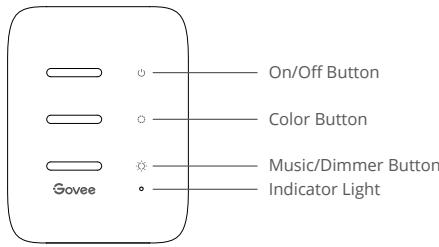
Control Box
| On/Off Button | Press to turn on/off. |
| Color Button | Press to adjust the color. |
| Music/Dimmer | Press to enter Music Mode. |
| Button | Long press to adjust the brightness. |
| Indicator Light | a. A red light indicates the device is not connected to the network. b. A blue light indicates the device has successfully connected to the network. c. No light indicates the device is not powered on or malfunctioning. |
Installing Your Device
Preparation Before Installing:
a. Unbox the strip light and check all items listed in the packing list.
b. Power on the strip light and check whether it lights up.
2 Installing Steps:
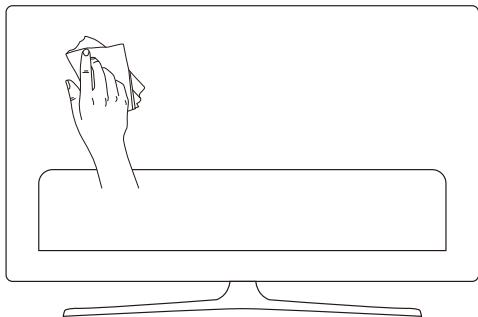
a. Wipe the installation surface to ensure it is dry and clean.
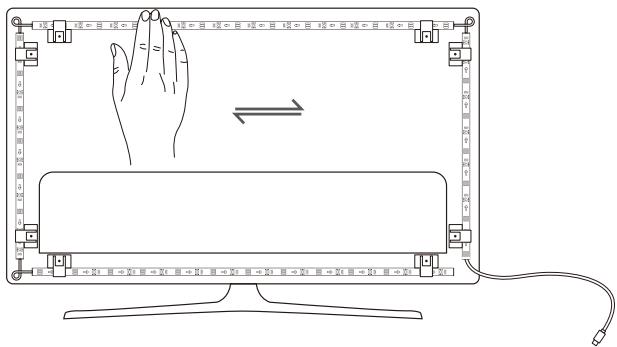
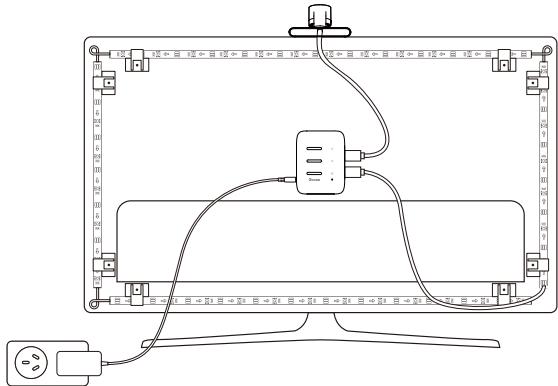
b. Stick the strip light to the back of the TV. Press it firmly and then reinforce it with the provided clips.
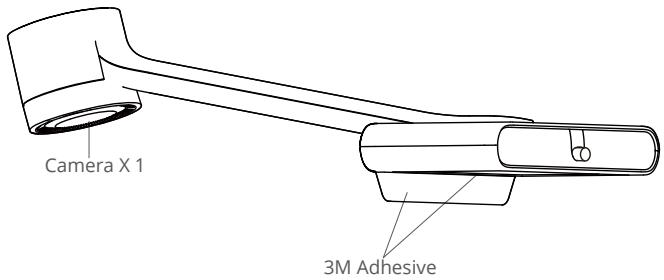
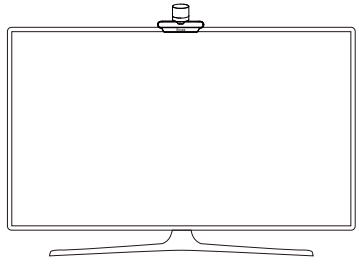
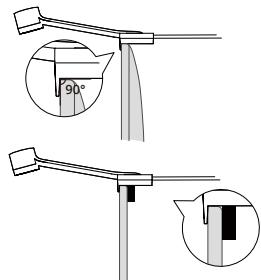
c. Position the camera to the top center of the TV.
- Tip: If you have an ultra-thin TV, stick the black foam sticker on the back of the monitor to help fix the camera.
d. Insert the cable of the strip light and the camera into the control box. (Type-C/DC)
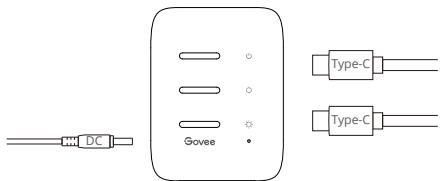
e. Ensure that the control box is in a proper position near your TV.
f. Power on the strip light and try connecting it with Govee Home App.
Pairing Your Device with Govee Home App
What you need:
- A Wi-Fi router supporting the 2.4GHz and 802.11 b/g/n bands. 5GHz is not supported.
Download Govee Home App from the App Store (iOS devices) or Google Play (Android devices).
Turn on your smartphone's Bluetooth.
Open the app, tap the "+" icon in the top right corner and search "H6098."
Tap the device icon and follow the on-screen instructions to complete pairing.
Calibrating the Camera with Govee Home App
Mount the camera to the center of the screen.
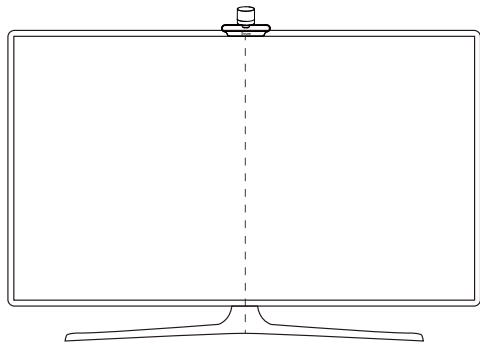
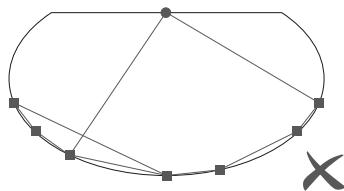
Stick the foam stickers to the 7 calibration points on the screen.
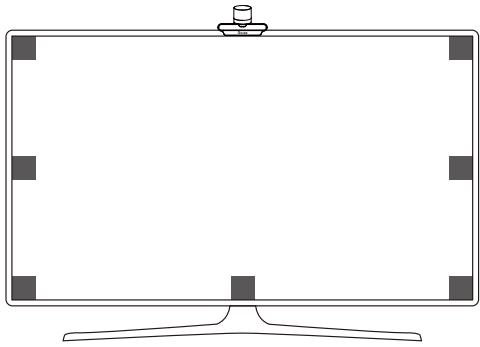
Open Govee Home App, go to the details page, then tap Calibration. Begin the calibration by following the instructions.
Tips:
a. Drag the seven calibration points to the position points.
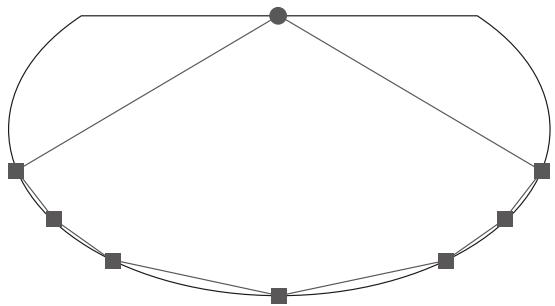
Camera Position Points
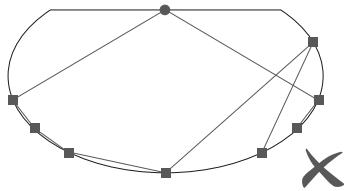
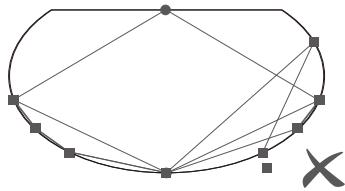
b. The picture will distort under the fish-eye camera. Make sure the calibration points are chosen correctly and the calibration line do not overlap or cross each other or drag the line outside the screen. After that, the chip will automatically calibrate the fish-eye picture and capture the colors.
Controlling the Device with Your Voice
Open the app, then tap the device icon to enter the details page.
2 Tap the settings icon in the top right corner.
Select User Guide and follow the on-screen instructions to control the device using your voice.
Specifications
| HVIN | H6098L(Control Box) |
| Power Input (Adapter) | 100-240VAC 50/60Hz |
| Power Input (Control Box) | 12VDC 3A (75-85inch) |
| Length | 2.95ft (left/right)+5.25ft (top/bottom) |
| Light Displaying Technology | RGBICW |
| Camera Model | H6098D(HVIN:H6098D) |
Troubleshooting
The strip light does not light up.
- Check all wired connections. Unplug and replug the power adapter and the DC port to ensure the control box powers on correctly. The strip light will light up 10s after being powered on.
- Check the wired connections for the strip light and the camera.
- If you unplugged the strip light, reboot the power adapter after the light is working correctly.
2 Calibration failed.
- Calibrate the strip light again.
- Make sure no other strong lights are affecting the camera.
- Calibration points must be chosen correctly. For example, the top calibration point on your TV cannot be dragged to the bottom. The calibration lines cannot overlap or cross each other.
- Calibration can only begin after the strip light is successfully connected to Wi-Fi.
The provided strip light's adhesive don't stick well.
- Wipe the installation surface to ensure it is dry and clean.
- When attaching the strip light, make sure you press down firmly.
- Reinforce the strip light with the provided clips or other strong adhesives.
4 Calibration and picture upload failure.
- With your smartphone, check whether the Wi-Fi connection is stable.
Wi-Fi connection failure.
- Do not skip the Wi-Fi connection during setup. Ensure you input the correct Wi-Fi name and password according to the app's instructions.
- 5GHz Wi-Fi is not supported. Connect the strip light to a 2.4G Wi-Fi band the reboot your router.
- With your smartphone, check whether the Wi-Fi connection is stable.
- The strip light is not compatible with the Wi-Fi name or password. Please change the Wi-Fi name and password.
- The strip light is not compatible with your router. Please try to connect your strip light to a smartphone hotspot.
Customer Service
Warranty: 12-Month Limited Warranty
Support: Lifetime Technical Support
Email: support@govee.com
Official Website: www.govee.com
@Govee @govee_official @govee-official
@Goveeofficial f @Govee.smarthome
Assistance: Assistance technique à vie

E-mail: support@govee.com

FCC and ISED Canada Statement
This device complies with Part 15 of the FCC Rules and Industry Canada licence-exempt RSS standard(s). Operation is subject to the following two conditions:
(1) This device may not cause harmful interference, and
(2) This device must accept any interference received, including interfere ence that may cause undesired operation.
Warning: Changes or modifications not expressly approved by the party responsible for compliance could void the user's authority to operate the equipment.
NOTE: This equipment has been tested and found to comply with the limits for a Class B digital device, pursuant to Part 15 of the FCC Rules.
These limits are designed to provide reasonable protection against harmful interference in a residential installation. This equipment generates uses and can radiate radio frequency energy and, if not installed and used in accordance with the instructions, may cause harmful interference to radio communications. However, there is no guarantee that interference will not occur in a particular installation. If this equipment does cause harmful interference to radio or television reception, which can be determined by turning the equipment off and on, the user is encouraged to try to correct the interference by one or more of the following measures:
- Reorient or relocate the receiving antenna.
- Increase the separation between the equipment and receiver.
- Connect the equipment into an outlet on a circuit different from that to which the receiver is connected.
- Consult the dealer or an experienced radio/TV technician for help.
FCC and IC Radiation Exposure Statement
This equipment complies with FCC and IC radiation exposure limits set forth for an uncontrolled environment. This equipment should be installed and operated with minimum distance 20cm between the radiator & your body.
Address: 2501 Chatham Rd Suite R Springfield IL 62704
Email: certification@govee.com
Contact information: https://www.govee.com/support
The trademark Govee has been authorised to Shenzhen Qianyan Technology LTD.
Copyright ©2021 Shenzhen Qianyan Technology LTD.
All Rights Reserved.
Govee Home App
H6098AD2-英法-说明书
版本:2.0
料号:807-0003-00772
折叠尺寸: 105 × 145 (mm)
材质:80G书页纸
工艺:单色印刷
折叠方式:骑马订
页数:24页