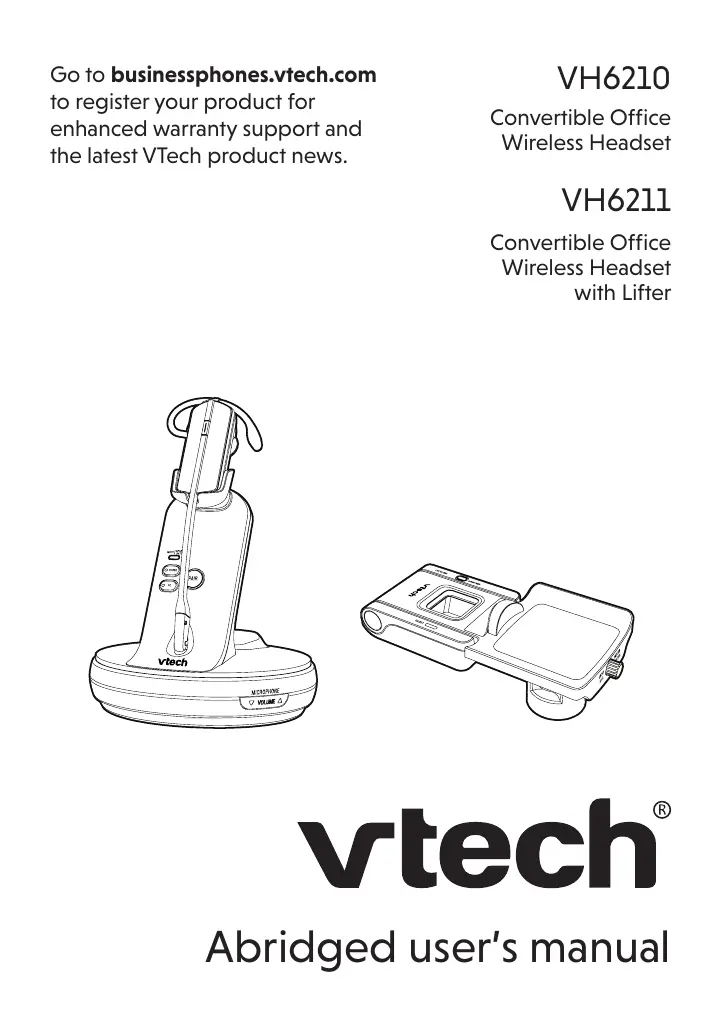
VH6210 - Headphones VTECH - Free user manual and instructions
Find the device manual for free VH6210 VTECH in PDF.


| Product type | Wireless headset |
| Brand | VTech |
| Model | VH6210 |
| Main power supply | AC adapter (included) and rechargeable lithium-ion battery |
| Battery type | Rechargeable lithium-ion |
| Replacement battery model | BT291865 |
| Phone compatibility | UL listed phones |
| Transmission | Wireless via radio waves |
| Privacy | Conversations can be intercepted by other radio receivers within range |
| TV interference | May cause interference; place base away from TV |
| Safe use | Do not use near water, gas leaks, or during a thunderstorm |
| Maintenance | Clean with a dry cloth; do not use liquids or aerosols |
| Replacement parts | Battery BT291865, AC adapter (order from businessphones.vtech.com) |
| Customer service (USA) | 1 (800) 595-9511 |
| Customer service (Canada) | 1 (800) 267-7377 |
| Battery recycling | Take to a participating retailer or call 1-800-8-BATTERY |
Frequently Asked Questions - VH6210 VTECH
User questions about VH6210 VTECH
0 question about this device. Answer the ones you know or ask your own.
Ask a new question about this device
Download the instructions for your Headphones in PDF format for free! Find your manual VH6210 - VTECH and take your electronic device back in hand. On this page are published all the documents necessary for the use of your device. VH6210 by VTECH.
USER MANUAL VH6210 VTECH
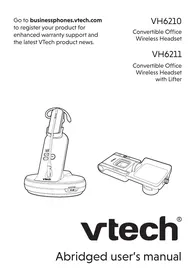
Go to businessphones.vtech.com
to register your product for enhanced warranty support and the latest VTech product news.
VH6210
Convertible Office
Wireless Headset
VH6211
Convertible Office
Wireless Headset
with Lifter
vtech®
Abridged user's manual
Congratulations
on your purchase of this VTech product. Before using this product, please read the Important safety information.
This Abridged user's manual provides you with the basic installation and use instructions. A limited set of features are described in abbreviated form.
Visit businessphones.vtech.com/support/downloads to download a full set of installation and operation instructions for:
- Headset connection methods
"Option 1: Connect to IP phone via EHS"
"Option 2: Connect to traditional corded phone"
"Option 3: Connect to traditional corded phone with Lifter"
"Option 4: Connect to a computer"
- Headset wearing styles
"Over-the-ear hook"
"Over-the-head band"
"Behind-the-neck band"
The software application
"Software application - Installation and Operation Guide"
For customer service or product information, visit our website at businessphones.vtech.com or call 1 (800) 595-9511. In Canada, please dial 1 (800) 267-7377.
TIA-1083
Telephones identified with this logo have reduced noise and interference when used with most T-coil equipped hearing aids and cochlear implants. The TIA-1083 Compliant Logo is a trademark of the Telecommunications Industry Association. Used under license.
INTRODUCTION
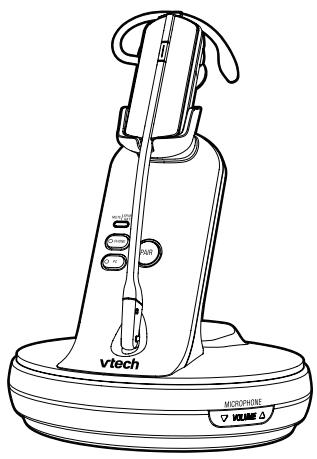
The VH6210/VH6211 includes a wireless headset and base that allow you to have handsfree phone conversations.
The package also comes with the EHS (Electronic hookswitch) cables and headset audio cable that allow you to connect your headset using either one or both of the following methods:
- PHONE mode - Connect to a desktop
If you want to connect your headset to a desktop, you can simply use the cables provided to connect the headset to a desktop directly.
PC mode - Connect to a computer
Use the USB cable to connect the headset base and your PC. You can make and receive VoIP calls through Skype or Skype for Business, using the software application.
VH6211 Convertible Office Wireless Headset with Lifter:
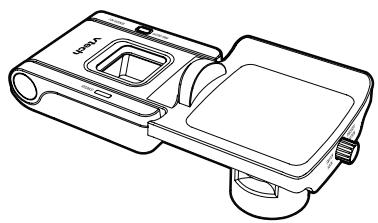
The VH6211 package also comes with the extra corded handset lifter, making it convenient to answer and end calls right from the headset, so that the product can be used in different ways depending on your needs.
For lifter's information, refer to the section Lifter.
WHAT'S IN THE BOX
Your product package contains the following items. Save your sales receipt and original packaging in the event warranty service is necessary.
For VH6210/VH6211:
Abridged user's manual
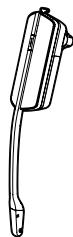
Wireless headset
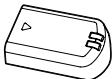
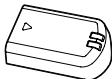
Batteries with battery compartment cover
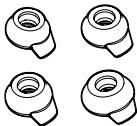
Four earbuds
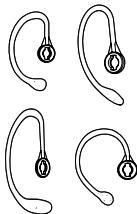
Four over-the-ear hooks

Sponge cover for ear hooks

Two spare rubber rings for headsetearpiece
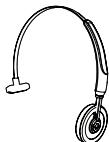
Over-the-head band
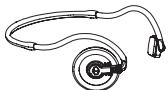
Behind-the-neck band
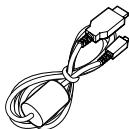
USB cable
WHAT'S IN THE BOX
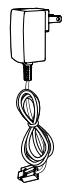
Headset base power adapter
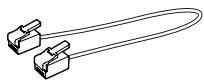
EHS cable 1
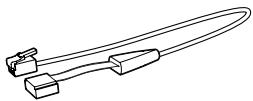
EHS cable 2
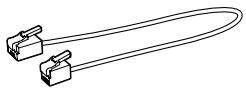
Headset audio cable
For VH6211 only:

Cored handset lifter
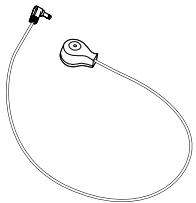
Auxiliary ring detector
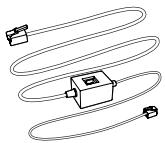
Cored phone connection cable
TABLE OF CONTENTS
Overview
Headset 1
Headset base. 2
Install headset battery. 4
Power up the headset base.....5
Charge the headset battery.....5
Charge and store your spare battery. 6
Connection methods.. 7
PHONE mode 7
PC mode 7
Option 1: Connect to IP phone via EHS. 8
Option 2: Connect to a traditional corded phone (for VH6211 only)............9
Option 3: Connect to a traditional corded phone with Lifter (for VH6211 only) ... 9
Option 4: Connect to a computer 9
Position the headset 10
Over-the-ear hook. 10
Over-the-head band 13
Over-the-neck-band 15
Before use
Headset operation.17
Headset power on/off. 17
PHONE mode and PC mode 17
Operate
PHONE mode. 18
Operate with IP phone via EHS. 18
Operate with traditional corded phone............19
Operate with traditional corded phone via Lifter..... 19
PC mode. 20
Call settings. 21
Auto Answer 21
Change Audio Bandwidth ....21
Adjust the headset earpiece audio. 22
Headset ringer. 23
Anti-Startle (G616) 23
Temporary ringer silencing... 24
Volume control 24
Mute. 24
Hot-swappable headset battery replacement 25
Lifter (for VH6211 only)
Overview 27
Connect the Lifter 29
OperatewithLifter. 29
Appendix
Adding and registering a new headset. 30
Headset lights. 31
Headset alert tones. 32
Headset alert prompts. 32
Headset base lights 33
Frequently asked questions..... 34
Maintenance 40
Important safety information... 41
Safety information 41
Especially about wireless headsets 42
Precautions for users of implanted cardiac pacemakers 43
For C-UL compliance. 44
Mesures de sécurité importantes. 44
FCC Part 68 and ACTA 48
FCC Part 15 . 50
California Energy Commission battery charging testing instructions.51
Limited warranty 52
Disclaimer and Limitation of Liability 55
Technical specifications. 56
OVERVIEW Headset
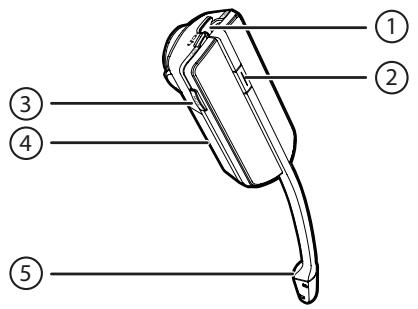
1-VOL+/VOL-
- Slide the volume switch to the right or left to adjust the headset ringer volume while in idle mode, or the listening volume while on a call.
2-ON/OFF button and LED light
- Press to make, answer or end a call.
See page 31 for lights behavior.
3-MUTE
- Mute the microphone during a call.
4 - Battery with cover attached
- The battery is permanently attached to the battery compartment cover and they are inseparable from each other. Remove the entire assembled unit to replace the battery.
5-Microphone
OVERVIEW Headset base
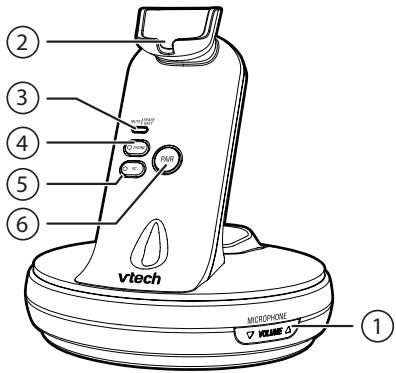
1-VOLUME /MICROPHONE
- Press to adjust the speaking volume while on a call.
2 - Magnetic charging mount
- Place the headset here for charging.
See page 33 for lights behavior.
4-PHONE (mode button and light)
- Press to enter the PHONE mode. See page 33 for lights behavior.
5-PC (mode button and light)
- Press to enter the PC mode. See page 33 for lights behavior.
6-PAIR
- Press to initiate headset registration or deregistration.
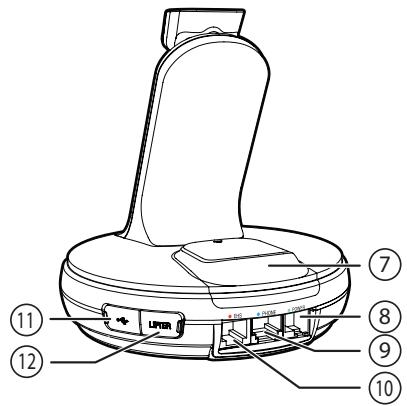
7 - Spare battery compartment cover
8 - POWER jack (green dot)
9-PHONE jack (blue dot)
10 - EHS jack (red dot)
11- (USB port)
- Open the port cover to plug in the USB cable for use with PC mode.
12 - LIFTER jack (for VH6211 only)
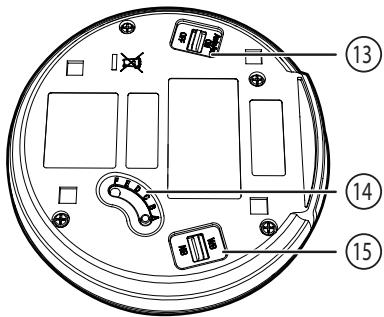
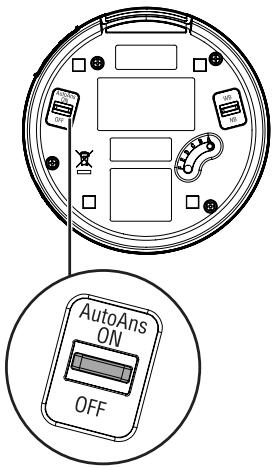
13 - AutoAns ON/OFF
- When turned on, your headset will then automatically answer a call when it is lifted from the charging cradle.
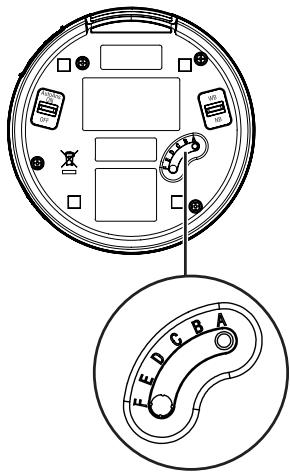
14 - Audio Adjustment Switch
- When you have connected the headset base to a desktop, use this switch to adjust the headset earpiece audio between A and F, until the dial tone is clear.

NOTES
-
The default setting of the Audio Adjustment Switch is A.
The audio adjustment setting is dependent on -
the types of desktop phones to which the headset base is connected; and
- the interference caused by other DECT systems operating in the same environment.
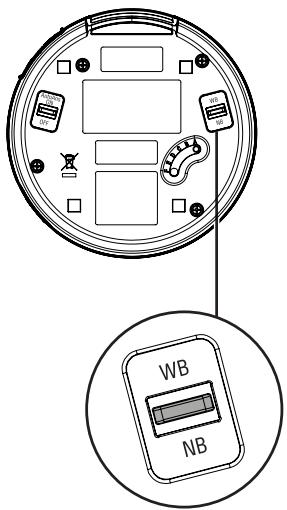
15 - WB (Wideband) / NB (Narrowband) Switch
- Use this switch to adjust the audio bandwidth. Wideband audio delivers wider frequency response and higher HD audio quality.
GETTING STARTED Install headset battery

CAUTION
-
Do not disassemble the battery from its battery compartment cover.
-
Align the metallic contacts between the battery and the battery compartment, and then place the battery down.
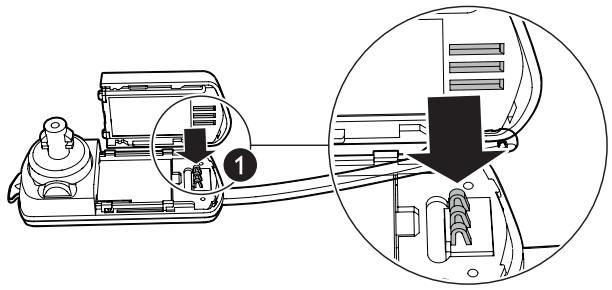
- Slide the battery until it clicks into place.
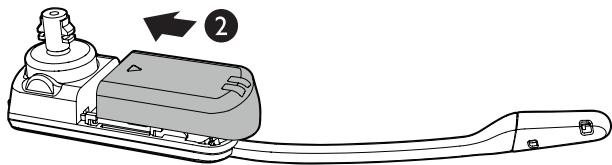
- Charge it for at least 30 minutes.
NOTES
- You will hear the voice prompt "Low battery" when you press the ON/OFF button while the headset battery is low.
- When fully charged, the headset battery supports up to 5 hours of talk time or 48 hours of standby time.
- If you slide the WB/NB (wideband/narrowband) switch to WB for enhanced audio quality, the power consumption will also be increased, thereby resulting in reduced talk time (see page 21).
To order a replacement battery pack (model BT291865), visit our website at businessphones.vtech.com or call 1 (800) 595-9511. In Canada, dial 1 (800) 267-7377.
GETTING STARTED
Power up the headset base
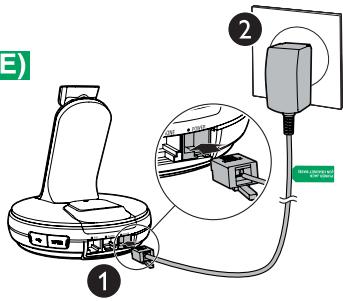
- Plug the small end of the headset base power adapter labelled
POWER JACK (ON HEADSET BASE)
to the POWER jack (green dot) at the rear of the headset base.
- Plug the large end into an electrical
outlet not controlled by a wall switch.
Charge the headset battery
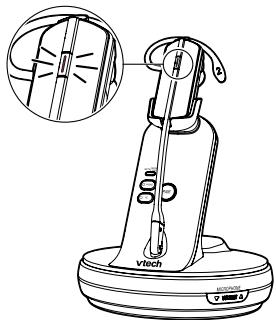
Hang the headset onto the magnetic charging mount.
The magnet holds the headset in place.
The light will turn:
steady red when the headset battery is low while charging;
- steady purple when the battery is well charged; and
- steady blue when the battery is fully charged.
NOTE
- For optimal performance, charge the headset battery for at least 30 minutes before use. The battery is fully charged after 2 hours of continuous charging. When the headset is not in use, recharge by hanging it onto the headset base.
GETTING STARTED
Charge and store your spare battery
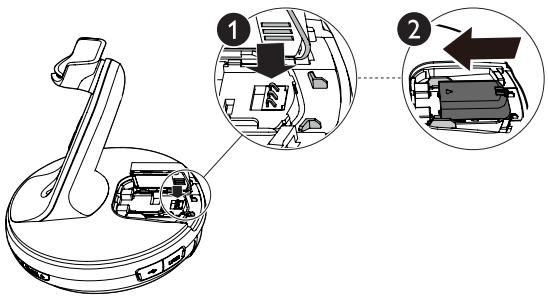
The spare battery is for powering on the headset. You can install it into your headset base for charging and storage purposes.
The headset supports hot swapping, in which the current call on the headset will remain connected if you replace the battery within 5 minutes. You can even have an unlimited talk time with timely battery replacement.
- Align the metallic contacts between the battery and the battery compartment, and then place the battery down.
-
Slide the battery until it clicks into place.
-
The MUTE | SPARE BATT light turns green when charging.
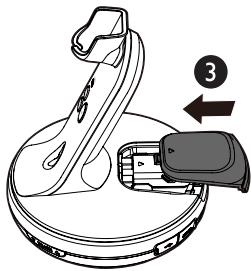
- Slide the battery compartment cover back to the headset base.
NOTE
- For optimal performance, charge the spare battery for at least 30 minutes before use. The battery is fully charged after 2 hours of continuous charging. When the spare headset is not to be used, keep it in charging in the headset base.
GETTING STARTED
Connection methods
Choose one of the following methods to connect your headset for operation in either PHONE mode or PC mode.
PHONE mode
Option 1: Connect to IP phone via EHS
- You can connect the headset to an IP phone using the EHS cable and headset audio cable provided. The headset acts as a supplementary device that can join calls. Use the IP phone connected to make or answer calls.
Option 2: Connect to traditional corded phone (for VH6211 only)
- You can connect the headset to a traditional corded phone using the corded phone connection cable provided. You need to physically lift the corded handset off the corded phone base cradle before you can use the headset to join in the call.
Option 3: Connect to traditional corded phone with Lifter (for VH6211 only)
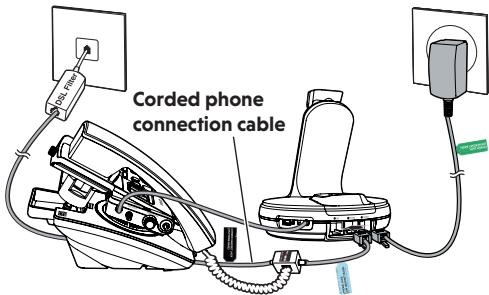
- You can connect the headset to a corded phone using the corded phone connection cable and lifter provided (see page 29). The headset acts as a supplementary device that can join calls. You can simply press on the headset to use the connected corded phone to make or answer calls.
PC mode
Option 4: Connection to a computer
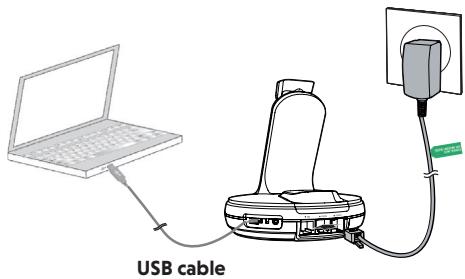
- Connect the headset base to your PC with the USB cable provided. You can make and receive VoIP calls through Skype or Skype for Business, using the software application.
GETTING STARTED
Connection methods
NOTE
- The cords have colored labels that guide you to plug them into the correct headset base jacks. The back of the headset base has color-coded dots and the names of the jacks above them that correspond to the colored labels on the cords.
For detailed instructions of the four options to connect your headset, visit the product page of VH6210 or VH6211 at businessphones.vtech.com/support/downloads to download the respective instructional document.
Option 1: Connect to IP phone via EHS
Connect the headset to an IP phone using the EHS cable and headset audio cable provided. Depending on the brand and series of your IP phone, you might need to use either EHS cable 1 or EHS cable 2 provided for connection.
Visit businessphones.vtech.com for the compatibility list of IP phone models that are compatible for EHS connection, as well as the respective EHS adapter(s) that you need to purchase separately.
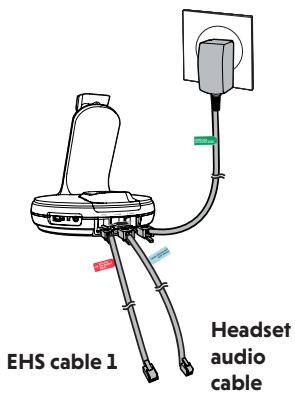
Connect with EHS cable 1
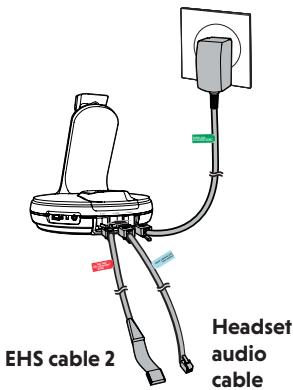
Connect with EHS cable 2
GETTING STARTED
Connection methods
Option 2: Connect to a traditional corded phone (for VH6211 only)
Use the corded phone connection cable provided to connect the headset to a traditional corded phone.
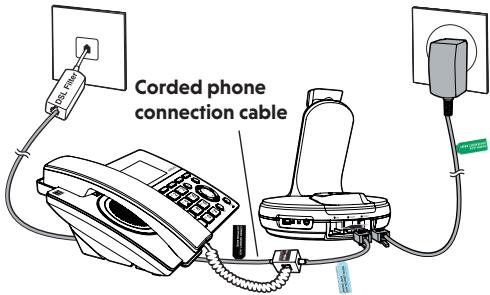
Option 3: Connect to a traditional corded phone with Lifter (for VH6211 only)
Use the corded phone connection cable and lifter provided to connect the headset to a traditional corded phone.
Option 4: Connect to a computer
Use the USB cable provided to connect the headset to your computer. Your
headset supports calls through Skype or
Skype for Business.
Install the software application before operating in PC mode.
Attach the headset accessories and wear the headset:
- Mount the earhooks over your ear and insert the earbuds to check the best fitting. Remove them from your ear after checking.
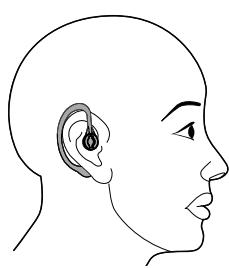
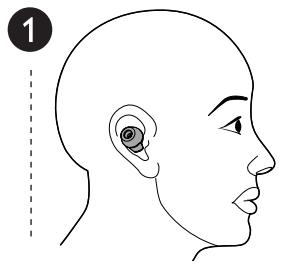
-
Insert your desired earhook to the headset.
-
Rotate it until it securely holds in place.
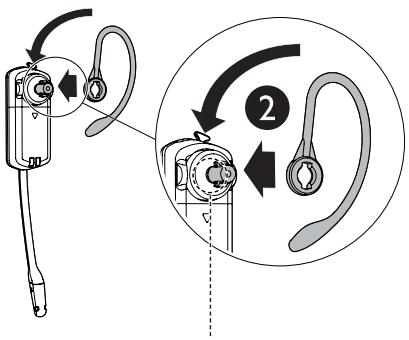
Rubber ring
NOTE
If you accidentally ripped off the rubber ring, use a spare rubber ring to replace it.
GETTING STARTED
Position the headset
-
Insert your desired earbud to the headset.
-
Make sure the protruding bump is pointing towards your mouth when placed on your ear. The protruding bump on the earbud holds the headset securely in your ear.
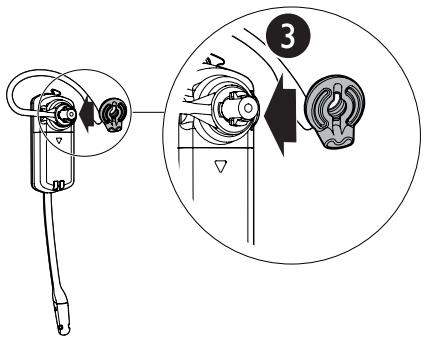
- Hook the headset on your ear. Adjust the angle of the headset until the microphone is pointing towards your mouth.
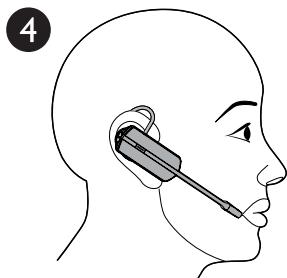
GETTING STARTED
Position the headset
Remove the earbud and earhook:
Remove the earbud and earhook, when you need to replace them in the Over-the-ear hook, when you need to change to the over-the-head and behind-the-neck style.
- Hold both sides of the earbud. Twist and pull the earbud until it separates from the earpiece.
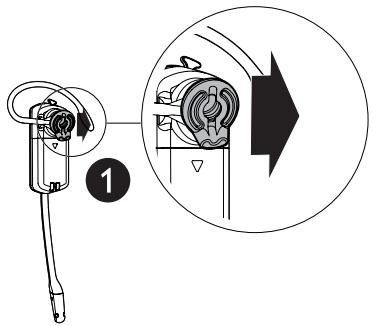
- Rotate the earhook to vertical direction.
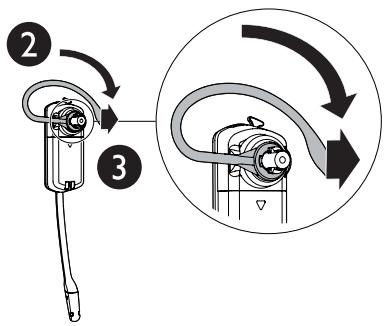
- Pull the earhook until it separates from the headset.
To re-insert another set of earbud and earhook, refer to the previous section.
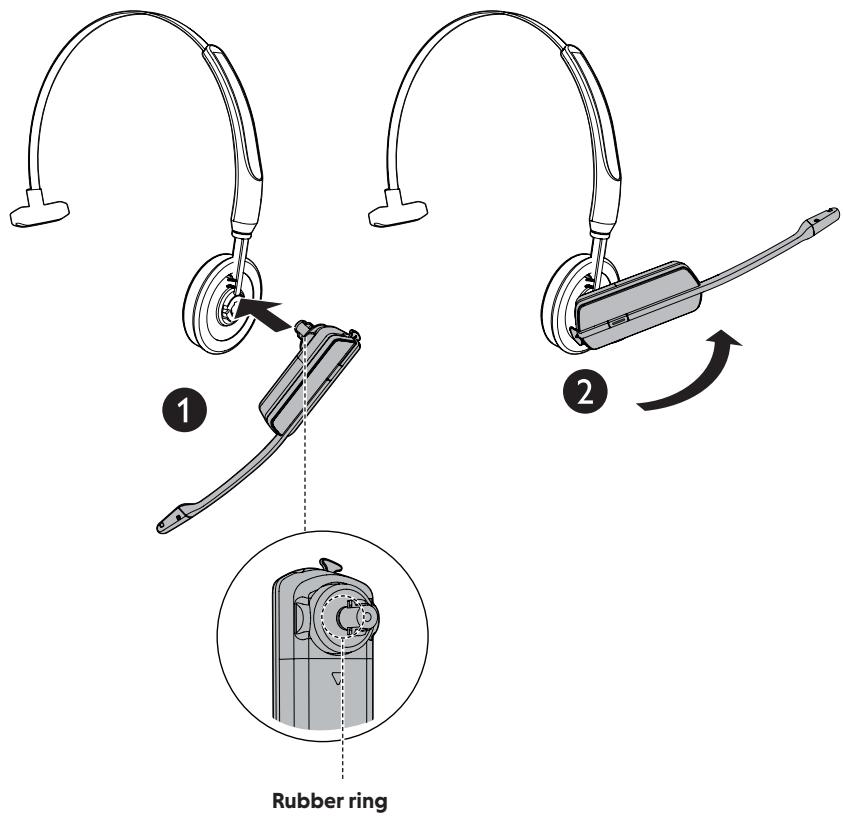
Attach the headband and wear the headset:
- With the headset at a vertical angle (microphone pointing down), insert the headset earpiece into the headband.
- Rotate the headset to a horizontal direction until it holds into place.
NOTE
If you accidentally ripped off the rubber ring, use a spare rubber ring to replace it.
GETTING STARTED
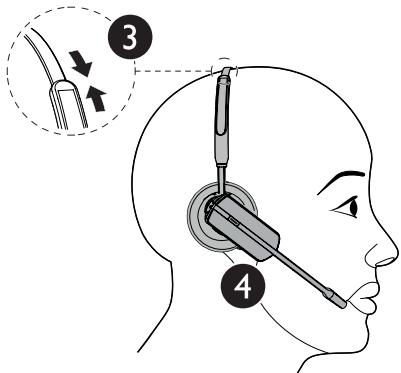
Position the headset
-
Adjust the headband to fit your head.
-
Rotate the angle of the headset until the microphone is pointing towards your mouth.
-
Make sure the protruding bump is pointing towards your mouth when placed on your ear.
The protruding bump on the earbud holds the headset securely in your ear.
Attach the neckband and wear the headset:
- With the headset at a vertical angle (microphone pointing down), insert the headset earpiece into the neckband.
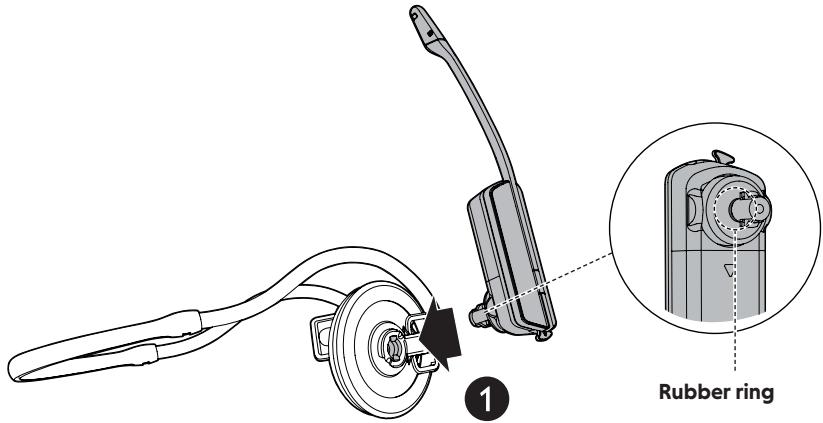
NOTE
If you accidentally ripped off the rubber ring, use a spare rubber ring to replace it.
2. Rotate the headset to a horizontal direction until it clicks into place.
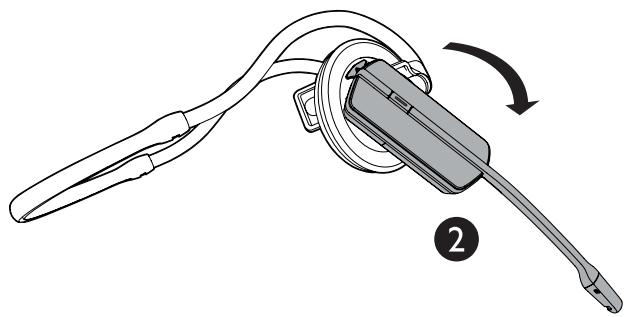
GETTING STARTED
Position the headset
-
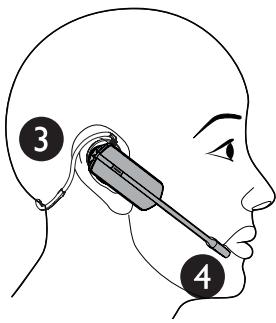
Place the neckband around your neck and over your ears.
-
Adjust and rotate the angle of the headset until the microphone is pointing towards your mouth.
-
Make sure the protruding bump is pointing towards your mouth when placed on your ear. The protruding bump on the earbud holds the headset securely in your ear.
BEFORE USE Headset operation
Headset power on/off
To power on the headset:
- Place the headset in the headset base. -OR-
- Press and hold ON/OFF button for two seconds. The LED light flashes blue three times, and you hear three beeps when it is being powered on.
To power off the headset:
- Press and hold ON/OFF button for four seconds. The LED light flashes red three times, and you hear three beeps when it is being powered off.
PHONE mode and PC mode
Before using the headset, make sure you have chosen the headset operation mode in accordance with the connection method. When the headset is not in use, you can choose between PHONE mode and PC mode.
To choose PHONE mode:
- Press the PHONE button on the headset base. The PHONE light turns on.
To choose PC mode:
- Press the PC button on the headset base. The PC light turns on.
NOTE
- You can also switch back and forth between PHONE mode and PC mode while on a call. Once selected, the PHONE mode light or the PC mode light flashes twice every three seconds to indicate that line is in use.
OPERATE
PHONE mode
Before using the headset with your telephone connected, make sure you have chosen PHONE mode.
To choose PHONE mode:
- Press the PHONE button on the headset base. The PHONE light turns on.
Operate with IP phone via EHS
To make a call:
-
Press the ON/OFF button on the headset. The EHS connection automatically takes the phone line at your IP phone.
-
When you hear a clear dial tone at the headset earpiece, you are now ready to dial a call.
- If the dial tone is unclear or you do not hear a dial tone, slide the Audio Adjustment Switch at the bottom of the headset base between A and F, until the dial tone is clear.
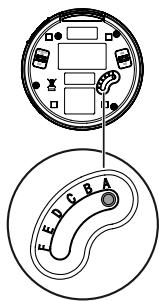
The default setting of the Audio Adjustment Switch is A.
- Dial the telephone number using the dialing keys on the IP phone.
NOTES
The audio adjustment setting is dependent on
- the types of desktop phones to which the headset base is connected; and
-
the interference caused by other DECT systems operating in the same environment.
-
The headset supports hot swapping, in which the current call on the headset will remain connected if you replace the battery within five minutes.
To answer a call:
- Press the ON/OFF button on the headset to answer an incoming call, or lift the headset if auto answer is set to on.
The EHS connection automatically takes the line on your IP phone. You hear the caller through the headset earpiece.
To end a call:
- Press the ON/OFF button on the headset to end a call. The EHS connection automatically releases the line on your IP phone.
OPERATE
PHONE mode
Operate with traditional corded phone
To make a call:
- Lift the corded handset to take the line at your corded phone.
-
Press the ON/OFF button on the headset.
-
When you hear a clear dial tone at the headset earpiece, you are now ready to dial a call.
- If the dial tone is unclear or you do not hear a dial tone, slide the Audio Adjustment Switch at the bottom of the headset base between A and F, until the dial tone is clear.
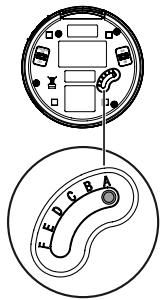
The default setting of the Audio Adjustment Switch is A.
- Dial the telephone number using dialing keys on the corded phone.
NOTES
The audio adjustment setting is dependent on
- the types of desktops to which the headset base is connected; and
-
the interference caused by other DECT systems operating in the same environment.
-
The headset supports hot swapping, in which the current call on the headset will remain connected if you replace the battery within five minutes.
To answer a call:
- Lift the corded handset to take the line at your corded phone.
- Press the ON/OFF button on the headset to answer an incoming call. You hear the caller through the headset earpiece.
To end a call:
- Press the ON/OFF button on the headset to leave the phone conversation at the headset.
- Place the corded handset back to the corded phone to end the call.
Operate with traditional corded phone via Lifter
For calls operation with a traditional corded phone via Lifter, see page 29.
OPERATE
PC mode
To make and receive calls in PC mode, you can download and install the software application. With it, you can make and receive VoIP calls through Skype and Skype for Business.
Download the application and its detailed instructions at businessphones.vtech.com/support/downloads, under the product page of VH6210 or VH6211. Unzip and install the application after download
Auto Answer
When the Auto Answer feature is enabled, your headset will automatically answer a call when it is lifted from the charging cradle.
To turn the Auto Answer feature on:
- Slide the AutoAns knob at the headset bottom to ON.
To turn the Auto Answer feature off:
- Slide the AutoAns knob at the headset bottom to OFF.
NOTE
If you connected the headset only to a traditional corded phone, the Auto Answer feature will not apply.
Change Audio Bandwidth
The wideband audio mode works only if the telephone to which your headset is connected supports wideband audio.
When you slide the audio bandwidth from NB (Narrowband) to WB (Wideband), the frequency response of a call will be widened and the HD audio quality will be enhanced, whilst the battery power consumption will also be increased, thereby resulting in reduced talk time.
NOTE
If you are not certain whether the telephone to which your headset is connected supports wideband audio, keep the audio bandwidth as NB.
OPERATE
Call settings
Adjust the headset earpiece audio
During a call, you may need to slide the audio adjustment switch at the bottom of the headset base to adjust for clear audio at the headset earpiece, when there is interference caused by other DECT systems operating in the same environment.
To adjust the headset earpiece audio during a call:
- Slide the audio adjustment switch at the bottom of the headset base between A and F, until the dial tone is clear.
SETTING
Sound settings
Headset ringer
The headset base and headset do not have external ringers. When you receive calls, the headset earpiece rings.
To change the volume of the earpiece ringer:
- Slide the volume switch at the top of the headset towards VOL+ or VOL- when the headset is not in use.
To turn off the earpiece ringer:
- Slide the volume switch at the top of the headset towards VOL- until you hear two beeps when the headset is not in use.
Anti-Startle (G616)
G616 Acoustic Limiting provides additional hearing protection against acoustic shock. By default, this feature is disabled.
When this feature is enabled, the headset limits sound levels at 102 dBA as recommended in the G616: 2006 guideline issued by the Australian Communications Industry Forum (ACIF).
When this feature is disabled, the headset limits sound levels at 118 dBA to protect your hearing.
To enable the G616 Audio Limiting:
- Press the following headset keys in sequence:
VOL-, VOL+, VOL-, VOL+,
The LED light on the headset will flash purple once and flash blue twice. You will also hear a confirmation tone.
To disable the G616 Audio Limiting:
- Press the following headset keys in sequence:
VOL-, VOL+, VOL+, VOL-
The LED light on the headset will flash purple once and flash red twice. You will also hear a confirmation tone.
SETTING
Sound settings
Temporary ringer silencing
Press MUTE on the ringing headset to temporarily silence the ringer in the headset earpiece without disconnecting the call. The next incoming call rings normally at the preset volume.
Volume control
To adjust the listening volume during a call:
- Slide the volume switch at the top of the headset towards VOL+ or VOL- to adjust the listening volume of that headset.
To adjust the speaking volume during a call:
- Press / VOLUME/ MICROPHONE on the right side of the headset base to adjust the speaking volume for all registered headsets.

Prolonged exposure to high volume levels using the headset may damage your hearing.
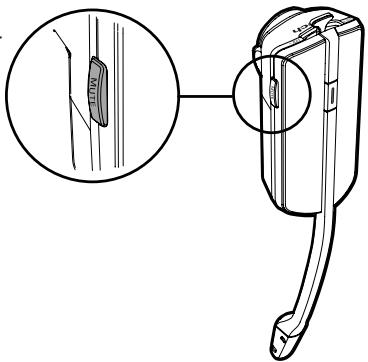
Mute
The mute function turns off the microphone. You can hear the caller, but the caller cannot hear you.
To mute a call:
- Press MUTE on the headset to turn off the microphone.
You hear the voice prompt "Mute on". The MUTE | SPARE BATT light on the headset base flashes and a short beep plays every 30 seconds.
To take a call off mute:
- Press MUTE on the headset to resume the conversation.
You hear the voice prompt "Mute off".
SETTING
Hot-swap
Hot-swappable headset battery replacement
The headset supports hot swapping, which maximizes the power availability without downtime. As long as the headset is powered on, it will remain functioning while replacing a battery.
With this feature, the current call on the headset will remain connected if you replace the battery within five minutes, so that you can even have an unlimited talk time with timely battery replacement.
During a call:
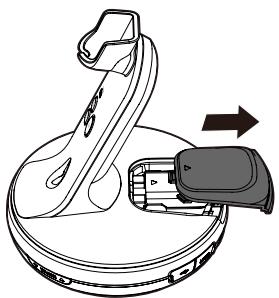
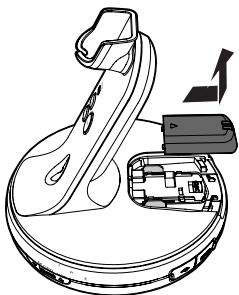
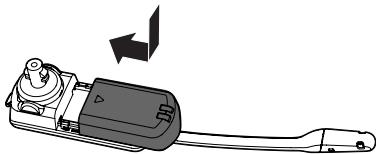
- Slide open the battery compartment cover on the headset base.
- Take the spare battery out of the headset base battery compartment.
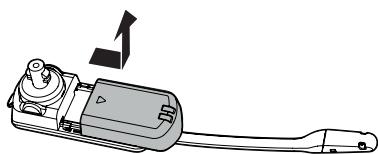
- Remove any headset attachments.
- Slide to pull the current headset battery out of the headset.
- Insert the spare battery into the headset battery compartment, until it clicks into place.
SETTING
Hot-swap
Hot-swappable headset battery replacement (con't)
- Insert the depleted battery, which was taken out of the headset, into the headset base battery compartment for recharging. The MUTE | SPARE BATT light turns green when the spare battery is charging.
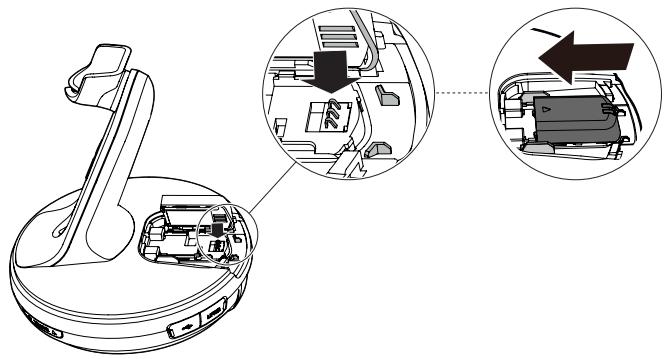
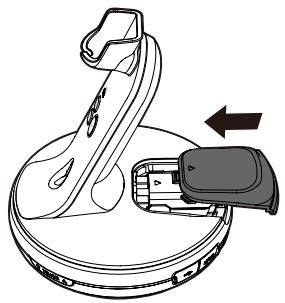
- Slide the battery compartment cover back to the headset base.
LIFTER (FOR VH6211 ONLY)
Overview
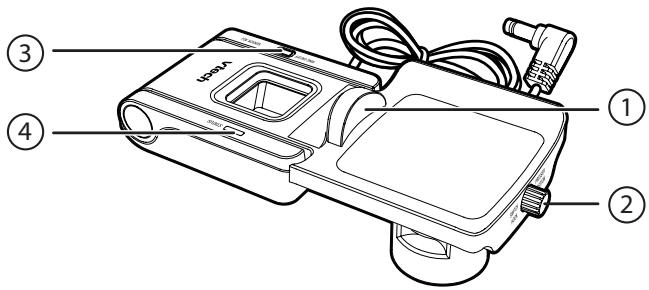
1 - Small lifter pad
- Holds the earpiece of the corded telephone handset.
2 - Switch hook presser adjustment knob
- Adjusts the position of the switch hook presser.
3-RING ON/OFF
- Press to turn the ring detector on or off. When the ring detector is off, the wireless headset does not ring.
4-STATUS light
| Red | • On when the headset is not in use and the ring detector is turned off. • Flashes slowly when the headset is in use and the ring detector is turned off. |
| Blue | • On when the headset is not in use and the ring detector is turned on. • Flashes four times every three seconds when the ring detector detects an incoming call. • Flashes slowly when the headset is in use and the ring detector is turned on. |
| Off | • The headset base does not have power. • The lifter control cable is not plugged into the LIFTER jack on the headset base. |
LIFTER Overvie
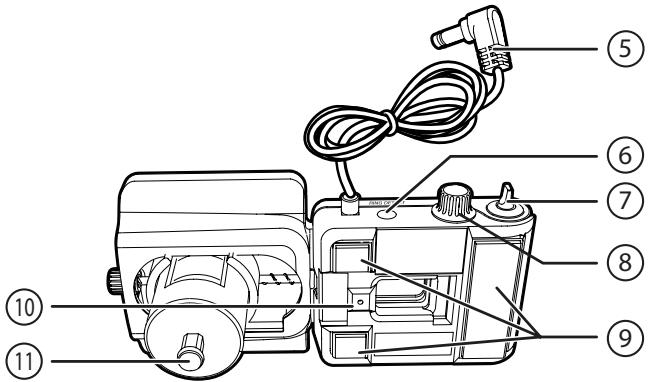
5 - Lifter control cable
- Plug this cable into the LIFTER jack on the headset base.
6 - RING DETECT jack
- Plug in the auxiliary ring detector.
7 - SENSOR ADJ knob
- Adjusts the sensitivity of the ring detector.
8-ADJUST LIFTER knob
- Adjusts the height of the lifter arm.
9 - Adhesive tapes
- Remove the protective strips before attaching the lifter to the telephone base.
10 - Internal ringer detector
- Detects the telephone ringer and sends a ring tone to the headset earpiece.
11 - Switch hook presser
- Pressing on the headset raises or lowers the switch hook presser.
LIFTER
Connect the Lifter
For conceptual reference of the connection to a traditional corded phone with Lifter, see page 9.
Operate with Lifter
To make a call:
-
Press the ON/OFF button on the headset. The lifter's switch hook presser rises and releases the switch hook.
-
When you hear a clear dial tone at the headset earpiece, you are now ready to dial a call.
- If the dial tone is unclear or you do not hear a dial tone, slide the Audio Adjustment Switch at the bottom of the headset base between A and F, until the dial tone is clear.
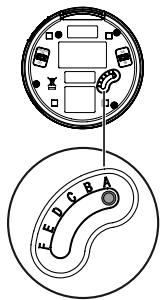
The default setting of the Audio Adjustment Switch is A.
- Dial the telephone number using dialing keys on the corded phone.
NOTES
The audio adjustment setting is dependent on
- the types of desktop phones to which the headset base is connected; and
-
the interference caused by other DECT systems operating in the same environment.
-
The headset supports hot swapping, in which the current call on the headset will remain connected if you replace the battery within five minutes.
To answer a call:
- Press the ON/OFF button on the headset to answer an incoming call, or lift the headset if auto answer is set to on.
The lifter's switch hook presser rises and releases the switch hook. You hear the caller through the headset earpiece.
To end a call:
- Press the ON/OFF button on the headset to end a call. The lifter's switch hook presser pushes down the switch hook and ends the call.
APPENDIX
Adding and registering a new headset
The VH6210/VH6211 Convertible Office Wireless Headset comes pre-registered to the headset base. You can add one more VH621 Convertible Office Wireless Accessory Headset to your VH6210/VH6211 system.
For more details, refer to the user's manual that comes with your new VH621 Convertible Office Wireless Accessory Headset.
APPENDIX
Headset lights
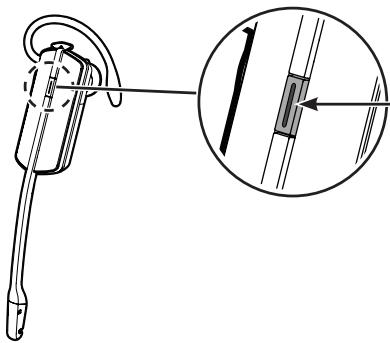
ON/OFF button and LED light
Press to make, answer or end a call.
| COLOR | LED LIGHT STATUS | MEANING |
| Red | Steady light on | The battery is low and the headset is charging in the headset base. |
| Flash every 10 seconds | The battery is low and the headset is not in the headset base. | |
| Flash 3 times | Powering off. | |
| Blue | Steady light on | The battery is fully charged. |
| Flash every 10 seconds | The headset is not in the headset base. | |
| Flash 2 times every 3 seconds | The headset is in use. | |
| Flash 3 times | Powering on. | |
| Flash 4 times every 4 seconds | There is an incoming call. | |
| Purple | Steady light on | The battery is well charged. |
| Red and blue | Alternate slowly | The headset is not registered. |
| Alternate quickly | The headset is trying to register to a headset base. | |
| Off | Light off | The battery is depleted. |
| No battery is installed. | ||
| The headset is powered off. |
APPENDIX
Headset alert
Headset alert tones
| ALERT TONE BEHAVIOR | MEANING |
| One short beep every 30 seconds | • The microphone is muted. |
| Two beeps | • Error alert tone. • The speaking volume has reached its highest or lowest setting. • Any key is pressed while the headset is out of range. |
| Two low beeps | • Call waiting alert tone. |
| Two rapid beeps every 20 seconds | • Low battery warning. |
| Three rapid beeps every 20 seconds | • The headset is out of range. |
| Three rapid beeps | • The headset is powering on or off. |
Headset alert prompts
| ALERT PROMPT | MEANING |
| "Mute on" | The microphone is muted. |
| "Mute off" | The microphone is re-activated. |
| "Not registered" | ON/OFF button is pressed while the headset is not registered. |
| "Out of range" | The headset is on a call and out of range. Any key is pressed while the headset is out of range. |
| "Low battery" | ON/OFF button is pressed while the headset battery is low. |
APPENDIX
Headset base lights
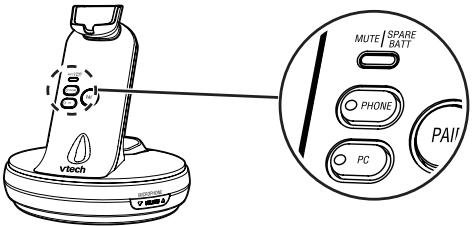
| LIGHT | COLOR | LED LIGHT STATUS | MEANING |
| MUTE|SPARE BATT | Red | Steady light on | You are registering a headset. |
| Flash | You are deregistering headset(s) from the headset base. | ||
| The call is muted. | |||
| Green | Steady light on | The spare battery is charging. | |
| OPHONE | Blue | Steady light on | PHONE mode is selected as the default mode on the idle headset base. |
| Flash 4 times every 4 seconds | There is an incoming call in PHONE mode. | ||
| Flash 2 times every 3 seconds | The headset is in use in PHONE mode. | ||
| Flash slowly | The call is on hold in PHONE mode. | ||
| OPC | Blue | Steady light on | PC mode is selected as the default mode on the idle headset base. |
| Flash 4 times every 4 seconds | There is an incoming call in PC mode. | ||
| Flash 2 times every 3 seconds | The headset is in use in PC mode. | ||
| Flash slowly | The call is on hold in PC mode. |
APPENDIX
Frequently asked questions
If you have difficulty with your product, please try the following suggestions. For customer service, visit our website at businessphones.vtech.com or call 1 (800) 595-9511. In Canada, dial 1 (800) 267-7377.
I cannot find complete instructions on headset connection, lifter setup, or headset wearing styles.
Download the complete instructions on the selected topics under the product page of VH6210 or VH6211 at businessphones.vtech.com/support/downloads.
For headset connection methods:
"Option 1: Connect to IP phone via EHS"
"Option 2: Connect to traditional corded phone"
"Option 3: Connect to traditional corded phone with Lifter"
"Option 4: Connect to a computer"
For headset wearing styles:
"Over-the-ear hook"
"Over-the-head band"
"Behind-the-neck band"
For the software application:
"Software application - Installation and Operation Guide"
APPENDIX
Frequently asked questions
| My headset does not work at all. | Make sure the headset and headset base are installed properly, and batteries are installed and charged correctly. For optimum daily performance, return the headset to the headset base after use. |
| The dial tone is unclear. | Slide the audio adjustment switch at the bottom of the headset base between A and F until you obtain a good sound quality. |
| I cannot hear the dial tone. | Slide the audio adjustment switch at the bottom of the headset base between A and F until you obtain a good sound quality. |
| Disconnect the telephone line cord from the telephone where the headset base is connected. Then, connect the telephone line cord to another telephone. If there is no dial tone on that other telephone either, then the telephone line cord may be defective. Try installing a new telephone line cord. If changing telephone line cord does not help, the wall jack (or the wiring to this wall jack) may be defective. Contact your telephone service provider. | |
| You may be using a new cable or VoIP service, the existing telephone jacks in your home may no longer work. Contact your service provider for solutions. | |
| I cannot dial out. | Make sure there is a dial tone before dialing. It is normal if the headset takes a second or two to synchronize with the telephone base before producing a dial tone. Wait an extra second before dialing. |
| The battery does not charge in the headset or the headset battery does not accept charge. | Make sure the headset is placed in the headset base or charger correctly. If the battery is completely depleted, charge the battery for at least 30 minutes before use. You may need to purchase a new battery. |
APPENDIX
Frequently asked questions
| I cannot hear any audio or the caller at the other end cannot hear me, when using my headset in PC mode. | Make sure the two ends of the USB cable are securely plugged into the computer and headset base USB ports. |
| Make sure PC mode is selected and the PC light is on. | |
| Make sure you have pressed on your headset to receive the audio from your computer. | |
| Make sure you are using a software program that supports VoIP calling (such as Skype or Skype for Business). | |
| Make sure the headset listening volume is turned on and set to an audible level in your computer audio settings and your VoIP calling software. | |
| Make sure the audio settings in your VoIP calling software are set to use your "VTech Headset". | |
| My headset isn't working. I want to replace my headset with a new headset. | You need to deregister the headset from the current headset base, and then register it to the new headset base. To deregister the headset from the headset base: 1. Press and hold the PAIR button on the headset base (at least 10 seconds) until the MUTE | SPARE BATT light on the headset base turns on and starts to flash in red, then release the PAIR button. 2. Immediately press and release the PAIR button again. You must press the PAIR button while the MUTE | SPARE BATT light is still flashing red. (The light flashes for about seven seconds. If the light stops flashing, start again with Step 1.) It takes about 10 seconds to complete the deregistration process. The LED light flashes slowly in red and blue when the deregistration process is successful. |
APPENDIX
Frequently asked questions
| I have manually or accidentally deregistered my headset from the headset base. | You must register a new headset or the accidentally deregistered headset to the headset base for it to operate. To register a new headset to the headset base: 1. Make sure the battery is properly installed in the headset. The LED light flashes slowly in red and blue to indicate the headset is not registered. 2. Place the headset in the headset base and allow it to charge for at least one hour before beginning registration. 3. Remove the headset from the headset base. 4. Press and hold the PAIR button for about four seconds until the PHONE light on the headset base turns on, and then release the button. 5. Return the headset to the headset base for registration. The LED light alternates quickly in red and blue. It takes about 60 seconds to complete the registration process. Once the headset is registered, The LED light turns red when the battery is low and being charged, or turns purple when the battery is well charged, or turns blue when the battery is fully charged. If the registration fails, you hear the voice prompt "Not registered" when you press the ON/OFF button on the headset, and the ON/OFF button light on the headset alternates slowly in red and blue. |
| I cannot answer or end, and mute or end mute a call directly from my headset when connected to PC. | Make sure PC mode is selected on the headset base and the PC light is on. |
| Make sure you have properly installed the software application. | |
| Make sure the audio setting is properly configured in your Windows system. | |
| If you have installed Skype or Skype for Business for use with your headset, make sure the audio settings are configured correctly in the programs. |
APPENDIX
Frequently asked questions
| The light on the headset is off while charging. | Make sure the cables are plugged in correctly and securely, and that the battery is securely installed in the wireless headset. |
| Make sure the headset is sitting properly on the base to charge. | |
| The switch hook pressor of the handset lifter doesn't rise at all. | Make sure you do not plug in the EHS cable or headset audio cable when you have connected the handset lifter. |
| Make sure the lifter control cable is securely plugged into the LIFTER jack on the headset base. | |
| Make sure all cables are securely connected to the proper sockets. | |
| Make sure the headset base has power. | |
| Make sure your headset is charged and registered to the headset base. | |
| When I press on the headset, the handset lifter rises, but the call is not connected or I do not hear a dial tone. | When using the handset lifter, make sure the telephone line cord is connected to the telephone line jack on the back of the corded phone. |
| The handset lifter may not rise high enough to release the switch hook. Try to adjust the height of the lifter arm by turning the ADJUST LIFTER knob until it reaches the desired angle. Adjust the switch hook pressor by turning the switch hook pressor adjustment knob so that the switch hook is released when the lifter arm rises. | |
| If you cannot hear a dial tone when you pressed on the headset, try out the solutions in I cannot hear the dial tone first. Slide the audio adjustment switch at the bottom of the headset base between A and F until you obtain a good sound quality. |
APPENDIX
Frequently asked questions
| My corded phone is ringing, but my headset is not ringing. | Make sure that the RING ON/OFF button on the lifter is turned on. If the RING ON/OFF button is turned off, the headset does not ring. |
| If the speaker of your corded phone is not located under the lifter, install the auxiliary ring detector. | |
| Adjust the sensitivity of the ring detector. | |
| Make sure the cables are plugged in correctly and securely, and that the battery is securely installed in the wireless headset. | |
| Make sure your headset battery is charged. | |
| My headset is ringing even when there is no incoming call. | The sensitivity level of your ring detector may be too high. Adjust sensitivity of the ring detector to a lower level. |
| When you are using the speakerphone of your telephone, the ring detector may send a ring tone to the headset. If you do not want the headset to ring, press the RING ON/OFF button to turn the ring detector off. After the call, you can press the RING ON/OFF button again to turn the ring detector back on. |
APPENDIX
Maintenance
Taking care of your headset
- Your wireless headset contains sophisticated electronic parts, so it must be treated with care.
- Avoid rough treatment.
- Place the headset down gently. Save the original packing materials to protect your headset if you ever need to ship it.
Avoid water
- Your headset can be damaged if it gets wet. Do not use the headset outdoors in the rain, or handle it with wet hands. Do not install the headset base near a sink, bathtub or shower.
Electrical storms
- Electrical storms can sometimes cause power surges harmful to electronic equipment. For your own safety, take caution when using electrical appliances during storms.
Cleaning your headset
- Your headset has a durable plastic casing that should retain its luster for many years. Clean it only with a soft cloth slightly dampened with water or a mild soap.
- Do not use excess water or cleaning solvents of any kind.
Remember that electrical appliances can cause serious injury if used when you are wet or standing in water. If the headset base should fall into water, DO NOT RETRIEVE IT UNTIL YOU UNPLUG THE POWER CORD AND TELEPHONE LINE CORD FROM THE WALL, then pull the unit out by the unplugged cords.
APPENDIX
Important safety information
When using your equipment, basic safety precautions should always be followed to reduce the risk of fire, electric shock, and injury, including the following:
Safety information
Use only with UL listed phones.
- Read and understand all instructions in the user's manual. Observe all markings on the product.
- Avoid using a headset during a thunderstorm. There may be a slight chance of electric shock from lightning.
- Do not use the headset to report a gas leak in the vicinity of the leak. Under certain circumstances, a spark may be created when the adapter is plugged into the power outlet, or when the headset is replaced in its cradle. This is a common event associated with the closing of any electrical circuit. The user should not plug the headset base into a power outlet, and should not put a charged headset into the cradle, if the headset base is located in an environment containing concentrations of flammable or flame-supporting gases, unless there is adequate ventilation. A spark in such an environment could create a fire or explosion. Such environments might include: medical use of oxygen without adequate ventilation; industrial gases (cleaning solvents; gasoline vapors; etc.); a leak of natural gas; etc.
- Do not use this product near water, or when you are wet. For example, do not use it in a wet basement or shower, or next to a swimming pool, bathtub, kitchen sink, or laundry tub. Do not use liquids or aerosol sprays for cleaning. If the product comes in contact with any liquids, unplug any line or power cord immediately. Do not plug the product back in until it has dried thoroughly.
- Install this product in a protected location where no one can trip over any line or power cords. Protect cords from damage or abrasion.
- If this product does not operate normally, see the Frequently asked questions section in this user's manual. If you cannot solve the problem, or if the product is damaged, refer to the Limited warranty section. Do not open this product except as may be directed in your user's manual. Opening the product or reassembling it incorrectly may expose you to hazardous voltage or other risks.
- Replace batteries only as described in your user's manual. Do not burn or puncture batteries - they contain caustic chemicals.
- This power adapter is intended to be correctly oriented in a vertical or floor mount position. The prongs are not designed to hold the plug in place if it is plugged into a ceiling, an under-the-table or a cabinet outlet.
APPENDIX
Important safety information
CAUTIONS
- Use only the power adapter provided with this product. To obtain a replacement, visit our website at businessphones.vtech.com or call 1 (800) 595-9511. In Canada, dial 1 (800) 267-7377.
- Use only the supplied rechargeable battery or replacement battery (model BT291865). To order, visit our website at businessphones.vtech.com or call 1 (800) 595-9511. In Canada, dial 1 (800) 267-7377.
- To prevent risk of fire or battery explosion, replace with the correct battery type. Dispose of used batteries according to the instructions.
Especially about wireless headsets
- Privacy: The same features that make a wireless headset convenient create some limitations. Telephone calls are transmitted between the headset base and the headset by radio waves, so there is a possibility that your wireless headset conversations could be intercepted by radio receiving equipment within range of the wireless headset. For this reason, you should not think of wireless headset conversations as being as private as those on corded telephones.
- Electrical power: The headset base of this wireless headset must be connected to a working electrical outlet which is not controlled by a wall switch. Calls cannot be made from the headset if the headset base is unplugged or switched off, or if the electrical power is interrupted.
- Potential TV interference: Some wireless headsets operate at frequencies that may cause interference to TVs and VCRs. To minimize or prevent such interference, do not place the headset base of the wireless headset near or on top of a TV or VCR. If interference is experienced, moving the wireless headset farther away from the TV or VCR will often reduce or eliminate the interference.
- Rechargeable batteries: This product contains lithium-ion rechargeable batteries. Exercise care in handling batteries in order not to create a short circuit with conductive material such as rings, brackets and keys. The battery or conductor may overheat and cause harm. Observe proper polarity between the battery and the battery charger.
- Lithium-ion rechargeable batteries: Dispose of these batteries in a safe manner. Do not burn or puncture. Like other batteries of this type, if burned or punctured, they could release caustic material which could cause injury.
APPENDIX
Important safety information

The RBRC Seal means that the manufacturer is voluntarily participating in an industry program to collect and recycle lithium-ion rechargeable batteries when taken out of service within the United States. These batteries may be taken to a participating local retailer of replacement batteries or recycling center. You may call 1-800-8-BATTERY® for locations accepting spent Li-ion batteries.
RBRC® and 1-800-8-BATTERY® are registered trademarks of the Rechargeable Battery Recycling Corporation.
CAUTIONS
- There may be a risk of explosion if you use a wrong type of battery. Use only the supplied rechargeable battery or replacement battery (model BT291865).
- Change this product's batteries only in accordance with the instructions and limitations specified in this manual.
- As with any batteries, do not allow conductive materials such as rings, bracelets or keys to come in contact with the metallic parts of the battery. The battery or conductor may overheat and cause harm.
- Do not open or damage the batteries. Released electrolyte is corrosive and may cause injury to the eyes or skin. The electrolyte may be toxic if swallowed.
- Do not dispose of the batteries in a fire. Check with local waste management codes for special disposal instructions. To prevent fire or shock hazard, do not expose this product to water or any type of moisture.
- Observe proper polarity orientation between the battery and metallic contacts.
- Do not disassemble your headset. There are no user-serviceable parts inside. Refer to qualified service personnel for servicing.
- For pluggable equipment, the socket-outlet^pshall be installed near the equipment and shall be easily accessible.
Precautions for users of implanted cardiac pacemakers
Cardiac pacemakers (applies only to digital cordless devices):
Wireless Technology Research, LLC (WTR), an independent research entity, led a multidisciplinary evaluation of the interference between portable digital cordless devices and implanted cardiac pacemakers. Supported by the U.S. Food and Drug Administration, WTR recommends to physicians that:
Pacemaker patients
- Should keep digital cordless devices at least six inches from the pacemaker.
- Should NOT place digital cordless devices directly over the pacemaker, such as in a breast pocket, when it is turned ON.
- Should use the digital cordless device at the ear opposite the pacemaker.
WTR's evaluation did not identify any risk to bystanders with pacemakers from other persons using digital cordless devices.
SAVE THESE INSTRUCTIONS
APPENDIX
For C-UL compliance
In compliance with the bilingual requirements for safety, caution, and warning markings of Canadian Federal and Provincial/Territorial statutes and regulations, the French version of Important safety information is included.
FCC Part 68 and ACTA
This equipment complies with Part 68 of the FCC rules and with technical requirements adopted by the Administrative Council for Terminal Attachments (ACTA). The label on the back or bottom of this equipment contains, among other things, a product identifier in the format US: AAAEQ##TXXXX. This identifier must be provided to your telephone service provider upon request.
The plug and jack used to connect this equipment to premises wiring and the telephone network must comply with applicable Part 68 rules and technical requirements adopted by ACTA. A compliant telephone cord and modular plug are provided with this product. It is designed to be connected to a compatible modular jack that is also compliant. See the installation instructions in the user's manual.
The Ringer Equivalence Number (REN) is used to determine how many devices you may connect to your telephone line and still have them ring when you are called. The REN for this product is encoded as the 6th and 7th characters following the US: in the product identifier (e.g. if ## is 03, the REN is 0.3). In most, but not all areas, the sum of all RENs should be five (5.0) or less. For more information, please contact your telephone service provider.
This equipment may not be used with party lines. If you have specially wired alarm dialing equipment connected to your telephone line, ensure the connection of this equipment does not disable your alarm equipment. If you have questions about what will disable alarm equipment, consult your telephone service provider or a qualified installer.
If this equipment is malfunctioning, it must be unplugged from the modular jack until the problem has been corrected. Repairs to this telephone equipment can only be made by the manufacturer or its authorized agents. For repair procedures, follow the instructions outlined under the Limited warranty.
If this equipment is causing harm to the telephone network, the telephone service provider may temporarily discontinue your telephone service. The telephone service provider is required to notify you before interrupting service. If advance notice is not practical, you will be notified as soon as possible. You will be given the opportunity to correct the problem and the telephone service provider is required to inform you of your right to file a complaint with the FCC. Your telephone service provider may make changes in its facilities, equipment, operation, or procedures that could affect the proper functioning of this product. The telephone service provider is required to notify you if such changes are planned.
APPENDIX
FCC Part 68 and ACTA
If this product is equipped with a corded or cordless handset, it is hearing aid compatible.
If this product has memory dialing locations, you may choose to store emergency telephone numbers (e.g. police, fire, medical) in these locations. If you do store or test emergency numbers, please:
Remain on the line and briefly explain the reason for the call before hanging up.
Perform such activities in off-peak hours, such as early morning or late evening.
Industry Canada
This device complies with Industry Canada licence-exempt RSS standard(s).
Operation is subject to the following two conditions: (1) this device may not cause harmful interference, and (2) this device must accept any interference received, including interference that may cause undesired operation.
Privacy of communications may not be ensured when using this telephone.
The term "IC:" before the certification/registration number only signifies that the Industry Canada technical specifications were met.
The Ringer Equivalence Number (REN) for this terminal equipment is N/A. The REN is an indication of the maximum number of devices allowed to be connected to a telephone interface. The termination on an interface may consist of any combination of devices subject only to the requirement that the sum of the RENs of all the devices does not exceed five.
This product meets the applicable Innovation, Science, and Economic Development Canada technical specifications.
APPENDIX
FCC Part 15
This device complies with Part 15 of the FCC Rules. Operation is subject to the following two conditions: (1) this device may not cause harmful interference, and (2) this device must accept any interference received, including interference that may cause undesired operation. Privacy of communications may not be ensured when using this device.
Warning: Changes or modifications to this unit not expressly approved by the party responsible for compliance could void the user's authority to operate the equipment.
NOTE: This equipment has been tested and found to comply with the limits for a Class B digital device, pursuant to Part 15 of the FCC Rules. These limits are designed to provide reasonable protection against harmful interference in a residential installation. This equipment generates, uses and can radiate radio frequency energy and, if not installed and used in accordance with the instructions, may cause harmful interference to radio communications.
However, there is no guarantee that interference will not occur in a particular installation. If this equipment does cause harmful interference to radio or television reception, which can be determined by turning the equipment off and on, the user is encouraged to try to correct the interference by one or more of the following measures:
Reorient or relocate the receiving antenna.
- Increase the separation between the equipment and receiver.
- Connect the equipment into an outlet on a circuit different from that to which the receiver is needed.
- Consult the dealer or an experienced radio/TV technician for help.
To ensure safety of users, the FCC/ISEDC has established criteria for the amount of radio frequency energy that can be safely absorbed by a user or bystander according to the intended usage of the product. This product has been tested and found to comply with the FCC/ISEDC criteria. Use of other accessories may not ensure compliance with FCC/ISEDC RF exposure guidelines. The headset may be safely held against the ear of the user. The headset base shall be installed and used such that parts of the user's body other than the hands are maintained at a distance of approximately 20~cm (8 inches) or more. A USB cable with a ferrite core must be used with this equipment to ensure compliance with Class B FCC/ISEDC limits.
This Class B digital apparatus complies with Canadian requirement: CAN ICES-3 (B)/NMB-3(B).
APPENDIX
California Energy Commission battery charging testing instructions
This wireless headset is set up to comply with the energy-conserving standards right out of the box. These instructions are intended for California Energy Commission (CEC) compliance testing only. When the CEC battery charging testing mode is activated, all headset functions, except battery charging, will be disabled.
If you have registered the wireless headset to the VH6210/VH6211 headset base, below are the testing instructions.
To activate the CEC battery charging testing mode:
- Unplug the headset base power adapter from the power outlet. Make sure the headset is plugged with the charged battery before proceeding.
- Press and hold PAIR on the headset base while powering up the base by plugging in the adapter.
- After about 20 seconds, when the blue PHONE light on the headset base starts flashing, release PAIR and then press it again within two seconds.
The process takes up to one minute to complete. When the headset successfully enters the CEC battery charging testing mode, the LED light flashes slowly in red and blue.

NOTE: When the headset fails to enter this mode, repeat all the steps mentioned above.
To deactivate the CEC battery charging testing mode:
- Unplug the headset base power adapter from the power outlet, then plug it back in. The headset base is powered up as normal.
- Register the headset back to the headset base.
If you have registered the wireless headset to a compatible VTech DECT cordless telephone, please refer to the respective user's manual for the activation and deactivation of CEC battery charging testing mode.
If you have registered the wireless headset to a telephone base that does not have CEC battery charging testing mode, all telephone functions on the wireless headset, except battery charging, will be disabled.
APPENDIX Limited warranty
1. What does this limited warranty cover?
VTech of this VTech product warrants to the holder of a valid proof of purchase ("CONSUMER" or "you") that the product and all accessories provided in the sales package ("PRODUCT") are free from defects in material and workmanship, pursuant to the following terms and conditions, when installed and used normally and in accordance with the PRODUCT operating instructions. This limited warranty extends only to the CONSUMER for products purchased and used in the United States of America and Canada.
2. What will be done if the PRODUCT is not free from defects in materials and workmanship during the limited warranty period ("materially defective PRODUCT")?
During the limited warranty period, VTech's authorized service representative will repair or replace at VTech's option, without charge, a materially defective PRODUCT. If VTech repairs the PRODUCT, they may use new or refurbished replacement parts. If VTech chooses to replace the PRODUCT, they may replace it with a new or refurbished PRODUCT of the same or similar design. VTech will retain defective parts, modules, or equipment. Repair or replacement of the PRODUCT, at VTech's option, is your exclusive remedy. VTech will return repaired or replacement products to you in working condition. You should expect the repair or replacement to take approximately 30 days.
3. How long is the limited warranty period?
The limited warranty period for the PRODUCT extends for ONE (1) YEAR from the date of purchase. If VTech repairs or replaces a materially defective PRODUCT under the terms of this limited warranty, this limited warranty also applies to repaired or replacement PRODUCT for a period of either (a) 90 days from the date the repaired or replacement PRODUCT is shipped to you or, (b) the time remaining on the original one-year limited warranty; whichever is longer.
APPENDIX
Limited warranty
4. What is not covered by this limited warranty?
This limited warranty does not cover:
- PRODUCT that has been subjected to misuse, accident, shipping or other physical damage, improper installation, abnormal operation or handling, neglect, inundation, fire, water, or other liquid intrusion; or
- PRODUCT that has been damaged due to repair, alteration, or modification by anyone other than an authorized service representative of VTech; or
- PRODUCT to the extent that the problem experienced is caused by signal conditions, network reliability or cable or antenna systems; or
- PRODUCT to the extent that the problem is caused by use with non-VTech accessories; or
- PRODUCT whose warranty/quality stickers, PRODUCT serial number plates or electronic serial numbers have been removed, altered or rendered illegible; or
- PRODUCT purchased, used, serviced, or shipped for repair from outside the United States of America or Canada, or used for commercial or institutional purposes (including but not limited to products used for rental purposes); or
- PRODUCT returned without a valid proof of purchase (see item 6 on the next page); -or-
- Charges for installation or setup, adjustment of customer controls, and installation or repair of systems outside the unit.
5. How do you get warranty service?
To obtain warranty service in the United States of America, visit businessphones.vtech.com or call 1 (800) 595-9511. In Canada, call 1 (800) 267-7377.
NOTE: Before calling for service, please review the user's manual; a check of the PRODUCT's controls and features may save you a service call.
Except as provided by applicable law, you assume the risk of loss or damage during transit and transportation and are responsible for delivery or handling charges incurred in the transport of the PRODUCT(s) to the service location. VTech will return repaired or replaced PRODUCT under this limited warranty to you. Transportation, delivery or handling charges are prepaid. VTech assumes no risk for damage or loss of the PRODUCT in transit. If the PRODUCT failure is not covered by this limited warranty, or proof of purchase does not meet the terms of this limited warranty, VTech will notify you and will request that you authorize the cost of repair prior to any further repair activity. You must pay for the cost of repair and return shipping costs for the repair of products that are not covered by this limited warranty.
APPENDIX Limited warranty
6. What must you return with the PRODUCT to get warranty service?
You must:
a. Return the entire original package and contents including the PRODUCT to the service location along with a description of the malfunction or difficulty; and
b. Include a "valid proof of purchase" (sales receipt) identifying the PRODUCT purchased (PRODUCT model) and the date of purchase or receipt; and
c. Provide your name, complete and correct mailing address, and telephone number.
7. Other limitations
This warranty is the complete and exclusive agreement between you and VTech of this PRODUCT. It supersedes all other written or oral communications related to this PRODUCT. VTech provides no other warranties for this PRODUCT. The warranty exclusively describes all of VTech's responsibilities regarding the PRODUCT. There are no other express warranties. No one is authorized to make modifications to this limited warranty and you should not rely on any such modification.
State/Provincial Law rights: This warranty gives you specific legal rights, and you may also have other rights which vary from state to state or province to province.
Limitations: Implied warranties, including those of fitness for a particular purpose and merchantability (an unwritten warranty that the PRODUCT is fit for ordinary use) are limited to one year from date of purchase. Some states/provinces do not allow limitations on how long an implied warranty lasts, so the above limitation may not apply to you. In no event shall VTech be liable for any indirect, special, incidental, consequential, or similar damages (including, but not limited to lost profits or revenue, inability to use the PRODUCT or other associated equipment, the cost of substitute equipment, and claims by third parties) resulting from the use of this PRODUCT. Some states/provinces do not allow the exclusion or limitation of incidental or consequential damages, so the above limitation or exclusion may not apply to you.
Please retain your original sales receipt as proof of purchase.
APPENDIX
Disclaimer and Limitation of Liability
VTech Communications, Inc. and its suppliers assume no responsibility for any damage or loss resulting from the use of this user's manual. VTech Communications, Inc. and its suppliers assume no responsibility for any loss or claims by third parties that may arise through the use of this product. VTech Communications, Inc. and its suppliers assume no responsibility for any damage or loss caused by deletion of data as a result of malfunction, dead battery, or repairs. Be sure to make backup copies of important data on other media to protect against data loss.
Company: VTech Communications, Inc.
Address: 9590 SW Gemini Drive, Suite 120, Beaverton, OR 97008, United States
Phone: 1 (800) 595-9511 in the U.S. or 1 (800) 267-7377 in Canada
APPENDIX
Technical specifications
| RF frequency band | 1921.536MHz - 1928.448MHz |
| Channels | 5 |
| Operating temperature | 32°F - 122°F 0°C - 50°C |
| Headset base voltage (AC voltage, 60Hz) | 96Vrms - 127Vrms |
| Headset base voltage (AC adapter information) | Model: VT09UUS55100 Input: AC 100-120V, 60Hz, 0.5A Output: DC 5.5V, 1.0A, 5.5W Output 1: 5.5V = 1.0A 5.5W Output 2: 5.5V = 1.0A 5.5W |
| Headset operating voltage | 3.2VDC - 4.2VDC |
| Replacement battery | 3.7V 140mAh |

Designed to fit your home.
And your life.
VTech Communications, Inc.
A member of THE VTECH GROUP OF COMPANIES.
VTech is a registered trademark of VTech Holdings Limited.
Specifications are subject to change without notice.
© 2023 VTech Communications, Inc.
All rights reserved. 03/23. VH6210_VH6211_ACIB_V5.0

- Go to businessphones.vtech.com
- VH6210
- VH6211
- vtech®
- Abridged user's manual
- Congratulations
- - Headset connection methods
- - Headset wearing styles
- The software application
- INTRODUCTION
- - PHONE mode - Connect to a desktop
- PC mode - Connect to a computer
- VH6211 Convertible Office Wireless Headset with Lifter:
- WHAT'S IN THE BOX
- For VH6210/VH6211:
- For VH6211 only:
- TABLE OF CONTENTS
- Overview
- Before use
- Operate
- Lifter (for VH6211 only)
- Appendix
- OVERVIEW Headset
- 1-VOL+/VOL-
- 2-ON/OFF button and LED light
- 3-MUTE
- - Battery with cover attached
- 5-Microphone
- OVERVIEW Headset base
- 1-VOLUME /MICROPHONE
- - Magnetic charging mount
- 4-PHONE (mode button and light)
- 5-PC (mode button and light)
- 6-PAIR
- - Spare battery compartment cover
- - POWER jack (green dot)
- 9-PHONE jack (blue dot)
- - EHS jack (red dot)
- 11- (USB port)
- - LIFTER jack (for VH6211 only)
- - AutoAns ON/OFF
- - Audio Adjustment Switch
- NOTES
- - WB (Wideband) / NB (Narrowband) Switch
- GETTING STARTED Install headset battery
- CAUTION
- GETTING STARTED
- Power up the headset base
- Charge the headset battery
- NOTE
- Charge and store your spare battery
- Connection methods
- PHONE mode
- Option 1: Connect to IP phone via EHS
- Option 2: Connect to traditional corded phone (for VH6211 only)
- Option 3: Connect to traditional corded phone with Lifter (for VH6211 only)
- PC mode
- Option 4: Connection to a computer
- Option 2: Connect to a traditional corded phone (for VH6211 only)
- Option 3: Connect to a traditional corded phone with Lifter (for VH6211 only)
- Option 4: Connect to a computer
- Attach the headset accessories and wear the headset:
- Position the headset
- Remove the earbud and earhook:
- Attach the headband and wear the headset:
- Attach the neckband and wear the headset:
- BEFORE USE Headset operation
- To power on the headset:
- To power off the headset:
- PHONE mode and PC mode
- To choose PHONE mode:
- To choose PC mode:
- Operate with IP phone via EHS
- To make a call:
- To answer a call:
- To end a call:
- Operate with traditional corded phone
- Operate with traditional corded phone via Lifter
- Auto Answer
- To turn the Auto Answer feature on:
- To turn the Auto Answer feature off:
- Change Audio Bandwidth
- Call settings
- Adjust the headset earpiece audio
- To adjust the headset earpiece audio during a call:
- SETTING
- Sound settings
- Headset ringer
- To change the volume of the earpiece ringer:
- To turn off the earpiece ringer:
- Anti-Startle (G616)
- To enable the G616 Audio Limiting:
- To disable the G616 Audio Limiting:
- Temporary ringer silencing
- Volume control
- To adjust the listening volume during a call:
- To adjust the speaking volume during a call:
- Mute
- To mute a call:
- To take a call off mute:
- Hot-swap
- Hot-swappable headset battery replacement
- During a call:
- Hot-swappable headset battery replacement (con't)
- - Small lifter pad
- - Switch hook presser adjustment knob
- 3-RING ON/OFF
- 4-STATUS light
- LIFTER Overvie
- - Lifter control cable
- - RING DETECT jack
- - SENSOR ADJ knob
- 8-ADJUST LIFTER knob
- - Adhesive tapes
- - Internal ringer detector
- - Switch hook presser
- LIFTER
- Connect the Lifter
- Operate with Lifter
- Adding and registering a new headset
- Headset lights
- ON/OFF button and LED light
- Headset alert
- Headset alert tones
- Headset alert prompts
- Headset base lights
- Frequently asked questions
- Maintenance
- Taking care of your headset
- Avoid water
- Electrical storms
- Cleaning your headset
- Important safety information
- Safety information
- CAUTIONS
- Especially about wireless headsets
- Precautions for users of implanted cardiac pacemakers
- Pacemaker patients
- SAVE THESE INSTRUCTIONS
- For C-UL compliance
- FCC Part 68 and ACTA
- Industry Canada
- FCC Part 15
- California Energy Commission battery charging testing instructions
- To activate the CEC battery charging testing mode:
- To deactivate the CEC battery charging testing mode:
- APPENDIX Limited warranty
- What does this limited warranty cover?
- What will be done if the PRODUCT is not free from defects in materials and workmanship during the limited warranty period ("materially defective PRODUCT")?
- How long is the limited warranty period?
- Limited warranty
- What is not covered by this limited warranty?
- How do you get warranty service?
- What must you return with the PRODUCT to get warranty service?
- Other limitations
- Disclaimer and Limitation of Liability
- Technical specifications
Brand : VTECH
Model : VH6210
Category : Headphones