
M7010 - Mobile router TP-LINK - Free user manual and instructions
Find the device manual for free M7010 TP-LINK in PDF.


| Product type | Mobile 4G LTE Router |
| Brand | TP-LINK |
| Model | M7010 |
| Dimensions (estimated) | Approximately 100 × 60 × 15 mm |
| Weight (estimated) | Approx. 100 g (with battery) |
| Power supply | Built-in rechargeable battery, charging via micro USB port (5 V, 1 A) |
| Mobile network | 4G LTE FDD/TDD, 3G WCDMA, 2G (depending on operator) |
| Wi-Fi | 802.11 b/g/n, 2.4 GHz, up to 300 Mbps |
| Number of users | Up to 10 devices connected simultaneously |
| Main functions | 4G/3G sharing, Wi-Fi hotspot, management via tpMiFi app, data control (limits, alerts), device blocking, PIN lock |
| Management | tpMiFi app (iOS/Android) or web interface http://tplinkmifi.net |
| Screen | None (LED indication) |
| LED | Wi-Fi, Internet, Battery (solid green, blinking green, blinking red) |
| Wi-Fi security | WPA/WPA2, SSID hiding, device blacklist |
| SIM lock | Yes, with PIN code and automatic unlock |
| Battery | Removable lithium-ion, battery life up to 10 hours (varies by usage) |
| Ports | 1 × micro USB (charging), SIM card slot (standard) |
| Care and cleaning | Clean with a soft dry cloth. Do not use liquids. Avoid moisture. |
| Operating temperature | 0°C to 35°C |
| Package contents | Mobile router, battery, micro USB cable, quick installation guide |
Frequently Asked Questions - M7010 TP-LINK
User questions about M7010 TP-LINK
0 question about this device. Answer the ones you know or ask your own.
Ask a new question about this device
Download the instructions for your Mobile router in PDF format for free! Find your manual M7010 - TP-LINK and take your electronic device back in hand. On this page are published all the documents necessary for the use of your device. M7010 by TP-LINK.
USER MANUAL M7010 TP-LINK
Chapter 1. Get to Know About Your Mobile Wi-Fi 3
- Product Overview 4 1.2. Physical Description 5
1.2.1. The Exterior 5 1.2.2. The Interior 6
Chapter 2. Set Up Internet Connection 7
2.1. Install the Mobile Wi-Fi 8 2.2. Connect to the Internet 9
Chapter 3. Log In 11
3.1. Via tpMiFi App 12 3.2. Via PC Login Entry 12 3.3. Via Phone Login Entry 13
Chapter 4. Manage Your Data Usage 14
4.1. Track Data Usage 15
4.1.1. Check Data Usage on the tpMiFi App 15 4.1.2. Check Data Usage via SMS 16 4.1.3. Revise Data Usage 17
4.2. Limit Data Usage 18
4.2.1. Limit Data Package 19 4.2.2. Limit Monthly Data Usage 20
4.3. Set Usage Limit for Specific Devices 23 4.4. Set Rate Limit for Specific Devices 24 4.5. Set Up Free Data Period 26 4.6. Enable Mobile Data 27 4.7. Enable Data Roaming 27
Chapter 5. Secure Your Network 28
5.1. Secure Wireless Network 29 5.2. Block Unwelcome Devices 30 5.3. Lock SIM Card 33
Chapter 6. Customize Your Network 36
6.1. Specify Network Mode 37 6.2. Configure APN 37
6.2.1. Configure APN Settings 37 6.2.2. Configure Network Search 38
6.3. Configure DHCP Server 39
Chapter 7. Manage Your Mobile Wi-Fi 41
7.1. Save the Mobile Wi-Fi's Power 42 7.2. Change Login Password 44 7.3. Set Up System Time 44 7.4. Restore Configuration Settings 45 7.5. Update the Firmware 47 7.6. Update ISP Parameters 49 7.7. System Log 49
FAQ 51
About This Guide
This guide is a complement of Quick Installation Guide. The Quick Installation Guide provides instructions for quick internet setup, while this guide contains details of each function and demonstrates how to configure them.
Features available in the Mobile Wi-Fi may vary by model and software version. Mobile Wi-Fi availability may also vary by region or ISP. All images, steps, and descriptions in this guide are only examples and may not reflect your actual Mobile Wi-Fi experience.
Conventions
In this guide the following conventions are used:
| Convention | Description |
| Underlined | Underlined words or phrases are hyperlinks. You can click to redirect to a website or a specific section. |
| Teal | Contents to be emphasized and texts on the web page are in teal, including the menus, items, buttons and so on. |
| > | The menu structures to show the path to load the corresponding page. For example, Advanced > Wireless > Black List means the Black List page is under the Wireless menu that is located in the Advanced tab. |
| ■ Note: | Ignoring this type of note might result in a malfunction or damage to the device. |
| © Tips: | Indicates important information that helps you make better use of your device. |
*Maximum wireless signal rates are the physical rates derived from IEEE Standard 802.11 specifications. Actual wireless data throughput and wireless coverage are not guaranteed and will vary as a result of 1) environmental factors, including building materials, physical objects, and obstacles, 2) network conditions, including local interference, volume and density of traffic, product location, network complexity, and network overhead, and 3) client limitations, including rated performance, location, connection, quality, and client condition.
*Battery life estimates obtained through testing in a laboratory setting.
More Info
The latest software, management app, and utility are available at the Download Center at https://www.tp-link.com/support.
The Quick Installation Guide can be found in the same place you found this guide or inside the package of the Mobile Wi-Fi.
Specifications can be found on the product page at https://www.tp-link.com.
TP-Link Community is provided for you to discuss our products and share knowledge at https://community.tp-link.com.
Our Technical Support contact information can be found at the Contact Technical Support page at https://www.tp-link.com/support.
Chapter 1
Get to Know About Your Mobile Wi-Fi
This chapter introduces what the Mobile Wi-Fi can do and its appearance. It includes the following sections:
Product Overview - Physical Description
1.1. Product Overview
The Faster Connections, The More You Can Do
Just insert a SIM card to create your reliable personal Wi-Fi hotspot and share instant 4G/3G connectivity with friends. The Mobile Wi-Fi, supporting the latest generation 4G LTE network, can reach a faster download speed so that users can enjoy HD movies without interruption, download files in seconds, and hold a video chat without dropouts.
Artful Little Gadget and Built-in Battery for Life on the Go
The TP-Link Mobile Wi-Fi features a compact, elegant design and a rechargeable powerful battery very suitable for travel, business trips, and outdoor activities. With added flexibility, the device can be charged via a micro USB cable connected to an adapter, laptop, or portable charger for endless hours of 4G sharing.
Easy Management with the tpMiFi App
With the tpMiFi App, you can conveniently access and manage the Mobile Wi-Fi right on your iOS/Android devices. The tpMiFi app allows you to set data limits, control Wi-Fi access and send messages.
1.2. Physical Description
1.2.1. The Exterior
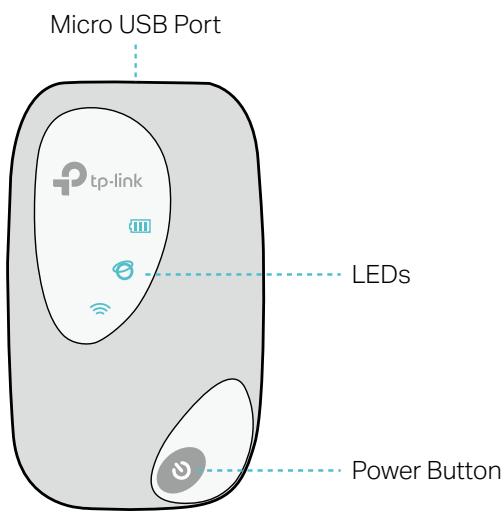
LED Explanation
| LED | Status | Indication |
| (Wi-Fi) | On | Wi-Fi is enabled. |
| Off | Wi-Fi is disabled. | |
| (Internet) | On | Internet service is available. |
| Off | Internet service is unavailable. | |
| (Battery) | On | Power is on. |
| Off | Power is off. | |
| Blinking Red | The battery level is lower than 10%. | |
| Blinking Green | The Mobile Wi-Fi is charging. |
Note:
The LEDs will turn off automatically after idling for 30 seconds. To check the LED status, press the Power button to turn them on again.
Item Explanation
| Item | Description |
| Power Button | • Press and hold to power on/off the Mobile Wi-Fi. • Press to turn on LEDs if they are off after idling. |
| Micro USB Port | Plug in the USB cable to this port to charge your Mobile Wi-Fi. |
1.2.2. The Interior
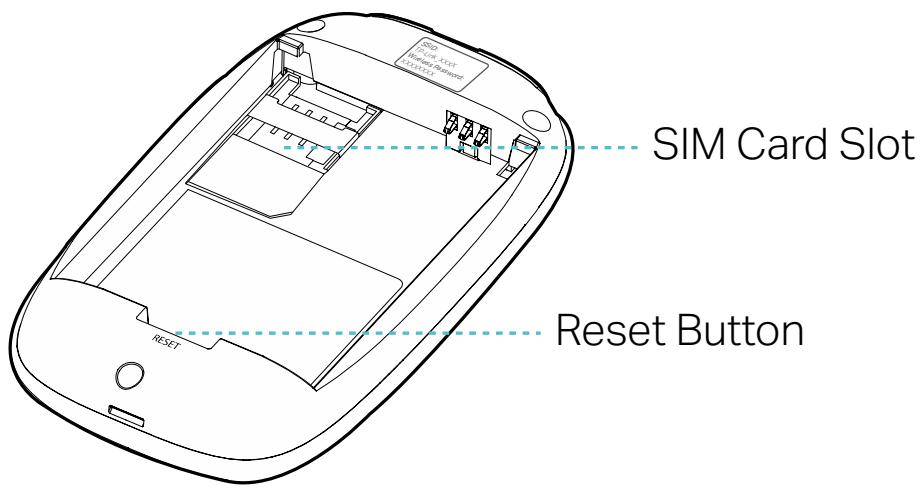
Item Explanation
| Item | Description |
| SIM Card Slot | Insert a SIM card into the slot. A micro or nano SIM card must be converted using a SIM card adapter. |
| Reset Button | With the Mobile Wi-Fi powered on, use a pin to press and hold this button until all LEDs turn on momentarily to reset the Mobile Wi-Fi. |
Note:
- The label is under the battery pack.
- Resetting the device to its factory defaults will clear all previous configuration.
Set Up Internet Connection
This chapter introduces how to install the Mobile Wi-Fi and connect your wireless or smart devices to the internet.
It includes the following sections:
Install the Mobile Wi-Fi - Connect to the Internet
2.1. Install the Mobile Wi-Fi
- Remove the back cover.
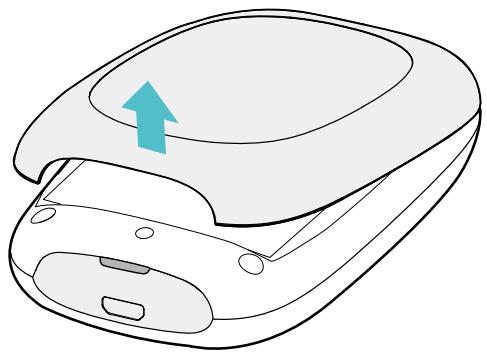
2. Insert your SIM card.
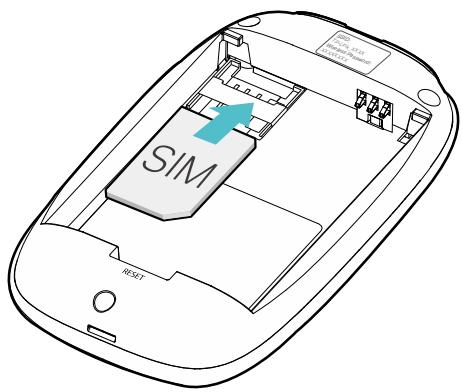
Note:
- A micro or nano SIM card must be converted using a SIM card adapter.
- The SIM card is not provided by TP-Link.
- Install the provided battery.
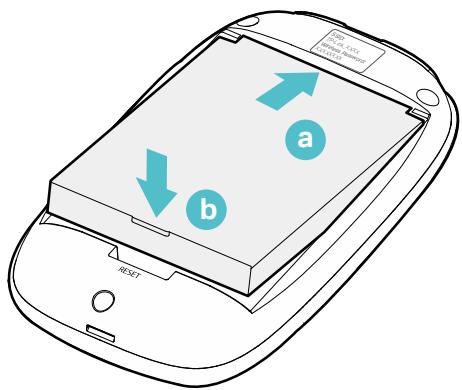
- Note down the default SSID and Wireless Password.
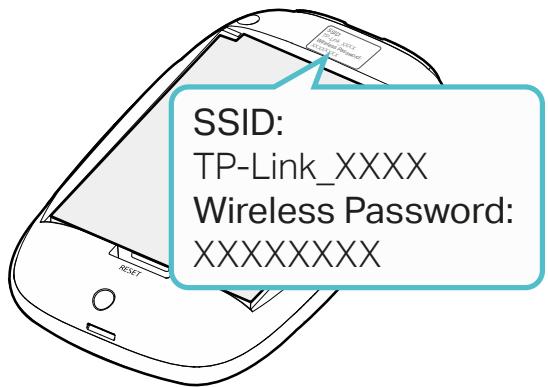
- Replace the cover.
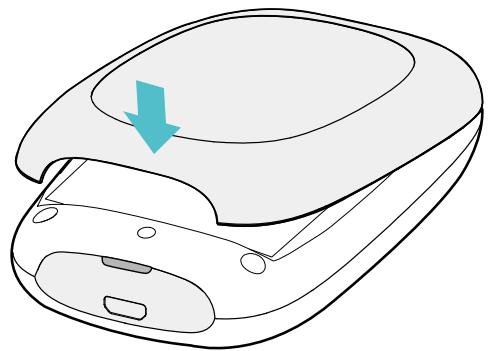
2.2. Connect to the Internet
- Press and hold the Power button until all LEDs are lit. Wait until the Internet LED turns solid green.
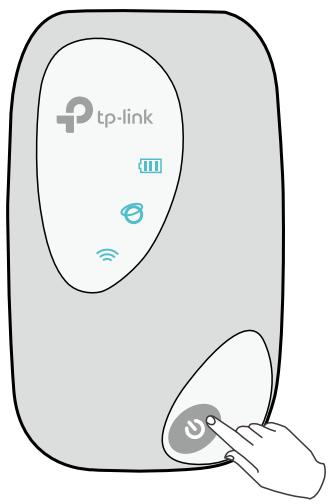
Note:
- To power off, press and hold the Power button until all the LEDs are off.
- If the Internet LED doesn't light up, refer to FAQ > Q2.
- Connect your wireless device to the Mobile Wi-Fi using the SSID and the Wireless Password you have noted down.
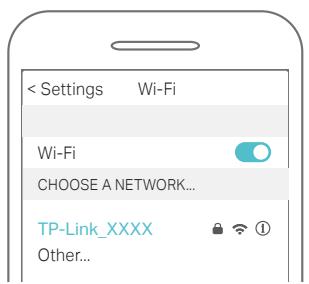
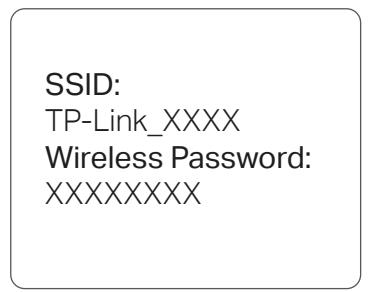
Note: If you use a computer to connect to the Mobile Wi-Fi, set it to obtain an IP address automatically.
- Now you can enjoy the internet!
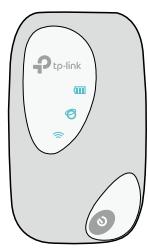



Note: By default, Power Saving feature is enabled and the Mobile Wi-Fi will turn off the Wi-Fi when no wireless devices are connected to it for 10 minutes. To resume the Wi-Fi connection, press the Power button.
Chapter 3
Log In
This chapter introduces how to log in to the web management page. Demonstrations in this guide use the phone web management interfaces, while some use the PC ones as those functions are only available on the PC web management page.
Before login, make sure your device is connected to the Mobile Wi-Fi's SSID.
This chapter includes the following sections:
Via tpMiFi App - Via PC Login Entry - Via Phone Login Entry
3.1. Via tpMiFi App
- Search "tpMiFi" at the App Store or Google Play or simply scan the QR code to download the tpMifi app.

- Connect your device to the Mobile Wi-Fi.
- Launch the tpMiFi app, and create a password to log into the device.
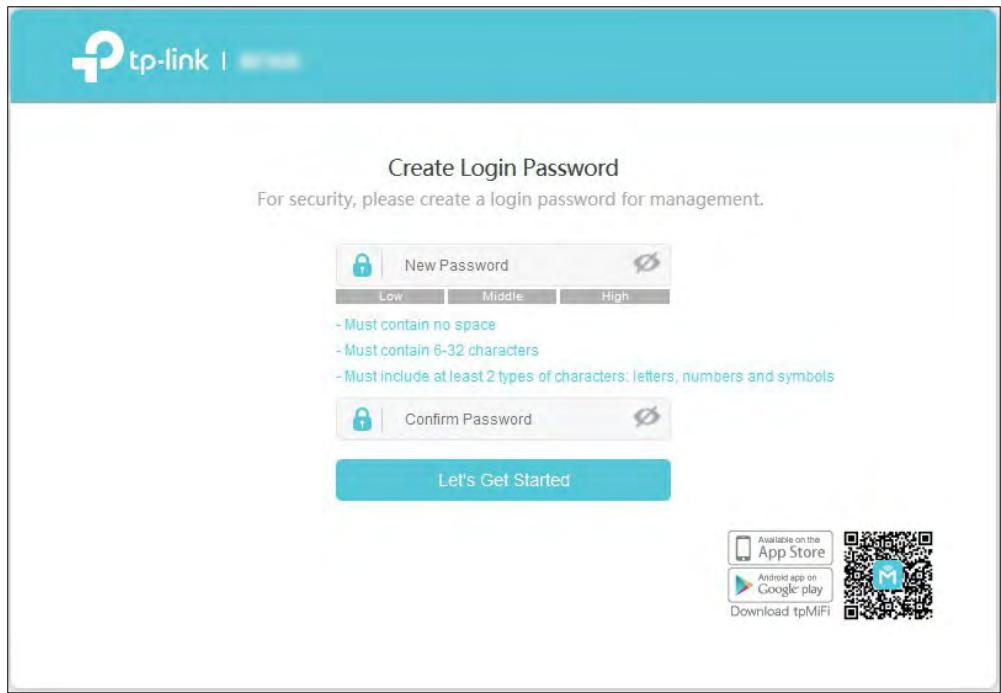
3.2. Via PC Login Entry
On the PC web management interfaces, you can enjoy more features, such as DHCP settings.
On your computer or tablet, visit http://tplinkmifi.net, and create a password to log in.
3.3. Via Phone Login Entry
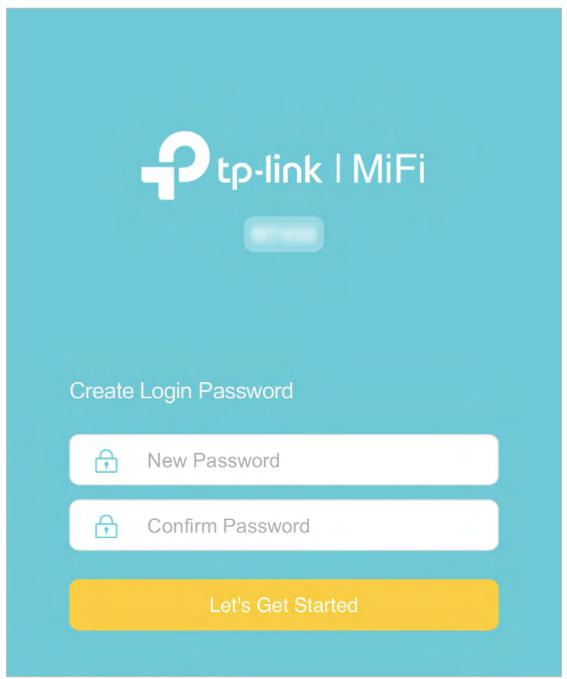
On your smart phone, visit http://tplinkmifi.net, and create a password to log in.
Manage Your Data Usage
This chapter explains how to manage the data usage of your Mobile Wi-Fi. It includes the following sections:
- Track Data Usage
- Limit Data Usage
- Set Usage Limit for Specific Devices
- Set Rate Limit for Specific Devices
- Enable Mobile Data
- Enable Data Roaming
4.1. Track Data Usage
This feature allows you to monitor the amount of data you have used on your Mobile Wi-Fi and revise the displayed data usage as needed.
4.1.1. Check Data Usage on the tpMiFi App
- Open your tpMiFi app and log in with the password you set.
- Go to the Home Page and you can see the data usage shown on the upper part.
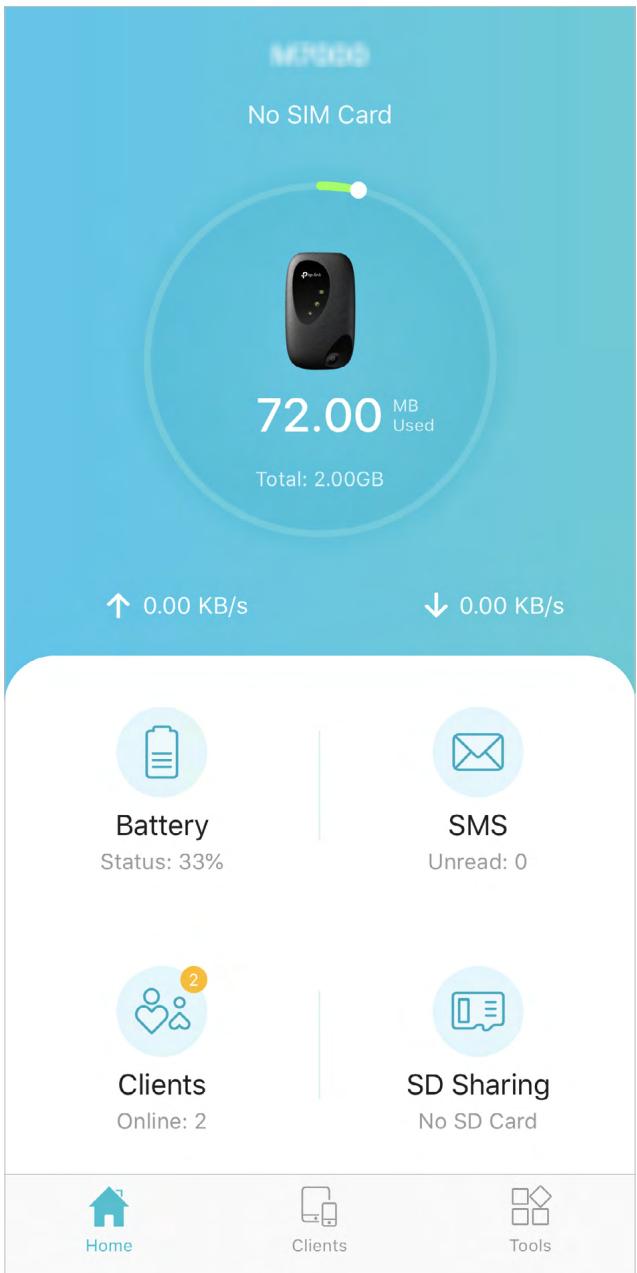
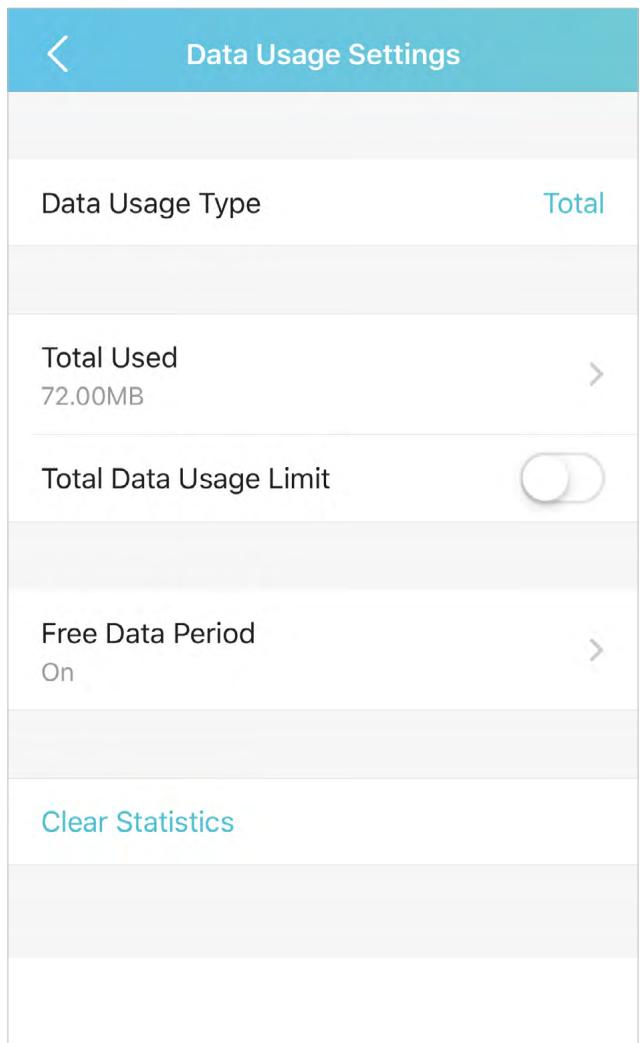
Or go to Tools > Data Usage Settings, and you can view the data usage as shown below.
Note:
- Actual data usage may vary from the estimated data usage displayed on the usage meter.
- The page above displays the monthly data usage if you have enabled Monthly Data Statistics.
4.1.2. Check Data Usage via SMS
Your mobile carrier can provide more accurate data usage information. To obtain it, you can send messages to your mobile carrier.
- Open your tpMiFi app and log in with the password you set.
- Go to Tools > SMS and tap New Message.
- Create a message to your carrier and then tap Send to send it. A few minutes later, you will receive a message with data usage information. For the phone number and message content, check with your carrier.

4.1.3. Revise Data Usage
If the data usage displayed is not accurate, you can modify it as needed.
- Open your tpMiFi app and log in with the password you set.
- Go to Tools > Data Usage Settings.
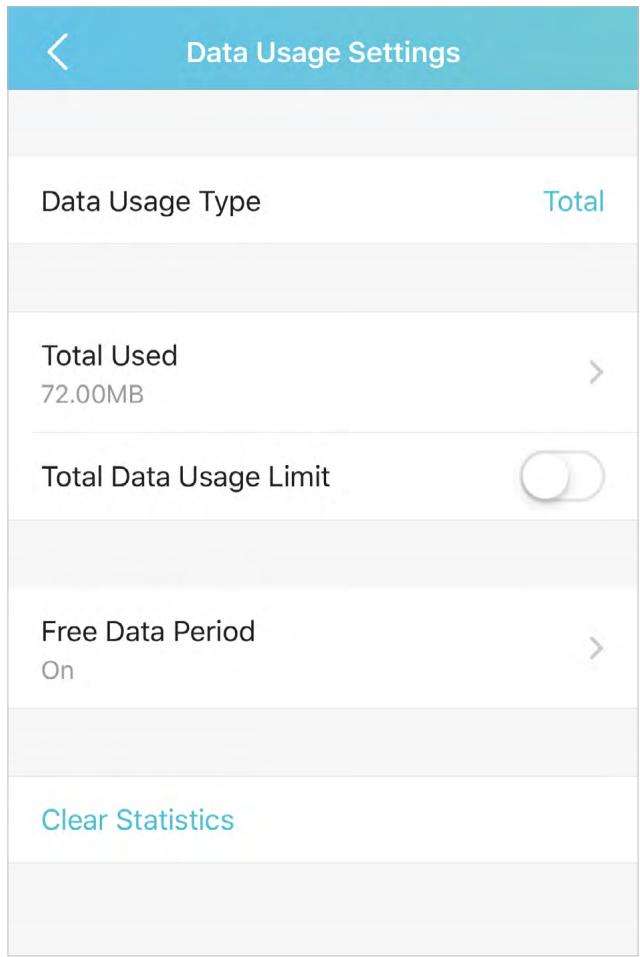
- The figure below displays the current data usage. Tap the Total Used field, and enter an accurate value for the data usage.
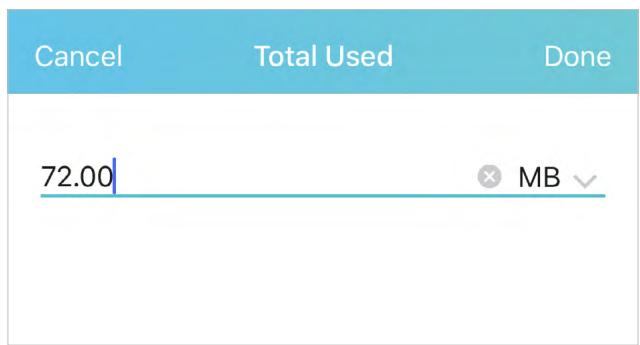
4. Tap Done.
Note:
- You can obtain the exact data usage from your carrier. Please refer to Check Data Usage via SMS.
- The page above displays the monthly data usage if you have enabled Monthly Data Statistics.
4.2. Limit Data Usage
This feature allows you to establish data limits for different data packages so that you can better control your data usage.
4.2.1. Limit Data Package
I want to:
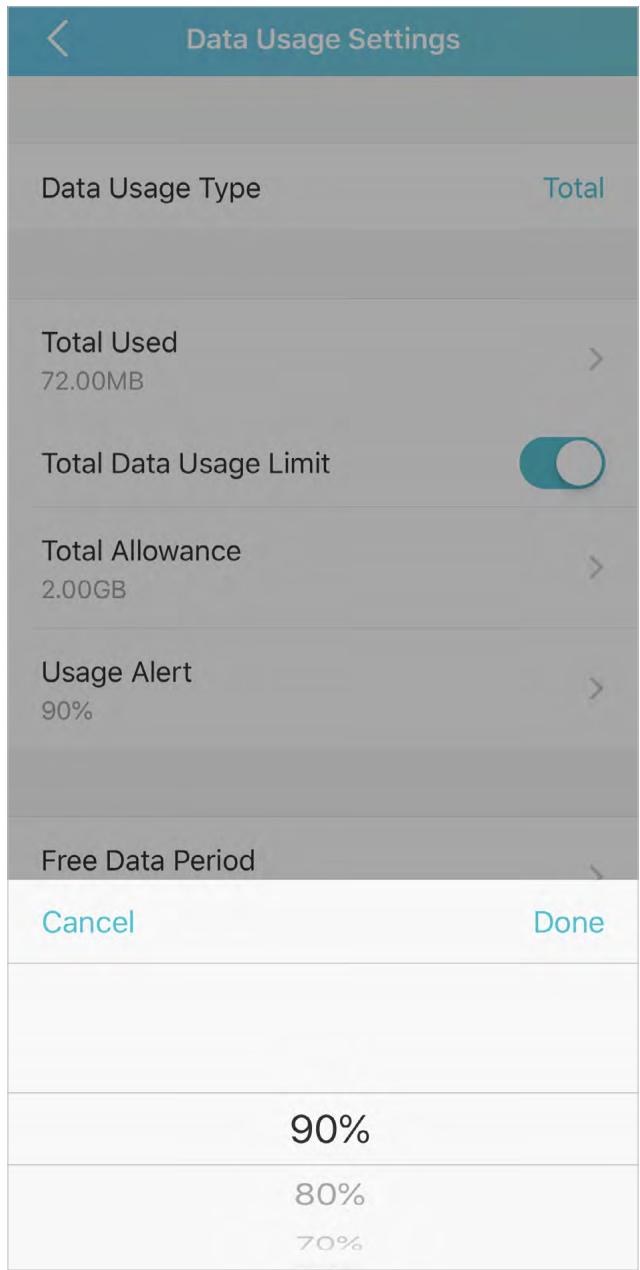
Limit my data usage so that I will not exceed my data package (2GB). I wish to:
- Receive an alert when the data usage reaches 90% of the allowance (1.8GB);
- Disable the internet access automatically when it reaches the allowance (2GB).
How can I do that?
- Open your tpMiFi app and log in with the password you set.
- Go to Tools > Data Usage Settings.
- Enable Total Data Usage Limit.
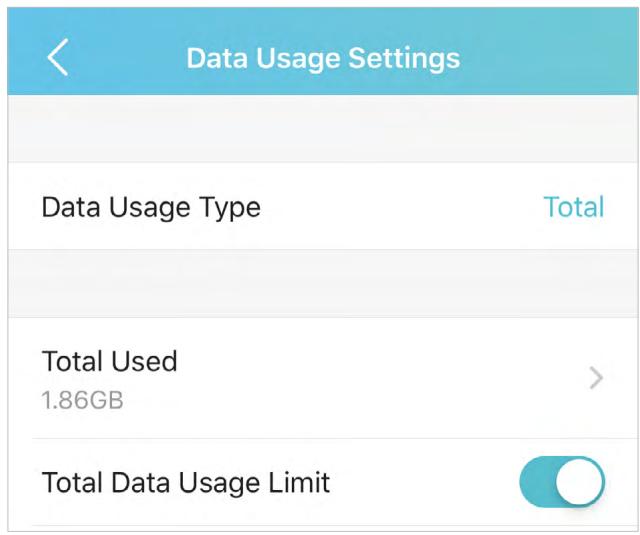
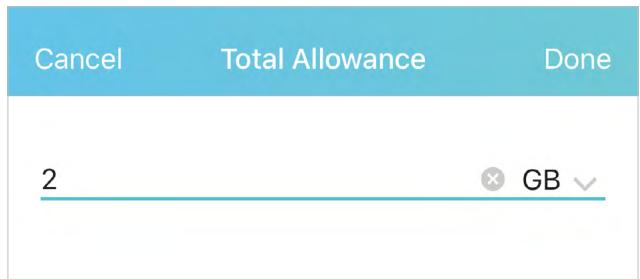
- Enter 2 in Total Allowance field and specify GB as the unit of measure. If your data usage has reached the allowance, the internet access will be disabled automatically and the data usage value on the Home page will turn red.
- Set 90% as the Usage Alert. If your data usage has reached the alert value, the data usage value on the Home page will turn yellow.
6. Tap Done.
Done!
Now your data usage is limited according to your settings.
4.2.2. Limit Monthly Data Usage
I want to:
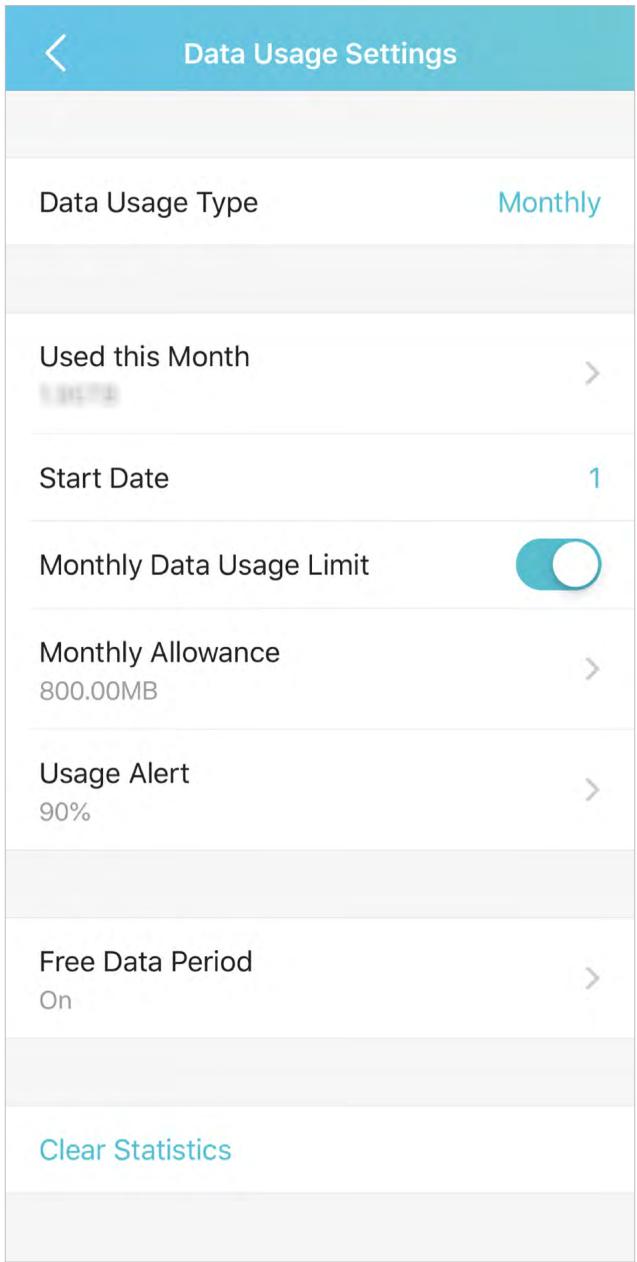
Limit my data usage so that I will not exceed my monthly data package (800MB). I wish to:
- Receive an alert when the data usage reaches 90% of the allowance (720MB).
- Disable the internet access automatically when it reaches the allowance (800MB).
How can I do that?
- Open your tpMiFi app and log in with the password you set.
- Go to Tools > Data Usage Settings.
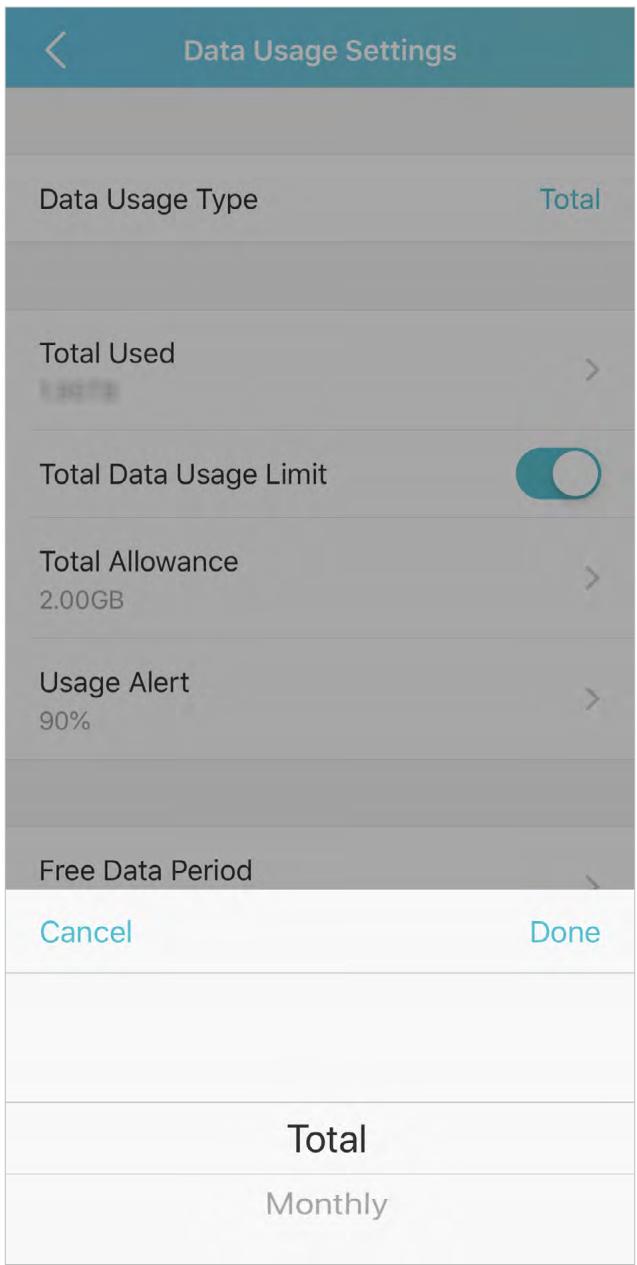
- Set the Data Usage Type as Monthly.
- Enable Monthly Data Usage Limit.
- Enter 800 in Monthly Allowance field and specify MB as the unit of measure. If your data usage has reached the allowance, the internet access will be
disabled automatically and the data usage value on the Status page will turn red.
- Set 90% as the Usage Alert percentage. If your data usage has reached the alert value, the data usage value on the Home page will turn yellow.
- Enter the Start Date.
Note:
The monthly data usage statistics will be cleared and recounted from the date you have set every month.
Done!
Now your data usage is limited according to your settings.
4.3. Set Usage Limit for Specific Devices
This feature allows you to establish data limits for some specific connected devices so that you can better control your data usage.
- Open your tpMiFi app and log in with the password you set.
- Go to Clients or tap Clients on the Home page.
- Click Edit on the right corner and select the device(s) you want to set usage limit.
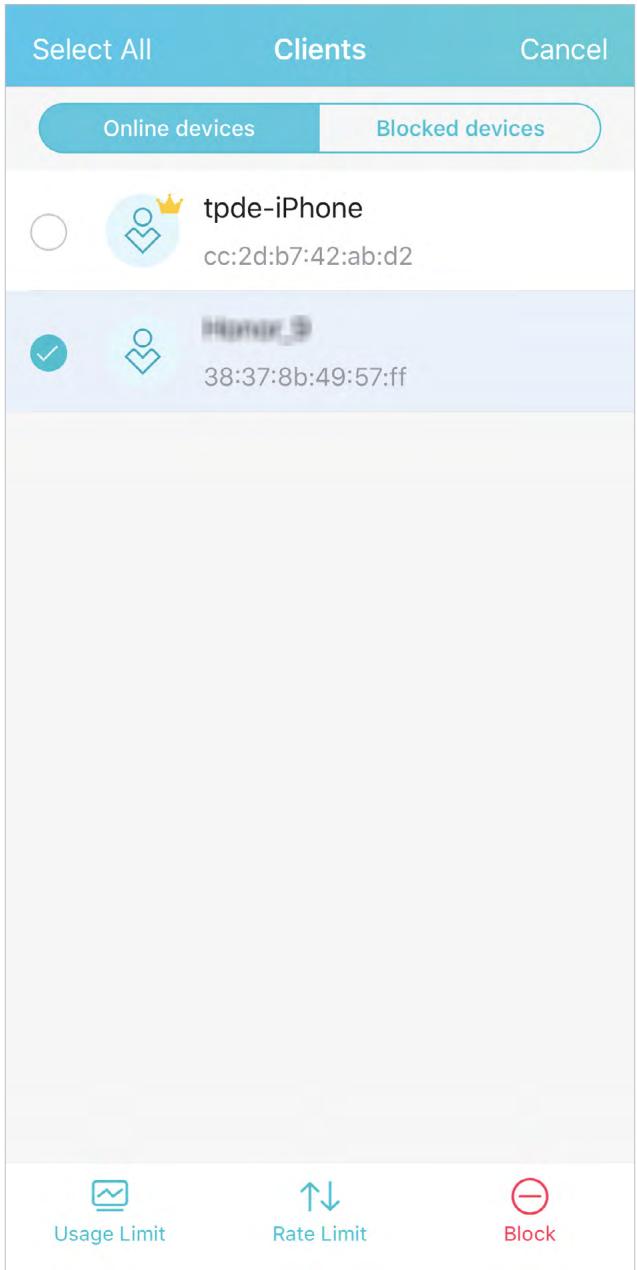
4. Tap Usage Limit at the bottom.
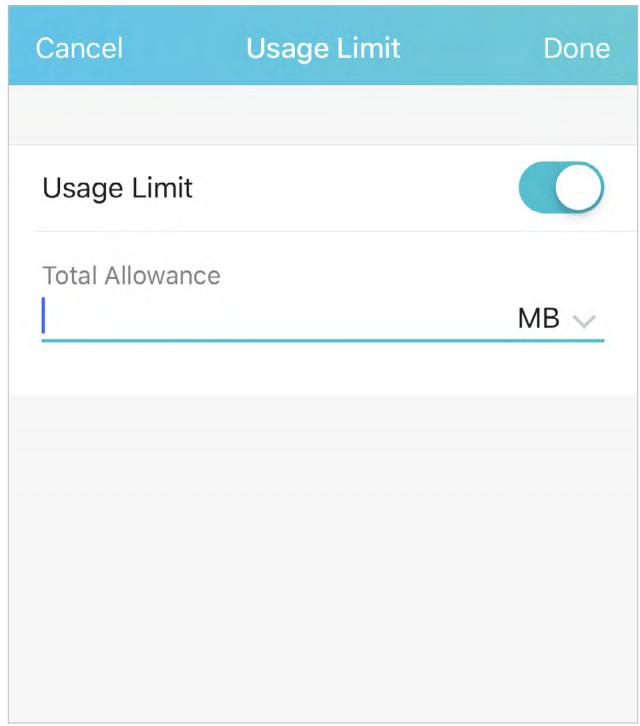
- Set the Total Allowance for that device.
- Tap Done.
4.4. Set Rate Limit for Specific Devices
This feature allows you to limit the Wi-Fi speed of some connected devices so that your device can have higher speed.
- Open your tpMiFi app and log in with the password you set.
- Go to Clients or tap Clients on the Home page.
- Click Edit on the right corner and select the device(s) you want to set rate limit.
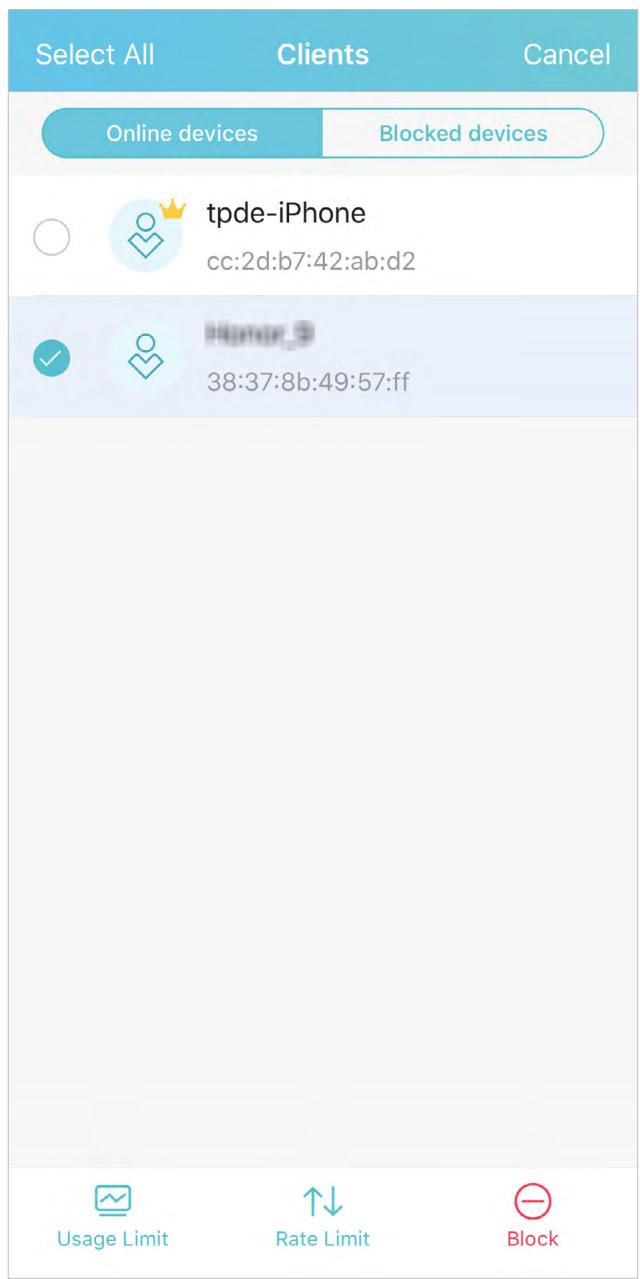
- Tap Rate Limit at the bottom.
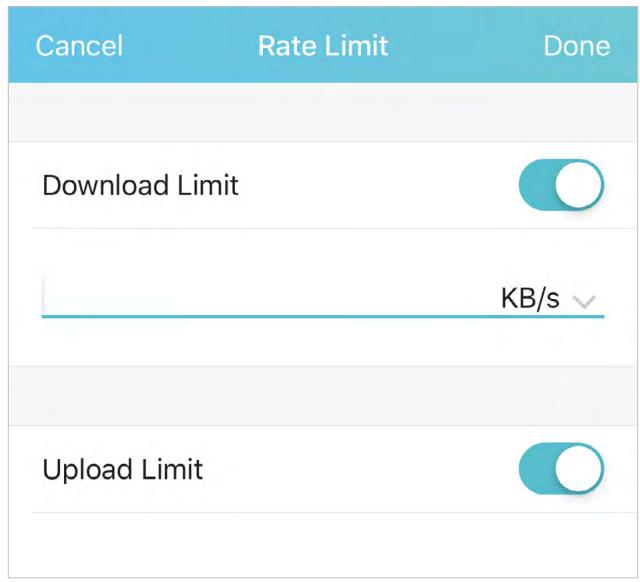
- Set the Download and Upload Limit for the device(s).
- Tap Done.
4.5. Set Up Free Data Period
In the free data period, you will not be charged for data by the mobile carrier. If your carrier has provided this data service to you, you can specify the free data period during, so the data usage will not be counted for data alert and limitation.
- Open your tpMiFi app and log in with the password you set.
- Go to Tools > Data Usage Settings and tap Free Data Period for setting.
- Enable Free Data Period.
- Enter the Start Time and End Time of Free Data Period.
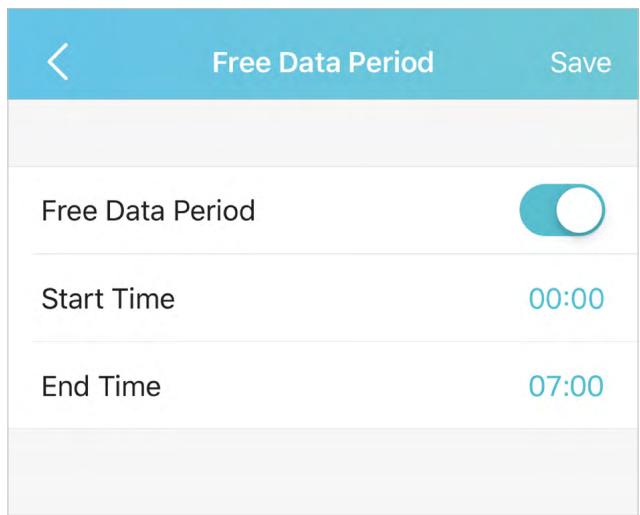
- Tap Save.
4.6. Enable Mobile Data
With Mobile Data (also known as cellular data) enabled, devices connected to the Mobile Wi-Fi can access the internet. This feature is enabled by default.
- Open your tpMiFi app and log in with the password you set.
- Go to Tools > Internet Settings.
- Enable Mobile Data.
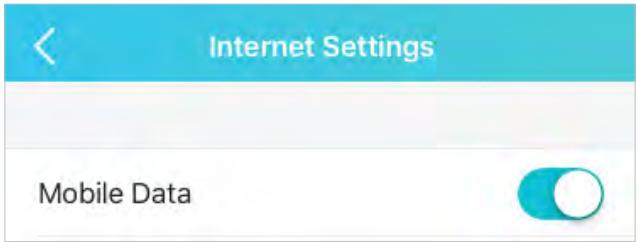
4. Tap Done.
Note:
Mobile Data is enabled by default. If disabled, internet access is prohibited.
4.7. Enable Data Roaming
If you are out of your carrier's service area, you cannot access the internet, and you will need to enable data roaming to access the internet.
- Open your tpMiFi app and log in with the password you set.
- Go to Tools > Internet Settings.
- Enable Data Roaming.
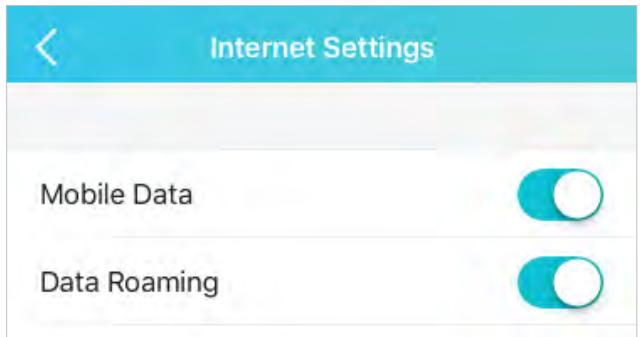
4. Tap Done.
Note:
Data Roaming is disabled by default. If enabled, data service is allowed when roaming.
Chapter 5
Secure Your Network
This chapter explains how to secure your network in various ways. You can change the SSID, manage the blacklist and lock your SIM card to safeguard your network.
It includes the following sections:
- Secure Wireless Network
- Block Unwelcome Devices
- Lock SIM Card
5.1. Secure Wireless Network
The SSID (wireless network name), wireless password of the Mobile Wi-Fi and security options are preset as default. The default SSID and password can be found inside the back cover of your Mobile Wi-Fi. You can customize the wireless settings as needed.
- Open your tpMiFi app and log in with the password you set.
- Go to Tools > Wireless Settings.
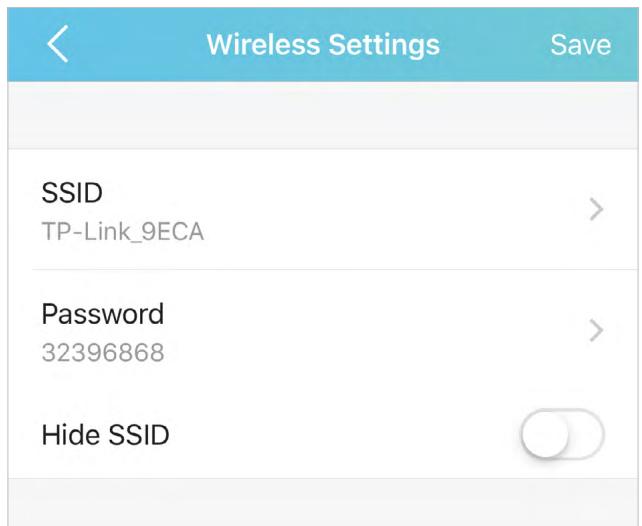
- To change the SSID and wireless password:
- Tap SSID and enter a new one. Tap Done.
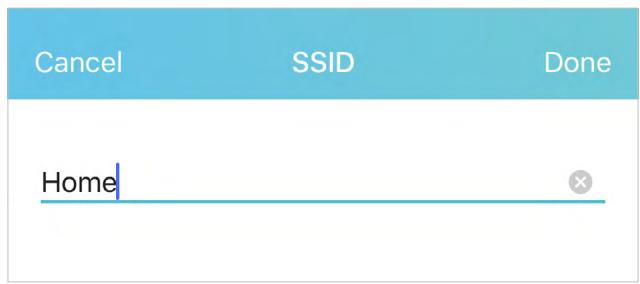
- Tap Password and enter a new one. Tap Done.
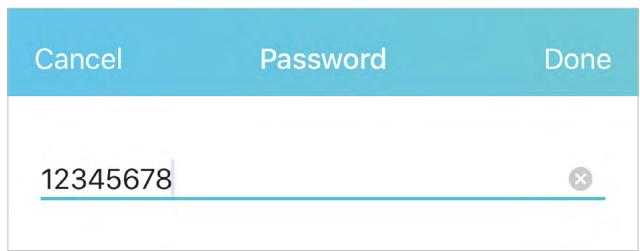
- Tap Save to save the settings. You can see the new SSID and Password now.
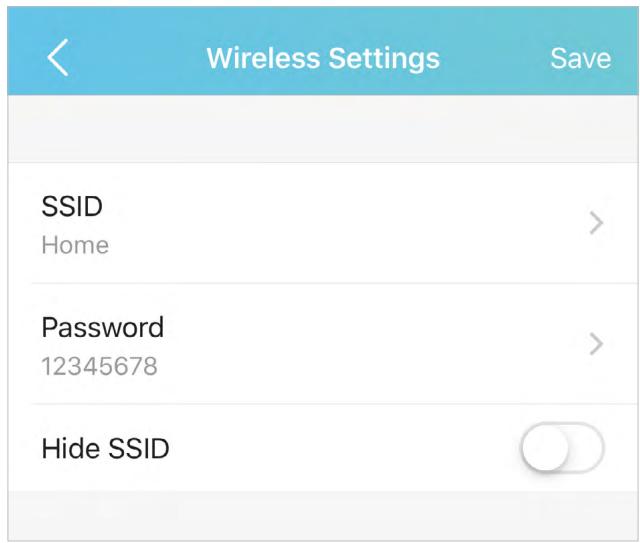
To hide the SSID:
- Toggle on Hide SSID, so the SSID will not be displayed when you scan for wireless networks.
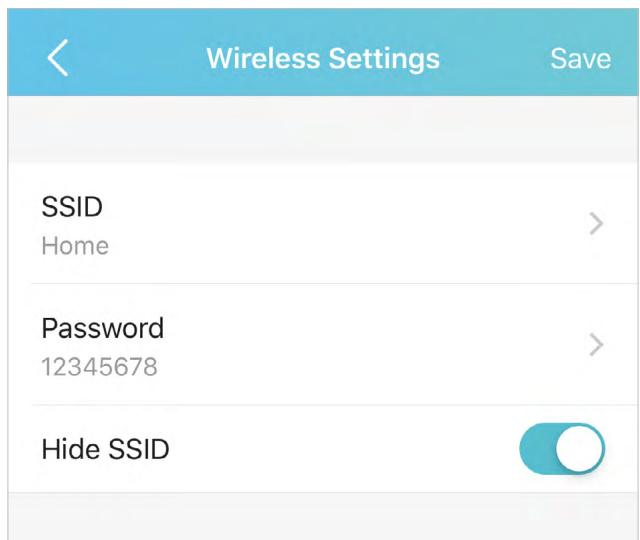
2. Tap Save.
Note:
If the SSID is hidden, it will not be displayed on your wireless device when you scan for local wireless networks. And you need to manually enter the SSID to join the network.
5.2. Block Unwelcome Devices
This feature allows you to restrict unwelcome devices to accessing the wireless network of your Mobile Wi-Fi.
- Open your tpMiFi app and log in with the password you set.
- Go to Clients or tap Clients on the Home page.
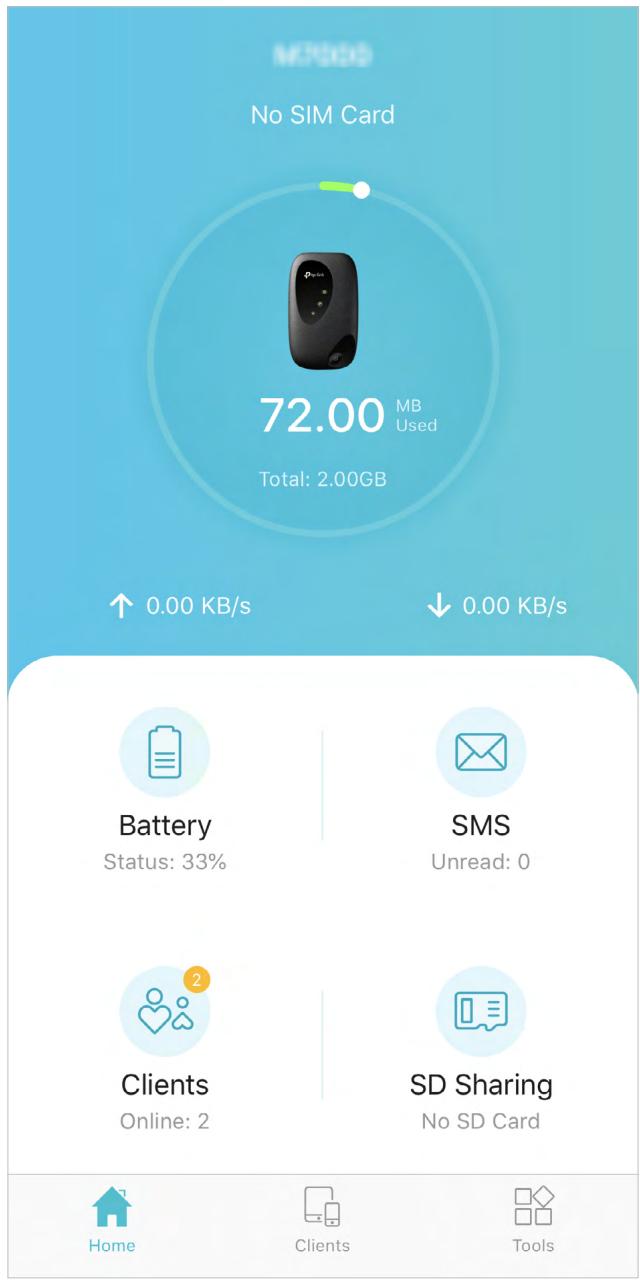
- Select the device that you want to block from the Online Devices list, slide left and tap Block.
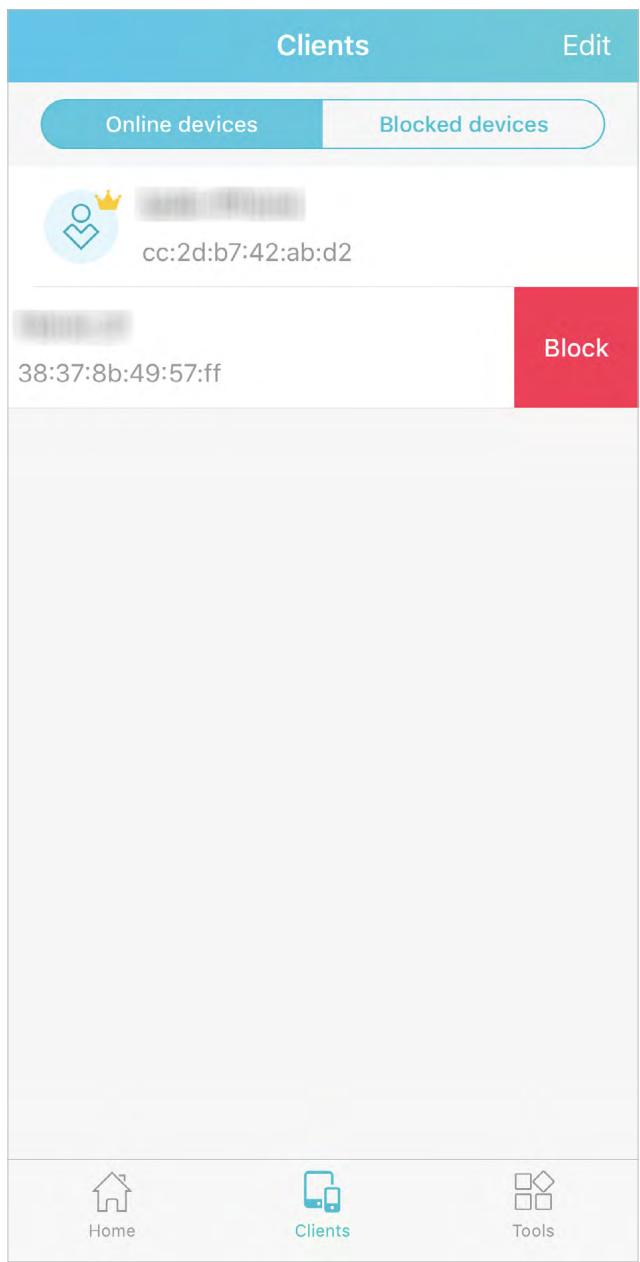
- If you want to block many devices at a time, click Edit on the right corner and select the devices you want to block. Tap Block at the bottom.

- You can check the blocked devices on the Blocked Devices list.
Note:
The current device cannot be blocked.
5.3. Lock SIM Card
This feature allows you to lock your SIM card with the PIN lock. Once the PIN lock is enabled, every time you start your Mobile Wi-Fi or another device (such as a smartphone or tablet) with this SIM card inserted, you need to enter the PIN code to access the internet.
If you don't wish to enter the PIN code when using this SIM card on your Mobile Wi-Fi, you can enable the Auto-Unlock PIN function. You will still have to enter the PIN code after inserting the SIM card to another device (such as a smartphone or tablet), however.
- To enable the PIN lock:
- Open your tpMiFi app and log in with the password you set.
- Go to Tools > Internet Settings > PIN Management and enable PIN.
- Enter the PIN code of your SIM card.

4. Tap Done.
- Open your tpMiFi app and enter the PIN code to access the internet every time you start your Mobile Wi-Fi.
Note:
- The PIN code of your SIM card is preset by your carrier and usually can be found on the package of the SIM card.
- After 3 failed verification attempts the SIM will be locked, and you will need to enter the PUK code to unlock it. The PUK code can usually be found on the package of the SIM card, too.
To enable Auto-Unlock PIN:
- Open your tpMiFi app and log in with the password you set.
- Go to Tools > Internet Settings > PIN Management and enable PIN.
- Enable Auto-Unlock PIN.
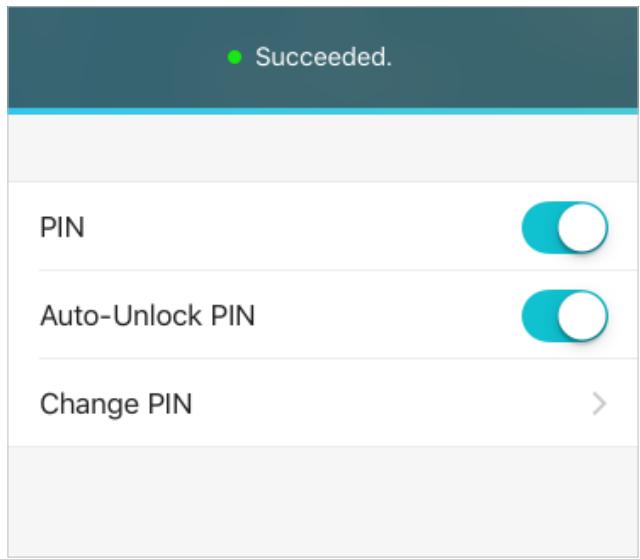
- Once enabled, you can save the trouble of entering the PIN code on your Mobile Wi-Fi upon power-on.
- To reset PIN code:
- Open your tpMiFi app and log in with the password you set.
- Go to Tools > Internet Settings > PIN Management and enable PIN.
- Tap Change PIN.
- Enter the current PIN code and then enter a new PIN code twice.
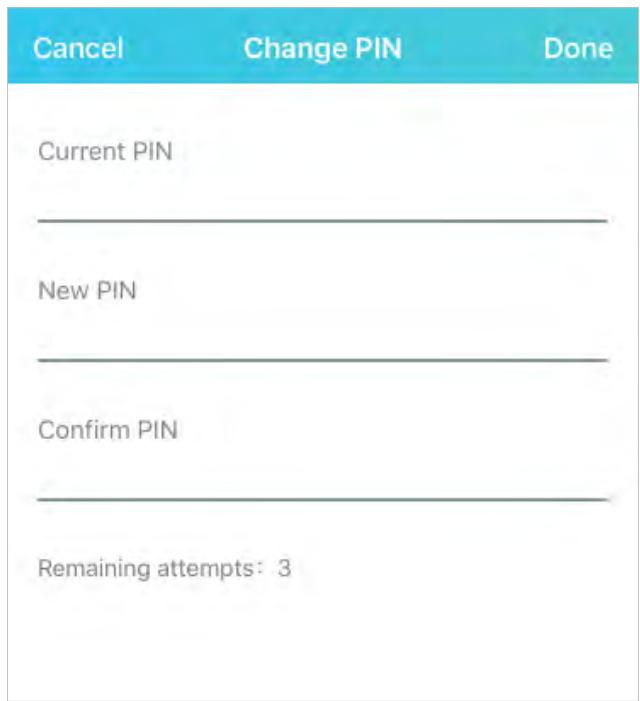
- Tap Done.
- Use the new PIN code for future PIN verifications.
Chapter 6
Customize Your Network
This chapter guides you on how to configure network settings of your Mobile Wi-Fi.
It contains the following sections:
- Specify Network Mode
- Configure APN
- Configure DHCP Server
6.1. Specify Network Mode
This Mobile Wi-Fi supports three modes of network connection: 4G Preferred, 4G Only and 3G Only. If your SIM card supports WCDMA, select 3G Only; if your SIM card supports FDD-LTE or TDD-LTE, select 4G Preferred or 4G Only as needed. In general, the 4G network is faster than the 3G one.
- Open your tpMiFi app and log in with the password you set.
- Go to Tools > Internet Settings > Network Mode.
- Select 4G Preferred, 4G Only or 3G Only as needed.
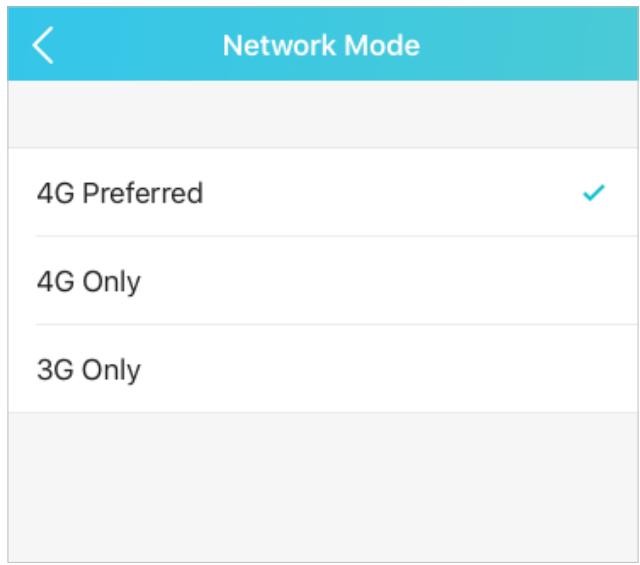
- Tap Done.
6.2. Configure APN
6.2.1. Configure APN Settings
If you are in a location beyond your mobile carrier's service area, you may need to configure the dial-up settings to access the internet provided by a local mobile carrier.
- Open your tpMiFi app and log in with the password you set.
- Go to Tools > Internet Settings > APN Management.
- Tap + to build an APN profile.
- Specify a name for the profile and fill in the parameters provided by your carrier.
| Cancel | Add APN | Done |
| Profile Name Profile Name1 | ||
| PDP Type | IPv6 | |
| APN Type | Static | |
| APN internet | ||
| Auth Type | NONE | |
- Tap Done and then tap Yes in the pop-up to apply the new profile.
Note:
You can tap the APN name to check the current profile. If you want to edit the APN profile, slide left and tap Edit to change the APN profile.
6.2.2. Configure Network Search
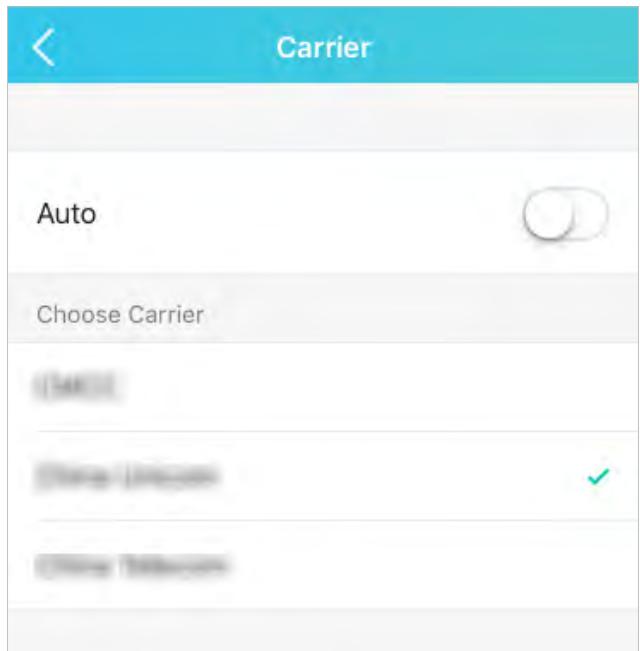
The Mobile Wi-Fi provides two types of network connection: Auto and Manual.
- If you enable Auto, the Mobile Wi-Fi will automatically establish internet connection when it is started.
- If you disable Auto, the Mobile Wi-Fi will start searching for mobile networks. You can choose a network with better performance to connect to. The mobile carrier providing the network must be or have cooperation with your SIM card provider.
- Open your tpMiFi app and log in with the password you set.
- Go to Tools > Internet Settings > Carrier.
- Enable or disable Auto as needed.
6.3. Configure DHCP Server
The Mobile Wi-Fi acts as a DHCP (Dynamic Host Configuration Protocol) server, dynamically assigning TCP/IP parameters to devices from the IP Address pool. You can change the settings of the DHCP server if necessary.
- On your computer or tablet, visit http://tplinkmifi.net, and log in with the password you set for the Mobile Wi-Fi.
- Go to Advanced > DHCP Server.
- Enter a new IP address in the IP Address field and leave the Subnet Mask as default. And enter the starting and ending IP addresses in the Start and End IP Address fields respectively.
Note:
- The start and end IP addresses should be on the same network segment as the IP address you have entered.
- If you have changed the IP address of your Mobile Wi-Fi, you should use the new IP address on http://tplinkmifi.net to log in to the web management page.
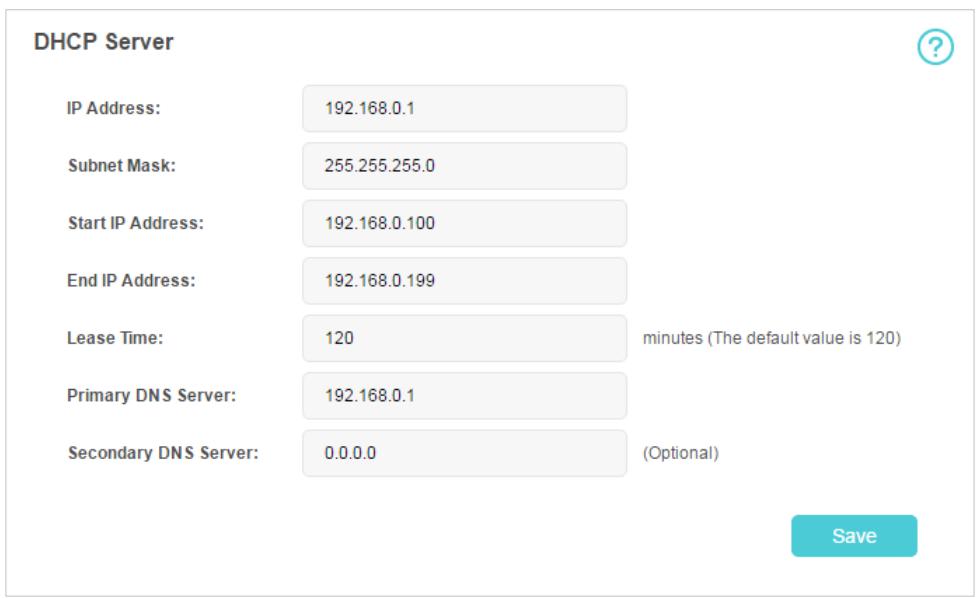
- Enter the lease time in the Lease Time field. When the lease time expires, the Mobile Wi-Fi will reassign IP addresses.
- Enter the primary DNS IP address which usually accords with the IP address.
- Enter the secondary DNS IP address if provided by your carrier.
- Click Save.
Manage Your Mobile Wi-Fi
This chapter presents how to manage and maintain your Mobile Wi-Fi. It includes the following sections:
- Save the Mobile Wi-Fi's Power
- Change Login Password
- Set Up System Time
- Restore Configuration Settings
- Update the Firmware
- Update ISP Parameters
- System Log
7.1. Save the Mobile Wi-Fi's Power
The Power Saving feature allows you to slow down the power consumption of your Mobile Wi-Fi, by adjusting the Wi-Fi range or enabling the Wi-Fi Autodisable Time feature.
- Open your tpMiFi app and log in with the password you set.
- Go to Tools > Battery or tap Battery on the Home page.
To set Wi-Fi Range:
- Enable Power Saving Mode.
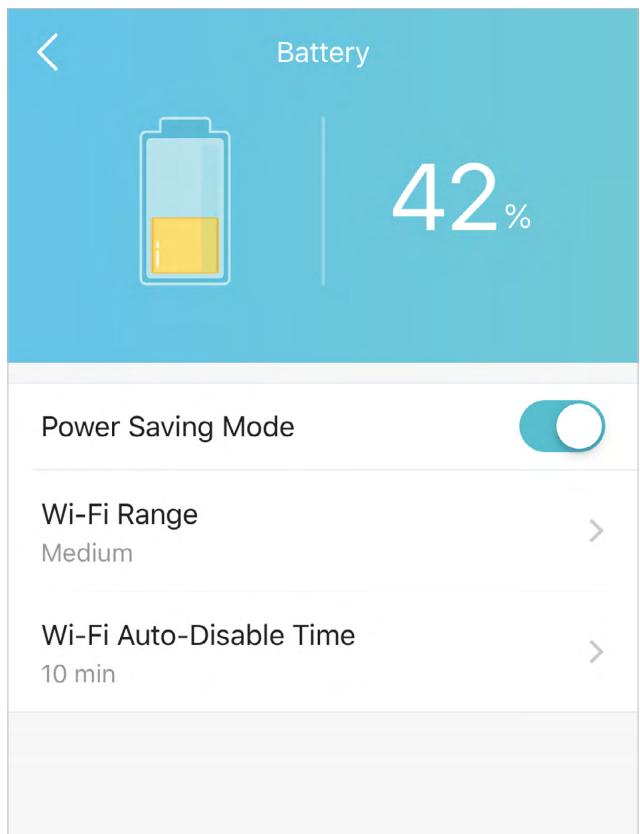
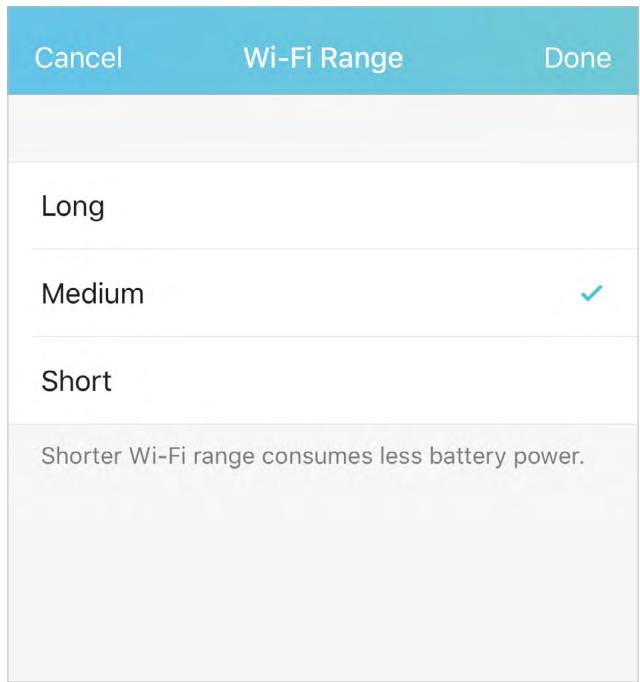
- Tap Wi-Fi Range and select Long, Medium or Short.
Note:
The shorter the Wi-Fi Range is, the less power your Mobile Wi-Fi uses.
- Tap Done.
- Tap Restart Wi-Fi on the pop-up to make the configurations take effect, and then reconnect to the Wi-Fi after it restarts.
- To set Wi-Fi Auto-enable Time:
- Enable Power Saving Mode.
- Tap Wi-Fi Auto-Disable Time and specify the time.
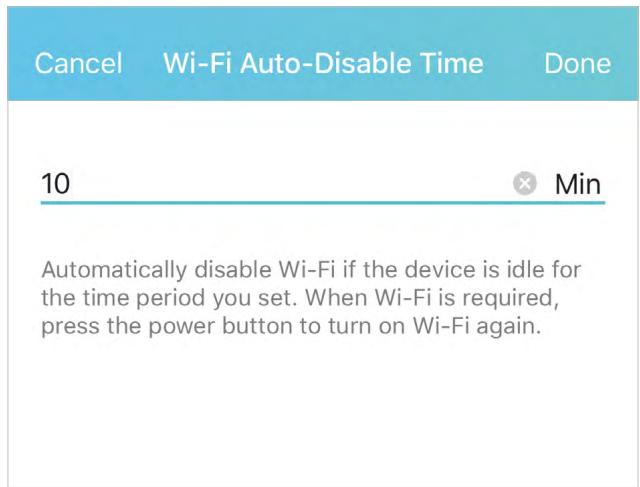
- Tap Done. If there are no devices connected to the Mobile Wi-Fi for the time you specified, the Wi-Fi will be disabled automatically.
Note:
To resume the Wi-Fi, press the Power button.
7.2. Change Login Password
This feature allows you to change your login password of the web management page.
- Open your tpMiFi app and log in with the password you set.
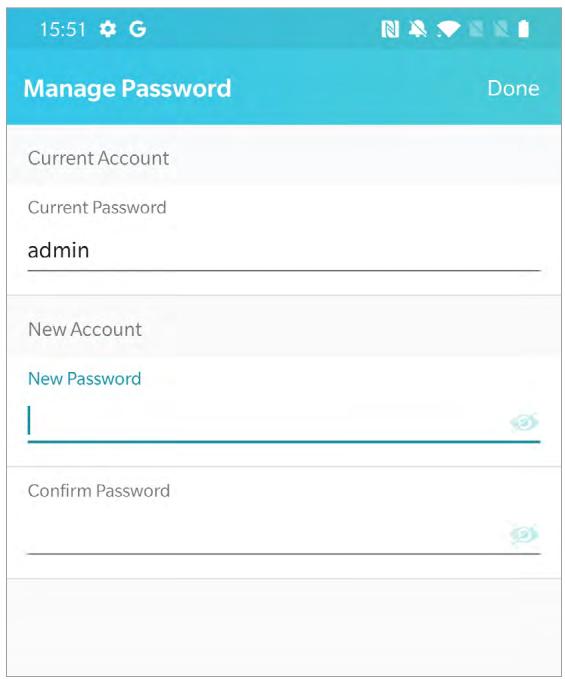
- Go to Tools > System Tools > Manage Password.
- Enter the current password. Then enter the new password twice (case-sensitive) and tap Done.
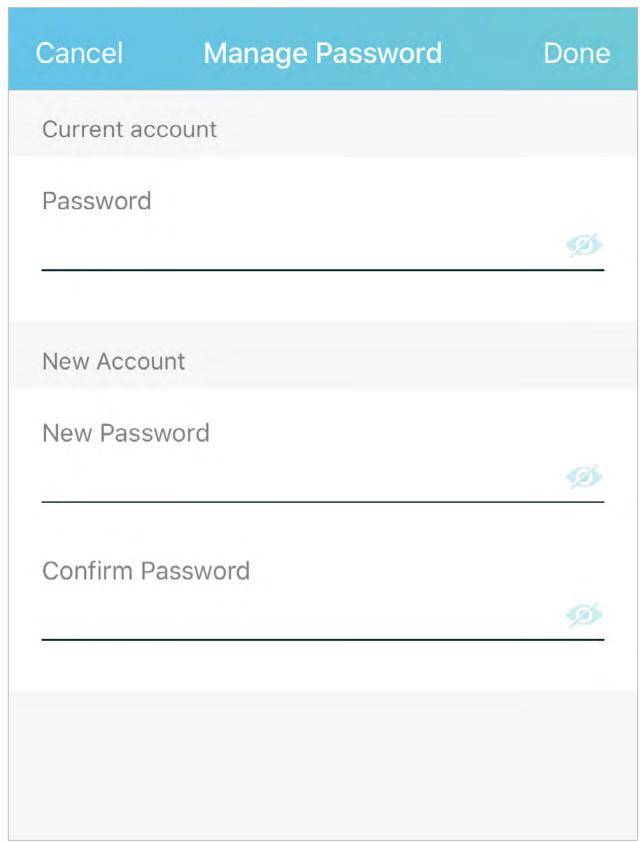
- Use the new password for future logins.
7.3. Set Up System Time
The system time you configure here will be used for time-based functions.
Note:
Make sure your Mobile Wi-Fi has access to the internet. Otherwise, it cannot synchronize the current time.
- On your computer or tablet, visit http://tplinkmifi.net, and log in with the password you set for the Mobile Wi-Fi.
- Go to Device > Advanced > Time Settings.
- Select your local Time Zone from the drop-down list.
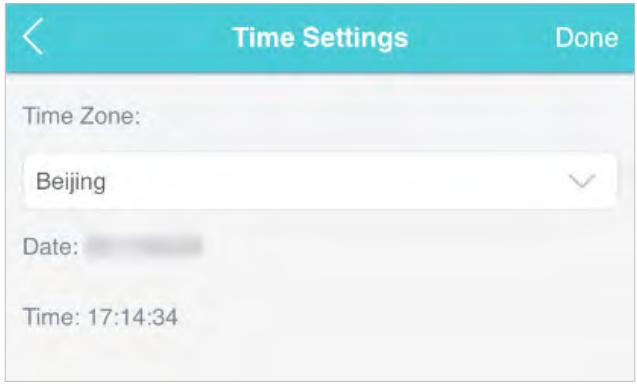
- Tap Done.
7.4. Restore Configuration Settings
The Factory Defaults feature allows you to restore your Mobile Wi-Fi to its factory defaults. After you restore your Mobile Wi-Fi, all previous settings will be cleared and you have to reconfigure them.
Method One: Via the Reset button
With the Mobile Wi-Fi powered on, remove the cover. Use a pin to press and hold the Reset button until all LEDs turn on momentarily.
Method Two: Via the tpMiFi App
- Open your tpMiFi app and log in with the password you set.
- Go to Tools > System Tools.
- Tap Reset.
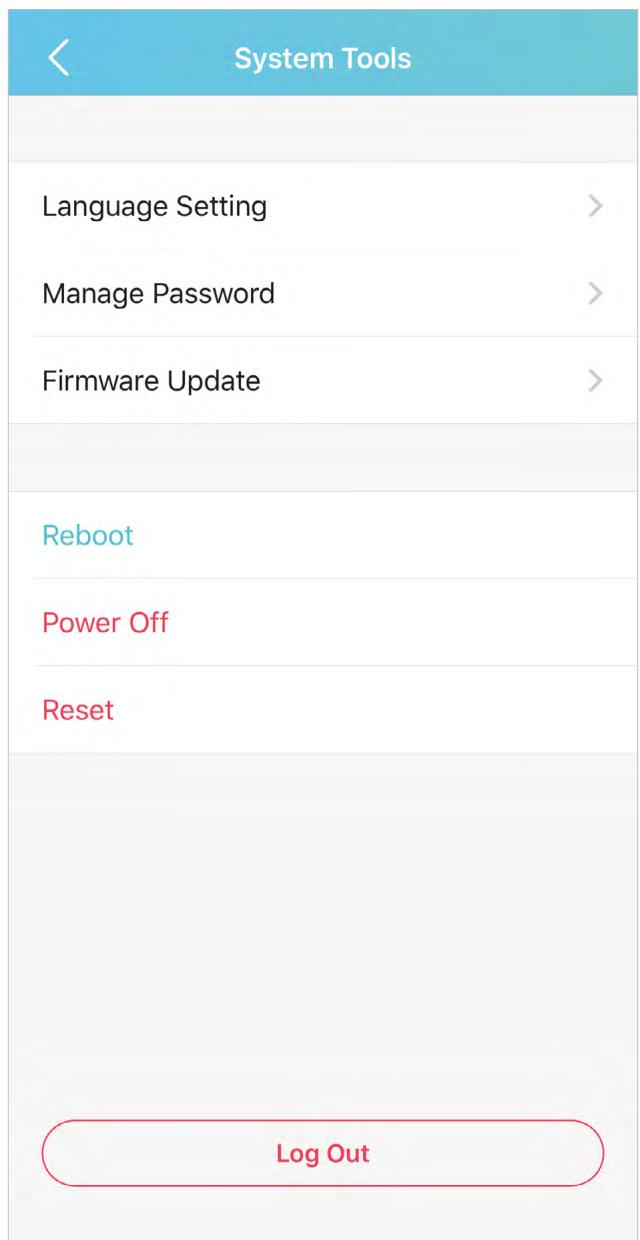
- Tap Reset on the pop-up and then wait for the Mobile WiFi to reboot and reset.
Method Three: Via the web page
- On your computer or tablet, visit http://tplinkmifi.net and log in with the password you set for the Mobile Wi-Fi.
- Go to Advanced > Device > Factory Defaults.
- Click Restore.
Factory Defaults

Restore
- Wait a few minutes for the restore to complete and the Mobile Wi-Fi to restart.
Note: During the resetting process, do not power off the Mobile Wi-Fi.
7.5. Update the Firmware
TP-Link is committed to improving product features, giving you a better network experience. We will inform you on your tpMiFi app and the web management page if there's any newly released update firmware. Also, you can download it from the Support page of our website www.tp-link.com.
Note:
- Make sure the latest firmware file is matched with the hardware version (as shown in the Download section of the Support page).
- Make sure that you have a stable connection between the Mobile Wi-Fi and your computer.
- Do NOT power off the Mobile Wi-Fi during the firmware update and make sure it has sufficient power.
- To update the firmware via tpMiFi app
- Open your tpMiFi app and log in with the password you set.
- Go to Tools > System Tools. If there is new in the Firmware Update section, it means a new firmware version is available.
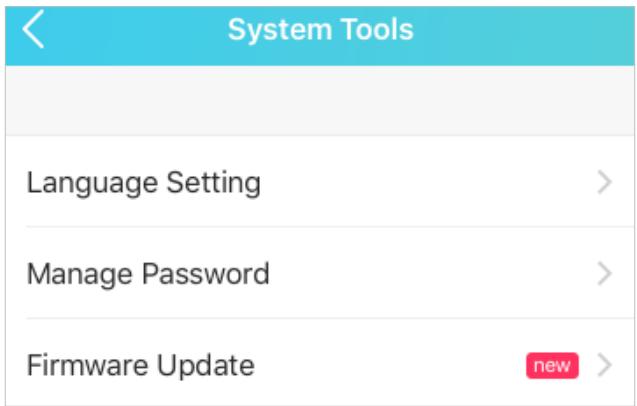
- Tap Firmware Update and the Mobile WiFi will start checking for new firmware.
- Click Update Now.
- Wait a few minutes for the update to complete and the Mobile Wi-Fi to restart.
To update the firmware locally via web management page:
- Download the latest firmware file for your Mobile Wi-Fi from our website www.tp-link.com.
- On your computer or tablet, visit http://tplinkmifi.net, and log in with the password you set for the Mobile Wi-Fi.
- Go to Advanced > Device > Firmware Update.
- Select Update via the local server, click Browse to locate the downloaded file, and then click Update.
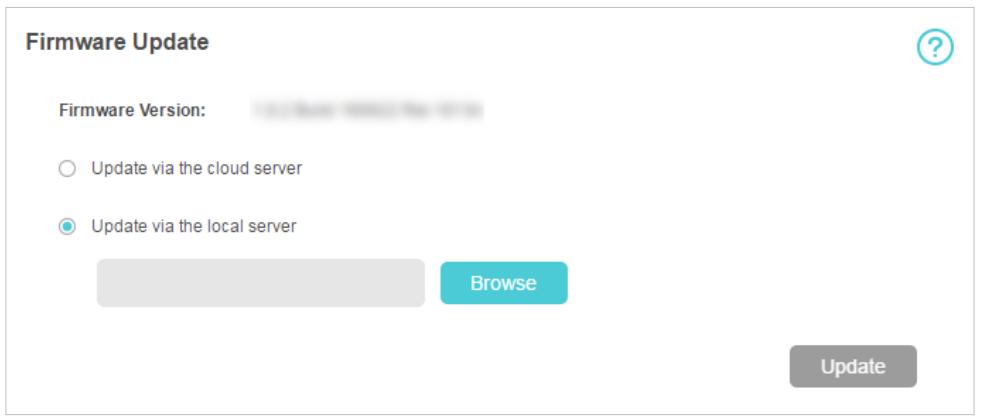
- Wait a few minutes for the update to complete and the mobile Wi-Fi to restart.
To update the firmware online via web management page:
- On your computer or tablet, visit http://tplinkmifi.net, and log in with the password you set for the Mobile Wi-Fi.
- Go to Advanced > Device > Firmware Update.
- Select Update via the cloud server.
- Click Update.
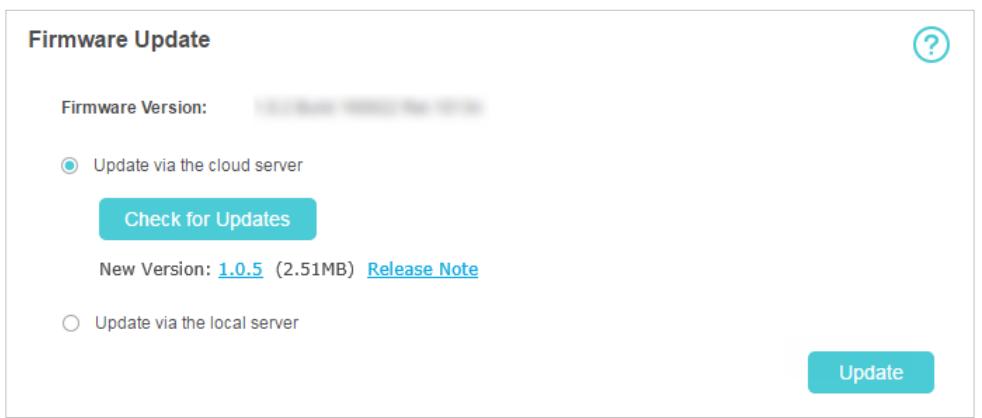
- Wait a few minutes for the update to complete and the Mobile Wi-Fi to restart. Note:
To download the latest firmware file, you can also click the New Version number, such as 1.0.5 in the page above. To view update details, click Release Note.
7.6. Update ISP Parameters
You can update the ISP information.
- Download the latest ISP update file from the Support page at www.tp-link.com.
- On your computer or tablet, visit http://tplinkmifi.net, and log in with the password you set for the Mobile Wi-Fi.
- Go to Advanced > Dial-up > ISP Update.
- Click Browse to locate the downloaded file.
- Click Update.
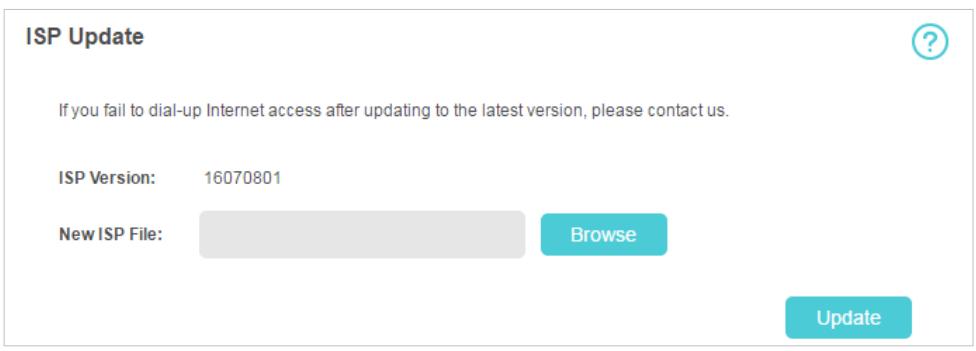
7.7. System Log
When the Mobile Wi-Fi does not work normally, you can save the system log and send it to our technical support for troubleshooting.
- To save the system logs locally:
- On your computer or tablet, visit http://tplinkmifi.net, and log in with the password you set for the Mobile Wi-Fi.
- Go to Advanced > Device > System Log.
- Click Save Logs to save the logs to your local device.
System Log

Log Type:
ALL

Log Level:
ALL


Refresh

Clear
| ID | Time | Type | Level | Content |
| 1 | 01-03 00:01:02 | WLAN | INFO | DHCPS: Recv INFORM from 11-22-33-44-55-66FAXCVZDFAFWEAWFEAFVDGVDGVAWE... |
| 2 | 01-01 00:01:03 | DHCP | NOTICE | DHCPS: Recv INFORM from 11-22-33-44-55-66 |
| 3 | 01-02 00:01:04 | 4G | WARNING | DHCPS: Recv INFORM from 11-22-33-44-55-66 |
| 4 | 01-01 00:01:03 | SMS | ERROR | DHCPS: Recv INFORM from 11-22-33-44-55-66 |
| 5 | 01-02 00:01:04 | SYSTEM | INFO | DHCPS: Recv INFORM from 11-22-33-44-55-66 |
| 6 | 01-02 00:01:04 | OTHER | INFO | DHCPS: Recv INFORM from 11-22-33-44-55-66 |
| 7 | 01-01 00:01:03 | INFO | DHCPS: Recv INFORM from 11-22-33-44-55-66 | |
| 8 | 01-02 00:01:04 | DHCP | INFO | DHCPS: Recv INFORM from 11-22-33-44-55-66 |


2


Pa


Save Logs
FAQ
Q1. What should I do if I forget the login password of my Mobile Wi-Fi?
- Reset your Mobile WiFi device and create a password to log into the device.
Q2. What should I do if the Internet LED doesn't light up (I cannot access the internet)?
- Check PIN status
Log in to the web management page. If the current SIM card status is PIN Locked, you will need to unlock it using the PIN code provided by your mobile carrier.
- Verify the mobile carrier parameters
1) Log in to the tpMiFi app. Go to Tools > Internet Settings and tap the VPN to verify the parameters (i.e., APN, Username, and Password) provided by your mobile carrier are correctly entered. 2) If the mobile carrier parameters are not correct, return to the Internet Settings page and slide the APN profile left and tap Edit to change the settings.
- Check the Data Roaming settings
If your SIM card is operated in a roaming service area, log in to the web management page on your phone. Log in to the tpMiFi app and go to Tools > Internet Settings and enable the Data Roaming option.
Check Mobile Data
Log in to the tpMiFi app and go to Tools > Internet Settings to verify that Mobile Data is enabled. If not, enable it.
Check Data Limit
Log in to the tpMiFi app and go to Tools > Data Usage Settings to check whether your data usage has exceeded the Total/Monthly allowance.
Q3. How do I reset the Mobile Wi-Fi to its factory default settings?
- With the Mobile Wi-Fi powered on, remove the cover. Use a pin to press and hold the Reset button until all LEDs turn on momentarily.
- Log in to the tpMiFi app and go to Tools > System Tools and tap Reset.
- On your computer or tablet, log in to the Mobile Wi-Fi's web management page. Go to Advanced > Device > Factory Defaults and click Restore.
CE Mark Warning

This is a class B product. In a domestic environment, this product may cause radio interference, in which case the user may be required to take adequate measures.
OPERATING FREQUENCY (the maximum transmitted power)
2400MHz—2483.5MHz (20dBm)
WCDMA: (24dBm+1/-3dB)
LTE: (23dBm±2.7dB)
EU Declaration of Conformity
TP-Link hereby declares that the device is in compliance with the essential requirements and other relevant provisions of directives 2014/53/EU, 2009/125/EC, 2011/65/EU and (EU)2015/863.
The original EU Declaration of Conformity may be found at https://www.tp-link.com/en/ce
RF Exposure Information
This device meets the EU requirements (2014/53/EU Article 3.1a) on the limitation of exposure of the general public to electromagnetic fields by way of health protection.
This device has been tested and meets the ICNIRP exposure guidelines and the European Standard EN 62209-2. SAR is measured with this device at a separation of 0.5 cm to the body, while transmitting at the highest certified output power level in all frequency bands of this device. Carry this device at least 0.5 cm away from your body to ensure exposure levels remain at or below the as-tested levels.
UKCA Mark

UK Declaration of Conformity
TP-Link hereby declares that the device is in compliance with the essential requirements and other relevant provisions of the Radio Equipment Regulations 2017.
The original UK Declaration of Conformity may be found at https://www.tp-link.com/support/ukca

PACKAGING ELEMENTS TO BE SEPARATED AND PLACED IN THE SORTING BIN

NCC Notice
CAUTION!
- Keep the device away from water, fire, humidity or hot environments.
- Do not attempt to disassemble, repair, or modify the device. If you need service, please contact us.
- Do not use any other chargers than those recommended
- Do not use the device where wireless devices are not allowed.
CAUTION!
- Avoid replacement of a battery with an incorrect type that can defeat a safeguard.
- Avoid disposal of a battery into fire or a hot oven, or mechanically crushing or cutting of a battery, that can result in an explosion.
- Do not leave a battery in an extremely high temperature surrounding environment that can result in an explosion or the leakage of flammable liquid or gas. Do not leave a battery subjected to extremely low air pressure that may result in an explosion or the leakage of flammable liquid or gas.
CAUTION!
- Danger of fire due to removal of the back cover.
- To install accessories, remove the housing as indicated in section 1 of the Quick Installation Guide.
- The back cover must be restored after the accessories are installed.
CAUTION!
Risk of explosion if the battery is replaced by an incorrect type.
- Operating Temperature: 0°C ~ 35°C (32°F ~ 95°F)
- This product uses radios and other components that emit electromagnetic fields. Electromagnetic fields and magnets may interfere with pacemakers and other implanted medical devices. Always keep the product and its power adapter more than 15 cm (6 inches) away from any pacemakers or other implanted medical devices. If you suspect your product is interfering with your pacemaker or any other implanted medical device, turn off your product and consult your physician for information specific to your medical device.
Please read and follow the above safety information when operating the device. We cannot guarantee that no accidents or damage will occur due to improper use of the device. Please use this product with care and operate at your own risk.
Explanations of the symbols on the product label
| Symbol | Explanation |
| --- | Direct current |
| RECYCLINGThis product bears the selective sorting symbol for Waste electrical and electronic equipment (WEEE). This means that this product must be handled pursuant to European directive 2012/19/EU in order to be recycled or dismantled to minimize its impact on the environment.User has the choice to give his product to a competent recycling organization or to the retailer when he buys a new electrical or electronic equipment. | |
| Caution | |
| Operator's manual |
- CHAPTER 1. GET TO KNOW ABOUT YOUR MOBILE WI-FI
- CHAPTER 2. SET UP INTERNET CONNECTION
- CHAPTER 3. LOG IN
- CHAPTER 4. MANAGE YOUR DATA USAGE
- CHAPTER 5. SECURE YOUR NETWORK
- CHAPTER 6. CUSTOMIZE YOUR NETWORK
- CHAPTER 7. MANAGE YOUR MOBILE WI-FI
- FAQ
- ABOUT THIS GUIDE
- CONVENTIONS
- MORE INFO
- CHAPTER
- GET TO KNOW ABOUT YOUR MOBILE WI-FI
- PRODUCT OVERVIEW
- THE FASTER CONNECTIONS, THE MORE YOU CAN DO
- ARTFUL LITTLE GADGET AND BUILT-IN BATTERY FOR LIFE ON THE GO
- EASY MANAGEMENT WITH THE TPMIFI APP
- PHYSICAL DESCRIPTION
- THE EXTERIOR
- NOTE
- ITEM EXPLANATION
- THE INTERIOR
- SET UP INTERNET CONNECTION
- INSTALL THE MOBILE WI-FI
- CONNECT TO THE INTERNET
- LOG IN
- VIA TPMIFI APP
- VIA PC LOGIN ENTRY
- VIA PHONE LOGIN ENTRY
- MANAGE YOUR DATA USAGE
- TRACK DATA USAGE
- CHECK DATA USAGE ON THE TPMIFI APP
- CHECK DATA USAGE VIA SMS
- REVISE DATA USAGE
- TAP DONE
- LIMIT DATA USAGE
- LIMIT DATA PACKAGE
- I WANT TO
- HOW CAN I DO THAT
- DONE
- LIMIT MONTHLY DATA USAGE
- SET USAGE LIMIT FOR SPECIFIC DEVICES
- TAP USAGE LIMIT AT THE BOTTOM
- SET RATE LIMIT FOR SPECIFIC DEVICES
- SET UP FREE DATA PERIOD
- ENABLE MOBILE DATA
- ENABLE DATA ROAMING
- SECURE YOUR NETWORK
- SECURE WIRELESS NETWORK
- TO CHANGE THE SSID AND WIRELESS PASSWORD
- TO HIDE THE SSID
- TAP SAVE
- BLOCK UNWELCOME DEVICES
- LOCK SIM CARD
- TO ENABLE THE PIN LOCK
- TO ENABLE AUTO-UNLOCK PIN
- CUSTOMIZE YOUR NETWORK
- SPECIFY NETWORK MODE
- CONFIGURE APN
- CONFIGURE APN SETTINGS
- CONFIGURE NETWORK SEARCH
- CONFIGURE DHCP SERVER
- MANAGE YOUR MOBILE WI-FI
- SAVE THE MOBILE WI-FI'S POWER
- CHANGE LOGIN PASSWORD
- SET UP SYSTEM TIME
- RESTORE CONFIGURATION SETTINGS
- METHOD ONE: VIA THE RESET BUTTON
- METHOD TWO: VIA THE TPMIFI APP
- METHOD THREE: VIA THE WEB PAGE
- UPDATE THE FIRMWARE
- TO UPDATE THE FIRMWARE VIA TPMIFI APP
- UPDATE ISP PARAMETERS
- SYSTEM LOG
- CE MARK WARNING
- OPERATING FREQUENCY (THE MAXIMUM TRANSMITTED POWER)
- EU DECLARATION OF CONFORMITY
- RF EXPOSURE INFORMATION
- UKCA MARK
- UK DECLARATION OF CONFORMITY
- NCC NOTICE
- CAUTION
Brand : TP-LINK
Model : M7010
Category : Mobile router